Tag Archives: DevOps

Setup Kubernetes Cluster with K3s

Introduction

In this tutorial, How to setup Kubernetes Cluster with K3s. It is a lightweight Kubernetes distribution developed by Rancher. K3s consume fewer resources than traditional distributions. It’s easy to set up and manage Kubernetes Cluster.

To set up a Kubernetes cluster using K3s, you can follow these steps:

Setup Kubernetes Cluster with K3s

First, You need to get a Linux machine.

Start by provisioning the servers that will be part of your Kubernetes cluster.

You can use virtual machines or bare-metal servers. Ensure that the servers have a compatible operating system (such as Ubuntu, CentOS, or RHEL).

Download the Rancher binary

Link download here. or you use the wget command or curl command to get download it.

wget https://github.com/k3s-io/k3s/releases/download/v1.23.5%2Bk3s1/k3s

make the binary executable.

chmod +x k3s

The output terminal is as below:

vagrant@controller:~$ wget https://github.com/k3s-io/k3s/releases/download/v1.23.5%2Bk3s1/k3s
--2022-06-05 08:49:28--  https://github.com/k3s-io/k3s/releases/download/v1.23.5%2Bk3s1/k3s
Resolving github.com (github.com)... 20.205.243.166
Connecting to github.com (github.com)|20.205.243.166|:443... connected.
HTTP request sent, awaiting response... 302 Found
Location: https://objects.githubusercontent.com/github-production-release-asset-2e65be/135516270/88b18d50-2447-4216-b672-fdf17488cb41?X-Amz-Algorithm=AWS4-HMAC-SHA256&X-Amz-Credential=AKIAIWNJYAX4CSVEH53A%2F20220605%2Fus-east-1%2Fs3%2Faws4_request&X-Amz-Date=20220605T084929Z&X-Amz-Expires=300&X-Amz-Signature=54b2aa58e831f8f8d179189c940eb5c38b4df7d4e3e33c18c9376b446f029742&X-Amz-SignedHeaders=host&actor_id=0&key_id=0&repo_id=135516270&response-content-disposition=attachment%3B%20filename%3Dk3s&response-content-type=application%2Foctet-stream [following]
--2022-06-05 08:49:28--  https://objects.githubusercontent.com/github-production-release-asset-2e65be/135516270/88b18d50-2447-4216-b672-fdf17488cb41?X-Amz-Algorithm=AWS4-HMAC-SHA256&X-Amz-Credential=AKIAIWNJYAX4CSVEH53A%2F20220605%2Fus-east-1%2Fs3%2Faws4_request&X-Amz-Date=20220605T084929Z&X-Amz-Expires=300&X-Amz-Signature=54b2aa58e831f8f8d179189c940eb5c38b4df7d4e3e33c18c9376b446f029742&X-Amz-SignedHeaders=host&actor_id=0&key_id=0&repo_id=135516270&response-content-disposition=attachment%3B%20filename%3Dk3s&response-content-type=application%2Foctet-stream
Resolving objects.githubusercontent.com (objects.githubusercontent.com)... 185.199.108.133, 185.199.109.133, 185.199.110.133, ...
Connecting to objects.githubusercontent.com (objects.githubusercontent.com)|185.199.108.133|:443... connected.
HTTP request sent, awaiting response... 200 OK
Length: 62468096 (60M) [application/octet-stream]
Saving to: ‘k3s’

k3s                                100%[==============================================================>]  59.57M  4.95MB/s    in 24s

2022-06-05 08:49:53 (2.46 MB/s) - ‘k3s’ saved [62468096/62468096]

vagrant@controller:~$ ls -l
total 61004
-rw-rw-r-- 1 vagrant vagrant 62468096 Mar 31 01:05 k3s
vagrant@controller:~$ chmod +x k3s

Start the K3s Server.

sudo ./k3s server

Check your Kubernetes cluster

sudo ./k3s kubectl get nodes

The output terminal is as below:

How to manage your cluster

You can run kubectl commands through the k3s binary. K3s provides a built-in kubectl utility.

For example, To drain the node you created.

sudo ./k3s kubectl drain your-hostname

Or use kubectl cordon a node with the command below:

sudo ./k3s kubectl cordon your-hostname

Add nodes to a K3s cluster

We created a cluster with just one node with the step above. If you want add 1 node to your cluster.

On Master:

first, you determine the node token value of your server. get the token value with the command below:

sudo cat /var/lib/rancher/k3s/server/node-token

For example, the Token values the output as below:

K10c94d11d4970c4ac58973c98ee32c9c1c4cb4fc30d81adfaf3ddf405ba1c48b49::server:7b1dcfc180415f105af019717027e77c

On Worker

Install k3s agent

export K3S_NODE_NAME=node1
export K3S_URL="https://192.168.56.11:6443"
export K3S_TOKEN=K10c94d11d4970c4ac58973c98ee32c9c1c4cb4fc30d81adfaf3ddf405ba1c48b49::server:7b1dcfc180415f105af019717027e77c
curl -sfL https://get.k3s.io | sh -s -

Then, the Additional node run command below:

sudo k3s agent --server https://myserver:6443 --token K3S_TOKEN

Repeat this process to add as many nodes as you want to your cluster.

The result, of the Master

Conclusion

You have setup Kubernetes cluster using K3s. You can now use kubectl it to deploy and manage your applications on the cluster.

Further, you can do with k8s k3s such as customize networking or logging, change the container runtime, and set up certificates. I hope will this your helpful. Thank you for reading the DevopsRoles page!

Deploying Services to a Docker Swarm Cluster

Introduction

In this tutorial, How to Deploy Services to a Docker Swarm Cluster. First, You need to install the Docker swarm cluster here. In today’s world of distributed systems, containerization has become a popular choice for deploying and managing applications.

Docker Swarm, a native clustering and orchestration solution for Docker, allows you to create a swarm of Docker nodes that work together as a cluster.

In this blog post, we will explore the steps to deploy a service to a Docker Swarm cluster and take advantage of its powerful features for managing containerized applications.

Deploying Services to a Docker Swarm Cluster

The simple, I will deploy the NGINX container service.

Log into Controller. Run the following command.

docker service create --name nginx_test nginx

To check the service status as command below

vagrant@controller:~$ docker service ls
ID             NAME         MODE         REPLICAS   IMAGE          PORTS
44sp9ig3k65o   nginx_test   replicated   1/1        nginx:latest

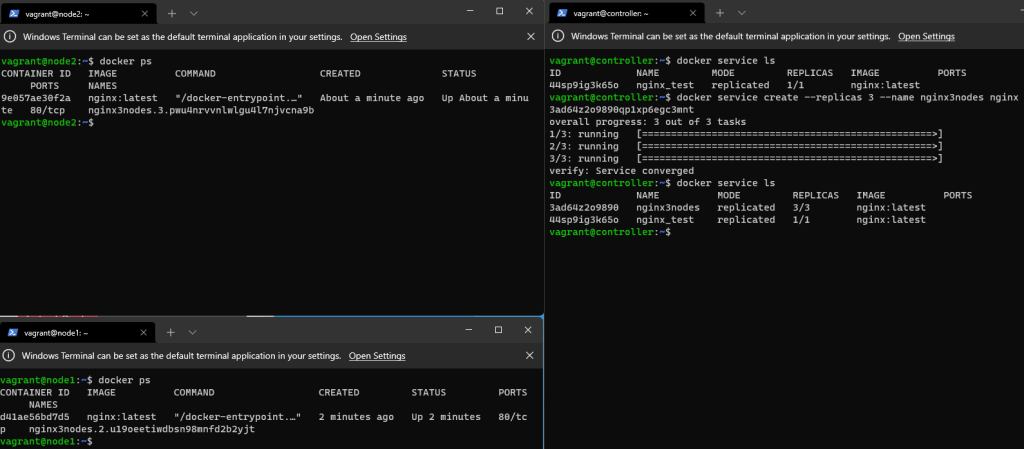
We will deploy that service to all three nodes as commanded below

docker service create --replicas 3 --name nginx3nodes nginx

The result is Deploy service to the swarm as the picture below

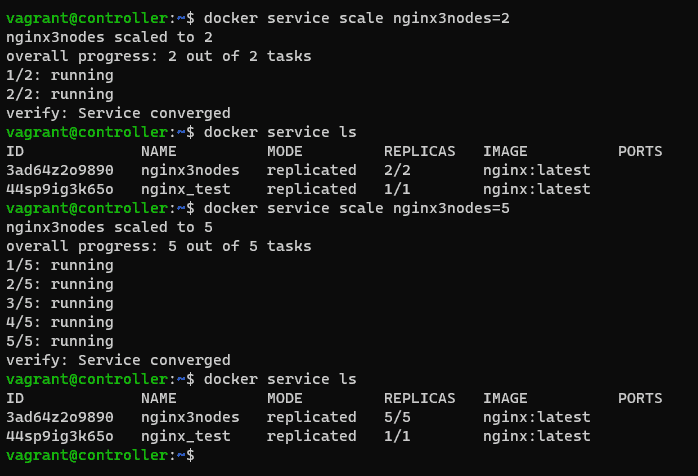
You want to scale the service to all five nodes.

docker service scale nginx3nodes=5

We deploy Portainer on the controller to easily manage the swarm.

docker run -d -p 8000:8000 -p 9443:9443 --name=portainer --restart=always -v /var/run/docker.sock:/var/run/docker.sock -v portainer_data:/data portainer/portainer-ce

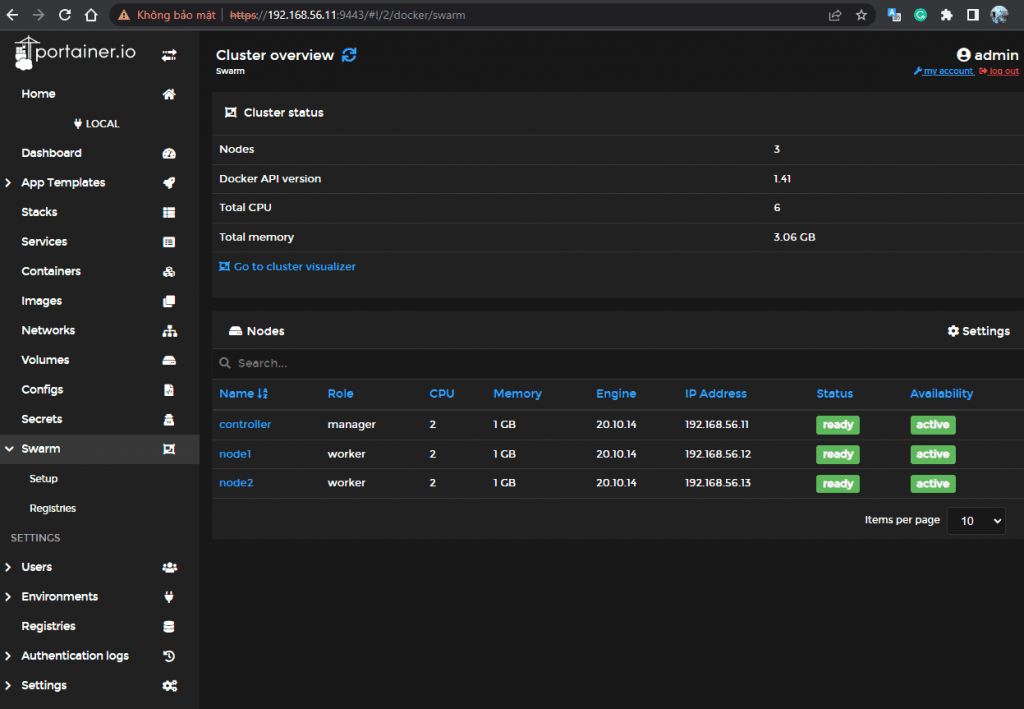
Open the browser, and go to http://SERVER:9443 (Where SERVER is the IP address of the server). you should see Swarm listed in the left navigation

Swarm on portainer

Conclusion

You have to Deploy the service to the swarm. Docker Swarm will take care of scheduling the service across the Swarm nodes and managing its lifecycle. Docker Swarm simplifies the management and scaling of containerized applications, providing fault tolerance and high availability. By following the steps outlined in this blog post, you can easily deploy your services to a Docker Swarm cluster and take advantage of its powerful orchestration capabilities. I hope will this your helpful. Thank you for reading the DevopsRoles page!

Deploy a self-hosted Docker registry

Introduction

In this tutorial, How to Deploy a self-hosted Docker registry with self-signed certificates. How to access it from a remote machine.

To deploy a self-hosted Docker registry, you can use the official Docker Registry image.

Here’s a step-by-step Deploy a self-hosted Docker registry guide to help you.

Prepare your directories

I will create them on my user home directory, but you can place them in any directory.

mkdir ~/registry

Create subdirectories in the registry directory.

mkdir ~/registry/{certs,auth}

Go into the certs directory.

cd ~/registry/certs

Create a private key

openssl genrsa 1024 > devopsroles.com.key
chmod 400 devopsroles.com.key

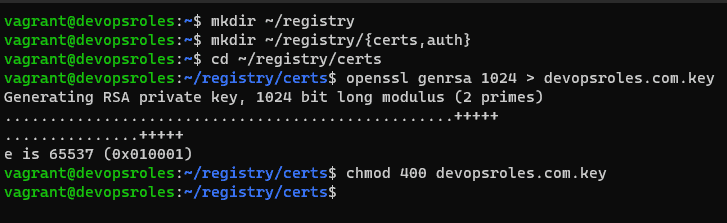
The output terminal is as below:

Create a docker_register.cnf file with the content below:

nano docker_register.cnf

In that file, paste the following contents.

[req]

default_bits  = 2048

distinguished_name = req_distinguished_name

req_extensions = req_ext

x509_extensions = v3_req

prompt = no

[req_distinguished_name]

countryName = XX

stateOrProvinceName = N/A

localityName = N/A

organizationName = Self-signed certificate

commonName = 120.0.0.1: Self-signed certificate

[req_ext]

subjectAltName = @alt_names

[v3_req]

subjectAltName = @alt_names

[alt_names]


IP.1 = 192.168.3.7

Note: Make sure to change IP.1 to match the IP address of your hosting server.

Save and close the file.

Generate the key with:

openssl req -new -x509 -nodes -sha1 -days 365 -key devopsroles.com.key -out devopsroles.com.crt -config docker_register.cnf

Go into auth directory.

cd ../auth

Generate an htpasswd file

docker run --rm --entrypoint htpasswd registry:2.7.0 -Bbn USERNAME PASSWORD > htpasswd

Where USERNAME is a unique username and PASSWORD is a unique/strong password.

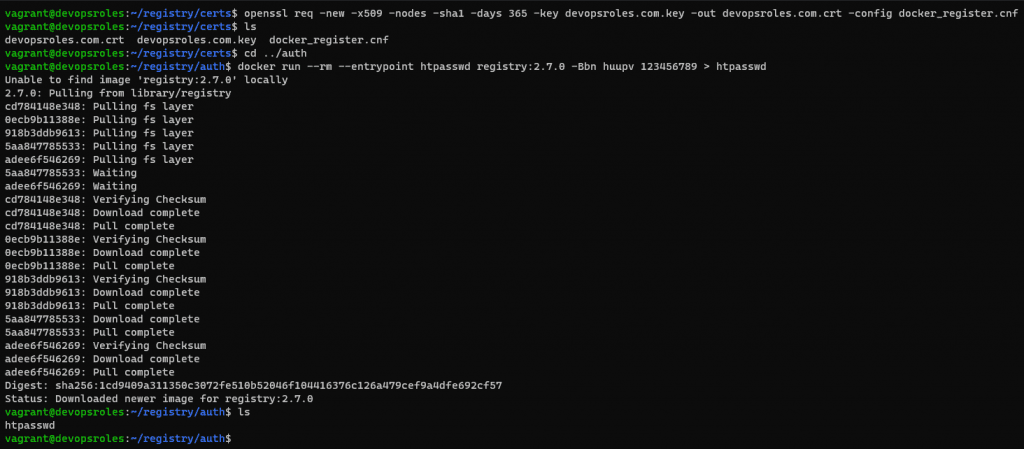
The output terminal is the picture below:

Now, Deploy a self-hosted Docker registry

Change back to the base registry directory.

cd ~/registry

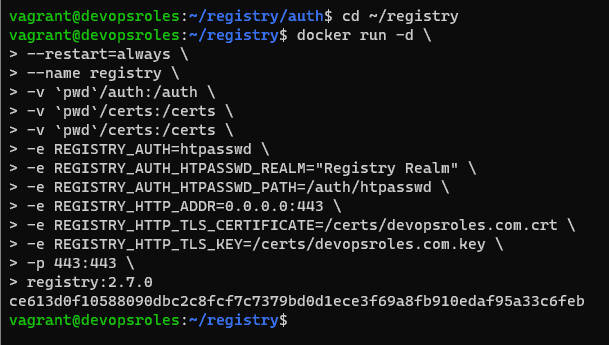
Deploy the registry container with the command below:

docker run -d \

--restart=always \

--name registry \

-v `pwd`/auth:/auth \

-v `pwd`/certs:/certs \

-v `pwd`/certs:/certs \

-e REGISTRY_AUTH=htpasswd \

-e REGISTRY_AUTH_HTPASSWD_REALM="Registry Realm" \

-e REGISTRY_AUTH_HTPASSWD_PATH=/auth/htpasswd \

-e REGISTRY_HTTP_ADDR=0.0.0.0:443 \

-e REGISTRY_HTTP_TLS_CERTIFICATE=/certs/devopsroles.com.crt \

-e REGISTRY_HTTP_TLS_KEY=/certs/devopsroles.com.key \

-p 443:443 \

registry:2.7.0

Now, you can access it from the local machine. however, you want to access it from a remote system. we need to add a ca.crt file. you need the copy the contents of the ~/registry/certs/devopsroles.com.crt file.

Login into your second machine

Create folder

sudo mkdir -p /etc/docker/certs.d/SERVER:443

where SERVER is the IP address of the machine hosting the registry.

Create the new file with:

sudo nano /etc/docker/certs.d/SERVER:443/ca.crt

paste the contents from devopsroles.com.crt ( from the hosting server) save and close the file.

How to do login into the new registry

From the second machine.

docker login -u USER -p https://SERVER:443

Where USER is the user you added when you generated the htpasswd file above.

Conclusion

You have successfully deployed a self-hosted Docker registry. You can now use it to store and share your Docker images within your network. I hope will this your helpful. Thank you for reading the DevopsRoles page!

How to install Docker on Ubuntu

Introduction

This tutorial explains how to install Docker on Ubuntu 21.04, highlighting Docker as an efficient open platform for building, testing, and deploying applications. Docker simplifies and accelerates the deployment process, making it less time-consuming to build and test applications. The guide is ideal for anyone looking to streamline their development workflow using Docker on the Ubuntu system.

How to install Docker on Ubuntu

To install Docker on Ubuntu, you can follow these steps:

Prerequisites

  • A system running Ubuntu 21.04
  • A user account with sudo privileges

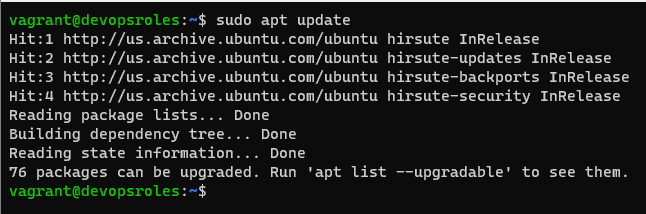
Step 1: Update your system

Update your existing packages:

sudo apt update

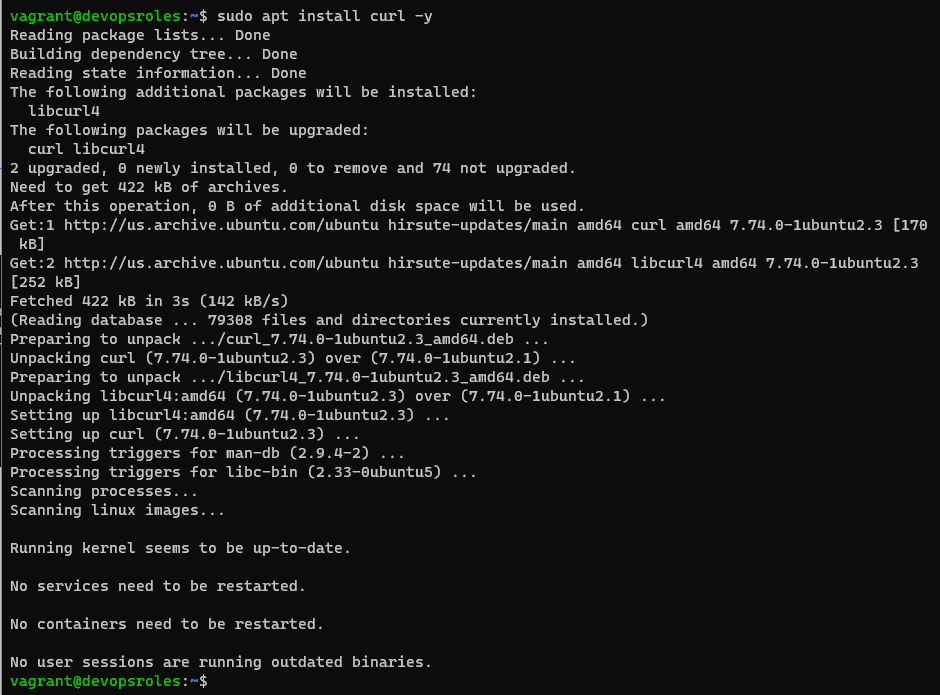
Step 2: Install the curl package

sudo apt install curl -y

Step 3: Download the Latest Docker Version

curl -fsSL https://get.docker.com -o get-docker.sh

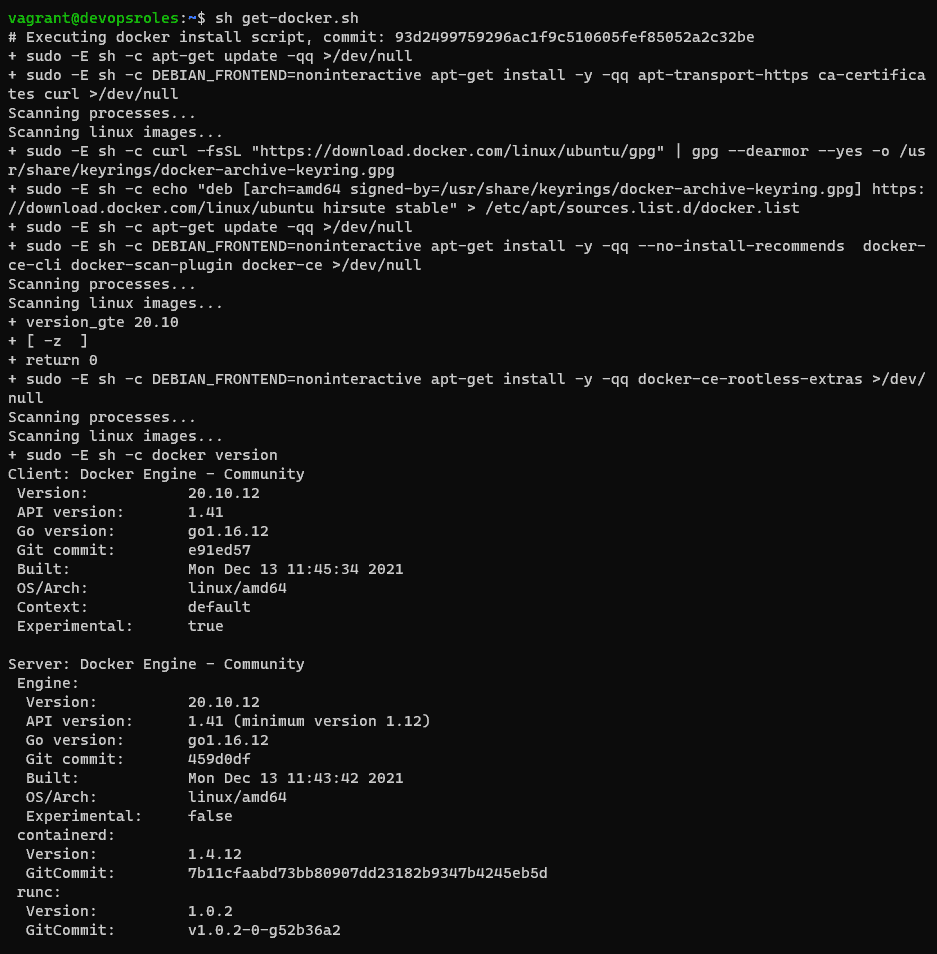
Step 4: Install Docker

sh get-docker.sh

Step 5: To make sure that the current user can access the docker daemon

To avoid using sudo for docker activities, add your username to the Docker Group

sudo usermod -aG docker $USER

Step 6: Check Docker Version

To verify the installation, check the Docker version by command below:

docker --version

Uninstall Docker on Ubuntu

Check the package installed docker on Ubuntu.

dpkg -l | grep -i docker

Use the apt remove command to uninstall Docker on Ubuntu.

sudo apt-get purge docker-ce docker-ce-cli docker-ce-rootless-extras docker-scan-plugin
sudo rm -rf /var/lib/docker

Remove Software Dependencies

sudo apt autoremove

Conclusion

How to install Docker on Ubuntu 21.04. After completing these steps, Docker should be successfully installed on your Ubuntu system, and you can start using Docker commands to manage containers and images. I hope will this your helpful. Thank you for reading the DevopsRoles page!

Step-by-Step: Create Docker Image from a Running Container

Introduction

In this tutorial, We will deploy a container Nginx server, modify it, and then create a new image from that running container. Now, let’s go to Create Docker Image from a Running Container.

What does docker mean?

Docker is a set of platform as a service products that use OS-level virtualization to deliver software in packages called containers. Containers are isolated from one another and bundle their own software, libraries, and configuration files Quota from Wikipedia

Install Docker on Ubuntu

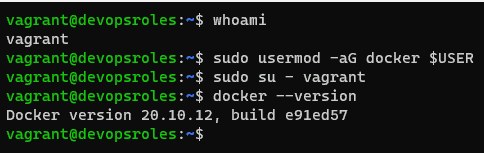
If you don’t already have Docker installed, let’s do so. I will install Docker on Ubuntu Server. I use Ubuntu version 21.04 to install Docker.

To install Docker on Your Ubuntu server command below

sudo apt-get install docker.io -y

Add your user to the docker group with the command below

sudo usermod -aG docker $USER

Logging out and logging back in to ensure the changes take effect.

Create Docker Image from a Running Container

Create the New Container

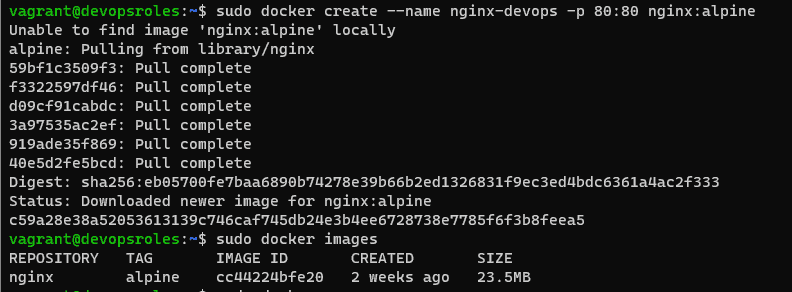
We will create the new container with the command below:

sudo docker create --name nginx-devops -p 80:80 nginx:alpine
  • Create a new container: nginx-devops
  • Internal port ( Guest ): 80
  • External ( host ) port: 80
  • Use image: nginx:alpine

The output terminal is the picture below:

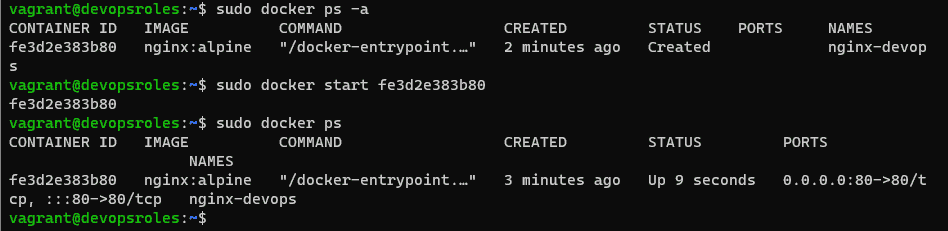
Start the Nginx container with the command below

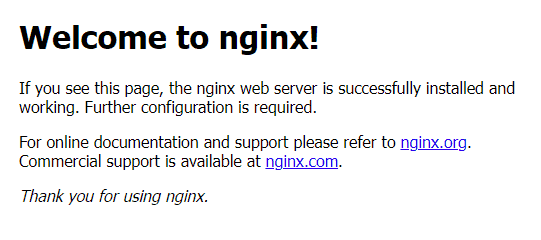
After creating a new container, you open a Web browser and point it. You see the NGINX welcome page.

Modify the Existing Container

We will create a new index.html page for Nginx.

To do this, create a new page with the command below

vi index.html

In that file, paste the content (you can modify it to say whatever you want):

<html>
    <h2>DevopsRoles.com</h2>
</html>

Save and close the file

We copy index.html to the document root on nginx-devops container with the command below:

sudo docker cp index.html nginx-devops:/usr/share/nginx/html/index.html

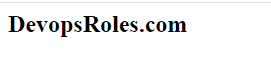
you refresh the page in your web browser, you see a new welcome as the picture below:

Create a New Image

How to create a new image that includes the changes. It is very simple.

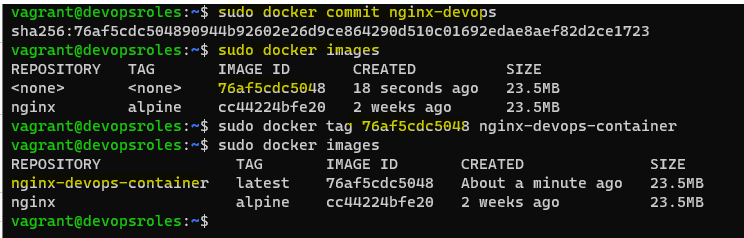
  1. We will commit the changes with the command below:
sudo docker commit nginx-devops

we will list all current images with the command below

sudo docker images

2. We will tag for docker-base-image

sudo docker tag IMAGE_ID nginx-devops-container

Where IMAGE_ID is the actual ID of your new container.

you’ll see something like this:

sudo docker images

In the output terminal step, 1 and step 2 as in the picture below

You’ve created a new Docker image from a running container.

Let’s stop and remove the original container. we will remove nginx-devops container with the command below

sudo docker ps -a
sudo docker stop ID
sudo docker rm ID

Where ID is the first four digits of the original container.

You could deploy a container from the new image with a command like:

sudo docker create --name nginx-new -p 80:80 nginx-devops-container:latest

The output terminal as the command below

vagrant@devopsroles:~$ sudo docker ps -a
CONTAINER ID   IMAGE          COMMAND                  CREATED          STATUS         PORTS                               NAMES
fe3d2e383b80   nginx:alpine   "/docker-entrypoint.…"   11 minutes ago   Up 8 minutes   0.0.0.0:80->80/tcp, :::80->80/tcp   nginx-devops
vagrant@devopsroles:~$ sudo docker stop fe3d2e383b80
fe3d2e383b80
vagrant@devopsroles:~$ sudo docker rm fe3d2e383b80
fe3d2e383b80
vagrant@devopsroles:~$ sudo docker ps
CONTAINER ID   IMAGE     COMMAND   CREATED   STATUS    PORTS     NAMES
vagrant@devopsroles:~$ sudo docker create --name nginx-new -p 80:80 nginx-devops-container:latest
91175e61375cf86fc935c55081be6f81354923564c9c0c0f4e5055ef0f590600
vagrant@devopsroles:~$ sudo docker ps -a
CONTAINER ID   IMAGE                           COMMAND                  CREATED              STATUS    PORTS     NAMES
91175e61375c   nginx-devops-container:latest   "/docker-entrypoint.…"   About a minute ago   Created             nginx-new
vagrant@devopsroles:~$ sudo docker start 91175e61375c
91175e61375c
vagrant@devopsroles:~$

What is the difference between docker commit and docker build?

docker commit creates an image from a container’s state, while docker build creating an image from a Dockerfile, allowing for a more controlled and reproducible build process.

Refresh your web browser and you should, once again, see the DevopsRoles page, New Stack! Welcome page.

YouTube: Create Docker Image from a Running Container

Conclusion

Create Docker Image from a Running Container is a powerful feature that enables you to capture the exact state of an application at any given moment. By following the steps outlined in this guide, you can easily commit a running container to a new image and use advanced techniques to add tags, commit messages, and author information. Whether you’re looking to back up your application, replicate environments, or share your work with others, this process provides a simple and effective solution. I hope will this your helpful. Thank you for reading the DevopsRoles page!

vagrant ssh Permission denied fixed: A Comprehensive Guide

Introduction

In this tutorial, How to fix vagrant SSH permission denied. I use Host OS Windows 11 and Vagrant. I have to deploy a VM using Vagrant. Finish, login ssh to guest OS.

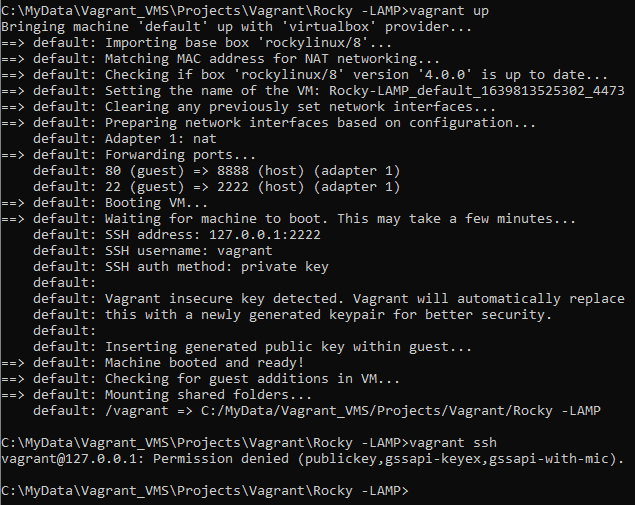
vagrant up command error as below:

vagrant@127.0.0.1: Permission denied (publickey,gssapi-keyex,gssapi-with-mic)

Understanding the Error

What is the “vagrant ssh Permission denied” Error?

The “vagrant SSH Permission denied” error occurs when the Vagrant fails to establish an SSH connection to the virtual machine. This can be caused by various issues such as incorrect SSH keys, misconfigured Vagrantfiles, or permission issues.

Common Causes

  1. Incorrect SSH Key Permissions: The SSH key file might not have the correct permissions.
  2. Missing or Incorrect SSH Keys: The SSH key might be missing or not properly configured.
  3. Vagrantfile Misconfiguration: The Vagrantfile may have incorrect settings.
  4. User Permissions: The user running Vagrant may not have the necessary permissions.

My Environment

  • Host OS: Windows 11 or Linux/Ubuntu/Redhat
  • Vagrant version: 2.2.18
  • Vagrant provider: VirtualBox
  • Boxes Vagrant: rockylinux/8

For example, My Vagrantfile

# -*- mode: ruby -*-
# vi: set ft=ruby :

Vagrant.configure("2") do |config|

  config.vm.box = "rockylinux/8"
  config.vm.network "forwarded_port", guest: 80, host: 8888
  config.vbguest.auto_update = false
end

Deploy a Virtual Machine

vagrant up

The output terminal is as follows:

How do fix vagrant SSH permission denied

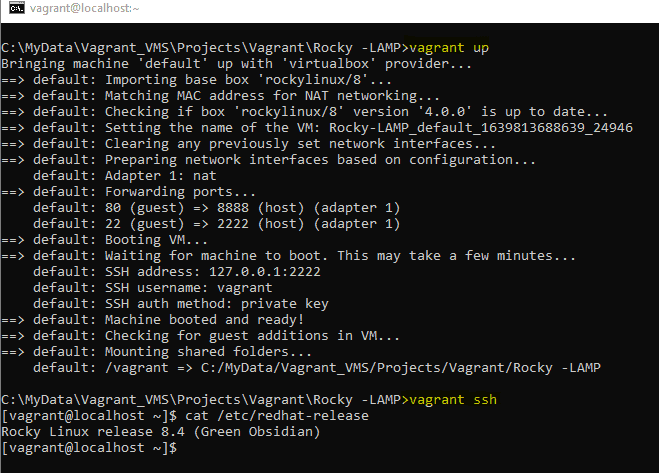
I add configure “config.ssh.insert_key = false” into the Vagrantfile file

After changing my Vagrantfile as the content below

# -*- mode: ruby -*-
# vi: set ft=ruby :

Vagrant.configure("2") do |config|

  config.vm.box = "rockylinux/8"
  config.ssh.insert_key = false
  config.vm.network "forwarded_port", guest: 80, host: 8888
  config.vbguest.auto_update = false
end

The result

Frequently Asked Questions

Why am I getting a “vagrant SSH permission denied” error?

This error occurs when Vagrant fails to establish an SSH connection to the virtual machine, often due to incorrect SSH key permissions, missing keys, misconfigured Vagrantfiles, or user permission issues.

How do I fix SSH key permission issues in Vagrant?

You can fix SSH key permission issues by setting the correct permissions with the command chmod 600 ~/.ssh/id_rsa.

Can I regenerate the SSH key for Vagrant?

Yes, you can regenerate the SSH key for Vagrant by destroying the existing machine, removing the old key, and reinitializing Vagrant.

How do I manually add an SSH key to the SSH agent?

Start the SSH agent eval "$(ssh-agent -s)" and add your SSH key with ssh-add ~/.ssh/id_rsa.

Should I update Vagrant and its plugins?

Yes, updating Vagrant and its plugins can resolve many issues, including SSH connection problems. Use vagrant plugin update and vagrant box update to update them.

Conclusion

Encountering the “vagrant SSH Permission denied” error can be frustrating, but with the steps outlined in this guide, you should be able to resolve it efficiently. From checking SSH key permissions to updating Vagrant, these solutions cover both basic and advanced troubleshooting methods. Ensuring smooth operation of your Vagrant environments is crucial for a seamless development workflow. Thank you for reading the DevopsRoles page!
Docker run PostgreSQL: A Step-by-Step Guide

Introduction

In today’s fast-paced development environments, the ability to quickly deploy and manage databases is crucial. Docker provides a powerful solution for running PostgreSQL databases in isolated containers, making it easier to develop, test, and deploy your applications. In this tutorial, you will learn how to use Docker run PostgreSQL databases and connect to them, enabling you to efficiently manage your database environments with minimal setup. Whether you’re new to Docker or looking to streamline your database management, this guide will equip you with the essential knowledge to get started.

  • PostgreSQL is a powerful, open-source object-relational database
  • Docker is an open platform that runs an application in an isolated environment called a container.

Prerequisites

Docker Run PostgreSQL container

You have to use Docker to run PostgreSQL databases. Below is an example command to run a PostgreSQL container:

docker run --name my-postgres-db -p 9000:5432 -e POSTGRES_PASSWORD=123456789  -e POSTGRES_USER=devopsroles  -e POSTGRES_DB=my-db -d postgres:14

Note:

  • -p 9000:5432: Host port 9000 and Container port 5432
  • Image: postgres version 14
  • Container name: my-postgres-db
  • Environment variables to configure our database: POSTGRES_USER, POSTGRES_PASSWORD, and POSTGRES_DB

The output terminal is below

Using psql command to connect the database

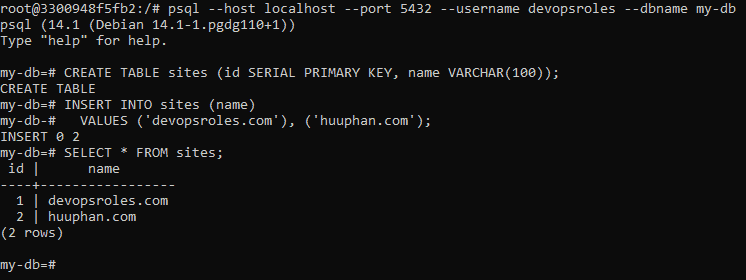
psql --host localhost --port 5432 --username devopsroles --dbname my-db

The output terminal is below

Your database is currently empty. I will create a table as an example

CREATE TABLE sites (id SERIAL PRIMARY KEY, name VARCHAR(100));
INSERT INTO sites (name)
  VALUES ('devopsroles.com'), ('huuphan.com');

I will run a command to query the table created.

SELECT * FROM sites;

The output terminal is below

Docker Manage data persistence

The problem is that we stop and start the container with the commands “docker stop my-postgres-db” and “docker start my-postgres-db” when creating a new container will not allow us to access the database that you are created, as it was isolated in your container.

Create a new volume with the following command. The solution stores the database outside of the container

docker volume create my-postgres-db-db

You will stop and remove your current container and create a new one.

docker stop my-postgres-db
docker rm my-postgres-db
docker run --name my-postgres-db -p 5432:5432  -e POSTGRES_PASSWORD=123456789  -e POSTGRES_USER=devopsroles  -e POSTGRES_DB=my-db -v my-postgres-db-db:/var/lib/postgresql/data -d postgres:14

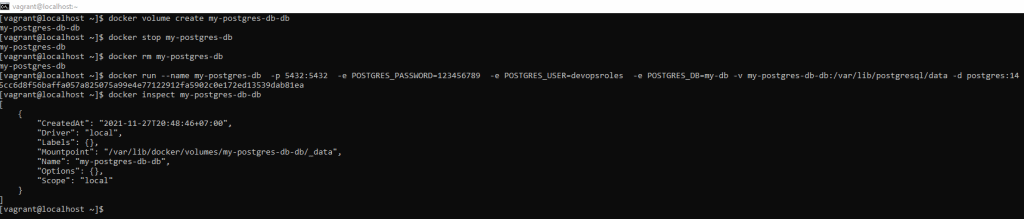
How to know where the database is stored on your computer

docker inspect my-postgres-db-db

The output terminal is below

Conclusion

Using Docker to run PostgreSQL databases offers a streamlined approach to managing your database environments with ease and efficiency. I hope this tutorial has provided you with the necessary insights and steps to confidently set up and connect to PostgreSQL using Docker. Thank you for reading the  DevopsRoles page and I hope this guide proves helpful in your journey toward optimizing your development and deployment processes.

Beginner’s Terraform aws get started

Introduction

Terraform aws get started. In this tutorial, we’ll guide you through the basics of using Terraform to set up and manage your AWS resources efficiently. Terraform, a powerful Infrastructure as Code (IaC) tool, allows you to define your cloud infrastructure in configuration files, making it easier to automate and maintain.

Whether you’re new to Terraform or looking to enhance your AWS deployment strategies, this guide will provide you with essential steps and best practices to get you up and running quickly. Let’s dive into the world of Terraform on AWS and simplify your cloud infrastructure management.

Step-by-Step Guide: Terraform aws get started

  • Create a new AWS free tier.
  • Setup MFA for the root user.
  • Create new Admin user and configure MFA.
  • Install and configure AWS CLI on Mac/Linux and Windows
  • Install Terraform

Create a new AWS free tier

First, we create a new AWS free tier account. The email address would be the root user for this account.

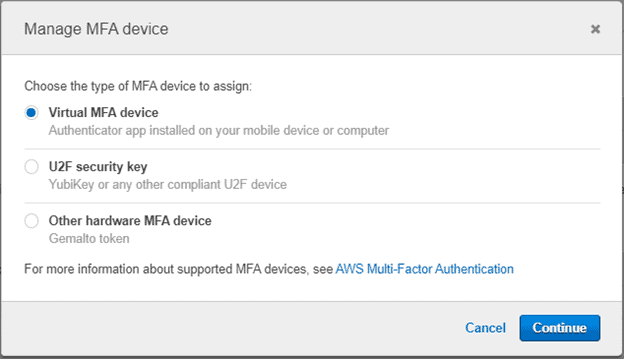
Setup MFA for the root user.

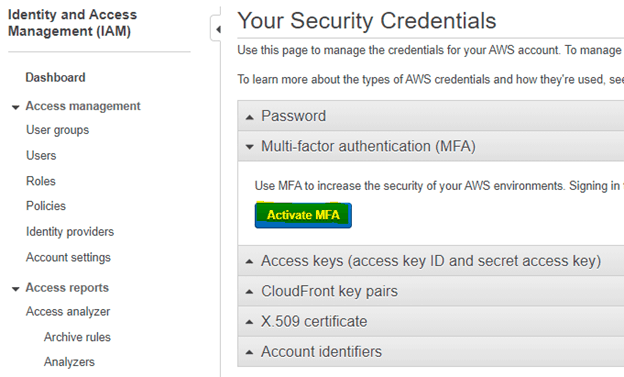
Link IAM

Activate MFA as in the picture below:

Create Admin user and configure MFA

  • Do not use the root user for day-to-day work
  • Create new admin user and secure with MFA.

Install and configure AWS CLI on Mac/Linux and Windows

Install AWS CLI on MAC/Linux

Using bundled install on MAC/Linux

curl https://s3.amazonaws.com/aws-cli/awscli-bundle.zip -o "awscli-bundle.zip"
unzip awscli-bundle.zip
sudo ./awscli-bundle/install -I /usr/local/aws -b /usr/local/bin/aws
./awscli-bundle/install -h

Using pip on Mac/Linux

curl -O https://bootstrap.pypa.io/get-pip.py
python3 get-pip.py -user
pip3 install awscli --upgrade -user
aws --version

Install AWS cli on Windows

Refer here:

AWS configure

aws configure --profile devopsroles-demo
AWS Access Key ID [None]: XXXXZHBNJLCKKCE7EQQQ
AWS Secret Access Key [None]: fdfdfdfd43434dYlQ1il1xKNCnqwUvNHFSv41111
Default region name [None]:
Default output format [None]:

Install Terraform

Link download here: Download Terraform – Terraform by HashiCorp

After install Terraform.

C:\Users\HuuPV>terraform --version
Terraform v1.0.6
on windows_amd64

Your version of Terraform is out of date! The latest version
is 1.0.7. You can update by downloading from https://www.terraform.io/downloads.html

Conclusion

You have installed and configured Terraform AWS labs. I hope will this your helpful. Thank you for reading the DevopsRoles page! Terraform aws get started.

Terraform build EC2 instance

Introduction

In this tutorial, How to build a simple environment with one EC2 instance base AWS. Terraform build EC2 instance. This time, I created as follows.

  • VPC
  • Internet Gateway
  • Subnet
  • Route Table
  • Security Group
  • EC2

My Environment for Terraform build EC2 instance

  • OS Window
  • Terraform

To install Terraform, By referring to the following.

If you are on Windows, you can install it as follows.

choco install terraform
terraform -help

Create a template file

First of all, Create a subdirectory and a Terraform template file in it. The name of the template file is arbitrary, but the extensions are *.tf

$ mkdir terraform-aws
$ cd terraform-aws
$ touch main.tf

Terraform Provider settings

We use the provided settings AWS. Terraform supports multiple providers.

provider "aws" {
    access_key = "ACCESS_KEY_HERE"
    secret_key = "SECRET_KEY_HERE"
    region = "us-west-2"
}

Credential information

Use of Terraform variables

variable "access_key" {}
variable "secret_key" {}

provider "aws" {
    access_key = "${var.access_key}"
    secret_key = "${var.secret_key}"
    region = "us-west-2"
}

Assigning a value to a variable

There are three ways to assign a value to a variable.

1.Terraform command

$ terraform apply \
-var 'access_key=AXXXXXXXXXXXXXXXXXXXXXX' \
-var 'secret_key=XXXXXXXXXXXXXXXXXXXXXXXXXXXXXXXXXX'

2.Value in the environment variable

$ export TF_VAR_access_key="AXXXXXXXXXXXXXXXXXXXXX"
$ export TF_VAR_secret_key="XXXXXXXXXXXXXXXXXXXXXXXXXXXXXXXXXX"

3.Pass the value in a file

For example, the content terraform.tfvars file.

aws_access_key = "AXXXXXXXXXXXXXXXXXXXXX"
aws_secret_key = "XXXXXXXXXXXXXXXXXXXXXXXXXXXXXXXXXX"

How to set Default value of variable

For example, We can set default values for variables.

variable "aws_access_key" {}
variable "aws_secret_key" {}
variable "region" {
    default = "us-west-2"
}

provider "aws" {
    access_key = "${var.aws_access_key}"
    secret_key = "${var.aws_secret_key}"
    region = "${var.region}"
}

Provider: AWS –Terraform by HashiCorp

Terraform Resource settings.

In Terraform the resource type is aws_* predefined. Example aws_vpc a VPC, EC2 is aws_instance. Each AWS resource in the format of item name = value. Example the VPC settings.

resource "aws_vpc" "myVPC" {
    cidr_block = "10.1.0.0/16"
    instance_tenancy = "default"
    enable_dns_support = "true"
    enable_dns_hostnames = "false"
    tags = {
      Name = "myVPC"
    }
}

Refer other resources

Internet Gateway settings.

resource "aws_vpc" "myVPC" {
    cidr_block = "10.1.0.0/16"
    instance_tenancy = "default"
    enable_dns_support = "true"
    enable_dns_hostnames = "false"
    tags {
      Name = "myVPC"
    }
}

resource "aws_internet_gateway" "myGW" {
    vpc_id = "${aws_vpc.myVPC.id}"
}

Dependencies between resources

For example, set up a dependency between the VPC and Internet Gateway.

resource "aws_vpc" "myVPC" {
    cidr_block = "10.1.0.0/16"
    instance_tenancy = "default"
    enable_dns_support = "true"
    enable_dns_hostnames = "false"
    tags {
      Name = "myVPC"
    }
}

resource "aws_internet_gateway" "myGW" {
    vpc_id = "${aws_vpc.myVPC.id}"
    depends_on = "${aws_vpc.myVPC}"
}

We mentioned above how to set the default value for a variable. we use of Map as follows

variable "images" {
    default = {
        us-east-1 = "ami-1ecae776"
        us-west-2 = "ami-e7527ed7"
        us-west-1 = "ami-d114f295"
    }
}

The values of variables defined as var.images.us-east-1

Output on the console

output "public ip of aws-test" {
  value = "${aws_instance.aws-test.public_ip}"
}

Terraform build EC2 instance summary

variable "aws_access_key" {}
variable "aws_secret_key" {}
variable "region" {
    default = "us-west-2"
}

variable "images" {
    default = {
        us-east-1 = "ami-1ecae776"
        us-west-2 = "ami-e7527ed7"
        us-west-1 = "ami-d114f295"
    }
}

provider "aws" {
    access_key = "${var.aws_access_key}"
    secret_key = "${var.aws_secret_key}"
    region = "${var.region}"
}

resource "aws_vpc" "myVPC" {
    cidr_block = "10.1.0.0/16"
    instance_tenancy = "default"
    enable_dns_support = "true"
    enable_dns_hostnames = "false"
    tags {
      Name = "myVPC"
    }
}

resource "aws_internet_gateway" "myGW" {
    vpc_id = "${aws_vpc.myVPC.id}"
}

resource "aws_subnet" "public-a" {
    vpc_id = "${aws_vpc.myVPC.id}"
    cidr_block = "10.1.1.0/24"
    availability_zone = "us-west-2a"
}

resource "aws_route_table" "public-route" {
    vpc_id = "${aws_vpc.myVPC.id}"
    route {
        cidr_block = "0.0.0.0/0"
        gateway_id = "${aws_internet_gateway.myGW.id}"
    }
}

resource "aws_route_table_association" "puclic-a" {
    subnet_id = "${aws_subnet.public-a.id}"
    route_table_id = "${aws_route_table.public-route.id}"
}

resource "aws_security_group" "admin" {
    name = "admin"
    description = "Allow SSH inbound traffic"
    vpc_id = "${aws_vpc.myVPC.id}"
    ingress {
        from_port = 22
        to_port = 22
        protocol = "tcp"
        cidr_blocks = ["0.0.0.0/0"]
    }
    egress {
        from_port = 0
        to_port = 0
        protocol = "-1"
        cidr_blocks = ["0.0.0.0/0"]
    }
}

resource "aws_instance" "aws-test" {
    ami = "${var.images.us-west-2}"
    instance_type = "t2.micro"
    key_name = "aws.devopsroles.com"
    vpc_security_group_ids = [
      "${aws_security_group.admin.id}"
    ]
    subnet_id = "${aws_subnet.public-a.id}"
    associate_public_ip_address = "true"
    root_block_device = {
      volume_type = "gp2"
      volume_size = "20"
    }
    ebs_block_device = {
      device_name = "/dev/sdf"
      volume_type = "gp2"
      volume_size = "100"
    }
    tags {
        Name = "aws-test"
    }
}

output "public ip of aws-test" {
  value = "${aws_instance.aws-test.public_ip}"
}

Dry-Run Terraform command

$ terraform plan

terraform plan command will check for syntax errors and parameter errors set in the block, but will not check for the correctness of the parameter values.

Applying a template

Let’s go we apply the template and create a resource on AWS.

$ terraform apply

Use terraform to show the display the content

$ terraform show

Resource changes

  • We add the content in main.tf file.
  • Use terraform plan to check the execution plan. marked with a ” -/ + “. This indicates that the resource will be deleted & recreated as the attribute changes .
  • terraform apply command for creating.

Delete resource

terraform destroy command can delete a set of resources in the template. terraform plan -destroy you can find out the execution plan for resource deletion.

$ terraform plan -destroy
$ terraform destroy

How to split template file

I have settings together in one template file main.tf

You can be divided into 3 files as below

main.tf

provider "aws" {
    access_key = "${var.aws_access_key}"
    secret_key = "${var.aws_secret_key}"
    region = "${var.region}"
}

## Describe the definition of the resource
resource "aws_vpc" "myVPC" {
    cidr_block = "10.1.0.0/16"
    instance_tenancy = "default"
    enable_dns_support = "true"
    enable_dns_hostnames = "false"
    tags {
      Name = "myVPC"
    }
}

...

variables.tf

variable "aws_access_key" {}
variable "aws_secret_key" {}
variable "region" {
    default = "us-west-2"
}

variable "images" {
    default = {
        us-east-1 = "ami-1ecae776"
        us-west-2 = "ami-e7527ed7"
        us-west-1 = "ami-d114f295"
    }
}

outputs.tf

output "public ip of aws-test" {
  value = "${aws_instance.aws-test.public_ip}"
}

Conclusion

You have to use Terraform build EC2 instance. I hope will this your helpful. Thank you for reading the DevopsRoles page!
Unlocking helm commands for Kubernetes

Introduction

Explore the essential Helm commands for Kubernetes in this detailed tutorial. Whether you’re a beginner or a seasoned Kubernetes user, this guide will help you install Helm and utilize its commands to manage charts and repositories effectively, streamlining your Kubernetes deployments.

In this tutorial, How to install helm and run helm commands. Helm provides many commands for managing charts and Helm repositories. Now, let’s helm commands for Kubernetes

  • Helm Commands for Kubernetes: Simplifies application deployment and management in Kubernetes environments.
  • What is a Helm Chart?: A package containing pre-configured Kubernetes resources used for deploying applications.
  • Purpose of Helm: Streamlines deployments, manages versions and rollbacks and allows customization of installations through charts.
  • Using Helm Charts: Install Helm, add repositories, and manage applications within your Kubernetes cluster using Helm’s command suite, including install, update, and delete operations.

Install Helm commands for Kubernetes

You can ref here.

From Homebrew (Mac)

brew install helm

From Windows

choco install kubernetes-helm

Check version

helm version

The output is as below:

Windows PowerShell
Copyright (C) Microsoft Corporation. All rights reserved.

Try the new cross-platform PowerShell https://aka.ms/pscore6

PS C:\Windows\system32> choco install kubernetes-helm
Chocolatey v0.10.15
Installing the following packages:
kubernetes-helm
By installing you accept licenses for the packages.
Progress: Downloading kubernetes-helm 3.5.4... 100%

kubernetes-helm v3.5.4 [Approved]
kubernetes-helm package files install completed. Performing other installation steps.
The package kubernetes-helm wants to run 'chocolateyInstall.ps1'.
Note: If you don't run this script, the installation will fail.
Note: To confirm automatically next time, use '-y' or consider:
choco feature enable -n allowGlobalConfirmation
Do you want to run the script?([Y]es/[A]ll - yes to all/[N]o/[P]rint): Yes

Downloading kubernetes-helm 64 bit
  from 'https://get.helm.sh/helm-v3.5.4-windows-amd64.zip'
Progress: 100% - Completed download of C:\Users\USERNAME\AppData\Local\Temp\chocolatey\kubernetes-helm\3.5.4\helm-v3.5.4-windows-amd64.zip (11.96 MB).
Download of helm-v3.5.4-windows-amd64.zip (11.96 MB) completed.
Hashes match.
Extracting C:\Users\USERNAME\AppData\Local\Temp\chocolatey\kubernetes-helm\3.5.4\helm-v3.5.4-windows-amd64.zip to C:\ProgramData\chocolatey\lib\kubernetes-helm\tools...
C:\ProgramData\chocolatey\lib\kubernetes-helm\tools
 ShimGen has successfully created a shim for helm.exe
 The install of kubernetes-helm was successful.
  Software installed to 'C:\ProgramData\chocolatey\lib\kubernetes-helm\tools'

Chocolatey installed 1/1 packages.
 See the log for details (C:\ProgramData\chocolatey\logs\chocolatey.log).

Did you know the proceeds of Pro (and some proceeds from other
 licensed editions) go into bettering the community infrastructure?
 Your support ensures an active community, keeps Chocolatey tip top,
 plus it nets you some awesome features!
 https://chocolatey.org/compare
PS C:\Windows\system32> helm version
version.BuildInfo{Version:"v3.5.4", GitCommit:"1b5edb69df3d3a08df77c9902dc17af864ff05d1", GitTreeState:"clean", GoVersion:"go1.15.11"}
PS C:\Windows\system32>

Helm Commands kubernetes

Add Helm repo link here

# Example
helm repo add stable https://charts.helm.sh/stable

I will add bitnami repo and search for the Nginx server as command follows:

helm repo add bitnami https://charts.bitnami.com/bitnami
helm repo update
helm search repo nginx
helm search repo bitnami/nginx

The output is as commands follows:

E:\Study\cka\devopsroles>helm search repo nginx
NAME                                    CHART VERSION   APP VERSION     DESCRIPTION
bitnami/nginx                           8.9.1           1.19.10         Chart for the nginx server
bitnami/nginx-ingress-controller        7.6.9           0.46.0          Chart for the nginx Ingress controller
stable/nginx-ingress                    1.41.3          v0.34.1         DEPRECATED! An nginx Ingress controller that us...
stable/nginx-ldapauth-proxy             0.1.6           1.13.5          DEPRECATED - nginx proxy with ldapauth
stable/nginx-lego                       0.3.1                           Chart for nginx-ingress-controller and kube-lego
bitnami/kong                            3.7.4           2.4.1           Kong is a scalable, open source API layer (aka ...
stable/gcloud-endpoints                 0.1.2           1               DEPRECATED Develop, deploy, protect and monitor...

E:\Study\cka\devopsroles>helm search repo bitnami/nginx
NAME                                    CHART VERSION   APP VERSION     DESCRIPTION
bitnami/nginx                           8.9.1           1.19.10         Chart for the nginx server
bitnami/nginx-ingress-controller        7.6.9           0.46.0          Chart for the nginx Ingress controller

Install Nginx using the helm command

helm install nginx bitnami/nginx

Update Nginx

helm upgrade nginx bitnami/nginx --dry-run

# Upgrade using values in overrides_nginx.yaml
helm upgrade nignx bitnami/nginx -f overrides_nginx.yaml

# rollback
helm rollback nginx REVISION_NUMBER

Basic helm command

helm status nginx
helm history nginx
# get manifest and values from deployment
helm get manifest nginx
helm get values nginx
helm uninstall nginx

Conclusion

Mastering Helm commands enhances your Kubernetes management skills, allowing for more efficient application deployment and management. This tutorial provides the foundation you need to confidently use Helm in your Kubernetes environment, improving your operational capabilities.

You have to use helm commands for Kubernetes. I hope will this your helpful. Thank you for reading the DevopsRoles page!