Category Archives: Bash Script

Master Bash scripting with DevOpsRoles.com. Access in-depth guides and tutorials to automate tasks and enhance your DevOps workflows using Bash scripts.

Using Bash Scripts for DevOps Automation: A Comprehensive Guide

Introduction

This guide explores the fundamentals of Bash Scripts for DevOps, offering real-world examples and advanced use cases to enhance your automation workflows.

Bash scripting plays a crucial role in the world of DevOps automation, providing developers and system administrators with powerful tools to automate routine tasks, manage infrastructure, and streamline complex workflows. Whether you are setting up a CI/CD pipeline, deploying applications, or monitoring systems, Bash scripts can simplify and accelerate processes.

Why Use Bash Scripts in DevOps?

Bash scripting is an essential skill for DevOps engineers. Its flexibility, ease of use, and wide compatibility with UNIX-based systems make it the go-to choice for many automation tasks. By automating repetitive processes, you can save valuable time, reduce human error, and ensure consistency across environments. Below are some of the key reasons why Bash scripting is widely used in DevOps:

1. Automation of Repetitive Tasks

DevOps teams often perform similar tasks across multiple servers or environments. Using Bash scripts allows these tasks to be automated, saving time and ensuring that they are performed consistently every time.

2. Integration with Other Tools

Bash scripts can seamlessly integrate with other tools commonly used in DevOps workflows, such as Jenkins, Docker, Kubernetes, and AWS CLI. This makes it easy to automate deployment, testing, and monitoring.

3. Cross-Platform Compatibility

Since Bash is available on most UNIX-based systems (including Linux and macOS) and can be installed on Windows, scripts written in Bash are highly portable and can be executed across multiple platforms.

4. Simplicity and Flexibility

Bash scripting is straightforward to learn and use, even for those new to programming. Its syntax is simple, and its commands allow for powerful automation capabilities. Additionally, it’s highly customizable to meet the specific needs of different tasks.

Getting Started with Bash Scripting for DevOps

Before diving into advanced examples, let’s start with the basics of writing a Bash script. A Bash script is simply a text file containing a sequence of commands that can be executed in the Bash shell.

1. Creating Your First Bash Script

To create a basic Bash script, follow these steps:

  • Open your terminal and create a new file with the .sh extension. For example:
    • nano my_first_script.sh
  • Add the following shebang line to indicate that the script should be run using Bash:
    • #!/bin/bash
  • Add a simple command, such as printing “Hello, World!” to the console:
    • echo "Hello, World!"
  • Save and exit the file (in nano, press CTRL + X, then Y, and Enter to save).
  • Make the script executable:
    • chmod +x my_first_script.sh
  • Run the script:
    • ./my_first_script.sh

This basic script outputs “Hello, World!” when executed. You can expand this by adding more commands and logic, as demonstrated below.

Bash Scripting for DevOps Automation Examples

1. Automating Software Deployment

One of the primary uses of Bash scripting in DevOps is to automate the deployment of applications. Here’s a basic example of a script that deploys a web application:

#!/bin/bash
# Deploy Web Application

# Stop the running application
echo "Stopping the application..."
sudo systemctl stop my-app

# Pull the latest code from the repository
echo "Pulling the latest code from GitHub..."
cd /var/www/my-app
git pull origin master

# Restart the application
echo "Starting the application..."
sudo systemctl start my-app

# Check the status of the application
sudo systemctl status my-app

This script automates the process of stopping the application, pulling the latest code from a Git repository, and restarting the application. It helps ensure that deployments are consistent and repeatable.

2. Automating Infrastructure Provisioning

Another common task in DevOps is provisioning infrastructure, such as spinning up new virtual machines or configuring servers. Here’s an example of a Bash script that automates the provisioning of a new server on AWS using the AWS CLI:

#!/bin/bash
# Provision a new EC2 instance on AWS

# Set variables
AMI_ID="ami-0abcdef1234567890"  # Replace with your desired AMI ID
INSTANCE_TYPE="t2.micro"         # Instance type
KEY_NAME="my-key-pair"           # Replace with your key pair name
SECURITY_GROUP="my-security-group"  # Security group name
REGION="us-east-1"               # AWS region

# Launch the EC2 instance
aws ec2 run-instances \
    --image-id $AMI_ID \
    --instance-type $INSTANCE_TYPE \
    --key-name $KEY_NAME \
    --security-groups $SECURITY_GROUP \
    --region $REGION \
    --count 1

# Output instance details
echo "EC2 instance has been launched!"

This script automates the creation of an EC2 instance on AWS, making it faster and easier to provision new environments for your application.

3. CI/CD Pipeline Automation

Bash scripts are also instrumental in automating continuous integration and continuous deployment (CI/CD) pipelines. Here’s an example of how you can use a Bash script to automate the process of running tests and deploying an application in a CI/CD pipeline:

#!/bin/bash
# CI/CD Pipeline Script

# Pull the latest code
git pull origin master

# Install dependencies
npm install

# Run tests
echo "Running tests..."
npm test

# Deploy application if tests pass
if [ $? -eq 0 ]; then
  echo "Tests passed. Deploying application..."
  # Deploy commands here (e.g., SSH into server, restart app)
else
  echo "Tests failed. Deployment aborted."
fi

This script ensures that the application is only deployed if the tests pass, which is an important practice in CI/CD pipelines.

Advanced Bash Scripting Techniques

For more complex tasks, Bash scripting offers advanced features like loops, conditionals, and functions. Below are some techniques to enhance your automation scripts:

1. Using Loops for Repetitive Tasks

Loops are useful for automating repetitive tasks across multiple items, such as servers or files. Here’s an example that backs up multiple directories:

#!/bin/bash
# Backup script for multiple directories

# List of directories to back up
directories=("/home/user1" "/home/user2" "/var/www")

# Loop through each directory and create a backup
for dir in "${directories[@]}"; do
  backup_file="/backups/$(basename $dir)_$(date +%F).tar.gz"
  tar -czf $backup_file $dir
  echo "Backup of $dir completed!"
done

This script loops through a list of directories, creates a backup for each, and stores it in the /backups folder.

2. Using Functions for Modular Code

Functions in Bash allow you to encapsulate tasks and reuse code. Here’s an example of a script that deploys and backs up a web application using functions:

#!/bin/bash
# Deploy and Backup Web Application

# Function to deploy the app
deploy_app() {
  echo "Deploying the application..."
  git pull origin master
  sudo systemctl restart my-app
  echo "Application deployed successfully!"
}

# Function to back up the application
backup_app() {
  echo "Backing up the application..."
  tar -czf /backups/my-app_$(date +%F).tar.gz /var/www/my-app
  echo "Backup completed!"
}

# Main execution
deploy_app
backup_app

Using functions helps keep your code organized and modular, making it easier to manage and maintain.

FAQ: Using Bash Scripts for DevOps Automation

1. What are the benefits of using Bash scripts in DevOps?

Bash scripts provide automation, speed, consistency, and ease of use. They allow DevOps teams to automate routine tasks such as deployments, server management, and infrastructure provisioning, thereby reducing manual intervention and errors.

2. Can Bash scripts be used in Windows environments?

Yes, Bash scripts can be run on Windows using environments like Git Bash, WSL (Windows Subsystem for Linux), or Cygwin. While native Bash is not available on Windows, these tools enable Bash scripting on Windows systems.

3. How do I handle errors in Bash scripts?

You can handle errors in Bash scripts using exit codes, if conditions, and the trap command. For example, check if a command succeeds or fails and handle accordingly using if [ $? -ne 0 ]; then.

4. Is it necessary to have prior programming knowledge to write Bash scripts?

No, Bash scripting is designed to be beginner-friendly. With basic knowledge of shell commands and some practice, anyone can start writing useful automation scripts.

Conclusion

Bash scripting is an indispensable tool for DevOps automation. It allows teams to automate repetitive tasks, integrate with other DevOps tools, and streamline complex workflows. From simple deployments to advanced CI/CD automation, Bash scripts help ensure that tasks are executed efficiently and consistently. By mastering Bash scripting, DevOps engineers can improve their productivity and create more robust, scalable, and maintainable automation workflows.

For further reading on Bash scripting and DevOps practices, check out these authoritative resources:

Start integrating Bash scripts into your DevOps workflow today and experience the difference in efficiency and automation. Thank you for reading the DevopsRoles page!

How to Simplify Your Linux and Docker Commands with Bash Completion

Introduction

Bash Completion: Are you spending too much time typing out lengthy Linux commands or struggling to remember Docker command options? Boost your terminal productivity with Bash Completion! This powerful tool helps automate your workflow by filling in partially typed commands and arguments with a simple tap of the tab key. Let’s dive into how you can set up and leverage for a more efficient command line experience.

Installing Bash Completion

First, ensure Bash Completion is installed on your system.

For Debian/Ubuntu users, execute

sudo apt-get install bash-completion

CentOS/RHEL folks can type

sudo yum install bash-completion

and Fedora users are likely all set but can ensure installation with

sudo dnf install bash-completion

After installation, restart your terminal to enable the feature.

Enabling Bash Completion

In most cases, it will activate automatically. If not, add source /etc/bash_completion to your .bashrc or .bash_profile file to kick things off. This ensures that every time you open your terminal, It is ready to assist you.

How to Use it

Simply start typing a command or file name and press the Tab key. If there’s only one completion, Bash fills it in for you. If there are several options, a second Tab press will display them. This function works with file names, command options, and more, streamlining your terminal navigation.

Docker Command Completion

Docker users, rejoice! Bash Completion extends to Docker commands, too. Installation may vary, but generally, you can place the Docker completion script /etc/bash_completion.d/ or /usr/share/bash-completion/completions/. Source the script or restart your terminal to apply. Now, managing Docker containers and images is faster than ever.

Customizing Bash Completion

Feeling adventurous? Create your own Bash completion scripts for commands that lack them. By examining existing scripts in /etc/bash_completion.d/ or /usr/share/bash-completion/completions/, you can learn how they’re constructed and customize your own for any command.

Conclusion

By integrating Bash Completion into your workflow, you’ll not only save time but also enhance your terminal’s functionality. It’s an essential tool for anyone looking to streamline their command line experience. So, give it a try, and watch your productivity soar! I hope will this your helpful. Thank you for reading the DevopsRoles page!

For Example

Here’s a simple example to illustrate the power: Suppose you’re using Docker and want to check the logs of a container.

Instead of typing docker container logs [container_id], simply type docker con and press Tab twice to see all possible commands starting with “con“. Continue with logs and another Tab to list your containers. Pick the right one, and you’re done in a fraction of the time!

Manage the Aurora PostgreSQL global database

Introduction

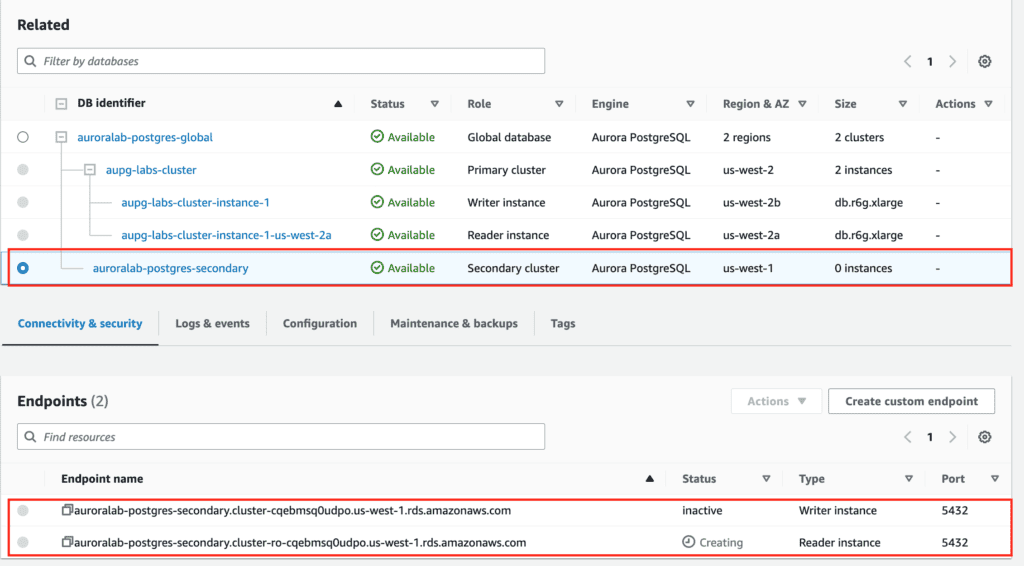
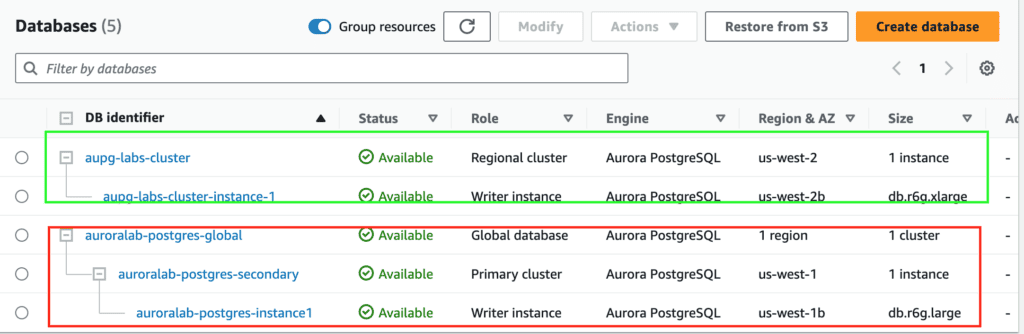
You can use the AWS Console Manager to manage the Aurora PostgreSQL global database, alternatively, you can manage the Aurora PostgreSQL global database using the AWS CLI in Linux(AWS Cloud9 for my lab) as below.

Guide to creating and managing the Aurora PostgreSQL global database using the AWS CLI.

This lab contains the following tasks

Create Aurora Postgresql global database from a Regional cluster using AWS CLI

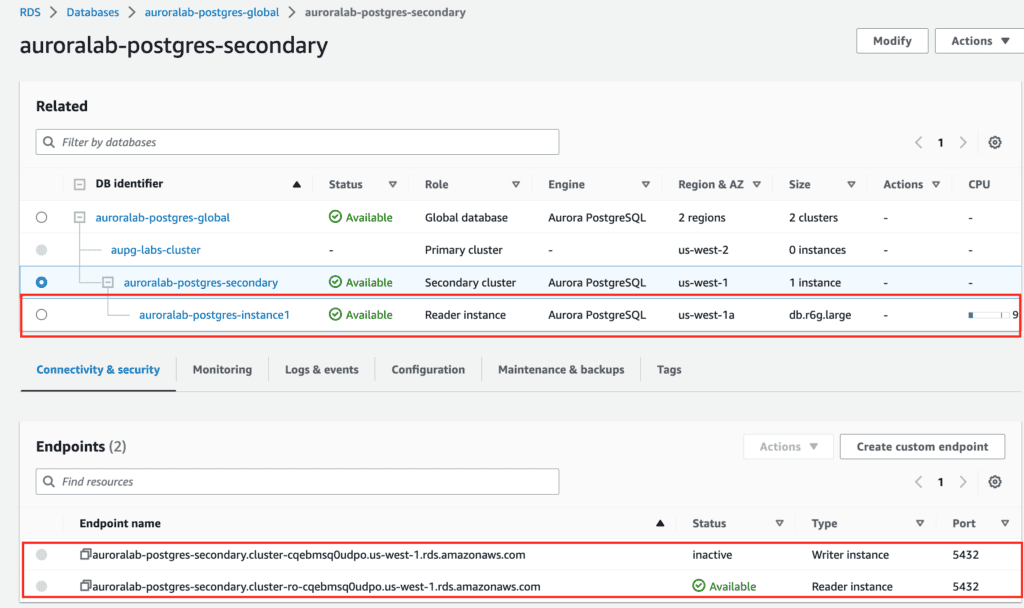
Add reader instances in the Secondary Aurora DB cluster using AWS CLI

Perform a Managed Planned Failover to the secondary region using AWS CLI

Detaches an Aurora secondary cluster from an Aurora global database cluster using AWS CLI

Prerequisites

For this walkthrough, you should have the following prerequisites configured:

  • Amazon Aurora PostgreSQL cluster in a single region
  • AWS CLI environment deployed
  • Cluster Parameter Group Name, VPC Security Group, and DB Subnet Group were deployed into the primary region and the secondary region

Detail Steps

Create Aurora Postgresql global database from a Regional cluster using AWS CLI

On the primary AWS Region, execute the below code using AWS CLI

# Get current cluster ARN
CLUSTER_ID=`aws rds describe-db-clusters --db-cluster-identifier aupg-labs-cluster --query 'DBClusters[*].DBClusterArn' | jq -r '.[0]'`

# convert the Aurora Provisioned cluster to global
aws rds create-global-cluster  --global-cluster-identifier auroralab-postgres-global --source-db-cluster-identifier $CLUSTER_ID

This operation will take 2-5 minutes to complete. 

In the next step, perform the following actions using AWS CLI to add a secondary region.

# obtain KeyID of the KMS key in the secondary region
aws kms describe-key --key-id alias/aws/rds --region us-west-1 --query 'KeyMetadata.KeyId'

# create the secondary cluster
aws rds --region us-east-1 \
  create-db-cluster \
     --db-cluster-identifier auroralab-postgres-secondary \
     --global-cluster-identifier auroralab-postgres-global \
     --engine aurora-postgresql \
     --kms-key-id d71e19d3-24a3-48cb-9e7f-10fbd28ef271 \
     --engine-version 15.3 \
     --db-cluster-parameter-group-name rds-apgcustomclusterparamgroup \
     --db-subnet-group-name aupg-labs-db-subnet-group \
     --vpc-security-group-ids sg-0cdcd29e64fd436c6 \
     --backup-retention-period 7 --region us-west-1

This operation will take 5-10 minutes to complete. 

Add reader instances in the Secondary Aurora DB cluster using AWS CLI

# Database Parameter group
DB_PARAMETER_GP=`aws rds describe-db-parameter-groups --region us-west-1 --query 'DBParameterGroups[*].DBParameterGroupName' | jq -r '.[0]'`

# Enhanced Monitoring role ARN
MONITOR_R=`aws iam get-role --role-name aupg-labs-monitor-us-west-2 --query 'Role.Arn' --output text`

# Add a Reader instance to the secondary Aurora DB cluster
aws rds --region us-west-1 \
  create-db-instance \
     --db-instance-identifier auroralab-postgres-instance1 \
     --db-cluster-identifier auroralab-postgres-secondary \
     --db-instance-class db.r6g.large \
     --engine aurora-postgresql \
     --enable-performance-insights \
     --performance-insights-retention-period 7 \
     --db-parameter-group-name $DB_PARAMETER_GP \
     --monitoring-interval 1 \
     --monitoring-role-arn $MONITOR_R \
     --no-auto-minor-version-upgrade

This operation will take 5-10 minutes to complete. 

Perform a Managed Planned Failover to the secondary region using AWS CLI

This method is recommended for disaster recovery. When you use this method, Aurora automatically adds back the old primary Region to the global database as a secondary Region when it becomes available again. Thus, the original topology of your global cluster is maintained.

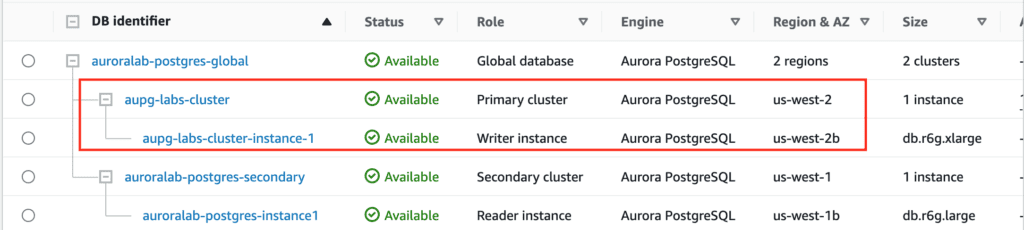
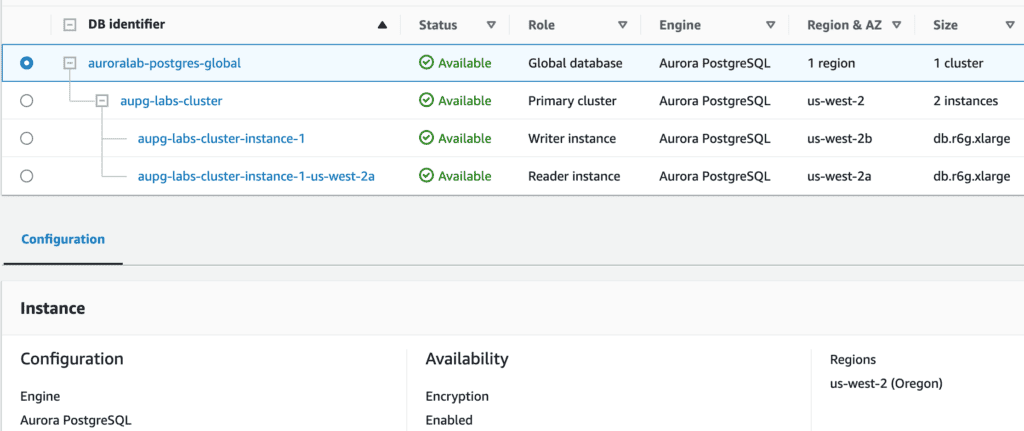
Before failover

Failover

aws rds failover-global-cluster --global-cluster-identifier auroralab-postgres-global --target-db-cluster-identifier arn:aws:rds:us-west-1:XXXXXXXXX:cluster:auroralab-postgres-secondary

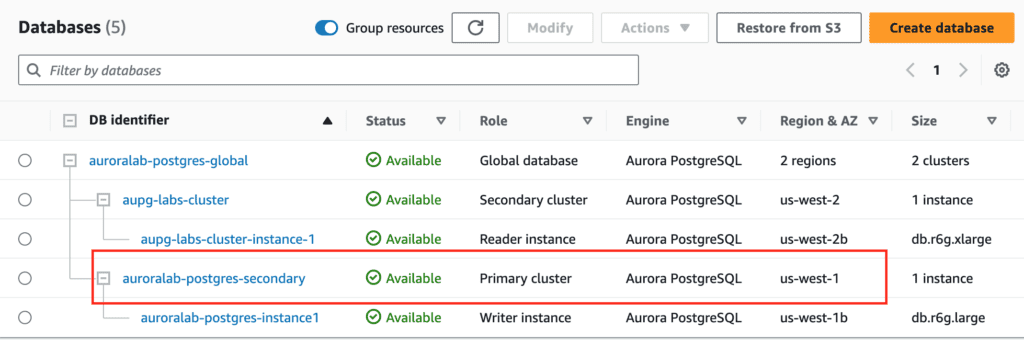
Now that the managed failover is completed.

To recover from an unplanned outage refer Recovering an Amazon Aurora global database from an unplanned outage

This alternative method can be used when managed failover isn’t an option, for example, when your primary and secondary Regions are running incompatible engine versions.

Detaches an Aurora secondary cluster from an Aurora global database cluster using AWS CLI

aws rds remove-from-global-cluster --global-cluster-identifier auroralab-postgres-global --db-cluster-identifier arn:aws:rds:us-west-2:XXXXXXXX:cluster:aupg-labs-cluster

This operation will take 5-10 minutes to complete. 

Now that the detach is completed.

And latest, the global database can be deleted with a command, see the AWS CLI document here:

aws rds delete-global-cluster --global-cluster-identifier <value>

Conclusion

These steps provide a general AWS CLI of the process of managing the Aurora global Postgresql instance. The specific configuration details may vary depending on your environment and setup. It’s recommended to consult the relevant documentation from AWS for detailed instructions on setting up.

Manage the Aurora PostgreSQL global database

I hope will this be helpful. Thank you for reading the DevopsRoles page!

How to call git bash command from powershell

Introduction

Combining PowerShell with Git Bash can enhance your productivity by allowing you to use Unix-like commands within a Windows environment. In this guide, we’ll show you how to call Git Bash commands from PowerShell, using an example script. We’ll cover everything from basic setups to advanced configurations. In this tutorial, How to call the git bash command from Powershell. For example, git bash content to split CSV files on windows :

Setting Up Your Environment

Installing Git Bash

First, ensure you have Git Bash installed on your system. Download it from the official Git website and follow the installation instructions.

Adding Git Bash to Your System PATH

To call Git Bash command from PowerShell, add Git Bash to your system PATH:

  1. Open the Start menu, search for “Environment Variables,” and select “Edit the system environment variables.”
  2. Click the “Environment Variables” button.
  3. Under “System variables,” find and select the “Path” variable, then click “Edit.”
  4. Click “New” and add the path to the Git Bash executable, typically C:\Program Files\Git\bin.

Call the git bash command from Powershell

Save the following script as split.sh in your K:/TEST directory:

#!/bin/bash
cd $1
echo split start
date
pwd
split Filetest.CSV Filetest -l 20000000 -d
ls -l
for filename in $1/*; do
    wc -l $filename
done
date
echo split end
exit

This script performs the following tasks:

  1. Changes the directory to the one specified by the first argument.
  2. Prints a start message and the current date.
  3. Displays the current directory.
  4. Splits Filetest.CSV into smaller files with 20,000,000 lines each.
  5. Lists the files in the directory.
  6. Counts the number of lines in each file in the directory.
  7. Prints the current date and an end message.
  8. Exits the script.

PowerShell Script

Create a PowerShell script to call the split.sh script:

$TOOL_PATH = "K:/TEST"
$FOLDER_PATH = "K:/TEST/INPUT"

$COMMAND = "bash.exe " + $TOOL_PATH + "/split.sh " + $FOLDER_PATH
echo $COMMAND
Invoke-Expression $COMMAND

This PowerShell script does the following:

  1. Defines the path to the directory containing the split.sh script.
  2. Defines the path to the directory to be processed by the split.sh script.
  3. Constructs the command to call the split.sh script using bash.exe.
  4. Prints the constructed command.
  5. Executes the constructed command.

Explanation

  1. $TOOL_PATH: This variable holds the path where your split.sh script is located.
  2. $FOLDER_PATH: This variable holds the path to the directory you want to process with the split.sh script.
  3. $COMMAND: This variable constructs the full command string that calls bash.exe with the script path and the folder path as arguments.
  4. echo $COMMAND: This line prints the constructed command for verification.
  5. Invoke-Expression $COMMAND: This line executes the constructed command.

Add C:\Program Files\Git\bin into the PATH environment

OK!

Troubleshooting

Common Issues and Solutions

  • Git Bash not found: Ensure Git Bash is installed and added to your system PATH.
  • Permission denied: Make sure your script has execute permissions (chmod +x split.sh).
  • Command not recognized: Verify the syntax and ensure you’re using the correct paths.
  • Incorrect output or errors: Print debugging information in your scripts to diagnose issues.

FAQs

How do I add Git Bash to my PATH variable?

Add the path to Git Bash (e.g., C:\Program Files\Git\bin) to the system PATH environment variable.

Can I pass multiple arguments from PowerShell to Git Bash?

Yes, you can pass multiple arguments by modifying the command string in the PowerShell script.

How do I capture the output of a Git Bash command in PowerShell?

Use the following approach to capture the output:

$output = bash -c "git status"
Write-Output $output

Can I automate Git Bash scripts with PowerShell?

Yes, you can automate Git Bash scripts by scheduling PowerShell scripts or using task automation features in PowerShell.

Conclusion

By following this guide, you can easily call Git Bash command from PowerShell, enabling you to leverage the strengths of both command-line interfaces. Whether you’re performing basic operations or advanced scripting, integrating Git Bash with PowerShell can significantly enhance your workflow. Thank you for reading the DevopsRoles page!

How to auto create a large csv file with powershell/plsql

Introduction

Creating large CSV files can be a tedious task, especially when dealing with significant amounts of data. PowerShell and PL/SQL offer robust solutions to automate this process, ensuring efficiency and accuracy. In this article, we will explore How to auto create a large csv file with Powershell and plsql, from basic to advanced techniques.

Understanding CSV Files

What is a CSV File?

CSV (Comma-Separated Values) files are plain text files that store tabular data. Each line in the file corresponds to a row in the table, and each value is separated by a comma. These files are widely used for data exchange between systems due to their simplicity and ease of use.

Why Use PowerShell and PL/SQL for CSV Creation?

PowerShell is a task automation and configuration management framework from Microsoft, while PL/SQL is Oracle’s procedural extension for SQL. Both tools offer scripting capabilities that make it easy to automate data handling tasks, including the creation of large CSV files.

Basic Example: Creating a CSV File with PowerShell

Installing PowerShell

PowerShell comes pre-installed on Windows systems. However, if you need the latest version, you can download it from the official PowerShell GitHub page.

Writing a Basic PowerShell Script

Here’s a simple PowerShell script to create a basic CSV file:

# Define the file path
$filePath = "C:\temp\example.csv"

# Create an array of data
$data = @(
[PSCustomObject]@{Name="John"; Age=30; City="New York"},
[PSCustomObject]@{Name="Jane"; Age=25; City="Los Angeles"},
[PSCustomObject]@{Name="Doe"; Age=35; City="Chicago"}
)

# Export the data to a CSV file
$data | Export-Csv -Path $filePath -NoTypeInformation

This script creates a CSV file named example.csv with three rows of sample data.

Running the PowerShell Script

To run the script, save it as CreateCSV.ps1 and execute it in PowerShell:

.\CreateCSV.ps1

Intermediate Example: Adding More Data and Automation

Generating Large Data Sets

To create a larger CSV file, you can generate data programmatically. Here’s an example that generates 10,000 rows of sample data:

# Define the file path
$filePath = "C:\temp\large_example.csv"

# Initialize an array to hold the data
$data = @()

# Generate 10,000 rows of data
for ($i = 1; $i -le 10000; $i++) {
$data += [PSCustomObject]@{Name="User_$i"; Age=(Get-Random -Minimum 20 -Maximum 60); City="City_$i"}
}

# Export the data to a CSV file
$data | Export-Csv -Path $filePath -NoTypeInformation

This script generates a CSV file with 10,000 rows, each containing a unique user name, a random age, and a city.

Scheduling the Script

To automate the execution of your PowerShell script, you can use Task Scheduler on Windows:

  1. Open Task Scheduler.
  2. Create a new task.
  3. Set the trigger (e.g., daily at a specific time).
  4. Set the action to start a program and browse to powershell.exe.
  5. Add arguments: -File "C:\path\to\CreateCSV.ps1"

Advanced Example: Creating Extremely Large CSV Files with PowerShell

To create a large CSV data test using PowerShell:

# Define the count of rows
$count = 9999999999999

# Create a large CSV file
for ($i = 1; $i -le $count; $i++) {
$line = $i.ToString() + "," + "Thora,Temple,2013-05-26 14:47:57"
Add-Content -Path "C:\Users\Hieu\actor_202102111552.csv" -Value $line
}

This script generates a CSV file with a very large number of rows, each containing sequential data.

Advanced Example: Using PL/SQL to Create a Large CSV File

Setting Up Oracle Database

Ensure you have access to an Oracle database and the necessary permissions to create and execute PL/SQL scripts.

Writing a Basic PL/SQL Script

Here’s a basic PL/SQL script to create a CSV file:

DECLARE
fileHandler UTL_FILE.FILE_TYPE;
BEGIN
fileHandler := UTL_FILE.FOPEN('CSV_DIR', 'example.csv', 'W');
UTL_FILE.PUT_LINE(fileHandler, 'Name, Age, City');
UTL_FILE.PUT_LINE(fileHandler, 'John, 30, New York');
UTL_FILE.PUT_LINE(fileHandler, 'Jane, 25, Los Angeles');
UTL_FILE.PUT_LINE(fileHandler, 'Doe, 35, Chicago');
UTL_FILE.FCLOSE(fileHandler);
END;
/

This script creates a CSV file named example.csv in the directory CSV_DIR.

Generating Large Data Sets in PL/SQL

To create a larger CSV file with dynamically generated data:

DECLARE
fileHandler UTL_FILE.FILE_TYPE;
i NUMBER;
BEGIN
fileHandler := UTL_FILE.FOPEN('CSV_DIR', 'large_example.csv', 'W');
UTL_FILE.PUT_LINE(fileHandler, 'Name, Age, City');

FOR i IN 1..10000 LOOP
UTL_FILE.PUT_LINE(fileHandler, 'User_' || i || ', ' || TRUNC(DBMS_RANDOM.VALUE(20, 60)) || ', City_' || i);
END LOOP;

UTL_FILE.FCLOSE(fileHandler);
END;
/

This script generates a CSV file with 10,000 rows, similar to the PowerShell example.

Creating Extremely Large Data Sets in PL/SQL

To create a large data test using PL/SQL:

CREATE OR REPLACE FUNCTION public.insertTable() RETURNS void AS $$
DECLARE
BEGIN
FOR counter IN 1..922337203 LOOP
INSERT INTO public.actor
(first_name, last_name, last_update)
VALUES ('Penelope', 'Guiness', now());
END LOOP;
END;
$$ LANGUAGE plpgsql;

This script inserts a very large number of rows into the public.actor table.

Scheduling the PL/SQL Script

You can use Oracle’s DBMS_SCHEDULER to schedule the execution of your PL/SQL script:

BEGIN
DBMS_SCHEDULER.CREATE_JOB (
job_name => 'CREATE_CSV_JOB',
job_type => 'PLSQL_BLOCK',
job_action => 'BEGIN
fileHandler := UTL_FILE.FOPEN(''CSV_DIR'', ''large_example.csv'', ''W'');
UTL_FILE.PUT_LINE(fileHandler, ''Name, Age, City'');
FOR i IN 1..10000 LOOP
UTL_FILE.PUT_LINE(fileHandler, ''User_'' || i || '', '' || TRUNC(DBMS_RANDOM.VALUE(20, 60)) || '', City_'' || i);
END LOOP;
UTL_FILE.FCLOSE(fileHandler);
END;',
start_date => SYSTIMESTAMP,
repeat_interval => 'FREQ=DAILY; BYHOUR=2; BYMINUTE=0; BYSECOND=0',
enabled => TRUE
);
END;
/

This script schedules the PL/SQL block to run daily at 2:00 AM.

FAQs

What is the best way to handle large CSV files?

Using automation tools like PowerShell and PL/SQL can efficiently handle large CSV files, minimizing manual effort and reducing errors.

How can I optimize the performance of my CSV creation scripts?

Ensure your scripts are optimized by minimizing loops, using bulk operations, and avoiding unnecessary computations. For extremely large files, consider breaking them into smaller chunks.

Can I automate CSV file creation on a schedule?

Yes, both PowerShell and PL/SQL scripts can be scheduled using Task Scheduler on Windows or DBMS_SCHEDULER in Oracle, respectively.

What are some common issues with large CSV files?

Common issues include file size limitations, performance bottlenecks, and data consistency. Using robust scripting and automation can help mitigate these problems.

How do I handle special characters in CSV files?

Ensure your scripts correctly handle special characters by escaping them as needed and using appropriate encoding formats like UTF-8.

Conclusion

auto create a large csv file with Powershell and plsql can be a straightforward process with the right tools and techniques. PowerShell and PL/SQL offer powerful scripting capabilities to automate this task efficiently. By following the examples and tips provided in this guide, you can streamline your CSV file creation process, saving time and reducing errors. Thank you for reading the DevopsRoles page!

Shell script execute SQL file

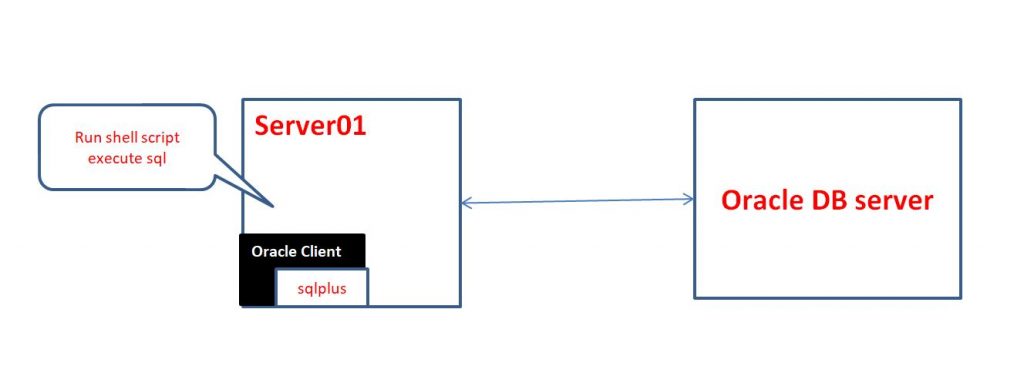
In this tutorial, How do I use shell script execute SQL file on DB? On the server running the shell script, you use a sqlplus command on the server.

You need to install Oracle client on server-run shell script. Example picture below

Oracle Client is free, easy to install client software for connecting to Oracle databases.

For example shell script execute SQL file as below

#!/bin/bash

CONNT=dbuser/password@connect_identifier #your env
SQL_FILE=/home/huupv/create_user.sql
sqlplus -s ${CONNT} <<EOF
  @${SQL_FILE}
EOF

RSTATUS=$?
if [ "${RSTATUS}" != "0" ]
then
  echo "Error"
  exit 100
else
  echo "success"
  exit 0
fi

Thank you for reading DevOpsRoles.com page.

How to extract substring in Bash Shell

In this tutorial, How to extract substring in Bash Shell on Linux. You can use a select substring from the string. The awk command has a few useful functions. It is function.

Function substr mean Returns a substring.

The syntax extract substring in Bash Shell

substr(S,P,N)
  • P: starting at position
  • N: it N number of from string S.

For example, I will use a string “HuuPV2123456789” with a length is 15 and starting position is 10.

$ echo "HuuPV2123456789" | awk '{ printf "%s", substr($0, 10, (length($0)-9)) }'

The result is below

456789

man page function substr here. Thank you for reading the DevopsRoles page!
Bash script Create dir and copy specific files

In this tutorial, I will share the bash script Create dir and copy specific files while changing the in Linux.

My example

path_to_files variable structure folder as below

[root@localhost ~]# tree /home/huupv/
/home/huupv/
├── devopsroles.txt
├── dir
│   └── test.csv
└── huuphan.txt

1 directory, 3 files

dir_names variable will new folder after running bash script as below

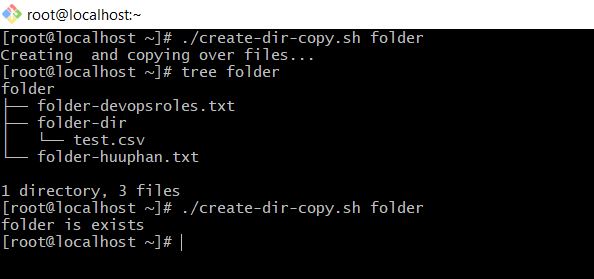
[root@localhost ~]# tree folder
folder
├── folder-devopsroles.txt
├── folder-dir
│   └── test.csv
└── folder-huuphan.txt

1 directory, 3 files

Bash script Create dir and copy specific files and change name files/folder.

#!/bin/bash
dir_names=$1
path_to_files='/home/huupv/'

if [ ! -d $path_to_files ]; then
        echo "$path_to_files not found folder";
        exit 1;
fi

if [ -d $dir_names ]; then
        echo "$dir_names is exists";
        exit 1;
fi


echo "Creating $i and copying over files..."
mkdir $dir_names
for i in $(ls $path_to_files); do
    cp -rf ${path_to_files}${i} ${dir_names}/${dir_names}-$i
done

The result after run Bash Script

Thank you for reading the DevopsRoles page!

Modifying individual text fields in Bash Script

In this tutorial, How do I modifying individual text fields in bash script? Bash Script the essential for DevOps Roles. I run the script on a Linux server.

  • Input: string is “HHHHHHHH
  • Output: AHHHHHHH, BHHHHHHH, CHHHHHHH, DHHHHHHH, XHHHHHHH, ZHHHHHHH

Modifying individual text fields in Bash Script

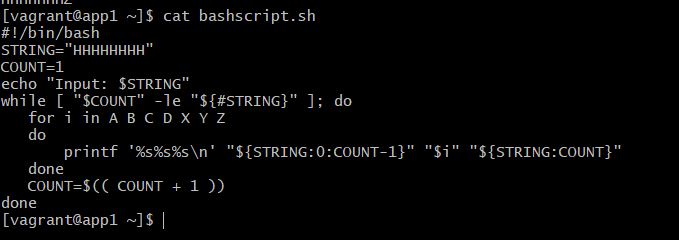
#!/bin/bash
STRING="HHHHHHHH"
COUNT=1
echo "Input: $STRING"
while [ "$COUNT" -le "${#STRING}" ]; do
   for i in A B C D X Y Z
   do
       printf '%s%s%s\n' "${STRING:0:COUNT-1}" "$i" "${STRING:COUNT}"
   done
   COUNT=$(( COUNT + 1 ))
   break
done

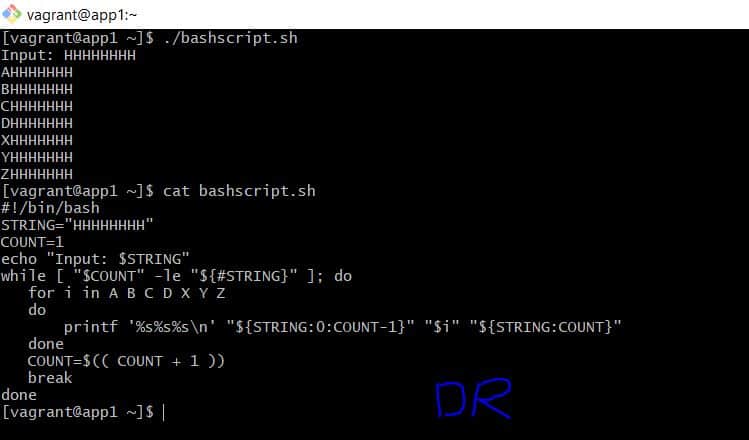
The screen output terminal as below

[vagrant@app1 ~]$ ./bashscript.sh
Input: HHHHHHHH
AHHHHHHH
BHHHHHHH
CHHHHHHH
DHHHHHHH
XHHHHHHH
YHHHHHHH
ZHHHHHHH

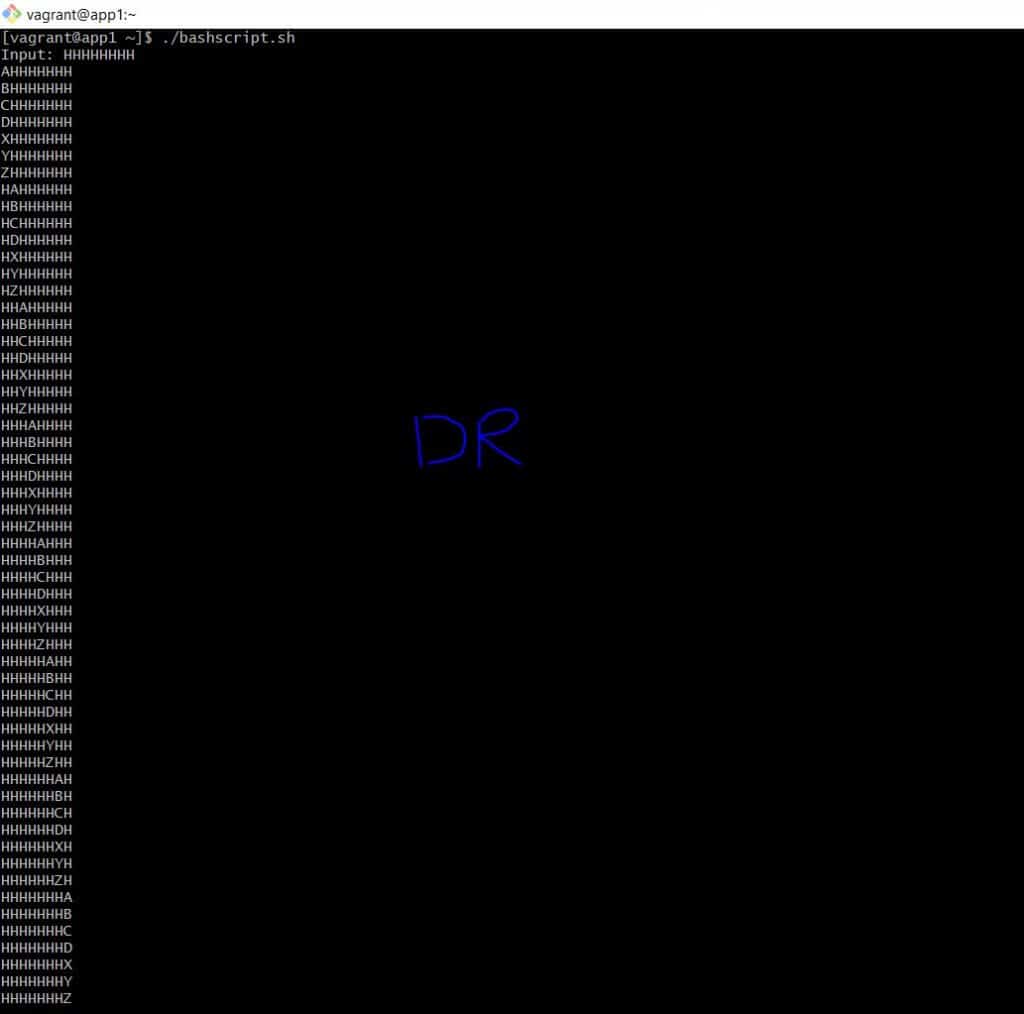
For example, You delete break line in the loop while 🙂 

The result, delete break line in the loop while as below

Conclusion

Through the article, You can “Modifying individual text fields in Bash Script as above. I hope will this your helpful.

Useful shell commands

In this tutorial, I will write about Useful shell commands. Tips and trick about kill process, How to remove ssh host and SCP command. Bash script the essential for DevOps Roles.

Useful shell commands

Kill Process

ps aux | grep <keyword> | grep -v grep | awk '{ print "kill -9", $2 }' | sh

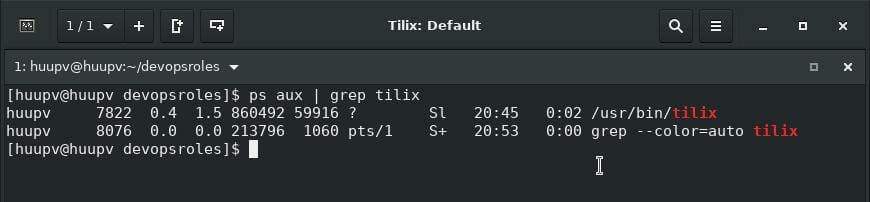
For example, How to kill running Tilix process as the picture below

Kill the process Tilix

[huupv@huupv devopsroles]$ ps aux | grep tilix | grep -v grep | awk '{ print "kill -9", $2 }' | sh

How to remove ssh host

ssh-keygen -R <IP address/host_name>

SCP command

Upload to server

scp -i <ssh key private file> -r <local directory/file> <user>@<remote server>:<remote directory/file>

Download from server

scp -i <ssh key private file> -r <user>@<remote server>:<remote directory/file> <local directory/file>

Conclusion

Thought the article, How to use “Useful shell commands” as above. I hope will this your helpful. Thank you for reading the DevopsRoles page!