Category Archives: Terraform

Learn Terraform with DevOpsRoles.com. Access detailed guides and tutorials to master infrastructure as code and automate your DevOps workflows using Terraform.

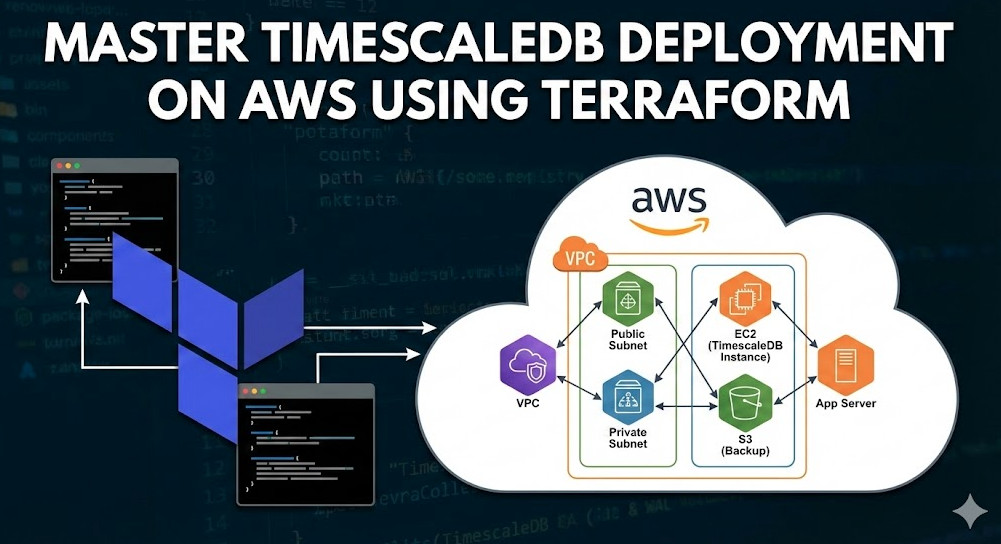
Master TimescaleDB Deployment on AWS using Terraform

Time-series data is the lifeblood of modern observability, IoT, and financial analytics. While managed services exist, enterprise-grade requirements—such as strict data sovereignty, VPC peering latency, or custom ZFS compression tuning—often mandate a self-hosted architecture. This guide focuses on a production-ready TimescaleDB deployment on AWS using Terraform.

We aren’t just spinning up an EC2 instance; we are engineering a storage layer capable of handling massive ingest rates and complex analytical queries. We will leverage Infrastructure as Code (IaC) to orchestrate compute, high-performance block storage, and automated bootstrapping.

Architecture Decisions: optimizing for Throughput

Before writing HCL, we must define the infrastructure characteristics required by TimescaleDB. Unlike stateless microservices, database performance is bound by I/O and memory.

  • Compute (EC2): We will target memory-optimized instances (e.g., r6i or r7g families) to maximize the RAM available for PostgreSQL’s shared buffers and OS page cache.
  • Storage (EBS): We will separate the WAL (Write Ahead Log) from the Data directory.
    • WAL Volume: Requires low latency sequential writes. io2 Block Express or high-throughput gp3.
    • Data Volume: Requires high random read/write throughput. gp3 is usually sufficient, but striping multiple volumes (RAID 0) is a common pattern for extreme performance.
  • OS Tuning: We will use cloud-init to tune kernel parameters (hugepages, swappiness) and run timescaledb-tune automatically.

Pro-Tip: Avoid using burstable instances (T-family) for production databases. The CPU credit exhaustion can lead to catastrophic latency spikes during data compaction or high-ingest periods.

Phase 1: Provider & VPC Foundation

Assuming you have a VPC setup, let’s establish the security context. Your TimescaleDB instance should reside in a private subnet, accessible only via a Bastion host or VPN.

Security Group Definition

resource "aws_security_group" "timescale_sg" {
  name        = "timescaledb-sg"
  description = "Security group for TimescaleDB Node"
  vpc_id      = var.vpc_id

  # Inbound: PostgreSQL Standard Port
  ingress {
    from_port       = 5432
    to_port         = 5432
    protocol        = "tcp"
    security_groups = [var.app_security_group_id] # Only allow app tier
    description     = "Allow PGSQL access from App Tier"
  }

  # Outbound: Allow package updates and S3 backups
  egress {
    from_port   = 0
    to_port     = 0
    protocol    = "-1"
    cidr_blocks = ["0.0.0.0/0"]
  }

  tags = {
    Name = "timescaledb-production-sg"
  }
}

Phase 2: Storage Engineering (EBS)

This is the critical differentiator for expert deployments. We explicitly define EBS volumes separate from the root device to ensure data persistence independent of the instance lifecycle and to optimize I/O channels.

# Data Volume - Optimized for Throughput
resource "aws_ebs_volume" "pg_data" {
  availability_zone = var.availability_zone
  size              = 500
  type              = "gp3"
  iops              = 12000 # Provisioned IOPS
  throughput        = 500   # MB/s

  tags = {
    Name = "timescaledb-data-vol"
  }
}

# WAL Volume - Optimized for Latency
resource "aws_ebs_volume" "pg_wal" {
  availability_zone = var.availability_zone
  size              = 100
  type              = "io2"
  iops              = 5000 

  tags = {
    Name = "timescaledb-wal-vol"
  }
}

resource "aws_volume_attachment" "pg_data_attach" {
  device_name = "/dev/sdf"
  volume_id   = aws_ebs_volume.pg_data.id
  instance_id = aws_instance.timescale_node.id
}

resource "aws_volume_attachment" "pg_wal_attach" {
  device_name = "/dev/sdg"
  volume_id   = aws_ebs_volume.pg_wal.id
  instance_id = aws_instance.timescale_node.id
}

Phase 3: The TimescaleDB Instance & Bootstrapping

We use the user_data attribute to handle the “Day 0” operations: mounting volumes, installing the TimescaleDB packages (which install PostgreSQL as a dependency), and applying initial configuration tuning.

Warning: Ensure your IAM Role attached to this instance has permissions for ec2:DescribeTags if you use cloud-init to self-discover volume tags, or s3:* if you automate WAL-G backups immediately.

resource "aws_instance" "timescale_node" {
  ami           = data.aws_ami.ubuntu.id # Recommend Ubuntu 22.04 or 24.04 LTS
  instance_type = "r6i.2xlarge"
  subnet_id     = var.private_subnet_id
  key_name      = var.key_name

  vpc_security_group_ids = [aws_security_group.timescale_sg.id]
  iam_instance_profile   = aws_iam_instance_profile.timescale_role.name

  root_block_device {
    volume_type = "gp3"
    volume_size = 50
  }

  # "Day 0" Configuration Script
  user_data = <<-EOF
    #!/bin/bash
    set -e
    
    # 1. Mount EBS Volumes
    # Note: NVMe device names may vary on Nitro instances (e.g., /dev/nvme1n1)
    mkfs.xfs /dev/sdf
    mkfs.xfs /dev/sdg
    mkdir -p /var/lib/postgresql/data
    mkdir -p /var/lib/postgresql/wal
    mount /dev/sdf /var/lib/postgresql/data
    mount /dev/sdg /var/lib/postgresql/wal
    
    # Persist mounts in fstab... (omitted for brevity)

    # 2. Add Timescale PPA & Install
    echo "deb https://packagecloud.io/timescale/timescaledb/ubuntu/ $(lsb_release -c -s) main" | sudo tee /etc/apt/sources.list.d/timescaledb.list
    wget --quiet -O - https://packagecloud.io/timescale/timescaledb/gpgkey | sudo apt-key add -
    apt-get update
    apt-get install -y timescaledb-2-postgresql-14

    # 3. Initialize Database
    chown -R postgres:postgres /var/lib/postgresql
    su - postgres -c "/usr/lib/postgresql/14/bin/initdb -D /var/lib/postgresql/data --waldir=/var/lib/postgresql/wal"

    # 4. Tune Configuration
    # This is critical: It calculates memory settings based on the instance type
    timescaledb-tune --quiet --yes --conf-path=/var/lib/postgresql/data/postgresql.conf

    # 5. Enable Service
    systemctl enable postgresql
    systemctl start postgresql
  EOF

  tags = {
    Name = "TimescaleDB-Primary"
  }
}

Optimizing Terraform for Stateful Resources

Managing databases with Terraform requires handling state carefully. Unlike a stateless web server, you cannot simply destroy and recreate this resource if you change a parameter.

Lifecycle Management

Use the lifecycle meta-argument to prevent accidental deletion of your primary database node.

lifecycle {
  prevent_destroy = true
  ignore_changes  = [
    ami, 
    user_data # Prevent recreation if boot script changes
  ]
}

Validation and Post-Deployment

Once terraform apply completes, verification is necessary. You should verify that the TimescaleDB extension is correctly loaded and that your memory settings reflect the timescaledb-tune execution.

Connect to your instance and run:

sudo -u postgres psql -c "SELECT * FROM pg_extension WHERE extname = 'timescaledb';"
sudo -u postgres psql -c "SHOW shared_buffers;"

For further reading on tuning parameters, refer to the official TimescaleDB Tune documentation.

Frequently Asked Questions (FAQ)

1. Can I use RDS for TimescaleDB instead of EC2?

Yes, AWS RDS for PostgreSQL supports the TimescaleDB extension. However, you are often limited to older versions of the extension, and you lose control over low-level filesystem tuning (like using ZFS for compression) which can be critical for high-volume time-series data.

2. How do I handle High Availability (HA) with this Terraform setup?

This guide covers a single-node deployment. For HA, you would expand the Terraform code to deploy a secondary EC2 instance in a different Availability Zone and configure Streaming Replication. Tools like Patroni are the industry standard for managing auto-failover on self-hosted PostgreSQL/TimescaleDB.

3. Why separate WAL and Data volumes?

WAL operations are sequential and synchronous. If they share bandwidth with random read/write operations of the Data volume, write latency will spike, causing backpressure on your ingestion pipeline. Separating them physically (different EBS volumes) ensures consistent write performance.

Conclusion

Mastering TimescaleDB Deployment on AWS requires moving beyond simple “click-ops” to a codified, reproducible infrastructure. By using Terraform to orchestrate not just the compute, but the specific storage characteristics required for time-series workloads, you ensure your database can scale with your data.

Next Steps: Once your instance is running, implement a backup strategy using WAL-G to stream backups directly to S3, ensuring point-in-time recovery (PITR) capabilities. Thank you for reading the DevopsRoles page!

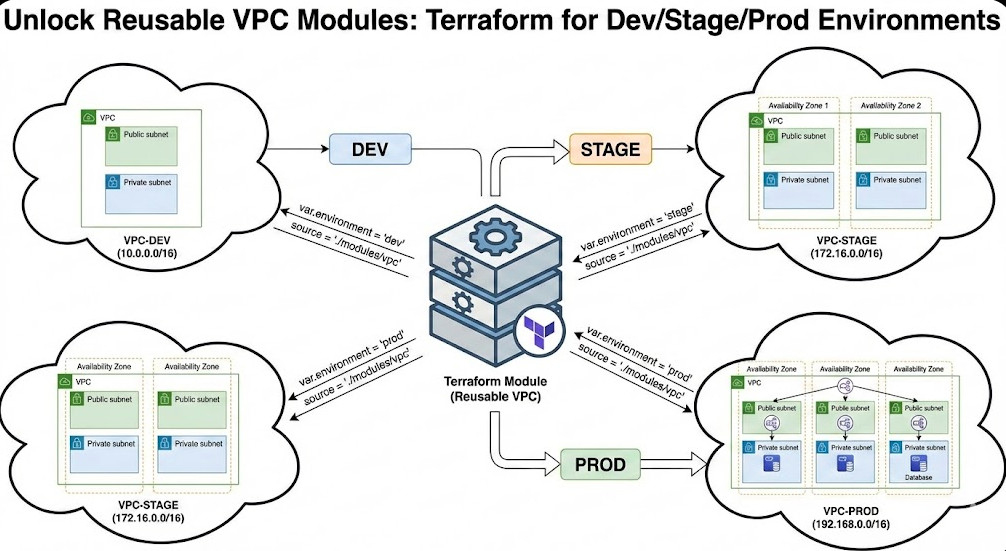
Unlock Reusable VPC Modules: Terraform for Dev/Stage/Prod Environments

If you are managing infrastructure at scale, you have likely felt the pain of the “copy-paste” sprawl. You define a VPC for Development, then copy the code for Staging, and again for Production, perhaps changing a CIDR block or an instance count manually. This breaks the fundamental DevOps principle of DRY (Don’t Repeat Yourself) and introduces drift risk.

For Senior DevOps Engineers and SREs, the goal isn’t just to write code that works; it’s to architect abstractions that scale. Reusable VPC Modules are the cornerstone of a mature Infrastructure as Code (IaC) strategy. They allow you to define the “Gold Standard” for networking once and instantiate it infinitely across environments with predictable results.

In this guide, we will move beyond basic syntax. We will construct a production-grade, agnostic VPC module capable of dynamic subnet calculation, conditional resource creation (like NAT Gateways), and strict variable validation suitable for high-compliance Dev, Stage, and Prod environments.

Why Reusable VPC Modules Matter (Beyond DRY)

While reducing code duplication is the obvious benefit, the strategic value of modularizing your VPC architecture runs deeper.

  • Governance & Compliance: By centralizing your network logic, you enforce security standards (e.g., “Flow Logs must always be enabled” or “Private subnets must not have public IP assignment”) in a single location.
  • Testing & Versioning: You can version your module (e.g., v1.2.0). Production can remain pinned to a stable version while you iterate on features in Development, effectively applying software engineering lifecycles to your network.
  • Abstraction Complexity: A consumer of your module (perhaps a developer spinning up an ephemeral environment) shouldn’t need to understand Route Tables or NACLs. They should only need to provide a CIDR block and an Environment name.

Pro-Tip: Avoid the “God Module” anti-pattern. While it’s tempting to bundle the VPC, EKS, and RDS into one giant module, this leads to dependency hell. Keep your Reusable VPC Modules strictly focused on networking primitives: VPC, Subnets, Route Tables, Gateways, and ACLs.

Anatomy of a Production-Grade Module

Let’s build a module that calculates subnets dynamically based on Availability Zones (AZs) and handles environment-specific logic (like high availability in Prod vs. cost savings in Dev).

1. Input Strategy & Validation

Modern Terraform (v1.0+) allows for powerful variable validation. We want to ensure that downstream users don’t accidentally pass invalid CIDR blocks.

# modules/vpc/variables.tf

variable "environment" {
  description = "Deployment environment (dev, stage, prod)"
  type        = string
  validation {
    condition     = contains(["dev", "stage", "prod"], var.environment)
    error_message = "Environment must be one of: dev, stage, prod."
  }
}

variable "vpc_cidr" {
  description = "CIDR block for the VPC"
  type        = string
  validation {
    condition     = can(cidrhost(var.vpc_cidr, 0))
    error_message = "Must be a valid IPv4 CIDR block."
  }
}

variable "az_count" {
  description = "Number of AZs to utilize"
  type        = number
  default     = 2
}

2. Dynamic Subnetting with cidrsubnet

Hardcoding subnet CIDRs (e.g., 10.0.1.0/24) is brittle. Instead, use the cidrsubnet function to mathematically carve up the VPC CIDR. This ensures no overlap and automatic scalability if you change the base CIDR size.

# modules/vpc/main.tf

data "aws_availability_zones" "available" {
  state = "available"
}

resource "aws_vpc" "main" {
  cidr_block           = var.vpc_cidr
  enable_dns_hostnames = true
  enable_dns_support   = true

  tags = {
    Name = "${var.environment}-vpc"
  }
}

# Public Subnets
resource "aws_subnet" "public" {
  count                   = var.az_count
  vpc_id                  = aws_vpc.main.id
  # Example: 10.0.0.0/16 -> 10.0.1.0/24, 10.0.2.0/24, etc.
  cidr_block              = cidrsubnet(var.vpc_cidr, 8, count.index)
  availability_zone       = data.aws_availability_zones.available.names[count.index]
  map_public_ip_on_launch = true

  tags = {
    Name = "${var.environment}-public-${data.aws_availability_zones.available.names[count.index]}"
    Tier = "Public"
  }
}

# Private Subnets
resource "aws_subnet" "private" {
  count             = var.az_count
  vpc_id            = aws_vpc.main.id
  # Offset the CIDR calculation by 'az_count' to avoid overlap with public subnets
  cidr_block        = cidrsubnet(var.vpc_cidr, 8, count.index + var.az_count)
  availability_zone = data.aws_availability_zones.available.names[count.index]

  tags = {
    Name = "${var.environment}-private-${data.aws_availability_zones.available.names[count.index]}"
    Tier = "Private"
  }
}

3. Conditional NAT Gateways (Cost Optimization)

NAT Gateways are expensive. In a Dev environment, you might only need one shared NAT Gateway (or none if you use instances with public IPs for testing), whereas Prod requires High Availability (one NAT per AZ).

# modules/vpc/main.tf

locals {
  # If Prod, create NAT per AZ. If Dev/Stage, create only 1 NAT total to save costs.
  nat_gateway_count = var.environment == "prod" ? var.az_count : 1
}

resource "aws_eip" "nat" {
  count = local.nat_gateway_count
  domain = "vpc"
}

resource "aws_nat_gateway" "main" {
  count         = local.nat_gateway_count
  allocation_id = aws_eip.nat[count.index].id
  subnet_id     = aws_subnet.public[count.index].id

  tags = {
    Name = "${var.environment}-nat-${count.index}"
  }
}

Implementing Across Environments

Once your Reusable VPC Module is polished, utilizing it across environments becomes a trivial exercise in configuration management. I recommend a directory-based structure over Terraform Workspaces for clearer isolation of state files and variable definitions.

Directory Structure

infrastructure/
├── modules/
│   └── vpc/ (The code we wrote above)
├── environments/
│   ├── dev/
│   │   └── main.tf
│   ├── stage/
│   │   └── main.tf
│   └── prod/
│       └── main.tf

The Implementation (DRY at work)

In environments/prod/main.tf, your code is now incredibly concise:

module "vpc" {
  source      = "../../modules/vpc"
  
  environment = "prod"
  vpc_cidr    = "10.0.0.0/16"
  az_count    = 3 # High Availability
}

Contrast this with environments/dev/main.tf:

module "vpc" {
  source      = "../../modules/vpc"
  
  environment = "dev"
  vpc_cidr    = "10.10.0.0/16" # Different CIDR
  az_count    = 2 # Lower cost
}

Advanced Patterns & Considerations

Tagging Standards

Effective tagging is non-negotiable for cost allocation and resource tracking. Use the default_tags feature in the AWS provider configuration to apply global tags, but ensure your module accepts a tags map variable to merge specific metadata.

Outputting Values for Dependency Injection

Your VPC module is likely the foundation for other modules (like EKS or RDS). Ensure you output the IDs required by these dependent resources.

# modules/vpc/outputs.tf

output "vpc_id" {
  value = aws_vpc.main.id
}

output "private_subnet_ids" {
  value = aws_subnet.private[*].id
}

output "public_subnet_ids" {
  value = aws_subnet.public[*].id
}

Frequently Asked Questions (FAQ)

Should I use the official terraform-aws-modules/vpc/aws or build my own?

For beginners or rapid prototyping, the community module is excellent. However, for Expert SRE teams, building your own Reusable VPC Module is often preferred. It reduces “bloat” (unused features from the community module) and allows strict adherence to internal naming conventions and security compliance logic that a generic module cannot provide.

How do I handle VPC Peering between these environments?

Generally, you should avoid peering Dev and Prod. However, if you need shared services (like a tooling VPC), create a separate vpc-peering module. Do not bake peering logic into the core VPC module, as it creates circular dependencies and makes the module difficult to destroy.

What about VPC Flow Logs?

Flow Logs should be a standard part of your reusable module. I recommend adding a variable enable_flow_logs (defaulting to true) and storing logs in S3 or CloudWatch Logs. This ensures that every environment spun up with your module has auditing enabled by default.

Conclusion

Transitioning to Reusable VPC Modules transforms your infrastructure from a collection of static scripts into a dynamic, versioned product. By abstracting the complexity of subnet math and resource allocation, you empower your team to deploy Dev, Stage, and Prod environments that are consistent, compliant, and cost-optimized.

Start refactoring your hardcoded network configurations today. Isolate your logic into a module, version it, and watch your drift disappear. Thank you for reading the DevopsRoles page!
Rapid Prototyping GCP: Terraform, GitHub, Docker & Streamlit in GCP

In my experience as a Senior Staff DevOps Engineer, I’ve often seen deployment friction halt brilliant ideas at the proof-of-concept stage. When the primary goal is validating a data product or ML model, speed is the most critical metric. This guide offers an expert-level strategy for achieving true Rapid Prototyping in GCP by integrating an elite toolset: Terraform for infrastructure-as-code, GitHub Actions for CI/CD, Docker for containerization, and Streamlit for the frontend application layer.

We’ll architect a highly automated, cost-optimized pipeline that enables a single developer to push a change to a Git branch and have a fully deployed, tested prototype running on Google Cloud Platform (GCP) minutes later. This methodology transforms your development lifecycle from weeks to hours.

The Foundational Stack for Rapid Prototyping in GCP

To truly master **Rapid Prototyping in GCP**, we must establish a robust, yet flexible, technology stack. Our chosen components prioritize automation, reproducibility, and minimal operational overhead:

  • Infrastructure: Terraform – Define all GCP resources (VPC, Cloud Run, Artifact Registry) declaratively. This ensures the environment is reproducible and easily torn down after validation.
  • Application Framework: Streamlit – Allows data scientists and ML engineers to create complex, interactive web applications using only Python, eliminating frontend complexity.
  • Containerization: Docker – Standardizes the application environment, bundling all dependencies (Python versions, libraries) and ensuring the prototype runs identically from local machine to GCP.
  • CI/CD & Source Control: GitHub & GitHub Actions – Provides the automated workflow for testing, building the Docker image, pushing it to Artifact Registry, and deploying the application to Cloud Run.

Pro-Tip: Choosing the GCP Target
For rapid prototyping of web-facing applications, **Google Cloud Run** is the superior choice over GKE or Compute Engine. It offers serverless container execution, scales down to zero (minimizing cost), and integrates seamlessly with container images from Artifact Registry.

Step 1: Defining Infrastructure with Terraform

Our infrastructure definition must be minimal but secure. We’ll set up a project, enable the necessary APIs, and define our key deployment targets: a **VPC network**, an **Artifact Registry** repository, and the **Cloud Run** service itself. The service will be made public for easy prototype sharing.

Required Terraform Code (main.tf Snippet):


resource "google_project_service" "apis" {
  for_each = toset([
    "cloudresourcemanager.googleapis.com",
    "cloudrun.googleapis.com",
    "artifactregistry.googleapis.com",
    "iam.googleapis.com"
  ])
  project = var.project_id
  service = each.key
  disable_on_destroy = false
}

resource "google_artifact_registry_repository" "repo" {
  location = var.region
  repository_id = var.repo_name
  format = "DOCKER"
}

resource "google_cloud_run_v2_service" "prototype_app" {
  name = var.service_name
  location = var.region

  template {
    containers {
      image = "${var.region}-docker.pkg.dev/${var.project_id}/${var.repo_name}/${var.image_name}:latest"
      resources {
        cpu_idle = true
        memory = "1Gi"
      }
    }
  }

  traffic {
    type = "TRAFFIC_TARGET_ALLOCATION_TYPE_LATEST"
    percent = 100
  }

  // Allow unauthenticated access for rapid prototyping
  // See: https://cloud.google.com/run/docs/authenticating/public
  metadata {
    annotations = {
      "run.googleapis.com/ingress" = "all"
    }
  }
}

This code block uses the `latest` tag for true rapid iteration, though for production, a commit SHA tag is preferred. By keeping the service public, we streamline the sharing process, a critical part of **Rapid Prototyping GCP** solutions.

Step 2: Containerizing the Streamlit Application with Docker

The Streamlit application requires a minimal, multi-stage Dockerfile to keep image size small and build times fast.

Dockerfile Example:


# Stage 1: Builder
FROM python:3.10-slim as builder
WORKDIR /app
COPY requirements.txt .
RUN pip install --no-cache-dir -r requirements.txt

# Stage 2: Production
FROM python:3.10-slim
WORKDIR /app
COPY --from=builder /usr/local/lib/python3.10/site-packages/ /usr/local/lib/python3.10/site-packages/
COPY --from=builder /usr/local/bin/ /usr/local/bin/
COPY . .

# Streamlit runs on port 8501 by default
EXPOSE 8501

# The command to run the application
CMD ["streamlit", "run", "app.py", "--server.port=8080", "--server.enableCORS=false"]

Note: We explicitly set the Streamlit port to **8080** via the `CMD` instruction, which is the mandatory listening port for Google Cloud Run’s container contract.

Step 3: Implementing CI/CD with GitHub Actions

The core of our **Rapid Prototyping GCP** pipeline is the CI/CD workflow, automated via GitHub Actions. A push to the `main` branch should trigger a container build, push, and deployment.

GitHub Actions Workflow (.github/workflows/deploy.yml):


name: Build and Deploy Prototype to Cloud Run

on:
  push:
    branches:
      - main
  workflow_dispatch:

env:
  PROJECT_ID: ${{ secrets.GCP_PROJECT_ID }}
  GCP_REGION: us-central1
  SERVICE_NAME: streamlit-prototype
  REPO_NAME: prototype-repo
  IMAGE_NAME: streamlit-app

jobs:
  deploy:
    runs-on: ubuntu-latest
    
    permissions:
      contents: 'read'
      id-token: 'write' # Required for OIDC authentication

    steps:
    - name: Checkout Code
      uses: actions/checkout@v4

    - id: 'auth'
      name: 'Authenticate to GCP'
      uses: 'google-github-actions/auth@v2'
      with:
        workload_identity_provider: ${{ secrets.WIF_PROVIDER }}
        service_account: ${{ secrets.SA_EMAIL }}

    - name: Set up Docker
      uses: docker/setup-buildx-action@v3

    - name: Build and Push Docker Image
      uses: docker/build-push-action@v5
      with:
        push: true
        tags: ${{ GCP_REGION }}-docker.pkg.dev/${{ PROJECT_ID }}/${{ REPO_NAME }}/${{ IMAGE_NAME }}:latest
        context: .
        
    - name: Deploy to Cloud Run
      uses: google-github-actions/deploy-cloudrun@v2
      with:
        service: ${{ env.SERVICE_NAME }}
        region: ${{ env.GCP_REGION }}
        image: ${{ GCP_REGION }}-docker.pkg.dev/${{ PROJECT_ID }}/${{ REPO_NAME }}/${{ IMAGE_NAME }}:latest

Advanced Concept: GitHub OIDC Integration
We use **Workload Identity Federation (WIF)**, not static service account keys, for secure authentication. The GitHub Action uses the `id-token: ‘write’` permission to exchange a short-lived token for GCP credentials, significantly enhancing the security posture of our CI/CD pipeline. Refer to the official GCP IAM documentation for setting up the required WIF pool and provider.

Best Practices for Iterative Development and Cost Control

A successful **Rapid Prototyping GCP** pipeline isn’t just about deployment; it’s about making iteration cheap and fast, and managing the associated cloud costs.

Rapid Iteration with Streamlit’s Application State

Leverage Streamlit’s native caching mechanisms (e.g., `@st.cache_data`, `@st.cache_resource`) and session state (`st.session_state`) effectively. This prevents re-running expensive computations (like model loading or large data fetches) on every user interaction, reducing application latency and improving the perceived speed of the prototype.

Cost Management with Cloud Run

  • Scale-to-Zero: Ensure your Cloud Run service is configured to scale down to 0 minimum instances (`min-instances: 0`). This is crucial. If the prototype isn’t being actively viewed, you pay nothing for compute time.
  • Resource Limits: Start with the lowest possible CPU/Memory allocation (e.g., 1vCPU, 512MiB) and increase only if necessary. Prototypes should be cost-aware.
  • Terraform Taint: For temporary projects, use `terraform destroy` when validation is complete. For environments that must persist, use `terraform taint` or manual deletion on the service, and a follow-up `terraform apply` to re-create it when needed.

Frequently Asked Questions (FAQ)

How is this Rapid Prototyping stack different from using App Engine or GKE?

The key difference is **operational overhead and cost**. App Engine (Standard) is limited by language runtimes, and GKE (Kubernetes) introduces significant complexity (managing nodes, deployments, services, ingress) that is unnecessary for a rapid proof-of-concept. Cloud Run is a fully managed container platform that handles autoscaling, patching, and networking, allowing you to focus purely on the application logic for your prototype.

What are the security implications of making the Cloud Run service unauthenticated?

Making the service public (`allow-unauthenticated`) is acceptable for internal or temporary prototypes, as it simplifies sharing. For prototypes that handle sensitive data or move toward production, you must update the Terraform configuration to remove the public access IAM policy and enforce authentication (e.g., using IAP or requiring a valid GCP identity token).

Can I use Cloud Build instead of GitHub Actions for this CI/CD?

Absolutely. Cloud Build is GCP’s native CI/CD platform and can be a faster alternative, especially for image builds that stay within the Google Cloud network. The GitHub Actions approach was chosen here for its seamless integration with the source control repository (GitHub) and its broad community support, simplifying the adoption for teams already using GitHub.

Conclusion

Building a modern **Rapid Prototyping GCP** pipeline requires a holistic view of the entire software lifecycle. By coupling the declarative power of **Terraform** with the automation of **GitHub Actions** and the serverless execution of **Cloud Run**, you gain an unparalleled ability to quickly validate ideas. This blueprint empowers expert DevOps teams and SREs to dramatically reduce the time-to-market for data applications and machine learning models, moving from concept to deployed, interactive prototype in minutes, not days. Thank you for reading the DevopsRoles page!

How to deploy an EKS cluster using Terraform

Welcome to the definitive guide on using Terraform to provision and manage Amazon Elastic Kubernetes Service (EKS). Manually setting up a Kubernetes cluster on AWS involves navigating a complex web of resources: VPCs, subnets, IAM roles, security groups, and the EKS control plane itself. This process is not only time-consuming but also prone to human error and difficult to reproduce.

This is where Terraform, the industry-standard Infrastructure as Code (IaC) tool, becomes indispensable. By defining your infrastructure in declarative configuration files, you can automate the entire provisioning process, ensuring consistency, repeatability, and version control. In this comprehensive tutorial, we will walk you through every step required to deploy an EKS cluster using Terraform, from setting up the networking to configuring node groups and connecting with kubectl. This guide is designed for DevOps engineers, SREs, and system administrators looking to adopt best practices for their Kubernetes cluster on AWS.

Why Use Terraform to Deploy an EKS Cluster?

While the AWS Management Console or AWS CLI are valid ways to start, any production-grade system benefits immensely from an IaC approach. When you deploy an EKS cluster, you’re not just creating one resource; you’re orchestrating dozens of interconnected components. Terraform excels at managing this complexity.

The Power of Infrastructure as Code (IaC)

Infrastructure as Code (IaC) is the practice of managing and provisioning infrastructure through machine-readable definition files, rather than physical hardware configuration or interactive configuration tools. Terraform allows you to write, plan, and create your AWS EKS cluster setup with code. This code can be versioned in Git, peer-reviewed, and tested, just like your application code.

Repeatability and Consistency

Need to spin up an identical cluster for staging, development, or a different region? With a manual process, this is a nightmare of forgotten settings and configuration drift. With Terraform, you simply run terraform apply. Your configuration files are the single source of truth, guaranteeing that every environment is a precise, consistent replica.

State Management and Version Control

Terraform creates a state file that maps your configuration to the real-world resources it has created. This state allows Terraform to plan changes, understand dependencies, and manage the entire lifecycle of your infrastructure. When you need to upgrade your EKS version or change a node’s instance type, Terraform calculates the exact changes needed and executes them in the correct order. You can destroy the entire stack with a single terraform destroy command, ensuring no orphaned resources are left behind.

Prerequisites: What You Need Before You Start

Before we begin, ensure you have the following tools and accounts set up. This guide assumes you are comfortable working from the command line.

  • An AWS Account: You will need an AWS account with IAM permissions to create EKS clusters, VPCs, IAM roles, and associated resources.
  • AWS CLI: The AWS Command Line Interface, configured with your credentials (e.g., via aws configure).
  • Terraform: Terraform (version 1.0.0 or later) installed on your local machine.
  • kubectl: The Kubernetes command-line tool. This is used to interact with your cluster once it’s created.
  • aws-iam-authenticator (Optional but Recommended): This helper binary allows kubectl to use AWS IAM credentials for authentication. However, modern AWS CLI versions (1.16.156+) can handle this natively with the aws eks update-kubeconfig command, which we will use.

Step-by-Step Guide: Provisioning Your EKS Infrastructure

We will build our configuration using the official, battle-tested Terraform EKS module. This module abstracts away immense complexity and encapsulates best practices for EKS cluster provisioning.

Step 1: Setting Up Your Terraform Project

First, create a new directory for your project. Inside this directory, we’ll create several .tf files to keep our configuration organized.

Your directory structure will look like this:


.
├── main.tf
├── variables.tf
└── outputs.tf

Let’s start with main.tf. This file will contain our provider configuration and the module calls.


# main.tf

terraform {
  required_version = "~> 1.5"

  required_providers {
    aws = {
      source  = "hashicorp/aws"
      version = "~> 5.0"
    }
  }
}

provider "aws" {
  region = var.aws_region
}

# Define a random string to ensure unique EKS cluster names
resource "random_pet" "cluster_name_suffix" {
  length = 2
}

Next, define your variables in variables.tf. This allows you to easily customize your deployment without changing the core logic.


# variables.tf

variable "aws_region" {
  description = "The AWS region to deploy resources in."
  type        = string
  default     = "us-east-1"
}

variable "cluster_name" {
  description = "The name for your EKS cluster."
  type        = string
  default     = "my-demo-cluster"
}

variable "cluster_version" {
  description = "The Kubernetes version for the EKS cluster."
  type        = string
  default     = "1.29"
}

variable "vpc_cidr" {
  description = "The CIDR block for the EKS cluster VPC."
  type        = string
  default     = "10.0.0.0/16"
}

variable "azs" {
  description = "Availability Zones for the VPC and EKS."
  type        = list(string)
  default     = ["us-east-1a", "us-east-1b", "us-east-1c"]
}

Step 2: Defining the Networking (VPC)

An EKS cluster requires a robust, highly available Virtual Private Cloud (VPC) with both public and private subnets across multiple Availability Zones. We will use the official Terraform VPC module to handle this.

Add the following to your main.tf file:


# main.tf (continued...)

module "vpc" {
  source  = "terraform-aws-modules/vpc/aws"
  version = "5.5.3"

  name = "${var.cluster_name}-vpc"
  cidr = var.vpc_cidr

  azs             = var.azs
  private_subnets = [for k, v in var.azs : cidrsubnet(var.vpc_cidr, 8, k + 4)]
  public_subnets  = [for k, v in var.azs : cidrsubnet(var.vpc_cidr, 8, k)]

  enable_nat_gateway   = true
  single_nat_gateway   = true
  enable_dns_hostnames = true

  # Tags required by EKS
  public_subnet_tags = {
    "kubernetes.io/cluster/${var.cluster_name}-${random_pet.cluster_name_suffix.id}" = "shared"
    "kubernetes.io/role/elb"                                                         = "1"
  }

  private_subnet_tags = {
    "kubernetes.io/cluster/${var.cluster_name}-${random_pet.cluster_name_suffix.id}" = "shared"
    "kubernetes.io/role/internal-elb"                                                = "1"
  }
}

This block provisions a new VPC with public subnets (for load balancers) and private subnets (for worker nodes) across the three AZs we defined. Crucially, it adds the specific tags that EKS requires to identify which subnets it can use for internal and external load balancers.

Step 3: Defining the EKS Cluster with the Official Module

Now for the main event. We will add the terraform-aws-modules/eks/aws module. This single module will create:

  • The EKS Control Plane
  • The necessary IAM Roles (for the cluster and nodes)
  • Security Groups
  • Managed Node Groups

Add this final block to your main.tf:


# main.tf (continued...)

module "eks" {
  source  = "terraform-aws-modules/eks/aws"
  version = "20.8.4"

  cluster_name    = "${var.cluster_name}-${random_pet.cluster_name_suffix.id}"
  cluster_version = var.cluster_version

  cluster_endpoint_public_access = true

  vpc_id     = module.vpc.vpc_id
  subnet_ids = module.vpc.private_subnets

  # EKS Managed Node Group configuration
  eks_managed_node_groups = {
    general_purpose = {
      name           = "general-purpose-nodes"
      instance_types = ["t3.medium"]

      min_size     = 1
      max_size     = 3
      desired_size = 2

      # Use the private subnets
      subnet_ids = module.vpc.private_subnets

      tags = {
        Purpose = "general-purpose-workloads"
      }
    }
  }

  # This allows our local kubectl to authenticate
  # by mapping the default AWS user/role that runs terraform
  # to the "system:masters" group in Kubernetes RBAC.
  aws_auth_roles = [
    {
      rolearn = "arn:aws:iam::${data.aws_caller_identity.current.account_id}:role/AWSServiceRoleForAmazonEKS"
      username = "system:node:{{EC2PrivateDNSName}}"
      groups = [
        "system:bootstrappers",
        "system:nodes",
      ]
    }
  ]
  
  aws_auth_users = [
    {
      userarn = data.aws_caller_identity.current.arn
      username = "admin"
      groups = [
        "system:masters"
      ]
    }
  ]

}

data "aws_caller_identity" "current" {}

This configuration defines an EKS cluster and a managed node group named general_purpose. This node group will run t3.medium instances and will auto-scale between 1 and 3 nodes, starting with 2. The aws_auth_users block is critical: it takes the IAM identity (user or role) that is running Terraform and grants it system:masters (admin) permissions within the new Kubernetes cluster.

Step 4: Defining Outputs

Finally, we need to output the cluster’s information so we can connect to it. Create an outputs.tf file.


# outputs.tf

output "cluster_name" {
  description = "The name of the EKS cluster."
  value       = module.eks.cluster_name
}

output "cluster_endpoint" {
  description = "The endpoint for your EKS cluster."
  value       = module.eks.cluster_endpoint
}

output "cluster_ca_certificate" {
  description = "Base64 encoded certificate data for cluster."
  value       = module.eks.cluster_certificate_authority_data
}

output "configure_kubectl_command" {
  description = "Command to configure kubectl to connect to the cluster."
  value       = "aws eks update-kubeconfig --region ${var.aws_region} --name ${module.eks.cluster_name}"
}

Step 5: Deploying and Connecting to Your Cluster

With all our configuration files in place, it’s time to deploy.

Initialize and Apply

Run the following commands in your terminal:


# 1. Initialize the Terraform project
# This downloads the AWS provider and the EKS/VPC modules
terraform init

# 2. Plan the deployment
# This shows you all the resources Terraform will create
terraform plan

# 3. Apply the configuration
# This will build the VPC, IAM roles, and EKS cluster.
# It can take 15-20 minutes for the EKS cluster to become active.
terraform apply --auto-approve

After terraform apply completes, it will print the values from your outputs.tf file.

Configuring kubectl

The easiest way to configure your local kubectl is to use the command we generated in our outputs. Copy the value of configure_kubectl_command from the Terraform output and paste it into your terminal.


# This command will be printed by 'terraform apply'
aws eks update-kubeconfig --region us-east-1 --name my-demo-cluster-xy

This AWS CLI command automatically updates your local ~/.kube/config file with the new cluster’s credentials and endpoint.

Verifying the Cluster

You can now use kubectl to interact with your cluster. Let’s check the status of our nodes:


kubectl get nodes

# You should see an output similar to this, showing your 2 nodes are 'Ready':
# NAME                                         STATUS   ROLES    AGE   VERSION
# ip-10-0-10-123.ec2.internal   Ready       5m    v1.29.0-eks
# ip-10-0-11-45.ec2.internal    Ready       5m    v1.29.0-eks

You can also check the pods running in the kube-system namespace:


kubectl get pods -n kube-system

# You will see core components like coredns and the aws-node (VPC CNI) pods.

Congratulations! You have successfully deployed a production-ready EKS cluster using Terraform.

Advanced Considerations and Best Practices

This guide provides a strong foundation, but a true production environment has more components. Here are key areas to explore next:

  • IAM Roles for Service Accounts (IRSA): Instead of giving broad permissions to worker nodes, use IRSA to assign fine-grained IAM roles directly to your Kubernetes service accounts. This is the most secure way for your pods (e.g., external-dns, aws-load-balancer-controller) to interact with AWS APIs. The Terraform EKS module has built-in support for this.
  • Cluster Autoscaling: We configured the Managed Node Group to scale, but for more advanced scaling based on pod resource requests, you should deploy the Kubernetes Cluster Autoscaler.
  • EKS Add-ons: EKS manages core add-ons like vpc-cni, kube-proxy, and coredns. You can manage the versions of these add-ons directly within the Terraform EKS module block, treating them as code as well.
  • Logging and Monitoring: Configure EKS control plane logging (api, audit, authenticator) and ship those logs to CloudWatch. Use the EKS module to enable these logs and deploy monitoring solutions like Prometheus and Grafana.

Frequently Asked Questions

Can I use this guide to deploy an EKS cluster into an existing VPC?
Yes. Instead of using the module "vpc", you would remove that block and pass your existing VPC and subnet IDs directly to the module "eks" block’s vpc_id and subnet_ids arguments. You must ensure your subnets are tagged correctly as described in Step 2.
How do I upgrade my EKS cluster’s Kubernetes version using Terraform?
It’s a two-step process. First, update the cluster_version argument in your variables.tf (e.g., from “1.29” to “1.30”). Run terraform apply to upgrade the control plane. Once that is complete, you must also upgrade your node groups by updating their version (or by default, they will upgrade on the next AMI rotation if configured).
What is the difference between Managed Node Groups and Fargate?
Managed Node Groups (used in this guide) provision EC2 instances that you manage (but AWS patches). You have full control over the instance type and operating system. AWS Fargate is a serverless compute engine that allows you to run pods without managing any underlying EC2 instances at all. The EKS module also supports creating Fargate profiles.

Conclusion

You have now mastered the fundamentals of EKS cluster provisioning with Infrastructure as Code. By leveraging the official Terraform EKS module, you’ve abstracted away massive complexity and built a scalable, repeatable, and maintainable foundation for your Kubernetes workloads on AWS. This declarative approach is the cornerstone of modern DevOps and SRE practices, enabling you to manage infrastructure with the same rigor and confidence as application code.

By following this guide, you’ve learned not just how to deploy EKS cluster infrastructure, but how to do it in a way that is robust, scalable, and manageable. From here, you are well-equipped to explore advanced topics like IRSA, cluster autoscaling, and CI/CD pipelines for your new Kubernetes cluster. Thank you for reading the DevopsRoles page!
Manage multiple environments with Terraform workspaces

For any organization scaling its infrastructure, managing multiple environments like development, staging, and production is a fundamental challenge. A common anti-pattern for beginners is duplicating the entire Terraform configuration for each environment. This leads to code duplication, configuration drift, and a high-maintenance nightmare. Fortunately, HashiCorp provides a built-in solution to this problem: Terraform workspaces. This feature allows you to use a single set of configuration files to manage multiple, distinct sets of infrastructure resources, primarily by isolating their state files.

This comprehensive guide will dive deep into what Terraform workspaces are, how to use them effectively, and their best practices. We’ll explore practical examples, variable management strategies, and how they fit into a modern CI/CD pipeline, empowering you to streamline your environment management process.

What Are Terraform Workspaces?

At their core, Terraform workspaces are a mechanism to manage multiple, independent state files for a single Terraform configuration. When you run terraform apply, Terraform writes metadata about the resources it created into a file named terraform.tfstate. A workspace provides a separate, named “space” for that state file.

This means you can have a single directory of .tf files (your main.tf, variables.tf, etc.) and use it to deploy a “dev” environment, a “staging” environment, and a “prod” environment. Each of these will have its own state file, completely isolated from the others. Running terraform destroy in the dev workspace will not affect the resources in your prod workspace, even though they are defined by the same code.

The ‘default’ Workspace

If you’ve never explicitly used workspaces, you’ve still been using one: the default workspace. Every Terraform configuration starts with this single workspace. When you run terraform init and terraform apply, the state is written to terraform.tfstate directly in your root directory (or in your configured remote backend).

How Workspaces Manage State

When you create a new workspace (e.g., dev), Terraform no longer writes to the root terraform.tfstate file. Instead, it creates a new directory called terraform.tfstate.d. Inside this directory, it will create a folder for each workspace, and each folder will contain its own terraform.tfstate file.

For example, if you have dev and prod workspaces, your directory structure might look like this (for local state):

.
├── main.tf
├── variables.tf
├── terraform.tfvars
├── terraform.tfstate.d/
│   ├── dev/
│   │   └── terraform.tfstate
│   └── prod/
│       └── terraform.tfstate

If you are using a remote backend like an S3 bucket, Terraform will instead create paths or keys based on the workspace name to keep the state files separate within the bucket.

Why Use Terraform Workspaces? (And When Not To)

Workspaces are a powerful tool, but they aren’t the solution for every problem. Understanding their pros and cons is key to using them effectively.

Key Advantages

  • Code Reusability (DRY): The most significant benefit. You maintain one codebase for all your environments. A change to a security group rule is made once in main.tf and then applied to each environment as needed.
  • Environment Isolation: Separate state files prevent “cross-talk.” You can’t accidentally destroy a production database while testing a change in staging.
  • Simplicity for Similar Environments: Workspaces are ideal for environments that are structurally identical (or very similar) but differ only in variables (e.g., instance size, count, or name prefixes).
  • Rapid Provisioning: Quickly spin up a new, temporary environment for a feature branch (e.g., feat-new-api) and tear it down just as quickly, all from the same configuration.

Common Pitfalls and When to Avoid Them

  • Overuse of Conditional Logic: If you find your .tf files littered with complex if statements or count tricks based on terraform.workspace, you may be forcing a single configuration to do too much. This can make the code unreadable and brittle.
  • Not for Different Configurations: Workspaces are for deploying the *same* configuration to *different* environments. If your prod environment has a completely different architecture than dev (e.g., uses RDS while dev uses a containerized SQLite), they should probably be separate Terraform configurations (i.e., in different directories).
  • Large-Scale Complexity: For very large, complex organizations, managing many environments with subtle differences can still become difficult. At this scale, you might consider graduating to a tool like Terragrunt or adopting a more sophisticated module-based architecture where each environment is a separate root module that calls shared, versioned modules.

Getting Started: A Practical Guide to Terraform Workspaces

Let’s walk through a practical example. We’ll define a simple AWS EC2 instance and deploy it to both dev and prod environments, giving each a different instance type and tag.

Step 1: Basic CLI Commands

First, let’s get familiar with the core terraform workspace commands. Initialize a new Terraform directory to get started.

# Show the current workspace
$ terraform workspace show
default

# Create a new workspace
$ terraform workspace new dev
Created and switched to workspace "dev"

# Create another one
$ terraform workspace new prod
Created and switched to workspace "prod"

# List all available workspaces
$ terraform workspace list
  default
* prod
  dev

# Switch back to the dev workspace
$ terraform workspace select dev
Switched to workspace "dev"

# You cannot delete the 'default' workspace
$ terraform workspace delete default
Error: Failed to delete workspace: "default" workspace cannot be deleted

# You also cannot delete the workspace you are currently in
$ terraform workspace delete dev
Error: Failed to delete workspace: cannot delete current workspace "dev"

# To delete a workspace, switch to another one first
$ terraform workspace select prod
Switched to workspace "prod"

$ terraform workspace delete dev
Deleted workspace "dev"!

Step 2: Structuring Your Configuration with terraform.workspace

Terraform exposes the name of the currently selected workspace via the terraform.workspace interpolation. This is incredibly useful for naming and tagging resources to avoid collisions.

Let’s create a main.tf file.

terraform {
  required_providers {
    aws = {
      source  = "hashicorp/aws"
      version = "~> 5.0"
    }
  }
}

provider "aws" {
  region = "us-east-1"
}

# We will define variables later
variable "instance_type" {}
variable "ami_id" {
  description = "The AMI to use for our instance"
  type        = string
  default     = "ami-0c55b159cbfafe1f0" # An Amazon Linux 2 AMI
}

resource "aws_instance" "web_server" {
  ami           = var.ami_id
  instance_type = var.instance_type # This will come from a variable

  tags = {
    # Use the workspace name to differentiate resources
    Name        = "web-server-${terraform.workspace}"
    Environment = terraform.workspace
  }
}

output "instance_id" {
  value = aws_instance.web_server.id
}

output "instance_public_ip" {
  value = aws_instance.web_server.public_ip
}

Notice the tags block. If we are in the dev workspace, the instance will be named web-server-dev. In the prod workspace, it will be web-server-prod. This simple interpolation is the key to managing resources within a single AWS account.

Step 3: Managing Environment-Specific Variables

This is the most critical part. Our dev environment should use a t3.micro, while our prod environment needs a t3.medium. How do we manage this?

There are two primary methods: using map variables or using separate .tfvars files.

Method 1: Using a Map Variable (Recommended)

This is a clean, self-contained approach. We define a map in our variables.tf file that holds the configuration for each environment. Then, we use the terraform.workspace as a key to look up the correct value.

First, update variables.tf (or add it):

# variables.tf

variable "ami_id" {
  description = "The AMI to use for our instance"
  type        = string
  default     = "ami-0c55b159cbfafe1f0" # Amazon Linux 2
}

# Define a map variable to hold settings per environment
variable "env_config" {
  description = "Configuration settings for each environment"
  type = map(object({
    instance_type = string
    instance_count = number
  }))
  default = {
    "default" = {
      instance_type = "t3.nano"
      instance_count = 0 # Don't deploy in default
    },
    "dev" = {
      instance_type = "t3.micro"
      instance_count = 1
    },
    "prod" = {
      instance_type = "t3.medium"
      instance_count = 2 # Example of changing count
    }
  }
}

Now, update main.tf to use this map. We’ll also add the count parameter.

# main.tf (updated)

# ... provider block ...

resource "aws_instance" "web_server" {
  # Use the workspace name to look up the correct config
  count         = var.env_config[terraform.workspace].instance_count
  instance_type = var.env_config[terraform.workspace].instance_type

  ami = var.ami_id

  tags = {
    Name        = "web-server-${terraform.workspace}-${count.index}"
    Environment = terraform.workspace
  }
}

output "instance_public_ips" {
  value = aws_instance.web_server.*.public_ip
}

Now, let’s deploy:

# Make sure we have our workspaces
$ terraform workspace new dev
$ terraform workspace new prod

# Initialize the configuration
$ terraform init

# Select the dev workspace and apply
$ terraform workspace select dev
Switched to workspace "dev"
$ terraform apply -auto-approve

# ... Terraform will plan to create 1 t3.micro instance ...
Apply complete! Resources: 1 added, 0 changed, 0 destroyed.
Outputs:
instance_public_ips = [
  "54.1.2.3",
]

# Now, select the prod workspace and apply
$ terraform workspace select prod
Switched to workspace "prod"
$ terraform apply -auto-approve

# ... Terraform will plan to create 2 t3.medium instances ...
# This plan is totally independent of the 'dev' state.
Apply complete! Resources: 2 added, 0 changed, 0 destroyed.
Outputs:
instance_public_ips = [
  "34.4.5.6",
  "34.7.8.9",
]

You now have two separate environments deployed from the same code, each with its own state file and configuration.

Method 2: Using -var-file

An alternative (and simpler for some) approach is to create separate variable files for each environment.

Create dev.tfvars:

# dev.tfvars
instance_type = "t3.micro"
instance_count = 1

Create prod.tfvars:

# prod.tfvars
instance_type = "t3.medium"
instance_count = 2

Your main.tf would just use these variables directly:

# main.tf (for -var-file method)

variable "instance_type" {}
variable "instance_count" {}
variable "ami_id" { default = "ami-0c55b159cbfafe1f0" }

resource "aws_instance" "web_server" {
  count         = var.instance_count
  instance_type = var.instance_type
  ami           = var.ami_id
  
  tags = {
    Name        = "web-server-${terraform.workspace}-${count.index}"
    Environment = terraform.workspace
  }
}

When you run apply, you must specify which var file to use:

# Select the workspace first!
$ terraform workspace select dev
Switched to workspace "dev"

# Then apply, passing the correct var file
$ terraform apply -var-file="dev.tfvars" -auto-approve

# --- Repeat for prod ---

$ terraform workspace select prod
Switched to workspace "prod"

$ terraform apply -var-file="prod.tfvars" -auto-approve

This method is clear, but it requires you to remember to pass the correct -var-file flag every time, which can be error-prone. The map method (Method 1) is often preferred as it’s self-contained and works automatically with just terraform apply.

Terraform Workspaces in a CI/CD Pipeline

Automating Terraform workspaces is straightforward. Your pipeline needs to do two things:

  1. Select the correct workspace based on the branch or trigger.
  2. Run plan and apply.

Here is a simplified example for GitHub Actions that deploys dev on a push to the main branch and requires a manual approval to deploy prod.

# .github/workflows/terraform.yml

name: Terraform Deploy

on:
  push:
    branches:
      - main
  workflow_dispatch:
    inputs:
      environment:
        description: 'Environment to deploy'
        required: true
        type: choice
        options:
          - prod

jobs:
  deploy-dev:
    name: 'Deploy to Development'
    if: github.event_name == 'push'
    runs-on: ubuntu-latest
    env:
      AWS_ACCESS_KEY_ID: ${{ secrets.AWS_ACCESS_KEY_ID }}
      AWS_SECRET_ACCESS_KEY: ${{ secrets.AWS_SECRET_ACCESS_KEY }}
      TF_WORKSPACE: 'dev'

    steps:
    - name: Checkout
      uses: actions/checkout@v3

    - name: Setup Terraform
      uses: hashicorp/setup-terraform@v2

    - name: Terraform Init
      run: terraform init

    - name: Terraform Workspace
      run: terraform workspace select $TF_WORKSPACE || terraform workspace new $TF_WORKSPACE

    - name: Terraform Plan
      run: terraform plan -out=tfplan

    - name: Terraform Apply
      run: terraform apply -auto-approve tfplan

  deploy-prod:
    name: 'Deploy to Production'
    if: github.event_name == 'workflow_dispatch' && github.event.inputs.environment == 'prod'
    runs-on: ubuntu-latest
    environment: production # GitHub environment for secrets and approvals
    env:
      AWS_ACCESS_KEY_ID: ${{ secrets.AWS_PROD_ACCESS_KEY_ID }}
      AWS_SECRET_ACCESS_KEY: ${{ secrets.AWS_PROD_SECRET_ACCESS_KEY }}
      TF_WORKSPACE: 'prod'

    steps:
    - name: Checkout
      uses: actions/checkout@v3

    - name: Setup Terraform
      uses: hashicorp/setup-terraform@v2

    - name: Terraform Init
      run: terraform init

    - name: Terraform Workspace
      run: terraform workspace select $TF_WORKSPACE || terraform workspace new $TF_WORKSPACE

    - name: Terraform Plan
      run: terraform plan -out=tfplan

    - name: Terraform Apply
      run: terraform apply -auto-approve tfplan

Terraform Workspaces vs. Git Branches: Clearing the Confusion

A very common point of confusion is how workspaces relate to Git branches. They solve different problems.

  • Git Branches are for code isolation. You use a branch (e.g., feature-x) to develop a new feature without affecting the stable main branch.
  • Terraform Workspaces are for state isolation. You use a workspace (e.g., prod) to deploy the *same* stable main branch code to a different environment, keeping its state separate from dev.

Anti-Pattern: Using Git branches to manage environments (e.g., a dev branch and a prod branch that have different .tf files). This leads to massive configuration drift and makes merging changes from dev to prod a nightmare.

Best Practice: Use Git branches for feature development. Use Terraform workspaces for environment management. Your main branch should represent the code that defines *all* your environments, with differences handled by variables.

Best Practices for Using Terraform Workspaces

  • Use Remote State: Always use a remote backend (like S3, Azure Blob Storage, or Terraform Cloud) for your state files. This provides locking (preventing two people from running apply at the same time) and durability. Remote backends fully support workspaces.
  • Keep Environments Similar: Workspaces are best when environments are 90% the same. If prod is radically different from dev, they should be in separate root modules (directories).
  • Prefix Resource Names: Always use ${terraform.workspace} in your resource names and tags to prevent clashes.
  • Use the Map Variable Method: Prefer using a variable "env_config" map (Method 1) over passing -var-file flags (Method 2). It’s cleaner, less error-prone, and easier for CI/CD.
  • Secure Production: Use CI/CD with branch protection and manual approvals (like the GitHub Actions example) before applying to a prod workspace. Restrict direct CLI access to production state.
  • Know When to Graduate: If your env_config map becomes gigantic or your main.tf fills with count and if logic, it’s time to refactor. Move your configuration into shared Terraform modules and consider a tool like Terragrunt for orchestration.

Frequently Asked Questions

Q: Are Terraform workspaces the same as Terragrunt workspaces?

A: No, this is a common source of confusion. Terragrunt uses the term “workspaces” in a different way, more akin to how Terraform uses root modules. The feature discussed in this article is a built-in part of Terraform CLI, officially called “Terraform CLI workspaces.”

Q: How do I delete a Terraform workspace?

A: You must first switch to a *different* workspace, then run terraform workspace delete <name>. You cannot delete the workspace you are currently in, and you can never delete the default workspace. Remember to run terraform destroy *before* deleting the workspace if you want to destroy the resources it managed.

Q: What’s the difference between Terraform workspaces and modules?

A: They are complementary. A module is a reusable, packaged set of .tf files (e.g., a module to create an “RDS Database”). A workspace is a way to manage separate states for a *single* configuration. A good pattern is to have a single root configuration that calls multiple modules, and then use workspaces to deploy that entire configuration to dev, staging, and prod.

Q: Is the ‘default’ workspace special?

A: Yes. It’s the one you start in, and it cannot be deleted. Many teams avoid using the default workspace entirely. They immediately create dev or staging and work from there, leaving default empty. This avoids ambiguity.

Conclusion

Terraform workspaces are a fundamental and powerful feature for managing infrastructure across multiple environments. By isolating state files, they allow you to maintain a single, clean, and reusable codebase, adhering to the DRY (Don’t Repeat Yourself) principle. When combined with a robust variable strategy (like the environment map) and an automated CI/CD pipeline, workspaces provide a simple and effective solution for the dev/staging/prod workflow.

By understanding their strengths, and just as importantly, their limitations, you can effectively leverage Terraform workspaces to build a scalable, maintainable, and reliable infrastructure-as-code process. Thank you for reading the DevopsRoles page!

Terraform for DevOps Engineers: A Comprehensive Guide

In the modern software delivery lifecycle, the line between “development” and “operations” has all but disappeared. This fusion, known as DevOps, demands tools that can manage infrastructure with the same precision, speed, and version control as application code. This is precisely the problem HashiCorp’s Terraform was built to solve. For any serious DevOps professional, mastering Terraform for DevOps practices is no longer optional; it’s a fundamental requirement for building scalable, reliable, and automated systems. This guide will take you from the core principles of Infrastructure as Code (IaC) to advanced, production-grade patterns for managing complex environments.

Why is Infrastructure as Code (IaC) a DevOps Pillar?

Before we dive into Terraform specifically, we must understand the “why” behind Infrastructure as Code. IaC is the practice of managing and provisioning computing infrastructure (like networks, virtual machines, load balancers, and connection topologies) through machine-readable definition files, rather than through physical hardware configuration or interactive configuration tools.

The “Before IaC” Chaos

Think back to the “old ways,” often dubbed “ClickOps.” A new service was needed, so an engineer would manually log into the cloud provider’s console, click through wizards to create a VM, configure a security group, set up a load balancer, and update DNS. This process was:

  • Slow: Manual provisioning takes hours or even days.
  • Error-Prone: Humans make mistakes. A single misclicked checkbox could lead to a security vulnerability or an outage.
  • Inconsistent: The “staging” environment, built by one engineer, would inevitably drift from the “production” environment, built by another. This “configuration drift” is a primary source of “it worked in dev!” bugs.
  • Opaque: There was no audit trail. Who changed that firewall rule? Why? When? The answer was often lost in a sea of console logs or support tickets.

The IaC Revolution: Speed, Consistency, and Accountability

IaC, and by extension Terraform, applies DevOps principles directly to infrastructure:

  • Version Control: Your infrastructure is defined in code (HCL for Terraform). This code lives in Git. You can now use pull requests to review changes, view a complete `git blame` history, and collaborate as a team.
  • Automation: What used to take hours of clicking now takes minutes with a single command: `terraform apply`. This is the engine of CI/CD for infrastructure.
  • Consistency & Idempotency: An IaC definition file is a single source of truth. The same file can be used to create identical development, staging, and production environments, eliminating configuration drift. Tools like Terraform are idempotent, meaning you can run the same script multiple times, and it will only make the changes necessary to reach the desired state, without destroying and recreating everything.
  • Reusability: You can write modular, reusable code to define common patterns, like a standard VPC setup or an auto-scaling application cluster, and share them across your organization.

What is Terraform and How Does It Work?

Terraform is an open-source Infrastructure as Code tool created by HashiCorp. It allows you to define and provide data center infrastructure using a declarative configuration language known as HashiCorp Configuration Language (HCL). It’s cloud-agnostic, meaning a single tool can manage infrastructure across all major providers (AWS, Azure, Google Cloud, Kubernetes, etc.) and even on-premises solutions.

The Core Components: HCL, State, and Providers

To use Terraform effectively, you must understand its three core components:

  1. HashiCorp Configuration Language (HCL): This is the declarative, human-readable language you use to write your `.tf` configuration files. You don’t tell Terraform *how* to create a server; you simply declare *what* server you want.
  2. Terraform Providers: These are the “plugins” that act as the glue between Terraform and the target API (e.g., AWS, Azure, GCP, Kubernetes, DataDog). When you declare an `aws_instance`, Terraform knows to talk to the AWS provider, which then makes the necessary API calls to AWS. You can find thousands of providers on the official Terraform Registry.
  3. Terraform State: This is the most critical and often misunderstood component. Terraform must keep track of the infrastructure it manages. It does this by creating a `terraform.tfstate` file. This JSON file is a “map” between your configuration files and the real-world resources (like a VM ID or S3 bucket name). It’s how Terraform knows what it created, what it needs to update, and what it needs to destroy.

The Declarative Approach: “What” vs. “How”

Tools like Bash scripts or Ansible (in its default mode) are often procedural. You write a script that says, “Step 1: Create a VM. Step 2: Check if a security group exists. Step 3: If not, create it.”

Terraform is declarative. You write a file that says, “I want one VM with this AMI and this instance type. I want one security group with these rules.” You don’t care about the steps. You just define the desired end state. Terraform’s job is to look at the real world (via the state file) and your code, and figure out the most efficient *plan* to make the real world match your code.

The Core Terraform Workflow: Init, Plan, Apply, Destroy

The entire Terraform lifecycle revolves around four simple commands:

  • terraform init: Run this first in any new or checked-out directory. It initializes the backend (where the state file will be stored) and downloads the necessary providers (e.g., `aws`, `google`) defined in your code.
  • terraform plan: This is a “dry run.” Terraform compares your code to its state file and generates an execution plan. It will output exactly what it intends to do: `+ 1 resource to create, ~ 1 resource to update, – 0 resources to destroy`. This is the step you show your team in a pull request.
  • terraform apply: This command executes the plan generated by `terraform plan`. It will prompt you for a final “yes” before making any changes. This is the command that actually builds, modifies, or deletes your infrastructure.
  • terraform destroy: This command reads your state file and destroys all the infrastructure managed by that configuration. It’s powerful and perfect for tearing down temporary development or test environments.

The Critical Role of Terraform for DevOps Pipelines

This is where the true power of Terraform for DevOps shines. When you combine IaC with CI/CD pipelines (like Jenkins, GitLab CI, GitHub Actions), you unlock true end-to-end automation.

Bridging the Gap Between Dev and Ops

Traditionally, developers would write application code and “throw it over the wall” to operations, who would then be responsible for deploying it. This created friction, blame, and slow release cycles.

With Terraform, infrastructure is just another repository. A developer needing a new Redis cache for their feature can open a pull request against the Terraform repository, defining the cache as code. A DevOps or Ops engineer can review that PR, suggest changes (e.g., “let’s use a smaller instance size for dev”), and once approved, an automated pipeline can run `terraform apply` to provision it. The developer and operator are now collaborating in the same workflow, using the same tool: Git.

Enabling CI/CD for Infrastructure

Your application code has a CI/CD pipeline, so why doesn’t your infrastructure? With Terraform, it can. A typical infrastructure CI/CD pipeline might look like this:

  1. Commit: A developer pushes a change (e.g., adding a new S3 bucket) to a feature branch.
  2. Pull Request: A pull request is created.
  3. CI (Continuous Integration): The pipeline automatically runs:
    • terraform init (to initialize)
    • terraform validate (to check HCL syntax)
    • terraform fmt -check (to check code formatting)
    • terraform plan -out=plan.tfplan (to generate the execution plan)
  4. Review: A team member reviews the pull request *and* the attached plan file to see exactly what will change.
  5. Apply (Continuous Deployment): Once the PR is merged to `main`, a merge pipeline triggers and runs:
    • terraform apply "plan.tfplan" (to apply the pre-approved plan)

This “Plan on PR, Apply on Merge” workflow is the gold standard for managing Terraform for DevOps at scale.

Managing Multi-Cloud and Hybrid-Cloud Environments

Few large organizations live in a single cloud. You might have your main applications on AWS, your data analytics on Google BigQuery, and your identity management on Azure AD. Terraform’s provider-based architecture makes this complex reality manageable. You can have a single Terraform configuration that provisions a Kubernetes cluster on GKE, configures a DNS record in AWS Route 53, and creates a user group in Azure AD, all within the same `terraform apply` command. This unified workflow is impossible with cloud-native tools like CloudFormation or ARM templates.

Practical Guide: Getting Started with Terraform

Let’s move from theory to practice. You’ll need the Terraform CLI installed and an AWS account configured with credentials.

Prerequisite: Installation

Terraform is distributed as a single binary. Simply download it from the official website and place it in your system’s `PATH`.

Example 1: Spinning Up an AWS EC2 Instance

Create a directory and add a file named `main.tf`.

# 1. Configure the AWS Provider
terraform {
  required_providers {
    aws = {
      source  = "hashicorp/aws"
      version = "~> 5.0"
    }
  }
}

provider "aws" {
  region = "us-east-1"
}

# 2. Find the latest Ubuntu AMI
data "aws_ami" "ubuntu" {
  most_recent = true

  filter {
    name   = "name"
    values = ["ubuntu/images/hvm-ssd/ubuntu-focal-20.04-amd64-server-*"]
  }

  filter {
    name   = "virtualization-type"
    values = ["hvm"]
  }

  owners = ["099720109477"] # Canonical's AWS account ID
}

# 3. Define a security group to allow SSH
resource "aws_security_group" "allow_ssh" {
  name        = "allow-ssh-example"
  description = "Allow SSH inbound traffic"

  ingress {
    from_port   = 22
    to_port     = 22
    protocol    = "tcp"
    cidr_blocks = ["0.0.0.0/0"] # WARNING: In production, lock this to your IP!
  }

  egress {
    from_port   = 0
    to_port     = 0
    protocol    = "-1"
    cidr_blocks = ["0.0.0.0/0"]
  }

  tags = {
    Name = "allow_ssh_example"
  }
}

# 4. Define the EC2 Instance
resource "aws_instance" "web" {
  ami           = data.aws_ami.ubuntu.id
  instance_type = "t2.micro"
  vpc_security_group_ids = [aws_security_group.allow_ssh.id]

  tags = {
    Name = "HelloWorld-Instance"
  }
}

# 5. Output the public IP address
output "instance_public_ip" {
  description = "Public IP address of the EC2 instance"
  value       = aws_instance.web.public_ip
}

Now, run the workflow:

# 1. Initialize and download the AWS provider
$ terraform init

# 2. See what will be created
$ terraform plan

# 3. Create the resources
$ terraform apply

# 4. When you're done, clean up
$ terraform destroy

In just a few minutes, you’ve provisioned a server, a security group, and an AMI data lookup, all in a repeatable, version-controlled way.

Example 2: Using Variables for Reusability

Hardcoding values like "t2.micro" is bad practice. Let’s parameterize our code. Create a new file, `variables.tf`:

variable "instance_type" {
  description = "The EC2 instance type to use"
  type        = string
  default     = "t2.micro"
}

variable "aws_region" {
  description = "The AWS region to deploy resources in"
  type        = string
  default     = "us-east-1"
}

variable "environment" {
  description = "The deployment environment (e.g., dev, staging, prod)"
  type        = string
  default     = "dev"
}

Now, modify `main.tf` to use these variables:

provider "aws" {
  region = var.aws_region
}

resource "aws_instance" "web" {
  ami           = data.aws_ami.ubuntu.id
  instance_type = var.instance_type # Use the variable
  vpc_security_group_ids = [aws_security_group.allow_ssh.id]

  tags = {
    Name        = "HelloWorld-Instance-${var.environment}" # Use the variable
    Environment = var.environment
  }
}

Now you can override these defaults when you run `apply`:

# Deploy a larger instance for staging
$ terraform apply -var="instance_type=t2.medium" -var="environment=staging"

Advanced Concepts for Seasoned Engineers

Managing a single server is easy. Managing a global production environment used by dozens of engineers is hard. This is where advanced Terraform for DevOps practices become critical.

Understanding Terraform State Management

By default, Terraform saves its state in a local file called `terraform.tfstate`. This is fine for a solo developer. It is disastrous for a team.

  • If you and a colleague both run `terraform apply` from your laptops, you will have two different state files and will instantly start overwriting each other’s changes.
  • If you lose your laptop, you lose your state file. You have just lost the *only* record of the infrastructure Terraform manages. Your infrastructure is now “orphaned.”

Why Remote State is Non-Negotiable

You must use remote state backends. This configures Terraform to store its state file in a remote, shared location, like an AWS S3 bucket, Azure Storage Account, or HashiCorp Consul.

State Locking with Backends (like S3 and DynamoDB)

A good backend provides state locking. This prevents two people from running `terraform apply` at the same time. When you run `apply`, Terraform will first place a “lock” in the backend (e.g., an item in a DynamoDB table). If your colleague tries to run `apply` at the same time, their command will fail, stating that the state is locked by you. This prevents race conditions and state corruption.

Here’s how to configure an S3 backend with DynamoDB locking:

# In your main.tf or a new backend.tf
terraform {
  backend "s3" {
    bucket         = "my-company-terraform-state-bucket"
    key            = "global/networking/terraform.tfstate"
    region         = "us-east-1"
    dynamodb_table = "my-company-terraform-state-lock"
    encrypt        = true
  }
}

You must create the S3 bucket and DynamoDB table (with a `LockID` primary key) *before* you can run `terraform init` to migrate your state.

Building Reusable Infrastructure with Terraform Modules

As your configurations grow, you’ll find yourself copying and pasting the same 30 lines of code to define a “standard web server” or “standard S3 bucket.” This is a violation of the DRY (Don’t Repeat Yourself) principle. The solution is Terraform Modules.

What is a Module?

A module is just a self-contained collection of `.tf` files in a directory. Your main configuration (called the “root module”) can then *call* other modules and pass in variables.

Example: Creating a Reusable Web Server Module

Let’s create a module to encapsulate our EC2 instance and security group. Your directory structure will look like this:

.
├── modules/
│   └── aws-web-server/
│       ├── main.tf
│       ├── variables.tf
│       └── outputs.tf
└── main.tf
└── variables.tf

`modules/aws-web-server/main.tf`:**

resource "aws_security_group" "web_sg" {
  name = "${var.instance_name}-sg"
  # ... (ingress/egress rules) ...
}

resource "aws_instance" "web" {
  ami           = var.ami_id
  instance_type = var.instance_type
  vpc_security_group_ids = [aws_security_group.web_sg.id]

  tags = {
    Name = var.instance_name
  }
}

`modules/aws-web-server/variables.tf`:**

variable "instance_name" { type = string }
variable "instance_type" { type = string }
variable "ami_id"        { type = string }

`modules/aws-web-server/outputs.tf`:**

output "instance_id" {
  value = aws_instance.web.id
}
output "public_ip" {
  value = aws_instance.web.public_ip
}

Now, your root `main.tf` becomes incredibly simple:

module "dev_server" {
  source = "./modules/aws-web-server"

  instance_name = "dev-web-01"
  instance_type = "t2.micro"
  ami_id        = "ami-0abcdef123456" # Pass in the AMI ID
}

module "prod_server" {
  source = "./modules/aws-web-server"

  instance_name = "prod-web-01"
  instance_type = "t3.large"
  ami_id        = "ami-0abcdef123456"
}

output "prod_server_ip" {
  value = module.prod_server.public_ip
}

You’ve now defined your “web server” pattern once and can stamp it out many times with different variables. You can even publish these modules to a private Terraform Registry or a Git repository for your whole company to use.

Terraform vs. Other Tools: A DevOps Perspective

A common question is how Terraform fits in with other tools. This is a critical distinction for a DevOps engineer.

Terraform vs. Ansible

This is the most common comparison, and the answer is: use both. They solve different problems.

  • Terraform (Orchestration/Provisioning): Terraform is for building the house. It provisions the VMs, the load balancers, the VPCs, and the database. It is declarative and excels at managing the lifecycle of *infrastructure*.
  • Ansible (Configuration Management): Ansible is for furnishing the house. It configures the software *inside* the VM. It installs `nginx`, configures `httpd.conf`, and ensures services are running. It is (mostly) procedural.

A common pattern is to use Terraform to provision a “blank” EC2 instance and output its IP address. Then, a CI/CD pipeline triggers an Ansible playbook to configure that new IP.

Terraform vs. CloudFormation vs. ARM Templates

  • CloudFormation (AWS) and ARM (Azure) are cloud-native IaC tools.
  • Pros: They are tightly integrated with their respective clouds and often get “day one” support for new services.
  • Cons: They are vendor-locked. A CloudFormation template cannot provision a GKE cluster. Their syntax (JSON/YAML) can be extremely verbose and difficult to manage compared to HCL.
  • The DevOps Choice: Most teams choose Terraform for its cloud-agnostic nature, simpler syntax, and powerful community. It provides a single “language” for infrastructure, regardless of where it lives.

Best Practices for Using Terraform in a Team Environment

Finally, let’s cover some pro-tips for scaling Terraform for DevOps teams.

  1. Structure Your Projects Logically: Don’t put your entire company’s infrastructure in one giant state file. Break it down. Have separate state files (and thus, separate directories) for different environments (dev, staging, prod) and different logical components (e.g., `networking`, `app-services`, `data-stores`).
  2. Integrate with CI/CD: We covered this, but it’s the most important practice. No one should ever run `terraform apply` from their laptop against a production environment. All changes must go through a PR and an automated pipeline.
  3. Use Terragrunt for DRY Configurations: Terragrunt is a thin wrapper for Terraform that helps keep your backend configuration DRY and manage multiple modules. It’s an advanced tool worth investigating once your module count explodes.
  4. Implement Policy as Code (PaC): How do you stop a junior engineer from accidentally provisioning a `p3.16xlarge` (a $25/hour) GPU instance in dev? You use Policy as Code with tools like HashiCorp Sentinel or Open Policy Agent (OPA). These integrate with Terraform to enforce rules like “No instance larger than `t3.medium` can be created in the ‘dev’ environment.”

Here’s a quick example of a `.gitlab-ci.yml` file for a “Plan on MR, Apply on Merge” pipeline:

stages:
  - validate
  - plan
  - apply

variables:
  TF_ROOT: ${CI_PROJECT_DIR}
  TF_STATE_NAME: "my-app-state"
  TF_ADDRESS: "${CI_API_V4_URL}/projects/${CI_PROJECT_ID}/terraform/state/${TF_STATE_NAME}"

.terraform:
  image: hashicorp/terraform:latest
  before_script:
    - cd ${TF_ROOT}
    - terraform init -reconfigure -backend-config="address=${TF_ADDRESS}" -backend-config="lock_address=${TF_ADDRESS}/lock" -backend-config="unlock_address=${TF_ADDRESS}/lock" -backend-config="username=gitlab-ci-token" -backend-config="password=${CI_JOB_TOKEN}" -backend-config="lock_method=POST" -backend-config="unlock_method=DELETE" -backend-config="retry_wait_min=5"

validate:
  extends: .terraform
  stage: validate
  script:
    - terraform validate
    - terraform fmt -check

plan:
  extends: .terraform
  stage: plan
  script:
    - terraform plan -out=plan.tfplan
  artifacts:
    paths:
      - ${TF_ROOT}/plan.tfplan
  rules:
    - if: $CI_PIPELINE_SOURCE == 'merge_request_event'

apply:
  extends: .terraform
  stage: apply
  script:
    - terraform apply -auto-approve "plan.tfplan"
  artifacts:
    paths:
      - ${TF_ROOT}/plan.tfplan
  rules:
    - if: $CI_COMMIT_BRANCH == $CI_DEFAULT_BRANCH && $CI_PIPELINE_SOURCE == 'push'

Frequently Asked Questions (FAQs)

Q: Is Terraform only for cloud providers?

A: No. While its most popular use is for AWS, Azure, and GCP, Terraform has providers for thousands of services. You can manage Kubernetes, DataDog, PagerDuty, Cloudflare, GitHub, and even on-premises hardware like vSphere and F5 BIG-IP.

Q: What is the difference between terraform plan and terraform apply?

A: terraform plan is a non-destructive dry run. It shows you *what* Terraform *intends* to do. terraform apply is the command that *executes* that plan and makes the actual changes to your infrastructure. Always review your plan before applying!

Q: How do I handle secrets in Terraform?

A: Never hardcode secrets (like database passwords or API keys) in your .tf files or .tfvars files. These get committed to Git. Instead, use a secrets manager. The best practice is to have Terraform fetch secrets at *runtime* from a tool like HashiCorp Vault, AWS Secrets Manager, or Azure Key Vault using their data sources.

Q: Can I import existing infrastructure into Terraform?

A: Yes. If you have “ClickOps” infrastructure, you don’t have to delete it. You can write the Terraform code to match it, and then use the terraform import command (e.g., terraform import aws_instance.web i-1234567890abcdef0) to “import” that existing resource into your state file. This is a manual but necessary process for adopting IaC.

Conclusion

For the modern DevOps engineer, infrastructure is no longer a static, manually-managed black box. It is a dynamic, fluid, and critical component of your application, and it deserves the same rigor and automation as your application code. Terraform for DevOps provides the common language and powerful tooling to make this a reality. By embracing the declarative IaC workflow, leveraging remote state and modules, and integrating infrastructure changes directly into your CI/CD pipelines, you can build, deploy, and manage systems with a level of speed, reliability, and collaboration that was unthinkable just a decade ago. The journey starts with a single terraform init, and scales to entire data centers defined in code. Mastering Terraform for DevOps is investing in a foundational skill for the future of cloud engineering.

Thank you for reading the DevopsRoles page!
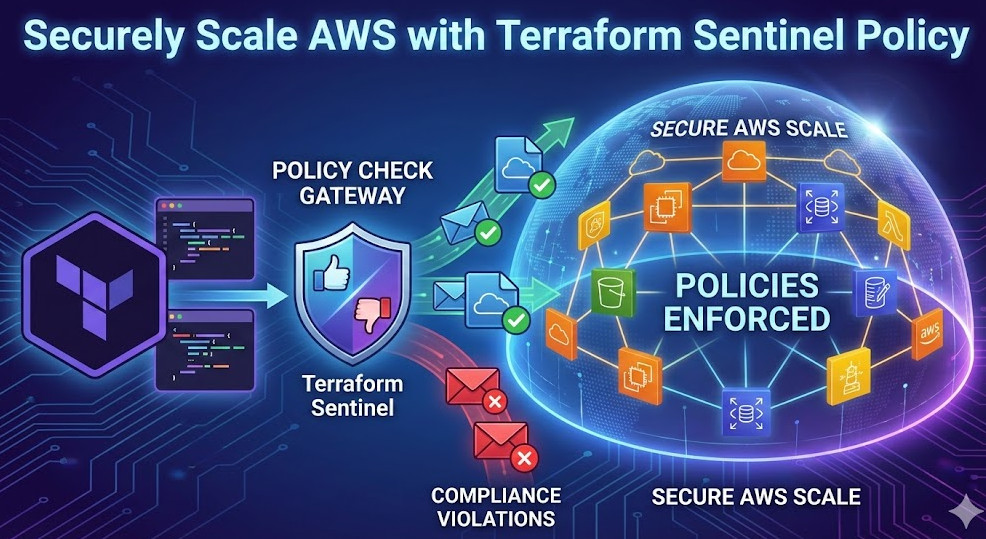
Manage Dev, Staging & Prod with Terraform Workspaces

In the world of modern infrastructure, managing multiple environments is a fundamental challenge. Every development lifecycle needs at least a development (dev) environment for building, a staging (or QA) environment for testing, and a production (prod) environment for serving users. Managing these environments manually is a recipe for configuration drift, errors, and significant downtime. This is where Infrastructure as Code (IaC), and specifically HashiCorp’s Terraform, becomes indispensable. But even with Terraform, how do you manage the state of three distinct, long-running environments without duplicating your entire codebase? The answer is built directly into the tool: Terraform Workspaces.

This comprehensive guide will explore exactly what Terraform Workspaces are, why they are a powerful solution for environment management, and how to implement them in a practical, real-world scenario to handle your dev, staging, and prod deployments from a single, unified codebase.


What Are Terraform Workspaces?

At their core, Terraform Workspaces are named instances of a single Terraform configuration. Each workspace maintains its own separate state file. This allows you to use the exact same set of .tf configuration files to manage multiple, distinct sets of infrastructure resources.

When you run terraform apply, Terraform only considers the resources defined in the state file for the *currently selected* workspace. This isolation is the key feature. If you’re in the dev workspace, you can create, modify, or destroy resources without affecting any of the resources managed by the prod workspace, even though both are defined by the same main.tf file.

Workspaces vs. Git Branches: A Common Misconception

A critical distinction to make early on is the difference between Terraform Workspaces and Git branches. They solve two completely different problems.

  • Git Branches are for managing changes to your code. You use a branch (e.g., feature-x) to develop a new part of your infrastructure. You test it, and once it’s approved, you merge it into your main branch.
  • Terraform Workspaces are for managing deployments of your code. You use your main branch (which contains your stable, approved code) and deploy it to your dev workspace. Once validated, you deploy the *exact same commit* to your staging workspace, and finally to your prod workspace.

Do not use Git branches to manage environments (e.g., a dev branch, a prod branch). This leads to configuration drift, nightmarish merges, and violates the core IaC principle of having a single source of truth for your infrastructure’s definition.

How Workspaces Manage State

When you initialize a Terraform configuration that uses a local backend (the default), Terraform creates a terraform.tfstate file. As soon as you create a new workspace, Terraform creates a new directory called terraform.tfstate.d. Inside this directory, it will create a separate state file for each workspace you have.

For example, if you have dev, staging, and prod workspaces, your local directory might look like this:


.
├── main.tf
├── variables.tf
├── terraform.tfstate.d/
│   ├── dev/
│   │   └── terraform.tfstate
│   ├── staging/
│   │   └── terraform.tfstate
│   └── prod/
│   │   └── terraform.tfstate
└── .terraform/
    ...

This is why switching workspaces is so effective. Running terraform workspace select prod simply tells Terraform to use the prod/terraform.tfstate file for all subsequent plan and apply operations. When using a remote backend like AWS S3 (which is a strong best practice), this behavior is mirrored. Terraform will store the state files in a path that includes the workspace name, ensuring complete isolation.


Why Use Terraform Workspaces for Environment Management?

Using Terraform Workspaces offers several significant advantages for managing your infrastructure lifecycle, especially when compared to the alternatives like copying your entire project for each environment.

  • State Isolation: This is the primary benefit. A catastrophic error in your dev environment (like running terraform destroy by accident) will have zero impact on your prod environment, as they have entirely separate state files.
  • Code Reusability (DRY Principle): You maintain one set of .tf files. You don’t repeat yourself. If you need to add a new monitoring rule or a security group, you add it once to your configuration, and then roll it out to each environment by selecting its workspace and applying the change.
  • Simplified Configuration: Workspaces allow you to parameterize your environments. Your prod environment might need a large t3.large EC2 instance, while your dev environment only needs a t3.micro. Workspaces provide clean mechanisms to inject these different variable values into the same configuration.
  • Clean CI/CD Integration: In an automation pipeline, it’s trivial to select the correct workspace based on the Git branch or a pipeline trigger. A deployment to the main branch might trigger a terraform workspace select prod and apply, while a merge to develop triggers a terraform workspace select dev.

Practical Guide: Setting Up Dev, Staging & Prod Environments

Let’s walk through a practical example. We’ll define a simple AWS EC2 instance and see how to deploy different variations of it to dev, staging, and prod.

Step 1: Initializing Your Project and Backend

First, create a main.tf file. It’s a critical best practice to use a remote backend from the very beginning. This ensures your state is stored securely, durably, and can be accessed by your team and CI/CD pipelines. We’ll use AWS S3.


# main.tf

terraform {
  required_providers {
    aws = {
      source  = "hashicorp/aws"
      version = "~> 5.0"
    }
  }

  # Best Practice: Use a remote backend
  backend "s3" {
    bucket         = "my-terraform-state-bucket-unique"
    key            = "global/ec2/terraform.tfstate"
    region         = "us-east-1"
    dynamodb_table = "terraform-lock-table"
    encrypt        = true
  }
}

provider "aws" {
  region = "us-east-1"
}

# We will define variables later
variable "instance_type" {
  description = "The EC2 instance type."
  type        = string
}

variable "ami_id" {
  description = "The AMI to use for the instance."
  type        = string
}

variable "tags" {
  description = "A map of tags to apply to the resources."
  type        = map(string)
  default     = {}
}

resource "aws_instance" "web_server" {
  ami           = var.ami_id
  instance_type = var.instance_type

  tags = merge(
    {
      "Name"        = "web-server-${terraform.workspace}"
      "Environment" = terraform.workspace
    },
    var.tags
  )
}

Notice the use of terraform.workspace in the tags. This is a built-in variable that always contains the name of the currently selected workspace. It’s incredibly useful for naming and tagging resources to identify them easily.

Run terraform init to initialize the backend.

Step 2: Creating Your Workspaces

By default, you start in a workspace named default. Let’s create our three target environments.


# Create the new workspaces
$ terraform workspace new dev
Created and switched to workspace "dev"

$ terraform workspace new staging
Created and switched to workspace "staging"

$ terraform workspace new prod
Created and switched to workspace "prod"

# Let's list them to check
$ terraform workspace list
  default
  dev
  staging
* prod
  (The * indicates the currently selected workspace)

# Switch back to dev for our first deployment
$ terraform workspace select dev
Switched to workspace "dev"

Now, if you check your S3 bucket, you’ll see that Terraform has automatically created paths for your new workspaces under the key you defined. This is how it isolates the state files.

Step 3: Structuring Your Configuration with Variables

Our environments are not identical. Production needs a robust AMI and a larger instance, while dev can use a basic, cheap one. How do we supply different variables?

There are two primary methods: .tfvars files (recommended for clarity) and locals maps (good for simpler configs).

Step 4: Using Environment-Specific .tfvars Files (Recommended)

This is the cleanest and most scalable approach. We create a separate variable file for each environment.

Create dev.tfvars:


# dev.tfvars
instance_type = "t3.micro"
ami_id        = "ami-0c55b159cbfafe1f0" # Amazon Linux 2 (free tier eligible)
tags = {
  "CostCenter" = "development"
}

Create staging.tfvars:


# staging.tfvars
instance_type = "t3.small"
ami_id        = "ami-0c55b159cbfafe1f0" # Amazon Linux 2
tags = {
  "CostCenter" = "qa"
}

Create prod.tfvars:


# prod.tfvars
instance_type = "t3.large"
ami_id        = "ami-0a8b421e306b0cfa4" # A custom, hardened production AMI
tags = {
  "CostCenter" = "production-web"
}

Now, your deployment workflow in Step 6 will use these files explicitly.

Step 5: Using the terraform.workspace Variable (The “Map” Method)

An alternative method is to define all environment configurations inside your .tf files using a locals block and the terraform.workspace variable as a map key. This keeps the configuration self-contained but can become unwieldy for many variables.

You would create a locals.tf file:


# locals.tf

locals {
  # A map of environment-specific configurations
  env_config = {
    dev = {
      instance_type = "t3.micro"
      ami_id        = "ami-0c55b159cbfafe1f0"
    }
    staging = {
      instance_type = "t3.small"
      ami_id        = "ami-0c55b159cbfafe1f0"
    }
    prod = {
      instance_type = "t3.large"
      ami_id        = "ami-0a8b421e306b0cfa4"
    }
    # Failsafe for 'default' or other workspaces
    default = {
      instance_type = "t3.nano"
      ami_id        = "ami-0c55b159cbfafe1f0"
    }
  }

  # Dynamically select the config based on the current workspace
  # Use lookup() with a default value to prevent errors
  current_config = lookup(
    local.env_config,
    terraform.workspace,
    local.env_config.default
  )
}

Then, you would modify your main.tf to use these locals instead of var:


# main.tf (Modified for 'locals' method)

resource "aws_instance" "web_server" {
  # Use the looked-up local values
  ami           = local.current_config.ami_id
  instance_type = local.current_config.instance_type

  tags = {
    "Name"        = "web-server-${terraform.workspace}"
    "Environment" = terraform.workspace
  }
}

While this works, we will proceed with the .tfvars method (Step 4) as it’s generally considered a cleaner pattern for complex projects.

Step 6: Deploying to a Specific Environment

Now, let’s tie it all together using the .tfvars method. The workflow is simple: Select Workspace, then Plan/Apply with its .tfvars file.

Deploying to Dev:


# 1. Make sure you are in the 'dev' workspace
$ terraform workspace select dev
Switched to workspace "dev"

# 2. Plan the deployment, specifying the 'dev' variables
$ terraform plan -var-file="dev.tfvars"
...
Plan: 1 to add, 0 to change, 0 to destroy.
  + resource "aws_instance" "web_server" {
      + ami           = "ami-0c55b159cbfafe1f0"
      + instance_type = "t3.micro"
      + tags          = {
          + "CostCenter"  = "development"
          + "Environment" = "dev"
          + "Name"        = "web-server-dev"
        }
      ...
    }

# 3. Apply the plan
$ terraform apply -var-file="dev.tfvars" -auto-approve

You now have a t3.micro server running for your dev environment. Its state is tracked in the dev state file.

Deploying to Prod:

Now, let’s deploy production. Note that we don’t change any code. We just change our workspace and our variable file.


# 1. Select the 'prod' workspace
$ terraform workspace select prod
Switched to workspace "prod"

# 2. Plan the deployment, specifying the 'prod' variables
$ terraform plan -var-file="prod.tfvars"
...
Plan: 1 to add, 0 to change, 0 to destroy.
  + resource "aws_instance" "web_server" {
      + ami           = "ami-0a8b421e306b0cfa4"
      + instance_type = "t3.large"
      + tags          = {
          + "CostCenter"  = "production-web"
          + "Environment" = "prod"
          + "Name"        = "web-server-prod"
        }
      ...
    }

# 3. Apply the plan
$ terraform apply -var-file="prod.tfvars" -auto-approve

You now have a completely separate t3.large server for production, with its state tracked in the prod state file. Destroying the dev instance will have no effect on this new server.


Terraform Workspaces: Best Practices and Common Pitfalls

While powerful, Terraform Workspaces can be misused. Here are some best practices and common pitfalls to avoid.

Best Practice: Use a Remote Backend

This was mentioned in the tutorial but cannot be overstated. Using the local backend (the default) with workspaces is only suitable for solo development. For any team, you must use a remote backend like AWS S3, Azure Blob Storage, or Terraform Cloud. This provides state locking (so two people don’t run apply at the same time), security, and a single source of truth for your state.

Best Practice: Use .tfvars Files for Clarity

As demonstrated, using dev.tfvars, prod.tfvars, etc., is a very clear and explicit way to manage environment variables. It separates the “what” (the main.tf) from the “how” (the environment-specific values). In a CI/CD pipeline, you can easily pass the correct file: terraform apply -var-file="$WORKSPACE_NAME.tfvars".

Pitfall: Avoid Using Workspaces for Different *Projects*

A workspace is not a new project. It’s a new *instance* of the *same* project. If your “prod” environment needs a database, a cache, and a web server, your “dev” environment should probably have them too (even if they are smaller). If you find yourself writing a lot of logic like count = terraform.workspace == "prod" ? 1 : 0 to *conditionally create resources* only in certain environments, you may have a problem. This indicates your environments have different “shapes.” In this case, you might be better served by:

  1. Using separate Terraform configurations (projects) entirely.
  2. Using feature flags in your .tfvars files (e.g., create_database = true).

Pitfall: The default Workspace Trap

Everyone starts in the default workspace. It’s often a good idea to avoid using it for any real environment, as its name is ambiguous. Some teams use it as a “scratch” or “admin” workspace. You can even rename it: terraform workspace rename default admin. A cleaner approach is to create your named environments (dev, prod) immediately and never use default at all.


Alternatives to Terraform Workspaces

Terraform Workspaces are a “built-in” solution, but not the only one. The main alternative is a directory-based structure, often orchestrated with a tool like Terragrunt.

1. Directory-Based Structure (Terragrunt)

This is a very popular and robust pattern. Instead of using workspaces, you create a directory for each environment. Each directory has its own terraform.tfvars file and often a small main.tf that calls a shared module.


infrastructure/
├── modules/
│   └── web_server/
│       ├── main.tf
│       └── variables.tf
├── envs/
│   ├── dev/
│   │   ├── terraform.tfvars
│   │   └── main.tf  (calls ../../modules/web_server)
│   ├── staging/
│   │   ├── terraform.tfvars
│   │   └── main.tf  (calls ../../modules/web_server)
│   └── prod/
│       ├── terraform.tfvars
│       └── main.tf  (calls ../../modules/web_server)

In this pattern, each environment is its own distinct Terraform project (with its own state file, managed by its own backend configuration). Terragrunt is a thin wrapper that excels at managing this structure, letting you define backend and variable configurations in a DRY way.

When to Choose Workspaces: Workspaces are fantastic for small-to-medium projects where all environments have an identical “shape” (i.e., they deploy the same set of resources, just with different variables).

When to Choose Terragrunt/Directories: This pattern is often preferred for large, complex organizations where environments may have significant differences, or where you want to break up your infrastructure into many small, independently-managed state files.


Frequently Asked Questions

What is the difference between Terraform Workspaces and modules?

They are completely different concepts.

  • Modules are for creating reusable code. You write a module once (e.g., a module to create a secure S3 bucket) and then “call” that module many times, even within the same configuration.
  • Workspaces are for managing separate state files for different deployments of the same configuration.

You will almost always use modules *within* a configuration that is also managed by workspaces.

How do I delete a Terraform Workspace?

You can delete a workspace with terraform workspace delete <name>. However, Terraform will not let you delete a workspace that still has resources managed by it. You must run terraform destroy in that workspace first. You also cannot delete the default workspace.

Are Terraform Workspaces secure for production?

Yes, absolutely. The security of your environments is not determined by the workspace feature itself, but by your operational practices. Security is achieved by:

  • Using a remote backend with encryption and strict access policies (e.g., S3 Bucket Policies and IAM).
  • Using state locking (e.g., DynamoDB).
  • Managing sensitive variables (like database passwords) using a tool like HashiCorp Vault or your CI/CD system’s secret manager, not by committing them in .tfvars files.
  • Using separate cloud accounts or projects (e.g., different AWS accounts for dev and prod) and separate provider credentials for each workspace, which can be passed in during the apply step.

Can I use Terraform Workspaces with Terraform Cloud?

Yes. In fact, Terraform Cloud is built entirely around the concept of workspaces. In Terraform Cloud, a “workspace” is even more powerful: it’s a dedicated environment that holds your state file, your variables (including sensitive ones), your run history, and your access controls. This is the natural evolution of the open-source workspace concept.


Conclusion

Terraform Workspaces are a powerful, built-in feature that directly addresses the common challenge of managing dev, staging, and production environments. By providing clean state file isolation, they allow you to maintain a single, DRY (Don’t Repeat Yourself) codebase for your infrastructure while safely managing multiple, independent deployments. When combined with a remote backend and a clear variable strategy (like .tfvars files), Terraform Workspaces provide a scalable and professional workflow for any DevOps team looking to master their Infrastructure as Code lifecycle. Thank you for reading the DevopsRoles page!

Deploy Scalable Django App on AWS with Terraform

Deploying a modern web application requires more than just writing code. For a robust, scalable, and maintainable system, the infrastructure that runs it is just as critical as the application logic itself. Django, with its “batteries-included” philosophy, is a powerhouse for building complex web apps. Amazon Web Services (AWS) provides an unparalleled suite of cloud services to host them. But how do you bridge the gap? How do you provision, manage, and scale this infrastructure reliably? The answer is Infrastructure as Code (IaC), and the leading tool for the job is Terraform.

This comprehensive guide will walk you through the end-to-end process to Deploy Django AWS Terraform, moving from a local development setup to a production-grade, scalable architecture. We won’t just scratch the surface; we’ll dive deep into creating a Virtual Private Cloud (VPC), provisioning a managed database with RDS, storing static files in S3, and running our containerized Django application on a serverless compute engine like AWS Fargate with ECS. By the end, you’ll have a repeatable, version-controlled, and automated framework for your Django deployments.

Why Use Terraform for Your Django AWS Deployment?

Before we start writing .tf files, it’s crucial to understand why this approach is superior to manual configuration via the AWS console, often called “click-ops.”

Infrastructure as Code (IaC) Explained

Infrastructure as Code is the practice of managing and provisioning computing infrastructure (like networks, virtual machines, load balancers, and databases) through machine-readable definition files, rather than through physical hardware configuration or interactive configuration tools. Your entire AWS environment—from the smallest security group rule to the largest database cluster—is defined in code.

Terraform, by HashiCorp, is an open-source IaC tool that specializes in this. It uses a declarative configuration language called HCL (HashiCorp Configuration Language). You simply declare the desired state of your infrastructure, and Terraform figures out how to get there. It creates an execution plan, shows you what it will create, modify, or destroy, and then executes it upon your approval.

Benefits: Repeatability, Scalability, and Version Control

  • Repeatability: Need to spin up a new staging environment that perfectly mirrors production? With a manual setup, this is a checklist-driven, error-prone nightmare. With Terraform, it’s as simple as running terraform apply -var-file="staging.tfvars". You get an identical environment every single time.
  • Version Control: Your infrastructure code lives in Git, just like your application code. You can review changes through pull requests, track a full history of who changed what and when, and easily roll back to a previous known-good state if a change causes problems.
  • Scalability: A scalable Django architecture isn’t just about one server. It’s a complex system of load balancers, auto-scaling groups, and replicated database read-replicas. Defining this in code makes it trivial to adjust parameters (e.g., “scale from 2 to 10 web servers”) and apply the change consistently.
  • Visibility: terraform plan provides a “dry run” that tells you exactly what changes will be made before you commit. This predictive power is invaluable for preventing costly mistakes in a live production environment.

Prerequisites for this Tutorial

This guide assumes you have a foundational understanding of Django, Docker, and basic AWS concepts. You will need the following tools installed and configured:

  • Terraform: Download and install the Terraform CLI.
  • AWS CLI: Install and configure the AWS CLI with credentials that have sufficient permissions (ideally, an IAM user with programmatic access).
  • Docker: We will containerize our Django app. Install Docker Desktop.
  • Python & Django: A working Django project. We’ll focus on the infrastructure, but we’ll cover the key settings.py modifications needed.

Step 1: Planning Your Scalable AWS Architecture for Django

A “scalable” architecture is one that can handle growth. This means decoupling our components. A monolithic “Django on a single EC2 instance” setup is simple, but it’s a single point of failure and a scaling bottleneck. Our target architecture will consist of several moving parts.

The Core Components:

  1. VPC (Virtual Private Cloud): Our own isolated network within AWS.
  2. Subnets: We’ll use public subnets for internet-facing resources (like our Load Balancer) and private subnets for our application and database, enhancing security.
  3. Application Load Balancer (ALB): Distributes incoming web traffic across our Django application instances.
  4. ECS (Elastic Container Service) with Fargate: This is our compute layer. Instead of managing EC2 virtual machines, we’ll use Fargate, a serverless compute engine for containers. We just provide a Docker image, and AWS handles running and scaling the containers.
  5. RDS (Relational Database Service): A managed PostgreSQL database. AWS handles patching, backups, and replication, allowing us to focus on our application.
  6. S3 (Simple Storage Service): Our Django app won’t serve static (CSS/JS) or media (user-uploaded) files. We’ll offload this to S3 for better performance and scalability.
  7. ECR (Elastic Container Registry): A private Docker registry where we’ll store our Django application’s Docker image.

Step 2: Structuring Your Terraform Project

Organization is key. A flat file of 1,000 lines is unmanageable. We’ll use a simple, scalable structure:


django-aws-terraform/
├── main.tf
├── variables.tf
├── outputs.tf
├── terraform.tfvars
└── .gitignore
  • main.tf: The core file containing our resource definitions (VPC, RDS, ECS, etc.).
  • variables.tf: Declares input variables like aws_region, db_username, or instance_type. This makes our configuration reusable.
  • outputs.tf: Defines outputs from our infrastructure, like the database endpoint or the load balancer’s URL.
  • terraform.tfvars: Where we assign *values* to our variables. This file should be added to .gitignore as it will contain secrets like database passwords.

Step 3: Writing the Terraform Configuration

Let’s start building our infrastructure. We’ll add these blocks to main.tf and variables.tf.

Provider and Backend Configuration

First, we tell Terraform we’re using the AWS provider and specify a version. We also configure a backend, which is where Terraform stores its “state file” (a JSON file that maps your config to real-world resources). Using an S3 backend is highly recommended for any team project, as it provides locking and shared state.

In main.tf:


terraform {
  required_providers {
    aws = {
      source  = "hashicorp/aws"
      version = "~> 5.0"
    }
  }

  # Configuration for a remote S3 backend
  # You must create this S3 bucket and DynamoDB table *before* running init
  # For this tutorial, we will use the default local backend.
  # backend "s3" {
  #   bucket         = "my-terraform-state-bucket-unique-name"
  #   key            = "django-aws/terraform.tfstate"
  #   region         = "us-east-1"
  #   dynamodb_table = "terraform-lock-table"
  # }
}

provider "aws" {
  region = var.aws_region
}

In variables.tf:


variable "aws_region" {
  description = "The AWS region to deploy infrastructure in."
  type        = string
  default     = "us-east-1"
}

variable "project_name" {
  description = "A name for the project, used to tag resources."
  type        = string
  default     = "django-app"
}

variable "vpc_cidr" {
  description = "The CIDR block for the VPC."
  type        = string
  default     = "10.0.0.0/16"
}

Networking: Defining the VPC

We’ll create a VPC with two public and two private subnets across two Availability Zones (AZs) for high availability.

In main.tf:


# Get list of Availability Zones
data "aws_availability_zones" "available" {
  state = "available"
}

# --- VPC ---
resource "aws_vpc" "main" {
  cidr_block = var.vpc_cidr
  enable_dns_hostnames = true
  enable_dns_support   = true

  tags = {
    Name = "${var.project_name}-vpc"
  }
}

# --- Subnets ---
resource "aws_subnet" "public" {
  count             = 2
  vpc_id            = aws_vpc.main.id
  cidr_block        = cidrsubnet(aws_vpc.main.cidr_block, 8, count.index)
  availability_zone = data.aws_availability_zones.available.names[count.index]
  map_public_ip_on_launch = true

  tags = {
    Name = "${var.project_name}-public-subnet-${count.index + 1}"
  }
}

resource "aws_subnet" "private" {
  count             = 2
  vpc_id            = aws_vpc.main.id
  cidr_block        = cidrsubnet(aws_vpc.main.cidr_block, 8, count.index + 2) # Offset index
  availability_zone = data.aws_availability_zones.available.names[count.index]

  tags = {
    Name = "${var.project_name}-private-subnet-${count.index + 1}"
  }
}

# --- Internet Gateway for Public Subnets ---
resource "aws_internet_gateway" "gw" {
  vpc_id = aws_vpc.main.id
  tags = {
    Name = "${var.project_name}-igw"
  }
}

resource "aws_route_table" "public" {
  vpc_id = aws_vpc.main.id

  route {
    cidr_block = "0.0.0.0/0"
    gateway_id = aws_internet_gateway.gw.id
  }

  tags = {
    Name = "${var.project_name}-public-rt"
  }
}

resource "aws_route_table_association" "public" {
  count          = length(aws_subnet.public)
  subnet_id      = aws_subnet.public[count.index].id
  route_table_id = aws_route_table.public.id
}

# --- NAT Gateway for Private Subnets (for outbound internet access) ---
resource "aws_eip" "nat" {
  domain = "vpc"
}

resource "aws_nat_gateway" "nat" {
  allocation_id = aws_eip.nat.id
  subnet_id     = aws_subnet.public[0].id # Place NAT in a public subnet
  depends_on    = [aws_internet_gateway.gw]

  tags = {
    Name = "${var.project_name}-nat-gw"
  }
}

resource "aws_route_table" "private" {
  vpc_id = aws_vpc.main.id

  route {
    cidr_block     = "0.0.0.0/0"
    nat_gateway_id = aws_nat_gateway.nat.id
  }

  tags = {
    Name = "${var.project_name}-private-rt"
  }
}

resource "aws_route_table_association" "private" {
  count          = length(aws_subnet.private)
  subnet_id      = aws_subnet.private[count.index].id
  route_table_id = aws_route_table.private.id
}

This block sets up a secure, production-grade network. Public subnets can reach the internet directly. Private subnets can reach the internet (e.g., to pull dependencies) via the NAT Gateway, but the internet cannot initiate connections to them.

Security: Security Groups

Security Groups act as virtual firewalls. We need one for our load balancer (allowing web traffic) and one for our database (allowing traffic only from our app).

In main.tf:


# Security group for the Application Load Balancer
resource "aws_security_group" "lb_sg" {
  name        = "${var.project_name}-lb-sg"
  description = "Allow HTTP/HTTPS traffic"
  vpc_id      = aws_vpc.main.id

  ingress {
    from_port   = 80
    to_port     = 80
    protocol    = "tcp"
    cidr_blocks = ["0.0.0.0/0"]
  }

  ingress {
    from_port   = 443
    to_port     = 443
    protocol    = "tcp"
    cidr_blocks = ["0.0.0.0/0"]
  }

  egress {
    from_port   = 0
    to_port     = 0
    protocol    = "-1"
    cidr_blocks = ["0.0.0.0/0"]
  }
}

# Security group for our Django application (ECS Tasks)
resource "aws_security_group" "app_sg" {
  name        = "${var.project_name}-app-sg"
  description = "Allow traffic from LB and self"
  vpc_id      = aws_vpc.main.id

  # Allow all outbound
  egress {
    from_port   = 0
    to_port     = 0
    protocol    = "-1"
    cidr_blocks = ["0.0.0.0/0"]
  }

  tags = {
    Name = "${var.project_name}-app-sg"
  }
}

# Security group for our RDS database
resource "aws_security_group" "db_sg" {
  name        = "${var.project_name}-db-sg"
  description = "Allow PostgreSQL traffic from app"
  vpc_id      = aws_vpc.main.id

  # Allow inbound PostgreSQL traffic from the app security group
  ingress {
    from_port       = 5432
    to_port         = 5432
    protocol        = "tcp"
    security_groups = [aws_security_group.app_sg.id] # IMPORTANT!
  }

  # Allow all outbound (for patches, etc.)
  egress {
    from_port   = 0
    to_port     = 0
    protocol    = "-1"
    cidr_blocks = ["0.0.0.0/0"]
  }

  tags = {
    Name = "${var.project_name}-db-sg"
  }
}

# --- Rule to allow LB to talk to App ---
# We add this rule *after* defining both SGs
resource "aws_security_group_rule" "lb_to_app" {
  type                     = "ingress"
  from_port                = 8000 # Assuming Django runs on port 8000
  to_port                  = 8000
  protocol                 = "tcp"
  security_group_id        = aws_security_group.app_sg.id
  source_security_group_id = aws_security_group.lb_sg.id
}

Database: Provisioning the RDS Instance

We’ll create a PostgreSQL instance. To do this securely, we first need an “RDS Subnet Group” to tell RDS which private subnets it can live in. We also must pass the username and password securely from variables.

In variables.tf (add these):


variable "db_name" {
  description = "Name for the RDS database."
  type        = string
  default     = "djangodb"
}

variable "db_username" {
  description = "Username for the RDS database."
  type        = string
  sensitive   = true # Hides value in logs
}

variable "db_password" {
  description = "Password for the RDS database."
  type        = string
  sensitive   = true # Hides value in logs
}

In terraform.tfvars (DO NOT COMMIT THIS FILE):


aws_region  = "us-east-1"
db_username = "django_admin"
db_password = "a-very-strong-and-secret-password"

Now, in main.tf:


# --- RDS Database ---

# Subnet group for RDS
resource "aws_db_subnet_group" "default" {
  name       = "${var.project_name}-db-subnet-group"
  subnet_ids = [for subnet in aws_subnet.private : subnet.id]

  tags = {
    Name = "${var.project_name}-db-subnet-group"
  }
}

# The RDS PostgreSQL Instance
resource "aws_db_instance" "default" {
  identifier           = "${var.project_name}-db"
  engine               = "postgres"
  engine_version       = "15.3"
  instance_class       = "db.t3.micro" # Good for dev/staging, use larger for prod
  allocated_storage    = 20
  
  db_name              = var.db_name
  username             = var.db_username
  password             = var.db_password
  
  db_subnet_group_name = aws_db_subnet_group.default.name
  vpc_security_group_ids = [aws_security_group.db_sg.id]
  
  multi_az             = false # Set to true for production HA
  skip_final_snapshot  = true  # Set to false for production
  publicly_accessible  = false # IMPORTANT! Keep database private
}

Storage: Creating the S3 Bucket for Static Files

This S3 bucket will hold our Django collectstatic output and user-uploaded media files.


# --- S3 Bucket for Static and Media Files ---
resource "aws_s3_bucket" "static" {
  # Bucket names must be globally unique
  bucket = "${var.project_name}-static-media-${random_id.bucket_suffix.hex}"

  tags = {
    Name = "${var.project_name}-static-media-bucket"
  }
}

# Need a random suffix to ensure bucket name is unique
resource "random_id" "bucket_suffix" {
  byte_length = 8
}

# Block all public access by default
resource "aws_s3_bucket_public_access_block" "static" {
  bucket = aws_s3_bucket.static.id

  block_public_acls       = true
  block_public_policy     = true
  ignore_public_acls      = true
  restrict_public_buckets = true
}

# We will serve files via CloudFront (or signed URLs), not by making the bucket public.
# For simplicity in this guide, we'll configure Django to use IAM roles.
# A full production setup would add an aws_cloudfront_distribution.

Step 4: Setting Up the Django Application for AWS

Our infrastructure is useless without an application configured to use it.

Configuring settings.py for AWS

We need to install a few packages:


pip install django-storages boto3 psycopg2-binary gunicorn

Now, update your settings.py to read from environment variables (which Terraform will inject into our container) and configure S3.


# settings.py
import os
import dj_database_url

# ...

# SECURITY WARNING: keep the secret key in production secret!
SECRET_KEY = os.environ.get('DJANGO_SECRET_KEY', 'a-fallback-dev-key')

# DEBUG should be False in production
DEBUG = os.environ.get('DJANGO_DEBUG', 'False') == 'True'

ALLOWED_HOSTS = os.environ.get('DJANGO_ALLOWED_HOSTS', 'localhost,127.0.0.1').split(',')

# --- Database ---
# Use dj_database_url to parse the DATABASE_URL environment variable
DATABASES = {
    'default': dj_database_url.config(conn_max_age=600, default='sqlite:///db.sqlite3')
}
# The DATABASE_URL will be set by Terraform like:
# postgres://django_admin:secret_password@my-db-endpoint.rds.amazonaws.com:5432/djangodb


# --- AWS S3 for Static and Media Files ---
# Only use S3 in production (when AWS_STORAGE_BUCKET_NAME is set)
if 'AWS_STORAGE_BUCKET_NAME' in os.environ:
    AWS_STORAGE_BUCKET_NAME = os.environ.get('AWS_STORAGE_BUCKET_NAME')
    AWS_S3_CUSTOM_DOMAIN = f'{AWS_STORAGE_BUCKET_NAME}.s3.amazonaws.com'
    AWS_S3_OBJECT_PARAMETERS = {
        'CacheControl': 'max-age=86400',
    }
    AWS_DEFAULT_ACL = None # Recommended for security
    AWS_S3_FILE_OVERWRITE = False
    
    # --- Static Files ---
    STATIC_LOCATION = 'static'
    STATIC_URL = f'https://{AWS_S3_CUSTOM_DOMAIN}/{STATIC_LOCATION}/'
    STATICFILES_STORAGE = 'storages.backends.s3boto3.S3Boto3Storage'

    # --- Media Files ---
    MEDIA_LOCATION = 'media'
    MEDIA_URL = f'https://{AWS_S3_CUSTOM_DOMAIN}/{MEDIA_LOCATION}/'
    DEFAULT_FILE_STORAGE = 'storages.backends.s3boto3.S3Boto3Storage'
else:
    # --- Local settings ---
    STATIC_URL = '/static/'
    STATIC_ROOT = os.path.join(BASE_DIR, 'staticfiles')
    MEDIA_URL = '/media/'
    MEDIA_ROOT = os.path.join(BASE_DIR, 'mediafiles')

Dockerizing Your Django App

Create a Dockerfile in your Django project root:


# Use an official Python runtime as a parent image
FROM python:3.11-slim

# Set environment variables
ENV PYTHONDONTWRITEBYTECODE 1
ENV PYTHONUNBUFFERED 1

# Set work directory
WORKDIR /app

# Install dependencies
COPY requirements.txt /app/
RUN pip install --no-cache-dir -r requirements.txt

# Copy project
COPY . /app/

# Run collectstatic (will use S3 if env vars are set)
# We will run this as a separate task, but this is one way
# RUN python manage.py collectstatic --no-input

# Expose port
EXPOSE 8000

# Run gunicorn
# We will override this command in the ECS Task Definition
CMD ["gunicorn", "--bind", "0.0.0.0:8000", "your_project_name.wsgi:application"]

Step 5: Defining the Compute Layer – AWS ECS with Fargate

This is the most complex part, where we tie everything together.

Creating the ECR Repository

In main.tf:


# --- ECR (Elastic Container Registry) ---
resource "aws_ecr_repository" "app" {
  name                 = "${var.project_name}-app-repo"
  image_tag_mutability = "MUTABLE"

  image_scanning_configuration {
    scan_on_push = true
  }
}

Defining the ECS Cluster

An ECS Cluster is just a logical grouping of services and tasks.


# --- ECS (Elastic Container Service) ---
resource "aws_ecs_cluster" "main" {
  name = "${var.project_name}-cluster"

  tags = {
    Name = "${var.project_name}-cluster"
  }
}

Setting up the Application Load Balancer (ALB)

The ALB will receive public traffic on port 80/443 and forward it to our Django app on port 8000.


# --- Application Load Balancer (ALB) ---
resource "aws_lb" "main" {
  name               = "${var.project_name}-lb"
  internal           = false
  load_balancer_type = "application"
  security_groups    = [aws_security_group.lb_sg.id]
  subnets            = [for subnet in aws_subnet.public : subnet.id]

  enable_deletion_protection = false
}

# Target Group: where the LB sends traffic
resource "aws_lb_target_group" "app" {
  name        = "${var.project_name}-tg"
  port        = 8000 # Port our Django container listens on
  protocol    = "HTTP"
  vpc_id      = aws_vpc.main.id
  target_type = "ip" # Required for Fargate

  health_check {
    path                = "/health/" # Add a health-check endpoint to your Django app
    protocol            = "HTTP"
    matcher             = "200"
    interval            = 30
    timeout             = 5
    healthy_threshold   = 2
    unhealthy_threshold = 2
  }
}

# Listener: Listen on port 80 (HTTP)
resource "aws_lb_listener" "http" {
  load_balancer_arn = aws_lb.main.arn
  port              = "80"
  protocol          = "HTTP"

  default_action {
    type             = "forward"
    target_group_arn = aws_lb_target_group.app.arn
  }
  
  # For production, you would add a listener on port 443 (HTTPS)
  # using an aws_acm_certificate
}

Creating the ECS Task Definition and Service

A **Task Definition** is the blueprint for our application container. An **ECS Service** is responsible for running and maintaining a specified number of instances (Tasks) of that blueprint.

This is where we’ll inject our environment variables. WARNING: Never hardcode secrets. We’ll use AWS Secrets Manager (or Parameter Store) for this.

First, let’s create the secrets (you can also do this in Terraform, but for setup, the console or CLI is fine):

  1. Go to AWS Secrets Manager.
  2. Create a new secret (select “Other type of secret”).
  3. Create key/value pairs for DJANGO_SECRET_KEY, DB_USERNAME, DB_PASSWORD.
  4. Name the secret (e.g., django/app/secrets).

Now, in main.tf:


# --- IAM Roles ---
# Role for the ECS Task to run
resource "aws_iam_role" "ecs_task_execution_role" {
  name = "${var.project_name}_ecs_task_execution_role"
  assume_role_policy = jsonencode({
    Version = "2012-10-17"
    Statement = [
      {
        Action = "sts:AssumeRole"
        Effect = "Allow"
        Principal = {
          Service = "ecs-tasks.amazonaws.com"
        }
      }
    ]
  })
}

# Attach the managed policy for ECS task execution (pulling images, sending logs)
resource "aws_iam_role_policy_attachment" "ecs_task_execution_policy" {
  role       = aws_iam_role.ecs_task_execution_role.name
  policy_arn = "arn:aws:iam::aws:policy/service-role/AmazonECSTaskExecutionRolePolicy"
}

# Role for the Task *itself* (what your Django app can do)
resource "aws_iam_role" "ecs_task_role" {
  name = "${var.project_name}_ecs_task_role"
  assume_role_policy = jsonencode({
    Version = "2012-10-17"
    Statement = [
      {
        Action = "sts:AssumeRole"
        Effect = "Allow"
        Principal = {
          Service = "ecs-tasks.amazonaws.com"
        }
      }
    ]
  })
}

# Policy to allow Django app to access S3 bucket
resource "aws_iam_policy" "s3_access_policy" {
  name        = "${var.project_name}_s3_access_policy"
  description = "Allows ECS tasks to read/write to the S3 bucket"
  policy = jsonencode({
    Version = "2012-10-17"
    Statement = [
      {
        Action = [
          "s3:GetObject",
          "s3:PutObject",
          "s3:DeleteObject",
          "s3:ListBucket"
        ]
        Effect   = "Allow"
        Resource = [
          aws_s3_bucket.static.arn,
          "${aws_s3_bucket.static.arn}/*"
        ]
      }
    ]
  })
}

resource "aws_iam_role_policy_attachment" "task_s3_policy" {
  role       = aws_iam_role.ecs_task_role.name
  policy_arn = aws_iam_policy.s3_access_policy.arn
}

# Policy to allow task to fetch secrets from Secrets Manager
resource "aws_iam_policy" "secrets_manager_access_policy" {
  name        = "${var.project_name}_secrets_manager_access_policy"
  description = "Allows ECS tasks to read from Secrets Manager"
  policy = jsonencode({
    Version = "2012-10-17"
    Statement = [
      {
        Action = [
          "secretsmanager:GetSecretValue"
        ]
        Effect   = "Allow"
        # Be specific with your secret ARN!
        Resource = [aws_secretsmanager_secret.app_secrets.arn]
      }
    ]
  })
}

resource "aws_iam_role_policy_attachment" "task_secrets_policy" {
  role       = aws_iam_role.ecs_task_role.name
  policy_arn = aws_iam_policy.secrets_manager_access_policy.arn
}


# --- Create the Secrets Manager Secret ---
resource "aws_secretsmanager_secret" "app_secrets" {
  name = "${var.project_name}/app/secrets"
}

resource "aws_secretsmanager_secret_version" "app_secrets_version" {
  secret_id = aws_secretsmanager_secret.app_secrets.id
  secret_string = jsonencode({
    DJANGO_SECRET_KEY = "generate-a-strong-random-key-here"
    DB_USERNAME       = var.db_username
    DB_PASSWORD       = var.db_password
  })
  # This makes it easier to update the password via Terraform
  # by only changing the terraform.tfvars file
}

# --- CloudWatch Log Group ---
resource "aws_cloudwatch_log_group" "app_logs" {
  name              = "/ecs/${var.project_name}"
  retention_in_days = 7
}


# --- ECS Task Definition ---
resource "aws_ecs_task_definition" "app" {
  family                   = "${var.project_name}-task"
  network_mode             = "awsvpc" # Required for Fargate
  requires_compatibilities = ["FARGATE"]
  cpu                      = "256"  # 0.25 vCPU
  memory                   = "512"  # 0.5 GB
  execution_role_arn       = aws_iam_role.ecs_task_execution_role.arn
  task_role_arn            = aws_iam_role.ecs_task_role.arn

  # This is the "blueprint" for our container
  container_definitions = jsonencode([
    {
      name      = "${var.project_name}-container"
      image     = "${aws_ecr_repository.app.repository_url}:latest" # We'll push to this tag
      essential = true
      portMappings = [
        {
          containerPort = 8000
          hostPort      = 8000
        }
      ]
      # --- Environment Variables ---
      environment = [
        {
          name  = "DJANGO_DEBUG"
          value = "False"
        },
        {
          name  = "DJANGO_ALLOWED_HOSTS"
          value = aws_lb.main.dns_name # Allow traffic from the LB
        },
        {
          name  = "AWS_STORAGE_BUCKET_NAME"
          value = aws_s3_bucket.static.id
        },
        {
          name = "DATABASE_URL"
          value = "postgres://${var.db_username}:${var.db_password}@${aws_db_instance.default.endpoint}/${var.db_name}"
        }
      ]
      
      # --- SECRETS (Better way for DATABASE_URL parts and SECRET_KEY) ---
      # This is more secure than the DATABASE_URL above
      # "secrets": [
      #   {
      #     "name": "DJANGO_SECRET_KEY",
      #     "valueFrom": "${aws_secretsmanager_secret.app_secrets.arn}:DJANGO_SECRET_KEY::"
      #   },
      #   {
      #     "name": "DB_PASSWORD",
      #     "valueFrom": "${aws_secretsmanager_secret.app_secrets.arn}:DB_PASSWORD::"
      #   }
      # ],
      
      # --- Logging ---
      logConfiguration = {
        logDriver = "awslogs"
        options = {
          "awslogs-group"         = aws_cloudwatch_log_group.app_logs.name
          "awslogs-region"        = var.aws_region
          "awslogs-stream-prefix" = "ecs"
        }
      }
    }
  ])
}

# --- ECS Service ---
resource "aws_ecs_service" "app" {
  name            = "${var.project_name}-service"
  cluster         = aws_ecs_cluster.main.id
  task_definition = aws_ecs_task_definition.app.arn
  desired_count   = 2 # Run 2 copies of our app for HA
  launch_type     = "FARGATE"

  network_configuration {
    subnets         = [for subnet in aws_subnet.private : subnet.id] # Run tasks in private subnets
    security_groups = [aws_security_group.app_sg.id]
    assign_public_ip = false
  }

  load_balancer {
    target_group_arn = aws_lb_target_group.app.arn
    container_name   = "${var.project_name}-container"
    container_port   = 8000
  }

  # Ensure the service depends on the LB listener
  depends_on = [aws_lb_listener.http]
}

Finally, let’s output the URL of our load balancer.

In outputs.tf:


output "app_url" {
  description = "The HTTP URL of the application load balancer."
  value       = "http://${aws_lb.main.dns_name}"
}

output "ecr_repository_url" {
  description = "The URL of the ECR repository to push images to."
  value       = aws_ecr_repository.app.repository_url
}

Step 6: The Deployment Workflow: How to Deploy Django AWS Terraform

Now that our code is written, here is the full workflow to Deploy Django AWS Terraform.

Step 6.1: Initializing and Planning

From your terminal in the project’s root directory, run:


# Initializes Terraform, downloads the AWS provider
terraform init

# Creates the execution plan. Review this output carefully!
terraform plan -out=tfplan

Terraform will show you a long list of all the AWS resources it’s about to create.

Step 6.2: Applying the Infrastructure

If the plan looks good, apply it:


# Applies the plan, answers 'yes' automatically
terraform apply "tfplan"

This will take several minutes. AWS needs time to provision the VPC, NAT Gateway, and especially the RDS instance. Once it’s done, it will print your outputs, including the ecr_repository_url and app_url.

Step 6.3: Building and Pushing the Docker Image

Now that our infrastructure exists, we need to push our application code to it.


# 1. Get the ECR URL from Terraform output
REPO_URL=$(terraform output -raw ecr_repository_url)

# 2. Log in to AWS ECR
aws ecr get-login-password --region ${VAR_AWS_REGION} | docker login --username AWS --password-stdin $REPO_URL

# 3. Build your Docker image (from your Django project root)
docker build -t $REPO_URL:latest .

# 4. Push the image to ECR
docker push $REPO_URL:latest

Step 6.4: Running Database Migrations and Collectstatic

Our app containers will start, but the database is empty. We need to run migrations. You can do this using an ECS “Run Task”. This is a one-off task.

You can create a separate “task definition” in Terraform for migrations, or run it manually from the AWS console:

  1. Go to your ECS Cluster -> Task Definitions -> Select your app task.
  2. Click “Actions” -> “Run Task”.
  3. Select “FARGATE”, your cluster, and your private subnets and app security group.
  4. Expand “Container Overrides”, select your container.
  5. In the “Command Override” box, enter: python,manage.py,migrate
  6. Click “Run Task”.

Repeat this process with the command python,manage.py,collectstatic,--no-input to populate your S3 bucket.

Step 6.5: Forcing a New Deployment

The ECS service is now running, but it’s probably using the “latest” tag from before you pushed. To force it to pull the new image, you can run:


# This tells the service to redeploy, which will pull the "latest" image again
aws ecs update-service --cluster ${VAR_PROJECT_NAME}-cluster \
  --service ${VAR_PROJECT_NAME}-service \
  --force-new-deployment \
  --region ${VAR_AWS_REGION}

After a few minutes, your new containers will be running. You can now visit the app_url from your Terraform output and see your live Django application!

Step 7: Automating with a CI/CD Pipeline (Conceptual Overview)

The real power of this setup comes from automation. The manual steps above are great for the first deployment, but tedious for daily updates. A CI/CD pipeline (using GitHub Actions, GitLab CI, or AWS CodePipeline) automates this.

A typical pipeline would look like this:

  1. On Push to main branch:
  2. Lint & Test: Run flake8 and python manage.py test.
  3. Build & Push Docker Image: Build the image, tag it with the Git SHA (e.g., :a1b2c3d) instead of :latest. Push to ECR.
  4. Run Terraform: Run terraform apply. This is safe because Terraform is declarative; it will only apply changes if your .tf files have changed.
  5. Run Migrations: Use the AWS CLI to run a one-off task for migrations.
  6. Update ECS Service: This is the key. Instead of just “forcing” a new deployment, you would update the Task Definition to use the new specific image tag (e.g., :a1b2c3d) and then update the service to use that new task definition. This provides a true, versioned, roll-back-able deployment.

Frequently Asked Questions

How do I handle Django database migrations with Terraform?

Terraform is for provisioning infrastructure, not for running application-level commands. The best practice is to run migrations as a one-off task *after* terraform apply is complete. Use ECS Run Task, as described in Step 6.4. Some people build this into a CI/CD pipeline, or even use a “init container” that runs migrations before the main app container starts (though this can be complex with multiple app instances starting at once).

Is Elastic Beanstalk a better option than ECS/Terraform?

Elastic Beanstalk (EB) is a Platform-as-a-Service (PaaS). It’s faster to get started because it provisions all the resources (EC2, ELB, RDS) for you with a simple eb deploy. However, you lose granular control. Our custom Terraform setup is far more flexible, secure (e.g., Fargate in private subnets), and scalable. EB is great for simple projects or prototypes. For a complex, production-grade application, the custom Terraform/ECS approach is generally preferred by DevOps professionals.

How can I manage secrets like my database password?

Do not hardcode them in main.tf or commit them to Git. The best practice is to use AWS Secrets Manager or AWS Systems Manager (SSM) Parameter Store.

1. Store the secret value (the password) in Secrets Manager.

2. Give your ECS Task Role (ecs_task_role) IAM permission to read that specific secret.

3. In your ECS Task Definition, use the "secrets" key (as shown in the commented-out example) to inject the secret into the container as an environment variable. Your Django app reads it from the environment, never knowing the value until runtime.

What’s the best way to run collectstatic?

Similar to migrations, this is an application-level command.

1. In CI/CD: The best place is in your CI/CD pipeline. After building the Docker image but before pushing it, you can run the collectstatic command *locally* (or in the CI runner) with the correct AWS credentials and environment variables set. It will collect files and upload them directly to S3.

2. One-off Task: Run it as an ECS “Run Task” just like migrations.

3. In the Dockerfile: You *can* run it in the Dockerfile, but this is often discouraged as it bloats the image and requires build-time AWS credentials, which can be a security risk.

Conclusion

You have successfully journeyed from an empty AWS account to a fully scalable, secure, and production-ready home for your Django application. This is no small feat. By defining your entire infrastructure in code, you’ve unlocked a new level of professionalism and reliability in your deployment process.

We’ve provisioned a custom VPC, secured our app and database in private subnets, offloaded state to RDS and S3, and created a scalable, serverless compute layer with ECS Fargate. The true power of the Deploy Django AWS Terraform workflow is its repeatability and manageability. You can now tear down this entire stack with terraform destroy and bring it back up in minutes. You can create a new staging environment with a single command. Your infrastructure is no longer a fragile, manually-configured black box; it’s a version-controlled, auditable, and automated part of your application’s codebase. Thank you for reading the DevopsRoles page!
Deploy AWS Lambda with Terraform: A Comprehensive Guide

In the world of cloud computing, serverless architectures and Infrastructure as Code (IaC) are two paradigms that have revolutionized how we build and manage applications. AWS Lambda, a leading serverless compute service, allows you to run code without provisioning servers. Terraform, an open-source IaC tool, enables you to define and manage infrastructure with code. Combining them is a match made in DevOps heaven. This guide provides a deep dive into deploying, managing, and automating your serverless functions with AWS Lambda Terraform, transforming your workflow from manual clicks to automated, version-controlled deployments.

Why Use Terraform for AWS Lambda Deployments?

While you can easily create a Lambda function through the AWS Management Console, this approach doesn’t scale and is prone to human error. Using Terraform to manage your Lambda functions provides several key advantages:

  • Repeatability and Consistency: Define your Lambda function, its permissions, triggers, and environment variables in code. This ensures you can deploy the exact same configuration across different environments (dev, staging, prod) with a single command.
  • Version Control: Store your infrastructure configuration in a Git repository. This gives you a full history of changes, the ability to review updates through pull requests, and the power to roll back to a previous state if something goes wrong.
  • Automation: Integrate your Terraform code into CI/CD pipelines to fully automate the deployment process. A `git push` can trigger a pipeline that plans, tests, and applies your infrastructure changes seamlessly.
  • Full Ecosystem Management: Lambda functions rarely exist in isolation. They need IAM roles, API Gateway triggers, S3 bucket events, or DynamoDB streams. Terraform allows you to define and manage this entire ecosystem of related resources in a single, cohesive configuration.

Prerequisites

Before we start writing code, make sure you have the following tools installed and configured on your system:

  • AWS Account: An active AWS account with permissions to create IAM roles and Lambda functions.
  • AWS CLI: The AWS Command Line Interface installed and configured with your credentials (e.g., via `aws configure`).
  • Terraform: The Terraform CLI (version 1.0 or later) installed.
  • A Code Editor: A text editor or IDE like Visual Studio Code.
  • Python 3: We’ll use Python for our example Lambda function, so ensure you have a recent version installed.

Core Components of an AWS Lambda Terraform Deployment

A typical serverless deployment involves more than just the function code. With Terraform, we define each piece as a resource. Let’s break down the essential components.

1. The Lambda Function Code (Python Example)

This is the actual application logic you want to run. For this guide, we’ll use a simple “Hello World” function in Python.

# src/lambda_function.py
import json

def lambda_handler(event, context):
    print("Lambda function invoked!")
    return {
        'statusCode': 200,
        'body': json.dumps('Hello from Lambda deployed by Terraform!')
    }

2. The Deployment Package (.zip)

AWS Lambda requires your code and its dependencies to be uploaded as a deployment package, typically a `.zip` file. Instead of creating this file manually, we can use Terraform’s built-in `archive_file` data source to do it automatically during the deployment process.

# main.tf
data "archive_file" "lambda_zip" {
  type        = "zip"
  source_dir  = "${path.module}/src"
  output_path = "${path.module}/dist/lambda_function.zip"
}

3. The IAM Role and Policy

Every Lambda function needs an execution role. This is an IAM role that grants the function permission to interact with other AWS services. At a minimum, it needs permission to write logs to Amazon CloudWatch. We define the role and attach a policy to it.

# main.tf

# IAM role that the Lambda function will assume
resource "aws_iam_role" "lambda_exec_role" {
  name = "lambda_basic_execution_role"

  assume_role_policy = jsonencode({
    Version   = "2012-10-17",
    Statement = [
      {
        Action    = "sts:AssumeRole",
        Effect    = "Allow",
        Principal = {
          Service = "lambda.amazonaws.com"
        }
      }
    ]
  })
}

# Attaching the basic execution policy to the role
resource "aws_iam_role_policy_attachment" "lambda_policy_attachment" {
  role       = aws_iam_role.lambda_exec_role.name
  policy_arn = "arn:aws:iam::aws:policy/service-role/AWSLambdaBasicExecutionRole"
}

The `assume_role_policy` document specifies that the AWS Lambda service is allowed to “assume” this role. We then attach the AWS-managed `AWSLambdaBasicExecutionRole` policy, which provides the necessary CloudWatch Logs permissions. For more details, refer to the official documentation on AWS Lambda Execution Roles.

4. The Lambda Function Resource (`aws_lambda_function`)

This is the central resource that ties everything together. It defines the Lambda function itself, referencing the IAM role and the deployment package.

# main.tf
resource "aws_lambda_function" "hello_world_lambda" {
  function_name = "HelloWorldLambdaTerraform"
  
  # Reference to the zipped deployment package
  filename         = data.archive_file.lambda_zip.output_path
  source_code_hash = data.archive_file.lambda_zip.output_base64sha256

  # Reference to the IAM role
  role = aws_iam_role.lambda_exec_role.arn
  
  # Function configuration
  handler = "lambda_function.lambda_handler" # filename.handler_function_name
  runtime = "python3.9"
}

Notice the `source_code_hash` argument. This is crucial. It tells Terraform to trigger a new deployment of the function only when the content of the `.zip` file changes.

Step-by-Step Guide: Your First AWS Lambda Terraform Project

Let’s put all the pieces together into a working project.

Step 1: Project Structure

Create a directory for your project with the following structure:

my-lambda-project/
├── main.tf
└── src/
    └── lambda_function.py

Step 2: Writing the Lambda Handler

Place the simple Python “Hello World” code into `src/lambda_function.py` as shown in the previous section.

Step 3: Defining the Full Terraform Configuration

Combine all the Terraform snippets into your `main.tf` file. This single file will define our entire infrastructure.

# main.tf

# Configure the AWS provider
provider "aws" {
  region = "us-east-1" # Change to your preferred region
}

# 1. Create a zip archive of our Python code
data "archive_file" "lambda_zip" {
  type        = "zip"
  source_dir  = "${path.module}/src"
  output_path = "${path.module}/dist/lambda_function.zip"
}

# 2. Create the IAM role for the Lambda function
resource "aws_iam_role" "lambda_exec_role" {
  name = "lambda_basic_execution_role"

  assume_role_policy = jsonencode({
    Version   = "2012-10-17",
    Statement = [
      {
        Action    = "sts:AssumeRole",
        Effect    = "Allow",
        Principal = {
          Service = "lambda.amazonaws.com"
        }
      }
    ]
  })
}

# 3. Attach the basic execution policy to the role
resource "aws_iam_role_policy_attachment" "lambda_policy_attachment" {
  role       = aws_iam_role.lambda_exec_role.name
  policy_arn = "arn:aws:iam::aws:policy/service-role/AWSLambdaBasicExecutionRole"
}

# 4. Create the Lambda function resource
resource "aws_lambda_function" "hello_world_lambda" {
  function_name = "HelloWorldLambdaTerraform"
  
  filename         = data.archive_file.lambda_zip.output_path
  source_code_hash = data.archive_file.lambda_zip.output_base64sha256

  role    = aws_iam_role.lambda_exec_role.arn
  handler = "lambda_function.lambda_handler"
  runtime = "python3.9"

  # Ensure the IAM role is created before the Lambda function
  depends_on = [
    aws_iam_role_policy_attachment.lambda_policy_attachment,
  ]

  tags = {
    ManagedBy = "Terraform"
  }
}

# 5. Output the Lambda function name
output "lambda_function_name" {
  value = aws_lambda_function.hello_world_lambda.function_name
}

Step 4: Deploying the Infrastructure

Now, open your terminal in the `my-lambda-project` directory and run the standard Terraform workflow commands:

  1. Initialize Terraform: This downloads the necessary AWS provider plugin.
    terraform init

  2. Plan the deployment: This shows you what resources Terraform will create. It’s a dry run.
    terraform plan

  3. Apply the changes: This command actually creates the resources in your AWS account.
    terraform apply

Terraform will prompt you to confirm the action. Type `yes` and hit Enter. After a minute, your IAM role and Lambda function will be deployed!

Step 5: Invoking and Verifying the Lambda Function

You can invoke your newly deployed function directly from the AWS CLI:

aws lambda invoke \
--function-name HelloWorldLambdaTerraform \
--region us-east-1 \
output.json

This command calls the function and saves the response to `output.json`. If you inspect the file (`cat output.json`), you should see:

{"statusCode": 200, "body": "\"Hello from Lambda deployed by Terraform!\""}

Success! You’ve just automated a serverless deployment.

Advanced Concepts and Best Practices

Let’s explore some more advanced topics to make your AWS Lambda Terraform deployments more robust and feature-rich.

Managing Environment Variables

You can securely pass configuration to your Lambda function using environment variables. Simply add an `environment` block to your `aws_lambda_function` resource.

resource "aws_lambda_function" "hello_world_lambda" {
  # ... other arguments ...

  environment {
    variables = {
      LOG_LEVEL = "INFO"
      API_URL   = "https://api.example.com"
    }
  }
}

Triggering Lambda with API Gateway

A common use case is to trigger a Lambda function via an HTTP request. Terraform can manage the entire API Gateway setup for you. Here’s a minimal example of creating an HTTP endpoint that invokes our function.

# Create the API Gateway
resource "aws_apigatewayv2_api" "lambda_api" {
  name          = "lambda-gw-api"
  protocol_type = "HTTP"
}

# Create the integration between API Gateway and Lambda
resource "aws_apigatewayv2_integration" "lambda_integration" {
  api_id           = aws_apigatewayv2_api.lambda_api.id
  integration_type = "AWS_PROXY"
  integration_uri  = aws_lambda_function.hello_world_lambda.invoke_arn
}

# Define the route (e.g., GET /hello)
resource "aws_apigatewayv2_route" "api_route" {
  api_id    = aws_apigatewayv2_api.lambda_api.id
  route_key = "GET /hello"
  target    = "integrations/${aws_apigatewayv2_integration.lambda_integration.id}"
}

# Grant API Gateway permission to invoke the Lambda
resource "aws_lambda_permission" "api_gw_permission" {
  statement_id  = "AllowAPIGatewayInvoke"
  action        = "lambda:InvokeFunction"
  function_name = aws_lambda_function.hello_world_lambda.function_name
  principal     = "apigateway.amazonaws.com"
  source_arn    = "${aws_apigatewayv2_api.lambda_api.execution_arn}/*/*"
}

output "api_endpoint" {
  value = aws_apigatewayv2_api.lambda_api.api_endpoint
}

Frequently Asked Questions

How do I handle function updates with Terraform?
Simply change your Python code in the `src` directory. The next time you run `terraform plan` and `terraform apply`, the `archive_file` data source will compute a new `source_code_hash`, and Terraform will automatically upload the new version of your code.

What’s the best way to manage secrets for my Lambda function?
Avoid hardcoding secrets in Terraform files or environment variables. The best practice is to use AWS Secrets Manager or AWS Systems Manager Parameter Store. You can grant your Lambda’s execution role permission to read from these services and fetch secrets dynamically at runtime.

Can I use Terraform to manage multiple Lambda functions in one project?
Absolutely. You can define multiple `aws_lambda_function` resources. For better organization, consider using Terraform modules to create reusable templates for your Lambda functions, each with its own code, IAM role, and configuration.

How does the `source_code_hash` argument work?
It’s a base64-encoded SHA256 hash of the content of your deployment package. Terraform compares the hash in your state file with the newly computed hash from the `archive_file` data source. If they differ, Terraform knows the code has changed and initiates an update to the Lambda function. For more details, consult the official Terraform documentation.

Conclusion

You have successfully configured, deployed, and invoked a serverless function using an Infrastructure as Code approach. By leveraging Terraform, you’ve created a process that is automated, repeatable, and version-controlled. This foundation is key to building complex, scalable, and maintainable serverless applications on AWS. Adopting an AWS Lambda Terraform workflow empowers your team to move faster and with greater confidence, eliminating manual configuration errors and providing a clear, auditable history of your infrastructure’s evolution. Thank you for reading the DevopsRoles page!
Test Terraform with LocalStack Go Client

In modern cloud engineering, Infrastructure as Code (IaC) is the gold standard for managing resources. Terraform has emerged as a leader in this space, allowing teams to define and provision infrastructure using a declarative configuration language. However, a significant challenge remains: how do you test your Terraform configurations efficiently without spinning up costly cloud resources and slowing down your development feedback loop? The answer lies in local cloud emulation. This guide provides a comprehensive walkthrough on how to leverage the powerful combination of Terraform LocalStack and the Go programming language to create a robust, local testing framework for your AWS infrastructure. This approach enables rapid, cost-effective integration testing, ensuring your code is solid before it ever touches a production environment.

Why Bother with Local Cloud Development?

The traditional “code, push, and pray” approach to infrastructure changes is fraught with risk and inefficiency. Testing against live AWS environments incurs costs, is slow, and can lead to resource conflicts between developers. A local cloud development strategy, centered around tools like LocalStack, addresses these pain points directly.

  • Cost Efficiency: By emulating AWS services on your local machine, you eliminate the need to pay for development or staging resources. This is especially beneficial when testing services that can be expensive, like multi-AZ RDS instances or EKS clusters.
  • Speed and Agility: Local feedback loops are orders of magnitude faster. Instead of waiting several minutes for a deployment pipeline to provision resources in the cloud, you can apply and test changes in seconds. This dramatically accelerates development and debugging.
  • Offline Capability: Develop and test your infrastructure configurations even without an internet connection. This is perfect for remote work or travel.
  • Isolated Environments: Each developer can run their own isolated stack, preventing the “it works on my machine” problem and eliminating conflicts over shared development resources.
  • Enhanced CI/CD Pipelines: Integrating local testing into your continuous integration (CI) pipeline allows you to catch errors early. You can run a full suite of integration tests against a LocalStack instance for every pull request, ensuring a higher degree of confidence before merging.

Setting Up Your Development Environment

Before we dive into the code, we need to set up our toolkit. This involves installing the necessary CLIs and getting LocalStack up and running with Docker.

Installing Core Tools

Ensure you have the following tools installed on your system. Most can be installed easily with package managers like Homebrew (macOS) or Chocolatey (Windows).

  • Terraform: The core IaC tool we’ll be using.
  • Go: The programming language for writing our integration tests.
  • Docker: The container platform needed to run LocalStack.
  • AWS CLI v2: Useful for interacting with and debugging our LocalStack instance.

Running LocalStack with Docker Compose

The easiest way to run LocalStack is with Docker Compose. Create a docker-compose.yml file with the following content. This configuration exposes the necessary ports and sets up a persistent volume for the LocalStack state.

version: "3.8"

services:
  localstack:
    container_name: "localstack_main"
    image: localstack/localstack:latest
    ports:
      - "127.0.0.1:4566:4566"            # LocalStack Gateway
      - "127.0.0.1:4510-4559:4510-4559"  # External services
    environment:
      - DEBUG=${DEBUG-}
      - DOCKER_HOST=unix:///var/run/docker.sock
    volumes:
      - "${LOCALSTACK_VOLUME_DIR:-./volume}:/var/lib/localstack"
      - "/var/run/docker.sock:/var/run/docker.sock"

Start LocalStack by running the following command in the same directory as your file:

docker-compose up -d

You can verify that it’s running correctly by checking the logs or using the AWS CLI, configured for the local endpoint:

aws --endpoint-url=http://localhost:4566 s3 ls

If this command returns an empty list without errors, your local AWS cloud is ready!

Crafting Your Terraform Configuration for LocalStack

The key to using Terraform with LocalStack is to configure the AWS provider to target your local endpoints instead of the official AWS APIs. This is surprisingly simple.

The provider Block: Pointing Terraform to LocalStack

In your Terraform configuration file (e.g., main.tf), you’ll define the aws provider with custom endpoints. This tells Terraform to direct all API calls for the specified services to your local container.

Important: For this to work seamlessly, you must use dummy values for access_key and secret_key. LocalStack doesn’t validate credentials by default.

terraform {
  required_providers {
    aws = {
      source  = "hashicorp/aws"
      version = "~> 5.0"
    }
  }
}

provider "aws" {
  region                      = "us-east-1"
  access_key                  = "test"
  secret_key                  = "test"
  skip_credentials_validation = true
  skip_metadata_api_check     = true
  skip_requesting_account_id  = true

  endpoints {
    s3 = "http://localhost:4566"
    # Add other services here, e.g.,
    # dynamodb = "http://localhost:4566"
    # lambda   = "http://localhost:4566"
  }
}

Example: Defining an S3 Bucket

Now, let’s define a simple resource. We’ll create an S3 bucket with a specific name and a tag. Add this to your main.tf file:

resource "aws_s3_bucket" "test_bucket" {
  bucket = "my-unique-local-test-bucket"

  tags = {
    Environment = "Development"
    ManagedBy   = "Terraform"
  }
}

output "bucket_name" {
  value = aws_s3_bucket.test_bucket.id
}

With this configuration, you can now run terraform init and terraform apply. Terraform will communicate with your LocalStack container and create the S3 bucket locally.

Writing Go Tests with the AWS SDK for your Terraform LocalStack Setup

Now for the exciting part: writing automated tests in Go to validate the infrastructure that Terraform creates. We will use the official AWS SDK for Go V2, configuring it to point to our LocalStack instance.

Initializing the Go Project

In the same directory, initialize a Go module:

go mod init terraform-localstack-test
go get github.com/aws/aws-sdk-go-v2
go get github.com/aws/aws-sdk-go-v2/config
go get github.com/aws/aws-sdk-go-v2/service/s3
go get github.com/aws/aws-sdk-go-v2/aws

Configuring the AWS Go SDK v2 for LocalStack

To make the Go SDK talk to LocalStack, we need to provide a custom configuration. This involves creating a custom endpoint resolver and disabling credential checks. Create a helper file, perhaps aws_config.go, to handle this logic.

// aws_config.go
package main

import (
	"context"
	"github.com/aws/aws-sdk-go-v2/aws"
	"github.com/aws/aws-sdk-go-v2/config"
)

const (
	awsRegion    = "us-east-1"
	localstackEP = "http://localhost:4566"
)

// newAWSConfig creates a new AWS SDK v2 configuration pointed at LocalStack
func newAWSConfig(ctx context.Context) (aws.Config, error) {
	// Custom resolver for LocalStack endpoints
	customResolver := aws.EndpointResolverWithOptionsFunc(func(service, region string, options ...interface{}) (aws.Endpoint, error) {
		return aws.Endpoint{
			URL:           localstackEP,
			SigningRegion: region,
			Source:        aws.EndpointSourceCustom,
		}, nil
	})

	// Load default config and override with custom settings
	return config.LoadDefaultConfig(ctx,
		config.WithRegion(awsRegion),
		config.WithEndpointResolverWithOptions(customResolver),
		config.WithCredentialsProvider(aws.AnonymousCredentials{}),
	)
}

Writing the Integration Test: A Practical Example

Now, let’s write the test file main_test.go. We’ll use Go’s standard testing package. The test will create an S3 client using our custom configuration and then perform checks against the S3 bucket created by Terraform.

Test Case 1: Verifying S3 Bucket Creation

This test will check if the bucket exists. The HeadBucket API call is a lightweight way to do this; it succeeds if the bucket exists and you have permission, and fails otherwise.

// main_test.go
package main

import (
	"context"
	"github.com/aws/aws-sdk-go-v2/service/s3"
	"testing"
)

func TestS3BucketExists(t *testing.T) {
	// Arrange
	ctx := context.TODO()
	bucketName := "my-unique-local-test-bucket"

	cfg, err := newAWSConfig(ctx)
	if err != nil {
		t.Fatalf("failed to create aws config: %v", err)
	}

	s3Client := s3.NewFromConfig(cfg)

	// Act
	_, err = s3Client.HeadBucket(ctx, &s3.HeadBucketInput{
		Bucket: &bucketName,
	})

	// Assert
	if err != nil {
		t.Errorf("HeadBucket failed for bucket '%s': %v", bucketName, err)
	}
}

Test Case 2: Checking Bucket Tagging

A good test goes beyond mere existence. Let’s verify that the tags we defined in our Terraform code were applied correctly.

// Add this test to main_test.go
func TestS3BucketHasCorrectTags(t *testing.T) {
	// Arrange
	ctx := context.TODO()
	bucketName := "my-unique-local-test-bucket"
	expectedTags := map[string]string{
		"Environment": "Development",
		"ManagedBy":   "Terraform",
	}

	cfg, err := newAWSConfig(ctx)
	if err != nil {
		t.Fatalf("failed to create aws config: %v", err)
	}
	s3Client := s3.NewFromConfig(cfg)

	// Act
	output, err := s3Client.GetBucketTagging(ctx, &s3.GetBucketTaggingInput{
		Bucket: &bucketName,
	})
	if err != nil {
		t.Fatalf("GetBucketTagging failed: %v", err)
	}

	// Assert
	actualTags := make(map[string]string)
	for _, tag := range output.TagSet {
		actualTags[*tag.Key] = *tag.Value
	}

	for key, expectedValue := range expectedTags {
		actualValue, ok := actualTags[key]
		if !ok {
			t.Errorf("Expected tag '%s' not found", key)
			continue
		}
		if actualValue != expectedValue {
			t.Errorf("Tag '%s' has wrong value. Got: '%s', Expected: '%s'", key, actualValue, expectedValue)
		}
	}
}

The Complete Workflow: Tying It All Together

Now you have all the pieces. Here is the end-to-end workflow for developing and testing your infrastructure locally.

Step 1: Start LocalStack

Ensure your local cloud is running.

docker-compose up -d

Step 2: Apply Terraform Configuration

Initialize Terraform (if you haven’t already) and apply your configuration to provision the resources inside the LocalStack container.

terraform init
terraform apply -auto-approve

Step 3: Run the Go Integration Tests

Execute your test suite to validate the infrastructure.

go test -v

If all tests pass, you have a high degree of confidence that your Terraform code correctly defines the infrastructure you intended.

Step 4: Tear Down the Infrastructure

After testing, clean up the resources in LocalStack and, if desired, stop the container.

terraform destroy -auto-approve
docker-compose down

Frequently Asked Questions

1. Is LocalStack free?
LocalStack has a free, open-source Community version that covers many core AWS services like S3, DynamoDB, Lambda, and SQS. More advanced services are available in the Pro/Team versions.

2. How does this compare to Terratest?
Terratest is another excellent framework for testing Terraform code, also written in Go. The approach described here is complementary. You can use Terratest’s helper functions to run terraform apply and then use the AWS SDK configuration method shown in this article to point your Terratest assertions at a LocalStack endpoint.

3. Can I use other languages for testing?
Absolutely! The core principle is configuring the AWS SDK of your chosen language (Python’s Boto3, JavaScript’s AWS-SDK, etc.) to use the LocalStack endpoint. The logic remains the same.

4. What if a service isn’t supported by LocalStack?
While LocalStack’s service coverage is extensive, it’s not 100%. For unsupported services, you may need to rely on mocks, stubs, or targeted tests against a real (sandboxed) AWS environment. Always check the official LocalStack documentation for the latest service coverage.

Conclusion

Adopting a local-first testing strategy is a paradigm shift for cloud infrastructure development. By combining the declarative power of Terraform with the high-fidelity emulation of LocalStack, you can build a fast, reliable, and cost-effective testing loop. Writing integration tests in Go with the AWS SDK provides the final piece of the puzzle, allowing you to programmatically verify that your infrastructure behaves exactly as expected. This Terraform LocalStack workflow not only accelerates your development cycle but also dramatically improves the quality and reliability of your infrastructure deployments, giving you and your team the confidence to innovate and deploy with speed. Thank you for reading the DevopsRoles page!