Category Archives: Vagrant

Master Vagrant with DevOpsRoles.com. Explore comprehensive guides and tutorials to automate development environments using Vagrant for efficient DevOps practices.

Vagrant Virtual Machine: Simplify Your Virtualized Development Environment

Introduction

This guide explores how to use Vagrant Virtual Machine to its fullest potential, from setup to advanced scenarios. In the world of software development, virtualized environments play a crucial role in ensuring consistency, portability, and scalability. However, managing these environments can often feel daunting. Enter Vagrant, a powerful tool designed to simplify and streamline the process of creating and managing virtualized development environments. Whether you’re a seasoned developer or a beginner, Vagrant offers an intuitive and efficient solution to virtual machine (VM) management.

What is Vagrant?

Vagrant is an open-source tool developed by HashiCorp that provides a consistent workflow for building and managing virtualized environments. By leveraging simple configuration files, Vagrant automates the setup of virtual machines across different providers such as VirtualBox, VMware, or even cloud platforms like AWS.

Key Benefits of Using Vagrant:

  • Portability: Share the same development environment across teams.
  • Reproducibility: Consistently recreate environments to avoid the “it works on my machine” issue.
  • Ease of Use: Simple configuration files and commands make Vagrant beginner-friendly.
  • Integration: Works seamlessly with popular provisioning tools like Ansible, Puppet, or Chef.

How Vagrant Works

Vagrant relies on a configuration file, Vagrantfile, which describes the virtual environment, including the base operating system, resources, networking, and provisioning steps. With just a few commands, you can initialize, configure, and start a virtual machine.

Getting Started with Vagrant

Step 1: Install Vagrant

  1. Download Vagrant: Visit the official Vagrant website to download the installer for your operating system.
  2. Install a Virtualization Provider: Vagrant requires a provider like VirtualBox. Install it before proceeding.

Step 2: Initialize a New Vagrant Project

  1. Open a terminal and navigate to your project directory.
  2. Run:
vagrant init hashicorp/bionic64

This initializes a new Vagrantfile using Ubuntu 18.04 as the base box.

Step 3: Start the Virtual Machine

Run the following command to start your VM:

vagrant up

Step 4: Access Your Virtual Machine

To connect to your VM, use:

vagrant ssh

Configuring Vagrant Virtual Machine Environments

The Vagrantfile

The Vagrantfile is the core of any Vagrant project. Here’s a breakdown of its key components:

Example:

Vagrant.configure("2") do |config|
  # Define the base box
  config.vm.box = "hashicorp/bionic64"

  # Configure networking
  config.vm.network "forwarded_port", guest: 80, host: 8080

  # Allocate resources
  config.vm.provider "virtualbox" do |vb|
    vb.memory = "1024"
    vb.cpus = 2
  end

  # Provisioning
  config.vm.provision "shell", inline: <<-SHELL
    apt-get update
    apt-get install -y apache2
  SHELL
end

Networking Options

  • Port Forwarding: Forward ports from the host to the guest machine.
  • Private Networking: Assign a static IP address for local development.
  • Public Networking: Expose the VM to your local network.

Provisioning

Vagrant supports provisioning tools to automate software installation:

  • Shell Scripts:
    • config.vm.provision "shell", inline: "echo Hello, World!"
  • Ansible or Puppet: Integrate your favorite configuration management tools.

Advanced Use Cases

Multi-Machine Environments

Set up multiple VMs in a single project, ideal for microservices or testing clusters.

Example:

Vagrant.configure("2") do |config|
  config.vm.define "web" do |web|
    web.vm.box = "hashicorp/bionic64"
    web.vm.network "forwarded_port", guest: 80, host: 8080
  end

  config.vm.define "db" do |db|
    db.vm.box = "hashicorp/bionic64"
    db.vm.network "private_network", ip: "192.168.33.10"
  end
end

Running Cloud-Based VMs

Leverage Vagrant plugins like vagrant-aws to manage virtual machines on AWS.

Troubleshooting Common Issues

1. “Vagrant up” hangs

  • Ensure your virtualization provider is properly installed.
  • Verify your Vagrantfile syntax.

2. SSH connection errors

  • Run vagrant ssh-config to inspect SSH settings.

Frequently Asked Questions

What are Vagrant Boxes?

Vagrant boxes are pre-configured virtual machine images. Popular options include:

  • hashicorp/bionic64 (Ubuntu 18.04)
  • debian/buster64 (Debian)

Can I use Vagrant without VirtualBox?

Yes! Vagrant supports multiple providers, including VMware, Docker, and AWS.

How do I share my Vagrant environment with teammates?

Commit your Vagrantfile and any provisioning scripts to a version control system like Git.

External Resources

Conclusion

Vagrant revolutionizes the way developers manage virtualized environments, offering a streamlined and repeatable workflow. By mastering its configuration and tools, you can save time, enhance collaboration, and improve development consistency. Start your journey with Vagrant today and unlock the power of virtual machines for your projects!  Thank you for reading the DevopsRoles page!

Vagrant Tutorial: A Comprehensive Guide for DevOps Engineers

Introduction

In the fast-paced world of DevOps, efficiency and automation are critical. Vagrant is a powerful tool that simplifies creating, managing, and deploying virtualized environments. With Vagrant, developers can quickly spin up development environments that mirror production, improving consistency and reducing configuration time. Vagrant tutorial explores essential features, how it fits into DevOps workflows, and walks through setting up and using Vagrant in real-world scenarios.

What is Vagrant?

Vagrant is an open-source tool designed to create and configure lightweight, reproducible, and portable development environments. It automates the setup and configuration of virtual machines (VMs), making it easier to replicate environments across different machines. Vagrant is widely used in DevOps as it provides a streamlined approach for managing infrastructure as code (IaC), reducing inconsistencies between development, staging, and production environments.

Why Use Vagrant in DevOps?

  • Consistency: Ensures all team members work in identical environments.
  • Portability: Environments can be moved between machines seamlessly.
  • Automation: Automates VM setup, configuration, and provisioning.
  • Simplicity: Simplifies managing and destroying virtual environments with one command.

Prerequisites for Using Vagrant

Before we dive into using Vagrant, make sure you have the following installed:

  1. Vagrant: Download Vagrant.
  2. VirtualBox (or any provider supported by Vagrant): Download VirtualBox.
  3. Terminal or Command Prompt: For running Vagrant commands.

Getting Started with Vagrant Tutorial

Step 1: Install Vagrant and VirtualBox

To start, download and install Vagrant and VirtualBox, which Vagrant uses by default as the virtualization provider. After installation, verify that Vagrant is installed correctly by running:


vagrant --version

Step 2: Initialize a Vagrant Project

In a new directory, initialize a Vagrant project. This will create a Vagrantfile—a configuration file that defines the environment.

mkdir my-vagrant-project
cd my-vagrant-project
vagrant init

This creates a Vagrantfile in the project directory, which is essential for configuring your Vagrant environment.

Step 3: Edit the Vagrantfile

Open the Vagrantfile in your preferred text editor. Modify the following lines to specify the box (VM image) and networking options:

Vagrant.configure("2") do |config|
  config.vm.box = "ubuntu/bionic64"
  config.vm.network "private_network", type: "dhcp"
end

In this example, we are using the ubuntu/bionic64 box and setting up a private network. You can find other pre-built boxes at Vagrant Cloud.

Step 4: Start the Vagrant Environment

With the Vagrantfile configured, run the following command to start the Vagrant environment:

vagrant up

This command will download the specified box if it’s not already available locally and then create and configure the VM.

Step 5: SSH into the VM

To interact with your virtual machine, SSH into it with the command:

vagrant ssh

This opens a terminal session directly into the VM, where you can perform additional configurations or install software.

Step 6: Suspend, Halt, or Destroy the VM

When you’re done, you can suspend, halt, or destroy the VM to save resources.

  • Suspend: vagrant suspend
    • Saves the state of the VM to resume later.
  • Halt: vagrant halt
    • Shuts down the VM.
  • Destroy: vagrant destroy
    • Completely removes the VM.

Vagrant for DevOps: Advanced Use Cases

1. Provisioning with Shell Scripts

Vagrant supports provisioning using shell scripts, making it easy to install software and perform configurations during the VM setup.

Example Vagrantfile with shell provisioning:

Vagrant.configure("2") do |config|
  config.vm.box = "ubuntu/bionic64"
  config.vm.provision "shell", inline: <<-SHELL
    sudo apt-get update
    sudo apt-get install -y nginx
  SHELL
end

This setup will automatically install Nginx when the VM is created.

2. Multi-Machine Environments

Vagrant allows you to define multiple VMs within a single Vagrantfile, useful for simulating complex environments like microservices architectures.

Example Vagrantfile for multi-machine setup:

Vagrant.configure("2") do |config|
  config.vm.define "web" do |web|
    web.vm.box = "ubuntu/bionic64"
    web.vm.network "private_network", ip: "192.168.33.10"
    web.vm.provision "shell", inline: "sudo apt-get install -y nginx"
  end

  config.vm.define "db" do |db|
    db.vm.box = "ubuntu/bionic64"
    db.vm.network "private_network", ip: "192.168.33.11"
    db.vm.provision "shell", inline: "sudo apt-get install -y mysql-server"
  end
end

In this setup, we have two VMs: a web server and a database server, each with a private IP address.

3. Using Ansible with Vagrant

Vagrant can integrate with Ansible for more complex provisioning, ideal for larger DevOps environments.

Example Vagrantfile with Ansible provisioning:

Vagrant.configure("2") do |config|
  config.vm.box = "ubuntu/bionic64"
  config.vm.provision "ansible" do |ansible|
    ansible.playbook = "playbook.yml"
  end
end

The playbook.yml file defines the configuration managed by Ansible, making it easy to apply configurations across multiple VMs.

Common Vagrant Commands Cheat Sheet

CommandDescription
vagrant initInitialize a new Vagrant project
vagrant upStart and provision the VM
vagrant sshSSH into the VM
vagrant suspendSuspend the VM
vagrant haltHalt the VM
vagrant destroyDestroy the VM
vagrant provisionRe-run provisioning scripts on the VM
vagrant reloadRestart the VM and apply any configuration changes

Frequently Asked Questions

What is Vagrant used for?

Vagrant is used to create, configure, and manage virtualized environments for development and testing, ensuring consistency across different stages of software development.

How does Vagrant work with DevOps?

Vagrant allows DevOps teams to automate environment setup, streamline testing, and ensure consistent configurations between development, staging, and production.

Can Vagrant work with Docker?

Yes, Vagrant supports Docker as a provider, allowing users to create and manage Docker containers instead of virtual machines.

What are the system requirements for Vagrant?

Vagrant requires a 64-bit operating system and compatible virtualization software (e.g., VirtualBox, VMware, Docker).

How is Vagrant different from Docker?

Vagrant primarily manages virtual machines, while Docker manages containers. Vagrant is ideal for managing full VM environments, while Docker is optimized for lightweight, isolated containers.

External Resources

  • Vagrant Official Documentation
  • Vagrant Cloud – Find and use pre-built Vagrant boxes.
  • HashiCorp – The company behind Vagrant and other DevOps tools.

Conclusion

Vagrant is a powerful and versatile tool that has become an essential component of modern DevOps practices. It simplifies environment setup, promotes consistency across team members, and integrates well with other DevOps tools. By following this tutorial, you can leverage Vagrant to automate and manage virtualized environments effortlessly. Whether you are a developer looking to streamline local development or a DevOps engineer aiming for consistent deployments, Vagrant is a valuable asset in your toolkit. Thank you for reading the DevopsRoles page!

How to Add second drive in Vagrant

Introduction

In this article, we will guide you through the process of Add second drive in Vagrant. Adding an additional drive can be beneficial for various purposes, such as expanding storage space or separating application data. We will go through each step in detail so that you can easily implement and manage your new drive in the Vagrant environment.

Why Add a Second Drive in Vagrant?

Adding a second drive to your Vagrant environment can provide numerous benefits:

  • Increased Storage: Expand your VM’s storage capacity.
  • Data Segregation: Separate different types of data or applications.
  • Improved Performance: Enhance I/O performance by distributing data across multiple drives.
  • Backup and Recovery: Simplify backup and recovery processes by isolating critical data.

Prerequisites

Before you begin, ensure you have the following:

  • Vagrant installed on your system.
  • A Vagrant box is configured and running.
  • Basic knowledge of Vagrant commands and configuration.

Step-by-Step Guide to Add Second drive in Vagrant

Step 1: Check the Collected Data – Disk File

First, list the contents of your VirtualBox VM directory to check the existing disk files:

$ ls -l /home/huupv/VirtualBox\ VMs/build6_default_1464167769486_18523/

Step 2: Login and Check the Disks in the OS

Once logged in, you can check the existing disks in the OS itself with the following command:

# fdisk -l

Step 3: Stop the Vagrant Box

Before making any changes, halt the Vagrant box:

$ vagrant halt

Step 4: Edit the Vagrantfile

Edit your Vagrantfile to add the second drive. Include the following configuration:

config.vm.provider "virtualbox" do |vb|
# Display the VirtualBox GUI when booting the machine
# vb.gui = true

# Customize the amount of memory on the VM:
# vb.memory = "1024"

second_disk = "/tmp/build6box-disk2.vmdk"
vb.customize ['createhd', '--filename', second_disk, '--size', 500 * 1024]
vb.customize ['storageattach', :id, '--storagectl', 'SATA Controller', '--port', 1, '--device', 0, '--type', 'hdd', '--medium', second_disk]
end

Step 5: Run the Vagrant Box

Start the Vagrant box with the updated configuration:

$ vagrant up

Step 6: Verify the New Disk

Check the file of the new disk on the host machine:

$ file /tmp/build6box-disk2.vmdk

And verify the drive within the Vagrant box itself using fdisk:

# fdisk -l | grep Disk

Following these steps, you will successfully add a second drive to your Vagrant setup.

Conclusion

Adding a second drive in Vagrant is a straightforward process when you follow the specific instructions. From editing the Vagrantfile to restarting the Vagrant box, each step ensures that the new drive is created and attached successfully. With the ability to easily expand and customize, Vagrant helps you manage and develop your virtual environment efficiently. Try applying these steps to improve your system configuration today. Thank you for reading the DevopsRoles page!

Easy Guide to Vagrant proxy configuration

Introduction

In this tutorial, we will explore the steps to implement Vagrant proxy configuration on a virtual machine. Configuring a proxy for Vagrant involves utilizing the various options provided by the Vagrant Proxy Configuration.

Vagrant proxy configuration is a crucial aspect of managing virtualized development environments seamlessly. Vagrant, a powerful tool for building and managing virtualized development environments, allows developers to create consistent and reproducible environments across different machines. When it comes to networking in these environments, proxy configuration plays a vital role, ensuring smooth communication between the virtual machine and external resources.

Configuring a proxy in Vagrant involves specifying the necessary settings to enable the virtual machine to access the internet through a proxy server. This is particularly useful in corporate environments or other scenarios where internet access is controlled through a proxy. The flexibility of Vagrant Proxy Configuration allows users to tailor settings according to their specific proxy server requirements.

One key element of Vagrant proxy configuration is the ability to set up a generic HTTP proxy. This enables the virtual machine to route its internet requests through the specified proxy server, facilitating internet connectivity for software installations, updates, and other online interactions within the virtual environment.

Moreover, Vagrant extends its proxy support to various tools commonly used in development workflows. Users can configure proxy settings for Docker, Git, npm, Subversion, Yum, and more. This comprehensive proxy integration ensures that all the components of the development stack can seamlessly operate within the virtualized environment, regardless of the network restrictions imposed by the proxy server.

Users need to adapt the proxy settings to match the specific configuration of their proxy servers. This adaptability ensures that the virtualized environment aligns with the network policies in place, enabling a smooth and uninterrupted development experience.

The Vagrant plugin allows you to set up the following:

  • generic http_proxy
  • proxy configuration for Docker
  • proxy configuration for Git
  • proxy configuration for npm
  • proxy configuration for Subversion
  • proxy configuration for Yum
  • etc.

Install the Vagrant plugin called vagrant-proxyconf

This plugin requires Vagrant version 1.2 or newer

vagrant plugin install vagrant-proxyconf

The output terminal is as below:

To set up configurations for all Vagrant VMs

Vagrant.configure("2") do |config|
  if Vagrant.has_plugin?("vagrant-proxyconf")
    config.proxy.http     = "http://IP-ADDRESS:3128/"
    config.proxy.https    = "http://IP-ADDRESS:3128/"
    config.proxy.no_proxy = "localhost,127.0.0.1,devopsroles.com,huuphan.com"
  end
  # ... other stuff
end

Environment variables

  • VAGRANT_HTTP_PROXY
  • VAGRANT_HTTPS_PROXY
  • VAGRANT_FTP_PROXY
  • VAGRANT_NO_PROXY

These also override the Vagrantfile configuration.

As an illustration, Vagrant executes the following command:

VAGRANT_HTTP_PROXY="http://devopsroles.com:8080" vagrant up

Turning off the plugin

config.proxy.enabled         # => all applications enabled(default)
config.proxy.enabled = true  # => all applications enabled
config.proxy.enabled = { svn: false, docker: false }  # => specific applications disabled
config.proxy.enabled = ""    # => all applications disabled
config.proxy.enabled = false # => all applications disabled

For example Vagrantfile file

Vagrant.configure("2") do |config|
  config.proxy.http = "http://192.168.3.7:8080/"

  config.vm.provider :my_devopsroles do |cloud, override|
    override.proxy.enabled = false
  end
  # ... other stuff
end

An illustration of Vagrant proxy configuration in my setup.

# -*- mode: ruby -*-
# vi: set ft=ruby :

Vagrant.configure("2") do |config|

  config.vm.define "myserver" do |myserver|
    myserver.vm.box = "ubuntu/impish64"
    myserver.vm.hostname = "devopsroles.com.local"
    myserver.vm.network "private_network", ip: "192.168.56.10"
    myserver.vm.network "forwarded_port", guest: 80, host: 8080
    myserver.vm.provider :virtualbox do |v|
	  v.customize ["modifyvm", :id, "--natdnshostresolver1", "on"]
	  v.customize ["modifyvm", :id, "--memory", 1024]
	  v.customize ["modifyvm", :id, "--name", "myserver"]
	  end
    if Vagrant.has_plugin?("vagrant-proxyconf")
      config.proxy.http     = "http://192.168.4.7:8080/"
      config.proxy.https    = "http://192.168.4.7:8080/"
      config.proxy.no_proxy = "localhost,127.0.0.1,devopsroles.com,huuphan.com"
    end
  end

end

Through Youtube

Conclusion

You’ve successfully set up a proxy for your Vagrant environment. Be sure to adjust the proxy settings based on your specific proxy server configuration. I hope you find this information helpful.

Vagrant proxy configuration is a fundamental aspect of creating robust and consistent development environments. By providing users with the tools to tailor proxy settings and support for various development tools, Vagrant empowers developers to overcome network constraints and focus on building and testing their applications efficiently.

Thank you for visiting the DevOpsRoles page!

Vagrant install Nodejs on Rocky Linux

Introduction

Welcome to this tutorial, where we’ll guide you through the process of install Nodejs on Rocky Linux or RHEL Linux using Vagrant. Node.js is a powerful runtime that allows you to run JavaScript on the server side, making it a crucial component for various web applications and development projects. With the help of Vagrant, we’ll simplify the installation process and ensure a smooth setup on your Rocky Linux or RHEL Linux environment.

What does Nodejs mean?

Node.js is an open-source, cross-platform, back-end JavaScript runtime environment that runs on the V8 engine and executes JavaScript code outside a web browser. quote from Wikipedia.

My Setup for Installing Node.js with Vagrant

  • Host OS: Window 11
  • Vagrant version: 2.2.18
  • Vagrant provider: VirtualBox
  • Boxes Vagrant: rockylinux/8
  • Terminal/PowerShell

The structure of the Vagrant directory and files will appear as follows:

C:\MYDATA\VAGRANT_VMS\PROJECTS\VAGRANT\ROCKY-NODEJS
│   Vagrantfile
│
├───sample-app
└───shell
        init-nodejs.sh

I created an init-nodejs.sh script to Install Node.JS from Nodesource Repositories or Install Node.JS from Rocky Linux AppStream Repositories.

The script content is as follows:

#!/bin/bash

# Update your system
sudo yum update -y
#Tools
sudo dnf install -y git unzip net-tools

# Install Node.JS from Rocky Linux AppStream Repositories
#sudo dnf module list nodejs -y 
#sudo dnf module install nodejs:14
#sudo dnf install nodejs
#node -v
#npm -v

# Install Node.JS from Nodesource Repositories
# curl -fsSL https://deb.nodesource.com/setup_16.x | sudo -E bash -   # For ubuntu Server
curl -sL https://rpm.nodesource.com/setup_16.x | sudo bash -
sudo dnf install nodejs -y 
# Check version
node -v
npm -v


echo "##########################"
echo "Run npm install and then run app..."
echo "##########################"
#mkdir sample-app
#cd sample-app
#sudo npm install
#sudo forever start server.js


echo "##########################"
echo "Success! Navigate to localhost..."
echo "##########################"

Set Up a Virtual Machine

Navigate to my working directory

cd Rocky-Nodejs
vagrant init rockylinux/8

Configure the Virtual Machine

Edit the Vagrantfile and paste the content below

# -*- mode: ruby -*-
# vi: set ft=ruby :

Vagrant.configure("2") do |config|

  config.vm.box = "rockylinux/8"
  config.ssh.insert_key = false  

  config.vbguest.auto_update = false
  # Uncomment this if you want to link to a shared folder (e.g. if you are running source control and want to link it to Vagrant)
  config.vm.synced_folder "./sample-app", "/home/vagrant/sample-app", create: true, group: "vagrant", owner: "vagrant"
  
  config.vm.define "nodeserver" do |nodeserver|
    nodeserver.vm.hostname = "devopsroles.com"
    nodeserver.vm.network "private_network", ip: "192.168.4.4"
    nodeserver.vm.network "forwarded_port", guest: 3000, host: 3000
    nodeserver.vm.provision "shell", 
      path: "C:\\MyData\\Vagrant_VMS\\Projects\\Vagrant\\Rocky-Nodejs\\shell\\init-nodejs.sh"

  end

end

Use Vagrant install Nodejs on Rocky Linux

vagrant up

To connect to Node Server.

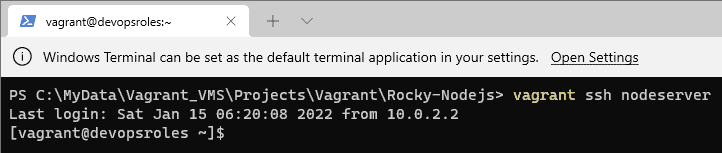
vagrant ssh nodeserver

The output terminal is below

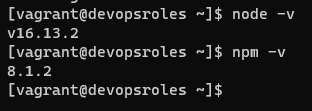
Check the Nodejs version that you have installed with the help of the following picture.

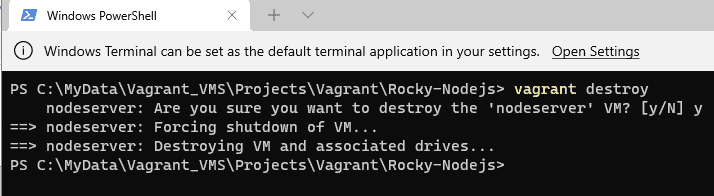
After you don’t use it, You delete Node Server.

Conclusion

To install Node.js on Rocky Linux, utilize Vagrant. I hope you find this information helpful. Thank you for visiting the DevopsRoles page!

A Step-by-Step Guide Vagrant install Redis server

Introduction

In this tutorial, How to use Vagrant install Redis server. Vagrant, a powerful open-source tool, allows developers to create and manage lightweight, reproducible, and portable virtual machines effortlessly.

My Environment for Vagrant install Redis server

  • Host OS: Windows 11
  • Vagrant version: 2.2.18
  • Vagrant provider: VirtualBox
  • Boxes Vagrant: rockylinux/8
  • Terminal/PowerShell
  • Installed VirtualBox

The vagrant directory and files will look like as below:

C:\MYDATA\VAGRANT_VMS\PROJECTS\VAGRANT\ROCKY-REDIS
│   Vagrantfile
│
├───conf
│       redis.conf
│
└───shell
        init-redis.sh

I created an “init-redis.sh” script to install Redis Server on Rocky Linux. I use the provisioning shell of Vagrant to deploy Redis Server on Rocky Linux.

The content script is as below:

#!/bin/bash

# Install Redis
sudo dnf install -y git unzip net-tools
sudo dnf module install redis -y

sudo sysctl vm.overcommit_memory=1
echo never > sudo  /sys/kernel/mm/transparent_hugepage/enabled

#Configure Redis
sudo cp /etc/redis.conf /etc/redis.conf.orig
sudo cp /vagrant/conf/redis.conf /etc/redis.conf

sudo systemctl start redis
sudo systemctl enable redis
sudo systemctl status redis

For example, the File “redis.conf” configures Redis Server as below:

bind 0.0.0.0
protected-mode yes
port 6379
tcp-backlog 511
timeout 0
tcp-keepalive 300
daemonize no
supervised no
pidfile /var/run/redis_6379.pid
loglevel notice
logfile /var/log/redis/redis.log
databases 16
always-show-logo yes
save 900 1
save 300 10
save 60 10000
stop-writes-on-bgsave-error yes
rdbcompression yes
rdbchecksum yes
dbfilename dump.rdb
dir /var/lib/redis
replica-serve-stale-data yes
replica-read-only yes
repl-diskless-sync no
repl-diskless-sync-delay 5
repl-disable-tcp-nodelay no
replica-priority 100
lazyfree-lazy-eviction no
lazyfree-lazy-expire no
lazyfree-lazy-server-del no
replica-lazy-flush no
appendonly yes
appendfilename "appendonly.aof"
appendfsync everysec
no-appendfsync-on-rewrite no
auto-aof-rewrite-percentage 100
auto-aof-rewrite-min-size 64mb
aof-load-truncated yes
aof-use-rdb-preamble yes
lua-time-limit 5000
slowlog-log-slower-than 10000
slowlog-max-len 128
latency-monitor-threshold 0
notify-keyspace-events ""
hash-max-ziplist-entries 512
hash-max-ziplist-value 64
list-max-ziplist-size -2
list-compress-depth 0
set-max-intset-entries 512
zset-max-ziplist-entries 128
zset-max-ziplist-value 64
hll-sparse-max-bytes 3000
stream-node-max-bytes 4096
stream-node-max-entries 100
activerehashing yes
client-output-buffer-limit normal 0 0 0
client-output-buffer-limit replica 256mb 64mb 60
client-output-buffer-limit pubsub 32mb 8mb 60
hz 10
dynamic-hz yes
aof-rewrite-incremental-fsync yes
rdb-save-incremental-fsync yes
requirepass devosroles.com

Create a Virtual Machine

I will navigate to my working directory. For example, the “Rocky-Redis” folder and create initialized Vagrantfile vagrant as the command below.

cd Rocky-Redis
vagrant init rockylinux/8

Configure the Virtual Machine

Edit the Vagrantfile and paste the content below

# -*- mode: ruby -*-
# vi: set ft=ruby :

Vagrant.configure("2") do |config|

  config.vm.box = "rockylinux/8"
  config.ssh.insert_key = false  

  config.vbguest.auto_update = false
  
  config.vm.define "redisserver" do |redisserver|
    redisserver.vm.hostname = "devopsroles.com"
    redisserver.vm.network "private_network", ip: "192.168.4.4"
    redisserver.vm.network "forwarded_port", guest: 6379, host: 6379
    redisserver.vm.provision "shell", 
     path: "C:\\MyData\\Vagrant_VMS\\Projects\\Vagrant\\Rocky-Redis\\shell\\init-redis.sh"

  end

end

Deploy Redis Server on Rocky Linux

Use the command below to create and configures guest machines according to your Vagrantfile.

vagrant up

Finally, we will connect to the Redis server.

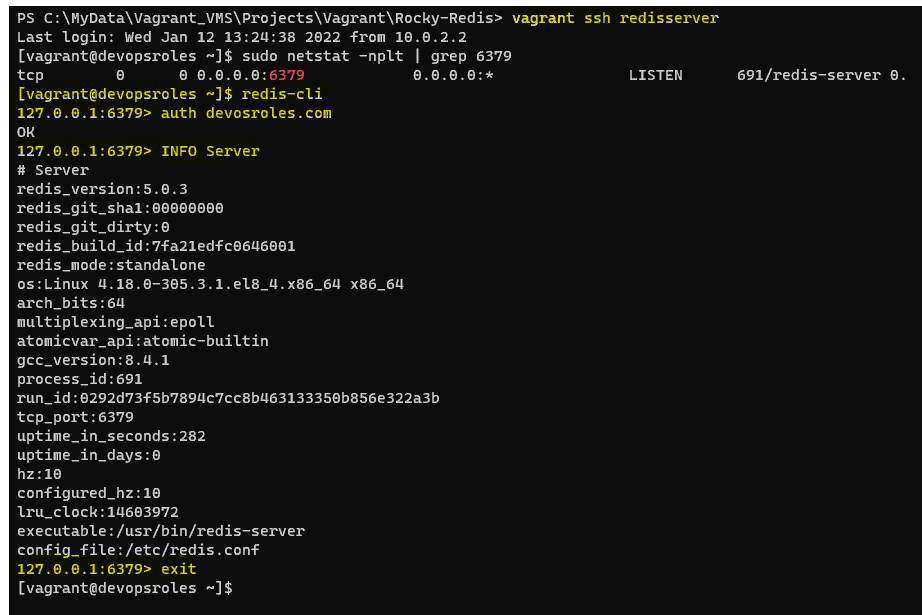
vagrant ssh redisserver

The output terminal as below

Conclusion

You’ve successfully installed the Redis server on a virtual machine using Vagrant. With this setup, you can now develop and test your Redis-dependent applications in an isolated and portable environment.

Vagrant’s ease of use and versatility make it an invaluable tool for any developer’s toolkit. I hope will this your helpful. Thank you for reading the DevopsRoles page!

Vagrant LEMP stack: A Comprehensive Guide from Basic to Advanced

Introduction

In this tutorial, I wrote deploy Vagrant LEMP stack. I will install and configure the LEMP stack for this web application.

Vagrant is a powerful tool for managing virtual development environments, and the LEMP stack (Linux, Nginx, MySQL, PHP) is a popular choice for web developers due to its performance and flexibility. Combining Vagrant with a LEMP stack allows developers to create a consistent and reproducible environment, making development and collaboration more efficient.

What does lemp stand for?

Linux operating system, and Nginx (pronounced engine-x, hence the E in the acronym) webserver. MySQL database and dynamic content processed by PHP.

My Environment for Vagrant LEMP stack

  • Host OS: Window 11
  • Vagrant version: 2.2.18
  • Vagrant provider: VirtualBox
  • Boxes Vagrant: rockylinux/8
  • Terminal/PowerShell

Vagrant directory and files will look like as below:

C:\MYDATA\VAGRANT_VMS\PROJECTS\VAGRANT\ROCKY-LEMP
│   Vagrantfile
│
├───Files

│       index.html
│       info.php
│
└───shell

        web-lemp-rocky.sh

Files Folder contains test Nginx and PHP with index.html and info.php files.

The content index.html and info.php files

# index.html file

<html>
    <h2>DevopsRoles.com</h2>
</html>

# info.php file

<?php
phpinfo();
?>

I created a web-lemp-rocky.sh script to install Nginx, MySQL, and PHP on Rocky Linux. I use the provisioning shell of Vagrant to deploy LEMP on Rocky Linux.

The content script is as below:

#!/bin/bash


#Tools
sudo dnf install -y git unzip net-tools

#Apache
sudo dnf install -y nginx

#chkconfig --add nginx
sudo systemctl enable nginx
sudo systemctl stop nginx

sudo systemctl start nginx

#PHP
sudo dnf install php php-fpm php-gd php-mysqlnd php-cli php-opcache
sudo systemctl enable php-fpm
sudo systemctl start php-fpm

#MySQL
sudo dnf install -y mysql mysql-server mysql-devel
sudo systemctl enable mysqld.service
sudo systemctl start mysqld

mysql -u root -e "SHOW DATABASES";

# content
# sudo rm -rf /var/www/html/*
sudo cp -rf /vagrant/Files/{index.html,info.php} /usr/share/nginx/html/
# cd /vagrant
#sudo -u vagrant wget -q https://raw.git.....

sudo systemctl restart nginx

Create a Virtual Machine

Navigate to my working directory

cd Rocky-LEMP
vagrant init rockylinux/8

Configure the Virtual Machine

Edit the Vagrantfile and paste the content below

# -*- mode: ruby -*-
# vi: set ft=ruby :

Vagrant.configure("2") do |config|

  config.vm.box = "rockylinux/8"
  config.ssh.insert_key = false  

  config.vbguest.auto_update = false
  
  config.vm.define "webserver" do |webserver|
    webserver.vm.hostname = "devopsroles.com"
    webserver.vm.network "private_network", ip: "192.168.4.4"
    webserver.vm.network "forwarded_port", guest: 80, host: 8888
    webserver.vm.provision "shell", 
     path: "C:\\MyData\\Vagrant_VMS\\Projects\\Vagrant\\Rocky-LEMP\\shell\\web-lemp-rocky.sh"

  end

end

Deploy LEMP on Rocky Linux

vagrant up

To connect to Web Server.

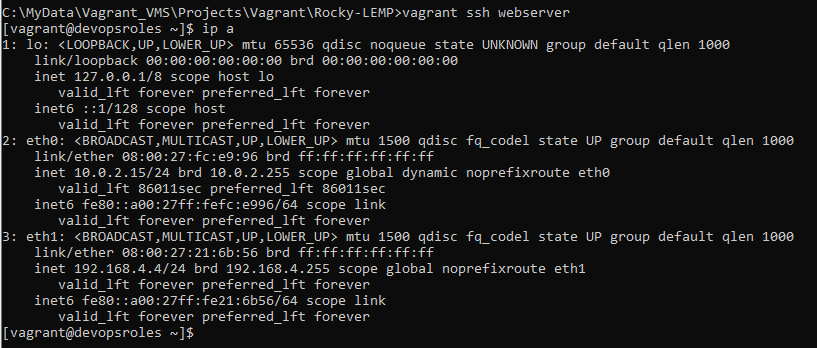
vagrant ssh webserver

The output terminal is below

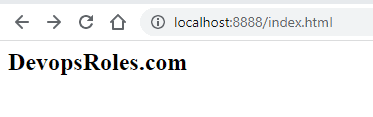
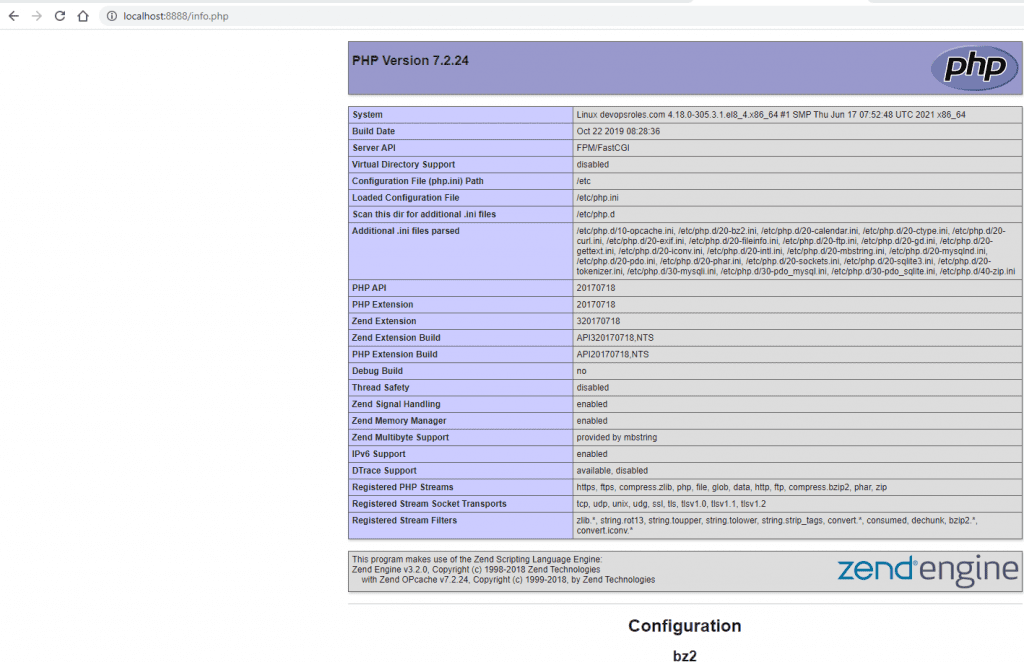
Opens a browser that can access your Server’s IP address.

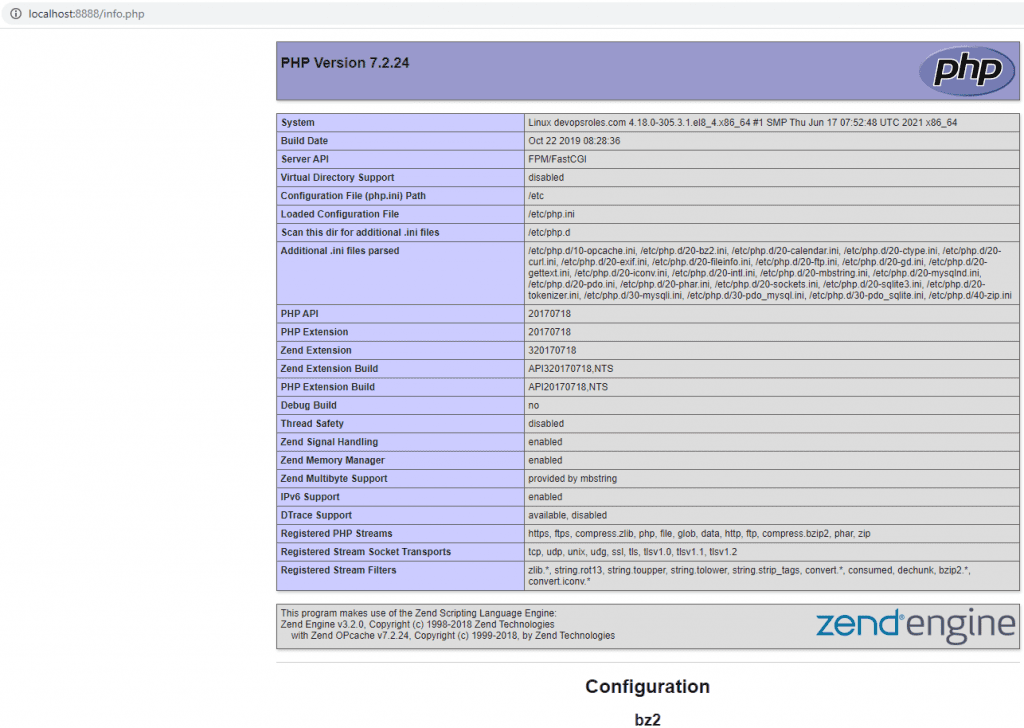
Testing PHP

FAQs

What is Vagrant used for?

Vagrant is used for creating and managing virtual development environments, allowing developers to work in a consistent and isolated environment.

Why choose the LEMP stack over LAMP?

The LEMP stack uses Nginx instead of Apache, offering better performance and scalability for handling high-traffic websites.

How do I access the Vagrant VM’s web server?

You can access it using the IP address assigned to the VM or using a private network setup.

Can I use a different operating system for the Vagrant box?

Yes, Vagrant supports various operating systems, and you can specify a different box in the Vagrantfile.

Conclusion

Setting up a Vagrant LEMP stack is a powerful way to streamline your development process. By following this guide, you can create a consistent, isolated, and easily reproducible environment for your web development projects. Whether you’re a beginner or looking to implement advanced configurations, Vagrant provides the flexibility and control needed to optimize your workflow.

You have to use the Vagrant LEMP stack on Rocky Linux. I hope will this your helpful. Thank you for reading the DevopsRoles page!

Vagrant multiple servers

Introduction

In this tutorial, How to deploy multiple servers using Vagrant. I will deploy LAMP multiple servers. I create more VMs, each VM can have its own and different configuration.

My Environment

  • Host OS: Window 11
  • Vagrant version: 2.2.18
  • Vagrant provider: VirtualBox
  • Boxes Vagrant: rockylinux/8
  • Terminal/PowerShell

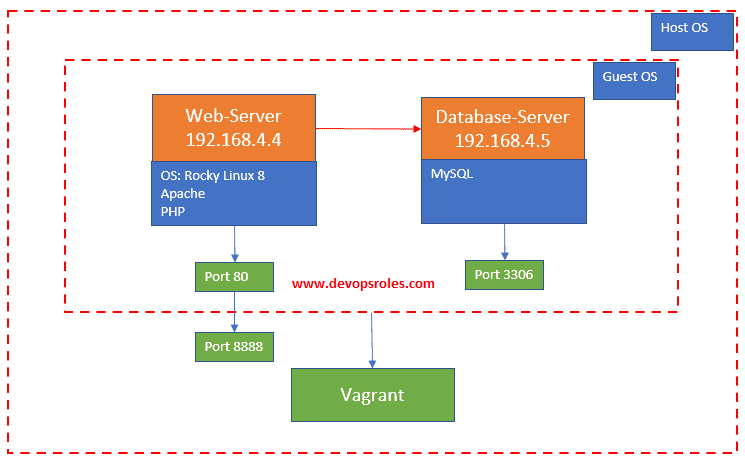
LAMP server architecture

Vagrant directory and files will look like as below:

C:\MYDATA\VAGRANT_VMS\PROJECTS\VAGRANT\VM-MULTI-SERVER
│   Vagrantfile

│
└───shell
        common-rocky.sh
        database-rocky.sh
        web-rocky.sh

I created common-rocky.sh script to deploy the common packages as below

#!/bin/bash

#Update OS
# sudo yum update -y --exclude=kernel

#Tools
sudo yum install -y git unzip nc telnet

web-rocky.sh script to install the package Apache, PHP as below

#!/bin/bash

#Apache
sudo dnf install -y httpd httpd-devel httpd-tools

#chkconfig --add httpd
sudo systemctl enable httpd.service
sudo systemctl stop httpd

sudo systemctl start httpd

#PHP
sudo dnf install -y php php-cli php-gd php-curl php-zip php-mbstring php-opcache php-intl php-mysqlnd

database-rocky.sh script to install MySQL server as below

#!/bin/bash

#MySQL
sudo yum install -y mysql mysql-server mysql-devel
sudo systemctl enable mysqld.service
sudo systemctl start mysqld

mysql -u root -e "SHOW DATABASES";

Create a Virtual Machine

Navigate to my working directory

cd Rocky-LAMP
vagrant init rockylinux/8

Configure the Virtual Machine

Edit the Vagrantfile and paste the content below

# -*- mode: ruby -*-
# vi: set ft=ruby :

Vagrant.configure("2") do |config|

  config.vm.box = "rockylinux/8"
  config.ssh.insert_key = false  
  config.vm.provision "shell", 
   path: "C:\\MyData\\Vagrant_VMS\\Projects\\Vagrant\\VM-multi-server\\shell\\common-rocky.sh"

  config.vbguest.auto_update = false
  
  config.vm.define "webserver" do |webserver|
    webserver.vm.hostname = "devopsroles.com"
    webserver.vm.network "private_network", ip: "192.168.4.4"
    webserver.vm.network "forwarded_port", guest: 80, host: 8888
    webserver.vm.provision "shell", 
     path: "C:\\MyData\\Vagrant_VMS\\Projects\\Vagrant\\VM-multi-server\\shell\\web-rocky.sh"

  end

  config.vm.define "databases" do |databases|
    databases.vm.hostname = "database-server"
    databases.vm.network "private_network", ip: "192.168.4.5"
    databases.vm.provision "shell", 
     path: "C:\\MyData\\Vagrant_VMS\\Projects\\Vagrant\\VM-multi-server\\shell\\database-rocky.sh"

  end

end

Deploy LAMP on Rocky Linux

vagrant up

To connect to Web Server.

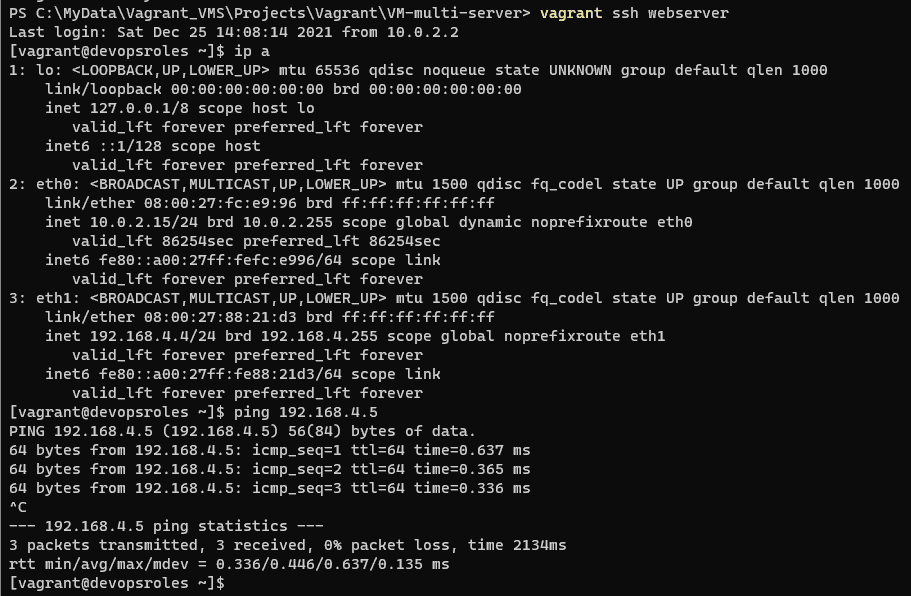
vagrant ssh webserver

To connect to the database server.

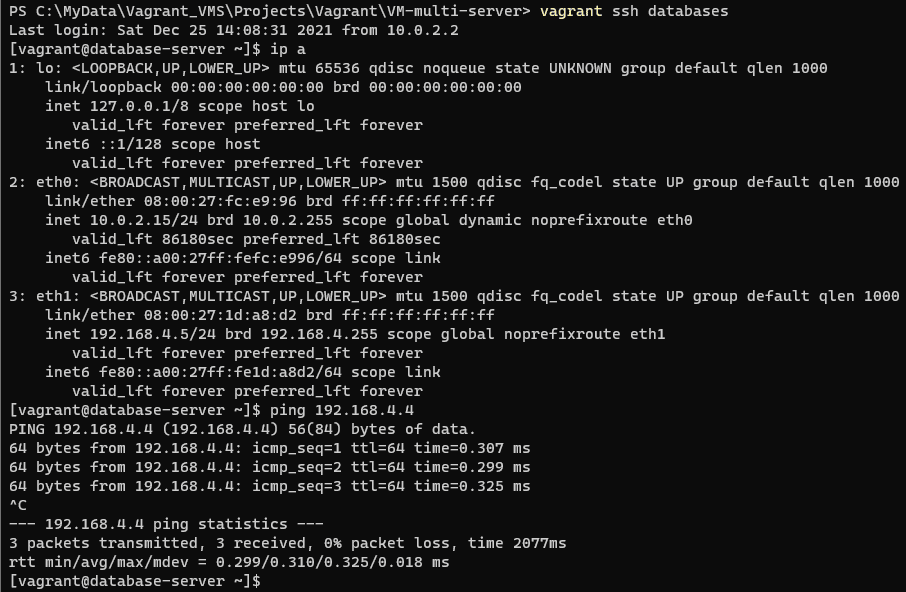
vagrant ssh databases

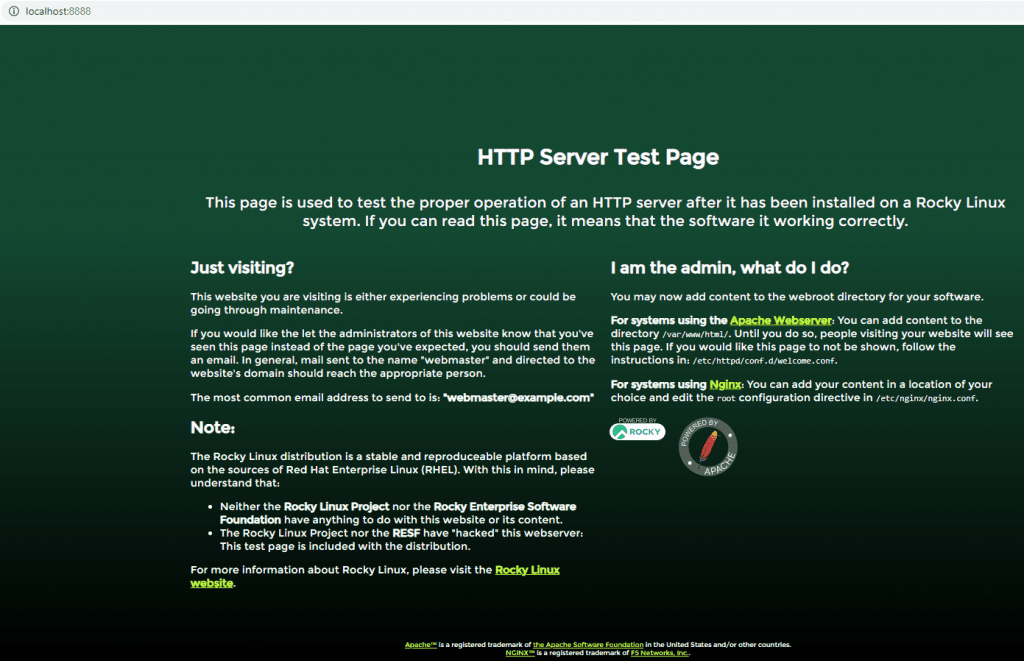
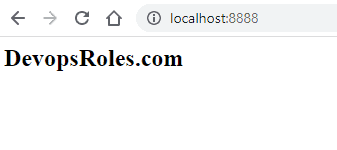
Opens a browser that can access your Server’s IP address

Conclusion

You have to use Vagrant to install LAMP for multiple servers. I hope will this your helpful. Thank you for reading the DevopsRoles page!

Deploy LAMP on rocky Linux using Vagrant

#Introduction

In this tutorial, How to deploy LAMP on Rocky Linux using Vagrant. LAMP is Linux Operating System, Apache Web Server, MySQL Database, and PHP Programming Language.

Development Environments Made Easy Quote by www.vagrantup.com

My Environment

  • Host OS: Window 11 or Ubuntu / Centos or Rocky server.
  • Vagrant version: 2.2.18
  • Vagrant provider: VirtualBox
  • Boxes Vagrant: rockylinux/8
  • Terminal/PowerShell

Deploy LAMP on rocky Linux using Vagrant directory and files will look like as below:

C:\MYDATA\VAGRANT_VMS\PROJECTS\VAGRANT\ROCKY-LAMP
|   Vagrantfile
|
+---Files
|       gitconfig
|       index.html
|       info.php
|
\---Scripts
        lamp-rocky.sh

Create a Virtual Machine

Navigate to my working directory and create an initial Vagrantfile if one does not already exist.

cd Rocky-LAMP
vagrant init rockylinux/8

Configure the Virtual Machine

You need to edit the Vagrantfile and paste the content as below

# -*- mode: ruby -*-
# vi: set ft=ruby :

Vagrant.configure("2") do |config|

  config.vm.box = "rockylinux/8"
  config.vm.hostname = "devopsroles.com"
  config.ssh.insert_key = false
  config.vm.network "private_network", ip: "192.168.4.4"
  config.vm.network "forwarded_port", guest: 80, host: 8888
  config.vbguest.auto_update = false
  # Install LAMP on Rocky server
  config.vm.provision "shell", 
  path: "C:\\MyData\\Vagrant_VMS\\Projects\\Vagrant\\Rocky-LAMP\\Scripts\\lamp-rocky.sh"
  # Test HTML
  #config.vm.provision "file", 
  # source: "C:\\MyData\\Vagrant_VMS\\Projects\\Vagrant\\Rocky-LAMP\\Files\\index.html",
  # destination: "/var/www/html/index.html"
  #Test PHP
  #config.vm.provision "file", 
  # source: "C:\\MyData\\Vagrant_VMS\\Projects\\Vagrant\\Rocky-LAMP\\Files\\info.php",
  # destination: "/var/www/html/info.php"
end

I use provision shell to install Apache, MySQL, and PHP on Rocky Linux. The script update OS, install the packages: Apache PHP and MySQL.

The content “lamp-rocky.sh” script is as below:

#!/bin/bash

#Update OS
sudo yum update -y --exclude=kernel

#Tools
sudo yum install -y git unzip

#Apache
sudo dnf install -y httpd httpd-devel httpd-tools

#chkconfig --add httpd
sudo systemctl enable httpd.service
sudo systemctl stop httpd

sudo systemctl start httpd

#PHP
sudo dnf install -y php php-cli php-gd php-curl php-zip php-mbstring php-opcache php-intl php-mysqlnd

#MySQL
sudo yum install -y mysql mysql-server mysql-devel
sudo systemctl enable mysqld.service
sudo systemctl start mysqld

mysql -u root -e "SHOW DATABASES";

# content
sudo rm -rf /var/www/html/*
sudo cp -rf /vagrant/Files/{index.html,info.php} /var/www/html/
# cd /vagrant
#sudo -u vagrant wget -q https://raw.git.....

sudo systemctl restart httpd

Deploy LAMP on Rocky Linux

We use the “vagrant up” command line. This command creates and configures guest machines according to your Vagrantfile

vagrant up

How to connect to the virtual machine.

vagrant ssh

The output terminal as below

C:\MyData\Vagrant_VMS\Projects\Vagrant\Rocky-LAMP>vagrant ssh
[vagrant@devopsroles ~]$ cat /etc/redhat-release
Rocky Linux release 8.5 (Green Obsidian)
[vagrant@devopsroles ~]$ ip a
1: lo: <LOOPBACK,UP,LOWER_UP> mtu 65536 qdisc noqueue state UNKNOWN group default qlen 1000
    link/loopback 00:00:00:00:00:00 brd 00:00:00:00:00:00
    inet 127.0.0.1/8 scope host lo
       valid_lft forever preferred_lft forever
    inet6 ::1/128 scope host
       valid_lft forever preferred_lft forever
2: eth0: <BROADCAST,MULTICAST,UP,LOWER_UP> mtu 1500 qdisc fq_codel state UP group default qlen 1000
    link/ether 08:00:27:fc:e9:96 brd ff:ff:ff:ff:ff:ff
    inet 10.0.2.15/24 brd 10.0.2.255 scope global dynamic noprefixroute eth0
       valid_lft 85565sec preferred_lft 85565sec
    inet6 fe80::a00:27ff:fefc:e996/64 scope link
       valid_lft forever preferred_lft forever
3: eth1: <BROADCAST,MULTICAST,UP,LOWER_UP> mtu 1500 qdisc fq_codel state UP group default qlen 1000
    link/ether 08:00:27:cf:7f:96 brd ff:ff:ff:ff:ff:ff
    inet 192.168.4.4/24 brd 192.168.4.255 scope global noprefixroute eth1
       valid_lft forever preferred_lft forever
    inet6 fe80::a00:27ff:fecf:7f96/64 scope link
       valid_lft forever preferred_lft forever

You need to open a browser that can access your Server’s IP address.

The resulting output picture as below:

A page displaying the PHP version among other parameters such as details of PHP extensions enabled will be displayed below

Conclusion

You have to deploy LAMP on rocky Linux using Vagrant. I hope will this your helpful. Thank you for reading the DevopsRoles page!

vagrant ssh Permission denied fixed: A Comprehensive Guide

Introduction

In this tutorial, How to fix vagrant SSH permission denied. I use Host OS Windows 11 and Vagrant. I have to deploy a VM using Vagrant. Finish, login ssh to guest OS.

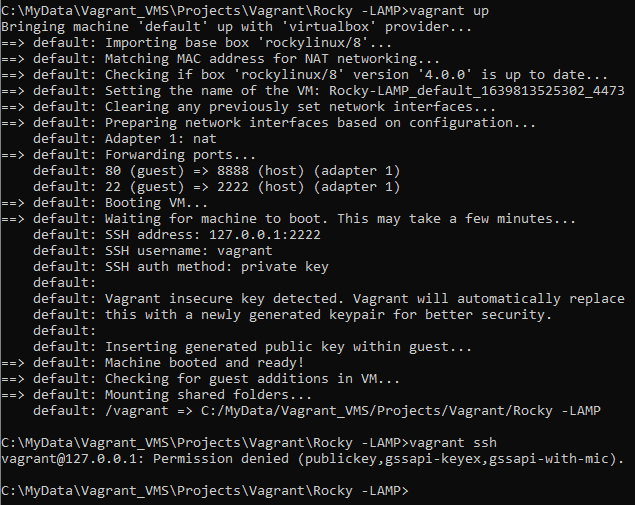
vagrant up command error as below:

vagrant@127.0.0.1: Permission denied (publickey,gssapi-keyex,gssapi-with-mic)

Understanding the Error

What is the “vagrant ssh Permission denied” Error?

The “vagrant SSH Permission denied” error occurs when the Vagrant fails to establish an SSH connection to the virtual machine. This can be caused by various issues such as incorrect SSH keys, misconfigured Vagrantfiles, or permission issues.

Common Causes

  1. Incorrect SSH Key Permissions: The SSH key file might not have the correct permissions.
  2. Missing or Incorrect SSH Keys: The SSH key might be missing or not properly configured.
  3. Vagrantfile Misconfiguration: The Vagrantfile may have incorrect settings.
  4. User Permissions: The user running Vagrant may not have the necessary permissions.

My Environment

  • Host OS: Windows 11 or Linux/Ubuntu/Redhat
  • Vagrant version: 2.2.18
  • Vagrant provider: VirtualBox
  • Boxes Vagrant: rockylinux/8

For example, My Vagrantfile

# -*- mode: ruby -*-
# vi: set ft=ruby :

Vagrant.configure("2") do |config|

  config.vm.box = "rockylinux/8"
  config.vm.network "forwarded_port", guest: 80, host: 8888
  config.vbguest.auto_update = false
end

Deploy a Virtual Machine

vagrant up

The output terminal is as follows:

How do fix vagrant SSH permission denied

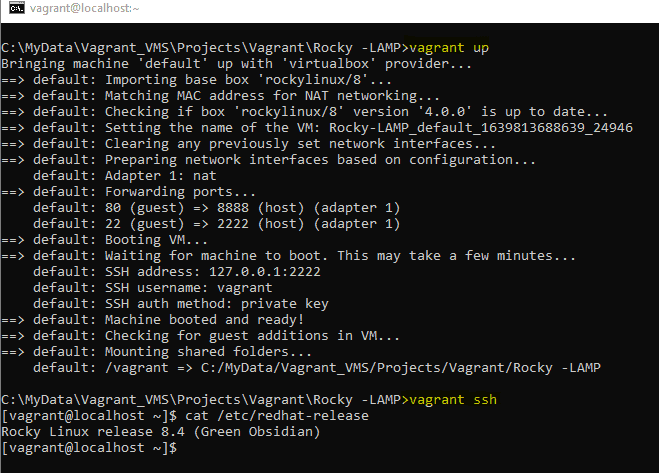
I add configure “config.ssh.insert_key = false” into the Vagrantfile file

After changing my Vagrantfile as the content below

# -*- mode: ruby -*-
# vi: set ft=ruby :

Vagrant.configure("2") do |config|

  config.vm.box = "rockylinux/8"
  config.ssh.insert_key = false
  config.vm.network "forwarded_port", guest: 80, host: 8888
  config.vbguest.auto_update = false
end

The result

Frequently Asked Questions

Why am I getting a “vagrant SSH permission denied” error?

This error occurs when Vagrant fails to establish an SSH connection to the virtual machine, often due to incorrect SSH key permissions, missing keys, misconfigured Vagrantfiles, or user permission issues.

How do I fix SSH key permission issues in Vagrant?

You can fix SSH key permission issues by setting the correct permissions with the command chmod 600 ~/.ssh/id_rsa.

Can I regenerate the SSH key for Vagrant?

Yes, you can regenerate the SSH key for Vagrant by destroying the existing machine, removing the old key, and reinitializing Vagrant.

How do I manually add an SSH key to the SSH agent?

Start the SSH agent eval "$(ssh-agent -s)" and add your SSH key with ssh-add ~/.ssh/id_rsa.

Should I update Vagrant and its plugins?

Yes, updating Vagrant and its plugins can resolve many issues, including SSH connection problems. Use vagrant plugin update and vagrant box update to update them.

Conclusion

Encountering the “vagrant SSH Permission denied” error can be frustrating, but with the steps outlined in this guide, you should be able to resolve it efficiently. From checking SSH key permissions to updating Vagrant, these solutions cover both basic and advanced troubleshooting methods. Ensuring smooth operation of your Vagrant environments is crucial for a seamless development workflow. Thank you for reading the DevopsRoles page!