DevOps CI/CD pipeline tutorial part 4

In this tutorial, I will integrate Ansible into the Jenkins CI/CD pipeline. Now, let’s go to DevOps CI/CD pipeline tutorial part 4.

The content is

  • Install Ansible on Amazon EC2
  • How to integrate Ansible with Jenkins
  • Create an Ansible playbook
  • Jenkins job to deploy on Docker container through DockerHub
  • Jenkin’s job to deploy a war file on Docker container using Ansible.

Install Ansible on Amazon EC2

Prerequisites

  • Amazon Linux EC2 Instance

Installation steps

Install python and python-pip

[root@Ansible_host ~]# yum install python
[root@Ansible_host ~]# yum install python-pip

Using pip command install Ansible

[root@Ansible_host ~]# pip install ansible
[root@Ansible_host ~]# ansible --version

Create a user called for Ansible

[root@Ansible_host ~]# useradd ansibleadmin
[root@Ansible_host ~]# passwd ansibleadmin

grant sudo access to ansibleadmin user.

[root@Ansible_host ~]# echo "ansibleadmin ALL=(ALL) NOPASSWD: ALL" >> /etc/sudoers

Login ansibleadmin user and generate key

ssh-keygen

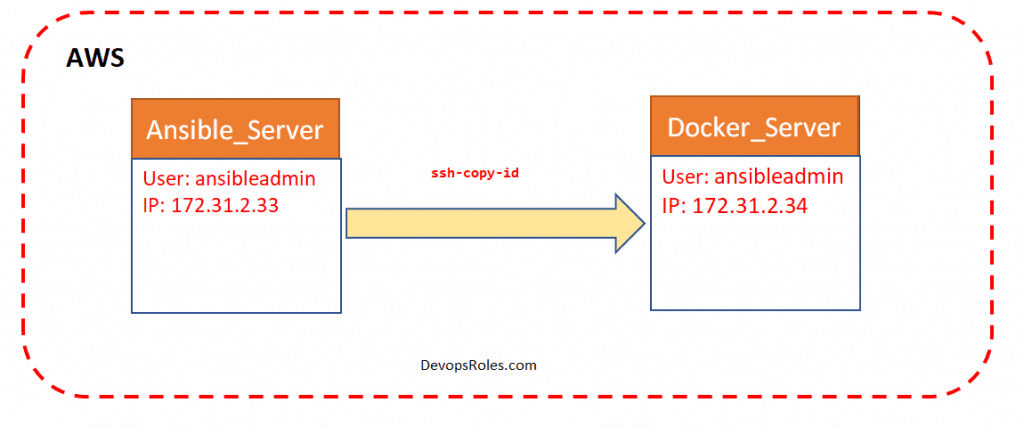
Copy keys to the target server.

ssh-copy-id ansibleadmin@<target-server>

Ansible server used to create images and store them on the docker registry.

yum install docker
service docker status
service docker start
usermod -aG docker ansibleadmin

Create a folder /opt/ansible and hosts file for inventory file add control node and manged hosts IP address to it.

Validating test Ansible

Run ansible command as ansibleadmin user.

ansible all -m ping

How to integrate Ansible with Jenkins

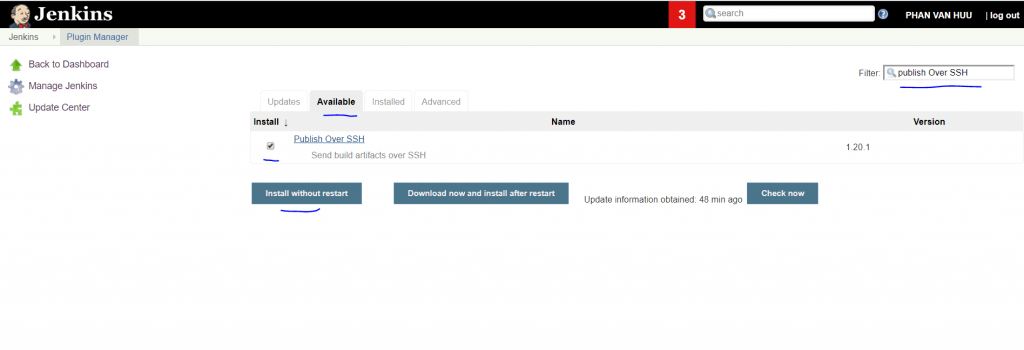
You need to Install “publish Over SSH” as below

Manage Jenkins > Manage Plugins > Available > Publish over SSH

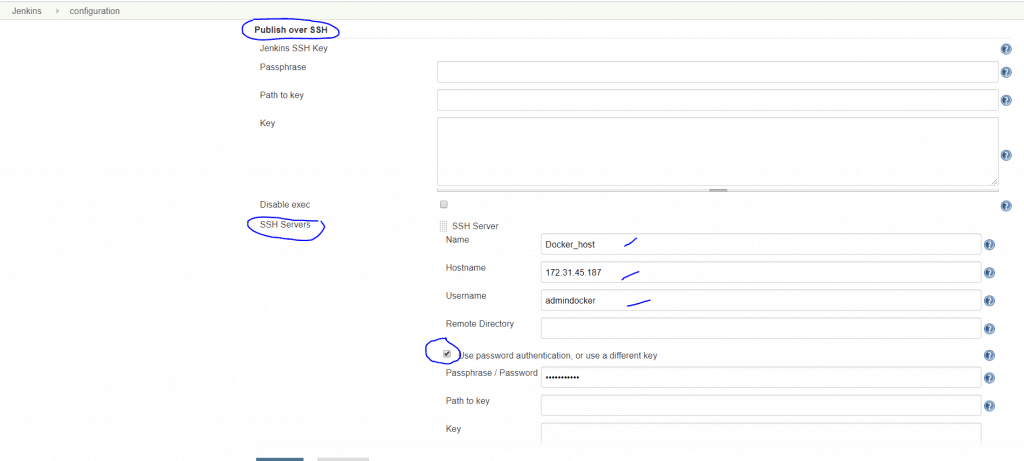
Enable connection between Ansible-control-node and Jenkins as below.

Manage Jenkins > Configure System > Publish Over SSH > SSH Servers

Example,

  • SSH Servers:
  • Name: ansible-server
  • Hostname:<ServerIP>
  • username: ansibleadmin
  • Click Advanced > chose Use password authentication, or use a different key.

Create an Ansible playbook

I will create a simple Ansible playbook as below

---
- hosts: 172.13.13.4
  become: true
  tasks:
  - name: Stop old docker container
    command: docker stop devops-container
    ignore_errors: yes

  - name: Remove stopped docker container
    command: docker rm devops-container
    ignore_errors: yes

  - name: Remove current docker image
    command: docker rmi devops-image
    ignore_errors: yes


  - name: Building docker image
    command: docker build -t devops-image .
    args:
      chdir: /opt/docker

  - name: creating docker image
    command: docker run -d --name devops-container -p 8080:8080 devops-image

Run Ansible playbook

ansible-playbook -i hosts simple-devops.yml

DevOps CI/CD pipeline tutorial part 4 update later … Thank you for reading DevOpsRoles.com page

DevOps CI/CD pipeline tutorial part 3

I will continue the article DevOps CI/CD pipeline tutorial part 3. In this tutorial, How to integrating Docker in CI/CD pipeline Jenkins.

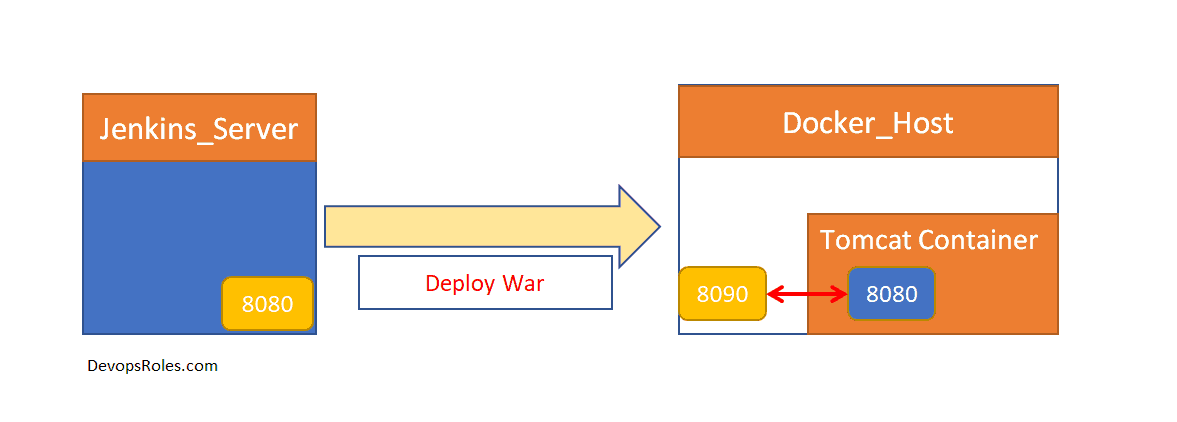
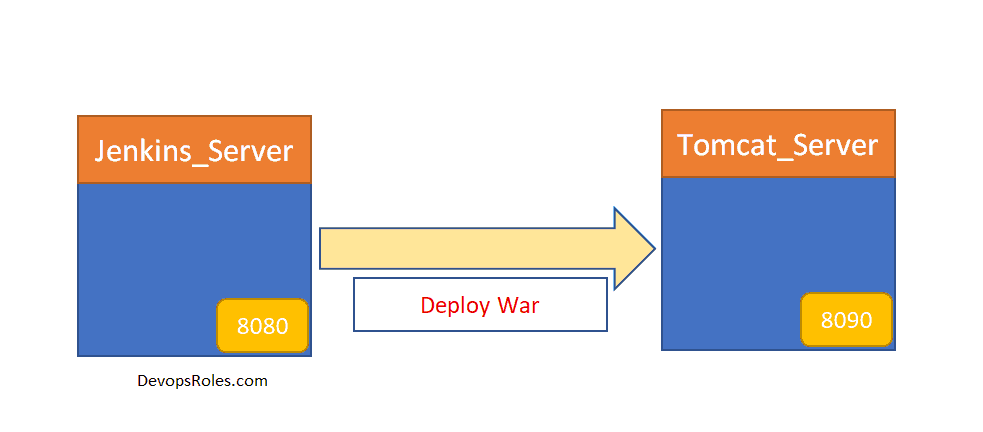
Jenkins Host –> Docker Host –> Tomcat on Docker container

The content is

  • Installing Docker on Amazon Linux server
  • Integrating Docker with Jenkins
  • Deploy a war file on the Docker container using Jenkins.

Installing Docker on Amazon Linux server

Prerequisites

  • Amazon Linux EC2 Instance

Installation Docker

[root@Docker_host ~]# yum install docker -y

Check version

[root@Docker_host ~]# docker --version

Start docker services

[root@Docker_host ~]# service docker start
[root@Docker_host ~]# service docker status

Create user admindocker

[root@Docker_host ~]# useradd admindocker
[root@Docker_host ~]# passwd admindocker

Add a user to docker group to manage docker

[root@Docker_host ~]# usermod -aG docker admindocker

Validation

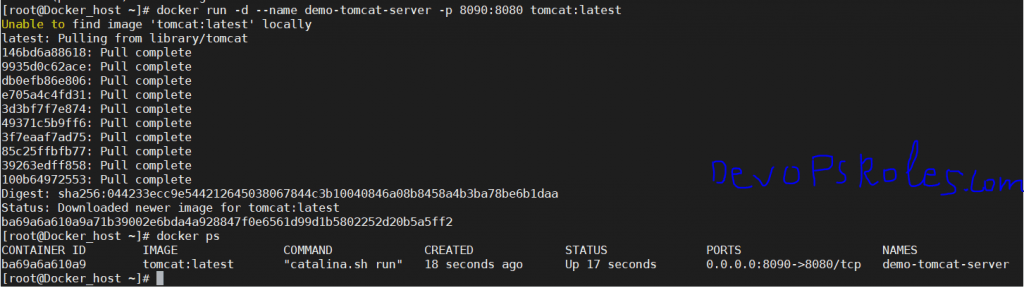
Create a tomcat docker container by pulling a docker image from the public docker registry.

[root@Docker_host ~]# docker run -d --name demo-tomcat-server -p 8090:8080 tomcat:latest

List out running containers

[root@Docker_host ~]# docker ps

Now, we will pull image tomcat from https://hub.docker.com/_/tomcat

You can then go to http://localhost:8080 in a browser (noting that it will return a 404 since there are no webapps loaded by default).

Log in to a docker container

docker exec -it <container_Name> /bin/bash

Default, tomcat container webapp is empty. you access a browser it will return a 404 page. I will copy the example webapps as below:

[root@Docker_host ~]# docker run -d --name tomcat-container -p 8090:8080 tomcat
f2732ff3f29496513c5489863fcc405f243bd07275021074af2107a74713683e
[root@Docker_host ~]# docker ps
CONTAINER ID        IMAGE               COMMAND             CREATED             STATUS              PORTS                    NAMES
f2732ff3f294        tomcat              "catalina.sh run"   7 seconds ago       Up 6 seconds        0.0.0.0:8090->8080/tcp   tomcat-container
[root@Docker_host ~]# docker exec -it f2732ff3f294 /bin/bash
root@f2732ff3f294:/usr/local/tomcat# ll
bash: ll: command not found
root@f2732ff3f294:/usr/local/tomcat# ls
BUILDING.txt     LICENSE  README.md      RUNNING.txt  conf     lib   native-jni-lib  webapps       work
CONTRIBUTING.md  NOTICE   RELEASE-NOTES  bin          include  logs  temp            webapps.dist
root@f2732ff3f294:/usr/local/tomcat# cp -R webapps.dist/* webapps/

Integrating Docker with Jenkins

Login to console Jenkins

Add ” Publish Over SSH ” plugin.

Manage Jenkins Configure System >  Publish over SSH

You need to allow Password Authentication of SSH on Docker Host server ( if you use password)

[root@Docker_host ~]# grep PasswordAuthentication /etc/ssh/sshd_config
PasswordAuthentication yes

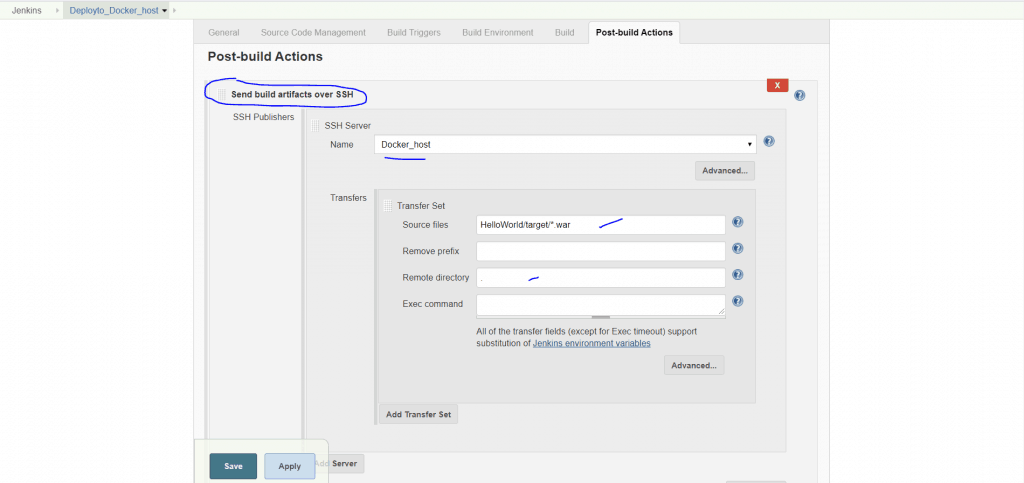
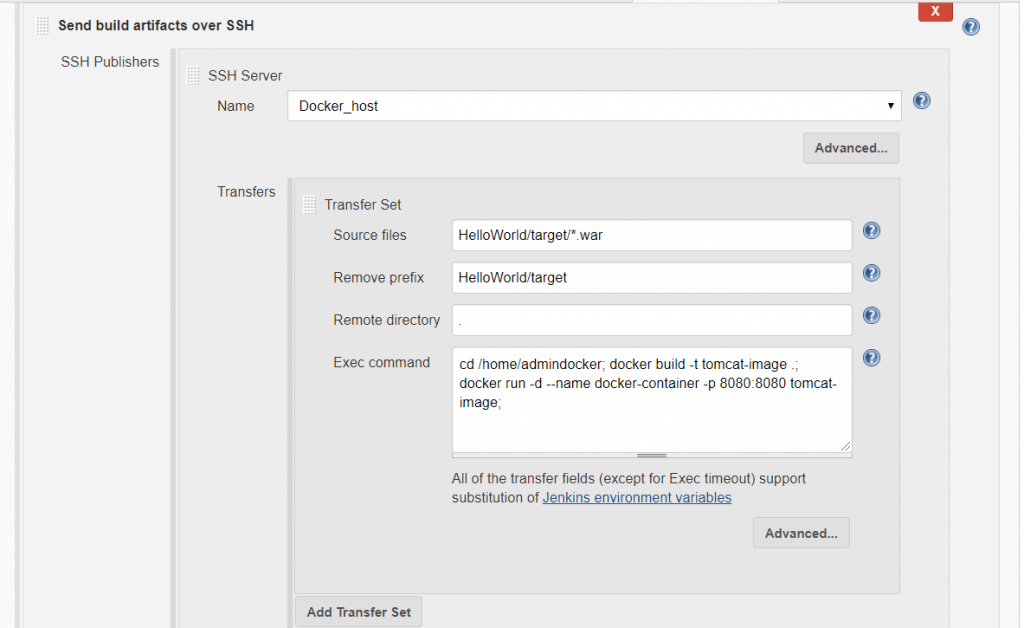
For example, Jenkins copy artifacts to Docker host

Add post-build action –> Send build artifacts over SSH

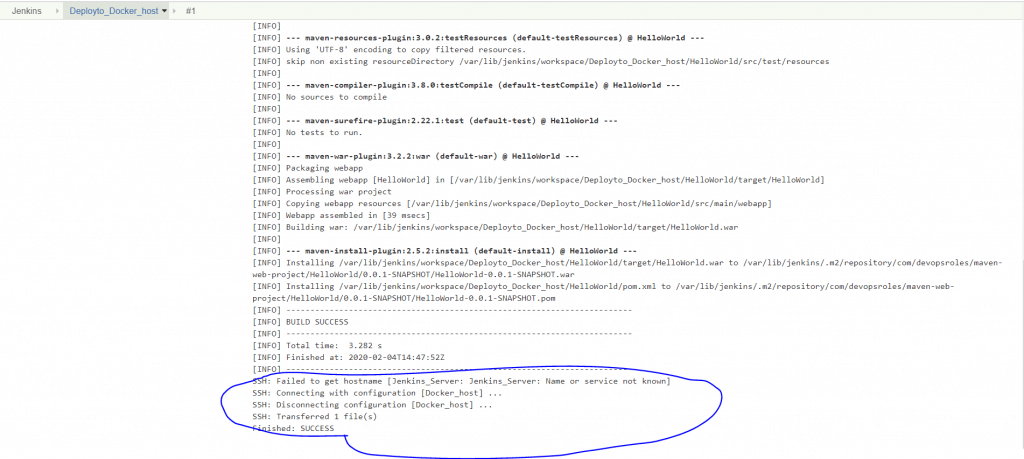
Result,

Deploy a war file on the Docker container using Jenkins.

Create Dockerfile to copy the war file to the delivery folder.

Example Dockerfile simple

FROM tomcat:latest
COPY ./HelloWorld.war /usr/local/tomcat/webapps

Jenkins setting copy war to the docker container.

Link Youtube

Thank you for reading DevOpsRoles.com page

DevOps CI/CD pipeline tutorial part 2

I wrote DevOps CI/CD pipeline tutorial part 2. Serial the previous article here. This time I will integrate Tomcat Server in CI/CD Jenkins pipeline.

The content is

  • How to set up Tomcat server
  • Using Jenkins to Deploy a war file on Tomcat VM
  • Deploy on VM through PollSCM

How to Tomcat installation on EC2 instance

Prerequisites

  • EC2 instance with Java v1.8.xx

Install Apache Tomcat

Download tomcat packages latest version here

# Create tomcat directory
[ec2-user@Tomcat_Server ~]$ sudo su -
[root@~]# cd /opt
[root@Tomcat_Server opt]# wget https://www-eu.apache.org/dist/tomcat/tomcat-8/v8.5.50/bin/apache-tomcat-8.5.50.tar.gz
[root@Tomcat_Server opt]# tar -xvzf /opt/apache-tomcat-8.5.50.tar.gz

Executing permissions for startup.sh and shutdown.sh

[root@Tomcat_Server opt]# chmod +x /opt/apache-tomcat-8.5.50/bin/{startup.sh,shutdown.sh}

Create link files for tomcat startup.sh and shutdown.sh

[root@Tomcat_Server opt]# ln -s /opt/apache-tomcat-8.5.50/bin/startup.sh /usr/local/bin/tomcatup
[root@Tomcat_Server opt]# ln -s /opt/apache-tomcat-8.5.50/bin/shutdown.sh /usr/local/bin/tomcatdown
[root@Tomcat_Server opt]# tomcatup

Now, We will access the tomcat application from the browser to port 8080

http://<Public_IP>:8080

But, the default tomcat and Jenkins runs on ports number 8080. Hence I will change the tomcat port number to 8090. Change port number in conf/server.xml file under tomcat home

[root@Tomcat_Server opt]# cd /opt/apache-tomcat-8.5.50/conf
# update port number in the "connecter port" field in server.xml
# restart tomcat after configuration update
[root@Tomcat_Server conf]# cat server.xml | grep '\<Connector port\=\"8090\"'
    <Connector port="8090" protocol="HTTP/1.1"
[root@Tomcat_Server conf]# tomcatdown
[root@Tomcat_Server conf]# tomcatup

Access tomcat application from the browser on port 8090

http://<Public_IP>:8090

But the tomcat application doesn’t allow us to log in from the browser. changing a default parameter in context.xml

# comment (<!-- & -->) `Value ClassName` field on files which are under webapp directory.

[root@Tomcat_Server bin]# pwd
/opt/apache-tomcat-8.5.50/bin
[root@Tomcat_Server bin]# find /opt/apache-tomcat-8.5.50 -name context.xml
/opt/apache-tomcat-8.5.50/webapps/host-manager/META-INF/context.xml
/opt/apache-tomcat-8.5.50/webapps/manager/META-INF/context.xml
/opt/apache-tomcat-8.5.50/conf/context.xml
[root@Tomcat_Server bin]# vi /opt/apache-tomcat-8.5.50/webapps/manager/META-INF/context.xml

After that restart tomcat services to effect these changes.

tomcatdown
tomcatup

Update users information in the /opt/apache-tomcat-8.5.50/conf/tomcat-users.xml file

	<role rolename="manager-gui"/>
	<role rolename="manager-script"/>
	<role rolename="manager-jmx"/>
	<role rolename="manager-status"/>
	<user username="admin" password="admin" roles="manager-gui, manager-script, manager-jmx, manager-status"/>
	<user username="deployer" password="deployer" roles="manager-script"/>
	<user username="tomcat" password="s3cret" roles="manager-gui"/>

Restart the service and try to log in to the tomcat application from the browser.

Using Jenkins to Deploy a war file on Tomcat VM

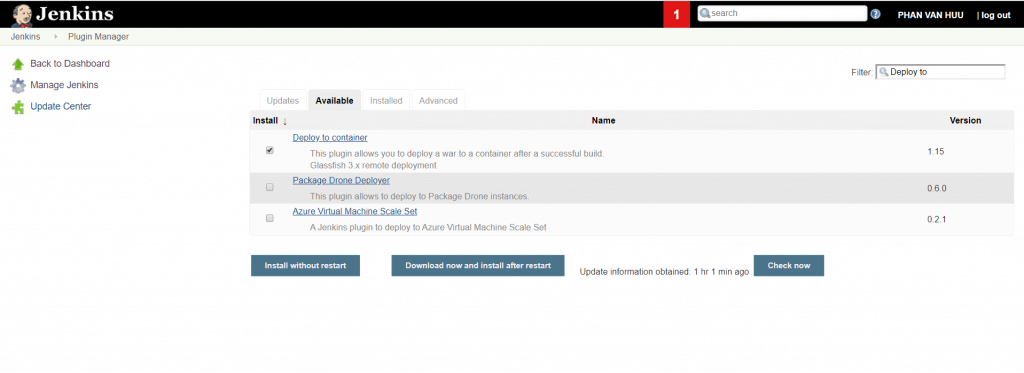
I use the plugin “Deploy to container” for Jenkins.

Link Youtube DevOps CI/CD pipeline tutorial part 2

Thank you for reading the DevopsRoles page!

DevOps CI/CD pipeline tutorial part 1

In this tutorial, How to create DevOps CI/CD pipelines using Git, Jenkins, Ansible, Docker, and Kubernetes on AWS. How to learn DevOps. Step-by-step Hand-on Lab DevOps CI/CD pipeline tutorial part 1.

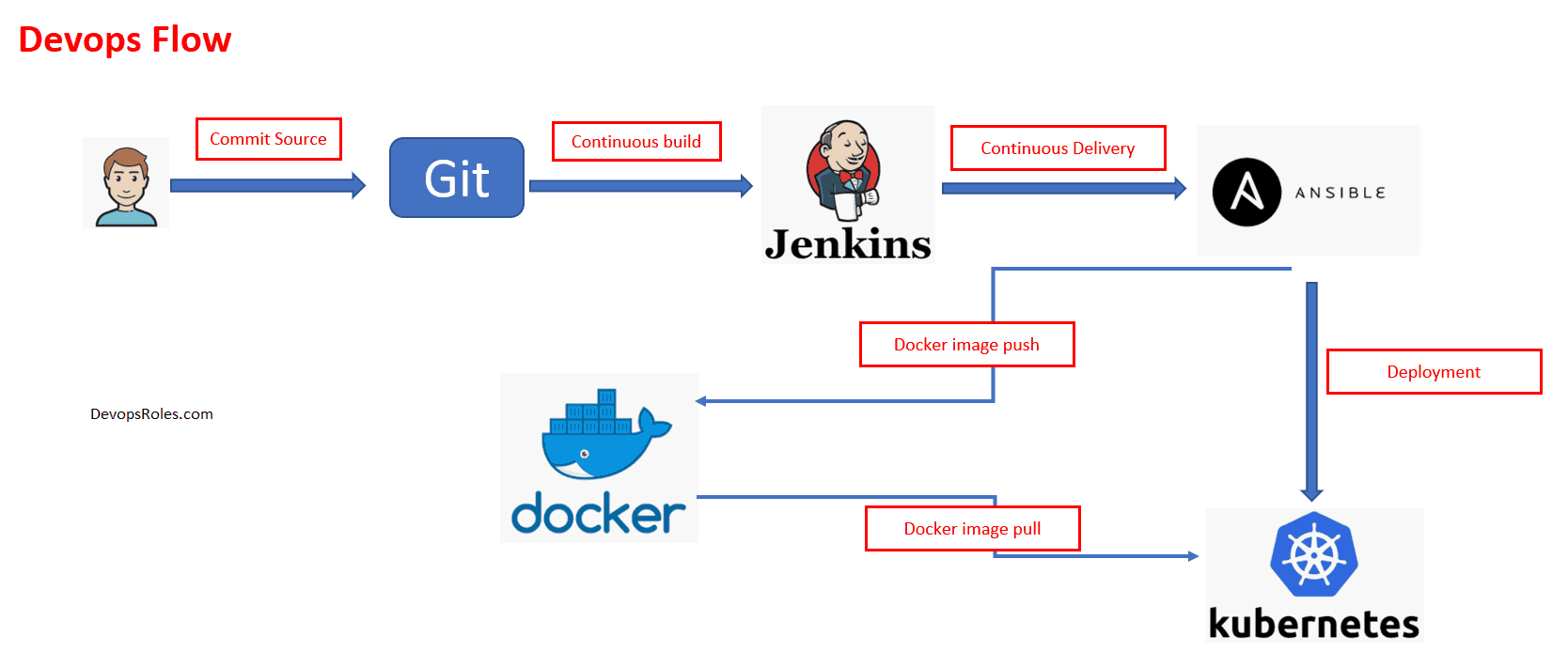
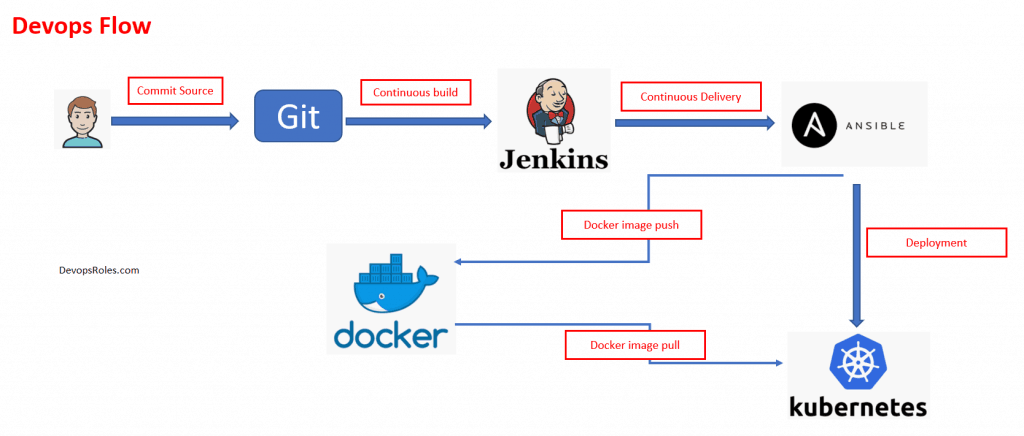
DevOps Flow

What is Continuous Integration?

It is a DevOps software development. It contains some combination of tools such as the Version Control System, Builds server, and testing automation tools.

What is Continuous Delivery (CD) & Continuous Deployment (CD)?

It is a practice that could be achieved. Combination of CI tool, configuration management tool, and orchestration tool.

How to Install Jenkins on AWS EC2

Jenkins is a self-contained Java-based program. Use Jenkins ci/cd pipeline for any project.

Prerequisites

Amazon EC2 Instance

  • EC2 with Internet Access
  • Security Group with Port 8080 open for internet

Java

  • Version 1.8.x

Install Java on Amazon EC2

Get the latest version from here.

[root@Jenkins_Server ~]# yum install java-1.8*

You need to confirm Java Version and set the java home in Linux.

# find java version on Linux
[root@Jenkins_Server ~]# find /usr/lib/jvm/java-1.8* | head -n 3
# To set JAVA_HOME it permanently update your .bash_profile
[root@Jenkins_Server ~]# vi ~/.bash_profile
[root@Jenkins_Server ~]# java -version

# Result, The output should be something like this
[root@Jenkins_Server ~]# find /usr/lib/jvm/java-1.8* | head -n 3
 /usr/lib/jvm/java-1.8.0-openjdk-1.8.0.232.b09-0.el7_7.x86_64
 /usr/lib/jvm/java-1.8.0-openjdk-1.8.0.232.b09-0.el7_7.x86_64/jre
 /usr/lib/jvm/java-1.8.0-openjdk-1.8.0.232.b09-0.el7_7.x86_64/jre/bin

[root@Jenkins_Server ~]# cat ~/.bash_profile
# .bash_profile
# Get the aliases and functions
if [ -f ~/.bashrc ]; then
         . ~/.bashrc
fi
# User specific environment and startup programs
JAVA_HOME=/usr/lib/jvm/java-1.8.0-openjdk-1.8.0.232.b09-0.el7_7.x86_64
PATH=$PATH:$HOME/bin:$JAVA_HOME
export PATH

[root@Jenkins_Server ~]# java -version
openjdk version "1.8.0_232"
OpenJDK Runtime Environment (build 1.8.0_232-b09)
OpenJDK 64-Bit Server VM (build 25.232-b09, mixed mode)

[root@~]# echo $JAVA_HOME
/usr/lib/jvm/java-1.8.0-openjdk-1.8.0.232.b09-0.el7_7.x86_64

Install Jenkins on Amazon EC2

Get the latest version of Jenkins from here. You can install Jenkins using the rpm or by setting up the repo.

[root@Jenkins_Server ~]# yum -y install wget
[root@Jenkins_Server ~]# sudo wget -O /etc/yum.repos.d/jenkins.repo https://pkg.jenkins.io/redhat-stable/jenkins.repo
[root@Jenkins_Server ~]# sudo rpm --import https://pkg.jenkins.io/redhat-stable/jenkins.io.key
[root@Jenkins_Server ~]# yum -y install jenkins

Start Jenkins

[root@Jenkins_Server ~]# service jenkins start
[root@Jenkins_Server ~]# chkconfig jenkins on

Accessing Jenkins from Browser

By default, Jenkins runs at port 8080

http://[YOUR-SERVER]or [PUBLIC-IP]:8080

Configure Jenkins

  • The default Username is admin
  • Grab the default password
  • Password Location:/var/lib/jenkins/secrets/initialAdminPassword
  • Skip Plugin Installation;

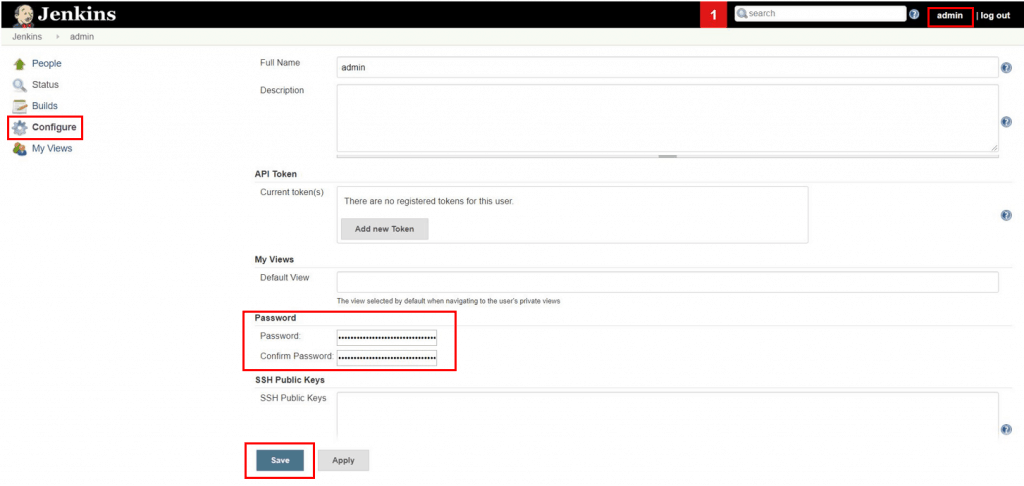
Change admin password

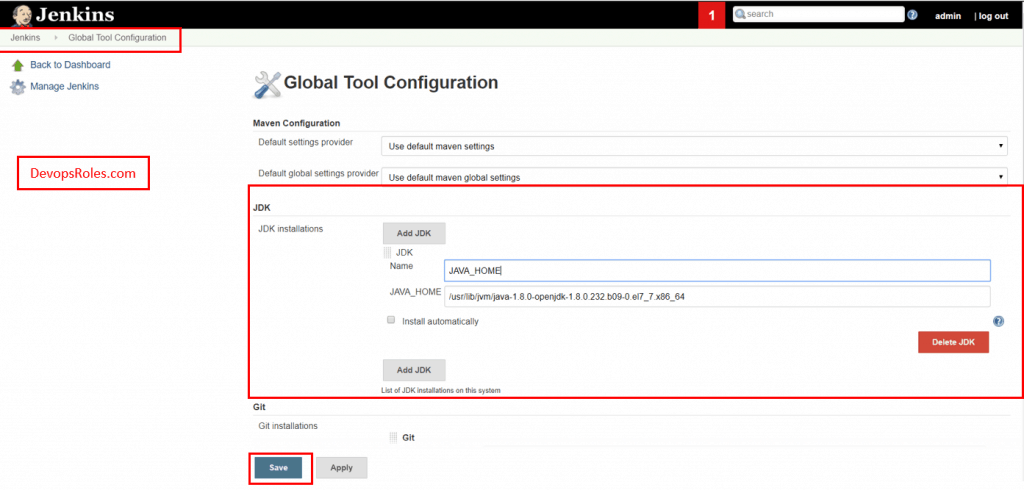
Configure java path

Manage Jenkins > Global Tool Configuration > JDK

How to Run First Jenkins Job

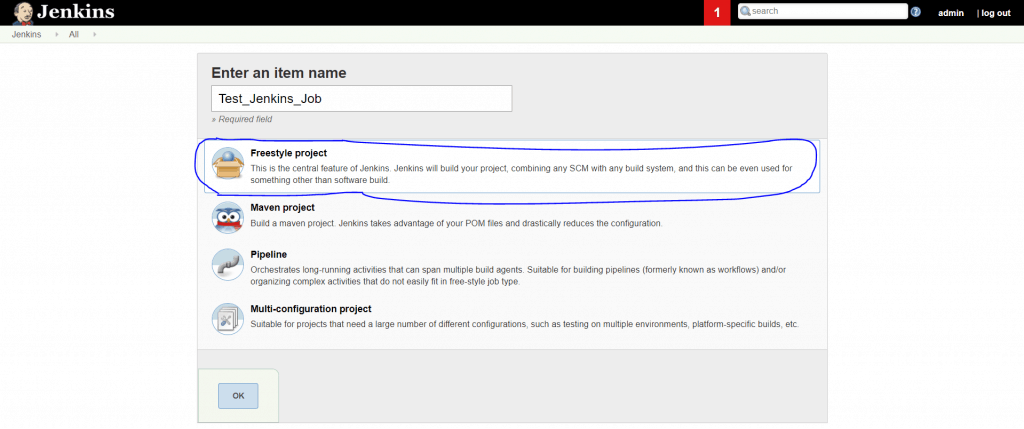
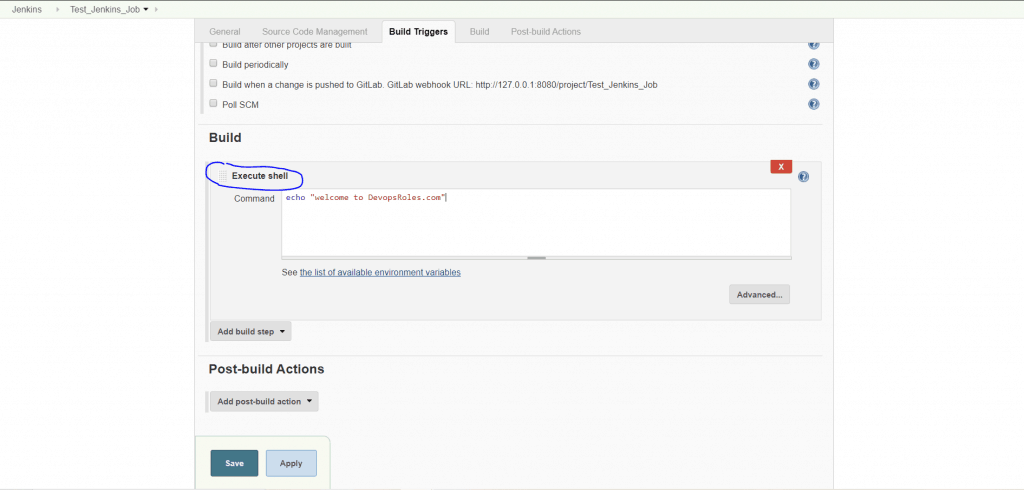
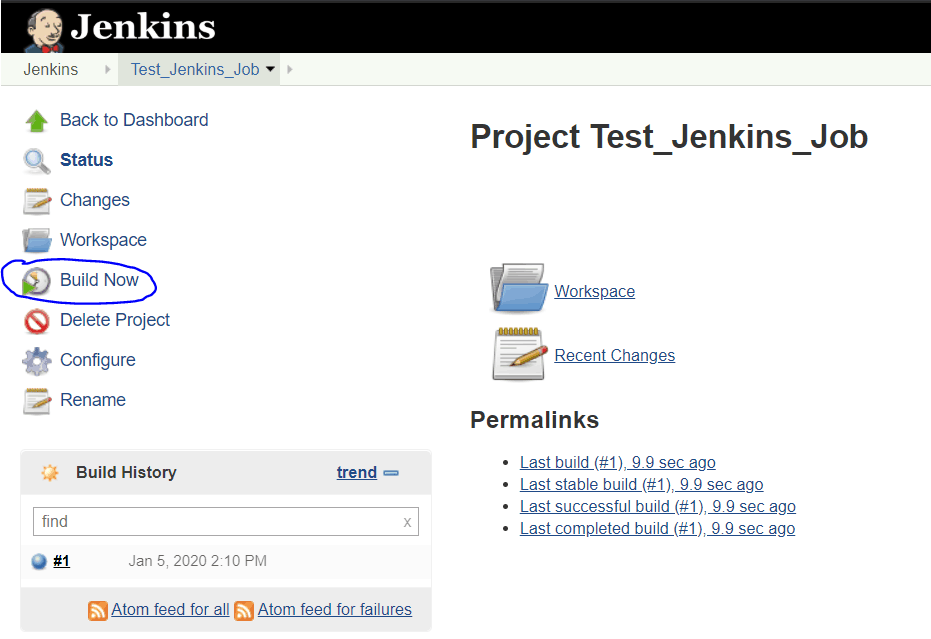
I use to create a Jenkins job simple. step by step as in the example picture below.

Example, “Test_Jenkins_Job” job.

In Build –> select “execute shell”

Click Build Now

Configure Git plugin for Jenkins

Git is a version control system. It is an open-source tool. You can pull code from git repo using Jenkins.

Install git packages on the Jenkins server

[root@Jenkins_Server ~]# yum install git -y

Setup Git on Jenkins console

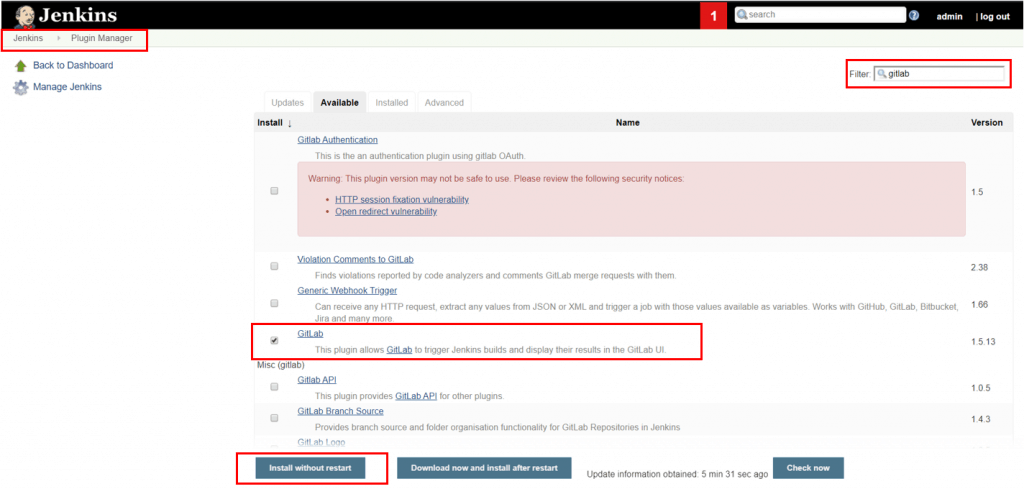
Install the git plugin without a restart. For this tutorial, I use the Gitlab plugin (example)

Manage Jenkins > Jenkins Plugins > available > gitlab

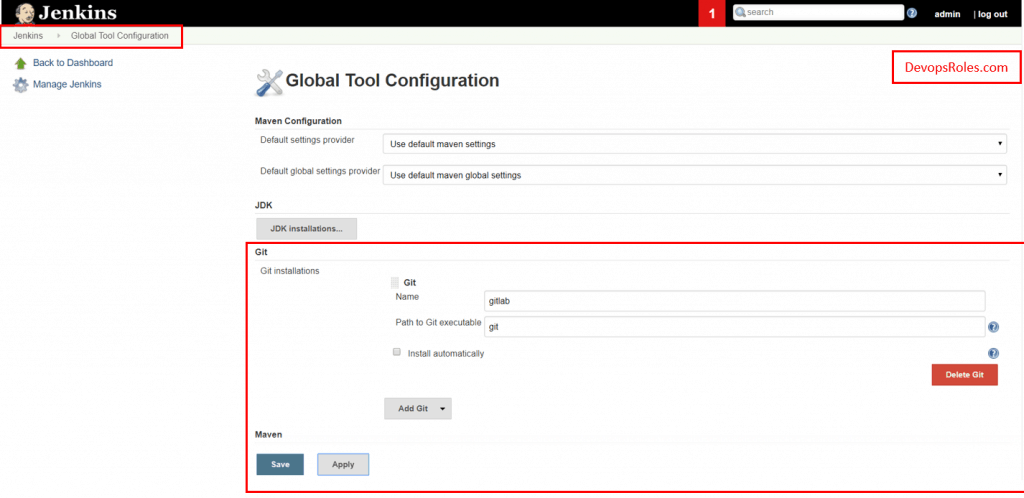
Configure git path

Manage Jenkins > Global Tool Configuration > git

Install and configure Maven for Jenkins

Maven is a software project management and comprehension tool. It is a code-build tool used to convert your code to an artifact.

Install Maven on Jenkins

Download maven packages here.

[root@Jenkins_Server ~]# mkdir /opt/maven
[root@Jenkins_Server ~]# cd /opt/maven
[root@Jenkins_Server ~]# wget https://www-us.apache.org/dist/maven/maven-3/3.6.3/binaries/apache-maven-3.6.3-bin.tar.gz
[root@Jenkins_Server ~]# tar -xvzf apache-maven-3.6.3-bin.tar.gz

Set up MAVEN_HOME and MAVEN2 paths in the .bash_profile of the user.

vi ~/.bash_profile


#### Example add variable maven path
# Add vairable maven here
MAVEN_HOME=/opt/maven/apache-maven-3.6.3
MAVEN2=$MAVEN_HOME/bin

PATH=$PATH:$HOME/bin:$JAVA_HOME:$MAVEN2
export PATH

Check maven version

[root@Jenkins_Server ~]# mvn --version
Apache Maven 3.6.3 (cecedd343002696d0abb50b32b541b8a6ba2883f)
Maven home: /opt/maven/apache-maven-3.6.3
Java version: 1.8.0_232, vendor: Oracle Corporation, runtime: /usr/lib/jvm/java-1.8.0-openjdk-1.8.0.232.b09-0.el7_7.x86_64/jre
Default locale: en_US, platform encoding: UTF-8
OS name: "linux", version: "3.10.0-1062.9.1.el7.x86_64", arch: "amd64", family: "unix"

Setup maven on Jenkins console

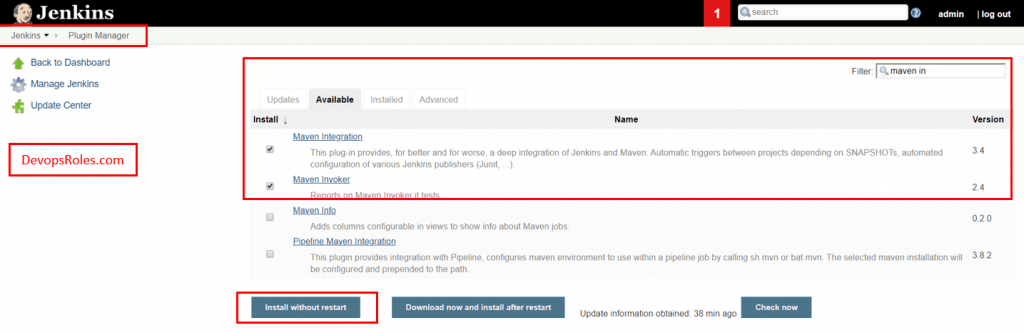
Install Maven plugin without restart

Manage Jenkins > Jenkins Plugins > available > choice Maven Invoker and Maven Integration

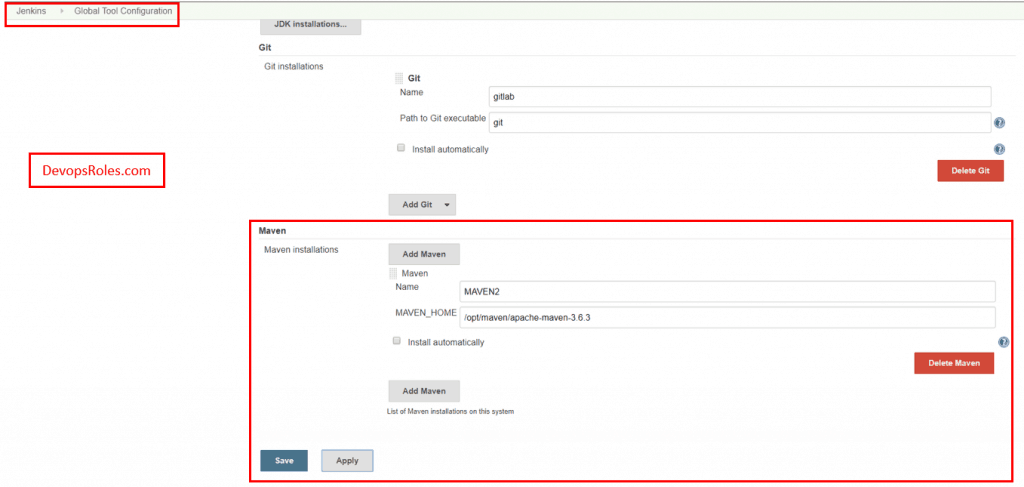
Configure maven path

Manage Jenkins > Global Tool Configuration > Maven

How to create a maven job

Link Youtube DevOps CI/CD pipeline tutorial part 1

DevOps CI/CD pipeline tutorial part 1. Thank you for reading DevOpsRoles.com page

Vagrant issues solved

Vagrant up command the response in error “No usable default provider could be found for your system”. Vagrant issues solved.

My environment

  • OS: Windows 10
  • Vagrant is version 2.2.6
  • Virtualbox is version 6.1

I installed the latest Vagrant and VirtualBox versions. I got the following error.

$ vagrant.exe up
 No usable default provider could be found for your system.
 Vagrant relies on interactions with 3rd party systems, known as
 "providers", to provide Vagrant with resources to run development
 environments. Examples are VirtualBox, VMware, Hyper-V.
 The easiest solution to this message is to install VirtualBox, which
 is available for free on all major platforms.
 If you believe you already have a provider available, make sure it
 is properly installed and configured. You can see more details about
 why a particular provider isn't working by forcing usage with
 vagrant up --provider=PROVIDER, which should give you a more specific
 error message for that particular provider.

Vagrant issues solved the problem

You need to downgrade Virtualbox to version 5.2. Vagrant support PROVIDER here.

The VirtualBox provider is compatible with VirtualBox versions 4.0.x, 4.1.x, 4.2.x, 4.3.x, 5.0.x, 5.1.x, 5.2.x, and 6.0.x.

I decided to downgrade from Virtualbox 6.1 to Virtualbox 5.2

Link download Virtualbox 5.2

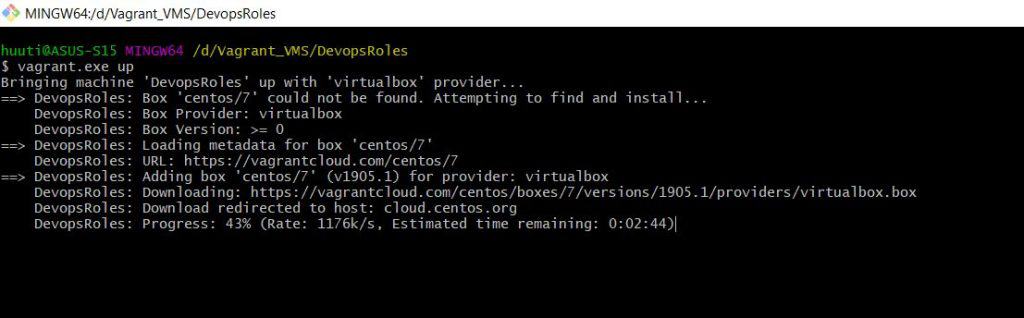
vagrant up command result as follows

I hope this helps you. Thank you for reading the DevopsRoles page!

Things to do in the initial configuration of CentOS 7

What do you need to do in the initial configuration of CentOS 7? In this tutorial, Step by step I think need the initial configuration for Centos 7.

The initial configuration of CentOS 7

Time synchronization.

Setting Command history

The command in the example ( date, history,w, top, df) does not remain in the command history.

# cat << "_EOF" > /etc/profile.d/history.sh && source /etc/profile.d/history.sh

# The content command history
 HISTTIMEFORMAT='%F %T '
 HISTSIZE=100000
 HISTFILESIZE=100000
 HISTIGNORE='date,history:w:top:df'
 HISTCONTROL=ignoreboth
 PROMPT_COMMAND='history -a; history -c; history -r'
 _EOF

Enable i-search

Ctrl + r switches to the command history search mode, but by default, it cannot be re-searched in the reverse direction.

# echo '[ -t 0 ] && stty -ixon' > /etc/profile.d/stty.sh && source /etc/profile.d/stty.sh

Writing outputs to log file and console

cat << "_EOF_" > /etc/profile.d/script.sh && source /etc/profile.d/script.sh
# output operation log 
P_PROC=`ps aux | grep $PPID | grep sshd | awk '{ print $11 }'`
if [ "$P_PROC" = sshd: ]; then
  script -q /var/log/script/`whoami`_`date '+%F_%H%M%S'`.log
  exit
fi
_EOF_

# chmod 777 /etc/profile.d/script.sh

Monitor User Activity with psacct

You can use the lastcomm command to check which user executed which command when.

# yum -y install psacct && systemctl start $_ && systemctl enable $_

Detection with OSSEC HIDS

# yum install -y epel-release wget && curl -s http://www.atomicorp.com/installers/atomic | sh && yum install -y ossec-hids-server /var/ossec/bin/ossec-configure
# sed -i.org '/directories check_all/s/"yes"/"yes" realtime="yes"/' /var/ossec/etc/ossec.conf
# systemctl start ossec-hids && systemctl enable $_

Install and enable AIDE

Update Your System

# yum clean all && yum -y update

Prohibit login without password

# sed -i 's/\<nullok\>//g' /etc/pam.d/system-auth

su and sudo settings

# sed -i.org '/NOPASSWD/ s/^# //' /etc/sudoers
# sed -i.org '/use_uid/ s/^#//' /etc/pam.d/su

sudo without password

Modify /etc/sudoers file

%wheel ALL=(ALL)       NOPASSWD: ALL

Passwordless root switch

Modify /etc/pam.d/su file

auth           sufficient      pam_wheel.so trust use_uid

su authorized user limit

modify /etc/pam.d/su file

auth           required        pam_wheel.so use_uid

Adding administrative users

# useradd huupv && passwd $_ && usermod -G wheel $_ && getent group wheel
# sudo -u huupv echo 'huupv@devopsroles.com' > ~/.forward
# sed -i /etc/aliases -e '/root:/ s/^#//' -e '/root:/ s/marc/huupv/' && newaliases
# echo "Test mail" | sendmail root

Changing the hostname

# hostnamectl set-hostname server1.devopsroles.com

The setting of less command.

cat << '_EOF_' >> ~/.bashrc
export VISUAL=vim
export LESS="-M"
_EOF_

The -M option always displays the file name, number of lines, and progress.

vim command

cat << '_EOF_' >> ~/.vimrc && mkdir -p ~/.vim/tmp
set encoding=utf-8
set directory=~/.vim/tmp
set backupdir=~/.vim/tmp
set undodir=~/.vim/tmp
_EOF_

Change the location of temporary files such as .swp.

Yum plugin

# yum -y install epel-release && yum -y yum-axelget yum-changelog yum-cron yum-plugin-ps yum-plugin-remove-with-leaves yum-plugin-rpm-warm-cache yum-plugin-show-leaves yum-utils

utility

There are many commands that are not installed in minimal.

# yum -y install bind-utils net-tools policycoreutils-python psmisc rlwrap traceroute tree vim-enhanced wget

Compression and decompression

# yum -y install epel-release && yum -y install unzip bzip2 lbzip2 pbzip2 pigz pxz

Installing the monitoring tool

Disabling GSSAPIAuthentication

Speed up SSH login by disabling GSSAPIAuthentication.

# sed -i '/GSSAPIAuthentication / s/yes/no/' /etc/ssh/sshd_config

limit of the number of old kernel packages

# sed -e '/installonly_limit/ s/5/2/' -i /etc/yum.conf

Interactive option

cat << "_EOF_" > /etc/profile.d/alias.sh
alias crontab='crontab -i'
alias cp='cp -i'
alias mv='mv -i'
alias rm='rm -i'
_EOF_

File rewrite prohibition by redirection

Edit .bashrc file

set -o noclobber

Yum Disable Excludes

# echo "exclude=kernel* centos*" >> /etc/yum.conf
# echo "alias yum='yum --disableexcludes=all'" >> /etc/profile.d/yum.sh

security settings

sed -i.org /etc/login.defs -e '/PASS_MIN_DAYS/ s/0/1/' -e '/PASS_MAX_DAYS/ s/99999/3650/'
sed -i /etc/profile -e  's/umask 002/umask 027/' -e 's/umask 022/umask 027/'

cat << "_EOF_" > /etc/modprobe.d/blacklist.conf
blacklist usb-storage
blacklist firewire_core
blacklist firewire_ohci
_EOF_

for i in $(find /lib/modules/`uname -r`/kernel/drivers/net/wireless -name "*.ko" -type f) ; do echo blacklist $i >> /etc/modprobe.d/blacklist-wireless ; done
sed -i.org 's/#AllowTcpForwarding yes/AllowTcpForwarding no/' /etc/ssh/sshd_config
sed -i 's/#ClientAliveCountMax 3/ClientAliveCountMax 2/' /etc/ssh/sshd_config
sed -i 's/#Compression delayed/Compression no/' /etc/ssh/sshd_config
sed -i 's/#LogLevel INFO/LogLevel VERBOSE/' /etc/ssh/sshd_config
sed -i 's/#MaxAuthTries 6/MaxAuthTries 2/' /etc/ssh/sshd_config
sed -i 's/#MaxSessions 10/MaxSessions 2/' /etc/ssh/sshd_config
##sed -i 's/#PermitRootLogin yes/PermitRootLogin no/' /etc/ssh/sshd_config
##sed -i 's/#Port 22/Port 10022/' /etc/ssh/sshd_config
sed -i 's/#TCPKeepAlive yes/TCPKeepAlive no/' /etc/ssh/sshd_config
sed -i 's/#UseDNS yes/UseDNS no/' /etc/ssh/sshd_config
sed -i 's/X11Forwarding yes/X11Forwarding no/' /etc/ssh/sshd_config
sed -i 's/#AllowAgentForwarding yes/AllowAgentForwarding no/' /etc/ssh/sshd_config

cat << "_EOF_" >> /etc/sysctl.conf
kernel.kptr_restrict=2
kernel.sysrq=0
net.ipv4.conf.all.accept_redirects=0
net.ipv4.conf.all.log_martians=1
net.ipv4.conf.all.send_redirects=0
net.ipv4.conf.default.accept_redirects=0
net.ipv4.conf.default.log_martians=1
net.ipv4.tcp_timestamps=0
net.ipv6.conf.all.accept_redirects=0
net.ipv6.conf.default.accept_redirects=0
_EOF_

# sysctl -p
# chmod 700 /usr/bin/as

Fail2ban

# yum -y install epel-release && yum -y install fail2ban{,-systemd}

cat << "_EOF_" > /etc/fail2ban/jail.local
[DEFAULT]
ignoreip = 127.0.0.1/8 192.168.0.0/24
[sshd]
enabled  = true
_EOF_

# fail2ban-client -d
# systemctl start fail2ban && systemctl enable $_
# fail2ban-client status
# fail2ban-client status sshd

Conclusion

You have the initial configuration of CentOS 7. I hope will this your helpful. Thank you for reading the DevopsRoles page!

Oracle notes for beginners: Your Essential Guide to Getting Started

Introduction

In this tutorial, Oracle notes for beginners. How to query commands useful in Oracle database. Diving into the world of Oracle databases can be both exciting and overwhelming for beginners. With its robust features and capabilities, Oracle is a powerful tool for managing data effectively.

Oracle notes for beginners

Oracle Database commands

Changing passwords in Oracle

ALTER USER user_name IDENTIFIED BY new_password;

Create a table

CREATE TABLE my_table (
    what   VARCHAR2(10),
    who    VARCHAR2(10),
    mark   VARCHAR2(10)
);

Insert values as the same with 3 commands below

INSERT INTO my_table (
    what,
    who,
    mark
) VALUES (
    'Devops',
    'Roles',
    '.com'
);

INSERT INTO my_table VALUES (
    'huu',
    'phan',
    '.com'
);

INSERT INTO my_table ( what ) VALUES ( 'Yeah!' );

Get the list of all tables in Oracle

SELECT
    owner,
    table_name
FROM
    all_tables

Query your permission in Oracle

select * from USER_ROLE_PRIVS where USERNAME= USER;
select * from USER_TAB_PRIVS where Grantee = USER;
select * from USER_SYS_PRIVS where USERNAME = USER;

Oracle check version

SELECT
    *
FROM
    v$version

Find Users logged into Oracle / PLSQL

SELECT
    username,
    program,
    machine,
    status,
    TO_CHAR(
        logon_time,
        'HH:MM:SS'
    )
FROM
    v$session
WHERE
    username = 'huupv' -- Username

The query for active users SQL Executed

SELECT
    a.sid,
    a.serial#,
    b.sql_text
FROM
    v$session a,
    v$sqlarea b
WHERE
        a.sql_address = b.address
    AND
        a.username = 'huupv';

Kill session in Oracle

Step 1: Identify the Session to be killed

SELECT
    s.inst_id,
    s.sid,
    s.serial#,
       --s.sql_id,
    p.spid,
    s.username,
    s.program
FROM
    gv$session s
    JOIN gv$process p ON
        p.addr = s.paddr
    AND
        p.inst_id = s.inst_id
WHERE
    s.type != 'BACKGROUND' and s.username ='huupv';

Note: The SID and SERIAL# values the relevant session.

Step 2: Kill Session

SQL> ALTER SYSTEM DISCONNECT SESSION 'sid,serial#' POST_TRANSACTION; -- The POST_TRANSACTION clause waits for ongoing transactions to complete before disconnecting the session
SQL> ALTER SYSTEM DISCONNECT SESSION 'sid,serial#' IMMEDIATE; -- ALTER SYSTEM DISCONNECT SESSION

Conclusion

Embarking on your journey with Oracle databases doesn’t have to be daunting. By understanding the basics and following the tips provided in this guide, you will gain the confidence and knowledge needed to effectively manage and manipulate data using Oracle.

Remember, practice and continuous learning are key to becoming proficient in any technology. Keep exploring, experimenting, and expanding your skills to unlock the full potential of Oracle in your projects. I will be updated later! Have a nice day! Oracle notes for beginners. Thank you for reading DevOpsRoles.com page

How to install Terraform on Linux

In this tutorial, How to install Terraform on Centos and Ubuntu. Terraform an Open Source tool. It is safely and predictably create, improve and change Infrastructure.

Feature Key

  • Infrastructure as Code
  • Change Automation
  • Execution Plans
  • Resource Graph

Install Terraform on Centos 7

Link download Terraform here. In this tutorial, The current version of Terraform is 0.12.16

$ sudo yum install wget unzip
$ wget https://releases.hashicorp.com/terraform/0.12.16/terraform_0.12.16_linux_amd64.zip
$ sudo unzip ./terraform_0.12.16_linux_amd64.zip -d /usr/local/bin/

Check Terraform has been installed on your system

$ terraform -v

The output terraform version as below

[vagrant@DevopsRoles ~]$ terraform -v
Terraform v0.12.16

Install Terraform on Ubuntu 18.04

$ sudo apt-get install wget unzip
$ wget https://releases.hashicorp.com/terraform/0.12.16/terraform_0.12.16_linux_amd64.zip
$ sudo unzip ./terraform_0.12.16_linux_amd64.zip -d /usr/local/bin/

Check Terraform has been installed on your system

$ terraform -v

Build an EC2 instance with Terraform

Terraform supports various providers. Example create main.tf file.

$ vi main.tf

# The content as below:
provider "aws" {
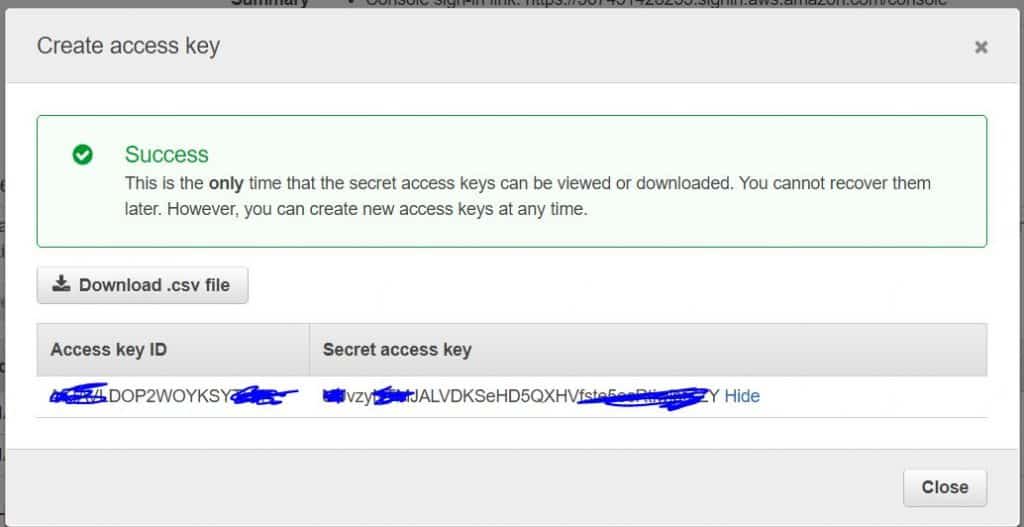
    access_key = "ACCESS_KEY"
    secret_key = "SECRET_KEY"
    region = "us-east-2a"
}

Resource settings

The syntax is the resource “resource type” “resource name”.

Details: https://www.terraform.io/docs/providers/aws/index.html

Example like this

[vagrant@DevopsRoles terraform]$ cat main.tf  
 provider "aws" {
     access_key = "ACCESS_KEY"
     secret_key = "SECRET_KEY"
     region = "us-east-2"
 }
 resource "aws_instance" "testEC2" {
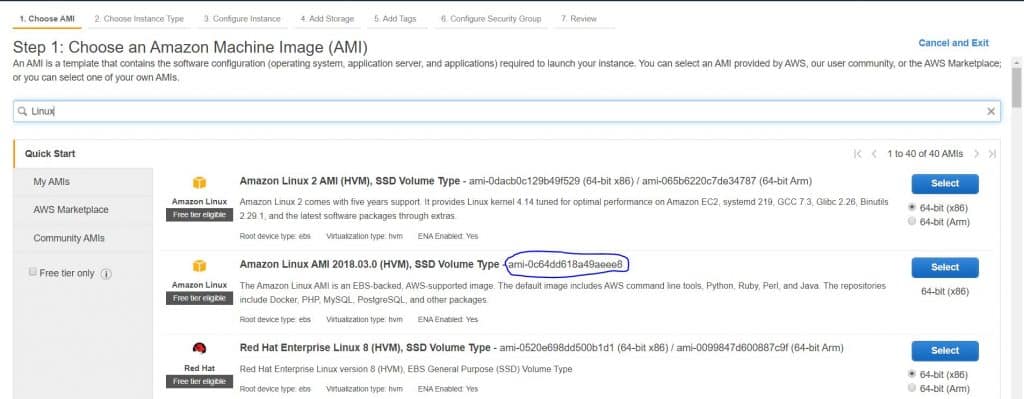
     ami = "ami-0c64dd618a49aeee8"
     instance_type = "t2.micro"
     #key_name = "AWS-HUUPV"
     vpc_security_group_ids = [   
        "sg-00c448cd3e48ba684" 
       ] 
     associate_public_ip_address = "true" 
     root_block_device {   
        volume_type = "gp2"   
        volume_size = "20" 
     }
 # EBS
     ebs_block_device {
       device_name = "/dev/sdf"
       volume_type = "gp2"
       volume_size = "10"
     }
     tags = {
         Name = "testEC2"
     }
 }
 output "public_ip_of_testEC2" {
   value = "${aws_instance.testEC2.public_ip}"
 }

Note

ami

Access_key and Secure_key. You click IAM –> Roles

Build on AWS

[vagrant@DevopsRoles terraform]$ terraform init
[vagrant@DevopsRoles terraform]$ terraform plan
[vagrant@DevopsRoles terraform]$ terraform apply

The log console terraform as below

[vagrant@DevopsRoles terraform]$ terraform plan
 Refreshing Terraform state in-memory prior to plan…
 The refreshed state will be used to calculate this plan, but will not be
 persisted to local or remote state storage.
 
 An execution plan has been generated and is shown below.
 Resource actions are indicated with the following symbols:
 create 
 Terraform will perform the following actions:
 # aws_instance.testEC2 will be created
 resource "aws_instance" "testEC2" {
 ami                          = "ami-0c64dd618a49aeee8"
 arn                          = (known after apply)
 associate_public_ip_address  = true
 availability_zone            = (known after apply)
 cpu_core_count               = (known after apply)
 cpu_threads_per_core         = (known after apply)
 get_password_data            = false
 host_id                      = (known after apply)
 id                           = (known after apply)
 instance_state               = (known after apply)
 instance_type                = "t2.micro"
 ipv6_address_count           = (known after apply)
 ipv6_addresses               = (known after apply)
 key_name                     = (known after apply)
 network_interface_id         = (known after apply)
 password_data                = (known after apply)
 placement_group              = (known after apply)
 primary_network_interface_id = (known after apply)
 private_dns                  = (known after apply)
 private_ip                   = (known after apply)
 public_dns                   = (known after apply)
 public_ip                    = (known after apply)
 security_groups              = (known after apply)
 source_dest_check            = true
 subnet_id                    = (known after apply)
 tags                         = {
 "Name" = "testEC2"
 }
 tenancy                      = (known after apply)
 volume_tags                  = (known after apply)
 vpc_security_group_ids       = [
 "sg-00c448cd3e48ba684",
 ]
 ebs_block_device {
 delete_on_termination = true
 device_name           = "/dev/sdf"
 encrypted             = (known after apply)
 iops                  = (known after apply)
 kms_key_id            = (known after apply)
 snapshot_id           = (known after apply)
 volume_id             = (known after apply)
 volume_size           = 10
 volume_type           = "gp2"
 }
 ephemeral_block_device {
 device_name  = (known after apply)
 no_device    = (known after apply)
 virtual_name = (known after apply)
 }
 network_interface {
 delete_on_termination = (known after apply)
 device_index          = (known after apply)
 network_interface_id  = (known after apply)
 }
 root_block_device {
 delete_on_termination = true
 encrypted             = (known after apply)
 iops                  = (known after apply)
 kms_key_id            = (known after apply)
 volume_id             = (known after apply)
 volume_size           = 20
 volume_type           = "gp2"
 }
 } 
 Plan: 1 to add, 0 to change, 0 to destroy.
 
 Note: You didn't specify an "-out" parameter to save this plan, so Terraform
 can't guarantee that exactly these actions will be performed if
 "terraform apply" is subsequently run.
 [vagrant@DevopsRoles terraform]$ terraform apply
 An execution plan has been generated and is shown below.
 Resource actions are indicated with the following symbols:
 create 
 Terraform will perform the following actions:
 # aws_instance.testEC2 will be created
 resource "aws_instance" "testEC2" {
 ami                          = "ami-0c64dd618a49aeee8"
 arn                          = (known after apply)
 associate_public_ip_address  = true
 availability_zone            = (known after apply)
 cpu_core_count               = (known after apply)
 cpu_threads_per_core         = (known after apply)
 get_password_data            = false
 host_id                      = (known after apply)
 id                           = (known after apply)
 instance_state               = (known after apply)
 instance_type                = "t2.micro"
 ipv6_address_count           = (known after apply)
 ipv6_addresses               = (known after apply)
 key_name                     = (known after apply)
 network_interface_id         = (known after apply)
 password_data                = (known after apply)
 placement_group              = (known after apply)
 primary_network_interface_id = (known after apply)
 private_dns                  = (known after apply)
 private_ip                   = (known after apply)
 public_dns                   = (known after apply)
 public_ip                    = (known after apply)
 security_groups              = (known after apply)
 source_dest_check            = true
 subnet_id                    = (known after apply)
 tags                         = {
 "Name" = "testEC2"
 }
 tenancy                      = (known after apply)
 volume_tags                  = (known after apply)
 vpc_security_group_ids       = [
 "sg-00c448cd3e48ba684",
 ]
 ebs_block_device {
 delete_on_termination = true
 device_name           = "/dev/sdf"
 encrypted             = (known after apply)
 iops                  = (known after apply)
 kms_key_id            = (known after apply)
 snapshot_id           = (known after apply)
 volume_id             = (known after apply)
 volume_size           = 10
 volume_type           = "gp2"
 }
 ephemeral_block_device {
 device_name  = (known after apply)
 no_device    = (known after apply)
 virtual_name = (known after apply)
 }
 network_interface {
 delete_on_termination = (known after apply)
 device_index          = (known after apply)
 network_interface_id  = (known after apply)
 }
 root_block_device {
 delete_on_termination = true
 encrypted             = (known after apply)
 iops                  = (known after apply)
 kms_key_id            = (known after apply)
 volume_id             = (known after apply)
 volume_size           = 20
 volume_type           = "gp2"
 }
 } 
 Plan: 1 to add, 0 to change, 0 to destroy.
 Do you want to perform these actions?
   Terraform will perform the actions described above.
   Only 'yes' will be accepted to approve.
 Enter a value: yes
 aws_instance.testEC2: Creating…
 aws_instance.testEC2: Still creating… [10s elapsed]
 aws_instance.testEC2: Still creating… [20s elapsed]
 aws_instance.testEC2: Still creating… [30s elapsed]
 aws_instance.testEC2: Creation complete after 36s [id=i-0501a62ccf6380761]
 Apply complete! Resources: 1 added, 0 changed, 0 destroyed.
 Outputs:
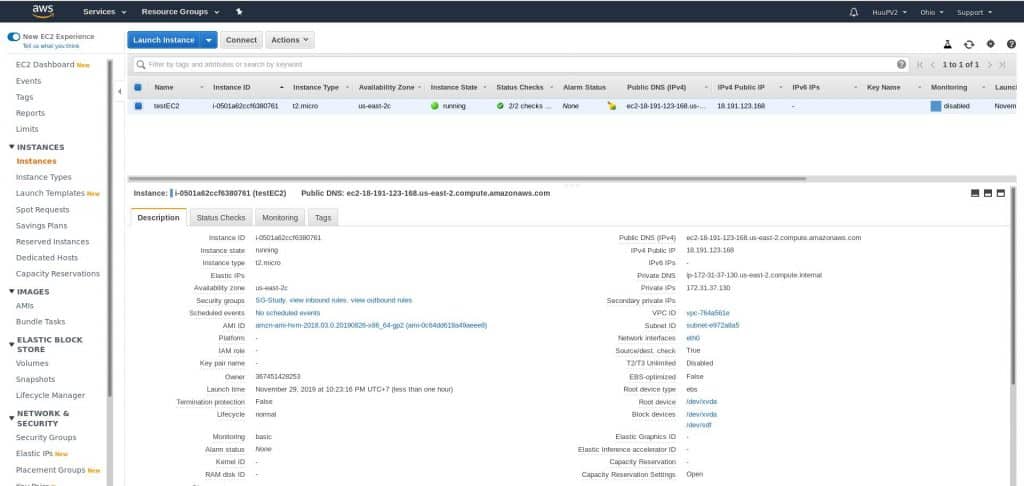
 public_ip_of_testEC2 = 18.191.123.168

Check on the AWS console!

Have a good nice! Thank you for reading the DevopsRoles page!

Influxdb examples: Enhancing Your Time-Series Data Management

Introduction

InfluxDB, a widely-used open-source time series database, excels in handling large volumes of time-stamped data for applications like monitoring systems, IoT devices, and financial tracking. This tutorial will guide you through querying InfluxDB, demonstrating practical examples and setup instructions.

If you haven’t installed InfluxDB yet, refer to the installation guide provided earlier to get started. This introduction sets the stage for you to effectively manage and analyze time-series data using InfluxDB’s powerful features.

InfluxDB examples

InfluxDB show databases

[root@MonitoringServer ~]# influx
Connected to http://localhost:8086 version 1.7.4
InfluxDB shell version: 1.7.4
Enter an InfluxQL query

> show databases                                                                                                         
name: databases
name
----
_internal
devopsrolesDB
telegraf

Use databases

> use devopsrolesDB                                                                                                              
Using database devopsrolesDB
>

Uptime Server

> select last("uptime_format") as "value" from "system" where "host" =~ /DevopsRoles\.com$/ AND time >= now() - 1h GROUP BY time(60s)

Check Root FS used

> SELECT last("used_percent") FROM "disk" WHERE ("host" =~ /^DevopsRoles\.com$/ AND "path" = '/') AND time >= now() -6h GROUP BY time(5m) fill(null)

Swap used

> SELECT last("used_percent") FROM "swap" WHERE ("host" =~ /^DevopsRoles\.com$/) AND time >= now() -1h GROUP BY time(5m) fill(null)

Users login

> SELECT last("n_users") FROM "system" WHERE ("host" =~ /^DevopsRoles\.com$/) AND time >= now() -1h GROUP BY time(5m) fill(null)

CPU usage

> SELECT last("usage_idle") * -1 + 100 FROM "cpu" WHERE ("host" =~ /^DevopsRoles\.com$/ AND "cpu" = 'cpu-total') AND time >= now() -1h GROUP BY time(5m) fill(null)

RAM Usage

> SELECT last("used_percent") FROM "mem" WHERE ("host" =~ /^DevopsRoles\.com$/) AND time >= now() -1h GROUP BY time(5m) fill(null)

CPU Load

> SELECT mean(load1) as load1,mean(load5) as load5,mean(load15) as load15  FROM "system" WHERE host =~ /^DevopsRoles\.com$/ AND time >= now() -1h GROUP BY time(5m) fill(null)

CPUs number

>  SELECT last("n_cpus") FROM "system" WHERE ("host" =~ /^DevopsRoles\.com$/) AND time >= now() -1h GROUP BY time(5m) fill(null)

Other Influxdb examples

How to list all value systems, swap, CPUs, Memory, and so on.

Enter as following for the system

> select * from "system" where host =~ /^DevopsRoles\.com$/ AND time >= now() -1h

## The output as below:
name: system
time                host                         load1 load15 load5 n_cpus n_users uptime  uptime_format
----                ----                         ----- ------ ----- ------ ------- ------  -------------
1574665340000000000 DevopsRoles.com 0.27  0.03   0.11  4      1       8105215 93 days, 19:26
1574665350000000000 DevopsRoles.com 0.22  0.03   0.1   4      1       8105225 93 days, 19:27
1574665360000000000 DevopsRoles.com 0.19  0.03   0.1   4      1       8105235 93 days, 19:27

CPU

> select * from "cpu" where host =~ /^DevopsRoles\.com$/ AND time >= now() - 120s

## The output as below:                                                                                                                                             
name: cpu
time                cpu       host                         usage_guest usage_guest_nice usage_idle        usage_iowait        usage_irq usage_nice usage_softirq        usage_steal          usage_system         usage_user
----                ---       ----                         ----------- ---------------- ----------        ------------        --------- ---------- -------------        -----------          ------------         ----------
1574670090000000000 cpu-total DevopsRoles.com 0           0                99.92494371410935 0                   0         0          0                    0                    0.025018764076678877 0.050037528153357755
1574670090000000000 cpu0      DevopsRoles.com 0           0                100               0                   0         0          0                    0                    0                    0
1574670090000000000 cpu1      DevopsRoles.com 0           0                99.89989990213955 0                   0         0          0                    0                    0.1001001000954934   0
1574670090000000000 cpu2      DevopsRoles.com 0           0                99.89979960143319 0                   0         0          0                    0                    0.10020040080409609  0
1574670090000000000 cpu3      DevopsRoles.com 0           0                100               0                   0         0          0                    0                    0                    0
1574670100000000000 cpu-total DevopsRoles.com 0           0                99.79989994515057 0.12506253122346286 0         0          0                    0                    0.05002501250212444  0.02501250625561197
1574670100000000000 cpu0      DevopsRoles.com 0           0                99.49949949205266 0.5005005005184352  0         0          0                    0                    0                    0
1574670100000000000 cpu1      DevopsRoles.com 0           0                100               0                   0         0          0                    0                    0                    0
1574670100000000000 cpu2      DevopsRoles.com 0           0                99.79999999517575 0                   0         0          0                    0                    0.09999999999286956  0.09999999998377461
1574670100000000000 cpu3      DevopsRoles.com 0           0                100               0                   0         0          0                    0                    0                    0
1574670110000000000 cpu-total DevopsRoles.com 0           0                99.64982491096929 0.22511255633968244 0         0          0                    0.025012506253392856 0.05002501250223596  0.05002501249768622

DISK

> select * from "disk" where host =~ /^DevopsRoles\.com$/ AND time >= now() - 120s

## The output as below:                                                                                                                                            
name: disk
time                device                         free        fstype host                         inodes_free inodes_total inodes_used mode path         total        used        used_percent
----                ------                         ----        ------ ----                         ----------- ------------ ----------- ---- ----         -----        ----        ------------
1574670150000000000 10.10.10.225:/mnt_nfs/data_volume/ 64795705344 nfs4   DevopsRoles.com 5924993     6553600      628607      rw   /mnt_nfs/data 105554903040 35373711360 35.313883742109724
1574670150000000000 mapper/VolGroup-lv_root        40046198784 ext4   DevopsRoles.com 3014316     3182400      168084      rw   /            51484815360  8823488512  18.0551360162319
1574670150000000000 vda1                           427900928   ext4   DevopsRoles.com 127976      128016       40          rw   /boot        507744256    53628928    11.137196859502726
1574670150000000000 vdb1                           9870200832  ext4   DevopsRoles.com 655325      655360       35          rw   /app         10568843264  161775616   1.612599639149392

Diskio

> select * from "diskio" where host =~ /^DevopsRoles\.com$/ AND time >= now() - 120s

## The output as below:              
name: diskio
time                host                         io_time   iops_in_progress name read_bytes read_time reads  weighted_io_time write_bytes write_time writes
----                ----                         -------   ---------------- ---- ---------- --------- -----  ---------------- ----------- ---------- ------
1574670240000000000 DevopsRoles.com 137167292 0                dm-0 2659918848 2451413   181804 3747940429       51691593728 3745384372 12620365
1574670240000000000 DevopsRoles.com 3102      0                vdb1 5949440    3049      770    5493             315904      2445       59
1574670240000000000 DevopsRoles.com 6376      0                dm-1 7897088    31096     1928   68191            27774976    37096      6781
1574670240000000000 DevopsRoles.com 137161235 0                vda  2674118656 1651142   137682 1886179382       51719428096 1884529301 4253428
1574670240000000000 DevopsRoles.com 667       0                vda1 2124800    370       521    667              47104       297        19
1574670240000000000 DevopsRoles.com 107       0                sr0  155648     107       49     107              0           0          0

Kernel

> select * from "kernel" where host =~ /^DevopsRoles\.com$/ AND time >= now() - 120s

## The output as below:                                                                                                                                           
name: kernel
time                boot_time  context_switches entropy_avail host                         interrupts processes_forked
----                ---------  ---------------- ------------- ----                         ---------- ----------------
1574670390000000000 1566560125 897266212        1320          DevopsRoles.com 611974729  543719
1574670400000000000 1566560125 897267347        1320          DevopsRoles.com 611975497  543719
1574670410000000000 1566560125 897268311        1320          DevopsRoles.com 611976101  543719
1574670420000000000 1566560125 897269308        1355          DevopsRoles.com 611976734  543719
1574670430000000000 1566560125 897270363        1396          DevopsRoles.com 611977420  543719
1574670440000000000 1566560125 897271391        1412          DevopsRoles.com 611978084  543719
1574670450000000000 1566560125 897272328        1412          DevopsRoles.com 611978685  543719
1574670460000000000 1566560125 897273390        1423          DevopsRoles.com 611979457  543719
> 

Network

> select bytes_recv,bytes_sent,drop_in,drop_out from "net" where host =~ /^DevopsRoles\.com$/ AND time >= now() - 120s

## The output as below:                                                                                                        
name: net
time                bytes_recv  bytes_sent  drop_in drop_out
----                ----------  ----------  ------- --------
1574670830000000000 42310540034 60204453178 0       0
1574670840000000000 42310549919 60204469772 0       0
1574670850000000000 42310565133 60204488497 0       0
1574670860000000000 42310577265 60204503755 0       0
1574670870000000000 42310587249 60204520594 0       0
1574670880000000000 42310613504 60204538330 0       0

Processes

> select * from "processes" where host =~ /^DevopsRoles\.com$/ AND time >= now() - 120s

## The output as below:                                                                                                                                         
name: processes
time                blocked dead host                         idle paging running sleeping stopped total total_threads unknown zombies
----                ------- ---- ----                         ---- ------ ------- -------- ------- ----- ------------- ------- -------
1574670990000000000 0       0    DevopsRoles.com 0    0      0       126      0       126   209           0       0
1574671000000000000 0       0    DevopsRoles.com 0    0      0       126      0       126   209           0       0
1574671010000000000 0       0    DevopsRoles.com 0    0      0       126      0       126   210           0       0
1574671020000000000 0       0    DevopsRoles.com 0    0      0       126      0       126   210           0       0
1574671030000000000 0       0    DevopsRoles.com 0    0      0       126      0       126   210           0       0
1574671040000000000 0       0    DevopsRoles.com 0    0      0       126      0       126   210           0       0
1574671050000000000 0       0    DevopsRoles.com 0    0      0       126      0       126   210           0       0
1574671060000000000 0       0    DevopsRoles.com 0    0      0       126      0       126   210           0       0

swap

> select * from "swap" where host =~ /^DevopsRoles\.com$/ AND time >= now() - 120s

## The output as below:                                                                                                                                              
name: swap
time                free      host                         in      out      total     used     used_percent
----                ----      ----                         --      ---      -----     ----     ------------
1574671030000000000 831287296 DevopsRoles.com 6680576 27774976 855629824 24342528 2.8449835801889956
1574671040000000000 831287296 DevopsRoles.com 6680576 27774976 855629824 24342528 2.8449835801889956
1574671050000000000 831287296 DevopsRoles.com 6680576 27774976 855629824 24342528 2.8449835801889956
1574671060000000000 831287296 DevopsRoles.com 6680576 27774976 855629824 24342528 2.8449835801889956
1574671070000000000 831287296 DevopsRoles.com 6680576 27774976 855629824 24342528 2.8449835801889956
1574671080000000000 831287296 DevopsRoles.com 6680576 27774976 855629824 24342528 2.8449835801889956
1574671090000000000 831287296 DevopsRoles.com 6680576 27774976 855629824 24342528 2.8449835801889956
1574671100000000000 831287296 DevopsRoles.com 6680576 27774976 855629824 24342528 2.8449835801889956
1574671110000000000 831287296 DevopsRoles.com 6680576 27774976 855629824 24342528 2.8449835801889956

How to show tag values.

SHOW TAG VALUES FROM system WITH KEY=host
SHOW TAG VALUES FROM "cpu" WITH KEY = "cpu" WHERE host =~ /$server/
SHOW TAG VALUES FROM "disk" WITH KEY = "device"
SHOW TAG VALUES FROM "net" WITH KEY = "interface" WHERE host =~ /$server/

Conclusion

Through the article, How to query Influxdb examples above. InfluxDB is widely used in various domains, including DevOps, IoT, monitoring and observability, and real-time analytics, due to its high performance, scalability, and ease of use. I hope will this your helpful. Thank you for reading DevOpsRoles.com page


Linux understand Page cache and buffer cache

In this tutorial, I have written about Linux understand Page cache and buffer cache in Linux System.

Most file-system cache data read from disk.

Linux understand Page cache

What does Page cache work?

A cache of data is accessed via the file system.

How to check page cache is actually used.

Create a large file

[root@DevopsRoles ~]# mkdir /test
[root@DevopsRoles ~]# dd if=/dev/zero of=/test/large.txt count=100 bs=10M
100+0 records in
100+0 records out
1048576000 bytes (1.0 GB) copied, 1.62731 s, 644 MB/s
[root@DevopsRoles ~]# echo 3 > /proc/sys/vm/drop_caches

Check memory usage before putting it in the page cache
[root@DevopsRoles ~]# vmstat
 procs -----------memory---------- ---swap-- -----io---- -system-- ------cpu-----
  r  b   swpd   free   buff  cache   si   so    bi    bo   in   cs us sy id wa st
  1  0      0 377344      0  64336    0    0   441  5203  131  293  0  2 97  0  0

[root@DevopsRoles ~]# cat /test/large.txt > /dev/null

Check memory usage after getting on page cache
[root@DevopsRoles ~]# vmstat 
procs -----------memory---------- ---swap-- -----io---- -system-- ------cpu-----
 r  b   swpd   free   buff  cache   si   so    bi    bo   in   cs us sy id wa st
 2  0      0   6500      0 435008    0    0  3265  3008  108  179  0  2 98  0  0

We will confirm that accessing data in the cache is fast.

Run command 1s

[root@DevopsRoles ~]# time cat /test/large.txt > /dev/null

real	0m1.068s
user	0m0.003s
sys	0m0.987s

Run command 2s

[root@DevopsRoles ~]# time cat /test/large.txt > /dev/null

real	0m1.064s
user	0m0.003s
sys	0m0.981s

Linux understand buffer cache

What does Buffer cache work?

Cache data accessed via raw I/O. It is a page cache for block devices.

How to check Buffer cache is actually used.

[root@DevopsRoles ~]# vmstat
 procs -----------memory---------- ---swap-- -----io---- -system-- ------cpu-----
  r  b   swpd   free   buff  cache   si   so    bi    bo   in   cs us sy id wa st
  1  0      0   5668      0 435832    0    0  6434  2087  116  132  0  2 98  0  0
 [root@DevopsRoles ~]# dd if=/dev/sda of=/dev/null count=100 bs=10M
 100+0 records in
 100+0 records out
 1048576000 bytes (1.0 GB) copied, 1.59043 s, 659 MB/s

Increase buffer cache (buff)

We will confirm that accessing data in the cache is fast.

Run command 1s

[root@DevopsRoles ~]# vmstat
 procs -----------memory---------- ---swap-- -----io---- -system-- ------cpu-----
  r  b   swpd   free   buff  cache   si   so    bi    bo   in   cs us sy id wa st
  2  0      0  13408 359528  68520    0    0  7715  1888  123  127  0  2 98  0  0
 [root@DevopsRoles ~]# time dd if=/dev/sda of=/dev/null count=100 bs=10M
 100+0 records in
 100+0 records out
 1048576000 bytes (1.0 GB) copied, 1.13208 s, 926 MB/s
 real    0m1.138s
 user    0m0.001s
 sys    0m1.068s

Run command 2s

[root@DevopsRoles ~]# vmstat
 procs -----------memory---------- ---swap-- -----io---- -system-- ------cpu-----
  r  b   swpd   free   buff  cache   si   so    bi    bo   in   cs us sy id wa st
  2  0      0  13664 359220  68520    0    0  8896  1747  130  119  0  2 98  0  0
 [root@DevopsRoles ~]# time dd if=/dev/sda of=/dev/null count=100 bs=10M
 100+0 records in
 100+0 records out
 1048576000 bytes (1.0 GB) copied, 1.13821 s, 921 MB/s
 real    0m1.144s
 user    0m0.001s
 sys    0m1.072s

Conclusion

Linux understand Page cache and buffer cache. I hope will this your helpful. Thank you for reading the DevopsRoles page!

Devops Tutorial

Exit mobile version