Tag Archives: Linux Commands

RPM Command Line in Linux: A Comprehensive Guide for System Administrators

Introduction

The RPM command line in Linux is a powerful tool for managing software packages on Linux distributions that are based on Red Hat, such as RHEL, CentOS, and Fedora. RPM, short for Red Hat Package Manager, allows administrators to install, upgrade, remove, and verify software packages, making it an essential command for maintaining software on a Linux system.

In this article, we will explore rpm command line in Linux from a beginner’s perspective to advanced usage scenarios. Whether you’re a system administrator managing multiple servers or just a curious Linux user, mastering the rpm command can significantly improve your software management skills.

What is RPM?

RPM (Red Hat Package Manager) is the default package management system used by Red Hat-based distributions. It helps you manage the installation, upgrading, verification, and removal of software packages.

An RPM package is usually distributed as a file with the .rpm extension and contains the binaries, libraries, configuration files, and metadata required by the software.

The rpm command provides a direct way to interact with these packages from the terminal.

Advantages of RPM command

  • Efficient package management for large systems.
  • Advanced verification and query tools.
  • Dependency management with integration to other tools like yum and dnf.

Basic RPM Commands

Installing Packages

To install a new RPM package, you can use the -i option followed by the name of the package.

rpm -i package_name.rpm

Example

rpm -i httpd-2.4.6-90.el7.x86_64.rpm

This command installs the Apache HTTP server on your system.

Upgrading Packages

To upgrade an already installed package or install it if it’s not present, you can use the -U (upgrade) option:

rpm -U package_name.rpm

This ensures that the old package is replaced with the new version.

Example

rpm -U httpd-2.4.6-90.el7.x86_64.rpm

If the package is already installed, it will be upgraded; if not, it will be installed as a fresh package.

Removing Packages

To remove a package, you can use the -e option (erase):

rpm -e package_name

This command will remove the package from your system.

Example

rpm -e httpd

This removes the Apache HTTP server from your system.

Querying Installed Packages

To view a list of installed packages on your system, you can use the -qa option:

rpm -qa

If you want to search for a specific package, you can use grep with it.

Example

rpm -qa | grep httpd

This will display any installed packages related to Apache HTTP server.

Verifying Packages

Sometimes it’s important to verify whether an installed package has been altered or is still in its original state. Use the -V option for this:

rpm -V package_name

Example

rpm -V httpd

This will check the integrity of the Apache HTTP server package.

Advanced RPM Command Usage

Once you’ve mastered the basic RPM commands, it’s time to explore the advanced features of the rpm command line in Linux.

Installing Packages Without Dependencies

By default, RPM checks for dependencies and prevents installation if dependencies are not met. However, you can bypass this with the --nodeps option:

rpm -i --nodeps package_name.rpm

Example

rpm -i --nodeps custom_package.rpm

Use this option carefully as ignoring dependencies can break your system.

Installing Packages Forcefully

If you want to install a package even if an older version is already present, use the --force option:

rpm -i --force package_name.rpm

Example

rpm -i --force httpd-2.4.6-90.el7.x86_64.rpm

Checking Package Dependencies

You can check the dependencies required by a package using the -qR option:

rpm -qR package_name

Example

rpm -qR httpd

This will list all the packages that the Apache HTTP server depends on.

Querying Package Information

To get detailed information about an installed package, use the -qi option:

rpm -qi package_name

Example

rpm -qi httpd

This command provides details such as the package version, description, build date, and more.

Listing Files Installed by a Package

To list the files that are part of a package, use the -ql option:

rpm -ql package_name

Example

rpm -ql httpd

This will show all files installed by the Apache HTTP server package.

Building RPM Packages

If you are developing software and want to distribute it as an RPM package, you can use the rpmbuild tool.

  • First, prepare the source code and a .spec file.
  • Then use the following command to build the RPM package:
rpmbuild -ba package_name.spec

The .spec file contains information like the package name, version, release, and instructions on how to compile and install the software.

Advanced Examples for System Administrators

For system administrators managing enterprise-level Linux systems, mastering RPM can enhance package management efficiency, troubleshoot dependencies, and automate common tasks. Below are some advanced use cases and examples tailored to system administrators.

1. Creating and Managing a Custom RPM Database

In enterprise environments, managing packages across multiple systems requires the creation of custom RPM databases. This can be helpful when managing packages outside of the standard repositories.

Creating a Custom RPM Database

To create a separate RPM database in a custom directory:

mkdir -p /var/lib/rpmdb/customdb
rpm --initdb --dbpath /var/lib/rpmdb/customdb

Installing Packages to the Custom Database

Once the custom database is initialized, you can install RPM packages into it using the --dbpath option:

rpm -i --dbpath /var/lib/rpmdb/customdb package_name.rpm

Querying Packages from the Custom Database

To list the installed packages in the custom database:

rpm --dbpath /var/lib/rpmdb/customdb -qa

2. Handling RPM Package Dependencies in an Offline Environment

For systems that lack internet connectivity or are in secure environments, resolving package dependencies can be a challenge. One solution is to pre-download all dependencies and install them manually.

Downloading RPM Packages and Dependencies

Use yumdownloader to fetch an RPM package and all its dependencies. This is especially useful if you need to transport packages to an offline system.

yumdownloader --resolve package_name

Installing Downloaded RPMs

Once downloaded, transfer the RPMs to your offline system and install them using the following command:

rpm -ivh *.rpm

This installs the package and its dependencies in one go.

3. Customizing Pre-Install and Post-Install Scripts (Scriptlets)

RPM allows you to automate tasks during package installation through scriptlets. These can be extremely useful in an enterprise environment for automating configuration tasks.

Viewing Scriptlets of an RPM Package

To view the pre-install, post-install, pre-uninstall, or post-uninstall scriptlets:

rpm -qp --scripts package_name.rpm

Adding Scriptlets in Your Own RPM Package

Here’s an example of how to add a scriptlet to an RPM spec file:

%pre
echo "Pre-installation script running"

%post
echo "Post-installation script running"

In these scripts, you can automate tasks like starting a service, updating configurations, or performing security tasks after the installation.

4. Verifying Package Integrity Across Multiple Servers

In environments with many servers, it’s crucial to ensure that packages remain consistent and unmodified. Use the rpm -Va command to check the integrity of all installed packages.

Verifying All Installed Packages

This command checks the integrity of all packages by comparing them with their metadata:

rpm -Va

Interpreting the Output

  • Missing files will be marked with “missing”.
  • 5 indicates a checksum mismatch.
  • M denotes that file permissions have changed.

Running Verification Across Multiple Servers with Ansible

Ansible can help automate this process across multiple servers. Here’s an example Ansible playbook:

- name: Verify installed RPM packages on all servers
  hosts: all
  tasks:
    - name: Run RPM verification
      command: rpm -Va
      register: rpm_output

    - name: Display verification results
      debug:
        var: rpm_output.stdout_lines

This playbook runs rpm -Va on all hosts and outputs the results.

5. Forcing RPM Package Removal While Ignoring Dependencies

Occasionally, you’ll need to force the removal of a package that has dependencies, without uninstalling those dependencies. The --nodeps option allows you to force package removal, ignoring dependencies.

Example Command

rpm -e --nodeps package_name

Caution: This can potentially leave your system in an unstable state, so always use this option carefully.

6. Tracking Down and Fixing RPM Database Corruption

RPM database corruption can lead to package management issues, such as packages not installing correctly or becoming unmanageable. You can resolve these problems by rebuilding the RPM database.

Rebuilding the RPM Database

rpm --rebuilddb

This command reindexes the RPM database and can fix many issues related to corruption.

Verifying Package Integrity After Rebuilding

After rebuilding the database, it’s a good practice to verify all packages to ensure nothing was affected:

rpm -Va

7. Creating a Local RPM Repository

In a large-scale environment, administrators might need to set up their own RPM repository for internal use. This allows you to control which packages and versions are available.

Setting Up a Local RPM Repository

First, create a directory to store the RPM packages:

mkdir -p /var/www/html/repo
cp *.rpm /var/www/html/repo

Next, create the repository metadata using the createrepo tool:

createrepo /var/www/html/repo

Now, you can configure your systems to use this local repository by adding it to their /etc/yum.repos.d/ configuration files.

Example Configuration for /etc/yum.repos.d/local.repo

[local-repo]
name=Local RPM Repo
baseurl=http://your-server-ip/repo
enabled=1
gpgcheck=0

8. Building Custom RPM Packages for Enterprise Deployment

System administrators often need to create custom RPM packages for internal tools and scripts. You can build your own RPMs using rpmbuild.

Setting Up rpmbuild Environment

First, install the required tools:

yum install rpm-build

Next, create the required directory structure:

mkdir -p ~/rpmbuild/{BUILD,RPMS,SOURCES,SPECS,SRPMS}

Writing the Spec File

The .spec file contains the metadata and instructions to build the RPM package. Here’s a basic example:

Name: example-package
Version: 1.0
Release: 1%{?dist}
Summary: Example custom package for internal use
License: GPL
Source0: %{name}-%{version}.tar.gz

%description
This is an example package.

%prep
%setup -q

%build
make

%install
make install DESTDIR=%{buildroot}

%files
/usr/local/bin/example

%changelog
* Thu Oct 5 2023 Admin <admin@example.com> - 1.0-1
- Initial build

Building the Package

Run the following command to build the RPM:

rpmbuild -ba example-package.spec

This generates the RPM and SRPM (Source RPM) files in your RPMS and SRPMS directories, respectively.

9. Auditing RPM Activity for Compliance

For compliance purposes, system administrators may need to track RPM package activities such as installations, removals, or upgrades.

Viewing the RPM Transaction History

You can view RPM transaction logs using the following command:

rpm -qa --last

This will display a list of installed packages along with the date they were installed or upgraded.

Example Output

httpd-2.4.6-90.el7.x86_64             Tue 05 Oct 2023 12:00:00 PM UTC
vim-enhanced-8.0.1763-15.el7.x86_64    Mon 04 Oct 2023 11:45:00 AM UTC

This can be useful for auditing package installations in compliance with security or organizational policies.

10. Using RPM with Automation Tools

In a large-scale environment, RPM package management can be automated using tools like Puppet, Chef, or Ansible. Here’s an example of using Ansible to automate RPM installations.

Automating RPM Installations with Ansible

Here’s a simple Ansible playbook to install an RPM package across multiple servers:

- name: Install RPM package on all servers
  hosts: all
  tasks:
    - name: Install package
      yum:
        name: /path/to/package_name.rpm
        state: present

This playbook installs the specified RPM on all servers listed in the inventory.

Frequently Asked Questions (FAQs)

What is the RPM command line in Linux used for?

The RPM command line in Linux is used for managing software packages on Red Hat-based distributions. It allows you to install, update, remove, query, and verify packages.

Can I install multiple RPM packages at once?

Yes, you can install multiple RPM packages simultaneously by specifying their names separated by a space:

rpm -i package1.rpm package2.rpm

What should I do if an RPM package has unresolved dependencies?

If a package has unresolved dependencies, it’s best to install those dependencies first. Alternatively, you can use yum or dnf package managers which handle dependencies automatically.

How can I check if a specific package is installed on my system?

You can check if a package is installed using the following command:

rpm -qa | grep package_name

Can I verify the integrity of all installed packages at once?

Yes, to verify all installed packages, use the -Va option:

rpm -Va

How do I force the installation of an RPM package?

You can force the installation of a package using the --force option:

rpm -i --force package_name.rpm

What’s the difference between -i and -U in RPM commands?

The -i option installs a package, while -U upgrades the package if it’s already installed, or installs it if not.


Conclusion

Mastering the rpm command line in Linux can significantly enhance your ability to manage software on Red Hat-based systems. With its wide range of options, RPM gives system administrators full control over package management. Whether you are installing, upgrading, verifying, or removing packages, knowing how to effectively use RPM will ensure smooth system operations.

By following the commands and examples from basic to advanced in this guide, you can confidently manage packages on your Linux system. Remember to use advanced options like --force and --nodeps with caution, as they can potentially destabilize your system. Thank you for reading the DevopsRoles page!

How to Simplify Your Linux and Docker Commands with Bash Completion

Introduction

Bash Completion: Are you spending too much time typing out lengthy Linux commands or struggling to remember Docker command options? Boost your terminal productivity with Bash Completion! This powerful tool helps automate your workflow by filling in partially typed commands and arguments with a simple tap of the tab key. Let’s dive into how you can set up and leverage for a more efficient command line experience.

Installing Bash Completion

First, ensure Bash Completion is installed on your system.

For Debian/Ubuntu users, execute

sudo apt-get install bash-completion

CentOS/RHEL folks can type

sudo yum install bash-completion

and Fedora users are likely all set but can ensure installation with

sudo dnf install bash-completion

After installation, restart your terminal to enable the feature.

Enabling Bash Completion

In most cases, it will activate automatically. If not, add source /etc/bash_completion to your .bashrc or .bash_profile file to kick things off. This ensures that every time you open your terminal, It is ready to assist you.

How to Use it

Simply start typing a command or file name and press the Tab key. If there’s only one completion, Bash fills it in for you. If there are several options, a second Tab press will display them. This function works with file names, command options, and more, streamlining your terminal navigation.

Docker Command Completion

Docker users, rejoice! Bash Completion extends to Docker commands, too. Installation may vary, but generally, you can place the Docker completion script /etc/bash_completion.d/ or /usr/share/bash-completion/completions/. Source the script or restart your terminal to apply. Now, managing Docker containers and images is faster than ever.

Customizing Bash Completion

Feeling adventurous? Create your own Bash completion scripts for commands that lack them. By examining existing scripts in /etc/bash_completion.d/ or /usr/share/bash-completion/completions/, you can learn how they’re constructed and customize your own for any command.

Conclusion

By integrating Bash Completion into your workflow, you’ll not only save time but also enhance your terminal’s functionality. It’s an essential tool for anyone looking to streamline their command line experience. So, give it a try, and watch your productivity soar! I hope will this your helpful. Thank you for reading the DevopsRoles page!

For Example

Here’s a simple example to illustrate the power: Suppose you’re using Docker and want to check the logs of a container.

Instead of typing docker container logs [container_id], simply type docker con and press Tab twice to see all possible commands starting with “con“. Continue with logs and another Tab to list your containers. Pick the right one, and you’re done in a fraction of the time!

HISTCONTROL ignorespace Force history in Linux

Introduction

How to Force history not to remember a particular command using HISTCONTROL ignorespace in Linux. When executing a command, you can use HISTCONTROL with ignorespace and precede the command with a space to ensure it’s ignored in your command history.

This might be tempting for junior sysadmins seeking discretion, but it’s essential to grasp how ignorespace functions. As a best practice, it’s generally discouraged to purposefully hide commands from your history, as transparency and accountability are crucial in system administration and troubleshooting.

What is HISTCONTROL?

HISTCONTROL is an environment variable in Linux that defines how your command history is managed. It allows you to specify which commands should be recorded in your history and which should be excluded. This can help you maintain a cleaner and more efficient command history.

ignorespace – An Option for HISTCONTROL

One of the settings you can use with HISTCONTROL is ignorespace. When ignorespace is included in the value of HISTCONTROL, any command line that begins with a space character will not be recorded in your command history. This can be incredibly handy for preventing sensitive information, such as passwords, from being stored in your history.

Working with HISTCONTROL ignorespace

Step 1: Check Your Current HISTCONTROL Setting

Before you start using HISTCONTROL with ignorespace, it’s a good idea to check your current HISTCONTROL setting. Open a terminal and run the following command:

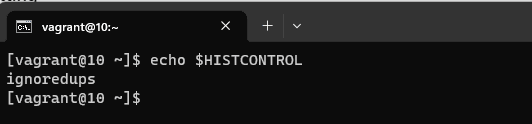
echo $HISTCONTROL

This will display your current HISTCONTROL setting. If it’s empty or doesn’t include ignorespace, you can proceed to the next step.

Step 2: Set HISTCONTROL to ignorespace

To enable ignorespace in your HISTCONTROL, you can add the following line to your shell configuration file (e.g., ~/.bashrc for Bash users):

export HISTCONTROL=ignorespace

After making this change, be sure to reload your shell configuration or start a new terminal session for the changes to take effect.

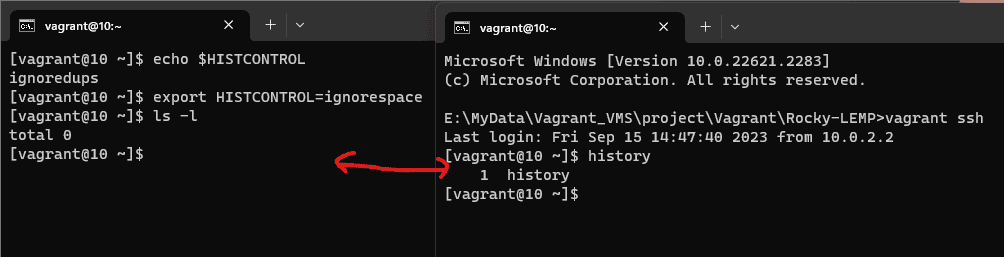
Step 3: Test ignorespace

Now that you’ve set HISTCONTROL to ignorespace, you can test its functionality. Try entering a command with a leading space, like this:

 ls -l

Notice that the space at the beginning of the command is intentional. This command will not be recorded in your command history because of the ignorespace setting.

Step 4: Verify Your Command History

To verify that the command you just entered is not in your history, you can display your command history using the history command:

history

Conclusion

utilizing HISTCONTROL with ignorespace empowers you to better manage your Linux command history. This feature proves especially useful when excluding commands with sensitive data or temporary experiments. Understanding and harnessing HISTCONTROL ignorespace and its options, like ignorespace, enhances both the efficiency and security of your Linux command line experience.

Remember that these settings are user-specific, so individual configuration is necessary for each user on a multi-user system. Armed with this knowledge, you can exercise greater control over your command history and enhance your overall command line efficiency in Linux. You can Force history not to remember a particular command using HISTCONTROL ignorespace

The Best Linux Text Editors for Developers and Coders

Introduction

In the Linux world, text editors are essential tools for programmers, writers, and anyone working with text-based files. With a plethora of options available, it can be challenging to choose the right one for your needs.

In this article, we’ll explore some of the best Linux text editors renowned for their power, flexibility, and customization options. Whether you’re a seasoned developer or a beginner, there’s an editor here that can elevate your productivity.

Best Linux Text Editors

Visual Studio Code (VS Code)

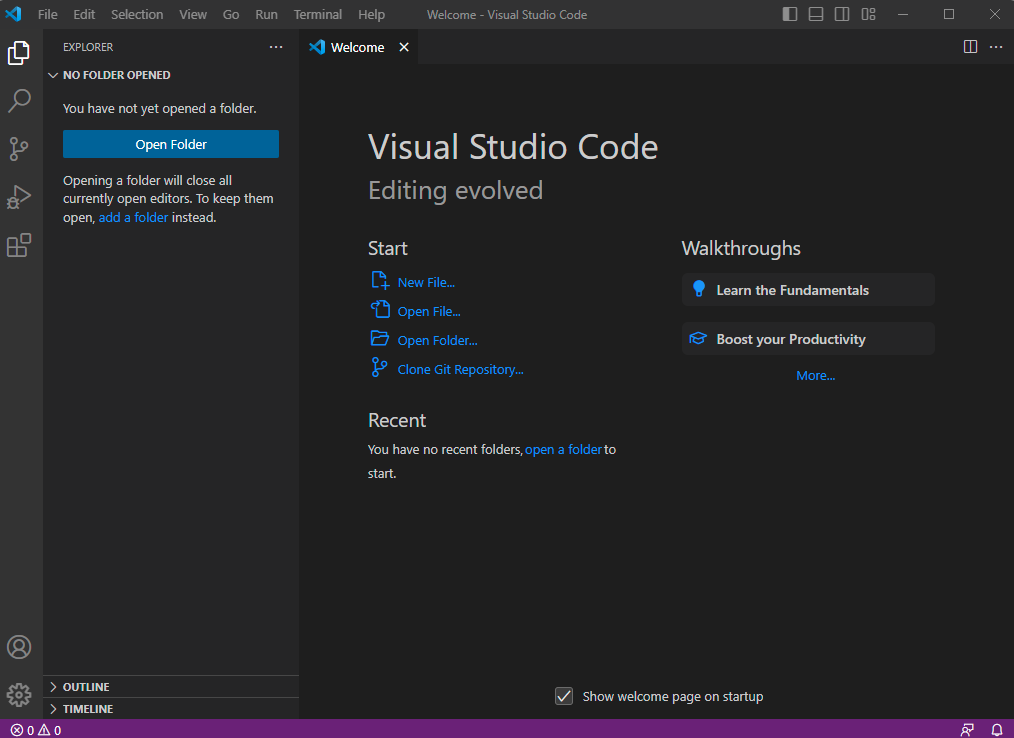
Originally designed as a code editor, Visual Studio Code (VS Code) is equally proficient as a text editor. It boasts a user-friendly interface, excellent performance, and extensive language support.

VS Code comes with built-in debugging capabilities, a rich set of extensions, and a thriving community. It’s highly customizable, allowing users to personalize their editor with themes, settings, and keybindings.

Whether you’re writing code or crafting prose, VS Code provides a versatile and feature-rich editing experience.

I love it. My Best Linux Text Editors.

Pros

  1. User-Friendly Interface: VS Code provides a clean and intuitive user interface, making it easy for users to navigate and understand its features. It offers a visually appealing layout with customizable themes and icons.
  2. Extensive Language Support: VS Code supports a vast array of programming languages out of the box, including popular languages like JavaScript, Python, Java, C++, and more. It provides syntax highlighting, auto-completion, and code formatting for improved development productivity.
  3. Rich Ecosystem of Extensions: VS Code has a thriving community that develops numerous extensions, which can enhance the editor’s functionality. From linters and debuggers to version control integrations and development environments, you can find extensions to tailor VS Code to your specific needs.
  4. Integrated Version Control: VS Code seamlessly integrates with popular version control systems like Git. It provides features like inline diff views, commit history, and branch management, allowing developers to work with version-controlled projects directly within the editor.
  5. Integrated Terminal: VS Code comes with an integrated terminal that allows you to run commands, compile code, and perform various tasks without switching to a separate terminal application. It eliminates the need to constantly switch between windows, streamlining your workflow.
  6. Intelligent Code Editing Features: VS Code offers intelligent code completion, code snippets, and code refactoring tools. It helps developers write code faster and with fewer errors by suggesting completions, automatically generating code snippets, and providing helpful hints.

Cons

  1. Performance with Large Projects: While VS Code performs well in general, it may experience some slowdowns when working with large and complex projects. The editor’s performance can be affected by factors like the number of installed extensions, the size of the codebase, and the available system resources.
  2. Memory Consumption: Similar to the performance issue, VS Code’s memory consumption can increase significantly when working on large projects or with many open files and extensions. This can impact the overall system performance, particularly on machines with limited RAM.
  3. Steep Learning Curve for Advanced Features: While the basic usage of VS Code is straightforward, some advanced features, configurations, and customizations may require a learning curve. Fully harnessing the power of VS Code and its extensions might take some time and exploration.
  4. Limited Collaboration Features: Compared to dedicated collaborative development tools, VS Code’s built-in collaboration features are relatively limited. While it supports real-time collaboration to some extent, it may not provide the same level of collaboration functionality as specialized tools like Visual Studio Live Share.
  5. Microsoft Ecosystem Ties: As a product developed by Microsoft, VS Code is inherently tied to the Microsoft ecosystem. While this is not necessarily a drawback for most users, it might be a consideration for individuals who prefer to avoid software from specific vendors or who seek a more platform-agnostic solution.

Vim

Vim, short for “Vi Improved,” is a legendary text editor that has stood the test of time. It offers a unique modal editing approach, allowing users to switch between different modes for various editing tasks.

Vim provides an extensive set of features, including syntax highlighting, split windows, macros, and an incredibly active community that develops plugins to enhance its capabilities.

While it has a steep learning curve, Vim rewards those who invest the time to master its efficient editing commands.

I think Vim is the Best Linux Text editor. I like it.

Pros

  • Best for general usage
  • Fast and easy navigation using keyboard shortcuts
  • Deeply integrated into Linux

Cons

  • Has a learning curve for Linux beginners

Emacs

Emacs is another heavyweight contender in the text editing world. Renowned for its extensibility, Emacs allows users to customize virtually every aspect of the editor through its built-in Lisp programming environment.

With Emacs, you can write custom scripts, create keybindings for repetitive tasks, and install a vast array of community-developed packages. It boasts features like syntax highlighting, powerful search and replace, version control integration, and even email and web browsing capabilities.

Sublime Text

While not open source, Sublime Text has gained a significant following due to its polished interface and extensive feature set. It offers a distraction-free writing experience with a responsive user interface.

Sublime Text excels in search and replaces functionality, multi-cursor editing, and a comprehensive plugin ecosystem. It also supports customization through themes and settings.

Although Sublime Text requires a license for continued use, it offers a free evaluation period.

Atom

Developed by GitHub, Atom is an open-source text editor that focuses on flexibility and customization. It comes with a modern and intuitive user interface and supports a wide range of features.

Atom offers smart autocompletion, multiple panes for side-by-side editing, and a built-in package manager for easy plugin installation.

The editor’s true strength lies in its extensibility, as the community has developed numerous plugins and themes to enhance its functionality and appearance.

GNU Nano

If you prefer a simpler and more beginner-friendly text editor, GNU Nano is an excellent choice.

Nano provides a straightforward and intuitive interface, making it accessible to users of all skill levels.

Despite its simplicity, Nano still offers essential features like syntax highlighting, search and replace, and multiple buffers. It’s a great option for quick edits or when you want a lightweight editor that doesn’t overwhelm you with complexity.

Conclusion

The Best Linux Text Editors. When it comes to Linux text editors, there’s no shortage of excellent options. Whether you prefer the power and efficiency of Vim and Emacs, the simplicity of GNU Nano, the polished experience of Sublime Text, the flexibility of Atom, or the versatility of VS Code, you can find a text editor that matches your needs and enhances your productivity.

 I hope will this your helpful. Thank you for reading the DevopsRoles page! Best Linux Text Editors

11 Ways ChatGPT Can Help Developers

Introduction

In this post, we’ll explore 11 ways ChatGPT can help developers. As technology continues to evolve, developers are faced with increasingly complex challenges. From debugging code to integrating systems, developers need to be able to navigate a wide range of issues. Fortunately, with the help of advanced language models like ChatGPT, developers have access to powerful tools that can help them overcome these challenges.

Ways ChatGPT Can Help Developers

1.Code Assistance

One of the biggest challenges developers face is writing efficient, error-free code. ChatGPT can assist with this by providing code suggestions, syntax error correction, and debugging support. With ChatGPT’s assistance, developers can write better code in less time.

2.Language Translation

Programming languages can be complex, and developers may not be familiar with all of them. ChatGPT can help by translating programming languages, making it easier for developers to work with code in languages they may not be familiar with.

3.Documentation Assistance

APIs, libraries, and coding frameworks can be difficult to navigate. ChatGPT can provide documentation assistance by answering questions related to these technologies. With ChatGPT’s help, developers can better understand how to use these technologies and write more effective code.

4.Integration Support

Integrating different technologies and systems can be a major challenge for developers. ChatGPT can provide guidance on how to integrate these technologies, helping developers overcome integration challenges and create more robust systems.

5.Best Practices

There are many best practices for coding, security, and optimization that developers need to be aware of. ChatGPT can provide advice on these best practices, helping developers write better code that is more secure and performs well.

6.Troubleshooting

Even the best developers encounter issues with their code or software. ChatGPT can help developers troubleshoot these issues by providing insights and solutions to problems.

7.Educational Resources

Learning new programming languages, frameworks, or technologies can be daunting. ChatGPT can provide educational resources, such as tutorials and videos, to help developers learn these new technologies and improve their skills.

8.Community Engagement

Engaging with the developer community can be an important part of a developer’s career. ChatGPT can help developers engage with their community by answering questions, providing support, and sharing knowledge. With ChatGPT’s assistance, developers can build strong relationships with their peers and collaborate to build better software.

9.Improved Decision Making

ChatGPT can analyze large amounts of data and provide insights and recommendations to developers. This can help developers make better decisions about their code, projects, and systems. For example, ChatGPT can analyze performance data and suggest optimizations to improve the speed and efficiency of a system.

10.Natural Language Processing

Natural Language Processing (NLP) is a branch of Artificial Intelligence that focuses on making it easier for computers to understand and interpret human language. ChatGPT is based on NLP, which means it can help developers understand natural language queries, commands, and statements. This can make it easier for developers to communicate with their tools and get the results they need.

11.Personalization

ChatGPT can also personalize its responses to individual developers based on their preferences and past interactions. For example, if a developer frequently works with a specific programming language or technology, ChatGPT can tailor its responses to provide more relevant information. This can save developers time and make their work more efficient.

Conclusion

ChatGPT is a versatile tool that can help developers in many different ways. Ways ChatGPT Can Help Developers. From code assistance to community engagement, and natural language processing to improved decision-making, ChatGPT can provide valuable support and insights to developers at every stage of their work.

As technology continues to evolve, ChatGPT and other language models are likely to play an increasingly important role in the development process. I hope will this your helpful. Thank you for reading the DevopsRoles page!

How to Master rpm Command a Comprehensive Guide

Introduction

How to master the rpm command in Linux. The RPM (Red Hat Package Manager) command is a powerful tool used in Linux systems for managing software packages.

Whether you are a beginner or an experienced user, understanding how to use RPM effectively can greatly enhance your Linux experience.

In this blog post, we will delve into the RPM command, its functionalities, and various operations such as querying, verifying, installing, updating, and removing RPM packages.

Master the rpm command

The RPM command is a powerful tool for managing packages on Linux systems. Here are some tips for mastering RPM:

1. Learn the basics:

RPM stands for “Red Hat Package Manager” and is used to install, update, and remove software packages on Linux systems. The basic syntax for using RPM is:

The syntax: rpm [options] [package_file(s)]

Some common options include -i (install), -U (upgrade), and -e (erase).

2. Get familiar with package dependencies:

RPM packages can have dependencies on other packages, which means that they require certain software to be installed before they can be installed themselves. You can use the rpm command with the -q option to query installed packages and their dependencies.

For example, to see the dependencies of the “httpd” package, you can run:

rpm -q --requires httpd

3. Use the RPM database:

RPM maintains a database of installed packages, which you can use to query information about packages, verify packages, and more. You can use the rpm command with the -q option to query the RPM database.

For example, to see information about the “httpd” package, you can run:

rpm -q httpd

4. Verify packages:

RPM includes a feature that allows you to verify the integrity of installed packages. You can use the rpm command with the -V option to verify the checksums, permissions, and other attributes of a package.

For example, to verify the integrity of the “httpd” package, you can run:

rpm -V httpd

5. Build your own packages:

RPM includes tools for building your own RPM packages. You can use the rpmbuild command to create RPM packages from source code or other files.

For example, to create an RPM package from a source code directory, you can run:

rpmbuild -bb mypackage.spec

6. Use RPM with package repositories:

Many Linux distributions include package repositories that provide pre-built packages for easy installation. You can use the yum or dnf command (depending on your distribution) to manage package repositories and install packages from them.

For example, to install the “httpd” package from the official CentOS repository, you can run:

yum install httpd

The Basics: Installing, Updating, and Removing RPM Packages

Installing RPM Packages:

Updating RPM Packages:

Removing RPM Packages:

Querying and Verifying RPM Packages

Querying RPM Packages:

To list all installed packages, use the following command:

rpm -qa

To check if a specific package is installed, use the following command:

rpm -q package_name

To display detailed information about a package, use the following command:

rpm -qi package_name

To list the files installed by a package, use the following command:

rpm -ql package_name

To list the files included in an RPM package, use the following command:

rpm -qpl package_name.rpm

Verifying RPM Packages:

To verify all installed packages, use the following command:

rpm -Va

To verify a specific package, use the following command:

rpm -V package_name

To verify the checksums of all files in a package, use the following command:

rpm -Vp package_name.rpm

To verify only the configuration files of a package, use the following command:

rpm -Vc package_name

Exploring More RPM Command Examples

Extracting files from RPM Packages:

The rpm2cpio the command can be used to extract files from an RPM package. Here’s an example:

rpm2cpio package_name.rpm | cpio -idmv

This command extracts all files from the RPM package package_name.rpm to the current directory.

Signing RPM Packages:

The rpm --addsign the command can be used to sign an RPM package with a GPG key. Here’s an example:

rpm --addsign package_name.rpm

This command signs the RPM package package_name.rpm with the default GPG key.

Querying Package Dependencies:

The rpm -qpR the command can be used to query the dependencies of an RPM package file. Here’s an example:

rpm -qpR package_name.rpm

This command lists the dependencies of the RPM package package_name.rpm.

Rebuilding RPM Packages:

The rpmbuild the command can be used to rebuild an RPM package from source code or other files. Here’s an example:

rpmbuild -ba mypackage.spec

This command rebuilds the RPM package using the mypackage.spec file as the package specification.

Using RPM with Yum/DNF:

The yum or dnf command (depending on your distribution) can be used to manage package repositories and install packages from them. Here are some examples:

yum install package_name
dnf install package_name

Conclusion

Mastering the RPM command is an essential skill for any Linux user. With the ability to query, verify, install, update, and remove RPM packages, you can efficiently manage software on your system. I hope will this your helpful. Thank you for reading the DevopsRoles page!

How to Password Protect Files on Linux : A Complete Guide

Introduction

In this tutorial, you’ll learn how to password protect files on Linux to ensure they remain secure from unauthorized access. Various methods are available for this purpose, each providing different levels of security. Here are a few techniques to help you safeguard your files and folders with strong passwords.

Using tools like zip and gpg, you can encrypt your files effectively. zip allows you to compress and password protect files, while gpg offers robust encryption options. Both methods are straightforward and enhance the security of your sensitive data on Linux systems.

How to Password Protect Files on Linux

Encrypt a File with GnuPG

I use gpg command to encrypt a file. GnuPG is a free Linux program that supports multiple encryptions for file encryption.

1. Open the terminal

2. Run the following command line to encrypt your file.

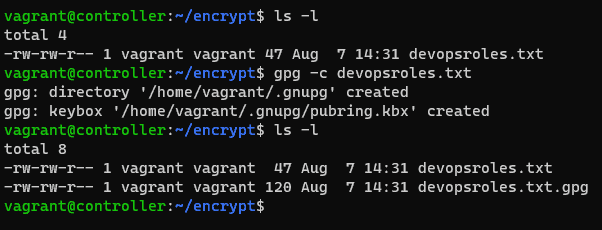
gpg -c your_file

GnuPG will create an encrypted file with .gpg extension in your current working folder.

The result is the picture below:

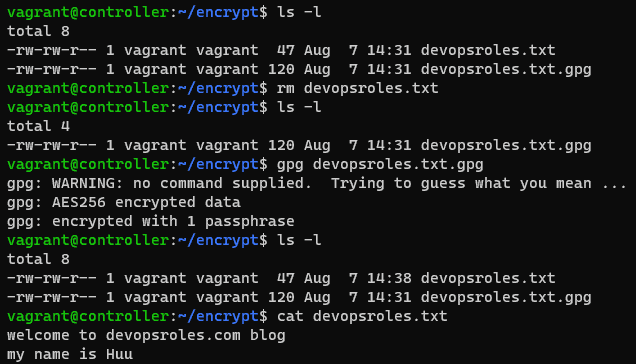
To access it, you’ll need to decrypt it. For this, run the following command

gpg your_file.gpg

The result is the picture below:

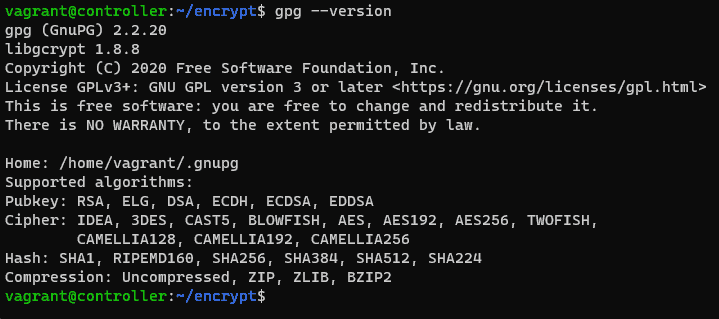
other encryption algorithms, first, check the supported ones by running:

For example, you specify the desired algorithm as a command below

gpg -c --cipher-algo algorithm_name your_file

using the zip command to Encrypt a File

the zip command is another CLI utility that password-protect files on Linux. it is pre-installed on all Linux distros.

zip --password your_password archive_file.zip file1 file2

you replace your_passowrd with the password you want to use to encrypt the archive.

Unzip the archive and enter your password. you can run the command below:

unzip archive_file.zip

Encrypt a File Using mcrypt

list out all the supported encryption algorithms

mcrypt --list

encrypt filename

mcrypt -a algorithm_name filename

If you wish to open this file, you’ll need to decrypt it as the command below:

mcrypt -d filename.nc

Conclusion

By following this tutorial, you now know how to password protect files on Linux, enhancing your data security. Always choose a strong, unique password when prompted and consider using a password manager to keep your passwords safe and easily accessible. Implementing these methods helps prevent unauthorized access and ensures your sensitive information remains protected. Thank you for reading the DevopsRoles page and I hope you found this information helpful. Stay secure!

Managing and monitoring swap on Linux

Introduction

This tutorial covers how to manage and monitor swap on Linux, including how to determine the amount of swap space available and how much is currently in use.

Swap space plays an important role in system performance, so it’s crucial to understand how to manage it effectively.

How much swap on Linux do you need?

The recommendation is to swap the space used to double your RAM. If your system has a lot of memory, you may never need to use swap space.

RAM         Swap        Swap (with hibernation)
256MB       256MB       512MB
512MB       512MB       1GB
1GB         1GB         2GB
2GB         1GB         3GB
3GB         2GB         5GB
4GB         2GB         6GB
6GB         2GB         8GB
8GB         3GB         11GB
12GB        3GB         15GB
16GB        4GB         20GB
24GB        5GB         29GB
32GB        6GB         38GB
64GB        8GB         72GB

To determine if your system can hibernate

$ which pm-hibernate

You can test it by running this command:

$ sudo pm-hibernate

View the amount of swap space on Linux

$ swapon --show
$ free -m 
$ sar -S 1 3
$ lsblk

The output terminal is as follows

[vagrant@localhost ~]$ swapon --show
NAME      TYPE SIZE USED PRIO
/swapfile file   2G   9M   -2
[vagrant@localhost ~]$ free -m
              total        used        free      shared  buff/cache   available
Mem:            486         146          93           2         247         325
Swap:          2047           9        2038
[vagrant@localhost ~]$ sar -S 1 3
Linux 3.10.0-1127.el7.x86_64 (localhost.localdomain)    09/13/2021      _x86_64_        (1 CPU)

09:51:08 PM kbswpfree kbswpused  %swpused  kbswpcad   %swpcad
09:51:09 PM   2087884      9264      0.44       416      4.49
09:51:10 PM   2087884      9264      0.44       416      4.49
09:51:11 PM   2087884      9264      0.44       416      4.49
Average:      2087884      9264      0.44       416      4.49
[vagrant@localhost ~]$ lsblk
NAME   MAJ:MIN RM SIZE RO TYPE MOUNTPOINT
sda      8:0    0  40G  0 disk
└─sda1   8:1    0  40G  0 part /
[vagrant@localhost ~]$

Creating a swap file

$ sudo dd if=/dev/zero of=/swapfile bs=1M count=8192
$ sudo chmod 600 /swapfile
$ sudo mkswap /swapfile
$ sudo swapon -a
$ swapon --show

Turn to swap off.

$ sudo swapoff -v /swapfile

# The output terminal
[vagrant@localhost ~]$ sudo swapoff -v /swapfile
swapoff /swapfile
[vagrant@localhost ~]$

Turn to swap on Linux.

$ sudo swapon -v /swapfile
$ swapon --show

Conclusion

You have a Managing and monitoring swap on Linux. I hope will this your helpful. Thank you for reading the DevopsRoles page!

Guide to Install Python 3.6 on Centos 6

Introduction

OS Centos 6 is the default Python version 2. How to Install Python 3.6 on Centos 6. Python is a powerful and flexible programming language widely used in various fields such as web development, data science, artificial intelligence, and DevOps. Python 3.6 brings many improvements and new features, enhancing performance and security.

In this article, we will guide you through the process of installing Python 3.6 on CentOS 6, one of the popular Linux operating systems for server environments. This installation will allow you to take full advantage of Python 3.6 in your projects.

Installation packages pre-requisites

sudo yum -y install gcc openssl-devel bzip2-devel wget

How to Install Python 3.6 on Centos 6

cd /tmp/
wget https://www.python.org/ftp/python/3.6.6/Python-3.6.6.tgz
tar xzf Python-3.6.6.tgz
cd Python-3.6.6
./configure --enable-optimizations
sudo make altinstall

Create symbolic link

sudo ln -sfn /usr/local/bin/python3.6 /usr/bin/python3.6

Python verifying new version.

[huupv2@server1 ~]$ python -V
Python 3.6.6

The result is Python 3.6 on Centos 6.

[huupv2@server1 ~]$ cat /etc/redhat-release
CentOS release 6.5 (Final)
[huupv2@server1 ~]$ ll /usr/bin/python*
-rwxr-xr-x 2 root root 4864 Aug 18  2016 /usr/bin/python
lrwxrwxrwx 1 root root    6 Jul 19  2018 /usr/bin/python2 -> python
-rwxr-xr-x 2 root root 4864 Aug 18  2016 /usr/bin/python2.6
lrwxrwxrwx 1 root root    9 Mar  8 13:26 /usr/bin/python3 -> python3.4
-rwxr-xr-x 2 root root 6088 Oct  5  2019 /usr/bin/python3.4
-rwxr-xr-x 2 root root 6088 Oct  5  2019 /usr/bin/python3.4m
lrwxrwxrwx 1 root root   24 Mar  8 14:45 /usr/bin/python3.6 -> /usr/local/bin/python3.6

Configure alias python on .bashrc file

[huupv2@server1 ~]$ cat .bashrc
# .bashrc

# Source global definitions
if [ -f /etc/bashrc ]; then
        . /etc/bashrc
fi

# User specific aliases and functions
alias python='/usr/bin/python3.6'

Check Python version 3.6 on Centos 6

[huupv2@server1 ~]$ python
Python 3.6.6 (default, Mar  8 2021, 14:41:43)
[GCC 4.4.7 20120313 (Red Hat 4.4.7-23)] on linux
Type "help", "copyright", "credits" or "license" for more information.
>>>
[huupv2@server1 ~]$

Conclusion

You have to install Python 3.6 on Centos 6. Installing Python 3.6 on CentOS 6 may present some challenges, but with this detailed guide, you can easily accomplish it. Python 3.6 will open up many new opportunities for your projects, from web application development to data processing and automating DevOps workflows.

We wish you success in installing and leveraging the full potential of Python 3.6 on CentOS 6. If you encounter any difficulties, don’t hesitate to contact us or refer to community support resources. I hope will this your helpful. Thank you for reading the DevopsRoles page!

Install PIP on Centos 8

Introduction

In this tutorial. How to install pip on Centos 8. Pip is a package management system that allows you to install, remove, and otherwise manage software packages written in Python.

How to Install PIP on Centos 8

Two Python versions are Python 2 and Python 3.

Install pip3 for Python 3

sudo dnf install python3

The output is as below:

[devopsroles@server1 ~]$ sudo dnf install python3
[sudo] password for devopsroles: 
Last metadata expiration check: 0:07:32 ago on Wed 02 Sep 2020 09:15:00 PM +07.
Dependencies resolved.
==========================================================================================================
 Package                  Architecture Version                                      Repository       Size
==========================================================================================================
Installing:
 python36                 x86_64       3.6.8-2.module_el8.1.0+245+c39af44f          AppStream        19 k
Installing dependencies:
 python3-pip              noarch       9.0.3-16.el8                                 AppStream        19 k
 python3-setuptools       noarch       39.2.0-5.el8                                 BaseOS          162 k
Enabling module streams:
 python36                              3.6                                                               

Transaction Summary
==========================================================================================================
Install  3 Packages

Total download size: 201 k
Installed size: 466 k
Is this ok [y/N]: y
Downloading Packages:
(1/3): python36-3.6.8-2.module_el8.1.0+245+c39af44f.x86_64.rpm            7.3 kB/s |  19 kB     00:02    
(2/3): python3-pip-9.0.3-16.el8.noarch.rpm                                7.1 kB/s |  19 kB     00:02    
(3/3): python3-setuptools-39.2.0-5.el8.noarch.rpm                          52 kB/s | 162 kB     00:03    
----------------------------------------------------------------------------------------------------------
Total                                                                      43 kB/s | 201 kB     00:04     
Running transaction check
Transaction check succeeded.
Running transaction test
Transaction test succeeded.
Running transaction
  Preparing        :                                                                                  1/1 
  Installing       : python3-setuptools-39.2.0-5.el8.noarch                                           1/3 
  Installing       : python36-3.6.8-2.module_el8.1.0+245+c39af44f.x86_64                              2/3 
  Running scriptlet: python36-3.6.8-2.module_el8.1.0+245+c39af44f.x86_64                              2/3 
  Installing       : python3-pip-9.0.3-16.el8.noarch                                                  3/3 
  Running scriptlet: python3-pip-9.0.3-16.el8.noarch                                                  3/3 
  Verifying        : python3-pip-9.0.3-16.el8.noarch                                                  1/3 
  Verifying        : python36-3.6.8-2.module_el8.1.0+245+c39af44f.x86_64                              2/3 
  Verifying        : python3-setuptools-39.2.0-5.el8.noarch                                           3/3 

Installed:
  python3-pip-9.0.3-16.el8.noarch                            python3-setuptools-39.2.0-5.el8.noarch       
  python36-3.6.8-2.module_el8.1.0+245+c39af44f.x86_64       

Complete!

Check version pip

pip3 --version

The output as below

[devopsroles@server1 ~]$ pip3 --version
pip 9.0.3 from /usr/lib/python3.6/site-packages (python 3.6)

To install and build Python modules with pip, you need to install the Development tools:

sudo yum install python3-devel
sudo yum groupinstall 'development tools'

Installing pip2 for Python 2

sudo dnf install python2
pip2 --version
sudo yum install python2-devel
sudo yum groupinstall 'development tools'

For example, I have installed two python3 and python2 on Centos 8 as below

[devopsroles@server1 ~]$ sudo yum list installed | grep pip
libpipeline.x86_64                          1.5.0-2.el8                           @anaconda 
platform-python-pip.noarch                  9.0.3-16.el8                          @anaconda 
python2-pip.noarch                          9.0.3-16.module_el8.2.0+381+9a5b3c3b  @AppStream
python2-pip-wheel.noarch                    9.0.3-16.module_el8.2.0+381+9a5b3c3b  @AppStream
python3-pip.noarch                          9.0.3-16.el8                          @AppStream
python3-pip-wheel.noarch                    9.0.3-16.el8                          @anaconda 

Managing Python Packages with pip

Typically, you should use pip inside a virtual environment only. It is used when separating the Python execution environment, such as when you want to change the Python execution environment for each project or you do not want to keep the local environment dirty venv.

In this section, we will go through several basic pip commands.

To install a package

pip install flask

If you want to install a specific version of the package

pip install flask==1.0.0

Uninstall a package

pip uninstall package_name

Search packages

pip search "package_name"

View the full list of packages

pip list

List outdated packages:

pip list --outdated

To upgrade an already installed package

pip3 install --upgrade package_name

Check pip dependencies

pip check

List of packages that need updating

pip list -o

Show packages by package name == version

pip freeze

Useful when outputting to requirements.txt

pip freeze > requirements.txt

Package update

pip install  -U package_name

Update pip itself

pip install  -U pip

Checking the details of the package

pip show package-name

Conclusion

How to install pip on CentOS 8 and how to easily install and uninstall Python modules with pip. Thank you for reading the DevopsRoles page!