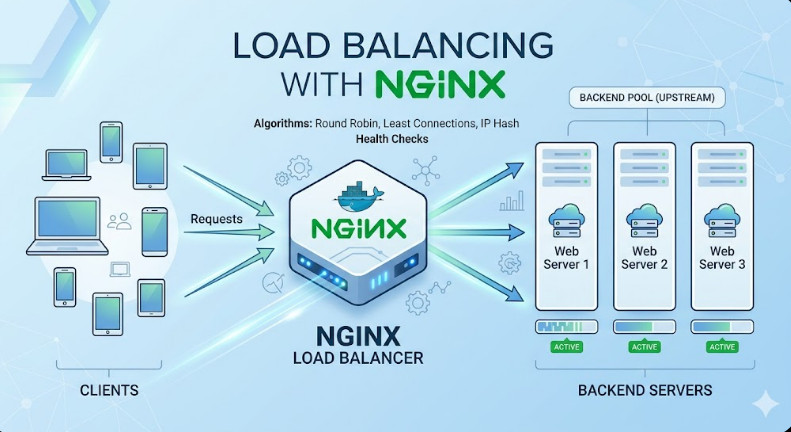
Category Archives: Linux

Discover DevOps roles and learn Linux from basics to advanced at DevOpsRoles.com. Detailed guides and in-depth articles to master Linux for DevOps careers.

Deploy Rails Apps for $5/Month: Vultr VPS Hosting Guide

Moving from a Platform-as-a-Service (PaaS) like Heroku to a Virtual Private Server (VPS) is a rite of passage for many Ruby developers. While PaaS offers convenience, the cost scales aggressively. If you are looking to deploy Rails apps with full control over your infrastructure, low latency, and predictable pricing, a $5/month VPS from a provider like Vultr is an unbeatable solution.

However, with great power comes great responsibility. You are no longer just an application developer; you are now the system administrator. This guide will walk you through setting up a production-hardened Linux environment, tuning PostgreSQL for low-memory servers, and configuring the classic Nginx/Puma stack for maximum performance.

Why Choose a VPS for Rails Deployment?

Before diving into the terminal, it is essential to understand the architectural trade-offs. When you deploy Rails apps on a raw VPS, you gain:

  • Cost Efficiency: A $5 Vultr instance (usually 1 vCPU, 1GB RAM) can easily handle hundreds of requests per minute if optimized correctly.
  • No “Sleeping” Dynos: Unlike free or cheap PaaS tiers, your VPS is always on. Background jobs (Sidekiq/Resque) run without needing expensive add-ons.
  • Environment Control: You choose the specific version of Linux, the database configuration, and the system libraries (e.g., ImageMagick, libvips).

Pro-Tip: Managing Resources
A 1GB RAM server is tight for modern Rails apps. The secret to stability on a $5 VPS is Swap Memory. Without it, your server will crash during memory-intensive tasks like bundle install or Webpacker compilation. We will cover this in step 2.

🚀 Prerequisite: Get Your Server

To follow this guide, you need a fresh Ubuntu VPS. We recommend Vultr for its high-performance SSDs and global locations.

Deploy Instance on Vultr →

(New users often receive free credits via this link)

Step 1: Server Provisioning and Initial Security

Assuming you have spun up a fresh Ubuntu 22.04 or 24.04 LTS instance on Vultr, the first step is to secure it. Do not deploy as root.

1.1 Create a Deploy User

Log in as root and create a user with sudo privileges. We will name ours deploy.

adduser deploy
usermod -aG sudo deploy
# Switch to the new user
su - deploy

1.2 SSH Hardening

Password authentication is a security risk. Copy your local SSH public key to the server (ssh-copy-id deploy@your_server_ip), then disable password login.

sudo nano /etc/ssh/sshd_config

# Change these lines:
PermitRootLogin no
PasswordAuthentication no

Restart SSH: sudo service ssh restart.

1.3 Firewall Configuration (UFW)

Setup a basic firewall to only allow SSH, HTTP, and HTTPS connections.

sudo ufw allow OpenSSH
sudo ufw allow 'Nginx Full'
sudo ufw enable

Step 2: Performance Tuning (Crucial for $5 Instances)

Rails is memory hungry. To successfully deploy Rails apps on limited hardware, you must set up a Swap file. This acts as “virtual RAM” on your SSD.

# Allocate 1GB or 2GB of swap
sudo fallocate -l 2G /swapfile
sudo chmod 600 /swapfile
sudo mkswap /swapfile
sudo swapon /swapfile

# Make it permanent
echo '/swapfile none swap sw 0 0' | sudo tee -a /etc/fstab

Adjust the “Swappiness” value to 10 (default is 60) to tell the OS to prefer RAM over Swap unless absolutely necessary.

sudo sysctl vm.swappiness=10
echo 'vm.swappiness=10' | sudo tee -a /etc/sysctl.conf

Step 3: Installing the Stack (Ruby, Node, Postgres, Redis)

3.1 Dependencies

Update your system and install the build tools required for compiling Ruby.

sudo apt update && sudo apt upgrade -y
sudo apt install -y git curl libssl-dev libreadline-dev zlib1g-dev \
autoconf bison build-essential libyaml-dev libreadline-dev \
libncurses5-dev libffi-dev libgdbm-dev

3.2 Ruby (via rbenv)

We recommend rbenv over RVM for production environments due to its lightweight nature.

# Install rbenv
git clone https://github.com/rbenv/rbenv.git ~/.rbenv
echo 'export PATH="$HOME/.rbenv/bin:$PATH"' >> ~/.bashrc
echo 'eval "$(rbenv init -)"' >> ~/.bashrc
exec $SHELL

# Install ruby-build
git clone https://github.com/rbenv/ruby-build.git ~/.rbenv/plugins/ruby-build

# Install Ruby (Replace 3.3.0 with your project version)
rbenv install 3.3.0
rbenv global 3.3.0

3.3 Database: PostgreSQL

Install PostgreSQL and creating a database user.

sudo apt install -y postgresql postgresql-contrib libpq-dev

# Create a postgres user matching your system user
sudo -u postgres createuser -s deploy

Optimization Note: On a 1GB server, PostgreSQL default settings are too aggressive. Edit /etc/postgresql/14/main/postgresql.conf (version may vary) and reduce shared_buffers to 128MB to leave room for your Rails application.

Step 4: The Application Server (Puma & Systemd)

You shouldn’t run Rails using rails server in production. We use Puma managed by Systemd. This ensures your app restarts automatically if it crashes or the server reboots.

First, clone your Rails app into /var/www/my_app and run bundle install. Then, create a systemd service file.

File: /etc/systemd/system/my_app.service

[Unit]
Description=Puma HTTP Server
After=network.target

[Service]
# Foreground process (do not use --daemon in ExecStart or config.rb)
Type=simple

# User and Group the process will run as
User=deploy
Group=deploy

# Working Directory
WorkingDirectory=/var/www/my_app/current

# Environment Variables
Environment=RAILS_ENV=production

# ExecStart command
ExecStart=/home/deploy/.rbenv/shims/bundle exec puma -C /var/www/my_app/shared/puma.rb

Restart=always
KillSignal=SIGTERM

[Install]
WantedBy=multi-user.target

Enable and start the service:

sudo systemctl enable my_app
sudo systemctl start my_app

Step 5: The Web Server (Nginx Reverse Proxy)

Nginx sits in front of Puma. It handles SSL, serves static files (assets), and acts as a buffer for slow clients. This prevents the “Slowloris” attack from tying up your Ruby threads.

Install Nginx: sudo apt install nginx.

Create a configuration block at /etc/nginx/sites-available/my_app:

upstream app {
    # Path to Puma UNIX socket
    server unix:/var/www/my_app/shared/tmp/sockets/puma.sock fail_timeout=0;
}

server {
    listen 80;
    server_name example.com www.example.com;

    root /var/www/my_app/current/public;

    try_files $uri/index.html $uri @app;

    location @app {
        proxy_pass http://app;
        proxy_set_header X-Forwarded-For $proxy_add_x_forwarded_for;
        proxy_set_header Host $http_host;
        proxy_redirect off;
    }

    error_page 500 502 503 504 /500.html;
    client_max_body_size 10M;
    keepalive_timeout 10;
}

Link it and restart Nginx:

sudo ln -s /etc/nginx/sites-available/my_app /etc/nginx/sites-enabled/
sudo rm /etc/nginx/sites-enabled/default
sudo service nginx restart

Step 6: SSL Certificates with Let’s Encrypt

Never deploy Rails apps without HTTPS. Certbot makes this free and automatic.

sudo apt install certbot python3-certbot-nginx
sudo certbot --nginx -d example.com -d www.example.com

Certbot will automatically modify your Nginx config to redirect HTTP to HTTPS and configure SSL parameters.

Frequently Asked Questions (FAQ)

Is a $5/month VPS really enough for production?

Yes, for many use cases. A $5 Vultr or DigitalOcean droplet is perfect for portfolios, MVPs, and small business apps. However, if you have heavy image processing or hundreds of concurrent users, you should upgrade to a $10 or $20 plan with 2GB+ RAM.

Why use Nginx with Puma? Can’t Puma serve web requests?

Puma is an application server, not a web server. While it can serve requests directly, Nginx is significantly faster at serving static assets (images, CSS, JS) and managing SSL connections. Using Nginx frees up your expensive Ruby workers to do what they do best: process application logic.

How do I automate deployments?

Once the server is set up as above, you should not be manually copying files. The industry standard tool is Capistrano. Alternatively, for a more Docker-centric approach (similar to Heroku), look into Kamal (formerly MRSK), which is gaining massive popularity in the Rails community.

Conclusion

You have successfully configured a robust, production-ready environment to deploy Rails apps on a budget. By managing your own Vultr VPS, you have cut costs and gained valuable systems knowledge.

Your stack now includes:

  • OS: Ubuntu LTS (Hardened)
  • Web Server: Nginx (Reverse Proxy & SSL)
  • App Server: Puma (Managed by Systemd)
  • Database: PostgreSQL (Tuned)

The next step in your journey is automating this process. I recommend setting up a GitHub Action or a Capistrano script to push code changes to your new server with a single command. Thank you for reading the DevopsRoles page!

Cortex Linux AI: Unlock Next-Gen Performance

Artificial intelligence is no longer confined to massive, power-hungry data centers. A new wave of computation is happening at the edge—on our phones, in our cars, and within industrial IoT devices. At the heart of this revolution is a powerful trifecta of technologies: Arm Cortex processors, the Linux kernel, and optimized AI workloads. This convergence, which we’ll call the “Cortex Linux AI” stack, represents the future of intelligent, efficient, and high-performance computing.

For expert Linux and AI engineers, mastering this stack isn’t just an option; it’s a necessity. This guide provides a deep, technical dive into optimizing AI models on Cortex-powered Linux systems, moving from high-level architecture to practical, production-ready code.


Understanding the “Cortex Linux AI” Stack

First, a critical distinction: “Cortex Linux AI” is not a single commercial product. It’s a technical term describing the powerful ecosystem built from three distinct components:

  1. Arm Cortex Processors: The hardware foundation. This isn’t just one CPU. It’s a family of processors, primarily the Cortex-A series (for high-performance applications, like smartphones and automotive) and the Cortex-M series (for real-time microcontrollers). For AI, we’re typically focused on 64-bit Cortex-A (AArch64) designs.
  2. Linux: The operating system. From minimal, custom-built Yocto or Buildroot images for embedded devices to full-featured server distributions like Ubuntu or Debian for Arm, Linux provides the necessary abstractions, drivers, and userspace for running complex applications.
  3. AI Workloads: The application layer. This includes everything from traditional machine learning models to deep neural networks (DNNs), typically run as inference engines using frameworks like TensorFlow Lite, PyTorch Mobile, or the ONNX Runtime.

Why Cortex Processors? The Edge AI Revolution

The dominance of Cortex processors at the edge stems from their unparalleled performance-per-watt. While a data center GPU measures performance in TFLOPS and power in hundreds of watts, an Arm processor excels at delivering “good enough” or even exceptional AI performance in a 5-15 watt power envelope. This is achieved through specialized architectural features:

  • NEON: A 128-bit SIMD (Single Instruction, Multiple Data) architecture extension. NEON is critical for accelerating common ML operations (like matrix multiplication and convolutions) by performing the same operation on multiple data points simultaneously.
  • SVE/SVE2 (Scalable Vector Extension): The successor to NEON, SVE allows for vector-length-agnostic programming. Code written with SVE can automatically adapt to use 256-bit, 512-bit, or even larger vector hardware without being recompiled.
  • Arm Ethos-N NPUs: Beyond the CPU, many SoCs (Systems-on-a-Chip) integrate a Neural Processing Unit, like the Arm Ethos-N. This co-processor is designed only to run ML models, offering massive efficiency gains by offloading work from the Cortex-A CPU.

Optimizing AI Workloads on Cortex-Powered Linux

Running model.predict() on a laptop is simple. Getting real-time performance on an Arm-based device requires a deep understanding of the full software and hardware stack. This is where your expertise as a Linux and AI engineer provides the most value.

Choosing Your AI Framework: The Arm Ecosystem

Not all AI frameworks are created equal. For the Cortex Linux AI stack, you must prioritize those built for edge deployment.

  • TensorFlow Lite (TFLite): The de facto standard. TFLite models are converted from standard TensorFlow, quantized (reducing precision from FP32 to INT8, for example), and optimized for on-device inference. Its key feature is the “delegate,” which allows it to offload graph execution to hardware accelerators (like the GPU or an NPU).
  • ONNX Runtime: The Open Neural Network Exchange (ONNX) format is an interoperable standard. The ONNX Runtime can execute these models and has powerful “execution providers” (similar to TFLite delegates) that can target NEON, the Arm Compute Library, or vendor-specific NPUs.
  • PyTorch Mobile: While PyTorch dominates research, PyTorch Mobile is its leaner counterpart for production edge deployment.

Hardware Acceleration: The NPU and Arm NN

The single most important optimization is moving beyond the CPU. This is where Arm’s own software libraries become essential.

Arm NN is an inference engine, but it’s more accurate to think of it as a “smart dispatcher.” When you provide an Arm NN-compatible model (from TFLite, ONNX, etc.), it intelligently partitions the neural network graph. It analyzes your specific SoC and decides, layer by layer:

  • “This convolution layer runs fastest on the Ethos-N NPU.”
  • “This normalization layer is best suited for the NEON-accelerated CPU.”
  • “This unusual custom layer must run on the main Cortex-A CPU.”

This heterogeneous compute approach is the key to unlocking peak performance. Your job as the Linux engineer is to ensure the correct drivers (e.g., /dev/ethos-u) are present and that your AI framework is compiled with the correct Arm NN delegate enabled.

Advanced Concept: The Arm Compute Library (ACL)

Underpinning many of these frameworks (including Arm NN itself) is the Arm Compute Library. This is a collection of low-level functions for image processing and machine learning, hand-optimized in assembly for NEON and SVE. If you’re building a custom C++ AI application, you can link against ACL directly for maximum “metal” performance, bypassing framework overhead.

Practical Guide: Building and Deploying a TFLite App

Let’s bridge theory and practice. The most common DevOps challenge in the Cortex Linux AI stack is cross-compilation. You develop on an x86_64 laptop, but you deploy to an AArch64 (Arm 64-bit) device. Docker with QEMU makes this workflow manageable.

Step 1: The Cross-Compilation Environment (Dockerfile)

This Dockerfile uses qemu-user-static to build an AArch64 image from your x86_64 machine. This example sets up a basic AArch64 Debian environment with build tools.

# Use a multi-stage build to get QEMU
FROM --platform=linux/arm64 arm64v8/debian:bullseye-slim AS builder

# Install build dependencies for a C++ TFLite application
RUN apt-get update && apt-get install -y \
    build-essential \
    curl \
    libjpeg-dev \
    libz-dev \
    git \
    cmake \
    && rm -rf /var/lib/apt/lists/*

# (Example) Clone and build the TensorFlow Lite C++ library
RUN git clone https://github.com/tensorflow/tensorflow.git /tensorflow_src
WORKDIR /tensorflow_src
# Note: This is a simplified build command. A real build would be more complex.
RUN cmake -S tensorflow/lite -B /build/tflite -DCMAKE_BUILD_TYPE=Release
RUN cmake --build /build/tflite -j$(nproc)

# --- Final Stage ---
FROM --platform=linux/arm64 arm64v8/debian:bullseye-slim

# Copy the build artifacts
COPY --from=builder /build/tflite/libtensorflow-lite.a /usr/local/lib/
COPY --from=builder /tensorflow_src/tensorflow/lite/tools/benchmark /usr/local/bin/benchmark_model

# Copy your own pre-compiled application and model
COPY ./my_cortex_ai_app /app/
COPY ./my_model.tflite /app/

WORKDIR /app
CMD ["./my_cortex_ai_app"]

To build this for Arm on your x86 machine, you need Docker Buildx:

# Enable the Buildx builder
docker buildx create --use

# Build the image, targeting the arm64 platform
docker buildx build --platform linux/arm64 -t my-cortex-ai-app:latest . --load

Step 2: Deploying and Running Inference

Once your container is built, you can push it to a registry and pull it onto your Arm device (e.g., a Raspberry Pi 4/5, NVIDIA Jetson, or custom-built Yocto board).

You can then use tools like benchmark_model (copied in the Dockerfile) to test performance:

# Run this on the target Arm device
docker run --rm -it my-cortex-ai-app:latest \
    /usr/local/bin/benchmark_model \
    --graph=/app/my_model.tflite \
    --num_threads=4 \
    --use_nnapi=true

The --use_nnapi=true (on Android) or equivalent delegate flags are what trigger hardware acceleration. On a standard Linux build, you might specify the Arm NN delegate explicitly: --external_delegate_path=/path/to/libarmnn_delegate.so.

Advanced Performance Analysis on Cortex Linux AI

Your application runs, but it’s slow. How do you find the bottleneck?

Profiling with ‘perf’: The Linux Expert’s Tool

The perf tool is the Linux standard for system and application profiling. On Arm, it’s invaluable for identifying CPU-bound bottlenecks, cache misses, and branch mispredictions.

Let’s find out where your AI application is spending its CPU time:

# Install perf (e.g., apt-get install linux-perf)
# 1. Record a profile of your application
perf record -g --call-graph dwarf ./my_cortex_ai_app --model=my_model.tflite

# 2. Analyze the results with a report
perf report

The perf report output will show you a “hotspot” list of functions. If you see 90% of the time spent in a TFLite kernel like tflite::ops::micro::conv::Eval, you know that:
1. Your convolution layers are the bottleneck (expected).
2. You are running on the CPU (the “micro” kernel).
3. Your NPU or NEON delegate is not working correctly.

This tells you to fix your delegates, not to waste time optimizing your C++ image pre-processing code.

Pro-Tip: Containerization Strategy on Arm

Be mindful of container overhead. While Docker is fantastic for development, on resource-constrained devices, every megabyte of RAM and every CPU cycle counts. For production, you should:

  • Use multi-stage builds to create minimal images.
  • Base your image on distroless or alpine (if glibc is not a hard dependency).
  • Ensure you pass hardware devices (like /dev/ethos-u or /dev/mali for GPU) to the container using the --device flag.

The Cortex Linux AI stack is not without its challenges. Hardware fragmentation is chief among them. An AI model optimized for one SoC’s NPU may not run at all on another. This is where standards like ONNX and abstraction layers like Arm NN are critical.

The next frontier is Generative AI at the Edge. We are already seeing early demonstrations of models like Llama 2-7B and Stable Diffusion running (slowly) on high-end Arm devices. Unlocking real-time performance for these models will require even tighter integration between the Cortex CPUs, next-gen NPUs, and the Linux kernel’s scheduling and memory management systems.

Frequently Asked Questions (FAQ)

What is Cortex Linux AI?

Cortex Linux AI isn’t a single product. It’s a technical term for the ecosystem of running artificial intelligence (AI) and machine learning (ML) workloads on devices that use Arm Cortex processors (like the Cortex-A series) and run a version of the Linux operating system.

Can I run AI training on an Arm Cortex processor?

You can, but you generally shouldn’t. Cortex processors are designed for power-efficient inference (running a model). The massive, parallel computation required for training is still best suited for data center GPUs (like NVIDIA’s A100 or H100). The typical workflow is: train on x86/GPU, convert/quantize, and deploy/infer on Cortex/Linux.

What’s the difference between Arm Cortex-A and Cortex-M for AI?

Cortex-A: These are “application” processors. They are 64-bit (AArch64), run a full OS like Linux or Android, have an MMU (Memory Management Unit), and are high-performance. They are used in smartphones, cars, and high-end IoT. They run frameworks like TensorFlow Lite.

Cortex-M: These are “microcontroller” (MCU) processors. They are much smaller, lower-power, and run real-time operating systems (RTOS) or bare metal. They are used for TinyML (e.g., with TensorFlow Lite for Microcontrollers). You would typically not run a full Linux kernel on a Cortex-M.

What is Arm NN and do I need to use it?

Arm NN is a free, open-source inference engine. You don’t *have* to use it, but it’s highly recommended. It acts as a bridge between high-level frameworks (like TensorFlow Lite) and the low-level hardware accelerators (like the CPU’s NEON, the GPU, or a dedicated NPU like the Ethos-N). It finds the most efficient way to run your model on the available Arm hardware.

Conclusion

The Cortex Linux AI stack is the engine of the intelligent edge. For decades, “performance” in the Linux world meant optimizing web servers on x86. Today, it means squeezing every last drop of inference performance from a 10-watt Arm SoC.

By understanding the deep interplay between the Arm architecture (NEON, SVE, NPUs), the Linux kernel’s instrumentation (perf), and the AI framework’s hardware delegates, you can move from simply *running* models to building truly high-performance, next-generation products. Thank you for reading the DevopsRoles page!

How to easily switch your PC from Windows to Linux Mint for free

As an experienced Windows and Linux user, you’re already familiar with the landscapes of both operating systems. You know the Windows ecosystem, and you understand the power and flexibility of the Linux kernel. This guide isn’t about *why* you should switch, but *how* to execute a clean, professional, and stable migration from **Windows to Linux Mint** with minimal friction. We’ll bypass the basics and focus on the technical checklist: data integrity, partition strategy, and hardware-level considerations like UEFI and Secure Boot.

Linux Mint, particularly the Cinnamon edition, is a popular choice for this transition due to its stability, low resource usage, and familiar UI metaphors. Let’s get this done efficiently.

Pre-Migration Strategy: The Expert’s Checklist

A smooth migration is 90% preparation. For an expert, “easy” means “no surprises.”

1. Advanced Data Backup (Beyond Drag-and-Drop)

You already know to back up your data. A simple file copy might miss AppData, registry settings, or hidden configuration files. For a robust Windows backup, consider using tools that preserve metadata and handle long file paths.

  • Full Image: Use Macrium Reflect or Clonezilla for a full disk image. This is your “undo” button.
  • File-Level: Use robocopy from the command line for a fast, transactional copy of your user profile to an external drive.
:: Example: Robocopy to back up your user profile
:: /E  = copy subdirectories, including empty ones
:: /Z  = copy files in restartable mode
:: /R:3 = retry 3 times on a failed copy
:: /W:10= wait 10 seconds between retries
:: /LOG:backup.log = log the process
robocopy "C:\Users\YourUser" "E:\Backup\YourUser" /E /Z /R:3 /W:10 /LOG:E:\Backup\backup.log

2. Windows-Specific Preparations (BitLocker, Fast Startup)

This is the most critical step and the most common failure point for an otherwise simple **Windows to Linux Mint** switch.

  • Disable BitLocker: If your system drive is encrypted with BitLocker, Linux will not be able to read it or resize its partition. You *must* decrypt the drive from within Windows first. Go to Control Panel > BitLocker Drive Encryption > Turn off BitLocker. This can take several hours.
  • Disable Fast Startup: Windows Fast Startup uses a hybrid hibernation file (hiberfil.sys) to speed up boot times. This leaves the NTFS partitions in a “locked” state, preventing the Linux installer from mounting them read-write. To disable it:
    1. Go to Control Panel > Power Options > Choose what the power buttons do.
    2. Click “Change settings that are currently unavailable”.
    3. Uncheck “Turn on fast startup (recommended)”.
    4. Shut down the PC completely (do not restart).

3. Hardware & Driver Reconnaissance

Boot into the Linux Mint live environment (from the USB you’ll create next) and run some commands to ensure all your hardware is recognized. Pay close attention to:

  • Wi-Fi Card: lspci | grep -i network
  • NVIDIA GPU: lspci | grep -i vga (Nouveau drivers will load by default; you’ll install the proprietary ones post-install).
  • NVMe Storage: lsblk (Ensure your high-speed SSDs are visible).

Creating the Bootable Linux Mint Media

This is straightforward, but a few tool-specific choices matter.

Tooling: Rufus vs. Ventoy vs. `dd`

  • Rufus (Windows): The gold standard. It correctly handles UEFI and GPT partition schemes. When prompted, select “DD Image mode” if it offers it, though “ISO Image mode” is usually fine.
  • Ventoy (Windows/Linux): Excellent for experts. You format the USB once with Ventoy, then just copy multiple ISOs (Mint, Windows, GParted, etc.) onto the drive. It will boot them all.
  • dd (Linux): The classic. Simple and powerful, but unforgiving.
# Example dd command from a Linux environment
# BE EXTREMELY CAREFUL: 'of=' must be your USB device, NOT your hard drive.
# Use 'lsblk' to confirm the device name (e.g., /dev/sdx, NOT /dev/sdx1).
sudo dd if=linuxmint-21.3-cinnamon-64bit.iso of=/dev/sdX bs=4M status=progress conv=fdatasync

Verifying the ISO Checksum (A critical step)

Don’t skip this. A corrupt ISO is the source of countless “easy” installs failing with cryptic errors. Download the sha256sum.txt and sha256sum.txt.gpg files from the official Linux Mint mirror.

# In your download directory on a Linux machine (or WSL)
sha256sum -b linuxmint-21.3-cinnamon-64bit.iso
# Compare the output hash to the one in sha256sum.txt

The Installation: A Deliberate Approach to Switching from Windows to Linux Mint

You’ve booted from the USB and are at the Linux Mint live desktop. Now, the main event.

1. Booting and UEFI/Secure Boot Considerations

Enter your PC’s firmware (BIOS/UEFI) settings (usually by pressing F2, F10, or Del on boot).

  • UEFI Mode: Ensure your system is set to “UEFI Mode,” not “Legacy” or “CSM” (Compatibility Support Module).
  • Secure Boot: Linux Mint supports Secure Boot out of the box. You should be able to leave it enabled. The installer uses a signed “shim” loader. If you encounter boot issues, disabling Secure Boot is a valid troubleshooting step, but try with it *on* first.

2. The Partitioning Decision: Dual-Boot or Full Wipe?

The installer will present you with options. As an expert, you’re likely interested in two:

  1. Erase disk and install Linux Mint: This is the cleanest, simplest option. It will wipe the entire drive, remove Windows, and set up a standard partition layout (an EFI System Partition and a / root partition with btrfs or ext4).
  2. Something else: This is the “Manual” or “Advanced” option, which you should select if you plan to dual-boot or want a custom partition scheme.

Expert Pitfall: The “Install Alongside Windows” Option

This option often works, but it gives you no control over partition sizes. It will simply shrink your main Windows (C:) partition and install Linux in the new free space. For a clean, deliberate setup, the “Something else” (manual) option is always superior.

3. Advanced Partitioning (Manual Layout)

If you selected “Something else,” you’ll be at the partitioning screen. Here’s a recommended, robust layout:

  • EFI System Partition (ESP): This already exists if Windows was installed in UEFI mode. It’s typically 100-500MB, FAT32, and flagged boot, esp. Do not format this partition. Simply select it and set its “Mount point” to /boot/efi. The Mint installer will add its GRUB bootloader to it alongside the Windows Boot Manager.
  • Root Partition (/): Create a new partition from the free space (or the space you freed by deleting the old Windows partition).
    • Size: 30GB at a minimum. 50GB-100GB is more realistic.
    • Type: Ext4 (or Btrfs if you prefer).
    • Mount Point: /
  • Home Partition (/home): (Optional but highly recommended) Create another partition for all your user files.
    • Size: The rest of your available space.
    • Type: Ext4
    • Mount Point: /home
    • Why? This separates your personal data from the operating system. You can reinstall or upgrade the OS (/) without touching your files (/home).
  • Swap: Modern systems with 16GB+ of RAM rarely need a dedicated swap partition. Linux Mint will use a swap *file* by default, which is more flexible. You can skip creating a swap partition.

Finally, ensure the “Device for boot loader installation” is set to your main drive (e.g., /dev/nvme0n1 or /dev/sda), not a specific partition.

4. Finalizing the Installation

Once partitioned, the rest of the installation is simple: select your timezone, create your user account, and let the files copy. When finished, reboot and remove the USB drive.

Post-Installation: System Configuration and Data Restoration

You should now boot into the GRUB menu, which will list “Linux Mint” and “Windows Boot Manager” (if you dual-booted). Select Mint.

1. System Updates and Driver Management

First, open a terminal and get your system up to date.

sudo apt update && sudo apt upgrade -y

Next, launch the “Driver Manager” application. It will scan your hardware and offer proprietary drivers, especially for:

  • NVIDIA GPUs: The open-source Nouveau driver is fine for basic desktop work, but for performance, you’ll want the recommended proprietary NVIDIA driver. Install it via the Driver Manager and reboot.
  • Broadcom Wi-Fi: Some Broadcom chips also require proprietary firmware.

2. Restoring Your Data

Mount your external backup drive (it will appear on the desktop) and copy your files into your new /home/YourUser directory. Since you’re on Linux, you can now use powerful tools like rsync for this.

# Example rsync command
# -a = archive mode (preserves permissions, timestamps, etc.)
# -v = verbose
# -h = human-readable
# --progress = show progress bar
rsync -avh --progress /media/YourUser/BackupDrive/YourUser/ /home/YourUser/

3. Configuring the GRUB Bootloader (for Dual-Boot)

If GRUB doesn’t detect Windows, or if you want to change the default boot order, you can edit the GRUB configuration.

sudo nano /etc/default/grub

After making changes (e.g., to GRUB_DEFAULT), save the file and run:

sudo update-grub

A simpler, GUI-based tool for this is grub-customizer, though editing the file directly is often cleaner.

Frequently Asked Questions (FAQ)

Will switching from Windows to Linux Mint delete all my files?

Yes, if you choose “Erase disk and install Linux Mint.” This option will wipe the entire drive, including Windows and all your personal files. If you want to keep your files, you must back them up to an external drive first. If you dual-boot, you must manually resize your Windows partition (or install to a separate drive) to make space without deleting existing data.

How do I handle a BitLocker encrypted drive?

You must disable BitLocker from within Windows *before* you start the installation. Boot into Windows, go to the BitLocker settings in Control Panel, and turn it off. This decryption process can take a long time. The Linux Mint installer cannot read or resize BitLocker-encrypted partitions.

Will Secure Boot prevent me from installing Linux Mint?

No. Linux Mint is signed with Microsoft-approved keys and works with Secure Boot enabled. You should not need to disable it. If you do run into a boot failure, disabling Secure Boot in your UEFI/BIOS settings is a valid troubleshooting step, but it’s typically not required.

Why choose Linux Mint over other distributions like Ubuntu or Fedora?

For users coming from Windows, Linux Mint (Cinnamon Edition) provides a very familiar desktop experience (start menu, taskbar, system tray) that requires minimal relearning. It’s based on Ubuntu LTS, so it’s extremely stable and has a massive repository of software. Unlike Ubuntu, it does not push ‘snaps’ by default, preferring traditional .deb packages and Flatpaks, which many advanced users prefer.

Conclusion

Migrating from **Windows to Linux Mint** is a very straightforward process for an expert-level user. The “easy” part isn’t about the installer holding your hand; it’s about executing a deliberate plan that avoids common pitfalls. By performing a proper backup, disabling BitLocker and Fast Startup, and making an informed decision on partitioning, you can ensure a clean, stable, and professional installation. Welcome to your new, powerful, and free desktop environment. Thank you for reading the DevopsRoles page!

Debian 13 Linux: Major Updates for Linux Users in Trixie

The open-source community is eagerly anticipating the next major release from one of its most foundational projects. Codenamed ‘Trixie’, the upcoming Debian 13 Linux is set to be a landmark update, and this guide will explore the key features that make this release essential for all users.

‘Trixie’ promises a wealth of improvements, from critical security enhancements to a more polished user experience. It will feature a modern kernel, an updated software toolchain, and refreshed desktop environments, ensuring a more powerful and efficient system from the ground up.

For the professionals who depend on Debian’s legendary stability—including system administrators, DevOps engineers, and developers—understanding these changes is crucial. We will unpack what makes this a release worth watching and preparing for.

The Road to Debian 13 “Trixie”: Release Cycle and Expectations

Before diving into the new features, it’s helpful to understand where ‘Trixie’ fits within Debian’s methodical release process. This process is the very reason for its reputation as a rock-solid distribution.

Understanding the Debian Release Cycle

Debian’s development is split into three main branches:

  • Stable: This is the official release, currently Debian 12 ‘Bookworm’. It receives long-term security support and is recommended for production environments.
  • Testing: This branch contains packages that are being prepared for the next stable release. Right now, ‘Trixie’ is the testing distribution.
  • Unstable (Sid): This is the development branch where new packages are introduced and initial testing occurs.

Packages migrate from Unstable to Testing after meeting certain criteria, such as a lack of release-critical bugs. Eventually, the Testing branch is “frozen,” signaling the final phase of development before it becomes the new Stable release.

Projected Release Date for Debian 13 Linux

The Debian Project doesn’t operate on a fixed release schedule, but it has consistently followed a two-year cycle for major releases. Debian 12 ‘Bookworm’ was released in June 2023. Following this pattern, we can expect Debian 13 ‘Trixie’ to be released in mid-2025. The development freeze will likely begin in early 2025, giving developers and users a clear picture of the final feature set.

What’s New? Core System and Kernel Updates in Debian 13 Linux

The core of any Linux distribution is its kernel and system libraries. ‘Trixie’ will bring significant updates in this area, enhancing performance, hardware support, and security.

The Heart of Trixie: A Modern Linux Kernel

Debian 13 is expected to ship with a much newer Linux Kernel, likely version 6.8 or newer. This is a massive leap forward, bringing a host of improvements:

  • Expanded Hardware Support: Better support for the latest Intel and AMD CPUs, new GPUs (including Intel Battlemage and AMD RDNA 3), and emerging technologies like Wi-Fi 7.
  • Performance Enhancements: The new kernel includes numerous optimizations to the scheduler, I/O handling, and networking stack, resulting in a more responsive and efficient system.
  • Filesystem Improvements: Significant updates for filesystems like Btrfs and EXT4, including performance boosts and new features.
  • Enhanced Security: Newer kernels incorporate the latest security mitigations for hardware vulnerabilities and provide more robust security features.

Toolchain and Core Utilities Upgrade

The core toolchain—the set of programming tools used to create the operating system itself—is receiving a major refresh. We anticipate updated versions of:

  • GCC (GNU Compiler Collection): Likely version 13 or 14, offering better C++20/23 standard support, improved diagnostics, and better code optimization.
  • Glibc (GNU C Library): A newer version will provide critical bug fixes, performance improvements, and support for new kernel features.
  • Binutils: Updated versions of tools like the linker (ld) and assembler (as) are essential for building modern software.

These updates are vital for developers who need to build and run software on a modern, secure, and performant platform.

A Refreshed Desktop Experience: DE Updates

Debian isn’t just for servers; it’s also a powerful desktop operating system. ‘Trixie’ will feature the latest versions of all major desktop environments, offering a more polished and feature-rich user experience.

GNOME 47/48: A Modernized Interface

Debian’s default desktop, GNOME, will likely be updated to version 47 or 48. Users can expect continued refinement of the user interface, improved Wayland support, better performance, and enhancements to core apps like Nautilus (Files) and the GNOME Software center. The focus will be on usability, accessibility, and a clean, modern aesthetic.

KDE Plasma 6: The Wayland-First Future

One of the most exciting updates will be the inclusion of KDE Plasma 6. This is a major milestone for the KDE project, built on the new Qt 6 framework. Key highlights include:

  • Wayland by Default: Plasma 6 defaults to the Wayland display protocol, offering smoother graphics, better security, and superior handling of modern display features like fractional scaling.
  • Visual Refresh: A cleaner, more modern look and feel with updated themes and components.
  • Core App Rewrite: Many core KDE applications have been ported to Qt 6, improving performance and maintainability.

Updates for XFCE, MATE, and Other Environments

Users of other desktop environments won’t be left out. Debian 13 will include the latest stable versions of XFCE, MATE, Cinnamon, and LXQt, all benefiting from their respective upstream improvements, bug fixes, and feature additions.

For Developers and SysAdmins: Key Package Upgrades

Debian 13 will be an excellent platform for development and system administration, thanks to updated versions of critical software packages.

Programming Languages and Runtimes

Expect the latest stable versions of major programming languages, including:

  • Python 3.12+
  • PHP 8.3+
  • Ruby 3.2+
  • Node.js 20+ (LTS) or newer
  • Perl 5.38+

Server Software and Databases

Server administrators will appreciate updated versions of essential software:

  • Apache 2.4.x
  • Nginx 1.24.x+
  • PostgreSQL 16+
  • MariaDB 10.11+

These updates bring not just new features but also crucial security patches and performance optimizations, ensuring that servers running Debian remain secure and efficient. Maintaining up-to-date systems is a core principle recommended by authorities like the Cybersecurity and Infrastructure Security Agency (CISA).

How to Prepare for the Upgrade to Debian 13

While the final release is still some time away, it’s never too early to plan. A smooth upgrade from Debian 12 to Debian 13 requires careful preparation.

Best Practices for a Smooth Transition

  1. Backup Everything: Before attempting any major upgrade, perform a full backup of your system and critical data. Tools like rsync or dedicated backup solutions are your best friend.
  2. Update Your Current System: Ensure your Debian 12 system is fully up-to-date. Run sudo apt update && sudo apt full-upgrade and resolve any pending issues.
  3. Read the Release Notes: Once they are published, read the official Debian 13 release notes thoroughly. They will contain critical information about potential issues and configuration changes.

A Step-by-Step Upgrade Command Sequence

When the time comes, the upgrade process involves changing your APT sources and running the upgrade commands. First, edit your /etc/apt/sources.list file and any files in /etc/apt/sources.list.d/, changing every instance of bookworm (Debian 12) to trixie (Debian 13).

After modifying your sources, execute the following commands in order:

# Step 1: Update the package lists with the new 'trixie' sources
sudo apt update

# Step 2: Perform a minimal system upgrade first
# This upgrades packages that can be updated without removing or installing others
sudo apt upgrade --without-new-pkgs

# Step 3: Perform the full system upgrade to Debian 13
# This will handle changing dependencies, installing new packages, and removing obsolete ones
sudo apt full-upgrade

# Step 4: Clean up obsolete packages
sudo apt autoremove

# Step 5: Reboot into your new Debian 13 system
sudo reboot

Frequently Asked Questions

When will Debian 13 “Trixie” be released?

Based on Debian’s typical two-year release cycle, the stable release of Debian 13 is expected in mid-2025.

What Linux kernel version will Debian 13 use?

It is expected to ship with a modern kernel, likely version 6.8 or a newer long-term support (LTS) version available at the time of the freeze.

Is it safe to upgrade from Debian 12 to Debian 13 right after release?

For production systems, it is often wise to wait a few weeks or for the first point release (e.g., 13.1) to allow any early bugs to be ironed out. For non-critical systems, upgrading shortly after release is generally safe if you follow the official instructions.

Will Debian 13 still support 32-bit (i386) systems?

This is a topic of ongoing discussion. While support for the 32-bit PC (i386) architecture may be dropped, a final decision will be confirmed closer to the release. For the most current information, consult the official Debian website.

What is the codename “Trixie” from?

Debian release codenames are traditionally taken from characters in the Disney/Pixar “Toy Story” movies. Trixie is the blue triceratops toy.

Conclusion

Debian 13 ‘Trixie’ is poised to be another outstanding release, reinforcing Debian’s commitment to providing a free, stable, and powerful operating system. With a modern Linux kernel, refreshed desktop environments like KDE Plasma 6, and updated versions of thousands of software packages, it offers compelling reasons to upgrade for both desktop users and system administrators. The focus on improved hardware support, performance, and security ensures that the Debian 13 Linux distribution will continue to be a top-tier choice for servers, workstations, and embedded systems for years to come. As the development cycle progresses, we can look forward to a polished and reliable OS that continues to power a significant portion of the digital world. Thank you for reading the DevopsRoles page!

Mastering Linux Cache: Boost Performance & Speed

In the world of system administration and DevOps, performance is paramount. Every millisecond counts, and one of the most fundamental yet misunderstood components contributing to a Linux system’s speed is its caching mechanism. Many administrators see high memory usage attributed to “cache” and instinctively worry, but this is often a sign of a healthy, well-performing system. Understanding the Linux cache is not just an academic exercise; it’s a practical skill that allows you to accurately diagnose performance issues and optimize your infrastructure. This comprehensive guide will demystify the Linux caching system, from its core components to practical monitoring and management techniques.

What is the Linux Cache and Why is it Crucial?

At its core, the Linux cache is a mechanism that uses a portion of your system’s unused Random Access Memory (RAM) to store data that has recently been read from or written to a disk (like an SSD or HDD). Since accessing data from RAM is orders of magnitude faster than reading it from a disk, this caching dramatically speeds up system operations.

Think of it like a librarian who keeps the most frequently requested books on a nearby cart instead of returning them to the vast shelves after each use. The next time someone asks for one of those popular books, the librarian can hand it over instantly. In this analogy, the RAM is the cart, the disk is the main library, and the Linux kernel is the smart librarian. This process minimizes disk I/O (Input/Output), which is one of the slowest operations in any computer system.

The key benefits include:

  • Faster Application Load Times: Applications and their required data can be served from the cache instead of the disk, leading to quicker startup.
  • Improved System Responsiveness: Frequent operations, like listing files in a directory, become almost instantaneous as the required metadata is held in memory.
  • Reduced Disk Wear: By minimizing unnecessary read/write operations, caching can extend the lifespan of physical storage devices, especially SSDs.

It’s important to understand that memory used for cache is not “wasted” memory. The kernel is intelligent. If an application requires more memory, the kernel will seamlessly and automatically shrink the cache to free up RAM for the application. This dynamic management ensures that caching enhances performance without starving essential processes of the memory they need.

Diving Deep: The Key Components of the Linux Cache

The term “Linux cache” is an umbrella for several related but distinct mechanisms working together. The most significant components are the Page Cache, Dentry Cache, and Inode Cache.

The Page Cache: The Heart of File Caching

The Page Cache is the main disk cache used by the Linux kernel. When you read a file from the disk, the kernel reads it in chunks called “pages” (typically 4KB in size) and stores these pages in unused areas of RAM. The next time any process requests the same part of that file, the kernel can provide it directly from the much faster Page Cache, avoiding a slow disk read operation.

This also works for write operations. When you write to a file, the data can be written to the Page Cache first (a process known as write-back caching). The system can then inform the application that the write is complete, making the application feel fast and responsive. The kernel then flushes these “dirty” pages to the disk in the background at an optimal time. The sync command can be used to manually force all dirty pages to be written to disk.

The Buffer Cache: Buffering Block Device I/O

Historically, the Buffer Cache (or `Buffers`) was a separate entity that held metadata related to block devices, such as the filesystem journal or partition tables. In modern Linux kernels (post-2.4), the Buffer Cache is not a separate memory pool. Its functionality has been unified with the Page Cache. Today, when you see “Buffers” in tools like free or top, it generally refers to pages within the Page Cache that are specifically holding block device metadata. It’s a temporary storage for raw disk blocks and is a much smaller component compared to the file-centric Page Cache.

The Slab Allocator: Dentry and Inode Caches

Beyond caching file contents, the kernel also needs to cache filesystem metadata to avoid repeated disk lookups for file structure information. This is handled by the Slab allocator, a special memory management mechanism within the kernel for frequently used data structures.

Dentry Cache (dcache)

A “dentry” (directory entry) is a data structure used to translate a file path (e.g., /home/user/document.txt) into an inode. Every time you access a file, the kernel has to traverse this path. The dentry cache stores these translations in RAM. This dramatically speeds up operations like ls -l or any file access, as the kernel doesn’t need to read directory information from the disk repeatedly. You can learn more about kernel memory allocation from the official Linux Kernel documentation.

Inode Cache (icache)

An “inode” stores all the metadata about a file—except for its name and its actual data content. This includes permissions, ownership, file size, timestamps, and pointers to the disk blocks where the file’s data is stored. The inode cache holds this information in memory for recently accessed files, again avoiding slow disk I/O for metadata retrieval.

How to Monitor and Analyze Linux Cache Usage

Monitoring your system’s cache is straightforward with standard Linux command-line tools. Understanding their output is key to getting a clear picture of your memory situation.

Using the free Command

The free command is the quickest way to check memory usage. Using the -h (human-readable) flag makes the output easy to understand.

$ free -h
               total        used        free      shared  buff/cache   available
Mem:            15Gi       4.5Gi       338Mi       1.1Gi        10Gi        9.2Gi
Swap:          2.0Gi       1.2Gi       821Mi

Here’s how to interpret the key columns:

  • total: Total installed RAM.
  • used: Memory actively used by applications (total – free – buff/cache).
  • free: Truly unused memory. This number is often small on a busy system, which is normal.
  • buff/cache: This is the combined memory used by the Page Cache, Buffer Cache, and Slab allocator (dentries and inodes). This is the memory the kernel can reclaim if needed.
  • available: This is the most important metric. It’s an estimation of how much memory is available for starting new applications without swapping. It includes the “free” memory plus the portion of “buff/cache” that can be easily reclaimed.

Understanding /proc/meminfo

For a more detailed breakdown, you can inspect the virtual file /proc/meminfo. This file provides a wealth of information that tools like free use.

$ cat /proc/meminfo | grep -E '^(MemAvailable|Buffers|Cached|SReclaimable)'
MemAvailable:    9614444 kB
Buffers:          345520 kB
Cached:          9985224 kB
SReclaimable:     678220 kB
  • MemAvailable: The same as the “available” column in free.
  • Buffers: The memory used by the buffer cache.
  • Cached: Memory used by the page cache, excluding swap cache.
  • SReclaimable: The part of the Slab memory (like dentry and inode caches) that is reclaimable.

Advanced Tools: vmstat and slabtop

For dynamic monitoring, vmstat (virtual memory statistics) is excellent. Running vmstat 2 will give you updates every 2 seconds.

$ vmstat 2
procs -----------memory---------- ---swap-- -----io---- -system-- ------cpu-----
 r  b   swpd   free   buff  cache   si   so    bi    bo   in   cs us sy id wa st
 1  0 1252348 347492 345632 10580980    2    5   119   212  136  163  9  2 88  1  0
...

Pay attention to the bi (blocks in) and bo (blocks out) columns. High, sustained numbers here indicate heavy disk I/O. If these values are low while the system is busy, it’s a good sign that the cache is effectively serving requests.

To inspect the Slab allocator directly, you can use slabtop.

# requires root privileges
sudo slabtop

This command provides a real-time view of the top kernel caches, allowing you to see exactly how much memory is being used by objects like dentry and various inode caches.

Managing the Linux Cache: When and How to Clear It

Warning: Manually clearing the Linux cache is an operation that should be performed with extreme caution and is rarely necessary on a production system. The kernel’s memory management algorithms are highly optimized. Forcing a cache drop will likely degrade performance temporarily, as the system will need to re-read required data from the slow disk.

Why You Might *Think* You Need to Clear the Cache

The most common reason administrators want to clear the cache is a misunderstanding of the output from free -h. They see a low “free” memory value and a high “buff/cache” value and assume the system is out of memory. As we’ve discussed, this is the intended behavior of a healthy system. The only legitimate reason to clear the cache is typically for benchmarking purposes—for example, to measure the “cold-start” performance of an application’s disk I/O without any caching effects.

The drop_caches Mechanism: The Right Way to Clear Cache

If you have a valid reason to clear the cache, Linux provides a non-destructive way to do so via the /proc/sys/vm/drop_caches interface. For a detailed explanation, resources like Red Hat’s articles on memory management are invaluable.

First, it’s good practice to write all cached data to disk to prevent any data loss using the sync command. This flushes any “dirty” pages from memory to the storage device.

# First, ensure all pending writes are completed
sync

Next, you can write a value to drop_caches to specify what to clear. You must have root privileges to do this.

  • To free pagecache only:
    echo 1 | sudo tee /proc/sys/vm/drop_caches

  • To free reclaimable slab objects (dentries and inodes):
    echo 2 | sudo tee /proc/sys/vm/drop_caches

  • To free pagecache, dentries, and inodes (most common):
    echo 3 | sudo tee /proc/sys/vm/drop_caches

Example: Before and After

Let’s see the effect.

Before:

$ free -h
               total        used        free      shared  buff/cache   available
Mem:            15Gi       4.5Gi       338Mi       1.1Gi        10Gi        9.2Gi

Action:

$ sync; echo 3 | sudo tee /proc/sys/vm/drop_caches
3

After:

$ free -h
               total        used        free      shared  buff/cache   available
Mem:            15Gi       4.4Gi        10Gi       1.1Gi       612Mi        9.6Gi

As you can see, the buff/cache value dropped dramatically from 10Gi to 612Mi, and the free memory increased by a corresponding amount. However, the system’s performance will now be slower for any operation that needs data that was just purged from the cache.

Frequently Asked Questions

What’s the difference between buffer and cache in Linux?
Historically, buffers were for raw block device I/O and cache was for file content. In modern kernels, they are unified. “Cache” (Page Cache) holds file data, while “Buffers” represents metadata for block I/O, but both reside in the same memory pool.
Is high cache usage a bad thing in Linux?
No, quite the opposite. High cache usage is a sign that your system is efficiently using available RAM to speed up disk operations. It is not “wasted” memory and will be automatically released when applications need it.
How can I see what files are in the page cache?
There isn’t a simple, standard command for this, but third-party tools like vmtouch or pcstat can analyze a file or directory and report how much of it is currently resident in the page cache.
Will clearing the cache delete my data?
No. Using the drop_caches method will not cause data loss. The cache only holds copies of data that is permanently stored on the disk. Running sync first ensures that any pending writes are safely committed to the disk before the cache is cleared.

Conclusion

The Linux cache is a powerful and intelligent performance-enhancing feature, not a problem to be solved. By leveraging unused RAM, the kernel significantly reduces disk I/O and makes the entire system faster and more responsive. While the ability to manually clear the cache exists, its use cases are limited almost exclusively to specific benchmarking scenarios. For system administrators and DevOps engineers, the key is to learn how to monitor and interpret cache usage correctly using tools like free, vmstat, and /proc/meminfo. Embracing and understanding the behavior of the Linux cache is a fundamental step toward mastering Linux performance tuning and building robust, efficient systems.Thank you for reading the DevopsRoles page!

Red Hat’s Policy as Code: Simplifying AI at Scale

Managing the complexities of AI infrastructure at scale presents a significant challenge for organizations. Ensuring security, compliance, and efficient resource allocation across sprawling AI deployments can feel like navigating a labyrinth. Traditional methods often fall short, leading to inconsistencies, vulnerabilities, and operational bottlenecks. This is where Red Hat’s approach to Policy as Code emerges as a critical solution, offering a streamlined and automated way to manage AI deployments and enforce governance across the entire lifecycle.

Understanding Policy as Code in the Context of AI

Policy as Code represents a paradigm shift in IT operations, moving from manual, ad-hoc configurations to a declarative, code-based approach to defining and enforcing policies. In the realm of AI, this translates to managing everything from access control and resource quotas to model deployment pipelines and data governance. Instead of relying on disparate tools and manual processes, organizations can codify their policies, making them versionable, auditable, and easily reproducible across diverse environments.

Benefits of Implementing Policy as Code for AI

  • Improved Security: Automated enforcement of security policies minimizes human error and strengthens defenses against unauthorized access and malicious activity.
  • Enhanced Compliance: Codified policies ensure adherence to industry regulations (GDPR, HIPAA, etc.), minimizing the risk of non-compliance penalties.
  • Increased Efficiency: Automating policy enforcement frees up valuable time for AI engineers to focus on innovation rather than operational tasks.
  • Better Scalability: Consistent policy application across multiple environments enables seamless scaling of AI deployments without compromising governance.
  • Improved Auditability: A complete history of policy changes and enforcement actions provides a robust audit trail.

Implementing Policy as Code with Red Hat Technologies

Red Hat offers a robust ecosystem of technologies perfectly suited for implementing Policy as Code for AI. These tools work in concert to provide a comprehensive solution for managing AI deployments at scale.

Leveraging Ansible for Automation

Ansible, a powerful automation engine, plays a central role in implementing Policy as Code. Its declarative approach allows you to define desired states for your AI infrastructure (e.g., resource allocation, security configurations) in YAML files. Ansible then automates the process of bringing your infrastructure into compliance with these defined policies. For instance, you can use Ansible to automatically deploy and configure AI models, ensuring consistent deployment across multiple environments.


- name: Deploy AI model to Kubernetes
kubernetes.k8s:
state: present
definition: "{{ model_definition }}"
namespace: ai-models

Utilizing OpenShift for Containerized AI Workloads

Red Hat OpenShift, a Kubernetes distribution, provides a robust platform for deploying and managing containerized AI workloads. Combined with Policy as Code, OpenShift allows you to enforce resource limits, network policies, and security configurations at the container level, ensuring that your AI deployments remain secure and performant. OpenShift’s built-in role-based access control (RBAC) further enhances security by controlling user access to sensitive AI resources.

Integrating with Monitoring and Logging Tools

Integrating Policy as Code with comprehensive monitoring and logging tools, like Prometheus and Grafana, provides real-time visibility into your AI infrastructure and the enforcement of your policies. This allows you to quickly identify and address any policy violations, preventing potential issues from escalating.

Policy as Code: Best Practices for AI Deployments

Successfully implementing Policy as Code requires a well-defined strategy. Here are some best practices to consider:

1. Define Clear Policies

Before implementing any code, clearly articulate the policies you need to enforce. Consider factors such as security, compliance, resource allocation, and model deployment processes. Document these policies thoroughly.

2. Use Version Control

Store your policy code in a version control system (e.g., Git) to track changes, collaborate effectively, and revert to previous versions if necessary. This provides crucial auditability and rollback capabilities.

3. Automate Policy Enforcement

Leverage automation tools like Ansible to ensure that your policies are consistently enforced across all environments. This eliminates manual intervention and reduces human error.

4. Regularly Test Policies

Implement a robust testing strategy to ensure your policies work as intended and to identify potential issues before deployment to production. This includes unit testing, integration testing, and end-to-end testing.

5. Monitor Policy Compliance

Use monitoring and logging tools to track policy compliance in real-time. This allows you to proactively address any violations and improve your overall security posture.

Frequently Asked Questions

What are the key differences between Policy as Code and traditional policy management?

Traditional policy management relies on manual processes, making it prone to errors and inconsistencies. Policy as Code leverages code to define and enforce policies, automating the process, improving consistency, and enabling version control and auditability. This provides significant advantages in scalability and maintainability, especially when managing large-scale AI deployments.

How does Policy as Code improve security in AI deployments?

Policy as Code enhances security by automating the enforcement of security policies, minimizing human error. It allows for granular control over access to AI resources, ensuring only authorized users can access sensitive data and models. Furthermore, consistent policy application across multiple environments reduces vulnerabilities and strengthens the overall security posture.

Can Policy as Code be applied to all aspects of AI infrastructure management?

Yes, Policy as Code can be applied to various aspects of AI infrastructure management, including access control, resource allocation, model deployment pipelines, data governance, and compliance requirements. Its flexibility allows you to codify virtually any policy related to your AI deployments.

What are the potential challenges in implementing Policy as Code?

Implementing Policy as Code might require a cultural shift within the organization, necessitating training and collaboration between developers and operations teams. Careful planning, a well-defined strategy, and thorough testing are crucial for successful implementation. Selecting the right tools and integrating them effectively is also essential.

Conclusion

Red Hat’s approach to Policy as Code offers a powerful solution for simplifying the management of AI at scale. By leveraging technologies like Ansible and OpenShift, organizations can automate policy enforcement, improve security, enhance compliance, and boost operational efficiency. Adopting a Policy as Code strategy is not just a technical enhancement; it’s a fundamental shift towards a more efficient, secure, and scalable approach to managing the complexities of modern AI deployments. Remember to prioritize thorough planning, testing, and continuous monitoring to fully realize the benefits of Policy as Code in your AI infrastructure.

For further information, please refer to the official Ansible documentation: https://docs.ansible.com/ and Red Hat OpenShift documentation: https://docs.openshift.com/. Thank you for reading the DevopsRoles page!

macOS 26: Native Support for Linux Containers Revolutionizes Development

The long-awaited integration of native Linux container support in macOS 26 is poised to revolutionize the development workflow for countless professionals. For years, developers working with Linux-based applications on macOS faced complexities and limitations. Workarounds, like virtualization or using remote Linux servers, added overhead and reduced efficiency. This article delves into the implications of macOS 26 Linux Containers, providing a comprehensive guide for developers, DevOps engineers, and system administrators eager to harness this significant advancement.

Understanding the Significance of Native Linux Container Support

The introduction of native Linux container support in macOS 26 represents a paradigm shift. Previously, running Linux containers on macOS often involved using virtualization technologies like Docker Desktop, which introduced performance overheads and complexities. This native integration promises smoother performance, enhanced security, and a more streamlined development environment.

Benefits of macOS 26 Linux Containers

  • Improved Performance: Direct access to system resources eliminates the virtualization layer bottleneck, leading to faster container startup times and better overall performance.
  • Enhanced Security: Native integration allows for more granular control over container security policies, reducing potential vulnerabilities.
  • Simplified Workflow: The streamlined process simplifies container management and reduces the learning curve for developers accustomed to macOS environments.
  • Resource Efficiency: Reduced overhead from virtualization translates to optimized resource utilization, particularly beneficial for resource-constrained systems.

macOS 26 Linux Containers: A Deep Dive

The implementation of macOS 26 Linux Containers is likely based on advanced kernel technologies that allow the macOS kernel to directly manage and interact with Linux container runtimes such as containerd or runc. This avoids the need for a full virtualization layer.

Technical Implementation Details (Hypothetical, based on expected features)

While specific technical details may vary depending on Apple’s implementation, we can speculate on key aspects:

  • Kernel Integration: A significant portion of the implementation would involve integrating key Linux kernel components necessary for container management directly into the macOS kernel.
  • System Call Translation: A mechanism for translating system calls made by the Linux container to equivalent calls understood by the macOS kernel would be crucial.
  • Namespace Isolation: This involves employing Linux namespaces to isolate container processes from the host macOS system, providing security and resource management.
  • cgroups (Control Groups): Integrating cgroups for managing container resource limits (CPU, memory, I/O) would be essential for resource control and efficiency.

Example Scenario: Running a Node.js Application

Imagine you’re developing a Node.js application that relies on specific Linux libraries or system calls. With macOS 26’s native support, you could create a container with the necessary dependencies and run the application directly, eliminating the need for a virtual machine or cross-compilation.

(Note: The following code snippets are illustrative and may not reflect the exact syntax for macOS 26’s container management. Actual commands will depend on the chosen container runtime and Apple’s implementation.)


# Hypothetical command to create and run a Node.js container
sudo podman run -d --name my-node-app -p 3000:3000 node:latest npm start

Addressing Potential Challenges

While the benefits are substantial, challenges may arise:

  • Compatibility Issues: Not all Linux distributions and applications might be fully compatible with the native implementation.
  • Security Considerations: Proper security configurations and best practices remain crucial to prevent vulnerabilities.
  • Performance Optimization: Fine-tuning container configurations for optimal performance on macOS might require some experimentation.

macOS 26 Linux Containers: Best Practices

To maximize the effectiveness of macOS 26 Linux Containers, follow these best practices:

  1. Choose the Right Container Runtime: Select a suitable container runtime (e.g., containerd, runc) based on your needs and familiarity.
  2. Use Minimal Images: Employ lightweight container images to minimize resource consumption and improve performance.
  3. Implement Robust Security Policies: Utilize strong security measures such as network isolation, access control, and regular security updates.
  4. Monitor Resource Usage: Regularly monitor CPU, memory, and I/O usage to ensure optimal resource allocation and avoid performance bottlenecks.

Frequently Asked Questions

Q1: Will all existing Linux containers work seamlessly with macOS 26’s native support?

A1: While Apple aims for broad compatibility, some older or less common Linux distributions and applications might require adjustments or may not be fully compatible. Thorough testing is advised.

Q2: How does the security model of macOS 26 Linux Containers compare to virtualization solutions?

A2: Native container support offers a potentially more secure model due to the reduced attack surface compared to virtualization. However, secure configurations and best practices remain essential in both cases.

Q3: What are the performance gains expected from using native Linux containers in macOS 26?

A3: Performance improvements will depend on several factors, including the specific application, container configuration, and hardware. However, significant gains are anticipated due to the elimination of the virtualization overhead.

Q4: Is there any special configuration needed on the macOS side for macOS 26 Linux Containers?

A4: Specific configuration requirements will depend on Apple’s implementation and the chosen container runtime. Expect potential configuration changes via command-line tools or system settings to manage container resources and security.

Conclusion

The introduction of native support for macOS 26 Linux Containers signifies a monumental leap forward for macOS developers. By eliminating the performance and complexity limitations of virtualization, this new feature promises to streamline workflows and empower developers to create and deploy applications more efficiently. Adopting best practices and understanding the intricacies of this integration will be crucial to unlocking the full potential of macOS 26 Linux Containers. Mastering this technology will undoubtedly provide a significant competitive edge in today’s dynamic development landscape. Thank you for reading the DevopsRoles page!

Apple Developer Documentation Docker Documentation Kubernetes Documentation

NAB IT Automation: Driving Deeper IT Operations Efficiency

In today’s rapidly evolving digital landscape, the pressure on IT operations to deliver seamless services and maintain high availability is immense. Manual processes are simply unsustainable, leading to increased operational costs, reduced agility, and heightened risk of errors. This is where NAB IT automation comes in as a crucial solution. This comprehensive guide delves into the world of IT automation within the National Australia Bank (NAB) context, exploring its benefits, challenges, and implementation strategies. We will examine how NAB leverages automation to enhance efficiency, improve security, and drive innovation across its IT infrastructure. Understanding NAB IT automation practices provides valuable insights for organizations seeking to transform their own IT operations.

Understanding the Importance of IT Automation at NAB

National Australia Bank (NAB) is a major financial institution, handling vast amounts of sensitive data and critical transactions every day. The scale and complexity of its IT infrastructure necessitate robust and efficient operational practices. NAB IT automation isn’t just about streamlining tasks; it’s about ensuring business continuity, minimizing downtime, and enhancing the overall customer experience. Manual interventions, prone to human error, are replaced with automated workflows, leading to improved accuracy, consistency, and speed.

Benefits of NAB IT Automation

  • Increased Efficiency: Automation drastically reduces the time spent on repetitive tasks, freeing up IT staff to focus on more strategic initiatives.
  • Reduced Errors: Automated processes minimize human error, leading to greater accuracy and reliability in IT operations.
  • Improved Security: Automation can enhance security by automating tasks such as vulnerability scanning, patching, and access control management.
  • Enhanced Scalability: Automation allows IT infrastructure to scale efficiently to meet changing business demands.
  • Cost Optimization: By reducing manual effort and minimizing errors, automation helps lower operational costs.

Key Components of NAB IT Automation

NAB IT automation likely involves a multi-faceted approach, integrating various technologies and strategies. While the specifics of NAB’s internal implementation are confidential, we can examine the common components of a successful IT automation strategy:

Infrastructure as Code (IaC)

IaC is a crucial element of NAB IT automation. It enables the management and provisioning of infrastructure through code, rather than manual configuration. This ensures consistency, repeatability, and version control for infrastructure deployments. Popular IaC tools include Terraform and Ansible.

Example: Terraform for Server Provisioning

A simple Terraform configuration for creating an EC2 instance:


resource "aws_instance" "example" {
ami = "ami-0c55b31ad2299a701" # Replace with appropriate AMI ID
instance_type = "t2.micro"
}

Configuration Management

Configuration management tools automate the process of configuring and maintaining IT systems. They ensure that systems are consistently configured to a defined state, regardless of their initial condition. Popular tools include Chef, Puppet, and Ansible.

Continuous Integration/Continuous Delivery (CI/CD)

CI/CD pipelines automate the process of building, testing, and deploying software applications. This ensures faster and more reliable releases, improving the speed at which new features and updates are delivered.

Monitoring and Alerting

Real-time monitoring and automated alerting are essential for proactive issue detection and resolution. This allows IT teams to identify and address problems before they impact users.

Challenges in Implementing NAB IT Automation

Despite the significant benefits, implementing NAB IT automation presents certain challenges:

  • Legacy Systems: Integrating automation with legacy systems can be complex and time-consuming.
  • Skill Gap: A skilled workforce is essential for designing, implementing, and maintaining automation systems.
  • Security Concerns: Automation systems must be secured to prevent unauthorized access and manipulation.
  • Cost of Implementation: Implementing comprehensive automation can require significant upfront investment.

NAB IT Automation: A Strategic Approach

For NAB, NAB IT automation is not merely a technical exercise; it’s a strategic initiative that supports broader business goals. It’s about aligning IT operations with the bank’s overall objectives, enhancing efficiency, and improving the customer experience. This requires a holistic approach that involves collaboration across different IT teams, a commitment to ongoing learning and development, and a strong focus on measuring and optimizing the results of automation efforts.

Frequently Asked Questions

Q1: What are the key metrics used to measure the success of NAB IT automation?

Key metrics include reduced operational costs, improved system uptime, faster deployment cycles, decreased mean time to resolution (MTTR), and increased employee productivity.

Q2: How does NAB ensure the security of its automated systems?

NAB likely employs a multi-layered security approach including access control, encryption, regular security audits, penetration testing, and robust logging and monitoring of all automated processes. Implementing security best practices from the outset is crucial.

Q3: What role does AI and Machine Learning play in NAB IT automation?

AI and ML can significantly enhance NAB IT automation by enabling predictive maintenance, anomaly detection, and intelligent automation of complex tasks. For example, AI could predict potential system failures and trigger proactive interventions.

Q4: How does NAB handle the integration of new technologies into its existing IT infrastructure?

A phased approach is likely employed, prioritizing critical systems and gradually expanding automation efforts. Careful planning, thorough testing, and a robust change management process are essential for a successful integration.

Conclusion

NAB IT automation is a critical component of the bank’s ongoing digital transformation. By embracing automation, NAB is not only enhancing its operational efficiency but also improving its security posture, scalability, and overall agility. While challenges exist, the long-term benefits of a well-planned and executed NAB IT automation strategy far outweigh the initial investment. Organizations across all industries can learn from NAB’s approach, adopting a strategic and phased implementation to maximize the return on investment and achieve significant improvements in their IT operations. Remember to prioritize security and invest in skilled personnel to ensure the success of your NAB IT automation initiatives. A proactive approach to monitoring and refinement is essential for ongoing optimization.

For further reading on IT automation best practices, you can refer to resources like Red Hat’s automation resources and Puppet’s articles on IT automation. Understanding industry best practices will help guide your own journey towards greater operational efficiency. Thank you for reading the DevopsRoles page!

Revolutionize Your Network: A Deep Dive into 7 Top Network Automation Tools

In today’s dynamic IT landscape, managing and maintaining complex networks manually is not only inefficient but also prone to human error. The solution lies in network automation, a process that leverages software to streamline network operations, reduce downtime, and improve overall efficiency. This article explores seven leading network automation tools, comparing their capabilities to help you choose the best fit for your organization’s needs. We’ll delve into their strengths, weaknesses, and practical applications, empowering you to make informed decisions about adopting these essential tools.

Understanding the Power of Network Automation Tools

Network automation tools are software solutions designed to automate various network management tasks. These tasks range from simple configuration changes to complex orchestration across multiple devices and platforms. The benefits are significant, including:

  • Increased Efficiency: Automating repetitive tasks frees up IT staff to focus on more strategic initiatives.
  • Reduced Human Error: Automation eliminates the risk of manual configuration errors.
  • Improved Scalability: Easily manage and expand network infrastructure as your needs grow.
  • Faster Deployment: Deploy new services and features at a much quicker pace.
  • Enhanced Security: Automation can help enforce security policies consistently across the network.

However, selecting the right network automation tools requires careful consideration of your specific requirements and existing infrastructure. This article will help navigate those choices.

7 Leading Network Automation Tools: A Detailed Comparison

Below, we compare seven leading network automation tools, highlighting their key features and capabilities.

1. Ansible

Ansible is a popular open-source automation tool known for its agentless architecture and simple YAML-based configuration language. It uses SSH to connect to devices, making it highly versatile and compatible with a wide range of network equipment.

Ansible Strengths:

  • Agentless architecture – no need to install agents on managed devices.
  • Simple configuration language – easy to learn and use.
  • Large community and extensive documentation.
  • Excellent for both network and server automation.

Ansible Weaknesses:

  • Can be less efficient for very large-scale deployments compared to some other tools.
  • Requires good understanding of SSH and networking concepts.

2. Puppet

Puppet is a robust configuration management tool widely used for automating infrastructure, including networks. It employs a declarative approach, defining the desired state of the network, and Puppet ensures that state is maintained.

Puppet Strengths:

  • Mature and feature-rich platform.
  • Robust reporting and monitoring capabilities.
  • Strong support for complex network configurations.

Puppet Weaknesses:

  • Steeper learning curve compared to Ansible.
  • Can be more complex to set up and manage.
  • Requires agents to be installed on managed devices.

3. Chef

Similar to Puppet, Chef is a configuration management tool that uses a declarative approach. It’s known for its scalability and its ability to manage complex and heterogeneous environments.

Chef Strengths:

  • Excellent scalability and ability to handle large-scale deployments.
  • Strong community support and extensive documentation.
  • Robust API for integration with other tools.

Chef Weaknesses:

  • Requires agents on managed devices.
  • Can have a steeper learning curve.

4. NetBox

NetBox is a powerful IP address management (IPAM) and data center infrastructure management (DCIM) tool. While not strictly an automation tool, it provides a centralized inventory of your network devices and infrastructure, making automation significantly easier.

NetBox Strengths:

  • Provides a comprehensive inventory of your network infrastructure.
  • Excellent for visualizing and managing network topology.
  • Can integrate with other automation tools.

NetBox Weaknesses:

  • Not an automation tool itself, requires integration with other tools for automation.

5. SaltStack

SaltStack (now Salt Project) is a powerful and versatile automation platform, known for its speed and scalability. It offers both push and pull models for configuration management.

SaltStack Strengths:

  • Extremely fast execution of commands across a large number of devices.
  • Flexible and powerful configuration management capabilities.
  • Supports both agent-based and agentless architectures.

SaltStack Weaknesses:

  • Can have a steeper learning curve compared to simpler tools like Ansible.

6. Network Programmability with Python

Python, combined with libraries like `paramiko` (for SSH access) and `Netmiko` (for network device communication), offers a highly flexible and powerful approach to network automation. This allows for customized solutions tailored to specific needs.

Python Strengths:

  • Highly flexible and customizable.
  • Large and active community with extensive resources.
  • Allows for advanced scripting and automation capabilities.

Python Weaknesses:

  • Requires strong Python programming skills.
  • Requires more manual effort for development and maintenance.

Example Python Code using Netmiko:

from netmiko import ConnectHandler

device = {
    'device_type': 'cisco_ios',
    'host': 'your_device_ip',
    'username': 'your_username',
    'password': 'your_password'
}
net_connect = ConnectHandler(**device)

output = net_connect.send_command('show version')
print(output)

net_connect.disconnect()

7. Cisco DNA Center

Cisco DNA Center is a comprehensive network management platform that includes robust automation capabilities. It’s tailored specifically for Cisco networks and provides a centralized view for managing and automating various aspects of your network infrastructure.

Cisco DNA Center Strengths:

  • Specifically designed for Cisco networks.
  • Provides a centralized dashboard for managing and monitoring the network.
  • Offers extensive automation capabilities for configuration, troubleshooting, and security.

Cisco DNA Center Weaknesses:

  • Primarily focused on Cisco networking equipment.
  • Can be expensive.

Choosing the Right Network Automation Tools

The best network automation tools for your organization will depend on several factors: your budget, the size and complexity of your network, your team’s skillset, and your specific automation needs. Consider the pros and cons of each tool carefully before making a decision. For smaller networks with less complex needs, Ansible may be a suitable starting point due to its ease of use and extensive community support. Larger enterprises with more demanding requirements may benefit from a more robust solution like Puppet or Chef. Remember that NetBox can significantly enhance any automation strategy by providing a central inventory and visualization of your infrastructure.

Frequently Asked Questions

Q1: What are the security implications of using network automation tools?

A1: Network automation tools can significantly improve security if implemented correctly. Automation can help enforce consistent security policies across all network devices. However, improper configuration or vulnerabilities in the automation tools themselves could expose your network to security risks. It is crucial to implement appropriate security measures such as strong passwords, access control lists, and regular security updates for your automation tools and managed devices.

Q2: How can I get started with network automation?

A2: Begin by identifying the key tasks you want to automate. Start with simple tasks to gain experience and then gradually move towards more complex automation projects. Choose an automation tool that aligns with your skillset and network complexity. Many tools offer free tiers or community editions to experiment with before committing to a paid license. Utilize online resources, documentation, and communities to acquire necessary knowledge and troubleshoot issues.

Q3: Can I use network automation tools with multi-vendor networks?

A3: While some network automation tools are designed primarily for specific vendors (like Cisco DNA Center), many others, such as Ansible and Python, support multi-vendor environments. However, configuring and managing multi-vendor networks requires careful consideration and may necessitate deeper expertise in network protocols and device-specific configurations.

Conclusion

In today’s rapidly evolving IT landscape, network automation has become a critical component for ensuring scalability, reliability, and operational efficiency. Each of the seven tools discussed—Ansible, Terraform, Python, Cisco NSO, SaltStack, Puppet, and Chef—offers unique strengths and use cases. While Ansible and Python excel in simplicity and flexibility, solutions like Cisco NSO and Terraform provide robust capabilities for complex infrastructure orchestration.

Choosing the right tool depends on your organization’s specific goals, existing infrastructure, and team expertise. Whether you’re managing a multi-vendor environment or aiming to adopt Infrastructure as Code (IaC) practices, adopting the right network automation tool will empower your team to automate with confidence, reduce manual errors, and enhance network agility. Thank you for reading the DevopsRoles page!

How to Install NetworkMiner on Linux: Step-by-Step Guide

Introduction

NetworkMiner is an open-source network forensics tool designed to help professionals analyze network traffic and extract valuable information such as files, credentials, and more from packet capture files. It is widely used by network analysts, penetration testers, and digital forensics experts to analyze network data and track down suspicious activities. This guide will walk you through the process of how to install NetworkMiner on Linux, from the simplest installation to more advanced configurations, ensuring that you are equipped with all the tools you need for effective network forensics.

What is NetworkMiner?

NetworkMiner is a powerful tool used for passive network sniffing, which enables you to extract metadata and files from network traffic without modifying the data. The software supports a wide range of features, including:

  • Extracting files and images from network traffic
  • Analyzing metadata like IP addresses, ports, and DNS information
  • Extracting credentials and login information from various protocols
  • Support for various capture formats, including PCAP and Pcapng

Benefits of Using NetworkMiner:

  • Open-Source: NetworkMiner is free and open-source, which means you can contribute to its development or customize it as per your needs.
  • Cross-Platform: Although primarily designed for Windows, NetworkMiner can be installed on Linux through Mono.
  • User-Friendly Interface: The tool offers an intuitive graphical interface that simplifies network analysis for both beginners and experts.
  • Comprehensive Data Extraction: From packets to file extraction, NetworkMiner provides a holistic view of network data, crucial for network forensics and analysis.

Prerequisites for Installing NetworkMiner on Linux

Before diving into the installation process, ensure you meet the following prerequisites:

  1. Linux Distribution: This guide will focus on Ubuntu, Debian, and other Debian-based distributions (e.g., Linux Mint), but the process is similar for other Linux flavors.
  2. Mono Framework: NetworkMiner is built using the .NET Framework, so you’ll need Mono, a cross-platform implementation of .NET.
  3. Root Access: You’ll need superuser privileges to install software and configure system settings.
  4. Internet Connection: An active internet connection to download packages and dependencies.

Step-by-Step Installation Guide for NetworkMiner on Linux

Step 1: Install Mono and GTK2 Libraries

NetworkMiner requires the Mono framework to run on Linux. Mono is a free and open-source implementation of the .NET Framework, enabling Linux systems to run applications designed for Windows. Additionally, GTK2 libraries are needed for graphical user interface support.

  1. Open a terminal window and run the following command to update your package list:
    • sudo apt update
  2. Install Mono by executing the following command:
    • sudo apt install mono-devel
  3. To install the necessary GTK2 libraries, run:
    • sudo apt install libgtk2.0-common
    • These libraries ensure that NetworkMiner’s graphical interface functions properly.

Step 2: Download NetworkMiner

Once Mono and GTK2 are installed, you can proceed to download the latest version of NetworkMiner. The official website provides the download link for the Linux-compatible version.

  1. Go to the official NetworkMiner download page.
  2. Alternatively, use the curl command to download the NetworkMiner zip file:
    • curl -o /tmp/nm.zip https://www.netresec.com/?download=NetworkMiner

Step 3: Extract NetworkMiner Files

After downloading the zip file, extract the contents to the appropriate directory on your system:

  1. Use the following command to unzip the file:
    • sudo unzip /tmp/nm.zip -d /opt/
  2. Change the permissions of the extracted files to ensure they are executable:
    • sudo chmod +x /opt/NetworkMiner*/NetworkMiner.exe

Step 4: Run NetworkMiner

Now that NetworkMiner is installed, you can run it through Mono, the cross-platform .NET implementation.

To launch NetworkMiner, use the following command:

mono /opt/NetworkMiner_*/NetworkMiner.exe --noupdatecheck

You can create a shortcut for easier access by adding a custom command in your system’s bin directory.

sudo bash -c 'cat > /usr/local/bin/networkminer' << EOF
#!/usr/bin/env bash
mono $(which /opt/NetworkMiner*/NetworkMiner.exe | sort -V | tail -1) --noupdatecheck \$@
EOF
sudo chmod +x /usr/local/bin/networkminer

After that, you can run NetworkMiner by typing:

networkminer ~/Downloads/*.pcap

    Step 5: Additional Configuration (Optional)

    You can also configure NetworkMiner to receive packet capture data over a network. This allows you to perform real-time analysis on network traffic. Here’s how you can do it:

    1. Open NetworkMiner and go to File > Receive PCAP over IP or press Ctrl+R.
    2. Start the receiver by clicking Start Receiving.
    3. To send network traffic to NetworkMiner, use tcpdump or Wireshark on another machine:
      • sudo tcpdump -U -w - not tcp port 57012 | nc localhost 57012

    This configuration allows you to capture network traffic from remote systems and analyze it in real-time.

    Example Use Case: Analyzing Network Traffic

    Let’s consider a scenario where you have a PCAP file containing network traffic from a compromised server. You want to extract potential credentials and files from the packet capture. With NetworkMiner, you can do the following:

    1. Launch NetworkMiner with the following command:
      • networkminer /path/to/your/pcapfile.pcap
    2. Review the extracted data, including DNS queries, HTTP requests, and possible file transfers.
    3. Check the Credentials tab for any extracted login information or credentials used during the session.
    4. Explore the Files tab to see if any documents or images were transferred during the network session.

    Step 6: Troubleshooting

    If you run into issues while installing or using NetworkMiner, here are some common troubleshooting steps:

    • Mono Not Installed: Ensure that the mono-devel package is installed correctly. Run mono --version to verify the installation.
    • Missing GTK2 Libraries: If the graphical interface doesn’t load, check that libgtk2.0-common is installed.
    • Permissions Issues: Ensure that all extracted files are executable. Use chmod to modify file permissions if necessary.

    FAQ: Frequently Asked Questions

    1. Can I use NetworkMiner on other Linux distributions?

    Yes, while this guide focuses on Ubuntu and Debian-based systems, NetworkMiner can be installed on any Linux distribution that supports Mono. Adjust the package manager commands accordingly (e.g., yum for Fedora, pacman for Arch Linux).

    2. Do I need a powerful machine to run NetworkMiner?

    NetworkMiner can be run on most modern Linux systems. However, the performance may vary depending on the size of the packet capture file and the resources of your machine. For large network captures, consider using a machine with more RAM and CPU power.

    3. Can NetworkMiner be used for real-time network monitoring?

    Yes, NetworkMiner can be configured to receive network traffic in real-time using tools like tcpdump and Wireshark. This setup allows for live analysis of network activity.

    4. Is NetworkMiner safe to use?

    NetworkMiner is an open-source tool that is widely trusted within the network security community. However, always download it from the official website to avoid tampered versions.

    Conclusion

    Installing NetworkMiner on Linux is a straightforward process that can significantly enhance your network forensics capabilities. Whether you’re investigating network incidents, conducting penetration tests, or analyzing traffic for potential security breaches, NetworkMiner provides the tools you need to uncover hidden details in network data. Follow this guide to install and configure NetworkMiner on your Linux system and start leveraging its powerful features for in-depth network analysis.

    For further reading and to stay updated, check the official NetworkMiner website and explore additional network forensics resources. Thank you for reading the DevopsRoles page!