Category Archives: Jenkins

Master Jenkins with DevOpsRoles.com. Explore detailed guides and tutorials to automate your CI/CD pipelines and enhance your DevOps practices with Jenkins.

The Future of DevOps: Trends Shaping 2025

Introduction

DevOps has revolutionized software development and IT operations, fostering seamless collaboration, continuous integration, and automation. As we move into 2025, emerging technologies and evolving industry demands are reshaping DevOps practices. This article explores the key trends shaping the future of DevOps and how organizations can leverage them to enhance efficiency, security, and scalability.

Key DevOps Trends in 2025

1. AI-Driven Automation and AIOps

The Role of AI in DevOps

Artificial Intelligence (AI) and Machine Learning (ML) are redefining DevOps workflows. With AIOps (Artificial Intelligence for IT Operations), teams can:

  • Automate anomaly detection and root cause analysis.
  • Enhance predictive maintenance and incident response.
  • Optimize CI/CD pipelines with intelligent recommendations.

How to Implement AI in DevOps

  • Utilize AI-powered log analysis tools like Splunk and ELK Stack.
  • Implement predictive analytics to foresee potential failures.
  • Integrate AI with CI/CD for automated code reviews and testing.

2. GitOps: The Future of Infrastructure Management

Understanding GitOps

GitOps is an operational framework that applies DevOps best practices using Git repositories as the single source of truth.

Benefits of GitOps

  • Version Control: Maintain a history of infrastructure changes.
  • Faster Deployments: Automate infrastructure updates with Git workflows.
  • Enhanced Security: Reduce human intervention and manual errors.

Tools for GitOps Implementation

  • FluxCD
  • ArgoCD
  • Jenkins X

3. DevSecOps: Security-First Approach

Why DevSecOps Matters in 2025

With increasing cyber threats, security must be integrated into DevOps from the start. DevSecOps ensures:

  • Continuous Security Testing: Automated vulnerability scans within CI/CD pipelines.
  • Shift-Left Security: Address security risks early in development.
  • Zero Trust Architectures: Implement strict access controls and authentication mechanisms.

Best Practices for DevSecOps

  • Use Infrastructure as Code (IaC) security policies.
  • Employ automated security tools like Snyk and Checkmarx.
  • Conduct regular penetration testing.

4. Multi-Cloud and Hybrid Cloud Adoption

The Rise of Multi-Cloud Strategies

Organizations are increasingly leveraging multiple cloud providers (AWS, Azure, GCP) to prevent vendor lock-in and optimize performance.

Key Benefits

  • Scalability: Dynamically allocate resources across multiple clouds.
  • Cost Optimization: Select the most cost-effective cloud services.
  • Resilience: Enhance redundancy and fault tolerance.

How to Implement Multi-Cloud DevOps

  • Utilize Kubernetes for container orchestration.
  • Adopt cloud-agnostic DevOps tools like Terraform and Pulumi.
  • Automate cloud deployment with CI/CD pipelines.

5. Edge Computing and IoT in DevOps

Why Edge Computing Matters

With the proliferation of IoT devices, edge computing allows real-time data processing closer to the source, reducing latency and bandwidth usage.

DevOps in Edge Computing

  • Deploying microservices to edge locations.
  • Automating updates for IoT devices.
  • Using lightweight containerization tools like K3s.

6. Serverless Computing in DevOps

The Shift to Serverless Architectures

Serverless computing enables developers to build applications without managing infrastructure. Popular serverless platforms include AWS Lambda, Azure Functions, and Google Cloud Functions.

DevOps Benefits of Serverless

  • Reduced Operational Overhead: No need to manage servers.
  • Cost Efficiency: Pay only for actual execution time.
  • Scalability: Automatic scaling based on demand.

7. Observability and Monitoring Evolution

Why Observability is Essential

Modern applications generate vast amounts of data, requiring advanced observability solutions for real-time monitoring and troubleshooting.

Tools for Observability

  • Prometheus & Grafana
  • New Relic
  • Datadog

Best Practices

  • Implement centralized logging with ELK Stack.
  • Use distributed tracing to diagnose performance issues.
  • Automate alerts with AI-driven monitoring systems.

Examples of DevOps Trends in Action

Example 1: AI-Driven Incident Response

A leading e-commerce company integrated AI-powered monitoring tools to automatically detect anomalies and predict system failures, reducing downtime by 40%.

Example 2: GitOps for Infrastructure Management

A financial services firm adopted GitOps, allowing automated rollbacks and controlled infrastructure updates, enhancing security and compliance.

Example 3: Serverless for Scalable Applications

A startup utilized AWS Lambda for microservices, reducing cloud costs by 60% while ensuring high availability.

FAQ Section

1. What is the future of DevOps in 2025?

The future of DevOps will be shaped by AI-driven automation, GitOps, security enhancements, and the growing adoption of multi-cloud and edge computing.

2. How does AI impact DevOps?

AI enhances DevOps by automating repetitive tasks, improving predictive maintenance, and optimizing CI/CD workflows.

3. What is GitOps, and why is it important?

GitOps is a DevOps methodology that uses Git repositories as the source of truth for infrastructure management, improving security and deployment efficiency.

4. How does DevSecOps improve security?

DevSecOps integrates security into the DevOps lifecycle, automating security testing and enforcing compliance through Infrastructure as Code.

5. What are the key DevOps tools for 2025?

Some leading DevOps tools include Kubernetes, Terraform, ArgoCD, Prometheus, Jenkins, and AI-powered monitoring solutions.

External Links

Conclusion

As DevOps continues to evolve in 2025, AI-driven automation, security integration, GitOps, and multi-cloud adoption will define the industry’s future. Organizations must embrace these trends to stay competitive, enhance operational efficiency, and deliver high-quality software at scale. By leveraging cutting-edge technologies and best practices, DevOps teams can build resilient, secure, and scalable applications for the digital future. Thank you for reading the DevopsRoles page!

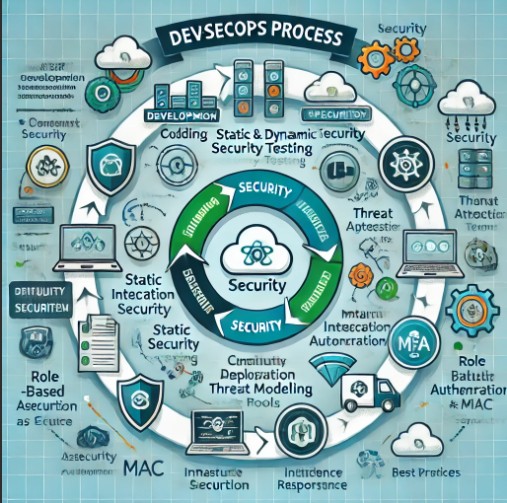
DevSecOps: What Is Security in the DevOps Process and Why Is It Important?

Introduction

In today’s fast-paced software development landscape, security is no longer an afterthought. DevSecOps-short for Development, Security, and Operations-ensures that security is embedded into every stage of the DevOps process. This proactive approach minimizes vulnerabilities, reduces risks, and streamlines compliance. But why is DevSecOps essential, and how can organizations implement it effectively? This article explores the concept, benefits, implementation strategies, and best practices of DevSecOps.

What Is DevSecOps?

Understanding DevSecOps

DevSecOps is an extension of DevOps that integrates security into the entire software development lifecycle (SDLC). It promotes collaboration between development, security, and operations teams to identify and mitigate security threats early in the development process.

Key Principles of DevSecOps

  • Security as Code: Automating security policies and configurations.
  • Shift-Left Approach: Implementing security measures early in the SDLC.
  • Continuous Monitoring: Detecting and responding to threats in real-time.
  • Collaboration and Shared Responsibility: Encouraging cross-functional teams to address security proactively.

Why Is Security Important in DevOps?

The Growing Need for DevSecOps

With cyber threats evolving rapidly, traditional security approaches are no longer sufficient. DevSecOps addresses security concerns by embedding protective measures throughout the DevOps pipeline, reducing the risk of vulnerabilities reaching production.

Benefits of DevSecOps

  1. Enhanced Security Posture: Identifying vulnerabilities early minimizes security risks.
  2. Faster Development Cycles: Automated security checks reduce delays.
  3. Compliance Assurance: Aligns with regulatory requirements such as GDPR, HIPAA, and ISO 27001.
  4. Cost Savings: Fixing security issues earlier is more cost-effective than post-deployment remediation.
  5. Improved Collaboration: Fosters a security-first culture across teams.

How to Implement DevSecOps

1. Integrating Security into CI/CD Pipelines

DevSecOps involves incorporating security controls into Continuous Integration/Continuous Deployment (CI/CD) workflows.

  • Static Application Security Testing (SAST): Scans code for vulnerabilities before deployment.
  • Dynamic Application Security Testing (DAST): Identifies runtime vulnerabilities.
  • Software Composition Analysis (SCA): Detects risks in open-source components.

2. Automating Security Testing

Automated security tools ensure that vulnerabilities are detected and mitigated efficiently.

  • Popular Security Automation Tools:
    • SonarQube (SAST)
    • OWASP ZAP (DAST)
    • Dependabot (SCA)

3. Using Infrastructure as Code (IaC) Security

  • Terraform Security Best Practices: Apply security policies in infrastructure configurations.
  • Cloud Security Posture Management (CSPM): Tools like Prisma Cloud and AWS Config monitor cloud environments.

4. Enforcing Access Control and Identity Management

  • Implement Role-Based Access Control (RBAC) to restrict unauthorized access.
  • Utilize Multi-Factor Authentication (MFA) for additional security.

5. Continuous Monitoring and Incident Response

  • Utilize Security Information and Event Management (SIEM) solutions for real-time threat detection.
  • Automate incident response workflows using SOAR (Security Orchestration, Automation, and Response) tools.

Real-World Examples of DevSecOps

Example 1: Securing a Web Application

  • Challenge: A fintech company deploying a banking app faces security vulnerabilities.
  • Solution: Integrating DevSecOps tools like SAST, DAST, and container security scans into the CI/CD pipeline.
  • Outcome: Early detection of security flaws reduces the risk of data breaches.

Example 2: Cloud Security in a DevOps Environment

  • Challenge: A SaaS provider migrates its services to the cloud but struggles with misconfigured permissions.
  • Solution: Implementing Infrastructure as Code (IaC) security scans and automated compliance checks.
  • Outcome: Reduced misconfiguration risks, ensuring compliance with security standards.

FAQs on DevSecOps

1. How is DevSecOps different from traditional security?

Unlike traditional security, which is applied at the end of development, DevSecOps integrates security throughout the SDLC, ensuring continuous risk mitigation.

2. Which tools are commonly used in DevSecOps?

Some popular DevSecOps tools include:

  • SAST: SonarQube, Checkmarx
  • DAST: OWASP ZAP, Burp Suite
  • Container Security: Aqua Security, Trivy
  • SIEM: Splunk, ELK Stack

3. Can DevSecOps be applied in small teams?

Yes. Small teams can leverage automated security tools and cloud-based security services to implement DevSecOps efficiently.

4. What are the challenges in implementing DevSecOps?

  • Resistance to change in development teams
  • Complexity in integrating security tools
  • Skills gap in security expertise
  • Balancing security with speed in deployments

5. How does DevSecOps support compliance?

DevSecOps ensures adherence to security regulations by automating compliance checks and maintaining audit logs for security assessments.

External Resources

Conclusion

DevSecOps is a transformative approach to secure software development. By embedding security into the DevOps lifecycle, organizations can proactively detect and mitigate vulnerabilities, reduce risks, and improve compliance. Implementing DevSecOps requires cultural, technical, and procedural changes, but the long-term benefits outweigh the challenges. Businesses looking to secure their DevOps processes should start by integrating security automation, enforcing access controls, and adopting continuous monitoring. Embracing DevSecOps is the key to achieving resilient, secure, and agile software development. Thank you for reading the DevopsRoles page!

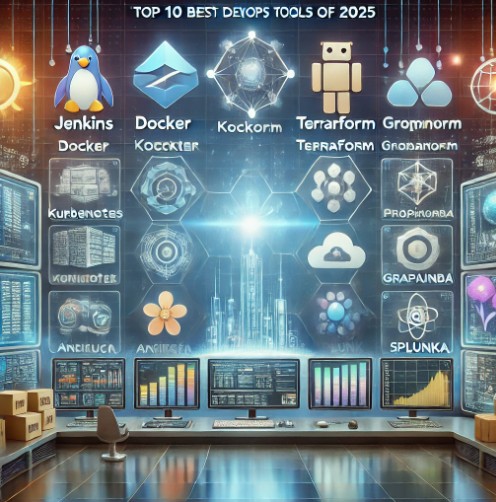
Top 10 Best DevOps Tools of 2025 – Don’t Miss Out

Introduction

DevOps has become an integral part of modern software development, enabling teams to enhance efficiency, automate workflows, and ensure seamless deployment. As technology evolves, new tools emerge to optimize DevOps pipelines. In this article, we explore the Top 10 Best DevOps Tools of 2025 that are reshaping the industry, covering their features, use cases, and why they stand out.

Top 10 Best DevOps Tools of 2025

1. Jenkins – The Continuous Integration Pioneer

Jenkins remains a cornerstone in DevOps, offering extensive automation capabilities for continuous integration and continuous deployment (CI/CD).

Key Features:

  • Open-source with a vast plugin ecosystem
  • Supports parallel builds
  • Integration with popular DevOps tools

Use Case:

Automating code testing and deployment to improve development speed.

2. Docker – Revolutionizing Containerization

Docker simplifies application deployment by packaging software into lightweight containers that run consistently across environments.

Key Features:

  • Platform-independent containerization
  • Scalable microservices architecture
  • Seamless CI/CD integration

Use Case:

Ensuring consistency in development, testing, and production environments.

3. Kubernetes – The Ultimate Container Orchestration Tool

Kubernetes automates the deployment, scaling, and operation of containerized applications.

Key Features:

  • Self-healing and auto-scaling
  • Rolling updates for zero-downtime deployments
  • Service discovery and load balancing

Use Case:

Managing large-scale containerized applications with minimal manual intervention.

4. Terraform – Infrastructure as Code (IaC) Leader

Terraform enables automated infrastructure provisioning using declarative configuration files.

Key Features:

  • Multi-cloud support (AWS, Azure, GCP)
  • Immutable infrastructure
  • Version control integration

Use Case:

Automating cloud resource provisioning and managing infrastructure efficiently.

5. GitHub Actions – CI/CD Directly in Your Repository

GitHub Actions allows DevOps teams to automate workflows within GitHub repositories.

Key Features:

  • Native CI/CD for GitHub repositories
  • Event-driven automation
  • Secure, fast, and scalable builds

Use Case:

Automating software testing and deployment with minimal configuration.

6. Ansible – Simplifying IT Automation

Ansible is an agentless automation tool that simplifies configuration management and application deployment.

Key Features:

  • YAML-based playbooks
  • Scalable automation
  • Security and compliance enforcement

Use Case:

Managing server configurations across multiple environments with ease.

7. Prometheus – Advanced Monitoring and Alerting

Prometheus is a leading open-source monitoring and alerting toolkit designed for reliability.

Key Features:

  • Time-series data collection
  • Powerful querying language (PromQL)
  • Integrates with Grafana for visualization

Use Case:

Monitoring cloud-based applications and infrastructure performance.

8. Grafana – Real-time Data Visualization

Grafana provides beautiful, interactive dashboards for monitoring and analytics.

Key Features:

  • Supports multiple data sources
  • Customizable alerts
  • User-friendly UI

Use Case:

Creating real-time dashboards for DevOps observability and insights.

9. Splunk – Log Management and Security

Splunk enables organizations to analyze machine data and logs for performance optimization and security.

Key Features:

  • AI-driven analytics
  • Security Information and Event Management (SIEM)
  • Automated alerting and insights

Use Case:

Detecting and mitigating security threats using AI-powered log analysis.

10. CircleCI – Scalable CI/CD for Teams

CircleCI accelerates software development with robust CI/CD pipelines and performance optimizations.

Key Features:

  • Container-native builds
  • Fast caching for speed improvements
  • Integrated debugging tools

Use Case:

Boosting software delivery speed through automated builds and deployments.

Frequently Asked Questions (FAQ)

1. What is the best DevOps tool for CI/CD?

Jenkins and GitHub Actions are the most widely used CI/CD tools, offering automation and seamless integration.

2. How does Kubernetes improve DevOps?

Kubernetes automates container orchestration, ensuring high availability, scalability, and self-healing infrastructure.

3. Which tool is best for infrastructure automation?

Terraform is the top choice for Infrastructure as Code (IaC), enabling automated cloud resource provisioning.

4. Why is monitoring important in DevOps?

Tools like Prometheus and Grafana provide real-time insights into system performance, helping teams proactively detect issues.

5. How can DevOps tools enhance security?

Splunk and Ansible offer security features such as automated compliance enforcement and AI-driven threat detection.

Conclusion

The Top 10 Best DevOps Tools of 2025 are transforming how teams develop, deploy, and manage software. Whether you need CI/CD, infrastructure automation, monitoring, or security solutions, these tools help streamline your DevOps workflows. By integrating these cutting-edge tools, organizations can improve efficiency, reliability, and innovation in software development. Thank you for reading the DevopsRoles page!

Recommended Readings:

Jenkins Security: Ensuring Safe CI/CD Pipelines

Introduction

Jenkins is one of the most widely used open-source automation tools for building, testing, and deploying software. However, as a cornerstone of continuous integration and delivery (CI/CD) pipelines, Jenkins must be properly secured to prevent potential breaches. In this guide, we’ll explore the essential aspects of Jenkins security, from setup best practices to advanced configurations, ensuring your pipelines are robust and safe.

Why Jenkins Security Matters

The Importance of CI/CD Security In today’s DevOps landscape, securing CI/CD pipelines is paramount. Breaches in Jenkins can lead to:

  • Unauthorized code changes.
  • Data leaks through exposed secrets.
  • Disruption of deployment processes.

A well-secured Jenkins environment mitigates these risks and ensures uninterrupted delivery.

Getting Started with Jenkins Security

Basic Security Configurations

Securing Jenkins Installation

  1. Install the Latest Version:
    • Always use the latest stable Jenkins release to leverage security patches.
    • Download from the official Jenkins site.
  2. Run Jenkins as a Dedicated User:
    • Avoid running Jenkins as a root user.
    • Set up a dedicated Jenkins user with limited permissions.

Network Security Basics

  • Restrict Jenkins to internal networks where possible.
  • Use a reverse proxy (e.g., NGINX or Apache) with SSL termination to encrypt traffic.

Authentication and Authorization

  1. Enable Matrix-based Security:
    • Go to Manage Jenkins > Configure Global Security.
    • Use the matrix-based security model to control user and group permissions.
  2. Integrate with an external authentication system:
    • Use LDAP, SSO, or Active Directory for centralized user management.

Advanced Jenkins Security Practices

Protecting Sensitive Data

Secrets Management

  • Use the Jenkins Credentials Plugin to securely store API keys, passwords, and certificates.
  • Avoid embedding secrets in job configurations or scripts.

Securing Build Nodes

  1. Limit build node access:
    • Restrict node connection through firewalls.
  2. Use agent-to-controller security:
    • Ensure that agents only communicate with the Jenkins controller over secured channels.

Sandbox Script Execution

  • Use the Groovy Sandbox to restrict the execution of untrusted code in pipeline scripts.
  • Regularly review pipeline scripts for security vulnerabilities.

Auditing and Monitoring Jenkins

Enable Audit Trails

  • Install the Audit Trail Plugin to log user actions.
  • Regularly review logs for suspicious activity.

Monitoring Plugins

  • Use the Prometheus Plugin for real-time monitoring and alerts.
  • Continuously update plugins to fix known vulnerabilities.

Jenkins Security in Action

Examples

Setting Up Role-Based Access Control (RBAC)

  1. Install the Role-Based Authorization Strategy Plugin.
  2. Create roles such as Admin, Developer, and Viewer.
  3. Assign roles based on the principle of least privilege.

Enforcing Secure Agent Connections

  1. Go to Manage Jenkins > Configure Global Security.
  2. Enable Agent-to-Controller Security.
  3. Use SSH for agent connections, ensuring private key authentication.

Securing Artifacts

  • Store build artifacts in a secure repository (e.g., Nexus or Artifactory).
  • Use encryption for sensitive artifacts.

FAQ Section

Frequently Asked Questions

How do I update Jenkins securely?

  • Use the Jenkins Update Center for plugin and core updates.
  • Verify the integrity of downloads using checksums.

Can I integrate Jenkins with a vulnerability scanner?

  • Yes, integrate tools like OWASP Dependency-Check or SonarQube to detect vulnerabilities during builds.

What is the best way to secure Jenkins pipelines?

  • Use the Groovy Sandbox, restrict pipeline script execution, and review pipeline configurations regularly.

External Resources

Additional Reading and Tools

Conclusion

Securing Jenkins is an ongoing process that requires regular updates, strict access controls, and proactive monitoring. By following the practices outlined in this guide, you can create a robust Jenkins environment, safeguarding your CI/CD pipelines against potential threats.

Take action today to enhance your Jenkins security and ensure a resilient software delivery process. Thank you for reading the DevopsRoles page!
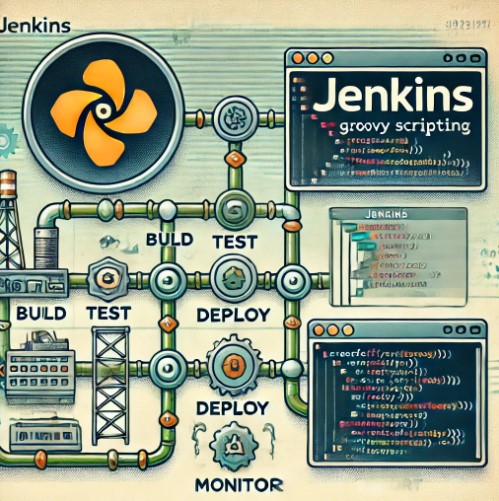
Jenkins Automation with Groovy Scripting

Introduction

Jenkins, a widely-used automation server, is a cornerstone of DevOps and Continuous Integration/Continuous Delivery (CI/CD) pipelines. Leveraging Groovy scripting, a dynamic language for the Java platform, empowers users to automate complex tasks, optimize workflows, and extend Jenkins functionalities seamlessly. This guide explores how to utilize Jenkins Automation with Groovy Scripting, providing practical insights and actionable examples.

Why Use Groovy Scripting in Jenkins?

Key Benefits

  • Flexibility: Groovy’s dynamic nature simplifies scripting tasks in Jenkins.
  • Integration: Seamlessly integrates with Jenkins plugins and Java libraries.
  • Efficiency: Automates repetitive tasks, reducing manual intervention.
  • Customization: Extends Jenkins’ default capabilities to fit unique project requirements.

Setting Up Jenkins for Groovy Scripting

Prerequisites

  1. Jenkins Installed: Ensure Jenkins is installed and running.
  2. Groovy Plugin: Install the Groovy plugin via Jenkins’ Plugin Manager.
  3. Java Development Kit (JDK): Groovy requires Java to function.

Configuring Jenkins

  1. Navigate to Manage Jenkins > Manage Plugins.
  2. Search for “Groovy” in the Available Plugins tab.
  3. Install and restart Jenkins to enable the plugin.

Groovy Scripting Basics

Syntax Overview

Groovy scripts are concise and easy to learn, especially if you’re familiar with Java. Below are basic constructs:

  • Variables: def message = "Hello, Jenkins!"
  • Loops: for (int i = 0; i < 10; i++) { println i }
  • Functions:
def greet(name) {
    return "Hello, $name!"
}
println greet("Jenkins User")

Automating Jenkins Tasks with Groovy

Example 1: Creating and Configuring a Job

Groovy Script:

import jenkins.model.*

// Create a new job
def jenkins = Jenkins.instance
String jobName = "MyFirstGroovyJob"
def job = jenkins.createProject(hudson.model.FreeStyleProject, jobName)

// Configure job properties
job.description = "This is a job created with Groovy scripting."
job.save()
println "Job $jobName created successfully!"

Example 2: Automating Build Trigger Configurations

Groovy Script:

import hudson.triggers.*

def job = Jenkins.instance.getItem("MyFirstGroovyJob")
job.addTrigger(new SCMTrigger("H/15 * * * *")) // Poll SCM every 15 minutes
job.save()
println "SCM trigger added to job successfully!"

Example 3: Deleting Old Build Artifacts

Groovy Script:

import jenkins.model.*

// Delete build artifacts older than 30 days
Jenkins.instance.getAllItems(Job).each { job ->
    job.builds.findAll { it.getTimeInMillis() < System.currentTimeMillis() - (30 * 24 * 60 * 60 * 1000) }.each {
        it.delete()
        println "Deleted build #${it.number} from ${job.name}"
    }
}

Advanced Jenkins Automation with Groovy

Scenario: Dynamic Parameterized Builds

Groovy Script:

import hudson.model.ParametersDefinitionProperty
import hudson.model.StringParameterDefinition

def job = Jenkins.instance.getItem("MyFirstGroovyJob")

def paramsDef = new ParametersDefinitionProperty(
    new StringParameterDefinition("ENV", "Development", "Target environment")
)

job.addProperty(paramsDef)
job.save()
println "Added dynamic parameters to job successfully!"

Scenario: Automating Plugin Installations

Groovy Script:

import jenkins.model.Jenkins
import jenkins.plugins.PluginManager

def plugins = ["git", "pipeline"]
def pm = Jenkins.instance.pluginManager

plugins.each { plugin ->
    if (!pm.getPlugin(plugin)) {
        pm.install(plugin)
        println "Installed plugin: $plugin"
    } else {
        println "Plugin already installed: $plugin"
    }
}

FAQ: Jenkins Automation with Groovy Scripting

What is Groovy scripting used for in Jenkins?

Groovy is used to automate tasks, customize jobs, and extend Jenkins’ functionalities beyond its GUI capabilities.

Can I run Groovy scripts directly in Jenkins?

Yes, you can execute scripts using Jenkins’ Script Console (Manage Jenkins > Script Console).

How do I debug Groovy scripts in Jenkins?

Use println statements for debugging and check logs under Manage Jenkins > System Log.

Is Groovy scripting secure?

Always validate and review scripts for security vulnerabilities, especially when handling sensitive data or running on shared servers.

External Resources

Conclusion

Groovy scripting transforms Jenkins from a robust CI/CD tool into a highly customizable automation powerhouse. Whether creating jobs, managing plugins, or automating workflows, Groovy empowers DevOps professionals to achieve unparalleled efficiency and scalability. Start integrating Groovy into your Jenkins pipelines today to unlock its full potential. Thank you for reading the DevopsRoles page!

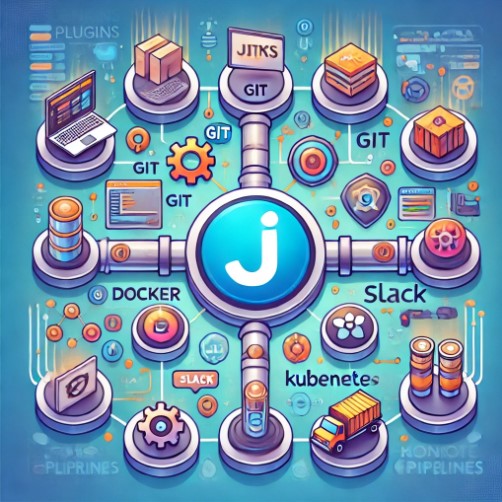
Jenkins Plugins: Unlocking the Power of CI/CD Pipelines

Introduction

In today’s fast-paced software development environment, achieving continuous integration and continuous delivery (CI/CD) is essential. Jenkins, a powerful open-source automation server, lies at the heart of many DevOps workflows. But to truly unlock its potential, Jenkins plugins are indispensable. These plugins expand Jenkins’ capabilities, enabling teams to build, test, and deploy with greater efficiency. This article explores how Jenkins plugins can improve your CI/CD pipelines, from basic configurations to advanced integrations.

Why Use Jenkins Plugins for CI/CD Pipelines?

Jenkins plugins act as extensions that enhance its functionality. With over 1,800 plugins available, developers can:

  • Integrate with version control systems like Git and Subversion.
  • Automate testing with tools like Selenium.
  • Enable containerized builds with Docker.
  • Secure pipelines with credential management tools.
  • Optimize workflows with real-time monitoring and reporting.

Whether you’re building a simple pipeline or managing complex deployments, plugins provide the flexibility and scalability to meet diverse needs.

Top Jenkins Plugins for CI/CD Pipelines

1. Git Plugin

The Git Plugin is essential for integrating Git repositories with Jenkins. It allows:

  • Pulling code from GitHub, GitLab, or Bitbucket.
  • Supporting branch-specific builds.
  • Triggering builds based on changes.

2. Pipeline Plugin

This plugin enables users to define jobs using code. Key features include:

  • Writing pipelines as code using Jenkinsfile.
  • Supporting complex workflows with parallel stages.
  • Enabling version-controlled pipeline configurations.

3. Blue Ocean Plugin

Blue Ocean offers a modern UI for Jenkins, simplifying pipeline visualization. Benefits include:

  • Intuitive interface for pipeline creation and monitoring.
  • Real-time feedback on pipeline status.
  • Easy debugging of failed stages.

4. Docker Plugin

For teams leveraging containerization, the Docker Plugin provides:

  • Building and publishing Docker images.
  • Running Jenkins agents in containers.
  • Managing Docker hosts directly from Jenkins.

5. Email Extension Plugin

This plugin enhances notification capabilities. Features include:

  • Configurable email templates.
  • Automated alerts for build statuses.
  • Integration with multiple mail servers.

6. Slack Notification Plugin

Communicate build statuses directly in Slack channels. Highlights:

  • Instant notifications for builds and deployments.
  • Customizable alerts.
  • Support for multiple Slack workspaces.

7. Credentials Binding Plugin

Enhance pipeline security by:

  • Managing secrets like API keys and passwords.
  • Injecting credentials into pipelines securely.
  • Supporting multiple credential formats.

Setting Up Jenkins Plugins for Your Pipeline

Step 1: Install a Plugin

  1. Navigate to Manage Jenkins > Plugin Manager.
  2. Search for the desired plugin in the “Available” tab.
  3. Click “Install without restart” or “Install and restart” for activation.

Step 2: Configure the Plugin

  • Go to Manage Jenkins > Configure System.
  • Locate the plugin’s configuration section.
  • Input required details like API tokens, repository URLs, or Docker configurations.

Step 3: Integrate with Your Pipeline

  • Update your Jenkinsfile to include plugin-specific stages or commands. For example:
pipeline {
    agent any
    stages {
        stage('Build') {
            steps {
                git branch: 'main', url: 'https://github.com/example/repo.git'
                docker.build('my-app')
            }
        }
        stage('Test') {
            steps {
                sh 'mvn test'
            }
        }
    }
}

Examples: From Basic to Advanced Scenarios

Basic Example: Git Integration

pipeline {
    agent any
    stages {
        stage('Clone Repository') {
            steps {
                git branch: 'main', url: 'https://github.com/example/repo.git'
            }
        }
        stage('Build') {
            steps {
                sh 'make build'
            }
        }
    }
}

Advanced Example: Multi-Container Deployment with Docker

pipeline {
    agent any
    stages {
        stage('Build Docker Image') {
            steps {
                script {
                    docker.build('my-app:latest')
                }
            }
        }
        stage('Deploy to Kubernetes') {
            steps {
                sh 'kubectl apply -f deployment.yaml'
            }
        }
    }
}

FAQ: Jenkins Plugins for Improved CI/CD Pipelines

1. What are Jenkins plugins?

Jenkins plugins are extensions that enhance its functionality, allowing integration with tools like Git, Docker, and Kubernetes.

2. How do I know which plugins to use?

Identify your CI/CD pipeline needs. Common requirements include version control, testing, containerization, and notifications.

3. Are plugins secure?

Official Jenkins plugins undergo rigorous testing. However, always review documentation and community feedback before installation.

4. Can plugins slow down Jenkins?

Excessive or poorly configured plugins may impact performance. Regularly audit and remove unused plugins.

5. How do I update plugins?

Go to Manage Jenkins > Plugin Manager, then check the “Updates” tab for available updates.

External Resources

Conclusion

Jenkins plugins are the cornerstone of efficient CI/CD pipelines. From version control integration to advanced container orchestration, they provide the tools necessary for modern DevOps workflows. By carefully selecting and configuring plugins, teams can achieve seamless automation, improved collaboration, and faster delivery cycles. Start exploring the vast ecosystem of Jenkins plugins today and elevate your CI/CD pipeline to new heights! Thank you for reading the DevopsRoles page!
Jenkins Install SSL Certificate: A Comprehensive Guide

Introduction

In today’s digital landscape, security is a critical concern for every application and service, especially when sensitive data is involved. Jenkins, a popular open-source automation server, is no exception. Whether you’re managing continuous integration or automating deployment pipelines, ensuring that Jenkins communicates securely over HTTPS is essential.

To achieve this, you need to jenkins install ssl certificate to secure your Jenkins server and protect data from unauthorized access. Installing an SSL certificate on Jenkins not only helps defend against potential attacks but also builds trust with users by ensuring data integrity during transmission. This guide will walk you through the process of jenkins install ssl certificate, from basic setup to more advanced configurations, while also addressing common issues and troubleshooting steps.

Why You Need SSL for Jenkins

Benefits of SSL/TLS Encryption

Before diving into the installation process, it’s important to understand the benefits of using SSL (Secure Sockets Layer) or TLS (Transport Layer Security) for Jenkins:

  • Data Encryption: SSL ensures that all data transferred between the Jenkins server and clients is encrypted, making it inaccessible to malicious actors.
  • Authentication: SSL certificates verify the identity of the server, ensuring users connect to the correct Jenkins instance.
  • Integrity: SSL guarantees that the data has not been tampered with during transmission.
  • Trust and Compliance: Many organizations require SSL to comply with data protection regulations and security best practices.

Now that we’ve established why SSL is necessary, let’s move on to the steps involved in installing an SSL certificate on Jenkins.

Prerequisites for Installing SSL on Jenkins

Before beginning the installation process, ensure that you meet the following prerequisites:

  • Access to Jenkins Server: You should have administrative access to the Jenkins server, either via SSH or the Jenkins web interface.
  • Java Keystore (JKS): Jenkins runs on Java, and SSL certificates are typically stored in a Java Keystore. You’ll need to have Java installed on your server.
  • SSL Certificate: You can either purchase an SSL certificate from a certificate authority (CA) or generate a self-signed certificate for testing purposes.

If you don’t already have an SSL certificate, you can generate a self-signed one using tools like OpenSSL or get a certificate from a trusted CA like Let’s Encrypt, Comodo, or DigiCert.

How to Install an SSL Certificate on Jenkins

Step 1: Generate or Obtain an SSL Certificate

If you don’t have an SSL certificate yet, follow these instructions:

Generating a Self-Signed SSL Certificate (for Testing)

If you only need SSL for internal use or testing, you can generate a self-signed certificate using OpenSSL. Here’s how:

  1. Open a terminal window on your Jenkins server.
  2. Run the following OpenSSL command to create a self-signed certificate:
    • openssl req -newkey rsa:2048 -nodes -keyout jenkins.key -x509 -days 365 -out jenkins.crt
    • This command generates two files: jenkins.key (the private key) and jenkins.crt (the certificate).

Purchasing and Installing a Certificate from a CA

If you’re using a certificate from a certificate authority, you’ll typically receive a .crt file and a private key. You may also receive intermediate certificates that need to be included in your keystore.

Step 2: Convert the SSL Certificate to a Java Keystore (JKS)

Jenkins requires that the SSL certificate be stored in a Java Keystore (JKS) format. You can convert your .crt and .key files into a keystore using the following steps:

  1. Combine the certificate and private key into a PKCS12 file (a format supported by Java):
    • openssl pkcs12 -export -in jenkins.crt -inkey jenkins.key -out jenkins.p12
    • This command will create a .p12 file containing both the certificate and the private key.
  2. Convert the .p12 file to a Java Keystore (JKS) format:
    • keytool -importkeystore -srckeystore jenkins.p12 -srcstoretype PKCS12 -destkeystore jenkins.jks
  3. Set the keystore password when prompted. The keystore will be created as jenkins.jks.

Step 3: Configure Jenkins to Use the SSL Certificate

Now that you have the keystore (jenkins.jks), you can configure Jenkins to use the SSL certificate.

  1. Locate Jenkins Configuration File: The Jenkins configuration file is usually located at /etc/default/jenkins or /etc/sysconfig/jenkins depending on your system.
  2. Edit the Jenkins Configuration File: Open the file in a text editor:
    • sudo nano /etc/default/jenkins
  3. Modify the Jenkins Port Configuration: Look for the following line and modify it to specify the keystore location and password:
    • JENKINS_ARGS="--httpPort=-1 --httpsPort=8443 --httpsKeyStore=/path/to/jenkins.jks --httpsKeyStorePassword=your_keystore_password"
    • Replace /path/to/jenkins.jks with the actual path to your keystore, and your_keystore_password with the password you set during the keystore creation.
  4. Restart Jenkins: After saving the configuration, restart Jenkins to apply the changes:
    • sudo systemctl restart jenkins

Advanced SSL Configuration for Jenkins

Setting Up SSL with Reverse Proxy (Nginx)

If you’re running Jenkins behind a reverse proxy like Nginx, you can handle SSL termination at the proxy level instead of configuring Jenkins directly.

  1. Install Nginx:
    • sudo apt-get install nginx
  2. Configure Nginx: Open the Nginx configuration file for your Jenkins server:
    • sudo nano /etc/nginx/sites-available/jenkins
  3. Add the following SSL configuration:
server {
    listen 443 ssl;
    server_name jenkins.yourdomain.com;

    ssl_certificate /etc/ssl/certs/jenkins.crt;
    ssl_certificate_key /etc/ssl/private/jenkins.key;

    location / {
        proxy_pass http://127.0.0.1:8080;
        proxy_set_header Host $host;
        proxy_set_header X-Real-IP $remote_addr;
        proxy_set_header X-Forwarded-For $proxy_add_x_forwarded_for;
        proxy_set_header X-Forwarded-Proto $scheme;
    }
}

Restart Nginx:

sudo systemctl restart nginx

Now, Jenkins will be available over HTTPS through the Nginx proxy.

    Troubleshooting Jenkins Install SSL Certificate Issues

    While SSL certificates are crucial for secure communication, the installation process might encounter issues. Here are some common problems and their solutions:

    Common Issues and Fixes

    1. Certificate Not Trusted: If your browser shows a security warning, ensure that you’ve added the correct intermediate certificates or are using a certificate from a trusted CA.
    2. Keystore Password Issues: Double-check that the password you provided in the Jenkins configuration matches the one used to create the keystore.
    3. Port Conflicts: Ensure that port 8443 (or the port you selected for HTTPS) is open and not being used by another service.

    FAQ: Jenkins SSL Certificate Installation

    1. Do I need an SSL certificate for Jenkins?

    Yes, especially if you are handling sensitive information. SSL ensures that data transferred between Jenkins and clients is encrypted and secure.

    2. Can I use a self-signed certificate?

    Yes, but it’s generally recommended to use a certificate from a trusted certificate authority for production environments to avoid security warnings in browsers.

    3. How do I configure Jenkins to redirect HTTP to HTTPS?

    You can configure Jenkins to redirect all HTTP traffic to HTTPS by modifying the jenkins.xml file or using a reverse proxy like Nginx.

    4. How can I verify that Jenkins is using SSL correctly?

    After installation, access Jenkins via https://your-jenkins-domain:8443 and check if the SSL certificate is properly recognized and secured by the browser.

    Conclusion

    Installing an SSL certificate on Jenkins is a crucial step to secure your automation environment. Whether you’re using a self-signed certificate for testing or a trusted certificate from a CA for production, following these steps will ensure that Jenkins communicates securely with clients. Always test your SSL setup to avoid common issues like certificate trust errors or port conflicts.

    By implementing SSL correctly, you’ll improve the security and trustworthiness of your Jenkins instance, protect sensitive data, and ensure compliance with industry best practices.

    For further reading and additional resources, consider exploring the official Jenkins documentation and SSL configuration guides on Let’s Encrypt. Thank you for reading the DevopsRoles page!

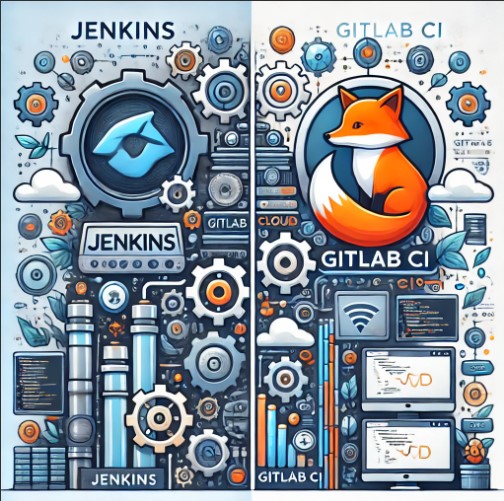
    Jenkins vs GitLab CI: Which to Choose?

    Introduction

    In the world of DevOps and continuous integration/continuous delivery (CI/CD), tools like Jenkins and GitLab CI have emerged as industry leaders. Both platforms streamline software development, automate workflows, and enhance team collaboration. But which one is better suited for your needs? In this article, we will dive deep into Jenkins vs GitLab CI, exploring their features, use cases, pros, and cons, to help you make an informed decision.

    Jenkins vs GitLab CI: An Overview

    What is Jenkins?

    Jenkins is an open-source automation server widely used for building, testing, and deploying applications. Known for its flexibility and extensive plugin ecosystem, Jenkins supports almost every programming language and toolchain. It’s an excellent choice for organizations seeking a customizable CI/CD solution.

    Key Features of Jenkins:

    • Open-source and highly extensible.
    • Over 1,800 plugins for diverse integrations.
    • Supports distributed builds across multiple nodes.
    • Active community support.

    What is GitLab CI?

    GitLab CI is a built-in CI/CD tool in GitLab, a web-based DevOps platform. Fully integrated with GitLab’s repository management system, it provides a seamless workflow for code versioning, testing, and deployment. GitLab CI is particularly appealing to teams already using GitLab for source control.

    Key Features of GitLab CI:

    • Native integration with GitLab repositories.
    • YAML-based pipeline configuration.
    • Built-in container registry and Kubernetes support.
    • Comprehensive analytics and monitoring tools.

    Key Differences Between Jenkins and GitLab CI

    FeatureJenkinsGitLab CI
    Ease of SetupRequires manual setup and configuration.Seamless setup as part of GitLab.
    Plugin EcosystemExtensive plugin ecosystem.Limited to GitLab’s native capabilities.
    ScalabilityHighly scalable with multiple nodes.Limited by GitLab’s infrastructure.
    User InterfaceLess intuitive, dated UI.Modern and user-friendly.
    IntegrationIntegrates with various tools via plugins.Limited to GitLab’s ecosystem.
    CostFree, but hosting can be costly.Free tier available; premium plans exist.

    Use Cases: When to Choose Jenkins or GitLab CI

    When to Use Jenkins

    1. Large, Complex Projects: Jenkins excels in managing large-scale pipelines with distributed builds.
    2. Diverse Toolchains: If your team uses multiple languages, frameworks, or custom tools, Jenkins’ plugin library ensures compatibility.
    3. Custom Solutions: Jenkins is ideal for teams that require highly customized CI/CD workflows.

    When to Use GitLab CI

    1. Small to Medium Projects: GitLab CI is a great choice for teams looking for simplicity and seamless integration.
    2. GitLab Users: Teams already using GitLab for version control benefit from its native CI/CD capabilities.
    3. Kubernetes Deployments: GitLab CI simplifies containerized deployments with its built-in Kubernetes support.

    Setting Up Jenkins and GitLab CI: Step-by-Step

    Setting Up Jenkins

    1. Install Jenkins:
    1. Install Required Plugins:
    • Use Jenkins’ Plugin Manager to install essential plugins like Git, Docker, and Pipeline.
    1. Configure Jenkins:
    • Create new jobs and define build pipelines using the DSL (Domain-Specific Language).
    1. Run Your Pipeline:
    • Test and execute your build pipelines on Jenkins.

    Setting Up GitLab CI

    1. Create a Repository:
    • Create or use an existing repository on GitLab.
    1. Define a .gitlab-ci.yml File:
    • Write pipeline configurations in the YAML file.
    1. Run the Pipeline:
    • Commit the file to trigger the pipeline.
    1. Monitor Pipelines:
    • Use GitLab’s UI to view pipeline statuses and logs.

    Examples: Jenkins vs GitLab CI in Action

    Jenkins Pipeline Example

    pipeline {
        agent any
        stages {
            stage('Build') {
                steps {
                    echo 'Building...'
                }
            }
            stage('Test') {
                steps {
                    echo 'Testing...'
                }
            }
            stage('Deploy') {
                steps {
                    echo 'Deploying...'
                }
            }
        }
    }

    GitLab CI Pipeline Example

    stages:
      - build
      - test
      - deploy
    
    build_job:
      stage: build
      script:
        - echo "Building..."
    
    test_job:
      stage: test
      script:
        - echo "Testing..."
    
    deploy_job:
      stage: deploy
      script:
        - echo "Deploying..."
    

    FAQ: Frequently Asked Questions

    Is Jenkins free to use?

    Yes, Jenkins is open-source and free to use. However, hosting and maintenance costs may apply.

    Does GitLab CI support third-party integrations?

    While GitLab CI has fewer integrations than Jenkins, it supports popular tools like Docker, Kubernetes, and Prometheus.

    Can Jenkins work with GitLab repositories?

    Yes, Jenkins can integrate with GitLab repositories using the GitLab plugin.

    Which is better for Kubernetes deployments?

    GitLab CI provides built-in Kubernetes support, making it more straightforward for containerized environments.

    Conclusion

    Choosing between Jenkins and GitLab CI depends on your project’s complexity, team size, and existing infrastructure. Jenkins shines in flexibility and scalability, making it perfect for complex projects. On the other hand, GitLab CI offers a seamless, user-friendly experience for teams already using GitLab. By understanding their strengths and limitations, you can select the CI/CD tool that best suits your needs.

    For further reading, explore the official Jenkins documentation and GitLab CI documentation.  Thank you for reading the DevopsRoles page!
    Jenkins Setup: A Comprehensive Guide to Installation and Configuration

    Introduction

    Jenkins, a powerful automation server, is widely used in software development for continuous integration (CI) and continuous delivery (CD). With Jenkins, teams can automate build, test, and deployment workflows, ensuring faster and more efficient development cycles. This guide provides a step-by-step approach to Jenkins setup and installation, tailored for both beginners and advanced users.

    Why Jenkins?

    Jenkins plays a pivotal role in CI/CD pipelines, helping teams deploy code faster, reduce errors, and maintain consistency. This guide will cover the installation, configuration, and best practices for Jenkins, making it easier for development teams to automate processes effectively.

    Prerequisites for Jenkins Installation

    Before starting the installation, ensure your system meets the following prerequisites:

    • Java Development Kit (JDK): Jenkins requires Java to run. Install the latest JDK (Java Development Kit) for compatibility.
    • Server Access: For production environments, ensure you have root or admin access for installation.
    • Ports and Firewalls: Jenkins typically runs on port 8080, so ensure this port is open in your firewall settings.

    Installing Jenkins on Different Platforms

    Installing Jenkins on Windows

    1. Download Jenkins: Visit the Jenkins download page and select the Windows installer.
    2. Run the Installer: Open the installer and follow the instructions. Jenkins will install as a Windows service.
    3. Set Java Path: If required, configure your Java path to ensure Jenkins can locate the JDK.
    4. Access Jenkins: Once installation is complete, Jenkins can be accessed at http://localhost:8080 in your browser.

    Installing Jenkins on macOS

    Install Homebrew: For a simplified installation, use Homebrew on macOS.

    /bin/bash -c "$(curl -fsSL https://raw.githubusercontent.com/Homebrew/install/HEAD/install.sh)"

    Install Jenkins: Use Homebrew to install Jenkins.

    brew install jenkins-lts

    Start Jenkins:

    brew services start jenkins-lts

    Verify Installation: Access Jenkins via http://localhost:8080 in your web browser.

    Installing Jenkins on Linux

    For Debian/Ubuntu and Red Hat-based systems, the steps differ slightly.

    Debian/Ubuntu

    Add Jenkins Repository:

    curl -fsSL https://pkg.jenkins.io/debian/jenkins.io.key | sudo tee \
      /usr/share/keyrings/jenkins-keyring.asc > /dev/null
    sudo sh -c 'echo deb [signed-by=/usr/share/keyrings/jenkins-keyring.asc] \
      https://pkg.jenkins.io/debian binary/ > \
      /etc/apt/sources.list.d/jenkins.list'
    

    Update Packages and Install Jenkins:

    sudo apt update
    sudo apt install jenkins
    

    Start Jenkins:

    sudo systemctl start jenkins
    

    Verify Installation: Access Jenkins at http://localhost:8080

    Red Hat/CentOS

    Add Jenkins Repository:

    sudo wget -O /etc/yum.repos.d/jenkins.repo \
      https://pkg.jenkins.io/redhat-stable/jenkins.repo
    sudo rpm --import https://pkg.jenkins.io/redhat-stable/jenkins.io.key
    

    Install Jenkins:

    sudo yum install jenkins
    

    Start Jenkins:

    sudo systemctl start jenkins

    Configuring Jenkins

    Initial Setup Wizard

    When you access Jenkins for the first time, an initial setup wizard will guide you through basic configurations:

    1. Unlock Jenkins: Use the administrator password found in /var/lib/jenkins/secrets/initialAdminPassword.
    2. Install Suggested Plugins: Jenkins offers a list of essential plugins to install by default, such as Git, Maven, and Pipeline.
    3. Create an Admin User: Set up an admin account for secure access.
    4. Configure Instance Settings: Define your Jenkins instance settings, such as URL, mail server, and security settings.

    Configuring Security

    1. Enable Authentication: Set up user accounts to restrict access.
    2. Configure Authorization: Use Jenkins’s matrix-based security for fine-grained access control.
    3. Enable HTTPS: Secure Jenkins with HTTPS by configuring SSL certificates.

    Setting Up Jenkins for Continuous Integration

    1. Install CI/CD Plugins: Go to Manage Jenkins > Manage Plugins and install necessary CI/CD plugins, like Git, Docker, and Kubernetes.
    2. Configure Build Jobs:
      • Go to New Item > Freestyle project.
      • Configure the source code repository, build triggers, and steps.
    3. Automate Builds:
      • Set up automated builds on code changes using GitHub or GitLab webhooks.
      • Configure post-build actions, such as email notifications or automated deployment.

    Jenkins Advanced Setup

    Pipeline as Code with Jenkinsfile

    The Jenkins Pipeline allows you to define CI/CD steps in a Jenkinsfile:

    pipeline {
        agent any
        stages {
            stage('Build') {
                steps {
                    echo 'Building...'
                    sh 'mvn clean install'
                }
            }
            stage('Test') {
                steps {
                    echo 'Testing...'
                    sh 'mvn test'
                }
            }
            stage('Deploy') {
                steps {
                    echo 'Deploying...'
                }
            }
        }
    }
    

    Integrating Jenkins with Kubernetes

    To set up Jenkins in Kubernetes, use Jenkins’s Helm chart, which simplifies deployment in a Kubernetes environment. This allows Jenkins to scale based on workload demands.

    Troubleshooting Jenkins Setup Issues

    • Port Conflicts: Ensure port 8080 is available or configure Jenkins to use an alternative port.
    • Java Version Issues: Verify Jenkins is compatible with your installed JDK version.
    • Plugin Conflicts: Occasionally, incompatible plugins can cause issues. Disable unnecessary plugins and update regularly.

    FAQ Section

    How do I install Jenkins?

    Refer to the platform-specific installation steps provided in this guide for detailed instructions.

    What is a Jenkinsfile?

    A Jenkinsfile is a text file containing the instructions for Jenkins Pipeline, enabling pipeline-as-code functionality.

    Can Jenkins integrate with Docker?

    Yes, Jenkins has a Docker plugin that allows it to build and deploy Docker images.

    Conclusion

    This guide covered everything from Jenkins installation to advanced configurations for CI/CD pipelines. Jenkins is a powerful tool that enhances software delivery, and by following this guide, you can optimize your workflows and streamline your development processes.

    For further details, consult the official Jenkins documentation, which provides in-depth tutorials and resources for advanced setups. Thank you for reading the DevopsRoles page!

    Understanding CI/CD Pipelines: Streamlining Your Development Workflow

    Introduction

    In today’s fast-paced software development world, efficient workflows are key to maintaining quality and competitiveness. CI/CD (Continuous Integration and Continuous Deployment) pipelines are foundational in this regard. They enable teams to automate testing, building, and deployment, reducing errors and delivering reliable software to users more quickly. This article will provide a comprehensive guide on CI/CD pipelines, covering fundamental concepts, best practices, and practical examples to help streamline your development process.

    What is a CI/CD Pipeline?

    A CI/CD pipeline is a series of automated steps that streamline code integration, testing, and deployment. This approach helps teams collaborate more effectively, reduce human errors, and accelerate the release cycle. CI/CD pipelines are commonly associated with Agile and DevOps practices, where speed and accuracy are crucial.

    Key Benefits of CI/CD Pipelines

    1. Faster Deployment Cycles: Automation reduces time between code commits and deployment.
    2. Improved Code Quality: Continuous testing identifies and resolves errors early.
    3. Greater Collaboration: Automating mundane tasks frees developers to focus on high-impact work.
    4. Reduced Human Errors: Automation decreases the risk of missed steps or overlooked errors.
    5. Enhanced User Satisfaction: Faster updates and bug fixes improve user experience.

    Key Components of CI/CD Pipelines

    CI/CD pipelines involve several stages and components, each responsible for a specific task in the process of building, testing, and deploying code. Here’s a look at the main components:

    1. Continuous Integration (CI)

    Continuous Integration is the practice of frequently merging all code changes into a shared repository. The CI process often includes automated testing to ensure code quality before it reaches production. Benefits of CI include:

    • Detecting Bugs Early: Frequent integration reveals bugs as soon as they’re introduced.
    • Consistent Builds: Automated builds create a predictable and stable development environment.

    2. Continuous Delivery (CD)

    In Continuous Delivery, code changes are automatically deployed to a staging or testing environment. This step ensures that the code is deployable at any given time. Benefits of CD include:

    • Reliable Releases: Code can be deployed to production with confidence.
    • Reduced Manual Effort: Deployment is automated, reducing the risk of human error.

    3. Continuous Deployment (CD)

    Continuous Deployment takes Continuous Delivery a step further by automatically deploying code to the production environment after passing testing. This setup allows for:

    • Frequent Releases: Small, incremental updates reduce the impact of changes.
    • Higher Responsiveness: Bug fixes and new features reach users quickly.

    Setting Up a CI/CD Pipeline

    Creating a CI/CD pipeline involves several key stages. Below is an example of how a basic CI/CD pipeline might be structured:

    Step 1: Source Control Management

    The first step is setting up a version control system, such as Git, where all code changes are stored. A typical workflow includes:

    1. Developers commit code changes to the repository.
    2. A trigger is activated to initiate the pipeline upon each commit.

    Step 2: Build Automation

    After committing code, the next stage involves automatically building the application to identify integration issues early. Here’s what happens:

    1. Compilation: The code is compiled into an executable.
    2. Dependency Management: Required libraries are included.

    Step 3: Automated Testing

    This stage is critical to ensure that changes don’t introduce bugs. There are several types of tests commonly used in CI/CD pipelines:

    • Unit Testing: Tests individual components or functions.
    • Integration Testing: Ensures different parts of the application work together.
    • End-to-End Testing: Simulates real-world scenarios to test application behavior.

    Step 4: Deployment to Staging

    After testing, the code is automatically deployed to a staging environment, simulating a production-like environment to catch potential issues.

    Step 5: Production Deployment

    In Continuous Deployment, if all previous stages succeed, the code is automatically deployed to production, making it available to users.

    Examples of CI/CD Pipelines

    Example 1: Basic CI Pipeline with GitHub Actions

    Let’s walk through a simple CI pipeline using GitHub Actions to automate testing and code quality checks:

    name: CI Pipeline
    
    on:
    push:
    branches:
    - main
    
    jobs:
    build:
    runs-on: ubuntu-latest
    steps:
    - name: Checkout code
    uses: actions/checkout@v2
    
      - name: Set up Node.js
        uses: actions/setup-node@v2
        with:
          node-version: '14'
    
      - name: Install dependencies
        run: npm install
    
      - name: Run tests
        run: npm test

    Example 2: CI/CD Pipeline with Jenkins

    For more advanced automation, Jenkins is a popular open-source tool that integrates seamlessly with CI/CD workflows. Here’s an overview of a basic Jenkins pipeline:

    1. Jenkins watches the repository for new commits.
    2. On detecting a new commit, Jenkins pulls the latest code and builds the application.
    3. Jenkins runs the test suite and, if all tests pass, deploys the code to a staging environment.

    Best Practices for CI/CD Pipelines

    Implementing CI/CD effectively requires some best practices to ensure scalability and maintainability. Here are key recommendations:

    1. Automate Everything: From testing to deployment, automation reduces human error and increases efficiency.
    2. Build in Small Batches: Small, frequent changes are easier to manage and less risky.
    3. Monitor Performance: Use monitoring tools to track pipeline performance.
    4. Version Control Pipeline Scripts: Storing pipeline configurations in version control helps track changes and revert if necessary.
    5. Use Environment-Specific Configurations: Separate configurations for development, staging, and production.

    Frequently Asked Questions

    What is the difference between CI and CD?

    CI (Continuous Integration) involves regularly integrating code changes into a shared repository, while CD (Continuous Delivery or Deployment) ensures that code is always ready for deployment, and in Continuous Deployment, it is deployed to production automatically.

    How can CI/CD improve software development?

    CI/CD automates testing, building, and deployment processes, which reduces errors, accelerates release cycles, and enables development teams to focus on delivering high-quality features.

    Which tools are commonly used for CI/CD?

    Popular tools include Jenkins, GitLab CI/CD, GitHub Actions, Travis CI, and CircleCI.

    Is CI/CD only for large teams?

    No, CI/CD can benefit teams of all sizes. For smaller teams, CI/CD pipelines simplify processes, while larger teams gain efficiency and scalability.

    External Resources

    For more on CI/CD, check out these authoritative sources:

    Conclusion

    CI/CD pipelines are essential for any development team aiming to accelerate software delivery without compromising quality. By automating testing, building, and deployment processes, CI/CD not only improves collaboration but also reduces human error, enabling teams to release updates faster. Whether you’re a small startup or a large enterprise, understanding and implementing a CI/CD pipeline can transform your development workflow. Use this guide as a foundation, and start implementing CI/CD best practices to see the benefits in action. Thank you for reading the DevopsRoles page!