Streamlining Your Workflow: How to Automate Container Security Audits with Docker Scout & Python

In the modern software development lifecycle, containers have become the de facto standard for packaging and deploying applications. Their portability and consistency offer immense benefits, but they also introduce a complex new layer for security management. As development velocity increases, manually inspecting every container image for vulnerabilities is not just inefficient; it’s impossible. This is where the practice of automated container security audits becomes a critical component of a robust DevSecOps strategy. This article provides a comprehensive, hands-on guide for developers, DevOps engineers, and security professionals on how to leverage the power of Docker Scout and the versatility of Python to build an automated security auditing workflow, ensuring vulnerabilities are caught early and consistently.

Understanding the Core Components: Docker Scout and Python

Before diving into the automation scripts, it’s essential to understand the two key technologies that form the foundation of our workflow. Docker Scout provides the security intelligence, while Python acts as the automation engine that glues everything together.

What is Docker Scout?

Docker Scout is an advanced software supply chain management tool integrated directly into the Docker ecosystem. Its primary function is to provide deep insights into the contents and security posture of your container images. It goes beyond simple vulnerability scanning by offering a multi-faceted approach to security.

  • Vulnerability Scanning: At its core, Docker Scout analyzes your image layers against an extensive database of Common Vulnerabilities and Exposures (CVEs). It provides detailed information on each vulnerability, including its severity (Critical, High, Medium, Low), the affected package, and the version that contains a fix.
  • Software Bill of Materials (SBOM): Scout automatically generates a detailed SBOM for your images. An SBOM is a complete inventory of all components, libraries, and dependencies within your software. This is crucial for supply chain security, allowing you to quickly identify if you’re affected by a newly discovered vulnerability in a transitive dependency.
  • Policy Evaluation: For teams, Docker Scout offers a powerful policy evaluation engine. You can define rules, such as “fail any build with critical vulnerabilities” or “alert on packages with non-permissive licenses,” and Scout will automatically enforce them.
  • Cross-Registry Support: While deeply integrated with Docker Hub, Scout is not limited to it. It can analyze images from various other registries, including Amazon ECR, Artifactory, and even local images on your machine, making it a versatile tool for diverse environments. You can find more details in the official Docker Scout documentation.

Why Use Python for Automation?

Python is the language of choice for DevOps and automation for several compelling reasons. Its simplicity, combined with a powerful standard library and a vast ecosystem of third-party packages, makes it ideal for scripting complex workflows.

  • Simplicity and Readability: Python’s clean syntax makes scripts easy to write, read, and maintain, which is vital for collaborative DevOps environments.
  • Powerful Standard Library: Modules like subprocess (for running command-line tools), json (for parsing API and tool outputs), and os (for interacting with the operating system) are included by default.
  • Rich Ecosystem: Libraries like requests for making HTTP requests to APIs (e.g., posting alerts to Slack or Jira) and pandas for data analysis make it possible to build sophisticated reporting and integration pipelines.
  • Platform Independence: Python scripts run consistently across Windows, macOS, and Linux, which is essential for teams using different development environments.

Setting Up Your Environment for Automated Container Security Audits

To begin, you need to configure your local machine to run both Docker Scout and the Python scripts we will develop. This setup process is straightforward and forms the bedrock of our automation.

Prerequisites

Ensure you have the following tools installed and configured on your system:

  1. Docker Desktop: You need a recent version of Docker Desktop (for Windows, macOS, or Linux). Docker Scout is integrated directly into Docker Desktop and the Docker CLI.
  2. Python 3.x: Your system should have Python 3.6 or a newer version installed. You can verify this by running python3 --version in your terminal.
  3. Docker Account: You need a Docker Hub account. While much of Scout’s local analysis is free, full functionality and organizational features require a subscription.
  4. Docker CLI Login: You must be authenticated with the Docker CLI. Run docker login and enter your credentials.

Enabling Docker Scout

Docker Scout is enabled by default in recent versions of Docker Desktop. You can verify its functionality by running a basic command against a public image:

docker scout cves nginx:latest

This command will fetch the vulnerability data for the latest NGINX image and display it in your terminal. If this works, your environment is ready.

Installing Necessary Python Libraries

For our scripts, we won’t need many external libraries initially, as we’ll rely on Python’s standard library. However, for more advanced reporting, the requests library is invaluable for API integrations.

Install it using pip:

pip install requests

A Practical Guide to Automating Docker Scout with Python

Now, let’s build the Python script to automate our container security audits. We’ll start with a basic script to trigger a scan and parse the results, then progressively add more advanced logic for policy enforcement and reporting.

The Automation Workflow Overview

Our automated process will follow these logical steps:

  1. Target Identification: The script will accept a container image name and tag as input.
  2. Scan Execution: It will use Python’s subprocess module to execute the docker scout cves command.
  3. Output Parsing: The command will be configured to output in JSON format, which is easily parsed by Python.
  4. Policy Analysis: The script will analyze the parsed data against a predefined set of security rules (our “policy”).
  5. Result Reporting: Based on the analysis, the script will produce a clear pass/fail result and a summary report.

Step 1: Triggering a Scan via Python’s `subprocess` Module

The subprocess module is the key to interacting with command-line tools from within Python. We’ll use it to run Docker Scout and capture its output.

Here is a basic Python script, audit_image.py, to achieve this:


import subprocess
import json
import sys

def run_scout_scan(image_name):
    """
    Runs the Docker Scout CVE scan on a given image and returns the JSON output.
    """
    if not image_name:
        print("Error: Image name not provided.")
        return None

    command = [
        "docker", "scout", "cves", image_name, "--format", "json", "--only-severity", "critical,high"
    ]
    
    print(f"Running scan on image: {image_name}...")
    
    try:
        result = subprocess.run(
            command,
            capture_output=True,
            text=True,
            check=True
        )
        # The JSON output might have multiple JSON objects, we are interested in the vulnerability list
        # We find the line that starts with '{"vulnerabilities":'
        for line in result.stdout.splitlines():
            if '"vulnerabilities"' in line:
                return json.loads(line)
        return {"vulnerabilities": []} # Return empty list if no vulnerabilities found
    except subprocess.CalledProcessError as e:
        print(f"Error running Docker Scout: {e}")
        print(f"Stderr: {e.stderr}")
        return None
    except json.JSONDecodeError as e:
        print(f"Error parsing JSON output: {e}")
        return None

if __name__ == "__main__":
    if len(sys.argv) < 2:
        print("Usage: python audit_image.py ")
        sys.exit(1)
        
    target_image = sys.argv[1]
    scan_results = run_scout_scan(target_image)
    
    if scan_results:
        print("\nScan complete. Raw JSON output:")
        print(json.dumps(scan_results, indent=2))

How to run it:

python audit_image.py python:3.9-slim

Explanation:

  • The script takes the image name as a command-line argument.
  • It constructs the docker scout cves command. We use --format json to get machine-readable output and --only-severity critical,high to focus on the most important threats.
  • subprocess.run() executes the command. capture_output=True captures stdout and stderr, and check=True raises an exception if the command fails.
  • The script then parses the JSON output and prints it. The logic specifically looks for the line containing the vulnerability list, as the Scout CLI can sometimes output other status information. For more detailed information on the module, consult the official Python `subprocess` documentation.

Step 2: Implementing a Custom Security Policy

Simply listing vulnerabilities is not enough; we need to make a decision based on them. This is where a security policy comes in. Our policy will define the acceptable risk level.

Let’s define a simple policy: The audit fails if there is one or more CRITICAL vulnerability OR more than five HIGH vulnerabilities.

We’ll add a function to our script to enforce this policy.


# Add this function to audit_image.py

def analyze_results(scan_data, policy):
    """
    Analyzes scan results against a defined policy and returns a pass/fail status.
    """
    if not scan_data or "vulnerabilities" not in scan_data:
        print("No vulnerability data to analyze.")
        return "PASS", "No vulnerabilities found or data unavailable."

    vulnerabilities = scan_data["vulnerabilities"]
    
    # Count vulnerabilities by severity
    severity_counts = {"CRITICAL": 0, "HIGH": 0}
    for vuln in vulnerabilities:
        severity = vuln.get("severity")
        if severity in severity_counts:
            severity_counts[severity] += 1
            
    print(f"\nAnalysis Summary:")
    print(f"- Critical vulnerabilities found: {severity_counts['CRITICAL']}")
    print(f"- High vulnerabilities found: {severity_counts['HIGH']}")

    # Check against policy
    fail_reasons = []
    if severity_counts["CRITICAL"] > policy["max_critical"]:
        fail_reasons.append(f"Exceeded max critical vulnerabilities (found {severity_counts['CRITICAL']}, max {policy['max_critical']})")
    
    if severity_counts["HIGH"] > policy["max_high"]:
        fail_reasons.append(f"Exceeded max high vulnerabilities (found {severity_counts['HIGH']}, max {policy['max_high']})")

    if fail_reasons:
        return "FAIL", ". ".join(fail_reasons)
    else:
        return "PASS", "Image meets the defined security policy."

# Modify the `if __name__ == "__main__":` block

if __name__ == "__main__":
    if len(sys.argv) < 2:
        print("Usage: python audit_image.py ")
        sys.exit(1)
        
    target_image = sys.argv[1]
    
    # Define our security policy
    security_policy = {
        "max_critical": 0,
        "max_high": 5
    }
    
    scan_results = run_scout_scan(target_image)
    
    if scan_results:
        status, message = analyze_results(scan_results, security_policy)
        print(f"\nAudit Result: {status}")
        print(f"Details: {message}")
        
        # Exit with a non-zero status code on failure for CI/CD integration
        if status == "FAIL":
            sys.exit(1)

Now, when you run the script, it will not only list the vulnerabilities but also provide a clear PASS or FAIL verdict. The non-zero exit code on failure is crucial for CI/CD pipelines, as it will cause the build step to fail automatically.

Integrating Automated Audits into Your CI/CD Pipeline

The true power of this automation script is realized when it’s integrated into a CI/CD pipeline. This “shifts security left,” enabling developers to get immediate feedback on the security of the images they build, long before they reach production.

Below is a conceptual example of how to integrate our Python script into a GitHub Actions workflow. This workflow builds a Docker image and then runs our audit script against it.

Example: GitHub Actions Workflow

Create a file named .github/workflows/security_audit.yml in your repository:


name: Docker Image Security Audit

on:
  push:
    branches: [ "main" ]
  pull_request:
    branches: [ "main" ]

jobs:
  build-and-audit:
    runs-on: ubuntu-latest
    steps:
      - name: Checkout repository
        uses: actions/checkout@v3

      - name: Set up Docker Buildx
        uses: docker/setup-buildx-action@v2

      - name: Login to Docker Hub
        uses: docker/login-action@v2
        with:
          username: ${{ secrets.DOCKERHUB_USERNAME }}
          password: ${{ secrets.DOCKERHUB_TOKEN }}

      - name: Build and push Docker image
        id: docker_build
        uses: docker/build-push-action@v4
        with:
          context: .
          file: ./Dockerfile
          push: true
          tags: ${{ secrets.DOCKERHUB_USERNAME }}/myapp:${{ github.sha }}

      - name: Setup Python
        uses: actions/setup-python@v4
        with:
          python-version: '3.9'

      - name: Run Container Security Audit
        run: |
          # Assuming your script is in a 'scripts' directory
          python scripts/audit_image.py ${{ secrets.DOCKERHUB_USERNAME }}/myapp:${{ github.sha }}

Key aspects of this workflow:

  • It triggers on pushes and pull requests to the main branch.
  • It logs into Docker Hub using secrets stored in GitHub.
  • The docker/build-push-action builds the image from a Dockerfile and pushes it to a registry. This is necessary for Docker Scout to analyze it effectively in a CI environment.
  • Finally, it runs our audit_image.py script. If the script exits with a non-zero status code (as we programmed it to do on failure), the entire workflow will fail, preventing the insecure code from being merged. This creates a critical security gate in the development process, aligning with best practices for CI/CD security.

Frequently Asked Questions (FAQ)

Can I use Docker Scout for images that are not on Docker Hub?

Yes. Docker Scout is designed to be registry-agnostic. You can analyze local images on your machine simply by referencing them (e.g., my-local-app:latest). For CI/CD environments and team collaboration, you can connect Docker Scout to other popular registries like Amazon ECR, Google Artifact Registry, and JFrog Artifactory to gain visibility across your entire organization.

Is Docker Scout a free tool?

Docker Scout operates on a freemium model. The free tier, included with a standard Docker account, provides basic vulnerability scanning and SBOM generation for local images and Docker Hub public images. For advanced features like central policy management, integration with multiple private registries, and detailed supply chain insights, a paid Docker Business subscription is required.

What is an SBOM and why is it important for container security?

SBOM stands for Software Bill of Materials. It is a comprehensive, machine-readable inventory of all software components, dependencies, and libraries included in an application or, in this case, a container image. Its importance has grown significantly as software supply chains have become more complex. An SBOM allows organizations to quickly and precisely identify all systems affected by a newly discovered vulnerability in a third-party library, drastically reducing response time and risk exposure.

How does Docker Scout compare to other open-source tools like Trivy or Grype?

Tools like Trivy and Grype are excellent, widely-used open-source vulnerability scanners. Docker Scout’s key differentiators lie in its deep integration with the Docker ecosystem (Docker Desktop, Docker Hub) and its focus on the developer experience. Scout provides remediation advice directly in the developer’s workflow and expands beyond just CVE scanning to offer holistic supply chain management features, including policy enforcement and deeper package metadata analysis, which are often premium features in other platforms.

Conclusion

In a world of continuous delivery and complex software stacks, manual security checks are no longer viable. Automating your container security audits is not just a best practice; it is a necessity for maintaining a strong security posture. By combining the deep analytical power of Docker Scout with the flexible automation capabilities of Python, teams can create a powerful, customized security gate within their CI/CD pipelines. This proactive approach ensures that vulnerabilities are identified and remediated early in the development cycle, reducing risk, minimizing costly fixes down the line, and empowering developers to build more secure applications from the start. The journey into automated container security audits begins with a single script, and the framework outlined here provides a robust foundation for building a comprehensive and effective DevSecOps program.Thank you for reading the DevopsRoles page!
Ansible Lightspeed: Supercharging Your Automation with Generative AI

In the world of IT automation, complexity is a constant challenge. As infrastructures scale and technology stacks diversify, the time and expertise required to write, debug, and maintain effective automation workflows grow exponentially. DevOps engineers, system administrators, and developers often spend significant hours wrestling with YAML syntax, searching for the correct module parameters, and ensuring their Ansible Playbooks adhere to best practices. This manual effort can slow down deployments, introduce errors, and create a steep learning curve for new team members. This is the precise problem that Ansible Lightspeed, powered by IBM watsonx Code Assistant, is designed to solve.

This article provides a comprehensive deep dive into Ansible Lightspeed, exploring its core technology, key features, and practical applications. We will guide you through how this generative AI service is revolutionizing Ansible content creation, transforming it from a purely manual task into an intelligent, collaborative process between human experts and artificial intelligence.

What is Ansible Lightspeed? A Technical Deep Dive

At its core, Ansible Lightspeed is a generative AI service designed specifically for the Ansible Automation Platform. It’s not merely a syntax checker or an autocomplete tool; it’s a sophisticated content creation assistant that understands natural language prompts and translates them into high-quality, context-aware Ansible code. It integrates directly into popular IDEs like Visual Studio Code, acting as a co-pilot for automation developers.

The Core Concept: Generative AI for Ansible Content

The primary function of Ansible Lightspeed is to bridge the gap between human intent and machine-readable code. An automation engineer can describe a task in plain English, and Lightspeed will generate the corresponding YAML code snippet. This fundamentally changes the development workflow:

  • For Novices: It dramatically lowers the barrier to entry. A user who knows what they want to automate but isn’t familiar with the specific Ansible module or its syntax can simply describe the task (e.g., “create a new user named ‘devuser'”) and receive a working code suggestion.
  • For Experts: It acts as a major productivity accelerator. Experienced engineers can offload the creation of boilerplate and repetitive tasks, allowing them to focus on the more complex architectural logic of their automation. It also serves as a quick reference for less-frequently used modules, saving a trip to the documentation.

The Technology Behind the Magic: IBM watsonx Code Assistant

The intelligence driving Ansible Lightspeed is IBM’s watsonx Code Assistant. This is a purpose-built foundation model specifically tuned for IT automation. Unlike general-purpose AI models, watsonx Code Assistant has been trained on a massive, curated dataset of Ansible content. This training data includes:

  • Millions of lines of code from Ansible Galaxy.
  • Publicly available GitHub repositories containing Ansible Playbooks.
  • A vast corpus of trusted and certified Ansible content.

This specialized training makes the model highly proficient in understanding the nuances of Ansible’s domain-specific language. It recognizes module names, understands parameter dependencies, and generates code that aligns with established community best practices. Red Hat emphasizes a commitment to transparency and data sourcing, ensuring the model is trained on permissively licensed content to respect the open-source community and minimize legal risks. For more detailed information, you can refer to the official Red Hat Ansible Lightspeed page.

How It Works in Practice

The user experience is designed to be seamless and intuitive, integrating directly into the development environment. The typical workflow looks like this:

  1. Write a Task Name: Inside a YAML playbook file in VS Code, the user writes a descriptive task name, preceded by - name:. For example: - name: Install the latest version of Nginx.
  2. Trigger the AI: As the user types, Ansible Lightspeed sends the task name (the prompt) to the IBM watsonx Code Assistant API.
  3. Receive a Suggestion: The AI model processes the prompt and generates a corresponding YAML code block. This suggestion appears as “ghost text” directly in the editor.
  4. Accept or Modify: The user can press the ‘Tab’ key to accept the full suggestion. They are then free to review, modify, or add to the generated code. The user always remains in full control.

This interactive loop makes playbook development faster, more fluid, and less prone to common syntax errors.

Key Features and Benefits of Ansible Lightspeed

The adoption of Ansible Lightspeed offers tangible benefits across the entire automation lifecycle, impacting productivity, quality, and team efficiency.

Accelerating Playbook Development

The most immediate benefit is a dramatic reduction in development time. By automating the generation of standard tasks, engineers can assemble playbooks much more quickly. This is especially true for complex workflows that involve multiple services, configuration files, and system states. Instead of manually looking up module syntax for each step, developers can describe the desired outcome and let the AI handle the boilerplate.

Lowering the Barrier to Entry

Ansible is powerful, but its learning curve can be steep for newcomers. Lightspeed acts as an interactive learning tool. When a new user receives a suggestion, they see not only the correct code but also the proper structure, module choice, and parameter usage. This on-the-job training helps new team members become productive with Ansible much faster than traditional methods.

Enhancing Code Quality and Consistency

Because the underlying watsonx model is trained on a vast repository of high-quality and certified content, its suggestions inherently follow community best practices. This leads to several quality improvements:

  • Use of FQCNs: It often suggests using Fully Qualified Collection Names (e.g., ansible.builtin.apt instead of just apt), which is a modern best practice for avoiding ambiguity.
  • Idempotent Designs: The generated tasks are typically idempotent, meaning they can be run multiple times without causing unintended side effects.
  • Consistent Style: It helps enforce a consistent coding style across a team, improving the readability and maintainability of the entire automation code base.

Boosting Productivity for Experienced Users

Expert users may already know the syntax, but they still benefit from the speed and efficiency of AI assistance. Lightspeed allows them to:

  • Automate Repetitive Work: Quickly generate code for common tasks like managing packages, services, or files.
  • Explore New Modules: Get a working example for a module they haven’t used before without leaving their editor to read documentation.
  • Scale Automation Efforts: Spend less time on mundane coding and more time on high-level automation strategy and architecture.

Getting Started: A Practical Walkthrough

Putting Ansible Lightspeed to work is straightforward, requiring only a few setup steps within Visual Studio Code.

Prerequisites

Before you begin, ensure you have the following:

  • Visual Studio Code: The latest version installed on your machine.
  • A Red Hat Account: You will need to log in to authorize the service.
  • Ansible Extension for VS Code: The official extension maintained by Red Hat.

Installation and Configuration Steps

  1. Install the Ansible Extension: Open VS Code, navigate to the Extensions view (Ctrl+Shift+X), search for “Ansible,” and install the official extension published by Red Hat. You can find it in the VS Code Marketplace.
  2. Enable Ansible Lightspeed: Once installed, open the VS Code settings (Ctrl+,). Search for “Ansible Lightspeed” and ensure the “Enable Ansible Lightspeed” checkbox is ticked.
  3. Authenticate: The first time you use the feature, a prompt will appear asking you to log in with your Red Hat account. Follow the authentication flow in your browser to connect your IDE to the service.
  4. Accept Terms and Conditions: You will be prompted to accept the terms and conditions for the service within VS Code.

Once authenticated, you are ready to start generating code.

Your First AI-Generated Task: A Simple Example

Let’s see it in action. Create a new file named test_playbook.yml and start typing.

Step 1: Define the playbook structure.


---
- name: Web Server Setup Playbook
  hosts: webservers
  become: true
  tasks:

Step 2: Write a descriptive task name.

Under tasks:, start writing your first task. Type the following line:


    - name: Ensure the latest version of apache2 is installed

Step 3: Receive the suggestion.

As you finish typing the name, Ansible Lightspeed will process the prompt. In a moment, you should see a “ghost text” suggestion appear, which will look something like this:


      ansible.builtin.apt:
        name: apache2
        state: latest

Step 4: Accept the code.

Simply press the Tab key, and the suggested code will be inserted into your file. Notice how it correctly identified the ansible.builtin.apt module for a Debian-based system (inferred from the ‘apache2’ package name) and set the state to latest as requested.

An Advanced Example: Managing Services and Configuration

Let’s try a more complex, multi-part prompt.


    - name: Ensure apache2 service is enabled on boot and started

The AI suggestion might be:


      ansible.builtin.service:
        name: apache2
        state: started
        enabled: true

Here, Lightspeed correctly interpreted “enabled on boot” and “started” into the respective parameters for the ansible.builtin.service module. This saves the user from having to remember the exact parameter names (enabled: true vs. enabled: yes).

Best Practices and Considerations

To get the most out of Ansible Lightspeed, it’s important to treat it as a powerful assistant and not a magic wand. Human oversight and good prompting are key.

Crafting Effective Prompts

The quality of the output is directly related to the quality of the input. A clear, specific task name will yield a much better result than a vague one.

  • Use Action Verbs: Start your prompts with verbs like “Install,” “Create,” “Ensure,” “Verify,” “Start,” or “Copy.”
  • Be Specific: Instead of “Configure the web server,” try “Copy the index.html template to /var/www/html/.”
  • Include Names and Paths: Mention package names (nginx), service names (httpd), user names (jdoe), and file paths (/etc/ssh/sshd_config) directly in the prompt.

The Human-in-the-Loop Principle

This is the most critical best practice. Ansible Lightspeed is a co-pilot, not the pilot. Always review, understand, and validate the code it generates before executing it, especially in production environments.

  • Review for Correctness: Does the code do what you intended? Are the parameters correct for your specific environment?
  • Test Thoroughly: Always test AI-generated code in a non-production environment first. Use Ansible’s --check mode (dry run) to see what changes would be made.
  • Understand the Logic: Don’t blindly accept code. Take a moment to understand which module is being used and why. This reinforces your own learning and ensures you can debug it later.

Frequently Asked Questions (FAQ)

Is Ansible Lightspeed free to use?

Ansible Lightspeed with IBM watsonx Code Assistant is a commercial offering that is part of the Ansible Automation Platform subscription. Red Hat provides this as a value-add for its customers to enhance automation development. While there may have been technical previews or trial periods, full, ongoing access is typically tied to a valid subscription. It is always best to check the official Red Hat product page for the most current pricing and packaging information.

How does Ansible Lightspeed handle my code and data? Is it secure?

Red Hat has a clear data privacy policy. The content of your Ansible Playbooks, including the prompts you write, is sent to the IBM watsonx Code Assistant service for processing. This data is used to provide the code suggestions back to you and to help improve the model over time. Red Hat is committed to data privacy and security, and commercial customers may have different data handling agreements. It is crucial to review the service’s terms and conditions and the official Ansible documentation regarding data handling to ensure it aligns with your organization’s compliance and security policies.

Does Ansible Lightspeed work with custom or third-party Ansible modules?

The model’s primary training data consists of official, certified, and widely used community collections from Ansible Galaxy. Therefore, it has the highest proficiency with these modules. While it may provide structurally correct YAML for a task involving a custom or private module, it will likely not know the specific parameters or unique behavior of that module. Its strength lies in the vast ecosystem of public Ansible content.

Can Ansible Lightspeed generate entire playbooks or just individual tasks?

Currently, the primary feature of Ansible Lightspeed is task-level code generation. It excels at taking a natural language description of a single task and converting it into a YAML snippet. However, Red Hat has announced plans for more advanced capabilities, including full playbook generation and content explanation, which are part of the future roadmap for the service. The technology is rapidly evolving, with new features being developed to address broader automation challenges.

Conclusion

Ansible Lightspeed represents a significant leap forward in the field of IT automation. By harnessing the power of generative AI through IBM watsonx Code Assistant, it transforms the often tedious process of writing playbooks into a more creative, efficient, and collaborative endeavor. It empowers novice users to contribute meaningfully from day one and provides seasoned experts with a powerful productivity tool to help them scale their impact.

However, the future of automation is not about replacing human expertise but augmenting it. The true potential of this technology is realized when it is used as a co-pilot—an intelligent assistant that handles the routine work, allowing developers and engineers to focus on a higher level of strategy, architecture, and problem-solving. By embracing tools like Ansible Lightspeed, organizations can accelerate their automation journey, improve the quality and consistency of their codebase, and ultimately deliver more value to their business faster than ever before. Thank you for reading the DevopsRoles page!

Red Hat Edge Explained: A Deep Dive into the Latest Ansible, OpenShift & RHEL Enhancements

The proliferation of IoT devices, the rollout of 5G networks, and the demand for real-time AI/ML processing have pushed computation away from centralized data centers and closer to where data is generated. This paradigm shift, known as edge computing, introduces a unique set of challenges. Managing thousands, or even millions, of distributed devices across diverse, often resource-constrained environments requires a new approach to deployment, management, and automation. This article provides a comprehensive deep dive into Red Hat Edge, a portfolio of technologies designed to solve these complex problems by extending a consistent, open hybrid cloud experience from the core datacenter to the farthest edge locations.

Understanding the Edge Computing Landscape

Before diving into the specifics of Red Hat’s offerings, it’s crucial to understand what “the edge” really means. It’s not a single location but a spectrum of environments, each with distinct requirements. Edge computing brings computation and data storage closer to the sources of data in order to improve response times and save bandwidth. Instead of sending data to a centralized cloud for processing, the work is done locally.

Types of Edge Deployments

  • Provider Edge: This tier is owned by telecommunications or service providers and is located close to the end-user, such as at a 5G cell tower site. It’s foundational for services like Cloud-RAN (C-RAN) and Multi-access Edge Computing (MEC).
  • Enterprise Edge: This includes on-premises infrastructure located in places like factory floors, retail stores, or hospital campuses. It powers applications for industrial automation, real-time inventory tracking, and medical imaging analysis.
  • Device Edge: This is the farthest edge, consisting of the devices themselves, such as smart cameras, industrial sensors, gateways, and point-of-sale systems. These devices are often highly resource-constrained.

The Core Challenges of the Edge

Operating at the edge introduces significant operational hurdles that traditional IT models struggle to address:

  • Massive Scale: Managing fleets of devices numbering in the thousands or millions is impossible without robust automation.
  • Intermittent Connectivity: Edge locations often have unreliable or limited network connectivity, requiring systems that can operate autonomously and sync when possible.
  • Physical and Network Security: Devices are often in physically insecure locations, making them targets. A strong security posture, from the hardware up to the application, is non-negotiable.
  • Limited Resources: Edge devices typically have limited CPU, memory, and storage, demanding lightweight and optimized software stacks.
  • Environmental Constraints: Devices may need to operate in harsh conditions with extreme temperatures, vibration, and limited physical access for maintenance.

A Comprehensive Overview of Red Hat Edge

Red Hat Edge is not a single product but an initiative that combines Red Hat’s core open-source platforms, optimized and integrated to address the unique challenges of edge computing. It provides a consistent application and operational platform that spans from the core data center to the physical edge. The goal is to enable organizations to build, deploy, and manage applications at the edge with the same tools and processes they use in their hybrid cloud environments.

The three foundational pillars of this initiative are:

  1. Red Hat Enterprise Linux (RHEL): Provides a flexible, secure, and intelligent operating system foundation optimized for edge workloads.
  2. Red Hat OpenShift: Extends a powerful, enterprise-grade Kubernetes platform to the edge, enabling containerized application orchestration at scale.
  3. Red Hat Ansible Automation Platform: Delivers the automation capabilities necessary to manage vast, distributed edge infrastructure consistently and efficiently.

Deep Dive: Red Hat Enterprise Linux (RHEL) for the Edge

The foundation of any stable edge deployment is the operating system. RHEL for Edge is specifically engineered to be a lightweight, immutable, and highly reliable OS for devices and systems operating outside the traditional datacenter. It introduces several key features tailored for the edge.

Immutable OS with RHEL for Edge

One of the most significant enhancements is the use of an immutable OS model, powered by rpm-ostree. Unlike traditional package-managed systems where individual packages can be updated, RHEL for Edge operates on an image-based model.

  • Atomic Updates: Updates are applied as a whole new OS image. The system boots into the new image, but the old one is kept. If an update fails or causes issues, the system can automatically roll back to the previous known-good state. This dramatically increases reliability and reduces the risk of failed updates bricking a remote device.
  • Consistency: Since every device running a specific image version is identical, it eliminates configuration drift and makes troubleshooting across a large fleet predictable.
  • In-place OS Upgrades: This model supports robust major version upgrades, simplifying the long-term lifecycle management of edge devices.

Enhanced Security and Footprint Optimization

Security is paramount at the edge. RHEL for Edge inherits the robust security features of standard RHEL, including SELinux, and enhances them for edge use cases.

  • Minimal Footprint: Edge images can be custom-built to include only the necessary packages, significantly reducing the attack surface and conserving precious storage resources.
  • Read-Only Filesystem: The core operating system is mounted as read-only, preventing unauthorized or accidental changes and enhancing the system’s security posture.
  • FIDO Device Onboarding: Simplifies the secure onboarding of edge devices at scale, providing an automated and secure mechanism for establishing trust and deploying initial configurations.

Image Builder for Simplified Deployments

Creating these custom, immutable images is streamlined through the RHEL Image Builder tool. It allows administrators to define the contents of an image using a simple blueprint file and then output that image in various formats suitable for edge deployments.

Example: A Simple Image Builder Blueprint

A blueprint is a TOML file that specifies the components and customizations for the image. Here is a conceptual example of a minimal blueprint for a kiosk device:

name = "edge-kiosk"
description = "A minimal RHEL for Edge image for a web kiosk"
version = "1.0.0"
modules = []
groups = ["core", "guest-agents"]

[[packages]]
name = "firefox"
version = "*"

[customizations]

[customizations.user]] name = “kioskuser” description = “Kiosk mode user” password = “$6$…” key = “ssh-ed25519 AAAA…” groups = [“wheel”]

This blueprint defines a basic image that includes Firefox and a specific user configuration, ready to be deployed to thousands of kiosk devices consistently.

Scaling Edge Operations with Red Hat OpenShift

For more complex edge locations that need to run multiple containerized applications or microservices, Red Hat OpenShift provides a consistent, powerful Kubernetes platform. OpenShift at the edge extends the familiar cloud-native development experience to remote locations, enabling DevOps practices across the entire infrastructure.

Single Node OpenShift (SNO)

For the most resource-constrained sites where high availability is secondary to footprint, Single Node OpenShift (SNO) is a game-changer. SNO packs both the control plane and worker node capabilities onto a single server.

  • Ultra-Small Footprint: It dramatically reduces the hardware requirements for running a full Kubernetes cluster, making it viable for locations like retail stores or small factory cells.
  • Full Kubernetes API: Despite its size, SNO provides the complete Kubernetes and OpenShift API, ensuring applications developed for a full cluster run without modification.
  • Centralized Management: SNO deployments can be managed at scale from a central hub cluster using Red Hat Advanced Cluster Management.

Three-Node Compact Clusters

For edge sites that require higher availability than SNO can provide, OpenShift offers a compact three-node cluster configuration. In this model, three nodes serve as both control planes and worker nodes. This provides a resilient, minimal-footprint HA solution without the need for separate dedicated control plane and worker nodes, striking a balance between resource consumption and reliability.

Managing Fleets at Scale with Advanced Cluster Management (ACM)

Managing hundreds or thousands of OpenShift clusters is the primary challenge that Red Hat Advanced Cluster Management for Kubernetes (ACM) solves. ACM provides a single control plane to manage the cluster and application lifecycle across the entire edge estate.

Key ACM Capabilities for Edge:

  • Zero Touch Provisioning (ZTP): ACM can automate the deployment of OpenShift clusters on bare metal servers at remote sites. A technician simply needs to rack the server and power it on; ACM handles the discovery and provisioning process.
  • Policy and Governance: Administrators can define and enforce configuration and security policies (e.g., ensuring all clusters have a specific security context constraint) across the entire fleet from a central console.
  • Application Lifecycle Management: ACM simplifies deploying and updating applications across multiple clusters using declarative GitOps principles.

Automating the Edge with Red Hat Ansible Automation Platform

Automation is the glue that binds an edge strategy together. Red Hat Ansible Automation Platform provides the agentless, human-readable automation needed to manage everything from the underlying OS to the network devices and applications at the edge.

Zero-Touch Provisioning and Configuration

Ansible plays a critical role in the initial setup and ongoing configuration of edge infrastructure. It can be used to:

  • Automate the provisioning of RHEL for Edge images onto bare metal devices.
  • Configure system settings, networking, and security parameters post-deployment.
  • Ensure that every device in the fleet adheres to a standardized configuration baseline.

Day 2 Operations and Compliance

Once deployed, the work is not over. Ansible helps manage the entire lifecycle of edge devices.

Example: A Simple Ansible Playbook Snippet

This conceptual playbook ensures a firewall service is running and a specific port is open on a group of edge devices.

---
- name: Configure Edge Device Firewall
  hosts: edge_devices
  become: yes
  tasks:
    - name: Ensure firewalld service is started and enabled
      ansible.builtin.service:
        name: firewalld
        state: started
        enabled: yes

    - name: Allow ingress traffic on port 8443
      ansible.posix.firewalld:
        port: 8443/tcp
        permanent: yes
        state: enabled
        immediate: yes

This simple, declarative automation can be applied to thousands of devices, ensuring consistent policy enforcement and reducing manual errors.

Integrating with Event-Driven Ansible

A recent powerful addition is Event-Driven Ansible. At the edge, this allows the infrastructure to react automatically to events from monitoring systems, sensors, or applications. For example, if a sensor on a factory floor reports a temperature anomaly, it could trigger an Ansible workflow to automatically restart a specific service or scale an application without human intervention, enabling true edge autonomy.

Frequently Asked Questions

What is the main difference between Red Hat Edge and a standard RHEL installation?

The primary difference lies in the operating system model. A standard RHEL installation uses a traditional package manager like DNF or YUM for granular package updates. Red Hat Edge, specifically RHEL for Edge, uses an immutable, image-based model powered by rpm-ostree. This provides atomic updates and rollbacks, ensuring greater reliability and consistency for remote, often inaccessible devices, which is critical in edge computing scenarios.

How does Red Hat OpenShift handle intermittent connectivity at the edge?

OpenShift is designed with disconnected and intermittently connected environments in mind. Clusters can be deployed using a local registry that contains all necessary container images, allowing them to function autonomously. Red Hat Advanced Cluster Management (ACM) is built to manage clusters that may go offline, queuing policies and application updates until the cluster reconnects to the management hub.

Can I use Ansible Automation Platform to manage non-Red Hat devices at the edge?

Yes, absolutely. One of Ansible’s greatest strengths is its vendor-agnostic and agentless nature. It has a vast ecosystem of modules that support managing a wide range of devices, including network switches, firewalls, IoT gateways, and systems running other operating systems like Windows or various Linux distributions. This makes it an ideal tool for heterogeneous edge environments.

Is Single Node OpenShift (SNO) suitable for production workloads?

Yes, SNO is fully supported for production workloads in use cases where the single point of failure at the hardware level is an acceptable risk. It’s ideal for environments with a large number of sites where a single server is sufficient for the workload, such as in retail stores, branch offices, or cell sites. For workloads requiring high availability at the site, a three-node compact cluster is the recommended architecture. For more details, consult the official OpenShift SNO documentation.

Conclusion

The edge is no longer a niche concept; it is the new frontier of enterprise IT. Successfully deploying and managing applications at the edge requires a purpose-built, integrated, and scalable platform. The Red Hat Edge initiative delivers this by combining the immutable foundation of RHEL for Edge, the powerful container orchestration of Red Hat OpenShift, and the comprehensive automation of the Ansible Automation Platform.

This powerful trio provides a consistent, secure, and manageable platform that extends from the hybrid cloud to the furthest reaches of the network. By leveraging these technologies, organizations can accelerate their edge initiatives, unlock new revenue streams, and gain a competitive advantage in a world increasingly driven by real-time data. For any organization serious about harnessing the power of edge computing, exploring the capabilities of the Red Hat Edge portfolio is a critical step toward building a future-proof, scalable, and automated infrastructure. Thank you for reading the DevopsRoles page!
Automating Serverless: How to Create and Invoke an OCI Function with Terraform

In the landscape of modern cloud computing, serverless architecture represents a significant paradigm shift, allowing developers to build and run applications without managing the underlying infrastructure. Oracle Cloud Infrastructure (OCI) Functions provides a powerful, fully managed, multi-tenant, and highly scalable serverless platform. While creating functions through the OCI console is straightforward for initial exploration, managing them at scale in a production environment demands a more robust, repeatable, and automated approach. This is where Infrastructure as Code (IaC) becomes indispensable.

This article provides a comprehensive guide on how to provision, manage, and invoke an OCI Function with Terraform. By leveraging Terraform, you can codify your entire serverless infrastructure, from the networking and permissions to the function itself, enabling version control, automated deployments, and consistent environments. We will walk through every necessary component, provide practical code examples, and explore advanced topics like invocation and integration with API Gateway, empowering you to build a fully automated serverless workflow on OCI.

Prerequisites for Deployment

Before diving into the Terraform code, it’s essential to ensure your environment is correctly set up. Fulfilling these prerequisites will ensure a smooth deployment process.

  • OCI Account and Permissions: You need an active Oracle Cloud Infrastructure account. Your user must have sufficient permissions to manage networking, IAM, functions, and container registry resources. A policy like Allow group <YourGroup> to manage all-resources in compartment <YourCompartment> is sufficient for this tutorial, but in production, you should follow the principle of least privilege.
  • Terraform Installed: Terraform CLI must be installed on the machine where you will run the deployment scripts. This guide assumes a basic understanding of Terraform concepts like providers, resources, and variables.
  • OCI Provider for Terraform: Your Terraform project must be configured to communicate with your OCI tenancy. This typically involves setting up an API key pair for your user and configuring the OCI provider with your user OCID, tenancy OCID, fingerprint, private key path, and region.
  • Docker: OCI Functions are packaged as Docker container images. You will need Docker installed locally to build your function’s image before pushing it to the OCI Container Registry (OCIR).
  • OCI CLI (Recommended): While not strictly required for Terraform deployment, the OCI Command Line Interface is an invaluable tool for testing, troubleshooting, and invoking your functions directly.

Core OCI Components for Functions

A serverless function doesn’t exist in a vacuum. It relies on a set of interconnected OCI resources that provide networking, identity, and storage. Understanding these components is key to writing effective Terraform configurations.

Compartment

A compartment is a logical container within your OCI tenancy used to organize and isolate your cloud resources. All resources for your function, including the VCN and the function application itself, will reside within a designated compartment.

Virtual Cloud Network (VCN) and Subnets

Every OCI Function must be associated with a subnet within a VCN. This allows the function to have a network presence, enabling it to connect to other OCI services (like databases or object storage) or external endpoints. It is a security best practice to place functions in private subnets, which do not have direct internet access. Access to other OCI services can be granted through a Service Gateway, and outbound internet access can be provided via a NAT Gateway.

OCI Container Registry (OCIR)

OCI Functions are deployed as Docker images. OCIR is a private, OCI-managed Docker registry where you store these images. Before Terraform can create the function, the corresponding Docker image must be built, tagged, and pushed to a repository in OCIR.

IAM Policies and Dynamic Groups

To interact with other OCI services, your function needs permissions. The best practice for granting these permissions is through Dynamic Groups and IAM Policies.

  • Dynamic Group: A group of OCI resources (like functions) that match rules you define. For example, you can create a dynamic group of all functions within a specific compartment.
  • IAM Policy: A policy grants a dynamic group specific permissions. For instance, a policy could allow all functions in a dynamic group to read objects from a specific OCI Object Storage bucket.

Application

In the context of OCI Functions, an Application is a logical grouping for one or more functions. It provides a way to define shared configuration, such as subnet association and logging settings, that apply to all functions within it. It also serves as a boundary for defining IAM policies.

Function

This is the core resource representing your serverless code. The Terraform resource defines metadata for the function, including the Docker image to use, the memory allocation, and the execution timeout.

Step-by-Step Guide: Creating an OCI Function with Terraform

Now, let’s translate the component knowledge into a practical, step-by-step implementation. We will build the necessary infrastructure and deploy a simple function.

Step 1: Project Setup and Provider Configuration

First, create a new directory for your project and add a provider.tf file to configure the OCI provider.

provider.tf:

terraform {
  required_providers {
    oci = {
      source  = "oracle/oci"
      version = "~> 5.0"
    }
  }
}

provider "oci" {
  tenancy_ocid     = var.tenancy_ocid
  user_ocid        = var.user_ocid
  fingerprint      = var.fingerprint
  private_key_path = var.private_key_path
  region           = var.region
}

Use a variables.tf file to manage your credentials and configuration, avoiding hardcoding sensitive information.

Step 2: Defining Networking Resources

Create a network.tf file to define the VCN and a private subnet for the function.

network.tf:

resource "oci_core_vcn" "fn_vcn" {
  compartment_id = var.compartment_ocid
  cidr_block     = "10.0.0.0/16"
  display_name   = "FunctionVCN"
}

resource "oci_core_subnet" "fn_subnet" {
  compartment_id = var.compartment_ocid
  vcn_id         = oci_core_vcn.fn_vcn.id
  cidr_block     = "10.0.1.0/24"
  display_name   = "FunctionSubnet"
  # This makes it a private subnet
  prohibit_public_ip_on_vnic = true 
}

# A Security List to allow necessary traffic (e.g., egress for OCI services)
resource "oci_core_security_list" "fn_security_list" {
  compartment_id = var.compartment_ocid
  vcn_id         = oci_core_vcn.fn_vcn.id
  display_name   = "FunctionSecurityList"

  egress_security_rules {
    protocol    = "all"
    destination = "0.0.0.0/0"
  }
}

Step 3: Creating the Function Application

Next, define the OCI Functions Application. This resource links your functions to the subnet you just created.

functions.tf:

resource "oci_functions_application" "test_application" {
  compartment_id = var.compartment_ocid
  display_name   = "my-terraform-app"
  subnet_ids     = [oci_core_subnet.fn_subnet.id]
}

Step 4: Preparing the Function Code and Image

This step happens outside of the main Terraform workflow but is a critical prerequisite. Terraform only manages the infrastructure; it doesn’t build your code or the Docker image.

  1. Create Function Code: Write a simple Python function. Create a file named func.py.


    import io
    import json

    def handler(ctx, data: io.BytesIO=None):
    name = "World"
    try:
    body = json.loads(data.getvalue())
    name = body.get("name")
    except (Exception, ValueError) as ex:
    print(str(ex))

    return { "message": "Hello, {}!".format(name) }


  2. Create func.yaml: This file defines metadata for the function.


    schema_version: 20180708
    name: my-tf-func
    version: 0.0.1
    runtime: python
    entrypoint: /python/bin/fdk /function/func.py handler
    memory: 256


  3. Build and Push the Image to OCIR:
    • First, log in to OCIR using Docker. Replace <region-key>, <tenancy-namespace>, and <your-username>. You’ll use an Auth Token as your password.

      $ docker login <region-key>.ocir.io -u <tenancy-namespace>/<your-username>


    • Next, build, tag, and push the image.

      # Define image name variable

      $ export IMAGE_NAME=<region-key>.ocir.io/<tenancy-namespace>/my-repo/my-tf-func:0.0.1


      # Build the image using the OCI Functions build image

      $ fn build


      # Tag the locally built image with the full OCIR path

      $ docker tag my-tf-func:0.0.1 ${IMAGE_NAME}


      # Push the image to OCIR

      $ docker push ${IMAGE_NAME}


The IMAGE_NAME value is what you will provide to your Terraform configuration.

Step 5: Defining the OCI Function Resource

Now, add the oci_functions_function resource to your functions.tf file. This resource points to the image you just pushed to OCIR.

functions.tf (updated):

# ... (oci_functions_application resource from before)

resource "oci_functions_function" "test_function" {
  application_id = oci_functions_application.test_application.id
  display_name   = "my-terraform-function"
  image          = var.function_image_name # e.g., "phx.ocir.io/your_namespace/my-repo/my-tf-func:0.0.1"
  memory_in_mbs  = 256
  timeout_in_seconds = 30
}

Add the function_image_name to your variables.tf file and provide the full image path.

Step 6: Deploy with Terraform

With all the configuration in place, you can now deploy your serverless infrastructure.

  1. Initialize Terraform: terraform init
  2. Plan the Deployment: terraform plan
  3. Apply the Configuration: terraform apply

After you confirm the apply step, Terraform will provision the VCN, subnet, application, and function in your OCI tenancy.

Invoking Your Deployed Function

Once deployed, there are several ways to invoke your function. Using Terraform to manage an OCI Function with Terraform also extends to its invocation for testing or integration purposes.

Invocation via OCI CLI

The most direct way to test your function is with the OCI CLI. You’ll need the function’s OCID, which you can get from the Terraform output.

# Get the function OCID
$ FUNCTION_OCID=$(terraform output -raw function_ocid)

# Invoke the function with a payload
$ oci fn function invoke --function-id ${FUNCTION_OCID} --body '{"name": "Terraform"}' output.json

# View the result
$ cat output.json
{"message":"Hello, Terraform!"}

Invocation via Terraform Data Source

Terraform can also invoke a function during a plan or apply using the oci_functions_invoke_function data source. This is useful for performing a quick smoke test after deployment or for chaining infrastructure deployments where one step depends on a function’s output.

data "oci_functions_invoke_function" "test_invocation" {
  function_id      = oci_functions_function.test_function.id
  invoke_function_body = "{\"name\": \"Terraform Data Source\"}"
}

output "function_invocation_result" {
  value = data.oci_functions_invoke_function.test_invocation.content
}

Running terraform apply again will trigger this data source, invoke the function, and place the result in the `function_invocation_result` output.

Exposing the Function via API Gateway

For functions that need to be triggered via an HTTP endpoint, the standard practice is to use OCI API Gateway. You can also manage the API Gateway configuration with Terraform, creating a complete end-to-end serverless API.

Here is a basic example of an API Gateway that routes a request to your function:

resource "oci_apigateway_gateway" "fn_gateway" {
  compartment_id = var.compartment_ocid
  endpoint_type  = "PUBLIC"
  subnet_id      = oci_core_subnet.fn_subnet.id # Can be a different, public subnet
  display_name   = "FunctionAPIGateway"
}

resource "oci_apigateway_deployment" "fn_api_deployment" {
  gateway_id     = oci_apigateway_gateway.fn_gateway.id
  compartment_id = var.compartment_ocid
  path_prefix    = "/v1"

  specification {
    routes {
      path    = "/greet"
      methods = ["GET", "POST"]
      backend {
        type         = "ORACLE_FUNCTIONS_BACKEND"
        function_id  = oci_functions_function.test_function.id
      }
    }
  }
}

This configuration creates a public API endpoint. A POST request to <gateway-invoke-url>/v1/greet would trigger your function.

Frequently Asked Questions

Can I manage the function’s source code directly with Terraform?
No, Terraform is an Infrastructure as Code tool, not a code deployment tool. It manages the OCI resource definition (memory, timeout, image pointer). The function’s source code must be built into a Docker image and pushed to a registry separately. This process is typically handled by a CI/CD pipeline (e.g., OCI DevOps, Jenkins, GitHub Actions).
How do I securely manage secrets and configuration for my OCI Function?
The recommended approach is to use the config map within the oci_functions_function resource for non-sensitive configuration. For secrets like API keys or database passwords, you should use OCI Vault. Store the secret OCID in the function’s configuration, and grant the function IAM permissions to read that secret from the Vault at runtime.
What is the difference between `terraform apply` and the `fn deploy` command?
The fn CLI’s deploy command is a convenience utility that combines multiple steps: it builds the Docker image, pushes it to OCIR, and updates the function resource on OCI. In contrast, the Terraform approach decouples these concerns. The image build/push is a separate CI step, and `terraform apply` handles only the declarative update of the OCI infrastructure. This separation is more robust and suitable for production GitOps workflows.
How can I automate the image push before running `terraform apply`?
This is a classic use case for a CI/CD pipeline. The pipeline would have stages:

  1. Build: Checkout the code, build the Docker image.
  2. Push: Tag the image (e.g., with the Git commit hash) and push it to OCIR.
  3. Deploy: Run `terraform apply`, passing the new image tag as a variable. This ensures the infrastructure update uses the latest version of your function code.

Conclusion

Automating the lifecycle of an OCI Function with Terraform transforms serverless development from a manual, click-based process into a reliable, version-controlled, and collaborative practice. By defining your networking, applications, and functions as code, you gain unparalleled consistency across environments, reduce the risk of human error, and create a clear audit trail of all infrastructure changes.

This guide has walked you through the entire process, from setting up prerequisites to defining each necessary OCI component and finally deploying and invoking the function. By integrating this IaC approach into your development workflow, you unlock the full potential of serverless on Oracle Cloud, building scalable, resilient, and efficiently managed applications. Thank you for reading the DevopsRoles page!

Automating Serverless Batch Prediction with Google Cloud Run and Terraform

In the world of machine learning operations (MLOps), deploying models is only half the battle. A critical, and often recurring, task is running predictions on large volumes of data—a process known as batch prediction. Traditionally, this required provisioning and managing dedicated servers or complex compute clusters, leading to high operational overhead and inefficient resource utilization. This article tackles this challenge head-on by providing a comprehensive guide to building a robust, cost-effective, and fully automated pipeline for Serverless Batch Prediction using Google Cloud Run Jobs and Terraform.

By leveraging the power of serverless computing with Cloud Run and the declarative infrastructure-as-code (IaC) approach of Terraform, you will learn how to create a system that runs on-demand, scales to zero, and is perfectly reproducible. This eliminates the need for idle infrastructure, drastically reduces costs, and allows your team to focus on model development rather than server management.

Understanding the Core Components

Before diving into the implementation, it’s essential to understand the key technologies that form the foundation of our serverless architecture. Each component plays a specific and vital role in creating an efficient and automated prediction pipeline.

What is Batch Prediction?

Batch prediction, or offline inference, is the process of generating predictions for a large set of observations simultaneously. Unlike real-time prediction, which provides immediate responses for single data points, batch prediction operates on a dataset (a “batch”) at a scheduled time or on-demand. Common use cases include:

  • Daily Fraud Detection: Analyzing all of the previous day’s transactions for fraudulent patterns.
  • Customer Segmentation: Grouping an entire customer database into segments for marketing campaigns.
  • Product Recommendations: Pre-calculating recommendations for all users overnight.
  • Risk Assessment: Scoring a portfolio of loan applications at the end of the business day.

The primary advantage is computational efficiency, as the model and data can be loaded once to process millions of records.

Why Google Cloud Run for Serverless Jobs?

Google Cloud Run is a managed compute platform that enables you to run stateless containers. While many associate it with web services, its “Jobs” feature is specifically designed for containerized tasks that run to completion. This makes it an ideal choice for batch processing workloads.

Key benefits of Cloud Run Jobs include:

  • Pay-per-use: You are only billed for the exact CPU and memory resources consumed during the job’s execution, down to the nearest 100 milliseconds. When the job isn’t running, you pay nothing.
  • Scales to Zero: There is no underlying infrastructure to manage or pay for when your prediction job is idle.
  • Container-based: You can package your application, model, and all its dependencies into a standard container image, ensuring consistency across environments. This gives you complete control over your runtime and libraries (e.g., Python, R, Go).
  • High Concurrency: A single Cloud Run Job can be configured to run multiple parallel container instances (tasks) to process large datasets faster.

The Role of Terraform for Infrastructure as Code (IaC)

Terraform is an open-source tool that allows you to define and provision infrastructure using a declarative configuration language. Instead of manually clicking through the Google Cloud Console to create resources, you describe your desired state in code. This is a cornerstone of modern DevOps and MLOps.

Using Terraform for this project provides:

  • Reproducibility: Guarantees that the exact same infrastructure can be deployed in different environments (dev, staging, prod).
  • Version Control: Your infrastructure configuration can be stored in Git, tracked, reviewed, and rolled back just like application code.
  • Automation: The entire setup—from storage buckets to IAM permissions and the Cloud Run Job itself—can be created or destroyed with a single command.
  • Clarity: The Terraform files serve as clear documentation of all the components in your architecture.

Architecting a Serverless Batch Prediction Pipeline

Our goal is to build a simple yet powerful pipeline that can be triggered to perform predictions on data stored in Google Cloud Storage (GCS).

System Architecture Overview

The data flow for our pipeline is straightforward:

  1. Input Data: Raw data for prediction (e.g., a CSV file) is uploaded to a designated GCS bucket.
  2. Trigger: The process is initiated. This can be done manually via the command line, on a schedule using Cloud Scheduler, or in response to an event (like a file upload). For this guide, we’ll focus on manual and scheduled execution.
  3. Execution: The trigger invokes a Google Cloud Run Job.
  4. Processing: The Cloud Run Job spins up one or more container instances. Each container runs our Python application, which:
    • Downloads the pre-trained ML model and the input data from GCS.
    • Performs the predictions.
    • Uploads the results (e.g., a new CSV with a predictions column) to a separate output GCS bucket.
  5. Completion: Once the processing is finished, the Cloud Run Job terminates, and all compute resources are released.

Prerequisites and Setup

Before you begin, ensure you have the following tools installed and configured:

  • Google Cloud SDK: Authenticated and configured with a default project (`gcloud init`).
  • Terraform: Version 1.0 or newer.
  • Docker: To build and test the container image locally.
  • Enabled APIs: Ensure the following APIs are enabled in your GCP project: Cloud Run API (`run.googleapis.com`), Artifact Registry API (`artifactregistry.googleapis.com`), Cloud Build API (`cloudbuild.googleapis.com`), and IAM API (`iam.googleapis.com`). You can enable them with `gcloud services enable [API_NAME]`.

Building and Containerizing the Prediction Application

The core of our Cloud Run Job is a containerized application that performs the actual prediction. We’ll use Python with Pandas and Scikit-learn for this example.

The Python Prediction Script

First, let’s create a simple prediction script. Assume we have a pre-trained logistic regression model saved as `model.pkl`. This script will read a CSV from an input bucket, add a prediction column, and save it to an output bucket.

Create a file named main.py:

import os
import pandas as pd
import joblib
from google.cloud import storage

# --- Configuration ---
# Get environment variables passed by Cloud Run
PROJECT_ID = os.environ.get('GCP_PROJECT')
INPUT_BUCKET = os.environ.get('INPUT_BUCKET')
OUTPUT_BUCKET = os.environ.get('OUTPUT_BUCKET')
MODEL_FILE = 'model.pkl' # The name of your model file in the input bucket
INPUT_FILE = 'data.csv'   # The name of the input data file

# Initialize GCS client
storage_client = storage.Client()

def download_blob(bucket_name, source_blob_name, destination_file_name):
    """Downloads a blob from the bucket."""
    bucket = storage_client.bucket(bucket_name)
    blob = bucket.blob(source_blob_name)
    blob.download_to_filename(destination_file_name)
    print(f"Blob {source_blob_name} downloaded to {destination_file_name}.")

def upload_blob(bucket_name, source_file_name, destination_blob_name):
    """Uploads a file to the bucket."""
    bucket = storage_client.bucket(bucket_name)
    blob = bucket.blob(destination_blob_name)
    blob.upload_from_filename(source_file_name)
    print(f"File {source_file_name} uploaded to {destination_blob_name}.")

def main():
    """Main prediction logic."""
    local_model_path = f"/tmp/{MODEL_FILE}"
    local_input_path = f"/tmp/{INPUT_FILE}"
    local_output_path = f"/tmp/predictions.csv"

    # 1. Download model and data from GCS
    print("--- Downloading artifacts ---")
    download_blob(INPUT_BUCKET, MODEL_FILE, local_model_path)
    download_blob(INPUT_BUCKET, INPUT_FILE, local_input_path)

    # 2. Load model and data
    print("--- Loading model and data ---")
    model = joblib.load(local_model_path)
    data_df = pd.read_csv(local_input_path)

    # 3. Perform prediction (assuming model expects all columns except a target)
    print("--- Performing prediction ---")
    # For this example, we assume all columns are features.
    # In a real scenario, you'd select specific feature columns.
    predictions = model.predict(data_df)
    data_df['predicted_class'] = predictions

    # 4. Save results locally and upload to GCS
    print("--- Uploading results ---")
    data_df.to_csv(local_output_path, index=False)
    upload_blob(OUTPUT_BUCKET, local_output_path, 'predictions.csv')
    
    print("--- Batch prediction job finished successfully! ---")

if __name__ == "__main__":
    main()

And a requirements.txt file:

pandas
scikit-learn
joblib
google-cloud-storage
gcsfs

Creating the Dockerfile

Next, we need to package this application into a Docker container. Create a file named Dockerfile:

# Use an official Python runtime as a parent image
FROM python:3.9-slim

# Set the working directory
WORKDIR /app

# Copy the requirements file into the container
COPY requirements.txt .

# Install any needed packages specified in requirements.txt
RUN pip install --no-cache-dir -r requirements.txt

# Copy the content of the local src directory to the working directory
COPY main.py .

# Define the command to run the application
CMD ["python", "main.py"]

Building and Pushing the Container to Artifact Registry

We’ll use Google Cloud Build to build our Docker image and push it to Artifact Registry, Google’s recommended container registry.

  1. Create an Artifact Registry repository:

    gcloud artifacts repositories create batch-prediction-repo --repository-format=docker --location=us-central1 --description="Repo for batch prediction jobs"
  2. Build and push the image using Cloud Build:

    Replace `[PROJECT_ID]` with your GCP project ID.


    gcloud builds submit --tag us-central1-docker.pkg.dev/[PROJECT_ID]/batch-prediction-repo/prediction-job:latest .

This command packages your code, sends it to Cloud Build, builds the Docker image, and pushes the tagged image to your repository. Now your container is ready for deployment.

Implementing the Infrastructure with Terraform for Serverless Batch Prediction

With our application containerized, we can now define the entire supporting infrastructure using Terraform. This section covers the core resource definitions for achieving our Serverless Batch Prediction pipeline.

Create a file named main.tf.

Setting up the Terraform Provider

First, we configure the Google Cloud provider.

terraform {
  required_providers {
    google = {
      source  = "hashicorp/google"
      version = "~> 4.50"
    }
  }
}

provider "google" {
  project = "your-gcp-project-id" # Replace with your Project ID
  region  = "us-central1"
}

Defining GCP Resources

Now, let’s define each piece of our infrastructure in code.

Service Account and IAM Permissions

It’s a best practice to run services with dedicated, least-privilege service accounts.

# Service Account for the Cloud Run Job
resource "google_service_account" "job_sa" {
  account_id   = "batch-prediction-job-sa"
  display_name = "Service Account for Batch Prediction Job"
}

# Grant the Service Account permissions to read/write to GCS
resource "google_project_iam_member" "storage_admin_binding" {
  project = provider.google.project
  role    = "roles/storage.objectAdmin"
  member  = "serviceAccount:${google_service_account.job_sa.email}"
}

Google Cloud Storage Buckets

We need two buckets: one for input data and the model, and another for the prediction results. We use the random_pet resource to ensure unique bucket names.

resource "random_pet" "suffix" {
  length = 2
}

resource "google_storage_bucket" "input_bucket" {
  name          = "batch-pred-input-${random_pet.suffix.id}"
  location      = "US"
  force_destroy = true # Use with caution in production
}

resource "google_storage_bucket" "output_bucket" {
  name          = "batch-pred-output-${random_pet.suffix.id}"
  location      = "US"
  force_destroy = true # Use with caution in production
}

The Cloud Run Job Resource

This is the central part of our Terraform configuration. We define the Cloud Run Job, pointing it to our container image and configuring its environment.

resource "google_cloud_run_v2_job" "batch_prediction_job" {
  name     = "batch-prediction-job"
  location = provider.google.region

  template {
    template {
      service_account = google_service_account.job_sa.email
      containers {
        image = "us-central1-docker.pkg.dev/${provider.google.project}/batch-prediction-repo/prediction-job:latest"
        
        resources {
          limits = {
            cpu    = "1"
            memory = "512Mi"
          }
        }

        env {
          name  = "INPUT_BUCKET"
          value = google_storage_bucket.input_bucket.name
        }

        env {
          name  = "OUTPUT_BUCKET"
          value = google_storage_bucket.output_bucket.name
        }
      }
      # Set a timeout for the job to avoid runaway executions
      timeout = "600s" # 10 minutes
    }
  }
}

Applying the Terraform Configuration

With the `main.tf` file complete, you can deploy the infrastructure:

  1. Initialize Terraform: terraform init
  2. Review the plan: terraform plan
  3. Apply the configuration: terraform apply

After you confirm the changes, Terraform will create the service account, GCS buckets, and the Cloud Run Job in your GCP project.

Executing and Monitoring the Batch Job

Once your infrastructure is deployed, you can run and monitor the prediction job.

Manual Execution

  1. Upload data: Upload your `model.pkl` and `data.csv` files to the newly created input GCS bucket.
  2. Execute the job: Use the `gcloud` command to start an execution.

    gcloud run jobs execute batch-prediction-job --region=us-central1

This command will trigger the Cloud Run Job. You can monitor its progress in the Google Cloud Console or via the command line.

Monitoring and Logging

You can find detailed logs for each job execution in Google Cloud’s operations suite (formerly Stackdriver).

  • Cloud Logging: Go to the Cloud Run section of the console, find your job, and view the “LOGS” tab. Any `print` statements from your Python script will appear here, which is invaluable for debugging.
  • Cloud Monitoring: Key metrics such as execution count, failure rate, and execution duration are automatically collected and can be viewed in dashboards or used to create alerts.

For more details, you can refer to the official Google Cloud Run monitoring documentation.

Frequently Asked Questions

What is the difference between Cloud Run Jobs and Cloud Functions for batch processing?

While both are serverless, Cloud Run Jobs are generally better for batch processing. Cloud Functions have shorter execution timeouts (max 9 minutes for 1st gen, 60 minutes for 2nd gen), whereas Cloud Run Jobs can run for up to 60 minutes by default and can be configured for up to 24 hours (in preview). Furthermore, Cloud Run’s container-based approach offers more flexibility for custom runtimes and heavy dependencies that might not fit easily into a Cloud Function environment.

How do I handle secrets like database credentials or API keys in my Cloud Run Job?

The recommended approach is to use Google Secret Manager. You can store your secrets securely and then grant your Cloud Run Job’s service account permission to access them. Within the Terraform configuration (or console), you can mount these secrets directly as environment variables or as files in the container’s filesystem. This avoids hardcoding sensitive information in your container image.

Can I scale my job to process data faster?

Yes. The `google_cloud_run_v2_job` resource in Terraform supports `task_count` and `parallelism` arguments within its template. `task_count` defines how many total container instances will be run for the job. `parallelism` defines how many of those instances can run concurrently. By increasing these values, you can split your input data and process it in parallel, significantly reducing the total execution time for large datasets. This requires your application logic to be designed to handle a specific subset of the data.

For more details, see the Terraform documentation for `google_cloud_run_v2_job`.

Conclusion

By combining Google Cloud Run Jobs with Terraform, you can build a powerful, efficient, and fully automated framework for Serverless Batch Prediction. This approach liberates you from the complexities of infrastructure management, allowing you to deploy machine learning inference pipelines that are both cost-effective and highly scalable. The infrastructure-as-code model provided by Terraform ensures your deployments are repeatable, version-controlled, and transparent.

Adopting this serverless pattern not only modernizes your MLOps stack but also empowers your data science and engineering teams to deliver value faster. You can now run complex prediction jobs on-demand or on a schedule, paying only for the compute you use, and scaling effortlessly from zero to thousands of parallel tasks. This is the future of operationalizing machine learning models in the cloud. Thank you for reading the DevopsRoles page!
Streamlining MLOps: A Comprehensive Guide to Deploying ML Pipelines with Terraform on SageMaker

In the world of Machine Learning Operations (MLOps), achieving consistency, reproducibility, and scalability is the ultimate goal. Manually deploying and managing the complex infrastructure required for ML workflows is fraught with challenges, including configuration drift, human error, and a lack of version control. This is where Infrastructure as Code (IaC) becomes a game-changer. This article provides an in-depth, practical guide on how to leverage Terraform, a leading IaC tool, to define, deploy, and manage robust ML Pipelines with Terraform on Amazon SageMaker, transforming your MLOps workflow from a manual chore into an automated, reliable process.

By the end of this guide, you will understand the core principles of using Terraform for MLOps, learn how to structure a production-ready project, and be equipped with the code and knowledge to deploy your own SageMaker pipelines with confidence.

Why Use Terraform for SageMaker ML Pipelines?

While you can create SageMaker pipelines through the AWS Management Console or using the AWS SDKs, adopting an IaC approach with Terraform offers significant advantages that are crucial for mature MLOps practices.

  • Reproducibility: Terraform’s declarative syntax allows you to define your entire ML infrastructure—from S3 buckets and IAM roles to the SageMaker Pipeline itself—in version-controlled configuration files. This ensures you can recreate the exact same environment anytime, anywhere, eliminating the “it works on my machine” problem.
  • Version Control and Collaboration: Storing your infrastructure definition in a Git repository enables powerful collaboration workflows. Teams can review changes through pull requests, track the history of every infrastructure modification, and easily roll back to a previous state if something goes wrong.
  • Automation and CI/CD: Terraform integrates seamlessly into CI/CD pipelines (like GitHub Actions, GitLab CI, or Jenkins). This allows you to automate the provisioning and updating of your SageMaker pipelines, triggered by code commits, which dramatically accelerates the development lifecycle.
  • Reduced Manual Error: Automating infrastructure deployment through code minimizes the risk of human error that often occurs during manual “click-ops” configurations in the AWS console. This leads to more stable and reliable ML systems.
  • State Management: Terraform creates a state file that maps your resources to your configuration. This powerful feature allows Terraform to track your infrastructure, plan changes, and manage dependencies effectively, providing a clear view of your deployed resources.
  • Multi-Cloud and Multi-Account Capabilities: While this guide focuses on AWS, Terraform’s provider model allows you to manage resources across multiple cloud providers and different AWS accounts using a single, consistent workflow, which is a significant benefit for large organizations.

Core AWS and Terraform Components for a SageMaker Pipeline

Before diving into the code, it’s essential to understand the key resources you’ll be defining. A typical SageMaker pipeline deployment involves more than just the pipeline itself; it requires a set of supporting AWS resources.

Key AWS Resources

  • SageMaker Pipeline: The central workflow orchestrator. It’s defined by a series of steps (e.g., processing, training, evaluation, registration) connected by their inputs and outputs.
  • IAM Role and Policies: SageMaker needs explicit permissions to access other AWS services like S3 for data, ECR for Docker images, and CloudWatch for logging. You’ll create a dedicated IAM Role that the SageMaker Pipeline execution assumes.
  • S3 Bucket: This serves as the data lake and artifact store for your pipeline. All intermediary data, trained model artifacts, and evaluation reports are typically stored here.
  • Source Code Repository (Optional but Recommended): Your pipeline definition (often a Python script using the SageMaker SDK) and any custom algorithm code should be stored in a version control system like AWS CodeCommit or GitHub.
  • ECR Repository (Optional): If you are using custom algorithms or processing scripts that require specific libraries, you will need an Amazon Elastic Container Registry (ECR) to store your custom Docker images.

Key Terraform Resources

  • aws_iam_role: Defines the IAM role for SageMaker.
  • aws_iam_role_policy_attachment: Attaches AWS-managed or custom policies to the IAM role.
  • aws_s3_bucket: Creates and configures the S3 bucket for pipeline artifacts.
  • aws_sagemaker_pipeline: The primary Terraform resource used to create and manage the SageMaker Pipeline itself. It takes a pipeline definition (in JSON format) and the IAM role ARN as its main arguments.

A Step-by-Step Guide to Deploying ML Pipelines with Terraform

Now, let’s walk through the practical steps of building and deploying a SageMaker pipeline using Terraform. This example will cover setting up the project, defining the necessary infrastructure, and creating the pipeline resource.

Step 1: Prerequisites

Ensure you have the following tools installed and configured:

  1. Terraform CLI: Download and install the Terraform CLI from the official HashiCorp website.
  2. AWS CLI: Install and configure the AWS CLI with your credentials. Terraform will use these credentials to provision resources in your AWS account.
  3. An AWS Account: Access to an AWS account with permissions to create IAM, S3, and SageMaker resources.

Step 2: Project Structure and Provider Configuration

A well-organized project structure is key to maintainability. Create a new directory for your project and set up the following files:


sagemaker-terraform/
├── main.tf         # Main configuration file
├── variables.tf    # Input variables
├── outputs.tf      # Output values
└── pipeline_definition.json # The SageMaker pipeline definition

In your main.tf, start by configuring the AWS provider:

terraform {
  required_providers {
    aws = {
      source  = "hashicorp/aws"
      version = "~> 5.0"
    }
  }
}

provider "aws" {
  region = var.aws_region
}

In variables.tf, define the variables you’ll use:

variable "aws_region" {
  description = "The AWS region to deploy resources in."
  type        = string
  default     = "us-east-1"
}

variable "project_name" {
  description = "A unique name for the project to prefix resources."
  type        = string
  default     = "ml-pipeline-demo"
}

Step 3: Defining Foundational Infrastructure (IAM Role and S3)

Your SageMaker pipeline needs an IAM role to execute and an S3 bucket to store artifacts. Add the following resource definitions to your main.tf.

IAM Role for SageMaker

This role allows SageMaker to assume it and perform actions on your behalf.

resource "aws_iam_role" "sagemaker_execution_role" {
  name = "${var.project_name}-sagemaker-execution-role"

  assume_role_policy = jsonencode({
    Version = "2012-10-17",
    Statement = [
      {
        Action = "sts:AssumeRole",
        Effect = "Allow",
        Principal = {
          Service = "sagemaker.amazonaws.com"
        }
      }
    ]
  })
}

# Attach the AWS-managed policy for full SageMaker access
resource "aws_iam_role_policy_attachment" "sagemaker_full_access" {
  role       = aws_iam_role.sagemaker_execution_role.name
  policy_arn = "arn:aws:iam::aws:policy/AmazonSageMakerFullAccess"
}

# You should ideally create a more fine-grained policy for S3 access
# For simplicity, we attach the S3 full access policy here.
# In production, restrict this to the specific bucket.
resource "aws_iam_role_policy_attachment" "s3_full_access" {
  role       = aws_iam_role.sagemaker_execution_role.name
  policy_arn = "arn:aws:iam::aws:policy/AmazonS3FullAccess"
}

S3 Bucket for Artifacts

This bucket will store all data and model artifacts generated by the pipeline.

resource "aws_s3_bucket" "pipeline_artifacts" {
  bucket = "${var.project_name}-artifacts-${random_id.bucket_suffix.hex}"

  # In a production environment, you should enable versioning, logging, and encryption.
}

# Used to ensure the S3 bucket name is unique
resource "random_id" "bucket_suffix" {
  byte_length = 8
}

Step 4: Creating the Pipeline Definition

The core logic of your SageMaker pipeline is contained in a JSON definition. This definition outlines the steps, their parameters, and how they connect. While you can write this JSON by hand, it’s most commonly generated using the SageMaker Python SDK. For this example, we will use a simplified, static JSON file named pipeline_definition.json.

Here is a simple example of a pipeline with one processing step:

{
  "Version": "2020-12-01",
  "Parameters": [
    {
      "Name": "ProcessingInstanceType",
      "Type": "String",
      "DefaultValue": "ml.t3.medium"
    }
  ],
  "Steps": [
    {
      "Name": "MyDataProcessingStep",
      "Type": "Processing",
      "Arguments": {
        "AppSpecification": {
          "ImageUri": "${processing_image_uri}"
        },
        "ProcessingInputs": [
          {
            "InputName": "input-1",
            "S3Input": {
              "S3Uri": "s3://${s3_bucket_name}/input/raw_data.csv",
              "LocalPath": "/opt/ml/processing/input",
              "S3DataType": "S3Prefix",
              "S3InputMode": "File"
            }
          }
        ],
        "ProcessingOutputConfig": {
          "Outputs": [
            {
              "OutputName": "train_data",
              "S3Output": {
                "S3Uri": "s3://${s3_bucket_name}/output/train",
                "LocalPath": "/opt/ml/processing/train",
                "S3UploadMode": "EndOfJob"
              }
            }
          ]
        },
        "ProcessingResources": {
          "ClusterConfig": {
            "InstanceCount": 1,
            "InstanceType": {
              "Get": "Parameters.ProcessingInstanceType"
            },
            "VolumeSizeInGB": 30
          }
        }
      }
    }
  ]
}

Note: This JSON contains placeholders like ${s3_bucket_name} and ${processing_image_uri}. We will replace these dynamically using Terraform.

Step 5: Defining the `aws_sagemaker_pipeline` Resource

This is where everything comes together. We will use Terraform’s templatefile function to read our JSON file and substitute the placeholder values with outputs from our other Terraform resources.

Add this to your main.tf:

resource "aws_sagemaker_pipeline" "main_pipeline" {
  pipeline_name = "${var.project_name}-main-pipeline"
  role_arn      = aws_iam_role.sagemaker_execution_role.arn

  # Use the templatefile function to inject dynamic values into our JSON
  pipeline_definition = templatefile("${path.module}/pipeline_definition.json", {
    s3_bucket_name       = aws_s3_bucket.pipeline_artifacts.id
    processing_image_uri = "123456789012.dkr.ecr.us-east-1.amazonaws.com/my-processing-image:latest" # Replace with your ECR image URI
  })

  pipeline_display_name = "My Main ML Pipeline"
  pipeline_description  = "A demonstration pipeline deployed with Terraform."

  tags = {
    Project   = var.project_name
    ManagedBy = "Terraform"
  }
}

Finally, define an output in outputs.tf to easily retrieve the pipeline’s name after deployment:


output "sagemaker_pipeline_name" {
description = "The name of the deployed SageMaker pipeline."
value = aws_sagemaker_pipeline.main_pipeline.pipeline_name
}

Step 6: Deploy and Execute

You are now ready to deploy your infrastructure.

  1. Initialize Terraform: terraform init
  2. Review the plan: terraform plan
  3. Apply the changes: terraform apply

After Terraform successfully creates the resources, your SageMaker pipeline will be visible in the AWS Console. You can start a new execution using the AWS CLI:

aws sagemaker start-pipeline-execution --pipeline-name my-ml-pipeline-demo-main-pipeline

Advanced Concepts and Best Practices

Once you have mastered the basics, consider these advanced practices to create more robust and scalable MLOps workflows.

  • Use Terraform Modules: Encapsulate your SageMaker pipeline and all its dependencies (IAM role, S3 bucket) into a reusable Terraform module. This allows you to easily stamp out new ML pipelines for different projects with consistent configuration.
  • Manage Pipeline Definitions Separately: For complex pipelines, the JSON definition can become large. Consider generating it in a separate CI/CD step using the SageMaker Python SDK and passing the resulting file to your Terraform workflow. This separates ML logic from infrastructure logic.
  • CI/CD Automation: Integrate your Terraform repository with a CI/CD system like GitHub Actions. Create a workflow that runs terraform plan on pull requests for review and terraform apply automatically upon merging to the main branch.
  • Remote State Management: By default, Terraform stores its state file locally. For team collaboration, use a remote backend like an S3 bucket with DynamoDB for locking. This prevents conflicts and ensures everyone is working with the latest infrastructure state.

Frequently Asked Questions

  1. Can I use the SageMaker Python SDK directly with Terraform?
    Yes, and it’s a common pattern. You use the SageMaker Python SDK in a script to define your pipeline and call the .get_definition() method to export the pipeline’s structure to a JSON file. Your Terraform configuration then reads this JSON file (using file() or templatefile()) and passes it to the aws_sagemaker_pipeline resource. This decouples the Python-based pipeline logic from the HCL-based infrastructure code.
  2. How do I update an existing SageMaker pipeline managed by Terraform?
    To update the pipeline, you modify either the pipeline definition JSON file or the variables within your Terraform configuration (e.g., changing an instance type). After making the changes, run terraform plan to see the proposed modifications and then terraform apply to deploy the new version of the pipeline. Terraform will handle the update seamlessly.
  3. Which is better for SageMaker: Terraform or AWS CloudFormation?
    Both are excellent IaC tools. CloudFormation is the native AWS solution, offering deep integration and immediate support for new services. Terraform is cloud-agnostic, has a more widely adopted and arguably more readable language (HCL vs. JSON/YAML), and manages state differently, which many users prefer. For teams already using Terraform or those with a multi-cloud strategy, Terraform is often the better choice. For teams exclusively on AWS, the choice often comes down to team preference and existing skills.
  4. How can I pass parameters to my pipeline executions when using Terraform?
    Terraform is responsible for defining and deploying the pipeline structure, including defining which parameters are available (the Parameters block in the JSON). The actual values for these parameters are provided when you start an execution, typically via the AWS CLI or SDKs (e.g., using the –pipeline-parameters flag with the start-pipeline-execution command). Your CI/CD script that triggers the pipeline would be responsible for passing these runtime values.

Conclusion

Integrating Infrastructure as Code into your MLOps workflow is no longer a luxury but a necessity for building scalable and reliable machine learning systems. By combining the powerful orchestration capabilities of Amazon SageMaker with the robust declarative framework of Terraform, you can achieve a new level of automation and consistency. Adopting the practice of managing ML Pipelines with Terraform allows your team to version control infrastructure, collaborate effectively through Git-based workflows, and automate deployments in a CI/CD context. This foundational approach not only reduces operational overhead and minimizes errors but also empowers your data science and engineering teams to iterate faster and deliver value more predictably. Thank you for reading the DevopsRoles page!
The Best AI Image Generators of 2025: A Deep Dive for Professionals

The field of generative artificial intelligence has undergone a seismic shift, transforming from a niche academic pursuit into a mainstream technological force. At the forefront of this revolution are AI image generators, powerful tools that can translate simple text prompts into complex, visually stunning artwork and photorealistic images. As we look towards 2025, these platforms are no longer mere novelties; they have become indispensable assets for developers, designers, marketers, and technical artists. However, the rapid proliferation of options makes choosing the right tool a significant challenge. This guide provides a comprehensive, in-depth analysis of the leading AI image generators, helping you select the perfect platform for your professional and technical needs.

Midjourney: The Standard for Artistic Excellence

Midjourney has consistently set the benchmark for aesthetic quality and artistic interpretation. While it initially operated exclusively through a Discord server, its evolution includes a dedicated web platform, making it more accessible. For 2025, Midjourney is expected to further refine its models to achieve unparalleled levels of coherence, texture detail, and stylistic versatility.

Key Features

  • Unmatched Aesthetic Quality: Midjourney’s models are renowned for producing images with a distinct, often beautiful, and highly polished artistic style. It excels at fantasy, sci-fi, and abstract concepts.
  • Powerful Parameters: Users can control aspect ratios (--ar), model versions (--v 6), and style levels (--style raw) directly in the prompt for fine-grained control.
  • Image-to-Image Generation: The /blend and /describe commands, along with image prompting, allow for powerful remixing and style transfer workflows.
  • Consistent Characters: The Character Reference feature (--cref) allows users to maintain character consistency across multiple generated images, a critical feature for storytelling and branding.

Best For

Digital artists, concept designers, illustrators, and anyone prioritizing final image beauty over literal prompt interpretation. It’s the go-to tool for creating portfolio-worthy pieces and high-impact visual assets.

Technical Deep Dive

Midjourney’s API access has been highly anticipated and is expected to be in a mature state by 2025, moving beyond its initial limited access phase. This will unlock its potential for integration into automated content pipelines and custom applications. An anticipated API call might look something like this (conceptual JSON payload):

{
  "prompt": "cinematic shot of a bioluminescent forest at night, hyperrealistic, octane render, --ar 16:9 --v 6.0 --style raw",
  "model": "midjourney-v6",
  "webhook_url": "https://yourapi.com/webhook/handler",
  "process_mode": "fast"
}

This development will be a game-changer for businesses wanting to leverage Midjourney’s superior artistic engine programmatically.

Pricing Model

Midjourney operates on a subscription-based model with different tiers offering a set amount of “fast” GPU hours per month. All paid plans include unlimited “relax” mode generations, which are queued and take longer to process.

Pros and Cons

  • Pros: Best-in-class artistic output, strong community, continuous and rapid feature development.
  • Cons: Historically less intuitive due to its Discord-based interface, can be less precise for photorealistic technical or corporate imagery, API access is still maturing.

OpenAI’s DALL-E 3 & 4: The Champion of Integration and Usability

Integrated directly into ChatGPT Plus and available via a robust API, OpenAI’s DALL-E series stands out for its incredible ease of use and phenomenal prompt comprehension. DALL-E 3 revolutionized the space by understanding long, conversational prompts with complex relationships between subjects and actions. The anticipated DALL-E 4 in 2025 will likely push the boundaries of realism, in-image text rendering, and contextual understanding even further.

Key Features

  • Superior Prompt Adherence: DALL-E excels at interpreting complex, nuanced prompts and accurately rendering the specific details requested.
  • ChatGPT Integration: Users can conversationally refine image ideas with ChatGPT, which then engineers an optimized prompt for DALL-E. This lowers the barrier to entry for creating high-quality images.
  • Robust API: The OpenAI API is stable, well-documented, and easy to integrate, making it a favorite for developers building AI-powered applications.
  • Built-in Safety Features: OpenAI has implemented strong guardrails to prevent the generation of harmful or explicit content, making it a safer choice for public-facing applications.

Best For

Developers, marketers, content creators, and businesses needing a reliable, scalable, and easy-to-integrate image generation solution. Its ability to follow instructions precisely makes it ideal for specific commercial and product-related visuals.

Technical Deep Dive: API Example

Integrating DALL-E 3 into an application is straightforward using Python and the OpenAI library. By 2025, we can expect additional API parameters for more granular control, such as specifying styles or model variants.

# Python example using the OpenAI library
from openai import OpenAI
client = OpenAI(api_key="YOUR_API_KEY")

response = client.images.generate(
  model="dall-e-3",
  prompt="A 3D render of a futuristic server rack with glowing blue and orange data streams flowing through transparent cables. The style should be clean, corporate, and photorealistic.",
  size="1792x1024",
  quality="hd",
  n=1,
)

image_url = response.data[0].url
print(image_url)

Pricing Model

DALL-E is accessible through a ChatGPT Plus subscription for interactive use. For developers, API usage is priced on a per-image basis, with costs varying by image resolution and quality (Standard vs. HD).

Pros and Cons

  • Pros: Excellent prompt understanding, seamless integration with ChatGPT, developer-friendly API, high degree of safety.
  • Cons: Can sometimes produce images that feel slightly less “artistic” or soulful than Midjourney, limited fine-tuning capabilities for public users.

Stable Diffusion: The Open-Source Powerhouse for Customization

Stable Diffusion, created by Stability AI, is the undisputed leader in the open-source domain. It’s not just a single tool but a foundational model that developers and enthusiasts can run on their own hardware, fine-tune for specific tasks, and modify to an unprecedented degree. Its true power lies in its ecosystem.

Key Features

  • Open-Source and Customizable: The core models are open source, allowing anyone to download and run them. This has fostered a massive community that develops custom models, extensions, and user interfaces like Automatic1111 and ComfyUI.
  • Unparalleled Control with ControlNet: ControlNet is a revolutionary framework that allows users to guide image generation using input images, such as human poses (OpenPose), depth maps, or edge detection (Canny). This provides granular control over composition.
  • Model Fine-Tuning (LoRAs): Low-Rank Adaptation (LoRA) allows users to train small “mini-models” on top of the base model to replicate specific styles, characters, or objects with remarkable fidelity.
  • Vibrant Ecosystem: Platforms like Civitai and Hugging Face host thousands of community-trained models and LoRAs, enabling a vast range of artistic styles and applications.

Best For

AI/ML engineers, developers, technical artists, researchers, and hobbyists who demand maximum control, customization, and the ability to run models locally or on private infrastructure. It’s the ultimate tool for specialized, repeatable workflows.

Technical Deep Dive

By 2025, running Stable Diffusion models like the anticipated SDXL 2.0 or SD3 will be more efficient, but its true power remains in its customizability. Programmatic access is available through the Stability AI API or by using libraries like diffusers from Hugging Face on your own hardware.

# Python example using the Hugging Face diffusers library
import torch
from diffusers import StableDiffusionXLPipeline

pipe = StableDiffusionXLPipeline.from_pretrained(
    "stabilityai/stable-diffusion-xl-base-1.0",
    torch_dtype=torch.float16,
    variant="fp16",
    use_safetensors=True
).to("cuda")

prompt = "An astronaut riding a horse on Mars, photorealistic, dramatic lighting, 4k"
image = pipe(prompt=prompt).images[0]
image.save("astronaut_on_mars.png")

Pricing Model

The core model is free to use on your own hardware. Cloud-based services like DreamStudio and various API providers charge based on compute credits or per-image generation.

Pros and Cons

  • Pros: Completely free and open-source, limitless customization and control, massive community support, ability to run offline for privacy and security.
  • Cons: Requires significant technical knowledge and powerful hardware to run effectively, the quality of the base model can sometimes lag behind the closed-source competition without fine-tuning.

How to Choose the Right AI Image Generators for Your Workflow

Selecting the best tool depends entirely on your specific goals, technical skills, and budget. The landscape of AI image generators is diverse, and the optimal choice is rarely one-size-fits-all.

For the Artist or Designer: Midjourney

If your primary goal is to create stunning, evocative, and artistically rich images for concept art, illustrations, or marketing campaigns, Midjourney’s finely-tuned aesthetic engine is likely your best bet. The trade-off is slightly less literal control, but the results often exceed expectations.

For the Developer or Enterprise: DALL-E 3/4

When you need to integrate text-to-image capabilities into an existing application, service, or content pipeline, DALL-E’s robust, well-documented API and excellent prompt adherence make it the top choice. Its reliability and safety features are critical for commercial products.

For the Technical Expert or Researcher: Stable Diffusion

If your work requires absolute control over the final image, the ability to replicate a specific artistic style with precision, or the need to generate images on-premise for security or cost reasons, the Stable Diffusion ecosystem is unmatched. The learning curve is steep, but the power it offers is unparalleled.

For Niche Use Cases (e.g., Typography): Ideogram AI

Sometimes, a specialized tool is necessary. For tasks like generating logos or posters where legible, coherent text within the image is critical, a model like Ideogram AI often outperforms the generalists. Always be on the lookout for specialized models that solve a specific problem better than the big three.

Frequently Asked Questions

What is prompt engineering and why is it important?

Prompt engineering is the art and science of crafting effective text descriptions (prompts) to guide an AI image generator toward the desired output. It’s a critical skill because the quality of the generated image is directly dependent on the quality of the prompt. A good prompt is specific, descriptive, and often includes details about style, lighting, composition, and artistic medium (e.g., “photograph,” “oil painting,” “3D render”).

Who owns the copyright to images created by AI?

Copyright law for AI-generated works is a complex and evolving area. In the United States, the Copyright Office has generally stated that works created solely by AI without sufficient human authorship cannot be copyrighted. However, an image that involves substantial human creative input in the form of prompting, editing, and composition may be eligible. The terms of service for each platform also vary, so it’s crucial to read them. For commercial work, it is essential to consult with legal counsel.

What are diffusion models?

Diffusion models are the underlying technology behind most modern AI image generators like Stable Diffusion, DALL-E, and Midjourney. The process works in two stages. First, during training, the model learns to systematically add “noise” to images until they become completely random static. Then, during generation, the model learns to reverse this process. It starts with random noise and, guided by a text prompt, progressively “denoises” it step-by-step until a coherent image that matches the prompt is formed.

Can these tools generate video content?

Yes, the technology is rapidly moving from static images to video. AI video generators like Sora from OpenAI, RunwayML, and Pika Labs are already demonstrating incredible capabilities. By 2025, we can expect the line between AI image and video generators to blur, with many platforms offering both modalities. The core principles of text-to-creation remain the same, but the computational cost and complexity are significantly higher for video.

Conclusion: A New Era of Digital Creation

The landscape of AI image generators in 2025 is more mature, powerful, and accessible than ever before. We have moved beyond simple novelty and into an era of specialized, professional-grade tools. For artistic brilliance, Midjourney remains the master. For seamless integration and ease of use, DALL-E leads the pack. For ultimate control and customization, the open-source world of Stable Diffusion provides limitless possibilities. The best choice is not about which tool is universally superior, but which tool aligns perfectly with your technical requirements, creative vision, and workflow. By understanding the core strengths and trade-offs of each platform, you can effectively harness this transformative technology to elevate your projects to new heights. Thank you for reading the DevopsRoles page!
Securely Scale AWS with Terraform and Sentinel: A Deep Dive into Policy as Code

Managing cloud infrastructure on AWS has become the standard for businesses of all sizes. As organizations grow, the scale and complexity of their AWS environments can expand exponentially. Infrastructure as Code (IaC) tools like Terraform have revolutionized this space, allowing teams to provision and manage resources declaratively and repeatably. However, this speed and automation introduce a new set of challenges: How do you ensure that every provisioned resource adheres to security best practices, compliance standards, and internal cost controls? Manual reviews are slow, error-prone, and simply cannot keep pace. This is the governance gap where combining Terraform and Sentinel provides a powerful, automated solution, enabling organizations to scale with confidence.

This article provides a comprehensive guide to implementing Policy as Code (PaC) using HashiCorp’s Sentinel within a Terraform workflow for AWS. We will explore why this approach is critical for modern cloud operations, walk through practical examples of writing and applying policies, and discuss best practices for integrating this framework into your organization to achieve secure, compliant, and cost-effective infrastructure automation.

Understanding Infrastructure as Code with Terraform on AWS

Before diving into policy enforcement, it’s essential to grasp the foundation upon which it’s built. Terraform, an open-source tool created by HashiCorp, is the de facto standard for IaC. It allows developers and operations teams to define their cloud and on-prem resources in human-readable configuration files and manage the entire lifecycle of that infrastructure.

What is Terraform?

At its core, Terraform enables you to treat your infrastructure like software. Instead of manually clicking through the AWS Management Console to create an EC2 instance, an S3 bucket, or a VPC, you describe these resources in a language called HashiCorp Configuration Language (HCL).

  • Declarative Syntax: You define the desired end state of your infrastructure, and Terraform figures out how to get there.
  • Execution Plans: Before making any changes, Terraform generates an execution plan that shows exactly what it will create, update, or destroy. This “dry run” prevents surprises and allows for peer review.
  • Resource Graph: Terraform builds a graph of all your resources to understand dependencies, enabling it to provision and modify resources in the correct order and with maximum parallelism.
  • Multi-Cloud and Multi-Provider: While our focus is on AWS, Terraform’s provider-based architecture allows it to manage hundreds of different services, from other cloud providers like Azure and Google Cloud to SaaS platforms like Datadog and GitHub.

How Terraform Manages AWS Resources

Terraform interacts with the AWS API via the official AWS Provider. This provider is a plugin that understands AWS services and their corresponding API calls. When you write HCL code to define an AWS resource, you are essentially creating a blueprint that the AWS provider will use to make the necessary API requests on your behalf.

For example, to create a simple S3 bucket, your Terraform code might look like this:

provider "aws" {
  region = "us-east-1"
}

resource "aws_s3_bucket" "data_storage" {
  bucket = "my-unique-app-data-bucket-2023"

  tags = {
    Name        = "My App Data Storage"
    Environment = "Production"
    ManagedBy   = "Terraform"
  }
}

Running terraform apply with this configuration would prompt the AWS provider to create an S3 bucket with the specified name and tags in the us-east-1 region.

The Governance Gap: Why Policy as Code is Essential

While Terraform brings incredible speed and consistency, it also amplifies the impact of mistakes. A misconfigured module or a simple typo could potentially provision thousands of non-compliant resources, expose sensitive data, or lead to significant cost overruns in minutes. This is the governance gap that traditional security controls struggle to fill.

Challenges of IaC at Scale

  • Configuration Drift: Without proper controls, infrastructure definitions can “drift” from established standards over time.
  • Security Vulnerabilities: Engineers might unintentionally create security groups open to the world (0.0.0.0/0), launch EC2 instances from unapproved AMIs, or create public S3 buckets.
  • Cost Management: Developers, focused on functionality, might provision oversized EC2 instances or other expensive resources without considering the budgetary impact.
  • Compliance Violations: In regulated industries (like finance or healthcare), infrastructure must adhere to strict standards (e.g., PCI DSS, HIPAA). Ensuring every Terraform run meets these requirements is a monumental task without automation.
  • Review Bottlenecks: Relying on a small team of senior engineers or a security team to manually review every Terraform plan creates a significant bottleneck, negating the agility benefits of IaC.

Policy as Code (PaC) addresses these challenges by embedding governance directly into the IaC workflow. Instead of reviewing infrastructure after it’s deployed, PaC validates the code before it’s applied, shifting security and compliance “left” in the development lifecycle.

A Deep Dive into Terraform and Sentinel for AWS Governance

This is where HashiCorp Sentinel enters the picture. Sentinel is an embedded Policy as Code framework integrated into HashiCorp’s enterprise products, including Terraform Cloud and Terraform Enterprise. It provides a structured, programmable way to define and enforce policies on your infrastructure configurations before they are ever deployed to AWS.

What is HashiCorp Sentinel?

Sentinel is not a standalone tool you run from your command line. Instead, it acts as a gatekeeper within the Terraform Cloud/Enterprise platform. When a terraform plan is executed, the plan data is passed to the Sentinel engine, which evaluates it against a defined set of policies. The outcome of these checks determines whether the terraform apply is allowed to proceed.

Key characteristics of Sentinel include:

  • Codified Policies: Policies are written in a simple, logic-based language, stored in version control (like Git), and managed just like your application or infrastructure code.
  • Fine-Grained Control: Policies can inspect the full context of a Terraform run, including the configuration, the plan, and the state, allowing for highly specific rules.
  • Enforcement Levels: Sentinel supports multiple enforcement levels, giving you flexibility in how you roll out governance.

Writing Sentinel Policies for AWS

Sentinel policies are written in their own language, which is designed to be accessible to operators and developers. A policy is composed of one or more rules, with the main rule determining the policy’s pass/fail result. Let’s explore some practical examples for common AWS governance scenarios.

Example 1: Enforcing Mandatory Tags

Problem: To track costs and ownership, all resources must have `owner` and `project` tags.

Terraform Code (main.tf):

resource "aws_instance" "web_server" {
  ami           = "ami-0c55b159cbfafe1f0" # Amazon Linux 2 AMI
  instance_type = "t2.micro"

  # Missing the required 'project' tag
  tags = {
    Name  = "web-server-prod"
    owner = "dev-team@example.com"
  }
}

Sentinel Policy (enforce-mandatory-tags.sentinel):

# Import common functions to work with Terraform plan data
import "tfplan/v2" as tfplan

# Define the list of mandatory tags
mandatory_tags = ["owner", "project"]

# Find all resources being created or updated
all_resources = filter tfplan.resource_changes as _, rc {
    rc.change.actions contains "create" or rc.change.actions contains "update"
}

# Main rule: This must evaluate to 'true' for the policy to pass
main = rule {
    all all_resources as _, r {
        all mandatory_tags as t {
            r.change.after.tags[t] is not null and r.change.after.tags[t] is not ""
        }
    }
}

How it works: The policy iterates through every resource change in the Terraform plan. For each resource, it then iterates through our list of `mandatory_tags` and checks that the tag exists and is not an empty string in the `after` state (the state after the plan is applied). If any resource is missing a required tag, the `main` rule will evaluate to `false`, and the policy check will fail.

Example 2: Restricting EC2 Instance Types

Problem: To control costs, we want to restrict developers to a pre-approved list of EC2 instance types.

Terraform Code (main.tf):

resource "aws_instance" "compute_node" {
  ami           = "ami-0c55b159cbfafe1f0"
  # This instance type is not on our allowed list
  instance_type = "t2.xlarge"

  tags = {
    Name    = "compute-node-staging"
    owner   = "data-science@example.com"
    project = "analytics-poc"
  }
}

Sentinel Policy (restrict-ec2-instance-types.sentinel):

import "tfplan/v2" as tfplan

# List of approved EC2 instance types
allowed_instance_types = ["t2.micro", "t3.small", "t3.medium"]

# Find all EC2 instances in the plan
aws_instances = filter tfplan.resource_changes as _, rc {
    rc.type is "aws_instance" and
    (rc.change.actions contains "create" or rc.change.actions contains "update")
}

# Main rule: Check if the instance_type of each EC2 instance is in our allowed list
main = rule {
    all aws_instances as _, i {
        i.change.after.instance_type in allowed_instance_types
    }
}

How it works: This policy first filters the plan to find only resources of type `aws_instance`. It then checks if the `instance_type` attribute for each of these resources is present in the `allowed_instance_types` list. If a developer tries to provision a `t2.xlarge`, the policy will fail, blocking the apply.

Sentinel Enforcement Modes

A key feature for practical implementation is Sentinel’s enforcement modes, which allow you to phase in governance without disrupting development workflows.

  • Advisory: The policy runs and reports a failure, but it does not stop the Terraform apply. This is perfect for testing new policies and gathering data on non-compliance.
  • Soft-Mandatory: The policy fails and stops the apply, but an administrator with the appropriate permissions can override the failure and allow the apply to proceed. This provides an escape hatch for emergencies.
  • Hard-Mandatory: The policy fails and stops the apply. No overrides are possible. This is used for critical security and compliance rules, like preventing public S3 buckets.

Implementing a Scalable Policy as Code Workflow

To effectively use Terraform and Sentinel at scale, you need a structured workflow.

  1. Centralize Policies in Version Control: Treat your Sentinel policies like any other code. Store them in a dedicated Git repository. This gives you version history, peer review (via pull requests), and a single source of truth for your organization’s governance rules.
  2. Create Policy Sets in Terraform Cloud: In Terraform Cloud, you create “Policy Sets” by connecting your Git repository. You can define which policies apply to which workspaces (e.g., apply cost-control policies to development workspaces and stricter compliance policies to production workspaces). For more information, you can consult the official Terraform Cloud documentation on policy enforcement.
  3. Iterate and Refine: Start with a few simple policies in `Advisory` mode. Use the feedback to educate teams on best practices and refine your policies. Gradually move well-understood and critical policies to `Soft-Mandatory` or `Hard-Mandatory` mode.
  4. Educate Your Teams: PaC is a cultural shift. Provide clear documentation on the policies, why they exist, and how developers can write compliant Terraform code. The immediate feedback loop provided by Sentinel is a powerful teaching tool in itself.

Frequently Asked Questions

Can I use Sentinel with open-source Terraform?

No, Sentinel is a feature exclusive to HashiCorp’s commercial offerings: Terraform Cloud and Terraform Enterprise. For a similar Policy as Code experience with open-source Terraform, you can explore alternatives like Open Policy Agent (OPA), which can be integrated into a custom CI/CD pipeline to check Terraform JSON plan files.

What is the difference between Sentinel policies and AWS IAM policies?

This is a crucial distinction. AWS IAM policies control runtime permissions—what a user or service is allowed to do via the AWS API (e.g., “This user can launch EC2 instances”). Sentinel policies, on the other hand, are for provision-time governance—they check the infrastructure code itself to ensure it conforms to your organization’s rules before anything is ever created in AWS (e.g., “This code is not allowed to define an EC2 instance larger than t3.medium”). They work together to provide defense-in-depth.

How complex can Sentinel policies be?

Sentinel policies can be very sophisticated. The Sentinel language, detailed in the official Sentinel documentation, supports functions, imports for custom libraries, and complex logical constructs. You can write policies that validate network configurations across an entire VPC, check for specific encryption settings on RDS databases, or ensure that load balancers are only exposed to internal networks.

Does Sentinel add significant overhead to my CI/CD pipeline?

No, the overhead is minimal. Sentinel policy checks are executed very quickly on the Terraform Cloud platform as part of the `plan` phase. The time taken for the checks is typically negligible compared to the time it takes Terraform to generate the plan itself. The security and governance benefits far outweigh the minor increase in pipeline duration.

Conclusion

As AWS environments grow in scale and complexity, manual governance becomes an inhibitor to speed and a source of significant risk. Adopting a Policy as Code strategy is no longer a luxury but a necessity for modern cloud operations. By integrating Terraform and Sentinel, organizations can build a robust, automated governance framework that provides guardrails without becoming a roadblock. This powerful combination allows you to codify your security, compliance, and cost-management rules, embedding them directly into your IaC workflow.

By shifting governance left, you empower your developers with a rapid feedback loop, catch issues before they reach production, and ultimately enable your organization to scale its AWS infrastructure securely and confidently. Start small by identifying a critical security or cost-related rule in your organization, codify it with Sentinel in advisory mode, and begin your journey toward a more secure and efficient automated cloud infrastructure.Thank you for reading the DevopsRoles page!

Deploy LLM Apps: A Comprehensive Guide for Developers

The explosion of Large Language Models (LLMs) has ushered in a new era of AI-powered applications. However, deploying these sophisticated applications presents unique challenges. This comprehensive guide will address these challenges and provide a step-by-step process for successfully deploying LLM apps, focusing on best practices and common pitfalls to avoid. We’ll explore various deployment strategies, from simple cloud-based solutions to more complex, optimized architectures. Learning how to effectively Deploy LLM Apps is crucial for any developer aiming to integrate this powerful technology into their projects.

Understanding the LLM Deployment Landscape

Deploying an LLM application differs significantly from deploying traditional software. LLMs demand considerable computational resources, often requiring specialized hardware and optimized infrastructure. Choosing the right deployment strategy depends on factors such as the size of your model, expected traffic volume, latency requirements, and budget constraints.

Key Considerations for LLM Deployment

  • Model Size: Larger models require more powerful hardware and potentially more sophisticated deployment strategies.
  • Inference Latency: The time it takes for the model to generate a response is a critical factor, particularly for interactive applications.
  • Scalability: The ability to handle increasing traffic without performance degradation is paramount.
  • Cost Optimization: Deploying LLMs can be expensive; careful resource management is essential.
  • Security: Protecting your model and user data from unauthorized access is vital.

Choosing the Right Deployment Platform

Several platforms are well-suited for deploying LLM apps, each with its own strengths and weaknesses.

Cloud-Based Platforms

  • AWS SageMaker: Offers managed services for training and deploying machine learning models, including LLMs. It provides robust scalability and integration with other AWS services.
  • Google Cloud AI Platform: A similar platform from Google Cloud, providing tools for model training, deployment, and management. It integrates well with other Google Cloud services.
  • Azure Machine Learning: Microsoft’s cloud-based platform for machine learning, offering similar capabilities to AWS SageMaker and Google Cloud AI Platform.

Serverless Functions

Serverless platforms like AWS Lambda, Google Cloud Functions, and Azure Functions can be used for deploying smaller LLM applications or specific components. This approach offers scalability and cost efficiency, as you only pay for the compute time used.

On-Premise Deployment

For organizations with stringent data security requirements or specific hardware needs, on-premise deployment might be necessary. This requires significant investment in infrastructure and expertise in managing and maintaining the hardware and software.

Deploy LLM Apps: A Practical Guide

This section provides a step-by-step guide for deploying an LLM application using a cloud-based platform (we’ll use AWS SageMaker as an example).

Step 1: Model Preparation

Before deployment, you need to prepare your LLM model. This might involve quantization (reducing the model’s size and improving inference speed), optimization for specific hardware, and creating a suitable serving container.

Step 2: Containerization

Containerization, using Docker, is crucial for consistent deployment across different environments. You’ll create a Dockerfile that includes your model, dependencies, and a serving script.

#Example Dockerfile
FROM tensorflow/serving
COPY model /models/my_llm_model
CMD ["tensorflow_model_server", "--model_name=my_llm_model", "--model_base_path=/models/my_llm_model"]

Step 3: Deployment to AWS SageMaker

Use the AWS SageMaker SDK or the AWS Management Console to deploy your Docker image. You’ll specify the instance type, number of instances, and other configuration parameters. This will create an endpoint that can be used to send requests to your LLM.

Step 4: API Integration

To make your LLM accessible to clients, you’ll need to create an API. This can be a REST API using frameworks like Flask or FastAPI. This API will handle requests, send them to the SageMaker endpoint, and return the responses.

Step 5: Monitoring and Optimization

Continuous monitoring of your deployed LLM is essential. Track metrics such as latency, throughput, and resource utilization to identify potential bottlenecks and optimize performance. Regular updates and model retraining will help maintain accuracy and efficiency.

Optimizing LLM App Performance

Several techniques can significantly improve the performance and efficiency of your deployed LLM app.

Model Optimization Techniques

  • Quantization: Reduces the precision of the model’s weights and activations, resulting in smaller model size and faster inference.
  • Pruning: Removes less important connections in the model’s neural network, reducing its size and complexity.
  • Knowledge Distillation: Trains a smaller, faster student model to mimic the behavior of a larger teacher model.

Infrastructure Optimization

  • GPU Acceleration: Utilize GPUs for faster inference, especially for large models.
  • Load Balancing: Distribute traffic across multiple instances to prevent overloading.
  • Caching: Cache frequently accessed results to reduce latency.

Frequently Asked Questions

What are the common challenges in deploying LLMs?

Common challenges include managing computational resources, ensuring low latency, maintaining model accuracy over time, and optimizing for cost-effectiveness. Security considerations are also paramount.

How do I choose the right hardware for deploying my LLM?

The choice depends on the size of your model and the expected traffic. Smaller models might run efficiently on CPUs, while larger models often require GPUs or specialized hardware like TPUs. Consider the trade-off between cost and performance.

What are some best practices for securing my deployed LLM app?

Implement robust authentication and authorization mechanisms, use encryption for data in transit and at rest, regularly update your software and dependencies, and monitor your system for suspicious activity. Consider using a secure cloud provider with strong security features.

How can I monitor the performance of my deployed LLM?

Use cloud monitoring tools provided by your chosen platform (e.g., CloudWatch for AWS) to track metrics such as latency, throughput, CPU utilization, and memory usage. Set up alerts to notify you of performance issues.

Conclusion

Successfully Deploying LLM Apps requires careful planning, a deep understanding of LLM architecture, and a robust deployment strategy. By following the guidelines presented in this article, you can effectively deploy and manage your LLM applications, taking advantage of the power of this transformative technology. Remember that continuous monitoring, optimization, and security best practices are essential for long-term success in deploying and maintaining your LLM applications. Choosing the right platform and leveraging appropriate optimization techniques will significantly impact the efficiency and cost-effectiveness of your deployment.

For further reading on AWS SageMaker, refer to the official documentation: https://aws.amazon.com/sagemaker/

For more information on Google Cloud AI Platform, visit: https://cloud.google.com/ai-platform

A helpful article on LLM optimization: https://www.example.com/llm-optimization (Replace with a relevant and authoritative link). Thank you for reading the DevopsRoles page!
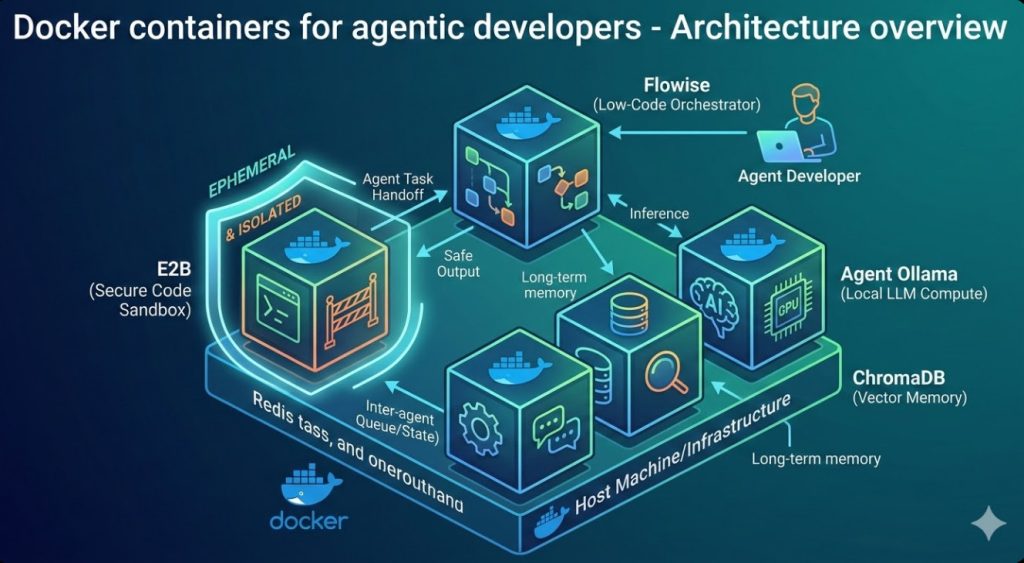
Mastering Essential Docker Commands: A Comprehensive Guide

Docker has revolutionized software development and deployment, simplifying the process of building, shipping, and running applications. Understanding fundamental Docker commands is crucial for anyone working with containers. This comprehensive guide will equip you with the essential commands to effectively manage your Docker environment, from basic image management to advanced container orchestration. We’ll explore five must-know Docker commands, providing practical examples and explanations to help you master this powerful technology.

Understanding Docker Images and Containers

Before diving into specific Docker commands, let’s clarify the fundamental concepts of Docker images and containers. A Docker image is a read-only template containing the application code, runtime, system tools, system libraries, and settings needed to run an application. A Docker container is a running instance of a Docker image. Think of the image as a blueprint, and the container as the house built from that blueprint.

Key Differences: Images vs. Containers

  • Image: Read-only template, stored on disk. Does not consume system resources until instantiated as a container.
  • Container: Running instance of an image, consuming system resources. It is ephemeral; when stopped, it releases its resources.

5 Must-Know Docker Commands

This section details five crucial Docker commands, categorized for clarity. Each command is explained with practical examples, helping you understand their function and application in real-world scenarios.

docker run: Creating and Running Containers

The docker run command is the cornerstone of working with Docker. It creates a new container from a specified image. If the image isn’t locally available, Docker automatically pulls it from the Docker Hub registry.

Basic Usage

docker run [OPTIONS] IMAGE [COMMAND] [ARG...]
  • OPTIONS: Various flags to customize container behavior (e.g., -d for detached mode, -p for port mapping).
  • IMAGE: The name of the Docker image to use (e.g., ubuntu, nginx).
  • COMMAND: The command to execute within the container (optional).
  • ARG...: Arguments for the command (optional).

Example: Running an Nginx Web Server

docker run -d -p 8080:80 nginx

This command runs an Nginx web server in detached mode (-d), mapping port 8080 on the host machine to port 80 within the container (-p 8080:80).

docker ps: Listing Running Containers

The docker ps command displays a list of currently running Docker containers. Using the -a flag shows both running and stopped containers.

Basic Usage

docker ps [OPTIONS]
  • -a: Show all containers (running and stopped).
  • -l: Show only the latest created container.

Example: Listing all containers

docker ps -a

docker images: Listing Docker Images

The docker images command provides a list of all Docker images available on your system. This is crucial for managing your image repository and identifying which images are consuming disk space.

Basic Usage

docker images [OPTIONS]
  • -a: Show all images, including intermediate images.
  • -f : Filter images based on criteria (e.g., -f "dangling=true" to find dangling images).

Example: Listing all images

docker images -a

docker stop and docker rm: Managing Containers

These two Docker commands are essential for controlling container lifecycles. docker stop gracefully stops a running container, while docker rm removes a stopped container.

docker stop

docker stop [CONTAINER ID or NAME]

docker rm

docker rm [CONTAINER ID or NAME]

Example: Stopping and removing a container

First, get the container ID using docker ps -a. Then:

docker stop 
docker rm 

docker build: Building Images from a Dockerfile

The docker build command is fundamental for creating your own custom Docker images from a Dockerfile. A Dockerfile is a text file containing instructions on how to build an image. This enables reproducible and consistent deployments.

Basic Usage

docker build [OPTIONS] PATH | URL | -
  • OPTIONS: Flags to customize the build process (e.g., -t : to tag the built image).
  • PATH: Path to the Dockerfile.
  • URL: URL to a Dockerfile (e.g., from a Git repository).
  • -: Build from standard input.

Example: Building an image from a Dockerfile

Assuming your Dockerfile is in the current directory:

docker build -t my-custom-image:latest .

Frequently Asked Questions

Q1: What is a Docker Hub, and how do I use it?

Docker Hub is a public registry of Docker images. You can find and download pre-built images from various sources or push your own custom-built images. To use it, you typically specify the image name with the registry (e.g., docker pull ubuntu:latest pulls the latest Ubuntu image from Docker Hub).

Q2: How do I manage Docker storage space?

Docker images and containers can consume significant disk space. To manage this, use the docker system prune command to remove unused images, containers, networks, and volumes. Use the -a flag for a more aggressive cleanup (docker system prune -a). Regularly review your images with docker images -a and remove any unwanted or outdated ones.

Q3: What are Docker volumes?

Docker volumes are the preferred method for persisting data generated by and used by Docker containers. Unlike bind mounts, they are managed by Docker and provide better portability and data management. You can create and manage volumes using commands like docker volume create and docker volume ls.

Q4: How can I troubleshoot Docker errors?

Docker provides detailed logs and error messages. Check the Docker logs using commands like docker logs . Also, ensure your Docker daemon is running correctly and that you have sufficient system resources. Refer to the official Docker documentation for troubleshooting specific errors.

Conclusion

Mastering these essential Docker commands is a crucial step in leveraging the power of containerization. From running containers to building custom images, understanding these commands will significantly improve your workflow and enable more efficient application deployment. Remember to regularly review your Docker images and containers to optimize resource usage and maintain a clean environment. Continued practice and exploration of advanced Docker commands will further enhance your expertise in this vital technology. By consistently utilizing and understanding these fundamental Docker commands, you’ll be well on your way to becoming a Docker expert.

For further in-depth information, refer to the official Docker documentation: https://docs.docker.com/ and a helpful blog: https://www.docker.com/blog/. Thank you for reading the DevopsRoles page!

Devops Tutorial

Exit mobile version