Category Archives: Windows

Explore Windows for DevOps at DevOpsRoles.com. Access comprehensive guides and tutorials to manage and optimize Windows environments for efficient DevOps practices.

How to login to AWS Management Console with IAM Identity Center(AWS SSO) via a self-managed directory in Active Directory

Introduction

How to login to AWS Management Console with IAM Identity Center(AWS SSO) via a self-managed directory in Active Directory

To use IAM Identity Center(AWS SSO), a self-managed directory in Active Directory to log in to the AWS Management Console, you can follow these general steps:

  • Set up an ADFS server: Install and configure ADFS on a Windows server that is joined to your Active Directory domain. This server will act as the identity provider (IdP) in the SAML authentication flow. Refer to create AD server at the link create AD with Windows server 2012-r2
  • Enable IAM Identity Center: follow this AWS user guide to configure IAM Identity Center
  • Choose your identity source: follow this AWS user guide. Self-managed directory in Active Directory using the below link
    • Create a two-way trust relationship (in my case): Create a trust relationship between your AWS Managed Microsoft AD and your self-managed Active Directory domain. Another way you can use AD connecter.
    • Attribute mappings and sync your AD user to the IAM identity Center: follow this guided setup of AWS user guide to configure attribute mappings and add users and groups you want(choose the user of Self-managed AD not the user of AWS-managed AD).
  • Create an administrative permission set: follow this guide to create a permission set that grants administrative permissions to your user.
  • Set up AWS account access for your administrative user: follow this guide to set up AWS account access for a user in the IAM Identity Center.
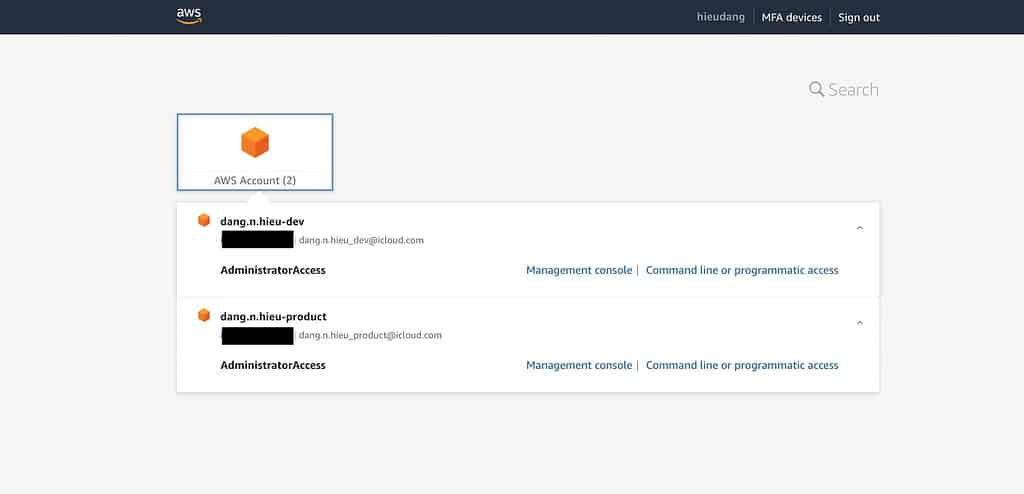
  • Sign in to the AWS access portal with your administrative credentials: you can sign in to the AWS access portal by using the credentials of the administrative user that you have already configured.

Using AWS Management Console with IAM Identity Center(AWS SSO)

Using AWS Management Console with IAM Identity Center(AWS SSO) via self-managed directory in Active Directory to log in to the AWS Management Console lab

I tried the lab, so I’ll make a note for everyone:

  • The two-way trust relationship step is able fails to verify, you can miss setting Outbound rules for AWS Managed Microsoft AD ENIs, try this to configure the security group.
  • Enable the IAM Identity Center with the AWS account root user.
  • A single user can access multiple AWS accounts (same organization) from a self-managed directory.
  • Sign in to the AWS access portal with your user name, not your user email

Conclusion

Using IAM Identity Center(AWS SSO), a self-managed directory in Active Directory to log in to the AWS Management Console. These steps provide a general overview of the process. The specific configuration details may vary depending on your environment and setup.

It’s recommended to consult the relevant documentation from AWS and Microsoft for detailed instructions on setting up the integration between your ADFS and AWS. I hope will this your helpful. Thank you for reading the DevopsRoles page!

How to call git bash command from powershell

Introduction

Combining PowerShell with Git Bash can enhance your productivity by allowing you to use Unix-like commands within a Windows environment. In this guide, we’ll show you how to call Git Bash commands from PowerShell, using an example script. We’ll cover everything from basic setups to advanced configurations. In this tutorial, How to call the git bash command from Powershell. For example, git bash content to split CSV files on windows :

Setting Up Your Environment

Installing Git Bash

First, ensure you have Git Bash installed on your system. Download it from the official Git website and follow the installation instructions.

Adding Git Bash to Your System PATH

To call Git Bash command from PowerShell, add Git Bash to your system PATH:

  1. Open the Start menu, search for “Environment Variables,” and select “Edit the system environment variables.”
  2. Click the “Environment Variables” button.
  3. Under “System variables,” find and select the “Path” variable, then click “Edit.”
  4. Click “New” and add the path to the Git Bash executable, typically C:\Program Files\Git\bin.

Call the git bash command from Powershell

Save the following script as split.sh in your K:/TEST directory:

#!/bin/bash
cd $1
echo split start
date
pwd
split Filetest.CSV Filetest -l 20000000 -d
ls -l
for filename in $1/*; do
    wc -l $filename
done
date
echo split end
exit

This script performs the following tasks:

  1. Changes the directory to the one specified by the first argument.
  2. Prints a start message and the current date.
  3. Displays the current directory.
  4. Splits Filetest.CSV into smaller files with 20,000,000 lines each.
  5. Lists the files in the directory.
  6. Counts the number of lines in each file in the directory.
  7. Prints the current date and an end message.
  8. Exits the script.

PowerShell Script

Create a PowerShell script to call the split.sh script:

$TOOL_PATH = "K:/TEST"
$FOLDER_PATH = "K:/TEST/INPUT"

$COMMAND = "bash.exe " + $TOOL_PATH + "/split.sh " + $FOLDER_PATH
echo $COMMAND
Invoke-Expression $COMMAND

This PowerShell script does the following:

  1. Defines the path to the directory containing the split.sh script.
  2. Defines the path to the directory to be processed by the split.sh script.
  3. Constructs the command to call the split.sh script using bash.exe.
  4. Prints the constructed command.
  5. Executes the constructed command.

Explanation

  1. $TOOL_PATH: This variable holds the path where your split.sh script is located.
  2. $FOLDER_PATH: This variable holds the path to the directory you want to process with the split.sh script.
  3. $COMMAND: This variable constructs the full command string that calls bash.exe with the script path and the folder path as arguments.
  4. echo $COMMAND: This line prints the constructed command for verification.
  5. Invoke-Expression $COMMAND: This line executes the constructed command.

Add C:\Program Files\Git\bin into the PATH environment

OK!

Troubleshooting

Common Issues and Solutions

  • Git Bash not found: Ensure Git Bash is installed and added to your system PATH.
  • Permission denied: Make sure your script has execute permissions (chmod +x split.sh).
  • Command not recognized: Verify the syntax and ensure you’re using the correct paths.
  • Incorrect output or errors: Print debugging information in your scripts to diagnose issues.

FAQs

How do I add Git Bash to my PATH variable?

Add the path to Git Bash (e.g., C:\Program Files\Git\bin) to the system PATH environment variable.

Can I pass multiple arguments from PowerShell to Git Bash?

Yes, you can pass multiple arguments by modifying the command string in the PowerShell script.

How do I capture the output of a Git Bash command in PowerShell?

Use the following approach to capture the output:

$output = bash -c "git status"
Write-Output $output

Can I automate Git Bash scripts with PowerShell?

Yes, you can automate Git Bash scripts by scheduling PowerShell scripts or using task automation features in PowerShell.

Conclusion

By following this guide, you can easily call Git Bash command from PowerShell, enabling you to leverage the strengths of both command-line interfaces. Whether you’re performing basic operations or advanced scripting, integrating Git Bash with PowerShell can significantly enhance your workflow. Thank you for reading the DevopsRoles page!

How to auto create a large csv file with powershell/plsql

Introduction

Creating large CSV files can be a tedious task, especially when dealing with significant amounts of data. PowerShell and PL/SQL offer robust solutions to automate this process, ensuring efficiency and accuracy. In this article, we will explore How to auto create a large csv file with Powershell and plsql, from basic to advanced techniques.

Understanding CSV Files

What is a CSV File?

CSV (Comma-Separated Values) files are plain text files that store tabular data. Each line in the file corresponds to a row in the table, and each value is separated by a comma. These files are widely used for data exchange between systems due to their simplicity and ease of use.

Why Use PowerShell and PL/SQL for CSV Creation?

PowerShell is a task automation and configuration management framework from Microsoft, while PL/SQL is Oracle’s procedural extension for SQL. Both tools offer scripting capabilities that make it easy to automate data handling tasks, including the creation of large CSV files.

Basic Example: Creating a CSV File with PowerShell

Installing PowerShell

PowerShell comes pre-installed on Windows systems. However, if you need the latest version, you can download it from the official PowerShell GitHub page.

Writing a Basic PowerShell Script

Here’s a simple PowerShell script to create a basic CSV file:

# Define the file path
$filePath = "C:\temp\example.csv"

# Create an array of data
$data = @(
[PSCustomObject]@{Name="John"; Age=30; City="New York"},
[PSCustomObject]@{Name="Jane"; Age=25; City="Los Angeles"},
[PSCustomObject]@{Name="Doe"; Age=35; City="Chicago"}
)

# Export the data to a CSV file
$data | Export-Csv -Path $filePath -NoTypeInformation

This script creates a CSV file named example.csv with three rows of sample data.

Running the PowerShell Script

To run the script, save it as CreateCSV.ps1 and execute it in PowerShell:

.\CreateCSV.ps1

Intermediate Example: Adding More Data and Automation

Generating Large Data Sets

To create a larger CSV file, you can generate data programmatically. Here’s an example that generates 10,000 rows of sample data:

# Define the file path
$filePath = "C:\temp\large_example.csv"

# Initialize an array to hold the data
$data = @()

# Generate 10,000 rows of data
for ($i = 1; $i -le 10000; $i++) {
$data += [PSCustomObject]@{Name="User_$i"; Age=(Get-Random -Minimum 20 -Maximum 60); City="City_$i"}
}

# Export the data to a CSV file
$data | Export-Csv -Path $filePath -NoTypeInformation

This script generates a CSV file with 10,000 rows, each containing a unique user name, a random age, and a city.

Scheduling the Script

To automate the execution of your PowerShell script, you can use Task Scheduler on Windows:

  1. Open Task Scheduler.
  2. Create a new task.
  3. Set the trigger (e.g., daily at a specific time).
  4. Set the action to start a program and browse to powershell.exe.
  5. Add arguments: -File "C:\path\to\CreateCSV.ps1"

Advanced Example: Creating Extremely Large CSV Files with PowerShell

To create a large CSV data test using PowerShell:

# Define the count of rows
$count = 9999999999999

# Create a large CSV file
for ($i = 1; $i -le $count; $i++) {
$line = $i.ToString() + "," + "Thora,Temple,2013-05-26 14:47:57"
Add-Content -Path "C:\Users\Hieu\actor_202102111552.csv" -Value $line
}

This script generates a CSV file with a very large number of rows, each containing sequential data.

Advanced Example: Using PL/SQL to Create a Large CSV File

Setting Up Oracle Database

Ensure you have access to an Oracle database and the necessary permissions to create and execute PL/SQL scripts.

Writing a Basic PL/SQL Script

Here’s a basic PL/SQL script to create a CSV file:

DECLARE
fileHandler UTL_FILE.FILE_TYPE;
BEGIN
fileHandler := UTL_FILE.FOPEN('CSV_DIR', 'example.csv', 'W');
UTL_FILE.PUT_LINE(fileHandler, 'Name, Age, City');
UTL_FILE.PUT_LINE(fileHandler, 'John, 30, New York');
UTL_FILE.PUT_LINE(fileHandler, 'Jane, 25, Los Angeles');
UTL_FILE.PUT_LINE(fileHandler, 'Doe, 35, Chicago');
UTL_FILE.FCLOSE(fileHandler);
END;
/

This script creates a CSV file named example.csv in the directory CSV_DIR.

Generating Large Data Sets in PL/SQL

To create a larger CSV file with dynamically generated data:

DECLARE
fileHandler UTL_FILE.FILE_TYPE;
i NUMBER;
BEGIN
fileHandler := UTL_FILE.FOPEN('CSV_DIR', 'large_example.csv', 'W');
UTL_FILE.PUT_LINE(fileHandler, 'Name, Age, City');

FOR i IN 1..10000 LOOP
UTL_FILE.PUT_LINE(fileHandler, 'User_' || i || ', ' || TRUNC(DBMS_RANDOM.VALUE(20, 60)) || ', City_' || i);
END LOOP;

UTL_FILE.FCLOSE(fileHandler);
END;
/

This script generates a CSV file with 10,000 rows, similar to the PowerShell example.

Creating Extremely Large Data Sets in PL/SQL

To create a large data test using PL/SQL:

CREATE OR REPLACE FUNCTION public.insertTable() RETURNS void AS $$
DECLARE
BEGIN
FOR counter IN 1..922337203 LOOP
INSERT INTO public.actor
(first_name, last_name, last_update)
VALUES ('Penelope', 'Guiness', now());
END LOOP;
END;
$$ LANGUAGE plpgsql;

This script inserts a very large number of rows into the public.actor table.

Scheduling the PL/SQL Script

You can use Oracle’s DBMS_SCHEDULER to schedule the execution of your PL/SQL script:

BEGIN
DBMS_SCHEDULER.CREATE_JOB (
job_name => 'CREATE_CSV_JOB',
job_type => 'PLSQL_BLOCK',
job_action => 'BEGIN
fileHandler := UTL_FILE.FOPEN(''CSV_DIR'', ''large_example.csv'', ''W'');
UTL_FILE.PUT_LINE(fileHandler, ''Name, Age, City'');
FOR i IN 1..10000 LOOP
UTL_FILE.PUT_LINE(fileHandler, ''User_'' || i || '', '' || TRUNC(DBMS_RANDOM.VALUE(20, 60)) || '', City_'' || i);
END LOOP;
UTL_FILE.FCLOSE(fileHandler);
END;',
start_date => SYSTIMESTAMP,
repeat_interval => 'FREQ=DAILY; BYHOUR=2; BYMINUTE=0; BYSECOND=0',
enabled => TRUE
);
END;
/

This script schedules the PL/SQL block to run daily at 2:00 AM.

FAQs

What is the best way to handle large CSV files?

Using automation tools like PowerShell and PL/SQL can efficiently handle large CSV files, minimizing manual effort and reducing errors.

How can I optimize the performance of my CSV creation scripts?

Ensure your scripts are optimized by minimizing loops, using bulk operations, and avoiding unnecessary computations. For extremely large files, consider breaking them into smaller chunks.

Can I automate CSV file creation on a schedule?

Yes, both PowerShell and PL/SQL scripts can be scheduled using Task Scheduler on Windows or DBMS_SCHEDULER in Oracle, respectively.

What are some common issues with large CSV files?

Common issues include file size limitations, performance bottlenecks, and data consistency. Using robust scripting and automation can help mitigate these problems.

How do I handle special characters in CSV files?

Ensure your scripts correctly handle special characters by escaping them as needed and using appropriate encoding formats like UTF-8.

Conclusion

auto create a large csv file with Powershell and plsql can be a straightforward process with the right tools and techniques. PowerShell and PL/SQL offer powerful scripting capabilities to automate this task efficiently. By following the examples and tips provided in this guide, you can streamline your CSV file creation process, saving time and reducing errors. Thank you for reading the DevopsRoles page!

Install Active Directory Windows Server 2012 R2

Introduction

Setting up Active Directory (AD) on Windows Server 2012 R2 is a crucial task for any organization aiming to manage users, groups, and computers efficiently. Active Directory provides a centralized and standardized system that automates network management, enhancing security and ease of access. In this guide, we will walk you through the step-by-step process of How to Install Active Directory Windows Server 2012 R2, ensuring that your infrastructure is robust, secure, and ready to handle your organizational needs.

I. Prepare

To get started, ensure that you have Windows Server 2012 R2 installed on VirtualBox. If you haven’t done this yet, you can follow VirtualBox’s installation guide to set up your virtual machine with Windows Server 2012 R2. Once your server is ready, proceed with the following steps to Install Active Directory Windows Server 2012 R2.

II. Install

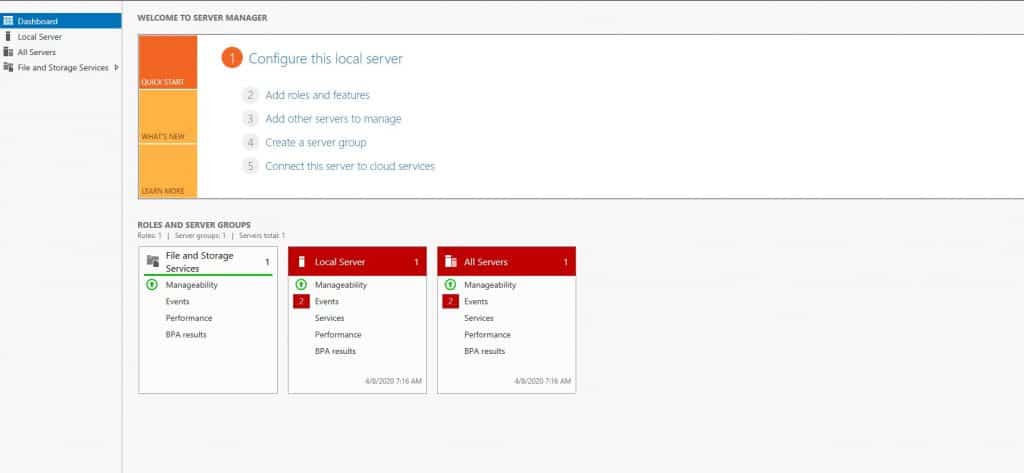
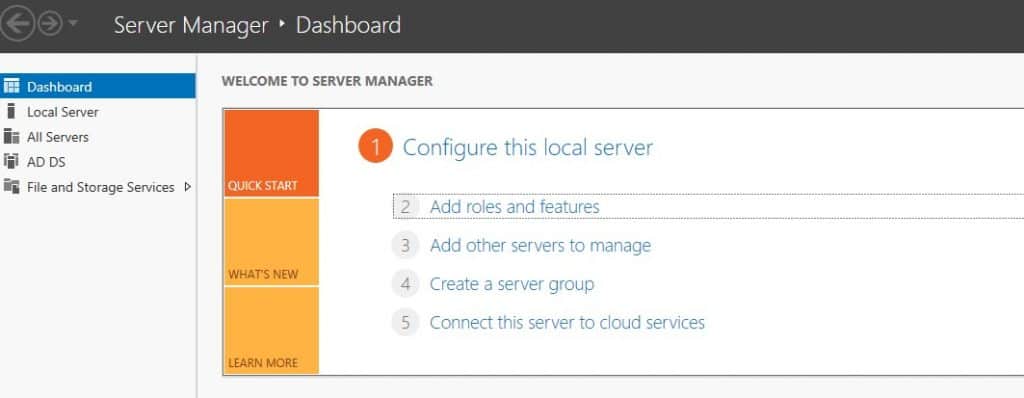
1. Run [Start] – [Server Manager].

2. Click [Add roles and features].

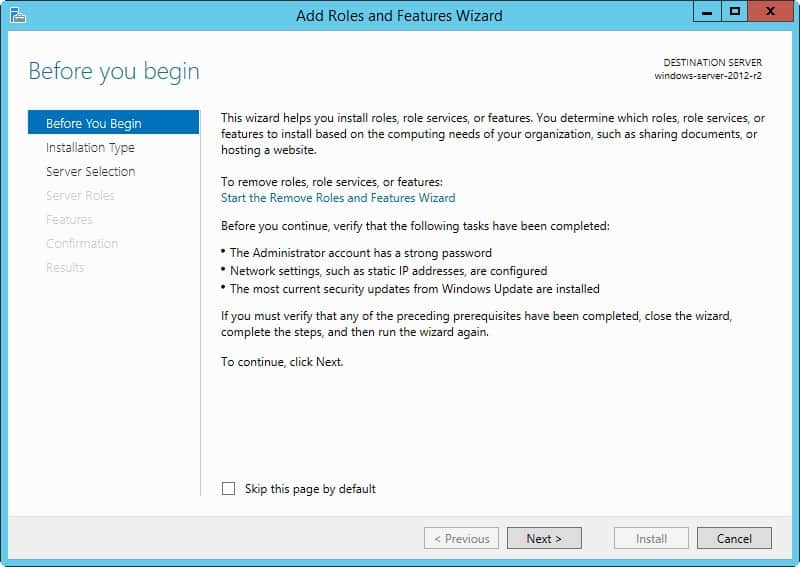
3. Click the [Next] button.

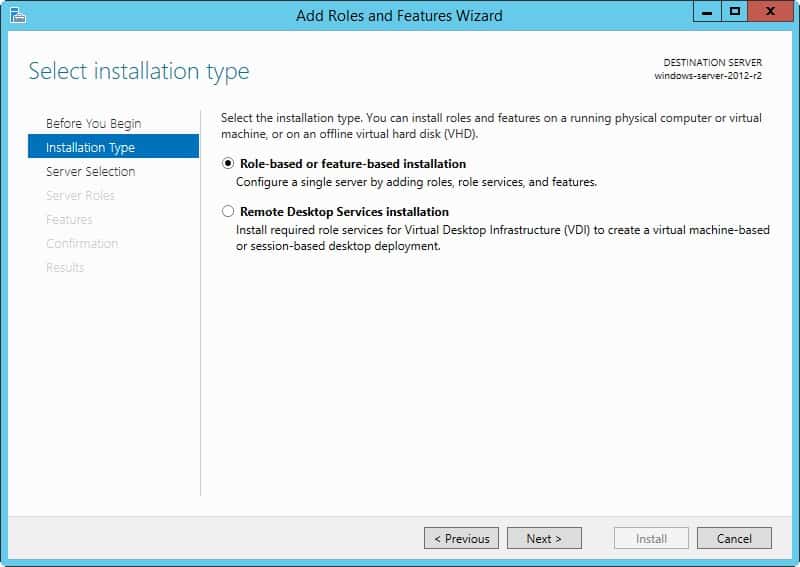
4. Select [Role-based or feature-based installation].

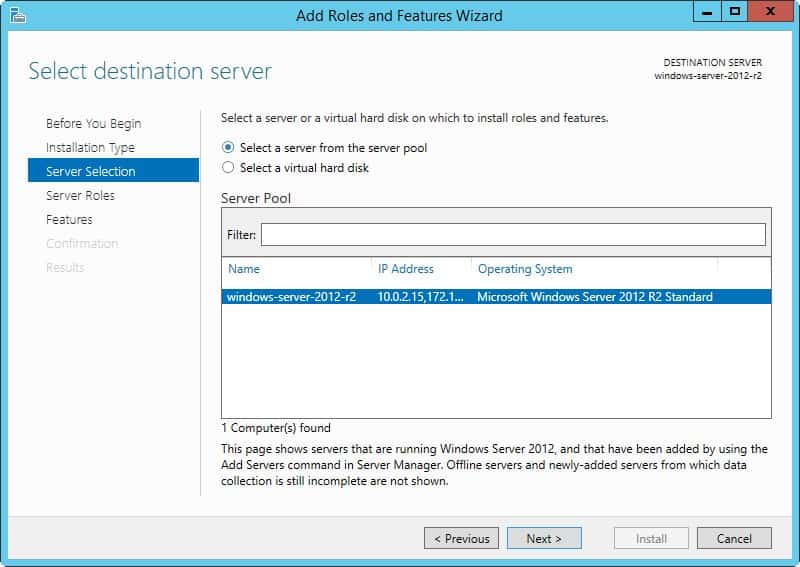
5. Select a Host to which you’d like to add services.

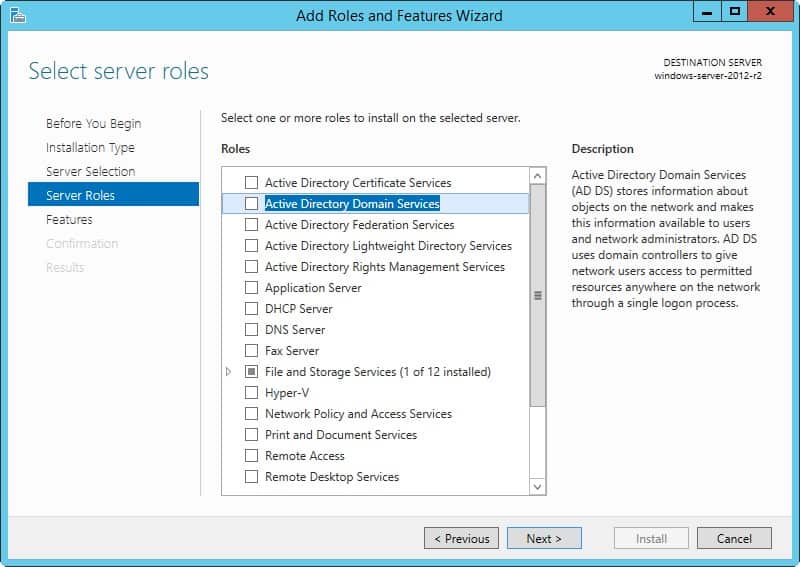
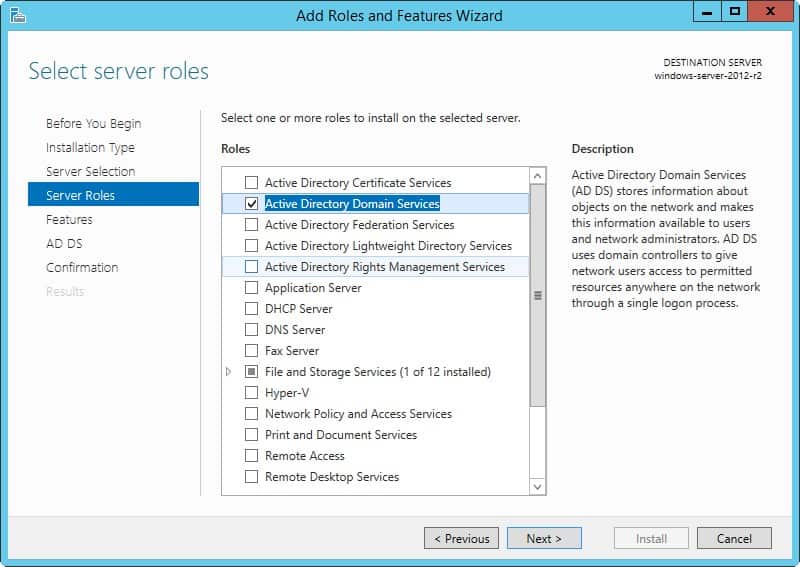
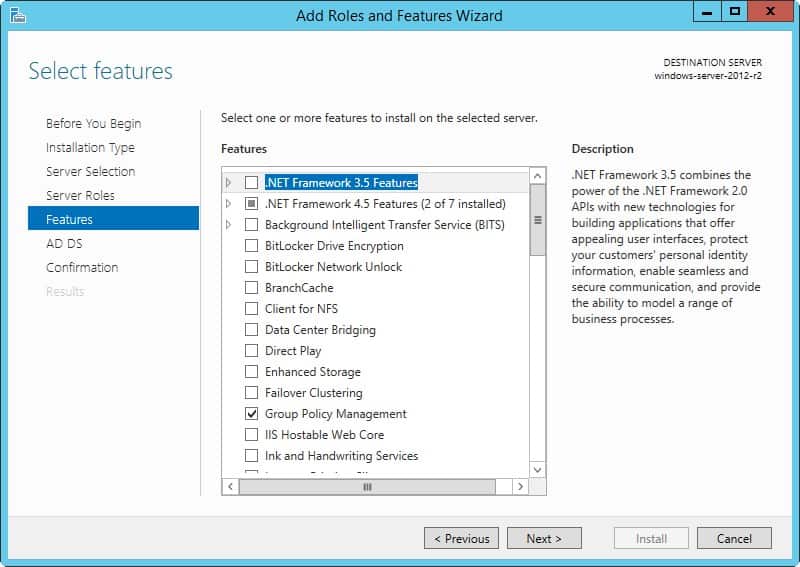
6. Check a box [Active Directory Domain Services].

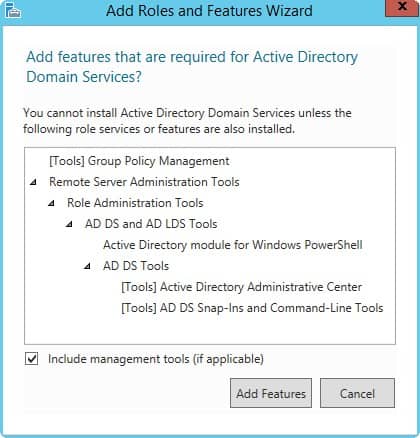
7. Additional features are required to add AD DS. Click the [Add Features] button.

8. Click the [Next] button.

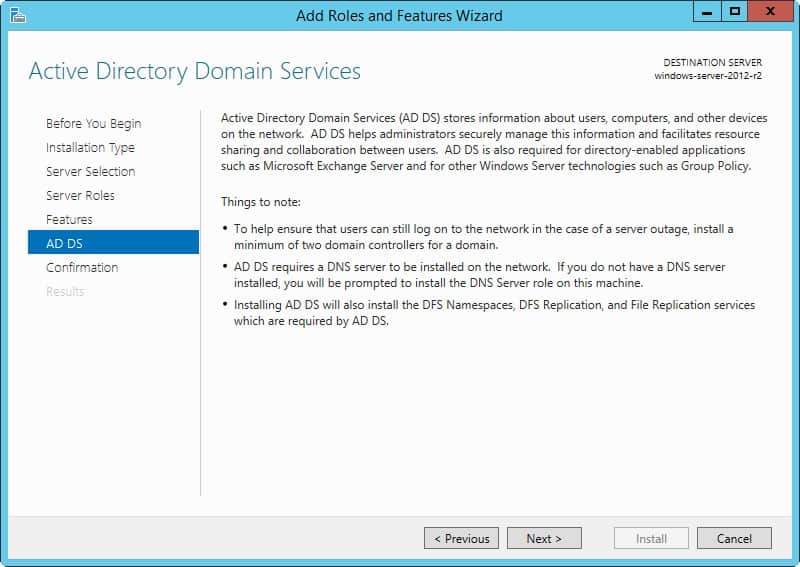
9. Click the [Next] button.

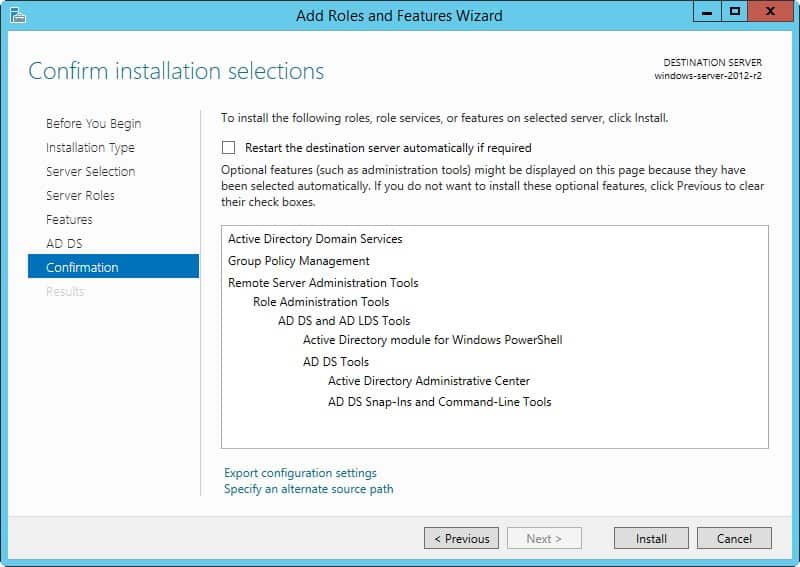
10. Click the [Next] button.

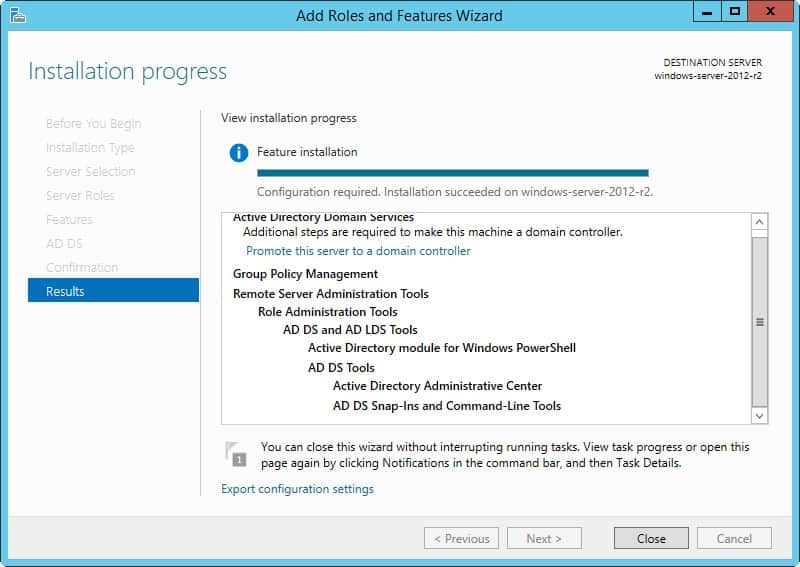
11. Click [Install] button.

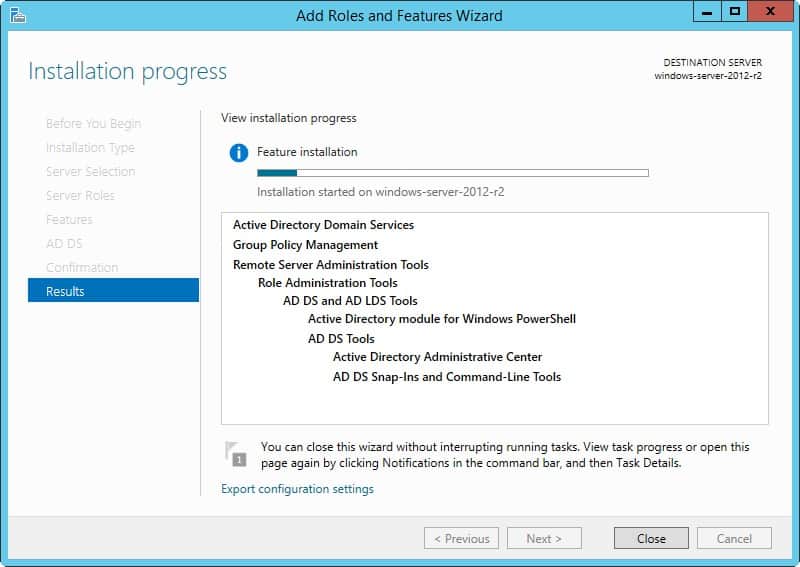
12. Installation is started.

13. After finishing Installation, click [Close] button.

III. Configure New DC (Domain Controler).

1. Run [Server Manager] and click [AD DS].

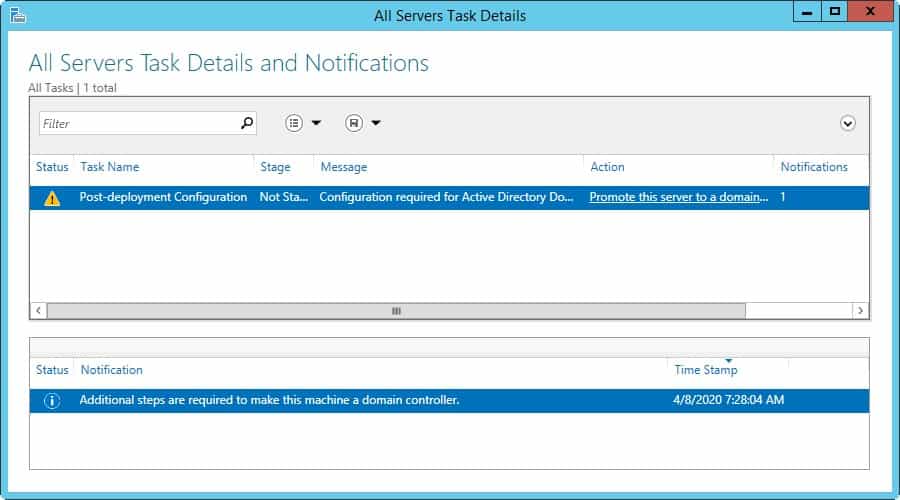
2. Click the [More…] link which is upper-right.

3. Click the [Promote this server to domain...] link.

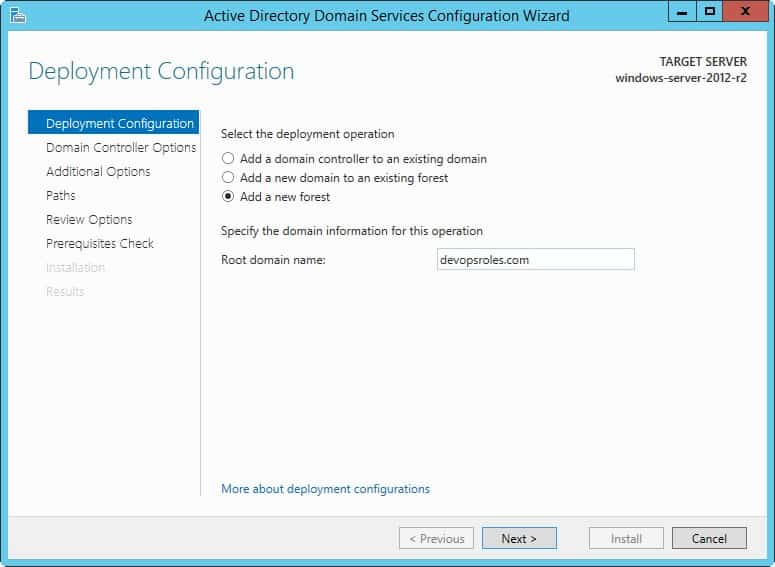
4. Check a box [Add a new forest] and input any Domain name you’d like to set for the [Root domain name] field.

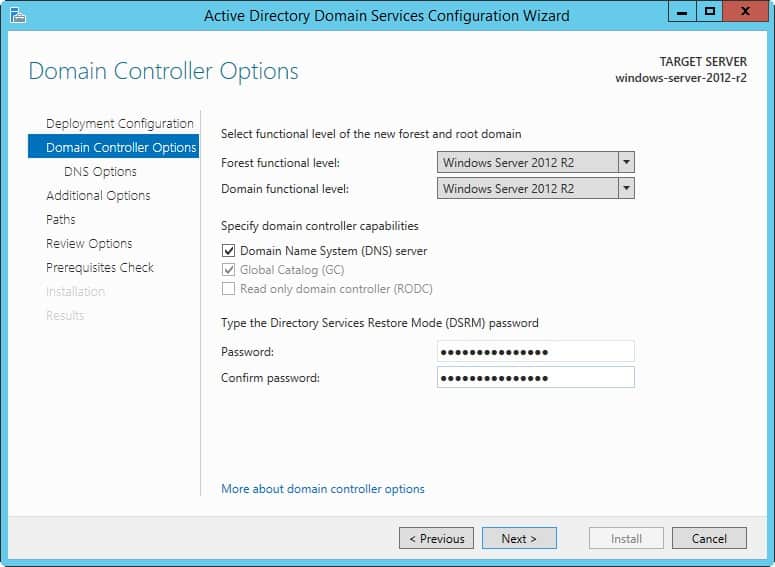
5. Select [Forest functional level] and [Domain functional level]. 

Set any password for Directory Services Restore Mode.

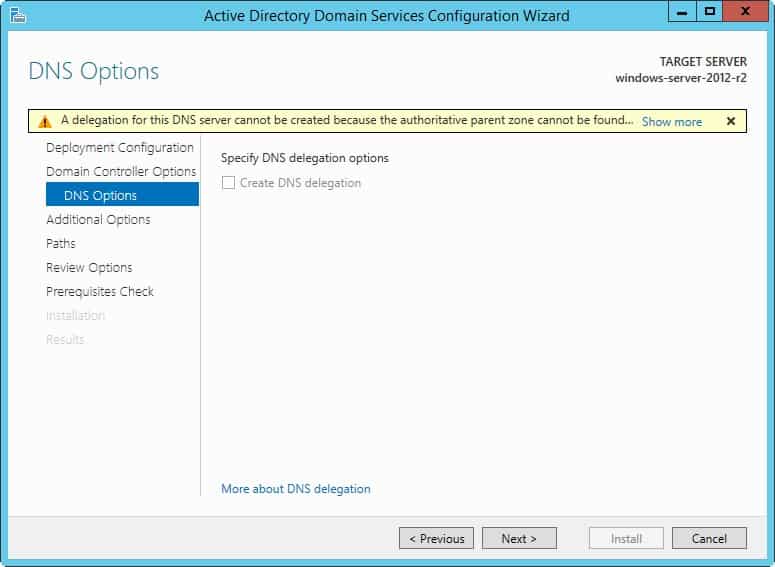
6. Click the [Next] button.

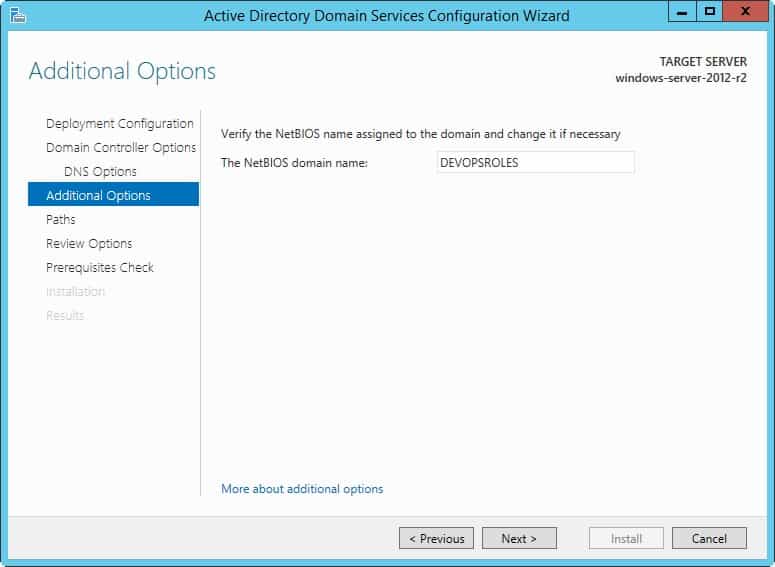
7. Set NetBIOS name.

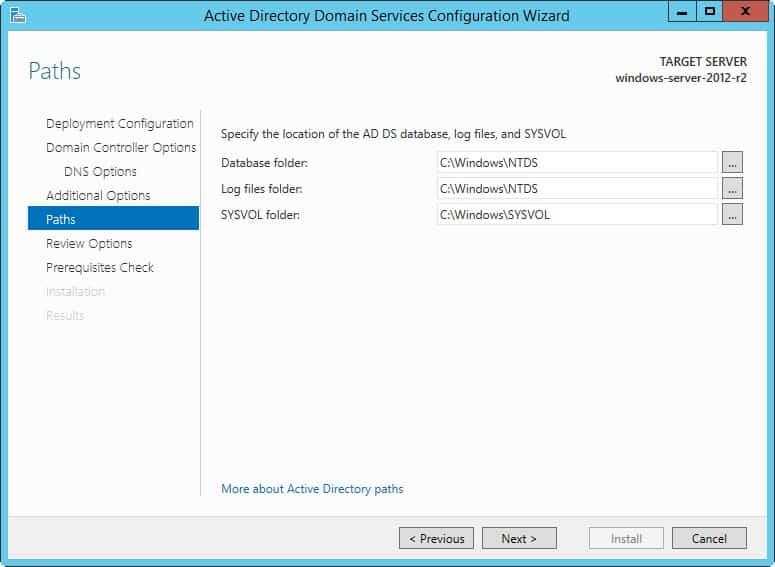
8. Specify the Database folder or Log folder and so on. It’s Ok to keep default if you don’t have specific requirements.

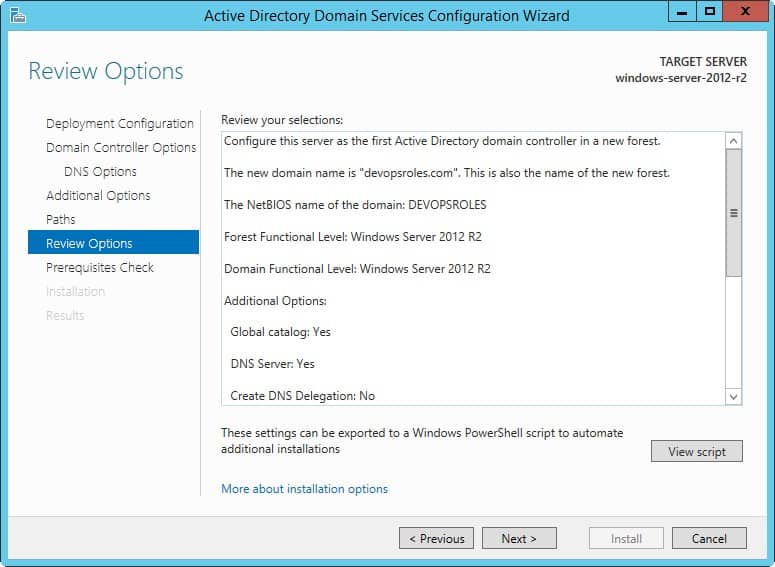
9. Check the contents you configured and click the [Next] button.

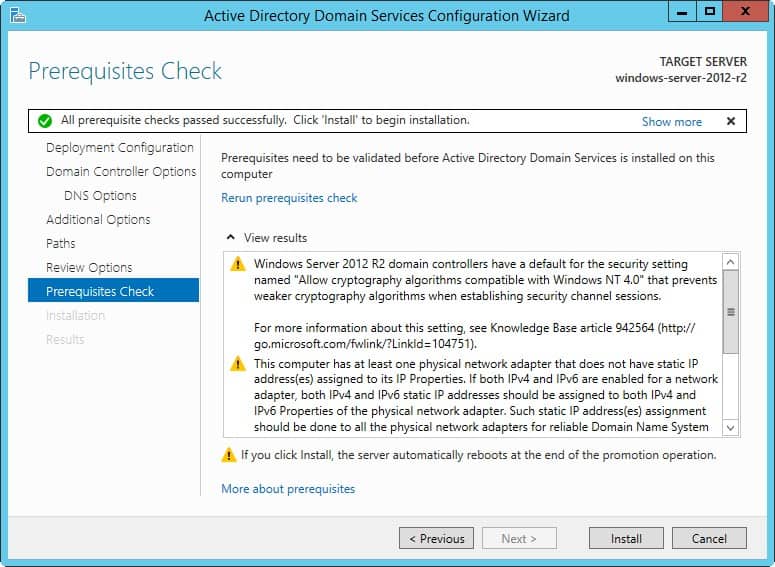
10. Click the [Install] button. After finishing installation, the System will restart.

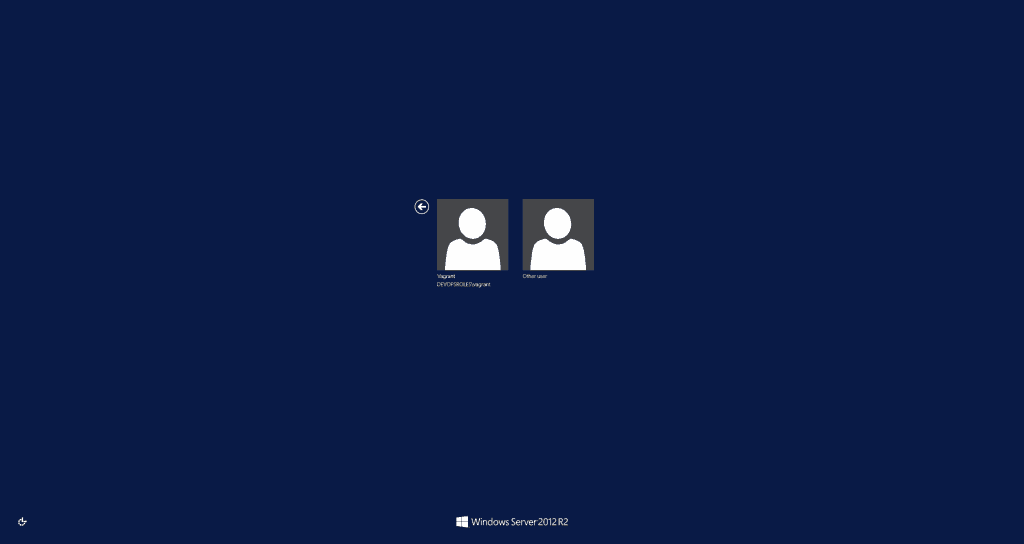
11. After restarting the System, the logon name is changed to [Domain name]\[User name].

Conclusion

By following this guide, you have successfully installed and configured Active Directory on your Windows Server 2012 R2. This setup not only streamlines user and resource management but also strengthens your network security. With AD in place, you can now leverage its full capabilities to enhance your organization’s IT infrastructure, ensuring efficient and secure operations. As your organization grows, Active Directory will continue to provide the scalability and reliability needed to manage complex network environments. The end! Happy with Windows Server. Thank you for reading the DevopsRoles page!