Category Archives: Bash Script

Master Bash scripting with DevOpsRoles.com. Access in-depth guides and tutorials to automate tasks and enhance your DevOps workflows using Bash scripts.

Bash script arguments into a function

How to pass arguments into a function? How to Bash all arguments into a function? Bash script the essential for DevOps Roles.
Use variable $1, $2, $3 …$n to access argument pass to the function.

Bash script arguments

  • $# Number of arguments
  • $@ All arguments, starting from first
  • $1 First argument

Example

#!/bin/bash
function Name() {
   arg1=Argument1;
   arg2=Argument2;
   arg3=Argument3;
   if [ $# -eq 3 ]; then
      arg1=$1;
      arg2=$2;
      arg3=$3;
   fi
   echo "1st argument: $arg1"
   echo "2nd argument: $arg2"
   echo "3nd argument: $arg3"
}
Name $1 $2 $3

To invoke the function use syntax:

Name huu phan www.devopsroles.com

Where

Name: Function Name
huu: Argument #1 passed into the function
phan: Argument #2 passed into the function
www.devopsroles.com: Argument #3 passed into the function

Bash all arguments into a function

#!/bin/bash
function Name() {
   args=("$@")
   echo "Number of arguments: $#"
   echo "1st argument: ${args[0]}"
   echo "2nd argument: ${args[1]}"
   echo "3nd argument: ${args[2]}"
}
Name $1 $2 $3

The screen output terminal:

Conclusion

Thought the article, you can use Bash script arguments into a function as above. I hope will this your helpful. More details refer to Bash script.

Bash script run by root or not

How do I check bash script is being run as a root user or not. when creating a new account a user ID is assigned to each user. Bash shell store value user ID is $UID and $EUID variable. Bash script the essential for DevOps Roles.

Example, To check bash script run by root or not.

Using $UID variable

#!/bin/bash
if [ "$(id -u)" != "0" ]; then
   echo "Please run by root user" 2>&1
   exit 1
else
   echo "Mounting...."
   mount /dev/sdb4 /mnt/disk4
fi

Using $EUID variable

#!/bin/bash
if [[ $EUID -ne 0 ]]; then
   echo "Please run by root user" 2>&1
   exit 1
else
   echo "Mounting...."
   mount /dev/sdb4 /mnt/disk4
fi

Conclusion

Thought the article, you can use Bash script run by root or not as above. I hope will this your helpful. More details refer to Bash script.

Debug Bash Script

Introduction

How to debug a bash script? you can investigate the causes of the problems so you can apply fixes. Yeah, I will guide you turn on debug bash script. Bash script the essential for DevOps Roles.

Bash scripting is a powerful tool for automating tasks in Linux and Unix environments. However, like any programming language, debugging errors in Bash scripts can be challenging without the right techniques.

In this guide, we’ll explore how to debug Bash scripts effectively, from basic troubleshooting methods to advanced debugging tools. Whether you’re a beginner or an experienced sysadmin, mastering these techniques will save you time and help avoid unnecessary frustrations.

Why Debugging Bash Scripts is Important

Debugging is crucial to ensure your scripts function as intended. Bash scripts often interact with files, processes, and other programs, making it essential to quickly identify and resolve errors. Debugging not only improves script reliability but also deepens your understanding of Bash’s functionality.

How to Debug Bash Scripts: Techniques and Tools

1. Use the set Command for Debugging

The set command enables or disables shell options, making it highly useful for debugging. Common options include:

  • -x: Displays each command and its arguments as they are executed.
  • -e: Exits immediately if a command returns a non-zero status.
  • -u: Treats unset variables as errors.

Example:

#!/bin/bash
set -x  # Enable debugging

# Example script
name="Debugging"
echo "Hello, $name!"
set +x  # Disable debugging

2. Use bash -x for Script Debugging

Run your script with the -x option to trace each command:

bash -x your_script.sh

This provides a detailed execution trace, helping you pinpoint where errors occur.

3. Add echo Statements for Manual Debugging

Using echo is a simple yet effective way to debug scripts. Insert echo statements at key points to check variable values and script flow.

Example:

#!/bin/bash
echo "Starting script..."
value=$((5 + 5))
echo "Value is: $value"

4. Redirect Debug Output to a File

For lengthy scripts, redirect debug output to a file for easier analysis:

bash -x your_script.sh > debug.log 2>&1

5. Use trap for Error Handling

The trap command executes a specified action when a signal is received. Use it to clean up resources or log errors.

Example:

#!/bin/bash
trap 'echo "Error occurred at line $LINENO"' ERR

# Example script
cp nonexistent_file.txt /tmp/

6. Advanced Debugging with DEBUG Hook

The DEBUG trap executes before each command, allowing for fine-grained debugging.

Example:

#!/bin/bash
trap 'echo "Executing line: $BASH_COMMAND"' DEBUG

echo "This is a test."
value=$((10 + 10))
echo "Value: $value"

Debugging Examples: From Basic to Advanced

Basic Debugging

Scenario: Missing File Error

#!/bin/bash
file="data.txt"

if [ -f "$file" ]; then
  echo "File exists."
else
  echo "File not found."
fi

Use set -x to identify why $file is not found.

Intermediate Debugging

Scenario: Incorrect Variable Assignment

#!/bin/bash
name=JohnDoe  # Missing quotes
echo "Hello, $name!"

Debug with bash -x to see how name is interpreted.

Advanced Debugging

Scenario: Loop Execution Issue

#!/bin/bash
for i in {1..5}; do
  echo "Processing item $i"
done

Run with trap and DEBUG to confirm loop logic.

Popular Debugging Tools

ShellCheck

An open-source tool that identifies errors and suggests improvements in your scripts.

sudo apt install shellcheck
shellcheck your_script.sh

strace

A tool for tracing system calls made by your script.

strace -o trace.log bash your_script.sh

grep

Useful for filtering debug logs:

grep "error" debug.log

Use set builtin command

Bash script can tun on or off using set command

  •  Display commands and their arguments: set -x
  • Display shell input lines: set -v
  • This may be used to check a shell script for syntax errors. To read commands but do not execute them: set -n
#!/bin/bash
## Turn on debug mode ##
set -x 
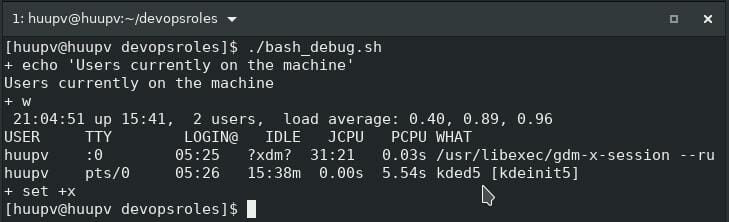
echo "Users currently on the machine"
w
## Turn OFF debug mode ##
set +x

The screen output terminal:

Frequently Asked Questions (FAQ)

1. What is the difference between set -x and bash -x?

  • set -x: Enables tracing within a script.
  • bash -x: Traces commands when running a script externally.

2. How do I debug a function in a Bash script?

Use set -x or echo within the function to trace its behavior:

my_function() {
  set -x
  # Function code
  set +x
}

3. How can I debug scripts in production?

Redirect debug output to a log file to avoid exposing sensitive information:

bash -x your_script.sh > /var/log/debug.log 2>&1

4. What are the best practices for debugging large scripts?

Break the script into smaller functions or modules. Debug each part individually before integrating.

External Resources

Conclusion

Debugging Bash scripts may seem daunting, but with the right tools and techniques, it becomes manageable. From leveraging set -x and trap to employing tools like ShellCheck and strace, there’s a method for every scenario. By mastering these strategies, you’ll write more robust and error-free scripts.

Debugging is not just about fixing errors-it’s a learning process that deepens your understanding of Bash. Start with the basics, experiment with advanced tools, and continuously refine your approach. I hope will this your helpful. More details refer to Bash script.

Bash create new file with content

Introduction

How to BASH create a new file with content in Linux? In Bash scripting, there are multiple ways to use Bash create new file and populate it with content.

In this tutorial, we will explore three common methods to create a new file with content in Bash. You can use the commands line below

  • touch command to create an empty file: touch FILENAME
  • cat command to create a text file: cat > FILENAME

Write the contents to a file:
cat << “EOF” > /path/to/yourfilename
write the contents to a file
Use cat HERO DOCUMENT write content file
EOF

For example, My bash create new file with content.

I will create file jarservice in /etc/init.d/jarservice to java run jar as service on centos 6 as below.

#!/bin/bash
# Author: HuuPV2
yourservice=jarservice
touch /etc/init.d/$yourservice

cat << "EOF" > /etc/init.d/$yourservice
#!/bin/bash
SERVICE_NAME=$yourservice
PATH_TO_JAR=/path/to/yourapplication.jar
LOG_DIR=/var/log/yourapplication.log
PID_PATH_FILE=/var/run/yourapplication.pid
case $1 in
  start)
     echo "Starting $SERVICE_NAME ..."
     if [ ! -f $PID_PATH_FILE ]; then
        nohup java -jar $PATH_TO_JAR >> $LOG_DIR 2>&1&
        echo $! > $PID_PATH_FILE
        echo "$SERVICE_NAME started ..."
     else
        echo "$SERVICE_NAME is already running ..."
     fi
     ;;
  stop)
     if [ -f $PID_PATH_FILE ]; then
        PID=$(cat $PID_PATH_FILE);
        echo "$SERVICE_NAME stoping ..."
        kill $PID;
        echo "$SERVICE_NAME stopped ..."
        rm $PID_PATH_FILE
     else
        echo "$SERVICE_NAME is not running ..."
     fi
     ;;
     *)
     echo $"Usage: $0 {start|stop}"
     exit 2
esac 
EOF
chmod +x /etc/init.d/$yourservice
echo "Welcome to www.devopsroles.com"

Run Bash create a new file with content

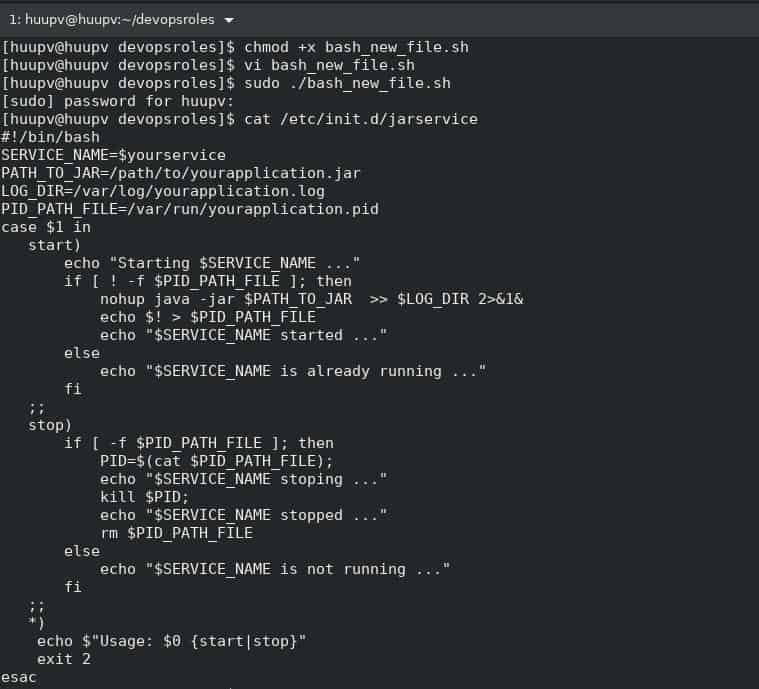
[huupv@huupv devopsroles]$ chmod +x bash_new_file.sh 
[huupv@huupv devopsroles]$ sudo ./bash_new_file.sh

The screen output terminal:

Conclusion

Creating a new file with content in Bash is a straightforward task. By utilizing methods such as echo with output redirection, here documents, or printf with output redirection, you can generate files with ease.

Through the article, you can use Bash create new file with content as above. I hope will this your helpful. For more details refer to Bash script.

Bash script check if directory exists

Use Bash script check if the directory exists or not exists.  In this tutorial, I will check FILE/FOLDER exists or NOT exists and Check Symbolic Link. Bash script the essential for DevOps Roles.

The syntax bash script check if directory exists

if [ -d "/path/to/directory" ] 
then
    echo "Directory /path/to/directory is exists." 
fi

Or syntax Bash script check if directory not exists

if [ ! -d "/path/to/directory" ] 
then
    echo "Directory /path/to/directory is NOT exists." 
    exit 99
fi

Check if the file is exists

if [ -f "/path/to/file" ]
then
    echo "File /path/to/file is exists."
fi

Example Bash script checks if the directory exists or file exists.

#!/bin/bash
_FILE="/home/huupv/devopsroles/folder/file.txt"
_LINK_DIR="/home/huupv/devopsroles/link_folder"

# Check Directory and File is exists
if [ -f "${_FILE}" ]
then
    echo "File ${_FILE} is exists."
    _DIR=$(dirname ${_FILE})

  if [ -d "${_DIR}" ]
  then
      echo "Directory /path/to/directory is exists."
  fi
fi
# Check Symbolic link
ls -la /home/huupv/devopsroles/ | grep "\->"
# Check Symbolic link is exists
if [ -L "${_LINK_DIR}" ]
then
    echo "Directory ${_LINK_DIR} is a symlink."
fi
# Check Directory is NOT exists
if [ ! -d "/home/huupv/devopsroles/folder2" ]
then
    echo "Directory /home/huupv/devopsroles/folder2 is NOT exists."
    exit 99; # ERROR code 99
fi

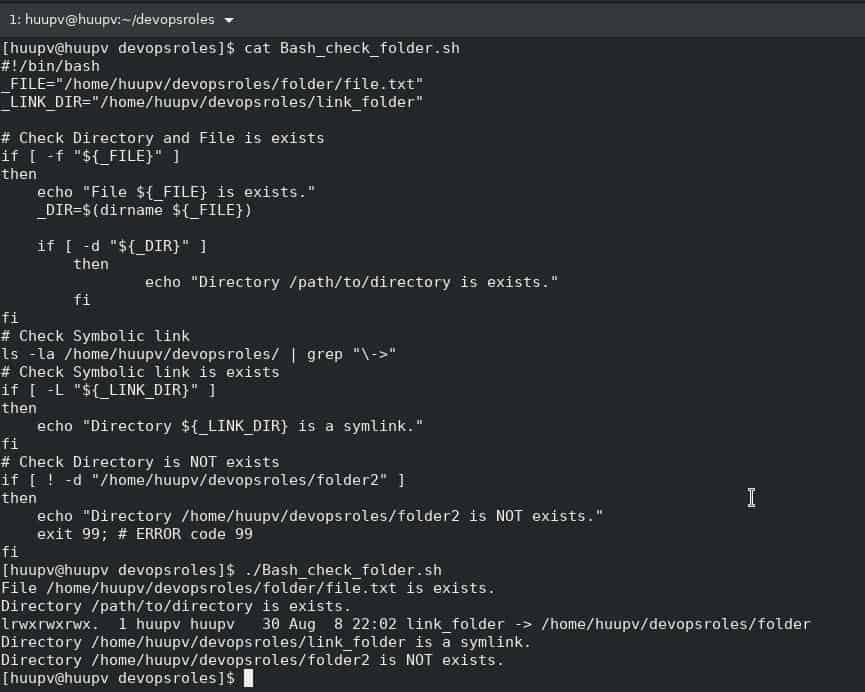
The screen output terminal:

Summary check File/Folder exists or NOT exists

  • -L “FILE“: FILE/FOLDER exists and is a symbolic link
  • -d “Directory“: FILE exists and is a directory
  • -f “FILE” : FILE exists

Conclusion

Through the article, you can use the Bash script check if directory exists as above. I hope will this your helpful. For more details refer to the Bash script.

Understanding Bash script comments

Introduction

How to use bash script put Multiple Line Comment. Would you like to use a bash script comment in Linux?

When writing Bash scripts, it’s crucial to include comments to enhance code readability, provide explanations, and document important details. Comments are lines of text within a script that are ignored by the Bash interpreter when executing the code.

In this tutorial, we will explore the two types of comments available in Bash scripting and learn how to effectively use them.

Bash script comment

Single line comment

Single-line comments are the simplest form of comments in Bash scripting. They begin with the # (hash) symbol and continue until the end of the line.

# Comment line 1
# Comment line 2

HERE DOCUMENT COMMENT

A here document is a construct in Bash that allows you to pass multiple lines of input to a command or store them in a variable. It is not used as a form of comment.

<<COMMENT
  Comment 1
  Comment 2
  Comment N
COMMENT

Multiple line comment

While Bash does not have a built-in syntax for multi-line comments like some other programming languages, you can achieve a similar effect by using multiple single-line comments consecutively.

: '
This is a
multiple line
comment
'

Best Practices for Commenting

  • To make your Bash scripts more understandable and maintainable, consider the following best practices for commenting:
  • Use comments to describe the purpose and functionality of your code.
  • Add comments above sections of code to provide an overview of what the code does.
  • Include comments within complex code blocks to explain intricate logic or algorithms.
  • Document any assumptions, constraints, or prerequisites required for the script to function properly.
  • Comment your code as if someone else will be reading and maintaining it.
  • Avoid excessive commenting; focus on providing meaningful and concise explanations.
#!/bin/bash
_foo="Wellcome to Devopsroles.com"

# Single line 1
# Single line 2

<<COMMENT
  Comment 1
  Comment 2
  Comment N
  HERE DOCUMENT comment
COMMENT

: '
This is a
multi line
comment
'
echo ${_foo}

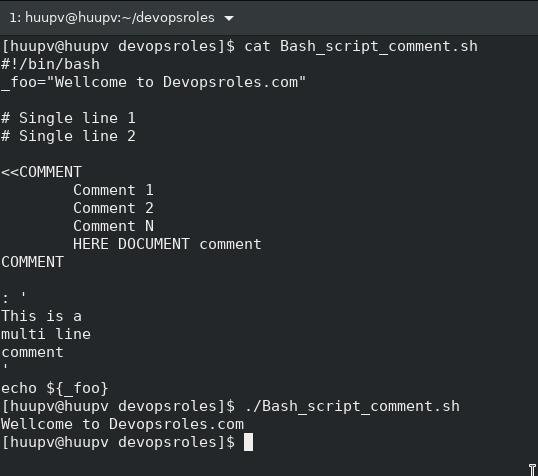
The screen output terminal:

Conclusion

In Bash scripting, comments play a vital role in enhancing code readability and maintaining script documentation.

Single-line comments starting with # and multi-line comments created by combining consecutive single-line comments are powerful tools for explaining code, providing instructions, and temporarily disabling sections.

I hope will this your helpful. For more details refer to Bash script.

Bash script read time

You can use the date command to display or set the current date and time. In this tutorial, I will write small program use Bash script read time. Bash script the essential for DevOps Roles.

The syntax of date command

date +"%FORMAT"

Show current time

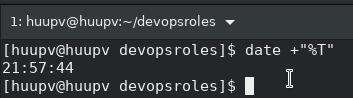
[huupv@huupv devopsroles]$ date +"%T"

The screen output terminal:

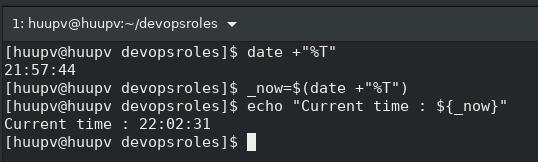
Set variable _now for the current time

_now=$(date +"%T")
echo "Current time : ${_now}"

The screen output terminal:

Create bash script bash_read_time.sh file

#!/bin/bash
# Display text at given row and column
function show(){
  local x=$1
  local y=$2
  local txt="$3"
  tput cup $x $y
  echo "$txt"
}
while true
do
  clear
  # Get the system time 12 hour clock time
  now="$(date +"%r")"
  # Show main
  show 11 11 "MAIN MENU for $HOSTNAME - $now"
  show 11 11 "1. System info "
  show 12 11 "2. OS version "
  show 13 11 "3. Exit "
  tput cup 16 11; read -t 2 -p "Choice [1-3] ? " _select
  # do something
  case ${_select} in
    1) read -t 2 -p "Showing system info, wait..." ;;
    2) read -t 2 -p "Showing apache info, wait..." ;;
    3) echo "Bye."; exit 0;;
  esac
done

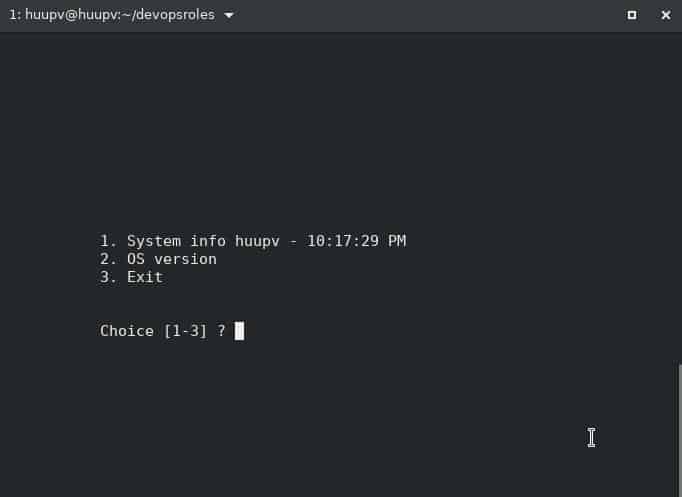
Run bash script read time

[huupv@huupv devopsroles]$ chmod +x bash_read_time.sh
[huupv@huupv devopsroles]$ ./bash_read_time.sh

Conclusion

Thought the article, you can use Bash script read time. I hope will this your helpful. More details refer to Bash script.

Bash script ssh failed login attempts

In Centos or RHEL, ssh failed login attempts are recorded in /var/log/secure file. Bash script the essential for DevOps Roles. You can ref to Bash script tutorial.

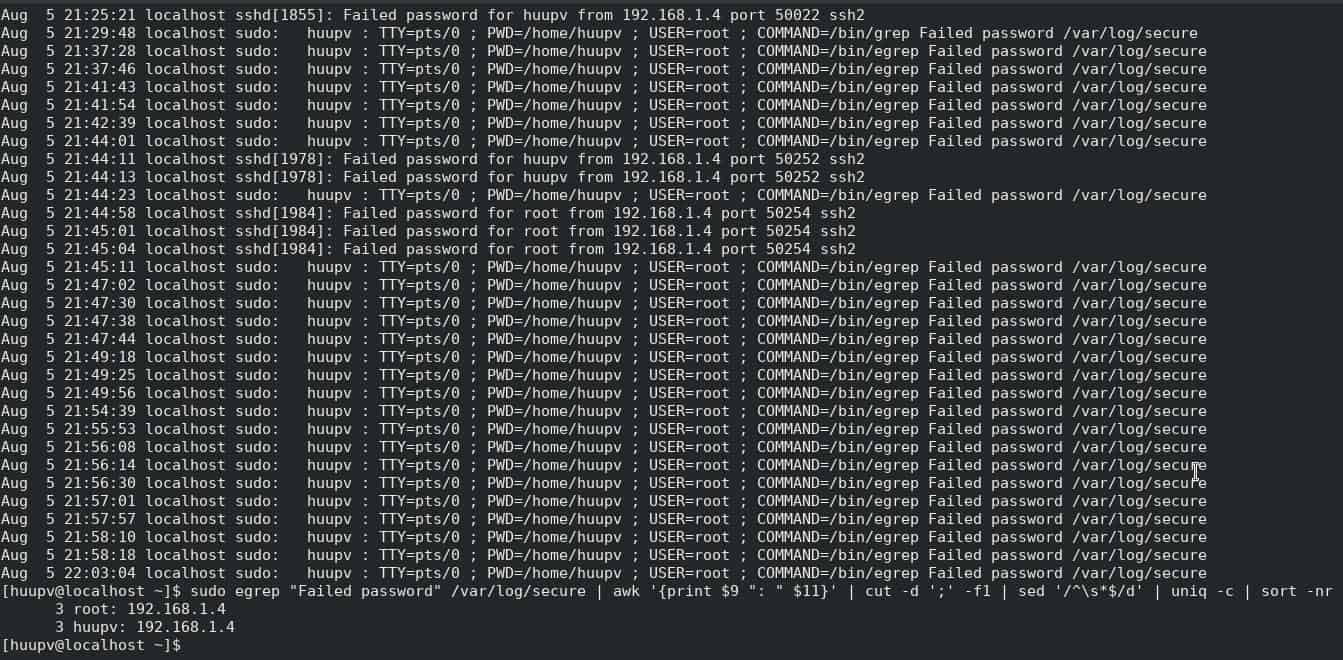
[huupv@localhost ~]$ sudo egrep "Failed password" /var/log/secure

To display a list of IP address ssh failed login attempts

[huupv@localhost ~]$ sudo egrep "Failed password" /var/log/secure | awk '{print $9 ": " $11}' | cut -d ';' -f1 | sed '/^\s*$/d' | uniq -c | sort -nr

I share bash script ssh failed login attempts on Linux. Checking log real time when user login into your system. In my bash script, I written three function : f_check_folder , f_get_log and f_failed_ssh. Running bash script with user root or user privilege.

Bash script ssh failed login attempts

#!/bin/bash
FILE1=/var/log/secure
FOLDER=/tmp/failed_ssh
TEMP_LOG=$FOLDER/tmp_secure.log
NUMBER=/tmp/failed_ssh/number.txt

####################
echo "HOSTNAME: `hostname`"

###################

f_check_folder () {
if [[ -d $FOLDER ]]; then
if [[ ! -s $NUMBER ]]; then
  touch $NUMBER
  echo 0 > $NUMBER
fi
else
  mkdir -p $FOLDER
  touch $NUMBER
  echo 0 > $NUMBER
fi
}

f_get_log () {
NUM=`cat $NUMBER`
SUM=`expr "$NUM" + 1`
tail -n +"$SUM" $FILE1 > $TEMP_LOG
echo `wc -l < $FILE1` > $NUMBER
}

f_failed_ssh () {

sudo egrep "Failed password" $TEMP_LOG | awk '{print $9 ": " $11}' | cut -d ';' -f1 | sed '/^\s*$/d' | uniq -c | sort -nr

}
f_check_folder
f_get_log
f_failed_ssh

The screen output terminal:

Conclusion

Thought the article, you can use Bash script ssh failed login attempts. I hope will this your helpful.

How to use Bash read file line by line

Introduction

In this tutorial, we will explore a simple and effective method to achieve this using Bash scripting. I use while..do..done use bash read file line by line on a Linux system. you can refer to the Bash script tutorial.

Bash, the default shell for most Unix-based operating systems, is a powerful tool for automating tasks and managing files and directories. One common task is reading a file line by line, which can be handy for various purposes, such as data processing, log analysis, and more.

Prerequisites

  • A Unix-like operating system (Linux or macOS) with Bash installed.
  • A text file that you want to read line by line. You can use any plain text file for this tutorial.

To read a file line by line using Bash, you can use a combination of the while loop and the read command. Here’s an example:

Bash read file line by line

For Example 1:

Using bash to read file.txt file.

[huupv@huupv devopsroles]$ cat file.txt 
Huu 30
Phan 28
foo 00

The content bash_read_file.sh file

#!/bin/bash
#To take a filename as an argument
filename="$1"
while read -r name age
do
  _NAME="$name"
  _AGE="$age"
  echo "Name read from file - ${_NAME}"
  echo "${_NAME}: Age is - ${_AGE}"
done < "$filename"

Explain it:

  • filename=$1 This line assigns the value of the first command-line argument to the filename variable. 
  • The -r option prevents backslash characters from being interpreted as escape characters.
  • done < $filename This line marks the end of the loop. The < symbol is used to redirect the contents of the file specified  "$filename" as the input for the while loop. Each line will be read and processed until the end of the file is reached.

To change mode execute and run the bash script

[huupv@huupv devopsroles]$ chmod +x bash_read_file.sh
[huupv@huupv devopsroles]$ ./bash_read_file.sh file.txt

The screen terminal:

Name read from file - Huu
Huu: Age is - 30
Name read from file - Phan
Phan: Age is - 28
Name read from file - foo
foo: Age is - 00

For example 2

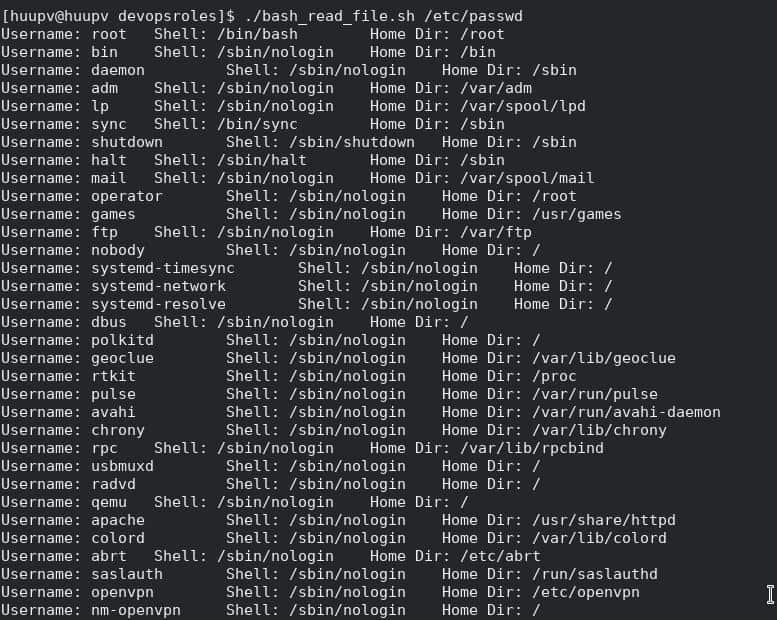
Bash script read /etc/passwd file with fields: filed1 filed2 filed3 filed4 filed5 filed6 filed7

The content bash_read_file.sh file

#!/bin/bash
#Another thing is to take a filename as an argument.
filename="$1"
IFSOLD=$IFS
IFS=:
while read -r field1 field2 field3 field4 field5 field6 field7
do
  #display fields in /etc/passwd file
  printf 'Username: %s \t Shell: %s \t Home Dir: %s\n' "$field1" "$field7" "$field6"

done < "$filename"
IFS=$IFSOLD

The while loop reads each line from the file using the read command. The IFS= read -r field command ensures that leading and trailing whitespaces are preserved in each line.

The screen output terminal:

Conclusion

Through the article, you can use Bash read file line by line. By following these steps, you can effectively read a file line by line in Bash. 

Reading a file line by line in Bash is a fundamental skill that comes in handy for various scripting and automation tasks. With the while loop and the read command, you can efficiently process the contents of a file one line at a time, making it easier to work with large datasets, log files, and more. I hope will this your helpful.