Category Archives: Bash Script

Master Bash scripting with DevOpsRoles.com. Access in-depth guides and tutorials to automate tasks and enhance your DevOps workflows using Bash scripts.

Bash script copy rename multiple files

In this tutorial, I am written a small program with “Bash script copy rename multiple files” on Linux. Linux the essential for DevOps Roles.

The syntax for the loop

for file in $(ls)
do
       cp $file ${file/<Pattern>/<Replacement>}; 
done

For example, I will copy and rename 2 files “foo2017-2.txt and foo2017-3.txt” into “foo2018-2.txt and foo2018-3.txt”  in “folder” folder.

[huupv@huupv devopsroles]$ pwd
/home/huupv/devopsroles
[huupv@huupv devopsroles]$ ls folder/
file.txt foo2017-1.txt foo2017-2.txt foo2017-3.txt
[huupv@huupv devopsroles]$

My Bash script copy rename multiple files

#!/bin/bash
#Only 2 copies files from the bottom and change 2017 to 2018

FOLDER=$1;
for file in $(ls $FOLDER/ | tail -n2)
do
   cp ${FOLDER}/${file} ${FOLDER}/${file/2017/2018};
done

Execute bash script

[huupv@huupv devopsroles]$ chmod +x bash_rename_files.sh
[huupv@huupv devopsroles]$ ./bash_rename_files.sh /home/huupv/devopsroles/folder

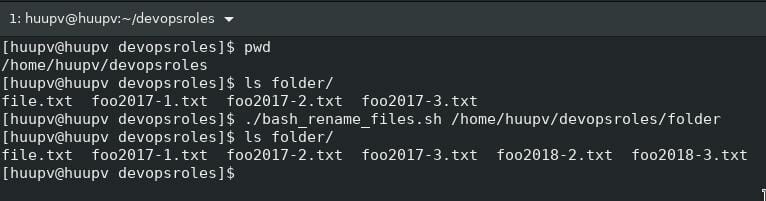
The result, after you run the bash script

[huupv@huupv devopsroles]$ ls /home/huupv/devopsroles/folder/
file.txt foo2017-1.txt foo2017-2.txt foo2017-3.txt foo2018-2.txt foo2018-3.txt
[huupv@huupv devopsroles]$

The screen output terminal
Conclusion

Thought the article, How to use “Bash script copy rename multiple files” as above. I hope will this your helpful. Thank you for reading the DevopsRoles page!

Linux shell script tips

In this tutorial, How do I use Linux shell script tips? shell script the essential for DevOps Roles.

Linux shell script tips

Load any functions file into the current shell script or a command prompt.

# source command
source ~/.bashrc
# or .
. ~/.bashrc

Do not display output on terminal

[huupv@huupv devopsroles]$ echo devopsroles > /dev/null 2>&1

To display the time in the upper right corner on the terminal

[huupv@huupv devopsroles]$ while sleep 1;do tput sc;tput cup 0 $(($(tput cols)-30));date;tput rc;done &

The screen output terminal as below

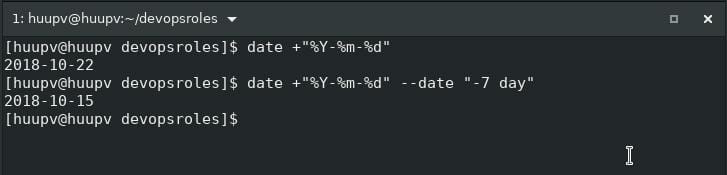
Linux date 7 days ago

[huupv@huupv devopsroles]$ date +"%Y-%m-%d" --date "-7 day"

The screen output terminal as below

Waiting for background processes to finish

[huupv@huupv devopsroles]$ sleep 100 & wait $!

Positional parameters in Linux

[huupv@huupv devopsroles]$ foo=(dev ops COM)
[huupv@huupv devopsroles]$ echo ${foo[2]:0}
>COM

Handling arrays in the shell script

[huupv@huupv devopsroles]$ foo=(x y z)
[huupv@huupv devopsroles]$ echo ${foo[2]}
>z
[huupv@huupv devopsroles]$ echo ${#foo}
>1

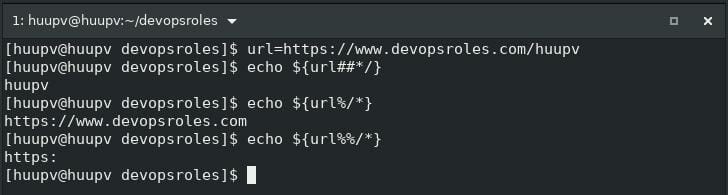
URL tips

[huupv@huupv devopsroles]$ url=https://www.devopsroles.com/huupv

If you want to retrieve user

$ echo ${url##*/}
> huupv

Retrieve the domain

[huupv@huupv devopsroles]$ echo ${url%/*}
> https://www.devopsroles.com

You want to retrieve the protocol

[huupv@huupv devopsroles]$ echo ${url%%/*}
> https:

The screen output terminal as below

Conclusion

Thought the article, How to use Linux shell script tips as above. I hope will this your helpful.

Bash script opening application

In this tutorial, I have written a small program opening application by the shell script. Linux the essential for DevOps Roles.
I will create the directory and create a file openapp. Let’s begin!

[huupv@huupv devopsroles]$ mkdir myall && cd $_
[huupv@huupv myall]$ pwd
/home/huupv/devopsroles/myall
[huupv@huupv myall]$ touch openapp

Bash script opening application

#!/bin/bash

if [ $1 = "fb" ]; then
  echo Opening facebook
  python -m webbrowser -t "https://www.facebook.com/"
elif [ $1 = "web" ]; then
  echo Opening My Website 
  python -m webbrowser -t "https://www.devopsroles.com/"
  python -m webbrowser -t "https://www.huuphan.com/"
elif [ $1 = "youtube" ]; then
  echo Opening youtube
  python -m webbrowser -t "https://www.youtube.com/user/SystemOperatinglinux"
fi

Add permission to execute.

[huupv@huupv myall]$ chmod +x openapp

Now, I opening Youtube with my shell script.

[huupv@huupv myall]$ ./openapp youtube

The screen output terminal as below

Conclusion

Thought the article, How to use Bash script opening application as above. I hope will this your helpful. Thank you for reading the DevopsRoles page!

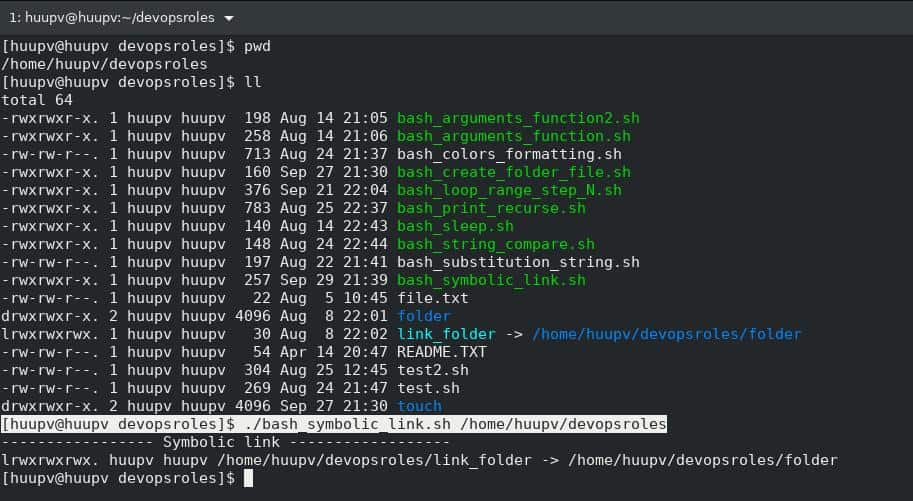
Bash script symbolic link

In this tutorial, How do I use the Bash script symbolic link? A symbolic link or a soft link. Much the same as the shortcut in Windows or a Macintosh alias. Bash script the essential for DevOps Roles.

Bash script Function get Symbolic link

#!/bin/bash
#Function get Symbolic link
getSymboliclink (){
  local FOLDER=$1
  echo "----------------- Symbolic link ------------------"
  find $FOLDER -type l -exec ls -l {} \; | awk '{print $1 " " $3 " " $4 " " $9 " -> " $11}'
}
getSymboliclink $1

The screen output terminal:

Conclusion

Thought the article, you can use the Bash script symbolic link as above. I hope will this your helpful. More details refer to Bash script .

Bash script create new file

In this tutorial, I use a bash script to create a new file. Trick and tips create folder and file with arguments in the bash script. Bash script the essential for DevOps Roles.

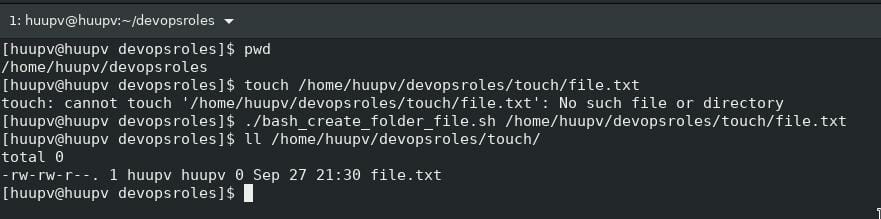
Bash script create new file

If “no such folder” then create folder and file.

My bash script

#!/bin/bash
function create-touch() {
  local FILE
  local FOLDER
  FILE=${@:$#}
  FOLDER="$(dirname "$FILE")"
  mkdir -p "$FOLDER" && \touch "$@"
}
create-touch $1 # Call Function in bash script

The screen output terminal:

Conclusion

Thought the article, you can use a Bash script to create a new file as above. I hope will this your helpful. More details refer to Bash script.

Bash for loop range

In this tutorial, How do I use bash for loop range step N? The seq method is simple. Bash script the essential for DevOps Roles.

Bash function for loop range

f_step_n() {
for i in $(seq 2 3 10)
do 
  RESULT+=$i;
done
echo $RESULT;
}

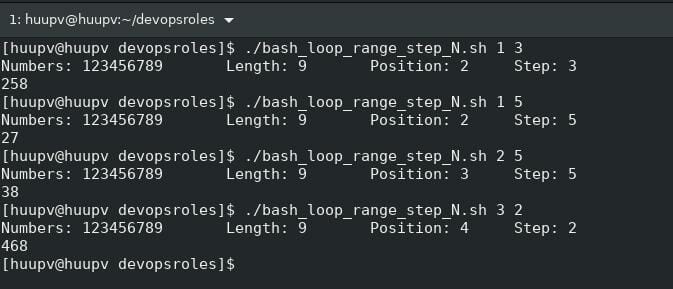
For example

  • Numbers: ‘123456789’
  • Position: 2
  • Step: 4
  • Result: 37

My Bash for loop range step N

#!/bin/bash
_NUMBERS='123456789'
#Length of NUMBERS
_LENG=${#_NUMBERS}
#Substring (position, length)
_POSIT=${_NUMBERS:$1:1}
_NUMBER=$2
f_step_n() {
local P=$1;
local N=$2;
local L=$3;
for i in $(seq $P $N $L)
do 
  RESULT+=$i;
done
echo $RESULT;
}
echo -e "Numbers: $_NUMBERS\t Length: $_LENG\t Position: $_POSIT\t Step: $_NUMBER";
f_step_n ${_POSIT} ${_NUMBER} ${_LENG}

The screen output terminal:

Conclusion

Thought the article, you can use Bash for loop range as above. I hope will this your helpful. More details refer to Bash script.

Bash script recursive file list

In this tutorial, How do I use BASH script to recursively list files directories and subdirectories? Bash script the essential for DevOps Roles. Bash script recursive file list example.

Example List all files in directories and files in subdirectories as below

[huupv@huupv devopsroles]$ pwd
/home/huupv/devopsroles
[huupv@huupv devopsroles]$ tree /home/huupv/devopsroles
/home/huupv/devopsroles
├── bash_arguments_function2.sh
├── bash_arguments_function.sh
├── bash_colors_formatting.sh
├── bash_print_recurse.sh
├── bash_sleep.sh
├── bash_string_compare.sh
├── bash_substitution_string.sh
├── file.txt
├── folder
│   └── file.txt
├── link_folder -> /home/huupv/devopsroles/folder
├── README.TXT
├── test2.sh
└── test.sh

2 directories, 12 files

My Bash script recursive file list

#!/bin/bash
# Colourise the output on terminal
RED='\033[0;31m' # Red
GRE='\033[0;32m' # Green
NCL='\033[0m' # No Color

print_file_recursively() {
   FILE_NAME="$(basename "${entry}")"
   printf "%*s\t[FILE]:\t${GRE} $FILE_NAME %s${NCL}\n"
}

# loop and print all file and folder recusively,
print_recursively() {
   local indent="${2:-0}"
   printf "\n%*s${RED}%s${NCL}\n\n" "$indent" '[DIR]: ' "$1"
for entry in "$1"/*; do
   [[ -f "$entry" ]] && print_file_recursively
done
for entry in "$1"/*; do
   [[ -d "$entry" ]] && print_recursively "$entry" $((indent+4))
done
}

# Check folder
PATH_FOLDER=""
if [ -d "$1" ]; then
PATH_FOLDER=$1;
fi
print_recursively $PATH_FOLDER

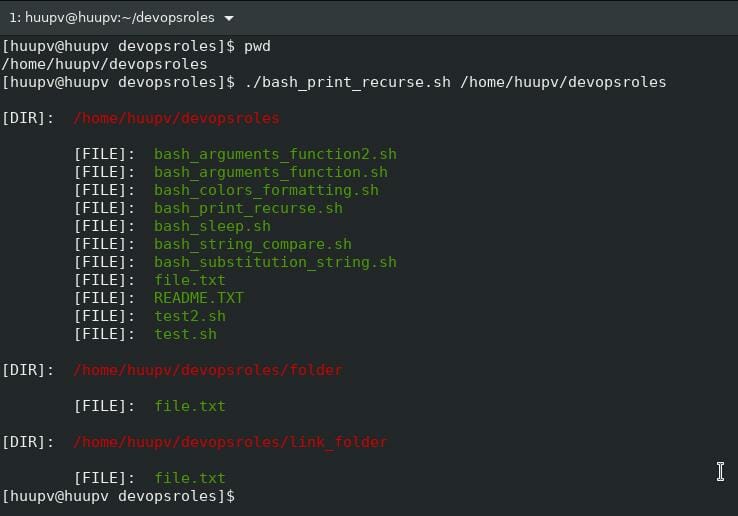
The screen output terminal:

Conclusion

Thought the article, you can use Bash script recursive file list as above. I hope will this your helpful. More details refer to Bash script.

Bash string comparison

Introduction

In Bash scripting, comparing strings is an essential skill that allows you to check and manipulate input data. Unlike other programming languages, Bash has its own syntax and rules for handling string comparisons. In this article, we will explore how to use conditional expressions to compare strings in Bash. We will learn about common comparison operators, string handling techniques, and how to test strings under different conditions.

This guide aims to help you grasp the basics and provides practical examples that you can apply to your daily tasks. How do I use bash string comparison? In the bash shell use the if statement “==” to check equality and “!=” to check the inequality of the string. String comparison examples. The bash script is essential for DevOps Roles.

In bash, you can compare strings using various operators. Here are some common string comparison operators in bash:

  • = : Checks if two strings are equal
  • != : Checks if two strings are not equal
  • -z : Checks if a string is empty (has zero length)
  • -n : Checks if a string is not empty
  • < : Checks if one string is less than another string (in lexicographical order)
  • > : Checks if one string is greater than another string (in lexicographical order)

Bash string comparison use “==” operator

#!/bin/bash
STRA=huu
STRB="www.devopsroles.com"
if [[ "$STRA" == "$STRB" ]]; then
   echo "$STRA equal $STRB"
else
   echo "$STRA not equal $STRB"
fi

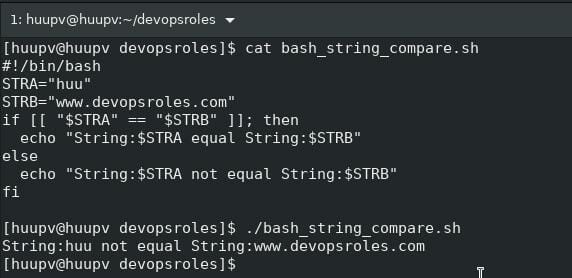
The screen output terminal:

Bash script string compare use “!=” operator

#!/bin/bash
STRA=huu
STRB="www.devopsroles.com"
if [[ "$STRA" != "$STRB" ]]; then
   echo "$STRA not equal $STRB"
else
   echo "$STRA equal $STRB"
fi

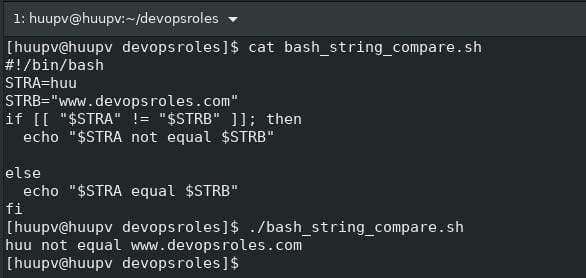
The screen output terminal:

Bash script string compare use wildcards

#!/bin/bash
STRA=huu
STRB="www.devopsroles.com"
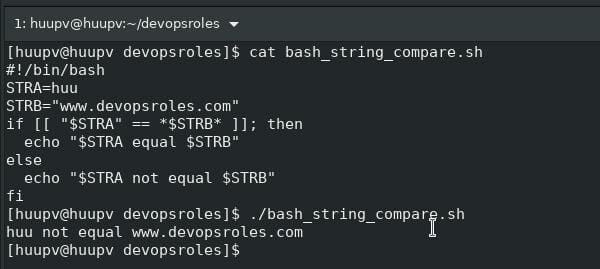
if [[ "$STRA" == *$STRB* ]]; then
   echo "$STRA equal $STRB"
else
   echo "$STRA not equal $STRB"
fi

The screen output terminal:

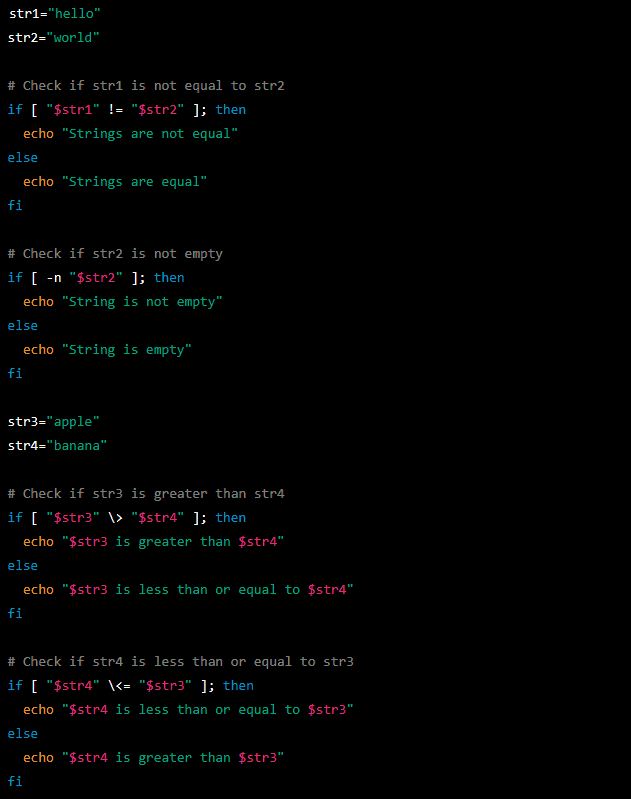
Examples of string comparison in bash

Conclusion

In summary, comparing strings in Bash is a crucial skill that every Bash programmer needs to master. By using comparison operators and conditional expressions, you can effectively and accurately perform string checks and manipulations. Understanding how to compare strings not only helps you write more powerful scripts but also improves your ability to handle data and automate complex tasks.

Hopefully, this article has given you a comprehensive overview and the necessary knowledge to apply to your Bash projects. I hope will this your helpful. For more details refer to the Bash script.

Bash substitution string example

Introduction

Bash, the popular shell scripting language in the Unix and Linux world, offers a variety of powerful tools for string manipulation. Among these tools, “Bash String Substitution” stands out as a crucial technique that allows you to easily modify and transform strings. Whether you are a software developer, system administrator, or a beginner learning Bash, mastering this technique can significantly boost your productivity and efficiency. In this article, we will explore the different methods of string substitution in Bash, from basic to advanced, to help you harness the full potential of this tool. The bash script is essential for DevOps Roles.

Bash substitution string

From the beginning #
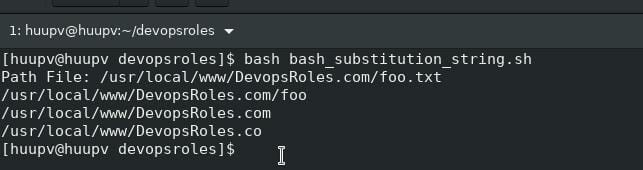
Remove the first matching pattern from the beginning of the string

#!/bin/bash

FILE="/usr/local/www/DevopsRoles.com/foo.txt"
echo "Path File: $FILE"

echo ${FILE#*.}
echo ${FILE#*/}
echo ${FILE#*m}

The screen output terminal:

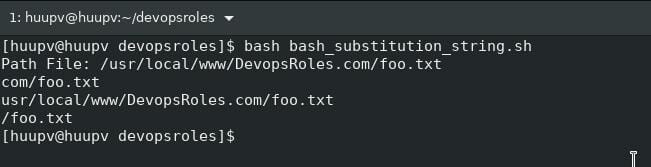
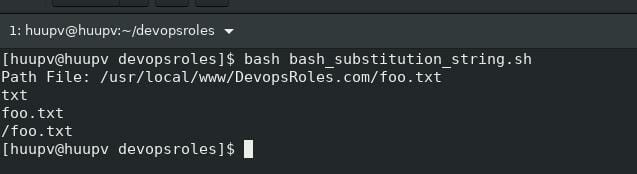
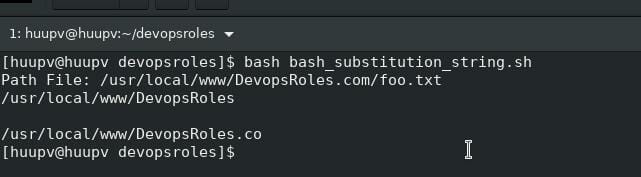
Remove the last matching pattern from the beginning of the string

#!/bin/bash

FILE="/usr/local/www/DevopsRoles.com/foo.txt"
echo "Path File: $FILE"

echo ${FILE##*.}
echo ${FILE##*/}
echo ${FILE##*m}

The screen output terminal:

From the end equal %
Remove the first matching pattern from the end of the string

#!/bin/bash

FILE="/usr/local/www/DevopsRoles.com/foo.txt"
echo "Path File: $FILE"

echo ${FILE%.*}
echo ${FILE%/*}
echo ${FILE%m*}

The terminal screen output:

Remove the last matching pattern from the end of the string

#!/bin/bash

FILE="/usr/local/www/DevopsRoles.com/foo.txt"
echo "Path File: $FILE"

echo ${FILE%%.*}
echo ${FILE%%/*}
echo ${FILE%%m*}

The terminal screen output:

Conclusion

Bash substitution string is a valuable and versatile technique that makes complex string manipulations straightforward. Mastering these substitution methods not only enables you to write more powerful and efficient scripts but also helps optimize your daily tasks.

We hope this article has provided you with a clear and comprehensive understanding of Bash String Substitution, equipping you to apply it effectively in your real-world projects. Keep exploring and experimenting to become a true expert in this field. I hope will this your helpful. For more details refer to Bash script.

Bash sleep until time

How to Bash sleep until time or delay a specific amount of time. How do I pause for 5 seconds in a bash shell script on a Linux? Bash script the essential for DevOps Roles.

To make a Bash script sleep until a specific time, you can use the sleep command in combination with the date command to calculate the remaining time until the desired time is reached.

In Linux, the sleep command to add delay for a specified amount of time.
The syntax sleep command

sleep NUMBER[SUFFIX]

Where SUFFIX:

  • s for seconds (the default)
  • m for minutes.
  • h for hours.
  • d for days.

Bash sleep until time

Examples

To sleep for 5 seconds

sleep 5

To sleep for 5 minutes

sleep 5m

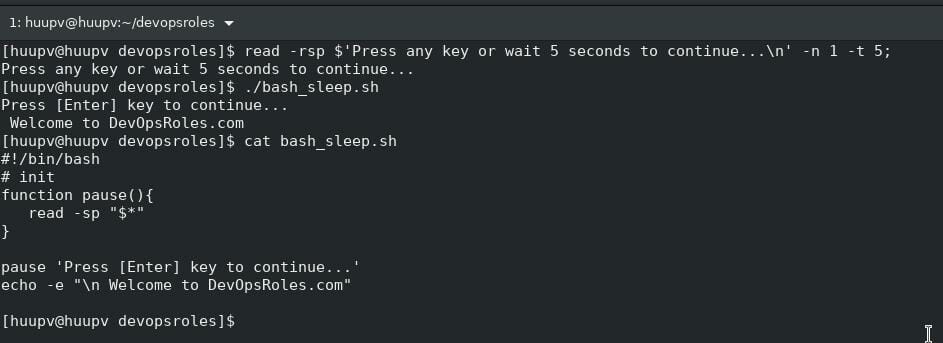
How do I pause my bash shell script until time for 5 second

In DOS, To pause command execution until the user pressed a key. In Linux, Use the read command with the -p option

read -rsp

Explanation

  • -r specifies the raw mode, which doesn’t allow combined characters like “\” or “^”.
  • -s specifies the silent mode
  • -p $’prompt’ specifies the prompt
  • -n 1 specifies that it only needs a single character.
  • -t 5 specifies a timeout of 5 seconds

Bash shell pause function

#!/bin/bash
# init
function pause(){
read -sp "$*"
}

pause 'Press [Enter] key to continue...'

The screen output terminal:

Conclusion

Thought the article, you can use Bash sleep until the time as above. I hope will this your helpful. For more details refer to Bash script.