AWS Certified Solutions Architect Exercises- part 3 Amazon VPC

Introduction

In the ever-evolving landscape of technology, mastering the skills and knowledge of AWS solution architecture is more crucial than ever. Understanding and practicing exercises related to Amazon Virtual Private Cloud (VPC) is a key component in becoming an AWS Certified Solutions Architect. This article, the third installment in our series, will guide you through essential exercises involving Amazon VPC. We will help you grasp how to set up and manage VPCs, understand their core components, and create a secure, flexible networking environment for your applications.

In this article, we’ll learn about Amazon VPC, the best way to become familiar with Amazon VPC is to build your own custom Amazon VPC and then deploy Amazon EC2 instances into it. AWS Certified Solutions Architect Exercises- part 3 Amazon VPC

1. Today’s tasks

  • Create a Custom Amazon VPC
  • Create Two Subnets for Your Custom Amazon VPC
  • Connect Your Custom Amazon VPC to the Internet and Establish Routing
  • Launch an Amazon EC2 Instance and Test the Connection to the Internet.

2. Before you begin AWS Certified Solutions Architect

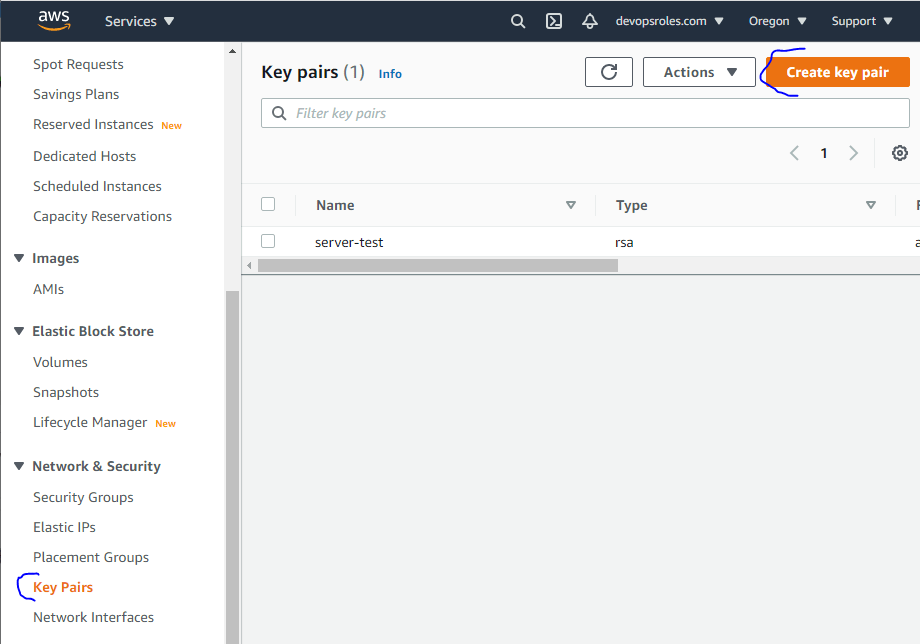
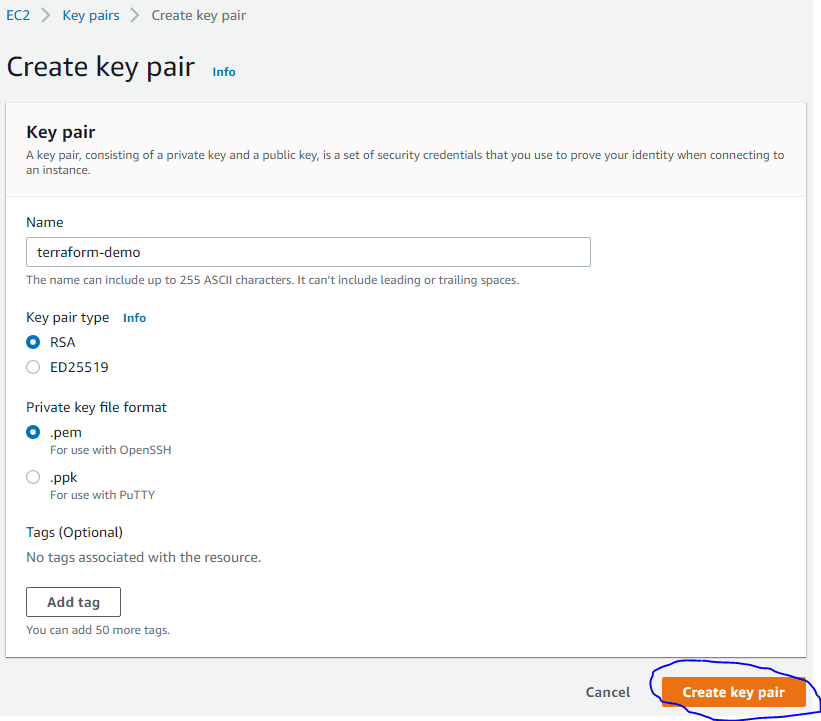
  • Command-line tool to SSH into the Linux instance.

3. Let’s do it

EXERCISE 1:

Create a Custom Amazon VPC

1. Open the Amazon VPC console

2. In the navigation pane, choose Your VPCs, and Create VPC.

3. Specify the following VPC details as necessary and choose to Create.

  • Name tag: My First VPC
  • IPv4 CIDR block: 192.168.0.0/16
  • IPv6 CIDR block:  No IPv6 CIDR Block
  • Tenancy:  Default

EXERCISE 2:

Create Two Subnets for Your Custom Amazon VPC

To add a subnet to your VPC using the console

1. Open the Amazon VPC console

2. In the navigation pane, choose SubnetsCreate subnet.

3. Specify the subnet details as necessary and choose to Create.

  • Name tag: My First Public Subnet.
  • VPC: Choose the VPC from Exercise 1.
  • Availability Zone: Optionally choose an Availability Zone in which your subnet will reside, or leave the default No Preference to let AWS choose an Availability Zone for you.
  • IPv4 CIDR block: 192.168.1.0/24.

4. Create a subnet with a CIDR block equal to 192.168.2.0/24 and a name tag of My First Private Subnet. Create the subnet in the Amazon VPC from Exercise 1, and specify a different Availability Zone for the subnet than previously specified (for example, ap-northeast-1c). You have now created two new subnets, each in its own Availability Zone.

EXERCISE 3:

Connect Your Custom Amazon VPC to the Internet and Establish Routing

1. Create an IGW with a name tag of My First IGW and attach it to your custom Amazon VPC.

2. Add a route to the main route table for your custom Amazon VPC that directs Internet traffic (0.0.0.0/0) to the IGW.

3. Create a NAT gateway, place it in the public subnet of your custom Amazon VPC, and assign it an EIP.

4. Create a new route table with a name tag of My First Private Route Table and place it within your custom Amazon VPC. Add a route to it that directs Internet traffic (0.0.0.0/0) to the NAT gateway and associate it with the private subnet.

EXERCISE 4:

Launch an Amazon EC2 Instance and Test the Connection to the Internet

1. Launch a t2.micro Amazon Linux AMI as an Amazon EC2 instance into the public subnet of your custom Amazon VPC, give it a name tag of My First Public Instance and select your key pair for secure access to the instance.

2. Securely access the Amazon EC2 instance in the public subnet via SSH with a key pair.

3. Execute an update to the operating system instance libraries by executing the following command:

sudo yum update -y

4. You should see an output showing the instance downloading software from the Internet and installing it.

5. Delete all resources created in this exercise.

Conclusion

Mastering exercises related to Amazon VPC not only prepares you better for the AWS Certified Solutions Architect exam but also equips you with vital skills for deploying and managing cloud infrastructure effectively. From creating and configuring VPCs to setting up route tables and network ACLs, each step in this process contributes to building a robust and secure network system. We hope this article boosts your confidence in applying the knowledge gained and continues your journey toward becoming an AWS expert.

If you have any questions or need further assistance, don’t hesitate to reach out to us. Best of luck on your path to becoming an AWS Certified Solutions Architect! AWS Certified Solutions Architect Exercises- part 3 Amazon VPC. Happy Clouding!!! Thank you for reading the DevopsRoles page!

sed command in Linux with Examples

The sed command is a stream editor for filtering and transforming text. In this tutorial, How to sed command in Linux with Examples.

The sed command-Line in Linux, which stands for “stream editor,” is a powerful text processing tool used for performing various text manipulations and transformations. It reads input line by line, applies specified operations, and outputs the result. Here are a few examples of how to use the sed command line:

Syntax

sed [OPTION]... {script-only-if-no-other-script} [input-file]...

On the man page, the describes it

  • sed – modifies lines from the specified File parameter according to an edit script and writes them to standard output.
  • man sed – More details information about the sed command.

The sed command in Linux with Examples

For example, the file sed_test.txt as below

[huupv@DevopsRoles vagrant]$ cat sed_test.txt                                                                                                                                  
# /etc/ntp.conf, configuration for ntpd; see ntp.conf(5) for help

driftfile /var/lib/ntp/ntp.drift

# Enable this if you want statistics to be logged.
#statsdir /var/log/ntpstats/

statistics loopstats peerstats clockstats
filegen loopstats file loopstats type day enable
filegen peerstats file peerstats type day enable
filegen clockstats file clockstats type day enable

# Specify one or more NTP servers.

# Use servers from the NTP Pool Project. Approved by Ubuntu Technical Board
# on 2011-02-08 (LP: #104525). See http://www.pool.ntp.org/join.html for
# more information.
pool 0.ubuntu.pool.ntp.org iburst
pool 1.ubuntu.pool.ntp.org iburst
pool 2.ubuntu.pool.ntp.org iburst
pool 3.ubuntu.pool.ntp.org iburst

Append line

$ sed '/^pool 3/ a server ntp.devopsroes.com' sed_test.txt

Insert line

It will be added lines before the matching line.

$ sed '/^pool 3/i server ntp.devopsroles.com' sed_test.txt

Delete line

used d to delete matching lines. \s is escaped for regular expressions.

$ sed ' /^pool\s[0-9]\.ubuntu/d' sed_test.txt

How to write multi-line

There are two ways, use {} or other files.

Use {}

$ sed ' {
 /^pool 0/i server ntp.devopsroles.com
 /^pool\s[0-9]/d
 } ' ./sed_test.txt

create a ntp.sed file and read with the -f option.

The content ntp.sed file.

/^$/d
/^\s*#/d
/^pool 0/ i server ntp.devopsroles.com prefer
/^pool\s[0-9]\.ubuntu/d

Explain the above line.

/^$/d - Delete blank lines.
/^\s*#/d - Delete the line following # after any space including 0 (Delete comment line of #)

As a result

$ sed -f ntp.sed sed_test.txt

The backup file before changing the original file has been modified.

$ sed -i.bak -f ntp.sed ntp.conf

Print specific lines from a file

sed -n '2,5p' input_file

Delete lines matching a pattern

sed '/pattern/d' input_file

Append text after a specific line

sed '/pattern/a\new_line' input_file

Conclusion

sed Linux is a simple command in Linux. It uses the number of lines of files. These are just a few examples of how to use the sed command in Linux.

The sed command offers a wide range of text manipulation capabilities, including search and replace, insertions, deletions, and more. Thank you for reading the DevopsRoles page!

Minikube Build local Kubernetes environment

Introduction

In today’s DevOps-driven world, Kubernetes has become an essential tool for managing containerized applications at scale. However, setting up a full Kubernetes cluster can be complex and resource-intensive. How to Minikube Build local Kubernetes.

Minikube is a lightweight Kubernetes implementation that creates a local, single-node Kubernetes cluster for development and testing. In this guide, we’ll walk you through everything you need to know to build a local Kubernetes environment using Minikube, from basic setup to advanced configurations. In this tutorial, How to use Minikube Build local Kubernetes environment.

Why Use Minikube?

  • Ease of Use: Minikube simplifies the process of setting up a Kubernetes cluster.
  • Local Development: Ideal for local development and testing.
  • Resource Efficient: Requires fewer resources compared to a full-scale Kubernetes cluster.
  • Feature-Rich: Supports most Kubernetes features and add-ons.

Prerequisites

Before you start, ensure you have the following:

  • A computer with at least 2GB of RAM and 20GB of free disk space.
  • A hypervisor like VirtualBox, VMware, Hyper-V, or KVM.
  • kubectl, the Kubernetes command-line tool, was installed.
  • Minikube installed.

My Virtual Machine has installed Docker. Reference: Link here

Minikube Build local Kubernetes

Install Minikube and kubectl

Minikube

$ curl -Lo minikube https://storage.googleapis.com/minikube/releases/latest/minikube-linux-amd64 && chmod +x minikube && sudo mv minikube /usr/local/bin/

kubectl

$ curl -Lo kubectl https://storage.googleapis.com/kubernetes-release/release/$(curl -s https://storage.googleapis.com/kubernetes-release/release/stable.txt)/bin/linux/amd64/kubectl && chmod +x kubectl && sudo mv kubectl /usr/local/bin/

Set of environment variables.

$ sudo vi /etc/profile

#Add end line in file
export MINIKUBE_WANTUPDATENOTIFICATION=false
export MINIKUBE_WANTREPORTERRORPROMPT=false
export MINIKUBE_HOME=/root
export CHANGE_MINIKUBE_NONE_USER=true
export KUBECONFIG=/root/.kube/config

$ sudo mkdir -p /root/.kube || true
$ sudo touch /root/.kube/config

Launch Minikube

You can use used "--vm-driver=none" option to build Kubernetes on the host running Minikube

$ sudo /usr/local/bin/minikube start --vm-driver=none

File /root/.kube/config have been created. verify the content

$ sudo kubectl config view

Check service minikube status

$ sudo minikube status

Allow port 8443 on the firewall

$ sudo firewall-cmd --add-port=8443/tcp --zone=public --permanent
$ sudo firewall-cmd --reload
$ sudo firewall-cmd --list-all

Create and start container dashboard

using image “k8s.gcr.io/echoserver:1.4” to create the dashboard

$ sudo docker images | grep 'k8s.gcr.io/echoserver'

Minikube created a pod

$ sudo kubectl run hello-minikube --image=k8s.gcr.io/echoserver:1.4 --port=808

To verify node and pod

$ sudo kubectl get nodes
$ sudo kubectl get pods

Instances run on nodes as Docker containers. Displays a list of deployments.

$ sudo kubectl get deployments

Creating service

You use "--type=NodePort" option. Open the service on the IP of each node to the static port (NordPort). A ClusterIP Service routed by the NodePort Service is automatically created. You can access the NordPort Service from outside the cluster by requesting :

$ sudo kubectl expose deployment hello-minikube --type=NodePort
$ sudo kubectl get services

Access dashboard

Get the dashboard URL. The port automatically changes one time.

$ sudo minikube dashboard --url
$ curl http://127.0.0.1:36439/api/v1/namespaces/kube-system/services/http:kubernetes-dashboard:/proxy/

When accessing via Kubernetes proxy

kubectl acts as a reverse proxy to the API endpoint.

$ sudo minikube dashboard --url
$ sudo kubectl proxy
$ curl http://localhost:8001

Accessible dashboard from outside

Minikube started with the "--vm-driver=none" option, it can only be accessed from the host OS using the proxy. Therefore, change the proxy settings so that they can be accessed from outside the host OS (browser).

$ sudo minikube dashboard --url
$ sudo kubectl proxy --address=0.0.0.0 --accept-hosts='.*'

Link URL: http://{YOUR_HOST_NAME}:8001/api/v1/namespaces/kube-system/services/http:kubernetes-dashboard:/proxy/#!/overview?namespace=default

The verify log

$ sudo kubectl logs hello-minikube-78c9fc5f89-9whkn
$ minikube logs -f 

Using kubectl command to delete service, deployment

$ sudo kubectl delete services hello-minikube
$ sudo kubectl delete deployment hello-minikube

Get status to have delete service, deployment

$ sudo kubectl get nodes
$ sudo kubectl get pods
$ sudo kubectl get services
$ sudo kubectl get deployments

Stop minikube and delete the cluster

$ sudo minikube stop
$ minikube delete

Conclusion

Minikube is an excellent tool for developers who want to learn and experiment with Kubernetes without the complexity of setting up a full-scale cluster. By following this guide, you can easily set up a local Kubernetes environment using Minikube, deploy applications, and explore advanced features. Whether you’re a beginner or an experienced developer, Minikube provides a convenient and efficient way to work with Kubernetes on your local machine.

How to set $PATH in Linux

In this tutorial, How to set $PATH in Linux. You may set the $PATH permanently in 2 ways:

  • Set PATH for Particular user.
  • or set a common path for ALL system users.

You need to make “.bash_profile” in-home directory in the user for set PATH Particular user as command below

[huupv@DevopsRoles vagrant]$ echo "export PATH=$PATH:/path/to/dir" >> /home/huupv/.bash_profile
[huupv@DevopsRoles vagrant]$ source /home/huupv/.bash_profile

Or set a common path for ALL system users, you need to set path as below

[root@DevopsRoles vagrant]# echo "export PATH=$PATH:/path/to/dir" >> /etc/profile
[root@DevopsRoles vagrant]# source /etc/profile

An example set a common path for ALL system users as the picture below

Conclusion

Thought the article, You can set PATH 2 way in Linux as above. I hope will this your helpful. Thank you for reading the DevopsRoles page!

AWS Certified Solutions Architect Exercises- part 2 Amazon EC2 and Amazon EBS

In this article, we’ll learn about Amazon Elastic Compute Cloud (Amazon EC2) and Amazon Elastic Block Store (Amazon EBS). Now, let’s go to AWS Certified Solutions Architect Exercises.

AWS Certified Solutions Architect Exercises

1. Today tasks

  • Launch and Connect to a Linux Instance
  • Launch a Windows Instance with Bootstrapping
  • Launch a Spot Instance
  • Access Metadata
  • Create an Amazon EBS Volume and Show That It Remains After the Instance Is Terminated
  • Take a Snapshot and Restore

2. Before you begin

  • Puttygen.exe: Tool creating a .ppk file from a .pem file
  • Command-line tool to SSH into the Linux instance.

3. Let do it

EXERCISE 1: Launch and Connect to a Linux Instance

In this exercise, you will launch a new Linux instance, log in with SSH, and install any security updates.

1. Launch an instance in the Amazon EC2 console.

2. Choose the Amazon Linux 2 AMI (HVM), SSD Volume Type – ami-0c3fd0f5d33134a76.

3. Choose the t2.micro instance type.

4. Configure Instance Details as below

  • Network: Launch the instance in the default VPC.
  • Subnet: Select a default subnet
  • Auto-assign Public IP: Enable.

5. Add Storage setting default, click 「Next: Add tags」button, next screen, you click 「Add tag」button to add a tag to the instance

Example: add a tag with Key is Name, the value of Key: ec2-demo.

6. Create a new security group called demo-sg.

7. Add a rule to demo-sg :

7.1. Allowing SSH access from the IP address of your computer with: Source is My IP(to secure this way is recommended)

7.2. Allowing all IP access with Source is Custom, CidrIP:0.0.0.0/0.

8. Review and Launch the instance.

9. When prompted for a key pair, choose a key pair you already have or create a new one and download the private portion. Amazon generates a keyname.pem file, and you will need a keyname.ppk file to connect to the instance via SSH. Puttygen.exe is one utility that will create a .ppk file from a .pem file.

10. SSH into the instance using the IPv4 public IP address,

To SSH to EC2 created, you able to use tools such as Terraterm

and the user name ec2-user, and the keyname.ppk file created at step 9.

11. From the command-line prompt, run

sudo yum update

12. Close the SSH window and terminate the instance.

EXERCISE 2: Launch a Windows Instance with Bootstrapping

In this exercise, you will launch a Windows instance and specify a very simple bootstrap script. You will then confirm that the bootstrap script was executed on the instance.

1. Launch an instance in the Amazon EC2 console.

2. Choose the Microsoft Windows Server 2019 Base AMI.

3. Choose the t2.micro instance type.

4. Launch the instance in either the default VPC and default subnet, Auto-assign Public IP: Enable.

5. In the Advanced Details section, enter the following text as UserData:

<script>
md c:\temp
</script>

6. Add a tag to the instance of Key: Name, Value: EC2-Demo2

7. Use the demo-sg security group from Exercise 1.

8. Launch the instance.

9. Use the key pair from Exercise 1.

10. On the Connect to Your Instance screen, decrypt the administrator password and then download the RDP file to attempt to connect to the instance. Your attempt should fail because the demo-sg security group does not allow RDP access.

11. Open the demo-sg security group and add a rule that allows RDP access from your IP address.

12. Attempt to access the instance via RDP again.

13. Once the RDP session is connected, open Windows Explorer and confirm that the c:\temp folder has been created.

14. End the RDP session and terminate the instance.

EXERCISE 3: Launch a Spot Instance

In this exercise, you will create a Spot Instance.

1. Launch an instance in the Amazon EC2 console.

2. Choose the Amazon Linux AMI.

3. Choose the instance type.

4. On the Configure Instance page, request a Spot Instance.

5. Launch the instance in either the default VPC and default subnet, Auto-assign Public IP: Enable.

6. Request a Spot Instance and enter a bid a few cents above the recorded Spot price.

7. Finish launching the instance.

8. Go to the Spot Request page. Watch your request.

9. Find the instance on the Instances page of the Amazon EC2 console.

10. Once the instance is running, terminate it.

EXERCISE 4: Access Metadata

In this exercise, you will access the instance metadata from the OS.

1. Execute steps as in EXERCISE 1.

2. At the Linux command prompt, retrieve a list of the available metadata by typing:
curl http://169.254.169.254/latest/meta-data/

3. To see a value, add the name to the end of the URL. For example, to see the security groups, type:
curl http://169.254.169.254/latest/meta-data/security-groups

4. Close the SSH window and terminate the instance.

EXERCISE 5: Create an Amazon EBS Volume and Show That It Remains After the Instance Is Terminated

In this exercise, you will see how an Amazon EBS volume persists beyond the life of an instance.

1. Execute steps as in EXERCISE 1.

2. However, in step 5 「Add Storage 」, add a second Amazon EBS volume of size 50 GB. Note that the Root Volume is set to Delete on Termination.

3. Launch the instance, has two Amazon EBS volumes on the Amazon EBS console, Name them both 「EC2-Demo5」.

4. Terminate the instance.

5. Check that the boot drive is destroyed, but the additional Amazon EBS volume remains and now says Available. Do not delete the Available volume.

EXERCISE 6: Take a Snapshot and Restore

This exercise guides you through taking a snapshot and restoring it in three different ways.

1. Find the volume you created in Exercise 5 in the Amazon EBS Menu.

2. Take a snapshot of that volume. Tag with Name the snapshot Exercise-6, wait for the snapshot to be completed.

3. Method 1 to restore EBS volume: On the Snapshot console, choose the new snapshot created at step2 and select Create Volume, create the volume with all the defaults, tag with Name is 「Exercise-6-volumn-restored」

4. Method 2 to restore EBS volume: Locate the snapshot again, choose to Create Volume, setting the size of the new volume to 100 GB (restoring the snapshot to a new, larger volume is how you address the problem of increasing the size of an existing volume). Tag with Name is 「Exercise-6-volume-restored-100GB」

5. Method 3 to restore EBS volume: Locate the snapshot again and choose Copy. Copy the snapshot to another region.

Go to the other region and wait for the snapshot to become available. Create a volume from the snapshot in the new region.

This is how you share an Amazon EBS volume between regions; that is, by taking a snapshot and copying the snapshot.

5. Delete all four volumes.

AWS Certified Solutions Architect Exercises- part 2 Amazon EC2 and Amazon EBS. I hope will this your helpful. Thank you for reading the DevopsRoles page!
How to Kubernetes Minikube Deploy Pods

Introduction

In the rapidly evolving world of cloud-native applications, Kubernetes has emerged as the go-to platform for automating deployment, scaling, and managing containerized applications. For those who are new to Kubernetes or looking to experiment with it in a local environment, Minikube is the ideal tool. Minikube allows you to run a single-node Kubernetes cluster on your local machine, making it easier to learn and test.

This guide will walk you through the process of deploying and managing Pods on Kubernetes Minikube. We will cover everything from basic concepts to advanced operations like scaling and exposing your services. Whether you are a beginner or an experienced developer, this guide will provide you with valuable insights and practical steps to effectively manage your Kubernetes environment.

What is Kubernetes Minikube?

Kubernetes is an open-source platform that automates the deployment, scaling, and operation of application containers across clusters of hosts. Minikube is a tool that enables you to run a single-node Kubernetes cluster on your local machine. It’s an excellent way to start learning Kubernetes without needing access to a full-fledged Kubernetes cluster.

Key Components of Kubernetes Minikube

Before diving into the hands-on steps, let’s understand some key components you’ll interact with:

  • Service: An abstract way to expose an application running on a set of Pods as a network service.
  • Pod: The smallest and simplest Kubernetes object. A Pod represents a running process on your cluster and contains one or more containers.
  • kubectl: The command-line interface (CLI) tool used to interact with Kubernetes clusters.

Kubernetes Minikube Deploy Pods

Create Pods

[root@DevopsRoles ~]# kubectl run test-nginx --image=nginx --replicas=2 --port=80 
[root@DevopsRoles ~]# kubectl get pods 

The output environment variable for test-nginx pod

[root@DevopsRoles ~]# kubectl exec test-nginx-c8b797d7d-mzf91 env

Access to test-nginx pod

[root@DevopsRoles ~]# kubectl exec -it test-nginx-c8b797d7d-mzf91 bash
root@test-nginx-c8b797d7d-mzf91:/# curl localhost 

show logs of test-nginx pod

[root@DevopsRoles ~]# kubectl logs test-nginx-c8b797d7d-mzf91

How to scale out pods

[root@DevopsRoles ~]# kubectl scale deployment test-nginx --replicas=3 
[root@DevopsRoles ~]# kubectl get pods 

set service

[root@DevopsRoles ~]# kubectl expose deployment test-nginx --type="NodePort" --port 80 
[root@DevopsRoles ~]# kubectl get services test-nginx
[root@DevopsRoles ~]# minikube service test-nginx --url
[root@DevopsRoles ~]# curl http://10.0.2.10:31495 

Delete service and pods

[root@DevopsRoles ~]# kubectl delete services test-nginx
[root@DevopsRoles ~]# kubectl delete deployment test-nginx 

Frequently Asked Questions

What is Minikube in Kubernetes?

Minikube is a tool that allows you to run a Kubernetes cluster locally on your machine. It’s particularly useful for learning and testing Kubernetes without the need for a full-blown cluster.

How do I create a Pod in Kubernetes Minikube?

You can create a Pod in Kubernetes Minikube using the kubectl run command. For example: kubectl run test-nginx --image=nginx --replicas=2 --port=80.

How can I scale a Pod in Kubernetes?

To scale a Pod in Kubernetes, you can use the kubectl scale command. For instance, kubectl scale deployment test-nginx --replicas=3 will scale the deployment to three replicas.

What is the purpose of a Service in Kubernetes?

A Service in Kubernetes is used to expose an application running on a set of Pods as a network service. It allows external traffic to access the Pods.

How do I delete a Service in Kubernetes?

You can delete a Service in Kubernetes using the kubectl delete services <service-name> command. For example: kubectl delete services test-nginx.

Conclusion

Deploying and managing Pods on Kubernetes Minikube is a foundational skill for anyone working in cloud-native environments. This guide has provided you with the essential steps to create, scale, expose, and delete Pods and Services using Minikube.

By mastering these operations, you’ll be well-equipped to manage more complex Kubernetes deployments in production environments. Whether you’re scaling applications, troubleshooting issues, or exposing services, the knowledge gained from this guide will be invaluable. Thank you for reading the DevopsRoles page!
Install Minikube kubernetes on Centos

In this tutorial, How to install Minikube kubernetes to configure a single Node Cluster within a VM. How do I Configure Kubernetes which is a Docker Container system?

A Hypervisor supported by Minikube. In this example, Install KVM Hypervisor. You can use other Hypervisors such as VirtualBox, VMware Fusion v.v.

Install Minikube kubernetes

KVM Hypervisor installing

[root@DevopsRoles ~]# yum -y install qemu-kvm libvirt libvirt-python libguestfs-tools virt-install libvirt-daemon-kvm
[root@DevopsRoles ~]# systemctl start libvirtd
[root@DevopsRoles ~]# systemctl enable libvirtd

Add repository for configure Kubernetes and Install Minikube

Configure Kubernetes repository

[root@DevopsRoles ~]# cat <<'EOF' > /etc/yum.repos.d/kubernetes.repo

[kubernetes]
name=Kubernetes
baseurl=https://packages.cloud.google.com/yum/repos/kubernetes-el7-$basearch
enabled=1
gpgcheck=1
repo_gpgcheck=1
gpgkey=https://packages.cloud.google.com/yum/doc/yum-key.gpg https://packages.cloud.google.com/yum/doc/rpm-package-key.gpg
EOF

Install Minikube

[root@DevopsRoles ~]# yum -y install kubectl
[root@DevopsRoles ~]# wget https://storage.googleapis.com/minikube/releases/latest/minikube-linux-amd64 -O minikube
[root@DevopsRoles ~]# wget https://storage.googleapis.com/minikube/releases/latest/docker-machine-driver-kvm2
[root@DevopsRoles ~]# chmod 755 minikube docker-machine-driver-kvm2
[root@DevopsRoles ~]# mv minikube docker-machine-driver-kvm2 /usr/local/bin/

Check version minikube

[root@DevopsRoles ~]# /usr/local/bin/minikube version
[root@DevopsRoles ~]# kubectl version -o json 

Start Minikube

[root@DevopsRoles ~]# minikube start --vm-driver kvm2 

Minikube the command line

#show status
[root@DevopsRoles ~]# minikube status
[root@DevopsRoles ~]# minikube service list 
[root@DevopsRoles ~]# minikube docker-env 
[root@DevopsRoles ~]# kubectl cluster-info 
[root@DevopsRoles ~]# kubectl get nodes 
[root@DevopsRoles ~]# virsh list
[root@DevopsRoles ~]# minikube ssh # possible to access with SSH to the VM
[root@DevopsRoles ~]# minikube stop # to stop minikube, do like follows
[root@DevopsRoles ~]# minikube delete  # to remove minikube, do like follows
[root@DevopsRoles ~]# virsh list --all 

Conclusion

Thought the article, How to install Minikube Kubernetes on Centos as above. I hope will this your helpful. Thank you for reading the DevopsRoles page!

How to create and Run Instances on OpenStack

In this tutorial, How to create and Run Instances on OpenStack. In previous, My post has How to install OpenStack all in one Centos 7.

Create and Run Instances on OpenStack

How to add users in keystone who can use OpenStack System.

# add project
[root@DevopsRoles ~(keystone)]# openstack project create --domain default --description "Huupv Project" huupv 

# add user
[root@DevopsRoles ~(keystone)]# openstack user create --domain default --project huupv --password userpassword devopsroles 

# add role
[root@DevopsRoles ~(keystone)]# openstack role create CloudUser 

# add user to the role
[root@DevopsRoles ~(keystone)]# openstack role add --project huupv --user devopsroles CloudUser

# add flavor
[root@DevopsRoles ~(keystone)]# openstack flavor create --id 0 --vcpus 1 --ram 2048 --disk 10 m1.small 

Create and Start Virtual Machine Instance.

The username or password in the config is above. Also, create and run an Instance.

[cent@DevopsRoles ~]$ vi ~/keystonerc

#The content as below
export OS_PROJECT_DOMAIN_NAME=default
export OS_USER_DOMAIN_NAME=default
export OS_PROJECT_NAME=huupv
export OS_USERNAME=devopsroles
export OS_PASSWORD=userpassword
export OS_AUTH_URL=http://10.0.2.15:5000/v3
export OS_IDENTITY_API_VERSION=3
export OS_IMAGE_API_VERSION=2
export PS1='[\u@\h \W(keystone)]\$ '

[cent@DevopsRoles ~]$ chmod 600 ~/keystonerc 
[cent@DevopsRoles ~]$ source ~/keystonerc 
[cent@DevopsRoles ~(keystone)]$ echo "source ~/keystonerc " >> ~/.bash_profile
# show flavor list
[cent@DevopsRoles ~(keystone)]$ openstack flavor list 

# show image list
[cent@DevopsRoles ~(keystone)]$ openstack image list 


# show network list
[cent@DevopsRoles ~(keystone)]$ openstack network list 

# create a security group for instances
[cent@DevopsRoles ~(keystone)]$ openstack security group create secgroup01 

[cent@DevopsRoles ~(keystone)]$ openstack security group list 

# create a SSH keypair for connecting to instances
[cent@DevopsRoles ~(keystone)]$ ssh-keygen -q -N "" 

# add public-key
[cent@DevopsRoles ~(keystone)]$ openstack keypair create --public-key ~/.ssh/id_rsa.pub mykey 

[cent@DevopsRoles ~(keystone)]$ openstack keypair list 

[cent@DevopsRoles ~(keystone)]$ netID=$(openstack network list | grep sharednet1 | awk '{ print $2 }') 
# create and boot an instance
[cent@DevopsRoles ~(keystone)]$ openstack server create --flavor m1.small --image CentOS7 --security-group secgroup01 --nic net-id=$netID --key-name mykey CentOS_7

# show status ([BUILD] status is shown when building instance)
[cent@DevopsRoles ~(keystone)]$ openstack server list 

# when starting noramlly, the status turns to [ACTIVE]
[cent@DevopsRoles ~(keystone)]$ openstack server list 

You Access the URL via 10.0.2.15:6080. Thank you for reading the DevopsRoles page!
How to configure OpenStack Networking

In this tutorial, How to configure OpenStack Networking. In previous, My post has How to install OpenStack all in one Centos 7.  This example configures the FLAT type of provider networking. First, you have to configure basic settings Openstack Neutron Services refer here.

For example, Configure FLAT type for Node 2 network interfaces

  • eth0: 10.0.2.15
  • eth1: UP with no IP

Configure OpenStack Networking

Configure Neutron services

# add bridge
[root@DevopsRoles ~(keystone)]# ovs-vsctl add-br br-eth1 

# add eth1 to the port of the bridge above
[root@DevopsRoles ~(keystone)]# ovs-vsctl add-port br-eth1 eth1 

[root@DevopsRoles ~(keystone)]# vi /etc/neutron/plugins/ml2/ml2_conf.ini

# The content as below
# line 181: add
[ml2_type_flat]
flat_networks = physnet1

[root@DevopsRoles ~(keystone)]# vi /etc/neutron/plugins/ml2/openvswitch_agent.ini
# The content as below
# line 194: add
[ovs]
bridge_mappings = physnet1:br-eth1

[root@DevopsRoles ~(keystone)]# systemctl restart neutron-openvswitch-agent

Creating a Virtual network.

[root@DevopsRoles ~(keystone)]# projectID=$(openstack project list | grep service | awk '{print $2}')
# create network named [sharednet1]
[root@DevopsRoles ~(keystone)]# openstack network create --project $projectID \
--share --provider-network-type flat --provider-physical-network physnet1 sharednet1 

# create subnet [10.0.2.0/24] in [sharednet1]
[root@DevopsRoles ~(keystone)]# openstack subnet create subnet1 --network sharednet1 \
--project $projectID --subnet-range 10.0.2.0/24 \
--allocation-pool start=10.0.2.200,end=10.0.2.254 \
--gateway 10.0.2.1 --dns-nameserver 10.0.2.10 

# confirm settings
[root@DevopsRoles ~(keystone)]# openstack network list 

[root@DevopsRoles ~(keystone)]# openstack subnet list 

You have configured OpenStack Networking. Thank you for reading the DevopsRoles page!

How to Install and Configure OpenStack Neutron

In this tutorial, How to Install and Configure OpenStack Neutron. This example chooses the ML2 plugin. In previous, My post has How to install OpenStack all in one Centos 7If you have not yet installed OpenStack Neutron then step install as below

Step 1: Create a User and Database for OpenStack Neutron

First, set up a database in MariaDB for Neutron:

[root@DevopsRoles ~]# mysql -u root -p
MariaDB [(none)]> CREATE DATABASE neutron_ml2;
MariaDB [(none)]> GRANT ALL PRIVILEGES ON neutron_ml2.* TO 'neutron'@'localhost' IDENTIFIED BY 'password';
MariaDB [(none)]> GRANT ALL PRIVILEGES ON neutron_ml2.* TO 'neutron'@'%' IDENTIFIED BY 'password';
MariaDB [(none)]> FLUSH PRIVILEGES;
MariaDB [(none)]> EXIT;

Step 2: Add User and Service for Neutron in Keystone

Create a user, assign a role, and configure endpoints for Neutron in Keystone:

# Create the Neutron user
[root@DevopsRoles ~]# openstack user create --domain default --project service --password servicepassword neutron

# Assign the admin role to Neutron
[root@DevopsRoles ~]# openstack role add --project service --user neutron admin

# Register the Neutron service
[root@DevopsRoles ~]# openstack service create --name neutron --description "OpenStack Networking service" network

# Define the Keystone host
[root@DevopsRoles ~]# export controller=10.0.2.15

# Create Neutron endpoints
[root@DevopsRoles ~]# openstack endpoint create --region RegionOne network public http://$controller:9696
[root@DevopsRoles ~]# openstack endpoint create --region RegionOne network internal http://$controller:9696
[root@DevopsRoles ~]# openstack endpoint create --region RegionOne network admin http://$controller:9696

Step 3: Install Neutron Services

Install the necessary Neutron components from the Stein repository:

[root@DevopsRoles ~]# yum --enablerepo=centos-openstack-stein,epel -y install openstack-neutron openstack-neutron-ml2 openstack-neutron-openvswitch

Step 4: Configure Neutron

Edit the Neutron configuration file to set up database and authentication details:

[root@DevopsRoles ~]# mv /etc/neutron/neutron.conf /etc/neutron/neutron.conf_BK
[root@DevopsRoles ~]# vi /etc/neutron/neutron.conf

Add the following:

iniCopy code[DEFAULT]
core_plugin = ml2
service_plugins = router
auth_strategy = keystone
state_path = /var/lib/neutron
dhcp_agent_notification = True
allow_overlapping_ips = True
notify_nova_on_port_status_changes = True
notify_nova_on_port_data_changes = True
transport_url = rabbit://openstack:password@10.0.2.15

[keystone_authtoken]
www_authenticate_uri = http://10.0.2.15:5000
auth_url = http://10.0.2.15:5000
memcached_servers = 10.0.2.15:11211
auth_type = password
project_domain_name = default
user_domain_name = default
project_name = service
username = neutron
password = servicepassword

[database]
connection = mysql+pymysql://neutron:password@10.0.2.15/neutron_ml2

[nova]
auth_url = http://10.0.2.15:5000
auth_type = password
project_domain_name = default
user_domain_name = default
region_name = RegionOne
project_name = service
username = nova
password = servicepassword

[oslo_concurrency]
lock_path = $state_path/tmp

Apply permissions:

[root@DevopsRoles ~]# chmod 640 /etc/neutron/neutron.conf
[root@DevopsRoles ~]# chgrp neutron /etc/neutron/neutron.conf

Step 5: Configure Neutron Agents

Update the following files:

    L3 Agent Configuration:

    [DEFAULT]
    interface_driver = openvswitch
    

    DHCP Agent Configuration:

    [DEFAULT]
    interface_driver = openvswitch
    dhcp_driver = neutron.agent.linux.dhcp.Dnsmasq
    enable_isolated_metadata = true
    

    Metadata Agent Configuration:

    [DEFAULT]
    nova_metadata_host = 10.0.2.15
    metadata_proxy_shared_secret = metadata_secret
    memcache_servers = 10.0.2.15:11211
    

    ML2 Plugin Configuration:

    [ml2]
    type_drivers = flat,vlan,gre,vxlan
    tenant_network_types =
    mechanism_drivers = openvswitch
    extension_drivers = port_security

    Step 6: Configure Open vSwitch

    Start and configure Open vSwitch:

    [root@DevopsRoles ~]# systemctl start openvswitch
    [root@DevopsRoles ~]# systemctl enable openvswitch
    [root@DevopsRoles ~]# ovs-vsctl add-br br-int
    [root@DevopsRoles ~]# ovs-vsctl add-br br-ex
    [root@DevopsRoles ~]# ln -s /etc/neutron/plugins/ml2/ml2_conf.ini /etc/neutron/plugin.ini
    

    Step 7: Populate the Neutron Database

    Run the database migration command:

    [root@DevopsRoles ~]# su -s /bin/bash neutron -c "neutron-db-manage --config-file /etc/neutron/neutron.conf --config-file /etc/neutron/plugin.ini upgrade head"
    

    Step 8: Start Neutron Services

    Start all required Neutron services:

    [root@DevopsRoles ~]# systemctl start neutron-server neutron-dhcp-agent neutron-l3-agent neutron-metadata-agent neutron-openvswitch-agent
    [root@DevopsRoles ~]# systemctl enable neutron-server neutron-dhcp-agent neutron-l3-agent neutron-metadata-agent neutron-openvswitch-agent
    

    Step 9: Verify Installation

    Check the status of the Neutron agents:

    [root@DevopsRoles ~]# openstack network agent list
    

    Conclusion

    You have successfully installed and configured OpenStack Neutron. This setup enables robust networking capabilities, allowing your OpenStack environment to support complex networking scenarios.

    Devops Tutorial

    Exit mobile version