Terraform for DevOps Engineers: A Comprehensive Guide

In the modern software delivery lifecycle, the line between “development” and “operations” has all but disappeared. This fusion, known as DevOps, demands tools that can manage infrastructure with the same precision, speed, and version control as application code. This is precisely the problem HashiCorp’s Terraform was built to solve. For any serious DevOps professional, mastering Terraform for DevOps practices is no longer optional; it’s a fundamental requirement for building scalable, reliable, and automated systems. This guide will take you from the core principles of Infrastructure as Code (IaC) to advanced, production-grade patterns for managing complex environments.

Why is Infrastructure as Code (IaC) a DevOps Pillar?

Before we dive into Terraform specifically, we must understand the “why” behind Infrastructure as Code. IaC is the practice of managing and provisioning computing infrastructure (like networks, virtual machines, load balancers, and connection topologies) through machine-readable definition files, rather than through physical hardware configuration or interactive configuration tools.

The “Before IaC” Chaos

Think back to the “old ways,” often dubbed “ClickOps.” A new service was needed, so an engineer would manually log into the cloud provider’s console, click through wizards to create a VM, configure a security group, set up a load balancer, and update DNS. This process was:

  • Slow: Manual provisioning takes hours or even days.
  • Error-Prone: Humans make mistakes. A single misclicked checkbox could lead to a security vulnerability or an outage.
  • Inconsistent: The “staging” environment, built by one engineer, would inevitably drift from the “production” environment, built by another. This “configuration drift” is a primary source of “it worked in dev!” bugs.
  • Opaque: There was no audit trail. Who changed that firewall rule? Why? When? The answer was often lost in a sea of console logs or support tickets.

The IaC Revolution: Speed, Consistency, and Accountability

IaC, and by extension Terraform, applies DevOps principles directly to infrastructure:

  • Version Control: Your infrastructure is defined in code (HCL for Terraform). This code lives in Git. You can now use pull requests to review changes, view a complete `git blame` history, and collaborate as a team.
  • Automation: What used to take hours of clicking now takes minutes with a single command: `terraform apply`. This is the engine of CI/CD for infrastructure.
  • Consistency & Idempotency: An IaC definition file is a single source of truth. The same file can be used to create identical development, staging, and production environments, eliminating configuration drift. Tools like Terraform are idempotent, meaning you can run the same script multiple times, and it will only make the changes necessary to reach the desired state, without destroying and recreating everything.
  • Reusability: You can write modular, reusable code to define common patterns, like a standard VPC setup or an auto-scaling application cluster, and share them across your organization.

What is Terraform and How Does It Work?

Terraform is an open-source Infrastructure as Code tool created by HashiCorp. It allows you to define and provide data center infrastructure using a declarative configuration language known as HashiCorp Configuration Language (HCL). It’s cloud-agnostic, meaning a single tool can manage infrastructure across all major providers (AWS, Azure, Google Cloud, Kubernetes, etc.) and even on-premises solutions.

The Core Components: HCL, State, and Providers

To use Terraform effectively, you must understand its three core components:

  1. HashiCorp Configuration Language (HCL): This is the declarative, human-readable language you use to write your `.tf` configuration files. You don’t tell Terraform *how* to create a server; you simply declare *what* server you want.
  2. Terraform Providers: These are the “plugins” that act as the glue between Terraform and the target API (e.g., AWS, Azure, GCP, Kubernetes, DataDog). When you declare an `aws_instance`, Terraform knows to talk to the AWS provider, which then makes the necessary API calls to AWS. You can find thousands of providers on the official Terraform Registry.
  3. Terraform State: This is the most critical and often misunderstood component. Terraform must keep track of the infrastructure it manages. It does this by creating a `terraform.tfstate` file. This JSON file is a “map” between your configuration files and the real-world resources (like a VM ID or S3 bucket name). It’s how Terraform knows what it created, what it needs to update, and what it needs to destroy.

The Declarative Approach: “What” vs. “How”

Tools like Bash scripts or Ansible (in its default mode) are often procedural. You write a script that says, “Step 1: Create a VM. Step 2: Check if a security group exists. Step 3: If not, create it.”

Terraform is declarative. You write a file that says, “I want one VM with this AMI and this instance type. I want one security group with these rules.” You don’t care about the steps. You just define the desired end state. Terraform’s job is to look at the real world (via the state file) and your code, and figure out the most efficient *plan* to make the real world match your code.

The Core Terraform Workflow: Init, Plan, Apply, Destroy

The entire Terraform lifecycle revolves around four simple commands:

  • terraform init: Run this first in any new or checked-out directory. It initializes the backend (where the state file will be stored) and downloads the necessary providers (e.g., `aws`, `google`) defined in your code.
  • terraform plan: This is a “dry run.” Terraform compares your code to its state file and generates an execution plan. It will output exactly what it intends to do: `+ 1 resource to create, ~ 1 resource to update, – 0 resources to destroy`. This is the step you show your team in a pull request.
  • terraform apply: This command executes the plan generated by `terraform plan`. It will prompt you for a final “yes” before making any changes. This is the command that actually builds, modifies, or deletes your infrastructure.
  • terraform destroy: This command reads your state file and destroys all the infrastructure managed by that configuration. It’s powerful and perfect for tearing down temporary development or test environments.

The Critical Role of Terraform for DevOps Pipelines

This is where the true power of Terraform for DevOps shines. When you combine IaC with CI/CD pipelines (like Jenkins, GitLab CI, GitHub Actions), you unlock true end-to-end automation.

Bridging the Gap Between Dev and Ops

Traditionally, developers would write application code and “throw it over the wall” to operations, who would then be responsible for deploying it. This created friction, blame, and slow release cycles.

With Terraform, infrastructure is just another repository. A developer needing a new Redis cache for their feature can open a pull request against the Terraform repository, defining the cache as code. A DevOps or Ops engineer can review that PR, suggest changes (e.g., “let’s use a smaller instance size for dev”), and once approved, an automated pipeline can run `terraform apply` to provision it. The developer and operator are now collaborating in the same workflow, using the same tool: Git.

Enabling CI/CD for Infrastructure

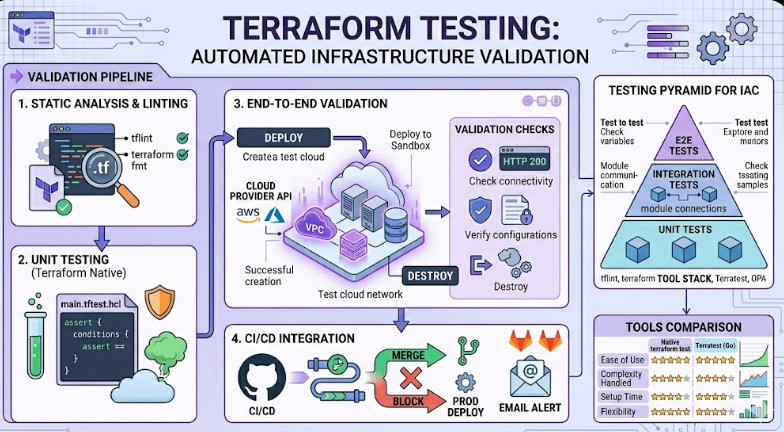
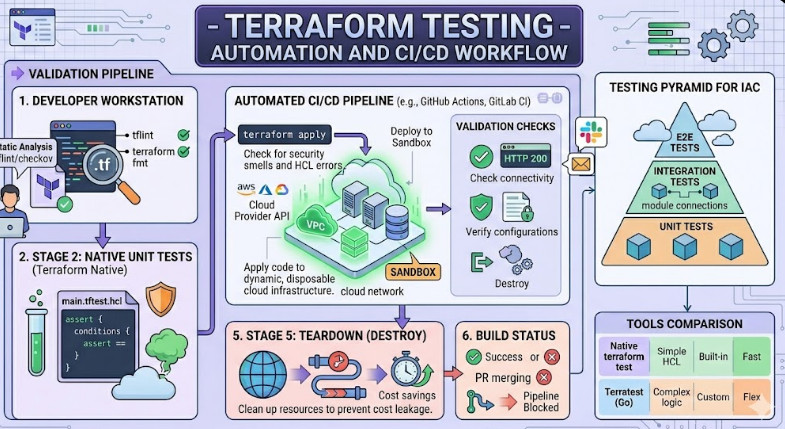
Your application code has a CI/CD pipeline, so why doesn’t your infrastructure? With Terraform, it can. A typical infrastructure CI/CD pipeline might look like this:

  1. Commit: A developer pushes a change (e.g., adding a new S3 bucket) to a feature branch.
  2. Pull Request: A pull request is created.
  3. CI (Continuous Integration): The pipeline automatically runs:
    • terraform init (to initialize)
    • terraform validate (to check HCL syntax)
    • terraform fmt -check (to check code formatting)
    • terraform plan -out=plan.tfplan (to generate the execution plan)
  4. Review: A team member reviews the pull request *and* the attached plan file to see exactly what will change.
  5. Apply (Continuous Deployment): Once the PR is merged to `main`, a merge pipeline triggers and runs:
    • terraform apply "plan.tfplan" (to apply the pre-approved plan)

This “Plan on PR, Apply on Merge” workflow is the gold standard for managing Terraform for DevOps at scale.

Managing Multi-Cloud and Hybrid-Cloud Environments

Few large organizations live in a single cloud. You might have your main applications on AWS, your data analytics on Google BigQuery, and your identity management on Azure AD. Terraform’s provider-based architecture makes this complex reality manageable. You can have a single Terraform configuration that provisions a Kubernetes cluster on GKE, configures a DNS record in AWS Route 53, and creates a user group in Azure AD, all within the same `terraform apply` command. This unified workflow is impossible with cloud-native tools like CloudFormation or ARM templates.

Practical Guide: Getting Started with Terraform

Let’s move from theory to practice. You’ll need the Terraform CLI installed and an AWS account configured with credentials.

Prerequisite: Installation

Terraform is distributed as a single binary. Simply download it from the official website and place it in your system’s `PATH`.

Example 1: Spinning Up an AWS EC2 Instance

Create a directory and add a file named `main.tf`.

# 1. Configure the AWS Provider
terraform {
  required_providers {
    aws = {
      source  = "hashicorp/aws"
      version = "~> 5.0"
    }
  }
}

provider "aws" {
  region = "us-east-1"
}

# 2. Find the latest Ubuntu AMI
data "aws_ami" "ubuntu" {
  most_recent = true

  filter {
    name   = "name"
    values = ["ubuntu/images/hvm-ssd/ubuntu-focal-20.04-amd64-server-*"]
  }

  filter {
    name   = "virtualization-type"
    values = ["hvm"]
  }

  owners = ["099720109477"] # Canonical's AWS account ID
}

# 3. Define a security group to allow SSH
resource "aws_security_group" "allow_ssh" {
  name        = "allow-ssh-example"
  description = "Allow SSH inbound traffic"

  ingress {
    from_port   = 22
    to_port     = 22
    protocol    = "tcp"
    cidr_blocks = ["0.0.0.0/0"] # WARNING: In production, lock this to your IP!
  }

  egress {
    from_port   = 0
    to_port     = 0
    protocol    = "-1"
    cidr_blocks = ["0.0.0.0/0"]
  }

  tags = {
    Name = "allow_ssh_example"
  }
}

# 4. Define the EC2 Instance
resource "aws_instance" "web" {
  ami           = data.aws_ami.ubuntu.id
  instance_type = "t2.micro"
  vpc_security_group_ids = [aws_security_group.allow_ssh.id]

  tags = {
    Name = "HelloWorld-Instance"
  }
}

# 5. Output the public IP address
output "instance_public_ip" {
  description = "Public IP address of the EC2 instance"
  value       = aws_instance.web.public_ip
}

Now, run the workflow:

# 1. Initialize and download the AWS provider
$ terraform init

# 2. See what will be created
$ terraform plan

# 3. Create the resources
$ terraform apply

# 4. When you're done, clean up
$ terraform destroy

In just a few minutes, you’ve provisioned a server, a security group, and an AMI data lookup, all in a repeatable, version-controlled way.

Example 2: Using Variables for Reusability

Hardcoding values like "t2.micro" is bad practice. Let’s parameterize our code. Create a new file, `variables.tf`:

variable "instance_type" {
  description = "The EC2 instance type to use"
  type        = string
  default     = "t2.micro"
}

variable "aws_region" {
  description = "The AWS region to deploy resources in"
  type        = string
  default     = "us-east-1"
}

variable "environment" {
  description = "The deployment environment (e.g., dev, staging, prod)"
  type        = string
  default     = "dev"
}

Now, modify `main.tf` to use these variables:

provider "aws" {
  region = var.aws_region
}

resource "aws_instance" "web" {
  ami           = data.aws_ami.ubuntu.id
  instance_type = var.instance_type # Use the variable
  vpc_security_group_ids = [aws_security_group.allow_ssh.id]

  tags = {
    Name        = "HelloWorld-Instance-${var.environment}" # Use the variable
    Environment = var.environment
  }
}

Now you can override these defaults when you run `apply`:

# Deploy a larger instance for staging
$ terraform apply -var="instance_type=t2.medium" -var="environment=staging"

Advanced Concepts for Seasoned Engineers

Managing a single server is easy. Managing a global production environment used by dozens of engineers is hard. This is where advanced Terraform for DevOps practices become critical.

Understanding Terraform State Management

By default, Terraform saves its state in a local file called `terraform.tfstate`. This is fine for a solo developer. It is disastrous for a team.

  • If you and a colleague both run `terraform apply` from your laptops, you will have two different state files and will instantly start overwriting each other’s changes.
  • If you lose your laptop, you lose your state file. You have just lost the *only* record of the infrastructure Terraform manages. Your infrastructure is now “orphaned.”

Why Remote State is Non-Negotiable

You must use remote state backends. This configures Terraform to store its state file in a remote, shared location, like an AWS S3 bucket, Azure Storage Account, or HashiCorp Consul.

State Locking with Backends (like S3 and DynamoDB)

A good backend provides state locking. This prevents two people from running `terraform apply` at the same time. When you run `apply`, Terraform will first place a “lock” in the backend (e.g., an item in a DynamoDB table). If your colleague tries to run `apply` at the same time, their command will fail, stating that the state is locked by you. This prevents race conditions and state corruption.

Here’s how to configure an S3 backend with DynamoDB locking:

# In your main.tf or a new backend.tf
terraform {
  backend "s3" {
    bucket         = "my-company-terraform-state-bucket"
    key            = "global/networking/terraform.tfstate"
    region         = "us-east-1"
    dynamodb_table = "my-company-terraform-state-lock"
    encrypt        = true
  }
}

You must create the S3 bucket and DynamoDB table (with a `LockID` primary key) *before* you can run `terraform init` to migrate your state.

Building Reusable Infrastructure with Terraform Modules

As your configurations grow, you’ll find yourself copying and pasting the same 30 lines of code to define a “standard web server” or “standard S3 bucket.” This is a violation of the DRY (Don’t Repeat Yourself) principle. The solution is Terraform Modules.

What is a Module?

A module is just a self-contained collection of `.tf` files in a directory. Your main configuration (called the “root module”) can then *call* other modules and pass in variables.

Example: Creating a Reusable Web Server Module

Let’s create a module to encapsulate our EC2 instance and security group. Your directory structure will look like this:

.
├── modules/
│   └── aws-web-server/
│       ├── main.tf
│       ├── variables.tf
│       └── outputs.tf
└── main.tf
└── variables.tf

`modules/aws-web-server/main.tf`:**

resource "aws_security_group" "web_sg" {
  name = "${var.instance_name}-sg"
  # ... (ingress/egress rules) ...
}

resource "aws_instance" "web" {
  ami           = var.ami_id
  instance_type = var.instance_type
  vpc_security_group_ids = [aws_security_group.web_sg.id]

  tags = {
    Name = var.instance_name
  }
}

`modules/aws-web-server/variables.tf`:**

variable "instance_name" { type = string }
variable "instance_type" { type = string }
variable "ami_id"        { type = string }

`modules/aws-web-server/outputs.tf`:**

output "instance_id" {
  value = aws_instance.web.id
}
output "public_ip" {
  value = aws_instance.web.public_ip
}

Now, your root `main.tf` becomes incredibly simple:

module "dev_server" {
  source = "./modules/aws-web-server"

  instance_name = "dev-web-01"
  instance_type = "t2.micro"
  ami_id        = "ami-0abcdef123456" # Pass in the AMI ID
}

module "prod_server" {
  source = "./modules/aws-web-server"

  instance_name = "prod-web-01"
  instance_type = "t3.large"
  ami_id        = "ami-0abcdef123456"
}

output "prod_server_ip" {
  value = module.prod_server.public_ip
}

You’ve now defined your “web server” pattern once and can stamp it out many times with different variables. You can even publish these modules to a private Terraform Registry or a Git repository for your whole company to use.

Terraform vs. Other Tools: A DevOps Perspective

A common question is how Terraform fits in with other tools. This is a critical distinction for a DevOps engineer.

Terraform vs. Ansible

This is the most common comparison, and the answer is: use both. They solve different problems.

  • Terraform (Orchestration/Provisioning): Terraform is for building the house. It provisions the VMs, the load balancers, the VPCs, and the database. It is declarative and excels at managing the lifecycle of *infrastructure*.
  • Ansible (Configuration Management): Ansible is for furnishing the house. It configures the software *inside* the VM. It installs `nginx`, configures `httpd.conf`, and ensures services are running. It is (mostly) procedural.

A common pattern is to use Terraform to provision a “blank” EC2 instance and output its IP address. Then, a CI/CD pipeline triggers an Ansible playbook to configure that new IP.

Terraform vs. CloudFormation vs. ARM Templates

  • CloudFormation (AWS) and ARM (Azure) are cloud-native IaC tools.
  • Pros: They are tightly integrated with their respective clouds and often get “day one” support for new services.
  • Cons: They are vendor-locked. A CloudFormation template cannot provision a GKE cluster. Their syntax (JSON/YAML) can be extremely verbose and difficult to manage compared to HCL.
  • The DevOps Choice: Most teams choose Terraform for its cloud-agnostic nature, simpler syntax, and powerful community. It provides a single “language” for infrastructure, regardless of where it lives.

Best Practices for Using Terraform in a Team Environment

Finally, let’s cover some pro-tips for scaling Terraform for DevOps teams.

  1. Structure Your Projects Logically: Don’t put your entire company’s infrastructure in one giant state file. Break it down. Have separate state files (and thus, separate directories) for different environments (dev, staging, prod) and different logical components (e.g., `networking`, `app-services`, `data-stores`).
  2. Integrate with CI/CD: We covered this, but it’s the most important practice. No one should ever run `terraform apply` from their laptop against a production environment. All changes must go through a PR and an automated pipeline.
  3. Use Terragrunt for DRY Configurations: Terragrunt is a thin wrapper for Terraform that helps keep your backend configuration DRY and manage multiple modules. It’s an advanced tool worth investigating once your module count explodes.
  4. Implement Policy as Code (PaC): How do you stop a junior engineer from accidentally provisioning a `p3.16xlarge` (a $25/hour) GPU instance in dev? You use Policy as Code with tools like HashiCorp Sentinel or Open Policy Agent (OPA). These integrate with Terraform to enforce rules like “No instance larger than `t3.medium` can be created in the ‘dev’ environment.”

Here’s a quick example of a `.gitlab-ci.yml` file for a “Plan on MR, Apply on Merge” pipeline:

stages:
  - validate
  - plan
  - apply

variables:
  TF_ROOT: ${CI_PROJECT_DIR}
  TF_STATE_NAME: "my-app-state"
  TF_ADDRESS: "${CI_API_V4_URL}/projects/${CI_PROJECT_ID}/terraform/state/${TF_STATE_NAME}"

.terraform:
  image: hashicorp/terraform:latest
  before_script:
    - cd ${TF_ROOT}
    - terraform init -reconfigure -backend-config="address=${TF_ADDRESS}" -backend-config="lock_address=${TF_ADDRESS}/lock" -backend-config="unlock_address=${TF_ADDRESS}/lock" -backend-config="username=gitlab-ci-token" -backend-config="password=${CI_JOB_TOKEN}" -backend-config="lock_method=POST" -backend-config="unlock_method=DELETE" -backend-config="retry_wait_min=5"

validate:
  extends: .terraform
  stage: validate
  script:
    - terraform validate
    - terraform fmt -check

plan:
  extends: .terraform
  stage: plan
  script:
    - terraform plan -out=plan.tfplan
  artifacts:
    paths:
      - ${TF_ROOT}/plan.tfplan
  rules:
    - if: $CI_PIPELINE_SOURCE == 'merge_request_event'

apply:
  extends: .terraform
  stage: apply
  script:
    - terraform apply -auto-approve "plan.tfplan"
  artifacts:
    paths:
      - ${TF_ROOT}/plan.tfplan
  rules:
    - if: $CI_COMMIT_BRANCH == $CI_DEFAULT_BRANCH && $CI_PIPELINE_SOURCE == 'push'

Frequently Asked Questions (FAQs)

Q: Is Terraform only for cloud providers?

A: No. While its most popular use is for AWS, Azure, and GCP, Terraform has providers for thousands of services. You can manage Kubernetes, DataDog, PagerDuty, Cloudflare, GitHub, and even on-premises hardware like vSphere and F5 BIG-IP.

Q: What is the difference between terraform plan and terraform apply?

A: terraform plan is a non-destructive dry run. It shows you *what* Terraform *intends* to do. terraform apply is the command that *executes* that plan and makes the actual changes to your infrastructure. Always review your plan before applying!

Q: How do I handle secrets in Terraform?

A: Never hardcode secrets (like database passwords or API keys) in your .tf files or .tfvars files. These get committed to Git. Instead, use a secrets manager. The best practice is to have Terraform fetch secrets at *runtime* from a tool like HashiCorp Vault, AWS Secrets Manager, or Azure Key Vault using their data sources.

Q: Can I import existing infrastructure into Terraform?

A: Yes. If you have “ClickOps” infrastructure, you don’t have to delete it. You can write the Terraform code to match it, and then use the terraform import command (e.g., terraform import aws_instance.web i-1234567890abcdef0) to “import” that existing resource into your state file. This is a manual but necessary process for adopting IaC.

Conclusion

For the modern DevOps engineer, infrastructure is no longer a static, manually-managed black box. It is a dynamic, fluid, and critical component of your application, and it deserves the same rigor and automation as your application code. Terraform for DevOps provides the common language and powerful tooling to make this a reality. By embracing the declarative IaC workflow, leveraging remote state and modules, and integrating infrastructure changes directly into your CI/CD pipelines, you can build, deploy, and manage systems with a level of speed, reliability, and collaboration that was unthinkable just a decade ago. The journey starts with a single terraform init, and scales to entire data centers defined in code. Mastering Terraform for DevOps is investing in a foundational skill for the future of cloud engineering.

Thank you for reading the DevopsRoles page!

Manage Dev, Staging & Prod with Terraform Workspaces

In the world of modern infrastructure, managing multiple environments is a fundamental challenge. Every development lifecycle needs at least a development (dev) environment for building, a staging (or QA) environment for testing, and a production (prod) environment for serving users. Managing these environments manually is a recipe for configuration drift, errors, and significant downtime. This is where Infrastructure as Code (IaC), and specifically HashiCorp’s Terraform, becomes indispensable. But even with Terraform, how do you manage the state of three distinct, long-running environments without duplicating your entire codebase? The answer is built directly into the tool: Terraform Workspaces.

This comprehensive guide will explore exactly what Terraform Workspaces are, why they are a powerful solution for environment management, and how to implement them in a practical, real-world scenario to handle your dev, staging, and prod deployments from a single, unified codebase.


What Are Terraform Workspaces?

At their core, Terraform Workspaces are named instances of a single Terraform configuration. Each workspace maintains its own separate state file. This allows you to use the exact same set of .tf configuration files to manage multiple, distinct sets of infrastructure resources.

When you run terraform apply, Terraform only considers the resources defined in the state file for the *currently selected* workspace. This isolation is the key feature. If you’re in the dev workspace, you can create, modify, or destroy resources without affecting any of the resources managed by the prod workspace, even though both are defined by the same main.tf file.

Workspaces vs. Git Branches: A Common Misconception

A critical distinction to make early on is the difference between Terraform Workspaces and Git branches. They solve two completely different problems.

  • Git Branches are for managing changes to your code. You use a branch (e.g., feature-x) to develop a new part of your infrastructure. You test it, and once it’s approved, you merge it into your main branch.
  • Terraform Workspaces are for managing deployments of your code. You use your main branch (which contains your stable, approved code) and deploy it to your dev workspace. Once validated, you deploy the *exact same commit* to your staging workspace, and finally to your prod workspace.

Do not use Git branches to manage environments (e.g., a dev branch, a prod branch). This leads to configuration drift, nightmarish merges, and violates the core IaC principle of having a single source of truth for your infrastructure’s definition.

How Workspaces Manage State

When you initialize a Terraform configuration that uses a local backend (the default), Terraform creates a terraform.tfstate file. As soon as you create a new workspace, Terraform creates a new directory called terraform.tfstate.d. Inside this directory, it will create a separate state file for each workspace you have.

For example, if you have dev, staging, and prod workspaces, your local directory might look like this:


.
├── main.tf
├── variables.tf
├── terraform.tfstate.d/
│   ├── dev/
│   │   └── terraform.tfstate
│   ├── staging/
│   │   └── terraform.tfstate
│   └── prod/
│   │   └── terraform.tfstate
└── .terraform/
    ...

This is why switching workspaces is so effective. Running terraform workspace select prod simply tells Terraform to use the prod/terraform.tfstate file for all subsequent plan and apply operations. When using a remote backend like AWS S3 (which is a strong best practice), this behavior is mirrored. Terraform will store the state files in a path that includes the workspace name, ensuring complete isolation.


Why Use Terraform Workspaces for Environment Management?

Using Terraform Workspaces offers several significant advantages for managing your infrastructure lifecycle, especially when compared to the alternatives like copying your entire project for each environment.

  • State Isolation: This is the primary benefit. A catastrophic error in your dev environment (like running terraform destroy by accident) will have zero impact on your prod environment, as they have entirely separate state files.
  • Code Reusability (DRY Principle): You maintain one set of .tf files. You don’t repeat yourself. If you need to add a new monitoring rule or a security group, you add it once to your configuration, and then roll it out to each environment by selecting its workspace and applying the change.
  • Simplified Configuration: Workspaces allow you to parameterize your environments. Your prod environment might need a large t3.large EC2 instance, while your dev environment only needs a t3.micro. Workspaces provide clean mechanisms to inject these different variable values into the same configuration.
  • Clean CI/CD Integration: In an automation pipeline, it’s trivial to select the correct workspace based on the Git branch or a pipeline trigger. A deployment to the main branch might trigger a terraform workspace select prod and apply, while a merge to develop triggers a terraform workspace select dev.

Practical Guide: Setting Up Dev, Staging & Prod Environments

Let’s walk through a practical example. We’ll define a simple AWS EC2 instance and see how to deploy different variations of it to dev, staging, and prod.

Step 1: Initializing Your Project and Backend

First, create a main.tf file. It’s a critical best practice to use a remote backend from the very beginning. This ensures your state is stored securely, durably, and can be accessed by your team and CI/CD pipelines. We’ll use AWS S3.


# main.tf

terraform {
  required_providers {
    aws = {
      source  = "hashicorp/aws"
      version = "~> 5.0"
    }
  }

  # Best Practice: Use a remote backend
  backend "s3" {
    bucket         = "my-terraform-state-bucket-unique"
    key            = "global/ec2/terraform.tfstate"
    region         = "us-east-1"
    dynamodb_table = "terraform-lock-table"
    encrypt        = true
  }
}

provider "aws" {
  region = "us-east-1"
}

# We will define variables later
variable "instance_type" {
  description = "The EC2 instance type."
  type        = string
}

variable "ami_id" {
  description = "The AMI to use for the instance."
  type        = string
}

variable "tags" {
  description = "A map of tags to apply to the resources."
  type        = map(string)
  default     = {}
}

resource "aws_instance" "web_server" {
  ami           = var.ami_id
  instance_type = var.instance_type

  tags = merge(
    {
      "Name"        = "web-server-${terraform.workspace}"
      "Environment" = terraform.workspace
    },
    var.tags
  )
}

Notice the use of terraform.workspace in the tags. This is a built-in variable that always contains the name of the currently selected workspace. It’s incredibly useful for naming and tagging resources to identify them easily.

Run terraform init to initialize the backend.

Step 2: Creating Your Workspaces

By default, you start in a workspace named default. Let’s create our three target environments.


# Create the new workspaces
$ terraform workspace new dev
Created and switched to workspace "dev"

$ terraform workspace new staging
Created and switched to workspace "staging"

$ terraform workspace new prod
Created and switched to workspace "prod"

# Let's list them to check
$ terraform workspace list
  default
  dev
  staging
* prod
  (The * indicates the currently selected workspace)

# Switch back to dev for our first deployment
$ terraform workspace select dev
Switched to workspace "dev"

Now, if you check your S3 bucket, you’ll see that Terraform has automatically created paths for your new workspaces under the key you defined. This is how it isolates the state files.

Step 3: Structuring Your Configuration with Variables

Our environments are not identical. Production needs a robust AMI and a larger instance, while dev can use a basic, cheap one. How do we supply different variables?

There are two primary methods: .tfvars files (recommended for clarity) and locals maps (good for simpler configs).

Step 4: Using Environment-Specific .tfvars Files (Recommended)

This is the cleanest and most scalable approach. We create a separate variable file for each environment.

Create dev.tfvars:


# dev.tfvars
instance_type = "t3.micro"
ami_id        = "ami-0c55b159cbfafe1f0" # Amazon Linux 2 (free tier eligible)
tags = {
  "CostCenter" = "development"
}

Create staging.tfvars:


# staging.tfvars
instance_type = "t3.small"
ami_id        = "ami-0c55b159cbfafe1f0" # Amazon Linux 2
tags = {
  "CostCenter" = "qa"
}

Create prod.tfvars:


# prod.tfvars
instance_type = "t3.large"
ami_id        = "ami-0a8b421e306b0cfa4" # A custom, hardened production AMI
tags = {
  "CostCenter" = "production-web"
}

Now, your deployment workflow in Step 6 will use these files explicitly.

Step 5: Using the terraform.workspace Variable (The “Map” Method)

An alternative method is to define all environment configurations inside your .tf files using a locals block and the terraform.workspace variable as a map key. This keeps the configuration self-contained but can become unwieldy for many variables.

You would create a locals.tf file:


# locals.tf

locals {
  # A map of environment-specific configurations
  env_config = {
    dev = {
      instance_type = "t3.micro"
      ami_id        = "ami-0c55b159cbfafe1f0"
    }
    staging = {
      instance_type = "t3.small"
      ami_id        = "ami-0c55b159cbfafe1f0"
    }
    prod = {
      instance_type = "t3.large"
      ami_id        = "ami-0a8b421e306b0cfa4"
    }
    # Failsafe for 'default' or other workspaces
    default = {
      instance_type = "t3.nano"
      ami_id        = "ami-0c55b159cbfafe1f0"
    }
  }

  # Dynamically select the config based on the current workspace
  # Use lookup() with a default value to prevent errors
  current_config = lookup(
    local.env_config,
    terraform.workspace,
    local.env_config.default
  )
}

Then, you would modify your main.tf to use these locals instead of var:


# main.tf (Modified for 'locals' method)

resource "aws_instance" "web_server" {
  # Use the looked-up local values
  ami           = local.current_config.ami_id
  instance_type = local.current_config.instance_type

  tags = {
    "Name"        = "web-server-${terraform.workspace}"
    "Environment" = terraform.workspace
  }
}

While this works, we will proceed with the .tfvars method (Step 4) as it’s generally considered a cleaner pattern for complex projects.

Step 6: Deploying to a Specific Environment

Now, let’s tie it all together using the .tfvars method. The workflow is simple: Select Workspace, then Plan/Apply with its .tfvars file.

Deploying to Dev:


# 1. Make sure you are in the 'dev' workspace
$ terraform workspace select dev
Switched to workspace "dev"

# 2. Plan the deployment, specifying the 'dev' variables
$ terraform plan -var-file="dev.tfvars"
...
Plan: 1 to add, 0 to change, 0 to destroy.
  + resource "aws_instance" "web_server" {
      + ami           = "ami-0c55b159cbfafe1f0"
      + instance_type = "t3.micro"
      + tags          = {
          + "CostCenter"  = "development"
          + "Environment" = "dev"
          + "Name"        = "web-server-dev"
        }
      ...
    }

# 3. Apply the plan
$ terraform apply -var-file="dev.tfvars" -auto-approve

You now have a t3.micro server running for your dev environment. Its state is tracked in the dev state file.

Deploying to Prod:

Now, let’s deploy production. Note that we don’t change any code. We just change our workspace and our variable file.


# 1. Select the 'prod' workspace
$ terraform workspace select prod
Switched to workspace "prod"

# 2. Plan the deployment, specifying the 'prod' variables
$ terraform plan -var-file="prod.tfvars"
...
Plan: 1 to add, 0 to change, 0 to destroy.
  + resource "aws_instance" "web_server" {
      + ami           = "ami-0a8b421e306b0cfa4"
      + instance_type = "t3.large"
      + tags          = {
          + "CostCenter"  = "production-web"
          + "Environment" = "prod"
          + "Name"        = "web-server-prod"
        }
      ...
    }

# 3. Apply the plan
$ terraform apply -var-file="prod.tfvars" -auto-approve

You now have a completely separate t3.large server for production, with its state tracked in the prod state file. Destroying the dev instance will have no effect on this new server.


Terraform Workspaces: Best Practices and Common Pitfalls

While powerful, Terraform Workspaces can be misused. Here are some best practices and common pitfalls to avoid.

Best Practice: Use a Remote Backend

This was mentioned in the tutorial but cannot be overstated. Using the local backend (the default) with workspaces is only suitable for solo development. For any team, you must use a remote backend like AWS S3, Azure Blob Storage, or Terraform Cloud. This provides state locking (so two people don’t run apply at the same time), security, and a single source of truth for your state.

Best Practice: Use .tfvars Files for Clarity

As demonstrated, using dev.tfvars, prod.tfvars, etc., is a very clear and explicit way to manage environment variables. It separates the “what” (the main.tf) from the “how” (the environment-specific values). In a CI/CD pipeline, you can easily pass the correct file: terraform apply -var-file="$WORKSPACE_NAME.tfvars".

Pitfall: Avoid Using Workspaces for Different *Projects*

A workspace is not a new project. It’s a new *instance* of the *same* project. If your “prod” environment needs a database, a cache, and a web server, your “dev” environment should probably have them too (even if they are smaller). If you find yourself writing a lot of logic like count = terraform.workspace == "prod" ? 1 : 0 to *conditionally create resources* only in certain environments, you may have a problem. This indicates your environments have different “shapes.” In this case, you might be better served by:

  1. Using separate Terraform configurations (projects) entirely.
  2. Using feature flags in your .tfvars files (e.g., create_database = true).

Pitfall: The default Workspace Trap

Everyone starts in the default workspace. It’s often a good idea to avoid using it for any real environment, as its name is ambiguous. Some teams use it as a “scratch” or “admin” workspace. You can even rename it: terraform workspace rename default admin. A cleaner approach is to create your named environments (dev, prod) immediately and never use default at all.


Alternatives to Terraform Workspaces

Terraform Workspaces are a “built-in” solution, but not the only one. The main alternative is a directory-based structure, often orchestrated with a tool like Terragrunt.

1. Directory-Based Structure (Terragrunt)

This is a very popular and robust pattern. Instead of using workspaces, you create a directory for each environment. Each directory has its own terraform.tfvars file and often a small main.tf that calls a shared module.


infrastructure/
├── modules/
│   └── web_server/
│       ├── main.tf
│       └── variables.tf
├── envs/
│   ├── dev/
│   │   ├── terraform.tfvars
│   │   └── main.tf  (calls ../../modules/web_server)
│   ├── staging/
│   │   ├── terraform.tfvars
│   │   └── main.tf  (calls ../../modules/web_server)
│   └── prod/
│       ├── terraform.tfvars
│       └── main.tf  (calls ../../modules/web_server)

In this pattern, each environment is its own distinct Terraform project (with its own state file, managed by its own backend configuration). Terragrunt is a thin wrapper that excels at managing this structure, letting you define backend and variable configurations in a DRY way.

When to Choose Workspaces: Workspaces are fantastic for small-to-medium projects where all environments have an identical “shape” (i.e., they deploy the same set of resources, just with different variables).

When to Choose Terragrunt/Directories: This pattern is often preferred for large, complex organizations where environments may have significant differences, or where you want to break up your infrastructure into many small, independently-managed state files.


Frequently Asked Questions

What is the difference between Terraform Workspaces and modules?

They are completely different concepts.

  • Modules are for creating reusable code. You write a module once (e.g., a module to create a secure S3 bucket) and then “call” that module many times, even within the same configuration.
  • Workspaces are for managing separate state files for different deployments of the same configuration.

You will almost always use modules *within* a configuration that is also managed by workspaces.

How do I delete a Terraform Workspace?

You can delete a workspace with terraform workspace delete <name>. However, Terraform will not let you delete a workspace that still has resources managed by it. You must run terraform destroy in that workspace first. You also cannot delete the default workspace.

Are Terraform Workspaces secure for production?

Yes, absolutely. The security of your environments is not determined by the workspace feature itself, but by your operational practices. Security is achieved by:

  • Using a remote backend with encryption and strict access policies (e.g., S3 Bucket Policies and IAM).
  • Using state locking (e.g., DynamoDB).
  • Managing sensitive variables (like database passwords) using a tool like HashiCorp Vault or your CI/CD system’s secret manager, not by committing them in .tfvars files.
  • Using separate cloud accounts or projects (e.g., different AWS accounts for dev and prod) and separate provider credentials for each workspace, which can be passed in during the apply step.

Can I use Terraform Workspaces with Terraform Cloud?

Yes. In fact, Terraform Cloud is built entirely around the concept of workspaces. In Terraform Cloud, a “workspace” is even more powerful: it’s a dedicated environment that holds your state file, your variables (including sensitive ones), your run history, and your access controls. This is the natural evolution of the open-source workspace concept.


Conclusion

Terraform Workspaces are a powerful, built-in feature that directly addresses the common challenge of managing dev, staging, and production environments. By providing clean state file isolation, they allow you to maintain a single, DRY (Don’t Repeat Yourself) codebase for your infrastructure while safely managing multiple, independent deployments. When combined with a remote backend and a clear variable strategy (like .tfvars files), Terraform Workspaces provide a scalable and professional workflow for any DevOps team looking to master their Infrastructure as Code lifecycle. Thank you for reading the DevopsRoles page!

The Art of Prompting: How to Get Better Results from AI

In the world of DevOps, SREs, and software development, Generative AI has evolved from a novel curiosity into a powerful co-pilot. Whether it’s drafting a complex Bash script, debugging a Kubernetes manifest, or scaffolding a Terraform module, AI models can drastically accelerate our workflows. But there’s a catch: their utility is directly proportional to the quality of our instructions. This skill, which we call The Art of Prompting, is the new dividing line between frustrating, generic outputs and precise, production-ready results. For technical professionals, mastering this art isn’t just a recommendation; it’s becoming a core competency.

If you’ve ever asked an AI for a script and received a “hello world” example, or requested a complex configuration only to get a buggy, insecure, or completely hallucinatory response, this guide is for you. We will move beyond simple questions and dive into the structured techniques of “prompt engineering” tailored specifically for a technical audience. We’ll explore how to provide context, define personas, set constraints, and use advanced methods to transform your AI assistant from a “clueless intern” into a “seasoned senior engineer.”

Why Is Mastering “The Art of Prompting” Critical for Technical Roles?

The “Garbage In, Garbage Out” (GIGO) principle has never been more relevant. In a non-technical context, a bad prompt might lead to a poorly written email or a nonsensical story. In a DevOps or SRE context, a bad prompt can lead to a buggy deployment, a security vulnerability, or system downtime. The stakes are an order of magnitude higher, making The Art of Prompting a critical risk-management and productivity-enhancing skill.

From Vague Request to Precise Tool

Think of a Large Language Model (LLM) as an incredibly knowledgeable, eager-to-please, but literal-minded junior developer. It has read virtually every piece of documentation, blog post, and Stack Overflow answer ever written. However, it lacks real-world experience, context, and the implicit understanding that a human senior engineer possesses.

  • A vague prompt like “make a script to back up my database” is ambiguous. What database? What backup method? Where should it be stored? What are the retention policies? The AI is forced to guess, and it will likely provide a generic pg_dump command with no error handling.
  • A precise prompt specifies the persona (“You are a senior SRE”), the context (“I have a PostgreSQL database running on RDS”), the constraints (“use pg_dump, compress with gzip, upload to an S3 bucket”), and the requirements (“the script must be idempotent and include robust error handling and logging”).

The second prompt treats the AI not as a magic wand, but as a technical tool. It provides a “spec” for the code it wants, resulting in a far more useful and safer output.

The Cost of Imprecision: Security, Stability, and Time

In our field, small mistakes have large consequences. An AI-generated script that forgets to set correct file permissions (chmod 600) on a key file, a Terraform module that defaults to allowing public access on an S3 bucket, or a sed command that misinterprets a regex can all create critical security flaws. Relying on a vague prompt and copy-pasting the result is a recipe for disaster. Mastering prompting is about embedding your own senior-level knowledge—your “non-functional requirements” like security, idempotency, and reliability—into the request itself.

The Core Principles of Effective Prompting for AI

Before diving into advanced techniques, let’s establish the four pillars of a perfect technical prompt. Think of it as the “R.C.C.E.” framework: Role, Context, Constraints, and Examples.

1. Set the Stage: The Power of Personas (Role)

Always begin your prompt by telling the AI *who it is*. This simple instruction dramatically shifts the tone, style, and knowledge base the model draws from. By assigning a role, you prime the AI to think in terms of best practices associated with that role.

  • Bad: “How do I expose a web server in Kubernetes?”
  • Good: “You are a Kubernetes Security Expert. What is the most secure way to expose a web application to the internet, and why is using a NodePort service generally discouraged for production?”

2. Be Explicit: Providing Clear Context

The AI does not know your environment, your tech stack, or your goals. You must provide this context explicitly. The more relevant details you provide, the less the AI has to guess.

  • Vague: “My code isn’t working.”
  • Detailed Context: “I’m running a Python 3.10 script in a Docker container based on alpine:3.18. I’m getting a ModuleNotFoundError for the requests library, even though I’m installing it in my requirements.txt file. Here is my Dockerfile and my requirements.txt:”
# Dockerfile
FROM python:3.10-alpine
WORKDIR /app
COPY requirements.txt .
RUN pip install -r requirements.txt
COPY . .
CMD ["python", "app.py"]

# requirements.txt
requests==2.31.0

3. Define the Boundaries: Applying Constraints

This is where you tell the AI what *not* to do and define the shape of the desired output. Constraints are your “guardrails.”

  • Tech Constraints: “Use only standard Bash utilities (avoid jq or yq).” “Write this in Python 3.9 without any external libraries.” “This Ansible playbook must be idempotent.”
  • Format Constraints: “Provide the output in JSON format.” “Structure the answer as a .tf file for the module and a separate variables.tf file.” “Explain the solution in bullet points, followed by the complete code block.”
  • Negative Constraints: “Do not use the latest tag for any Docker images.” “Ensure the solution does not store any secrets in plain text.”

4. Provide Examples: Zero-Shot vs. Few-Shot Prompting

This is one of the most powerful concepts in prompt engineering.

  • Zero-Shot Prompting: This is what we do most of the time. You ask the AI to perform a task it has never seen an example of *in your prompt*. “Summarize this log file.”
  • Few-Shot Prompting: This is where you provide examples of the input-output pattern you want. This is incredibly effective for formatting, translation, or complex extraction tasks.

Imagine you need to convert a messy list of server names into a structured JSON object.

You are a log parsing utility. Your job is to convert unstructured log lines into a JSON object. Follow the examples I provide.

---
Example 1:
Input: "ERROR: Failed to connect to db-primary-01.us-east-1.prod (10.0.1.50) on port 5432."
Output:
{
  "level": "ERROR",
  "service": "db-primary-01",
  "region": "us-east-1",
  "env": "prod",
  "ip": "10.0.1.50",
  "port": 5432,
  "message": "Failed to connect"
}
---
Example 2:
Input: "INFO: Successful login for user 'admin' from 192.168.1.100."
Output:
{
  "level": "INFO",
  "service": null,
  "region": null,
  "env": null,
  "ip": "192.168.1.100",
  "port": null,
  "message": "Successful login for user 'admin'"
}
---
Now, process the following input:
Input: "WARN: High CPU usage (95%) on app-worker-03.eu-west-1.dev (10.2.3.40)."
Output:

By providing “shots” (examples), you’ve trained the AI for your specific task, and it will almost certainly return the perfectly formatted JSON you’re looking for.

Advanced Prompt Engineering Techniques for DevOps and Developers

Once you’ve mastered the basics, you can combine them into more advanced, structured techniques to tackle complex problems.

Technique 1: Chain-of-Thought (CoT) Prompting

For complex logic, debugging, or planning, simply asking for the answer can fail. The AI tries to jump to the conclusion and makes a mistake. Chain-of-Thought (CoT) prompting forces the AI to “show its work.” By adding a simple phrase like “Let’s think step-by-step,” you instruct the model to
break down the problem, analyze each part, and then synthesize a final answer. This dramatically increases accuracy for reasoning-heavy tasks.

  • Bad Prompt: “Why is my CI/CD pipeline failing at the deploy step? It says ‘connection refused’.”
  • Good CoT Prompt: “My CI/CD pipeline (running in GitLab-CI) is failing when the deploy script tries to ssh into the production server. The error is ssh: connect to host 1.2.3.4 port 22: Connection refused. The runner is on a dynamic IP, and the production server has a firewall.

    Let’s think step-by-step.

    1. What does ‘Connection refused’ mean in the context of SSH?

    2. What are the possible causes (firewall, SSHd not running, wrong port)?

    3. Given the runner is on a dynamic IP, how would a firewall be a likely culprit?

    4. What are the standard solutions for allowing a CI runner to SSH into a server? (e.g., bastion host, static IP for runner, VPN).

    5. Based on this, what are the top 3 most likely root causes and their solutions?”

Technique 2: Structuring Your Prompt for Complex Code Generation

When you need a non-trivial piece of code, don’t write a paragraph. Use markdown, bullet points, and clear sections in your prompt to “scaffold” the AI’s answer. This is like handing a developer a well-defined ticket.

Example: Prompt for a Multi-Stage Dockerfile

You are a Senior DevOps Engineer specializing in container optimization.
I need you to write a multi-stage Dockerfile for a Node.js application.

Here are the requirements:

## Stage 1: "builder"
-   Start from the `node:18-alpine` image.
-   Set the working directory to `/usr/src/app`.
-   Copy `package.json` and `package-lock.json`.
-   Install *only* production dependencies using `npm ci --omit=dev`.
-   Copy the rest of the application source code.
-   Run the build script: `npm run build`.

## Stage 2: "production"
-   Start from a *minimal* base image: `node:18-alpine-slim`.
-   Set the working directory to `/app`.
-   Create a non-root user named `appuser` and switch to it.
-   Copy the `node_modules` and `dist` directory from the "builder" stage.
-   Copy the `package.json` file from the "builder" stage.
-   Expose port 3000.
-   Set the command to `node dist/main.js`.

Please provide the complete, commented `Dockerfile`.

Technique 3: The “Explain and Critique” Method

Don’t just ask for new code; use the AI to review your *existing* code. This is an excellent way to learn, find bugs, and discover best practices. Paste your code and ask the AI to act as a reviewer.

You are a Senior Staff SRE and a Terraform expert.
I'm going to give you a Terraform module I wrote for an S3 bucket.
Please perform a critical review.

Focus on:
1.  **Security:** Are there any public access loopholes? Is encryption handled correctly?
2.  **Best Practices:** Is the module flexible? Does it follow standard conventions?
3.  **Bugs:** Are there any syntax errors or logical flaws?

Here is the code:

# main.tf
resource "aws_s3_bucket" "my_bucket" {
  bucket = "my-awesome-app-bucket"
  acl    = "public-read"

  website {
    index_document = "index.html"
  }
}

Please provide your review in a bulleted list, followed by a "fixed" version of the HCL.

Practical Examples: Applying The Art of Prompting to Real-World Scenarios

Let’s put this all together. Here are three common DevOps tasks, comparing a “vague” prompt with a “precision” prompt.

Scenario 1: Writing a Complex Bash Script

Task: A script to back up a PostgreSQL database and upload to S3.

The “Vague” Prompt

make a postgres backup script that uploads to s3

Result: You’ll get a simple pg_dump ... | aws s3 cp - ... one-liner. It will lack error handling, compression, logging, and configuration.

The “Expert” Prompt

You are a Senior Linux System Administrator.
Write a Bash script to back up a PostgreSQL database.

## Requirements:
1.  **Configuration:** The script must be configurable via environment variables: `DB_NAME`, `DB_USER`, `DB_HOST`, `S3_BUCKET_PATH`.
2.  **Safety:** Use `set -euo pipefail` to ensure the script exits on any error.
3.  **Backup Command:** Use `pg_dump` with a custom format (`-Fc`).
4.  **Compression:** The dump must be piped through `gzip`.
5.  **Filename:** The filename should be in the format: `[DB_NAME]_[YYYY-MM-DD_HHMMSS].sql.gz`.
6.  **Upload:** Upload the final gzipped file to the `S3_BUCKET_PATH` using `aws s3 cp`.
7.  **Cleanup:** The local backup file must be deleted after a successful upload.
8.  **Logging:** The script should echo what it's doing at each major step (e.g., "Starting backup...", "Uploading to S3...", "Cleaning up...").
9.  **Error Handling:** Include a trap to clean up the local file if the script is interrupted or fails.

Scenario 2: Debugging a Kubernetes Configuration

Task: A pod is stuck in a CrashLoopBackOff state.

The “Vague” Prompt

my pod is CrashLoopBackOff help

Result: The AI will give you a generic list: “Check kubectl logs, check kubectl describe, check your image…” This is not helpful.

The “Expert” Prompt

You are a Certified Kubernetes Administrator (CKA) with deep debugging expertise.
I have a pod stuck in `CrashLoopBackOff`.

Here is the output of `kubectl describe pod my-app-pod`:
[... paste your 'kubectl describe' output here, especially the 'Last State' and 'Events' sections ...]

Here is the output of `kubectl logs my-app-pod`:
[... paste the log output here, e.g., "Error: could not connect to redis on port 6379" ...]

Here is the Deployment YAML:
[... paste your 'deployment.yaml' manifest ...]

Let's think step-by-step:
1.  Analyze the pod logs. What is the explicit error message?
2.  Analyze the 'describe' output. What does the 'Events' section say? What was the exit code?
3.  Analyze the YAML. Is there a liveness/readiness probe failing? Is there a ConfigMap or Secret missing?
4.  Based on the log message "could not connect to redis", cross-reference the YAML.
5.  What is the most probable root cause? (e.g., The app is trying to connect to 'redis:6379', but the Redis service is named 'my-redis-service').
6.  What is the exact fix I need to apply to my Deployment YAML?

Scenario 3: Generating Infrastructure as Code (IaC)

Task: Create a Terraform module for a secure S3 bucket.

The “Vague” Prompt

write terraform for an s3 bucket

Result: You’ll get a single resource "aws_s3_bucket" "..." {} block with no security, no versioning, and no variables.

The “Expert” Prompt

You are a Cloud Security Engineer using Terraform.
I need a reusable Terraform module for a *secure* S3 bucket.

## File Structure:
-   `main.tf` (The resources)
-   `variables.tf` (Input variables)
-   `outputs.tf` (Outputs)

## Requirements for `main.tf`:
1.  **`aws_s3_bucket`:** The main resource.
2.  **`aws_s3_bucket_versioning`:** Versioning must be enabled.
3.  **`aws_s3_bucket_server_side_encryption_configuration`:** Must be enabled with `AES256` encryption.
4.  **`aws_s3_bucket_public_access_block`:** All four settings (`block_public_acls`, `ignore_public_acls`, `block_public_policy`, `restrict_public_buckets`) must be set to `true`.
5.  **Tags:** The bucket must be tagged with `Name`, `Environment`, and `ManagedBy` tags, which should be provided as variables.

## Requirements for `variables.tf`:
-   `bucket_name`: string
-   `environment`: string (default "dev")
-   `common_tags`: map(string) (default {})

## Requirements for `outputs.tf`:
-   `bucket_id`: The ID of the bucket.
-   `bucket_arn`: The ARN of the bucket.

Please provide the complete code for all three files.

Pitfalls to Avoid: Common Prompting Mistakes in Tech

Mastering this art also means knowing what *not* to do.

  • Never Paste Secrets: This is rule zero. Never, ever paste API keys, passwords, private keys, or proprietary production code into a public AI. Treat all inputs as public. Ask for *patterns* and *templates*, then fill in your secrets locally.
  • Blind Trust: The AI *will* “hallucinate.” It will invent libraries, flags, and configuration values that look plausible but are completely wrong. Always review, test, and *understand* the code before running it. The AI is your assistant, not your oracle.
  • Forgetting Security: If you don’t *ask* for security, you won’t get it. Always explicitly prompt for security best practices (e.g., “non-root user,” “private access,” “least-privilege IAM policy”).
  • Giving Up Too Early: Your first prompt is rarely your last. Treat it as a conversation. Iteratively refine your request. “That’s good, but now add error handling.” “Can you optimize this for speed?” “Remove the use of that library and do it with Bash built-ins.”

The Future: AI-Assisted DevOps and AIOps

We are just scratching the surface. The next generation of DevOps tools, CI/CD platforms, and observability systems are integrating this “conversational” paradigm. AIOps platforms are already using AI to analyze metrics and logs to predict failures. AIOps is fundamentally about applying AI to automate and improve IT operations. Furthermore, the concept of “AI pair programming” is changing how we write and review code, as discussed by experts like Martin Fowler. Your ability to prompt effectively is your entry ticket to this new-generation of tooling.

Frequently Asked Questions

What is the difference between prompt engineering and “The Art of Prompting”?

“Prompt engineering” is the formal, scientific discipline of designing and optimizing prompts to test and guide AI models. “The Art of Prompting,” as we use it, is the practical, hands-on application of these techniques by professionals to get useful results for their daily tasks. It’s less about model research and more about high-leverage communication.

How can I use AI to write secure code?

You must be explicit. Always include security as a core requirement in your prompt.
Example: “Write a Python Flask endpoint that accepts a file upload. You must be a security expert. Include checks for file size, file type (only .png and .jpg), and use a secure filename to prevent directory traversal attacks. Do not store the file in a web-accessible directory.”

Can AI replace DevOps engineers?

No. AI is a tool—a massive force multiplier. It can’t replace the experience, judgment, and “systems thinking” of a good engineer. An engineer who doesn’t understand *why* a firewall rule is needed won’t know to ask the AI for it. AI will replace the *tedious* parts of the job (scaffolding, boilerplate, simple scripts), freeing up engineers to focus on higher-level architecture, reliability, and complex problem-solving. It won’t replace engineers, but engineers who use AI will replace those who don’t.

What is few-shot prompting and why is it useful for technical tasks?

Few-shot prompting is providing 2-3 examples of an input/output pair *before* giving the AI your real task. It’s extremely useful for technical tasks involving data transformation, such as reformatting logs, converting between config formats (e.g., XML to JSON), or extracting specific data from unstructured text.

Conclusion

Generative AI is one of the most powerful tools to enter our ecosystem in a decade. But like any powerful tool, it requires skill to wield. You wouldn’t run rm -rf / without understanding it, and you shouldn’t blindly trust an AI’s output. The key to unlocking its potential lies in your ability to communicate your intent, context, and constraints with precision.

Mastering The Art of Prompting is no longer a ‘nice-to-have’—it is the new superpower for DevOps, SREs, and developers. By treating the AI as a technical co-pilot and providing it with expert-level direction, you can offload rote work, debug faster, learn new technologies, and ultimately build more reliable systems. Start practicing these techniques, refine your prompts, and never stop treating your AI interactions with the same critical thinking you apply to your own code. Thank you for reading the DevopsRoles page!

Dockerized Claude: A Guide to Local AI Deployment

The allure of a Dockerized Claude is undeniable. For DevOps engineers, MLOps specialists, and developers, the idea of packaging Anthropic’s powerful AI model into a portable, scalable container represents the ultimate in local AI deployment. It promises privacy, cost control, and offline capabilities. However, there’s a critical distinction to make right from the start: unlike open-source models, Anthropic’s Claude (including Claude 3 Sonnet, Opus, and Haiku) is a proprietary, closed-source model offered exclusively as a managed API service. A publicly available, official “Dockerized Claude” image does not exist.

But don’t let that stop you. The *search intent* behind “Dockerized Claude” is about achieving a specific outcome: running a state-of-the-art Large Language Model (LLM) locally within a containerized environment. The great news is that the open-source community has produced models that rival the capabilities of proprietary systems. This guide will show you precisely how to achieve that goal. We’ll explore the modern stack for self-hosting powerful LLMs and provide a step-by-step tutorial for deploying a “Claude-equivalent” model using Docker, giving you the local AI powerhouse you’re looking for.

Why “Dockerized Claude” Isn’t What You Think It Is

Before we dive into the “how-to,” it’s essential to understand the “why not.” Why can’t you just docker pull anthropic/claude:latest? The answer lies in the fundamental business and technical models of proprietary AI.

The API-First Model of Proprietary LLMs

Companies like Anthropic, OpenAI (with
GPT-4), and Google (with Gemini) operate on an API-first, “walled garden” model. There are several key reasons for this:

  • Intellectual Property: The model weights (the billions of parameters that constitute the model’s “brain”) are their core intellectual property, worth billions in R&D. Distributing them would be akin to giving away the source code to their entire business.
  • Infrastructural Requirements: Models like Claude 3 Opus are colossal, requiring clusters of high-end GPUs (like NVIDIA H100s) to run with acceptable inference speed. Most users and companies do not possess this level of hardware, making a self-hosted version impractical.
  • Controlled Environment: By keeping the model on their servers, companies can control its usage, enforce safety and ethical guidelines, monitor for misuse, and push updates seamlessly.
  • Monetization: An API model allows for simple, metered, pay-as-you-go billing based on token usage.

What “Local AI Deployment” Really Means

When engineers seek a “Dockerized Claude,” they are typically looking for the benefits of local deployment:

  • Data Privacy & Security: Sending sensitive internal data (codebases, user PII, financial reports) to a third-party API is a non-starter for many organizations in finance, healthcare, and defense. A self-hosted model runs entirely within your VPC or on-prem.
  • Cost Predictability: API costs can be volatile and scale unpredictably with usage. A self-hosted model has a fixed, high-upfront hardware cost but a near-zero marginal inference cost.
  • Offline Capability: A local model runs in air-gapped or intermittently connected environments.
  • Customization & Fine-Tuning: While you can’t fine-tune Claude, you *can* fine-tune open-source models on your own proprietary data for highly specialized tasks.
  • Low Latency: Running the model on the same network (or even the same machine) as your application can drastically reduce network latency compared to a round-trip API call.

The Solution: Powerful Open-Source Alternatives

The open-source AI landscape has exploded. Models from Meta (Llama 3), Mistral AI (Mistral, Mixtral), and others are now performing at or near the level of proprietary giants. These models are *designed* to be downloaded, modified, and self-hosted. This is where Docker comes in. We can package these models and their inference servers into a container, achieving the *spirit* of “Dockerized Claude.”

The Modern Stack for Local LLM Deployment

To deploy a self-hosted LLM, you don’t just need the model; you need a way to serve it. A model’s weights are just data. An “inference server” is the application that loads these weights into GPU memory and exposes an API (often OpenAI-compatible) for you to send prompts and receive completions.

Key Components

  1. Docker: Our containerization engine. It packages the OS, dependencies (like Python, CUDA), the inference server, and the model configuration into a single, portable unit.
  2. The Inference Server: The software that runs the model. This is the most critical choice.
  3. Model Weights: The actual AI model files (e.g., from Hugging Face) in a format the server understands (like .safetensors or .gguf).
  4. Hardware (GPU): While small models can run on CPUs, any serious work requires a powerful NVIDIA GPU with significant VRAM (Video RAM). The NVIDIA Container Toolkit is essential for allowing Docker containers to access the host’s GPU.

Choosing Your Inference Server

Your choice of inference server dictates performance, ease of use, and scalability.

Ollama: The “Easy Button” for Local AI

Ollama has taken the developer world by storm. It’s an all-in-one tool that downloads, manages, and serves LLMs with incredible simplicity. It bundles the model, weights, and server into a single package. Its Modelfile system is like a Dockerfile for LLMs. It’s the perfect starting point.

vLLM & TGI: The “Performance Kings”

For production-grade, high-throughput scenarios, you need a more advanced server.

  • vLLM: An open-source library from UC Berkeley that provides blazing-fast inference speeds. It uses a new attention mechanism called PagedAttention to optimize GPU memory usage and throughput.
  • Text Generation Inference (TGI): Hugging Face’s production-ready inference server. It’s used to power Hugging Face Inference Endpoints and supports continuous batching, quantization, and high concurrency.

For the rest of this guide, we’ll focus on the two main paths: the simple path with Ollama and the high-performance path with vLLM.

Practical Guide: Deploying a “Dockerized Claude” Alternative with Ollama

This is the fastest and most popular way to get a powerful, Dockerized Claude equivalent up and running. We’ll use Docker to run the Ollama server and then use its API to pull and run Meta’s Llama 3 8B, a powerful open-source model.

Prerequisites

  • Docker Engine: Installed on your Linux, macOS, or Windows (with WSL2) machine.
  • (Optional but Recommended) NVIDIA GPU: With at least 8GB of VRAM for 7B/8B models.
  • (If GPU) NVIDIA Container Toolkit: This allows Docker to access your GPU.

Step 1: Install Docker and NVIDIA Container Toolkit (Linux)

First, ensure Docker is installed. Then, for GPU support, you must install the NVIDIA drivers and the toolkit.

# Add NVIDIA package repositories
curl -fsSL https://nvidia.github.io/libnvidia-container/gpgkey | sudo gpg --dearmor -o /usr/share/keyrings/nvidia-container-toolkit-keyring.gpg \
  && curl -s -L https://nvidia.github.io/libnvidia-container/stable/deb/nvidia-container-toolkit.list | \
    sed 's#deb https://#deb [signed-by=/usr/share/keyrings/nvidia-container-toolkit-keyring.gpg] https://#g' | \
    sudo tee /etc/apt/sources.list.d/nvidia-container-toolkit.list

# Update and install
sudo apt-get update
sudo apt-get install -y nvidia-container-toolkit

# Configure Docker to use the NVIDIA runtime
sudo nvidia-ctk runtime configure --runtime=docker
sudo systemctl restart docker

After this, verify the installation by running docker run --rm --gpus all nvidia/cuda:12.1.1-base-ubuntu22.04 nvidia-smi. You should see your GPU stats.

Step 2: Running Ollama in a Docker Container

Ollama provides an official Docker image. The key is to mount a volume (/root/.ollama) to persist your downloaded models and to pass the GPU to the container.

For GPU (Recommended):

docker run -d --gpus all -v ollama_data:/root/.ollama -p 11434:11434 --name ollama ollama/ollama

For CPU-only (Much slower):

docker run -d -v ollama_data:/root/.ollama -p 11434:11434 --name ollama ollama/ollama

This command starts the Ollama server in detached mode (-d), maps port 11434, creates a named volume ollama_data for persistence, and (critically) gives it access to all host GPUs (--gpus all).

You can check the logs to see it start: docker logs -f ollama

Step 3: Pulling and Running a Model (e.g., Llama 3)

Now that the server is running inside Docker, you can communicate with it. The easiest way is to use docker exec to “reach inside” the running container and use the Ollama CLI.

# This command runs 'ollama pull' *inside* the 'ollama' container
docker exec -it ollama ollama pull llama3

This will download the Llama 3 8B model (the default). You can also pull other models like mistral or codellama. The model files will be saved in the ollama_data volume you created.

Once downloaded, you can run a model directly:

docker exec -it ollama ollama run llama3

You’ll be dropped into a chat prompt, all running locally inside your Docker container!

Step 4: Interacting with Your Local LLM via API

The real power of a containerized LLM is its API. Ollama exposes an OpenAI-compatible endpoint. From your *host machine* (or any other machine on your network, if firewalls permit), you can send a curl request.

curl http://localhost:11434/api/chat -d '{
  "model": "llama3",
  "messages": [
    { "role": "user", "content": "Explain the difference between Docker and a VM in three bullet points." }
  ],
  "stream": false
}'

You’ll receive a JSON response with the model’s completion. Congratulations! You have successfully deployed a high-performance, containerized LLM—the practical realization of the “Dockerized Claude” concept.

Advanced Strategy: Building a Custom Docker Image with vLLM

For MLOps engineers focused on production throughput, Ollama might be too simple. You need raw speed. This is where vLLM shines. The strategy here is to build a custom Docker image that bundles vLLM and the model weights (or downloads them on start).

When to Choose vLLM over Ollama

  • High Throughput: You need to serve hundreds of concurrent users. vLLM’s PagedAttention and continuous batching are SOTA (State-of-the-Art).
  • Batch Processing: You need to process large, offline datasets quickly.
  • Full Control: You want to specify the exact model, quantization (e.g., AWQ), and serving parameters in a production environment.

Step 1: Creating a Dockerfile for vLLM

vLLM provides official Docker images as a base. We’ll create a Dockerfile that uses one and specifies which model to serve.

# Use the official vLLM image with CUDA 12.1
FROM vllm/vllm-openai:latest

# We'll set the model to serve using an environment variable
# This tells the vLLM server to use Meta's Llama-3-8B-Instruct model
ENV MODEL_NAME="meta-llama/Llama-3-8B-Instruct"

# The entrypoint is already configured in the base image to start the server.
# We'll just expose the port.
EXPOSE 8000

Note: To use gated models like Llama 3, you must first accept the license on Hugging Face. You’ll then need to pass a Hugging Face token to your Docker container at runtime. You can create a token from your Hugging Face account settings.

Step 2: Building and Running the vLLM Container

First, build your image:

docker build -t my-vllm-server .

Now, run it. This command is more complex. We need to pass the GPU, map the port, and provide our Hugging Face token as an environment variable (-e) so it can download the model.

# Replace YOUR_HF_TOKEN with your actual Hugging Face token
docker run -d --gpus all -p 8000:8000 \
    -e HUGGING_FACE_HUB_TOKEN=YOUR_HF_TOKEN \
    -e VLLM_MODEL=${MODEL_NAME} \
    --name vllm-server \
    my-vllm-server

This will start the container. The vLLM server will take a few minutes to download the Llama-3-8B-Instruct model weights from Hugging Face and load them into the GPU. You can watch its progress with docker logs -f vllm-server. Once you see “Uvicorn running on http://0.0.0.0:8000”, it’s ready.

Step 3: Benchmarking with an API Request

The vllm/vllm-openai:latest image conveniently starts an OpenAI-compatible server. You can use the exact same API format as you would with OpenAI or Ollama.

curl http://localhost:8000/v1/chat/completions \
-H "Content-Type: application/json" \
-d '{
    "model": "meta-llama/Llama-3-8B-Instruct",
    "messages": [
        {"role": "user", "content": "Write a Python function to query the vLLM API."}
    ]
}'

This setup is far more production-ready and will yield significantly higher throughput than the Ollama setup, making it suitable for a real-world application backend.

Managing Your Deployed AI: GPUs, Security, and Models

Running LLMs in production isn’t just “docker run.” As a DevOps or MLOps engineer, you must consider the full lifecycle.

GPU Allocation and Monitoring

Your main bottleneck will always be GPU VRAM.
* Monitoring: Use nvidia-smi on the host to monitor VRAM usage. Inside a container, you can’t run it unless you add --pid=host (not recommended) or install it inside. The main way is to monitor from the host.
* Allocation: The --gpus all flag is a blunt instrument. In a multi-tenant environment (like Kubernetes), you’d use --gpus '"device=0,1"' to assign specific GPUs or even use NVIDIA’s MIG (Multi-Instance GPU) to partition a single GPU into smaller, isolated instances.

Security Best Practices for Self-Hosted LLMs

  1. Network Exposure: Never expose your LLM API directly to the public internet. The -p 127.0.0.1:11434:11434 flag (instead of just -p 11434:11434) binds the port *only* to localhost. For broader access, place it in a private VPC and put an API gateway (like NGINX, Traefik, or an AWS API Gateway) in front of it to handle authentication, rate limiting, and SSL termination.
  2. API Keys: Both Ollama (in recent versions) and vLLM can be configured to require a bearer token (API key) for requests, just like OpenAI. Enforce this.
  3. Private Registries: Don’t pull your custom my-vllm-server image from Docker Hub. Push it to a private registry like AWS ECR, GCP Artifact Registry, or a self-hosted Harbor or Artifactory. This keeps your proprietary configurations and (if you baked them in) model weights secure.

Model Quantization: Fitting More on Less

A model like Llama 3 8B (8 billion parameters) typically runs in float16 precision, requiring 2 bytes per parameter. This means 8 * 2 = 16GB of VRAM just to *load* it, plus more for the KV cache. This is why 8GB cards struggle.

Quantization is the process of reducing this precision (e.g., to 4-bit, or int4). This drastically cuts VRAM needs (e.g., to ~5-6GB), allowing larger models to run on smaller hardware. The tradeoff is a small (often imperceptible) loss in quality. Ollama often pulls quantized models by default. For vLLM, you can specify quantized formats like -q AWQ to use them.

Frequently Asked Questions

What is the best open-source alternative to Claude 3?
As of late 2024 / early 2025, the top contenders are Meta’s Llama 3 70B (for Opus-level reasoning) and Mistral’s Mixtral 8x22B (a Mixture-of-Experts model known for speed and quality). For local deployment on consumer hardware, Llama 3 8B and Mistral 7B are the most popular and capable choices.
Can I run a “Dockerized Claude” alternative on a CPU?
Yes, but it will be extremely slow. Inference is a massively parallel problem, which is what GPUs are built for. A CPU will answer prompts at a rate of a few tokens (or words) per second, making it unsuitable for interactive chat or real-time applications. It’s fine for testing, but not for practical use.
How much VRAM do I need for local LLM deployment?
  • 7B/8B Models (Llama 3 8B): ~6GB VRAM (quantized), ~18GB VRAM (unquantized). A 12GB or 24GB consumer card (like an RTX 3060 12GB or RTX 4090) is ideal.
  • 70B Models (Llama 3 70B): ~40GB VRAM (quantized). This requires high-end server-grade GPUs like an NVIDIA A100/H100 or multiple consumer GPUs.
Is it legal to dockerize and self-host these models?
Yes, for the open-source models. Models like Llama and Mistral are released under permissive licenses (like the Llama 3 Community License or Apache 2.0) that explicitly allow for self-hosting, modification, and commercial use, provided you adhere to their terms (e.g., AUP – Acceptable Use Policy).

Conclusion

While the initial quest for a literal Dockerized Claude image leads to a dead end, it opens the door to a more powerful and flexible world: the world of self-hosted, open-source AI. By understanding that the *goal* is local, secure, and high-performance LLM deployment, we can leverage the modern DevOps stack to achieve an equivalent—and in many ways, superior—result.

You’ve learned how to use Docker to containerize an inference server like Ollama for simplicity or vLLM for raw performance. You can now pull state-of-the-art models like Llama 3 and serve them from your own hardware, secured within your own network. This approach gives you the privacy, control, and customization that API-only models can never offer. The true “Dockerized Claude” isn’t a single image; it’s the architecture you build to master local AI deployment on your own terms.Thank you for reading the DevopsRoles page!

Top 10 AWS Services Every Developer Must Know in 2025

In 2025, navigating the cloud landscape is no longer an optional skill for a developer—it’s a core competency. Amazon Web Services (AWS) continues to dominate the market, with the 2024 Stack Overflow Developer Survey reporting that over 52% of professional developers use AWS. But with a portfolio of over 200 products, “learning AWS” can feel like an impossible task. The key isn’t to know every service, but to deeply understand the *right* ones. This guide focuses on the top 10 essential AWS Services that provide the most value to developers, enabling you to build, deploy, and scale modern applications efficiently.

Whether you’re building serverless microservices, container-based applications, or sophisticated AI-driven platforms, mastering this curated list will be a significant differentiator in your career. We’ll move beyond the simple definitions to explore *why* each service is critical for a developer’s workflow and how they interconnect to form the backbone of a robust, cloud-native stack.

Why Mastering AWS Services is Non-Negotiable for Developers in 2025

The “DevOps” movement has fully matured, and the lines between writing code and managing the infrastructure it runs on have blurred. Modern developers are increasingly responsible for the entire application lifecycle—a concept known as “you build it, you run it.” Understanding core AWS services is the key to fulfilling this responsibility effectively.

Here’s why this knowledge is crucial:

  • Architectural Fluency: You can’t write efficient, cloud-native code if you don’t understand the components you’re writing for. Knowing when to use a Lambda function versus a Fargate container, or DynamoDB versus RDS, is an architectural decision that begins at the code level.
  • Performance & Cost Optimization: A developer who understands AWS services can write code that leverages them optimally. This means building applications that are not only fast and scalable (e.g., using SQS to decouple services) but also cost-effective (e.g., choosing the right S3 storage tier or Lambda provisioned concurrency).
  • Reduced Dependencies: When you can provision your own database with RDS or define your own security rules in IAM, you reduce friction and dependency on a separate operations team. This leads to faster development cycles and more autonomous, agile teams.
  • Career Advancement: Proficiency in AWS is one of the most in-demand skills in tech. It opens doors to senior roles, DevOps and SRE positions, and higher-paying contracts. The AWS Certified Developer – Associate certification is a testament to this, validating that you can develop, deploy, and debug applications on the platform.

In short, the
platform is no longer just “where the app is deployed.” It is an integral part of the application itself. The services listed below are your new standard library.

The Top 10 AWS Services for Developers

This list is curated for a developer’s perspective, prioritizing compute, storage, data, and the “glue” services that connect everything. We’ll focus on services that you will interact with directly from your code or your CI/CD pipeline.

1. AWS Lambda

What it is: A serverless, event-driven compute service. Lambda lets you run code without provisioning or managing servers. You simply upload your code as a “function,” and AWS handles all the scaling, patching, and high availability.

Why it matters for Developers: Lambda is the heart of serverless architecture. As a developer, your focus shifts entirely to writing business logic. You don’t care about the underlying OS, runtime, or scaling. Your function can be triggered by dozens of other AWS services, such as an HTTP request from API Gateway, a file upload to S3, or a message in an SQS queue. This event-driven model is powerful for building decoupled microservices. You only pay for the compute time you consume, down to the millisecond, making it incredibly cost-effective for spiky or low-traffic workloads.

Practical Example (Python): A simple Lambda function that triggers when a new image is uploaded to an S3 bucket.


import json
import boto3

s3 = boto3.client('s3')

def lambda_handler(event, context):
    # 1. Get the bucket and key from the event
    bucket = event['Records'][0]['s3']['bucket']['name']
    key = event['Records'][0]['s3']['object']['key']
    
    print(f"New file {key} was uploaded to {bucket}.")
    
    # Example: Add a tag to the new object
    s3.put_object_tagging(
        Bucket=bucket,
        Key=key,
        Tagging={
            'TagSet': [
                {
                    'Key': 'processed',
                    'Value': 'false'
                },
            ]
        }
    )
    
    return {
        'statusCode': 200,
        'body': json.dumps('Tag added successfully!')
    }

2. Amazon S3 (Simple Storage Service)

What it is: A highly durable, scalable, and secure object storage service. Think of it as a limitless hard drive in the cloud, but with an API.

Why it matters for Developers: S3 is far more than just “storage.” It’s a foundational service that nearly every application touches. For developers, S3 is the go-to solution for:

  • Storing User Uploads: Images, videos, documents, etc.
  • Static Website Hosting: You can host an entire single-page application (SPA) like a React or Vue app directly from an S3 bucket.
  • Data Lakes: The primary repository for raw data used in analytics and machine learning.
  • Logs and Backups: A durable, low-cost target for application logs and database backups.

Your code will interact with S3 daily, using AWS SDKs to upload (PutObject) and retrieve (GetObject) files securely.

Practical Example (AWS CLI): Copying your application’s built static assets to an S3 bucket configured for website hosting.


# Build your React app
npm run build

# Sync the build directory to your S3 bucket
# The --delete flag removes old files
aws s3 sync build/ s3://my-static-website-bucket --delete

3. Amazon DynamoDB

What it is: A fully managed, serverless NoSQL key-value and document database. It’s designed for single-digit millisecond performance at any scale.

Why it matters for Developers: DynamoDB is the default database for serverless applications. Because it’s fully managed, you never worry about patching, scaling, or replication. Its key-value nature makes it incredibly fast for “hot” data access, such as user profiles, session states, shopping carts, and gaming leaderboards. For a developer, the primary challenge (and power) is in data modeling. Instead of complex joins, you design your tables around your application’s specific access patterns, which forces you to think about *how* your app will be used upfront. It pairs perfectly with Lambda, as a Lambda function can read or write to DynamoDB with extremely low latency.

4. Amazon ECS (Elastic Container Service) & AWS Fargate

What it is: ECS is a highly scalable, high-performance container orchestration service. It manages your Docker containers. Fargate is a “serverless” compute engine for containers that removes the need to manage the underlying EC2 instances (virtual servers).

Why it matters for Developers: Containers are the standard for packaging and deploying applications. ECS with Fargate gives developers the power of containers without the operational overhead of managing servers. You define your application in a Dockerfile, create a “Task Definition” (a JSON blueprint), and tell Fargate to run it. Fargate finds the compute, deploys your container, and handles scaling automatically. This is the ideal path for migrating a traditional monolithic application (e.g., a Node.js Express server or a Java Spring Boot app) to the cloud, or for running long-lived microservices that don’t fit the short-lived, event-driven model of Lambda.

Practical Example (ECS Task Definition Snippet): A simple definition for a web server container.


{
  "family": "my-web-app",
  "containerDefinitions": [
    {
      "name": "my-app-container",
      "image": "123456789012.dkr.ecr.us-east-1.amazonaws.com/my-app:latest",
      "portMappings": [
        {
          "containerPort": 8080,
          "hostPort": 8080,
          "protocol": "tcp"
        }
      ],
      "cpu": 512,
      "memory": 1024,
      "essential": true
    }
  ],
  "requiresCompatibilities": ["FARGATE"],
  "networkMode": "awsvpc",
  "cpu": "512",
  "memory": "1024"
}

5. Amazon EKS (Elastic Kubernetes Service)

What it is: A fully managed Kubernetes service. Kubernetes (K8s) is the open-source industry standard for container orchestration, and EKS provides a managed, secure, and highly available K8s control plane.

Why it matters for Developers: If your company or team has standardized on Kubernetes, EKS is how you run it on AWS. While ECS is a simpler, AWS-native option, EKS provides the full, unadulterated Kubernetes API. This is crucial for portability (avoiding vendor lock-in) and for leveraging the massive open-source K8s ecosystem (tools like Helm, Prometheus, and Istio). As a developer, you’ll interact with the cluster using kubectl just as you would any other K8s cluster, but without the nightmare of managing the control plane (etcd, API server, etc.) yourself.

6. AWS IAM (Identity and Access Management)

What it is: The security backbone of AWS. IAM manages “who can do what.” It controls access to all AWS services and resources using users, groups, roles, and policies.

Why it matters for Developers: This is arguably the most critical service for a developer to understand. You *will* write insecure code if you don’t grasp IAM. The golden rule is “least privilege.” Your Lambda function doesn’t need admin access; it needs an IAM Role that gives it *only* the dynamodb:PutItem permission for a *specific* table. As a developer, you will constantly be defining these roles and policies to securely connect your services. Using IAM roles (instead of hard-coding secret keys in your app) is the non-negotiable best practice for application security on AWS.

Practical Example (IAM Policy): A policy for a Lambda function that only allows it to write to a specific DynamoDB table.


{
  "Version": "2012-10-17",
  "Statement": [
    {
      "Effect": "Allow",
      "Action": [
        "dynamodb:PutItem",
        "dynamodb:UpdateItem"
      ],
      "Resource": "arn:aws:dynamodb:us-east-1:123456789012:table/my-user-table"
    },
    {
      "Effect": "Allow",
      "Action": [
        "logs:CreateLogGroup",
        "logs:CreateLogStream",
        "logs:PutLogEvents"
      ],
      "Resource": "arn:aws:logs:*:*:*"
    }
  ]
}

7. Amazon API Gateway

What it is: A fully managed service for creating, publishing, maintaining, and securing APIs at any scale. It acts as the “front door” for your application’s backend logic.

Why it matters for Developers: API Gateway is the bridge between the outside world (e.g., a mobile app or a web front end) and your backend compute (e.g., Lambda, ECS, or even an EC2 instance). As a developer, you use it to define your RESTful or WebSocket APIs. It handles all the undifferentiated heavy lifting: request/response transformation, throttling to prevent abuse, caching, authentication (e.g., with AWS Cognito or IAM), and monitoring. You can create a full, production-ready, serverless API by simply mapping API Gateway endpoints to Lambda functions.

8. Amazon RDS (Relational Database Service)

What it is: A managed service for relational databases. It supports popular engines like PostgreSQL, MySQL, MariaDB, SQL Server, and Oracle.

Why it matters for Developers: While DynamoDB is great for many use cases, sometimes you just need a SQL database. You might be migrating a legacy application, or your data has complex relationships and requires transactional integrity (ACID compliance). RDS gives you a SQL database without forcing you to become a Database Administrator (DBA). It automates provisioning, patching, backups, and high-availability (multi-AZ) failover. As a developer, you get a simple connection string, and you can use your favorite SQL dialect and ORM (e.g., SQLAlchemy, TypeORM, Prisma) just as you would with any other database.

9. AWS CodePipeline / CodeCommit / CodeBuild

What it is: This is a suite of fully managed CI/CD (Continuous Integration / Continuous Deployment) services.

  • CodeCommit: A private, managed Git repository.
  • CodeBuild: A managed build service that compiles your code, runs tests, and produces artifacts (like a Docker image).
  • CodePipeline: The “orchestrator” that defines your release process (e.g., “On push to main, run CodeBuild, then deploy to ECS”).

Why it matters for Developers: “You build it, you run it” also means “you deploy it.” As a developer, you are responsible for automating your path to production. While many companies use third-party tools like Jenkins or GitLab CI, the AWS CodeSuite provides a deeply integrated, serverless way to build and deploy your applications *natively* on AWS. You can configure a pipeline that automatically builds and deploys your Lambda function, Fargate container, or even your S3 static site on every single commit, allowing for true continuous delivery.

10. Amazon SQS (Simple Queue Service)

What it is: A fully managed message queuing service. It’s one of the oldest and most reliable AWS services.

Why it matters for Developers: SQS is the essential “glue” for building decoupled, resilient, and asynchronous microservices. Instead of one service calling another directly via an API (a synchronous call that can fail), the first service (the “producer”) sends a “job” as a message to an SQS queue. A second service (the “consumer”) then polls the queue, pulls off a message, and processes it at its own pace.

This pattern is incredibly powerful. If the consumer service crashes, the message stays safely in the queue and can be re-processed later (this is called “fault tolerance”). If the producer service sends 10,000 messages at once, the queue absorbs the spike, and the consumer can work through them steadily (this is called “smoothing” or “load leveling”). As a developer, SQS is your primary tool for moving from a fragile monolith to a robust, event-driven architecture.

Beyond the Top 10: Honorable Mentions

Once you have a handle on the services above, these are the next logical ones to explore to round out your AWS for developers toolkit:

  • AWS CDK (Cloud Development Kit): Stop clicking in the console. The CDK lets you define your entire infrastructure (VPCs, databases, Lambda functions, everything) in a real programming language like TypeScript, Python, or Go. This is the modern face of Infrastructure as Code (IaC).
  • Details
  • Amazon CloudWatch: You can’t run what you can’t see. CloudWatch is the native monitoring and observability service. It collects logs (CloudWatch Logs), metrics (CloudWatch Metrics), and allows you to set alarms based on them (e.g., “Alert me if my Lambda function has more than 5 errors in 1 minute”).
  • Amazon Cognito: A fully managed user identity and authentication service. If your app needs a “Sign Up / Sign In” page, Cognito handles the user pool, password resets, and social federation (e.g., “Login with Google”) for you.

Frequently Asked Questions

What’s the best way to start learning these AWS services?

The single best way is to build something. Take advantage of the AWS Free Tier, which gives you a generous amount of many of these services (Lambda, DynamoDB, S3, etc.) for 12 months. Pick a project—like a serverless URL shortener or a photo-sharing app—and build it. Use API Gateway + Lambda + DynamoDB. Host the frontend on S3. You’ll learn more from one weekend of building than from weeks of passive reading.

Do I need to know all 10 of these?

No, but you should know *of* them. Your daily focus will depend on your stack. If you’re a pure serverless developer, your world will be Lambda, DynamoDB, API Gateway, SQS, and IAM. If you’re on a team managing large-scale microservices, you’ll live inside EKS, RDS, and CloudWatch. The most universal services that *every* developer should know are S3 and IAM, as they are truly foundational.

How is AWS different from Azure or GCP for a developer?

All three major cloud providers (AWS, Microsoft Azure, and Google Cloud Platform) offer the same core “primitives.” They all have a serverless function service (Lambda, Azure Functions, Google Cloud Functions), a container service (ECS/EKS, Azure Kubernetes Service, Google Kubernetes Engine), and managed databases. The concepts are 100% transferable. AWS is the most mature, has the largest market share, and offers the widest breadth of services. The main difference a developer will feel is in the naming conventions, the specific SDKs/APIs, and the IAM system, which is unique to each cloud.

Conclusion

The cloud is no longer just infrastructure; it’s the new application server, the new database, and the new deployment pipeline, all rolled into one API-driven platform. For developers in 2025, fluency in these core AWS Services is not just a “nice to have” skill—it is a fundamental part of the job. By focusing on this top 10 list, you move beyond just writing code and become an architect of scalable, resilient, and powerful cloud-native applications. Start with S3 and IAM, pick a compute layer like Lambda or Fargate, add a database like DynamoDB or RDS, and you’ll have the foundation you need to build almost anything. Thank you for reading the DevopsRoles page!

MCP Architecture for AI: Clients, Servers, Tools

The relentless growth of Artificial Intelligence, particularly in fields like Large Language Models (LLMs) and complex scientific simulations, has pushed traditional computing infrastructure to its limits. Training a model with billions (or trillions) of parameters isn’t just a matter of waiting longer; it’s a fundamentally different engineering challenge. This is where the MCP Architecture AI paradigm, rooted in Massively Parallel Computing (HPC), becomes not just relevant, but absolutely essential. Understanding this architecture—its clients, servers, and the critical tools that bind them—is paramount for DevOps, MLOps, and AIOps engineers tasked with building and scaling modern AI platforms.

This comprehensive guide will deconstruct the MCP Architecture for AI. We’ll move beyond abstract concepts and dive into the specific components, from the developer’s laptop to the GPU-packed servers and the software that orchestrates it all.

What is MCP (Massively Parallel Computing)?

At its core, Massively Parallel Computing (MCP) is an architectural approach that utilizes a large number of processors (or compute cores) to execute a set of coordinated computations simultaneously. Unlike a standard multi-core CPU in a laptop, which might have 8 or 16 cores, an MCP system can involve thousands or even tens of thousands of specialized cores working in unison.

From SISD to MIMD: A Quick Primer

To appreciate MCP, it helps to know Flynn’s Taxonomy, which classifies computer architectures:

  • SISD (Single Instruction, Single Data): A traditional single-core processor.
  • SIMD (Single Instruction, Multiple Data): A single instruction operates on multiple data points at once. This is the foundational principle of modern GPUs.
  • MISD (Multiple Instruction, Single Data): Rare in practice.
  • MIMD (Multiple Instruction, Multiple Data): Multiple processors, each capable of executing different instructions on different data streams. This is the domain of MCP.

Modern MCP systems for AI are often a hybrid, typically using many SIMD-capable processors (like GPUs) in an overarching MIMD framework. This means we have thousands of nodes (MIMD) where each node itself contains thousands of cores (SIMD).

Why MCP is Not Just “More Cores”

Simply throwing more processors at a problem doesn’t create an MCP system. The “magic” of MCP lies in two other components:

  1. High-Speed Interconnects: The processors must communicate with each other incredibly quickly. If the network between compute nodes is slow, the processors will spend more time waiting for data than computing. This is why specialized networking technologies like InfiniBand and NVIDIA’s NVLink are non-negotiable.
  2. Parallel File Systems & Memory Models: When thousands of processes demand data simultaneously, traditional storage (even SSDs) becomes a bottleneck. MCP architectures rely on distributed or parallel file systems (like Lustre or Ceph) and complex memory hierarchies (like High Bandwidth Memory or HBM on GPUs) to feed the compute beasts.

The Convergence of HPC and AI

For decades, MCP was the exclusive domain of High-Performance Computing (HPC)—think weather forecasting, particle physics, and genomic sequencing. However, the computational structure of training deep neural networks turned out to be remarkably similar to these scientific workloads. Both involve performing vast numbers of matrix operations in parallel. This realization triggered a convergence, bringing HPC’s MCP principles squarely into the world of mainstream AI.

The Critical Role of MCP Architecture AI Workloads

Why is an MCP Architecture AI setup so critical? Because it’s the only feasible way to solve the two biggest challenges in modern AI: massive model size and massive dataset size. This is achieved through parallelization strategies.

Tackling “Impossible” Problems: Large Language Models (LLMs)

Consider training a model like GPT-3. It has 175 billion parameters. A single high-end GPU might have 80GB of memory. The model parameters alone, at 16-bit precision, would require ~350GB of memory. It is physically impossible to fit this model onto a single GPU. MCP solves this with two primary techniques:

Data Parallelism: Scaling the Batch Size

This is the most common form of parallelization.

  • How it works: You replicate the *entire* model on multiple processors (e.g., 8 GPUs). You then split your large batch of training data (e.g., 256 samples) and send a smaller mini-batch (e.g., 32 samples) to each GPU.
  • The Process: Each GPU calculates the gradients (the “learning step”) for its own mini-batch in parallel.
  • The Challenge: Before the next step, all GPUs must synchronize their calculated gradients, average them, and update their local copy of the model. This “all-reduce” step is communication-intensive and heavily relies on the high-speed interconnect.

Model Parallelism: Splitting the Unsplittable

This is what you use when the model itself is too large for one GPU.

  • How it works: You split the model’s layers *across* different GPUs. For example, GPUs 0-3 might hold the first 20 layers, and GPUs 4-7 might hold the next 20.
  • The Process: A batch of data flows through the first set of GPUs, which compute their part. The intermediate results (activations) are then passed over the interconnect to the next set of GPUs, and so on. This is often called a “pipeline.”
  • The Challenge: This introduces “bubbles” where some GPUs are idle, waiting for the previous set to finish. Advanced techniques like “pipeline parallelism” (e.g., GPipe) are used to split the data batch into micro-batches to keep the pipeline full and all GPUs busy.

In practice, training state-of-the-art models uses a hybrid of data, model, and pipeline parallelism, creating an incredibly complex orchestration problem that only a true MCP architecture can handle.

Beyond Training: High-Throughput Inference

MCP isn’t just for training. When a service like ChatGPT or a Copilot needs to serve millions of users simultaneously, a single model instance isn’t enough. High-throughput inference uses MCP principles to load many copies of the model (or sharded pieces of it) across a cluster, with a load balancer (a “client” tool) routing user requests to available compute resources for parallel processing.

Component Deep Dive: The “Clients” in an MCP Ecosystem

In an MCP architecture, the “client” is not just an end-user. It’s any person, application, or service that consumes or initiates compute workloads on the server cluster. These clients are often highly technical.

Who are the “Clients”?

  • Data Scientists & ML Engineers: The primary users. They write the AI models, define the training experiments, and analyze the results.
  • MLOps/DevOps Engineers: They are clients who *manage* the infrastructure. They submit jobs to configure the cluster, update services, and run diagnostic tasks.
  • Automated CI/CD Pipelines: A GitLab Runner or GitHub Action that automatically triggers a training or validation job is a client.
  • AI-Powered Applications: A web application that calls an API endpoint for inference is a client of the inference cluster.

Client Tools: The Interface to Power

Clients don’t interact with the bare metal. They use a sophisticated stack of tools to abstract the cluster’s complexity.

Jupyter Notebooks & IDEs (VS Code)

The modern data scientist’s primary interface. These are no longer just running locally. They use remote kernel features to connect to a powerful “gateway” server, which in turn has access to the MCP cluster. The engineer can write code in a familiar notebook, but when they run a cell, it’s submitted as a job to the cluster.

ML Frameworks as Clients (TensorFlow, PyTorch)

Frameworks like PyTorch and TensorFlow are the most important client libraries. They provide the high-level API that allows a developer to request parallel computation without writing low-level CUDA or networking code. When an engineer uses torch.nn.parallel.DistributedDataParallel, their Python script becomes a client application that “speaks” the language of the distributed cluster.

Workflow Orchestrators (Kubeflow, Airflow)

For complex, multi-step AI pipelines (e.g., download data, preprocess it, train model, validate model, deploy model), an orchestrator is used. The MLOps engineer defines a Directed Acyclic Graph (DAG) of tasks. The orchestrator (the client) is then responsible for submitting each of these tasks as separate jobs to the cluster in the correct order.

Component Deep Dive: The “Servers” – Core of the MCP Architecture

The “servers” are the workhorses of the MCP architecture. This is the hardware cluster that performs the actual computation. A single “server” in this context is almost meaningless; it’s the *fleet* and its *interconnection* that matter.

The Hardware: More Than Just CPUs

The main compute in an AI server is handled by specialized accelerators.

  • GPUs (Graphical Processing Units): The undisputed king. NVIDIA’s A100 and H100 “Hopper” GPUs are the industry standard. Each card is a massively parallel processor in its own right, containing thousands of cores optimized for matrix arithmetic (Tensor Cores).
  • TPUs (Tensor Processing Units): Google’s custom-designed ASICs (Application-Specific Integrated Circuits). They are built from the ground up *only* for neural network computations and are the power behind Google’s internal AI services and Google Cloud TPUs.
  • Other Accelerators: FPGAs (Field-Programmable Gate Arrays) and neuromorphic chips exist but are more niche. The market is dominated by GPUs and TPUs.

A typical AI server node might contain 8 high-end GPUs connected with an internal high-speed bus like NVLink, alongside powerful CPUs for data loading and general orchestration.

The Interconnect: The Unsung Hero

This is arguably the most critical and often-overlooked part of an MCP server architecture. As discussed in data parallelism, the “all-reduce” step requires all N GPUs in a cluster to exchange terabytes of gradient data at every single training step. If this is slow, the multi-million dollar GPUs will sit idle, waiting.

  • InfiniBand: The HPC standard. It offers extremely high bandwidth and, crucially, vanishingly low latency. It supports Remote Direct Memory Access (RDMA), allowing one server’s GPU to write directly to another server’s GPU memory without involving the CPU, which is a massive performance gain.
  • High-Speed Ethernet (RoCE): Converged Ethernet (RoCE – RDMA over Converged Ethernet) is an alternative that allows InfiniBand-like RDMA performance over standard Ethernet hardware (200/400 GbE).

Storage Systems for Massive Data

You can’t train on data you can’t read. When 1,024 GPUs all request different parts of a 10-petabyte dataset simultaneously, a standard NAS will simply collapse.

  • Parallel File Systems (e.g., Lustre, GPFS): An HPC staple. Data is “striped” across many different storage servers and disks, allowing for massively parallel reads and writes.
  • Distributed Object Stores (e.g., S3, Ceph, MinIO): The cloud-native approach. While object stores typically have higher latency, their massive scalability and bandwidth make them a good fit, especially when paired with large local caches on the compute nodes.

Component Deep Dive: The “Tools” That Bridge Clients and Servers

The “tools” are the software layer that makes the MCP architecture usable. This is the domain of the DevOps and MLOps engineer. They sit between the client’s request (“run this training job”) and the server’s hardware (“allocate these 64 GPUs”).

1. Cluster & Resource Management

This layer is responsible for arbitration. Who gets to use the expensive GPU cluster, and when? It manages job queues, handles node failures, and ensures fair resource sharing.

  • Kubernetes (K8s) and KubeFlow: The cloud-native standard. Kubernetes is a container orchestrator, and KubeFlow is a project built on top of it specifically for MLOps. It allows you to define complex AI pipelines as K8s resources. The “NVIDIA GPU Operator” is a key tool here, allowing K8s to see and manage GPUs as a first-class resource.
  • Slurm Workload Manager: The king of HPC. Slurm is battle-tested, incredibly scalable, and built for managing massive, long-running compute jobs. It is less “cloud-native” than K8s but is often simpler and more performant for pure batch-computation workloads.

2. Parallel Programming Models & Libraries

This is the software that the data scientist’s client-side code (PyTorch) uses to *execute* the parallel logic on the servers.

  • CUDA (Compute Unified Device Architecture): The low-level NVIDIA-provided platform that allows developers to write code that runs directly on the GPU. Most engineers don’t write pure CUDA, but all of their tools (like PyTorch) depend on it.
  • MPI (Message Passing Interface): An HPC standard for decades. It’s a library specification that defines how processes on different servers can send and receive messages. Frameworks like Horovod are built on MPI principles.
    • MPI_Send(data, dest,...)
    • MPI_Recv(data, source,...)
    • MPI_Allreduce(...)
  • Distributed Frameworks (Horovod, Ray, PyTorch DDP): These are the higher-level tools. PyTorch’s DistributedDataParallel (DDP) and TensorFlow’s tf.distribute.Strategy are now the *de facto* standards built directly into the core ML frameworks. They handle the gradient synchronization and communication logic for the developer.

3. Observability & Monitoring Tools

You cannot manage what you cannot see. In a 1000-node cluster, things are *always* failing. Observability tools are critical for DevOps.

  • Prometheus & Grafana: The standard for metrics and dashboarding. You track CPU, memory, and network I/O across the cluster.
  • NVIDIA DCGM (Data Center GPU Manager): This is the specialized tool for GPU monitoring. It exposes critical metrics that Prometheus can scrape, such as:
    • GPU-level utilization (%)
    • GPU memory usage (GB)
    • GPU temperature (°C)
    • NVLink bandwidth usage (GB/s)
  • If GPU utilization is at 50%, but NVLink bandwidth is at 100%, you’ve found your bottleneck: the GPUs are compute-starved because the network is saturated. This is a classic MCP tuning problem.

Example Workflow: Training an LLM with MCP Architecture AI

Let’s tie it all together. An ML Engineer wants to fine-tune a Llama 2 model on 16 GPUs (2 full server nodes).

Step 1: The Client (ML Engineer)

The engineer writes a PyTorch script (train.py) on their laptop (or a VS Code remote session). The key parts of their script use the PyTorch DDP client library to make it “cluster-aware.”


import torch
import torch.distributed as dist
import torch.nn.parallel
import os

def setup(rank, world_size):
    # These env vars are set by the "Tool" (Slurm/Kubernetes)
    os.environ['MASTER_ADDR'] = os.getenv('MASTER_ADDR', 'localhost')
    os.environ['MASTER_PORT'] = os.getenv('MASTER_PORT', '12355')
    
    # Initialize the process group
    # 'nccl' is the NVIDIA Collective Communications Library,
    # optimized for GPU-to-GPU communication over InfiniBand/NVLink.
    dist.init_process_group("nccl", rank=rank, world_size=world_size)

def main():
    # 'rank' and 'world_size' are provided by the launcher
    rank = int(os.environ['SLURM_PROCID'])
    world_size = int(os.environ['SLURM_NTASKS'])
    local_rank = int(os.environ['SLURM_LOCALID'])
    
    setup(rank, world_size)

    # 1. Create model and move it to the process's assigned GPU
    model = MyLlamaModel().to(local_rank)
    
    # 2. Wrap the model with DDP
    # This is the "magic" that handles gradient synchronization
    ddp_model = torch.nn.parallel.DistributedDataParallel(model, device_ids=[local_rank])

    # 3. Use a DistributedSampler to ensure each process
    # gets a unique chunk of the data
    sampler = torch.utils.data.distributed.DistributedSampler(my_dataset)
    dataloader = torch.utils.data.DataLoader(my_dataset, batch_size=..., sampler=sampler)

    for epoch in range(10):
        for batch in dataloader:
            # Training loop...
            # The 'ddp_model.backward()' call automatically triggers
            # the all-reduce gradient sync across all 16 GPUs.
            pass
            
    dist.destroy_process_group()

if __name__ == "__main__":
    main()

Step 2: The Tool (Slurm)

The engineer doesn’t just run python train.py. That would only run on one machine. Instead, they submit their script to the Slurm workload manager using a “batch script.”


#!/bin/bash
#SBATCH --job-name=llama-finetune
#SBATCH --nodes=2                # Request 2 "Server" nodes
#SBATCH --ntasks-per-node=8      # Request 8 processes per node (one for each GPU)
#SBATCH --gpus-per-node=8        # Request 8 GPUs per node
#SBATCH --partition=a100-high-prio # Submit to the A100 partition

# Set environment variables for PyTorch
export MASTER_ADDR=$(scontrol show hostnames $SLURM_JOB_NODELIST | head -n 1)

# The "Tool" (srun) launches 16 copies of the "Client" script
# across the "Server" hardware. Slurm automatically sets the
# SLURM_PROCID, SLURM_NTASKS, etc. env vars that the script needs.
srun python train.py

Step 3: The Servers (GPU Cluster)

  1. Slurm (Tool) receives the job and finds 2 idle nodes in the a100-high-prio partition.
  2. Slurm allocates the 16 GPUs (2 nodes x 8 GPUs) to the job.
  3. srun (Tool) launches the python train.py script 16 times (ranks 0-15) across the two Server nodes.
  4. Each of the 16 Python processes runs the setup() function. Using the environment variables Slurm provided, they all find each other and establish a communication group using the NCCL library over the InfiniBand interconnect.
  5. The model is loaded, wrapped in DDP, and training begins. During each backward() pass, the 16 processes sync gradients over the interconnect, leveraging the full power of the MCP Architecture AI stack.

Frequently Asked Questions

What’s the difference between MCP and standard cloud virtualization?
Standard cloud virtualization (like a normal AWS EC2 instance) focuses on *isolation* and sharing a single physical machine among many tenants. MCP focuses on *aggregation* and performance, linking many physical machines with high-speed, low-latency interconnects to act as a single, unified supercomputer. While cloud providers now *offer* MCP-style services (e.g., AWS UltraClusters, GCP TPU Pods), it’s a specialized, high-performance offering, not standard virtualization.
Is MCP only for deep learning?
No. MCP originated in scientific HPC for tasks like climate modeling, fluid dynamics, and physics simulations. Deep learning is simply the newest and largest workload to adopt MCP principles because its computational patterns (dense matrix algebra) are a perfect fit.
Can I build an MCP architecture on the cloud (AWS, GCP, Azure)?
Yes. All major cloud providers offer this.

  • AWS: EC2 P4d/P5 instances (for A100/H100 GPUs) can be grouped in “UltraClusters” with EFA (Elastic Fabric Adapter) networking.
  • GCP: Offers both A100/H100 GPU clusters and their own TPU Pods, which are purpose-built MCP systems for AI.
  • Azure: Offers ND & NC-series VMs with InfiniBand networking for high-performance GPU clustering.

The tools change (e.g., you might use K8s instead of Slurm), but the core architecture (clients, tools, servers, interconnects) is identical.

What is the role of InfiniBand in an MCP Architecture AI setup?
It is the high-speed, low-latency network “fabric” that connects the server nodes. It is the single most important component for enabling efficient data parallelism. Without it, GPUs would spend most of their time waiting for gradient updates to sync, and scaling a job from 8 to 80 GPUs would yield almost no speedup. It’s the “superhighway” that makes the cluster act as one.

Conclusion

The
MCP Architecture AI
model is the powerful, three-part stack that makes modern, large-scale artificial intelligence possible. It’s an intricate dance between Clients (the developers, their scripts, and ML frameworks), Servers (the clusters of GPUs, fast interconnects, and parallel storage), and the Tools (the resource managers, parallel libraries, and observability suites) that orchestrate the entire process.

For DevOps, MLOps, and AIOps engineers, mastering this architecture is no longer a niche HPC skill; it is a core competency. Understanding how a torch.DDP call in a client script translates to NCCL calls over InfiniBand, all scheduled by Slurm or Kubernetes, is the key to building, scaling, and debugging the AI infrastructure that will define the next decade of technology. The era of massively parallel AI is here, and the MCP Architecture AI framework is its blueprint. Thank you for reading the DevopsRoles page!

Deploy FastAPI with Docker & K3s: A Complete Tutorial

In the modern world of cloud-native development, speed and efficiency are paramount. Developers love FastAPI for its incredible performance and developer-friendly (Python-based) API development. DevOps engineers love Docker for its containerization standard and K3s for its lightweight, fully-compliant Kubernetes distribution. Combining these three technologies creates a powerful, scalable, and resource-efficient stack for modern applications. This guide provides a comprehensive, step-by-step walkthrough to Deploy FastAPI Docker K3s, taking you from a simple Python script to a fully orchestrated application running in a Kubernetes cluster.

Whether you’re a DevOps engineer, a backend developer, or an MLOps practitioner looking to serve models, this tutorial will equip you with the practical skills to containerize and deploy your FastAPI applications like a pro. We’ll cover everything from writing an optimized Dockerfile to configuring Kubernetes manifests for Deployment, Service, and Ingress.

Why This Stack? The Power of FastAPI, Docker, and K3s

Before we dive into the “how,” let’s briefly understand the “why.” This isn’t just a random assortment of technologies; it’s a stack where each component complements the others perfectly.

FastAPI: High-Performance Python

FastAPI is a modern, high-performance web framework for building APIs with Python 3.7+ based on standard Python type hints. Its key advantages include:

  • Speed: It’s one of the fastest Python frameworks available, on par with NodeJS and Go, thanks to Starlette (for the web parts) and Pydantic (for the data parts).
  • Async Support: Built from the ground up with async/await, making it ideal for I/O-bound operations.
  • Developer Experience: Automatic interactive API documentation (via Swagger UI and ReDoc) and type-checking drastically reduce development and debugging time.
  • Popularity: It’s seen massive adoption, especially in the MLOps community for serving machine learning models efficiently.

Docker: The Container Standard

Docker revolutionized software development by standardizing “containers.” A container packages an application and all its dependencies (libraries, system tools, code) into a single, isolated unit. This means:

  • Consistency: An application runs the same way on a developer’s laptop as it does in a production environment. No more “it works on my machine” problems.
  • Portability: Docker containers can run on any system that has the Docker runtime, from a local machine to any cloud provider.
  • Isolation: Containers run in isolated processes, ensuring they don’t interfere with each other or the host system.

K3s: Lightweight, Certified Kubernetes

K3s, a project from Rancher (now part of SUSE), is a “lightweight Kubernetes.” It’s a fully CNCF-certified Kubernetes distribution that strips out legacy, alpha, and non-default features, packaging everything into a single binary less than 100MB. This makes it perfect for:

  • Edge Computing & IoT: Its small footprint is ideal for resource-constrained devices.
  • Development & Testing: It provides a full-featured Kubernetes environment on your local machine in seconds, without the resource-heavy requirements of a full K8s cluster.
  • CI/CD Pipelines: Spin up and tear down test environments quickly.

K3s includes everything you need out-of-the-box, including a container runtime (containerd), a storage provider, and an ingress controller (Traefik), which simplifies setup enormously.

Prerequisites: What You’ll Need

To follow this tutorial, you’ll need the following tools installed on your local machine (Linux, macOS, or WSL2 on Windows):

  • Python 3.7+ and pip: To create the FastAPI application.
  • Docker: To build and manage your container images. You can get it from the Docker website.
  • K3s: For our Kubernetes cluster. We’ll install this together.
  • kubectl: The Kubernetes command-line tool. It’s often installed automatically with K3s, but it’s good to have.
  • A text editor: Visual Studio Code or any editor of your choice.

Step 1: Creating a Simple FastAPI Application

First, let’s create our application. Make a new project directory and create two files: requirements.txt and main.py.

mkdir fastapi-k3s-project
cd fastapi-k3s-project

Create requirements.txt. We need fastapi and uvicorn, which will act as our ASGI server.

# requirements.txt
fastapi==0.104.1
uvicorn[standard]==0.23.2

Next, create main.py. We’ll add three simple endpoints: a root (/), a dynamic path (/items/{item_id}), and a /health endpoint, which is a best practice for Kubernetes probes.

# main.py
from fastapi import FastAPI
import os

app = FastAPI()

# Get an environment variable, with a default
APP_VERSION = os.getenv("APP_VERSION", "0.0.1")

@app.get("/")
def read_root():
    """Returns a simple hello world message."""
    return {"Hello": "World", "version": APP_VERSION}

@app.get("/items/{item_id}")
def read_item(item_id: int, q: str | None = None):
    """Returns an item ID and an optional query parameter."""
    return {"item_id": item_id, "q": q}

@app.get("/health")
def health_check():
    """Simple health check endpoint for Kubernetes probes."""
    return {"status": "ok"}

if __name__ == "__main__":
    import uvicorn
    # This is only for local debugging (running `python main.py`)
    uvicorn.run(app, host="0.0.0.0", port=8000)

You can test this locally by first installing the requirements and then running the app:

pip install -r requirements.txt
python main.py
# Or using uvicorn directly
uvicorn main:app --host 0.0.0.0 --port 8000 --reload

You should now be able to access http://127.0.0.1:8000 in your browser and see {"Hello":"World","version":"0.0.1"}. Also, check the interactive docs at http://127.0.0.1:8000/docs.

Step 2: Containerizing FastAPI with Docker

Now, let’s “dockerize” this application. We will write a Dockerfile that packages our app into a portable container image.

Writing the Dockerfile

We’ll use a multi-stage build. This is a best practice that results in smaller, more secure production images.

  • Stage 1 (Builder): We use a full Python image to install our dependencies into a dedicated directory.
  • Stage 2 (Final): We use a slim Python image, create a non-root user for security, and copy *only* the installed dependencies from the builder stage and our application code.

Create a file named Dockerfile in your project directory:

# Stage 1: The Builder Stage
# We use a full Python image to build our dependencies
FROM python:3.10-slim as builder

# Set the working directory
WORKDIR /usr/src/app

# Install build dependencies for some Python packages
RUN apt-get update && \
    apt-get install -y --no-install-recommends gcc && \
    rm -rf /var/lib/apt/lists/*

# Set up a virtual environment
ENV VIRTUAL_ENV=/opt/venv
RUN python3 -m venv $VIRTUAL_ENV
ENV PATH="$VIRTUAL_ENV/bin:$PATH"

# Copy requirements and install them into the venv
# We copy requirements.txt first to leverage Docker layer caching
COPY requirements.txt .
RUN pip install --no-cache-dir -r requirements.txt


# Stage 2: The Final Stage
# We use a slim image for a smaller footprint
FROM python:3.10-slim

# Set working directory
WORKDIR /app

# Create a non-root user and group for security
RUN groupadd -r appuser && useradd -r -g appuser appuser

# Copy the virtual environment from the builder stage
COPY --from=builder /opt/venv /opt/venv

# Copy the application code
COPY main.py .

# Grant ownership to our non-root user
RUN chown -R appuser:appuser /app
USER appuser

# Make the venv's Python the default
ENV PATH="/opt/venv/bin:$PATH"

# Expose the port the app runs on
EXPOSE 8000

# The command to run the application using uvicorn
# We run as the appuser
CMD ["uvicorn", "main:app", "--host", "0.0.0.0", "--port", "8000"]

This Dockerfile is optimized for production. It separates dependency installation from code (for caching), runs as a non-root user (for security), and uses a slim base image (for size).

Building and Testing the Docker Image Locally

Now, let’s build the image. Open your terminal in the project directory and run:

# The -t flag tags the image with a name (fastapi-app) and version (latest)
docker build -t fastapi-app:latest .

Once built, you can run it locally to confirm it works:

# -d: run detached
# -p 8000:8000: map host port 8000 to container port 8000
# --name my-fastapi-container: give the container a name
docker run -d -p 8000:8000 --name my-fastapi-container fastapi-app:latest

Test it again by visiting http://127.0.0.1:8000. You should see the same JSON response. Don’t forget to stop and remove the container:

docker stop my-fastapi-container
docker rm my-fastapi-container

Step 3: Setting Up Your K3s Cluster

K3s is famously easy to install. For a local development setup on Linux or macOS, you can just run their installer script.

Installing K3s

The official install script from k3s.io is the simplest method:

curl -sfL https://get.k3s.io | sh -

This command will download and run the K3s server. After a minute, you’ll have a single-node Kubernetes cluster running.

Note for Docker Desktop users: If you have Docker Desktop, it comes with its own Kubernetes cluster. You can enable that *or* use K3s. K3s is often preferred for being lighter and including extras like Traefik by default. If you use K3s, make sure your kubectl context is set correctly.

Configuring kubectl for K3s

The K3s installer creates a kubeconfig file at /etc/rancher/k3s/k3s.yaml. Your kubectl command needs to use this file. You have two options:

  1. Set the KUBECONFIG environment variable (temporary):
    export KUBECONFIG=/etc/rancher/k3s/k3s.yaml
    # You'll also need sudo to read this file
    sudo chmod 644 /etc/rancher/k3s/k3s.yaml

  2. Merge it with your existing config (recommended):
    # Make sure your default config directory exists
    mkdir -p ~/.kube
    # Copy the K3s config to a new file
    sudo cp /etc/rancher/k3s/k3s.yaml ~/.kube/k3s-config
    sudo chown $(id -u):$(id -g) ~/.kube/k3s-config
    # Set KUBECONFIG to point to both your default and new config
    export KUBECONFIG=~/.kube/config:~/.kube/k3s-config
    # Set the context to k3s
    kubectl config use-context default

Verify that kubectl is connected to your K3s cluster:

kubectl get nodes
# OUTPUT:
# NAME        STATUS   ROLES                  AGE   VERSION
# [hostname]  Ready    control-plane,master   2m    v1.27.5+k3s1

You can also see the pods K3s runs by default, including Traefik (the ingress controller):

kubectl get pods -n kube-system
# You'll see pods like coredns-..., traefik-..., metrics-server-...

Step 4: Preparing Your Image for the K3s Cluster

This is a critical step that confuses many beginners. Your K3s cluster (even on the same machine) runs its own container runtime (containerd) and does not automatically see the images in your local Docker daemon.

You have two main options:

Option 1: Using a Public/Private Registry (Recommended)

This is the “production” way. You push your image to a container registry like Docker Hub, GitHub Container Registry (GHCR), or a private one like Harbor.

# 1. Tag your image with your registry username
docker tag fastapi-app:latest yourusername/fastapi-app:latest

# 2. Log in to your registry
docker login

# 3. Push the image
docker push yourusername/fastapi-app:latest

Then, in your Kubernetes manifests, you would use image: yourusername/fastapi-app:latest.

Option 2: Importing the Image Directly into K3s (For Local Dev)

K3s provides a simple way to “sideload” an image from your local Docker daemon directly into the K3s internal containerd image store. This is fantastic for local development as it avoids the push/pull cycle.

# Save the image from docker to a tarball, and pipe it to the k3s image import command
docker save fastapi-app:latest | sudo k3s ctr image import -

You should see an output like unpacking docker.io/library/fastapi-app:latest...done. Now your K3s cluster can find the fastapi-app:latest image locally.

We will proceed with this tutorial assuming you’ve used Option 2.

Step 5: Writing the Kubernetes Manifests to Deploy FastAPI Docker K3s

It’s time to define our application’s desired state in Kubernetes using YAML manifests. We’ll create three files:

  1. deployment.yaml: Tells Kubernetes *what* to run (our image) and *how* (e.g., 2 replicas).
  2. service.yaml: Creates an internal network “name” and load balancer for our pods.
  3. ingress.yaml: Exposes our service to the outside world via a hostname (using K3s’s built-in Traefik).

Let’s create a new directory for our manifests:

mkdir manifests
cd manifests

Creating the Deployment (deployment.yaml)

This file defines a Deployment, which manages a ReplicaSet, which in turn ensures that a specified number of Pods are running. We’ll also add the liveness and readiness probes we planned for.

# deployment.yaml
apiVersion: apps/v1
kind: Deployment
metadata:
  name: fastapi-deployment
  labels:
    app: fastapi
spec:
  replicas: 2  # Run 2 pods for high availability
  selector:
    matchLabels:
      app: fastapi  # This must match the pod template's labels
  template:
    metadata:
      labels:
        app: fastapi # Pods will be labeled 'app: fastapi'
    spec:
      containers:
      - name: fastapi-container
        image: fastapi-app:latest # The image we built/imported
        imagePullPolicy: IfNotPresent # Crucial for locally imported images
        ports:
        - containerPort: 8000 # The port our app runs on
        
        # --- Liveness and Readiness Probes ---
        readinessProbe:
          httpGet:
            path: /health  # The endpoint we created
            port: 8000
          initialDelaySeconds: 5
          periodSeconds: 10
        livenessProbe:
          httpGet:
            path: /health
            port: 8000
          initialDelaySeconds: 15
          periodSeconds: 20
          
        # --- Environment Variables ---
        env:
        - name: APP_VERSION
          value: "1.0.0-k3s" # Pass an env var to the app

Key points:

  • replicas: 2: We ask Kubernetes to run two copies of our pod.
  • selector: The Deployment finds which pods to manage by matching labels (app: fastapi).
  • imagePullPolicy: IfNotPresent: This tells K3s to *not* try to pull the image from a remote registry if it already exists locally. This is essential for our Option 2 import.
  • Probes: The readinessProbe checks if the app is ready to accept traffic. The livenessProbe checks if the app is still healthy; if not, K8s will restart it. Both point to our /health endpoint.
  • env: We’re passing the APP_VERSION environment variable, which our Python code will pick up.

Creating the Service (service.yaml)

This file defines a Service, which provides a stable, internal IP address and DNS name for our pods. Other services in the cluster can reach our app at fastapi-service.default.svc.cluster.local.

# service.yaml
apiVersion: v1
kind: Service
metadata:
  name: fastapi-service
spec:
  type: ClusterIP # Expose the service on an internal-only IP
  selector:
    app: fastapi # This MUST match the labels of the pods (from the Deployment)
  ports:
  - protocol: TCP
    port: 80         # The port the Service will listen on
    targetPort: 8000 # The port on the pod that traffic will be forwarded to

Key points:

  • type: ClusterIP: This service is only reachable from *within* the K3s cluster.
  • selector: app: fastapi: This is how the Service knows which pods to send traffic to. It forwards traffic to any pod with the app: fastapi label.
  • port: 80: We’re abstracting our app’s port. Internally, other pods can just talk to http://fastapi-service:80, and the service will route it to a pod on port 8000.

Creating the Ingress (ingress.yaml)

This is the final piece. An Ingress tells the ingress controller (Traefik, in K3s) how to route external traffic to internal services. We’ll set it up to route traffic from a specific hostname and path to our fastapi-service.

# ingress.yaml
apiVersion: networking.k8s.io/v1
kind: Ingress
metadata:
  name: fastapi-ingress
  annotations:
    # We can add Traefik-specific annotations here if needed
    traefik.ingress.kubernetes.io/router.entrypoints: web
spec:
  rules:
  - host: fastapi.example.com # The hostname we'll use
    http:
      paths:
      - path: / # Route all traffic from the root path
        pathType: Prefix
        backend:
          service:
            name: fastapi-service # The name of our Service
            port:
              number: 80 # The port our Service is listening on

Key points:

  • host: fastapi.example.com: We’re telling Traefik to only apply this rule if the incoming HTTP request has this Host header.
  • path: /: We’re routing all traffic (/ and anything under it).
  • backend.service: This tells Traefik where to send the traffic: to our fastapi-service on port 80.

Applying the Manifests

Now that our three manifests are ready, we can apply them all at once. From inside the manifests directory, run:

kubectl apply -f .
# OUTPUT:
# deployment.apps/fastapi-deployment created
# service/fastapi-service created
# ingress.networking.k8s.io/fastapi-ingress created

Step 6: Verifying the Deployment

Our application is now deploying! Let’s watch it happen.

Checking Pods, Services, and Ingress

First, check the status of your Deployment and Pods:

kubectl get deployment fastapi-deployment
# NAME                 READY   UP-TO-DATE   AVAILABLE   AGE
# fastapi-deployment   2/2     2            2           30s

kubectl get pods -l app=fastapi
# NAME                                  READY   STATUS    RESTARTS   AGE
# fastapi-deployment-6c...-abcde        1/1     Running   0          30s
# fastapi-deployment-6c...-fghij        1/1     Running   0          30s

You should see READY 2/2 for the deployment and two pods in the Running state. If they are stuck in Pending or ImagePullBackOff, it means there was a problem with the image (e.g., K3s couldn’t find fastapi-app:latest).

Next, check the Service and Ingress:

kubectl get service fastapi-service
# NAME              TYPE        CLUSTER-IP      EXTERNAL-IP   PORT(S)   AGE
# fastapi-service   ClusterIP   10.43.123.456   <none>        80/TCP    1m

kubectl get ingress fastapi-ingress
# NAME              CLASS     HOSTS                 ADDRESS        PORTS   AGE
# fastapi-ingress   traefik   fastapi.example.com   192.168.1.100   80      1m

The ADDRESS on your Ingress will be the IP of your K3s node. This is the IP we need to use.

Accessing Your FastAPI Application

We told Traefik to route based on the host fastapi.example.com. Your computer doesn’t know what that is. We need to tell it to map that hostname to your K3s node’s IP address (the ADDRESS from the kubectl get ingress command). We do this by editing your /etc/hosts file.

  1. Get your node’s IP (if kubectl get ingress didn’t show it, get it from kubectl get nodes -o wide). Let’s assume it’s 192.168.1.100.
  2. Edit your /etc/hosts file (you’ll need sudo):
    sudo nano /etc/hosts

  3. Add this line to the bottom of the file:
    192.168.1.100   fastapi.example.com

Now, you can test your application using curl or your browser!

# Test the root endpoint
curl http://fastapi.example.com/

# OUTPUT:
# {"Hello":"World","version":"1.0.0-k3s"}

# Test the items endpoint
curl http://fastapi.example.com/items/42?q=test

# OUTPUT:
# {"item_id":42,"q":"test"}

# Test the health check
curl http://fastapi.example.com/health

# OUTPUT:
# {"status":"ok"}

Success! You are now running a high-performance FastAPI application, packaged by Docker, and orchestrated by a K3s Kubernetes cluster. Notice that the version returned is 1.0.0-k3s, which confirms our environment variable from the deployment.yaml was successfully passed to the application.

Advanced Considerations and Best Practices

You’ve got the basics down. Here are the next steps to move this setup toward a true production-grade system.

Managing Configuration with ConfigMaps and Secrets

We hard-coded APP_VERSION in our deployment.yaml. For real configuration, you should use ConfigMaps (for non-sensitive data) and Secrets (for sensitive data like API keys or database passwords). You can then mount these as environment variables or files into your pod.

Persistent Storage with PersistentVolumes

Our app is stateless. If your app needs to store data (e.g., user uploads, a database), you’ll need PersistentVolumes (PVs) and PersistentVolumeClaims (PVCs). K3s has a built-in local path provisioner that makes this easy to start with.

Scaling Your FastAPI Application

Need to handle more traffic? Scaling is as simple as:

# Scale from 2 to 5 replicas
kubectl scale deployment fastapi-deployment --replicas=5

Kubernetes will automatically roll out 3 new pods. You can also set up a HorizontalPodAutoscaler (HPA) to automatically scale your deployment based on CPU or memory usage.

CI/CD Pipeline

The next logical step is to automate this entire process. A CI/CD pipeline (using tools like GitHub Actions, GitLab CI, or Jenkins) would:

  1. Run tests on your Python code.
  2. Build and tag the Docker image with a unique tag (e.g., the Git commit SHA).
  3. Push the image to your container registry.
  4. Update your deployment.yaml to use the new image tag.
  5. Apply the new manifest to your cluster (kubectl apply -f ...), triggering a rolling update.

Frequently Asked Questions

Q: K3s vs. “full” K8s (like GKE, EKS, or kubeadm)?
A: K3s is 100% K8s-compliant. Any manifest that works on K3s will work on a full cluster. K3s is just lighter, faster to install, and has sensible defaults (like Traefik) included, making it ideal for development, edge, and many production workloads.

Q: Why not just use Docker Compose?
A: Docker Compose is excellent for single-host deployments. However, it lacks the features of Kubernetes, such as:

  • Self-healing: K8s will restart pods if they crash.
  • Rolling updates: K8s updates pods one by one with zero downtime.
  • Advanced networking: K8s provides a sophisticated service discovery and ingress layer.
  • Scalability: K8s can scale your app across multiple servers (nodes).

K3s gives you all this power in a lightweight package.

Q: How should I run Uvicorn in production? With Gunicorn?
A: While uvicorn can run on its own, it’s a common practice to use gunicorn as a process manager to run multiple uvicorn workers. This is a robust setup for production. You would change your Dockerfile‘s CMD to something like:
CMD ["gunicorn", "-k", "uvicorn.workers.UvicornWorker", "-w", "4", "-b", "0.0.0.0:8000", "main:app"].
The number of workers (-w 4) is usually set based on the available CPU cores.

Q: How do I manage database connections from my FastAPI app in K3s?
A: You would typically deploy your database (e.g., PostgreSQL) as its own Deployment and Service within the K3s cluster. Then, your FastAPI application would connect to it using its internal K8s Service name (e.g., postgres-service). Database credentials should *always* be stored in K8s Secrets.

Conclusion

Congratulations! You have successfully mastered a powerful, modern stack. You’ve learned how to build a performant FastAPI application, create an optimized multi-stage Docker image, and deploy it on a lightweight K3s Kubernetes cluster. You’ve seen how to use Deployments for self-healing, Services for internal networking, and Ingress for external access.

The ability to Deploy FastAPI Docker K3s is an incredibly valuable skill that bridges the gap between development and operations. This stack provides the speed of Python async, the portability of containers, and the power of Kubernetes orchestration, all in a developer-friendly and resource-efficient package. From here, you are well-equipped to build and scale robust, cloud-native applications. Thank you for reading the DevopsRoles page!

Deploy Scalable Django App on AWS with Terraform

Deploying a modern web application requires more than just writing code. For a robust, scalable, and maintainable system, the infrastructure that runs it is just as critical as the application logic itself. Django, with its “batteries-included” philosophy, is a powerhouse for building complex web apps. Amazon Web Services (AWS) provides an unparalleled suite of cloud services to host them. But how do you bridge the gap? How do you provision, manage, and scale this infrastructure reliably? The answer is Infrastructure as Code (IaC), and the leading tool for the job is Terraform.

This comprehensive guide will walk you through the end-to-end process to Deploy Django AWS Terraform, moving from a local development setup to a production-grade, scalable architecture. We won’t just scratch the surface; we’ll dive deep into creating a Virtual Private Cloud (VPC), provisioning a managed database with RDS, storing static files in S3, and running our containerized Django application on a serverless compute engine like AWS Fargate with ECS. By the end, you’ll have a repeatable, version-controlled, and automated framework for your Django deployments.

Table of Contents

Why Use Terraform for Your Django AWS Deployment?

Before we start writing .tf files, it’s crucial to understand why this approach is superior to manual configuration via the AWS console, often called “click-ops.”

Infrastructure as Code (IaC) Explained

Infrastructure as Code is the practice of managing and provisioning computing infrastructure (like networks, virtual machines, load balancers, and databases) through machine-readable definition files, rather than through physical hardware configuration or interactive configuration tools. Your entire AWS environment—from the smallest security group rule to the largest database cluster—is defined in code.

Terraform, by HashiCorp, is an open-source IaC tool that specializes in this. It uses a declarative configuration language called HCL (HashiCorp Configuration Language). You simply declare the desired state of your infrastructure, and Terraform figures out how to get there. It creates an execution plan, shows you what it will create, modify, or destroy, and then executes it upon your approval.

Benefits: Repeatability, Scalability, and Version Control

  • Repeatability: Need to spin up a new staging environment that perfectly mirrors production? With a manual setup, this is a checklist-driven, error-prone nightmare. With Terraform, it’s as simple as running terraform apply -var-file="staging.tfvars". You get an identical environment every single time.
  • Version Control: Your infrastructure code lives in Git, just like your application code. You can review changes through pull requests, track a full history of who changed what and when, and easily roll back to a previous known-good state if a change causes problems.
  • Scalability: A scalable Django architecture isn’t just about one server. It’s a complex system of load balancers, auto-scaling groups, and replicated database read-replicas. Defining this in code makes it trivial to adjust parameters (e.g., “scale from 2 to 10 web servers”) and apply the change consistently.
  • Visibility: terraform plan provides a “dry run” that tells you exactly what changes will be made before you commit. This predictive power is invaluable for preventing costly mistakes in a live production environment.

Prerequisites for this Tutorial

This guide assumes you have a foundational understanding of Django, Docker, and basic AWS concepts. You will need the following tools installed and configured:

  • Terraform: Download and install the Terraform CLI.
  • AWS CLI: Install and configure the AWS CLI with credentials that have sufficient permissions (ideally, an IAM user with programmatic access).
  • Docker: We will containerize our Django app. Install Docker Desktop.
  • Python & Django: A working Django project. We’ll focus on the infrastructure, but we’ll cover the key settings.py modifications needed.

Step 1: Planning Your Scalable AWS Architecture for Django

A “scalable” architecture is one that can handle growth. This means decoupling our components. A monolithic “Django on a single EC2 instance” setup is simple, but it’s a single point of failure and a scaling bottleneck. Our target architecture will consist of several moving parts.

The Core Components:

  1. VPC (Virtual Private Cloud): Our own isolated network within AWS.
  2. Subnets: We’ll use public subnets for internet-facing resources (like our Load Balancer) and private subnets for our application and database, enhancing security.
  3. Application Load Balancer (ALB): Distributes incoming web traffic across our Django application instances.
  4. ECS (Elastic Container Service) with Fargate: This is our compute layer. Instead of managing EC2 virtual machines, we’ll use Fargate, a serverless compute engine for containers. We just provide a Docker image, and AWS handles running and scaling the containers.
  5. RDS (Relational Database Service): A managed PostgreSQL database. AWS handles patching, backups, and replication, allowing us to focus on our application.
  6. S3 (Simple Storage Service): Our Django app won’t serve static (CSS/JS) or media (user-uploaded) files. We’ll offload this to S3 for better performance and scalability.
  7. ECR (Elastic Container Registry): A private Docker registry where we’ll store our Django application’s Docker image.

Step 2: Structuring Your Terraform Project

Organization is key. A flat file of 1,000 lines is unmanageable. We’ll use a simple, scalable structure:


django-aws-terraform/
├── main.tf
├── variables.tf
├── outputs.tf
├── terraform.tfvars
└── .gitignore
  • main.tf: The core file containing our resource definitions (VPC, RDS, ECS, etc.).
  • variables.tf: Declares input variables like aws_region, db_username, or instance_type. This makes our configuration reusable.
  • outputs.tf: Defines outputs from our infrastructure, like the database endpoint or the load balancer’s URL.
  • terraform.tfvars: Where we assign *values* to our variables. This file should be added to .gitignore as it will contain secrets like database passwords.

Step 3: Writing the Terraform Configuration

Let’s start building our infrastructure. We’ll add these blocks to main.tf and variables.tf.

Provider and Backend Configuration

First, we tell Terraform we’re using the AWS provider and specify a version. We also configure a backend, which is where Terraform stores its “state file” (a JSON file that maps your config to real-world resources). Using an S3 backend is highly recommended for any team project, as it provides locking and shared state.

In main.tf:


terraform {
  required_providers {
    aws = {
      source  = "hashicorp/aws"
      version = "~> 5.0"
    }
  }

  # Configuration for a remote S3 backend
  # You must create this S3 bucket and DynamoDB table *before* running init
  # For this tutorial, we will use the default local backend.
  # backend "s3" {
  #   bucket         = "my-terraform-state-bucket-unique-name"
  #   key            = "django-aws/terraform.tfstate"
  #   region         = "us-east-1"
  #   dynamodb_table = "terraform-lock-table"
  # }
}

provider "aws" {
  region = var.aws_region
}

In variables.tf:


variable "aws_region" {
  description = "The AWS region to deploy infrastructure in."
  type        = string
  default     = "us-east-1"
}

variable "project_name" {
  description = "A name for the project, used to tag resources."
  type        = string
  default     = "django-app"
}

variable "vpc_cidr" {
  description = "The CIDR block for the VPC."
  type        = string
  default     = "10.0.0.0/16"
}

Networking: Defining the VPC

We’ll create a VPC with two public and two private subnets across two Availability Zones (AZs) for high availability.

In main.tf:


# Get list of Availability Zones
data "aws_availability_zones" "available" {
  state = "available"
}

# --- VPC ---
resource "aws_vpc" "main" {
  cidr_block = var.vpc_cidr
  enable_dns_hostnames = true
  enable_dns_support   = true

  tags = {
    Name = "${var.project_name}-vpc"
  }
}

# --- Subnets ---
resource "aws_subnet" "public" {
  count             = 2
  vpc_id            = aws_vpc.main.id
  cidr_block        = cidrsubnet(aws_vpc.main.cidr_block, 8, count.index)
  availability_zone = data.aws_availability_zones.available.names[count.index]
  map_public_ip_on_launch = true

  tags = {
    Name = "${var.project_name}-public-subnet-${count.index + 1}"
  }
}

resource "aws_subnet" "private" {
  count             = 2
  vpc_id            = aws_vpc.main.id
  cidr_block        = cidrsubnet(aws_vpc.main.cidr_block, 8, count.index + 2) # Offset index
  availability_zone = data.aws_availability_zones.available.names[count.index]

  tags = {
    Name = "${var.project_name}-private-subnet-${count.index + 1}"
  }
}

# --- Internet Gateway for Public Subnets ---
resource "aws_internet_gateway" "gw" {
  vpc_id = aws_vpc.main.id
  tags = {
    Name = "${var.project_name}-igw"
  }
}

resource "aws_route_table" "public" {
  vpc_id = aws_vpc.main.id

  route {
    cidr_block = "0.0.0.0/0"
    gateway_id = aws_internet_gateway.gw.id
  }

  tags = {
    Name = "${var.project_name}-public-rt"
  }
}

resource "aws_route_table_association" "public" {
  count          = length(aws_subnet.public)
  subnet_id      = aws_subnet.public[count.index].id
  route_table_id = aws_route_table.public.id
}

# --- NAT Gateway for Private Subnets (for outbound internet access) ---
resource "aws_eip" "nat" {
  domain = "vpc"
}

resource "aws_nat_gateway" "nat" {
  allocation_id = aws_eip.nat.id
  subnet_id     = aws_subnet.public[0].id # Place NAT in a public subnet
  depends_on    = [aws_internet_gateway.gw]

  tags = {
    Name = "${var.project_name}-nat-gw"
  }
}

resource "aws_route_table" "private" {
  vpc_id = aws_vpc.main.id

  route {
    cidr_block     = "0.0.0.0/0"
    nat_gateway_id = aws_nat_gateway.nat.id
  }

  tags = {
    Name = "${var.project_name}-private-rt"
  }
}

resource "aws_route_table_association" "private" {
  count          = length(aws_subnet.private)
  subnet_id      = aws_subnet.private[count.index].id
  route_table_id = aws_route_table.private.id
}

This block sets up a secure, production-grade network. Public subnets can reach the internet directly. Private subnets can reach the internet (e.g., to pull dependencies) via the NAT Gateway, but the internet cannot initiate connections to them.

Security: Security Groups

Security Groups act as virtual firewalls. We need one for our load balancer (allowing web traffic) and one for our database (allowing traffic only from our app).

In main.tf:


# Security group for the Application Load Balancer
resource "aws_security_group" "lb_sg" {
  name        = "${var.project_name}-lb-sg"
  description = "Allow HTTP/HTTPS traffic"
  vpc_id      = aws_vpc.main.id

  ingress {
    from_port   = 80
    to_port     = 80
    protocol    = "tcp"
    cidr_blocks = ["0.0.0.0/0"]
  }

  ingress {
    from_port   = 443
    to_port     = 443
    protocol    = "tcp"
    cidr_blocks = ["0.0.0.0/0"]
  }

  egress {
    from_port   = 0
    to_port     = 0
    protocol    = "-1"
    cidr_blocks = ["0.0.0.0/0"]
  }
}

# Security group for our Django application (ECS Tasks)
resource "aws_security_group" "app_sg" {
  name        = "${var.project_name}-app-sg"
  description = "Allow traffic from LB and self"
  vpc_id      = aws_vpc.main.id

  # Allow all outbound
  egress {
    from_port   = 0
    to_port     = 0
    protocol    = "-1"
    cidr_blocks = ["0.0.0.0/0"]
  }

  tags = {
    Name = "${var.project_name}-app-sg"
  }
}

# Security group for our RDS database
resource "aws_security_group" "db_sg" {
  name        = "${var.project_name}-db-sg"
  description = "Allow PostgreSQL traffic from app"
  vpc_id      = aws_vpc.main.id

  # Allow inbound PostgreSQL traffic from the app security group
  ingress {
    from_port       = 5432
    to_port         = 5432
    protocol        = "tcp"
    security_groups = [aws_security_group.app_sg.id] # IMPORTANT!
  }

  # Allow all outbound (for patches, etc.)
  egress {
    from_port   = 0
    to_port     = 0
    protocol    = "-1"
    cidr_blocks = ["0.0.0.0/0"]
  }

  tags = {
    Name = "${var.project_name}-db-sg"
  }
}

# --- Rule to allow LB to talk to App ---
# We add this rule *after* defining both SGs
resource "aws_security_group_rule" "lb_to_app" {
  type                     = "ingress"
  from_port                = 8000 # Assuming Django runs on port 8000
  to_port                  = 8000
  protocol                 = "tcp"
  security_group_id        = aws_security_group.app_sg.id
  source_security_group_id = aws_security_group.lb_sg.id
}

Database: Provisioning the RDS Instance

We’ll create a PostgreSQL instance. To do this securely, we first need an “RDS Subnet Group” to tell RDS which private subnets it can live in. We also must pass the username and password securely from variables.

In variables.tf (add these):


variable "db_name" {
  description = "Name for the RDS database."
  type        = string
  default     = "djangodb"
}

variable "db_username" {
  description = "Username for the RDS database."
  type        = string
  sensitive   = true # Hides value in logs
}

variable "db_password" {
  description = "Password for the RDS database."
  type        = string
  sensitive   = true # Hides value in logs
}

In terraform.tfvars (DO NOT COMMIT THIS FILE):


aws_region  = "us-east-1"
db_username = "django_admin"
db_password = "a-very-strong-and-secret-password"

Now, in main.tf:


# --- RDS Database ---

# Subnet group for RDS
resource "aws_db_subnet_group" "default" {
  name       = "${var.project_name}-db-subnet-group"
  subnet_ids = [for subnet in aws_subnet.private : subnet.id]

  tags = {
    Name = "${var.project_name}-db-subnet-group"
  }
}

# The RDS PostgreSQL Instance
resource "aws_db_instance" "default" {
  identifier           = "${var.project_name}-db"
  engine               = "postgres"
  engine_version       = "15.3"
  instance_class       = "db.t3.micro" # Good for dev/staging, use larger for prod
  allocated_storage    = 20
  
  db_name              = var.db_name
  username             = var.db_username
  password             = var.db_password
  
  db_subnet_group_name = aws_db_subnet_group.default.name
  vpc_security_group_ids = [aws_security_group.db_sg.id]
  
  multi_az             = false # Set to true for production HA
  skip_final_snapshot  = true  # Set to false for production
  publicly_accessible  = false # IMPORTANT! Keep database private
}

Storage: Creating the S3 Bucket for Static Files

This S3 bucket will hold our Django collectstatic output and user-uploaded media files.


# --- S3 Bucket for Static and Media Files ---
resource "aws_s3_bucket" "static" {
  # Bucket names must be globally unique
  bucket = "${var.project_name}-static-media-${random_id.bucket_suffix.hex}"

  tags = {
    Name = "${var.project_name}-static-media-bucket"
  }
}

# Need a random suffix to ensure bucket name is unique
resource "random_id" "bucket_suffix" {
  byte_length = 8
}

# Block all public access by default
resource "aws_s3_bucket_public_access_block" "static" {
  bucket = aws_s3_bucket.static.id

  block_public_acls       = true
  block_public_policy     = true
  ignore_public_acls      = true
  restrict_public_buckets = true
}

# We will serve files via CloudFront (or signed URLs), not by making the bucket public.
# For simplicity in this guide, we'll configure Django to use IAM roles.
# A full production setup would add an aws_cloudfront_distribution.

Step 4: Setting Up the Django Application for AWS

Our infrastructure is useless without an application configured to use it.

Configuring settings.py for AWS

We need to install a few packages:


pip install django-storages boto3 psycopg2-binary gunicorn

Now, update your settings.py to read from environment variables (which Terraform will inject into our container) and configure S3.


# settings.py
import os
import dj_database_url

# ...

# SECURITY WARNING: keep the secret key in production secret!
SECRET_KEY = os.environ.get('DJANGO_SECRET_KEY', 'a-fallback-dev-key')

# DEBUG should be False in production
DEBUG = os.environ.get('DJANGO_DEBUG', 'False') == 'True'

ALLOWED_HOSTS = os.environ.get('DJANGO_ALLOWED_HOSTS', 'localhost,127.0.0.1').split(',')

# --- Database ---
# Use dj_database_url to parse the DATABASE_URL environment variable
DATABASES = {
    'default': dj_database_url.config(conn_max_age=600, default='sqlite:///db.sqlite3')
}
# The DATABASE_URL will be set by Terraform like:
# postgres://django_admin:secret_password@my-db-endpoint.rds.amazonaws.com:5432/djangodb


# --- AWS S3 for Static and Media Files ---
# Only use S3 in production (when AWS_STORAGE_BUCKET_NAME is set)
if 'AWS_STORAGE_BUCKET_NAME' in os.environ:
    AWS_STORAGE_BUCKET_NAME = os.environ.get('AWS_STORAGE_BUCKET_NAME')
    AWS_S3_CUSTOM_DOMAIN = f'{AWS_STORAGE_BUCKET_NAME}.s3.amazonaws.com'
    AWS_S3_OBJECT_PARAMETERS = {
        'CacheControl': 'max-age=86400',
    }
    AWS_DEFAULT_ACL = None # Recommended for security
    AWS_S3_FILE_OVERWRITE = False
    
    # --- Static Files ---
    STATIC_LOCATION = 'static'
    STATIC_URL = f'https://{AWS_S3_CUSTOM_DOMAIN}/{STATIC_LOCATION}/'
    STATICFILES_STORAGE = 'storages.backends.s3boto3.S3Boto3Storage'

    # --- Media Files ---
    MEDIA_LOCATION = 'media'
    MEDIA_URL = f'https://{AWS_S3_CUSTOM_DOMAIN}/{MEDIA_LOCATION}/'
    DEFAULT_FILE_STORAGE = 'storages.backends.s3boto3.S3Boto3Storage'
else:
    # --- Local settings ---
    STATIC_URL = '/static/'
    STATIC_ROOT = os.path.join(BASE_DIR, 'staticfiles')
    MEDIA_URL = '/media/'
    MEDIA_ROOT = os.path.join(BASE_DIR, 'mediafiles')

Dockerizing Your Django App

Create a Dockerfile in your Django project root:


# Use an official Python runtime as a parent image
FROM python:3.11-slim

# Set environment variables
ENV PYTHONDONTWRITEBYTECODE 1
ENV PYTHONUNBUFFERED 1

# Set work directory
WORKDIR /app

# Install dependencies
COPY requirements.txt /app/
RUN pip install --no-cache-dir -r requirements.txt

# Copy project
COPY . /app/

# Run collectstatic (will use S3 if env vars are set)
# We will run this as a separate task, but this is one way
# RUN python manage.py collectstatic --no-input

# Expose port
EXPOSE 8000

# Run gunicorn
# We will override this command in the ECS Task Definition
CMD ["gunicorn", "--bind", "0.0.0.0:8000", "your_project_name.wsgi:application"]

Step 5: Defining the Compute Layer – AWS ECS with Fargate

This is the most complex part, where we tie everything together.

Creating the ECR Repository

In main.tf:


# --- ECR (Elastic Container Registry) ---
resource "aws_ecr_repository" "app" {
  name                 = "${var.project_name}-app-repo"
  image_tag_mutability = "MUTABLE"

  image_scanning_configuration {
    scan_on_push = true
  }
}

Defining the ECS Cluster

An ECS Cluster is just a logical grouping of services and tasks.


# --- ECS (Elastic Container Service) ---
resource "aws_ecs_cluster" "main" {
  name = "${var.project_name}-cluster"

  tags = {
    Name = "${var.project_name}-cluster"
  }
}

Setting up the Application Load Balancer (ALB)

The ALB will receive public traffic on port 80/443 and forward it to our Django app on port 8000.


# --- Application Load Balancer (ALB) ---
resource "aws_lb" "main" {
  name               = "${var.project_name}-lb"
  internal           = false
  load_balancer_type = "application"
  security_groups    = [aws_security_group.lb_sg.id]
  subnets            = [for subnet in aws_subnet.public : subnet.id]

  enable_deletion_protection = false
}

# Target Group: where the LB sends traffic
resource "aws_lb_target_group" "app" {
  name        = "${var.project_name}-tg"
  port        = 8000 # Port our Django container listens on
  protocol    = "HTTP"
  vpc_id      = aws_vpc.main.id
  target_type = "ip" # Required for Fargate

  health_check {
    path                = "/health/" # Add a health-check endpoint to your Django app
    protocol            = "HTTP"
    matcher             = "200"
    interval            = 30
    timeout             = 5
    healthy_threshold   = 2
    unhealthy_threshold = 2
  }
}

# Listener: Listen on port 80 (HTTP)
resource "aws_lb_listener" "http" {
  load_balancer_arn = aws_lb.main.arn
  port              = "80"
  protocol          = "HTTP"

  default_action {
    type             = "forward"
    target_group_arn = aws_lb_target_group.app.arn
  }
  
  # For production, you would add a listener on port 443 (HTTPS)
  # using an aws_acm_certificate
}

Creating the ECS Task Definition and Service

A **Task Definition** is the blueprint for our application container. An **ECS Service** is responsible for running and maintaining a specified number of instances (Tasks) of that blueprint.

This is where we’ll inject our environment variables. WARNING: Never hardcode secrets. We’ll use AWS Secrets Manager (or Parameter Store) for this.

First, let’s create the secrets (you can also do this in Terraform, but for setup, the console or CLI is fine):

  1. Go to AWS Secrets Manager.
  2. Create a new secret (select “Other type of secret”).
  3. Create key/value pairs for DJANGO_SECRET_KEY, DB_USERNAME, DB_PASSWORD.
  4. Name the secret (e.g., django/app/secrets).

Now, in main.tf:


# --- IAM Roles ---
# Role for the ECS Task to run
resource "aws_iam_role" "ecs_task_execution_role" {
  name = "${var.project_name}_ecs_task_execution_role"
  assume_role_policy = jsonencode({
    Version = "2012-10-17"
    Statement = [
      {
        Action = "sts:AssumeRole"
        Effect = "Allow"
        Principal = {
          Service = "ecs-tasks.amazonaws.com"
        }
      }
    ]
  })
}

# Attach the managed policy for ECS task execution (pulling images, sending logs)
resource "aws_iam_role_policy_attachment" "ecs_task_execution_policy" {
  role       = aws_iam_role.ecs_task_execution_role.name
  policy_arn = "arn:aws:iam::aws:policy/service-role/AmazonECSTaskExecutionRolePolicy"
}

# Role for the Task *itself* (what your Django app can do)
resource "aws_iam_role" "ecs_task_role" {
  name = "${var.project_name}_ecs_task_role"
  assume_role_policy = jsonencode({
    Version = "2012-10-17"
    Statement = [
      {
        Action = "sts:AssumeRole"
        Effect = "Allow"
        Principal = {
          Service = "ecs-tasks.amazonaws.com"
        }
      }
    ]
  })
}

# Policy to allow Django app to access S3 bucket
resource "aws_iam_policy" "s3_access_policy" {
  name        = "${var.project_name}_s3_access_policy"
  description = "Allows ECS tasks to read/write to the S3 bucket"
  policy = jsonencode({
    Version = "2012-10-17"
    Statement = [
      {
        Action = [
          "s3:GetObject",
          "s3:PutObject",
          "s3:DeleteObject",
          "s3:ListBucket"
        ]
        Effect   = "Allow"
        Resource = [
          aws_s3_bucket.static.arn,
          "${aws_s3_bucket.static.arn}/*"
        ]
      }
    ]
  })
}

resource "aws_iam_role_policy_attachment" "task_s3_policy" {
  role       = aws_iam_role.ecs_task_role.name
  policy_arn = aws_iam_policy.s3_access_policy.arn
}

# Policy to allow task to fetch secrets from Secrets Manager
resource "aws_iam_policy" "secrets_manager_access_policy" {
  name        = "${var.project_name}_secrets_manager_access_policy"
  description = "Allows ECS tasks to read from Secrets Manager"
  policy = jsonencode({
    Version = "2012-10-17"
    Statement = [
      {
        Action = [
          "secretsmanager:GetSecretValue"
        ]
        Effect   = "Allow"
        # Be specific with your secret ARN!
        Resource = [aws_secretsmanager_secret.app_secrets.arn]
      }
    ]
  })
}

resource "aws_iam_role_policy_attachment" "task_secrets_policy" {
  role       = aws_iam_role.ecs_task_role.name
  policy_arn = aws_iam_policy.secrets_manager_access_policy.arn
}


# --- Create the Secrets Manager Secret ---
resource "aws_secretsmanager_secret" "app_secrets" {
  name = "${var.project_name}/app/secrets"
}

resource "aws_secretsmanager_secret_version" "app_secrets_version" {
  secret_id = aws_secretsmanager_secret.app_secrets.id
  secret_string = jsonencode({
    DJANGO_SECRET_KEY = "generate-a-strong-random-key-here"
    DB_USERNAME       = var.db_username
    DB_PASSWORD       = var.db_password
  })
  # This makes it easier to update the password via Terraform
  # by only changing the terraform.tfvars file
}

# --- CloudWatch Log Group ---
resource "aws_cloudwatch_log_group" "app_logs" {
  name              = "/ecs/${var.project_name}"
  retention_in_days = 7
}


# --- ECS Task Definition ---
resource "aws_ecs_task_definition" "app" {
  family                   = "${var.project_name}-task"
  network_mode             = "awsvpc" # Required for Fargate
  requires_compatibilities = ["FARGATE"]
  cpu                      = "256"  # 0.25 vCPU
  memory                   = "512"  # 0.5 GB
  execution_role_arn       = aws_iam_role.ecs_task_execution_role.arn
  task_role_arn            = aws_iam_role.ecs_task_role.arn

  # This is the "blueprint" for our container
  container_definitions = jsonencode([
    {
      name      = "${var.project_name}-container"
      image     = "${aws_ecr_repository.app.repository_url}:latest" # We'll push to this tag
      essential = true
      portMappings = [
        {
          containerPort = 8000
          hostPort      = 8000
        }
      ]
      # --- Environment Variables ---
      environment = [
        {
          name  = "DJANGO_DEBUG"
          value = "False"
        },
        {
          name  = "DJANGO_ALLOWED_HOSTS"
          value = aws_lb.main.dns_name # Allow traffic from the LB
        },
        {
          name  = "AWS_STORAGE_BUCKET_NAME"
          value = aws_s3_bucket.static.id
        },
        {
          name = "DATABASE_URL"
          value = "postgres://${var.db_username}:${var.db_password}@${aws_db_instance.default.endpoint}/${var.db_name}"
        }
      ]
      
      # --- SECRETS (Better way for DATABASE_URL parts and SECRET_KEY) ---
      # This is more secure than the DATABASE_URL above
      # "secrets": [
      #   {
      #     "name": "DJANGO_SECRET_KEY",
      #     "valueFrom": "${aws_secretsmanager_secret.app_secrets.arn}:DJANGO_SECRET_KEY::"
      #   },
      #   {
      #     "name": "DB_PASSWORD",
      #     "valueFrom": "${aws_secretsmanager_secret.app_secrets.arn}:DB_PASSWORD::"
      #   }
      # ],
      
      # --- Logging ---
      logConfiguration = {
        logDriver = "awslogs"
        options = {
          "awslogs-group"         = aws_cloudwatch_log_group.app_logs.name
          "awslogs-region"        = var.aws_region
          "awslogs-stream-prefix" = "ecs"
        }
      }
    }
  ])
}

# --- ECS Service ---
resource "aws_ecs_service" "app" {
  name            = "${var.project_name}-service"
  cluster         = aws_ecs_cluster.main.id
  task_definition = aws_ecs_task_definition.app.arn
  desired_count   = 2 # Run 2 copies of our app for HA
  launch_type     = "FARGATE"

  network_configuration {
    subnets         = [for subnet in aws_subnet.private : subnet.id] # Run tasks in private subnets
    security_groups = [aws_security_group.app_sg.id]
    assign_public_ip = false
  }

  load_balancer {
    target_group_arn = aws_lb_target_group.app.arn
    container_name   = "${var.project_name}-container"
    container_port   = 8000
  }

  # Ensure the service depends on the LB listener
  depends_on = [aws_lb_listener.http]
}

Finally, let’s output the URL of our load balancer.

In outputs.tf:


output "app_url" {
  description = "The HTTP URL of the application load balancer."
  value       = "http://${aws_lb.main.dns_name}"
}

output "ecr_repository_url" {
  description = "The URL of the ECR repository to push images to."
  value       = aws_ecr_repository.app.repository_url
}

Step 6: The Deployment Workflow: How to Deploy Django AWS Terraform

Now that our code is written, here is the full workflow to Deploy Django AWS Terraform.

Step 6.1: Initializing and Planning

From your terminal in the project’s root directory, run:


# Initializes Terraform, downloads the AWS provider
terraform init

# Creates the execution plan. Review this output carefully!
terraform plan -out=tfplan

Terraform will show you a long list of all the AWS resources it’s about to create.

Step 6.2: Applying the Infrastructure

If the plan looks good, apply it:


# Applies the plan, answers 'yes' automatically
terraform apply "tfplan"

This will take several minutes. AWS needs time to provision the VPC, NAT Gateway, and especially the RDS instance. Once it’s done, it will print your outputs, including the ecr_repository_url and app_url.

Step 6.3: Building and Pushing the Docker Image

Now that our infrastructure exists, we need to push our application code to it.


# 1. Get the ECR URL from Terraform output
REPO_URL=$(terraform output -raw ecr_repository_url)

# 2. Log in to AWS ECR
aws ecr get-login-password --region ${VAR_AWS_REGION} | docker login --username AWS --password-stdin $REPO_URL

# 3. Build your Docker image (from your Django project root)
docker build -t $REPO_URL:latest .

# 4. Push the image to ECR
docker push $REPO_URL:latest

Step 6.4: Running Database Migrations and Collectstatic

Our app containers will start, but the database is empty. We need to run migrations. You can do this using an ECS “Run Task”. This is a one-off task.

You can create a separate “task definition” in Terraform for migrations, or run it manually from the AWS console:

  1. Go to your ECS Cluster -> Task Definitions -> Select your app task.
  2. Click “Actions” -> “Run Task”.
  3. Select “FARGATE”, your cluster, and your private subnets and app security group.
  4. Expand “Container Overrides”, select your container.
  5. In the “Command Override” box, enter: python,manage.py,migrate
  6. Click “Run Task”.

Repeat this process with the command python,manage.py,collectstatic,--no-input to populate your S3 bucket.

Step 6.5: Forcing a New Deployment

The ECS service is now running, but it’s probably using the “latest” tag from before you pushed. To force it to pull the new image, you can run:


# This tells the service to redeploy, which will pull the "latest" image again
aws ecs update-service --cluster ${VAR_PROJECT_NAME}-cluster \
  --service ${VAR_PROJECT_NAME}-service \
  --force-new-deployment \
  --region ${VAR_AWS_REGION}

After a few minutes, your new containers will be running. You can now visit the app_url from your Terraform output and see your live Django application!

Step 7: Automating with a CI/CD Pipeline (Conceptual Overview)

The real power of this setup comes from automation. The manual steps above are great for the first deployment, but tedious for daily updates. A CI/CD pipeline (using GitHub Actions, GitLab CI, or AWS CodePipeline) automates this.

A typical pipeline would look like this:

  1. On Push to main branch:
  2. Lint & Test: Run flake8 and python manage.py test.
  3. Build & Push Docker Image: Build the image, tag it with the Git SHA (e.g., :a1b2c3d) instead of :latest. Push to ECR.
  4. Run Terraform: Run terraform apply. This is safe because Terraform is declarative; it will only apply changes if your .tf files have changed.
  5. Run Migrations: Use the AWS CLI to run a one-off task for migrations.
  6. Update ECS Service: This is the key. Instead of just “forcing” a new deployment, you would update the Task Definition to use the new specific image tag (e.g., :a1b2c3d) and then update the service to use that new task definition. This provides a true, versioned, roll-back-able deployment.

Frequently Asked Questions

How do I handle Django database migrations with Terraform?

Terraform is for provisioning infrastructure, not for running application-level commands. The best practice is to run migrations as a one-off task *after* terraform apply is complete. Use ECS Run Task, as described in Step 6.4. Some people build this into a CI/CD pipeline, or even use a “init container” that runs migrations before the main app container starts (though this can be complex with multiple app instances starting at once).

Is Elastic Beanstalk a better option than ECS/Terraform?

Elastic Beanstalk (EB) is a Platform-as-a-Service (PaaS). It’s faster to get started because it provisions all the resources (EC2, ELB, RDS) for you with a simple eb deploy. However, you lose granular control. Our custom Terraform setup is far more flexible, secure (e.g., Fargate in private subnets), and scalable. EB is great for simple projects or prototypes. For a complex, production-grade application, the custom Terraform/ECS approach is generally preferred by DevOps professionals.

How can I manage secrets like my database password?

Do not hardcode them in main.tf or commit them to Git. The best practice is to use AWS Secrets Manager or AWS Systems Manager (SSM) Parameter Store.

1. Store the secret value (the password) in Secrets Manager.

2. Give your ECS Task Role (ecs_task_role) IAM permission to read that specific secret.

3. In your ECS Task Definition, use the "secrets" key (as shown in the commented-out example) to inject the secret into the container as an environment variable. Your Django app reads it from the environment, never knowing the value until runtime.

What’s the best way to run collectstatic?

Similar to migrations, this is an application-level command.

1. In CI/CD: The best place is in your CI/CD pipeline. After building the Docker image but before pushing it, you can run the collectstatic command *locally* (or in the CI runner) with the correct AWS credentials and environment variables set. It will collect files and upload them directly to S3.

2. One-off Task: Run it as an ECS “Run Task” just like migrations.

3. In the Dockerfile: You *can* run it in the Dockerfile, but this is often discouraged as it bloats the image and requires build-time AWS credentials, which can be a security risk.

Conclusion

You have successfully journeyed from an empty AWS account to a fully scalable, secure, and production-ready home for your Django application. This is no small feat. By defining your entire infrastructure in code, you’ve unlocked a new level of professionalism and reliability in your deployment process.

We’ve provisioned a custom VPC, secured our app and database in private subnets, offloaded state to RDS and S3, and created a scalable, serverless compute layer with ECS Fargate. The true power of the Deploy Django AWS Terraform workflow is its repeatability and manageability. You can now tear down this entire stack with terraform destroy and bring it back up in minutes. You can create a new staging environment with a single command. Your infrastructure is no longer a fragile, manually-configured black box; it’s a version-controlled, auditable, and automated part of your application’s codebase. Thank you for reading the DevopsRoles page!

Deploy Dockerized App on ECS with Fargate: A Comprehensive Guide

Welcome to the definitive guide for DevOps engineers, SREs, and developers looking to master container orchestration on AWS. In today’s cloud-native landscape, running containers efficiently, securely, and at scale is paramount. While Kubernetes (EKS) often grabs the headlines, Amazon’s Elastic Container Service (ECS) paired with AWS Fargate offers a powerfully simple, serverless alternative. This article provides a deep, step-by-step tutorial to Deploy Dockerized App ECS Fargate, transforming your application from a local Dockerfile to a highly available, scalable service in the AWS cloud.

We’ll move beyond simple “click-ops” and focus on the “why” behind each step, from setting up your network infrastructure to configuring task definitions and load balancers. By the end, you’ll have a production-ready deployment pattern you can replicate and automate.

Why Choose ECS with Fargate?

Before we dive into the “how,” let’s establish the “why.” Why choose ECS with Fargate over other options like ECS on EC2 or even EKS?

The Serverless Container Experience

The primary advantage is Fargate. It’s a serverless compute engine for containers. When you use the Fargate launch type, you no longer need to provision, manage, or scale a cluster of EC2 instances to run your containers. You simply define your application’s requirements (CPU, memory), and Fargate launches and manages the underlying infrastructure for you. This means:

  • No Patching: You are not responsible for patching or securing the underlying host OS.
  • Right-Sized Resources: You pay for the vCPU and memory resources your application requests, not for an entire EC2 instance.
  • Rapid Scaling: Fargate can scale up and down quickly, launching new container instances in seconds without waiting for EC2 instances to boot.
  • Security Isolation: Each Fargate task runs in its own isolated kernel environment, enhancing security.

ECS vs. Fargate vs. EC2 Launch Types

It’s important to clarify the terms. ECS is the control plane (the orchestrator), while Fargate and EC2 are launch types (the data plane where containers run).

FeatureECS with FargateECS on EC2
Infrastructure ManagementNone. Fully managed by AWS.You manage the EC2 instances (patching, scaling, securing).
Pricing ModelPer-task vCPU and memory/second.Per-EC2 instance/second (regardless of utilization).
ControlLess control over the host environment.Full control. Can use specific AMIs, daemonsets, etc.
Use CaseMost web apps, microservices, batch jobs.Apps with specific compliance, GPU, or host-level needs.

For most modern applications, the simplicity and operational efficiency of Fargate make it the default choice. You can learn more directly from the official AWS Fargate page.

Prerequisites for Deployment

Before we begin the deployment, let’s gather our tools and assets.

1. A Dockerized Application

You need an application containerized with a Dockerfile. For this tutorial, we’ll use a simple Node.js “Hello World” web server. If you already have an image in ECR, you can skip to Step 2.

Create a directory for your app and add these three files:

Dockerfile

# Use an official Node.js runtime as a parent image
FROM node:18-alpine

# Set the working directory in the container
WORKDIR /usr/src/app

# Copy package.json and package-lock.json
COPY package*.json ./

# Install app dependencies
RUN npm install

# Bundle app's source
COPY . .

# Expose the port the app runs on
EXPOSE 8080

# Define the command to run the app
CMD [ "node", "index.js" ]

index.js

const http = require('http');

const port = 8080;

const server = http.createServer((req, res) => {
  res.statusCode = 200;
  res.setHeader('Content-Type', 'text/plain');
  res.end('Hello from ECS Fargate!\n');
});

server.listen(port, () => {
  console.log(`Server running at http://localhost:${port}/`);
});

package.json

{
  "name": "ecs-fargate-demo",
  "version": "1.0.0",
  "description": "Simple Node.js app for Fargate",
  "main": "index.js",
  "scripts": {
    "start": "node index.js"
  },
  "dependencies": {}
}

2. AWS Account & CLI

You’ll need an AWS account with IAM permissions to manage ECS, ECR, VPC, IAM roles, and Load Balancers. Ensure you have the AWS CLI installed and configured with your credentials.

3. Amazon ECR Repository

Your Docker image needs to live in a registry. We’ll use Amazon Elastic Container Registry (ECR).

Create a new repository:

aws ecr create-repository \
    --repository-name ecs-fargate-demo \
    --region us-east-1

Make a note of the repositoryUri in the output. It will look something like 123456789012.dkr.ecr.us-east-1.amazonaws.com/ecs-fargate-demo.

Step-by-Step Guide to Deploy Dockerized App ECS Fargate

This is the core of our tutorial. Follow these steps precisely to get your application running.

Step 1: Build and Push Your Docker Image to ECR

First, we build our local Dockerfile, tag it for ECR, and push it to our new repository.

# 1. Get your AWS Account ID
AWS_ACCOUNT_ID=$(aws sts get-caller-identity --query Account --output text)

# 2. Define repository variables
REPO_NAME="ecs-fargate-demo"
REGION="us-east-1"
REPO_URI="${AWS_ACCOUNT_ID}.dkr.ecr.${REGION}.amazonaws.com/${REPO_NAME}"

# 3. Log in to ECR
aws ecr get-login-password --region ${REGION} | docker login --username AWS --password-stdin ${REPO_URI}

# 4. Build the Docker image
# Make sure you are in the directory with your Dockerfile
docker build -t ${REPO_NAME} .

# 5. Tag the image for ECR
docker tag ${REPO_NAME}:latest ${REPO_URI}:latest

# 6. Push the image to ECR
docker push ${REPO_URI}:latest

Your application image is now stored in ECR, ready to be pulled by ECS.

Step 2: Set Up Your Networking (VPC)

A Fargate task *always* runs inside a VPC (Virtual Private Cloud). For a production-ready setup, we need:

  • A VPC.
  • At least two public subnets for our Application Load Balancer (ALB).
  • At least two private subnets for our Fargate tasks (for security).
  • An Internet Gateway (IGW) attached to the VPC.
  • A NAT Gateway in a public subnet to allow tasks in private subnets to access the internet (e.g., to pull images or talk to external APIs).
  • Route tables to connect everything.

Setting this up manually is tedious. The easiest way is to use the “VPC with public and private subnets” template in the AWS VPC Wizard or use an existing “default” VPC for simplicity (though not recommended for production).

For this guide, let’s assume you have a default VPC. We will use its public subnets for both the ALB and the Fargate task for simplicity. In production, always place tasks in private subnets.

We need a Security Group for our Fargate task. This acts as a virtual firewall.

# 1. Get your default VPC ID
VPC_ID=$(aws ec2 describe-vpcs --filters "Name=isDefault,Values=true" --query "Vpcs[0].VpcId" --output text)

# 2. Create a Security Group for the Fargate task
TASK_SG_ID=$(aws ec2 create-security-group \
    --group-name "fargate-task-sg" \
    --description "Allow traffic to Fargate task" \
    --vpc-id ${VPC_ID} \
    --query "GroupId" --output text)

# 3. Add a rule to allow traffic on port 8080 (our app's port)
# We will later restrict this to only the ALB's Security Group
aws ec2 authorize-security-group-ingress \
    --group-id ${TASK_SG_ID} \
    --protocol tcp \
    --port 8080 \
    --cidr 0.0.0.0/0

Step 3: Create an ECS Cluster

An ECS Cluster is a logical grouping of tasks or services. For Fargate, it’s just a namespace.

aws ecs create-cluster --cluster-name "fargate-demo-cluster"

That’s it. No instances to provision. Just a simple command.

Step 4: Configure an Application Load Balancer (ALB)

We need an ALB to distribute traffic to our Fargate tasks and give us a single DNS endpoint. This is a multi-step process.

# 1. Get two public subnet IDs from your default VPC
SUBNET_IDS=$(aws ec2 describe-subnets \
    --filters "Name=vpc-id,Values=${VPC_ID}" "Name=map-public-ip-on-launch,Values=true" \
    --query "Subnets[0:2].SubnetId" \
    --output text)

# 2. Create a Security Group for the ALB
ALB_SG_ID=$(aws ec2 create-security-group \
    --group-name "fargate-alb-sg" \
    --description "Allow HTTP traffic to ALB" \
    --vpc-id ${VPC_ID} \
    --query "GroupId" --output text)

# 3. Add ingress rule to allow HTTP (port 80) from the internet
aws ec2 authorize-security-group-ingress \
    --group-id ${ALB_SG_ID} \
    --protocol tcp \
    --port 80 \
    --cidr 0.0.0.0/0

# 4. Create the Application Load Balancer
ALB_ARN=$(aws elbv2 create-load-balancer \
    --name "fargate-demo-alb" \
    --subnets ${SUBNET_IDS} \
    --security-groups ${ALB_SG_ID} \
    --query "LoadBalancers[0].LoadBalancerArn" --output text)

# 5. Create a Target Group (where the ALB will send traffic)
TG_ARN=$(aws elbv2 create-target-group \
    --name "fargate-demo-tg" \
    --protocol HTTP \
    --port 8080 \
    --vpc-id ${VPC_ID} \
    --target-type ip \
    --health-check-path / \
    --query "TargetGroups[0].TargetGroupArn" --output text)

# 6. Create a Listener for the ALB (listens on port 80)
aws elbv2 create-listener \
    --load-balancer-arn ${ALB_ARN} \
    --protocol HTTP \
    --port 80 \
    --default-actions Type=forward,TargetGroupArn=${TG_ARN}

# 7. (Security Best Practice) Now, update the Fargate task SG
# to ONLY allow traffic from the ALB's security group
aws ec2 revoke-security-group-ingress \
    --group-id ${TASK_SG_ID} \
    --protocol tcp \
    --port 8080 \
    --cidr 0.0.0.0/0

aws ec2 authorize-security-group-ingress \
    --group-id ${TASK_SG_ID} \
    --protocol tcp \
    --port 8080 \
    --source-group ${ALB_SG_ID}

Step 5: Create an ECS Task Definition

The Task Definition is the blueprint for your application. It defines the container image, CPU/memory, ports, and IAM roles.

First, we need an ECS Task Execution Role. This role grants ECS permission to pull your ECR image and write logs to CloudWatch.

# 1. Create the trust policy for the role
cat > ecs-execution-role-trust.json <

Now, create the Task Definition JSON file. Replace YOUR_ACCOUNT_ID and YOUR_REGION or use the variables from Step 1.

task-definition.json

{
  "family": "fargate-demo-task",
  "networkMode": "awsvpc",
  "requiresCompatibilities": [
    "FARGATE"
  ],
  "cpu": "1024",
  "memory": "2048",
  "executionRoleArn": "arn:aws:iam::YOUR_ACCOUNT_ID:role/ecs-task-execution-role",
  "containerDefinitions": [
    {
      "name": "fargate-demo-container",
      "image": "YOUR_ACCOUNT_ID.dkr.ecr.YOUR_REGION.amazonaws.com/ecs-fargate-demo:latest",
      "portMappings": [
        {
          "containerPort": 8080,
          "hostPort": 8080,
          "protocol": "tcp"
        }
      ],
      "essential": true,
      "logConfiguration": {
        "logDriver": "awslogs",
        "options": {
          "awslogs-group": "/ecs/fargate-demo-task",
          "awslogs-region": "YOUR_REGION",
          "awslogs-stream-prefix": "ecs"
        }
      }
    }
  ]
}

Note: cpu: "1024" (1 vCPU) and memory: "2048" (2GB RAM) are defined. You can adjust these. Fargate has specific valid CPU/memory combinations.

Now, register this task definition:

# Don't forget to replace the placeholders in the JSON file first!
# You can use sed or just manually edit it.
# Example using sed:
# sed -i "s/YOUR_ACCOUNT_ID/${AWS_ACCOUNT_ID}/g" task-definition.json
# sed -i "s/YOUR_REGION/${REGION}/g" task-definition.json

aws ecs register-task-definition --cli-input-json file://task-definition.json

Step 6: Create the ECS Service

The final step! The ECS Service is responsible for running and maintaining a specified number (the "desired count") of your tasks. It connects the Task Definition, Cluster, ALB, and Networking.

# 1. Get your public subnet IDs again (we'll use them for the task)
# In production, these should be PRIVATE subnets.
SUBNET_ID_1=$(echo ${SUBNET_IDS} | awk '{print $1}')
SUBNET_ID_2=$(echo ${SUBNET_IDS} | awk '{print $2}')

# 2. Create the service
aws ecs create-service \
    --cluster "fargate-demo-cluster" \
    --service-name "fargate-demo-service" \
    --task-definition "fargate-demo-task" \
    --desired-count 2 \
    --launch-type "FARGATE" \
    --network-configuration "awsvpcConfiguration={subnets=[${SUBNET_ID_1},${SUBNET_ID_2}],securityGroups=[${TASK_SG_ID}],assignPublicIp=ENABLED}" \
    --load-balancers "targetGroupArn=${TG_ARN},containerName=fargate-demo-container,containerPort=8080" \
    --health-check-grace-period-seconds 60

# Note: assignPublicIp=ENABLED is only needed if tasks are in public subnets.
# If in private subnets with a NAT Gateway, set this to DISABLED.

Step 7: Verify the Deployment

Your service is now deploying. It will take a minute or two for the tasks to start, pass health checks, and register with the ALB.

You can check the status in the AWS ECS Console, or get the ALB's DNS name to access your app:

# Get the ALB's public DNS name
ALB_DNS=$(aws elbv2 describe-load-balancers \
    --load-balancer-arns ${ALB_ARN} \
    --query "LoadBalancers[0].DNSName" --output text)

echo "Your app is available at: http://${ALB_DNS}"

# You can also check the status of your service's tasks
aws ecs list-tasks --cluster "fargate-demo-cluster" --service-name "fargate-demo-service"

Open the http://... URL in your browser. You should see "Hello from ECS Fargate!"

Advanced Configuration and Best Practices

Managing Secrets with AWS Secrets Manager

Never hardcode secrets (like database passwords) in your Dockerfile or Task Definition. Instead, store them in AWS Secrets Manager or SSM Parameter Store. You can then inject them into your container at runtime by modifying the containerDefinitions in your task definition:

"secrets": [
    {
        "name": "DB_PASSWORD",
        "valueFrom": "arn:aws:secretsmanager:us-east-1:123456789012:secret:my-db-password-AbCdEf"
    }
]

This will inject the secret as an environment variable named DB_PASSWORD.

Configuring Auto Scaling for Your Service

A major benefit of ECS is auto-scaling. You can scale your service based on metrics like CPU, memory, or ALB request count.

# 1. Register the service as a scalable target
aws application-autoscaling register-scalable-target \
    --service-namespace ecs \
    --scalable-dimension ecs:service:DesiredCount \
    --resource-id service/fargate-demo-cluster/fargate-demo-service \
    --min-capacity 2 \
    --max-capacity 10

# 2. Create a scaling policy (e.g., target 75% CPU utilization)
aws application-autoscaling put-scaling-policy \
    --service-namespace ecs \
    --scalable-dimension ecs:service:DesiredCount \
    --resource-id service/fargate-demo-cluster/fargate-demo-service \
    --policy-name "ecs-cpu-scaling-policy" \
    --policy-type TargetTrackingScaling \
    --target-tracking-scaling-policy-configuration '{"TargetValue":75.0,"PredefinedMetricSpecification":{"PredefinedMetricType":"ECSServiceAverageCPUUtilization"},"ScaleInCooldown":300,"ScaleOutCooldown":60}'

CI/CD Pipelines for Automated Deployments

Manually running these commands isn't sustainable. The next step is to automate this entire process in a CI/CD pipeline using tools like AWS CodePipeline, GitHub Actions, or Jenkins. A typical pipeline would:

  1. Build: Run docker build.
  2. Test: Run unit/integration tests.
  3. Push: Push the new image to ECR.
  4. Deploy: Create a new Task Definition revision and update the ECS Service to use it, triggering a rolling deployment.

Frequently Asked Questions

What is the difference between ECS and EKS?

ECS is Amazon's proprietary container orchestrator. It's simpler to set up and manage, especially with Fargate. EKS (Elastic Kubernetes Service) is Amazon's managed Kubernetes service. It offers the full power and portability of Kubernetes but comes with a steeper learning curve and more operational overhead (even with Fargate for EKS).

Is Fargate more expensive than EC2 launch type?

On paper, Fargate's per-vCPU/GB-hour rates are higher than an equivalent EC2 instance. However, with the EC2 model, you pay for the *entire instance* 24/7, even if it's only 30% utilized. With Fargate, you pay *only* for the resources your tasks request. For spiky or under-utilized workloads, Fargate is often cheaper and always more operationally efficient.

How do I monitor my Fargate application?

Your first stop is Amazon CloudWatch Logs, which we configured in the task definition. For metrics, ECS provides default CloudWatch metrics for service CPU and memory utilization. For deeper, application-level insights (APM), you can integrate tools like AWS X-Ray, Datadog, or New Relic.

Can I use a private ECR repository?

Yes. The ecs-task-execution-role we created grants Fargate permission to pull from your ECR repositories. If your task is in a private subnet, you'll also need to configure a VPC Endpoint for ECR (com.amazonaws.us-east-1.ecr.dkr) so it can pull the image without going over the public internet.

Conclusion

Congratulations! You have successfully mastered the end-to-end process to Deploy Dockerized App ECS Fargate. We've gone from a local Dockerfile to a secure, scalable, and publicly accessible web service running on serverless container infrastructure. We've covered networking with VPCs, image management with ECR, load balancing with ALB, and the core ECS components of Clusters, Task Definitions, and Services.

By leveraging Fargate, you've removed the undifferentiated heavy lifting of managing server clusters, allowing your team to focus on building features, not patching instances. This pattern is the foundation for building robust microservices on AWS, and you now have the practical skills and terminal-ready commands to do it yourself.

Thank you for reading the DevopsRoles page!

Build AWS CI/CD Pipeline: A Step-by-Step Guide with CodePipeline + GitHub

In today’s fast-paced software development landscape, automation isn’t a luxury; it’s a necessity. The ability to automatically build, test, and deploy applications allows development teams to release features faster, reduce human error, and improve overall product quality. This is the core promise of CI/CD (Continuous Integration and Continuous Delivery/Deployment). This guide will provide a comprehensive walkthrough on how to build a robust AWS CI/CD Pipeline using the powerful suite of AWS developer tools, seamlessly integrated with your GitHub repository.

We’ll go from a simple Node.js application on your local machine to a fully automated deployment onto an EC2 instance every time you push a change to your code. This practical, hands-on tutorial is designed for DevOps engineers, developers, and system administrators looking to master automation on the AWS cloud.

What is an AWS CI/CD Pipeline?

Before diving into the “how,” let’s clarify the “what.” A CI/CD pipeline is an automated workflow that developers use to reliably deliver new software versions. It’s a series of steps that code must pass through before it’s released to users.

  • Continuous Integration (CI): This is the practice of developers frequently merging their code changes into a central repository (like GitHub). After each merge, an automated build and test sequence is run. The goal is to detect integration bugs as quickly as possible.
  • Continuous Delivery/Deployment (CD): This practice extends CI. It automatically deploys all code changes that pass the CI stage to a testing and/or production environment. Continuous Delivery means the final deployment to production requires manual approval, while Continuous Deployment means it happens automatically.

An AWS CI/CD Pipeline leverages AWS-native services to implement this workflow, offering a managed, scalable, and secure way to automate your software delivery process.

Core Components of Our AWS CI/CD Pipeline

AWS provides a suite of services, often called the “CodeSuite,” that work together to create a powerful pipeline. For this tutorial, we will focus on the following key components:

AWS CodePipeline

Think of CodePipeline as the orchestrator or the “glue” for our entire pipeline. It models, visualizes, and automates the steps required to release your software. You define a series of stages (e.g., Source, Build, Deploy), and CodePipeline ensures that your code changes move through these stages automatically upon every commit.

GitHub (Source Control)

While AWS offers its own Git repository service (CodeCommit), using GitHub is incredibly common. CodePipeline integrates directly with GitHub, allowing it to automatically pull the latest source code whenever a change is pushed to a specific branch.

AWS CodeBuild

CodeBuild is a fully managed continuous integration service that compiles source code, runs tests, and produces software packages that are ready to deploy. You don’t need to provision or manage any build servers. You simply define the build commands in a buildspec.yml file, and CodeBuild executes them in a clean, containerized environment. It scales automatically to meet your build volume.

AWS CodeDeploy

CodeDeploy is a service that automates application deployments to a variety of compute services, including Amazon EC2 instances, on-premises servers, AWS Fargate, or AWS Lambda. It handles the complexity of updating your applications, helping to minimize downtime during deployment and providing a centralized way to manage and monitor the process.

Prerequisites for Building Your Pipeline

Before we start building, make sure you have the following ready:

  • An AWS Account with administrative privileges.
  • A GitHub Account where you can create a new repository.
  • Basic familiarity with the AWS Management Console and Git commands.
  • A simple application to deploy. We will provide one below.

Step-by-Step Guide: Building Your AWS CI/CD Pipeline

Let’s get our hands dirty and build the pipeline from the ground up. We will create a simple “Hello World” Node.js application and configure the entire AWS stack to deploy it.

Step 1: Preparing Your Application and GitHub Repository

First, create a new directory on your local machine, initialize a Git repository, and create the following files.

1. `package.json` – Defines project dependencies.

{
      "name": "aws-codepipeline-demo",
      "version": "1.0.0",
      "description": "Simple Node.js app for CodePipeline demo",
      "main": "index.js",
      "scripts": {
        "start": "node index.js"
      },
      "dependencies": {
        "express": "^4.18.2"
      },
      "author": "",
      "license": "ISC"
    }

2. `index.js` – Our simple Express web server.

const express = require('express');
    const app = express();
    const port = 3000;
    
    app.get('/', (req, res) => {
      res.send('

Hello World from our AWS CI/CD Pipeline! V1

'); }); app.listen(port, () => { console.log(`App listening at http://localhost:${port}`); });

3. `buildspec.yml` – Instructions for AWS CodeBuild.

This file tells CodeBuild how to build our project. It installs dependencies and prepares the output artifacts that CodeDeploy will use.

version: 0.2
    
    phases:
      install:
        runtime-versions:
          nodejs: 18
        commands:
          - echo Installing dependencies...
          - npm install
      build:
        commands:
          - echo Build started on `date`
          - echo Compiling the Node.js code...
          # No actual build step needed for this simple app
      post_build:
        commands:
          - echo Build completed on `date`
    artifacts:
      files:
        - '**/*'

4. `appspec.yml` – Instructions for AWS CodeDeploy.

This file tells CodeDeploy how to deploy the application on the EC2 instance. It specifies where the files should be copied and includes “hooks” to run scripts at different stages of the deployment lifecycle.

version: 0.0
    os: linux
    files:
      - source: /
        destination: /var/www/html/my-app
        overwrite: true
    hooks:
      BeforeInstall:
        - location: scripts/before_install.sh
          timeout: 300
          runas: root
      ApplicationStart:
        - location: scripts/application_start.sh
          timeout: 300
          runas: root
      ValidateService:
        - location: scripts/validate_service.sh
          timeout: 300
          runas: root

5. Deployment Scripts

Create a `scripts` directory and add the following files. These are referenced by `appspec.yml`.

`scripts/before_install.sh`

    #!/bin/bash
    # Install Node.js and PM2
    curl -fsSL https://deb.nodesource.com/setup_18.x | sudo -E bash -
    sudo apt-get install -y nodejs
    sudo npm install pm2 -g
    
    # Create deployment directory if it doesn't exist
    DEPLOY_DIR="/var/www/html/my-app"
    if [ ! -d "$DEPLOY_DIR" ]; then
      mkdir -p "$DEPLOY_DIR"
    fi

`scripts/application_start.sh`

    #!/bin/bash
    # Start the application
    cd /var/www/html/my-app
    pm2 stop index.js || true
    pm2 start index.js

`scripts/validate_service.sh`

    #!/bin/bash
    # Validate the service is running
    sleep 5 # Give the app a moment to start
    curl -f http://localhost:3000

Finally, make the scripts executable, commit all files, and push them to a new repository on your GitHub account.

Step 2: Setting Up the Deployment Environment (EC2 and IAM)

We need a server to deploy our application to. We’ll launch an EC2 instance and configure it with the necessary permissions and software.

1. Create an IAM Role for EC2:

  • Go to the IAM console and create a new role.
  • Select “AWS service” as the trusted entity type and “EC2” as the use case.
  • Attach the permission policy: AmazonEC2RoleforAWSCodeDeploy. This allows the CodeDeploy agent on the EC2 instance to communicate with the CodeDeploy service.
  • Give the role a name (e.g., EC2CodeDeployRole) and create it.

2. Launch an EC2 Instance:

  • Go to the EC2 console and launch a new instance.
  • Choose an AMI, like Ubuntu Server 22.04 LTS.
  • Choose an instance type, like t2.micro (Free Tier eligible).
  • In the “Advanced details” section, select the EC2CodeDeployRole you just created for the “IAM instance profile.”
  • Add a tag to the instance, e.g., Key: Name, Value: WebServer. We’ll use this tag to identify the instance in CodeDeploy.
  • Configure the security group to allow inbound traffic on port 22 (SSH) from your IP and port 3000 (HTTP) from anywhere (0.0.0.0/0) for our app.
  • In the “User data” field under “Advanced details”, paste the following script. This will install the CodeDeploy agent when the instance launches.
#!/bin/bash
    sudo apt-get update
    sudo apt-get install ruby-full wget -y
    cd /home/ubuntu
    wget https://aws-codedeploy-us-east-1.s3.us-east-1.amazonaws.com/latest/install
    chmod +x ./install
    sudo ./install auto
    sudo service codedeploy-agent start
    sudo service codedeploy-agent status

Launch the instance.

Step 3: Configuring AWS CodeDeploy

Now, we’ll set up CodeDeploy to manage deployments to our new EC2 instance.

1. Create a CodeDeploy Application:

  • Navigate to the CodeDeploy console.
  • Click “Create application.”
  • Give it a name (e.g., MyWebApp) and select EC2/On-premises as the compute platform.

2. Create a Deployment Group:

  • Inside your new application, click “Create deployment group.”
  • Enter a name (e.g., WebApp-Production).
  • Create a new service role for CodeDeploy or use an existing one. This role needs permissions to interact with AWS services like EC2. The console can create one for you with the required AWSCodeDeployRole policy.
  • For the environment configuration, choose “Amazon EC2 instances” and select the tag you used for your instance (Key: Name, Value: WebServer).
  • Ensure the deployment settings are configured to your liking (e.g., CodeDeployDefault.OneAtATime).
  • Disable the load balancer for this simple setup.
  • Create the deployment group.

Step 4: Creating the AWS CodePipeline

This is the final step where we connect everything together.

  • Navigate to the AWS CodePipeline console and click “Create pipeline.”
  • Stage 1: Pipeline settings – Give your pipeline a name (e.g., GitHub-to-EC2-Pipeline). Let AWS create a new service role.
  • Stage 2: Source stage – Select GitHub (Version 2) as the source provider. Click “Connect to GitHub” and authorize the connection. Select your repository and the branch (e.g., main). Leave the rest as default.
  • Stage 3: Build stage – Select AWS CodeBuild as the build provider. Select your region, and then click “Create project.” A new window will pop up.
    • Project name: e.g., WebApp-Builder.
    • Environment: Managed image, Amazon Linux 2, Standard runtime, and select a recent image version.
    • Role: Let it create a new service role.
    • Buildspec: Choose “Use a buildspec file”. This will use the buildspec.yml in your repository.
    • Click “Continue to CodePipeline.”
  • Stage 4: Deploy stage – Select AWS CodeDeploy as the deploy provider. Select the application name (MyWebApp) and deployment group (WebApp-Production) you created earlier.
  • Stage 5: Review – Review all the settings and click “Create pipeline.”

Triggering and Monitoring Your Pipeline

Once you create the pipeline, it will automatically trigger its first run, pulling the latest code from your GitHub repository. You can watch the progress as it moves from the “Source” stage to “Build” and finally “Deploy.”

If everything is configured correctly, all stages will turn green. You can then navigate to your EC2 instance’s public IP address in a web browser (e.g., http://YOUR_EC2_IP:3000) and see your “Hello World” message!

To test the automation, go back to your local `index.js` file, change the message to “Hello World! V2 is live!”, commit, and push the change to GitHub. Within a minute or two, you will see CodePipeline automatically detect the change, run the build, and deploy the new version. Refresh your browser, and you’ll see the updated message without any manual intervention.

Frequently Asked Questions (FAQs)

Can I deploy to other services besides EC2?
Absolutely. CodeDeploy and CodePipeline support deployments to Amazon ECS (for containers), AWS Lambda (for serverless functions), and even S3 for static websites. You would just configure the Deploy stage of your pipeline differently.
How do I manage sensitive information like database passwords?
You should never hardcode secrets in your repository. The best practice is to use AWS Secrets Manager or AWS Systems Manager Parameter Store. CodeBuild can be given IAM permissions to fetch these secrets securely during the build process and inject them as environment variables.
What is the cost associated with this setup?
AWS has a generous free tier. You get one active CodePipeline for free per month. CodeBuild offers 100 build minutes per month for free. Your primary cost will be the running EC2 instance, which is also covered by the free tier for the first 12 months (for a t2.micro instance).
How can I add a manual approval step?
In CodePipeline, you can add a new stage before your production deployment. In this stage, you can add an “Approval” action. The pipeline will pause at this point and wait for a user with the appropriate IAM permissions to manually approve or reject the change before it proceeds.

Conclusion

Congratulations! You have successfully built a fully functional, automated AWS CI/CD Pipeline. By integrating GitHub with CodePipeline, CodeBuild, and CodeDeploy, you’ve created a powerful workflow that dramatically improves the speed and reliability of your software delivery process. This setup forms the foundation of modern DevOps practices on the cloud. From here, you can expand the pipeline by adding automated testing stages, deploying to multiple environments (staging, production), and integrating more advanced monitoring and rollback capabilities. Mastering this core workflow is a critical skill for any cloud professional looking to leverage the full power of AWS. Thank you for reading the DevopsRoles page!

Devops Tutorial

Exit mobile version