Amazon Elastic Block Store (EBS) is a scalable and high-performance storage service provided by AWS. While it offers unmatched flexibility, managing and optimizing EBS volume usage can significantly impact cost and performance. Understanding how to analyze actual EBS volume usage is critical for maintaining an efficient AWS environment. In this guide, we’ll explore the tools and methods you can use to monitor and optimize EBS volume usage, ensuring you get the best value for your investment.
Why Analyze EBS Volume Usage?
Efficient management of EBS volumes offers several benefits:
Cost Optimization: Avoid overpaying for unused or underutilized storage.
Performance Improvement: Identify bottlenecks and optimize for better I/O performance.
Resource Allocation: Ensure your workloads are adequately supported without overprovisioning.
Compliance and Reporting: Maintain compliance by documenting storage utilization metrics.
Tools to Analyze Actual EBS Volume Usage
1. AWS CloudWatch
Overview
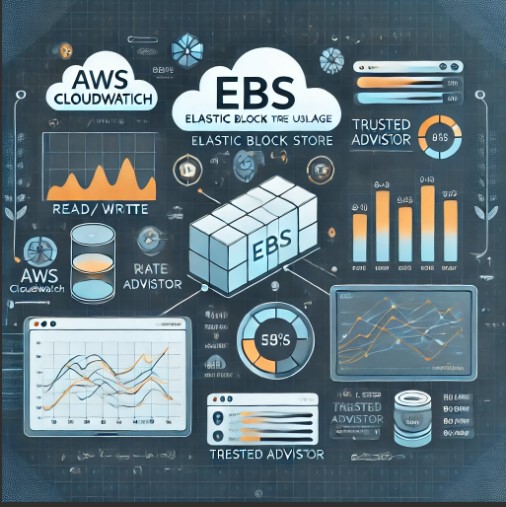
AWS CloudWatch is a monitoring and observability service that provides metrics and logs for EBS volumes. It is a native tool within AWS and offers detailed insights into storage performance and utilization.
Key Metrics:
VolumeIdleTime: Measures the total time when no read/write operations are performed.
VolumeReadOps & VolumeWriteOps: Tracks the number of read and write operations.
VolumeThroughputPercentage: Monitors throughput as a percentage of the volume’s provisioned throughput.
BurstBalance: Indicates the balance of burst credits for burstable volumes.
Steps to Analyze EBS Volume Usage Using CloudWatch:
Navigate to the CloudWatch Console.
Select Metrics > EBS.
Choose the relevant metrics (e.g., VolumeIdleTime, VolumeReadBytes).
Visualize metrics on graphs for trend analysis.
Example: Setting up an Alarm
Go to CloudWatch Alarms.
Click on Create Alarm.
Select a metric such as VolumeIdleTime.
Set thresholds to trigger notifications.
2. AWS Trusted Advisor
Overview
AWS Trusted Advisor provides recommendations for optimizing AWS resources. It includes a Cost Optimization check that highlights underutilized EBS volumes.
Steps to Use Trusted Advisor:
Access Trusted Advisor from the AWS Management Console.
Review the Cost Optimization section.
Locate the Underutilized Amazon EBS Volumes report.
Take action based on the recommendations (e.g., resizing or deleting unused volumes).
3. Third-Party Tools
CloudHealth by VMware
Offers advanced analytics for storage optimization.
Provides insights into EBS volume costs and performance.
LogicMonitor
Delivers detailed monitoring for AWS services.
Includes customizable dashboards for EBS volume utilization.
Example Use Case:
Integrate LogicMonitor with your AWS account to automatically track idle EBS volumes and receive alerts for potential cost-saving opportunities.
describe-volumes: Fetches details about your EBS volumes.
–query: Filters the output to include only relevant details such as Volume ID, State, and Size.
Automating Alerts:
Use AWS Lambda combined with Amazon SNS to automate alerts for unused or underutilized volumes. Example:
Write a Lambda function to fetch idle volumes.
Trigger the function periodically using CloudWatch Events.
Configure SNS to send notifications.
Performance Tuning
RAID Configuration:
Combine multiple EBS volumes into a RAID array for improved performance. Use RAID 0 for increased IOPS and throughput.
Monitoring Burst Credits:
Track BurstBalance to ensure burstable volumes maintain sufficient performance during peak usage.
FAQs
What metrics should I focus on for cost optimization?
Focus on VolumeIdleTime, VolumeReadOps, and VolumeWriteOps to identify underutilized or idle volumes.
How can I resize an EBS volume?
Use the ModifyVolume API or the AWS Management Console to increase volume size. Ensure you extend the file system to utilize the additional space.
Are there additional costs for using CloudWatch?
CloudWatch offers a free tier for basic monitoring. However, advanced features like custom metrics and extended data retention may incur additional costs.
Analyzing EBS volume usage is a critical aspect of AWS resource management. By leveraging tools like AWS CloudWatch, Trusted Advisor, and third-party solutions, you can optimize costs, enhance performance, and ensure efficient resource utilization. Regular monitoring and proactive management will empower you to get the most out of your EBS investments. Start implementing these strategies today to streamline your AWS environment effectively. Thank you for reading the DevopsRoles page!
DevOps is a methodology that bridges the gap between software development and IT operations. Its primary goal is to enhance collaboration between these two traditionally siloed departments, resulting in faster deployment cycles, improved product quality, and increased team efficiency. This approach fosters a culture of shared responsibility, continuous integration, and continuous delivery (CI/CD), helping businesses adapt to changes rapidly and provide more reliable services to customers.
In this article, we will explore the basics of DevOps, its significance in modern software development, and how it works. We will dive into its key components, popular tools, and answer some of the most frequently asked questions about DevOps.
What is DevOps?
DevOps combines “Development” (Dev) and “Operations” (Ops) and represents a set of practices, cultural philosophies, and tools that increase an organization’s ability to deliver applications and services at high velocity. This approach enables teams to create better products faster, respond to market changes, and improve customer satisfaction.
Key Benefits of DevOps
Increased Deployment Frequency: DevOps practices facilitate more frequent, smaller updates, allowing organizations to deliver new features and patches quickly.
Improved Quality and Stability: Continuous testing and monitoring help reduce errors, increasing system stability and user satisfaction.
Enhanced Collaboration: DevOps emphasizes a collaborative approach, where development and operations teams work closely together, sharing responsibilities and goals.
Faster Recovery Times: With automated recovery solutions and quicker issue identification, DevOps helps organizations reduce downtime and maintain service quality.
Key Components of DevOps
1. Continuous Integration (CI)
Continuous Integration is a practice where developers frequently commit code to a central repository, with automated tests run on each integration. This process ensures that code updates integrate seamlessly and any issues are detected early.
2. Continuous Delivery (CD)
Continuous Delivery extends CI by automating the release process. CD ensures that all code changes pass through rigorous automated tests, so they are always ready for deployment to production.
3. Infrastructure as Code (IaC)
Infrastructure as Code involves managing and provisioning computing infrastructure through machine-readable configuration files rather than manual processes. Tools like Terraform and Ansible allow teams to scale and deploy applications consistently.
4. Automated Testing
Automated testing helps validate code quality and functionality. Through automated testing, teams can catch errors before they reach production, improving reliability and performance.
5. Monitoring and Logging
Monitoring and logging are essential to DevOps as they provide insights into application performance. Tools like Prometheus and Grafana allow teams to track real-time performance and detect issues before they impact users.
Common DevOps Tools
The DevOps landscape is vast, with numerous tools for every stage of the lifecycle. Here are some of the most popular DevOps tools used today:
Version Control: Git, GitHub, GitLab
Continuous Integration and Delivery (CI/CD): Jenkins, CircleCI, Travis CI
Configuration Management: Ansible, Puppet, Chef
Infrastructure as Code (IaC): Terraform, AWS CloudFormation
Monitoring and Logging: Prometheus, Grafana, ELK Stack (Elasticsearch, Logstash, Kibana)
These tools help automate various tasks and facilitate seamless integration between development and operations.
How DevOps Works: A Practical Example
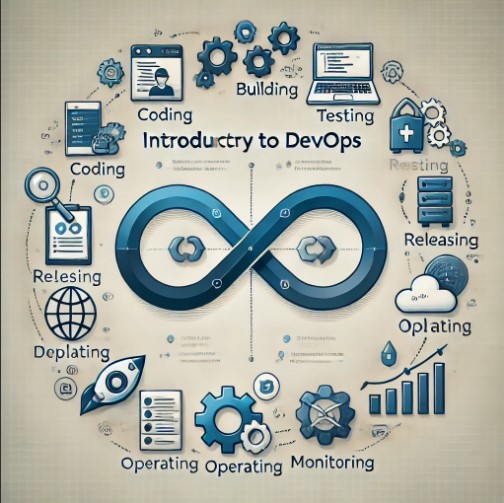
Let’s walk through a typical DevOps pipeline for a web application development project.
Code Commit (Git): Developers write code and commit changes to a version control system like GitHub.
Build and Test (Jenkins): Jenkins pulls the latest code from the repository, builds it, and runs automated tests.
Infrastructure Provisioning (Terraform): Terraform provisions the necessary infrastructure based on the code requirements.
Deployment (Kubernetes): After testing, the application is deployed to a Kubernetes cluster for scaling and container orchestration.
Monitoring (Prometheus and Grafana): The deployed application is monitored for performance, and alerts are set up to detect potential issues.
This pipeline ensures code quality, scalability, and reliability, while minimizing manual intervention.
Frequently Asked Questions about DevOps
What are the main benefits of DevOps?
DevOps improves collaboration, speeds up deployment cycles, and increases software quality, which collectively enhance customer satisfaction and operational efficiency.
Is DevOps only for large companies?
No, DevOps can be implemented by organizations of all sizes. Small teams may even benefit more as DevOps encourages efficient processes, which are essential for growth and scalability.
What is CI/CD?
CI/CD, short for Continuous Integration and Continuous Delivery, is a DevOps practice that automates code integration and delivery. CI/CD helps teams deliver software updates faster with fewer errors.
How does DevOps differ from Agile?
While Agile focuses on iterative development and customer feedback, DevOps goes beyond by integrating the development and operations teams to streamline the entire software delivery lifecycle.
Which programming languages are commonly used in DevOps?
Languages like Python, Ruby, Bash, and Groovy are popular in DevOps for scripting, automation, and tool integration.
DevOps has transformed how software is developed and delivered by fostering collaboration between development and operations teams. By automating key processes, implementing CI/CD, and using Infrastructure as Code, DevOps enables organizations to deploy high-quality software quickly and efficiently. Whether you’re a developer, a sysadmin, or a business looking to adopt DevOps, the principles outlined in this article provide a strong foundation for understanding and applying DevOps effectively in any environment.
DevOps is not just a set of tools; it’s a culture and philosophy that drives innovation, speed, and reliability in software delivery. Start exploring DevOps today and see how it can revolutionize your approach to software development and operations. Thank you for reading the DevopsRoles page!
Amazon Web Services (AWS) has become the go-to cloud provider for many organizations seeking scalability, reliability, and extensive toolsets for DevOps. AWS offers a range of tools designed to streamline workflows, automate processes, and improve collaboration between development and operations teams. In this article, we’ll explore some of the best DevOps tools for AWS, covering both basic and advanced examples to help you optimize your cloud development and deployment pipelines.
Whether you’re new to AWS DevOps or an experienced developer looking to expand your toolkit, this guide will cover all the essentials. By the end, you’ll have a clear understanding of which tools can make a difference in your AWS environment.
Why DevOps Tools Matter in AWS
Effective DevOps practices allow organizations to:
Automate repetitive tasks and reduce human error.
Scale efficiently with infrastructure as code.
Improve collaboration between development and operations.
Enhance security with continuous monitoring and compliance tools.
AWS provides native tools that integrate seamlessly with other AWS services, allowing organizations to build a comprehensive DevOps stack.
Best DevOps Tools for AWS
1. AWS CodePipeline
Overview
AWS CodePipeline is a fully managed continuous integration and continuous delivery (CI/CD) service. It enables you to automate your release pipelines, allowing faster and more reliable updates.
Key Features
Automation: Automates your release process from code commit to production deployment.
Integrations: Works well with other AWS services like CodeBuild and CodeDeploy.
Scalability: Supports scaling without the need for additional infrastructure.
Best Use Cases
Teams that want a native AWS solution for CI/CD.
Development workflows that require quick updates with minimal downtime.
2. AWS CodeBuild
Overview
AWS CodeBuild is a fully managed build service that compiles source code, runs tests, and produces deployable software packages.
Key Features
Fully Managed: No need to manage or provision build servers.
Supports Multiple Languages: Compatible with Java, Python, JavaScript, and more.
Customizable Build Environments: You can customize the build environment to fit specific requirements.
Best Use Cases
Scalable builds with automated test suites.
Continuous integration workflows that require custom build environments.
3. AWS CodeDeploy
Overview
AWS CodeDeploy is a service that automates application deployment to a variety of compute services, including Amazon EC2, Lambda, and on-premises servers.
Key Features
Deployment Automation: Automates code deployments to reduce downtime.
Flexible Target Options: Supports EC2, on-premises servers, and serverless environments.
Health Monitoring: Offers in-depth monitoring to track application health.
Best Use Cases
Managing complex deployment processes.
Applications requiring rapid and reliable deployments.
4. Amazon Elastic Container Service (ECS) & Kubernetes (EKS)
Overview
AWS ECS and EKS provide managed services for deploying, managing, and scaling containerized applications.
Real-time performance monitoring in production environments.
8. Amazon CloudWatch
Overview
Amazon CloudWatch provides monitoring for AWS resources and applications.
Key Features
Metrics and Logs: Collects and visualizes metrics and logs in real-time.
Alarm Creation: Creates alarms based on metric thresholds.
Automated Responses: Triggers responses based on alarm conditions.
Best Use Cases
Monitoring application health and performance.
Setting up automated responses for critical alerts.
Getting Started: DevOps Pipeline Example with AWS
Creating a DevOps pipeline in AWS can be as simple or complex as needed. Here’s an example of a basic pipeline using CodePipeline, CodeBuild, and CodeDeploy:
Code Commit: Use CodePipeline to track code changes.
Code Build: Trigger a build with CodeBuild for each commit.
Automated Testing: Run automated tests as part of the build.
Code Deployment: Use CodeDeploy to deploy to EC2 or Lambda.
For more advanced scenarios, consider adding CloudFormation to manage infrastructure as code and CloudWatch for real-time monitoring.
Frequently Asked Questions (FAQ)
What is AWS DevOps?
AWS DevOps is a set of tools and services provided by AWS to automate and improve collaboration between development and operations teams. It covers everything from CI/CD and infrastructure as code to monitoring and logging.
Is CodePipeline free?
CodePipeline offers a free tier, but usage beyond the free limit incurs charges. You can check the CodePipeline pricing on the AWS website.
How do I monitor my AWS applications?
AWS offers monitoring tools like CloudWatch and X-Ray to help track performance, set alerts, and troubleshoot issues.
What is infrastructure as code (IaC)?
Infrastructure as code (IaC) is the practice of defining and managing infrastructure using code. Tools like CloudFormation enable IaC on AWS, allowing automated provisioning and scaling.
Conclusion
The AWS ecosystem provides a comprehensive set of DevOps tools that can help streamline your development workflows, enhance deployment processes, and improve application performance. From the basic CodePipeline to advanced tools like X-Ray and CloudWatch, AWS offers a tool for every step of your DevOps journey.
By implementing the right tools for your project, you’ll not only improve efficiency but also gain a competitive edge in delivering reliable, scalable applications. Start small, integrate tools as needed, and watch your DevOps processes evolve.
For more insights on DevOps and AWS, visit the AWS DevOps Blog. Thank you for reading the DevopsRoles page!
Generative AI is transforming the way businesses operate, offering new possibilities in areas such as natural language processing, image generation, and personalized content creation. With AWS providing scalable infrastructure and Cohere delivering state-of-the-art AI models, you can build powerful AI applications that generate unique outputs based on your specific needs.
In this guide, we’ll walk you through the process of building Generative AI applications with Cohere on AWS. We’ll start with basic concepts and progressively move towards more advanced implementations. Whether you’re new to AI or an experienced developer, this guide will equip you with the knowledge and tools to create innovative AI-driven solutions.
What is Generative AI?
Generative AI refers to a class of AI models that generate new content rather than just analyzing or categorizing existing data. These models can create text, images, music, and even video content. The underlying technology includes deep learning models like Generative Adversarial Networks (GANs), Variational Autoencoders (VAEs), and large language models such as those offered by Cohere.
Key Applications of Generative AI
Text Generation: Create unique articles, product descriptions, or chatbot responses.
Image Synthesis: Generate realistic images for creative projects.
Personalization: Tailor content to individual users based on their preferences.
Data Augmentation: Enhance training datasets by generating synthetic data.
Why Use Cohere on AWS?
Cohere’s Strengths
Cohere specializes in building large language models that are optimized for various natural language processing (NLP) tasks. Their models are designed to be easily integrated into applications, enabling developers to harness the power of AI without needing extensive knowledge of machine learning.
AWS Infrastructure
AWS offers a robust cloud infrastructure that supports scalable and secure AI development. With services like Amazon SageMaker, AWS Lambda, and AWS S3, you can build, deploy, and manage AI applications seamlessly.
By combining Cohere’s advanced AI models with AWS’s infrastructure, you can create powerful, scalable Generative AI applications that meet enterprise-grade requirements.
Getting Started with Cohere on AWS
Step 1: Setting Up Your AWS Environment
Before you can start building Generative AI applications, you’ll need to set up your AWS environment. This includes creating an AWS account, setting up IAM roles, and configuring security groups.
Create an AWS Account: If you don’t already have an AWS account, sign up at aws.amazon.com.
Set Up IAM Roles: Ensure that you have the necessary permissions to access AWS services like SageMaker and Lambda.
Configure Security Groups: Establish security groups to control access to your AWS resources.
Step 2: Integrating Cohere with AWS
To integrate Cohere with AWS, you’ll need to install the Cohere Python SDK and configure it to work with your AWS environment.
Install the Cohere SDK: pip install cohere
Configure API Access: Set up API keys and endpoints to connect Cohere with your AWS services.
Test the Integration: Run a simple script to ensure that Cohere’s API is accessible from your AWS environment.
Step 3: Building a Simple Text Generation Application
Let’s start with a basic example: building a text generation application using Cohere’s language models.
Create a New SageMaker Notebook: Launch a SageMaker notebook instance to develop your AI model.
Load the Cohere Model: Use the Cohere SDK to load a pre-trained language model.
Generate Text: Write a script that generates text based on a given prompt.
import cohere
# Initialize the Cohere client with your API key
co = cohere.Client('your-api-key')
# Generate a response using the Cohere model
response = co.generate(
model='large',
prompt='Once upon a time,',
max_tokens=50
)
# Print the generated text
print(response.generations[0].text)
Once you’re comfortable with basic text generation, you can explore more advanced techniques like fine-tuning Cohere’s models to better suit your specific application.
Prepare a Custom Dataset: Collect and preprocess data relevant to your application.
Fine-tune the Model: Use Amazon SageMaker to fine-tune Cohere’s models on your custom dataset.
Deploy the Model: Deploy the fine-tuned model as an endpoint for real-time inference.
Step 5: Scaling Your Application with AWS
To handle increased traffic and ensure reliability, you’ll need to scale your application. AWS offers several services to help with this.
Auto Scaling: Use AWS Auto Scaling to adjust the number of instances running your application based on demand.
Load Balancing: Implement Elastic Load Balancing (ELB) to distribute traffic across multiple instances.
Monitoring: Use Amazon CloudWatch to monitor the performance and health of your application.
Best Practices for Building Generative AI Applications
Use Pre-Trained Models
Leveraging pre-trained models like those offered by Cohere can save time and resources. These models are trained on vast datasets and are capable of handling a wide range of tasks.
Monitor Model Performance
Continuous monitoring is crucial for maintaining the performance of your AI models. Use tools like Amazon CloudWatch to track metrics such as latency, error rates, and resource utilization.
Secure Your Application
Security is paramount when deploying AI applications in the cloud. Use AWS Identity and Access Management (IAM) to control access to your resources, and implement encryption for data at rest and in transit.
Frequently Asked Questions
What is Cohere?
Cohere is a company specializing in large language models designed for natural language processing tasks. Their models can be integrated into applications for tasks like text generation, summarization, and more.
Why should I use AWS for building AI applications?
AWS provides a scalable, secure, and reliable infrastructure that is well-suited for AI development. Services like SageMaker and Lambda make it easier to develop, deploy, and manage AI models.
Can I fine-tune Cohere’s models?
Yes, you can fine-tune Cohere’s models on custom datasets using Amazon SageMaker. This allows you to tailor the models to your specific application needs.
How do I scale my Generative AI application on AWS?
You can scale your application using AWS services like Auto Scaling, Elastic Load Balancing, and CloudWatch to manage increased traffic and ensure reliability.
Conclusion
Building Generative AI applications with Cohere on AWS is a powerful way to leverage the latest advancements in AI technology. Whether you’re generating text, images, or other content, the combination of Cohere’s models and AWS’s infrastructure provides a scalable and flexible solution. By following the steps outlined in this guide, you can create innovative AI-driven applications that meet the demands of modern businesses. Thank you for reading the DevopsRoles page!
Deploy Spring Boot Apps in AWS (Amazon Web Services) has become an essential skill for developers aiming to leverage cloud technologies. AWS provides scalable infrastructure, high availability, and various services that make it easier to deploy, manage, and scale Spring Boot applications. In this guide, we’ll walk you through the entire process, from the basics to more advanced deployment strategies.
Why Deploy Spring Boot Apps on AWS?
Before diving into the deployment process, let’s explore why AWS is a preferred choice for deploying Spring Boot applications. AWS offers:
Scalability: Easily scale your application based on demand.
Flexibility: Choose from various services to meet your specific needs.
Security: Robust security features to protect your application.
Cost Efficiency: Pay only for what you use with various pricing models.
With these benefits in mind, let’s move on to the actual deployment process.
Getting Started with AWS
Step 1: Setting Up an AWS Account
The first step in deploying your Spring Boot app on AWS is to create an AWS account if you haven’t already. Visit AWS’s official website and follow the instructions to create an account. You will need to provide your credit card information, but AWS offers a free tier that includes many services at no cost for the first 12 months.
Step 2: Installing the AWS CLI
The AWS Command Line Interface (CLI) allows you to interact with AWS services from your terminal. To install the AWS CLI, follow these steps:
On Windows: Download the installer from the AWS CLI page.
On macOS/Linux: Run the following command in your terminal:
Once installed, configure the CLI with your AWS credentials using the command:
aws configure
Deploying a Simple Spring Boot Application
Step 3: Creating a Simple Spring Boot Application
If you don’t have a Spring Boot application ready, you can create one using Spring Initializr. Go to Spring Initializr, select the project settings, and generate a new project. Unzip the downloaded file and open it in your preferred IDE.
Add a simple REST controller in your application:
@RestController
public class HelloWorldController {
@GetMapping("/hello")
public String sayHello() {
return "Hello, World!";
}
}
Step 4: Creating an S3 Bucket for Deployment Artifacts
AWS S3 (Simple Storage Service) is commonly used to store deployment artifacts. Create an S3 bucket using the AWS Management Console:
Navigate to S3 under the AWS services.
Click “Create bucket.”
Enter a unique bucket name and select your preferred region.
Click “Create bucket.”
Step 5: Building and Packaging the Application
Package your Spring Boot application as a JAR file using Maven or Gradle. In your project’s root directory, run:
mvn clean package
This will create a JAR file in the target directory. Upload this JAR file to your S3 bucket.
Deploying to AWS Elastic Beanstalk
AWS Elastic Beanstalk is a platform-as-a-service (PaaS) that makes it easy to deploy and manage Spring Boot applications in the cloud.
Step 6: Creating an Elastic Beanstalk Environment
Go to the Elastic Beanstalk service in the AWS Management Console.
Click “Create Application.”
Enter a name for your application.
Choose a platform. For a Spring Boot app, select Java.
Upload the JAR file from S3 or directly from your local machine.
Click “Create Environment.”
Elastic Beanstalk will automatically provision the necessary infrastructure and deploy your application.
Step 7: Accessing Your Deployed Application
Once the environment is ready, Elastic Beanstalk provides a URL to access your application. Visit the URL to see your Spring Boot app in action.
Advanced Deployment Strategies
Step 8: Using AWS RDS for Database Management
For applications that require a database, AWS RDS (Relational Database Service) offers a managed service for databases like MySQL, PostgreSQL, and Oracle.
Navigate to RDS in the AWS Management Console.
Click “Create Database.”
Choose the database engine, version, and instance class.
Set up your database credentials.
Configure connectivity options, including VPC and security groups.
Click “Create Database.”
In your Spring Boot application, update the application.properties file with the database credentials:
AWS Auto Scaling and Elastic Load Balancing (ELB) ensure your application can handle varying levels of traffic.
Go to the EC2 service in the AWS Management Console.
Click “Load Balancers” and then “Create Load Balancer.”
Choose an application load balancer and configure the listener.
Select your target groups, which could include the instances running your Spring Boot application.
Configure auto-scaling policies based on CPU utilization, memory, or custom metrics.
Step 10: Monitoring with AWS CloudWatch
Monitoring your application is crucial to ensure its performance and reliability. AWS CloudWatch allows you to collect and track metrics, set alarms, and automatically respond to changes in your resources.
Navigate to CloudWatch in the AWS Management Console.
Set up a new dashboard to monitor key metrics like CPU usage, memory, and request counts.
Create alarms to notify you when thresholds are breached.
Optionally, set up auto-scaling triggers based on CloudWatch metrics.
Common Issues and Troubleshooting
What to do if my application doesn’t start on Elastic Beanstalk?
Check Logs: Access the logs via the Elastic Beanstalk console to identify the issue.
Review Environment Variables: Ensure all required environment variables are correctly set.
Memory Allocation: Increase the instance size if your application requires more memory.
How do I handle database connections securely?
Use AWS Secrets Manager: Store and retrieve database credentials securely.
Rotate Credentials: Regularly rotate your database credentials for added security.
Can I deploy multiple Spring Boot applications in one AWS account?
Yes: Use different Elastic Beanstalk environments or EC2 instances for each application. You can also set up different VPCs for network isolation.
Conclusion
Deploying Spring Boot applications in AWS offers a scalable, flexible, and secure environment for your applications. Whether you are deploying a simple app or managing a complex infrastructure, AWS provides the tools you need to succeed. By following this guide, you should be well-equipped to deploy and manage your Spring Boot applications on AWS effectively.
Remember, the key to a successful deployment is planning and understanding the AWS services that best meet your application’s needs. Keep experimenting with different services and configurations to optimize performance and cost-efficiency. Thank you for reading the DevopsRoles page!
In this tutorial on Memcached, you will learn how to create an ElastiCache for Redis instance and manage it using the AWS CLI.
Prerequisites
Before starting, you should have the following prerequisites configured
An AWS account
AWS CLI on your computer
Memcached tutorial
Creating a Redis cluster with AWS CLI
Modifying a Redis cluster with AWS CLI
Viewing the elements in a Redis cluster with AWS CLI
Discovering the endpoints of Redis cluster with AWS CLI
Adding nodes to a Redis cluster with AWS CLI
Removing nodes from a Redis cluster with AWS CLI
Auto Scaling ElastiCache for Redis clusters
Redis clusters manual failover with Global datastore
Deleting a Redis cluster with AWS CLI
Creating a Redis cluster with AWS CLI
Before you begin, If you have not installed the AWS CLI, see Setting up the Amazon Redshift CLI. This tutorial uses the us-ease-1 region.
Now we’re ready to launch a Redis cluster by using the AWS CLI.
Typical cluster configurations:
Redis (cluster mode enabled): can have up to 500 shards, with your data partitioned across the shards.
Redis (cluster mode disabled):always contain just one shard (in the API and CLI, one node group). A Redis shard contains one to six nodes. If there is more than one node in a shard, the shard supports replication. In this case, one node is the read/write primary node and the others are read-only replica nodes.
In this tutorial we will create a Redis (cluster mode enabled) using AWS CLI.
Before you create a cluster, you first create a subnet group. A cache subnet group is a collection of subnets that you may want to designate for your cache clusters in a VPC.
You can modify an existing cluster using the AWS CLI modify-cache-cluster operation. To modify a cluster’s configuration value, specify the cluster’s ID, the parameter to change and the parameter’s new value. Refer Memcached tutorial to know this command.
Viewing the elements in a Redis cluster with AWS CLI
The following command to view details for my-cluster:
Discovering the endpoints of Redis cluster with AWS CLI
You can use the AWS CLI to discover the endpoints for a replication group and its clusters with the describe-replication-groups command. The command returns the replication group’s primary endpoint and a list of all the clusters (nodes) in the replication group with their endpoints, along with the reader endpoint.
You can online resharding with Regis cluster (there is some degradation in performance, nevertheless, your cluster continues to serve requests throughout the scaling operation). When you add shards to a Redis (cluster mode enabled) cluster, any tags on the existing shards are copied over to the new shards.
There are two ways to scale your Redis (cluster mode enabled) cluster; horizontal and vertical scaling.
Horizontal scaling allows you to change the number of node groups (shards) in the replication group by adding or removing node groups (shards). The online resharding process allows scaling in/out while the cluster continues serving incoming requests. Configure the slots in your new cluster differently than they were in the old cluster. Offline method only.
Vertical Scaling – Change the node type to resize the cluster. The online vertical scaling allows scaling up/down while the cluster continues serving incoming requests.
The following process describes how to reconfigure the shards in your Redis (cluster mode enabled) cluster by adding shards using the AWS CLI.
Data tiering (cluster mode enabled) clusters running Redis engine version 7.0.7 onwards
Instance type families – R7g, R6g, R5, M7g, M6g, M5
Instance sizes – Large, XLarge, 2XLarge
Auto Scaling in ElastiCache for Redis is not supported for clusters running in Global datastores, Outposts or Local Zones.
AWS Auto Scaling for ElastiCache for Redis is not available in the following regions: China (Beijing), China (Ningxia), AWS GovCloud (US-West) and AWS GovCloud (US-East).
ElastiCache for Redis auto scaling is the ability to increase or decrease the desired shards or replicas in your ElastiCache for Redis service automatically. ElastiCache for Redis leverages the Application Auto Scaling service to provide this functionality. For more information, see Application Auto Scaling. To use automatic scaling, you define and apply a scaling policy that uses CloudWatch metrics and target values that you assign. ElastiCache for Redis auto scaling uses the policy to increase or decrease the number of instances in response to actual workloads.
ElastiCache for Redis supports scaling for the following dimensions:
Shards – Automatically add/remove shards in the cluster similar to manual online resharding. In this case, ElastiCache for Redis auto scaling triggers scaling on your behalf.
Replicas – Automatically add/remove replicas in the cluster similar to manual Increase/Decrease replica operations. ElastiCache for Redis auto scaling adds/removes replicas uniformly across all shards in the cluster.
ElastiCache for Redis supports the following types of automatic scaling policies:
Target tracking scaling policies – Increase or decrease the number of shards/replicas that your service runs based on a target value for a specific metric. This is similar to the way that your thermostat maintains the temperature of your home. You select a temperature and the thermostat does the rest.
Currently, ElastiCache for Redis supports the following predefined metrics in ElastiCache for Redis NodeGroup Auto Scaling:
ElastiCachePrimaryEngineCPUUtilization – The average value of the EngineCPUUtilization metric in CloudWatch across all primary nodes in the ElastiCache for Redis cluster.
ElastiCacheDatabaseMemoryUsageCountedForEvictPercentage – The average value of the DatabaseMemoryUsageCountedForEvictPercentage metric in CloudWatch across all primary nodes in the ElastiCache for Redis cluster.
ElastiCacheDatabaseCapacityUsageCountedForEvictPercentage – The average value of the ElastiCacheDatabaseCapacityUsageCountedForEvictPercentage metric in CloudWatch across all primary nodes in the ElastiCache for Redis cluster.
The following example cpuscalablepolicy.json describes a target-tracking configuration for a scaling policy for EngineCPUUtilization metric.
In the following example, you apply a target-tracking scaling policy named cpuscalablepolicy to an ElastiCache for Redis cluster named myscalablecluster with ElastiCache for Redis auto scaling. To do so, you use a policy configuration saved in a file named cpuscalablepolicy.json.
Before you can use Auto Scaling with an ElastiCache for Redis cluster, you register your cluster with ElastiCache for Redis auto scaling.
In the following example, you register an ElastiCache for Redis cluster named myscalablecluster. The registration indicates that the cluster should be dynamically scaled to have from one to ten shards.
--max-capacity – The maximum number of shards to be managed by ElastiCache for Redis auto scaling. For information about the relationship between --min-capacity, --max-capacity, and the number of shards in your cluster, see Minimum and maximum capacity.
--min-capacity – The minimum number of shards to be managed by ElastiCache for Redis auto scaling. For information about the relationship between --min-capacity, --max-capacity, and the number of shards in your cluster, see Minimum and maximum capacity.
Deleting a scaling policy using the AWS CLI
In the following example, you delete a target-tracking scaling policy named myscalablepolicy from an ElastiCache for Redis cluster named myscalablecluster.
These steps provide an example to manage Memcached cluster. The specific configuration details may vary depending on your environment and setup. It’s recommended to consult the relevant documentation from AWS for detailed instructions on setting up. I hope will this your helpful. Thank you for reading the DevopsRoles page!
In this guide, we’ll walk you through the process of configuring a VPN Site-to-Site from your home network to AWS, enabling seamless and secure communication between the two environments.
Understanding VPN Site-to-Site
Before diving into the setup process, let’s briefly understand what a VPN Site-to-Site connection entails.
A VPN Site-to-Site connection establishes a secure, encrypted tunnel between two networks, allowing them to communicate as if they were directly connected. In our case, we’ll be connecting our home network to an AWS Virtual Private Cloud (VPC), effectively extending our network infrastructure to the cloud.
Prerequisites
Before proceeding, ensure you have the following prerequisites in place:
An AWS account with appropriate permissions to create VPC resources.
public IP (find public IP of home network at link )
Configure AWS
Create VPC with a private subnet
Create a EC2 and config inboud for SG
Creating a virtual private gateway
Setting route table
Site to Site VPN settings and download vendor config file
Create a new VPC with a CIDR block that does not conflict with your home network.
Create a new EC2 in subnet-private-1 for test if you have not
Private IP : 10.0.44.45
EC2 sercurity group inboud setting(allow ping test only)
Creating a virtual private gateway
Attach to the VPC that will be the Site to Site VPN connection destination.
Edit route table
In the route table of the private subnet connection destination VPN, configure routing for the local network segment with the virtual private gateway as the destination.
Site to Site VPN settings
IP address : Your public IP adress
Static IP prefixes : Local network segment(192.168.0.0/16)
VPN config download
Chose Vendor is Strongwan and IKE version is ikev2
Configure the following settings according to the downloaded file.
By following these steps, you’ve successfully set up a VPN Site-to-Site connection from your home network to AWS, enabling secure communication between the two environments. This setup enhances security by encrypting traffic over the internet and facilitates seamless access to cloud resources from the comfort of your home network. Experiment with different configurations and explore additional AWS networking features to optimize performance and security based on your specific requirements.
How to Create a Terraform variable file from an Excel. In the world of infrastructure as code (IaC), Terraform stands out as a powerful tool for provisioning and managing infrastructure resources. Often, managing variables for your Terraform scripts can become challenging, especially when dealing with a large number of variables or when collaborating with others.
This blog post will guide you through the process of creating a Terraform variable file from an Excel spreadsheet using Python. By automating this process, you can streamline your infrastructure management workflow and improve collaboration.
Prerequisites
Before we begin, make sure you have the following installed:
Pandas and openpyxl library: Install it using pip3 install packename.
Steps to Create a Terraform Variable File from Excel
Step 1: Excel Setup
Step 2: Python Script to create Terraform variable file from an Excel
Step 3: Execute the Script
Step 1: Excel Setup
Start by organizing your variables in an Excel spreadsheet. Create columns for variable names, descriptions, default values, setting value, and any other relevant information.
Setting_value and Variable_name columns will be written to the output file.
In the lab, I only created a sample Excel file for the Terraform VPC variable
Folder structure
env.xlsx: Excel file
Step 2: Python Script to create Terraform variable file from an Excel
Write a Python script to read the Excel spreadsheet and generate a Terraform variable file (e.g., terraform2.tfvars).
import pandas as pd
from pathlib import Path
import traceback
from lib.header import get_header
parent = Path(__file__).resolve().parent
# Specify the path to your Excel file
excel_file_path = 'env.xlsx'
var_file_name = 'terraform2.tfvars'
def main():
try:
env = get_header()
sheet_name = env["SHEET_NAME"]
# Read all sheets into a dictionary of DataFrames
excel_data = pd.read_excel(parent.joinpath(excel_file_path),sheet_name=None, header=6, dtype=str)
# Access data from a specific sheet
extracted_data = excel_data[sheet_name]
col_map = {
"setting_value": env["SETTING_VALUE"],
"variable_name": env["VARIABLE_NAME"],
"auto_gen": env["AUTO_GEN"]
}
sheet_data = extracted_data[[col_map[key] for key in col_map if key in col_map]]
sheet_name_ft = sheet_data.query('Auto_gen == "○"')
# Display the data from the selected sheet
print(f"\nData from [{sheet_name}] sheet:\n{sheet_name_ft}")
# Open and clear content of file
with open(f"{var_file_name}", "w", encoding="utf-8") as file:
print(f"{var_file_name} create finish")
# Write content of excel file to file
for index, row in sheet_name_ft.iterrows():
with open(f"{var_file_name}", "a", encoding="utf-8") as file:
file.write(row['Variable_name'] + ' = ' + '"' + row['Setting_value'] + '"' + '\n')
print(f"{var_file_name} write finish")
except Exception:
print(f"Error:")
traceback.print_exc()
if __name__ == "__main__":
main()
You can change the input Excel file name and output file name at these variables
By following these steps, you’ve automated the process of creating a Terraform variable file from an Excel spreadsheet. This not only saves time but also enhances collaboration by providing a standardized way to manage and document your Terraform variables.
Feel free to customize the script based on your specific needs and scale it for more complex variable structures. Thank you for reading the DevopsRoles page!
In this tutorial, we will build lambda with a custom docker image.
Prerequisites
Before starting, you should have the following prerequisites configured
An AWS account
AWS CLI on your computer
Walkthrough
Create a Python virtual environment
Create a Python app
Create a lambda with a custom docker image of ECR
Create ECR repositories and push an image
Create a lamba from the ECR image
Test lambda function on local
Test lambda function on AWS
Create a Python virtual environment
Create a Python virtual environment with the name py_virtual_env
python3 -m venv py_virtual_env
Create a Python app
This Python source code will pull a JSON file from https://data.gharchive.org and put it into the S3 bucket. Then, transform the uploaded file to parquet format.
Download the source code from here and put it into the py_virtual_env folder.
These steps provide an example of creating a lambda function and running it on docker, then, we put the docker image in the ECR repository, and create a lambda function from the ECR repository. The specific configuration details may vary depending on your environment and setup. It’s recommended to consult the relevant documentation from AWS for detailed instructions on setting up. I hope will this be helpful. Thank you for reading the DevopsRoles page!
In this tutorial, you will create an Amazon DocumentDB cluster. Operations on the cluster using CLI commands using CLI commands. For more information about Amazon DocumentDB, see Amazon DocumentDB Developer Guide.
Prerequisites
Before starting, you should have the following prerequisites configured
An AWS account
AWS CLI on your computer
Amazon DocumentDB tutorial
Create an Amazon DocumentDB cluster using AWS CLI
Adding an Amazon DocumentDB instance to a cluster using AWS CLI
Describing Clusters and Instances using AWS CLI
Install the mongo shell on MacOS
Connecting to Amazon DocumentDB
Performing Amazon DocumentDB CRUD operations using Mongo Shell
Performing Amazon DocumentDB CRUD operations using python
Adding a Replica to an Amazon DocumentDB Cluster using AWS CLI
Amazon DocumentDB High Availability Failover using AWS CLI
Creating an Amazon DocumentDB global cluster using AWS CLI
Delete an Instance from a Cluster using AWS CLI
Delete an Amazon DocumentDB global cluster using AWS CLI
Removing Global Clusters using AWS CLI
Create an Amazon DocumentDB cluster using AWS CLI
Before you begin, If you have not installed the AWS CLI, see Setting up the Amazon Redshift CLI. This tutorial uses the us-east-1 region.
Now we’re ready to launch a Amazon DocumentDB cluster by using the AWS CLI.
An Amazon DocumentDB cluster consists of instances and a cluster volume that represents the data for the cluster. The cluster volume is replicated six ways across three Availability Zones as a single, virtual volume. The cluster contains a primary instance and, optionally, up to 15 replica instances.
The following sections show how to create an Amazon DocumentDB cluster using the AWS CLI. You can then add additional replica instances for that cluster.
When you use the console to create your Amazon DocumentDB cluster, a primary instance is automatically created for you at the same time.
When you use the AWS CLI to create your Amazon DocumentDB cluster, after the cluster’s status is available, you must then create the primary instance for that cluster.
The following procedures describe how to use the AWS CLI to launch an Amazon DocumentDB cluster and create an Amazon DocumentDB replica.
To create an Amazon DocumentDB cluster, call the create-db-cluster AWS CLI.
The db-subnet-group-name or vpc-security-group-id parameter is not specified, Amazon DocumentDB will use the default subnet group and Amazon VPC security group for the given region.
This command returns the following result.
It takes several minutes to create the cluster. You can use the following AWS CLI to monitor the status of your cluster.
Install the mongo shell with the following command:
brew tap mongodb/brew
brew install mongosh
To encrypt data in transit, download the public key for Amazon DocumentDB. The following command downloads a file named global-bundle.pem:
cd Downloads
curl -O https://truststore.pki.rds.amazonaws.com/global/global-bundle.pem
You must explicitly grant inbound access to your client in order to connect to the cluster. When you created a cluster in the previous step, because you did not specify a security group, you associated the default cluster security group with the cluster.
The default cluster security group contains no rules to authorize any inbound traffic to the cluster. To access the new cluster, you must add rules for inbound traffic, which are called ingress rules, to the cluster security group. If you are accessing your cluster from the Internet, you will need to authorize a Classless Inter-Domain Routing IP (CIDR/IP) address range.
Run the following command to enable your computer to connect to your Redshift cluster. Then login into your cluster using mongo shell.
#get VpcSecurityGroupId
aws docdb describe-clusters --cluster-identifier sample-cluster --query 'DBClusters[*].[VpcSecurityGroups]'
#allow connect to DocumentDB cluster from my computer
aws ec2 authorize-security-group-ingress --group-id sg-083f2ca0560111a3b --protocol tcp --port 27017 --cidr 111.111.111.111/32
This command returns the following result.
Connecting to Amazon DocumentDB
Run the following command to connect the Amazon DocumentDB cluster
Use the below command to view the available databases in the your Amazon DocumentDB cluster
show dbs
Performing Amazon DocumentDB CRUD operations using Mongo Shell
MongoDB database concepts:
A record in MongoDB is a document, which is a data structure composed of field and value pairs, similar to JSON objects. The value of a field can include other documents, arrays, and arrays of documents. A document is roughly equivalent to a row in a relational database table.
A collection in MongoDB is a group of documents, and is roughly equivalent to a relational database table.
A database in MongoDB is a group of collections, and is similar to a relational database with a group of related tables.
To show current database name
db
To create a database in Amazon DocumentDB, execute the use command, specifying a database name. Create a new database called docdbdemo.
use docdbdemo
When you create a new database in Amazon DocumentDB, there are no collections created for you. You can see this on your cluster by running the following command.
show collections
Creating Documents
You will now insert a document to a new collection called products in your docdbdemo database using the below query.
db.products.insert({
"name":"java cookbook",
"sku":"222222",
"description":"Problems and Solutions for Java Developers",
"price":200
})
You should see output that looks like this
You can insert multiple documents in a single batch to bulk load products. Use the insertMany command below.
db.products.insertMany([
{
"name":"Python3 boto",
"sku":"222223",
"description":"basic boto3 and python for everyone",
"price":100
},
{
"name":"C# Programmer's Handbook",
"sku":"222224",
"description":"complete coverage of features of C#",
"price":100
}
])
Reading Documents
Use the below query to read data inserted to Amazon DocumentDB. The find command takes a filter criteria and returns the document matching the criteria. The pretty command is appended to display the results in an easy-to-read format.
db.products.find({"sku":"222223"}).pretty()
The matched document is returned as the output of the above query.
Use the find() command to return all the documents in the profiles collection. Input the following:
db.products.find().pretty()
Updating Documents
You will now update a document to add reviews using the $set operator with the update command. Reviews is a new array containing review and rating fields.
Amazon DocumentDB High Availability Failover using AWS CLI
A failover for a cluster promotes one of the Amazon DocumentDB replicas (read-only instances) in the cluster to be the primary instance (the cluster writer).When the primary instance fails, Amazon DocumentDB automatically fails over to an Amazon DocumentDB replica
The following operation forces a failover of the sample-cluster cluster.
Creating an Amazon DocumentDB global cluster using AWS CLI
To create an Amazon DocumentDB regional cluster, call the create-db-clusterAWS CLI. The following AWS CLI command creates an Amazon DocumentDB cluster named global-cluster-id
To delete a global cluster, run the delete-global-cluster CLI command with the name of the AWS Region and the global cluster identifier, as shown in the following example.
These steps provide an example to manage Amazon DocumentDB cluster. The specific configuration details may vary depending on your environment and setup. It’s recommended to consult the relevant documentation from AWS for detailed instructions on setting up. I hope will this your helpful. Thank you for reading the DevopsRoles page!