Category Archives: AWS

Explore Amazon Web Services (AWS) at DevOpsRoles.com. Access in-depth tutorials and guides to master AWS for cloud computing and DevOps automation.

AWS Lambda function with requests module

Introduction

In this tutorial, we will create an AWS Lambda function with requests module. Then create a .zip deployment package containing the dependencies.

Prerequisites

Before starting, you should have the following prerequisites configured

  • An AWS account
  • AWS CLI on your computer

Walkthrough

  • Create the deployment package
  • Create AWS Lambda function with requests module

Create the deployment package

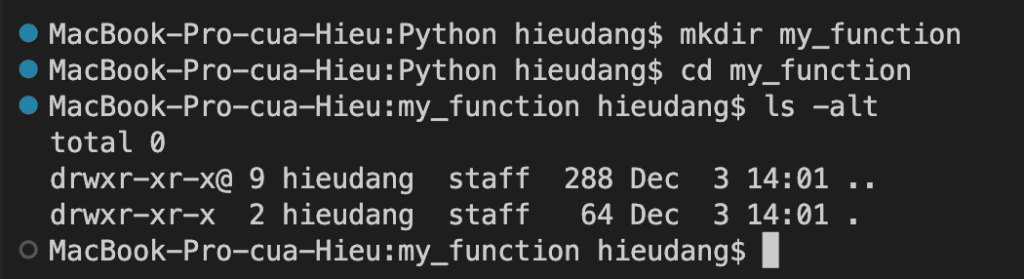
Navigate to the project directory containing your lambda_function.py source code file. In this example, the directory is named my_function.

mkdir my_function
cd my_function
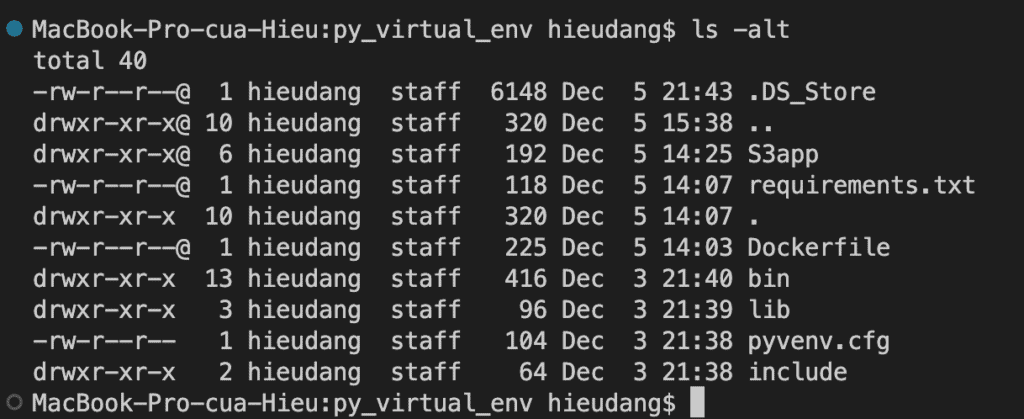
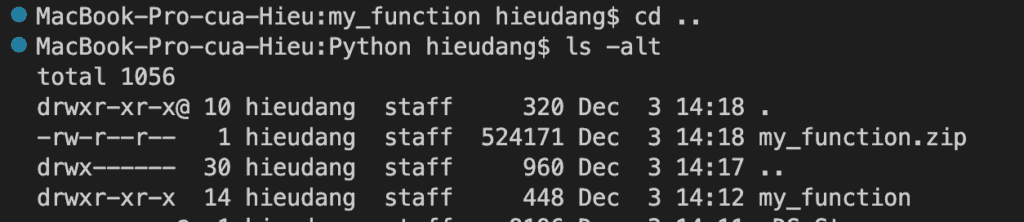
ls -alt

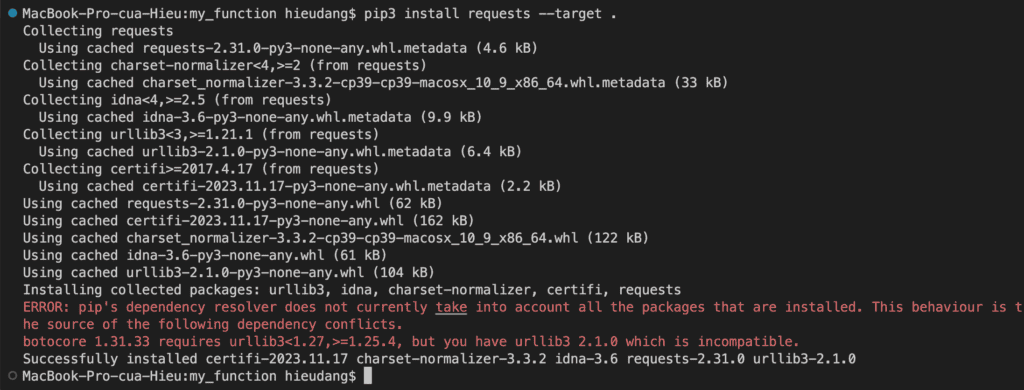
Install “requests” dependencies in the my_function directory.

pip3 install requests --target .

Create lambda_function.py source code file. This sample uses region_name=”ap-northeast-1″.(Tokyo region)

import boto3
import requests

def lambda_handler(event, context):
    file_name = "2023-11-26-0.json.gz"
    bucket_name = "hieu320231129"
    print(f'Getting the {file_name} from gharchive')
    res = requests.get(f'https://data.gharchive.org/{file_name}')
    print(f'Uploading {file_name} to s3 under s3://{bucket_name}')
    s3_client = boto3.client('s3', region_name="ap-northeast-1")
    upload_res = s3_client.put_object(
        Bucket=bucket_name,
        Key=file_name,
        Body=res.content
    )

    objects = s3_client.list_objects(Bucket=bucket_name)['Contents']
    objectname= []
    for obj in objects:
        objectname.append(obj['Key'])

    return {
        'object_names': objectname,
        'status_code': '200'
    }

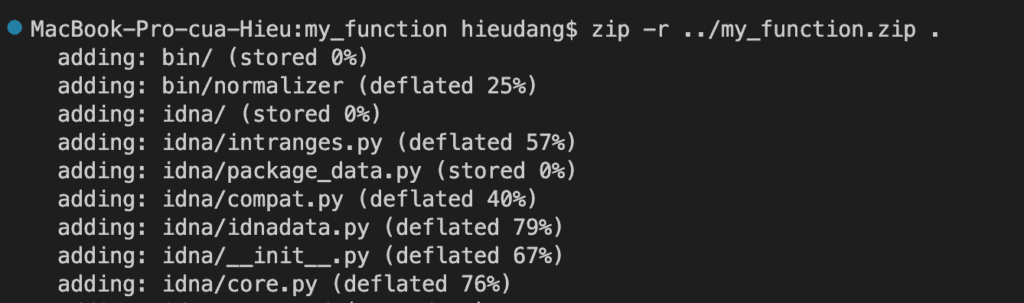
Create a .zip file with the installed libraries and lambda source code file.

zip -r ../my_function.zip .
cd ..
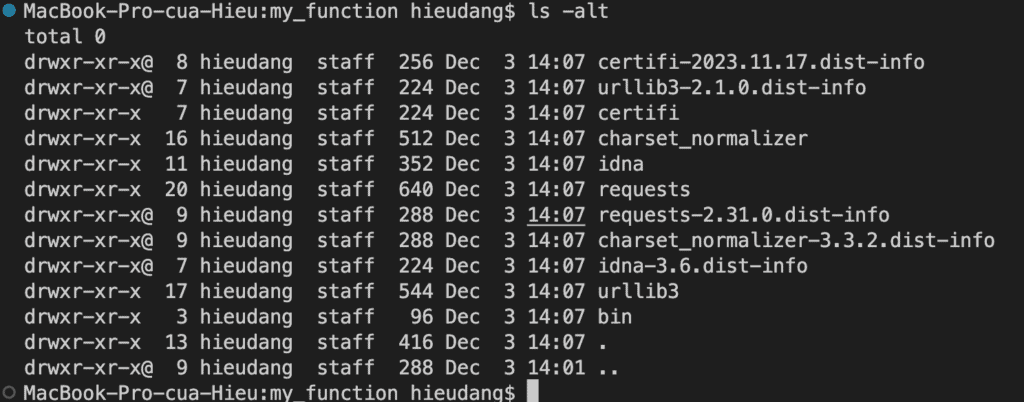
ls -alt

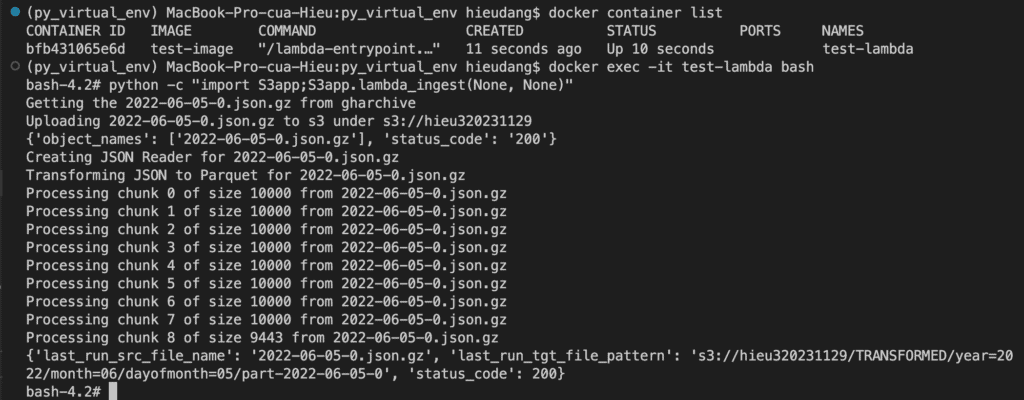
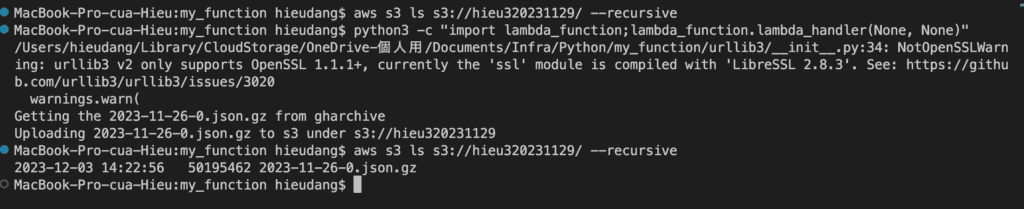
Test lambda function from local computer.

# check bucket
aws s3 ls s3://hieu320231129/ --recursive

#invoke lambda function from local
python3 -c "import lambda_function;lambda_function.lambda_handler(None, None)"

#delete uploaded file
aws s3 rm s3://hieu320231129/ --recursive

Create AWS Lambda function with requests module

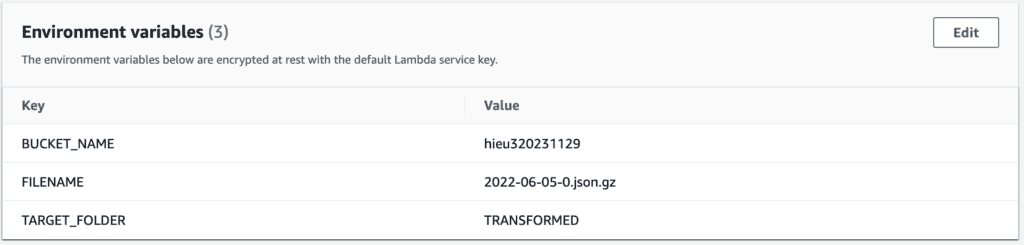
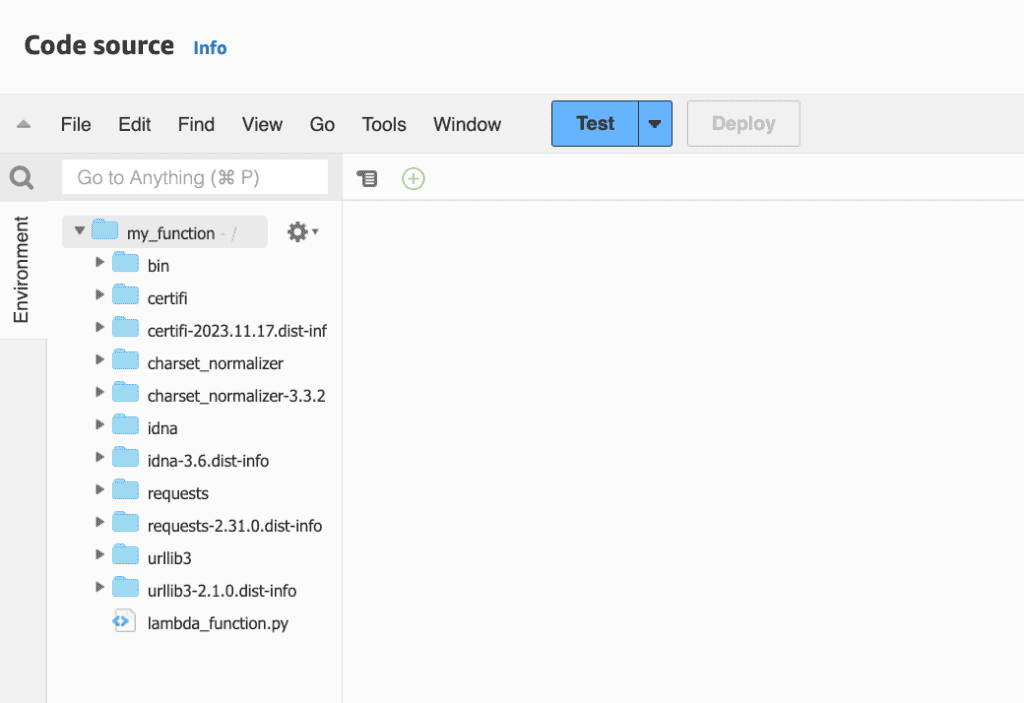
I will deploy zip file with python3.11 and change environment setting

Change environment setting

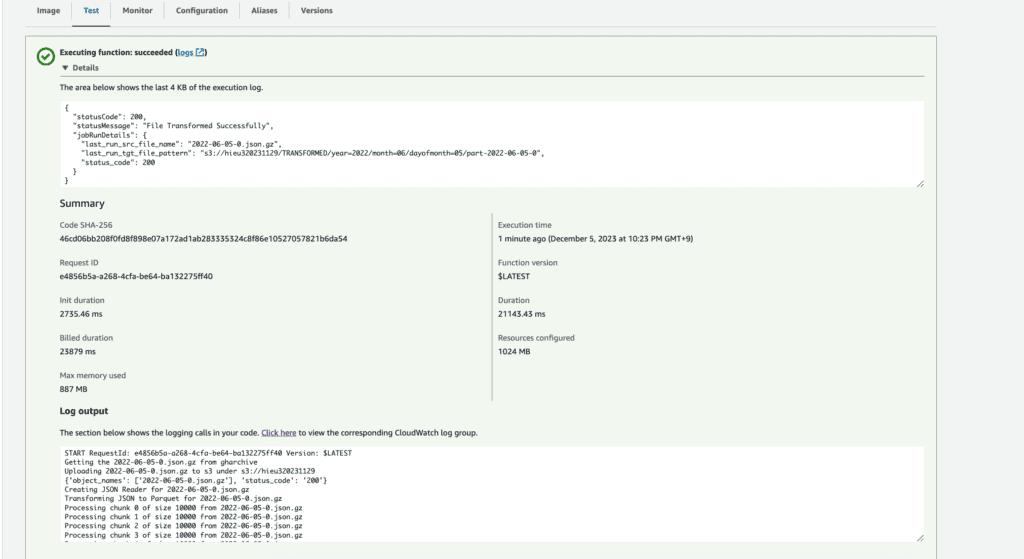
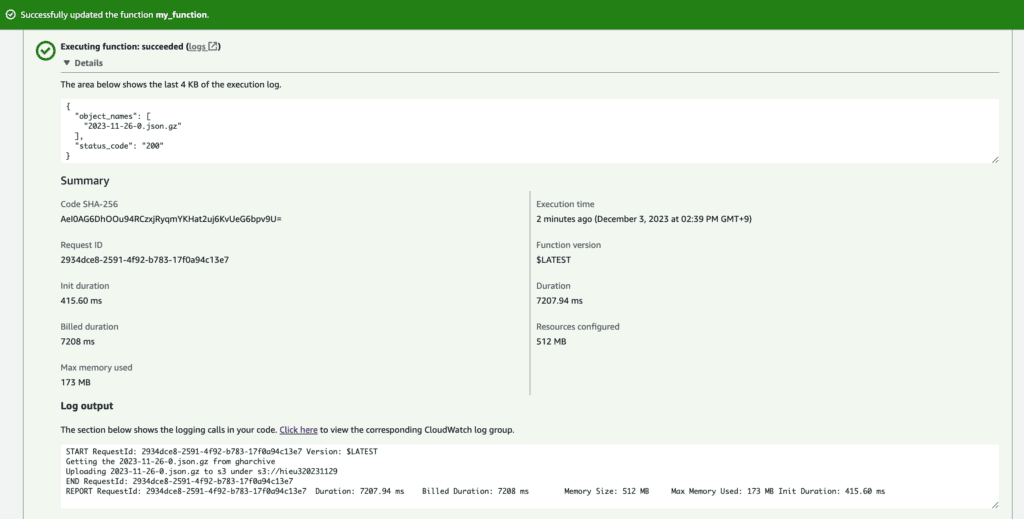
Test lambda function with request module

Conclusion

These steps provide an example of creating a lambda function with dependencies. I used the request module to read a file from a website and put it into an AWS S3 bucket. The specific configuration details may vary depending on your environment and setup. It’s recommended to consult the relevant documentation from AWS for detailed instructions on setting up. I hope will this your helpful. Thank you for reading the DevopsRoles page!

Refer

https://docs.aws.amazon.com/lambda/latest/dg/python-package.html

Create a Lambda to access ElastiCache

Introduction

In this tutorial, you will create a Lambda to access ElastiCache cluster. When you create the Lambda function, you provide subnet IDs in your Amazon VPC and a VPC security group to allow the Lambda function to access resources in your VPC. For illustration in this tutorial, the Lambda function generates a UUID, writes it to the cache, and retrieves it from the cache.

Invoke the Lambda function and verify that it accessed the ElastiCache cluster in your VPC.

Prerequisites

Before starting, you should have the following prerequisites configured

  • An AWS account
  • AWS CLI on your computer
  • A Memcached cluster (refer Memcached tutorial to create a Memcached cluster )

Create a Lambda to access ElastiCache in an Amazon VPC

  • Create the execution role
  • Create an ElastiCache cluster
  • Create a deployment package
  • Create the Lambda function
  • Test the Lambda function
  • Clean up

Create the execution role

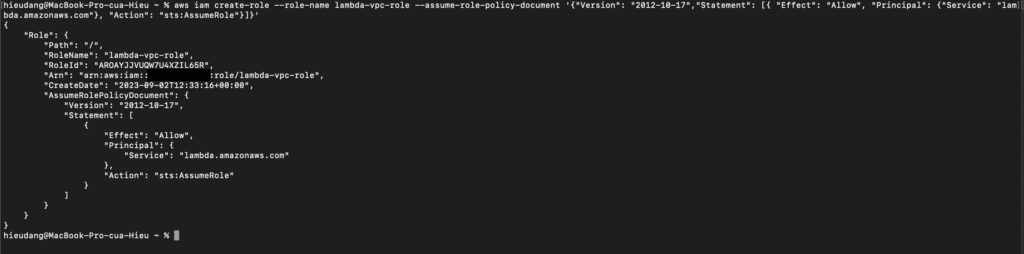
Create the execution role that gives your function permission to access AWS resources. To create an execution role with the AWS CLI, use the create-role command.

In the following example, you specify the trust policy inline.

aws iam create-role --role-name lambda-vpc-role --assume-role-policy-document '{"Version": "2012-10-17","Statement": [{ "Effect": "Allow", "Principal": {"Service": "lambda.amazonaws.com"}, "Action": "sts:AssumeRole"}]}'

You can also define the trust policy for the role using a JSON file. In the following example, trust-policy.json is a file in the current directory. Example trust-policy.json

{
  "Version": "2012-10-17",
  "Statement": [
    {
      "Effect": "Allow",
      "Principal": {
        "Service": "lambda.amazonaws.com"
      },
      "Action": "sts:AssumeRole"
    }
  ]
}

Add permissions to the role, and use the attach-policy-to-role command. Start by adding the AWSLambdaVPCAccessExecutionRole managed policy.

aws iam attach-role-policy --role-name lambda-vpc-role --policy-arn arn:aws:iam::aws:policy/service-role/AWSLambdaVPCAccessExecutionRole

Create an ElastiCache cluster

Refer Memcached tutorial to create a Memcached cluster.

The following command retrieves the configuration endpoint (ConfigurationEndpoint)

aws elasticache describe-cache-clusters \
    --cache-cluster-id my-cluster --query 'CacheClusters[].ConfigurationEndpoint'

Create a deployment package

In the following example, create app.py a file in the current directory. Example app.py

from __future__ import print_function
import time
import uuid
import sys
import socket
import elasticache_auto_discovery
from pymemcache.client.hash import HashClient

#elasticache settings
elasticache_config_endpoint = "your-elasticache-cluster-endpoint:port"
nodes = elasticache_auto_discovery.discover(elasticache_config_endpoint)
nodes = map(lambda x: (x[1], int(x[2])), nodes)
memcache_client = HashClient(nodes)

def handler(event, context):
    """
    This function puts into memcache and get from it.
    Memcache is hosted using elasticache
    """

    #Create a random UUID... this will be the sample element we add to the cache.
    uuid_inserted = uuid.uuid4().hex
    #Put the UUID to the cache.
    memcache_client.set('uuid', uuid_inserted)
    #Get item (UUID) from the cache.
    uuid_obtained = memcache_client.get('uuid')
    if uuid_obtained.decode("utf-8") == uuid_inserted:
        # this print should go to the CloudWatch Logs and Lambda console.
        print ("Success: Fetched value %s from memcache" %(uuid_inserted))
    else:
        raise Exception("Value is not the same as we put :(. Expected %s got %s" %(uuid_inserted, uuid_obtained))

    return "Fetched value from memcache: " + uuid_obtained.decode("utf-8")

Dependencies

  • pymemcache – The Lambda function code uses this library to create an HashClientobject to set and get items from memcache.

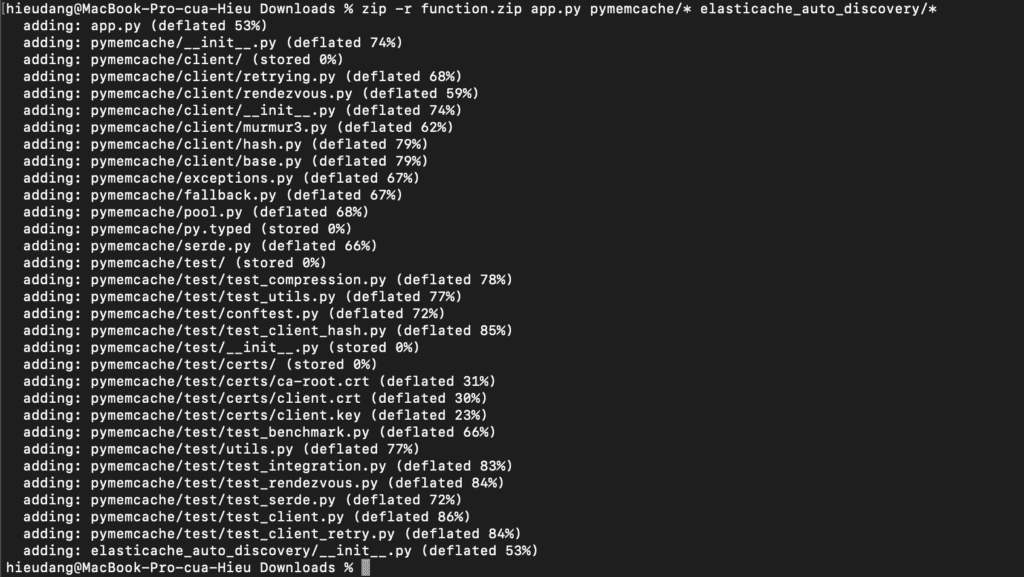
Create a deployment package.

zip -r function.zip app.py pymemcache/* elasticache_auto_discovery/*

Create the Lambda function

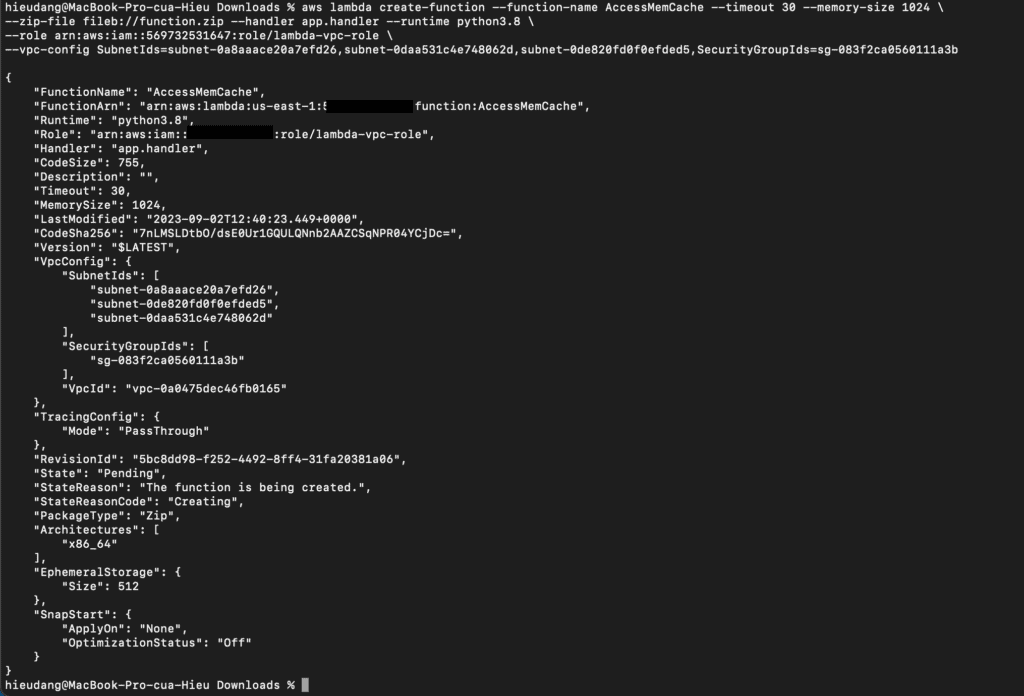
Create the Lambda function with the create-function command.

aws lambda create-function --function-name AccessMemCache --timeout 30 --memory-size 1024 \
--zip-file fileb://function.zip --handler app.handler --runtime python3.8 \
--role arn:aws:iam::123456789012:role/lambda-vpc-role \
--vpc-config SubnetIds=subnet-0a8aaace20a7efd26,subnet-0daa531c4e748062d,subnet-0de820fd0f0efded5,SecurityGroupIds=sg-083f2ca0560111a3b

Test the Lambda function

In this step, you invoke the Lambda function manually using the invoke command. When the Lambda function runs, it generates a UUID and writes it to the ElastiCache cluster specified in your Lambda code. The Lambda function then retrieves the item from the cache.

Invoke the Lambda function with the invoke the command includes getting log stream from CloudWatch

aws lambda invoke --function-name AccessMemCache --cli-binary-format raw-in-base64-out --payload '{"key": "value"}' out

Clean up

Run the following delete-function command to delete the AccessMemCache function.

aws lambda delete-function --function-name AccessMemCache

Run the following command to delete an IAM role

aws iam list-attached-role-policies --role-name lambda-vpc-role
aws iam detach-role-policy --role-name lambda-vpc-role --policy-arn arn:aws:iam::aws:policy/service-role/AWSLambdaVPCAccessExecutionRole
aws iam delete-role --role-name lambda-vpc-role

Conclusion

These steps provide an example to manage the Memcached cluster. The specific configuration details may vary depending on your environment and setup. It’s recommended to consult the relevant documentation from AWS for detailed instructions on setting up. I hope this will your helpful. Thank you for reading the DevopsRoles page!
Refer

https://docs.aws.amazon.com/lambda/latest/dg/services-elasticache-tutorial.html#vpc-ec-deployment-pkg

https://docs.aws.amazon.com/lambda/latest/dg/gettingstarted-awscli.html#with-userapp-walkthrough-custom-events-upload

https://docs.aws.amazon.com/IAM/latest/UserGuide/id_roles_manage_delete.html#roles-managingrole-deleting-cli

Memcached tutorial

Introduction

In this Memcached tutorial, you will create an Amazon ElastiCache for the Memcached cluster in your default Amazon Virtual Private Cloud. Operations on the cluster using CLI commands and node management using CLI commands. For more information about Amazon ElastiCache, see Amazon ElastiCache.

Prerequisites

Before starting, you should have the following prerequisites configured

  • An AWS account
  • AWS CLI on your computer

Memcached tutorial

  • Creating a Memcached cluster with AWS CLI
  • Modifying a Memcached cluster with AWS CLI
  • Viewing the elements in a Memcached cluster with AWS CLI
  • Rebooting a Memcached cluster with AWS CLI
  • Discovering the endpoints of Memcached cluster with AWS CLI
  • Adding nodes to a Memcached cluster with AWS CLI
  • Removing nodes from a Memcached cluster with AWS CLI
  • Scaling Memcached vertically
  • Configuring a Lambda function to access Amazon ElastiCache in an Amazon VPC
  • Deleting a Memcached cluster with AWS CLI

Creating a Memcached cluster with AWS CLI

Before you begin, If you have not installed the AWS CLI, see Setting up the Amazon Redshift CLI. This tutorial uses the us-ease-1 region.

Now we’re ready to launch a Memcached cluster by using the AWS CLI.

You can set up a cluster with a specific number of nodes and a parameter group that controls the properties for each node. All nodes within a cluster are designed to be of the same node type and have the same parameter and security group settings. 

Every cluster must have a cluster identifier. The cluster identifier is a customer-supplied name for the cluster. This identifier specifies a particular cluster when interacting with the ElastiCache API and AWS CLI commands. The cluster identifier must be unique for that customer in an AWS Region. For more information, see create-cache-cluster

  • Supported –engine-version
  • –cache-parameter-group-name: If this argument is omitted, the default parameter group for the specified engine is used. Or you can use create-cache-parameter-group command to create a parameter group.
  • If you’re going to launch your cluster in a VPC, make sure to create a subnet group in the same VPC before you start creating a cluster.

The following CLI code creates a Memcached cache cluster with 3 nodes.

#Creating a subnet group
aws elasticache create-cache-subnet-group \
    --cache-subnet-group-name my-subnetgroup \
    --cache-subnet-group-description "Testing" \
    --subnet-ids "subnet-0a8aaace20a7efd26" "subnet-0daa531c4e748062d" "subnet-0de820fd0f0efded5"

#Creating cluster
aws elasticache create-cache-cluster \
--cache-cluster-id my-cluster \
--cache-node-type cache.t2.medium \
--engine memcached \
--engine-version 1.5.16 \
--cache-subnet-group-name my-subnetgroup
--num-cache-nodes 3

This command returns the following result.

Modifying a Memcached cluster with AWS CLI

In addition to adding or removing nodes from a cluster, there can be times when you need to make other changes to an existing cluster, such as, adding a security group, changing the maintenance window, or a parameter group.

You can modify an existing cluster using the AWS CLI modify-cache-cluster operation. To modify a cluster’s configuration value, specify the cluster’s ID, the parameter to change, and the parameter’s new value.

The --apply-immediately parameter applies only to modifications in the engine version and changing the number of nodes in a cluster. If you want to apply any of these changes immediately, use the --apply-immediately parameter. If you prefer postponing these changes to your next maintenance window, use the --no-apply-immediately parameter. Other modifications, such as changing the maintenance window, are applied immediately.

The following example changes the maintenance window for a cluster named my-cluster and applies the change immediately.

aws elasticache modify-cache-cluster \
    --cache-cluster-id my-cluster \
    --preferred-maintenance-window sun:23:00-mon:02:00

This command returns the following result.

Viewing the elements in a Memcached cluster with AWS CLI

You can view detailed information about one or more clusters using describe-cache-clusters

By default, abbreviated information about the clusters is returned. You can use the optional ShowCacheNodeInfo flag to retrieve detailed information about the cache nodes associated with the clusters. These details include the DNS address and port for the cache node endpoint.

The following code lists the details for my-cluster

aws elasticache describe-cache-clusters --cache-cluster-id my-cluster

This command returns the following result.

Rebooting a Memcached cluster with AWS CLI

Some changes require that the cluster be rebooted for the changes to be applied. For example, for some parameters, changing the parameter value in a parameter group is only applied after a reboot.

When you reboot a cluster, the cluster flushes all its data and restarts its engine. During this process, you cannot access the cluster. Because the cluster flushed all its data, when it is available again, you start with an empty cluster.

To reboot specific nodes in the cluster, use the --cache-node-ids-to-reboot to list the specific clusters to reboot.

To reboot a cluster (AWS CLI), use the reboot-cache-cluster CLI operation.

Run the following command to reboot a cluster.

aws elasticache reboot-cache-cluster --cache-cluster-id my-cluster --cache-node-ids-to-reboot "0001"

This command returns the following result.

Discovering the endpoints of the Memcached cluster with AWS CLI

Your application connects to your cluster using endpoints. An endpoint is a node or cluster’s unique address. Which endpoints to use

  • If you use Automatic Discovery, you can use the cluster’s configuration endpoint to configure your Memcached client. This means you must use a client that supports Automatic Discovery.
  • If you don’t use Automatic Discovery, you must configure your client to use the individual node endpoints for reads and writes. You must also keep track of them as you add and remove nodes.

You can use the AWS CLI to discover the endpoints for a cluster and its nodes with the describe-cache-clusterscommand. For more information, see the topic describe-cache-clusters.

The following command retrieves the configuration endpoint (ConfigurationEndpoint)

aws elasticache describe-cache-clusters \
    --cache-cluster-id my-cluster --query 'CacheClusters[].ConfigurationEndpoint'

This command returns the following result.

For Memcached clusters, the command returns the configuration endpoint. If you include the optional parameter --show-cache-node-info, the following command retrieves the configuration endpoint (ConfigurationEndpoint) and individual node endpoints (Endpoint) for the Memcached cluster.

aws elasticache describe-cache-clusters \
    --cache-cluster-id my-cluster \
    --show-cache-node-info

Adding nodes to a Memcached cluster with AWS CLI

Adding nodes to a Memcached cluster increases the number of your cluster’s partitions.

To add nodes to a cluster using the AWS CLI, use the AWS CLI operation modify-cache-cluster. For more information, see the AWS CLI topic modify-cache-cluster.

Run the following command to add nodes to a cluster

aws elasticache modify-cache-cluster \
    --cache-cluster-id my-cluster \
    --num-cache-nodes 4 \
    --apply-immediately

This command returns the following result.

Removing nodes from a Memcached cluster with AWS CLI

To remove nodes from a cluster using the command-line interface, use the command modify-cache-cluster with the following parameters:

  • --cache-cluster-id The ID of the cache cluster that you want to remove nodes from.
  • --num-cache-nodes The --num-cache-nodes parameter specifies the number of nodes that you want in this cluster after the modification is applied.
  • --cache-node-ids-to-remove A list of node IDs that you want removed from this cluster.
  • --apply-immediately or --no-apply-immediately Specifies whether to remove these nodes immediately or at the next maintenance window.
  • --region Specifies the AWS Region of the cluster that you want to remove nodes from.

The following example immediately removes node 0004 from the cluster my-cluster.

aws elasticache modify-cache-cluster \
    --cache-cluster-id my-cluster \
    --num-cache-nodes 3 \
    --cache-node-ids-to-remove 0004 \
    --region us-east-1 \
    --apply-immediately  

This command returns the following result.

Scaling Memcached vertically

To scale a Memcached cache cluster vertically

  • Create a new cache cluster with the new node type. 
  • In your application, update the endpoints to the new cluster’s endpoints.
  • Delete the old cache cluster. 

Deleting a Memcached cluster with AWS CLI

For more information, see the AWS CLI for ElastiCache topic delete-cache-cluster

Run the following command to delete a cluster.

aws elasticache delete-cache-cluster --cache-cluster-id my-cluster

This command returns the following result.

Conclusion

These steps provide an example to manage the Memcached cluster. The specific configuration details may vary depending on your environment and setup. It’s recommended to consult the relevant documentation from AWS for detailed instructions on setting up. I hope will this be helpful. Thank you for reading the DevopsRoles page!

Refer

https://docs.aws.amazon.com/AmazonElastiCache/latest/mem-ug/WhatIs.html

https://docs.aws.amazon.com/lambda/latest/dg/services-elasticache-tutorial.html

S3 to Redshift

Introduction

This tutorial shows you how to create a Redshift cluster resource, connect to Amazon Redshift, load sample data from S3 to Redshift into Redshift, and run queries with data usage command line tools.

You can use SQL Workbench or Amazon Redshift Query Editor v2.0 (web-based analyst workbench). In this tutorial, we choose to load sample data from an Amazon S3 bucket to Amazon Redshift using the PLSQL command-line tool.

psql is a terminal-based front-end to PostgreSQL. It enables you to type in queries interactively, issue them to PostgreSQL, and see the query results. Alternatively, input can be from a file or command line arguments. In addition, psql provides several meta-commands and various shell-like features to facilitate writing scripts and automating a wide variety of tasks.

Prerequisites

Before starting, you should have the following prerequisites configured

  • An AWS account
  • AWS CLI on your computer

Load data from S3 to Redshift into Redshift example with AWS CLI

  • Install PSQL on MacOS
  • Creating a data warehouse with Amazon Redshift using AWS CLI
  • Connect to the Redshift cluster using PSQL
  • Create Redshift cluster tables using PSQL
  • Redshift default role setting uses AWS Console manage
  • Loading sample data from S3 to Redshift with PSQL
  • Delete the sample cluster using AWS CLI

Install PSQL on MacOS

We can choose a version from PostgresSQL page or execute the following command on MacOS

brew install postgresql

Creating a data warehouse with Amazon Redshift using AWS CLI

Before you begin, If you have not installed the AWS CLI, see Setting up the Amazon Redshift CLI. This tutorial uses the us-east-1 region.

Now we’re ready to launch a cluster by using the AWS CLI.

The create-cluster the command has a large number of parameters. For this tutorial, you will use the parameter values that are described in the following table. Before you create a cluster in a production environment, we recommend that you review all the required and optional parameters so that your cluster configuration matches your requirements. For more information, see create-cluster

Parameter nameParameter value for this exercise
cluster-identifierexamplecluster
master-usernameawsuser
master-user-passwordAwsuser123
node-typedc2.large
cluster-typesingle-node

Run the following command to create a cluster.

aws redshift create-cluster --cluster-identifier examplecluster --master-username awsuser --master-user-password Awsuser123 --node-type dc2.large --cluster-type single-node

This command returns the following result.

The cluster creation process will take several minutes to complete. To check the status, enter the following command.

aws redshift describe-clusters --cluster-identifier examplecluster | grep ClusterStatus

When the ClusterStatus field changes from creating to available, the cluster is ready for use.

Connect to the Redshift cluster using PSQL

Run the following command to connect to the Redshift cluster.

psql -h examplecluster.ccfmryooawwy.us-east-1.redshift.amazonaws.com -U awsuser -d dev -p 5439

You must explicitly grant inbound access to your client to connect to the cluster. When you created a cluster in the previous step, because you did not specify a security group, you associated the default cluster security group with the cluster.

The default cluster security group contains no rules to authorize any inbound traffic to the cluster. To access the new cluster, you must add rules for inbound traffic, which are called ingress rules, to the cluster security group. If you are accessing your cluster from the Internet, you will need to authorize a Classless Inter-Domain Routing IP (CIDR/IP) address range.

#get VpcSecurityGroupId
aws redshift describe-clusters --cluster-identifier examplecluster | grep VpcSecurityGroupId

Run the following command to enable your computer to connect to your Redshift cluster. Then login into your cluster using psql.

#allow connect to cluster from my computer
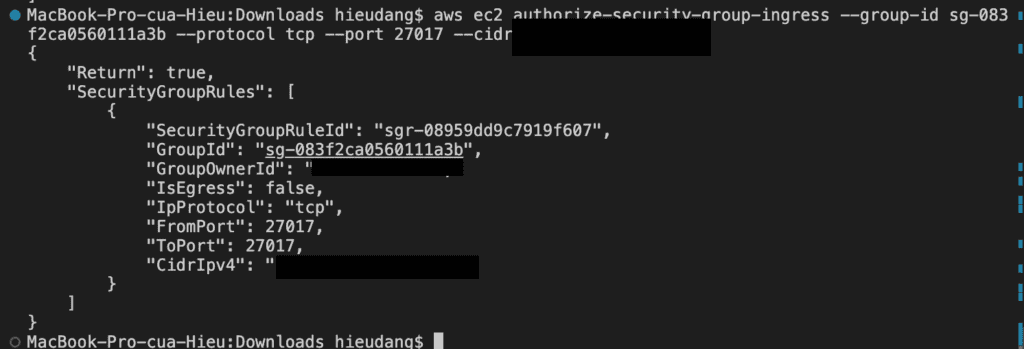
aws ec2 authorize-security-group-ingress --group-id sg-083f2ca0560111a3b --protocol tcp --port 5439 --cidr 111.111.111.111/32

This command returns the following result.

Now test the connection by querying the system table

Create Redshift cluster tables using PSQL

In this tutorial, I use sample data from AWS. Run the following command to create Redshift tables.

create table users(
userid integer not null distkey sortkey,
username char(8),
firstname varchar(30),
lastname varchar(30),
city varchar(30),
state char(2),
email varchar(100),
phone char(14),
likesports boolean,
liketheatre boolean,
likeconcerts boolean,
likejazz boolean,
likeclassical boolean,
likeopera boolean,
likerock boolean,
likevegas boolean,
likebroadway boolean,
likemusicals boolean);                        

create table event(
eventid integer not null distkey,
venueid smallint not null,
catid smallint not null,
dateid smallint not null sortkey,
eventname varchar(200),
starttime timestamp);

create table sales(
salesid integer not null,
listid integer not null distkey,
sellerid integer not null,
buyerid integer not null,
eventid integer not null,
dateid smallint not null sortkey,
qtysold smallint not null,
pricepaid decimal(8,2),
commission decimal(8,2),
saletime timestamp);

This command returns the following result.

Test by querying the public.sales table as follows

select * from public.sales;

Redshift default role setting uses AWS Console manage

Before you can load data from Amazon S3, you must first create an IAM role with the necessary permissions and attach it to your cluster. To do this refer to AWS document

Loading sample data from S3 to Redshift with PSQL

Use the COPY command to load large datasets from Amazon S3 into Amazon Redshift. For more information about COPY syntax, see COPY in the Amazon Redshift Database Developer Guide.

Run the following SQL commands in PSQL to load data from S3 to Redshift

COPY users 
FROM 's3://redshift-downloads/tickit/allusers_pipe.txt' 
DELIMITER '|' 
TIMEFORMAT 'YYYY-MM-DD HH:MI:SS'
IGNOREHEADER 1 
REGION 'us-east-1'
IAM_ROLE default;                    
                    
COPY event
FROM 's3://redshift-downloads/tickit/allevents_pipe.txt' 
DELIMITER '|' 
TIMEFORMAT 'YYYY-MM-DD HH:MI:SS'
IGNOREHEADER 1 
REGION 'us-east-1'
IAM_ROLE default;

COPY sales
FROM 's3://redshift-downloads/tickit/sales_tab.txt' 
DELIMITER '\t' 
TIMEFORMAT 'MM/DD/YYYY HH:MI:SS'
IGNOREHEADER 1 
REGION 'us-east-1'
IAM_ROLE default;

After loading data, try some example queries. 

\timing

SELECT firstname, lastname, total_quantity 
FROM   (SELECT buyerid, sum(qtysold) total_quantity
        FROM  sales
        GROUP BY buyerid
        ORDER BY total_quantity desc limit 10) Q, users
WHERE Q.buyerid = userid
ORDER BY Q.total_quantity desc;

Now that you’ve loaded data into Redshift.

Delete the sample cluster using AWS CLI

When you delete a cluster, you must decide whether to create a final snapshot. Because this is an exercise and your test cluster should not have any important data in it, you can skip the final snapshot.

To delete your cluster, enter the following command.

aws redshift delete-cluster –cluster-identifier examplecluster –skip-final-cluster-snapshot

Congratulations! You successfully launched, authorized access to, connected to, and terminated a cluster.

Conclusion

These steps provide an example of loading data from S3 to Redshift into Redshift with the PSQL tool. The specific configuration details may vary depending on your environment and setup. It’s recommended to consult the relevant documentation from AWS for detailed instructions on setting up. I hope will this be helpful. Thank you for reading the DevopsRoles page!
Refer

https://docs.aws.amazon.com/redshift/latest/mgmt/getting-started-cli.html#getting-started-create-sample-db-cli

https://docs.aws.amazon.com/redshift/latest/gsg/new-user-serverless.html

Boto3 DynamoDB

Introduction

In this Boto3 DynamoDB tutorial, we’ll walk through the process of creating tables, loading data, and executing fundamental CRUD operations in AWS DynamoDB using Python and the Boto3 library.

Boto3, the Python SDK for AWS, is primarily known for its two widely used features: Clients and Resources.

  • boto3 dynamodb client provides a low-level interface to the AWS service. It maps 1:1 with the actual AWS service API.
  • In another way, boto3 dynamodb resource are a higher-level abstraction compared to clients. It provides an object-oriented interface for interacting with various AWS services. Resources aren’t available for all AWS services.

In this tutorial, we use Boto3 DynamoDB resource methods.

Boto3 DynamoDB Prerequisites

Before starting, you should have the following prerequisites configured

  • An AWS account
  • AWS CLI on your computer
  • Download and unzip the sample source code from GitHub

Boto3 DynamoDB CRUD Operations example

  • Create table
  • Batch Write Items
  • Read Item
  • Add new item
  • Full scan table
  • Update item
  • Delete item
  • List all table
  • Delete table

Create table

The CreateTable operation adds a new table to your account. In an Amazon Web Services account, table names must be unique within each Region. That is, you can have two tables with the same name if you create the tables in different Regions.

CreateTable is an asynchronous operation. We can wait to create a process with wait_until_exists() method Upon receiving a CreateTable request, DynamoDB immediately returns a response with a TableStatus of CREATING. After the table is created, DynamoDB sets the TableStatus to ACTIVE. You can perform read-and-write operations only on an ACTIVE table.

The following code example shows how to create a DynamoDB table.

Python (Boto3)

def create_table(self, table_name):
        """
        Creates an Amazon DynamoDB table that can be used to store forum data.
        The table partition key(S): Name 

        :param table_name: The name of the table to create.
        :return: The newly created table.
        """
        try:
            self.table = self.dyn_resource.create_table(
                TableName=table_name,
                KeySchema=[
                    {'AttributeName': 'Name', 'KeyType': 'HASH'},  # Partition key
                ],
                AttributeDefinitions=[
                    {'AttributeName': 'Name', 'AttributeType': 'S'}
                ],
                ProvisionedThroughput={'ReadCapacityUnits': 10, 'WriteCapacityUnits': 5})
            self.table.wait_until_exists()
        except ClientError as err:
            logger.error(
                "Couldn't create table %s. Here's why: %s: %s", table_name,
                err.response['Error']['Code'], err.response['Error']['Message'])
            raise
        else:
            return self.table

Call function to create table as bellow

forums = Forum(dynamodb)
    #Check for table existence, create table if not found
    forums_exists = forums.exists(table_name)
    if not forums_exists:
        print(f"\nCreating table {table_name}...")
        forums.create_table(table_name)
        print(f"\nCreated table {forums.table.name}.")

This command returns the following result.

Batch Write Items

The BatchWriteItem operation puts or deletes multiple items in one or more tables. A single call  BatchWriteItem can transmit up to 16MB of data over the network, consisting of up to 25 item put or delete operations. While individual items can be up to 400 KB once stored, it’s important to note that an item’s representation might be greater than 400KB while being sent in DynamoDB’s JSON format for the API call.

BatchWriteItem cannot update items. 

If DynamoDB returns any unprocessed items, you should retry the batch operation on those items. However, AWS strongly recommends that you use an exponential backoff algorithm. If you retry the batch operation immediately, the underlying read or write requests can still fail due to throttling on the individual tables. If you delay the batch operation using exponential backoff, the individual requests in the batch are much more likely to succeed.

For more information, see Batch Operations and Error Handling in the Amazon DynamoDB Developer Guide & Exponential Backoff And Jitter

The following code example shows how to write a batch of DynamoDB items.

def write_batch(self, forums):
        """
        Fills an Amazon DynamoDB table with the specified data, using the Boto3
        Table.batch_writer() function to put the items in the table.
        Inside the context manager, Table.batch_writer builds a list of
        requests. On exiting the context manager, Table.batch_writer starts sending
        batches of write requests to Amazon DynamoDB and automatically
        handles chunking, buffering, and retrying.

        :param forums: The data to put in the table. Each item must contain at least
                       the keys required by the schema that was specified when the
                       table was created.
        """
        try:
            with self.table.batch_writer() as writer:
                for forum in forums:
                    writer.put_item(Item=forum)
        except ClientError as err:
            logger.error(
                "Couldn't load data into table %s. Here's why: %s: %s", self.table.name,
                err.response['Error']['Code'], err.response['Error']['Message'])
            raise

Call function to write data to DynamoDB as below

    #Load data into the created table
    forum_data = forums.get_sample_forum_data(forum_file_name)
    print(f"\nReading data from '{forum_file_name}' into your table.")
    forums.write_batch(forum_data)
    print(f"\nWrote {len(forum_data)} forums into {forums.table.name}.")
    print('-'*88)

This command returns the following result.

Read Item

The GetItem operation returns a set of attributes for the item with the given primary key. If there is no matching item, GetItem do not return any data and there will be no Item element in the response.

GetItem provides an eventually consistent read by default. If your application requires a strongly consistent read, set ConsistentRead to true

The following code example shows how to get an item from a DynamoDB table.

    def get_forum(self, name):
        """
        Gets forum data from the table for a specific forum.

        :param name: The name of the forum.
        :return: The data about the requested forum.
        """
        try:
            response = self.table.get_item(Key={'Name': name})
        except ClientError as err:
            logger.error(
                "Couldn't get forum %s from table %s. Here's why: %s: %s",
                name, self.table.name,
                err.response['Error']['Code'], err.response['Error']['Message'])
            raise
        else:
            return response['Item']

Call function to get data items from DynamoDB as below

    #Get forum data with hash key = 'Amazon DynamoDB'  
    forum = forums.get_forum("Amazon DynamoDB")
    print("\nHere's what I found:")
    pprint(forum)
    print('-'*88)

This command returns the following result.

Add new item

Creates a new item, or replaces an old item with a new item. If an item that has the same primary key as the new item already exists in the specified table, the new item completely replaces the existing item. You can perform a conditional put operation (add a new item if one with the specified primary key doesn’t exist), or replace an existing item if it has certain attribute values. You can return the item’s attribute values in the same operation, using the ReturnValuesparameter.

The following code example shows how to put an item in a DynamoDB table.

    def add_forum(self, name, category, messages, threads, views):
        """
        Adds a forum to the table.

        :param name: The name of the forum.
        :param category: The category of the forum.
        :param messages: The messages of the forum.
        :param threads: The quality threads of the forum.
        :param views: The quality views of the forum.
        """
        try:
            self.table.put_item(
                Item={
                    'Name': name,
                    'Category': category,
                    'Messages': messages,
                    'Threads': threads,
                    'Views': views
                    })
        except ClientError as err:
            logger.error(
                "Couldn't add forum %s to table %s. Here's why: %s: %s",
                name, self.table.name,
                err.response['Error']['Code'], err.response['Error']['Message'])
            raise

Call function to add item from DynamoDB as below

    #Add new forum data with hash key = 'SQL server'
    forums.add_forum("SQL server","Amazon Web Services",4,2,1000)
    print(f"\nAdded item to '{forums.table.name}'.")
    print('-'*88)

This command returns the following result.

Full scan table

The Scan operation returns one or more items and item attributes by accessing every item in a table or a secondary index. To have DynamoDB return fewer items, you can provide an FilterExpression operation.

If the total size of scanned items exceeds the maximum dataset size limit of 1 MB, the scan completes and results are returned to the user. The LastEvaluatedKey value is also returned and the requestor can use the LastEvaluatedKey to continue the scan in a subsequent operation. 

The following code example shows how to scan a DynamoDB table.

   def scan_forums(self):
        """
        Scans for forums.

        :param n/a
        :return: The list of forums.
        """
        forums = []
        scan_kwargs = {}
        try:
            done = False
            start_key = None
            while not done:
                if start_key:
                    scan_kwargs['ExclusiveStartKey'] = start_key
                response = self.table.scan(**scan_kwargs)
                forums.extend(response.get('Items', []))
                start_key = response.get('LastEvaluatedKey', None)
                done = start_key is None
        except ClientError as err:
            logger.error(
                "Couldn't scan for forums. Here's why: %s: %s",
                err.response['Error']['Code'], err.response['Error']['Message'])
            raise

        return forums

Call function to scan items from DynamoDB as below

    #Full scan table
    releases = forums.scan_forums()
    if releases:
        print(f"\nHere are your {len(releases)} forums:\n")
        pprint(releases)
    else:
        print(f"I don't know about any forums released\n")
    print('-'*88)

This command boto3 dynamodb scan returns the following result.

Update item

Edits an existing item’s attributes, or adds a new item to the table if it does not already exist. We can put, delete, or add attribute values. We can also perform a conditional update on an existing item (insert a new attribute name-value pair if it doesn’t exist, or replace an existing name-value pair if it has certain expected attribute values).

We can also return the item’s attribute values in the same UpdateItem operation using the ReturnValues parameter.

The following code example shows how to update an item in a DynamoDB table.

    def update_forum(self, name, category, messages, threads, views):
        """
        Updates rating and plot data for a forum in the table.

        :param name: The name of the forum.
        :param category: The category of the forum.
        :param messages: The messages of the forum.
        :param threads: The quality threads of the forum.
        :param views: The quality views of the forum.
        :return: The fields that were updated, with their new values.
        """
        try:
            response = self.table.update_item(
                Key={'Name': name},
                UpdateExpression="set Category=:c, Messages=:m, Threads=:t, #Views=:v",
                ExpressionAttributeValues={
                    ':c': category,
                    ':m': messages,
                    ':t': threads,
                    ':v': views
                    },
                ExpressionAttributeNames={"#Views" : "Views"},
                ReturnValues="UPDATED_NEW")
        except ClientError as err:
            logger.error(
                "Couldn't update forum %s in table %s. Here's why: %s: %s",
                name, self.table.name,
                err.response['Error']['Code'], err.response['Error']['Message'])
            raise
        else:
            return response['Attributes']

Call function to update an item of DynamoDB as below

    #Update data: update forum quality views from 1000 to 2000
    updated = forums.update_forum("SQL server","Amazon Web Services",4,2,2000)
    print(f"\nUpdated :")
    pprint(updated)
    print('-'*88)

This command returns the following result.

Delete item

Deletes a single item in a table by primary key. You can perform a conditional delete operation that deletes the item if it exists, or if it has an expected attribute value.

In addition to deleting an item, you can also return the item’s attribute values in the same operation, using the ReturnValues parameter.

Unless you specify conditions, the DeleteItem is an idempotent operation; running it multiple times on the same item or attribute does not result in an error response.

The following code example shows how to delete an item from a DynamoDB table.

    def delete_forum(self, name):
        """
        Deletes a forum from the table.

        :param name: The title of the forum to delete.
        """
        try:
            self.table.delete_item(Key={'Name': name})
        except ClientError as err:
            logger.error(
                "Couldn't delete forum %s. Here's why: %s: %s", name,
                err.response['Error']['Code'], err.response['Error']['Message'])
            raise

Call function to delete the item of DynamoDB as below

    #Delete data
    forums.delete_forum("SQL server")
    print(f"\nRemoved item from the table.")
    print('-'*88)
    ##Full scan table
    releases = forums.scan_forums()
    if releases:
        print(f"\nHere are your {len(releases)} forums:\n")
        pprint(releases)
    else:
        print(f"I don't know about any forums released\n")
    print('-'*88)

This command returns the following result.

List all table

Returns an array of table names associated with the current account and endpoint. The output from ListTables is paginated, with each page returning a maximum of 100 table names default.

The following code example shows how to list DynamoDB tables.

    #List all table
    print('-'*88)
    print(f"Table list:\n")
    print(list(dynamodb.tables.all()))

This command returns the following result.

Delete table

Deletes a single item in a table by primary key. You can perform a conditional delete operation that deletes the item if it exists, or if it has an expected attribute value.

In addition to deleting an item, you can also return the item’s attribute values in the same operation, using the ReturnValues parameter.

Unless you specify conditions, the DeleteItem is an idempotent operation; running it multiple times on the same item or attribute does not result in an error response.

The following code example shows how to delete an item from a DynamoDB table.

    def delete_table(self):
        """
        Deletes the table.
        """
        try:
            self.table.delete()
            self.table = None
        except ClientError as err:
            logger.error(
                "Couldn't delete table. Here's why: %s: %s",
                err.response['Error']['Code'], err.response['Error']['Message'])
            raise

Call function to delete the item of DynamoDB as below

   #Delete table
    forums.delete_table()
    print(f"Deleted {table_name}.")

This command returns the following result.

Conclusion

These steps provide an example CRUD Operations using Boto3 DynamoDB. The specific configuration details may vary depending on your environment and setup. It’s recommended to consult the relevant documentation from AWS for detailed instructions on setting up. I hope this will your helpful. Thank you for reading the DevopsRoles page!

Boto3 DynamoDB Refer to:

Manage the DynamoDB table with AWS CLI

Introduction

You can use the AWS Console Manager to manage the DynamoDB table, alternatively, you can manage the DynamoDB table with AWS CLI in Linux as below.

Prerequisites

Before starting, you should have the following prerequisites configured

  • An AWS account
  • AWS CLI on your computer
  • Download and unzip the sample data, i will use sample data from the DynamoDB Developer Guide

Guide to creating and managing the DynamoDB table with AWS CLI

Topics

  • Create the DynamoDB table with AWS CLI
  • Load the data using the batch-write-item AWS CLI into DynamoDB table
  • DynamoDB table scan CLI command
  • DynamoDB table Query CLI command
  • DynamoDB table Query and Sort CLI command
  • DynamoDB table Scan and filter with CLI command
  • Insert data to DynamoDB table with CLI command
  • Update data to DynamoDB table with CLI command
  • Delete data of DynamoDB table with CLI command
  • Delete a value from a list type with the CLI command
  • DynamoDB transaction with CLI command
  • Using the Global Secondary Index
  • Delete Global Secondary Index with CLI command
  • Amazon DynamoDB point-in-time recovery (PITR) CLI command
  • Delete Amazon DynamoDB table CLI command

Create the DynamoDB table with AWS CLI

The following AWS CLI example creates DynamoDB tables with name ProductCatalog, Forum, Thread, Reply

aws dynamodb create-table \
--table-name ProductCatalog \
--attribute-definitions \
AttributeName=Id,AttributeType=N \
--key-schema \
AttributeName=Id,KeyType=HASH \
--provisioned-throughput \
ReadCapacityUnits=10,WriteCapacityUnits=5
aws dynamodb create-table \
--table-name Forum \
--attribute-definitions \
AttributeName=Name,AttributeType=S \
--key-schema \
AttributeName=Name,KeyType=HASH \
--provisioned-throughput \
ReadCapacityUnits=10,WriteCapacityUnits=5

aws dynamodb create-table \
--table-name Thread \
--attribute-definitions \
AttributeName=ForumName,AttributeType=S \
AttributeName=Subject,AttributeType=S \
--key-schema \
AttributeName=ForumName,KeyType=HASH \
AttributeName=Subject,KeyType=RANGE \
--provisioned-throughput \
ReadCapacityUnits=10,WriteCapacityUnits=5

aws dynamodb create-table \
--table-name Reply \
--attribute-definitions \
AttributeName=Id,AttributeType=S \
AttributeName=ReplyDateTime,AttributeType=S \
--key-schema \
AttributeName=Id,KeyType=HASH \
AttributeName=ReplyDateTime,KeyType=RANGE \
--provisioned-throughput \
ReadCapacityUnits=10,WriteCapacityUnits=5

This command returns the following result.

To verify that DynamoDB has finished creating, use the command

aws dynamodb describe-table --table-name ProductCatalog | grep TableStatus

This command returns the following result. When DynamoDB finishes creating the table, the value of the TableStatus field is set to ACTIVE

Load the data using the batch-write-item AWS CLI into DynamoDB table

Load the sample data using the batch-write-item CLI

aws dynamodb batch-write-item --request-items file://ProductCatalog.json
aws dynamodb batch-write-item --request-items file://Forum.json
aws dynamodb batch-write-item --request-items file://Thread.json
aws dynamodb batch-write-item --request-items file://Reply.json

This command returns the following result. After each data load, you should get this message saying that there were no Unprocessed Items

DynamoDB table scan CLI command

The scan will do a full table scan and return the items in 1MB chunks. Scanning is the slowest and most expensive way to get data out of DynamoDB. Try running a scan on the DynamoDB table

aws dynamodb scan --table-name Forum

This command returns the following result.

Read data from a DynamoDB table with the CLI command

GetItem is the fastest and cheapest way to get data out of DynamoDB as you must specify the full Primary Key so the command is guaranteed to match at most one item in the table.

The default behavior for DynamoDB is eventually consistent reads.

The following AWS CLI example reads an item from the ProductCatalog

aws dynamodb get-item --table-name ProductCatalog --key '{"Id":{"N":"101"}}'

There are many useful options for the get-item command, a few that get used regularly are:

  • –consistent-read : Specifying that you want a strongly consistent read
  • –projection-expression : Specifying that you only want certain attributes returned in the request
  • –return-consume-capacity : Tell us how much capacity was consumed by the request
aws dynamodb get-item \
    --table-name ProductCatalog \
    --key '{"Id":{"N":"101"}}' \
    --consistent-read \
    --projection-expression "ProductCategory, Price, Title" \
    --return-consumed-capacity TOTAL

This command returns the following result.

Performing this request consume 1.0 RCU, because this item is less than 4KB. If we run the command again but remove the –consistent-read option, this command returns the following result.

aws dynamodb get-item \
    --table-name ProductCatalog \
    --key '{"Id":{"N":"101"}}' \
    --projection-expression "ProductCategory, Price, Title" \
    --return-consumed-capacity TOTAL

You can do this either through the DynamoDB API or PartiQL, a SQL-compatible query language for DynamoDB.

PartiQL

aws dynamodb execute-statement --statement "SELECT ProductCategory, Price, Title FROM ProductCatalog WHERE Id=101" --return-consumed-capacity TOTAL

DynamoDB table Query CLI command

Just the Partition Key value query

aws dynamodb query \
    --table-name Reply \
    --key-condition-expression 'Id = :Id' \
    --expression-attribute-values '{
        ":Id" : {"S": "Amazon DynamoDB#DynamoDB Thread 1"}
    }' \
    --return-consumed-capacity TOTAL

This command returns the following result.

Partition Key and Sort Key Query

aws dynamodb query \
--table-name Reply \
--key-condition-expression 'Id = :Id and ReplyDateTime > :ts' \
--expression-attribute-values '{
":Id" : {"S": "Amazon DynamoDB#DynamoDB Thread 1"},
":ts" : {"S": "2015-09-21"}
}' \
--return-consumed-capacity TOTAL

PartiQL

aws dynamodb execute-statement --statement "SELECT * FROM Reply WHERE Id='Amazon DynamoDB#DynamoDB Thread 1' And ReplyDateTime > '2015-09-21'" --return-consumed-capacity TOTAL

With Id is Primary Key and ReplyDateTime is Sort Key

If you want to limit results based on non-key attributes, we can use Filter Expressions

aws dynamodb query \
    --table-name Reply \
    --key-condition-expression 'Id = :Id' \
    --filter-expression 'PostedBy = :user' \
    --expression-attribute-values '{
        ":Id" : {"S": "Amazon DynamoDB#DynamoDB Thread 1"},
        ":user" : {"S": "User B"}
    }' \
    --return-consumed-capacity TOTAL

PartiQL

aws dynamodb execute-statement --statement "SELECT * FROM Reply WHERE Id='Amazon DynamoDB#DynamoDB Thread 1' And PostedBy = 'User B'" --return-consumed-capacity TOTAL

With PostedBy attributes at the filter-expression option, this command returns the following result.

DynamoDB table Query and Sort CLI command

  • –scan-index-forward : order items in ascending order of the sort key. This would be analogous in SQL to “ORDER BY ReplyDateTime ASC”
  • –no-scan-index-forward : order items in descending order of the sort key. This would be analogous in SQL to “ORDER BY ReplyDateTime DESC”
  • –max-items : limit the number of items
aws dynamodb query \
    --table-name Reply \
    --key-condition-expression 'Id = :Id' \
    --expression-attribute-values '{
        ":Id" : {"S": "Amazon DynamoDB#DynamoDB Thread 1"}
    }' \
    --max-items 1 \
    --scan-index-forward  \
    --return-consumed-capacity TOTAL

PartiQL

aws dynamodb execute-statement --statement "SELECT * FROM Reply WHERE Id='Amazon DynamoDB#DynamoDB Thread 1' ORDER BY ReplyDateTime ASC" --limit 1  --return-consumed-capacity TOTAL

This command returns the following result.

Now let’s try without setting a limit on the number of items

#DynamoDB API
aws dynamodb query --table-name Reply --key-condition-expression 'Id = :Id' --expression-attribute-values '{":Id" : {"S": "Amazon DynamoDB#DynamoDB Thread 1"}}' --no-scan-index-forward --output table

#PartiQL
aws dynamodb execute-statement --statement "SELECT * FROM Reply WHERE Id='Amazon DynamoDB#DynamoDB Thread 1' ORDER BY ReplyDateTime DESC" --output table

This is sorted in descending order by sort key ReplyDateTime.

DynamoDB table Scan and filter with CLI command

 Scan will do a full table scan, however, we can specify a Filter Expression which will reduce the size of the result set, but it will not reduce the amount of capacity consumed.

#DynamoDB API
aws dynamodb scan \
    --table-name Forum \
    --filter-expression 'Threads >= :threads AND #Views >= :views' \
    --expression-attribute-values '{
        ":threads" : {"N": "1"},
        ":views" : {"N": "50"}
    }' \
    --expression-attribute-names '{"#Views" : "Views"}' \
    --return-consumed-capacity TOTAL
#PartiQL
aws dynamodb execute-statement --statement "SELECT * FROM Forum WHERE Threads >= 1 And Views >= 50"

This command returns the following result.

Insert data to DynamoDB table with CLI command

Creates a new item, or replaces an old item with a new item. If an item that has the same primary key as the new item already exists in the specified table, the new item completely replaces the existing item.

Let’s insert a new item into the Reply table.

#DynamoDB API
aws dynamodb put-item \
    --table-name Reply \
    --item '{
        "Id" : {"S": "Amazon DynamoDB#DynamoDB Thread 2"},
        "ReplyDateTime" : {"S": "2022-04-27T17:47:30Z"},
        "Message" : {"S": "DynamoDB Thread 2 Reply 3 text"},
        "PostedBy" : {"S": "User C"}
    }' \
    --return-consumed-capacity TOTAL

#PartiQL
aws dynamodb execute-statement --statement "INSERT INTO Reply value {'Id' : 'Amazon DynamoDB#DynamoDB Thread 2','ReplyDateTime' : '2023-04-27T17:47:30Z','Message' : 'DynamoDB Thread 2 Reply 4 text','PostedBy' : 'User C'}"

This command returns the following result.

Let’s insert an existing item with the put-item command

#DynamoDB API
aws dynamodb put-item \
    --table-name Reply \
    --item '{
        "Id" : {"S": "Amazon DynamoDB#DynamoDB Thread 2"},
        "ReplyDateTime" : {"S": "2022-04-27T17:47:30Z"},
        "Message" : {"S": "DynamoDB Thread 2 Reply 5 text"},
        "PostedBy" : {"S": "User C"}
    }' \
    --return-consumed-capacity TOTAL

#PartiQL
aws dynamodb execute-statement --statement "INSERT INTO Reply value {'Id' : 'Amazon DynamoDB#DynamoDB Thread 2','ReplyDateTime' : '2023-04-27T17:47:30Z','Message' : 'DynamoDB Thread 2 Reply 6 text','PostedBy' : 'User C'}"

With put-item, if an item that has the same primary key as the new item already exists in the specified table, the new item completely replaces the existing item. But with PartiQL, if the table already has an item with the same primary key as the primary key of the item being inserted, DuplicateItemException is returned.

With put-item, to prevent a new item from replacing an existing item, use a conditional expression that contains the attribute_not_exists function with the name of the attribute being used as the partition key for the table. 

aws dynamodb put-item \
    --table-name Reply \
    --item '{
        "Id" : {"S": "Amazon DynamoDB#DynamoDB Thread 2"},
        "ReplyDateTime" : {"S": "2022-04-27T17:47:30Z"},
        "Message" : {"S": "DynamoDB Thread 2 Reply 5 text"},
        "PostedBy" : {"S": "User C"}
    }' \
    --condition-expression "attribute_not_exists(Id) AND attribute_not_exists(ReplyDateTime)"

Update data to DynamoDB table with CLI command

With the update-item command, we can edit an existing item’s attributes, or add a new item to the table if it does not already exist.

#DynamoDB API
aws dynamodb update-item \
    --table-name Forum \
    --key '{
        "Name" : {"S": "Amazon DynamoDB"}
    }' \
    --update-expression "SET Messages = :newMessages" \
    --condition-expression "Messages = :oldMessages" \
    --expression-attribute-values '{
        ":oldMessages" : {"N": "4"},
        ":newMessages" : {"N": "5"}
    }' \
    --return-consumed-capacity TOTAL

#PartiQL(update and show value before update)
aws dynamodb execute-statement --statement "Update Forum SET Messages = 6 WHERE Name='Amazon DynamoDB' RETURNING ALL OLD *" --return-consumed-capacity TOTAL

This command returns the following result.

Let’s update the attribute of the type map with the CLI

#DynamoDB API
aws dynamodb update-item \
    --table-name ProductCatalog \
    --key '{
        "Id" : {"N": "201"}
    }' \
    --update-expression "SET #Color = list_append(#Color, :values)" \
    --expression-attribute-names '{"#Color": "Color"}' \
    --expression-attribute-values '{
        ":values" : {"L": [{"S" : "Blue"}, {"S" : "Yellow"}]}
    }' \
    --return-consumed-capacity TOTAL

#PartiQL
aws dynamodb execute-statement --statement "Update ProductCatalog SET Color = list_append(Color,['White']) WHERE Id = 201 RETURNING ALL NEW *" --return-consumed-capacity TOTAL

This command returns the following result.

Delete data of DynamoDB table with CLI command

The delete-item the command is used command to delete an item from the DynamoDB table. Because it won’t report an error if the key doesn’t exist, we can use the delete-item command to confirm the existence of an item before deleting it.

#Confirm
aws dynamodb get-item \
    --table-name Reply \
    --key '{
        "Id" : {"S": "Amazon DynamoDB#DynamoDB Thread 2"},
        "ReplyDateTime" : {"S": "2023-04-27T17:47:30Z"}
    }'
#Delete
aws dynamodb delete-item \
    --table-name Reply \
    --key '{
        "Id" : {"S": "Amazon DynamoDB#DynamoDB Thread 2"},
        "ReplyDateTime" : {"S": "2023-04-27T17:47:30Z"}
    }' \
 --return-consumed-capacity TOTAL

This command returns the following result.

PartiQL delete statements for DynamoDB

If the DynamoDB table does not have any item with the same primary key as that of the item for which the DELETE is issued, SUCCESS is returned with 0 items deleted. If the table has an item with same primary key, but the condition in the WHERE clause of the DELETE statement evaluates to false, ConditionalCheckFailedException is returned.

#PartiQL delete
aws dynamodb get-item --table-name Reply --key '{
        "Id" : {"S": "Amazon DynamoDB#DynamoDB Thread 2"},
        "ReplyDateTime" : {"S": "2022-04-27T17:47:30Z"}
    }'
aws dynamodb execute-statement --statement "DELETE FROM Reply WHERE Id = 'Amazon DynamoDB#DynamoDB Thread 2' AND ReplyDateTime = '2022-04-27T17:47:30Z'"

Delete a value from a list type with the CLI command

Delete from a list type using update-item API

#Confirm
aws dynamodb get-item --table-name ProductCatalog --key '{ "Id" : {"N": "201"} }'

#Delete 'Yellow', 'White' from list
aws dynamodb update-item --table-name ProductCatalog --key '{ "Id" : {"N": "201"} }' \
    --update-expression "REMOVE #Color[3], #Color[4]" \
    --expression-attribute-names '{"#Color": "Color"}' \
    --return-consumed-capacity TOTAL 

Delete from a list type use PartiQL update statements

#Confirm
aws dynamodb get-item --table-name ProductCatalog --key '{ "Id" : {"N": "201"} }'

#Delete 'Blue' from Color list
aws dynamodb execute-statement --statement "UPDATE ProductCatalog REMOVE Color[2] WHERE Id=201" --return-consumed-capacity TOTAL

This command returns the following result.

DynamoDB transaction with CLI command

DynamoDB API TransactWriteItems is a synchronous write operation that groups up to 100 action requests. These actions can target items in different tables, but not in different Amazon Web Services accounts or Regions, and no two actions can target the same item. For example, you cannot both ConditionCheck and Update the same item. The aggregate size of the items in the transaction cannot exceed 4 MB.

The following example runs multiple statements as a transaction.

#DynamoDB API
aws dynamodb transact-write-items --client-request-token TRANSACTION1 --transact-items '[
    {
        "Put": {
            "TableName" : "Reply",
            "Item" : {
                "Id" : {"S": "Amazon DynamoDB#DynamoDB Thread 2"},
                "ReplyDateTime" : {"S": "2023-04-27T17:47:30Z"},
                "Message" : {"S": "DynamoDB Thread 2 Reply 3 text"},
                "PostedBy" : {"S": "User C"}
            }
        }
    },
    {
        "Update": {
            "TableName" : "Forum",
            "Key" : {"Name" : {"S": "Amazon DynamoDB"}},
            "UpdateExpression": "ADD Messages :inc",
            "ExpressionAttributeValues" : { ":inc": {"N" : "1"} }
        }
    }
]'

#PartiQL
aws dynamodb execute-transaction --transact-statements "[
    {
        \"Statement\": \"INSERT INTO Reply value {'Id':'Amazon DynamoDB#DynamoDB Thread 2','ReplyDateTime':'2023-08-26T17:47:30Z','Message':'DynamoDB Thread 2 Reply 4 text','PostedBy':'User C'}\"
    },
    {
        \"Statement\": \"UPDATE Forum SET Messages=8 where Name='Amazon DynamoDB'\"
    }
]"

#Confirm
aws dynamodb get-item --table-name Forum --key '{"Name" : {"S": "Amazon DynamoDB"}}'

PartiQL allows you to save your JSON code to a file and pass it to the –transact-statements parameter. Alternatively, you can enter it directly on the command line.

This command returns the following result.

Using the Global Secondary Index

To speed up queries on non-key attributes, you can create a global secondary index. A global secondary index contains a selection of attributes from the base table, but they are organized by a primary key that is different from that of the table. 

#Before create GSI
aws dynamodb scan \
    --table-name Reply \
    --filter-expression 'PostedBy = :user' \
    --expression-attribute-values '{
        ":user" : {"S": "User A"}
    }' \
    --return-consumed-capacity TOTAL

#create GSI
aws dynamodb update-table \
    --table-name Reply \
    --attribute-definitions AttributeName=PostedBy,AttributeType=S AttributeName=ReplyDateTime,AttributeType=S \
    --global-secondary-index-updates '[{
        "Create":{
            "IndexName": "PostedBy-ReplyDateTime-GSI",
            "KeySchema": [
                {
                    "AttributeName" : "PostedBy",
                    "KeyType": "HASH"
                },
                {
                    "AttributeName" : "ReplyDateTime",
                    "KeyType" : "RANGE"
                }
            ],
            "ProvisionedThroughput": {
                "ReadCapacityUnits": 2, "WriteCapacityUnits": 2
            },
            "Projection": {
                "ProjectionType": "ALL"
            }
        }
    }
]'

#GSI confirm
aws dynamodb query \
    --table-name Reply \
    --key-condition-expression 'PostedBy = :pb' \
    --expression-attribute-values '{
        ":pb" : {"S": "User A"}
    }' \
    --index-name PostedBy-ReplyDateTime-GSI \
    --return-consumed-capacity TOTAL

This command returns the following result.

Delete Global Secondary Index with CLI command

#GSI delete
aws dynamodb update-table \
    --table-name Reply \
    --global-secondary-index-updates '[{
        "Delete":{
            "IndexName": "PostedBy-ReplyDateTime-GSI"
        }
    }
]'

This command returns the following result.

Amazon DynamoDB point-in-time recovery (PITR) CLI command

The following procedure shows how to use the AWS CLI to restore an existing table named ProductCatalog to the LatestRestorableDateTime.

#Confirm that point-in-time recovery is enabled
aws dynamodb describe-continuous-backups --table-name ProductCatalog

#Enable
aws dynamodb update-continuous-backups --table-name ProductCatalog --point-in-time-recovery-specification PointInTimeRecoveryEnabled=True

#delete data
aws dynamodb delete-item --table-name ProductCatalog --key '{"Id" : {"N": "205"}}'

#Restore the table to the LatestRestorableDateTime
aws dynamodb restore-table-to-point-in-time \
    --source-table-name ProductCatalog \
    --target-table-name ProductCatalogMinutesAgo \
    --use-latest-restorable-time

To enable PITR for the ProductCatalog table, run the following command.

aws dynamodb update-continuous-backups --table-name ProductCatalog --point-in-time-recovery-specification PointInTimeRecoveryEnabled=True

Confirm that point-in-time recovery is enabled for the ProductCatalog table by using the describe-continuous-backups command.

aws dynamodb describe-continuous-backups --table-name ProductCatalog

delete data from ProductCatalog

aws dynamodb delete-item --table-name ProductCatalog --key '{"Id" : {"N": "205"}}'

Restore the table to a point in time. In this case, the ProductCatalog table is restored to the LatestRestorableDateTime (~5 minutes ago) to the same AWS Region.

aws dynamodb restore-table-to-point-in-time \
    --source-table-name ProductCatalog \
    --target-table-name ProductCatalogMinutesAgo \
    --use-latest-restorable-time

Check PITR of ProductCatalogMinutesAgo table

We must manually set the following on the restored table:

  • Auto scaling policies
  • AWS Identity and Access Management (IAM) policies
  • Amazon CloudWatch metrics and alarms
  • Tags
  • Stream settings
  • Time to Live (TTL) settings
  • Point-in-time recovery settings

Delete Amazon DynamoDB table CLI command

The delete-table operation deletes a table and all of its items, any indexes on that table are also deleted. If you have DynamoDB Streams enabled on the table, then the corresponding stream on that table goes into the DISABLED state and the stream is automatically deleted after 24 hours.

aws dynamodb delete-table --table-name Forum

We can use the describe-table action to check the status of the table.

Conclusion

These steps provide a general AWS CLI (DynamoDB API and PartiQL for DynamoDB) of the process to manage DynamoDB. The specific configuration details may vary depending on your environment and setup. It’s recommended to consult the relevant documentation from AWS for detailed instructions on setting up. I hope will this be helpful. Thank you for reading the DevopsRoles page!
Manage the DynamoDB table with AWS CLI

Refer

https://amazon-dynamodb-labs.workshop.aws/hands-on-labs.html

https://docs.aws.amazon.com/cli/latest/

Manage the Aurora PostgreSQL global database

Introduction

You can use the AWS Console Manager to manage the Aurora PostgreSQL global database, alternatively, you can manage the Aurora PostgreSQL global database using the AWS CLI in Linux(AWS Cloud9 for my lab) as below.

Guide to creating and managing the Aurora PostgreSQL global database using the AWS CLI.

This lab contains the following tasks

Create Aurora Postgresql global database from a Regional cluster using AWS CLI

Add reader instances in the Secondary Aurora DB cluster using AWS CLI

Perform a Managed Planned Failover to the secondary region using AWS CLI

Detaches an Aurora secondary cluster from an Aurora global database cluster using AWS CLI

Prerequisites

For this walkthrough, you should have the following prerequisites configured:

  • Amazon Aurora PostgreSQL cluster in a single region
  • AWS CLI environment deployed
  • Cluster Parameter Group Name, VPC Security Group, and DB Subnet Group were deployed into the primary region and the secondary region

Detail Steps

Create Aurora Postgresql global database from a Regional cluster using AWS CLI

On the primary AWS Region, execute the below code using AWS CLI

# Get current cluster ARN
CLUSTER_ID=`aws rds describe-db-clusters --db-cluster-identifier aupg-labs-cluster --query 'DBClusters[*].DBClusterArn' | jq -r '.[0]'`

# convert the Aurora Provisioned cluster to global
aws rds create-global-cluster  --global-cluster-identifier auroralab-postgres-global --source-db-cluster-identifier $CLUSTER_ID

This operation will take 2-5 minutes to complete. 

In the next step, perform the following actions using AWS CLI to add a secondary region.

# obtain KeyID of the KMS key in the secondary region
aws kms describe-key --key-id alias/aws/rds --region us-west-1 --query 'KeyMetadata.KeyId'

# create the secondary cluster
aws rds --region us-east-1 \
  create-db-cluster \
     --db-cluster-identifier auroralab-postgres-secondary \
     --global-cluster-identifier auroralab-postgres-global \
     --engine aurora-postgresql \
     --kms-key-id d71e19d3-24a3-48cb-9e7f-10fbd28ef271 \
     --engine-version 15.3 \
     --db-cluster-parameter-group-name rds-apgcustomclusterparamgroup \
     --db-subnet-group-name aupg-labs-db-subnet-group \
     --vpc-security-group-ids sg-0cdcd29e64fd436c6 \
     --backup-retention-period 7 --region us-west-1

This operation will take 5-10 minutes to complete. 

Add reader instances in the Secondary Aurora DB cluster using AWS CLI

# Database Parameter group
DB_PARAMETER_GP=`aws rds describe-db-parameter-groups --region us-west-1 --query 'DBParameterGroups[*].DBParameterGroupName' | jq -r '.[0]'`

# Enhanced Monitoring role ARN
MONITOR_R=`aws iam get-role --role-name aupg-labs-monitor-us-west-2 --query 'Role.Arn' --output text`

# Add a Reader instance to the secondary Aurora DB cluster
aws rds --region us-west-1 \
  create-db-instance \
     --db-instance-identifier auroralab-postgres-instance1 \
     --db-cluster-identifier auroralab-postgres-secondary \
     --db-instance-class db.r6g.large \
     --engine aurora-postgresql \
     --enable-performance-insights \
     --performance-insights-retention-period 7 \
     --db-parameter-group-name $DB_PARAMETER_GP \
     --monitoring-interval 1 \
     --monitoring-role-arn $MONITOR_R \
     --no-auto-minor-version-upgrade

This operation will take 5-10 minutes to complete. 

Perform a Managed Planned Failover to the secondary region using AWS CLI

This method is recommended for disaster recovery. When you use this method, Aurora automatically adds back the old primary Region to the global database as a secondary Region when it becomes available again. Thus, the original topology of your global cluster is maintained.

Before failover

Failover

aws rds failover-global-cluster --global-cluster-identifier auroralab-postgres-global --target-db-cluster-identifier arn:aws:rds:us-west-1:XXXXXXXXX:cluster:auroralab-postgres-secondary

Now that the managed failover is completed.

To recover from an unplanned outage refer Recovering an Amazon Aurora global database from an unplanned outage

This alternative method can be used when managed failover isn’t an option, for example, when your primary and secondary Regions are running incompatible engine versions.

Detaches an Aurora secondary cluster from an Aurora global database cluster using AWS CLI

aws rds remove-from-global-cluster --global-cluster-identifier auroralab-postgres-global --db-cluster-identifier arn:aws:rds:us-west-2:XXXXXXXX:cluster:aupg-labs-cluster

This operation will take 5-10 minutes to complete. 

Now that the detach is completed.

And latest, the global database can be deleted with a command, see the AWS CLI document here:

aws rds delete-global-cluster --global-cluster-identifier <value>

Conclusion

These steps provide a general AWS CLI of the process of managing the Aurora global Postgresql instance. The specific configuration details may vary depending on your environment and setup. It’s recommended to consult the relevant documentation from AWS for detailed instructions on setting up.

Manage the Aurora PostgreSQL global database

I hope will this be helpful. Thank you for reading the DevopsRoles page!

Manage the RDS PostgreSQL instance using the AWS CLI

Introduction

You can use the AWS Console Manager to manage the RDS PostgreSQL instance, alternatively, you can manage the RDS PostgreSQL instance using the AWS CLI in Linux as below.

Guide to creating and managing the RDS PostgreSQL instance using the AWS CLI.

This lab contains the following tasks

Step 1: Install AWS CLI into the Cloud9 instance

Step 2: Create an RDS PostgreSQL Instance using the AWS CLI

Step 3: Configure the RDS PostgreSQL client on the Cloud9 instance

Step 4: Create Read-replica using the AWS CLI

Step 5: Promote Read Replica into a standalone instance using the AWS CLI

Step 6: Scale up the instance using the AWS CLI

Step 7: Migrating to a Multi-AZ DB cluster using the AWS CLI

Step 8: Promote this Multi-AZ read replica cluster to a stand-alone cluster using the AWS CLI

Step 9: Create a read replica from a Multi-AZ read replica cluster using the AWS CLI

Step 10: Check if the instance is Multi-AZ using the AWS CLI

Step 11: Convert the instance to Multi-AZ using the AWS CLI

Step 12: Create an SNS Topic and an RDS Event Subscription using the AWS CLI

Step 13: Perform failover of a Multi-AZ RDS instance using the AWS CLI

Step 14: View the instance’s backups using the AWS CLI

Step 15: Take a manual snapshot of the RDS instance using the AWS CLI

Step 16: Restores an instance from the latest manual snapshot using the AWS CLI

Step 17: Point in time restore the RDS instance using the AWS CLI

Step 18: Delete the RDS instances using the AWS CLI

Step 19: Upgrading the engine version of RDS instances using the AWS CLI

Detail Steps

Step 1: Install AWS CLI into the Cloud9 instance

sudo rm -rf /usr/local/aws
sudo rm /usr/bin/aws
curl "https://awscli.amazonaws.com/awscli-exe-linux-x86_64.zip" -o "awscliv2.zip"
unzip awscliv2.zip
sudo ./aws/install
rm awscliv2.zip

Step 2: Create an RDS PostgreSQL Instance cluster using the AWS CLI

read -s -p "Enter a Password: " MASTER_USER_PASSWORD
AWSREGION=`aws configure get region`
DBSUBNETGRP=XXXXXXX
DBSECGRP=XXXXXXX
EMROLEARN=XXXXXXX
RDSKMSKEY=XXXXXXX

aws rds create-db-instance \
	--db-instance-identifier rds-pg-labs \
	--db-name pglab \
	--engine postgres \
	--engine-version 13.8 \
	--master-username masteruser \
	--master-user-password $MASTER_USER_PASSWORD \
	--db-instance-class db.t2.micro \
	--storage-type io1 \
	--iops 1000 \
	--allocated-storage 100 \
	--no-multi-az \
	--db-subnet-group $DBSUBNETGRP \
	--vpc-security-group-ids $DBSECGRP \
	--no-publicly-accessible \
	--enable-iam-database-authentication \
	--backup-retention-period 1 \
	--copy-tags-to-snapshot \
	--auto-minor-version-upgrade \
	--storage-encrypted \
	--kms-key-id $RDSKMSKEY \
	--monitoring-interval 1 \
	--monitoring-role-arn $EMROLEARN \
	--enable-performance-insights \
	--performance-insights-kms-key-id $RDSKMSKEY \
	--performance-insights-retention-period 7 \
	--enable-cloudwatch-logs-exports '["postgresql","upgrade"]' \
	--deletion-protection \
	--region $AWSREGION

Step 3: Configure the RDS PostgreSQL client on the Cloud9 instance

sudo amazon-linux-extras install -y postgresql14
sudo yum install -y postgresql-contrib sysbench jq
AWSREGION=`aws configure get region`
sudo amazon-linux-extras install -y postgresql14
sudo yum install -y postgresql-contrib sysbench jq
AWSREGION=`aws configure get region`
export DBUSER="XXXXXX"
export DBPASS="XXXXXX"

export PGHOST=rds-pg-labs.XXXXXX.us-east-1.rds.amazonaws.com
export PGUSER=$DBUSER
export PGPASSWORD="$DBPASS"
echo "export DBPASS=\"$DBPASS\"" >> /home/ec2-user/.bashrc
echo "export DBUSER=$DBUSER" >> /home/ec2-user/.bashrc
echo "export DBENDP=$DBENDP" >> /home/ec2-user/.bashrc
echo "export AWSREGION=$AWSREGION" >> /home/ec2-user/.bashrc
echo "export PGUSER=$DBUSER" >> /home/ec2-user/.bashrc
echo "export PGPASSWORD=\"$DBPASS\"" >> /home/ec2-user/.bashrc
echo "export PGHOST=$DBENDP" >> /home/ec2-user/.bashrc

Now, Verify DB Instance as bellow
psql pglab

Step 4: Create Read-replica cluster using the AWS CLI

AWSREGION=`aws configure get region`

aws rds create-db-instance-read-replica \
	--db-instance-identifier rds-pg-labs-read \
	--source-db-instance-identifier rds-pg-labs \
	--db-instance-class db.t3.medium \
	--region $AWSREGION

Step 5: Promote Read Replica into a standalone instance cluster using the AWS CLI

AWSREGION=`aws configure get region`
aws rds promote-read-replica \
--db-instance-identifier rds-pg-labs-read \
--backup-retention-period 1 \
--region $AWSREGION

Step 6: Scale up the instance using the AWS CLI

AWSREGION=`aws configure get region`
aws rds modify-db-instance \
	--db-instance-identifier rds-pg-labs \
	--db-instance-class db.t3.large \
	--apply-immediately \
	--region $AWSREGION

Step 7: Migrating to a Multi-AZ DB cluster cluster using the AWS CLI

ARN=`aws rds describe-db-instances --db-instance-identifier rds-pg-labs --query 'DBInstances[].DBInstanceArn' --output text --region $AWSREGION`

aws rds create-db-cluster \
        --db-cluster-identifier rds-pg-labs-cluster \
        --engine postgres \
        --replication-source-identifier $ARN \
        --db-cluster-instance-class db.r5d.large \
        --storage-type io1 --iops 1000 \
        --region $AWSREGION \
        --db-subnet-group-name XXXXXXX

Please note the following message.

An error occurred (InvalidSubnet) when calling the CreateDBCluster operation: No default subnet was detected in VPC. Please contact AWS Support to recreate the default Subnets.

An error occurred (InvalidParameterCombination) when calling the CreateDBCluster operation: The combination of engine version 13.8 and DB instance class db.t3.medium isn’t supported for Multi-AZ DB clusters.

Step 8: Promote this Multi-AZ read replica cluster to a stand-alone cluster using the AWS CLI

aws rds promote-read-replica-db-cluster \
        --db-cluster-identifier rds-pg-labs-cluster

Step 9: Create a read replica from a Multi-AZ read replica cluster using the AWS CLI

aws rds create-db-instance-read-replica \
   --db-instance-identifier rds-pg-labs-cluster-replica \
   --source-db-cluster-identifier rds-pg-labs-cluster

Note: For RDS for PostgreSQL, the source Multi-AZ DB cluster must be running version 15.2-R2 or higher to create a DB instance read replica. See other Limitations in the Amazon RDS User Guide.

Step 10: Check if the instance is Multi-AZ using the AWS CLI

AWSREGION=`aws configure get region`
aws rds describe-db-instances \
	--db-instance-identifier rds-pg-labs \
	--query 'DBInstances[].MultiAZ' \
	--output text \
	--region $AWSREGION

Step 11: Convert the instance to Multi-AZ using the AWS CLI

aws rds modify-db-instance \
	--db-instance-identifier rds-pg-labs \
	--multi-az \
	--apply-immediately \
	--region $AWSREGION

Confirm that your instance is now Multi-AZ

Step 12: Create an SNS Topic and an RDS Event Subscription using the AWS CLI

Step 13: Perform failover of a Multi-AZ RDS instance using the AWS CLI

# connection to the database at 10-second intervals
while true;
do
psql pglab -c 'select now() ,inet_server_addr(), pg_postmaster_start_time() '; 
echo -e "\n\n"
sleep 10
done

# reboot the instance with failover
AWSREGION=`aws configure get region`
aws rds reboot-db-instance --db-instance-identifier rds-pg-labs --force-failover --region $AWSREGION

Before failover

Failover

Step 14: View the instance’s backups using the AWS CLI

AWSREGION=`aws configure get region`

# List the automated backups for the instance
m

# List the snapshots for the instance
aws rds describe-db-snapshots \
	--db-instance-identifier rds-pg-labs \
	--region $AWSREGION --output table

# Check the Latest Restorable Time (LRT) of the instance
aws rds describe-db-instances \
	--db-instance-identifier rds-pg-labs \
	--query 'DBInstances[].LatestRestorableTime' \
	--region $AWSREGION \
	--output text

Step 15: Take a manual snapshot of the RDS instance using the AWS CLI

AWSREGION=`aws configure get region`

aws rds create-db-snapshot \
	--db-instance-identifier rds-pg-labs \
	--db-snapshot-identifier manual-snapshot-rds-pg-labs \
	--region $AWSREGION

Step 16: Restores an instance from the latest manual snapshot using the AWS CLI

AWSREGION=`aws configure get region`
# Get the Latest Manual Snapshot ID
LATESTSNAP=`aws rds describe-db-snapshots --db-instance-identifier rds-pg-labs --snapshot-type manual \
    --query 'DBSnapshots | sort_by(@, &SnapshotCreateTime) | [-1].DBSnapshotIdentifier' \
    --output text --region $AWSREGION`

# Restore the Snapshot
aws rds restore-db-instance-from-db-snapshot \
	--db-instance-identifier rds-pg-labs-restore-manual-snapshot \
	--db-snapshot-identifier $LATESTSNAP \
	--db-instance-class db.m6g.large \
	--region $AWSREGION \
    --db-subnet-group-name XXXXXXX
# Monitor the progress and status of the restoration 
aws rds describe-db-instances --db-instance-identifier rds-pg-labs-restore-manual-snapshot \
	--query 'DBInstances[0].[DBInstanceStatus,Endpoint.Address]' \
    --output text --region $AWSREGION

Monitor the progress and status of the restoration

Step 17: Point in time restore the RDS instance using the AWS CLI

AWSREGION=`aws configure get region`
# Lookup the latest restore time for your database
LASTRESTORE=`aws rds describe-db-instances \
  --db-instance-identifier rds-pg-labs \
  --region $AWSREGION \
  --query 'DBInstances[0].LatestRestorableTime' \
  --output text`

# or list restore time for your database
aws rds describe-db-snapshots --db-instance-identifier rds-pg-labs \
    --snapshot-type automated \
    --query 'DBSnapshots[].{ID:DBSnapshotIdentifier,Status:Status,Type:SnapshotType,CreateTime:SnapshotCreateTime}' \
    --output table \
    --region $AWSREGION

# Restore the database to the latest restorable time
aws rds restore-db-instance-to-point-in-time \
    --source-db-instance-identifier rds-pg-labs \
    --target-db-instance-identifier rds-pg-labs-restore-latest \
    --restore-time $LASTRESTORE \
    --db-subnet-group-name XXXXXXX

# Monitor the progress and status of the restoration 
aws rds describe-db-instances --db-instance-identifier rds-pg-labs-restore-latest \
	--query 'DBInstances[0].[DBInstanceStatus,Endpoint.Address]' \
    --output text --region $AWSREGION

Step 18: Delete the RDS instances using the AWS CLI

# list RDS instance
aws rds describe-db-instances --query "DBInstances[*].[DBInstanceIdentifier,Engine,DBInstanceStatus,Endpoint.Address]" --output table

AWSREGION=`aws configure get region`
# delete RDS instance
aws rds delete-db-instance \
	--db-instance-identifier rds-pg-labs-restore-latest \
	--skip-final-snapshot \
	--delete-automated-backups \
	--region $AWSREGION

Step 19: Upgrading the engine version of RDS instances using the AWS CLI

AWSREGION=`aws configure get region`
aws rds modify-db-instance --db-instance-identifier rds-pg-labs --engine-version 14.8 --allow-major-version-upgrade --apply-immediately --region $AWSREGION
aws rds describe-db-instances --db-instance-identifier rds-pg-labs --region $AWSREGION --query 'DBInstances[*].EngineVersion'

Conclusion

These steps provide a general AWS CLI of the process of managing RDS instances. The specific configuration details may vary depending on your environment and setup. It’s recommended to consult the relevant documentation from AWS for detailed instructions on setting up.

Manage the RDS PostgreSQL instance using the AWS CLI

I hope will this be helpful. Thank you for reading the DevopsRoles page!
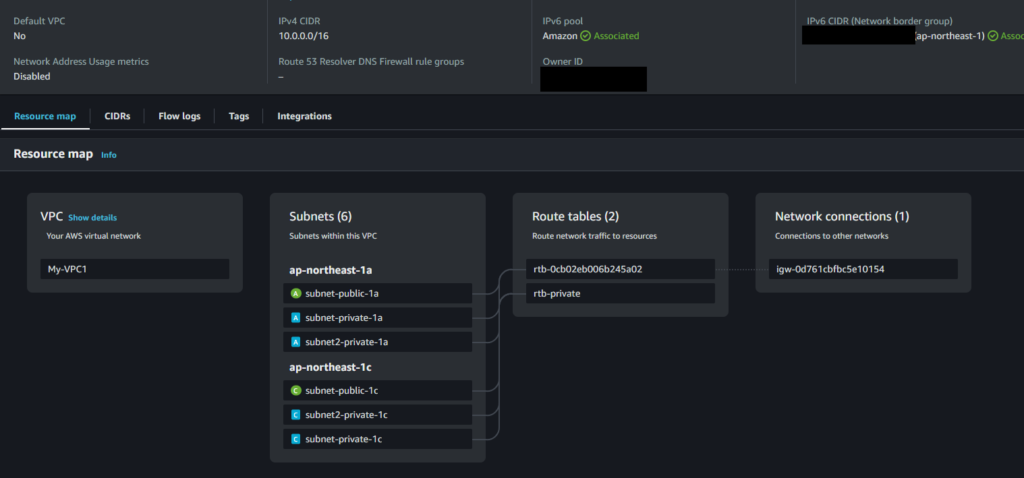
How to share your Route 53 Domains across AWS accounts

Introduction

How to share your Route 53 Domains across AWS accounts via Route 53 hosted zone. What I will do here is that I already have a Production account with the domain, so I want to use this domain on the Test account to conduct my other activities.

Share your Route 53 Domains across AWS accounts

To share your Route 53 Domains across AWS accounts, you can follow these general steps

  • Create a Public Hosted Zone in the Test account: In the Test create a public hosted zone in Route 53 for the domain you want to use
  • Create a record in the Product account: In the account that owns the domain, create a record in Route 53 Hosted Zone for the domain you want to share.
  • Create a record in the Test account: in the Test account, create a record to route traffic to ALB

Step by step: Share your Route 53 Domains across the AWS account

  1. Create a Public Hosted Zone in the Test account

When you have to fill out the information and return to your Route 53 hosted zone, you need to copy the 4 lines inside the value box, which contains the nameserver information you need to use in the next step.

  1. Create a record in the Product account

Paste the 4 nameservers from your Test account Route 53 Hosted Zone into the value list.

  1. Create a record in the Test account

In the Test account, create a record to route traffic to ALB

  1. Test page

Conclusion

These steps provide a general overview of the process. The specific configuration details may vary depending on your environment and setup. It’s recommended to consult the relevant documentation from AWS for detailed instructions on setting up. I hope will this be helpful. Thank you for reading the DevopsRoles page!

Refer to: This lab html uses the template of ChandraLingam

How to login to AWS Management Console with IAM Identity Center(AWS SSO) via a self-managed directory in Active Directory

Introduction

How to login to AWS Management Console with IAM Identity Center(AWS SSO) via a self-managed directory in Active Directory

To use IAM Identity Center(AWS SSO), a self-managed directory in Active Directory to log in to the AWS Management Console, you can follow these general steps:

  • Set up an ADFS server: Install and configure ADFS on a Windows server that is joined to your Active Directory domain. This server will act as the identity provider (IdP) in the SAML authentication flow. Refer to create AD server at the link create AD with Windows server 2012-r2
  • Enable IAM Identity Center: follow this AWS user guide to configure IAM Identity Center
  • Choose your identity source: follow this AWS user guide. Self-managed directory in Active Directory using the below link
    • Create a two-way trust relationship (in my case): Create a trust relationship between your AWS Managed Microsoft AD and your self-managed Active Directory domain. Another way you can use AD connecter.
    • Attribute mappings and sync your AD user to the IAM identity Center: follow this guided setup of AWS user guide to configure attribute mappings and add users and groups you want(choose the user of Self-managed AD not the user of AWS-managed AD).
  • Create an administrative permission set: follow this guide to create a permission set that grants administrative permissions to your user.
  • Set up AWS account access for your administrative user: follow this guide to set up AWS account access for a user in the IAM Identity Center.
  • Sign in to the AWS access portal with your administrative credentials: you can sign in to the AWS access portal by using the credentials of the administrative user that you have already configured.

Using AWS Management Console with IAM Identity Center(AWS SSO)

Using AWS Management Console with IAM Identity Center(AWS SSO) via self-managed directory in Active Directory to log in to the AWS Management Console lab

I tried the lab, so I’ll make a note for everyone:

  • The two-way trust relationship step is able fails to verify, you can miss setting Outbound rules for AWS Managed Microsoft AD ENIs, try this to configure the security group.
  • Enable the IAM Identity Center with the AWS account root user.
  • A single user can access multiple AWS accounts (same organization) from a self-managed directory.
  • Sign in to the AWS access portal with your user name, not your user email

Conclusion

Using IAM Identity Center(AWS SSO), a self-managed directory in Active Directory to log in to the AWS Management Console. These steps provide a general overview of the process. The specific configuration details may vary depending on your environment and setup.

It’s recommended to consult the relevant documentation from AWS and Microsoft for detailed instructions on setting up the integration between your ADFS and AWS. I hope will this your helpful. Thank you for reading the DevopsRoles page!