Category Archives: Terraform

Learn Terraform with DevOpsRoles.com. Access detailed guides and tutorials to master infrastructure as code and automate your DevOps workflows using Terraform.

Automating VMware NSX Firewall Rules with Terraform

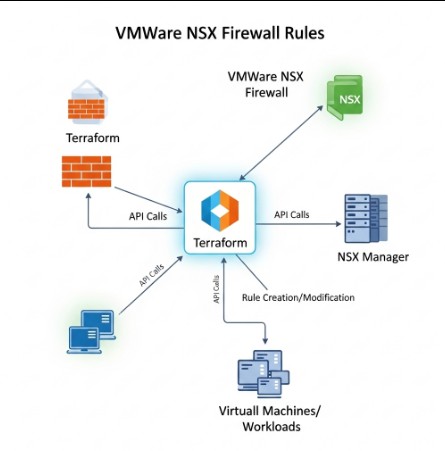
Managing network security in a virtualized environment can be a complex and time-consuming task. Manually configuring firewall rules on VMware NSX, especially in large-scale deployments, is inefficient and prone to errors. This article demonstrates how to leverage terraform vmware nsx to automate the creation and management of NSX firewall rules, improving efficiency, reducing errors, and enhancing overall security posture. We’ll explore the process from basic rule creation to advanced techniques, providing practical examples and best practices.

Understanding the Power of Terraform and VMware NSX

VMware NSX is a leading network virtualization platform that provides advanced security features, including distributed firewalls. Managing these firewalls manually can become overwhelming, particularly in dynamic environments with frequent changes to virtual machines and applications. Terraform, a leading Infrastructure-as-Code (IaC) tool, provides a powerful solution for automating this process. Using terraform vmware nsx allows you to define your infrastructure, including firewall rules, as code, enabling version control, repeatability, and automated deployments.

Benefits of Automating NSX Firewall Rules with Terraform

  • Increased Efficiency: Automate the creation, modification, and deletion of firewall rules, eliminating manual effort.
  • Reduced Errors: Minimize human error through automated deployments, ensuring consistent and accurate configurations.
  • Improved Consistency: Maintain consistent firewall rules across multiple environments.
  • Version Control: Track changes to firewall rules over time using Git or other version control systems.
  • Enhanced Security: Implement security best practices more easily and consistently through automation.

Setting up Your Terraform Environment for VMware NSX

Before you begin, ensure you have the following prerequisites:

  • A working VMware vCenter Server instance.
  • A deployed VMware NSX-T Data Center instance.
  • Terraform installed on your system. Download instructions can be found on the official Terraform website.
  • The VMware NSX-T Terraform provider installed and configured. This typically involves configuring the `provider` block in your Terraform configuration file with your vCenter credentials and NSX manager details.

Configuring the VMware NSX Provider

A typical configuration for the VMware NSX-T provider in your `main.tf` file would look like this:

terraform {
  required_providers {
    vmware = {
      source  = "vmware/vsphere"
      version = "~> 2.0"
    }
    nsxt = {
      source  = "vmware/nsxt"
      version = "~> 1.0"
    }
  }
}

provider "vmware" {
  user                 = "your_vcenter_username"
  password             = "your_vcenter_password"
  vcenter_server       = "your_vcenter_ip_address"
  allow_unverified_ssl = false #Consider this security implication carefully!
}

provider "nsxt" {
  vcenter_server     = "your_vcenter_ip_address"
  nsx_manager_ip     = "your_nsx_manager_ip_address"
  user               = "your_nsx_username"
  password           = "your_nsx_password"
}

Creating and Managing Firewall Rules with Terraform VMware NSX

Now, let’s create a simple firewall rule. We’ll define a rule that allows SSH traffic (port 22) from a specific IP address to a given virtual machine.

Defining the Firewall Rule Resource

The following Terraform code defines a basic firewall rule. Replace placeholders with your actual values.

resource "nsxt_firewall_section" "example" {
  display_name = "Example Firewall Section"
  description  = "This section contains basic firewall rules"
}

resource "nsxt_firewall_rule" "allow_ssh" {
  display_name = "Allow SSH"
  description  = "Allow SSH from specific IP"
  section_id   = nsxt_firewall_section.example.id
  action       = "ALLOW"

  source {
    groups       = ["group_id"] #replace with your pre-existing source group
    ip_addresses = ["192.168.1.100"]
  }

  destination {
    groups           = ["group_id"] #replace with your pre-existing destination group
    virtual_machines = ["vm_id"]    #replace with your virtual machine ID
  }

  services {
    ports     = ["22"]
    protocols = ["TCP"]
  }
}

Applying the Terraform Configuration

After defining your firewall rule, apply the configuration using the command terraform apply. Terraform will create the rule in your VMware NSX environment. Always review the plan before applying any changes.

Advanced Techniques with Terraform VMware NSX

Beyond basic rule creation, Terraform offers advanced capabilities:

Managing Multiple Firewall Rules

You can define multiple firewall rules within the same Terraform configuration, allowing for comprehensive management of your NSX firewall policies.

Dynamically Generating Firewall Rules

For large-scale deployments, you can dynamically generate firewall rules using data sources and loops, allowing you to manage hundreds or even thousands of rules efficiently.

Integrating with Other Terraform Resources

Integrate your firewall rule management with other Terraform resources, such as virtual machines, networks, and security groups, for a fully automated infrastructure.

Frequently Asked Questions

What if I need to update an existing firewall rule?

Update the Terraform configuration file to reflect the desired changes. Running terraform apply will update the existing rule in your NSX environment.

How do I delete a firewall rule?

Remove the corresponding resource "nsxt_firewall_rule" block from your Terraform configuration file and run terraform apply. Terraform will delete the rule from NSX.

Can I use Terraform to manage NSX Edge Firewall rules?

While the approach will vary slightly, yes, Terraform can also manage NSX Edge Firewall rules. You would need to adapt the resource blocks to use the appropriate NSX-T Edge resources and API calls.

How do I handle dependencies between firewall rules?

Terraform’s dependency management ensures that rules are applied in the correct order. Define your rules in a way that ensures proper sequencing, and Terraform will manage the dependencies automatically.

How do I troubleshoot issues when applying my Terraform configuration?

Thoroughly review the terraform plan output before applying. Check the VMware NSX logs for any errors. The Terraform error messages usually provide helpful hints for diagnosing the problems. Refer to the official VMware NSX and Terraform documentation for further assistance.

Conclusion

Automating the management of VMware NSX firewall rules with terraform vmware nsx offers significant advantages in terms of efficiency, consistency, and error reduction. By defining your firewall rules as code, you can achieve a more streamlined and robust network security infrastructure. Remember to always prioritize security best practices and regularly test your Terraform configurations before deploying them to production environments. Mastering terraform vmware nsx is a key skill for any DevOps engineer or network administrator working with VMware NSX. Thank you for reading the DevopsRoles page!

Setting Up a PyPI Mirror in AWS with Terraform

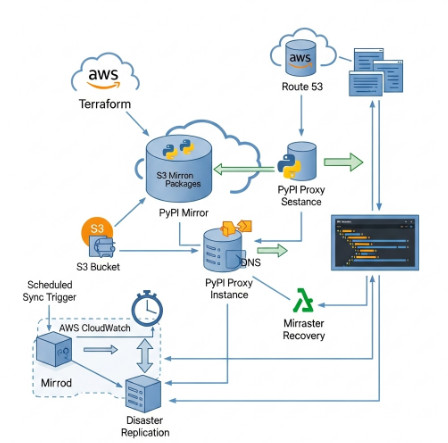
Efficiently managing Python package dependencies is crucial for any organization relying on Python for software development. Slow or unreliable access to the Python Package Index (PyPI) can significantly hinder development speed and productivity. This article demonstrates how to establish a highly available and performant PyPI mirror within AWS using Terraform, enabling faster package resolution and improved resilience for your development workflows. We will cover the entire process, from infrastructure provisioning to configuration and maintenance, ensuring you have a robust solution for your Python dependency management.

Planning Your PyPI Mirror Infrastructure

Before diving into the Terraform code, carefully consider these aspects of your PyPI mirror deployment:

  • Region Selection: Choose an AWS region strategically positioned to minimize latency for your developers. Consider regions with robust network connectivity.
  • Instance Size: Select an EC2 instance size appropriate for your anticipated package download volume. Start with a smaller instance type and scale up as needed.
  • Storage: Determine the storage requirements based on the size of the packages you intend to mirror. Amazon EBS volumes are suitable; consider using a RAID configuration for improved redundancy and performance. For very large repositories, consider Amazon S3.
  • High Availability: Implement a strategy for high availability. This usually involves at least two EC2 instances, load balancing, and potentially an auto-scaling group.

Setting up the AWS Infrastructure with Terraform

Terraform allows for infrastructure as code (IaC), enabling reproducible and manageable deployments. The following code snippets illustrate a basic setup. Remember to replace placeholders like and with your actual values.

Creating the EC2 Instance


resource "aws_instance" "pypi_mirror" {
  ami                    = ""
  instance_type          = "t3.medium"
  key_name               = ""
  vpc_security_group_ids = [aws_security_group.pypi_mirror.id]

  tags = {
    Name = "pypi-mirror"
  }
}

Defining the Security Group


resource "aws_security_group" "pypi_mirror" {
  name        = "pypi-mirror-sg"
  description = "Security group for PyPI mirror"

  ingress {
    from_port   = 80
    to_port     = 80
    protocol    = "tcp"
    cidr_blocks = ["0.0.0.0/0"] # Adjust this to your specific needs
  }

  ingress {
    from_port   = 443
    to_port     = 443
    protocol    = "tcp"
    cidr_blocks = ["0.0.0.0/0"] # Adjust this to your specific needs
  }

  egress {
    from_port   = 0
    to_port     = 0
    protocol    = "-1"
    cidr_blocks = ["0.0.0.0/0"]
  }

  tags = {
    Name = "pypi-mirror-sg"
  }
}

Creating an EBS Volume


resource "aws_ebs_volume" "pypi_mirror_volume" {
  availability_zone = aws_instance.pypi_mirror.availability_zone
  size              = 100 # Size in GB
  type              = "gp3" # Choose appropriate volume type
  tags = {
    Name = "pypi-mirror-volume"
  }
}

Attaching the Volume to the Instance


resource "aws_ebs_volume_attachment" "pypi_mirror_attachment" {
  volume_id = aws_ebs_volume.pypi_mirror_volume.id
  device_name = "/dev/xvdf" # Adjust as needed based on your AMI
  instance_id = aws_instance.pypi_mirror.id
}

Configuring the PyPI Mirror Software

Once the EC2 instance is running, you need to install and configure the PyPI mirror software. Bandersnatch is a popular choice. The exact steps will vary depending on your chosen software, but generally involve:

  1. Connect to the instance via SSH.
  2. Update the system packages. This ensures you have the latest versions of required utilities.
  3. Install Bandersnatch. This can typically be done via pip: pip install bandersnatch.
  4. Configure Bandersnatch. This involves creating a configuration file specifying the upstream PyPI URL, the local storage location, and other options. Refer to the Bandersnatch documentation for detailed instructions: https://bandersnatch.readthedocs.io/en/stable/
  5. Run Bandersnatch. Once configured, start the mirroring process. This may take a considerable amount of time, depending on the size of the PyPI index.
  6. Set up a web server (e.g., Nginx) to serve the mirrored packages.

Setting up a Load Balanced PyPI Mirror

For increased availability and resilience, consider using an Elastic Load Balancer (ELB) in front of multiple EC2 instances. This setup distributes traffic across multiple PyPI mirror instances, ensuring high availability even if one instance fails.

You’ll need to extend your Terraform configuration to include:

  • An AWS Application Load Balancer (ALB)
  • Target group(s) to register your EC2 instances
  • Listener(s) configured to handle HTTP and HTTPS traffic

This setup requires more complex Terraform configuration and careful consideration of security and network settings.

Maintaining Your PyPI Mirror

Regular maintenance is vital for a healthy PyPI mirror. This includes:

  • Regular updates: Keep Bandersnatch and other software updated to benefit from bug fixes and performance improvements.
  • Monitoring: Monitor the disk space usage, network traffic, and overall performance of your mirror. Set up alerts for critical issues.
  • Regular synchronization: Regularly sync your mirror with the upstream PyPI to ensure you have the latest packages.
  • Security: Regularly review and update the security group rules to prevent unauthorized access.

Frequently Asked Questions

Here are some frequently asked questions regarding setting up a PyPI mirror in AWS with Terraform:

Q1: What are the benefits of using a PyPI mirror?

A1: A PyPI mirror offers several advantages, including faster package downloads for developers within your organization, reduced load on the upstream PyPI server, and improved resilience against PyPI outages.

Q2: Can I use a different mirroring software instead of Bandersnatch?

A2: Yes, you can. Several other mirroring tools are available, each with its own strengths and weaknesses. Choosing the right tool depends on your specific requirements and preferences.

Q3: How do I scale my PyPI mirror to handle increased traffic?

A3: Scaling can be achieved by adding more EC2 instances to your load-balanced setup. Using an auto-scaling group allows for automated scaling based on predefined metrics.

Q4: How do I handle authentication if my organization uses private packages?

A4: Handling private packages requires additional configuration and might involve using authentication methods like API tokens or private registries which can be integrated with your PyPI mirror.

Conclusion

Setting up a PyPI mirror in AWS using Terraform provides a powerful and efficient solution for managing Python package dependencies. By following the steps outlined in this article, you can create a highly available and performant PyPI mirror, dramatically improving the speed and reliability of your Python development workflows. Remember to regularly monitor and maintain your mirror to ensure it remains efficient and secure. Choosing the right tools and strategies, including load balancing and auto-scaling, is key to building a robust and scalable solution for your organization’s needs. Thank you for reading the DevopsRoles page!
Optimizing Generative AI Deployment with Terraform

The rapid advancement of generative AI has created an unprecedented demand for efficient and reliable deployment strategies. Manually configuring infrastructure for these complex models is not only time-consuming and error-prone but also hinders scalability and maintainability. This article addresses these challenges by demonstrating how Terraform, a leading Infrastructure as Code (IaC) tool, significantly streamlines and optimizes Generative AI Deployment. We’ll explore practical examples and best practices to ensure robust and scalable deployments for your generative AI projects.

Understanding the Challenges of Generative AI Deployment

Deploying generative AI models presents unique hurdles compared to traditional applications. These challenges often include:

  • Resource-Intensive Requirements: Generative AI models, particularly large language models (LLMs), demand substantial computational resources, including powerful GPUs and significant memory.
  • Complex Dependencies: These models often rely on various software components, libraries, and frameworks, demanding intricate dependency management.
  • Scalability Needs: As user demand increases, the ability to quickly scale resources to meet this demand is crucial. Manual scaling is often insufficient.
  • Reproducibility and Consistency: Ensuring consistent environments across different deployments (development, testing, production) is essential for reproducible results.

Leveraging Terraform for Generative AI Deployment

Terraform excels in addressing these challenges by providing a declarative approach to infrastructure management. This means you describe your desired infrastructure state in configuration files, and Terraform automatically provisions and manages the necessary resources.

Defining Infrastructure Requirements with Terraform

For a basic example, consider deploying a generative AI model on Google Cloud Platform (GCP). A simplified Terraform configuration might look like this:

terraform {
  required_providers {
    google = {
      source = "hashicorp/google"
      version = "~> 4.0"
    }
  }
}

provider "google" {
  project = "your-gcp-project-id"
  region  = "us-central1"
}

resource "google_compute_instance" "default" {
  name         = "generative-ai-instance"
  machine_type = "n1-standard-8" # Adjust based on your model's needs
  zone         = "us-central1-a"

  boot_disk {
    initialize_params {
      image = "debian-cloud/debian-9" # Replace with a suitable image
    }
  }
}

This code creates a single virtual machine instance. However, a real-world deployment would likely involve more complex configurations, including:

  • Multiple VM instances: For distributed training or inference.
  • GPU-accelerated instances: To leverage the power of GPUs for faster processing.
  • Storage solutions: Persistent disks for storing model weights and data.
  • Networking configurations: Setting up virtual networks and firewalls.
  • Kubernetes clusters: For managing containerized applications.

Automating the Deployment Process

Once the Terraform configuration is defined, the deployment process is automated:

  1. Initialization: terraform init downloads necessary providers.
  2. Planning: terraform plan shows the changes Terraform will make.
  3. Applying: terraform apply creates and configures the infrastructure.

This automation significantly reduces manual effort and ensures consistent deployments. Terraform also allows for version control of your infrastructure, facilitating collaboration and rollback capabilities.

Optimizing Generative AI Deployment with Advanced Terraform Techniques

Beyond basic provisioning, Terraform enables advanced optimization strategies for Generative AI Deployment:

Modularization and Reusability

Break down your infrastructure into reusable modules. This enhances maintainability and reduces redundancy. For example, a module could be created to manage a specific type of GPU instance, making it easily reusable across different projects.

State Management

Properly managing Terraform state is crucial. Use a remote backend (e.g., AWS S3, Google Cloud Storage) to store the state, allowing multiple users to collaborate and manage infrastructure effectively. This ensures consistency and allows for collaborative management of the infrastructure.

Variable and Input Management

Use variables and input variables to parameterize your configurations, making them flexible and adaptable to different environments. This allows you to easily change parameters such as instance types, region, and other settings without modifying the core code. For instance, the machine type in the example above can be defined as a variable.

Lifecycle Management

Terraform’s lifecycle management features allow for advanced control over resources. For example, you can use the lifecycle block to define how resources should be handled during updates or destruction, ensuring that crucial data is not lost unintentionally.

Generative AI Deployment: Best Practices with Terraform

Implementing best practices ensures smooth and efficient Generative AI Deployment:

  • Adopt a modular approach:

  • This improves reusability and maintainability.
  • Utilize version control:

  • This ensures traceability and enables easy rollbacks.
  • Implement comprehensive testing:

  • Test your Terraform configurations thoroughly before deploying to production.
  • Employ automated testing and CI/CD pipelines:

  • Integrate Terraform into your CI/CD pipelines for automated deployments.
  • Monitor resource usage:

  • Regularly monitor resource utilization to optimize costs and performance.

Frequently Asked Questions

Q1: Can Terraform manage Kubernetes clusters for Generative AI workloads?

Yes, Terraform can manage Kubernetes clusters on various platforms (GKE, AKS, EKS) using appropriate providers. This enables you to deploy and manage containerized generative AI applications.

Q2: How does Terraform handle scaling for Generative AI deployments?

Terraform can automate scaling by integrating with auto-scaling groups provided by cloud platforms. You define the scaling policies in your Terraform configuration, allowing the infrastructure to automatically adjust based on demand.

Q3: What are the security considerations when using Terraform for Generative AI Deployment?

Security is paramount. Secure your Terraform state, use appropriate IAM roles and policies, and ensure your underlying infrastructure is configured securely. Regular security audits are recommended.

Conclusion

Optimizing Generative AI Deployment is crucial for success in this rapidly evolving field. Terraform’s Infrastructure as Code capabilities provide a powerful solution for automating, managing, and scaling the complex infrastructure requirements of generative AI projects. By following best practices and leveraging advanced features, organizations can ensure robust, scalable, and cost-effective deployments. Remember that consistent monitoring and optimization are key to maximizing the efficiency and performance of your Generative AI Deployment.

For further information, refer to the official Terraform documentation: https://www.terraform.io/ and the Google Cloud documentation: https://cloud.google.com/docs. Thank you for reading the DevopsRoles page!

Mastering Azure Virtual Desktop with Terraform: A Comprehensive Guide

Azure Virtual Desktop (AVD) provides a powerful solution for delivering virtual desktops and applications to users, enhancing productivity and security. However, managing AVD’s complex infrastructure manually can be time-consuming and error-prone. This is where Terraform comes in, offering Infrastructure as Code (IaC) capabilities to automate the entire deployment and management process of your Azure Virtual Desktop environment. This comprehensive guide will walk you through leveraging Terraform to efficiently configure and manage your Azure Virtual Desktop, streamlining your workflows and minimizing human error.

Understanding the Azure Virtual Desktop Infrastructure

Before diving into Terraform, it’s crucial to understand the core components of an Azure Virtual Desktop deployment. A typical AVD setup involves several key elements:

  • Host Pools: Collections of virtual machines (VMs) that host the virtual desktops and applications.
  • Virtual Machines (VMs): The individual computing resources where user sessions run.
  • Application Groups: Groupings of applications that users can access.
  • Workspace: The user interface through which users connect to their assigned virtual desktops and applications.
  • Azure Active Directory (Azure AD): Provides authentication and authorization services for user access.

Terraform allows you to define and manage all these components as code, ensuring consistency, reproducibility, and ease of modification.

Setting up Your Terraform Environment for Azure Virtual Desktop

To begin, you’ll need a few prerequisites:

  • Azure Subscription: An active Azure subscription is essential. You’ll need appropriate permissions to create and manage resources.
  • Terraform Installation: Download and install Terraform from the official website: https://www.terraform.io/downloads.html
  • Azure CLI: The Azure CLI is recommended for authentication and interacting with Azure resources. Install it and log in using az login.
  • Azure Provider for Terraform: Install the Azure provider using: terraform init

Building Your Azure Virtual Desktop Infrastructure with Terraform

We will now outline the process of building a basic Azure Virtual Desktop infrastructure using Terraform. This example uses a simplified setup; you’ll likely need to adjust it based on your specific requirements.

Creating the Resource Group

First, create a resource group to hold all your AVD resources:


resource "azurerm_resource_group" "rg" {
name = "avd-resource-group"
location = "WestUS"
}

Creating the Virtual Network and Subnet

Next, define your virtual network and subnet:

resource "azurerm_virtual_network" "vnet" {
  name                = "avd-vnet"
  address_space       = ["10.0.0.0/16"]
  location            = azurerm_resource_group.rg.location
  resource_group_name = azurerm_resource_group.rg.name
}

resource "azurerm_subnet" "subnet" {
  name                 = "avd-subnet"
  resource_group_name  = azurerm_resource_group.rg.name
  virtual_network_name = azurerm_virtual_network.vnet.name
  address_prefixes     = ["10.0.1.0/24"]
}

Deploying the Virtual Machines

This section details the creation of the virtual machines that will host your Azure Virtual Desktop sessions. Note that you would typically use more robust configurations in a production environment. The following example demonstrates a basic deployment.

resource "azurerm_linux_virtual_machine" "vm" {
  name                = "avd-vm"
  resource_group_name = azurerm_resource_group.rg.name
  location            = azurerm_resource_group.rg.location
  size                = "Standard_D2s_v3"
  admin_username      = "adminuser"
  # ... (rest of the VM configuration) ...
  network_interface_ids = [azurerm_network_interface.nic.id]
}

resource "azurerm_network_interface" "nic" {
  name                = "avd-nic"
  location            = azurerm_resource_group.rg.location
  resource_group_name = azurerm_resource_group.rg.name

  ip_configuration {
    name                          = "internal"
    subnet_id                     = azurerm_subnet.subnet.id
    private_ip_address_allocation = "Dynamic"
  }
}

Configuring the Azure Virtual Desktop Host Pool

The creation of the host pool utilizes the Azure Virtual Desktop API. The below code snippet shows how this process can be automated using the AzureRM provider.

resource "azurerm_virtual_desktop_host_pool" "hostpool" {
  name                           = "avd-hostpool"
  resource_group_name            = azurerm_resource_group.rg.name
  location                       = azurerm_resource_group.rg.location
  type                           = "Personal" # Or "Pooled"
  personal_desktop_assignment_type = "Automatic" # Only for Personal Host Pools
  # Optional settings for advanced configurations
}

Adding the Virtual Machines to the Host Pool

This step links the virtual machines you deployed to the created Host Pool, making them available for user sessions:

resource "azurerm_virtual_desktop_host_pool" "hostpool" {
  # ... (Existing Host Pool configuration) ...
  virtual_machine_ids = [azurerm_linux_virtual_machine.vm.id]
}

Deploying the Terraform Configuration

Once you’ve defined your infrastructure in Terraform configuration files (typically named main.tf), you can deploy it using the following commands:

  1. terraform init: Initializes the working directory, downloading necessary providers.
  2. terraform plan: Generates an execution plan, showing you what changes will be made.
  3. terraform apply: Applies the changes to your Azure environment.

Managing Your Azure Virtual Desktop with Terraform

Terraform’s power extends beyond initial deployment. You can use it to manage your Azure Virtual Desktop environment throughout its lifecycle:

  • Scaling: Easily scale your AVD infrastructure up or down by modifying your Terraform configuration and re-applying it.
  • Updates: Update VM images, configurations, or application groups by modifying the Terraform code and re-running the apply command.
  • Rollback: In case of errors, you can easily roll back to previous states using Terraform’s state management features.

Frequently Asked Questions

What are the benefits of using Terraform for Azure Virtual Desktop?

Using Terraform offers several advantages, including automation of deployments, improved consistency, reproducibility, version control, and streamlined management of your Azure Virtual Desktop environment. It significantly reduces manual effort and potential human errors.

Can I manage existing Azure Virtual Desktop deployments with Terraform?

While Terraform excels in creating new deployments, it can also be used to manage existing resources. You can import existing resources into your Terraform state, allowing you to manage them alongside newly created ones. Consult the Azure provider documentation for specifics on importing resources.

How do I handle sensitive information like passwords in my Terraform configuration?

Avoid hardcoding sensitive information directly into your Terraform code. Use environment variables or Azure Key Vault to securely store and manage sensitive data, accessing them during deployment.

What are the best practices for securing my Terraform code and configurations?

Employ version control (like Git) to track changes, review code changes carefully before applying them, and use appropriate access controls to protect your Terraform state and configuration files.

Conclusion

Terraform offers a robust and efficient approach to managing your Azure Virtual Desktop infrastructure. By adopting Infrastructure as Code (IaC), you gain significant advantages in automation, consistency, and manageability. This guide has provided a foundational understanding of using Terraform to deploy and manage AVD, enabling you to streamline your workflows and optimize your virtual desktop environment. Remember to always prioritize security best practices when implementing and managing your AVD infrastructure with Terraform. Continuous learning and keeping up-to-date with the latest Terraform and Azure Virtual Desktop features are crucial for maintaining a secure and efficient environment.Thank you for reading the DevopsRoles page!
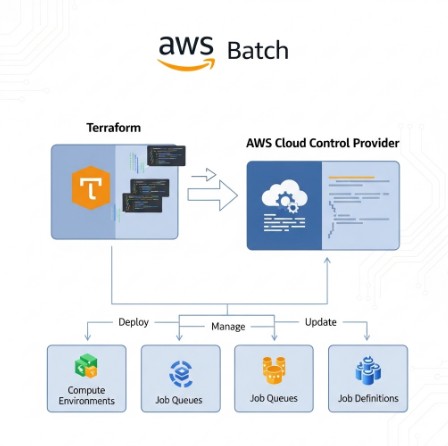
Optimizing AWS Batch with Terraform and the AWS Cloud Control Provider

Managing and scaling AWS Batch jobs can be complex. Manually configuring and maintaining infrastructure for your batch processing needs is time-consuming and error-prone. This article demonstrates how to leverage the power of Terraform and the AWS Cloud Control provider to streamline your AWS Batch deployments, ensuring scalability, reliability, and repeatability. We’ll explore how the AWS Cloud Control provider simplifies the management of complex AWS resources, making your infrastructure-as-code (IaC) more efficient and robust. By the end, you’ll understand how to effectively utilize this powerful tool to optimize your AWS Batch workflows.

Understanding the AWS Cloud Control Provider

The AWS Cloud Control provider for Terraform offers a declarative way to manage AWS resources. Unlike traditional providers that interact with individual AWS APIs, the AWS Cloud Control provider utilizes the Cloud Control API, a unified interface for managing various AWS services. This simplifies resource management by allowing you to define your desired state, and the provider handles the necessary API calls to achieve it. For AWS Batch, this translates to easier management of compute environments, job queues, and job definitions.

Key Benefits of Using the AWS Cloud Control Provider with AWS Batch

  • Simplified Resource Management: Manage complex AWS Batch configurations with a declarative approach, reducing the need for intricate API calls.
  • Improved Consistency: Ensure consistency across environments by defining your infrastructure as code.
  • Enhanced Automation: Automate the entire lifecycle of your AWS Batch resources, from creation to updates and deletion.
  • Version Control and Collaboration: Integrate your infrastructure code into version control systems for easy collaboration and rollback capabilities.

Creating an AWS Batch Compute Environment with Terraform and the AWS Cloud Control Provider

Let’s create a simple AWS Batch compute environment using Terraform and the AWS Cloud Control provider. This example utilizes an on-demand compute environment for ease of demonstration. For production environments, consider using spot instances for cost optimization.

Prerequisites

  • An AWS account with appropriate permissions.
  • Terraform installed on your system.
  • AWS credentials configured for Terraform.

Terraform Configuration


terraform {
  required_providers {
    aws = {
      source  = "hashicorp/aws"
      version = "~> 4.0"
    }
    aws-cloud-control = {
      source  = "aws-cloud-control/aws-cloud-control"
      version = "~> 1.0"
    }
  }
}

provider "aws" {
  region = "us-west-2" # Replace with your desired region
}

provider "aws-cloud-control" {
  region = "us-west-2" # Replace with your desired region
}

resource "aws_cloud_control_resource" "batch_compute_environment" {
  type = "AWS::Batch::ComputeEnvironment"
  properties = {
    compute_environment_name = "my-batch-compute-environment"
    type                    = "MANAGED"
    compute_resources       = {
      type                  = "EC2"
      maxv_cpus             = 10
      minv_cpus             = 0
      desiredv_cpus         = 2
      instance_types        = ["t2.micro"] # Replace with your desired instance type
      subnets               = ["subnet-xxxxxxxxxxxxxxx", "subnet-yyyyyyyyyyyyyyy"] # Replace with your subnet IDs
      security_group_ids    = ["sg-zzzzzzzzzzzzzzz"] # Replace with your security group ID
    }
    service_role = "arn:aws:iam::xxxxxxxxxxxxxxx:role/BatchServiceRole" # Replace with your service role ARN
  }
}

Remember to replace placeholders like region, subnet IDs, security group ID, and service role ARN with your actual values. This configuration uses the AWS Cloud Control provider to define the Batch compute environment. Terraform will then handle the creation of this resource within AWS.

Managing AWS Batch Job Queues with the AWS Cloud Control Provider

After setting up your compute environment, you’ll need a job queue to manage your job submissions. The AWS Cloud Control provider also streamlines this process.

Creating a Job Queue


resource "aws_cloud_control_resource" "batch_job_queue" {
  type = "AWS::Batch::JobQueue"
  properties = {
    job_queue_name = "my-batch-job-queue"
    priority       = 1
    compute_environment_order = [
      {
        compute_environment = aws_cloud_control_resource.batch_compute_environment.id
        order               = 1
      }
    ]
  }
}

This code snippet shows how to define a job queue associated with the compute environment created in the previous section. The `compute_environment_order` property specifies the compute environment and its priority in the queue.

Advanced Configurations and Optimizations

The AWS Cloud Control provider offers flexibility for more sophisticated AWS Batch configurations. Here are some advanced options to consider:

Using Spot Instances for Cost Savings

By utilizing spot instances within your compute environment, you can significantly reduce costs. Modify the `compute_resources` block in the compute environment definition to include spot instance settings.

Implementing Resource Tagging

Implement resource tagging for better organization and cost allocation. Add a `tags` block to both the compute environment and job queue resources in your Terraform configuration.

Automated Scaling

Configure auto-scaling to dynamically adjust the number of EC2 instances based on demand. This ensures optimal resource utilization and cost-efficiency. AWS Batch’s built-in auto-scaling features can be integrated with the AWS Cloud Control provider for a fully automated solution.

Frequently Asked Questions (FAQ)

Q1: What are the advantages of using the AWS Cloud Control provider over the traditional AWS provider for managing AWS Batch?

The AWS Cloud Control provider offers a more streamlined and declarative approach to managing AWS resources, including AWS Batch. It simplifies complex configurations, improves consistency, and enhances automation capabilities compared to managing individual AWS APIs directly.

Q2: Can I use the AWS Cloud Control provider with other AWS services besides AWS Batch?

Yes, the AWS Cloud Control provider supports a wide range of AWS services. This allows for a unified approach to managing your entire AWS infrastructure as code, fostering greater consistency and efficiency.

Q3: How do I handle errors and troubleshooting when using the AWS Cloud Control provider?

The AWS Cloud Control provider provides detailed error messages to help with troubleshooting. Properly structured Terraform configurations and thorough testing are key to mitigating potential issues. Refer to the official AWS Cloud Control provider documentation for detailed error handling and troubleshooting guidance.

Q4: Is there a cost associated with using the AWS Cloud Control Provider?

The cost of using the AWS Cloud Control provider itself is generally negligible; however, the underlying AWS services (such as AWS Batch and EC2) will still incur charges based on usage.

Conclusion

The AWS Cloud Control provider significantly simplifies the management of AWS Batch resources within a Terraform infrastructure-as-code framework. By using a declarative approach, you can create, manage, and scale your AWS Batch infrastructure efficiently and reliably. The examples provided demonstrate basic and advanced configurations, allowing you to adapt this approach to your specific requirements. Remember to consult the official documentation for the latest features and best practices when using the AWS Cloud Control provider to optimize your AWS Batch deployments. Mastering the AWS Cloud Control provider is a significant step towards efficient and robust AWS Batch management.

For further information, refer to the official documentation: AWS Cloud Control Provider Documentation and AWS Batch Documentation. Also, consider exploring best practices for AWS Batch optimization on AWS’s official blog for further advanced strategies. Thank you for reading the DevopsRoles page!

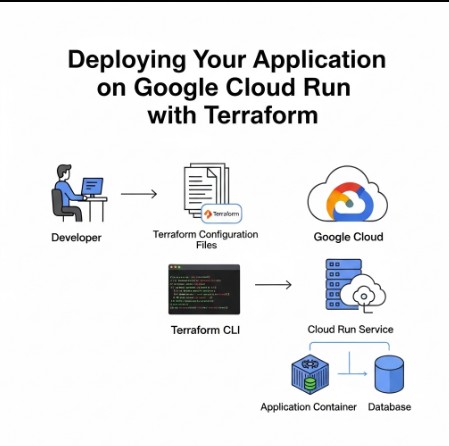
Deploying Your Application on Google Cloud Run with Terraform

This comprehensive guide delves into the process of deploying applications to Google Cloud Run using Terraform, a powerful Infrastructure as Code (IaC) tool. Google Cloud Run is a serverless platform that allows you to run containers without managing servers. This approach significantly reduces operational overhead and simplifies deployment. However, managing deployments manually can be time-consuming and error-prone. Terraform automates this process, ensuring consistency, repeatability, and efficient management of your Cloud Run services. This article will walk you through the steps, from setting up your environment to deploying and managing your applications on Google Cloud Run with Terraform.

Setting Up Your Environment

Before you begin, ensure you have the necessary prerequisites installed and configured. This includes:

  • Google Cloud Platform (GCP) Account: You need a GCP project with billing enabled.
  • gcloud CLI: The Google Cloud SDK command-line interface is essential for interacting with your GCP project. You can download and install it from the official Google Cloud SDK documentation.
  • Terraform: Download and install Terraform from the official Terraform website. Ensure it’s added to your system’s PATH.
  • Google Cloud Provider Plugin for Terraform: Install the Google Cloud provider plugin using the command: terraform init
  • A Container Image: You’ll need a Docker image of your application ready to be deployed. This guide assumes you already have a Dockerfile and a built image, either in Google Container Registry (GCR) or another registry.

Creating a Terraform Configuration

The core of automating your Google Cloud Run deployments lies in your Terraform configuration file (typically named main.tf). This file uses the Google Cloud provider plugin to define your infrastructure resources.

Defining the Google Cloud Run Service

The following code snippet shows a basic Terraform configuration for deploying a simple application to Google Cloud Run. Replace placeholders with your actual values.

resource "google_cloud_run_v2_service" "default" {
  name     = "my-cloud-run-service"
  location = "us-central1"
  template {
    containers {
      image = "gcr.io/my-project/my-image:latest" # Replace with your container image
      resources {
        limits {
          cpu    = "1"
          memory = "256Mi"
        }
      }
    }
  }
  traffic {
    percent = 100
    type    = "ALL"
  }
}

Authentication and Provider Configuration

Before running Terraform, you need to authenticate with your GCP project. The easiest way is to use the gcloud CLI’s application default credentials. This is usually handled automatically when you set up your Google Cloud SDK. This is specified in a separate file (typically providers.tf):

terraform {
  required_providers {
    google = {
      source  = "hashicorp/google"
      version = "~> 4.0"
    }
  }
}

provider "google" {
  project = "your-gcp-project-id" # Replace with your project ID
  region  = "us-central1"        # Replace with your desired region
}

Deploying Your Application to Google Cloud Run

Once your Terraform configuration is complete, you can deploy your application using the following commands:

  1. terraform init: Initializes the Terraform project and downloads the necessary providers.
  2. terraform plan: Creates an execution plan showing the changes Terraform will make. Review this plan carefully before proceeding.
  3. terraform apply: Applies the changes and deploys your application to Google Cloud Run. Type “yes” when prompted to confirm.

After the terraform apply command completes successfully, your application should be running on Google Cloud Run. You can access it via the URL provided by Terraform’s output.

Managing Your Google Cloud Run Service with Terraform

Terraform provides a robust mechanism for managing your Google Cloud Run services. You can easily make changes to your application, such as scaling, updating the container image, or modifying resource limits, by modifying your Terraform configuration and running terraform apply again.

Updating Your Container Image

To update your application with a new container image, simply change the image attribute in your Terraform configuration and re-run terraform apply. Terraform will detect the change and automatically update your Google Cloud Run service. This eliminates the need for manual updates and ensures consistency across deployments.

Scaling Your Application

You can adjust the scaling of your Google Cloud Run service by modifying the min_instance_count and max_instance_count properties within the google_cloud_run_v2_service resource. Terraform will automatically propagate these changes to your Cloud Run service.

Advanced Configurations for Google Cloud Run

The basic examples above demonstrate fundamental usage. Google Cloud Run offers many advanced features that can be integrated into your Terraform configuration, including:

  • Traffic Splitting: Route traffic to multiple revisions of your service, enabling gradual rollouts and canary deployments.
  • Revisions Management: Control the lifecycle of service revisions, allowing for rollbacks if necessary.
  • Environment Variables: Define environment variables for your application within your Terraform configuration.
  • Secrets Management: Integrate with Google Cloud Secret Manager to securely manage sensitive data.
  • Custom Domains: Use Terraform to configure custom domains for your services.

These advanced features significantly enhance deployment efficiency and maintainability. Refer to the official Google Cloud Run documentation for detailed information on these options and how to integrate them into your Terraform configuration.

Frequently Asked Questions

Q1: How do I handle secrets in my Google Cloud Run deployment using Terraform?

A1: It’s recommended to use Google Cloud Secret Manager to store and manage sensitive data such as API keys and database credentials. You can use the google_secret_manager_secret resource in your Terraform configuration to manage secrets and then reference them as environment variables in your Cloud Run service.

Q2: What happens if my deployment fails?

A2: Terraform provides detailed error messages indicating the cause of failure. These messages usually pinpoint issues in your configuration, networking, or the container image itself. Review the error messages carefully and adjust your configuration as needed. In case of issues with your container image, ensure that it builds and runs correctly in isolation before deploying.

Q3: Can I use Terraform to manage multiple Google Cloud Run services?

A3: Yes, you can easily manage multiple Google Cloud Run services in a single Terraform configuration. Simply define multiple google_cloud_run_v2_service resources, each with its unique name, container image, and settings.

Conclusion

Deploying applications to Google Cloud Run using Terraform provides a powerful and efficient way to manage your serverless infrastructure. By leveraging Terraform’s Infrastructure as Code capabilities, you can automate deployments, ensuring consistency, repeatability, and ease of management. This article has shown you how to deploy and manage your Google Cloud Run services with Terraform, from basic setup to advanced configurations. Remember to always review the Terraform plan before applying changes and to use best practices for security and resource management when working with Google Cloud Run and Terraform.Thank you for reading the DevopsRoles page!
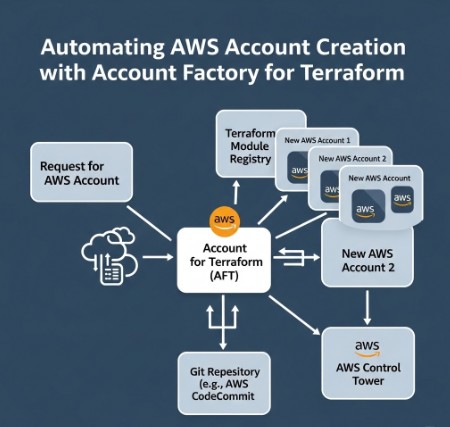
Automating AWS Account Creation with Account Factory for Terraform

Managing multiple AWS accounts can quickly become a complex and time-consuming task. Manually creating and configuring each account is inefficient, prone to errors, and scales poorly. This article dives deep into leveraging Account Factory for Terraform, a powerful tool that automates the entire process, significantly improving efficiency and reducing operational overhead. We’ll explore its capabilities, demonstrate practical examples, and address common questions to empower you to effectively manage your AWS infrastructure.

Understanding Account Factory for Terraform

Account Factory for Terraform is a robust solution that streamlines the creation and management of multiple AWS accounts. It utilizes Terraform’s infrastructure-as-code (IaC) capabilities, allowing you to define your account creation process in a declarative, version-controlled manner. This approach ensures consistency, repeatability, and auditable changes to your AWS landscape. Instead of tedious manual processes, you define the account specifications, and Account Factory handles the heavy lifting, automating the creation, configuration, and even the initial setup of essential services within each new account.

Key Features and Benefits

  • Automation: Eliminate manual steps, saving time and reducing human error.
  • Consistency: Ensure all accounts are created with the same configurations and policies.
  • Scalability: Easily create and manage hundreds or thousands of accounts.
  • Version Control: Track changes to your account creation process using Git.
  • Idempotency: Repeated runs of the Terraform configuration will produce the same result without unintended side effects.
  • Security: Implement robust security policies and controls from the outset.

Setting up Account Factory for Terraform

Before you begin, ensure you have the following prerequisites:

  • An existing AWS account with appropriate permissions.
  • Terraform installed and configured.
  • AWS credentials configured for Terraform.
  • A basic understanding of Terraform concepts and syntax.

Step-by-Step Guide

  1. Install the necessary providers: You’ll need the AWS provider and potentially others depending on your requirements. You can add them to your providers.tf file:


    terraform {

    required_providers {

    aws = {

    source = "hashicorp/aws"

    version = "~> 4.0"

    }

    }

    }


  2. Define account specifications: Create a Terraform configuration file (e.g., main.tf) to define the parameters for your new AWS accounts. This will include details like the account name, email address, and any required tags. This part will vary heavily depending on your specific needs and the Account Factory implementation you are using.
  3. Apply the configuration: Run terraform apply to create the AWS accounts. This command will initiate the creation process based on your specifications in the Terraform configuration file.
  4. Monitor the process: Observe the output of the terraform apply command to track the progress of account creation. Account Factory will handle many of the intricacies of AWS account creation, including the often tedious process of verifying email addresses.
  5. Manage and update: Leverage Terraform’s state management to track and update your AWS accounts. You can use `terraform plan` to see changes before applying them and `terraform destroy` to safely remove accounts when no longer needed.

Advanced Usage of Account Factory for Terraform

Beyond basic account creation, Account Factory for Terraform offers advanced capabilities to further enhance your infrastructure management:

Organizational Unit (OU) Management

Organize your AWS accounts into hierarchical OUs within your AWS Organizations structure for better governance and access control. Account Factory can automate the placement of newly created accounts into specific OUs based on predefined rules or tags.

Service Control Policies (SCPs)

Implement centralized security controls using SCPs, enforcing consistent security policies across all accounts. Account Factory can integrate with SCPs, ensuring that newly created accounts inherit the necessary security configurations.

Custom Configuration Modules

Develop custom Terraform modules to provision essential services within the newly created accounts. This might include setting up VPCs, IAM roles, or other fundamental infrastructure components. This allows you to streamline the initial configuration beyond just basic account creation.

Example Code Snippet (Illustrative):

This is a highly simplified example and will not function without significant additions and tailoring to your environment. It’s intended to provide a glimpse into the structure:


resource "aws_account" "example" {
name = "my-account"
email = "example@example.com"
parent_id = "some-parent-id" # If using AWS Organizations
}

Frequently Asked Questions

Q1: How does Account Factory handle account deletion?

Account Factory for Terraform integrates seamlessly with Terraform’s destroy command. By running `terraform destroy`, you can initiate the process of deleting accounts created via Account Factory. The specific steps involved may depend on your chosen configuration and any additional services deployed within the account.

Q2: What are the security implications of using Account Factory?

Security is paramount. Ensure you use appropriate IAM roles and policies to restrict access to your AWS environment and the Terraform configuration files. Employ the principle of least privilege, granting only the necessary permissions. Regularly review and update your security configurations to mitigate potential risks.

Q3: Can I use Account Factory for non-AWS cloud providers?

Account Factory is specifically designed for managing AWS accounts. While the underlying concept of automated account creation is applicable to other cloud providers, the implementation would require different tools and configurations adapted to the specific provider’s APIs and infrastructure.

Q4: How can I troubleshoot issues with Account Factory?

Thoroughly review the output of Terraform commands (`terraform apply`, `terraform plan`, `terraform output`). Pay attention to error messages, which often pinpoint the cause of problems. Refer to the official AWS and Terraform documentation for additional troubleshooting guidance. Utilize logging and monitoring tools to track the progress and identify any unexpected behaviour.

Conclusion

Implementing Account Factory for Terraform dramatically improves the efficiency and scalability of managing multiple AWS accounts. By automating the creation and configuration process, you can focus on higher-level tasks and reduce the risk of human error. Remember to prioritize security best practices throughout the process and leverage the advanced features of Account Factory to further optimize your AWS infrastructure management. Mastering Account Factory for Terraform is a key step towards robust and efficient cloud operations.

For further information, refer to the official Terraform documentation and the AWS documentation. You can also find helpful resources and community support on various online forums and developer communities.Thank you for reading the DevopsRoles page!

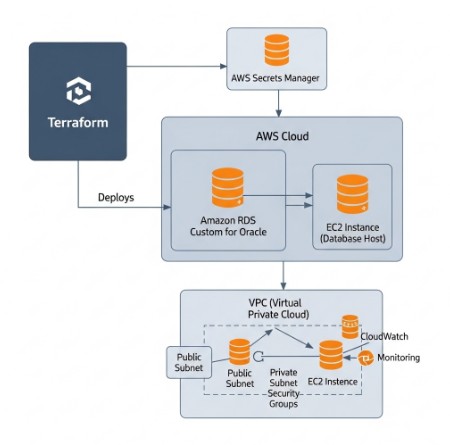
Deploying Amazon RDS Custom for Oracle with Terraform: A Comprehensive Guide

Managing Oracle databases in the cloud can be complex. Choosing the right solution to balance performance, cost, and control is crucial. This guide delves into leveraging Amazon RDS Custom for Oracle and Terraform to automate the deployment and management of your Oracle databases, offering a more tailored and efficient solution than standard RDS offerings. We’ll walk you through the process, from initial configuration to advanced customization, addressing potential challenges and best practices along the way. This comprehensive tutorial will equip you with the knowledge to successfully deploy and manage your Amazon RDS Custom for Oracle instances using Terraform’s infrastructure-as-code capabilities.

Understanding Amazon RDS Custom for Oracle

Unlike standard Amazon RDS for Oracle, which offers predefined instance types and configurations, Amazon RDS Custom for Oracle provides granular control over the underlying EC2 instance. This allows you to choose specific instance types, optimize your storage, and fine-tune your networking parameters for optimal performance and cost efficiency. This increased control is particularly beneficial for applications with demanding performance requirements or specific hardware needs that aren’t met by standard RDS offerings. However, this flexibility requires a deeper understanding of Oracle database administration and infrastructure management.

Key Benefits of Using Amazon RDS Custom for Oracle

  • Granular Control: Customize your instance type, storage, and networking settings.
  • Cost Optimization: Choose instance types tailored to your workload, reducing unnecessary spending.
  • Performance Tuning: Fine-tune your database environment for optimal performance.
  • Enhanced Security: Benefit from the security features inherent in AWS.
  • Automation: Integrate with tools like Terraform for automated deployments and management.

Limitations of Amazon RDS Custom for Oracle

  • Increased Complexity: Requires a higher level of technical expertise in Oracle and AWS.
  • Manual Patching: You’re responsible for managing and applying patches.
  • Higher Operational Overhead: More manual intervention might be required for maintenance and troubleshooting.

Deploying Amazon RDS Custom for Oracle with Terraform

Terraform provides a robust and efficient way to manage infrastructure-as-code. Using Terraform, we can automate the entire deployment process for Amazon RDS Custom for Oracle, ensuring consistency and repeatability. Below is a basic example showcasing the core components of a Terraform configuration for Amazon RDS Custom for Oracle. Remember to replace placeholders with your actual values.

Setting up the Terraform Environment

  1. Install Terraform: Download and install the appropriate version of Terraform for your operating system from the official website. https://www.terraform.io/downloads.html
  2. Configure AWS Credentials: Configure your AWS credentials using the AWS CLI or environment variables. Ensure you have the necessary permissions to create and manage RDS instances.
  3. Create a Terraform Configuration File (main.tf):
terraform {
  required_providers {
    aws = {
      source = "hashicorp/aws"
      version = "~> 4.0"
    }
  }
}

provider "aws" {
  region = "us-east-1" # Replace with your desired region
}

resource "aws_rds_cluster" "example" {
  cluster_identifier = "my-oracle-custom-cluster"
  engine = "oracle-ee"
  engine_version = "19.0" # Replace with your desired version
  master_username = "admin"
  master_password = "password123" # Ensure you use a strong password!
  # ... other configurations ...
  db_subnet_group_name = aws_db_subnet_group.default.name

  # RDS Custom configurations
  custom_engine_version = "19.0" # This should match the engine_version
  custom_iam_role_name = aws_iam_role.rds_custom_role.name
}

resource "aws_db_subnet_group" "default" {
  name = "my-oracle-custom-subnet-group"
  subnet_ids = ["subnet-xxxxxxxx", "subnet-yyyyyyyy"] # Replace with your subnet IDs
}

resource "aws_iam_role" "rds_custom_role" {
  name = "rds-custom-role"
  assume_role_policy = jsonencode({
    Version = "2012-10-17"
    Statement = [
      {
        Action = "sts:AssumeRole"
        Effect = "Allow"
        Principal = {
          Service = "rds.amazonaws.com"
        }
      }
    ]
  })
}

Implementing Advanced Configurations

The above example provides a basic setup. For more advanced configurations, consider the following:

  • High Availability (HA): Configure multiple Availability Zones for redundancy.
  • Read Replicas: Implement read replicas to improve scalability and performance.
  • Automated Backups: Configure automated backups using AWS Backup.
  • Security Groups: Define specific inbound and outbound rules for your RDS instances.
  • Monitoring: Integrate with AWS CloudWatch to monitor the performance and health of your database.

Managing Your Amazon RDS Custom for Oracle Instance

After deployment, regular maintenance and monitoring are vital. Remember to regularly apply security patches and monitor resource utilization. Amazon RDS Custom for Oracle requires more proactive management than standard RDS due to the increased level of control and responsibility. Proper monitoring and proactive maintenance are crucial to ensure high availability and optimal performance.

Frequently Asked Questions

Q1: What are the key differences between Amazon RDS for Oracle and Amazon RDS Custom for Oracle?

Amazon RDS for Oracle offers pre-configured instance types and managed services, simplifying management but limiting customization. Amazon RDS Custom for Oracle provides granular control over the underlying EC2 instance, enabling custom configurations for specific needs but increasing management complexity. The choice depends on the balance required between ease of management and the level of customization needed.

Q2: How do I handle patching and maintenance with Amazon RDS Custom for Oracle?

Unlike standard RDS, which handles patching automatically, Amazon RDS Custom for Oracle requires you to manage patches manually. This involves regular updates of the Oracle database software, applying security patches, and performing necessary maintenance tasks. This requires a deeper understanding of Oracle database administration.

Q3: What are the cost implications of using Amazon RDS Custom for Oracle?

The cost of Amazon RDS Custom for Oracle can vary depending on the chosen instance type, storage, and other configurations. While it allows for optimization, careful planning and monitoring are needed to avoid unexpected costs. Use the AWS Pricing Calculator to estimate the costs based on your chosen configuration. https://calculator.aws/

Q4: Can I use Terraform to manage backups for my Amazon RDS Custom for Oracle instance?

Yes, you can integrate Terraform with AWS Backup to automate the backup and restore processes for your Amazon RDS Custom for Oracle instance. This allows for consistent and reliable backup management, crucial for data protection and disaster recovery.

Conclusion

Deploying Amazon RDS Custom for Oracle with Terraform provides a powerful and flexible approach to managing your Oracle databases in the AWS cloud. While it requires a deeper understanding of both Oracle and AWS, the level of control and optimization it offers is invaluable for demanding applications. By following the best practices outlined in this guide and understanding the nuances of Amazon RDS Custom for Oracle, you can effectively leverage this service to create a robust, scalable, and cost-effective database solution. Remember to thoroughly test your configurations in a non-production environment before deploying to production. Proper planning and a thorough understanding of the service are crucial for success. Thank you for reading the DevopsRoles page!

Revolutionizing Infrastructure as Code: HashiCorp Terraform AI Integration

The world of infrastructure as code (IaC) is constantly evolving, driven by the need for greater efficiency, automation, and scalability. HashiCorp, a leader in multi-cloud infrastructure automation, has significantly advanced the field with the launch of its Terraform Cloud Managed Private Cloud (MCP) server, enabling seamless integration with AI and machine learning (ML) capabilities. This article delves into the exciting possibilities offered by HashiCorp Terraform AI, exploring how it empowers developers and DevOps teams to build, manage, and secure their infrastructure more effectively than ever before. We will address the challenges traditional IaC faces and demonstrate how HashiCorp Terraform AI solutions overcome these limitations, paving the way for a more intelligent and automated future.

Understanding the Power of HashiCorp Terraform AI

Traditional IaC workflows, while powerful, often involve repetitive tasks, manual intervention, and a degree of guesswork. Predicting resource needs, optimizing configurations, and troubleshooting issues can be time-consuming and error-prone. HashiCorp Terraform AI changes this paradigm by leveraging the power of AI and ML to automate and enhance several critical aspects of the infrastructure lifecycle.

Enhanced Automation with AI-Driven Predictions

HashiCorp Terraform AI introduces intelligent features that significantly reduce the manual effort associated with infrastructure management. For instance, AI-powered predictive analytics can anticipate future resource requirements based on historical data and current trends, enabling proactive scaling and preventing performance bottlenecks. This predictive capacity minimizes the risk of resource exhaustion and ensures optimal infrastructure utilization.

Intelligent Configuration Optimization

Configuring infrastructure can be complex, often requiring extensive expertise and trial-and-error to achieve optimal performance and security. HashiCorp Terraform AI employs ML algorithms to analyze configurations and suggest improvements. This intelligent optimization leads to more efficient resource allocation, reduced costs, and enhanced system reliability. It helps to avoid common configuration errors and ensure compliance with best practices.

Streamlined Troubleshooting and Anomaly Detection

Identifying and resolving infrastructure issues can be a major challenge. HashiCorp Terraform AI excels in this area by employing advanced anomaly detection techniques. By continuously monitoring infrastructure performance, it can identify unusual patterns and potential problems before they escalate into significant outages or security breaches. This proactive approach significantly improves system stability and reduces downtime.

Implementing HashiCorp Terraform AI: A Practical Guide

Integrating AI into your Terraform workflows is not as daunting as it might seem. The process leverages existing Terraform features and integrates seamlessly with the Terraform Cloud MCP server. While specific implementation details depend on your chosen AI/ML services and your existing infrastructure, the core principles remain consistent.

Step-by-Step Integration Process

  1. Set up Terraform Cloud MCP Server: Ensure you have a properly configured Terraform Cloud MCP server. This provides a secure and controlled environment for deploying and managing your infrastructure.
  2. Choose AI/ML Services: Select suitable AI/ML services to integrate with Terraform. Options range from cloud-based offerings (like AWS SageMaker, Google AI Platform, or Azure Machine Learning) to on-premises solutions, depending on your requirements and existing infrastructure.
  3. Develop Custom Modules: Create custom Terraform modules to interface between Terraform and your chosen AI/ML services. These modules will handle data transfer, model execution, and integration of AI-driven insights into your infrastructure management workflows.
  4. Implement Data Pipelines: Establish robust data pipelines to feed relevant information from your infrastructure to the AI/ML models. This ensures the AI models receive the necessary data to make accurate predictions and recommendations.
  5. Monitor and Iterate: Continuously monitor the performance of your AI-powered infrastructure management system. Regularly evaluate the results, iterate on your models, and refine your integration strategies to maximize effectiveness.

Example Code Snippet (Conceptual):

This is a conceptual example and might require adjustments based on your specific AI/ML service and setup. It illustrates how you might integrate predictions into your Terraform configuration:

resource "aws_instance" "example" {
  ami           = "ami-0c55b31ad2299a701" # Replace with your AMI
  instance_type = data.aws_instance_type.example.id
  count         = var.instance_count + jsondecode(data.aws_lambda_function_invocation.prediction.result).predicted_instances
}

data "aws_lambda_function_invocation" "prediction" {
  function_name = "prediction-lambda" # Replace with your lambda function name
  input         = jsonencode({ instance_count = var.instance_count })
}

# The aws_instance_type data source is needed since you're using it in the resource block
data "aws_instance_type" "example" {
  instance_type = "t2.micro" # Example instance type
}

# The var.instance_count variable needs to be defined
variable "instance_count" {
  type    = number
  default = 1
}

Addressing Security Concerns with HashiCorp Terraform AI

Security is paramount when integrating AI into infrastructure management. HashiCorp Terraform AI addresses this by emphasizing secure data handling, access control, and robust authentication mechanisms. The Terraform Cloud MCP server offers features to manage access rights and encrypt sensitive data, ensuring that your infrastructure remains protected.

Best Practices for Secure Integration

  • Secure Data Transmission: Utilize encrypted channels for all communication between Terraform, your AI/ML services, and your infrastructure.
  • Role-Based Access Control: Implement granular access control to limit access to sensitive data and resources.
  • Regular Security Audits: Conduct regular security audits to identify and mitigate potential vulnerabilities.
  • Data Encryption: Encrypt all sensitive data both in transit and at rest.

Frequently Asked Questions

What are the benefits of using HashiCorp Terraform AI?

HashiCorp Terraform AI offers numerous advantages, including enhanced automation, improved resource utilization, proactive anomaly detection, streamlined troubleshooting, reduced costs, and increased operational efficiency. It empowers organizations to manage their infrastructure with greater speed, accuracy, and reliability.

How does HashiCorp Terraform AI compare to other IaC solutions?

While other IaC solutions exist, HashiCorp Terraform AI distinguishes itself through its seamless integration with AI and ML capabilities. This allows for a level of automation and intelligent optimization not readily available in traditional IaC tools. It streamlines operations, improves resource allocation, and enables proactive issue resolution.

What are the prerequisites for implementing HashiCorp Terraform AI?

Prerequisites include a working knowledge of Terraform, access to a Terraform Cloud MCP server, and a chosen AI/ML service. You’ll also need expertise in developing custom Terraform modules and setting up data pipelines to feed information to your AI/ML models. Familiarity with relevant cloud platforms is beneficial.

Is HashiCorp Terraform AI suitable for all organizations?

The suitability of HashiCorp Terraform AI depends on an organization’s specific needs and resources. Organizations with complex infrastructures, demanding scalability requirements, and a need for advanced automation capabilities will likely benefit most. Those with simpler setups might find the overhead unnecessary. However, the long-term advantages often justify the initial investment.

What is the cost of implementing HashiCorp Terraform AI?

The cost depends on several factors, including the chosen AI/ML services, the complexity of your infrastructure, and the level of customization required. Factors like cloud service provider costs, potential for reduced operational expenses, and increased efficiency must all be weighed.

Conclusion

The advent of HashiCorp Terraform AI marks a significant step forward in the evolution of infrastructure as code. By leveraging the power of AI and ML, it addresses many of the challenges associated with traditional IaC, offering enhanced automation, intelligent optimization, and proactive problem resolution. Implementing HashiCorp Terraform AI requires careful planning and execution, but the resulting improvements in efficiency, scalability, and reliability are well worth the investment. Embrace this powerful tool to build a more robust, resilient, and cost-effective infrastructure for your organization. Remember to prioritize security throughout the integration process. For more detailed information, refer to the official HashiCorp documentation https://www.hashicorp.com/docs/terraform and explore the capabilities of various cloud-based AI/ML platforms. https://aws.amazon.com/machine-learning/ https://cloud.google.com/ai-platform. Thank you for reading the DevopsRoles page!

Deploy & Manage Machine Learning Pipelines with Terraform & SageMaker

Deploying and managing machine learning (ML) pipelines efficiently and reliably is a critical challenge for organizations aiming to leverage the power of AI. The complexity of managing infrastructure, dependencies, and the iterative nature of ML model development often leads to operational bottlenecks. This article focuses on streamlining this process using Machine Learning Pipelines Terraform and Amazon SageMaker, providing a robust and scalable solution for deploying and managing your ML workflows.

Understanding the Need for Infrastructure as Code (IaC) in ML Pipelines

Traditional methods of deploying ML pipelines often involve manual configuration and provisioning of infrastructure, leading to inconsistencies, errors, and difficulty in reproducibility. Infrastructure as Code (IaC), using tools like Terraform, offers a solution by automating the provisioning and management of infrastructure resources. By defining infrastructure in code, you gain version control, improved consistency, and the ability to easily replicate environments across different cloud providers or on-premises setups. This is particularly crucial for Machine Learning Pipelines Terraform deployments, where the infrastructure needs can fluctuate depending on the complexity of the pipeline and the volume of data being processed.

Leveraging Terraform for Infrastructure Management

Terraform, a popular IaC tool, allows you to define and manage your infrastructure using a declarative configuration language called HashiCorp Configuration Language (HCL). This allows you to define the desired state of your infrastructure, and Terraform will manage the creation, modification, and deletion of resources to achieve that state. For Machine Learning Pipelines Terraform deployments, this means you can define all the necessary components, such as:

  • Amazon SageMaker instances (e.g., training instances, processing instances, endpoint instances).
  • Amazon S3 buckets for storing data and model artifacts.
  • IAM roles and policies to manage access control.
  • Amazon EC2 instances for custom components (if needed).
  • Networking resources such as VPCs, subnets, and security groups.

Example Terraform Configuration for SageMaker Instance

The following code snippet shows a basic example of creating a SageMaker training instance using Terraform:

resource "aws_sagemaker_notebook_instance" "training" {
  name          = "my-sagemaker-training-instance"
  instance_type = "ml.m5.xlarge"
  role_arn      = aws_iam_role.sagemaker_role.arn
}

resource "aws_iam_role" "sagemaker_role" {
  name               = "SageMakerTrainingRole"
  assume_role_policy = jsonencode({
    Version = "2012-10-17"
    Statement = [
      {
        Action = "sts:AssumeRole"
        Effect = "Allow"
        Principal = {
          Service = "sagemaker.amazonaws.com"
        }
      }
    ]
  })
}

This example demonstrates how to define a SageMaker notebook instance with a specific instance type and an associated IAM role. The full configuration would also include the necessary S3 buckets, VPC settings, and security configurations. More complex pipelines might require additional resources and configurations.

Building and Deploying Machine Learning Pipelines with SageMaker

Amazon SageMaker provides a managed service for building, training, and deploying ML models. By integrating SageMaker with Terraform, you can automate the entire process, from infrastructure provisioning to model deployment. SageMaker supports various pipeline components, including:

  • Processing jobs for data preprocessing and feature engineering.
  • Training jobs for model training.
  • Model building and evaluation.
  • Model deployment and endpoint creation.

Integrating SageMaker Pipelines with Terraform

You can manage SageMaker pipelines using Terraform by utilizing the AWS provider’s resources related to SageMaker pipelines and other supporting services. This includes defining the pipeline steps, dependencies, and the associated compute resources.

Remember to define IAM roles with appropriate permissions to allow Terraform to interact with SageMaker and other AWS services.

Managing Machine Learning Pipelines Terraform for Scalability and Maintainability

One of the key advantages of using Machine Learning Pipelines Terraform is the improved scalability and maintainability of your ML infrastructure. By leveraging Terraform’s capabilities, you can easily scale your infrastructure up or down based on your needs, ensuring optimal resource utilization. Furthermore, version control for your Terraform configuration provides a history of changes, allowing you to easily revert to previous states if necessary. This facilitates collaboration amongst team members working on the ML pipeline.

Monitoring and Logging

Comprehensive monitoring and logging are crucial for maintaining a robust ML pipeline. Integrate monitoring tools such as CloudWatch to track the performance of your SageMaker instances, pipelines, and other infrastructure components. This allows you to identify and address issues proactively.

Frequently Asked Questions

Q1: What are the benefits of using Terraform for managing SageMaker pipelines?

Using Terraform for managing SageMaker pipelines offers several advantages: Infrastructure as Code (IaC) enables automation, reproducibility, version control, and improved scalability and maintainability. It simplifies the complex task of managing the infrastructure required for machine learning workflows.

Q2: How do I handle secrets management when using Terraform for SageMaker?

For secure management of secrets, such as AWS access keys, use tools like AWS Secrets Manager or HashiCorp Vault. These tools allow you to securely store and retrieve secrets without hardcoding them in your Terraform configuration files. Integrate these secret management solutions into your Terraform workflow to access sensitive information safely.

Q3: Can I use Terraform to manage custom containers in SageMaker?

Yes, you can use Terraform to manage custom containers in SageMaker. You would define the necessary ECR repositories to store your custom container images and then reference them in your SageMaker training or deployment configurations managed by Terraform. This allows you to integrate your custom algorithms and dependencies seamlessly into your automated pipeline.

Q4: How do I handle updates and changes to my ML pipeline infrastructure?

Use Terraform’s `plan` and `apply` commands to preview and apply changes to your infrastructure. Terraform’s state management ensures that only necessary changes are applied, minimizing disruptions. Version control your Terraform code to track changes and easily revert if needed. Remember to test changes thoroughly in a non-production environment before deploying to production.

Conclusion

Deploying and managing Machine Learning Pipelines Terraform and SageMaker provides a powerful and efficient approach to building and deploying scalable ML workflows. By leveraging IaC principles and the capabilities of Terraform, organizations can overcome the challenges of managing complex infrastructure and ensure the reproducibility and reliability of their ML pipelines. Remember to prioritize security best practices, including robust IAM roles and secret management, when implementing this solution. Consistent use of Machine Learning Pipelines Terraform ensures efficient and reliable ML operations. Thank you for reading the DevopsRoles page!
For further information, refer to the official Terraform and AWS SageMaker documentation:

Terraform Documentation
AWS SageMaker Documentation
AWS Provider for Terraform