Learn Terraform with DevOpsRoles.com. Access detailed guides and tutorials to master infrastructure as code and automate your DevOps workflows using Terraform.
Terraform aws get started. In this tutorial, we’ll guide you through the basics of using Terraform to set up and manage your AWS resources efficiently. Terraform, a powerful Infrastructure as Code (IaC) tool, allows you to define your cloud infrastructure in configuration files, making it easier to automate and maintain.
Whether you’re new to Terraform or looking to enhance your AWS deployment strategies, this guide will provide you with essential steps and best practices to get you up and running quickly. Let’s dive into the world of Terraform on AWS and simplify your cloud infrastructure management.
Step-by-Step Guide: Terraform aws get started
Create a new AWS free tier.
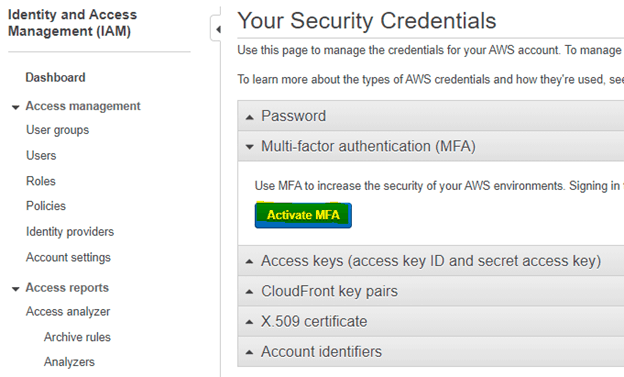
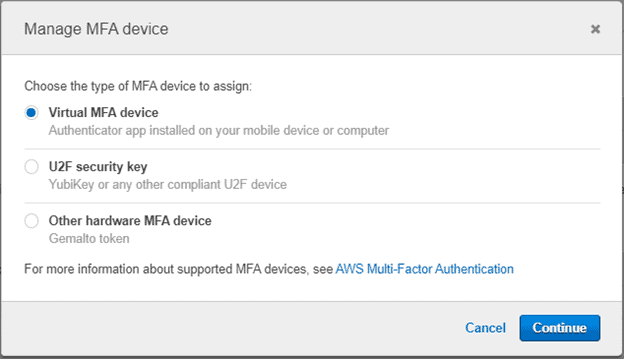
Setup MFA for the root user.
Create new Admin user and configure MFA.
Install and configure AWS CLI on Mac/Linux and Windows
aws configure --profile devopsroles-demo
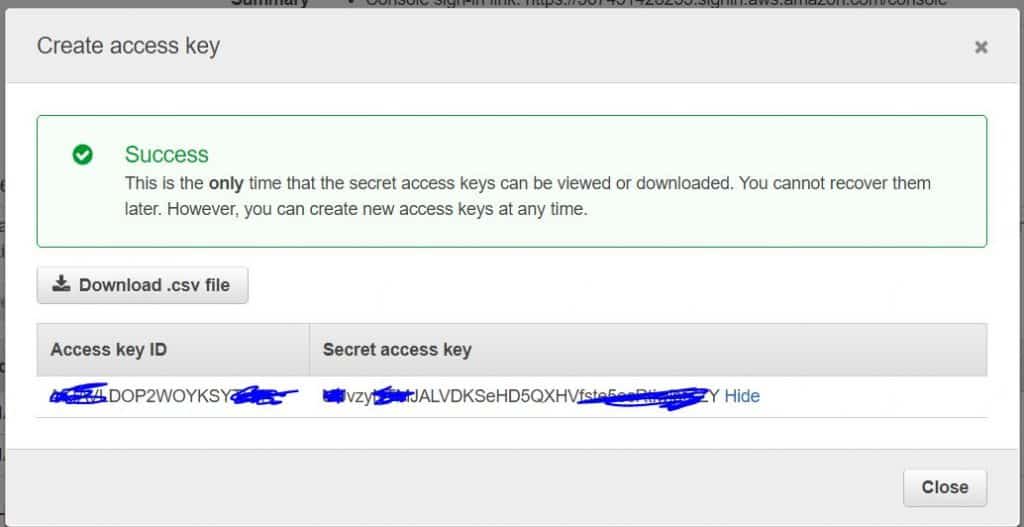
AWS Access Key ID [None]: XXXXZHBNJLCKKCE7EQQQ
AWS Secret Access Key [None]: fdfdfdfd43434dYlQ1il1xKNCnqwUvNHFSv41111
Default region name [None]:
Default output format [None]:
Install Terraform
Link download here: Download Terraform – Terraform by HashiCorp
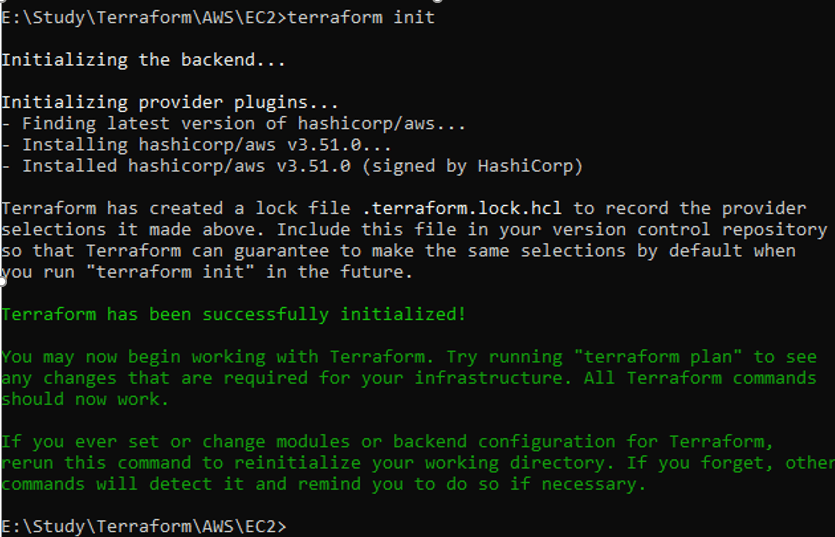
After install Terraform.
C:\Users\HuuPV>terraform --version
Terraform v1.0.6
on windows_amd64

Your version of Terraform is out of date! The latest version
is 1.0.7. You can update by downloading from https://www.terraform.io/downloads.html
Conclusion
You have installed and configured Terraform AWS labs. I hope will this your helpful. Thank you for reading the DevopsRoles page! Terraform aws get started.
How to create AWS VPC using Terraform. In this tutorial, I’m using Terraform AWS create VPC example. Embark on a journey to mastering cloud infrastructure with our detailed tutorial on creating a Virtual Private Cloud (VPC) in AWS using Terraform.
This guide is tailored for DevOps professionals and enthusiasts eager to leverage the scalability and efficiency of AWS. By the end of this tutorial, you will have a clear understanding of how to set up a VPC that aligns perfectly with your organizational needs, ensuring a secure and robust network environment.
Terraform aws create VPC example
The structure folder and files for AWS VPC are as follows
output "test" {
    value ="${aws_vpc.myVPC.cidr_block}"
}
Conclusion
Congratulations on successfully creating your AWS VPC using Terraform! This guide aimed to simplify the complexities of cloud networking, providing you with a solid foundation to build upon. As you continue to explore Terraform and AWS, remember that the flexibility and power of these tools can significantly enhance your infrastructure’s reliability and performance.
Keep experimenting and refining your skills to stay ahead in the ever-evolving world of cloud computing. I hope will this your helpful. Thank you for reading the DevopsRoles page!
In Terraform the resource type is aws_* predefined. Example aws_vpc a VPC, EC2 is aws_instance. Each AWS resource in the format of item name = value. Example the VPC settings.
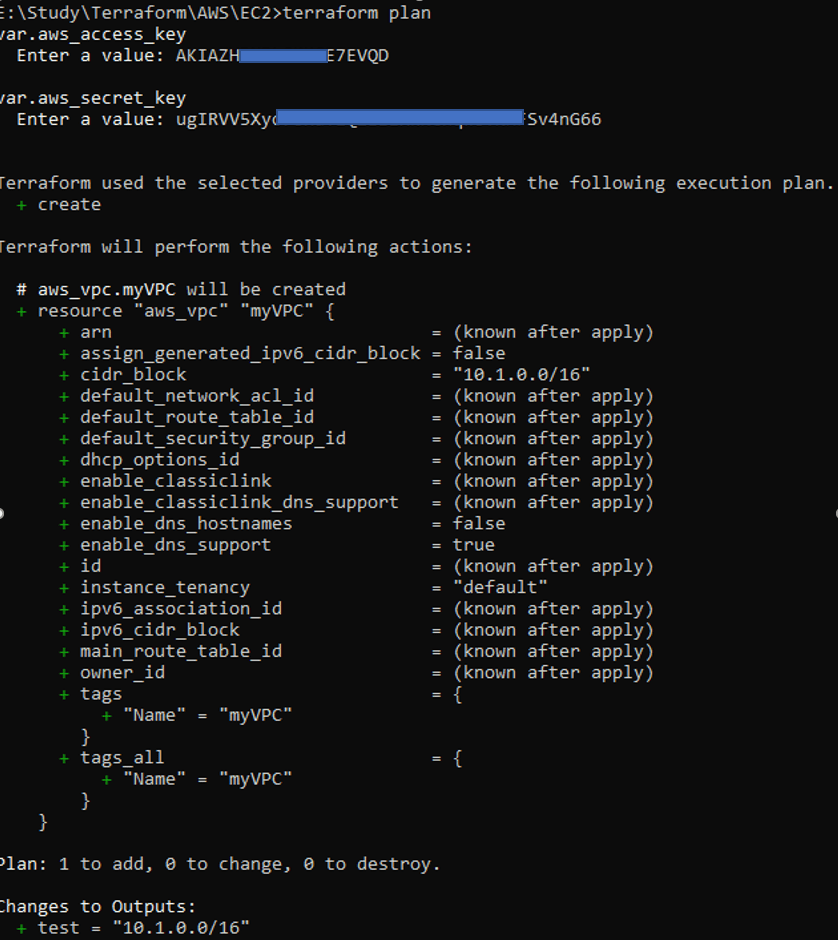
terraform plan command will check for syntax errors and parameter errors set in the block, but will not check for the correctness of the parameter values.
Applying a template
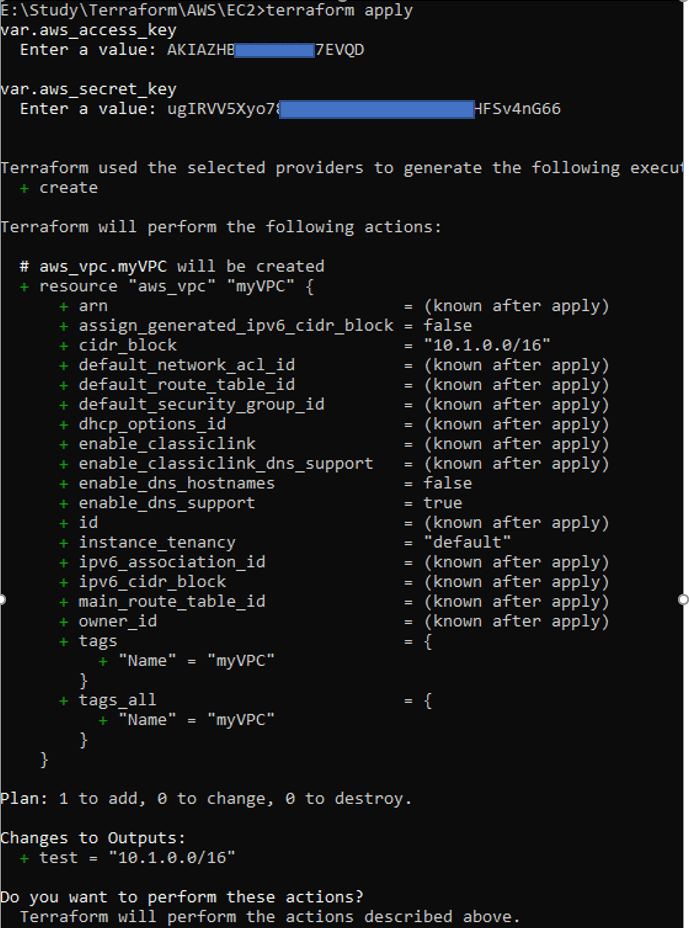
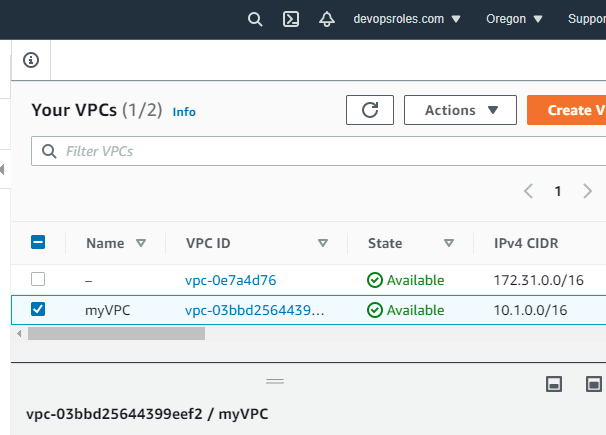
Let’s go we apply the template and create a resource on AWS.
$ terraform apply
Use terraform to show the display the content
$ terraform show
Resource changes
We add the content in main.tf file.
Use terraform plan to check the execution plan. marked with a ” -/ + “. This indicates that the resource will be deleted & recreated as the attribute changes .
terraform apply command for creating.
Delete resource
terraform destroy command can delete a set of resources in the template. terraform plan -destroy you can find out the execution plan for resource deletion.
$ terraform plan -destroy
$ terraform destroy
How to split template file
I have settings together in one template file main.tf
You can be divided into 3 files as below
main.tf
provider "aws" {
    access_key = "${var.aws_access_key}"
    secret_key = "${var.aws_secret_key}"
    region = "${var.region}"
}

## Describe the definition of the resource
resource "aws_vpc" "myVPC" {
    cidr_block = "10.1.0.0/16"
    instance_tenancy = "default"
    enable_dns_support = "true"
    enable_dns_hostnames = "false"
    tags {
      Name = "myVPC"
    }
}

...
In this tutorial, How to install Terraform on Centos and Ubuntu. Terraform an Open Source tool. It is safely and predictably create, improve and change Infrastructure.
Feature Key
Infrastructure as Code
Change Automation
Execution Plans
Resource Graph
Install Terraform on Centos 7
Link download Terraform here. In this tutorial, The current version of Terraform is 0.12.16
[vagrant@DevopsRoles terraform]$ terraform plan
 Refreshing Terraform state in-memory prior to plan…
 The refreshed state will be used to calculate this plan, but will not be
 persisted to local or remote state storage.

 An execution plan has been generated and is shown below.
 Resource actions are indicated with the following symbols:
 create
 Terraform will perform the following actions:
 # aws_instance.testEC2 will be created
 resource "aws_instance" "testEC2" {
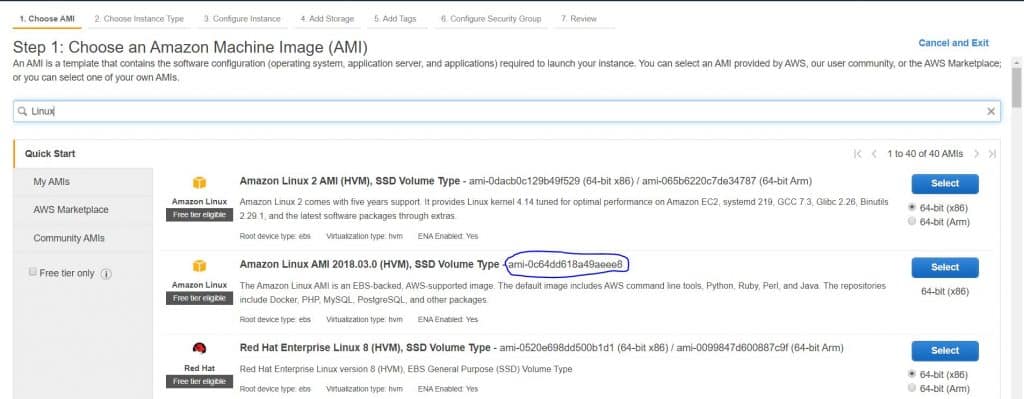
 ami                          = "ami-0c64dd618a49aeee8"
 arn                          = (known after apply)
 associate_public_ip_address  = true
 availability_zone            = (known after apply)
 cpu_core_count               = (known after apply)
 cpu_threads_per_core         = (known after apply)
 get_password_data            = false
 host_id                      = (known after apply)
 id                           = (known after apply)
 instance_state               = (known after apply)
 instance_type                = "t2.micro"
 ipv6_address_count           = (known after apply)
 ipv6_addresses               = (known after apply)
 key_name                     = (known after apply)
 network_interface_id         = (known after apply)
 password_data                = (known after apply)
 placement_group              = (known after apply)
 primary_network_interface_id = (known after apply)
 private_dns                  = (known after apply)
 private_ip                   = (known after apply)
 public_dns                   = (known after apply)
 public_ip                    = (known after apply)
 security_groups              = (known after apply)
 source_dest_check            = true
 subnet_id                    = (known after apply)
 tags                         = {
 "Name" = "testEC2"
 }
 tenancy                      = (known after apply)
 volume_tags                  = (known after apply)
 vpc_security_group_ids       = [
 "sg-00c448cd3e48ba684",
 ]
 ebs_block_device {
 delete_on_termination = true
 device_name           = "/dev/sdf"
 encrypted             = (known after apply)
 iops                  = (known after apply)
 kms_key_id            = (known after apply)
 snapshot_id           = (known after apply)
 volume_id             = (known after apply)
 volume_size           = 10
 volume_type           = "gp2"
 }
 ephemeral_block_device {
 device_name  = (known after apply)
 no_device    = (known after apply)
 virtual_name = (known after apply)
 }
 network_interface {
 delete_on_termination = (known after apply)
 device_index          = (known after apply)
 network_interface_id  = (known after apply)
 }
 root_block_device {
 delete_on_termination = true
 encrypted             = (known after apply)
 iops                  = (known after apply)
 kms_key_id            = (known after apply)
 volume_id             = (known after apply)
 volume_size           = 20
 volume_type           = "gp2"
 }
 }
 Plan: 1 to add, 0 to change, 0 to destroy.

 Note: You didn't specify an "-out" parameter to save this plan, so Terraform
 can't guarantee that exactly these actions will be performed if
 "terraform apply" is subsequently run.
 [vagrant@DevopsRoles terraform]$ terraform apply
 An execution plan has been generated and is shown below.
 Resource actions are indicated with the following symbols:
 create
 Terraform will perform the following actions:
 # aws_instance.testEC2 will be created
 resource "aws_instance" "testEC2" {
 ami                          = "ami-0c64dd618a49aeee8"
 arn                          = (known after apply)
 associate_public_ip_address  = true
 availability_zone            = (known after apply)
 cpu_core_count               = (known after apply)
 cpu_threads_per_core         = (known after apply)
 get_password_data            = false
 host_id                      = (known after apply)
 id                           = (known after apply)
 instance_state               = (known after apply)
 instance_type                = "t2.micro"
 ipv6_address_count           = (known after apply)
 ipv6_addresses               = (known after apply)
 key_name                     = (known after apply)
 network_interface_id         = (known after apply)
 password_data                = (known after apply)
 placement_group              = (known after apply)
 primary_network_interface_id = (known after apply)
 private_dns                  = (known after apply)
 private_ip                   = (known after apply)
 public_dns                   = (known after apply)
 public_ip                    = (known after apply)
 security_groups              = (known after apply)
 source_dest_check            = true
 subnet_id                    = (known after apply)
 tags                         = {
 "Name" = "testEC2"
 }
 tenancy                      = (known after apply)
 volume_tags                  = (known after apply)
 vpc_security_group_ids       = [
 "sg-00c448cd3e48ba684",
 ]
 ebs_block_device {
 delete_on_termination = true
 device_name           = "/dev/sdf"
 encrypted             = (known after apply)
 iops                  = (known after apply)
 kms_key_id            = (known after apply)
 snapshot_id           = (known after apply)
 volume_id             = (known after apply)
 volume_size           = 10
 volume_type           = "gp2"
 }
 ephemeral_block_device {
 device_name  = (known after apply)
 no_device    = (known after apply)
 virtual_name = (known after apply)
 }
 network_interface {
 delete_on_termination = (known after apply)
 device_index          = (known after apply)
 network_interface_id  = (known after apply)
 }
 root_block_device {
 delete_on_termination = true
 encrypted             = (known after apply)
 iops                  = (known after apply)
 kms_key_id            = (known after apply)
 volume_id             = (known after apply)
 volume_size           = 20
 volume_type           = "gp2"
 }
 }
 Plan: 1 to add, 0 to change, 0 to destroy.
 Do you want to perform these actions?
   Terraform will perform the actions described above.
   Only 'yes' will be accepted to approve.
 Enter a value: yes
 aws_instance.testEC2: Creating…
 aws_instance.testEC2: Still creating… [10s elapsed]
 aws_instance.testEC2: Still creating… [20s elapsed]
 aws_instance.testEC2: Still creating… [30s elapsed]
 aws_instance.testEC2: Creation complete after 36s [id=i-0501a62ccf6380761]
 Apply complete! Resources: 1 added, 0 changed, 0 destroyed.
 Outputs:
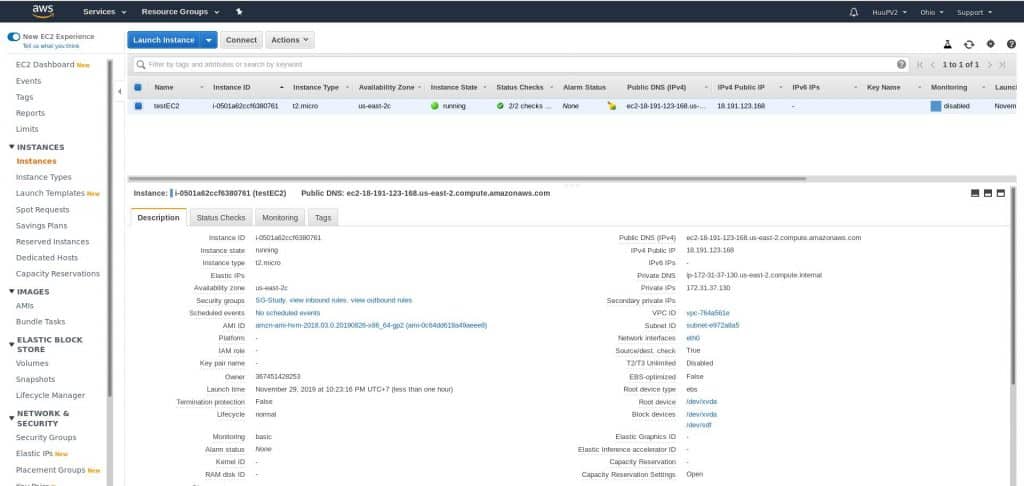
 public_ip_of_testEC2 = 18.191.123.168
Check on the AWS console!
Have a good nice! Thank you for reading the DevopsRoles page!