Master Vagrant with DevOpsRoles.com. Explore comprehensive guides and tutorials to automate development environments using Vagrant for efficient DevOps practices.
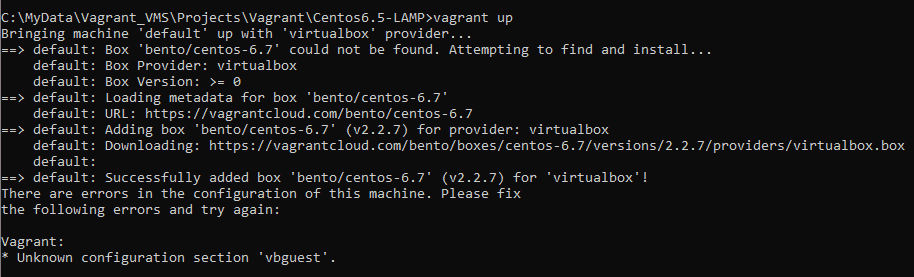
In this tutorial, How to fix the Unknown configuration section vbguest on Vagrant. Now, let’s fix Vagrant: Unknown configuration section vbguest.
Environment: CentOS 6x.
Vagrant version 2.2.18
My Vagrantfile
Vagrant.configure("2") do |config|
-----
config.vbguest.auto_update = false
-----
Error: Unknown configuration section vbguest
The reason is because of the missing vagrant.vbguest plugin.
Check plugin for Vagrant
C:\Users\HuuPV>vagrant plugin list
not found
1.If not, install “vagrant-vbguest“
C:\MyData\Vagrant_VMS\Projects\Vagrant\Centos6.5-LAMP>vagrant plugin install vagrant-vbguest
Installing the 'vagrant-vbguest' plugin. This can take a few minutes...
Fetching micromachine-3.0.0.gem
Fetching vagrant-vbguest-0.30.0.gem
Installed the plugin 'vagrant-vbguest (0.30.0)'!
2. If exist, uninstall and reinstall “vagrant-vbguest“
In this tutorial, How to use vagrant provision inline. Use inline to execute on the remote machine. Explore the essentials of inline provisioning with Vagrant in our latest tutorial. This guide provides a practical walkthrough on setting up and configuring virtual environments directly through Vagrant’s inline commands. Perfect for developers and IT professionals, this tutorial simplifies the process of using inline scripts to manage complex configurations, ensuring a seamless and efficient setup for your development projects.
What is Vagrant Inline Provisioning?
Vagrant Inline Provisioning is a method used in Vagrant for automatically configuring and setting up virtual machines. Here’s a simple explanation in English, presented as a bulleted list:
Purpose: Automatically configures and sets up virtual machines.
Method: Uses simple scripts written directly in the Vagrantfile.
Functionality: Allows users to execute shell commands during the virtual machine setup process.
Benefits: Streamlines and automates the configuration of development environments efficiently.
You have to use a vagrant inline to execute on the remote machine. Mastering Vagrant’s inline provisioning can significantly streamline your development workflow. We’ve covered the key steps to execute scripts within your Vagrantfile, enhancing your capability to manage and automate your virtual environments. Keep experimenting with different configurations and scripts to fully leverage the power of Vagrant in your projects. I hope will this your helpful. Thank you for reading the DevopsRoles page!
In this tutorial, How to fix the error Vagrant No VirtualBox Guest Additions installation is found. I use a laptop and run the command vagrant up for the NFS server then the error “umount: /mnt: not mounted“
ERROR umount: /mnt: not mounted
E:\Vagrant_VMS\NFS_server>vagrant up

Error: Nothing to do
Unmounting Virtualbox Guest Additions ISO from: /mnt
umount: /mnt: not mounted
==> servernfs: Checking for guest additions in VM...
    servernfs: No guest additions were detected on the base box for this VM! Guest
    servernfs: additions are required for forwarded ports, shared folders, host only
    servernfs: networking, and more. If SSH fails on this machine, please install
    servernfs: the guest additions and repackage the box to continue.
    servernfs:
    servernfs: This is not an error message; everything may continue to work properly,
    servernfs: in which case you may ignore this message.
The following SSH command responded with a non-zero exit status.
Vagrant assumes that this means the command failed!

umount /mnt

Stdout from the command:


Stderr from the command:

umount: /mnt: not mounted
Vagrant No VirtualBox Guest Additions installation found fixed
I have uninstalled vagrant-vbguest and installed vagrant-vbguest.
The output uninstall and install vagrant-vbguest as below
E:\Vagrant_VMS\NFS_server>vagrant plugin uninstall vagrant-vbguest
Uninstalling the 'vagrant-vbguest' plugin...
Successfully uninstalled micromachine-3.0.0
Successfully uninstalled vagrant-vbguest-0.27.0

E:\Vagrant_VMS\NFS_server>vagrant plugin install vagrant-vbguest --plugin-version 0.21
Installing the 'vagrant-vbguest --version '0.21'' plugin. This can take a few minutes...
Fetching micromachine-3.0.0.gem
Fetching vagrant-vbguest-0.21.0.gem
Installed the plugin 'vagrant-vbguest (0.21.0)'!
As a result, I have to fix it!
E:\Vagrant_VMS\NFS_server>vagrant reload
==> servernfs: Attempting graceful shutdown of VM...
==> servernfs: Checking if box 'centos/7' version '2004.01' is up to date...
==> servernfs: Clearing any previously set forwarded ports...
==> servernfs: Clearing any previously set network interfaces...
==> servernfs: Preparing network interfaces based on configuration...
    servernfs: Adapter 1: nat
    servernfs: Adapter 2: hostonly
==> servernfs: Forwarding ports...
    servernfs: 22 (guest) => 2222 (host) (adapter 1)
==> servernfs: Booting VM...
==> servernfs: Waiting for machine to boot. This may take a few minutes...
    servernfs: SSH address: 127.0.0.1:2222
    servernfs: SSH username: vagrant
    servernfs: SSH auth method: private key
    servernfs: Warning: Connection aborted. Retrying...
==> servernfs: Machine booted and ready!
[servernfs] GuestAdditions 6.1.14 running --- OK.
==> servernfs: Checking for guest additions in VM...
==> servernfs: Configuring and enabling network interfaces...
==> servernfs: Rsyncing folder: /cygdrive/e/MyData/Vagrant_VMS/NFS_server/ => /vagrant
==> servernfs: Rsyncing folder: /cygdrive/e/MyData/Vagrant_VMS/NFS_server/NFS_Volumn/ => /home/vagrant/nfs_test
==> servernfs: Machine already provisioned. Run `vagrant provision` or use the `--provision`
==> servernfs: flag to force provisioning. Provisioners marked to run always will still run.
Youtube Vagrant No VirtualBox Guest Additions installation found [Fixed]
Conclusion
You have fixed Vagrant No VirtualBox. I hope will this your helpful. Thank you for reading the DevopsRoles page!
In this tutorial, How to Install Vagrant and VirtualBox on Fedora. You use Vagrant for DevOps professionals and coder sysadmin. I will be installing VirtualBox and Vagrant on My Laptop is Fedora 32.
How to Install Vagrant and VirtualBox
Check CPU has Intel VT or AMD-V Virtualization extensions
cd /tmp/
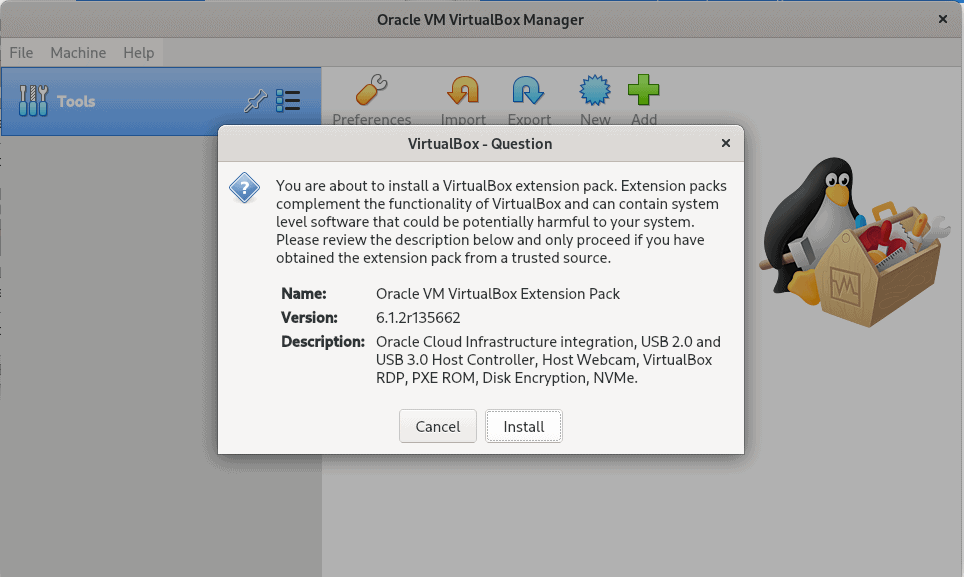
wget https://download.virtualbox.org/virtualbox/6.1.2/Oracle_VM_VirtualBox_Extension_Pack-6.1.2.vbox-extpack
Install the extension pack by clicking on the Downloaded file. The picture below
Install Vagrant on Fedora
Run command on your terminal as below
dnf -y install vagrant
Test Vagrant and Virtualbox
Create a minimal Vagrantfile
$ mkdir vagrant-test
$ cd vagrant-test
$ vi Vagrantfile
An example that also sets the amount of memory and number of CPUs in the Vagrantfile file
[huupv@localhost vagrant-test]$ cat Vagrantfile
Vagrant.configure("2") do |config|
  config.ssh.insert_key = false
  config.vm.provider :virtualbox do |vb|
    vb.memory = 256
    vb.cpus = 1
  end

  config.vm.define "DevopsRoles" do |server01|
    server01.vm.hostname = "DevopsRoles.com"
    server01.vm.box = "centos/7"
    #server01.vm.network :private_network, ip: "192.168.3.4"
  end
end
The output on my terminal as below
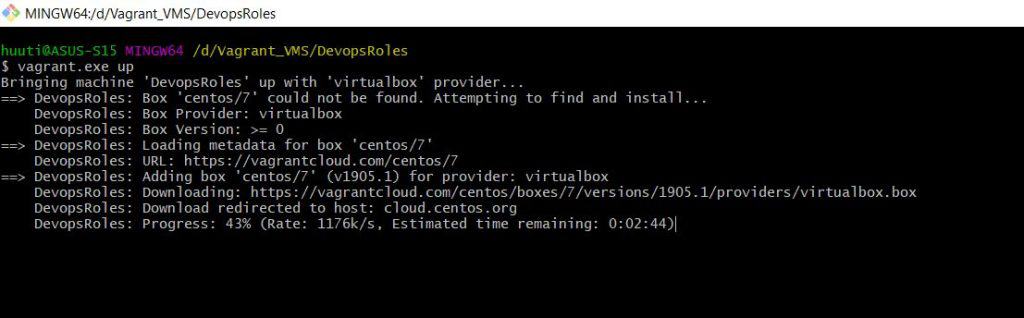
huupv@localhost vagrant-test]$ vagrant up
Bringing machine 'DevopsRoles' up with 'virtualbox' provider...
==> DevopsRoles: Box 'centos/7' could not be found. Attempting to find and install...
    DevopsRoles: Box Provider: virtualbox
    DevopsRoles: Box Version: >= 0
==> DevopsRoles: Loading metadata for box 'centos/7'
    DevopsRoles: URL: https://vagrantcloud.com/centos/7
==> DevopsRoles: Adding box 'centos/7' (v2004.01) for provider: virtualbox
    DevopsRoles: Downloading: https://vagrantcloud.com/centos/boxes/7/versions/2004.01/providers/virtualbox.box
Download redirected to host: cloud.centos.org
    DevopsRoles: Calculating and comparing box checksum...
==> DevopsRoles: Successfully added box 'centos/7' (v2004.01) for 'virtualbox'!
==> DevopsRoles: Importing base box 'centos/7'...
==> DevopsRoles: Matching MAC address for NAT networking...
==> DevopsRoles: Checking if box 'centos/7' version '2004.01' is up to date...
==> DevopsRoles: Setting the name of the VM: vagrant-test_DevopsRoles_1601910055210_96696
==> DevopsRoles: Clearing any previously set network interfaces...
==> DevopsRoles: Preparing network interfaces based on configuration...
    DevopsRoles: Adapter 1: nat
==> DevopsRoles: Forwarding ports...
    DevopsRoles: 22 (guest) => 2222 (host) (adapter 1)
==> DevopsRoles: Running 'pre-boot' VM customizations...
==> DevopsRoles: Booting VM...
==> DevopsRoles: Waiting for machine to boot. This may take a few minutes...
    DevopsRoles: SSH address: 127.0.0.1:2222
    DevopsRoles: SSH username: vagrant
    DevopsRoles: SSH auth method: private key
==> DevopsRoles: Machine booted and ready!
==> DevopsRoles: Checking for guest additions in VM...
    DevopsRoles: No guest additions were detected on the base box for this VM! Guest
    DevopsRoles: additions are required for forwarded ports, shared folders, host only
    DevopsRoles: networking, and more. If SSH fails on this machine, please install
    DevopsRoles: the guest additions and repackage the box to continue.
    DevopsRoles:
    DevopsRoles: This is not an error message; everything may continue to work properly,
    DevopsRoles: in which case you may ignore this message.
==> DevopsRoles: Setting hostname...
==> DevopsRoles: Rsyncing folder: /home/huupv/vagrant-test/ => /vagrant
Conclusion
You have to install and run Vagrant using VirtualBox. I hope will this your helpful. Thank you for reading the DevopsRoles page!
In this tutorial, I’ll guide you on installing and running Vagrant use KVM provider. Whether you’re a DevOps professional, coder, or sysadmin, Vagrant proves invaluable. I’ll walk you through the installation and setup process on my Fedora 32 laptop. Together, we’ll explore the seamless integration of Vagrant with the Qemu-KVM provider, opening up new possibilities for efficient development environments. Let’s dive into the steps to harness the power of Vagrant and enhance your workflow on Fedora 32.
[HuuPV@DevopsRoles vagrant-test]$ vagrant box add centos/7 --provider=libvirt

==> box: Loading metadata for box 'centos/7'
    box: URL: https://vagrantcloud.com/centos/7
==> box: Adding box 'centos/7' (v2004.01) for provider: libvirt
    box: Downloading: https://vagrantcloud.com/centos/boxes/7/versions/2004.01/providers/libvirt.box
Download redirected to host: cloud.centos.org
    box: Calculating and comparing box checksum...
==> box: Successfully added box 'centos/7' (v2004.01) for 'libvirt'!
Test: Create a minimal Vagrantfile
$ mkdir vagrant-test
$ cd vagrant-test
$ vi Vagrantfile
# An example which also sets the amount memory and number of CPUs in Vagrantfile file

Vagrant.configure("2") do |config|
  config.vm.box = "centos/7"
  config.vm.provider :libvirt do |libvirt|
    libvirt.cpus = 1
    libvirt.memory = 1024
  end
end
Start the box
vagrant up
The output is an example below:
[HuuPV@DevopsRoles vagrant-test]$ vagrant up
Bringing machine 'default' up with 'libvirt' provider...
==> default: Checking if box 'centos/7' version '2004.01' is up to date...
==> default: Uploading base box image as volume into libvirt storage...
==> default: Creating image (snapshot of base box volume).
==> default: Creating domain with the following settings...
==> default:  -- Name:              vagrant-test_default
==> default:  -- Domain type:       kvm
==> default:  -- Cpus:              1
==> default:  -- Feature:           acpi
==> default:  -- Feature:           apic
==> default:  -- Feature:           pae
==> default:  -- Memory:            1024M
==> default:  -- Management MAC:
==> default:  -- Loader:
==> default:  -- Nvram:
==> default:  -- Base box:          centos/7
==> default:  -- Storage pool:      default
==> default:  -- Image:             /home/HuuPV/.local/share/libvirt/images/vagrant-test_default.img (41G)
==> default:  -- Volume Cache:      default
==> default:  -- Kernel:
==> default:  -- Initrd:
==> default:  -- Graphics Type:     vnc
==> default:  -- Graphics Port:     -1
==> default:  -- Graphics IP:       127.0.0.1
==> default:  -- Graphics Password: Not defined
==> default:  -- Video Type:        cirrus
==> default:  -- Video VRAM:        9216
==> default:  -- Sound Type:
==> default:  -- Keymap:            en-us
==> default:  -- TPM Path:
==> default:  -- INPUT:             type=mouse, bus=ps2
==> default: Creating shared folders metadata...
==> default: Starting domain.
==> default: Waiting for domain to get an IP address...
==> default: Waiting for SSH to become available...
    default:
    default: Vagrant insecure key detected. Vagrant will automatically replace
    default: this with a newly generated keypair for better security.
    default:
    default: Inserting generated public key within guest...
    default: Removing insecure key from the guest if it's present...
    default: Key inserted! Disconnecting and reconnecting using new SSH key...
==> default: Configuring and enabling network interfaces...
    default: SSH address: 192.168.122.97:22
    default: SSH username: vagrant
    default: SSH auth method: private key
==> default: Rsyncing folder: /home/HuuPV/Vagrant_VMS/vagrant-test/ => /vagrant
Install and run Vagrant with Qemu-KVM for an enhanced experience. This step-by-step guide aims to be a valuable resource for your journey. Your support is appreciated. Thank you for exploring the DevopsRoles page!
Vagrant up command the response in error “No usable default provider could be found for your system”. Vagrant issues solved.
My environment
OS: Windows 10
Vagrant is version 2.2.6
Virtualbox is version 6.1
I installed the latest Vagrant and VirtualBox versions. I got the following error.
$ vagrant.exe up
 No usable default provider could be found for your system.
 Vagrant relies on interactions with 3rd party systems, known as
 "providers", to provide Vagrant with resources to run development
 environments. Examples are VirtualBox, VMware, Hyper-V.
 The easiest solution to this message is to install VirtualBox, which
 is available for free on all major platforms.
 If you believe you already have a provider available, make sure it
 is properly installed and configured. You can see more details about
 why a particular provider isn't working by forcing usage with
 vagrant up --provider=PROVIDER, which should give you a more specific
 error message for that particular provider.
Vagrant issues solved the problem
You need to downgrade Virtualbox to version 5.2. Vagrant support PROVIDER here.
The VirtualBox provider is compatible with VirtualBox versions 4.0.x, 4.1.x, 4.2.x, 4.3.x, 5.0.x, 5.1.x, 5.2.x, and 6.0.x.
I decided to downgrade from Virtualbox 6.1 to Virtualbox 5.2
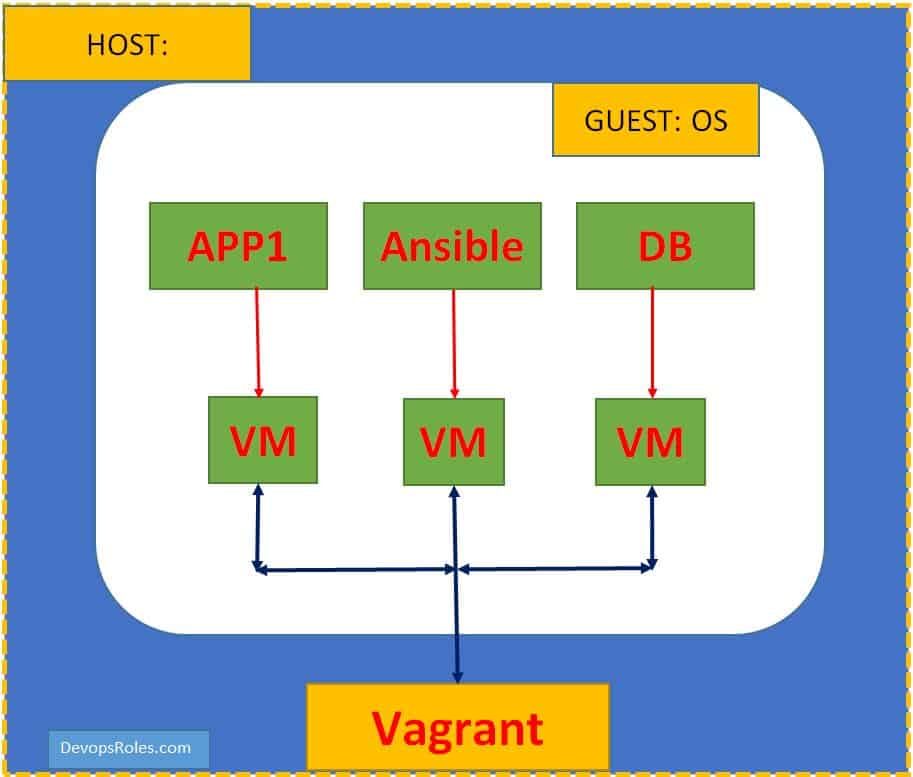
In the world of DevOps, setting up and managing consistent development environments is crucial for ensuring application performance and reliability. Vagrant, a powerful tool, has become a popular choice to quickly and easily create virtual environments for developers. In this article, we provide a detailed Vagrant Cheat Sheet to help you quickly grasp the basic commands and configurations of this tool. Let’s explore how Vagrant can enhance your development workflow! The Vagrant is building an isolated virtual environment for the app. Vagrant is essential for DevOps Roles.
Vagrant is an essential tool in the modern DevOps toolkit, simplifying the setup and management of development environments. With this Cheat Sheet, you now have the basic commands and configurations to start using Vagrant effectively.
Make the most of Vagrant’s capabilities to boost your productivity and ensure consistency across your projects. If you need more detailed information or encounter any issues, don’t hesitate to seek help from the DevOps community. Good luck!
I use Vagrant version 2.2.0 Link here. Installing the Vagrant is very easy, then restart your machine.
Download and run Centos 7 Vagrant Box on Windows 10
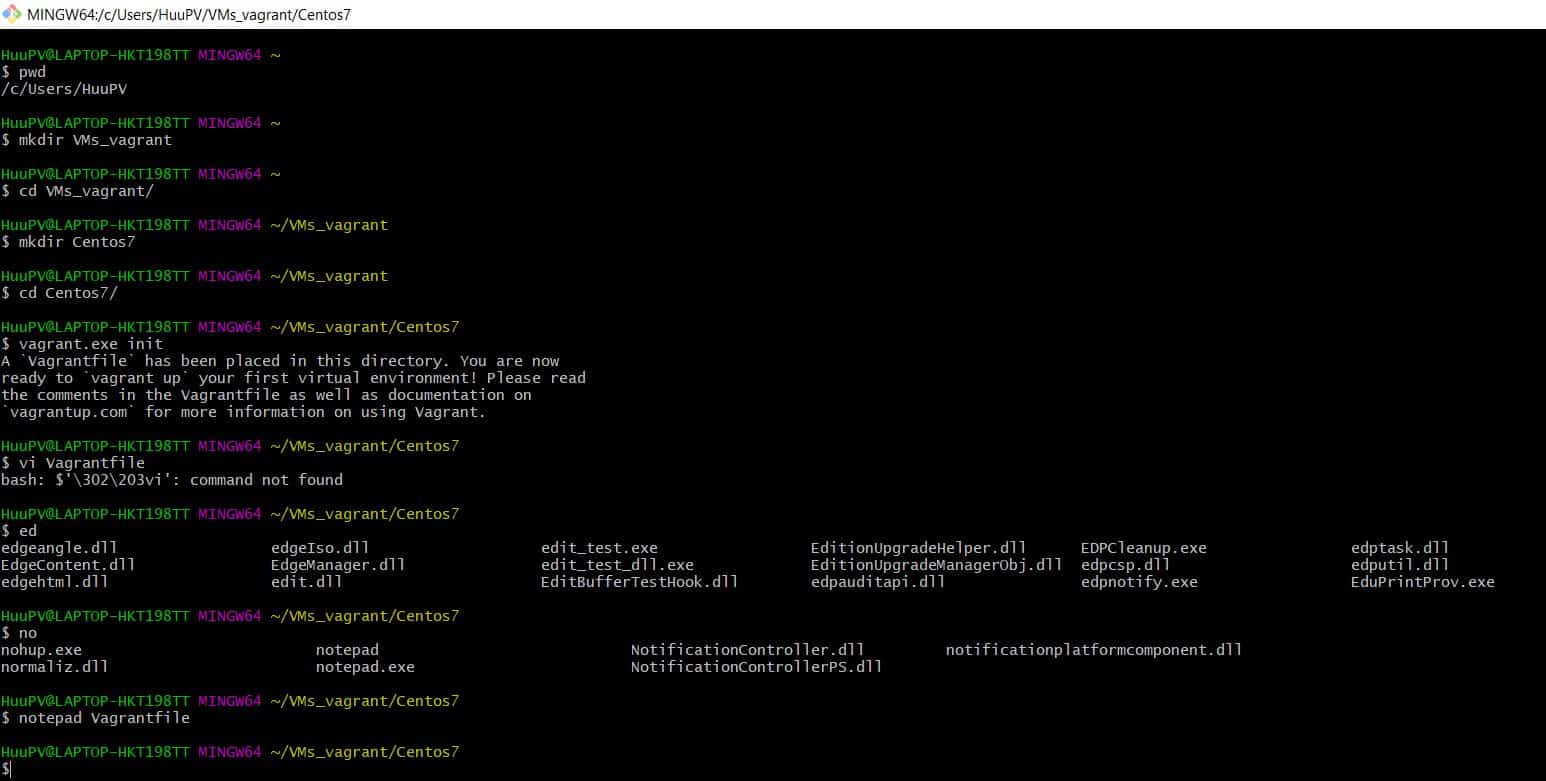
Open Git Bash as below
HuuPV@LAPTOP-HKT198TT MINGW64 ~
$ pwd
/c/Users/HuuPV

HuuPV@LAPTOP-HKT198TT MINGW64 ~
$ mkdir VMs_vagrant

HuuPV@LAPTOP-HKT198TT MINGW64 ~
$ cd VMs_vagrant/

HuuPV@LAPTOP-HKT198TT MINGW64 ~/VMs_vagrant
$ mkdir Centos7

HuuPV@LAPTOP-HKT198TT MINGW64 ~/VMs_vagrant
$ cd Centos7/

HuuPV@LAPTOP-HKT198TT MINGW64 ~/VMs_vagrant/Centos7
$ vagrant.exe init
A `Vagrantfile` has been placed in this directory. You are now
ready to `vagrant up` your first virtual environment! Please read
the comments in the Vagrantfile as well as documentation on
`vagrantup.com` for more information on using Vagrant.

HuuPV@LAPTOP-HKT198TT MINGW64 ~/VMs_vagrant/Centos7
$ notepad Vagrantfile
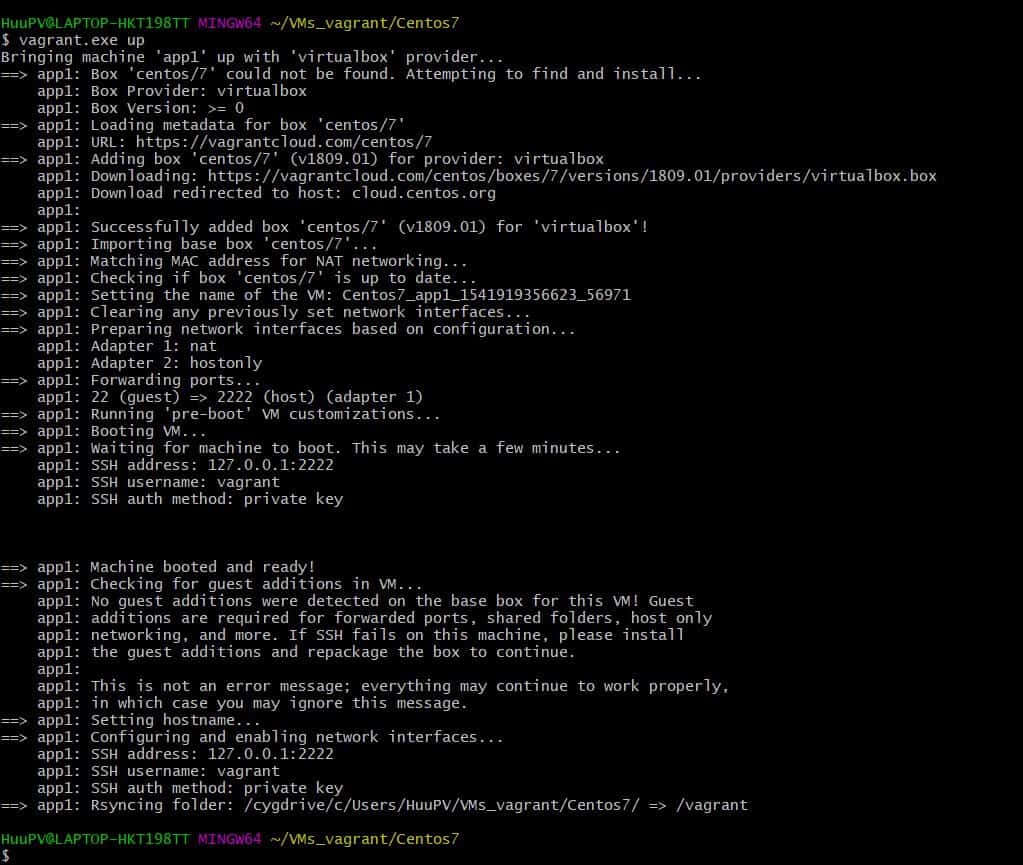
The result as the picture below
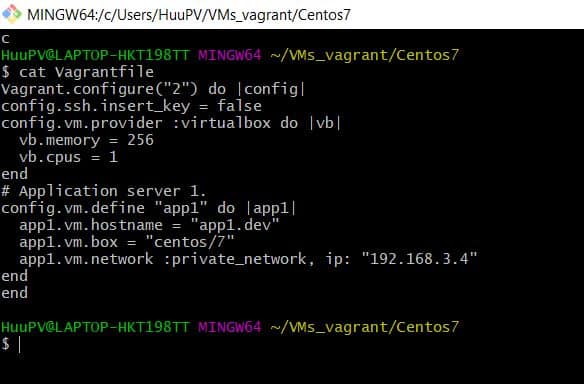
The content “Vagrantfile” file
Vagrant.configure("2") do |config|
config.ssh.insert_key = false
config.vm.provider :virtualbox do |vb|
  vb.memory = 256
  vb.cpus = 1
end
# Application server 1.
config.vm.define "app1" do |app1|
  app1.vm.hostname = "app1.dev"
  app1.vm.box = "centos/7"
  app1.vm.network :private_network, ip: "192.168.3.4"
end
end
Vagrant ssh (Connecting non-GUI Linux OS)
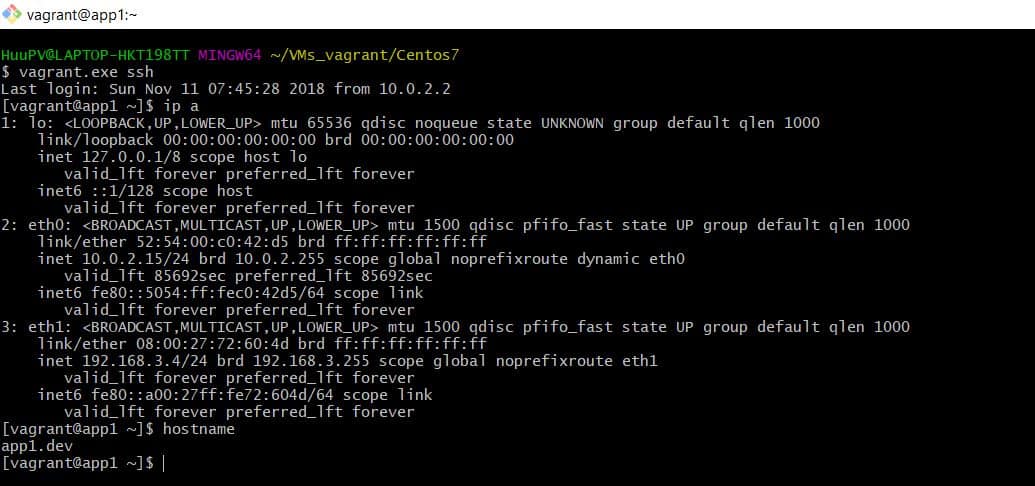
$ vagrant.exe ssh
The result as the picture below
Most Common Vagrant Commands
vagrant init: initialize
vagrant up: Download image and do rest of the settings and power-up the box
In this tutorial, we will explore the crucial process of update vagrant box, an essential tool for DevOps roles. Keeping your Vagrant box up-to-date ensures you have access to the latest features and improvements.
Locating Vagrant Boxes
Start by browsing the Vagrant Box repository at Vagrant Box Search. Here, you can find a variety of boxes tailored to different development needs.
https://app.vagrantup.com/boxes/search
Automating Guest Addition Installation:
To streamline your workflow, consider using the vagrant-vbguest plugin. Install it effortlessly with the following command:
$ vagrant plugin install vagrant-vbguest
This plugin automatically installs guest additions on the guest side, saving you time and effort.
Update vagrant box
Now, let’s dive into the core of the tutorial—updating your Vagrant box. Utilize the following command structure:
$ vagrant box update --box [box-name]
Note: It’s important to note that when updating the box file, old and new versions may coexist.
Conclusion
Throughout this article, we’ve walked through the steps of using vagrant box update. By following these guidelines, you can ensure your Vagrant box is always equipped with the latest enhancements. I hope this information proves helpful for your DevOps journey. Thank you for reading the DevopsRoles page!