Tag Archives: System Administration

Guide to Install Python 3.6 on Centos 6

Introduction

OS Centos 6 is the default Python version 2. How to Install Python 3.6 on Centos 6. Python is a powerful and flexible programming language widely used in various fields such as web development, data science, artificial intelligence, and DevOps. Python 3.6 brings many improvements and new features, enhancing performance and security.

In this article, we will guide you through the process of installing Python 3.6 on CentOS 6, one of the popular Linux operating systems for server environments. This installation will allow you to take full advantage of Python 3.6 in your projects.

Installation packages pre-requisites

sudo yum -y install gcc openssl-devel bzip2-devel wget

How to Install Python 3.6 on Centos 6

cd /tmp/
wget https://www.python.org/ftp/python/3.6.6/Python-3.6.6.tgz
tar xzf Python-3.6.6.tgz
cd Python-3.6.6
./configure --enable-optimizations
sudo make altinstall

Create symbolic link

sudo ln -sfn /usr/local/bin/python3.6 /usr/bin/python3.6

Python verifying new version.

[huupv2@server1 ~]$ python -V
Python 3.6.6

The result is Python 3.6 on Centos 6.

[huupv2@server1 ~]$ cat /etc/redhat-release
CentOS release 6.5 (Final)
[huupv2@server1 ~]$ ll /usr/bin/python*
-rwxr-xr-x 2 root root 4864 Aug 18  2016 /usr/bin/python
lrwxrwxrwx 1 root root    6 Jul 19  2018 /usr/bin/python2 -> python
-rwxr-xr-x 2 root root 4864 Aug 18  2016 /usr/bin/python2.6
lrwxrwxrwx 1 root root    9 Mar  8 13:26 /usr/bin/python3 -> python3.4
-rwxr-xr-x 2 root root 6088 Oct  5  2019 /usr/bin/python3.4
-rwxr-xr-x 2 root root 6088 Oct  5  2019 /usr/bin/python3.4m
lrwxrwxrwx 1 root root   24 Mar  8 14:45 /usr/bin/python3.6 -> /usr/local/bin/python3.6

Configure alias python on .bashrc file

[huupv2@server1 ~]$ cat .bashrc
# .bashrc

# Source global definitions
if [ -f /etc/bashrc ]; then
        . /etc/bashrc
fi

# User specific aliases and functions
alias python='/usr/bin/python3.6'

Check Python version 3.6 on Centos 6

[huupv2@server1 ~]$ python
Python 3.6.6 (default, Mar  8 2021, 14:41:43)
[GCC 4.4.7 20120313 (Red Hat 4.4.7-23)] on linux
Type "help", "copyright", "credits" or "license" for more information.
>>>
[huupv2@server1 ~]$

Conclusion

You have to install Python 3.6 on Centos 6. Installing Python 3.6 on CentOS 6 may present some challenges, but with this detailed guide, you can easily accomplish it. Python 3.6 will open up many new opportunities for your projects, from web application development to data processing and automating DevOps workflows.

We wish you success in installing and leveraging the full potential of Python 3.6 on CentOS 6. If you encounter any difficulties, don’t hesitate to contact us or refer to community support resources. I hope will this your helpful. Thank you for reading the DevopsRoles page!

Mastering the rev command in Linux: Reversing Text Lines

Introduction

In this guide, we’ll explore how to use the rev command in Linux, a powerful tool for reversing the characters in each line of text. Essential for many DevOps roles, the rev command enhances file manipulation and helps in reversing outputs from other commands. Let’s dive into how this simple yet effective command can streamline your text-processing tasks in Linux environments.

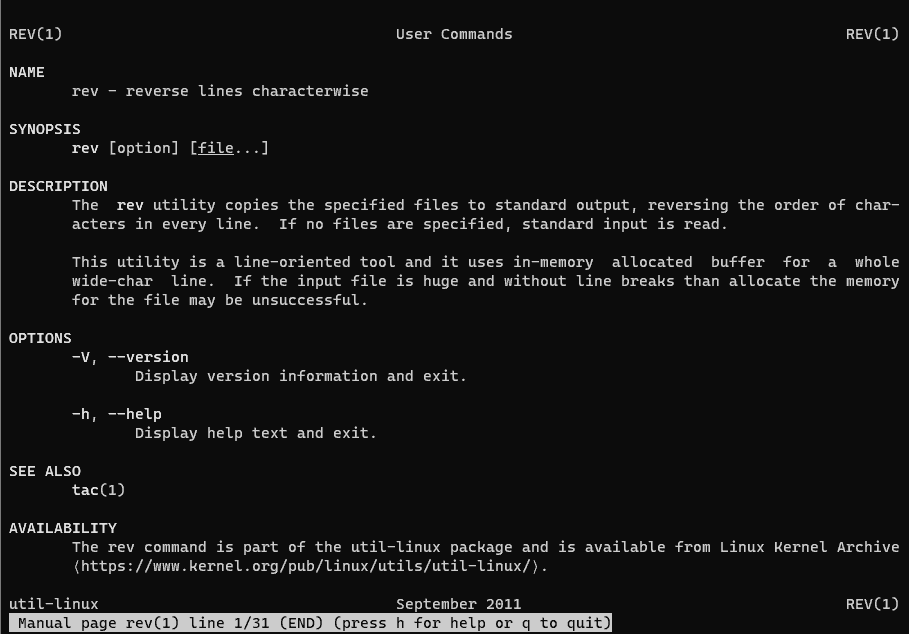
The syntax rev command in Linux

rev [option] [file...]

Some common options for the “rev” command include:

  • -V: Displays the version information for the command.
  • -h: Shows the help information.
  • -c: Treats input as single characters instead of entire lines.

In the manual page, the rev command is described succinctly as a utility to “reverse lines character-wise.” For comprehensive information about the rev command, including its options and examples, refer to the man page by entering man rev in the terminal. This will provide detailed insights into its functionality and usage.

For example rev command

Using the rev command reverses the output of the hostname command as below

[root@ip-10-0-0-236 ~]# hostname
ip-10-0-0-236.us-east-2.compute.internal
[root@ip-10-0-0-236 ~]# hostname | rev
lanretni.etupmoc.2-tsae-su.632-0-0-01-pi
[root@ip-10-0-0-236 ~]#

How to get 8 last characters use the combine rev command and cut command.

[root@ip-10-0-0-236 ~]# hostname
ip-10-0-0-236.us-east-2.compute.internal
[root@ip-10-0-0-236 ~]# hostname | rev | cut -b 1-8 | rev
internal

Sorting File Lines by Last Character

[ec2-user@ip-172-31-45-95 ~]$ cat domain.txt
devopsroles.com
abc.xyz
huuphan.com

[ec2-user@ip-172-31-45-95 ~]$ cat domain.txt  | rev | sort | rev
huuphan.com
devopsroles.com
abc.xyz

Conclusion

Throughout this article, you’ve seen how to utilize the rev command to Reverse characters Linux command. It’s important to remember that the rev command does not alter the original file; it merely displays the reversed output in the terminal or saves it to a new file. I hope you find these examples helpful for mastering the rev command. Thank you for reading at DevopsRoles!

Install nslookup on Linux

Introduction

In this tutorial, How to install on Linux. is part of the bind-utils package. The package bind-utils is not yet installed on Linux, then you type command not found on Linux.

To install nslookup on Linux, you need to install the dnsutils package, which contains the nslookup utility. The process for installing the package can vary depending on the Linux distribution you are using. Here are the commands for some popular distributions:

How to Install nslookup on Linux

Install nslookup for Centos

[vagrant@DevopsRoles ~]$ sudo yum install bind-utils

Install nslookup for Ubuntu

Use apt-cache to search the package for nslookup command.

[vagrant@DevopsRoles ~]$ apt-cache search nslookup

The result found 2 packages that are related to nslookup.

dnsutils - Clients provided with BIND
libnet-nslookup-perl - simple DNS lookup module for perl

so install nslookup

[vagrant@DevopsRoles ~]$ sudo apt-get install dnsutils

Once the installation is complete, you can use nslookup from the command line.

[vagrant@DevopsRoles ~]$ nslookup x.x.x.x

Conclusion

In this guide, we have covered how to install and use the nslookup command on Linux, specifically for CentOS and Ubuntu. Whether you’re troubleshooting DNS issues or simply querying domain name records, nslookup is a powerful and essential tool for network administrators and IT professionals.

By following the simple installation steps, you can quickly enable nslookup on your system and start resolving domain names with ease. If you encounter any issues, ensure that your system’s package manager is up to date and that you have the necessary permissions to install packages.

We hope this guide has been helpful! If you have any questions or need further assistance, feel free to leave a comment or check out our other Linux tutorials. Thank you for reading the DevopsRoles page!

Mastering the gunzip command in Linux: A Comprehensive Guide with Examples

Introduction

gunzip command in Linux, compressing and decompressing files are essential skills for users. One of the most popular commands for decompressing files in Linux is gunzip. This command helps decompress files that have been compressed using gzip, a common compression format in Unix-like systems. In this article, we will delve into the details of the gunzip command, how to use it, and provide practical examples that you can apply in your daily tasks.

Syntax

gunzip [ -acfhlLnNrtvV ] [-S suffix] [ name … ]

According to the man page, the gunzip command is used to compress or expand files.

To get more detailed information about the gunzip command, you can use:

man gunzip

gunzip command in Linux with Examples

$ gunzip devopsroles.txt.gz

Keep both the compressed and Decompressed files.

$ gunzip -k devopsroles.txt.gz

Display compressed within it without decompressing first.

$ gunzip -c devopsroles.txt.gz

Test Whether a Compressed File Is Valid before Decompressing it.

$ gunzip -t devopsroles.txt.gz

Show verbose information when you decompress the file.

$ gunzip -v devopsroles.txt.gz

Decompress Multiple Files at Once

gunzip file1.gz file2.gz file3.gz

To decompress a file while keeping the original compressed file, use the -c option and redirect the output:

gunzip -c file.gz > file

Conclusion

The gunzip command is a powerful and easy-to-use tool in Linux for decompressing gzip files. By mastering its options and syntax, you can save time and effort in file management. Hopefully, this article has provided you with a clearer understanding of how to use gunzip command in Linux effectively in your daily tasks. Keep exploring and leveraging the powerful tools of Linux to enhance your work efficiency and system management. Thank you for reading the DevopsRoles page!

Mastering the unzip command in Linux: A Comprehensive Guide with Examples

Introduction

unzip command in Linux means list, test, and extract compressed files in a ZIP archive. In the Linux operating system, compressing and decompressing files are essential skills for users. One of the most popular commands for decompressing ZIP files is unzip. This command not only helps to extract ZIP files but also provides many useful options for effective file management. In this article, we will explore the unzip command in detail, how to use it, and provide practical examples that you can apply in your daily tasks.

unzip syntax

unzip [-Z] [-cflptTuvz[abjnoqsCDKLMUVWX$/:^]] file[.zip] [file(s) …] [-x xfile(s) …] [-d exdir]

According to the man page, the unzip command is used to list, test, and extract compressed files in a ZIP archive.

To get more detailed information about the unzip command, you can use:

man unzip

unzip command in Linux with Examples

$ unzip devopsroles.zip

List all files from a .zip file

[vagrant@DevopsRoles ~]$ ll
 total 4
 -rw-rw-r--. 1 vagrant vagrant 638 Oct  1 06:46 Devops.zip
 [vagrant@DevopsRoles ~]$ unzip -l Devops.zip 
 Archive:  Devops.zip
   Length      Date    Time    Name
 ---------  ---------- -----   ----
         0  10-01-2019 06:45   Devops/
         0  10-01-2019 06:45   Devops/DevopsRoles/
         0  10-01-2019 06:45   Devops/huupv.csv
         0  10-01-2019 06:45   Devops/xxx
 ---------                     -------
         0                     4 files

Test a .zip file validity

[vagrant@DevopsRoles ~]$ unzip -tq Devops.zip 
 No errors detected in compressed data of Devops.zip.

How to extract unzip all files/folders into a certain directory

[vagrant@DevopsRoles ~]$ ll
 total 4
 -rw-rw-r--. 1 vagrant vagrant 638 Oct  1 06:46 Devops.zip
 [vagrant@DevopsRoles ~]$ unzip Devops.zip -d DevopsRoles
 Archive:  Devops.zip
    creating: DevopsRoles/Devops/
    creating: DevopsRoles/Devops/DevopsRoles/
  extracting: DevopsRoles/Devops/huupv.csv  
  extracting: DevopsRoles/Devops/xxx  
 [vagrant@DevopsRoles ~]$ ll
 total 4
 drwxrwxr-x. 3 vagrant vagrant  20 Oct  1 06:51 DevopsRoles
 -rw-rw-r--. 1 vagrant vagrant 638 Oct  1 06:46 Devops.zip

Conclusion

The unzip command is a powerful and flexible tool in Linux for extracting ZIP files. By mastering its options and syntax, you can improve your work efficiency and manage files more effectively. Hopefully, this article has given you a clearer understanding of how to use the unzip command and how to apply it to your daily tasks. Keep exploring and leveraging the powerful tools of Linux to enhance your work efficiency and system management. Thank you for reading the DevopsRoles page!
Mastering the expr command in Linux: A Comprehensive Guide with Examples

Introduction

expr command in Linux means Evaluate expressions. In the Linux operating system, performing arithmetic and string operations is a common requirement, especially when writing shell scripts. The expr command is a versatile and powerful tool that allows users to evaluate expressions, including arithmetic operations, string manipulations, and logical comparisons.

In this article, we will explore the expr command in detail, learn how to use it, and provide practical examples that demonstrate its capabilities in real-world scenarios.

Syntax

expr EXPRESSION
expr OPTION

According to the man page, the expr command in Linux is used to evaluate expressions.

For more detailed information about the expr command, you can use:

man expr

expr command in Linux with Examples

You can combine multiple expressions using logical operators:

expr \( 5 + 3 \) \* 2
# Output: 16

Less Than Comparison

expr 3 \< 5
# Output: 1 (true)

Greater Than Comparison

expr 5 \> 3
# Output: 1 (true)

Not Equal Comparison

expr 5 != 3
# Output: 1 (true)

Equal Comparison

expr 5 = 5
# Output: 1 (true)

Conclusion

The expr command is a powerful and versatile tool in Linux, essential for performing arithmetic operations, string manipulations, and logical comparisons in shell scripts. By mastering the expr command, you can enhance your scripting capabilities and manage tasks more efficiently.

This article has provided an overview of the expr command, its syntax, and practical examples to help you apply it in real-world scenarios. Keep exploring and utilizing the expr command to improve your Linux command-line skills and script automation.

expr command is a simple command in Linux. It is the most popular in-use terminal Linux evaluation expression. Thank you for reading the DevopsRoles page!

Mastering the touch command in Linux: A Comprehensive Guide with Examples

Introduction

touch command means Change file timestamps. The touch command in Linux is used to create empty files or update the timestamp of existing files.

In the Linux operating system, the ability to create and manipulate files is essential for effective file management and scripting. One of the most fundamental commands for this purpose is the touch command.

The touch command is primarily used to create new empty files and update file timestamps. In this article, we will explore the touch command in detail, learn how to use it, and provide practical examples that demonstrate its capabilities in real-world scenarios.

Syntax

touch [OPTION]… FILE…

According to the man page, the touch command is used to change file timestamps.

For more detailed information about the touch command examples, you can use:

man touch

touch command in Linux with Examples

Create a new file:

$ touch devopsroles.txt

Create multiple files at once:

touch file1.txt file2.txt file3.txt

Set a specific timestamp:

touch -t 202306151200.00 filename.txt

Create a new file with specific permissions:

touch -m 644 filename.txt

Update the timestamp of a file

touch filename.txt

To set the timestamp of a file based on the timestamp of another file, use the -r option followed by the reference file:

touch -r referencefile.txt targetfile.txt

To create a file only if it does not already exist (and do nothing if it does), use the -c option:

touch -c existingfile.txt

Conclusion

touch command in Linux is a simple command in Linux. It is the most popular in-use terminal Linux change file timestamps.

The touch command is a versatile and essential tool in Linux for creating files and modifying timestamps. By mastering its options and syntax, you can enhance your file management skills and streamline your shell scripting tasks. Hopefully, this article has provided you with a clearer understanding of how to use the touch command effectively and apply it in your daily activities.

Keep exploring and leveraging the powerful commands in Linux to improve your efficiency and productivity in managing systems and automating tasks. Thank you for reading the DevopsRoles page!

join command in Linux with Examples

Introduction

join command in Linux means Join lines of two files on a common field. In the Linux operating system, processing and merging text files are common tasks that are essential for effective data management and manipulation.

The join command is a powerful tool that allows users to combine lines of two files based on a common field. This command is particularly useful for merging data sets and performing relational database-like operations on text files. In this article, we will explore the join command in detail, learn how to use it, and provide practical examples that demonstrate its capabilities in real-world scenarios.

Syntax join command in Linux

join [OPTION]… FILE1 FILE2

According to the man page, the join command merges lines of two files based on a common field. For more detailed information about the join command, you can use:

man join

join command in Linux with Examples

To join two files on the first field by default, use:

$ join huuphan.txt devopsroles.txt

To join files on a specific field, use the -1 and -2 options to specify the field numbers in the first and second files, respectively:

join -1 2 -2 3 file1.txt file2.txt

To include lines from both files that do not have a matching join field, use the -a option:

join -a 1 -a 2 file1.txt file2.txt

To change the output field separator, use the -t option:

join -t ',' file1.csv file2.csv

To suppress the output of unpaired fields, use the -o option:

join -o 1.1 1.2 2.3 file1.txt file2.txt

To perform a case-insensitive join, use the -i option:

join -i file1.txt file2.txt

Basic Usage of join Command

Let’s start with the basics of the join command. Consider two files, file1.txt and file2.txt.

Example Files:

file1.txt

1 Apple
2 Banana
3 Cherry

file2.txt

1 Red
2 Yellow
3 Red

Basic Command:

To join these files based on the first field:

join file1.txt file2.txt

Output:

1 Apple Red
2 Banana Yellow
3 Cherry Red

Options and Their Usage

Specifying a Different Field

By default, join uses the first field for matching. To specify a different field, use the -1 and -2 options.

join -1 1 -2 1 file1.txt file2.txt

Including Unpaired Lines

To include lines that do not have a matching pair, use the -a option.

join -a 1 -a 2 file1.txt file2.txt

Specifying Delimiters

If the fields in the files are separated by a delimiter other than a space, use the -t option.

join -t ',' file1.csv file2.csv

Advanced Usage of join Command

Combining Files with Multiple Fields

Consider two files with multiple fields:

file1.txt

1 Apple 5
2 Banana 10
3 Cherry 7

file2.txt

1 Red
2 Yellow
3 Red

To join based on the first field and include multiple fields from the first file:

join -1 1 -2 1 file1.txt file2.txt

Output with Multiple Fields:

1 Apple 5 Red
2 Banana 10 Yellow
3 Cherry 7 Red

Ignoring Case Differences

To perform a case-insensitive join, use the -i option.

join -i file1.txt file2.txt

Customizing Output Format

To customize the output format, use the -o option followed by the field specifiers.

join -o 1.1,1.2,2.2 file1.txt file2.txt

Handling Missing Fields

To handle missing fields gracefully, use the -e option to provide a default value.

join -e 'N/A' file1.txt file2.txt

Common Errors and Troubleshooting

Mismatched Delimiters

Ensure that the delimiters in both files match when using the -t option. Mismatched delimiters can cause unexpected results.

Non-Sorted Files

The join command requires input files to be sorted based on the join field. Use the sort command to sort the files beforehand.

sort file1.txt -o file1.txt
sort file2.txt -o file2.txt
join file1.txt file2.txt

Different Number of Fields

Ensure that both files have the same number of fields if you are using the -o option to specify output format.

Frequently Asked Questions (FAQs)

What is the join the command used for in Linux?

The join command is used to merge lines from two files based on a common field, typically for data processing and analysis tasks.

How do I join files with a different delimiter?

Use the -t option followed by the delimiter character to specify a different delimiter.

Can I join files on fields other than the first field?

Yes, use the -1 and -2 options to specify the fields in the first and second files, respectively.

How do I include unmatched lines in the output?

Use the -a option to include unmatched lines from either or both files.

How do I handle case differences in the join field?

Use the -i option to perform a case-insensitive join.

Conclusion

join command is a simple command in Linux.The join command is a versatile and powerful tool in Linux for merging lines of text files based on a common field. By mastering its options and syntax, you can enhance your data processing skills and streamline your file management tasks.

Hopefully, this article has provided you with a clearer understanding of how to use the join command examples effectively and apply them in your daily activities. Keep exploring and leveraging the powerful commands in Linux to improve your efficiency and productivity in managing data and automating tasks. Thank you for reading the DevopsRoles page!

Refer to:

Mastering the ps command in Linux: A Comprehensive Guide with Examples

Introduction

ps command in Linux means ps displays information about a selection of the active processes. In the Linux operating system, managing and monitoring processes is a crucial task for system administrators and users alike. The ps command is an essential tool for viewing the currently running processes on a system.

It provides detailed information about each process, including its process ID (PID), the user who owns the process, and the resources it is consuming. In this article, we will explore the ps command in detail, learn how to use it effectively and provide practical examples to demonstrate its capabilities in real-world scenarios.

Syntax

ps [options]

According to the man page, the ps the command provides a snapshot of the current processes.

For more detailed information about the ps command, you can use:

man ps

ps command in Linux with Examples

$ ps

Display User Running Processes

[vagrant@DevopsRoles ~]$ ps -X
#To display a user’s processes by real user ID (RUID) 
[vagrant@DevopsRoles ~]$ ps -fU vagrant

Display Group Processes

[vagrant@DevopsRoles ~]$ ps -fG vagrant

print a process tree for a given process

[vagrant@DevopsRoles ~]$ ps -ef --forest | grep -v grep | grep sshd 
 root      2414     1  0 06:38 ?        00:00:00 /usr/sbin/sshd -D -u0
 root      4087  2414  0 06:39 ?        00:00:00  _ sshd: vagrant [priv]
 vagrant   4090  4087  0 06:39 ?        00:00:00      _ sshd: vagrant@pts/0

Print Process Threads

[vagrant@DevopsRoles ~]$ ps -fL -C sshd
 UID        PID  PPID   LWP  C NLWP STIME TTY          TIME CMD
 root      2414     1  2414  0    1 06:38 ?        00:00:00 /usr/sbin/sshd -D -u0
 root      4087  2414  4087  0    1 06:39 ?        00:00:00 sshd: vagrant [priv]
 vagrant   4090  4087  4090  0    1 06:39 ?        00:00:00 sshd: vagrant@pts/0
 root      4730  2414  4730  3    1 07:17 ?        00:00:00 sshd: vagrant [priv]
 vagrant   4733  4730  4733  0    1 07:17 ?        00:00:00 sshd: vagrant@pts/1

To view the PID, PPID, user name, and command of a process.

[vagrant@DevopsRoles ~]$ ps -eo pid,ppid,user,cmd | grep vagrant
  4087  2414 root     sshd: vagrant [priv]
  4090  4087 vagrant  sshd: vagrant@pts/0
  4091  4090 vagrant  -bash
  4730  2414 root     sshd: vagrant [priv]
  4733  4730 vagrant  sshd: vagrant@pts/1
  4734  4733 vagrant  -bash
  4770  4091 vagrant  ps -eo pid,ppid,user,cmd
  4771  4091 vagrant  grep --color=auto vagrant

Find the top running processes by highest memory and CPU usage in Linux.

[vagrant@DevopsRoles ~]$ ps -eo pid,ppid,cmd,%mem,%cpu --sort=-%mem | head
   PID  PPID CMD                         %MEM %CPU
  2413     1 /usr/bin/python2 -Es /usr/s  3.4  0.0
  1666     1 /usr/sbin/NetworkManager --  1.7  0.0
  1502     1 /usr/lib/polkit-1/polkitd -  1.6  0.0
     1     0 /usr/lib/systemd/systemd --  1.2  0.0
  4730  2414 sshd: vagrant [priv]         1.1  0.0
  4087  2414 sshd: vagrant [priv]         1.1  0.0
  2359  1666 /sbin/dhclient -d -q -sf /u  1.0  0.0
  1076     1 /usr/lib/systemd/systemd-ud  0.9  0.0
  2418     1 /usr/sbin/rsyslogd -n        0.9  0.0
 [vagrant@DevopsRoles ~]$ ps -eo pid,ppid,cmd,%mem,%cpu --sort=-%cpu | head
   PID  PPID CMD                         %MEM %CPU
     1     0 /usr/lib/systemd/systemd --  1.2  0.0
     2     0 [kthreadd]                   0.0  0.0
     3     2 [ksoftirqd/0]                0.0  0.0
     5     2 [kworker/0:0H]               0.0  0.0
     6     2 [kworker/u2:0]               0.0  0.0
     7     2 [migration/0]                0.0  0.0
     8     2 [rcu_bh]                     0.0  0.0
     9     2 [rcu_sched]                  0.0  0.0
    10     2 [lru-add-drain]              0.0  0.0

Conclusion

ps command in Linux is a simple command in Linux. The ps command is a powerful and versatile tool in Linux for monitoring and managing system processes. By mastering its options and syntax, you can gain valuable insights into the processes running on your system, diagnose issues, and optimize performance.

Hopefully, this article has provided you with a clearer understanding of how to use the ps command effectively and apply it in your daily tasks. Keep exploring and leveraging the powerful commands in Linux to enhance your efficiency and productivity in system administration and process management. Thank you for reading the DevopsRoles page!

Linux command tips and tricks

Introduction

In this tutorial, I system admin. Linux the essential for DevOps Roles.

Begin with an engaging introduction that explains the importance of mastering Linux commands for DevOps professionals. Highlight how these commands enhance productivity and streamline operations in a Linux environment.

Linux command tips and tricks

How to return to the previous directory

$ cd -

The display headers and footers in FileName.

$ cat filename | sed -e '$d' | awk 'NR > 1 {print}'

Search files under arbitrary directories

$ find ./ -name '*'|xargs grep 'devopsroles.com'

Empty the file.

$ cat /dev/null > filename.txt

Move to thereafter create the folder

$ mkdir dir_name ; cd $_

To count the number of files in any directory.

$ ls -F |grep -v / |wc -l

or count the number of folders in any directory.

$ ls -F |wc -l

Convert all extensions

$ for filename in *.txt; do mv $filename ${filename%.txt}.txt.old; done

To create serial number files.

$ touch foo_{1..4}.csv
$ touch {A..X}.csv

Delete “.DS_store” in bash

$ find . -name '.DS_Store' -type f -ls -delete

How to delete the last slash of the path.

$ MYDIR=${MYDIR%/}

Extract processes that use a lot of physical memory

$ ps aux | sort -n -k 6 | tail -n 10

Find processes with high CPU utilization

$ vmstat 1 | awk '{print strftime("%y/%m/%d %H:%M:%S"), $0}

lsof command list of ports in Listen

$ lsof -Pan -i tcp -i udp

Generate random passwords using the head command and tr command.

$ head /dev/urandom | tr -dc A-Za-z0-9 | head -c 13 ; echo ''

Extract a character string

$ echo 'devopsroles.com' | awk '{print substr($0, 2)}'

the mount command the display formatting with column

$ mount | column -t

To See CPU utilization per user

$ ps aux | awk  '{if (NR> 1) {p [$1] +=$3; n [$ 1] ++}} END {for (i in p) print p [i], n [i], i }'

How much RAM is installed on this system?

[huupv@huupv devopsroles]$ sudo dmidecode -t 17 | grep "Size.*MB" | awk '{s+=$2} END {print s / 1024 "GB"}'

Awk command line

Character count (wc – c)

$ awk '{n+=length($0)} END{print n}' filename

Word count (wc – w)

$ awk '{n+=NF} END{print n}' filename

Row count (wc – l)

$ awk 'END{print NR}' filename

Display from specified line to specified line

$ awk 'NR==3,NR==10'

Kill bulk by process name

$ kill $(ps aux | grep  "jenkins" | awk '{print $2;}')

Conclusion

Throughout this article, we’ve explored various Linux command tips and tricks. I hope you find these insights useful for your tasks. Thanks for visiting the DevopsRoles page.