Tag Archives: Linux Commands

Using Netdata to Monitor PHP-FPM

In this tutorial, How to Monitor the PHP-fpm using Netdata on Centos 7. Netdata is a free open source. It is very easy to install and configure for real-time monitoring. Now, let’s go to Netdata to Monitor PHP-FPM.

PHP-FPM (FastCGI Process Manager) is an alternative PHP FastCGI. It is commonly used in LEMP ( Linux Nginx MySQL/MariaDB PHP) stack; Nginx uses PHP FastCGI for serving dynamic HTTP content.

Steps install and configure

  • Centos 7 Server or RHEL 7 Server
  • Install PHP and enable PHP-FPM status
  • Install Netdata and configure Monitor for PHP-FPM status.

1. How to Install PHP

For example, How to install PHP version 7.3 on Centos 7.

2. Enable the PHP-FPM status page.

Check php-fpm running on your system.

[root@DevopsRoles vagrant]# netstat -nplt | grep php-fpm
tcp        0      0 127.0.0.1:9000          0.0.0.0:*               LISTEN      4328/php-fpm: maste 
[root@DevopsRoles vagrant]# ps -ef | grep php
root      4328     1  0 21:50 ?        00:00:00 php-fpm: master process (/etc/opt/remi/php73/php-fpm.conf)
apache    4329  4328  0 21:50 ?        00:00:00 php-fpm: pool www
apache    4330  4328  0 21:50 ?        00:00:00 php-fpm: pool www
apache    4331  4328  0 21:50 ?        00:00:00 php-fpm: pool www
apache    4332  4328  0 21:50 ?        00:00:00 php-fpm: pool www
apache    4333  4328  0 21:50 ?        00:00:00 php-fpm: pool www
root      4381  3003  0 21:52 pts/0    00:00:00 grep --color=auto php

Configure file php-fpm status as shown.

$ sudo vim /etc/php-fpm.d/www.conf 
OR
$ sudo vim /etc/opt/remi/php73/php-fpm.d/www.conf	#for PHP versions 7.0, 7.1,7.3 vvv

You find and uncomment the variable pm.status_path = /status as shown in the screenshot.

[root@DevopsRoles vagrant]# cat /etc/opt/remi/php73/php-fpm.d/www.conf | grep pm.status_path
pm.status_path = /status

Save the changes and exit the file.

Check the PHP-FPM configuration file for any errors

$ sudo php-fpm -t
OR
$ sudo systemctl restart php73-php-fpm

Create a new Nginx config for PHP-FPM as shown

[root@DevopsRoles ~]# vi /etc/nginx/conf.d/php-fpm.conf

# The content as below:

    server {

        listen       80;
        #listen       [::]:80 default_server;
        server_name  127.0.0.1;

    location  /status {
        access_log off;
        allow 127.0.0.1;
        fastcgi_param SCRIPT_FILENAME $document_root$fastcgi_script_name;
        fastcgi_index index.php;
        deny all;
        include fastcgi_params;
        fastcgi_pass 127.0.0.1:9000;
   }
   }

Reload PHP-FPM and Nginx config for changes to take effect.

[root@DevopsRoles ~]# systemctl reload php73-php-fpm
[root@DevopsRoles ~]# systemctl reload nginx

Now, Use the curl command to check php-fpm status.

root@DevopsRoles ~]# curl http://127.0.0.1/status
pool:                 www
process manager:      dynamic
start time:           18/Jul/2020:10:16:17 +0700
start since:          878
accepted conn:        14
listen queue:         0
max listen queue:     0
listen queue len:     128
idle processes:       4
active processes:     1
total processes:      5
max active processes: 1
max children reached: 0
slow requests:        0

Memo: meaning of different values of PHP-FPM Status

-pool – the name of the pool.
-process manager – possible values static, dynamic or ondemand. We never use static.  Trying ondemand is on todo list.
-start time – the date and time FPM has started or reloaded.
-start since – number of seconds since FPM has started
-accepted conn – the number of request accepted by the pool
-listen queue – the number of request in the queue of pending connections. If this number is non-zero, then you better increase number of process FPM can spawn.
-max listen queue – the maximum number of requests in the queue of pending connections since FPM has started
-listen queue len – the size of the socket queue of pending -connections
-idle processes – the number of idle processes
-active processes – the number of active processes
-total processes – the number of idle + active processes
-max active processes – the maximum number of active processes since FPM has started
-max children reached – number of times, the process limit has been reached, when pm tries to start more children. If that value is not zero, then you may need to increase max process limit for your PHP-FPM pool. Like this, you can find other useful information to tweak your pool better way.
-slow requests – Enable php-fpm slow-log before you consider this. If this value is non-zero you may have slow php processes. Poorly written mysql queries are generally culprit.

3. Install Netdata on Centos 7 here

4. Configure Netdata to Monitor PHP-FPM

The Netdata configure for Nginx in folder /etc/netdata/python.d which is written in YAML format.

You can open it or create a new file php-fpm.conf as shown

[root@DevopsRoles python.d]# cat /etc/netdata/python.d/php-fpm.conf 
# The output as below:
localhost:
  name : 'local'
  url  : 'http://localhost/status'

localipv4:
  name : 'local'
  url  : 'http://127.0.0.1/status'

Restart Netdata Server

[root@DevopsRoles ~]# systemctl restart netdata 

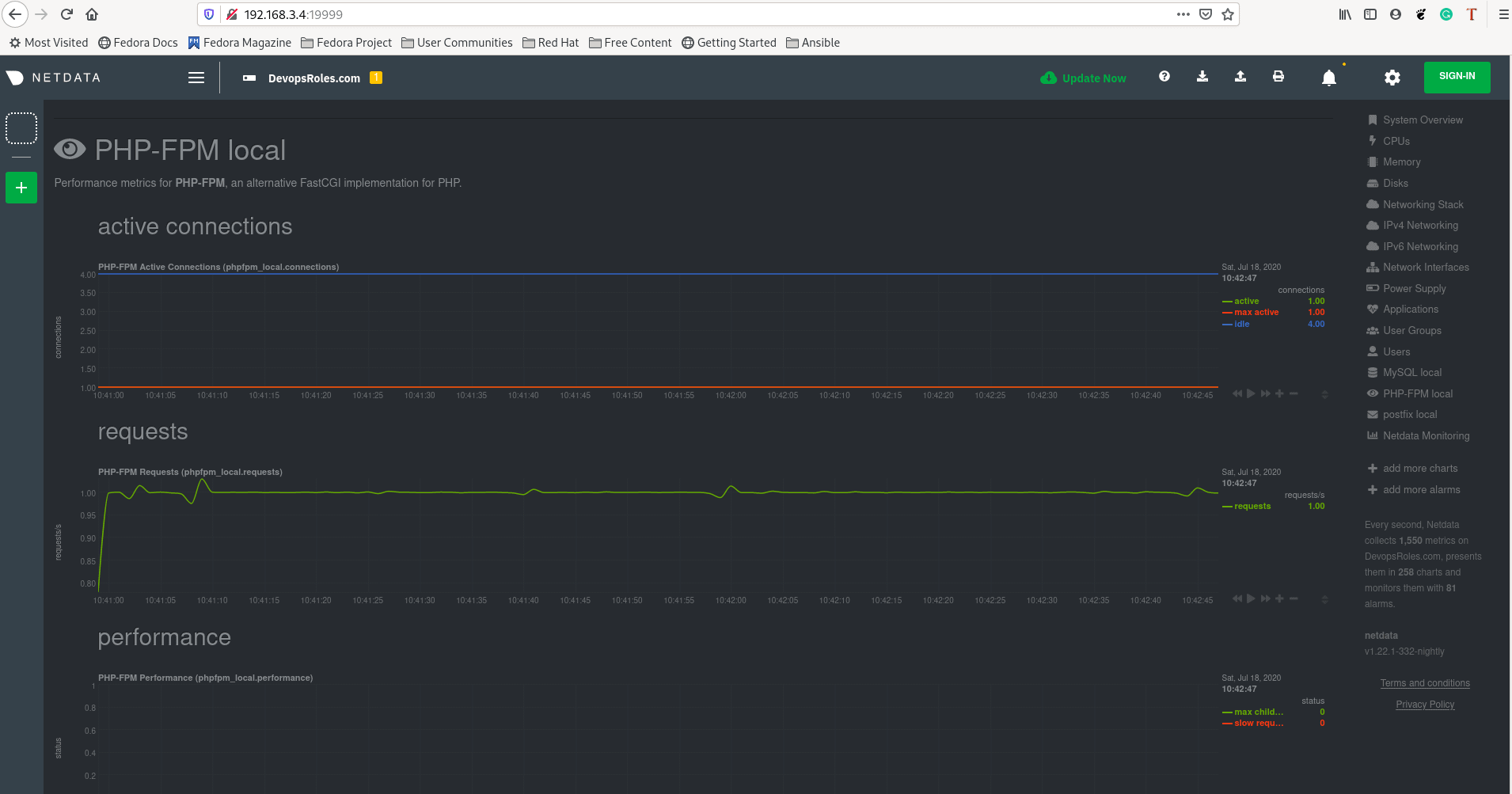
5. Using Netdata to Monitor PHP-FPM

Open a web browser access the netdata web UI.

http://NETDATA_SERVER_IP:19999
or
http://DOMAIN_NAME:19999

The result as the picture below

Conclusion

Through the article, you can use Netdata to monitor PHP-FPM. I hope will this your helpful. Thank you for reading the DevopsRoles page!

Using Netdata to Monitor Nginx

In this tutorial, How to Monitor the Nginx using Netdata on Centos 7. Netdata is a free open source. It is very easy to install and configure for real-time monitoring.

Steps install and configure

  • Centos 7 Server or RHEL 7 Server
  • Install Web Server Nginx
  • Install Netdata and configure Monitor for Web Server Nginx.

1. Install Web Server Nginx

Enable EPEL repository

[root@DevopsRoles ~]# yum install epel-release

Install the Nginx package, as follows.

[root@DevopsRoles ~]# yum install nginx

Start and enable Nginx Web Server, as follows.

[root@DevopsRoles ~]# systemctl start nginx
[root@DevopsRoles ~]# systemctl enable nginx
[root@DevopsRoles ~]# systemctl status nginx

If you are running a firewall. You need to open port 80/443 for Nginx Webserver.

Enable Nginx Stub_Status Module

I will enable the stub_status module which netdata uses to collect metrics from your Nginx web server.

[root@DevopsRoles ~]# vi /etc/nginx/nginx.conf

Copy and paste the location configuration as below

location /server_status {
 	stub_status;
 	allow 127.0.0.1;	#only allow requests from localhost
 	deny all;		#deny all other hosts	
 }

restart the Nginx service to effect

[root@DevopsRoles ~]# nginx -t
[root@DevopsRoles ~]# systemctl restart nginx

Now, Use curl command to check

curl http://127.0.0.1/server_status

# The output terminal as below:
[root@DevopsRoles ~]# curl http://127.0.0.1/server_status
Active connections: 1 
server accepts handled requests
 1 1 1 
Reading: 0 Writing: 1 Waiting: 0

3. Install Netdata on Centos 7 here

4. Configure Netdata to Monitor Nginx

The Netdata configure for Nginx in folder /etc/netdata/python.d which is written in YAML format.

You can open it or create a new file nginx.conf as below

[root@DevopsRoles python.d]# cat /etc/netdata/python.d/nginx.conf 
# The output as below:
localhost:
  name : 'local'
  url  : 'http://localhost/server_status'

localipv4:
  name : 'local'
  url  : 'http://127.0.0.1/server_status'

Restart Netdata Server

[root@DevopsRoles ~]# systemctl restart netdata 

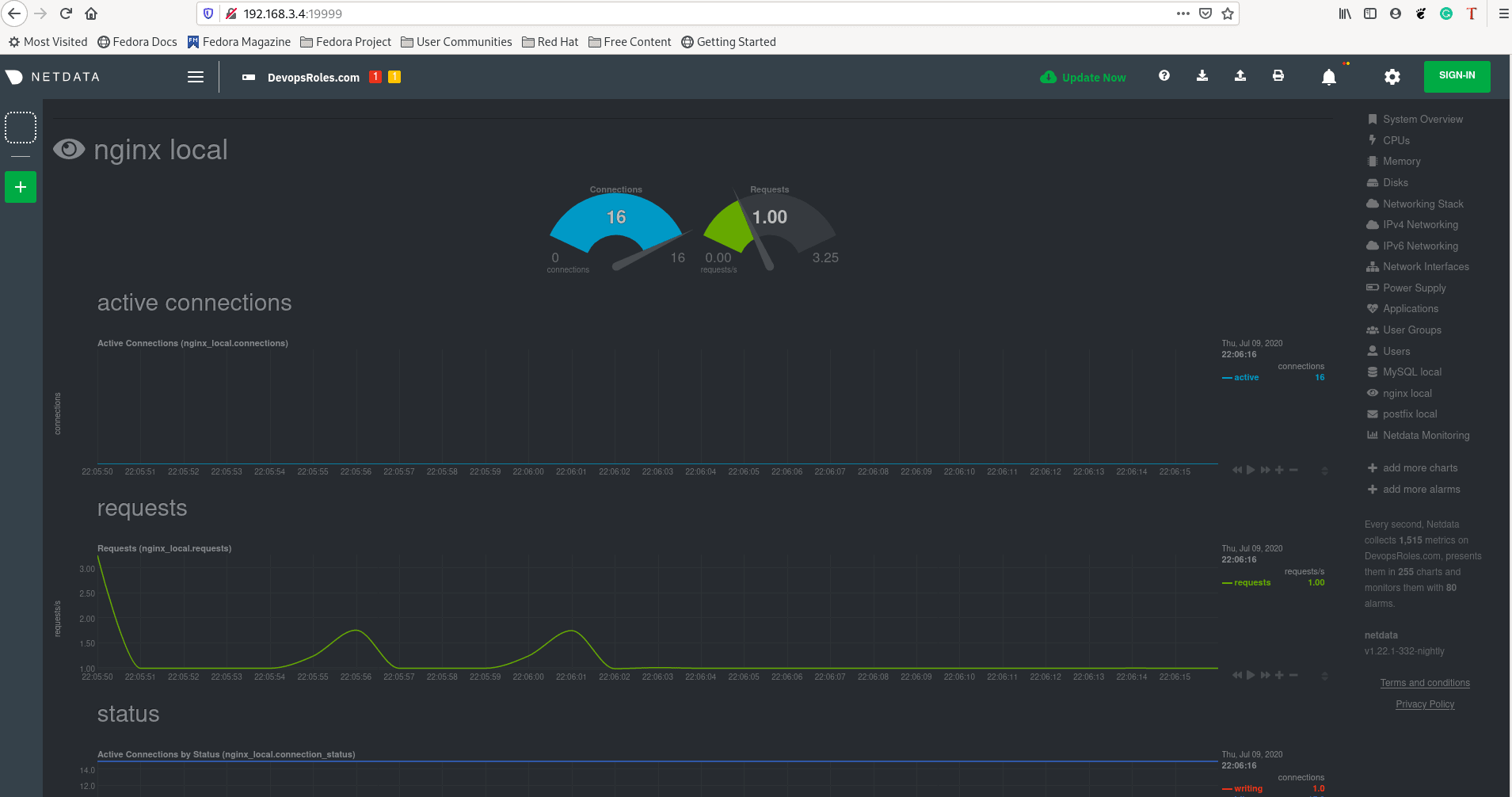
5. Using Netdata to Monitor Nginx Web Server

Open a web browser access the netdata web UI.

http://NETDATA_SERVER_IP:19999
or
http://DOMAIN_NAME:19999

The result as the picture below
Conclusion

Through the article, you can use Netdata to monitor Nginx. I hope will this your helpful. Thank you for reading the DevopsRoles page!

Using Netdata to Monitor MariaDB Database

In this tutorial, How to Monitor the MariaDB database using Netdata on Centos 7. Netdata is a free open source. It is very easy to install and configure for real-time monitoring.

Steps install and configure

  • Centos 7 Server or RHEL 7 Server
  • Install MariaDB Database
  • Install Netdata and configure Monitor for MariaDB Database.

1. Install MariaDB Database

Adding MariaDB YUM software repository.

[root@DevopsRoles ~]# vim /etc/yum.repos.d/MariaDB.repo

The content file MariaDB.repo is as follows.

[mariadb]
name = MariaDB
baseurl = http://yum.mariadb.org/10.1/centos7-amd64
gpgkey=https://yum.mariadb.org/RPM-GPG-KEY-MariaDB
gpgcheck=1

Install the MariaDB package, as follows.

[root@DevopsRoles ~]# yum install MariaDB-server MySQL-python MariaDB-client -y

Start and enable MariaDB Database Server, as follows.

[root@DevopsRoles ~]# systemctl start mariadb
[root@DevopsRoles ~]# systemctl enable mariadb
[root@DevopsRoles ~]# systemctl status mariadb

By default, the MySQL installation is unsecure and you need to secure it, as follows

[root@DevopsRoles ~]# mysql_secure_installation

To create this user MariaDB

MariaDB [(none)]> create user 'netdata'@'localhost'; 
MariaDB [(none)]> grant usage on *.* to 'netdata'@'localhost'; 
MariaDB [(none)]> flush privileges; 

If you are running a firewall. You need to open the port 3306 for MariaDB Database

3. Install Netdata on Centos 7 here

4. Configure Netdata to Monitor MariaDB

The netdata configure for MariaDB in folder /etc/netdata/python.d which is written in YAML format.

You can open it or create a new file mysql.conf as below

[root@DevopsRoles python.d]# cat /etc/netdata/python.d/mysql.conf 
localhost:
  name : 'local'
  user : 'netdata'
  port : '3306'

Restart Netdata Server

[root@DevopsRoles ~]# systemctl restart netdata 

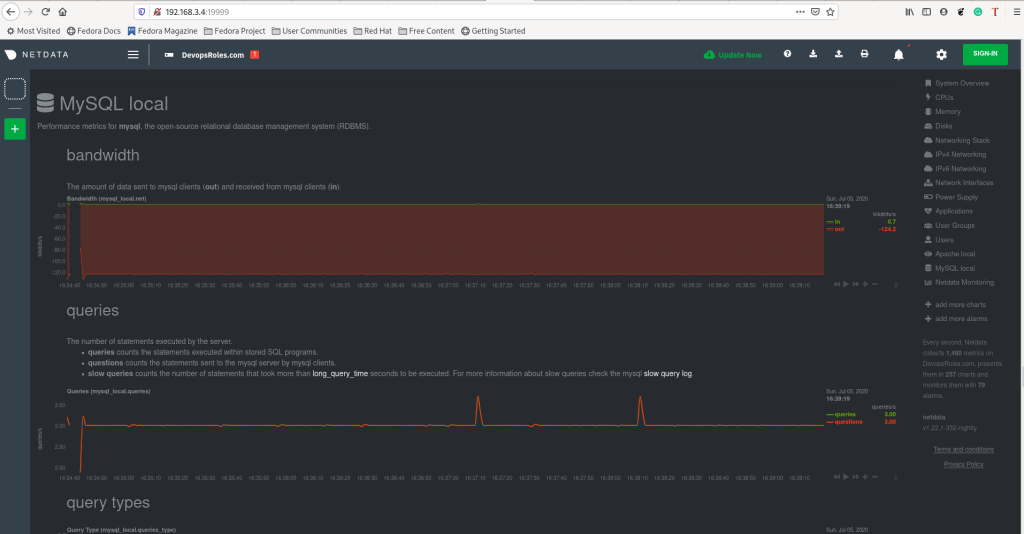
5. Using Netdata to Monitor MariaDB Database

Open a web browser access the netdata web UI.

http://NETDATA_SERVER_IP:19999
or
http://DOMAIN_NAME:19999

The result as the picture below

Netdata debug for mariadb

/usr/libexec/netdata/plugins.d/python.d.plugin 1 debug mysql

Error netdata for MariaDB code (Fixed)

2020-07-05 16:32:37: python.d ERROR: mysql[localhost] : MySQLdb or PyMySQL module is needed to use mysql.chart.py plugin

On My Centos missing MySQL-python package

Conclusion

Through the article, you can use Netdata to Monitor MariaDB Database. I hope will this your helpful.

Using Netdata to Monitor Apache Performance

In this tutorial, How to Monitor Apache Performance using Netdata on Centos 7. Netdata is a free open source. It is very easy to install and configure for real-time monitoring.

Steps install and configure

  • Centos 7 Server or RHEL 7 Server
  • Install Apache HTTP Server with mod_status_module enabled
  • Install Netdata and configure Monitor for Apache HTTP Server.

1. Install Apache HTTP server

First, install the Apache HTTP server on Centos. I will Yum package manager to install Apache.

[root@DevopsRoles ~]# yum install httpd

Start and enable Apache HTTP server.

[root@DevopsRoles ~]# systemctl start httpd
[root@DevopsRoles ~]# systemctl enable httpd
[root@DevopsRoles ~]# systemctl status httpd

If you are running a firewall. You need to open ports 80 and 443 for Apache.

2. Enable mod_status module in Apache

You need to enable and configure the mod_status module in apache, This is required by Netdata.

[root@DevopsRoles ~]# cat /etc/httpd/conf.modules.d/00-base.conf | grep mod_status
LoadModule status_module modules/mod_status.so

Create a server-status.conf for the Apache server-status page as below

[root@DevopsRoles ~]# cat /etc/httpd/conf.d/server-status.conf
<Location "/server-status">
    SetHandler server-status
    #Require host localhost           #uncomment to only allow requests from localhost 
</Location>

Restart Apache HTTP Server

[root@DevopsRoles ~]# systemctl restart httpd

Test working Apache Server status page.

[root@DevopsRoles ~]# curl http://localhost/server-status  

3. Install Netdata on Centos 7 here

4. Configure Netdata to Monitor Apache Performance

The Netdata configure for Apache in folder /etc/netdata/python.d

You can open it or create new file apache.conf as below

[root@DevopsRoles ~]# cat /etc/netdata/python.d/apache.conf
localhost:
  name : 'local'
  url  : 'http://localhost/server-status?auto'

localipv4:
  name : 'local'
  url  : 'http://127.0.0.1/server-status?auto'

Restart netdata server

[root@DevopsRoles ~]# systemctl restart netdata 

5. Using Netdata to Monitor Apache Performance

Open a web browser access the Netdata web UI.

http://NETDATA_SERVER_IP:19999
or
http://DOMAIN_NAME:19999

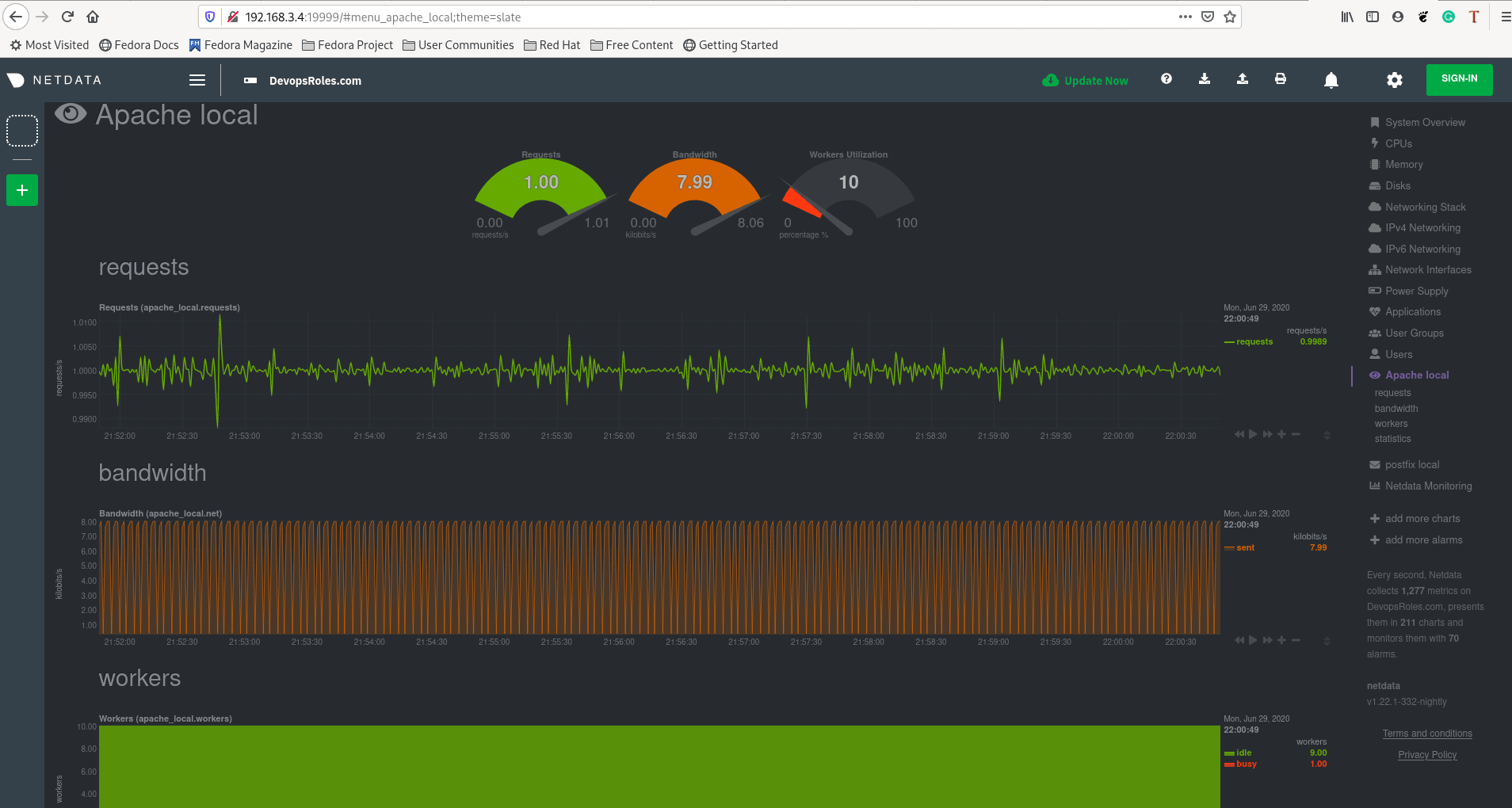
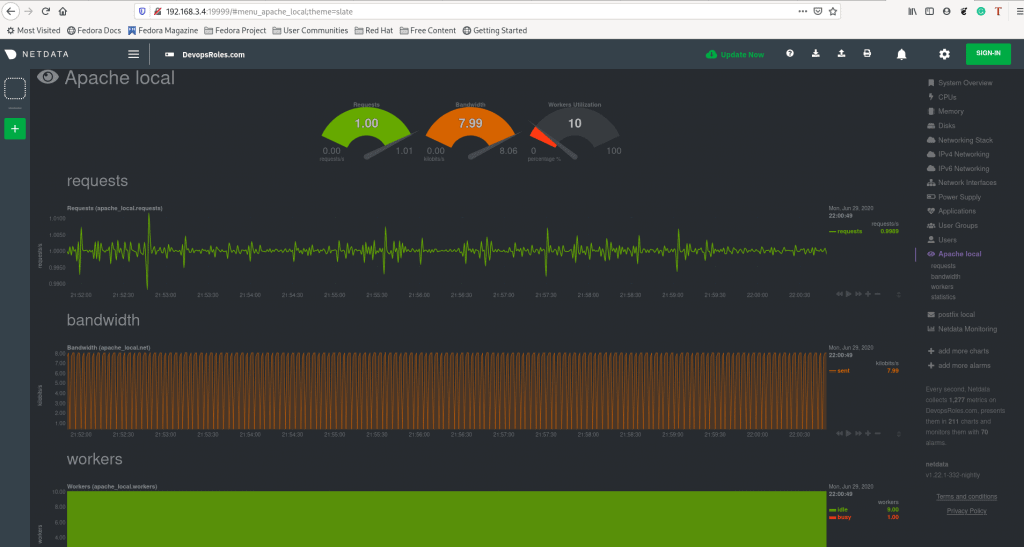
The result as below

Conclusion

Thought the article, you can use Netdata to monitor Apache Performance. I hope will this your helpful.

Linux understand Page cache and buffer cache

In this tutorial, I have written about Linux understand Page cache and buffer cache in Linux System.

Most file-system cache data read from disk.

Linux understand Page cache

What does Page cache work?

A cache of data is accessed via the file system.

How to check page cache is actually used.

Create a large file

[root@DevopsRoles ~]# mkdir /test
[root@DevopsRoles ~]# dd if=/dev/zero of=/test/large.txt count=100 bs=10M
100+0 records in
100+0 records out
1048576000 bytes (1.0 GB) copied, 1.62731 s, 644 MB/s
[root@DevopsRoles ~]# echo 3 > /proc/sys/vm/drop_caches

Check memory usage before putting it in the page cache

[root@DevopsRoles ~]# vmstat
 procs -----------memory---------- ---swap-- -----io---- -system-- ------cpu-----
  r  b   swpd   free   buff  cache   si   so    bi    bo   in   cs us sy id wa st
  1  0      0 377344      0  64336    0    0   441  5203  131  293  0  2 97  0  0

[root@DevopsRoles ~]# cat /test/large.txt > /dev/null

Check memory usage after getting on page cache

[root@DevopsRoles ~]# vmstat 
procs -----------memory---------- ---swap-- -----io---- -system-- ------cpu-----
 r  b   swpd   free   buff  cache   si   so    bi    bo   in   cs us sy id wa st
 2  0      0   6500      0 435008    0    0  3265  3008  108  179  0  2 98  0  0

We will confirm that accessing data in the cache is fast.

Run command 1s

[root@DevopsRoles ~]# time cat /test/large.txt > /dev/null

real	0m1.068s
user	0m0.003s
sys	0m0.987s

Run command 2s

[root@DevopsRoles ~]# time cat /test/large.txt > /dev/null

real	0m1.064s
user	0m0.003s
sys	0m0.981s

Linux understand buffer cache

What does Buffer cache work?

Cache data accessed via raw I/O. It is a page cache for block devices.

How to check Buffer cache is actually used.

[root@DevopsRoles ~]# vmstat
 procs -----------memory---------- ---swap-- -----io---- -system-- ------cpu-----
  r  b   swpd   free   buff  cache   si   so    bi    bo   in   cs us sy id wa st
  1  0      0   5668      0 435832    0    0  6434  2087  116  132  0  2 98  0  0
 [root@DevopsRoles ~]# dd if=/dev/sda of=/dev/null count=100 bs=10M
 100+0 records in
 100+0 records out
 1048576000 bytes (1.0 GB) copied, 1.59043 s, 659 MB/s

Increase buffer cache (buff)

We will confirm that accessing data in the cache is fast.

Run command 1s

[root@DevopsRoles ~]# vmstat
 procs -----------memory---------- ---swap-- -----io---- -system-- ------cpu-----
  r  b   swpd   free   buff  cache   si   so    bi    bo   in   cs us sy id wa st
  2  0      0  13408 359528  68520    0    0  7715  1888  123  127  0  2 98  0  0
 [root@DevopsRoles ~]# time dd if=/dev/sda of=/dev/null count=100 bs=10M
 100+0 records in
 100+0 records out
 1048576000 bytes (1.0 GB) copied, 1.13208 s, 926 MB/s
 real    0m1.138s
 user    0m0.001s
 sys    0m1.068s

Run command 2s

[root@DevopsRoles ~]# vmstat
 procs -----------memory---------- ---swap-- -----io---- -system-- ------cpu-----
  r  b   swpd   free   buff  cache   si   so    bi    bo   in   cs us sy id wa st
  2  0      0  13664 359220  68520    0    0  8896  1747  130  119  0  2 98  0  0
 [root@DevopsRoles ~]# time dd if=/dev/sda of=/dev/null count=100 bs=10M
 100+0 records in
 100+0 records out
 1048576000 bytes (1.0 GB) copied, 1.13821 s, 921 MB/s
 real    0m1.144s
 user    0m0.001s
 sys    0m1.072s

Conclusion

Linux understand Page cache and buffer cache. I hope will this your helpful. Thank you for reading the DevopsRoles page!
nl command in Linux with example

Introduction

In this tutorial, we will explore how to use the nl command in Linux to number lines of files. The nl command is a powerful tool for adding line numbers to the contents of a file or standard input. This can be incredibly useful for referencing specific lines more easily or for organizing and presenting content more clearly. Let’s delve into practical examples to demonstrate how the nl command can be effectively utilized in various scenarios.

What does the nl command mean?

The nl command stands for “number lines,” and it is used in Linux to add line numbers to the contents of files or standard input. This functionality is particularly useful for referencing specific lines more easily in scripts or documents.

nl command syntax

nl [OPTION]… [FILE]…

Some common options for the “nl” command include:

  • -b <type>: Specifies the numbering style. The <type> can be a (all lines), t (non-empty lines), or n (no lines).
  • -i <increment>: Sets the line number increment. The <increment> can be any positive integer.
  • -v <number>: Sets the starting line number. The <number> can be any positive integer.
  • -w <width>: Specifies the field width for line numbers.

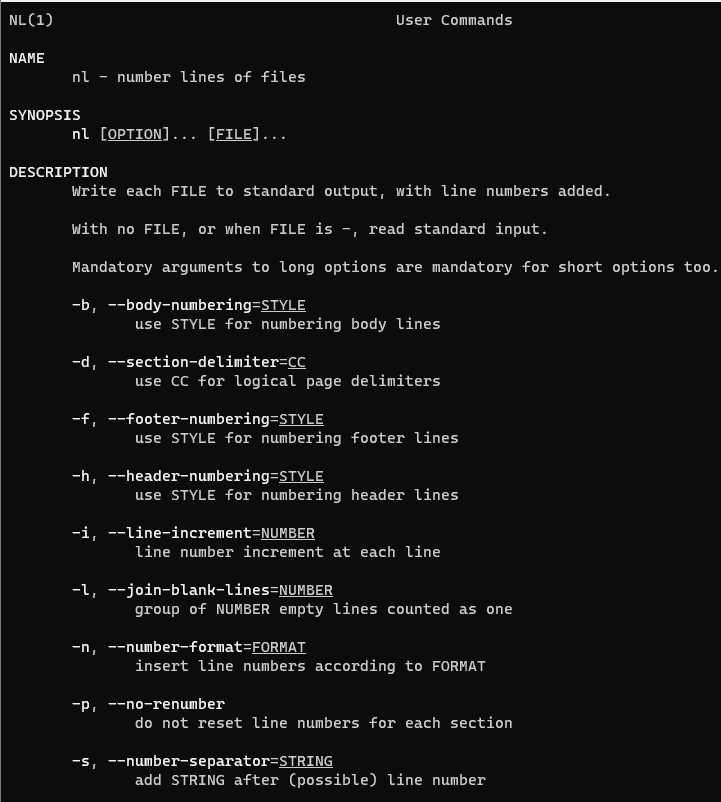
On the man page, the describes it

  • nl – number lines of files.
  • man nl – More details information about nl command.

nl command in Linux with an example

I have created a file nl_command.txt as below

[vagrant@DevopsRoles ~]$ cat nl_command.txt                                    
 HuuPV, My website DevopsRoles.com and HuuPhan.com.SN:199x.
 Devops Roles.
 Devops Roles.
 Devops Roles.
 Devops Roles.
 Hello world :)

By default, the nl command doesn’t number empty lines

[vagrant@DevopsRoles ~]$ nl nl_command.txt 
      1  HuuPV, My website DevopsRoles.com and HuuPhan.com.SN:199x.
      2  Devops Roles.
      3  Devops Roles.
      4  Devops Roles.
      5  Devops Roles.
      6  Hello world :)

How to number empty lines.

[vagrant@DevopsRoles ~]$ nl -b a nl_command.txt                                
      1  HuuPV, My website DevopsRoles.com and HuuPhan.com.SN:199x.
      2  Devops Roles.
      3  Devops Roles.
      4  Devops Roles.
      5  Devops Roles.
      6  
      7  Hello world :)

How to numbering formats

[vagrant@DevopsRoles ~]$ nl -n ln nl_command.txt                               
 1       HuuPV, My website DevopsRoles.com and HuuPhan.com.SN:199x.
 2       Devops Roles.
 3       Devops Roles.
 4       Devops Roles.
 5       Devops Roles.
 6       Hello world :)
 [vagrant@DevopsRoles ~]$ nl -n rz nl_command.txt 
 000001  HuuPV, My website DevopsRoles.com and HuuPhan.com.SN:199x.
 000002  Devops Roles.
 000003  Devops Roles.
 000004  Devops Roles.
 000005  Devops Roles.
 000006  Hello world :)

Customized numbering separator

[vagrant@DevopsRoles ~]$ nl nl_command.txt                                     
      1  HuuPV, My website DevopsRoles.com and HuuPhan.com.SN:199x.
      2  Devops Roles.
      3  Devops Roles.
      4  Devops Roles.
      5  Devops Roles.
      6  Hello world :)
 [vagrant@DevopsRoles ~]$ nl -s : nl_command.txt 
      1:HuuPV, My website DevopsRoles.com and HuuPhan.com.SN:199x.
      2:Devops Roles.
      3:Devops Roles.
      4:Devops Roles.
      5:Devops Roles.
      6:Hello world :)

Conclusion

nl command is a simple command in Linux. It uses the number of lines of files. You can refer to the manual page for the “nl” command by typing man nl in the terminal for more information and additional options available on your specific Linux distribution. Thank you for reading the DevopsRoles page!

uniq command in Linux: A Guide to Eliminating Duplicate Lines

Introduction

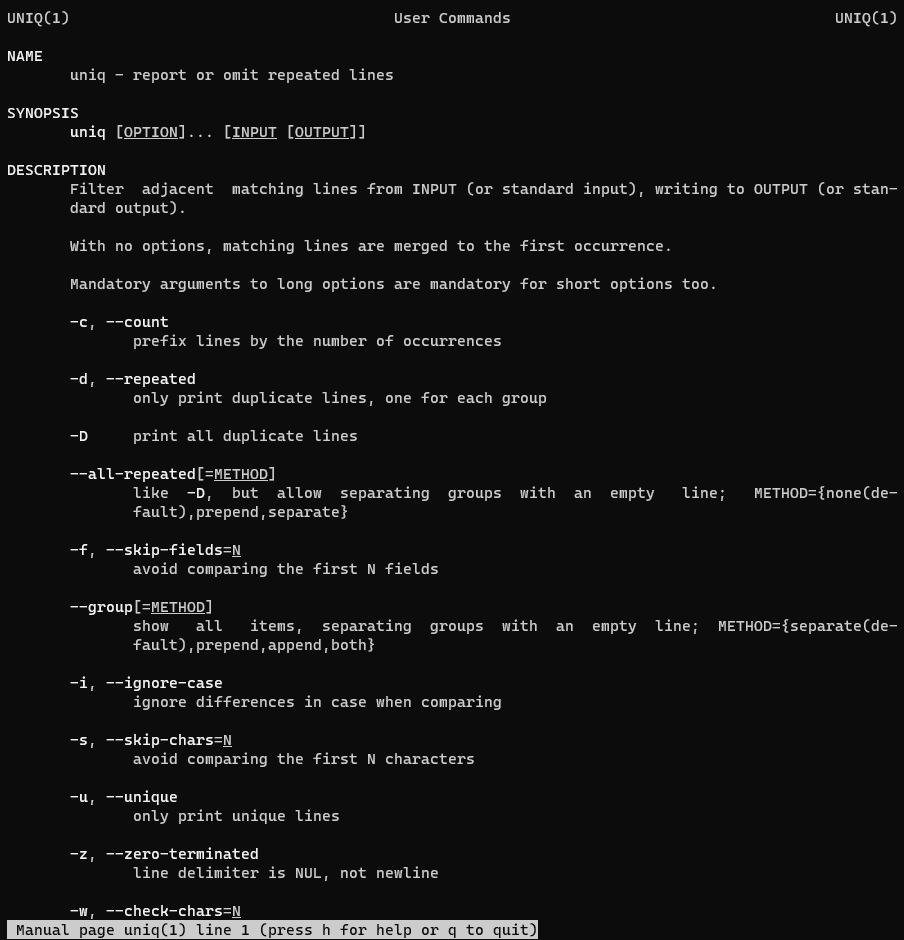
In this guide, I demonstrate how to use the uniq command in Linux to handle repeated lines. We’ll explore practical examples of the uniq command in action.

What does the “uniq” command mean?

uniq” – This command is used to report or omit repeated lines.

uniq command the syntax

uniq [OPTION]... [INPUT [OUTPUT]]

In the man page, the describes it

  • uniq – report or omit repeated lines.
  • man uniq – More details information about uniq command.

How to Use Uniq Command in Linux

I have created a file uniq_command.txt as below

[vagrant@DevopsRoles ~]$ cat uniq_command.txt 
 HuuPV, My website DevopsRoles.com and HuuPhan.com.SN:199x.
 Devops Roles.
 Devops Roles.
 Devops Roles.
 Devops Roles.
 Hello world :)

Remove duplicate lines with the uniq command.

[vagrant@DevopsRoles ~]$ uniq uniq_command.txt 
 HuuPV, My website DevopsRoles.com and HuuPhan.com.SN:199x.
 Devops Roles.
 Hello world :)

The number of times a line was repeated

[vagrant@DevopsRoles ~]$ uniq -c uniq_command.txt 
       1 HuuPV, My website DevopsRoles.com and HuuPhan.com.SN:199x.
       4 Devops Roles.
       1 
       1 Hello world :)

It only prints the repeated lines.

[vagrant@DevopsRoles ~]$ uniq -d uniq_command.txt 
 Devops Roles.

Prints all repeated duplicate line

[vagrant@DevopsRoles ~]$ uniq -D uniq_command.txt 
 Devops Roles.
 Devops Roles.
 Devops Roles.
 Devops Roles.

How to not print the duplicate lines. Only the unique lines.

[vagrant@DevopsRoles ~]$ uniq -u uniq_command.txt 
 HuuPV, My website DevopsRoles.com and HuuPhan.com.SN:199x.
 Hello world :)

Conclusion

The uniq command is a straightforward tool in Linux, essential for managing and eliminating duplicate lines in files. It offers a simple yet effective way to clean data by reporting or omitting repeated entries. Thank you for visiting the DevopsRoles page and exploring this utility with us!

fmt command in Linux: A Practical Guide

Introduction

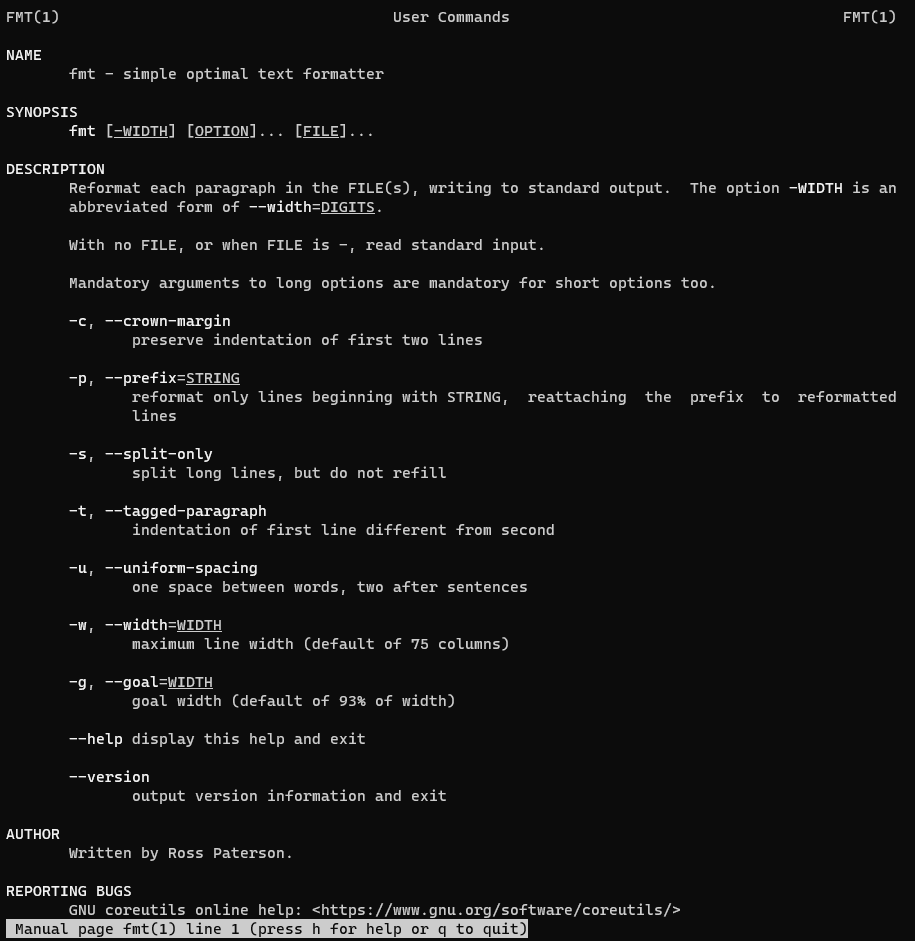
In this tutorial, we’ll explore how to use the fmt command in Linux to neatly format text in files, set optimal column widths, and standardize spacing. This guide aims to enhance your text processing skills on Linux using practical examples of the fmt command. Let’s dive into the capabilities of the fmt command in Linux.

What does the fmt command mean?

fmt – a straightforward command used as an optimal text formatter.

Syntax

fmt [-WIDTH] [OPTION]... [FILE]...


In the manual page, the fmt command is described as a simple and optimal text formatting Linux. For more detailed information about the fmt command, you can refer to the man fmt section in the manual.

fmt command in Linux with an example

By default, fmt sets the column width at 75.

I have created a file fmt_command.txt

[vagrant@DevopsRoles ~]$ cat fmt_command.txt 
 HuuPV, My website DevopsRoles.com and HuuPhan.com.SN:199x.
 Devops Roles.
 Hello world. xxx.

fmt with no options

[vagrant@DevopsRoles ~]$ fmt fmt_command.txt 
HuuPV, My website DevopsRoles.com and HuuPhan.com.SN:199x.  Devops Roles.

Hello world. xxx.

How to change the width of formatting.

[vagrant@DevopsRoles ~]$ fmt --width 20 fmt_command.txt 
 HuuPV, My website
 DevopsRoles.com and
 HuuPhan.com.SN:199x.
 Devops Roles.
 Hello world. xxx.

with -u option uses one space between words and two spaces after sentences for formatting.

[vagrant@DevopsRoles ~]$ fmt -u fmt_command.txt 
 HuuPV, My website DevopsRoles.com and HuuPhan.com.SN:199x.  Devops Roles.
 Hello world. xxx.

Formatting Multiple Files

You can also format multiple files simultaneously. Simply list the files as arguments:

fmt file1.txt file2.txt file3.txt

fmt will process each file and output the formatted text for all of them.

Splitting Long Lines

If you need to split long lines without breaking words, use the -s or --split-only option:

fmt -s myfile.txt

This option splits lines at spaces, ensuring words are not cut off.

Advanced Formatting Options

The fmt command offers several advanced options for more precise text formatting:

  • -c or --crown-margin: Preserve the indentation of the first two lines.
  • -t or --tagged-paragraph: Format the text as tagged paragraphs, maintaining a hanging indentation.
  • -g or --goal: Set the goal width for formatting. This is the preferred width, while the -w option sets the maximum width.

Frequently Asked Questions

What is the default width for the fmt command?

The default width is 75 characters. You can change it using the -w or --width option.

Can fmt handle multiple files at once?

Yes, you can list multiple files as arguments and fmt will format each of them.

How can I preserve indentation with fmt?

Use the -u or --uniform-spacing option to keep the original indentation intact.

What is the difference between the -w and -g options?

The -w option sets the maximum line width, while the -g option sets the goal width, which is the preferred width for formatting.

Can fmt split long lines without breaking words?

Yes, use the -s or --split-only option to split lines at spaces without cutting off words.

Conclusion

The fmt command is a straightforward Linux utility that helps format text files, set column width commands, and ensure uniform spacing. It simplifies text editing tasks, making it a valuable tool for developers and system administrators alike. Thank you for reading this guide on the DevopsRoles page!

By understanding and utilizing the various options and features of fmt, you can efficiently format text files to meet your specific requirements. Experiment with the examples provided in this guide and explore the full potential of the fmt command in your Linux environment.

Install Gradle on CentOS

In this tutorial, How to install Gradle on CentOS. Gradle is a free and Open Source that helps your build, automate and deliver better software, faster.

Prerequisites

  • Server instance : CentOS 7
  • A sudo user.

Your System update

Login into the sudo user and run the following commands to update your system.

$ sudo yum -y install epel-release
$ sudo yum -y update
$ sudo reboot

Install JDK

Gradle requires Java Development Kit (JDK) 7 or higher in order to work. Link here

Download Gradle

In this guide, I use the “binary-only” archive. Link the Gradle release page to the latest version of Gradle. Using wget command to download Gradle.

$ cd /opt/
$ wget https://downloads.gradle-dn.com/distributions/gradle-5.6.2-bin.zip

Install Gradle on CentOS

Your run the command following.

$ sudo mkdir /opt/gradle
$ sudo unzip -d /opt/gradle gradle-5.6.2-bin.zip

Set the PATH environment for Gradle executable.

$ export PATH=$PATH:/opt/gradle/gradle-5.6.2/bin

To check if the Gradle install was successful.

$ gradle -v

Your system is now built the program with Gradle. Thank you for reading the DevopsRoles page!
Influxdb getting started

Introduction

In this tutorial, we get started with InfluxDB. we can use commands with InfluxDB. In the latter-mentioned post, I created a “telegraf” database in InfluxDB.

Let’s know if InfluxDB getting started

Now jump into InfluxDB.

[root@devopsroles.localhost ~]# influx
Connected to http://localhost:8086 version 1.7.4
InfluxDB shell version: 1.7.4
Enter an InfluxQL query
> 

View a list of all the databases using the “show databases” command.

> show databases                                                                                                                                                                                                                             
name: databases
name
----
_internal
netdata
monitoring
telegraf
opentsdb
> 

“_internal” is an internal InfluxDB database. To use telegraf database the “use telegraf” command:

> use telegraf                                                                                                                                                                                                                               
Using database telegraf

Now we are inside of the telegraf database. using the “show measurements” command:

> show measurements                                                                                                                                                                                                                          
name: measurements
name
----
cpu
disk
diskio
kernel
mem
processes
swap
system

Field Keys in the telegraf database.

> show field keys                                                                                                                                                                                                                            
name: cpu
fieldKey         fieldType
--------         ---------
usage_guest      float
usage_guest_nice float
usage_idle       float
usage_iowait     float
usage_irq        float
usage_nice       float
usage_softirq    float
usage_steal      float
usage_system     float
usage_user       float

name: disk
fieldKey     fieldType
--------     ---------
free         integer
inodes_free  integer
inodes_total integer
inodes_used  integer
total        integer
used         integer
used_percent float

name: diskio
fieldKey         fieldType
--------         ---------
io_time          integer
iops_in_progress integer
read_bytes       integer
read_time        integer
reads            integer
weighted_io_time integer
write_bytes      integer
write_time       integer
writes           integer

name: kernel
fieldKey         fieldType
--------         ---------
boot_time        integer
context_switches integer
entropy_avail    integer
interrupts       integer
processes_forked integer

name: mem
fieldKey          fieldType
--------          ---------
active            integer
available         integer
available_percent float
buffered          integer
cached            integer
commit_limit      integer
committed_as      integer
dirty             integer
free              integer
high_free         integer
high_total        integer
huge_page_size    integer
huge_pages_free   integer
huge_pages_total  integer
inactive          integer
low_free          integer
low_total         integer
mapped            integer
page_tables       integer
shared            integer
slab              integer
swap_cached       integer
swap_free         integer
swap_total        integer
total             integer
used              integer
used_percent      float
vmalloc_chunk     integer
vmalloc_total     integer
vmalloc_used      integer
wired             integer
write_back        integer
write_back_tmp    integer

name: processes
fieldKey      fieldType
--------      ---------
blocked       integer
dead          integer
idle          integer
paging        integer
running       integer
sleeping      integer
stopped       integer
total         integer
total_threads integer
unknown       integer
zombies       integer

name: swap
fieldKey     fieldType
--------     ---------
free         integer
in           integer
out          integer
total        integer
used         integer
used_percent float

name: system
fieldKey      fieldType
--------      ---------
load1         float
load15        float
load5         float
n_cpus        integer
n_users       integer
uptime        integer
uptime_format string

Tag Keys in the telegraf database.

> show tag keys                                                                                                                                                                                                                              
name: cpu
tagKey
------
cpu
host

name: disk
tagKey
------
device
fstype
host
mode
path

name: diskio
tagKey
------
host
name

name: kernel
tagKey
------
host

name: mem
tagKey
------
host

name: processes
tagKey
------
host

name: swap
tagKey
------
host

name: system
tagKey
------
host

InfluxDB Queries

How fields and tags work together. For example as below

> select * from cpu where time > now() - 10s                                                                                                                                                                                                 
name: cpu
time                cpu       host                         usage_guest usage_guest_nice usage_idle       usage_iowait      usage_irq usage_nice usage_softirq usage_steal usage_system        usage_user
----                ---       ----                         ----------- ---------------- ----------       ------------      --------- ---------- ------------- ----------- ------------        ----------
1557722520000000000 cpu-total devopsroles.localhost 0           0                92.4924924924855 6.106106106081209 0         0          0             0           0.30030030030030713 1.10110110109885
1557722520000000000 cpu0      devopsroles.localhost 0           0                92.4924924924855 6.106106106081209 0         0          0             0           0.30030030030030713 1.10110110109885

> select * from cpu where cpu='cpu-total' and host='devopsroles.localhost' and time > now() - 10s                                                                                                                                     
name: cpu
time                cpu       host                         usage_guest usage_guest_nice usage_idle       usage_iowait      usage_irq usage_nice usage_softirq usage_steal usage_system        usage_user
----                ---       ----                         ----------- ---------------- ----------       ------------      --------- ---------- ------------- ----------- ------------        ----------
1557727830000000000 cpu-total devopsroles.localhost 0           0                96.7967967967239 2.402402402420665 0         0          0             0           0.20020020020020476 0.6006006006006143

> select usage_user,cpu,host from cpu where cpu='cpu-total' and host='devopsroles.localhost' and time > now() - 20s                                                                                                                   
name: cpu
time                usage_user         cpu       host
----                ----------         ---       ----
1557727930000000000 1.6016016016016381 cpu-total devopsroles.localhost

Series is a “collection of data in InfluxDB’s data structure that share a measurement, tag set, and retention policy.” Thank you for reading the DevopsRoles page!

Influxdb getting started. Influxdb getting started. Influxdb getting started.