Tag Archives: DevOps

The Ultimate DevOps Roadmap for 2025: A Complete Guide for Success

Introduction: Understanding the DevOps Roadmap

In today’s rapidly evolving tech landscape, organizations are increasingly adopting DevOps practices to streamline their software development and operational workflows. A DevOps roadmap serves as a step-by-step guide for professionals seeking to integrate development and operations seamlessly. It outlines the necessary skills, tools, and methodologies required to successfully implement DevOps across the lifecycle of an application.

Whether you’re an aspiring DevOps engineer, software developer, or system administrator, understanding and following the DevOps roadmap can significantly boost your career. This guide will break down the key stages, tools, and best practices that will enable you to master DevOps, from the basics to more advanced strategies.

What Is DevOps and Why Does It Matter?

DevOps is a cultural and technical movement that combines development (Dev) and operations (Ops) to improve collaboration and productivity. It emphasizes automation, continuous integration (CI), continuous deployment (CD), and the use of feedback loops to iterate faster and improve software quality.

By aligning development and operations teams, DevOps enables:

  • Faster delivery of high-quality software
  • Enhanced collaboration between teams
  • Reduced costs through automation
  • Higher customer satisfaction due to improved uptime and quicker feature releases

The DevOps roadmap is a structured guide that outlines how individuals and teams can move from novice to expert by acquiring the necessary skills and tools.

Stages of the DevOps Roadmap

1. Understanding the Basics of DevOps

To start your DevOps journey, you must first understand the fundamental principles and concepts. Here’s what you should focus on:

Core Concepts:

  • Version Control: Tools like Git and SVN are crucial for tracking changes in code and collaborating effectively with your team.
  • Automation: Automation tools such as Jenkins and Ansible help streamline repetitive tasks, improving efficiency.
  • Continuous Integration and Continuous Delivery (CI/CD): Learn how to automate testing, building, and deployment processes to release code more frequently and reliably.

Essential Skills:

  • Collaboration: A DevOps culture thrives on open communication and shared responsibilities across the development and operations teams.
  • Basic Scripting Knowledge: Start by learning basic scripting languages like Bash or Python for automation tasks.

2. Gaining Hands-on Experience with DevOps Tools

Once you’re comfortable with the basics, it’s time to get hands-on experience with the tools that power DevOps practices. Here are some of the most commonly used tools in the DevOps pipeline:

Key Tools for Developers and Operations Teams:

  • Git: A version control system that allows teams to collaborate on code changes.
  • Jenkins: A popular CI/CD tool for automating the process of building, testing, and deploying software.
  • Docker: A platform for creating, deploying, and managing containers, ensuring consistent environments across all stages of development.
  • Kubernetes: A container orchestration tool that helps manage the deployment and scaling of containerized applications.
  • Terraform: A tool for automating infrastructure provisioning, enabling the infrastructure-as-code (IaC) approach.

Setting Up a Basic CI/CD Pipeline:

  1. Install Jenkins or another CI tool.
  2. Create a simple pipeline that pulls code from Git.
  3. Set up automated unit tests and code quality checks.
  4. Configure the pipeline to deploy the application to a development server.

3. Mastering Continuous Integration and Continuous Delivery (CI/CD)

CI/CD is at the heart of DevOps. By automating code integration and delivery, you ensure that code changes are continuously tested and deployed. Here’s what you need to know to master CI/CD:

Key Concepts:

  • Continuous Integration (CI): The practice of merging all developers’ working copies to a shared mainline multiple times a day.
  • Continuous Delivery (CD): Extending CI by automating the deployment of code to production, making it possible to release software at any time.

Tools to Learn:

  • GitLab CI/CD: An integrated DevOps platform for version control and CI/CD.
  • CircleCI: A cloud-native CI/CD tool that integrates well with many different version control systems.
  • Travis CI: A hosted CI/CD service that automatically builds and tests code changes in GitHub repositories.

4. Managing Containers and Orchestration

As DevOps moves forward, managing applications through containers is essential. Here’s what you need to do:

Learn About Containers:

  • Docker: The foundational technology for creating, deploying, and running applications in containers.
  • Kubernetes: An orchestration tool that automates the deployment, scaling, and management of containerized applications.

Best Practices:

  • Containerize your applications for easier deployment across different environments.
  • Use Docker Compose to manage multi-container applications.
  • Learn to use Helm for managing Kubernetes deployments.

5. Implementing Infrastructure as Code (IaC)

Infrastructure as Code is a key principle of DevOps. It allows teams to provision and manage infrastructure using code rather than manual configuration. Here are the key tools and practices:

Popular IaC Tools:

  • Terraform: For provisioning infrastructure and services on multiple cloud providers.
  • Ansible: A configuration management tool that automates server setup and management.
  • Puppet and Chef: Other popular tools for automating infrastructure management.

Best Practices:

  • Write declarative code to define the desired state of your infrastructure.
  • Use version control for your IaC configurations to track changes over time.
  • Implement automated testing for your infrastructure code to ensure it is error-free.

6. Monitoring and Logging

Monitoring and logging are critical for ensuring that applications perform well and remain reliable. By monitoring application performance and collecting logs, DevOps teams can proactively resolve issues before they affect users.

Key Tools:

  • Prometheus and Grafana: Open-source tools for monitoring and visualizing system metrics.
  • ELK Stack (Elasticsearch, Logstash, Kibana): A set of tools for searching, analyzing, and visualizing log data in real time.

7. Security in DevOps (DevSecOps)

DevSecOps integrates security into the DevOps pipeline, ensuring that security is not an afterthought. Here are the steps to implement a secure DevOps process:

  • Automate security testing within your CI/CD pipelines.
  • Use static code analysis tools like SonarQube to detect vulnerabilities in the code early.
  • Implement security policies and guidelines for your DevOps teams.

Advanced DevOps Concepts

Once you’ve mastered the basics and gained some hands-on experience, consider diving into advanced concepts such as:

1. Microservices Architecture

  • The microservices approach breaks down large applications into smaller, independent services. This enables faster development, testing, and scaling.

2. Serverless Computing

  • With serverless, developers can focus on writing code without worrying about managing infrastructure. AWS Lambda, Google Cloud Functions, and Azure Functions are key platforms in this space.

3. Cloud-Native Technologies

  • Learn how to design, build, and manage applications specifically for the cloud, leveraging cloud services like AWS, Azure, and GCP.

FAQ: Common Questions About the DevOps Roadmap

What is the first step in the DevOps roadmap?

The first step is understanding the core principles of DevOps, such as continuous integration, continuous delivery, version control, and automation.

How long does it take to master DevOps?

Becoming proficient in DevOps can take anywhere from 6 months to a few years, depending on your experience level, the tools you learn, and the depth of your practice.

Do I need to learn coding for DevOps?

Yes, basic scripting knowledge (e.g., Python, Bash) is essential for automating tasks, creating pipelines, and managing infrastructure.

What tools should I start learning first in DevOps?

Start with tools like Git (for version control), Jenkins (for CI/CD), Docker (for containerization), and Kubernetes (for orchestration).

Conclusion: Mastering the DevOps Roadmap

The DevOps roadmap is a comprehensive guide to mastering the principles, tools, and techniques that drive modern software development and operations. By following this roadmap, you can acquire the necessary skills to help organizations build faster, more reliable applications, and improve collaboration between development and operations teams.

By mastering the tools and concepts from version control to infrastructure automation, you’ll be well on your way to becoming a successful DevOps engineer. Stay committed to learning, experimenting, and evolving with the latest technologies, and you’ll be equipped to succeed in this rapidly growing field.

For further reading, check out these resources:

With the right roadmap, your journey into DevOps will be smooth and rewarding. Thank you for reading the DevopsRoles page!

Ansible Roles: Efficient Configuration Management & Automation

Introduction

In the world of IT automation and DevOps, Ansible stands out as a powerful tool for configuration management and infrastructure automation. However, managing complex configurations across multiple systems can be challenging. This is where Ansible Roles come into play.

Ansible Roles provide a structured and modular approach to automation, making it easier to organize and reuse tasks across different projects. This guide will walk you through everything you need to know about Ansible Roles, from basic concepts to advanced implementations.

What Are Ansible Roles?

Understanding Ansible Roles

Ansible Roles allow users to break down complex playbooks into reusable components, improving maintainability and scalability. Instead of writing long playbooks, roles help you organize tasks, variables, handlers, and other elements into separate directories.

Key Benefits of Ansible Roles

  • Modularity: Encourages code reuse and simplifies complex configurations.
  • Scalability: Easily apply configurations to multiple servers.
  • Maintainability: Organized structure improves readability and management.
  • Community Support: Ansible Galaxy provides pre-built roles for common use cases.

Ansible Roles Directory Structure

Ansible Roles follow a standard directory structure:

my_role/
├── defaults/        # Default variables
├── files/          # Static files to be copied
├── handlers/       # Handlers for service restarts
├── meta/           # Role metadata (dependencies, author, etc.)
├── tasks/          # Main task definitions
├── templates/      # Jinja2 templates
├── vars/           # Role-specific variables
└── README.md       # Documentation for the role

Explanation of Each Directory:

  • defaults/ → Defines default variables that can be overridden.
  • files/ → Contains static files to be transferred to managed nodes.
  • handlers/ → Includes tasks that respond to events (e.g., restarting a service).
  • meta/ → Stores role metadata, dependencies, and author details.
  • tasks/ → Lists the automation steps that the role performs.
  • templates/ → Contains Jinja2 templates for dynamic configurations.
  • vars/ → Stores variables specific to the role.

Creating and Using Ansible Roles

1. Creating an Ansible Role

To create a new role, use the following command:

ansible-galaxy init my_role

This command generates the standard directory structure for your role.

2. Using a Role in a Playbook

Once the role is created, it can be included in an Ansible Playbook:

---
- name: Deploy Web Server
  hosts: web_servers
  roles:
    - webserver

3. Installing Roles from Ansible Galaxy

Ansible Galaxy provides a repository of community-created roles. To install a role:

ansible-galaxy install geerlingguy.apache

Use the installed role in your playbook:

---
- name: Install Apache
  hosts: web_servers
  roles:
    - geerlingguy.apache

Advanced Use Cases

1. Using Variables in Roles

Variables make roles more flexible. Define variables in the vars/main.yml file:

apache_port: 8080

Reference the variable in a template:

Listen {{ apache_port }}

2. Role Dependencies

Define role dependencies in meta/main.yml:

---
dependencies:
  - role: common_packages
  - role: security_updates

3. Conditional Role Execution

Use when conditions to control role execution:

- name: Include webserver role only on Ubuntu
  include_role:
    name: webserver
  when: ansible_os_family == "Debian"

Frequently Asked Questions (FAQ)

1. What is the difference between Ansible Playbooks and Roles?

Playbooks define automation workflows, while Roles break down tasks into reusable components for better organization and modularity.

2. Can I use multiple roles in a single playbook?

Yes, multiple roles can be included in a playbook, and they will execute sequentially.

roles:
  - security_updates
  - webserver
  - database_server

3. How can I override default variables in a role?

Override variables by defining them in the playbook:

vars:
  apache_port: 9090

4. Are there any best practices for creating Ansible Roles?

  • Follow the standard directory structure.
  • Keep tasks modular and reusable.
  • Use variables for flexibility.
  • Document roles using README.md.
  • Test roles before deploying.

External Resources

Conclusion

Ansible Roles are an essential feature that enhances the modularity, reusability, and maintainability of Ansible Playbooks. By leveraging roles, organizations can simplify complex configurations and achieve efficient automation. Whether you’re a beginner or an advanced user, mastering Ansible Roles can greatly improve your DevOps workflows.

Start implementing Ansible Roles today and optimize your infrastructure automation! Thank you for reading the DevopsRoles page!

Automating Server Configuration with Ansible

Introduction

Managing servers manually is time-consuming and prone to errors, especially in large-scale environments. Ansible, a powerful open-source IT automation tool, revolutionizes server configuration by providing a simple, agentless, and declarative approach to automation. In this article, we explore how to streamline server configuration with Ansible, offering practical examples, expert insights, and answers to common questions.

Why Use Ansible for Server Configuration?

Key Benefits of Ansible

  1. Agentless Architecture: No need to install additional software on managed nodes.
  2. Ease of Use: Uses human-readable YAML syntax.
  3. Scalability: Manages hundreds of servers effortlessly.
  4. Cross-Platform Compatibility: Supports Linux, Windows, and cloud infrastructures.
  5. Idempotency: Ensures consistent configuration regardless of execution frequency.

Use Cases for Ansible in Server Configuration

  • Software Installation: Automate the deployment of software packages.
  • User Management: Add, modify, or delete user accounts.
  • System Updates: Ensure servers are updated with the latest patches.
  • Service Management: Configure and monitor essential services like Apache or MySQL.

Getting Started with Ansible

Prerequisites

  1. Control Node: A machine with Ansible installed.
  2. Managed Nodes: Servers you want to configure.
  3. Python: Ensure Python is installed on all nodes.

Installing Ansible To install Ansible on a Linux control node, run:

sudo apt update
sudo apt install ansible -y

Setting Up Inventory File Create an inventory file to define your managed nodes:

[webservers]
192.168.1.10
192.168.1.11

[dbservers]
192.168.1.20

Automating Server Configuration with Ansible: Examples

Basic Example – Installing Apache Create a playbook install_apache.yml:

---
- name: Install Apache on Web Servers
  hosts: webservers
  become: yes
  tasks:
    - name: Ensure Apache is installed
      apt:
        name: apache2
        state: present

    - name: Start and enable Apache
      service:
        name: apache2
        state: started
        enabled: yes

Run the playbook:

ansible-playbook install_apache.yml

Intermediate Example – Configuring Users Create a playbook user_management.yml:

---
- name: Manage Users
  hosts: all
  become: yes
  tasks:
    - name: Create a user group
      group:
        name: developers

    - name: Add a user to the group
      user:
        name: john
        groups: developers
        state: present

Run the playbook:

ansible-playbook user_management.yml

Advanced Example – Deploying a Web Application Create a playbook deploy_app.yml:

---
- name: Deploy Web Application
  hosts: webservers
  become: yes
  tasks:
    - name: Install dependencies
      apt:
        name:
          - python3-pip
          - python3-venv
        state: present

    - name: Clone the repository
      git:
        repo: 'https://github.com/example/app.git'
        dest: /var/www/app

    - name: Set up virtual environment
      command: python3 -m venv /var/www/app/venv

    - name: Install application requirements
      pip:
        requirements: /var/www/app/requirements.txt
        virtualenv: /var/www/app/venv

    - name: Configure systemd service
      copy:
        dest: /etc/systemd/system/app.service
        content: |
          [Unit]
          Description=Gunicorn instance to serve app
          After=network.target

          [Service]
          User=www-data
          Group=www-data
          WorkingDirectory=/var/www/app
          ExecStart=/var/www/app/venv/bin/gunicorn -w 3 -b 0.0.0.0:8000 wsgi:app

          [Install]
          WantedBy=multi-user.target

    - name: Start the application service
      systemd:
        name: app
        state: started
        enabled: yes

Run the playbook:

ansible-playbook deploy_app.yml

FAQ

Frequently Asked Questions

What is Ansible? Ansible is an open-source IT automation tool that simplifies tasks like configuration management, application deployment, and task automation.

How does Ansible differ from other tools like Puppet or Chef? Unlike Puppet or Chef, Ansible uses an agentless architecture, relies on YAML for configurations, and is simpler to set up and use.

Do I need programming skills to use Ansible? Basic familiarity with YAML and server management is sufficient to get started with Ansible.

Can Ansible manage Windows servers? Yes, Ansible supports Windows server management using modules like winrm and psrp.

External Resources

Conclusion

Automating server configuration with Ansible is a game-changer for IT administrators. Its simplicity, flexibility, and power make it an essential tool for managing modern infrastructure. Whether you’re installing software, managing users, or deploying applications, Ansible offers a streamlined approach to automation. Start exploring Ansible today and transform your server management processes!Thank you for reading the DevopsRoles page!

Kubernetes Cost Monitoring: Mastering Cost Efficiency in Kubernetes Clusters

Introduction

Kubernetes has revolutionized the way organizations deploy and manage containerized applications. However, as powerful as Kubernetes is, it comes with its own set of challenges, particularly in cost management. For organizations running large-scale Kubernetes clusters, the costs can spiral out of control without proper monitoring and optimization.

This guide explores the intricacies of Kubernetes cost monitoring, equipping you with tools, techniques, and best practices to maintain budget control while leveraging Kubernetes’ full potential.

Why Kubernetes Cost Monitoring Matters

Efficient Kubernetes cost monitoring ensures that your cloud expenses align with your organization’s budget. Without visibility into usage and spending, businesses risk:

  • Overspending on underutilized resources.
  • Misallocation of budget across teams or projects.
  • Inefficiencies due to unoptimized workloads.

Effective cost monitoring empowers businesses to:

  • Reduce unnecessary expenses.
  • Allocate resources more efficiently.
  • Enhance transparency and accountability in cloud spending.

Key Concepts in Kubernetes Cost Monitoring

Kubernetes Cluster Resources

To understand costs in Kubernetes, it’s essential to grasp the core components that drive expenses:

  1. Compute Resources: CPU and memory allocated to pods and nodes.
  2. Storage: Persistent volumes and ephemeral storage.
  3. Networking: Data transfer costs between services or external endpoints.

Cost Drivers in Kubernetes

Key factors influencing Kubernetes costs include:

  • Cluster Size: Number of nodes and their specifications.
  • Workload Characteristics: Resource demands of running applications.
  • Cloud Provider Pricing: Variations in pricing for compute, storage, and networking.

Tools for Kubernetes Cost Monitoring

Several tools simplify cost monitoring in Kubernetes clusters. Here are the most popular ones:

1. Kubecost

Kubecost provides real-time cost visibility and insights for Kubernetes environments. Key features include:

  • Cost allocation for namespaces, deployments, and pods.
  • Integration with cloud billing APIs for accurate tracking.
  • Alerts for budget thresholds.

2. Cloud Provider Native Tools

Most cloud providers offer native tools for cost monitoring:

  • AWS Cost Explorer: Helps analyze AWS Kubernetes (EKS) costs.
  • Google Cloud Billing Reports: Monitors GKE costs.
  • Azure Cost Management: Tracks AKS expenses.

3. OpenCost

OpenCost is an open-source project designed to provide detailed cost tracking in Kubernetes environments. Features include:

  • Support for multi-cluster monitoring.
  • Open-source community contributions.
  • Transparent cost allocation algorithms.

4. Prometheus and Grafana

While not dedicated cost monitoring tools, Prometheus and Grafana can be configured to visualize cost metrics when integrated with custom exporters or billing data.

Implementing Kubernetes Cost Monitoring

Step 1: Understand Your Resource Usage

  • Use tools like kubectl top to monitor real-time CPU and memory usage.
  • Analyze historical usage data with Prometheus.

Step 2: Set Up Cost Monitoring Tools

  1. Deploy Kubecost:
    • Install Kubecost using Helm:
      • helm repo add kubecost https://kubecost.github.io/cost-analyzer/
      • helm install kubecost kubecost/cost-analyzer -n kubecost --create-namespace
    • Access the Kubecost dashboard for real-time insights.
  2. Integrate Cloud Billing APIs:
    • Link your Kubernetes monitoring tools with cloud provider APIs for accurate cost tracking.

Step 3: Optimize Resource Usage

  • Right-size your pods using Vertical Pod Autoscaler (VPA).
  • Implement Horizontal Pod Autoscaler (HPA) for dynamic scaling.
  • Leverage spot instances or preemptible VMs for cost savings.

Advanced Kubernetes Cost Monitoring Strategies

Granular Cost Allocation

  • Tag resources by team or project for detailed billing.
  • Use annotations in Kubernetes manifests to assign cost ownership:
metadata:
  annotations:
    cost-center: "team-A"

    Multi-Cluster Cost Analysis

    For organizations running multiple clusters:

    • Aggregate data from all clusters into a centralized monitoring tool.
    • Use OpenCost for open-source multi-cluster support.

    Predictive Cost Management

    • Implement machine learning models to predict future costs based on historical data.
    • Automate scaling policies to prevent over-provisioning.

    Frequently Asked Questions

    1. What is Kubernetes cost monitoring?

    Kubernetes cost monitoring involves tracking and optimizing expenses associated with running Kubernetes clusters, including compute, storage, and networking resources.

    2. Which tools are best for Kubernetes cost monitoring?

    Popular tools include Kubecost, OpenCost, AWS Cost Explorer, Google Cloud Billing Reports, and Prometheus.

    3. How can I reduce Kubernetes costs?

    Optimize costs by right-sizing pods, using autoscaling features, leveraging spot instances, and monitoring usage regularly.

    4. Can I monitor costs for multiple clusters?

    Yes, tools like OpenCost and cloud-native solutions support multi-cluster cost analysis.

    5. Is cost monitoring available for on-premises Kubernetes clusters?

    Yes, tools like Kubecost and Prometheus can be configured for on-premises environments.

    External Links

    Conclusion

    Kubernetes cost monitoring is essential for maintaining financial control and optimizing resource usage. By leveraging tools like Kubecost and OpenCost and implementing best practices such as granular cost allocation and predictive analysis, businesses can achieve efficient and cost-effective Kubernetes operations. Stay proactive in monitoring, and your Kubernetes clusters will deliver unparalleled value without overshooting your budget.Thank you for reading the DevopsRoles page!
    Kubernetes HPA: A Comprehensive Guide to Horizontal Pod Autoscaling

    Introduction

    Kubernetes Horizontal Pod Autoscaler (HPA) is a powerful feature designed to dynamically scale the number of pods in a deployment or replication controller based on observed CPU, memory usage, or other custom metrics. By automating the scaling process, Kubernetes HPA ensures optimal resource utilization and application performance, making it a crucial tool for managing workloads in production environments.

    In this guide, we’ll explore how Kubernetes HPA works, its configuration, and how you can leverage it to optimize your applications. Let’s dive into the details of Kubernetes HPA with examples, best practices, and frequently asked questions.

    What is Kubernetes HPA?

    The Kubernetes Horizontal Pod Autoscaler (HPA) adjusts the number of pods in a replication controller, deployment, or replica set based on metrics such as:

    • CPU Utilization: Scale up/down based on average CPU consumption.
    • Memory Utilization: Adjust pod count based on memory usage.
    • Custom Metrics: Leverage application-specific metrics through integrations.

    HPA continuously monitors your workload’s resource consumption, ensuring that your application scales efficiently under varying loads.

    How Does Kubernetes HPA Work?

    HPA Components

    Kubernetes HPA relies on the following components:

    1. Metrics Server: A lightweight aggregator that collects resource metrics (e.g., CPU, memory) from the kubelet on each node.
    2. Controller Manager: Houses the HPA controller, which evaluates scaling requirements based on specified metrics.
    3. Custom Metrics Adapter: Enables the use of custom application metrics for scaling.

    Key Features

    • Dynamic Scaling: Automatic adjustment of pods based on defined thresholds.
    • Resource Optimization: Ensures efficient resource allocation by scaling workloads.
    • Extensibility: Supports custom metrics for complex scaling logic.

    Setting Up Kubernetes HPA

    Prerequisites

    1. A running Kubernetes cluster (v1.18 or later recommended).
    2. The Metrics Server installed and operational.
    3. Resource requests and limits defined for your workloads.

    Step-by-Step Guide

    Step 1: Verify Metrics Server

    Ensure that the Metrics Server is deployed:

    kubectl get deployment metrics-server -n kube-system

    If it’s not present, install it using:

    kubectl apply -f https://github.com/kubernetes-sigs/metrics-server/releases/latest/download/components.yaml

    Step 2: Define Resource Requests and Limits

    HPA relies on resource requests to calculate scaling. Define these in your deployment manifest:

    resources:
      requests:
        cpu: 100m
        memory: 128Mi
      limits:
        cpu: 200m
        memory: 256Mi

    Step 3: Create an HPA Object

    Use the kubectl autoscale command or a YAML manifest. For example, to scale based on CPU utilization:

    kubectl autoscale deployment my-app --cpu-percent=50 --min=2 --max=10

    Or define it in a YAML file:

    apiVersion: autoscaling/v2
    kind: HorizontalPodAutoscaler
    metadata:
      name: my-app-hpa
    spec:
      scaleTargetRef:
        apiVersion: apps/v1
        kind: Deployment
        name: my-app
      minReplicas: 2
      maxReplicas: 10
      metrics:
        - type: Resource
          resource:
            name: cpu
            target:
              type: Utilization
              averageUtilization: 50

    Apply the configuration:

    kubectl apply -f hpa.yaml

    Advanced Scenarios

    Scaling Based on Memory Usage

    Modify the metrics section to target memory utilization:

    metrics:
      - type: Resource
        resource:
          name: memory
          target:
            type: Utilization
            averageUtilization: 70

    Using Custom Metrics

    Integrate Prometheus or a similar monitoring tool for custom metrics:

    1.Install Prometheus Adapter:

    helm install prometheus-adapter prometheus-community/prometheus-adapter

    2.Update the HPA configuration to include custom metrics:

    metrics:
      - type: Pods
        pods:
          metricName: http_requests_per_second
          target:
            type: AverageValue
            averageValue: "100"

    Scaling Multiple Metrics

    Combine CPU and custom metrics for robust scaling:

    metrics:
      - type: Resource
        resource:
          name: cpu
          target:
            type: Utilization
            averageUtilization: 60
      - type: Pods
        pods:
          metricName: custom_metric
          target:
            type: AverageValue
            averageValue: "200"

    Best Practices for Kubernetes HPA

    1. Define Accurate Resource Requests: Ensure pods have well-calibrated resource requests and limits for optimal scaling.
    2. Monitor Metrics Regularly: Use tools like Prometheus and Grafana for real-time insights.
    3. Avoid Over-Scaling: Set realistic minimum and maximum replica counts.
    4. Test Configurations: Validate HPA behavior under different loads in staging environments.
    5. Use Multiple Metrics: Combine resource and custom metrics for robust scaling logic.

    FAQs

    What is the minimum Kubernetes version required for HPA v2?

    HPA v2 requires Kubernetes v1.12 or later, with enhancements available in newer versions.

    How often does the HPA controller evaluate metrics?

    By default, the HPA controller evaluates metrics and scales pods every 15 seconds.

    Can HPA work without the Metrics Server?

    No, the Metrics Server is a prerequisite for resource-based autoscaling. For custom metrics, you’ll need additional tools like Prometheus Adapter.

    What happens if resource limits are not defined?

    HPA won’t function properly without resource requests, as it relies on these metrics to calculate scaling thresholds.

    External Resources

    1. Kubernetes Official Documentation on HPA
    2. Metrics Server Installation Guide
    3. Prometheus Adapter for Kubernetes

    Conclusion

    Kubernetes HPA is a game-changer for managing dynamic workloads, ensuring optimal resource utilization, and maintaining application performance. By mastering its configuration and leveraging advanced features like custom metrics, you can scale your applications efficiently to meet the demands of modern cloud environments.

    Implement the practices and examples shared in this guide to unlock the full potential of Kubernetes HPA and keep your cluster performing at its peak. Thank you for reading the DevopsRoles page!

    Kubernetes Autoscaling: A Comprehensive Guide

    Introduction

    Kubernetes autoscaling is a powerful feature that optimizes resource utilization and ensures application performance under varying workloads. By dynamically adjusting the number of pods or the resource allocation, Kubernetes autoscaling helps maintain seamless operations and cost efficiency in cloud environments. This guide delves into the mechanisms, configurations, and best practices for Kubernetes autoscaling, equipping you with the knowledge to harness its full potential.

    What is Kubernetes Autoscaling?

    Kubernetes autoscaling refers to the capability of Kubernetes to automatically adjust the scale of resources to meet application demand. The main types of autoscaling in Kubernetes include:

    • Horizontal Pod Autoscaler (HPA): Adjusts the number of pods in a deployment or replica set based on CPU, memory, or custom metrics.
    • Vertical Pod Autoscaler (VPA): Modifies the CPU and memory requests/limits for pods to optimize their performance.
    • Cluster Autoscaler: Scales the number of nodes in a cluster based on pending pods and resource needs.

    Why is Kubernetes Autoscaling Important?

    • Cost Efficiency: Avoid over-provisioning by scaling resources only when necessary.
    • Performance Optimization: Meet application demands during traffic spikes or resource constraints.
    • Operational Simplicity: Automate resource adjustments without manual intervention.

    Types of Kubernetes Autoscaling

    Horizontal Pod Autoscaler (HPA)

    The HPA adjusts the number of pods in a deployment, replica set, or stateful set based on observed metrics. Common use cases include scaling web servers during traffic surges or batch processing workloads.

    Key Features:

    • Metrics-based scaling (e.g., CPU, memory, or custom metrics via the Metrics Server).
    • Configurable thresholds to define scaling triggers.

    How to Configure HPA:

    1. Install Metrics Server: Ensure that Metrics Server is running in your cluster.
    2. Define an HPA Resource: Create an HPA resource using kubectl or YAML files.
    3. Apply Configuration: Deploy the HPA configuration to the cluster.

    Example: YAML configuration for HPA:

    apiVersion: autoscaling/v2
    kind: HorizontalPodAutoscaler
    metadata:
      name: my-app-hpa
    spec:
      scaleTargetRef:
        apiVersion: apps/v1
        kind: Deployment
        name: my-app
      minReplicas: 2
      maxReplicas: 10
      metrics:
      - type: Resource
        resource:
          name: cpu
          target:
            type: Utilization
            averageUtilization: 50

    Vertical Pod Autoscaler (VPA)

    The VPA adjusts the resource requests and limits for pods to ensure optimal performance under changing workloads.

    Key Features:

    • Automatic adjustments for CPU and memory.
    • Three update modes: Off, Initial, and Auto.

    How to Configure VPA:

    1. Install VPA Components: Deploy the VPA controller to your cluster.
    2. Define a VPA Resource: Specify the VPA configuration using YAML.
    3. Apply Configuration: Deploy the VPA resource to the cluster.

    Example: YAML configuration for VPA:

    apiVersion: autoscaling.k8s.io/v1
    kind: VerticalPodAutoscaler
    metadata:
      name: my-app-vpa
    spec:
      targetRef:
        apiVersion: apps/v1
        kind: Deployment
        name: my-app
      updatePolicy:
        updateMode: "Auto"

    Cluster Autoscaler

    The Cluster Autoscaler scales the number of nodes in a cluster to accommodate pending pods or free up unused nodes.

    Key Features:

    • Works with major cloud providers like AWS, GCP, and Azure.
    • Automatically removes underutilized nodes to save costs.

    How to Configure Cluster Autoscaler:

    1. Install Cluster Autoscaler: Deploy the Cluster Autoscaler to your cloud provider’s Kubernetes cluster.
    2. Set Node Group Parameters: Configure min/max node counts and scaling policies.
    3. Monitor Scaling Events: Use logs and metrics to track scaling behavior.

    Examples of Kubernetes Autoscaling in Action

    Example 1: Scaling a Web Application with HPA

    Imagine a scenario where your web application experiences sudden traffic spikes during promotional events. By using HPA, you can ensure that additional pods are deployed to handle the increased load.

    1. Deploy the application:
      • kubectl apply -f web-app-deployment.yaml
    2. Configure HPA:
      • kubectl autoscale deployment web-app --cpu-percent=60 --min=2 --max=10
    3. Verify scaling:
      • kubectl get hpa

    Example 2: Optimizing Resource Usage with VPA

    For resource-intensive applications like machine learning models, VPA can adjust resource allocations based on usage patterns.

    1. Deploy the application:
      • kubectl apply -f ml-app-deployment.yaml
    2. Configure VPA:
      • kubectl apply -f ml-app-vpa.yaml
    3. Monitor scaling events:
      • kubectl describe vpa ml-app

    Example 3: Adjusting Node Count with Cluster Autoscaler

    For clusters running on GCP:

    1. Enable autoscaling:
      • gcloud container clusters update my-cluster --enable-autoscaling --min-nodes=1 --max-nodes=10
    2. Deploy workload:
      • kubectl apply -f batch-job.yaml
    3. Monitor node scaling:
      • kubectl get nodes

    Frequently Asked Questions

    1. What metrics can be used with HPA?

    HPA supports CPU, memory, and custom application metrics (e.g., request latency).

    2. How does VPA handle resource conflicts?

    VPA ensures resource allocation is optimized but does not override user-defined limits.

    3. Is Cluster Autoscaler available for on-premise clusters?

    Cluster Autoscaler primarily supports cloud-based environments but can work with custom on-prem setups.

    4. Can HPA and VPA be used together?

    Yes, HPA and VPA can work together, but careful configuration is required to avoid conflicts.

    5. What tools are needed to monitor autoscaling?

    Popular tools include Prometheus, Grafana, and Kubernetes Dashboard.

    External Resources

    Conclusion

    Kubernetes autoscaling is a vital feature for maintaining application performance and cost efficiency. By leveraging HPA, VPA, and Cluster Autoscaler, you can dynamically adjust resources to meet workload demands. Implementing these tools with best practices ensures your applications run seamlessly in any environment. Start exploring Kubernetes autoscaling today to unlock its full potential! Thank you for reading the DevopsRoles page!

    How to Installing Metasploit on Ubuntu

    Introduction

    Metasploit is one of the most widely-used penetration testing frameworks in the cybersecurity world. Whether you’re a seasoned security expert or a beginner, installing Metasploit on Ubuntu provides tools to help identify, exploit, and resolve vulnerabilities. This guide will walk you through the process of installing Metasploit on Ubuntu, enabling you to enhance your system’s security and explore advanced penetration testing techniques. By installing Metasploit on Ubuntu, you gain access to a powerful suite of tools for security assessments.

    Why Use Metasploit?

    Metasploit offers a wide range of features that make it indispensable:

    Installing Metasploit on Ubuntu allows you to leverage its comprehensive capabilities for vulnerability evaluation and security testing, making it an invaluable resource for cybersecurity professionals.

    • Comprehensive Exploitation Tools: Over 1,500 exploits for various platforms.
    • Post-Exploitation Capabilities: Gather information or escalate privileges after initial access.
    • Community Support: Backed by a robust community and frequent updates.
    • Integration with Other Tools: Easily integrates with Nmap, Nessus, and other security tools.

    Before you start, make sure you’re prepared for installing Metasploit on Ubuntu. This includes having the necessary OS version, root access, and some command-line experience.

    Prerequisites

    Before diving into the installation process, ensure you have the following:

    The following steps detail how to efficiently install Metasploit on Ubuntu, ensuring a smooth setup process.

    To start with installing Metasploit on Ubuntu, you need to ensure your system is fully updated.

    • Ubuntu OS: Version 20.04 or newer is recommended.
    • Root Access: Necessary for installing dependencies and configuring the system.
    • Basic Knowledge: Familiarity with terminal commands and Linux systems.

    Step-by-Step Guide to Installing Metasploit on Ubuntu

    Next, proceed with installing Metasploit on Ubuntu by ensuring all dependencies are in place.

    1. Update the System

    Before starting, update your system to ensure all packages are up-to-date:

    After installing dependencies, you can continue with the steps for installing Metasploit on Ubuntu.

    sudo apt update && sudo apt upgrade -y

    2. Install Dependencies

    Metasploit requires several dependencies. Install them using:

    sudo apt install -y curl gnupg2 postgresql git build-essential zlib1g-dev libreadline-dev libssl-dev libpq5 libpq-dev libpcap-dev

    3. Install RVM (Ruby Version Manager)

    Metasploit is built using Ruby. RVM helps manage Ruby versions:

    sudo apt install -y software-properties-common
    sudo apt-add-repository -y ppa:rael-gc/rvm
    sudo apt update
    sudo apt install -y rvm

    Activate RVM:

    Remember to clone the Metasploit repository correctly as part of installing Metasploit on Ubuntu.

    source /etc/profile.d/rvm.sh

    4. Install Ruby

    Install the required Ruby version:

    rvm install 3.0.0
    rvm use 3.0.0 --default

    After configuring PostgreSQL, you are almost ready to use Metasploit. Make sure to finalize your setup for installing Metasploit on Ubuntu.

    5. Clone the Metasploit Repository

    Clone Metasploit from GitHub:

    git clone https://github.com/rapid7/metasploit-framework.git
    cd metasploit-framework

    6. Install Bundler and Gems

    Install Bundler to manage Ruby gems:

    gem install bundler
    bundle install

    7. Configure PostgreSQL

    Metasploit uses PostgreSQL for database support. Set it up:

    sudo systemctl start postgresql
    sudo systemctl enable postgresql

    Create and configure the Metasploit database:

    Once everything is set up, you can launch Metasploit and begin testing with the tools you gained by installing Metasploit on Ubuntu.

    sudo -u postgres createuser msf -P
    sudo -u postgres createdb -O msf msf_database

    The Metasploit console will allow you to explore various features and functionalities after installing Metasploit on Ubuntu.

    Update the Metasploit configuration file:

    nano config/database.yml

    Add the following configuration:

    development:
      adapter: postgresql
      database: msf_database
      username: msf
      password: YOUR_PASSWORD
      host: 127.0.0.1
      port: 5432
      pool: 75
      timeout: 5

    Save and exit the file.

    8. Launch Metasploit

    Start Metasploit using:

    ./msfconsole

    You should see the Metasploit console interface. From here, you can begin using its features for penetration testing.

    Example Scenarios

    Additionally, you can utilize Metasploit for various scenarios after successfully installing Metasploit on Ubuntu.

    Basic Exploit

    1. Scan for Vulnerabilities: Use nmap to identify open ports.
    nmap -sV -p- TARGET_IP
    1. Search for Exploits: Use Metasploit to find exploits for detected services.
    search vsftpd
    1. Run the Exploit:
    use exploit/unix/ftp/vsftpd_234_backdoor
    set RHOST TARGET_IP
    run

    Advanced Techniques

    • Automated Exploitation: Use auxiliary modules to streamline processes.
    • Post-Exploitation: Gather credentials, escalate privileges, or maintain access.

    Frequently Asked Questions (FAQs)

    1. Is Metasploit free?

    Yes, Metasploit Framework is open-source and free to use. However, Rapid7 offers a commercial version with additional features.

    In conclusion, installing Metasploit on Ubuntu not only enhances your system’s security but also provides you with a robust platform for learning and testing.

    2. Can I use Metasploit on Windows?

    Yes, but it is more commonly used on Linux systems like Ubuntu for better compatibility and performance.

    3. What are common use cases for Metasploit?

    Metasploit is used for penetration testing, vulnerability assessment, and exploit development.

    4. How do I update Metasploit?

    To update, navigate to the Metasploit directory and run:

    git pull
    bundle install

    5. Is it legal to use Metasploit?

    Using Metasploit is legal if you have permission to test the systems you are targeting. Unauthorized use is illegal and unethical.

    External Resources

    Conclusion

    Installing Metasploit on Ubuntu is a straightforward process that opens the door to advanced security testing and learning opportunities. By following this guide, you can set up Metasploit efficiently and start exploring its powerful features. Always use this tool responsibly and within the bounds of the law. Thank you for reading the DevopsRoles page!

    Kubernetes Load Balancing: A Comprehensive Guide

    Introduction

    Kubernetes has revolutionized the way modern applications are deployed and managed. Among its many features, Kubernetes load balancing stands out as a critical mechanism for ensuring that application traffic is efficiently distributed across containers, enhancing scalability, availability, and performance. Whether you’re managing a microservices architecture or deploying a high-traffic web application, understanding Kubernetes load balancing is essential.

    In this article, we’ll delve into the fundamentals of Kubernetes load balancing, explore its types, and provide practical examples to help you leverage this feature effectively.

    What Is Kubernetes Load Balancing?

    Kubernetes load balancing refers to the process of distributing network traffic across multiple pods or services in a Kubernetes cluster. It ensures that application workloads are evenly spread, preventing overloading of any single pod and improving system resilience.

    Why Is Load Balancing Important?

    • Scalability: Efficiently manage increasing traffic.
    • High Availability: Reduce downtime by rerouting traffic to healthy pods.
    • Performance Optimization: Minimize latency by balancing requests.
    • Fault Tolerance: Automatically redirect traffic away from failing components.

    Types of Kubernetes Load Balancing

    1. Internal Load Balancing

    Internal load balancing occurs within the Kubernetes cluster. It manages traffic between services and pods.

    Examples:

    • Service-to-Service communication.
    • Redistributing traffic among pods in a Deployment.

    2. External Load Balancing

    External load balancing handles traffic from outside the Kubernetes cluster, directing it to appropriate services within the cluster.

    Examples:

    • Exposing a web application to external users.
    • Managing client requests through a cloud-based load balancer.

    3. Client-Side Load Balancing

    In this approach, the client directly determines which pod to send requests to, typically using libraries like gRPC.

    4. Server-Side Load Balancing

    Here, the server-or Kubernetes service-manages the distribution of requests among pods.

    Key Components of Kubernetes Load Balancing

    1. Services

    Kubernetes Services abstract pod endpoints and provide stable networking. Types include:

    • ClusterIP: Default, internal-only access.
    • NodePort: Exposes service on each node’s IP.
    • LoadBalancer: Integrates with external cloud load balancers.

    2. Ingress

    Ingress manages HTTP and HTTPS traffic routing, providing advanced load balancing features like TLS termination and path-based routing.

    3. Endpoints

    Endpoints map services to specific pod IPs and ports, forming the backbone of traffic routing.

    Implementing Kubernetes Load Balancing

    1. Setting Up a ClusterIP Service

    ClusterIP is the default service type for internal load balancing.

    Example:

    apiVersion: v1
    kind: Service
    metadata:
      name: my-clusterip-service
    spec:
      selector:
        app: my-app
      ports:
      - protocol: TCP
        port: 80
        targetPort: 8080
      type: ClusterIP

    This configuration distributes internal traffic among pods labeled app: my-app.

    2. Configuring a NodePort Service

    NodePort exposes a service to external traffic.

    Example:

    apiVersion: v1
    kind: Service
    metadata:
      name: my-nodeport-service
    spec:
      selector:
        app: my-app
      ports:
      - protocol: TCP
        port: 80
        targetPort: 8080
        nodePort: 30001
      type: NodePort

    This allows access via <NodeIP>:30001.

    3. Using a LoadBalancer Service

    LoadBalancer integrates with cloud providers for external load balancing.

    Example:

    apiVersion: v1
    kind: Service
    metadata:
      name: my-loadbalancer-service
    spec:
      selector:
        app: my-app
      ports:
      - protocol: TCP
        port: 80
        targetPort: 8080
      type: LoadBalancer

    This setup creates a cloud-based load balancer and routes traffic to the appropriate pods.

    4. Configuring Ingress for HTTP/HTTPS Routing

    Ingress provides advanced traffic management.

    Example:

    apiVersion: networking.k8s.io/v1
    kind: Ingress
    metadata:
      name: my-ingress
    spec:
      rules:
      - host: example.com
        http:
          paths:
          - path: /
            pathType: Prefix
            backend:
              service:
                name: my-service
                port:
                  number: 80

    This configuration routes example.com traffic to my-service.

    Best Practices for Kubernetes Load Balancing

    • Use Labels and Selectors: Ensure accurate traffic routing.
    • Monitor Load Balancers: Use tools like Prometheus for observability.
    • Configure Health Checks: Detect and reroute failing pods.
    • Optimize Autoscaling: Combine load balancing with Horizontal Pod Autoscaler (HPA).
    • Secure Ingress: Implement TLS/SSL for encrypted communication.

    FAQs

    1. What is the difference between NodePort and LoadBalancer?

    NodePort exposes a service on each node’s IP, while LoadBalancer integrates with external cloud load balancers to provide a single IP address for external access.

    2. Can Kubernetes load balancing handle SSL termination?

    Yes, Kubernetes Ingress can terminate SSL/TLS connections, simplifying secure communication.

    3. How does Kubernetes handle failover?

    Kubernetes automatically reroutes traffic away from unhealthy pods using health checks and endpoint updates.

    4. What tools can enhance load balancing?

    Tools like Traefik, NGINX Ingress Controller, and HAProxy provide advanced features for Kubernetes load balancing.

    5. Is manual intervention required for scaling?

    No, Kubernetes autoscaling features like HPA dynamically adjust pod replicas based on traffic and resource usage.

    External Resources

    Conclusion

    Kubernetes load balancing is a cornerstone of application performance and reliability. By understanding its mechanisms, types, and implementation strategies, you can optimize your Kubernetes deployments for scalability and resilience. Explore further with hands-on experimentation to unlock its full potential for your applications. Thank you for reading the DevopsRoles page!
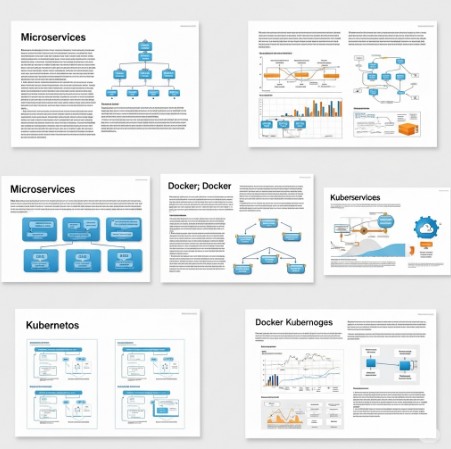
    Local Kubernetes Cluster: A Comprehensive Guide to Getting Started

    Introduction

    Kubernetes has revolutionized the way we manage and deploy containerized applications. While cloud-based Kubernetes clusters like Amazon EKS, Google GKE, or Azure AKS dominate enterprise environments, a local Kubernetes cluster is invaluable for developers who want to test, debug, and prototype applications in an isolated environment. Setting up Kubernetes locally can also save costs and simplify workflows for smaller-scale projects. This guide will walk you through everything you need to know about using a local Kubernetes cluster effectively.

    Why Use a Local Kubernetes Cluster?

    Benefits of a Local Kubernetes Cluster

    1. Cost Efficiency: No need for cloud subscriptions or additional resources.
    2. Fast Prototyping: Test configurations and code changes without delays caused by remote clusters.
    3. Offline Development: Work without internet connectivity.
    4. Complete Control: Experiment with Kubernetes features without restrictions imposed by managed services.
    5. Learning Tool: A perfect environment for understanding Kubernetes concepts.

    Setting Up Your Local Kubernetes Cluster

    Tools for Local Kubernetes Clusters

    Several tools can help you set up a local Kubernetes cluster:

    1. Minikube: Lightweight and beginner-friendly.
    2. Kind (Kubernetes IN Docker): Designed for testing Kubernetes itself.
    3. K3s: A lightweight Kubernetes distribution.
    4. Docker Desktop: Includes built-in Kubernetes support.

    Comparison Table

    ToolProsCons
    MinikubeEasy setup, wide adoptionResource-intensive
    KindGreat for CI/CD testingLimited GUI tools
    K3sLightweight, minimal setupRequires additional effort for GUI
    Docker DesktopAll-in-one, simple interfaceLimited customization

    Installing Minikube (Step-by-Step)

    Follow these steps to install and configure Minikube on your local machine:

    Prerequisites

    • A system with at least 4GB RAM.
    • Installed package managers (e.g., Homebrew for macOS, Chocolatey for Windows).
    • Virtualization enabled in your BIOS/UEFI.

    Installation Guide

    1. Download Minikube:
      • curl -LO https://storage.googleapis.com/minikube/releases/latest/minikube-linux-amd64
      • sudo install minikube-linux-amd64 /usr/local/bin/minikube
    2. Start Minikube:
      • minikube start --driver=docker
    3. Verify Installation:
      • kubectl get nodes
      • You should see your Minikube node listed.

    Customizing Minikube

    • Add CPU and memory resources:
      • minikube start --cpus=4 --memory=8192
    • Enable Add-ons:minikube addons enable dashboard

    Advanced Scenarios

    Using Persistent Storage

    Persistent storage ensures data survives pod restarts:

    1.Create a PersistentVolume (PV) and PersistentVolumeClaim (PVC):

    apiVersion: v1
    kind: PersistentVolume
    metadata:
      name: local-pv
    spec:
      capacity:
        storage: 1Gi
      accessModes:
        - ReadWriteOnce
      hostPath:
        path: "/mnt/data"
    ---
    apiVersion: v1
    kind: PersistentVolumeClaim
    metadata:
      name: local-pvc
    spec:
      accessModes:
        - ReadWriteOnce
      resources:
        requests:
          storage: 1Gi

    2.Apply the configuration:

    kubectl apply -f pv-pvc.yaml

    Testing Multi-Node Clusters

    Minikube supports multi-node setups for testing advanced scenarios:

    minikube start --nodes=3

    Testing Multi-Node Clusters

    Minikube supports multi-node setups for testing advanced scenarios:

    minikube start --nodes=3

    FAQ: Local Kubernetes Cluster

    Frequently Asked Questions

    What are the hardware requirements for running a local Kubernetes cluster?

    At least 4GB of RAM and 2 CPUs are recommended for a smooth experience, though requirements may vary based on the tools used.

    Can I simulate a production environment locally?

    Yes, tools like Kind or K3s can help simulate production-like setups, including multi-node clusters and advanced networking.

    How can I troubleshoot issues with my local cluster?

    • Use kubectl describe to inspect resource configurations.
    • Check Minikube logs:minikube logs

    Is a local Kubernetes cluster secure?

    Local clusters are primarily for development and are not hardened for production. Avoid using them for sensitive workloads.

    External Resources

    Conclusion

    A local Kubernetes cluster is a versatile tool for developers and learners to experiment with Kubernetes features, test applications, and save costs. By leveraging tools like Minikube, Kind, or Docker Desktop, you can efficiently set up and manage Kubernetes environments on your local machine. Whether you’re a beginner or an experienced developer, a local cluster offers the flexibility and control needed to enhance your Kubernetes expertise.

    Start setting up your local Kubernetes cluster today and unlock endless possibilities for containerized application development!Thank you for reading the DevopsRoles page!

    Docker Compose Volumes: A Comprehensive Guide

    Introduction

    Docker Compose has revolutionized containerized application management by simplifying multi-container setups. Among its many features, volumes stand out as an essential mechanism for managing persistent data in Docker containers. Whether you are running databases, handling logs, or managing user uploads, Docker Compose volumes ensure data consistency and ease of access across containers. This guide dives deep into using Docker Compose volumes, providing practical examples, best practices, and solutions to common challenges.

    What Are Docker Compose Volumes?

    Docker Compose volumes are storage spaces external to containers, used for persisting data even after containers are stopped or restarted. They enable data sharing between multiple containers and maintain data integrity over the lifecycle of an application. By using volumes, you can:

    • Decouple data storage from application logic.
    • Avoid data loss during container restarts.
    • Share data seamlessly between containers.

    Key Benefits of Docker Compose Volumes

    • Data Persistence: Volumes ensure data remains intact even after container recreation.
    • Performance: Native volume drivers offer superior performance over bind mounts.
    • Flexibility: Support for multiple volume types, including local and remote storage.

    Getting Started with Docker Compose Volumes

    Basic Syntax

    Volumes in Docker Compose are defined under the volumes key in the docker-compose.yml file. Here’s the general syntax:

    version: '3.9'
    services:
      service_name:
        image: image_name
        volumes:
          - volume_name:/path/in/container
    volumes:
      volume_name:
        driver: local

    Example 1: Simple Volume Usage

    Let’s start with a basic example where a volume is used to store database data.

    version: '3.9'
    services:
      database:
        image: mysql:latest
        environment:
          MYSQL_ROOT_PASSWORD: example
        volumes:
          - db_data:/var/lib/mysql
    volumes:
      db_data:
        driver: local

    Explanation:

    • The db_data volume is mounted to /var/lib/mysql in the database container.
    • Data stored in the database persists even after the container stops.

    Example 2: Sharing Data Between Containers

    version: '3.9'
    services:
      app:
        image: my-app:latest
        volumes:
          - shared_data:/app/data
      worker:
        image: my-worker:latest
        volumes:
          - shared_data:/worker/data
    volumes:
      shared_data:
        driver: local

    Explanation:

    • Both app and worker services share the shared_data volume.
    • This setup allows seamless data exchange between the two containers.

    Example 3: Bind Mounts for Local Development

    Bind mounts are ideal for local development, where changes to files need immediate reflection in containers.

    version: '3.9'
    services:
      web:
        image: nginx:latest
        volumes:
          - ./html:/usr/share/nginx/html

    Explanation:

    • The ./html directory on the host is mounted to /usr/share/nginx/html in the container.
    • Any updates to files in ./html are instantly visible in the container.

    Advanced Scenarios with Docker Compose Volumes

    Using Named Volumes with Custom Drivers

    version: '3.9'
    services:
      data_service:
        image: data-image:latest
        volumes:
          - custom_volume:/data
    volumes:
      custom_volume:
        driver: local
        driver_opts:
          type: none
          o: bind
          device: /path/to/custom/dir

    Explanation:

    • The custom_volume is configured with specific driver options to use a custom directory on the host.
    • Offers greater control over volume behavior.

    Managing Volume Lifecycle

    • Create Volumes:
      • docker volume create volume_name
    • List Volumes:
      • docker volume ls
    • Inspect Volumes:
      • docker volume inspect volume_name
    • Remove Volumes:
      • docker volume rm volume_name

    Best Practices for Using Docker Compose Volumes

    • Use Named Volumes for Persistent Data: Provides better management and reusability.
    • Avoid Sensitive Data in Bind Mounts: Secure sensitive information using encrypted volumes or environment variables.
    • Regularly Backup Volume Data: Use tools like tar or specialized backup solutions.

    FAQ: Docker Compose Volumes

    What is the difference between volumes and bind mounts?

    • Volumes: Managed by Docker, offer better performance and security.
    • Bind Mounts: Directly map host directories, suitable for development environments.

    Can I use Docker Compose volumes with cloud storage?

    Yes, volumes can be configured to use cloud storage backends like AWS, Azure, or Google Cloud using plugins.

    How do I clean up unused volumes?

    Use the following command:

    docker volume prune

    Can I change the volume driver after creation?

    No, you must recreate the volume to change its driver.

    External Resources

    Conclusion

    Docker Compose volumes are indispensable for managing persistent data in containerized applications. From simple data storage to complex multi-container setups, volumes provide a robust and flexible solution. By understanding their usage and following best practices, you can enhance your Docker workflows and ensure data reliability across your applications. Start implementing Docker Compose volumes today and unlock the full potential of containerization! Thank you for reading the DevopsRoles page!