Category Archives: Jenkins

Master Jenkins with DevOpsRoles.com. Explore detailed guides and tutorials to automate your CI/CD pipelines and enhance your DevOps practices with Jenkins.

How to Manage Users and Roles in Jenkins

In this tutorial, How to Manage users and Roles in jenkins. You have installed “plugin Manage and Assign Roles” if yet then install it! Now let begin.

Install and configure Manage users and Roles in Jenkins

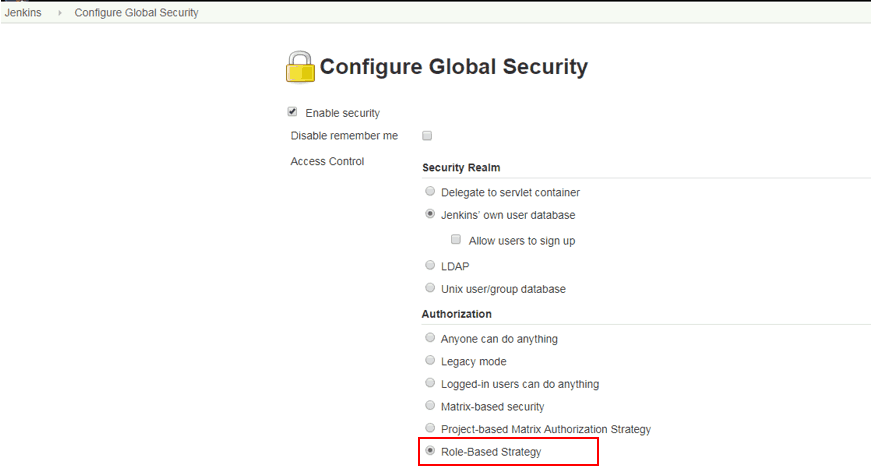
1. Click Jenkins –> Manage Jenkins –> Configure Global Security –> Choose Role-Based Strategy.

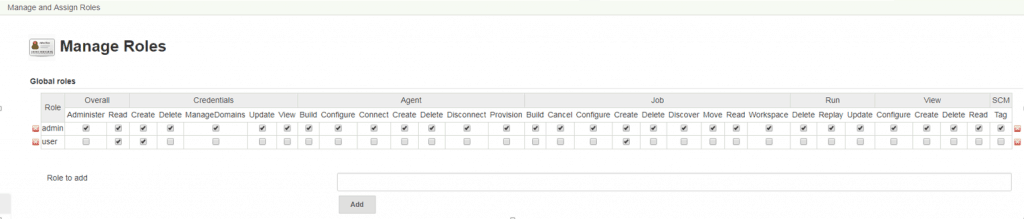
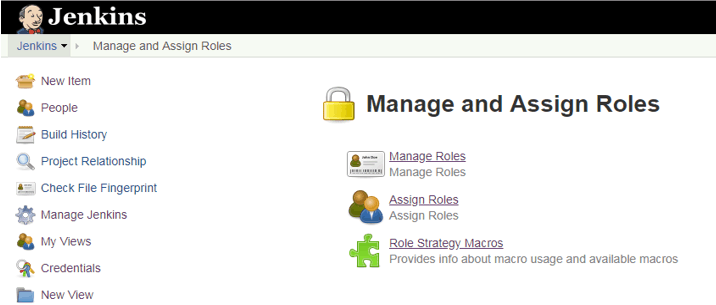
2. click Jenkins –> Manage Jenkins –> Click Manage and Assign Roles –> Click Manage Roles.

In Global roles –> Role to add. For example, Add new admin, user

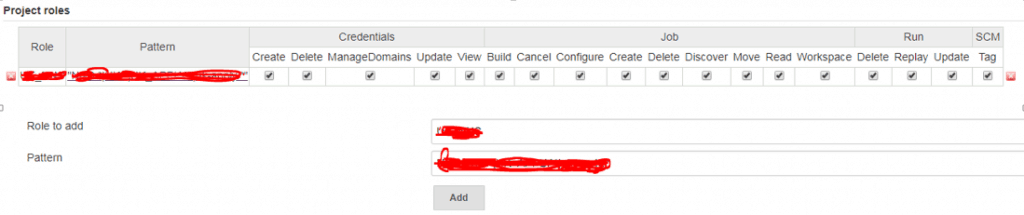
In “Project roles” –> Add “Role to add” and “Pattern”.
For example, Multiple Pattern for NGINX.
Role to add: NGINX
Pattern: startnginx.|stopnginx.|buildnginx.*

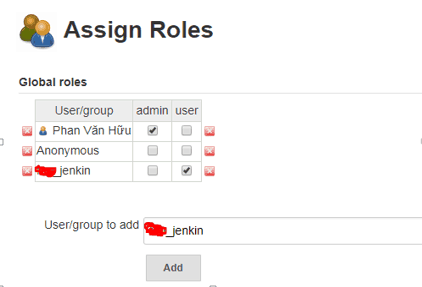
3. click Jenkins –> Manage Jenkins –> Click Manage and Assign Roles –> Click Assign Roles.

In “Global roles” –> Add “User/group to add”.
For example: “User/group to add”add new xxx_jenkins account and chose “user” role. Account HuuPV chose the “admin” role as in the picture below.

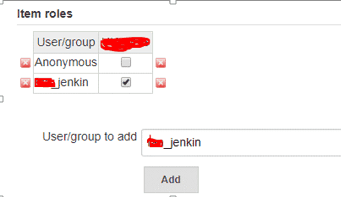
In “Item roles” –> Add “User/group to add”.

For example: choose xxx_jenkin account with role “ NGINX “ have created above step 2 as the picture below.

Plugin Manage and Asign Roles.

Conclusion

Thought the article, How to use “How to Manage Users and Roles in Jenkins” as above. I hope will this your helpful. Thank you for reading the DevopsRoles page!

Jenkins install Plug-in Ansible: A Step-by-Step Guide

Introduction

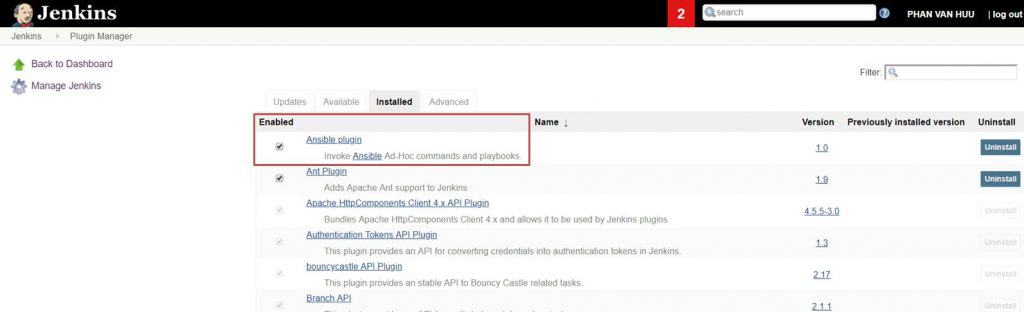
Ansible is a well-known structure management tool. Ansible displays the message in JSON format, explaining the structure of the system with YAML. Now, let’s go Jenkins install Plug-in Ansible.

Refer to install Ansible and Jenkins as the link below

Jenkins install Plug-in Ansible

Global setting

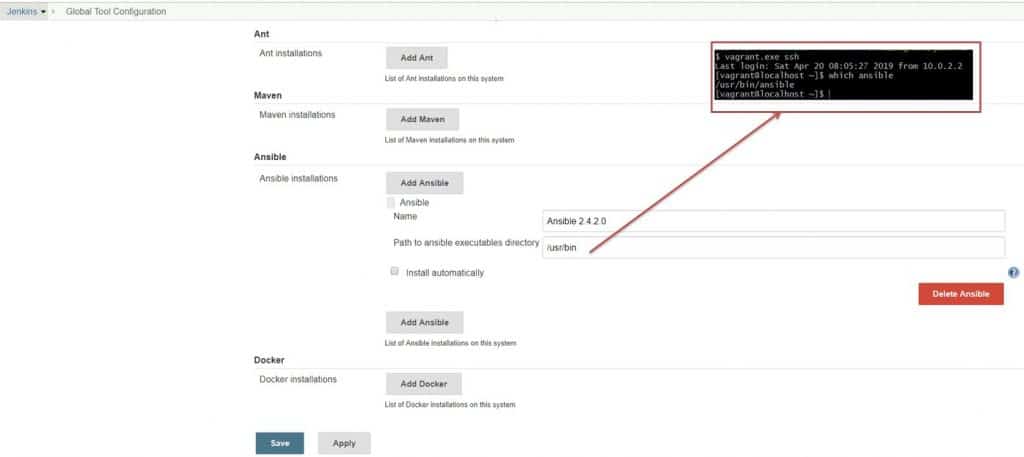
Specify the Ansible implementation directory. Manage Jenkins -> Global Tool Configuration as the picture below

Configure job run Ansible Playbook

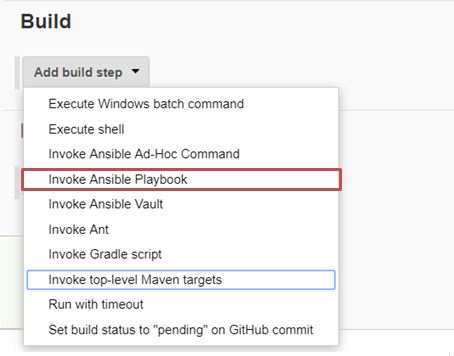
Create job –> configure job –> Add build step as the picture below

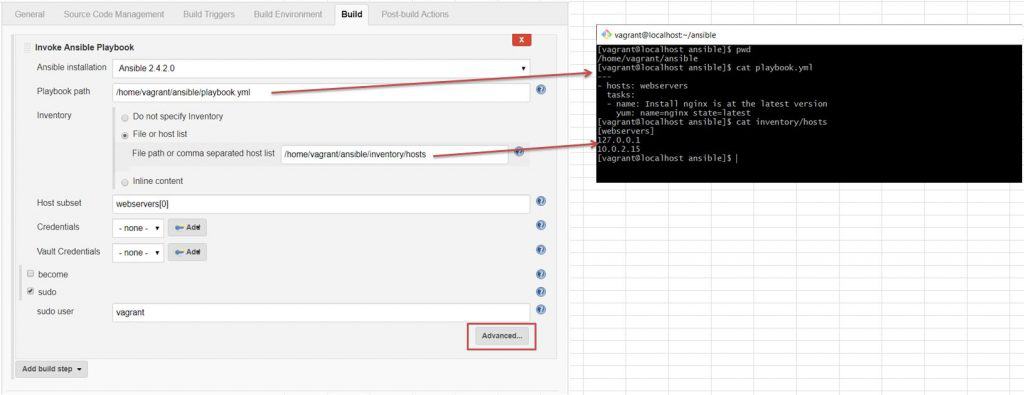
My example

Invoke Ansible Playbook as in the picture below

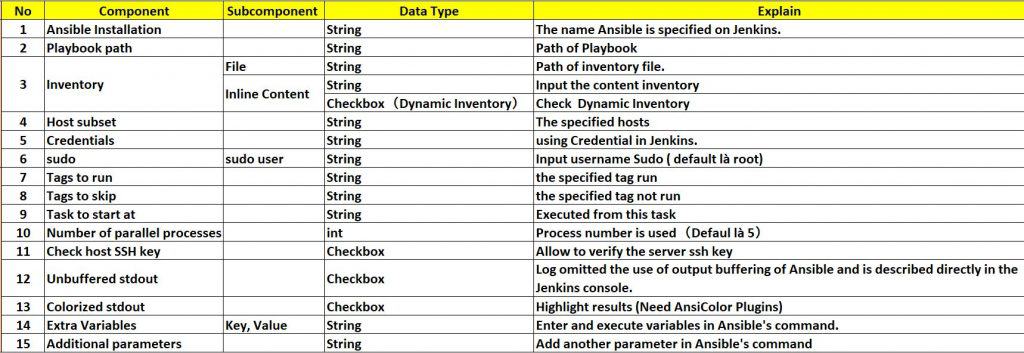
The explained component in Invoke Ansible Playbook as the picture below

Conclusion

Integrating Jenkins and Ansible not only automates the deployment process but also enhances the performance and reliability of your system. Through this detailed guide on installing the Ansible plugin on Jenkins, you can clearly see the benefits this integration brings. By automating configuration management and deployment tasks, you can focus more on developing and improving your products, minimizing risks and errors during deployment. Start integrating Jenkins and Ansible today to experience a significant difference in your DevOps processes.

Jenkins checkout Pipeline Multibranch

In this tutorial, How to use Jenkins checkout Pipeline Multibranch. For example with Git, the reference a GitSCM Object. It is the same git pull command.

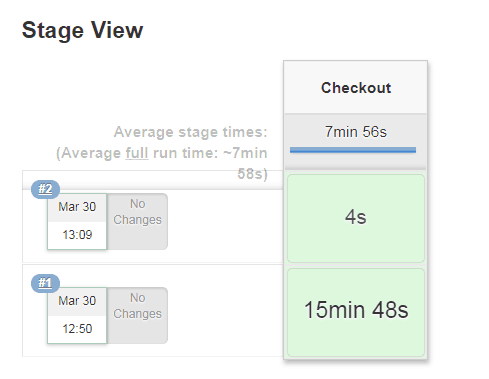
For example below, When you running job Jenkins then checkout source code from git takes 15 minutes. You running job Jenkins again then checkout the source code from git takes 4s. It is faster, as the picture below

Jenkins checkout Pipeline Multibranch code as below

stage('Checkout') {
      checkout([$class: 'GitSCM', branches: [[name: "${BRANCH}"]],
           doGenerateSubmoduleConfigurations: false,
            extensions: [[$class: 'CloneOption', depth: 0, noTags: false, reference: '', shallow: true, timeout: 30], 
[$class: 'LocalBranch', localBranch: '$BRANCH'], 
[$class: 'RelativeTargetDirectory', relativeTargetDir: 'devopsroles'], [$class: 'CleanBeforeCheckout'], 
[$class: 'CloneOption', depth: 0, honorRefspec: true, noTags: true, reference: '', shallow: false, timeout: 90]],
            submoduleCfg: [],
            userRemoteConfigs: [[credentialsId: '755f8df9-0g83-4b80-96d8-917eeb6b2fgg', url: 'https://gitlab.com/devopsroles.git']]
     ])
   }

Conclusion

You have use Jenkins checkout Pipeline Multibranch. I hope will this your helpful. Thank you for reading the DevopsRoles page!

Jenkins pipeline error timeout after 10 minutes

How to fix Error fetching remote repository ‘origin’ from Jenkins build jobs. In this tutorial, I will be fixing the Jenkins pipeline error timeout after 10 minutes.

Jenkins build job error code as below

ERROR: Timeout after 10 minutes
ERROR: Error fetching remote repo 'origin'
Caused by: hudson.plugins.git.GitException: Command "/usr/local/git/bin/git fetch --tags --progress https://gitlab.com/devopsroles.git +refs/heads/*:refs/remotes/origin/*" returned status code 143:

Cause by

  1. incorrect credentials were provided with the Jenkins job definition.
  2. The repository is so large that it takes more than 10 minutes to clone.
  3. Bandwidth to the git server is slow enough that it takes more than 10 minutes to clone.

Jenkins pipeline error timeout after 10 minutes fixed

stage('Getsource') { // for display purposes
    // Get some code from a GitHub repository
    checkout([$class: 'GitSCM',
        branches: [[name: "${TARGET_BRANCH}"]],
        extensions: [[$class: 'CloneOption', timeout: 120]],
        gitTool: 'Default', 
        userRemoteConfigs: [[credentialsId: 'w55f8df9-0183-4b80-96d8-917ccccccccccc', url: 'https://gitlab.com/devopsroles.git']]
    ])
}

In my example, I will Increase the timeout is 120 minutes for the Git checkout source from the repository.

Conclusion

Through the article, you have solved the problem of Jenkins pipeline error timeout after 10 minutes as above. I hope will this your helpful.

Thank you for reading the DevopsRoles page!

How to install Jenkins using Vagrant

In this tutorial, How to install Jenkins using Vagrant. Jenkins the essential for DevOps Roles. You can refer to install Vagrant on Windows 10 here.

My environment

  • OS: Windows 10
  • Git Bash
  • Vagrant
  • VirtualBox

Install Jenkins using Vagrant

Creating Vagrant box Centos 7 for Jenkins

$ mkdir jenkins
$ cd jenkins
$ vagrant.exe init centos/7

Vagrant for Jenkins

The modify content Vagrantfile file as below

# -*- mode: ruby -*-
# vi: set ft=ruby :

VAGRANTFILE_API_VERSION = "2"

$script = <<ENDSCRIPT
  sudo yum install -y epel-release
  sudo yum -y update
  sudo yum install -y net-tools
  sudo yum install -y wget
  sudo wget -O /etc/yum.repos.d/jenkins.repo http://pkg.jenkins-ci.org/redhat/jenkins.repo
  sudo rpm --import http://pkg.jenkins-ci.org/redhat/jenkins-ci.org.key
  sudo yum install -y jenkins
  sudo yum install -y java-1.8.0-openjdk.x86_64
  sudo systemctl start jenkins.service
  sudo systemctl enable jenkins.service
ENDSCRIPT

Vagrant.configure(VAGRANTFILE_API_VERSION) do |config|
  config.vm.box = "centos/7"
  config.vm.network "forwarded_port", guest: 8080, host: 8888
  config.vm.provision "shell", inline: $script
end

To launch the Virtual Machine from Vagrant

$ vagrant.exe up

Let’s restart the image after installation as command below

$ vagrant.exe halt
$ vagrant.exe up

Access Jenkins from the web browser

http://localhost:8888/

The screen output terminal

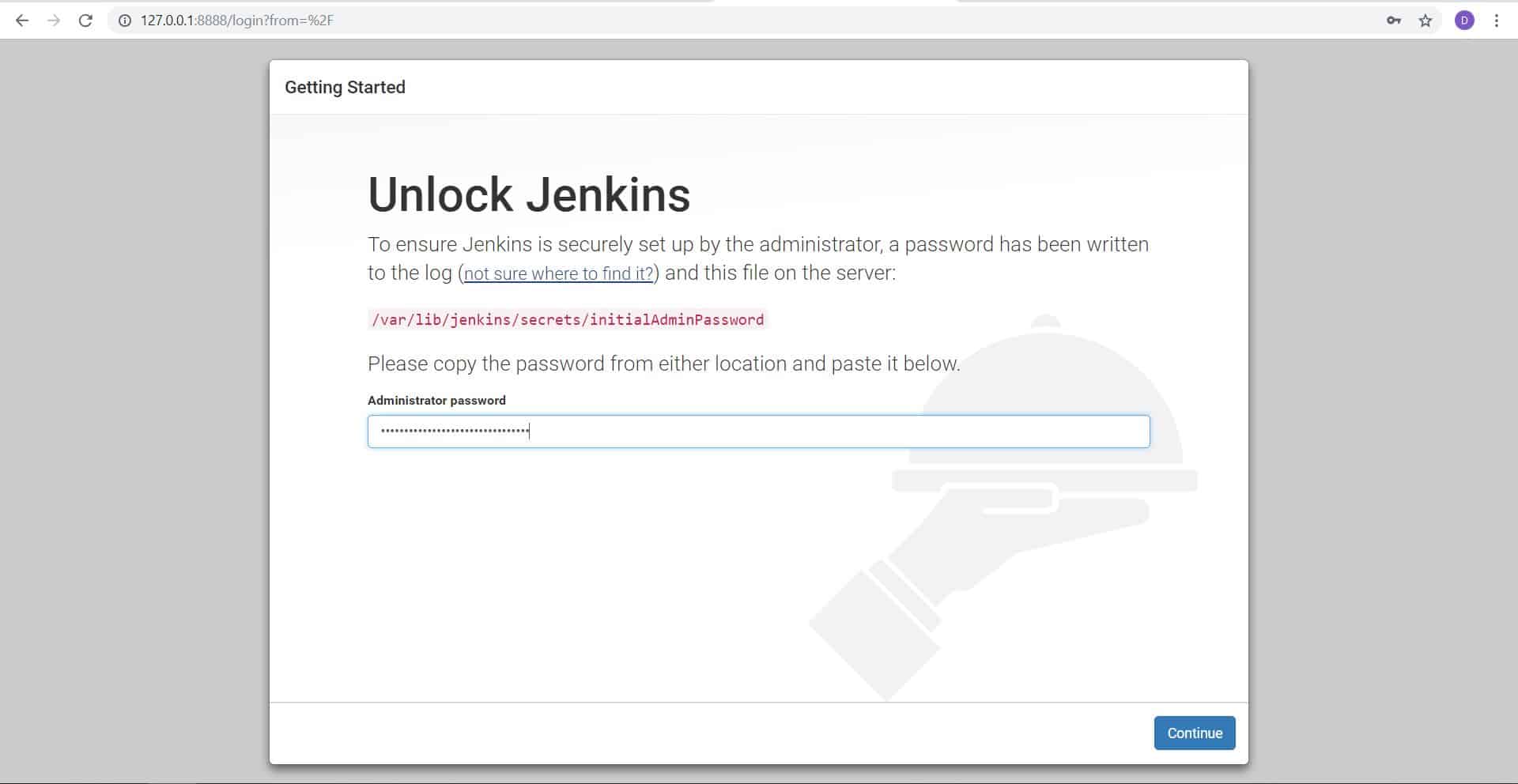
How to “Unlock Jenkins”?

To use grep password as below:

# cat /var/log/jenkins/jenkins.log | grep password -A 3

The screen output terminal

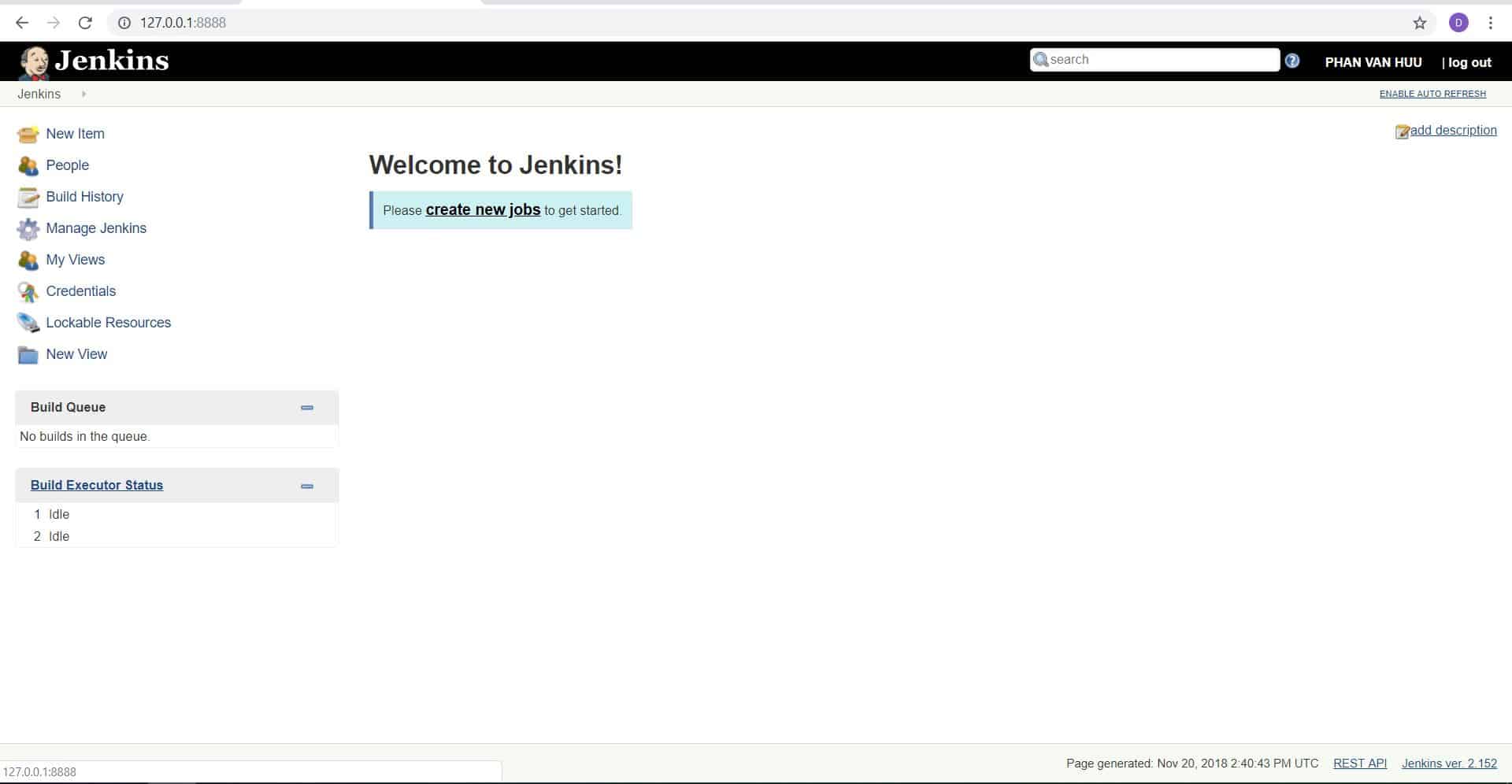
The finish installs Jenkins using Vagrant on Windows 10.

Conclusion

Thought the article, “How to install Jenkins using vagrant” as above. I hope will this your helpful.

How to Import Export Jobs Jenkins

Introduction

In this tutorial, How to Import Export jobs, Jenkins. It is easy to import and export Jenkins jobs and plugin when you migrate Jenkins jobs to a new server. I use Butler CLI. Jenkins the essential for DevOps Roles.

To get butler package for your system Linux. Link butler download.

Install butler

wget https://s3.us-east-1.amazonaws.com/butlercli/1.0.0/linux/butler
chmod +x butler
mv butler /usr/local/bin/

To verify the Bulter

/usr/local/bin/butler help

Import Export Jobs Jenkins

OLD SERVER

To export Jenkins plugins

/usr/local/bin/butler plugins export  --server localhost:8080  --username admin  --password admin

Butler will dump a list of plugins installed to new file “plugins.txt”

To export Jenkins jobs

/usr/local/bin/butler jobs export  --server localhost:8080  --username admin  --password admin

A new directory “jobs” will be created with every job in Jenkins. Each job it owns configure file config.xml

NEW SERVER

To import Jenkins plugins

/usr/local/bin/butler plugins import  --server localhost:8080  --username admin  --password admin

To import Jenkins jobs

/usr/local/bin/butler jobs import  --server localhost:8080  --username admin --password admin

Another method, you can refer to from StackOverflow

Conclusion

Throughout the article, you can use “Import Export Jobs Jenkins” as mentioned above. I hope this will be helpful to you. Thank you for reading the DevopsRoles page!

Jenkins build periodically with parameters

In this tutorial, How do I use “Jenkins build periodically with parameters”? Using the “Parameterized Scheduler” Plugin. The default, not yet Parameterized Scheduler plugin in Jenkins. A Jenkins plugin to support parameters in this build scheduler. Jenkins the essential for DevOps Roles.

Make sure you have the necessary plugins installed in Jenkins to support parameterized builds if they are not available by default.

Jenkins build periodically with parameters

Step 1: Setup the Parameterized Scheduler plugin

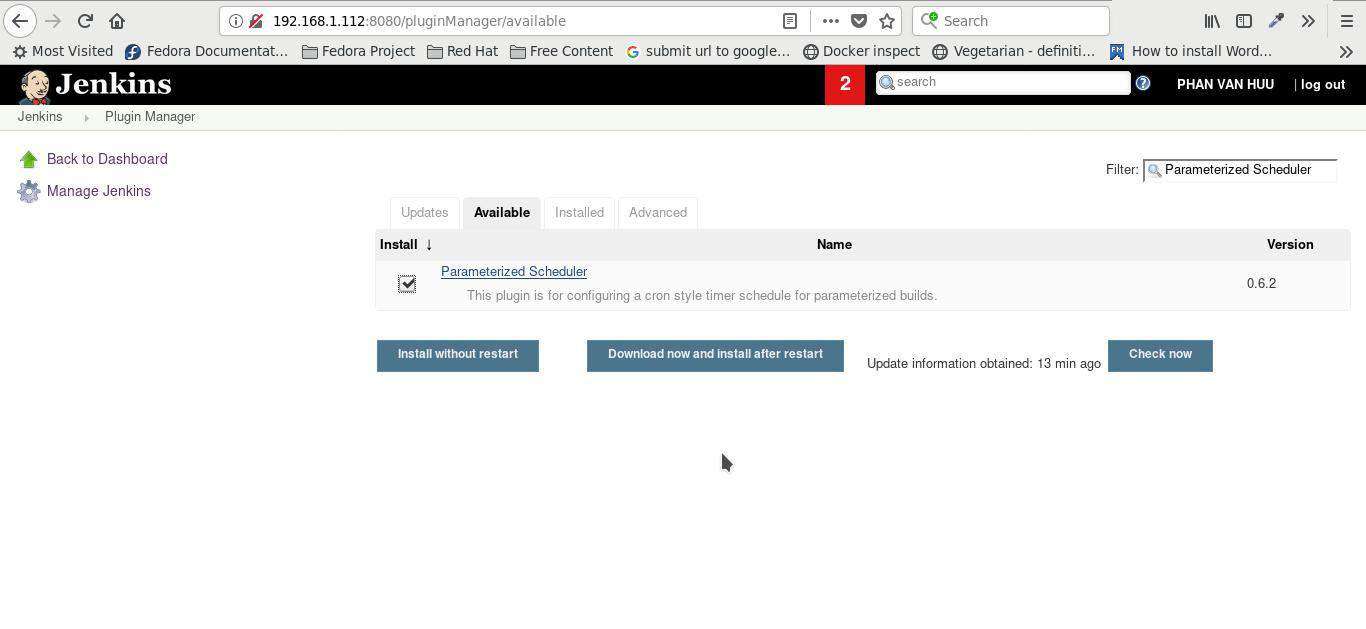
In “Manage Jenkins” –> In the “Available” tab –> Select “Parameterized Scheduler” –> click “Install without restart”.

To restart Jenkins services

[huupv@huupv devopsroles]$ sudo /etc/init.d/jenkins restart

Step 2: Configure the example

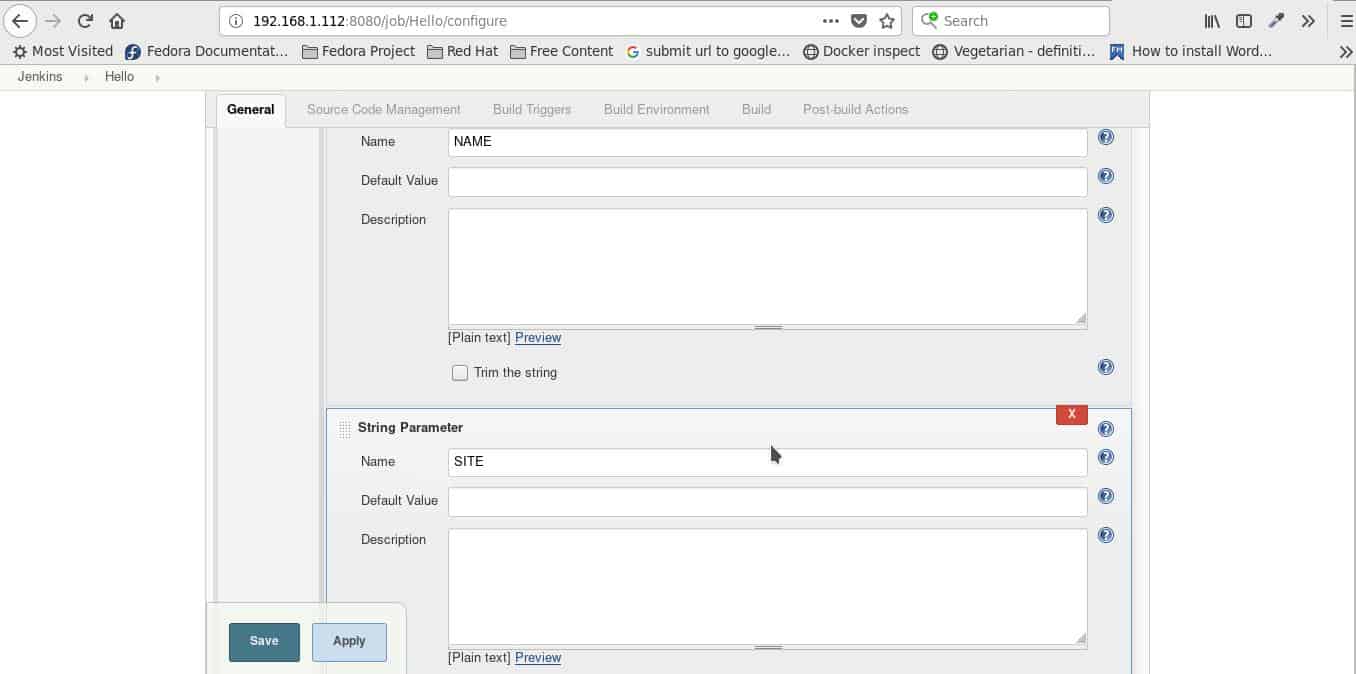
In this example, I use two parameters: NAME and SITE.

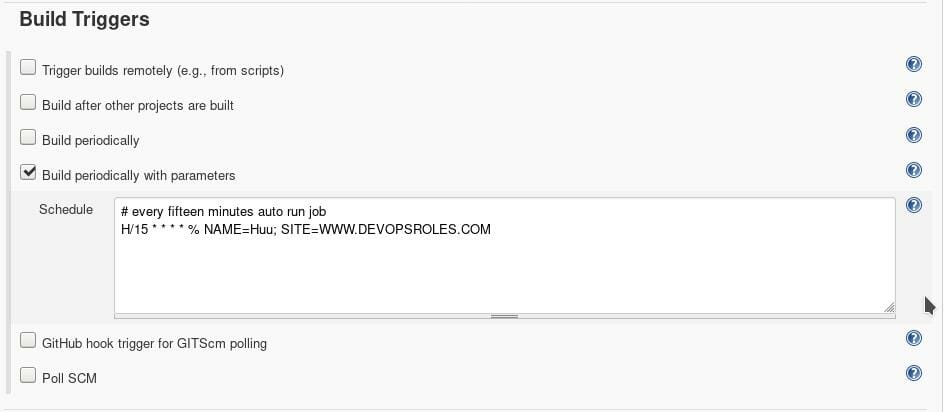
In the “Build Triggers” tab, select “Build periodically with parameters”

Jenkins setting automation run job with parameters every fifteen minutes as the picture below

# every fifteen minutes auto run job
H/15 * * * * % NAME=Huu; SITE=WWW.DEVOPSROLES.COM

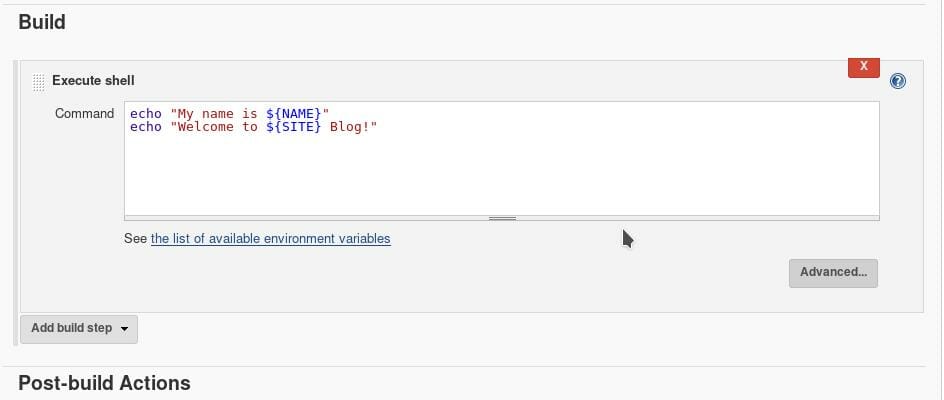
Example “Execute shell” basic.

Conclusion

Through the article, you can use Jenkins build periodically with parameters as above. I hope will this your helpful. Thank you for reading the DevopsRoles page!

Jenkins run as non root user

In this tutorial, How do I Jenkins run as non root user in Linux? Jenkins the essential for DevOps Roles.

Jenkins run as non root user

To change the Jenkins user, Open “/etc/sysconfig/jenkins” file. Changing JENKINS_USER variable and Make sure user exists in your system.

The default, JENKINS_USER is Jenkins USER as below

[root@DevopsRoles ~]# cat /etc/sysconfig/jenkins | grep JENKINS_USER
JENKINS_USER="jenkins"

Changing JENKINS_USER to huupv USER.

[root@DevopsRoles ~]# sed -i -e 's/JENKINS_USER\="jenkins"/JENKINS_USER\="huupv"/g' /etc/sysconfig/jenkins

The screen output terminal:

[root@DevopsRoles ~]# cat /etc/sysconfig/jenkins | grep JENKINS_USER
JENKINS_USER="huupv"

The changing ownership Jenkins home

[root@DevopsRoles ~]# chown -R huupv:huupv /var/lib/jenkins 
[root@DevopsRoles ~]# chown -R huupv:huupv /var/cache/jenkins
[root@DevopsRoles ~]# chown -R huupv:huupv /var/log/jenkins

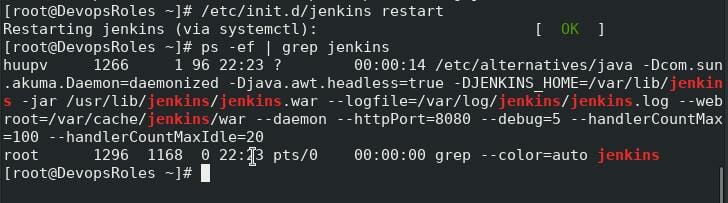
The restarted Jenkins and check user has changed with ps command.

[root@DevopsRoles ~]# /etc/init.d/jenkins restart
[root@DevopsRoles ~]# ps -ef | grep jenkins

The screen output terminal:

Conclusion

Thought the article, you can use Jenkins run as the non root user as above. I hope will this your helpful. Thank you for reading the DevopsRoles page!

Jenkins how to start service Postfix mail server

In this tutorial, I using Jenkins how to start/stop/ status service Postfix mail server. Jenkins the essential for DevOps Roles. Now, let’s go use jenkins start service Postfix mail server.

Note:  To start or stop service Postfix then account Jenkins setting in sudoers option “NOPASSWD” as the picture below

How to start service Postfix mail server use Jenkins

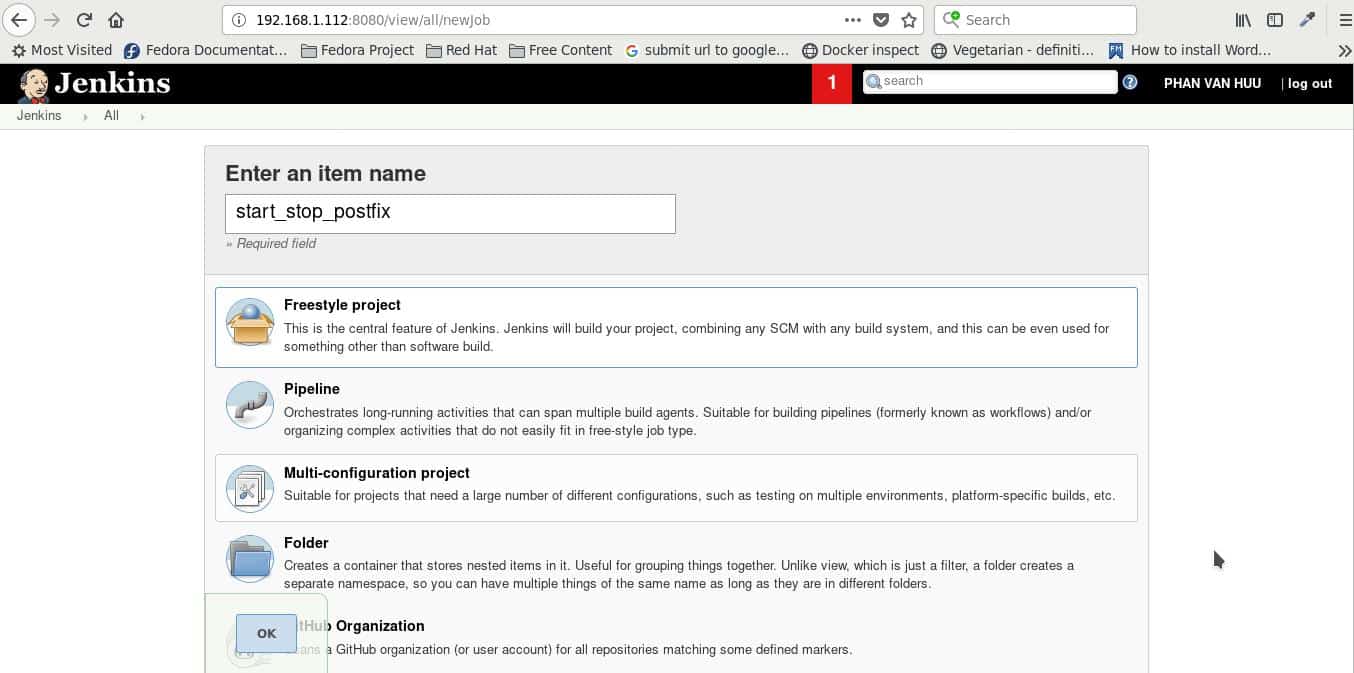
Create job “start_stop_postfix” “Freestyle project” as picture below

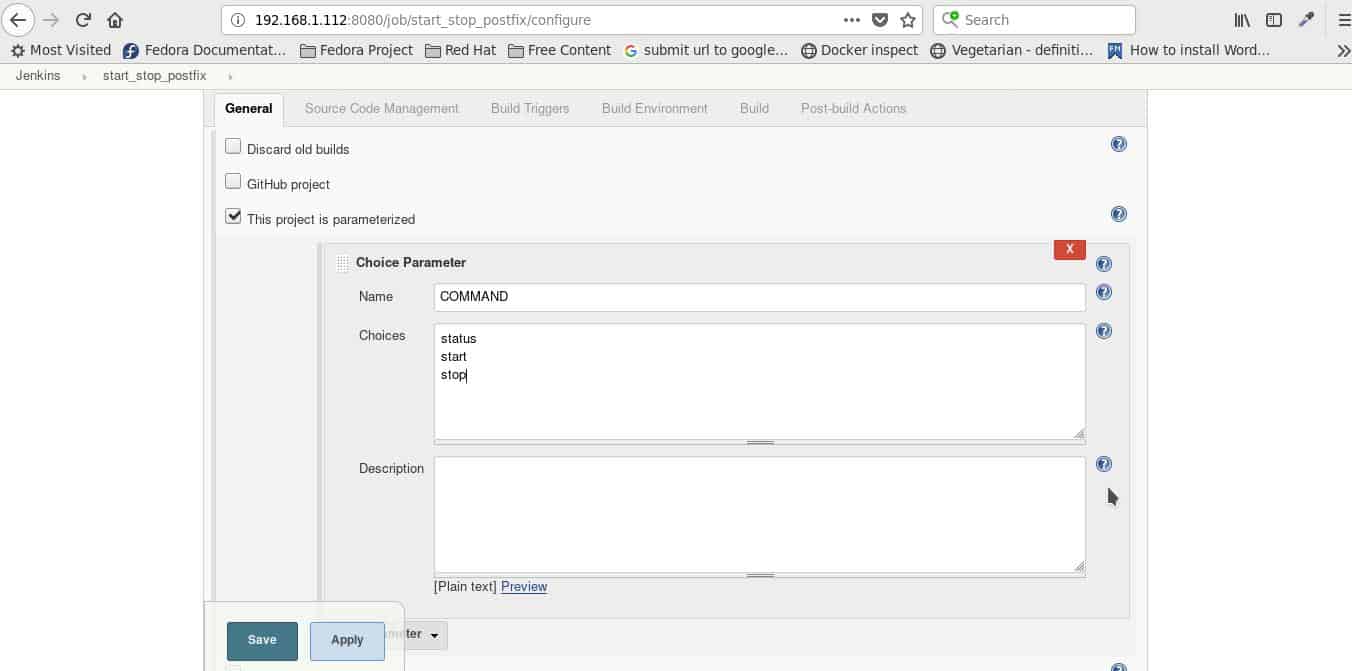
In General tab, Select “This project is parameterized” with “Choice Parameter” as the picture below

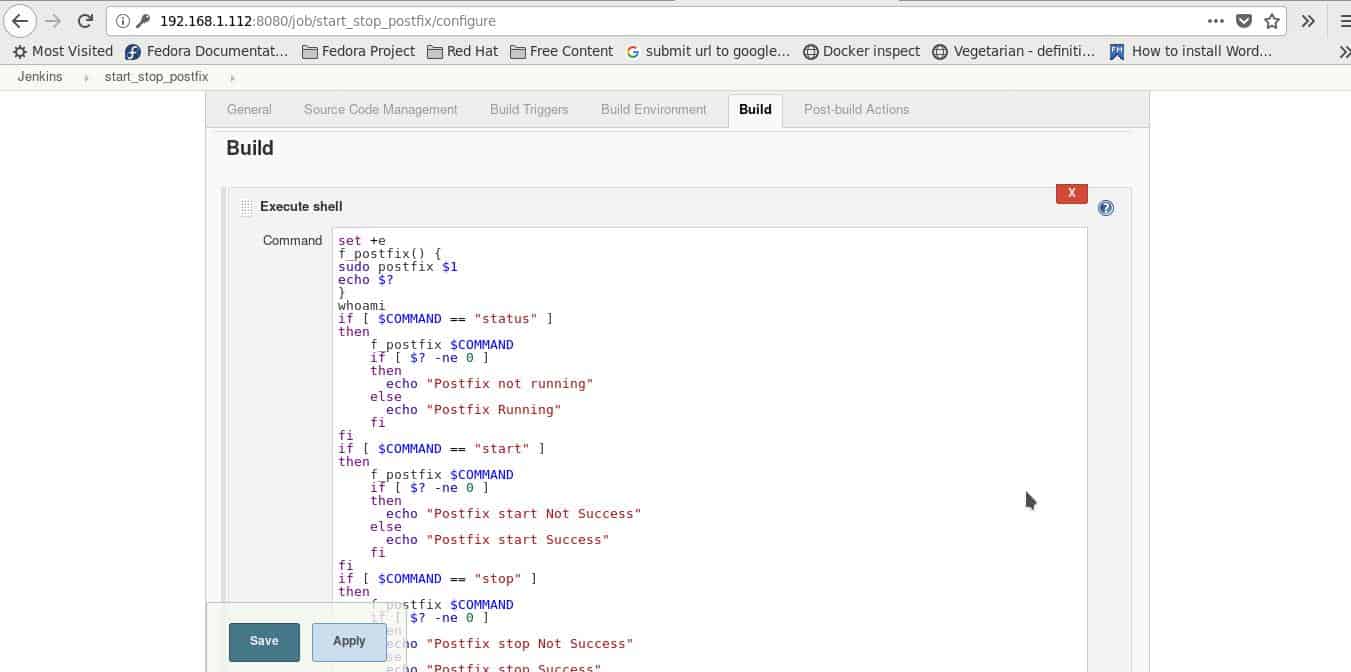
In Build tab, you select  “Execute shell” to written bash script “start/stop/status postfix” as the picture below

My code bash script

set +e
f_postfix() {
  sudo postfix $1
  echo $?
}
whoami
if [ $COMMAND == "status" ]
then
  f_postfix $COMMAND

  if [ $? -ne 0 ]
  then
    echo "Postfix not running"
  else
    echo "Postfix Running"
  fi
fi
if [ $COMMAND == "start" ]
then
  f_postfix $COMMAND
  if [ $? -ne 0 ]
  then
    echo "Postfix start Not Success"
  else
    echo "Postfix start Success"
  fi
fi
if [ $COMMAND == "stop" ]
then
  f_postfix $COMMAND
  if [ $? -ne 0 ]
  then
    echo "Postfix stop Not Success"
  else
    echo "Postfix stop Success"
  fi
fi

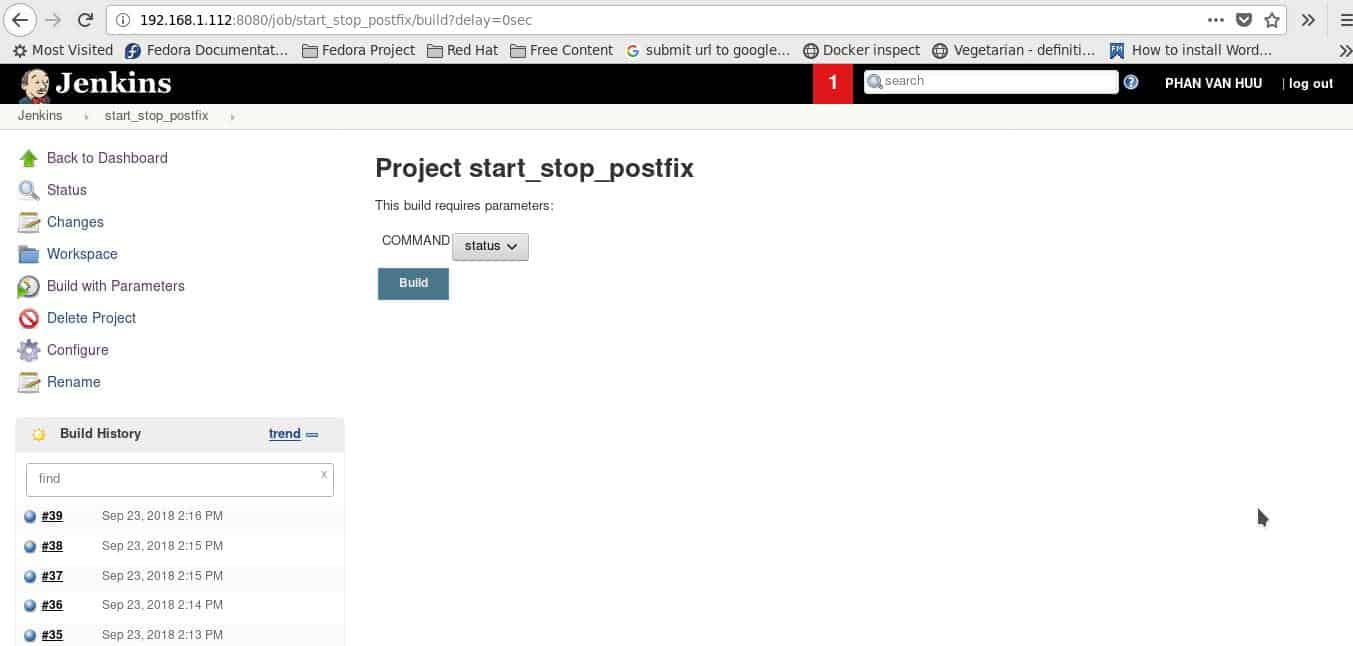
The finish, you click “Build with Parameters” to build job. You can select COMMAND “status or start or stop” to Build as the picture below

Conclusion

Thought the article, you can use Jenkins how to start service Postfix mail server as above. I hope will this your helpful. Thank you for reading the DevopsRoles page!

Jenkins tutorial

What does Jenkins mean?

Jenkins is a powerful application allow continuous integration and continuous delivery. It is a free open source.

In this tutorial, who would like to learn how to build an test for the project. Jenkins the essential for DevOps Roles.

The simple WORKFLOW of how Jenkins works.

  1. Check source code from git or svn, so forth.
  2. Jenkins pick up the changed source code and trigger a build and run any test if required.
  3. The build output available in the Jenkins dashboards.
Jenkins tutorial

Install Jenkins

System requirements

  • JDK is version 1.5 or above
  • Memory recommended is 2GB ( minimum)

you can ref to link install jenkins here.

Jenkins git plugin

From Jenkins Dashboard, Click the Manage Jenkins as the picture below

In the next screen, click “Manage Plugins’ as the picture below

In this next screen, click the Available tab. This tab list all available for downloading. In this ‘Filter’ tab type ‘Git plugin’.

Click on the button ‘Install without restart’

In this next screen, click the ‘Installed’ tab. I have installed Git plugin as below

jenkins maven plugin

From Jenkins Dashboard, Click the Manage Jenkins. Click ‘Global Tool Configuration’ as below

Scroll down till you see Maven section and then click ‘Add Maven’ Button as below

Click ‘Save’ Button

Jenkins configuration

From Jenkins Dashboard, Click the Manage Jenkins. Click ‘Configure System’ as below
You can configure Jenkins home, JDK so on.

jenkins create job

Step 1: Go to Jenkins Dashboard and click ‘New Item’ as below
Step 2: Enter the item name and example select ‘Freestyle project option’. Click OK button
You set up and configure job Jenkins this screen
The finish, run job Jenkins as below

Conclusion

Thought the article, you can use Jenkins tutorial for the beginner as above. I hope will this your helpful.