Category Archives: Git

Learn Git with DevOpsRoles.com. Access in-depth guides and tutorials to master version control and improve your DevOps workflow using Git.

Step-by-Step Guide to Merging Feature Branches in Git From feature/xxx_2020 to develop/xxx

Introduction

Merging Feature Branches in Git, allowing developers to integrate changes from one branch into another. This process is essential for maintaining a clean and organized codebase, especially in collaborative projects where multiple developers work on different features simultaneously. In this guide, we will walk you through the step-by-step process of merging the feature/xxx_2020 branch into the develop/xxx branch. We will cover everything from setting up your working environment to resolving conflicts, ensuring that your merge is smooth and error-free. Whether you’re new to Git or looking to refine your merging skills, this guide has you covered.

Merging Feature Branches in Git From feature/xxx_2020 to develop/xxx

Step 1: Create a Working Directory

Before starting the merge process, it’s essential to create a separate working directory to prevent any unintended changes in your current workspace.

$ mkdir ${Working directory}
$ cd ${Working directory}

Step 2: Clone the Git Repository

Next, clone the Git repository to your local machine to ensure that you have the latest code base.

$ git clone https://domain.com/XXX/xxx.git
$ cd xxx

Step 3: Check the Remote and Fetch the Data

To ensure you are working with the most up-to-date branches, check the remote repository and fetch the latest data.

$ git remote show origin
$ git fetch origin

Step 4: Checkout the Merge Source Branch

Now, switch to the source branch feature/xxx_2020 that you plan to merge from.

$ git checkout feature/xxx_2020

Step 5: Perform a Fast-Forward Merge on the Source Branch

To ensure the source branch is up-to-date with its remote counterpart, perform a fast-forward merge.

$ git merge --ff origin/feature/xxx_2020

Step 6: Checkout the Merge Destination Branch

After updating the source branch, switch to the destination branch develop/xxx.

$ git checkout develop/xxx

Step 7: Perform a Fast-Forward Merge on the Destination Branch

Update the destination branch by performing a fast-forward merge to ensure it is current.

$ git merge --ff origin/develop/xxx

Step 8: Merge the Source Branch into the Destination Branch

Now, merge the feature/xxx_2020 branch into develop/xxx. Use the --no-commit and --no-ff options to ensure that you have control over the commit process and can handle any conflicts that arise.

$ git merge --no-commit --no-ff feature/xxx_2020

Step 9: Check Git Status for Conflicts

Before finalizing the merge, check the status of your Git repository to identify any conflicts that need to be resolved.

$ git status

Step 10: Resolve Merge Conflicts (If Any)

If there are conflicts, you’ll need to manually resolve them. Open the conflicted files, edit them as necessary, and then mark them as resolved.

Step 11: Commit the Merge with Conflict Resolution

Once all conflicts have been resolved, commit the merge with a detailed message describing the conflicts and how they were resolved.

$ git commit -F- <<EOM
>Merge branch 'feature/xxx_2020' into 'develop/xxx'
>Auto-merging src/main/java/H6789.java
>CONFLICT (content): Merge conflict in src/main/java/F6789.java
>Auto-merging src/main/etc/Test_message.properties
>EOM

Merge conflict resolution FAQs

What should I do if I encounter a merge conflict?

If you encounter a merge conflict, carefully review the conflicting files, resolve the conflicts, and then commit the changes. Use Git’s conflict markers (<<<<<<<, =======, >>>>>>>) to identify the differences between the branches.

Why should I use --no-commit and --no-ff during a merge?

Using --no-commit and --no-ff gives you more control over the merge process. It allows you to review the changes before finalizing the merge and ensures that a merge commit is created even if the merge could be resolved as a fast-forward.

How can I avoid merge conflicts?

To minimize the chances of conflicts, regularly pull the latest changes from the remote repository into your local branches and communicate with your team to coordinate when and how merges are performed.

Conclusion

Merging branches in Git is a critical skill for developers, particularly when working on collaborative projects. By following the steps outlined in this guide, you can successfully merge the feature/xxx_2020 branch into the develop/xxx branch, resolve any conflicts, and maintain a clean and functional codebase. Thank you for reading the DevopsRoles page!

References

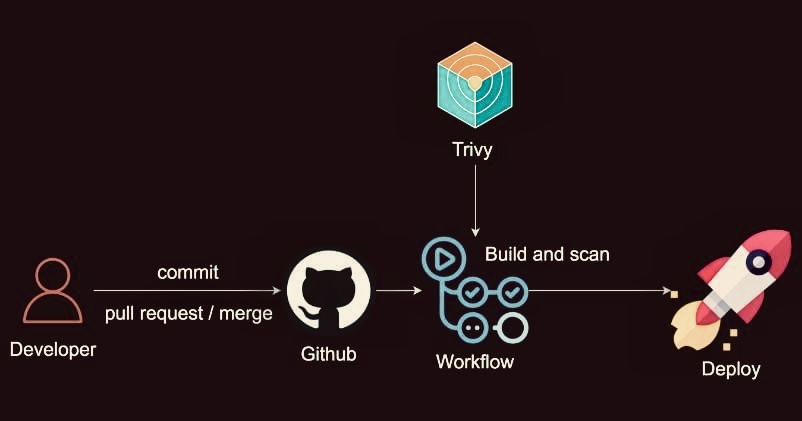
Integrating Trivy with GitHub Actions for CI/CD Security Scanning

Ensuring security within your Continuous Integration and Continuous Deployment (CI/CD) pipeline is crucial for modern software development. This detailed guide will help you integrate Trivy with GitHub Actions to automate CI/CD Security Scanning in your workflow.

What is Trivy?

It is a comprehensive vulnerability scanner for container images, file systems, and Git repositories. It can detect vulnerabilities, misconfigurations, secrets, and licenses across various platforms. Trivy is simple to use and integrates well with CI/CD tools like GitHub Actions.

Setting Up GitHub Actions for CI/CD

GitHub Actions is a powerful automation tool that allows you to create custom workflows for your projects. These workflows can run on events such as pushes, pull requests, and merges. To integrate Trivy into your GitHub Actions workflow, follow these steps:

Step 1: Create a GitHub Repository

Start by creating a GitHub repository if you don’t already have one. Initialize it with your project files and include a .github/workflows directory for your GitHub Actions workflows.

Step 2: Define Your Workflow File

Create a workflow file in the .github/workflows directory and name it ci.yml. This file will define the steps GitHub Actions will follow to build, test, and deploy your project.

name: CI/CD Pipeline

on: 
  push:
    branches: [ main ]
  pull_request:
    branches: [ main ]

jobs:
  build:
    runs-on: ubuntu-latest

    steps:
    - name: Checkout code
      uses: actions/checkout@v2

    - name: Set up Docker Buildx
      uses: docker/setup-buildx-action@v1

    - name: Build Docker image
      run: docker build -t my-app .

    - name: Scan image with Trivy
      uses: aquasecurity/trivy-action@master
      with:
        image-ref: my-app

    - name: Deploy to production
      run: echo "Deploying application..."

Step 3: Workflow Breakdown

  • Checkout Code: This step uses the actions/checkout@v2 action to clone your repository.
  • Set up Docker Buildx: This step sets up Docker Buildx to enable multi-platform builds.
  • Build Docker Image: This step builds your Docker image using the Dockerfile in your repository.
  • Scan Image with Trivy: This step is the aquasecurity/trivy-action to scan the built Docker image for vulnerabilities.
  • Deploy to Production: This is a placeholder step where you can add your deployment commands.

Step 4: Commit and Push Your Workflow

Commit your ci.yml workflow file to your repository and push the changes. This will trigger the GitHub Actions workflow to run.

git add .github/workflows/ci.yml
git commit -m "Add CI/CD workflow with Trivy scanning"
git push origin main

Monitoring and Reviewing Results

After pushing your workflow file, navigate to the “Actions” tab in your GitHub repository. You will see your workflow running. GitHub Actions provides logs and details for each step, including the Trivy scan results.

Benefits of Integrating Trivy in CI/CD

1. Automated Security Scanning

By integrating Trivy into your CI/CD pipeline, you ensure that every code change is automatically scanned for vulnerabilities. This helps in identifying and addressing security issues early in the development process.

2. Continuous Compliance

Automated scanning helps maintain compliance with security standards and regulations. It ensures that your software meets security requirements before deployment.

3. Improved Security Posture

Regular scanning and fixing vulnerabilities improve the overall security posture of your application. This reduces the risk of security breaches and ensures a more secure deployment.

FAQs

Q1: What is Trivy?
A1: Trivy is a comprehensive vulnerability scanner for container images, file systems, and Git repositories that detects vulnerabilities, misconfigurations, secrets, and licenses across different platforms.

Q2: How does Trivy integrate with GitHub Actions?
A2: Trivy integrates with GitHub Actions by adding a step in your GitHub Actions workflow file to scan Docker images for vulnerabilities.

Q3: What are the benefits of using Trivy in a CI/CD pipeline?
A3: Using Trivy in a CI/CD pipeline ensures automated security scanning, continuous compliance, and improved security posture by identifying and fixing vulnerabilities early in the development process.

Q4: How can I monitor the results of Trivy scans in GitHub Actions?
A4: You can monitor the results of Trivy scans in GitHub Actions by navigating to the “Actions” tab in your GitHub repository and reviewing the logs and details for each step of the workflow.

Conclusion

Integrating Trivy with GitHub Actions for CI/CD security scanning is a straightforward process that provides significant benefits. By automating vulnerability scanning, you can ensure that your applications are secure and compliant from the earliest stages of development. Follow the steps outlined in this guide to set up your own secure CI/CD pipeline using Trivy and GitHub Actions.

For more detailed documentation and advanced configurations, refer to the official Trivy and GitHub Actions documentation. I hope will this your helpful. Thank you for reading the DevopsRoles page!

Mastering Git: 36 Essential Commands for Programmers and Developers

Introduction

Mastering Git, Git stands as a cornerstone for version control, enabling seamless collaboration and efficient project management. Whether you’re a seasoned programmer or just embarking on your coding journey, mastering Git commands is essential for optimizing your workflow and maximizing productivity. This comprehensive guide explores 36 indispensable Git commands, complete with practical command line examples, to empower programmers and developers at every level.

Mastering Git commands

  1. Configure User Profile:

Set up your user profile to ensure accurate tracking of contributions.

$ git config user.name "USERNAME"
$ git config user.email "user@example.com"
$ git config --global user.name "USERNAME"
$ git config --global user.email "user@example.com"

Configure your identity within Git globally or on a per-repository basis to accurately track your contributions

  1. Initialize Git Repositories:

Start version controlling your projects by initializing Git repositories.

$ git init
  1. Add Project Files:

Add files to the staging area in preparation for committing changes.

$ git add file
$ git add *.php
  1. Verify Added Files:

Check the status of your files to see which ones are staged for commit.

$ git status
  1. Commit Changes to the Repository:

Record changes to the repository along with a descriptive message.

$ git commit
$ git commit -m "First Commit"
  1. Display the Logs:

View commit history to track changes and understand project evolution.

$ git log
$ git log --file
  1. Verify Project Branches:

List existing branches in your repository to navigate between different versions.

$ git branch
  1. Reset Project Branches:

Reset branches to a previous state, undoing commits and changes as needed.

$ git reset
$ git reset --soft
$ git reset --hard
  1. Add a New Branch:

Create a new branch to isolate development efforts or work on a specific feature.

$ git branch new-feature
  1. Switch between Branches:

Switch between branches to access different versions of your project.

$ git checkout new-feature
  1. Delete a Project Branch:

Remove unnecessary branches once they have served their purpose.

$ git checkout master
$ git branch -D new-feature
  1. Check Differences among Commits, Trees, and Files:

Analyze differences between commits, trees, and individual files to understand changes.

$ git diff
$ git diff new-feature master
  1. Merge Two Branches:

Combine changes from one branch into another to integrate new features or bug fixes.

$ git merge fixes new-feature
$ git merge -s ours obsolete
$ git merge --no-commit main
  1. Revert Existing Commits:

Undo changes introduced by previous commits without altering commit history.

$ git revert ad9ef37d88ad4gfyg90aa6a23f71e77
$ git revert HEAD~3
  1. Stash Working Directory:

Temporarily store changes that are not ready to be committed.

$ git stash
$ git stash list
  1. Clone a Repository:

Duplicate an existing repository to your local machine for collaboration.

$ git clone
$ git clone git://example.com/git.git/ test-dir
  1. Pull New Updates:

Fetch and merge changes from a remote repository into your local branch.

$ git pull
  1. Push Your Updates:

Upload your local commits to a remote repository to share your work.

$ git push
  1. Display Remote Repositories:

List remote repositories associated with your local repository.

$ git remote
$ git remote --verbose
  1. Connect to Remote Repositories:

Establish connections to remote repositories for collaboration.

$ git remote add origin
  1. Add Tags to Your Project:

Tag specific commits to mark significant milestones or releases.

$ git tag 1.0.0
$ git push origin --tags
  1. Fetch Remote Data:

Download objects and refs from another repository to keep your local copy up to date.

$ git fetch origin
  1. Restore Non-Committed Changes:

Revert changes made to files that have not been staged or committed.

$ git restore --staged test.php
$ git restore --source=HEAD --staged --worktree test.php
  1. Remove Files:

Delete files from the working directory and stage the removal for the next commit.

$ git rm *.php
$ git rm -r dir/
$ git rm --cached *.php
  1. Move or Rename Files:

Change the name or location of files within your project while preserving their history.

$ git mv test.py new-test.py
$ mv test.py new-test.py
$ git add new-test.py
$ rm test.py
  1. Clean Untracked Files:

Remove untracked files from your working directory to keep it clean and organized.

$ git clean
$ git clean -n
  1. Optimize Local Repositories:

Optimize the local repository’s database to improve performance and reduce disk usage.

$ git gc
  1. Archive Local Repositories:

Create a compressed archive of the repository for sharing or backup purposes.

$ git archive --output=test --format=tar master
  1. Search for Patterns:

Search for specific text patterns within the repository’s contents.

$ git grep -iw 'import' master
$ git grep 'import' $(git rev-list --all)
  1. Manage Working Trees:

Create, list, add, and remove linked working trees to your repository.

$ git worktree list
$ git worktree add new-branch
$ git worktree remove new-branch
$ git worktree prune
  1. Prune Untracked Objects:

Remove unreachable objects from the repository to reclaim disk space.

$ git prune --dry-run
$ git prune --verbose --progress
  1. Pack Unpacked Objects:

Compress loose objects in the repository into pack files to save space and improve performance.

$ git repack
  1. List Unpacked Objects:

Display statistics about the repository’s object storage.

$ git count-objects
  1. Validate the Object Database:

Check the integrity of the repository’s object database to ensure it is not corrupted.

$ git fsck
  1. Display Changes for Each Commit:

View detailed information about each commit, including the files that were modified.

$ git whatchanged
  1. Summarize Log Information:

Generate summarized logs of commit history, optionally grouped by author or email.

$ git shortlog
$ git shortlog --email --summary

Consult Git Help

Conclusion

Mastering Git commands is a fundamental skill for programmers and developers seeking to streamline their workflow and collaborate effectively on projects. In this comprehensive guide, we’ve explored 39 essential Git commands, providing command-line examples for each one.

By understanding and incorporating these commands into your daily development routine, you’ll gain greater control over your version-controlled projects. From configuring user profiles to managing branches, committing changes, and collaborating with remote repositories, each Git command plays a crucial role in the software development lifecycle.

Whether you’re working solo on a personal project or collaborating with a team of developers on a large-scale application, Git empowers you to track changes, manage versions, and seamlessly integrate new features. With practice and dedication, you can harness the power of Git to enhance your productivity, streamline your workflow, and achieve greater success in your software development endeavors. . Thank you for reading the DevopsRoles page!

Git Revert Commit already pushed to a remote repository

In this tutorial, How to Git Revert Commit is already pushed to a remote repository. Sometimes I recover wrong changes (commits) in a coding project.

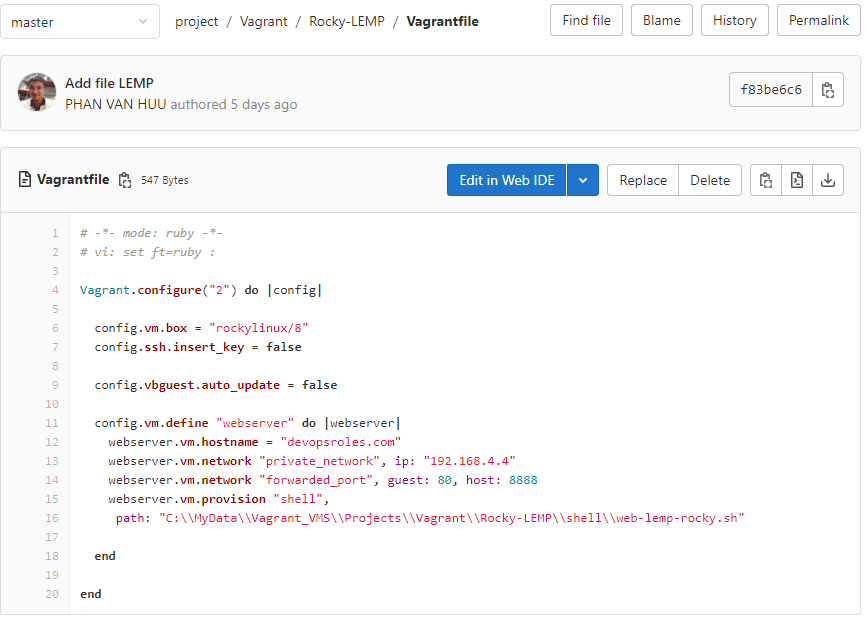
For example, File Vagrantfile on the remote repository with the content below

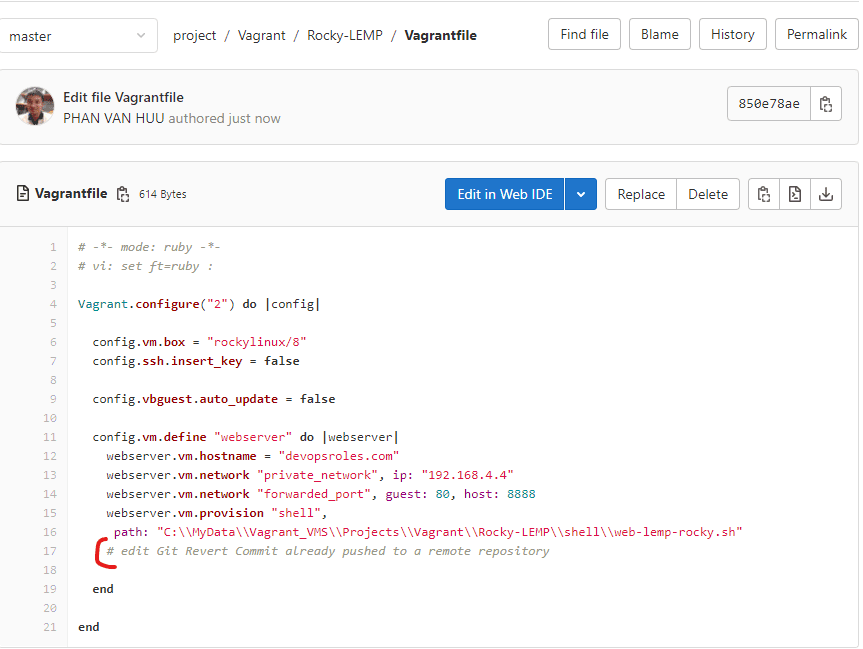
I have to change the content of this file as below

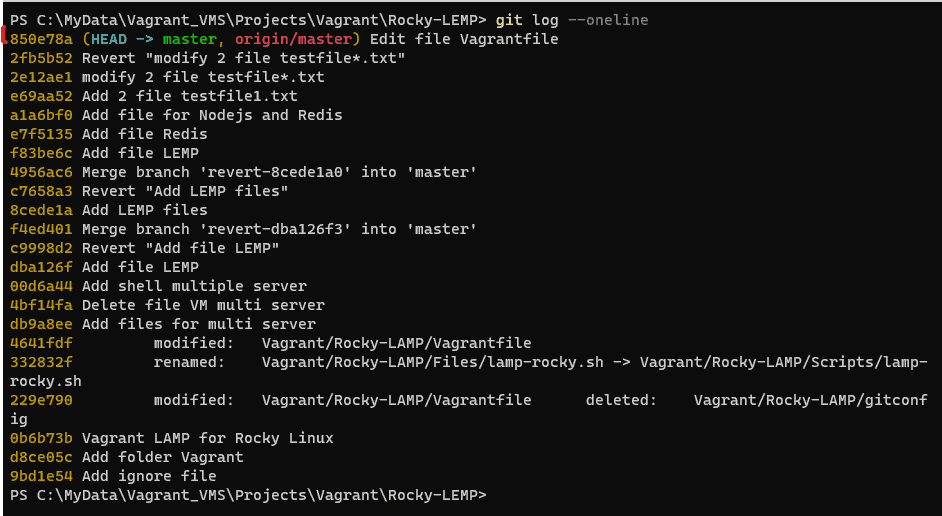
How do you see the last commit?

Use the git log command to see the hash of each Git commit, the message associated with each commit, and more metadata.

git log

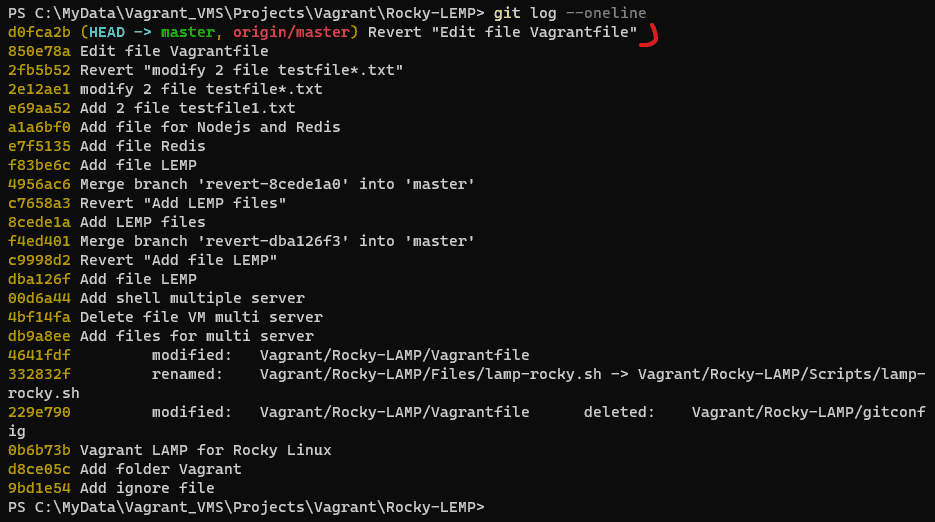
You can see the last commit simplify the output terminal as command below

git log --oneline

How to undo this commit?

git revert <commit hash>
  • This command will create a new commit with the “Revert” word at the beginning of the message.
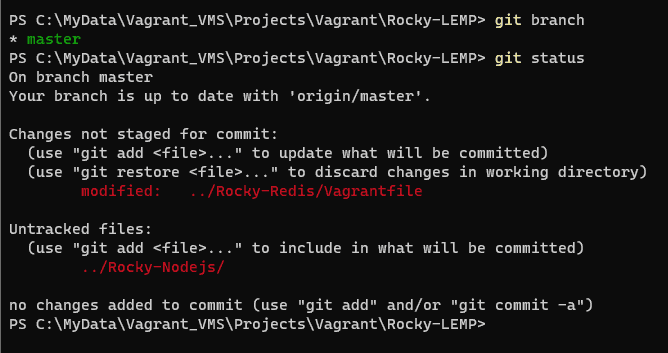
  • Check your repository status
  • After this, I will be pushed to the remote repository with the git push command

I will revert to with content not comment out in file Vagrantfile

PS C:\MyData\Vagrant_VMS\Projects\Vagrant\Rocky-LEMP> git revert 850e78a
[master d0fca2b] Revert "Edit file Vagrantfile"
 1 file changed, 1 deletion(-)
PS C:\MyData\Vagrant_VMS\Projects\Vagrant\Rocky-LEMP> cat .\Vagrantfile
# -*- mode: ruby -*-
# vi: set ft=ruby :

Vagrant.configure("2") do |config|

  config.vm.box = "rockylinux/8"
  config.ssh.insert_key = false

  config.vbguest.auto_update = false

  config.vm.define "webserver" do |webserver|
    webserver.vm.hostname = "devopsroles.com"
    webserver.vm.network "private_network", ip: "192.168.4.4"
    webserver.vm.network "forwarded_port", guest: 80, host: 8888
    webserver.vm.provision "shell",
     path: "C:\\MyData\\Vagrant_VMS\\Projects\\Vagrant\\Rocky-LEMP\\shell\\web-lemp-rocky.sh"

  end

end
PS C:\MyData\Vagrant_VMS\Projects\Vagrant\Rocky-LEMP> git push
Enumerating objects: 9, done.
Counting objects: 100% (9/9), done.
Delta compression using up to 16 threads
Compressing objects: 100% (5/5), done.
Writing objects: 100% (5/5), 530 bytes | 530.00 KiB/s, done.
Total 5 (delta 2), reused 0 (delta 0), pack-reused 0
To gitlab.com:huupv/project.git
   850e78a..d0fca2b  master -> master
PS C:\MyData\Vagrant_VMS\Projects\Vagrant\Rocky-LEMP>

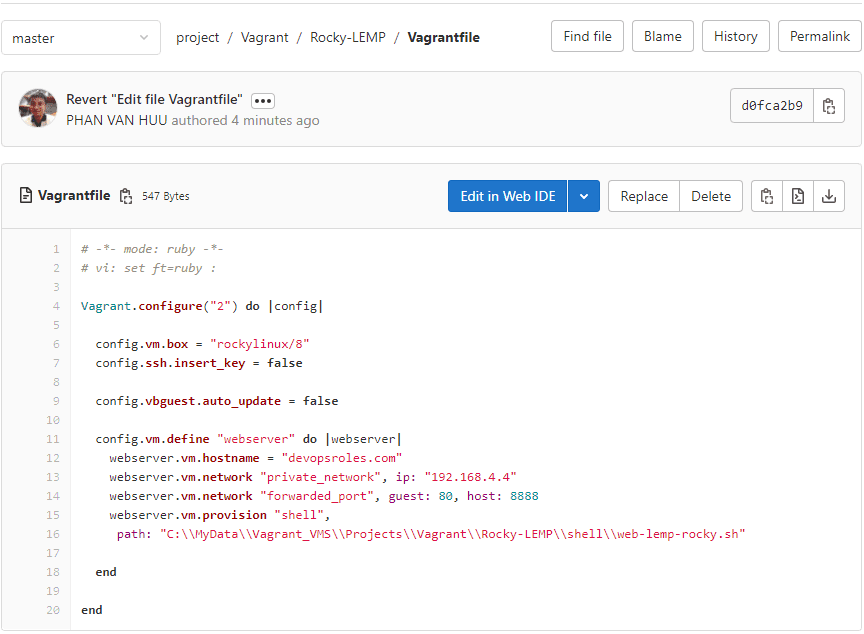
Final, Git Revert Commit already pushed to a remote repository

Show git log command to see message Revert it.

Conclusion

You have to Git Revert Commit already pushed to a remote repository. I hope will this your helpful. Thank you for reading the DevopsRoles page!
Git Cheat Sheet

Introduction

How to use the git command every day. Git Cheat Sheet I use it every day. Git has become an essential tool for developers, allowing them to efficiently manage version control and collaborate on projects.

this guide will provide you with a comprehensive overview of Git’s essential commands and workflow. Let’s dive in!

What does Git mean?

Git is software for tracking changes in any set of files, usually used for coordinating work among programmers collaboratively developing source code during software development. Quote from Wikipedia.

Git Cheat Sheet Example

Check my git configure

git config -l

Configuration

Before you start using Git, it’s crucial to set up your configuration. You can configure your username and email globally using the git config command. For example Setup my Git username and Email Id

git config --global user.name "HuuPV"
git config --global user.email "HuuPV@devopsroles.com"

Username and EmailID assigned to commit from local computer.

Creating and Cloning Repositories

git init

Add a file to the staging area in Git

git add file_name

Add all files in your project to the staging area in Git

git add .

Commit changes for the files in a local repo.

git commit
git commit -m "first commit"

Shows the commit history for the current repository

git log

Show if a file is in the staging area, but not committed

git status

Remove tracked files from the current working tree

git rm filename

Rename files

git mv oldfile newfile

Branches

Branches are a powerful feature in Git, allowing you to work on different versions of your code simultaneously.

Create a new branch

git branch branch_name

Switch to a newly created branch

git checkout branch_name

Create a new branch and switch it immediately

git checkout -b branch_name

List branches

git branch

Merge and Remote Repositories

Merge two branches

git merge branch_name

Add a remote repository to your local repository

git add remote https://repo_url_here

Git clone

git clone

download updates from a remote repository.

git pull

After committing your changes, the next you send changes to the remote server.

git push
#or force push
git push -f

History and Logs

Git provides extensive tools to explore commit history. The git log the command shows the commit history

git log

The display presents a more compact view

git log --oneline

If you prefer a graphical representation, git log --graph creates a commit history graph.

git log --graph

To view the details of a specific commit

git show <commit>

Conclusion

Git is a powerful version control system that enables efficient collaboration and project management. This guide has provided an overview of essential Git commands and workflows, giving you a solid foundation to start using Git effectively

You have used Git Cheat Sheet every day. I hope will this your helpful. Thank you for reading the DevopsRoles page!

Gitlab CI/CD deploy the website to VPS

Introduction

In this tutorial, How to deploy the website to VPS using Gitlab CI/CD. You need a little knowledge about VPS, SSH, Public key, private key, Nginx… Now let’s go Gitlab CI/CD and deploy the website to VPS.

Prerequisites

  • Domain: https://devopsroles.com
  • VPS on Linode: Have installed Nginx and added the domain into VPS.
  • Source code: For example, is React
  • Create SSH key on VPS
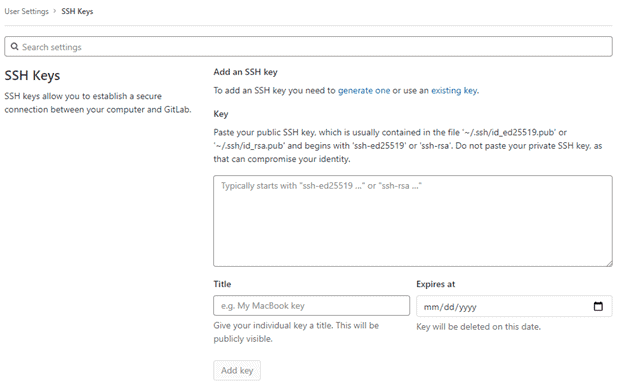
  • Add SSH key into GitLab, CI/CD of Project
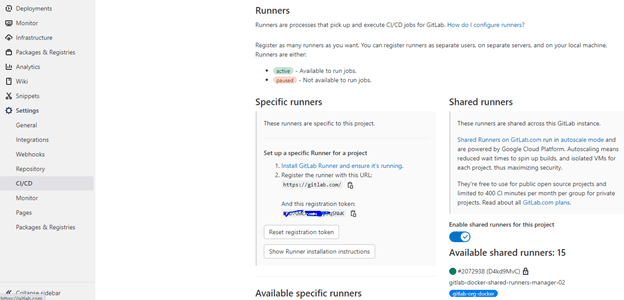
  • Install Gitlab Runner
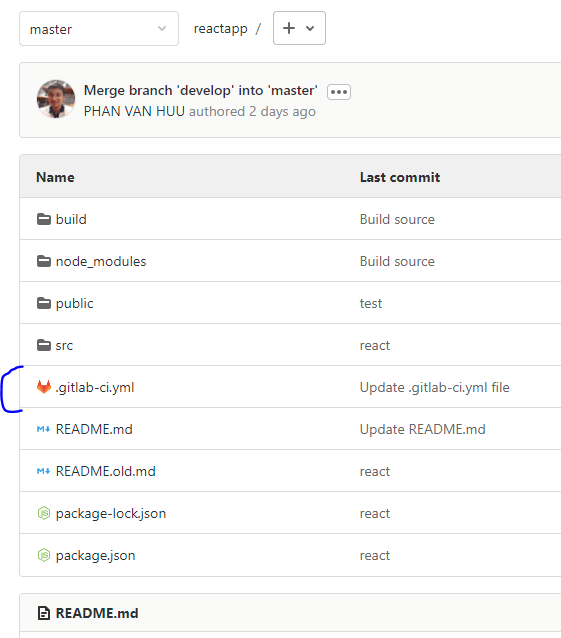
  • Add .gitlab-ci.yml to the root folder on Gitlab

On VPS

Create a public key and Private key for CI/CD

Type the command on VPS below:

ssh-keygen -t rsa -b 4096 -m pem -C "pvhuu285@gmail.com" -P "" -q -f ~/.ssh/gitlab

It will gen two files is gitlab and gitlab.pub

Convert PKCS #1 to PKCS #8 as command below:

openssl pkcs8 -in gitlab -topk8 -out gitlab2 -nocrypt
#openssl pkcs8 -in gitlab -topk8 -out gitlab2

If you use gitlab key PKCS #1 is the error “Error loading key “/root/.ssh/id_rsa”: invalid format”. I will convert the gitlab2 private key.

On terminal type command

cat gitlab.pub

Copy the code public key, and paste it into SSH of the account Gitlab

Type the command below to get the private key

cat gitlab2

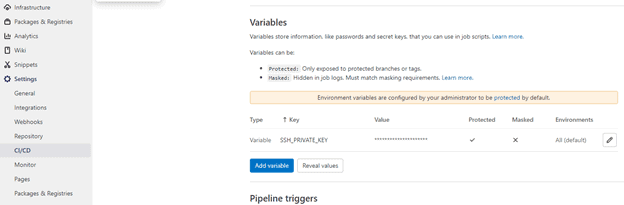
This private key assign to Settings CI/CD of Repository. Variables are SSH_PRIVATE_KEY

Copy the public key into the authorized_keys file.

touch .ssh/authorized_keys
cat .ssh/gitlab.pub > .ssh/authorized_keys

Create a new .ssh/config file with the content below:

  IgnoreUnknown AddKeysToAgent,UseKeychain
  #UseKeychain yes
  AddKeysToAgent yes
  PreferredAuthentications publickey
  IdentityFile ~/.ssh/gitlab

Install Gitlab Runner on VPS

My example, Install Gitlab Runner on Ubuntu VPS

Download and install binary

sudo curl -L --output /usr/local/bin/gitlab-runner https://gitlab-runner-downloads.s3.amazonaws.com/latest/binaries/gitlab-runner-linux-amd64

Give it permission to execute

sudo chmod +x /usr/local/bin/gitlab-runner

Create a GitLab CI user

sudo useradd --comment 'GitLab Runner' --create-home gitlab-runner --shell /bin/bash

Install and run as a service

sudo gitlab-runner install --user=gitlab-runner --working-directory=/home/gitlab-runner
sudo gitlab-runner start

Command to register the runner

sudo gitlab-runner register --url https://gitlab.com/ --registration-token $REGISTRATION_TOKEN

REGISTRATION_TOKEN the get on repository setting, In CI/CD

Create new .gitlab-ci.yml file at the folder root on Gitlab

The content is as below:

# Using the node image to build the React app

image: node:latest
variables:
  PUBLIC_URL: /
# Cache node modules - speeds up future builds
#cache:
#  paths:
#     - node_modules
stages:
     - build
     - deploy
build:
  stage: build
  script:
     - echo "Start building App"
     - chmod +x node_modules/.bin/react-scripts
     - npm install # Install all dependencies
     - npm run build #--prod  Build for prod
     - echo "Build successfully!"
  artifacts:
    paths:
      - build 
  only:
    - master # Only run on master branch
deploy_production:
  stage: deploy
  image: ubuntu
  before_script:
    - 'which ssh-agent || ( apt-get update -y && apt-get install openssh-client -y )'
    - mkdir -p ~/.ssh
    - echo "$SSH_PRIVATE_KEY" | tr -d '\r' > ~/.ssh/gitlab
    - chmod 700 ~/.ssh/gitlab
    - eval "$(ssh-agent -s)"
    - ssh-add ~/.ssh/gitlab
    - ssh-keyscan -H 'gitlab.com' >> ~/.ssh/known_hosts
    - apt-get install rsync -y -qq
    - apt-get install curl -y -qq

  script:
     - echo "Deploying to server"
     - ssh -i ~/.ssh/gitlab -o StrictHostKeyChecking=no huupv@SERVER_IP -p PORT
     - rsync -avz --progress -a -e "ssh -p PORT" build/ huupv@SERVER_IP:/var/www/YOUR_DOMAIN/public_html
     - echo "Deployed"
  environment:
    name: production
  only:
     - master # Only run on master branch

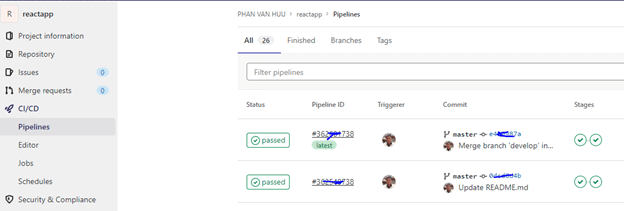
After clicking commit and checking the result in CI/CD

Conclusion

You have Gitlab CI/CD deploy the website to VPS. I hope will this your helpful. Thank you for reading the DevopsRoles page!

How to call git bash command from powershell

Introduction

Combining PowerShell with Git Bash can enhance your productivity by allowing you to use Unix-like commands within a Windows environment. In this guide, we’ll show you how to call Git Bash commands from PowerShell, using an example script. We’ll cover everything from basic setups to advanced configurations. In this tutorial, How to call the git bash command from Powershell. For example, git bash content to split CSV files on windows :

Setting Up Your Environment

Installing Git Bash

First, ensure you have Git Bash installed on your system. Download it from the official Git website and follow the installation instructions.

Adding Git Bash to Your System PATH

To call Git Bash command from PowerShell, add Git Bash to your system PATH:

  1. Open the Start menu, search for “Environment Variables,” and select “Edit the system environment variables.”
  2. Click the “Environment Variables” button.
  3. Under “System variables,” find and select the “Path” variable, then click “Edit.”
  4. Click “New” and add the path to the Git Bash executable, typically C:\Program Files\Git\bin.

Call the git bash command from Powershell

Save the following script as split.sh in your K:/TEST directory:

#!/bin/bash
cd $1
echo split start
date
pwd
split Filetest.CSV Filetest -l 20000000 -d
ls -l
for filename in $1/*; do
    wc -l $filename
done
date
echo split end
exit

This script performs the following tasks:

  1. Changes the directory to the one specified by the first argument.
  2. Prints a start message and the current date.
  3. Displays the current directory.
  4. Splits Filetest.CSV into smaller files with 20,000,000 lines each.
  5. Lists the files in the directory.
  6. Counts the number of lines in each file in the directory.
  7. Prints the current date and an end message.
  8. Exits the script.

PowerShell Script

Create a PowerShell script to call the split.sh script:

$TOOL_PATH = "K:/TEST"
$FOLDER_PATH = "K:/TEST/INPUT"

$COMMAND = "bash.exe " + $TOOL_PATH + "/split.sh " + $FOLDER_PATH
echo $COMMAND
Invoke-Expression $COMMAND

This PowerShell script does the following:

  1. Defines the path to the directory containing the split.sh script.
  2. Defines the path to the directory to be processed by the split.sh script.
  3. Constructs the command to call the split.sh script using bash.exe.
  4. Prints the constructed command.
  5. Executes the constructed command.

Explanation

  1. $TOOL_PATH: This variable holds the path where your split.sh script is located.
  2. $FOLDER_PATH: This variable holds the path to the directory you want to process with the split.sh script.
  3. $COMMAND: This variable constructs the full command string that calls bash.exe with the script path and the folder path as arguments.
  4. echo $COMMAND: This line prints the constructed command for verification.
  5. Invoke-Expression $COMMAND: This line executes the constructed command.

Add C:\Program Files\Git\bin into the PATH environment

OK!

Troubleshooting

Common Issues and Solutions

  • Git Bash not found: Ensure Git Bash is installed and added to your system PATH.
  • Permission denied: Make sure your script has execute permissions (chmod +x split.sh).
  • Command not recognized: Verify the syntax and ensure you’re using the correct paths.
  • Incorrect output or errors: Print debugging information in your scripts to diagnose issues.

FAQs

How do I add Git Bash to my PATH variable?

Add the path to Git Bash (e.g., C:\Program Files\Git\bin) to the system PATH environment variable.

Can I pass multiple arguments from PowerShell to Git Bash?

Yes, you can pass multiple arguments by modifying the command string in the PowerShell script.

How do I capture the output of a Git Bash command in PowerShell?

Use the following approach to capture the output:

$output = bash -c "git status"
Write-Output $output

Can I automate Git Bash scripts with PowerShell?

Yes, you can automate Git Bash scripts by scheduling PowerShell scripts or using task automation features in PowerShell.

Conclusion

By following this guide, you can easily call Git Bash command from PowerShell, enabling you to leverage the strengths of both command-line interfaces. Whether you’re performing basic operations or advanced scripting, integrating Git Bash with PowerShell can significantly enhance your workflow. Thank you for reading the DevopsRoles page!

How to git rename branch: A Step-by-Step Guide

Introduction

In this tutorial, How to git rename branch in Git. How to rename both local and remote git branches. Branches are a powerful feature in Git that allows developers to work on multiple features or experiments concurrently.

However, there may be situations where you need to rename a branch for clarity or consistency. In this guide, we’ll walk you through the steps to rename a branch in Git.

How to use git rename branch

Rename a Local Branch in Git

we can find out the local branches.

$ git branch
$ git branch -a # The -a option lists the remote branches.

Check the local Branch

$ git checkout <old-branch-name>
$ git checkout oldbranch

Rename the Local Branch

we have switched to the desired branch. you can rename the local branch as the command follows

$ git branch -m <new-branch-name>
$ git branch -m newbranch

This command changes the name of the local branch oldbranch to newbranch

You can also rename a local branch from inside another git branch

$ git branch -m <old-branch-name> <new-branch-name>
$ git branch -m oldbranch  newbranch

Check the New Branch Name

$ git branch -a

Rename a Remote Branch in Git

  • You need first to rename the local branch
  • push the new branch to the server
  • delete the old branch from your repository.

Step 1. Rename the Local Branch

$ git branch -m newbranch
# or
$ git branch -m oldbranch newbranch

Step 2: Push the Updated Branch

Push the renamed branch newbranch to the remote server

$ git push origin <new-branch-name>
$ git push origin newbranch

Set the Upstream

Set up tracking between the local branch newbranch and the remote branch newbranch.

$ git push origin -u <new-branch-name>
$ git push origin -u newbranch

Step 3: Remove the Old Branch

$ git push origin --delete <old-branch-name>
$ git push origin --delete oldbranch

Conclusion

You have successfully renamed both your local and remote Git branches. Git rename branch is a straightforward process that enhances the clarity and consistency of your project’s branch structure.

It’s important to note that renaming a branch changes only its name without affecting the commit history or the contents of the branch. If other developers are working on this branch, make sure to inform them about the name change to facilitate smooth collaboration.

Thanks to its flexibility and robust branch management features, Git remains a vital tool for version control and collaborative development. For more tips like how to rename a branch, stay tuned.

Thank you for visiting DevOpsRoles!

How to commit and push an empty git folder

Introduction

In this tutorial, How to commit and push an empty Git folder or directory to the Git repository. Git cannot add a completely empty directory. Git doesn’t like empty folders. Using .gitkeep to commit or push an empty directory to GitHub or GitLab.

What is .gitkeep?

It solves the problem of Git not pushing empty folders to remote DVCS Repos like GitHub or GitLab. To get Git to recognize an empty directory, the unwritten rule is to put a file named .gitkeep in it.

What are the differences between .gitignore and .gitkeep?

  • .gitkeep to track empty directories.
  • .gitignore file is used to list files that should be ignored by the git when looking for untracked files.

How to commit and push an empty git folder

Follow these steps to use the .gitkeep file.

$ mkdir empty-folder
$ cd empty-folder
$ touch .gitkeep
$ git add .
$ git commit -m "How to Commit empty folder in Git with gitkeep file"
$ git push origin

The result of GitLab

Conclusion

You have committed and pushed an empty folder or directory to the Git repository. I hope will this your helpful. Thank you for reading the DevopsRoles page!
Git merge development branch to master branch

Introduction

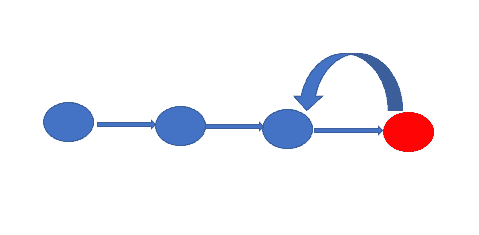
In the world of software development, Git is a vital tool for version control, enabling teams to collaborate efficiently. One of the most common Git operations is merging a development branch into the master branch. This process ensures that the latest changes from the development branch are incorporated into the stable master branch. In this guide, we’ll cover everything you need to know about how to Git merge development branch to master branch, including best practices, conflict resolution, and real-world examples.

Understanding Git Branches

What Are Git Branches?

Git branches allow developers to work on different features, bug fixes, or experiments without affecting the stable codebase. The master branch (or main, as renamed in newer Git versions) serves as the main production branch, while the development branch is used for active feature development and testing.

Why Merge Development Branch to Master?

  • Integrate new features: Ensure tested features are available in production.
  • Maintain a clean codebase: Keep a structured development workflow.
  • Improve collaboration: Merge approved code into the main branch.
  • Reduce conflicts: Regular merges prevent large, conflicting changes.

Steps to Merge Development Branch to Master Branch

Step 1: Switch to Master Branch

Before merging, ensure you are on the master branch.

 git checkout master

Alternatively, for newer Git versions:

 git switch master

Step 2: Update Master Branch

Before merging, update the master branch with the latest changes from the remote repository to prevent conflicts.

 git pull origin master

Step 3: Merge Development Branch

Run the merge command to integrate the development branch into the master branch.

 git merge development

If there are no conflicts, the merge will be successful.

Step 4: Resolve Merge Conflicts (If Any)

If there are conflicts, Git will prompt you to resolve them manually. Open the conflicting files, edit them as needed, and mark them as resolved.

 git add <conflicted-file>
 git commit -m "Resolved merge conflicts"

Step 5: Push the Merged Changes

Once the merge is complete, push the updated master branch to the remote repository.

 git push origin master

Best Practices for Git Merging

1. Keep Development Branch Updated

Regularly pull changes from the master branch into the development branch to minimize conflicts.

 git checkout development
 git pull origin master

2. Use Feature Branches

Instead of merging directly to the development branch, create separate feature branches and merge them into development before merging development into master.

 git checkout -b feature-branch

3. Test Before Merging

Run tests to ensure that the merge doesn’t introduce bugs.

 npm test   # Example for JavaScript projects

4. Use Pull Requests

For team projects, use pull requests (PRs) to review code before merging.

5. Avoid Merge Conflicts

Regularly pull changes and communicate with your team to prevent conflicts.

Advanced Git Merge Scenarios

Merging with a Rebase

Instead of a merge, you can use rebase to maintain a linear history.

 git checkout development
 git rebase master
 git checkout master
 git merge development

Squash Merging

Squash commits before merging to keep the history clean.

 git merge --squash development
 git commit -m "Merged development branch with squash"

Aborting a Merge

If you encounter issues, you can abort the merge and reset.

 git merge --abort

Frequently Asked Questions (FAQs)

1. What is the difference between git merge and git rebase?

  • git merge creates a new commit combining both branches.
  • git rebase moves the development branch commits on top of the master branch.

2. What happens if there is a merge conflict?

Git will notify you of conflicts, and you must manually resolve them before completing the merge.

3. How can I undo a merge?

If a merge was completed but needs to be undone:

 git reset --hard HEAD~1

Note: This will erase uncommitted changes, so use with caution.

4. How often should I merge development into master?

It depends on your workflow, but ideally, after features are fully tested and approved.

5. Should I delete the development branch after merging?

If the development branch is no longer needed, delete it to keep the repository clean:

 git branch -d development
 git push origin --delete development

External Resources

Conclusion

Merging the development branch into the master branch is a crucial step in maintaining a clean and organized Git workflow. By following best practices such as updating branches regularly, using feature branches, and resolving conflicts proactively, you can ensure a smooth and efficient development process. Mastering Git merge techniques will help you collaborate effectively with your team and maintain a high-quality codebase. I hope will this your helpful. Thank you for reading the DevopsRoles page!