Introduction
Combining PowerShell with Git Bash can enhance your productivity by allowing you to use Unix-like commands within a Windows environment. In this guide, we’ll show you how to call Git Bash commands from PowerShell, using an example script. We’ll cover everything from basic setups to advanced configurations. In this tutorial, How to call the git bash command from Powershell. For example, git bash content to split CSV files on windows :
Setting Up Your Environment
Installing Git Bash
First, ensure you have Git Bash installed on your system. Download it from the official Git website and follow the installation instructions.
Adding Git Bash to Your System PATH
To call Git Bash command from PowerShell, add Git Bash to your system PATH:
- Open the Start menu, search for “Environment Variables,” and select “Edit the system environment variables.”
- Click the “Environment Variables” button.
- Under “System variables,” find and select the “Path” variable, then click “Edit.”
- Click “New” and add the path to the Git Bash executable, typically
C:\Program Files\Git\bin.
Call the git bash command from Powershell
Save the following script as split.sh in your K:/TEST directory:
#!/bin/bash
cd $1
echo split start
date
pwd
split Filetest.CSV Filetest -l 20000000 -d
ls -l
for filename in $1/*; do
    wc -l $filename
done
date
echo split end
exit
This script performs the following tasks:
- Changes the directory to the one specified by the first argument.
- Prints a start message and the current date.
- Displays the current directory.
- Splits
Filetest.CSVinto smaller files with 20,000,000 lines each. - Lists the files in the directory.
- Counts the number of lines in each file in the directory.
- Prints the current date and an end message.
- Exits the script.
PowerShell Script
Create a PowerShell script to call the split.sh script:
$TOOL_PATH = "K:/TEST"
$FOLDER_PATH = "K:/TEST/INPUT"

$COMMAND = "bash.exe " + $TOOL_PATH + "/split.sh " + $FOLDER_PATH
echo $COMMAND
Invoke-Expression $COMMAND
This PowerShell script does the following:
- Defines the path to the directory containing the
split.shscript. - Defines the path to the directory to be processed by the
split.shscript. - Constructs the command to call the
split.shscript usingbash.exe. - Prints the constructed command.
- Executes the constructed command.
Explanation
- $TOOL_PATH: This variable holds the path where your
split.shscript is located. - $FOLDER_PATH: This variable holds the path to the directory you want to process with the
split.shscript. - $COMMAND: This variable constructs the full command string that calls
bash.exewith the script path and the folder path as arguments. - echo $COMMAND: This line prints the constructed command for verification.
- Invoke-Expression $COMMAND: This line executes the constructed command.
Add C:\Program Files\Git\bin into the PATH environment
OK!
Troubleshooting
Common Issues and Solutions
- Git Bash not found: Ensure Git Bash is installed and added to your system PATH.
- Permission denied: Make sure your script has execute permissions (
chmod +x split.sh). - Command not recognized: Verify the syntax and ensure you’re using the correct paths.
- Incorrect output or errors: Print debugging information in your scripts to diagnose issues.
FAQs
How do I add Git Bash to my PATH variable?
Add the path to Git Bash (e.g., C:\Program Files\Git\bin) to the system PATH environment variable.
Can I pass multiple arguments from PowerShell to Git Bash?
Yes, you can pass multiple arguments by modifying the command string in the PowerShell script.
How do I capture the output of a Git Bash command in PowerShell?
Use the following approach to capture the output:
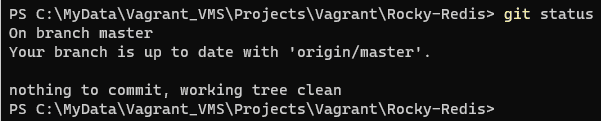
$output = bash -c "git status"
Write-Output $output
Can I automate Git Bash scripts with PowerShell?
Yes, you can automate Git Bash scripts by scheduling PowerShell scripts or using task automation features in PowerShell.
Conclusion
By following this guide, you can easily call Git Bash command from PowerShell, enabling you to leverage the strengths of both command-line interfaces. Whether you’re performing basic operations or advanced scripting, integrating Git Bash with PowerShell can significantly enhance your workflow. Thank you for reading the DevopsRoles page!