Tag Archives: Terraform

Automating Azure Virtual Desktop Deployments with Terraform

Deploying and managing Azure Virtual Desktop (AVD) environments can be complex and time-consuming. Manual processes are prone to errors and inconsistencies, leading to delays and increased operational costs. This article will explore how Terraform Azure Virtual Desktop automation can streamline your deployments, improve efficiency, and enhance the overall reliability of your AVD infrastructure. We’ll cover everything from basic setups to more advanced configurations, providing practical examples and best practices to help you master Terraform Azure Virtual Desktop deployments.

Understanding the Power of Terraform for Azure Virtual Desktop

Terraform is an open-source infrastructure-as-code (IaC) tool that allows you to define and manage your infrastructure in a declarative manner. Instead of manually clicking through user interfaces, you write code to describe your desired state. Terraform then compares this desired state with the actual state of your Azure environment and makes the necessary changes to achieve consistency. This is particularly beneficial for Terraform Azure Virtual Desktop deployments because it allows you to:

  • Automate provisioning: Easily create and configure all components of your AVD environment, including virtual machines, host pools, application groups, and more.
  • Version control infrastructure: Track changes to your infrastructure as code, enabling easy rollback and collaboration.
  • Improve consistency and repeatability: Deploy identical environments across different regions or subscriptions with ease.
  • Reduce human error: Minimize the risk of manual misconfigurations and ensure consistent deployments.
  • Enhance scalability: Easily scale your AVD environment up or down based on demand.

Setting up Your Terraform Environment for Azure Virtual Desktop

Before you begin, ensure you have the following:

  • An Azure subscription.
  • Terraform installed on your local machine. You can download it from the official Terraform website.
  • An Azure CLI configured and authenticated.
  • Azure provider installed and configured within your Terraform environment: terraform init

Authenticating with Azure

Terraform interacts with Azure using the Azure provider. You’ll need to configure your Azure credentials within your terraform.tfvars file or using environment variables. A typical terraform.tfvars file might look like this:

# Azure Service Principal Credentials
# IMPORTANT: Replace these placeholder values with your actual Azure credentials.
# These credentials are sensitive and should be handled securely (e.g., using environment variables or Azure Key Vault in a production environment).

subscription_id = "YOUR_SUBSCRIPTION_ID"  # Your Azure Subscription ID
client_id = "YOUR_CLIENT_ID"            # Your Azure Service Principal Client ID (Application ID)
client_secret = "YOUR_CLIENT_SECRET"    # Your Azure Service Principal Client Secret (Password)
tenant_id = "YOUR_TENANT_ID"            # Your Azure Active Directory Tenant ID

Replace placeholders with your actual Azure credentials.

Building Your Terraform Azure Virtual Desktop Configuration

Let’s create a basic Terraform Azure Virtual Desktop configuration. This example focuses on creating a single host pool and session host VM.

Creating the Resource Group

resource "azurerm_resource_group" "rg" {
  name     = "avd-rg"      # Defines the name of the resource group
  location = "WestUS"      # Specifies the Azure region where the resource group will be created
}

Creating the Virtual Network

resource "azurerm_virtual_network" "vnet" {
  name                = "avd-vnet"                      # Name of the virtual network
  address_space       = ["10.0.0.0/16"]                 # IP address space for the virtual network
  location            = azurerm_resource_group.rg.location # Refers to the location of the resource group
  resource_group_name = azurerm_resource_group.rg.name # Refers to the name of the resource group
}

Creating the Subnet

resource "azurerm_subnet" "subnet" {
  name                 = "avd-subnet"                       # Name of the subnet
  resource_group_name  = azurerm_resource_group.rg.name   # Refers to the name of the resource group
  virtual_network_name = azurerm_virtual_network.vnet.name # Refers to the name of the virtual network
  address_prefixes     = ["10.0.1.0/24"]                    # IP address prefix for the subnet
}

Creating the Session Host VM


resource "azurerm_linux_virtual_machine" "sessionhost" {
# ... (Configuration for the session host VM) ...
}

Creating the Host Pool


resource "azurerm_desktopvirtualization_host_pool" "hostpool" {
name = "avd-hostpool"
resource_group_name = azurerm_resource_group.rg.name
location = azurerm_resource_group.rg.location
# ... (Host pool configuration) ...
}

This is a simplified example; a complete configuration would involve many more resources and detailed settings. You’ll need to configure the session host VM with the appropriate operating system, size, and other relevant parameters. Remember to consult the official Azure Resource Manager (ARM) provider documentation for the most up-to-date information and configuration options.

Advanced Terraform Azure Virtual Desktop Configurations

Once you’ve mastered the basics, you can explore more advanced scenarios:

Scaling and High Availability

Use Terraform to create multiple session host VMs within an availability set or availability zone for high availability and scalability. You can leverage count or for_each meta-arguments to easily manage multiple instances.

Application Groups

Define and deploy application groups within your AVD environment using Terraform. This allows you to organize and manage applications efficiently.

Custom Images

Utilize custom images to deploy session host VMs with pre-configured applications and settings, further streamlining your deployments.

Networking Considerations

Configure advanced networking features such as network security groups (NSGs) and user-defined routes (UDRs) to enhance security and control network traffic.

Terraform Azure Virtual Desktop: Best Practices

  • Use modules: Break down your infrastructure into reusable modules for better organization and maintainability.
  • Version control: Store your Terraform code in a Git repository for version control and collaboration.
  • Testing: Implement automated testing to ensure your infrastructure is configured correctly.
  • State management: Utilize a remote backend for state management to ensure consistency and collaboration.
  • Use variables: Define variables to make your code more flexible and reusable.

Frequently Asked Questions

What are the benefits of using Terraform for Azure Virtual Desktop?

Using Terraform for Azure Virtual Desktop offers significant advantages, including automation of deployment and management tasks, improved consistency and repeatability, version control of your infrastructure, reduced human error, and enhanced scalability. It helps streamline the entire AVD lifecycle, saving time and resources.

How do I manage updates to my Azure Virtual Desktop environment with Terraform?

You can manage updates by modifying your Terraform configuration files to reflect the desired changes. Running terraform apply will then update your AVD environment to match the new configuration. Proper version control and testing are crucial for smooth updates.

Can I use Terraform to manage different Azure regions with my AVD environment?

Yes, Terraform allows you to easily deploy and manage your AVD environment across different Azure regions. You can achieve this by modifying the location parameter in your Terraform configuration files and running terraform apply for each region.

What are some common pitfalls to avoid when using Terraform with Azure Virtual Desktop?

Common pitfalls include insufficient testing, improper state management, lack of version control, and neglecting security best practices. Careful planning, thorough testing, and adherence to best practices are essential for successful deployments.

How can I troubleshoot issues with my Terraform Azure Virtual Desktop deployment?

If you encounter problems, carefully review your Terraform configuration files, check the Azure portal for error messages, and use the terraform plan command to review the changes before applying them. The Terraform documentation and community forums are valuable resources for troubleshooting.

Conclusion

Terraform Azure Virtual Desktop automation provides a powerful way to simplify and streamline the deployment and management of your Azure Virtual Desktop environments. By leveraging the capabilities of Terraform, you can achieve greater efficiency, consistency, and scalability in your AVD infrastructure. Remember to utilize best practices, such as version control, modular design, and thorough testing, to ensure a successful and maintainable Terraform Azure Virtual Desktop implementation. Start small, build iteratively, and gradually incorporate more advanced features to optimize your AVD deployments.  Thank you for reading the DevopsRoles page!

Mastering Vultr Cloud with Terraform: A Comprehensive Guide

In today’s dynamic cloud computing landscape, efficient infrastructure management is paramount. Manually provisioning and managing cloud resources is time-consuming, error-prone, and ultimately inefficient. This is where Infrastructure as Code (IaC) solutions like Terraform shine. This comprehensive guide delves into the powerful combination of Vultr Cloud Terraform, demonstrating how to automate your Vultr deployments and significantly streamline your workflow. We’ll cover everything from basic setups to advanced configurations, enabling you to leverage the full potential of this robust pairing.

Understanding the Power of Vultr Cloud Terraform

Vultr Cloud Terraform allows you to define and manage your Vultr cloud infrastructure using declarative configuration files written in HashiCorp Configuration Language (HCL). Instead of manually clicking through web interfaces, you write code that describes your desired infrastructure state. Terraform then compares this desired state with the actual state of your Vultr environment and makes the necessary changes to bring them into alignment. This approach offers several key advantages:

  • Automation: Automate the entire provisioning process, from creating instances to configuring networks and databases.
  • Consistency: Ensure consistent infrastructure deployments across different environments (development, staging, production).
  • Version Control: Track changes to your infrastructure as code using Git or other version control systems.
  • Collaboration: Facilitate collaboration among team members through a shared codebase.
  • Repeatability: Easily recreate your infrastructure from scratch whenever needed.

Setting up Your Vultr Cloud Terraform Environment

Before diving into code, we need to prepare our environment. This involves:

1. Installing Terraform

Download the appropriate Terraform binary for your operating system from the official HashiCorp website: https://www.terraform.io/downloads.html. Follow the installation instructions provided for your system.

2. Obtaining a Vultr API Key

You’ll need a Vultr API key to authenticate Terraform with your Vultr account. Generate a new API key within your Vultr account settings. Keep this key secure; it grants full access to your Vultr account.

3. Creating a Provider Configuration File

Terraform uses provider configurations to connect to different cloud platforms. Create a file named providers.tf (or include it within your main Terraform configuration file) and add the following, replacing YOUR_API_KEY with your actual Vultr API key:

terraform {
  required_providers {
    vultr = {
      source  = "vultr/vultr"
      version = "~> 2.0"
    }
  }
}

provider "vultr" {
  api_key = "YOUR_API_KEY"
}

Creating Your First Vultr Cloud Terraform Resource: Deploying a Simple Instance

Let’s create a simple Terraform configuration to deploy a single Vultr instance. Create a file named main.tf:

resource "vultr_instance" "my_instance" {
  region       = "ewr"
  type         = "1c2g"
  os_id        = "289" # Ubuntu 20.04
  name         = "terraform-instance"
  ssh_key_id = "YOUR_SSH_KEY_ID" #Replace with your Vultr SSH Key ID
}

This configuration defines a single Vultr instance in the New Jersey (ewr) region with a basic 1 CPU and 2 GB RAM plan (1c2g). Replace YOUR_SSH_KEY_ID with the ID of your Vultr SSH key. The os_id specifies the operating system; you can find a list of available OS IDs in the Vultr API documentation: https://www.vultr.com/api/#operation/list-os

To deploy this instance, run the following commands:

terraform init
terraform plan
terraform apply

terraform init initializes the Terraform working directory. terraform plan shows you what Terraform will do. terraform apply executes the plan, creating your Vultr instance.

Advanced Vultr Cloud Terraform Configurations

Beyond basic instance creation, Terraform’s power shines in managing complex infrastructure deployments. Here are some advanced scenarios:

Deploying Multiple Instances

You can easily deploy multiple instances using count or for_each meta-arguments:

resource "vultr_instance" "my_instances" {
  count = 3

  region       = "ewr"
  type         = "1c2g"
  os_id        = "289" # Ubuntu 20.04
  name         = "terraform-instance-${count.index}"
  ssh_key_id   = "YOUR_SSH_KEY_ID" # Replace with your Vultr SSH Key ID
}

Managing Networks and Subnets

Terraform can also create and manage Vultr networks and subnets, providing complete control over your network topology:

resource "vultr_private_network" "my_network" {
  name   = "my-private-network"
  region = "ewr"
}

resource "vultr_instance" "my_instance" {
  // ... other instance configurations ...
  private_network_id = vultr_private_network.my_network.id
}

Using Variables and Modules for Reusability

Utilize Terraform’s variables and modules to enhance reusability and maintainability. Variables allow you to parameterize your configurations, while modules encapsulate reusable components.

# variables.tf
variable "instance_type" {
  type    = string
  default = "1c2g"
}

# main.tf
resource "vultr_instance" "my_instance" {
  type = var.instance_type
  // ... other configurations
}

Implementing Security Best Practices with Vultr Cloud Terraform

Security is paramount when managing cloud resources. Implement the following best practices:

  • Use Dedicated SSH Keys: Never hardcode SSH keys directly in your Terraform configuration. Use Vultr’s SSH Key management and reference the ID.
  • Enable Security Groups: Configure appropriate security groups to restrict inbound and outbound traffic to your instances.
  • Regularly Update Your Code: Maintain your Terraform configurations and update your Vultr instances to benefit from security patches.
  • Store API Keys Securely: Never commit your Vultr API key directly to your Git repository. Explore secrets management solutions like HashiCorp Vault or AWS Secrets Manager.

Frequently Asked Questions

Q1: Can I use Terraform to manage existing Vultr resources?

Yes, Terraform’s import command allows you to import existing resources into your Terraform state. This allows you to bring existing Vultr resources under Terraform’s management.

Q2: How do I handle errors during Terraform deployments?

Terraform provides detailed error messages to identify the root cause of deployment failures. Carefully examine these messages to troubleshoot and resolve issues. You can also enable detailed logging to aid debugging.

Q3: What are the best practices for managing state in Vultr Cloud Terraform deployments?

Store your Terraform state remotely using a backend like Terraform Cloud, AWS S3, or Azure Blob Storage. This ensures state consistency and protects against data loss.

Q4: Are there any limitations to using Vultr Cloud Terraform?

While Vultr Cloud Terraform offers extensive capabilities, some advanced features or specific Vultr services might have limited Terraform provider support. Always refer to the official provider documentation for the most up-to-date information.

Conclusion

Automating your Vultr cloud infrastructure with Vultr Cloud Terraform is a game-changer for DevOps engineers, developers, and system administrators. By implementing IaC, you achieve significant improvements in efficiency, consistency, and security. This guide has covered the fundamentals and advanced techniques for deploying and managing Vultr resources using Terraform. Remember to prioritize security best practices and explore the full potential of Terraform’s features for optimal results. Mastering Vultr Cloud Terraform will empower you to manage your cloud infrastructure with unparalleled speed and accuracy. Thank you for reading the DevopsRoles page!
Streamlining AWS FSx for NetApp ONTAP Deployments with Terraform

Managing and scaling cloud infrastructure efficiently is paramount for modern businesses. A crucial component of many cloud architectures is robust, scalable storage, and AWS FSx for NetApp ONTAP provides a compelling solution. However, manually managing the deployment and lifecycle of FSx for NetApp ONTAP can be time-consuming and error-prone. This is where Infrastructure as Code (IaC) tools like Terraform come in. This comprehensive guide will walk you through deploying FSx for NetApp ONTAP using Terraform, demonstrating best practices and addressing common challenges along the way. We will cover everything from basic deployments to more advanced configurations, enabling you to efficiently manage your FSx for NetApp ONTAP file systems.

Understanding the Benefits of Terraform for FSx for NetApp ONTAP

Terraform, a powerful IaC tool from HashiCorp, allows you to define and provision your infrastructure in a declarative manner. This means you describe the desired state of your FSx for NetApp ONTAP file system, and Terraform manages the process of creating, updating, and deleting it. This approach offers several key advantages:

  • Automation: Automate the entire deployment process, eliminating manual steps and reducing the risk of human error.
  • Consistency: Ensure consistent deployments across different environments (development, testing, production).
  • Version Control: Track changes to your infrastructure as code using Git or other version control systems.
  • Collaboration: Facilitate collaboration among team members by having a single source of truth for your infrastructure.
  • Infrastructure as Code (IaC): Treat your infrastructure as code, making it manageable, repeatable and testable.

Setting up Your Environment for Terraform and FSx for NetApp ONTAP

Before you begin, ensure you have the following prerequisites:

  • AWS Account: An active AWS account with appropriate permissions to create and manage resources.
  • Terraform Installed: Download and install Terraform from the official HashiCorp website. https://www.terraform.io/downloads.html
  • AWS CLI Installed and Configured: Configure the AWS CLI with your credentials to interact with AWS services.
  • An IAM Role with Sufficient Permissions: The role used by Terraform needs permissions to create and manage FSx for NetApp ONTAP resources.

Creating a Basic Terraform Configuration

Let’s start with a simple Terraform configuration to create a basic FSx for NetApp ONTAP file system. This example uses a small volume size for demonstration; adjust accordingly for production environments.

terraform {
  required_providers {
    aws = {
      source  = "hashicorp/aws"
      version = "~> 4.0"
    }
  }
}

provider "aws" {
  region = "us-west-2" # Replace with your desired region
}

resource "aws_fsx_ontap_file_system" "example" {
  storage_capacity    = 1024 # In GB
  subnet_ids          = ["subnet-xxxxxxxxxxxxxxxxx", "subnet-yyyyyyyyyyyyyyyyy"] # Replace with your subnet IDs
  kms_key_id          = "alias/aws/fsx" # Optional KMS key ID
  throughput_capacity = 100 # Example throughput
  file_system_type    = "ONTAP"
}

This configuration defines a provider for AWS, specifies the region, and creates an FSx for NetApp ONTAP file system with a storage capacity of 1TB and two subnet IDs. Remember to replace placeholders like subnet IDs with your actual values.

Advanced Configurations with Terraform and FSx for NetApp ONTAP

Building upon the basic configuration, let’s explore more advanced features and options offered by Terraform and FSx for NetApp ONTAP.

Using Security Groups

For enhanced security, associate a security group with your FSx for NetApp ONTAP file system. This controls inbound and outbound network traffic.

resource "aws_security_group" "fsx_sg" {
  name        = "fsx-security-group"
  description = "Security group for FSx for NetApp ONTAP"

  ingress {
    from_port   = 0
    to_port     = 0
    protocol    = "-1"
    cidr_blocks = ["0.0.0.0/0"] # Restrict this in production!
  }

  egress {
    from_port   = 0
    to_port     = 0
    protocol    = "-1"
    cidr_blocks = ["0.0.0.0/0"] # Restrict this in production!
  }
}

resource "aws_fsx_ontap_file_system" "example" {
  # ... other configurations ...
  security_group_ids = [aws_security_group.fsx_sg.id]
}

Managing Snapshots

Regularly creating snapshots of your FSx for NetApp ONTAP file system is crucial for data protection and disaster recovery. Terraform can automate this process.

resource "aws_fsx_ontap_snapshot" "example" {
  file_system_id = aws_fsx_ontap_file_system.example.id
  name           = "my-snapshot"
}

Working with Volume Backups

For improved resilience, configure volume backups for your FSx for NetApp ONTAP file system. This allows restoring individual volumes.

This requires more detailed configuration within the FSx for NetApp ONTAP system itself after deployment and is beyond the scope of a simple Terraform configuration snippet, but it’s a crucial aspect of managing the system’s data resilience.

Implementing lifecycle management

Terraform allows you to control the entire lifecycle of your FSx for NetApp ONTAP infrastructure. You can destroy the file system using `terraform destroy`.

Deploying and Managing Your FSx for NetApp ONTAP Infrastructure

  1. Initialize Terraform: Run terraform init to download the necessary providers.
  2. Plan the Deployment: Run terraform plan to see what changes Terraform will make.
  3. Apply the Changes: Run terraform apply to create the FSx for NetApp ONTAP file system.
  4. Monitor the Deployment: After applying the configuration, monitor the AWS Management Console to ensure the FSx for NetApp ONTAP file system is created successfully.
  5. Manage and Update: Use terraform apply to update your configuration as needed.
  6. Destroy the Infrastructure: Use terraform destroy to delete the FSx for NetApp ONTAP file system when it’s no longer needed.

Frequently Asked Questions

Q1: What are the pricing considerations for using FSx for NetApp ONTAP?

AWS FSx for NetApp ONTAP pricing is based on several factors, including storage capacity, throughput, and operational costs. The AWS pricing calculator is your best resource to estimate costs based on your specific needs. It’s important to consider factors like data transfer costs as well as the ongoing costs of storage. Refer to the official AWS documentation for the most up-to-date pricing information.

Q2: How can I manage access control to my FSx for NetApp ONTAP file system?

Access control is managed through the NetApp ONTAP management interface, which integrates with your existing Active Directory or other identity providers. You can manage user permissions and quotas through this interface, ensuring only authorized users have access to your data.

Q3: Can I use Terraform to manage multiple FSx for NetApp ONTAP file systems?

Yes, you can use Terraform to manage multiple FSx for NetApp ONTAP file systems within the same configuration, using resource blocks to define different systems with unique names, configurations, and settings.

Q4: What are the limitations of using Terraform with FSx for NetApp ONTAP?

While Terraform simplifies deployment and management, it doesn’t manage all aspects of FSx for NetApp ONTAP. Fine-grained configuration options within the ONTAP system itself still need to be managed through the ONTAP management interface. Additionally, complex networking setups might require additional configurations outside the scope of this basic Terraform configuration.

Conclusion

In conclusion, deploying AWS FSx for NetApp ONTAP with Terraform offers a robust and efficient approach to managing your file storage infrastructure. By leveraging Infrastructure as Code (IaC) principles, you gain unparalleled benefits in terms of automation, consistency, version control, and collaborative development.

This comprehensive guide has walked you through the essential steps, from initial setup and basic configurations to advanced features like security groups and snapshot management. You now possess the knowledge to confidently initialize, plan, apply, and manage your FSx for NetApp ONTAP deployments, ensuring your storage resources are provisioned and maintained with precision and scalability. Embracing Terraform for this critical task not only streamlines your DevOps workflows but also empowers your teams to build and manage highly reliable and resilient cloud environments. Thank you for reading the DevopsRoles page!

how to use Terraform modules examples

Are you struggling to manage the growing complexity of your infrastructure code? Do you find yourself repeating the same configurations across multiple projects? The solution lies in leveraging the power of Terraform modules. This comprehensive guide provides practical Terraform modules examples to help you streamline your workflow, improve code reusability, and enhance the overall maintainability of your infrastructure. We’ll cover everything from basic module creation to advanced techniques, empowering you to write cleaner, more efficient Terraform code. Learning to effectively utilize Terraform modules examples is a crucial step towards becoming a proficient Terraform user.

Understanding Terraform Modules

Terraform modules are reusable packages of Terraform configurations. They encapsulate infrastructure components, allowing you to define and manage them as self-contained units. This promotes modularity, reduces redundancy, and significantly improves the organization of your codebase. Think of modules as functions in programming – they take input variables, perform specific tasks, and produce output values. By using modules, you can abstract away implementation details, making your code more readable and easier to maintain.

Benefits of Using Terraform Modules

  • Improved Reusability: Avoid writing the same code repeatedly. Create a module once and use it across multiple projects.
  • Enhanced Maintainability: Easier to update and maintain a single module than multiple instances of similar code.
  • Increased Readability: Modules encapsulate complexity, making your main Terraform code cleaner and easier to understand.
  • Better Organization: Modules help structure your infrastructure code into logical units, promoting better organization and collaboration.
  • Version Control: Easier to version control and manage changes in a modularized codebase.

Creating Your First Terraform Module

Let’s start with a simple example: creating a module to deploy a virtual machine in AWS. This will serve as a foundation for understanding the structure and functionality of Terraform modules examples.

Module Structure

A Terraform module typically consists of the following files:

  • main.tf: The main Terraform configuration file for the module.
  • variables.tf: Defines the input variables for the module.
  • outputs.tf: Defines the output values that the module produces.

Code Example: AWS EC2 Instance Module

variables.tf

variable "instance_type" {
  type    = string
  default = "t2.micro"
}

variable "ami_id" {
  type = string
}

main.tf

resource "aws_instance" "example" {
  ami           = var.ami_id
  instance_type = var.instance_type
}

outputs.tf

output "instance_id" {
  value = aws_instance.example.id
}

This simple module allows you to deploy an AWS EC2 instance. You can specify the instance type and AMI ID as input variables. The module then outputs the ID of the created instance.

Advanced Terraform Modules Examples

Now let’s explore some more advanced Terraform modules examples. This section will cover more complex scenarios to solidify your understanding.

Module for a Complete Web Application Deployment

This example demonstrates how to create a more complex module, encompassing multiple resources required for a web application.

  • VPC Module: Create a virtual private cloud (VPC) with subnets, internet gateway, and route tables.
  • EC2 Instance Module: Deploy an EC2 instance within the VPC.
  • Security Group Module: Define security groups to control network access to the EC2 instance.
  • Load Balancer Module (Optional): Implement a load balancer for high availability.

Each of these components could be its own module, showcasing the power of modularization. This approach promotes reusability and simplifies the management of complex infrastructures.

Using Modules with Remote State Backend

For larger projects or collaborative environments, it’s best practice to use a remote state backend. This allows multiple users to work on the same infrastructure code without conflicts. Modules seamlessly integrate with remote state backends like S3 or Azure Storage.

Practical Application of Terraform Modules: Real-World Scenarios

Let’s explore how Terraform modules examples translate into solving real-world infrastructure challenges.

Scenario 1: Multi-environment Deployments

You need to deploy your application to multiple environments (development, staging, production). Modules help significantly in this scenario. You can define a single module for your application and then reuse it in all environments, simply changing the input variables for each environment (e.g., different AMI IDs, instance types, and VPC configurations).

Scenario 2: Shared Services

Let’s say you have a set of shared services, such as a database or a message queue, that are used by multiple applications. You can encapsulate these shared services into modules and reuse them across different projects.

Scenario 3: Infrastructure as Code (IaC) for Microservices

If you’re building a microservice architecture, you can use modules to deploy individual microservices. Each microservice can have its own module, making it easier to manage and scale your application independently.

Frequently Asked Questions

Q1: How do I share Terraform modules?

You can share Terraform modules using a variety of methods, including:

  • Private Git repositories: Ideal for internal use within your organization.
  • Public Git repositories (e.g., GitHub): Suitable for sharing modules publicly.
  • Terraform Registry: A central repository for sharing and discovering Terraform modules.

Q2: How do I manage dependencies between Terraform modules?

Terraform modules can depend on other modules. This is done by specifying the source of the dependency module in the module block. Terraform will automatically download and install the required modules.

Q3: What are the best practices for writing Terraform modules?

Here are some best practices:

  • Use clear and descriptive names: This improves readability and maintainability.
  • Validate input variables: Prevent unexpected behavior by validating the inputs to your modules.
  • Document your modules thoroughly: Include clear documentation to explain how to use your modules.
  • Follow the principle of least privilege: Grant only necessary permissions to your modules.

Q4: Can I use Terraform modules with different cloud providers?

Yes, you can create Terraform modules that work with multiple cloud providers. You would likely need to use conditional logic (e.g., `count`, `for_each`) or separate modules to handle provider-specific configurations.

Conclusion

This guide has demonstrated the practical benefits of using Terraform modules, providing numerous Terraform modules examples across different complexity levels. By mastering the art of creating and using Terraform modules, you can significantly improve the efficiency, reusability, and maintainability of your infrastructure code.

Remember to leverage the power of modularization to build robust, scalable, and easily managed infrastructures. Start experimenting with the Terraform modules examples provided here, and gradually build up your knowledge to create more complex and sophisticated modules for your infrastructure projects. Remember that well-structured Terraform modules examples are a key ingredient to efficient and maintainable infrastructure as code. Thank you for reading the DevopsRoles page!
For further reading, consult the official Terraform documentation: https://www.terraform.io/docs/modules/index.html and explore community-contributed modules on the Terraform Registry: https://registry.terraform.io/

Efficient AKS Cluster Provisioning in a Virtual Network Using Terraform

Azure Kubernetes Service (AKS) is a powerful managed Kubernetes service, simplifying the deployment and management of containerized applications. However, setting up an AKS cluster, especially within a pre-existing virtual network, can be a complex and time-consuming process. This article provides a comprehensive guide to AKS Cluster Provisioning using Terraform, a popular Infrastructure-as-Code (IaC) tool, ensuring efficiency and repeatability. We’ll navigate the intricacies of networking configurations and resource allocation, empowering you to streamline your Kubernetes deployments.

Understanding the Need for Automated AKS Cluster Provisioning

Manually provisioning AKS clusters is prone to errors and inconsistencies. It’s a tedious process involving numerous steps across multiple Azure portals and command-line interfaces. This approach is inefficient, especially when dealing with multiple environments or frequent cluster updates. Automating AKS Cluster Provisioning with Terraform offers several advantages:

  • Increased Efficiency: Automate the entire process, significantly reducing manual effort and time.
  • Improved Consistency: Ensure consistent cluster configurations across different environments.
  • Enhanced Reproducibility: Easily recreate clusters from a defined state, simplifying testing and deployment.
  • Version Control: Track changes to your infrastructure configurations using Git and other version control systems.
  • Reduced Errors: Minimize human errors associated with manual configuration.

Setting up the Environment for Terraform and AKS Provisioning

Before embarking on AKS Cluster Provisioning, ensure you have the necessary prerequisites:

1. Azure Subscription and Resource Group:

You need an active Azure subscription and a resource group where your AKS cluster and related resources will be created. Create a resource group using the Azure portal, Azure CLI, or PowerShell.

2. Terraform Installation:

Download and install Terraform on your local machine. Refer to the official Terraform documentation for installation instructions here.

3. Azure CLI Installation:

Install the Azure CLI to authenticate with your Azure subscription. Instructions are available on the official Microsoft documentation website. This allows Terraform to interact with your Azure environment.

4. Azure Authentication:

Authenticate with Azure using the Azure CLI. This step is crucial to allow Terraform to access and manage your Azure resources.

az login

Terraform Code for AKS Cluster Provisioning in a Virtual Network

This section presents a Terraform configuration to provision an AKS cluster within a pre-existing virtual network. We’ll focus on key aspects, including network configuration, node pools, and Kubernetes version.

resource "azurerm_resource_group" "example" {
  name     = "aks-rg"
  location = "WestUS"
}

resource "azurerm_virtual_network" "example" {
  name                = "aks-vnet"
  address_space       = ["10.0.0.0/16"]
  location            = azurerm_resource_group.example.location
  resource_group_name = azurerm_resource_group.example.name
}

resource "azurerm_subnet" "example" {
  name                 = "aks-subnet"
  resource_group_name  = azurerm_resource_group.example.name
  virtual_network_name = azurerm_virtual_network.example.name
  address_prefixes     = ["10.0.1.0/24"]
}

resource "azurerm_kubernetes_cluster" "example" {
  name                = "aks-cluster"
  location            = azurerm_resource_group.example.location
  resource_group_name = azurerm_resource_group.example.name
  kubernetes_version  = "1.24.7"

  network_profile {
    network_plugin     = "azure"
    pod_cidr           = "10.244.0.0/16"
    service_cidr       = "10.0.0.0/16"
    dns_service_ip     = "10.0.0.10"
  }

  node_resource_group = azurerm_resource_group.example.name
  node_subnet_id      = azurerm_subnet.example.id

  agent_pool {
    name            = "agentpool"
    count           = 3
    vm_size         = "Standard_D2_v2"
    os_disk_size_gb = 100
    max_pods        = 110
  }
}

This code snippet demonstrates the core components. Remember to adapt it to your specific requirements, including the Kubernetes version, VM size, node count, and network configurations. You should also configure appropriate security rules and network policies within your Virtual Network.

Advanced AKS Cluster Provisioning with Terraform

Building upon the foundation established above, let’s explore advanced techniques for AKS Cluster Provisioning using Terraform:

1. Custom Node Pools:

Create specialized node pools for different application requirements, such as dedicated pools for specific workloads or with different VM sizes.

2. Auto-Scaling:

Configure auto-scaling for your node pools to automatically adjust the number of nodes based on demand, ensuring optimal resource utilization and cost efficiency.

3. Network Policies:

Implement network policies to control the communication between pods within your cluster, enhancing security and isolation.

4. Integration with other Azure Services:

Integrate your AKS cluster with other Azure services such as Azure Monitor for logging and monitoring, Azure Active Directory for authentication, and Azure Key Vault for secret management.

AKS Cluster Provisioning Best Practices

  • Use descriptive resource names.
  • Implement proper version control for your Terraform code.
  • Leverage Terraform modules for reusability.
  • Test your Terraform configurations thoroughly before applying them to production.
  • Regularly update your Terraform and Azure CLI versions.

Frequently Asked Questions

Q1: Can I use Terraform to manage existing AKS clusters?

Yes, Terraform can manage existing AKS clusters. You can import existing resources into your Terraform state, allowing you to manage them through your IaC configuration.

Q2: What are the security considerations when using Terraform for AKS provisioning?

Security is paramount. Employ appropriate access control mechanisms, including managing Azure service principals and utilizing least privilege principles. Securely store and manage secrets using Azure Key Vault integration within your Terraform configuration.

Q3: How can I handle updates to my AKS cluster using Terraform?

Terraform’s state management makes updating your AKS cluster straightforward. Simply modify your Terraform configuration to reflect the desired changes, and apply the configuration using terraform apply. Terraform will intelligently manage the changes, minimizing disruption to your running applications.

Q4: What happens if my Terraform configuration fails?

Terraform provides robust error handling. If a configuration step fails, Terraform will report the error and prevent any further changes. You can review the logs to troubleshoot the issue and correct your configuration.

Conclusion

Automating AKS Cluster Provisioning with Terraform is a powerful way to streamline your Kubernetes deployments. This guide has walked you through the essential steps, from setting up the environment to implementing advanced techniques. By leveraging Terraform’s capabilities, you can significantly improve the efficiency, consistency, and reproducibility of your AKS deployments. Remember to prioritize security best practices and thoroughly test your configurations before applying them to production. Efficient and reliable AKS Cluster Provisioning is crucial for smooth operation and scalable cloud-native applications. Thank you for reading the DevopsRoles page!

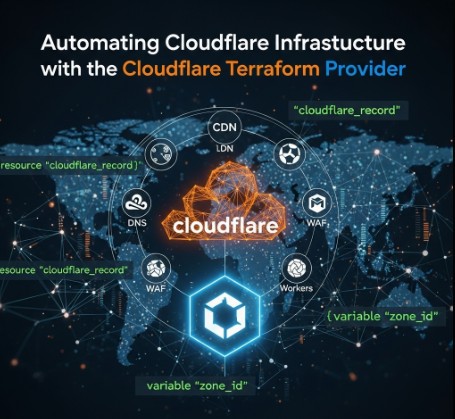
Automating Cloudflare Tunnel with Terraform: A Comprehensive Guide

In today’s dynamic IT landscape, efficient infrastructure management is paramount. Automating tasks is no longer a luxury but a necessity for maintaining scalability, reliability, and security. Cloudflare Tunnel, a service that securely exposes internal applications to the internet, perfectly complements this need. However, manual configuration of Cloudflare Tunnel can be time-consuming and error-prone. This is where Terraform steps in, offering a powerful solution for automating the entire process. This comprehensive guide will walk you through automating Cloudflare Tunnel with Terraform, covering everything from basic setup to advanced configurations.

Understanding Cloudflare Tunnel and Terraform

Before diving into the automation process, let’s briefly understand the core components involved.

Cloudflare Tunnel

Cloudflare Tunnel creates a secure connection between your internal network and Cloudflare’s global network. This allows you to expose internal services to the internet without opening ports in your firewall, significantly enhancing your security posture. The tunnel uses a client-side application (cloudflared) to establish a secure connection, encrypting all traffic. Learn more about Cloudflare Tunnel.

Terraform

Terraform is an open-source Infrastructure as Code (IaC) tool that allows you to define and manage your infrastructure in a declarative manner. This means you define the desired state of your infrastructure in code, and Terraform ensures that state is achieved and maintained. Using Terraform to manage Cloudflare Tunnel provides several benefits, including:

  • Automation: Automate the entire process of creating and managing Cloudflare Tunnel.
  • Version Control: Track changes to your infrastructure configuration using Git or other version control systems.
  • Consistency: Ensure consistent deployments across multiple environments.
  • Repeatability: Easily recreate your infrastructure in different environments.
  • Collaboration: Facilitate collaboration among team members through a shared codebase.

Automating Cloudflare Tunnel with Terraform: A Step-by-Step Guide

To automate Cloudflare Tunnel with Terraform, you’ll need a Cloudflare account and a Terraform installation. We’ll use the Cloudflare Terraform Provider, which simplifies the interaction with the Cloudflare API.

Prerequisites

  1. Cloudflare Account: Create a Cloudflare account if you don’t already have one.
  2. Cloudflare API Token: Generate an API token with the necessary permissions (e.g., access to Tunnel). Learn how to generate an API token.
  3. Terraform Installation: Download and install Terraform on your system. Download Terraform here.
  4. Cloudflare CLI (cloudflared): Download and install the Cloudflare CLI. Download cloudflared.

Basic Configuration

Let’s start with a basic configuration. This example creates a Cloudflare Tunnel and associates it with a specific origin server.

terraform {
  required_providers {
    cloudflare = {
      source  = "cloudflare/cloudflare"
      version = "~> 2.0"
    }
  }
}

provider "cloudflare" {
  api_token = var.cloudflare_api_token
}

variable "cloudflare_api_token" {
  type      = string
  sensitive = true
}

resource "cloudflare_tunnel" "example" {
  name       = "my-tunnel"

  configuration {
    origin_server {
      address = "192.168.1.100:8080"
    }
  }
}

This code defines a Cloudflare Tunnel named “my-tunnel” and specifies the origin server’s address. Replace `”192.168.1.100:8080″` with your actual origin server’s address and port.

Applying the Configuration

After creating the Terraform configuration file (e.g., `main.tf`), run the following commands:

# Initialize the working directory containing Terraform configuration files
terraform init

# Review the execution plan to see what will be created, changed, or destroyed
terraform plan

# Apply the configuration to provision the infrastructure
terraform apply

The `terraform plan` command shows you what changes Terraform will make, and `terraform apply` executes the plan, creating the Cloudflare Tunnel.

Advanced Configurations

The basic example provides a foundation. Let’s explore some advanced scenarios:

Multiple Origins

You can add multiple origin servers to a single tunnel:

variable "origin_servers" {
  type        = list(string)
  description = "List of origin server addresses"
  default     = ["192.168.1.100:8080", "10.0.0.10:8000"]
}

resource "cloudflare_tunnel" "example" {
  name = "my-tunnel"

  configuration {
    dynamic "origin_server" {
      for_each = var.origin_servers
      content {
        address = origin_server.value
      }
    }
  }
}

Using Variables

Employing variables makes your configuration more flexible and reusable:

variable "origin_servers" {
  type        = list(string)
  description = "List of origin server addresses"
}

resource "cloudflare_tunnel" "example" {
  name = "my-tunnel"

  configuration {
    dynamic "origin_server" {
      for_each = var.origin_servers
      content {
        address = origin_server.value
      }
    }
  }
}

Using Data Sources

Data sources allow you to retrieve information from Cloudflare:

data "cloudflare_account" "account" {
  # Retrieves details of the authenticated Cloudflare account
}

resource "cloudflare_tunnel" "example" {
  name       = "my-tunnel"
  account_id = data.cloudflare_account.account.id

  configuration {
    origin_server {
      address = "192.168.1.100:8080"
    }
  }
}

Integration with Other Services

Terraform’s power shines when integrating Cloudflare Tunnel with other infrastructure components. You can orchestrate the creation of related resources, like load balancers or virtual machines, within the same Terraform configuration.

Frequently Asked Questions (FAQ)

  • Q: What are the security implications of using Cloudflare Tunnel?

    A: Cloudflare Tunnel significantly enhances security by preventing direct exposure of your internal services to the internet. All traffic is encrypted, and you don’t need to open ports in your firewall. However, you should still maintain strong security practices on your internal network and application.
  • Q: Can I use Terraform to manage multiple Cloudflare Tunnels?

    A: Yes, you can easily manage multiple Cloudflare Tunnels using Terraform by defining multiple resources of the `cloudflare_tunnel` type, each with its own configuration.
  • Q: How do I handle updates to my Cloudflare Tunnel configuration?

    A: Modify your Terraform configuration, run `terraform plan` to review the changes, and then run `terraform apply` to update your Cloudflare Tunnel.
  • Q: What if my Cloudflare Tunnel fails?

    A: Terraform’s state management helps with troubleshooting. If a tunnel fails, Terraform’s `plan` command will highlight the issue. You can then investigate the cause and correct your configuration.
  • Q: Can I use this with other cloud providers?

    A: While this focuses on Cloudflare Tunnel, Terraform’s versatility allows you to integrate this with other cloud providers for managing related infrastructure components like virtual machines or networks. This would be done through their respective Terraform providers.
  • Q: What are the limitations of using Terraform for Cloudflare Tunnel management?

    A: The primary limitation is dependency on the Cloudflare API and Terraform provider. Any downtime or issues with either could impact your ability to manage tunnels. Ensure you always have backups and disaster recovery plans in place.

Conclusion

Automating Cloudflare Tunnel deployment with Terraform offers a significant advantage in managing infrastructure efficiently and securely. This guide has provided a detailed walkthrough from basic configurations to advanced scenarios, empowering you to streamline your workflows and ensure consistent deployments. By leveraging Infrastructure as Code. Thank you for reading the DevopsRoles page!
Revolutionizing Infrastructure as Code: Terraform CI/CD and Testing on AWS with the New Terraform Test Framework

Infrastructure as Code (IaC) has become an indispensable practice for managing and deploying cloud infrastructure efficiently and reliably. Terraform, HashiCorp’s popular IaC tool, empowers developers and DevOps engineers to define and provision infrastructure resources in a declarative manner. Integrating Terraform into a robust CI/CD pipeline is crucial for automating deployments, ensuring consistency, and reducing human error.

This comprehensive guide dives into implementing Terraform CI/CD and testing on AWS, leveraging the power of the new Terraform Test Framework to enhance your infrastructure management workflow. We’ll cover everything from setting up a basic pipeline to implementing advanced testing strategies, equipping you with the knowledge to build a reliable and efficient infrastructure deployment process.

Understanding Terraform CI/CD

Continuous Integration/Continuous Delivery (CI/CD) is a set of practices that automate the process of building, testing, and deploying software. When applied to infrastructure, CI/CD ensures that infrastructure changes are deployed consistently and reliably, minimizing the risk of errors and downtime. A typical Terraform CI/CD pipeline involves the following stages:

Key Stages of a Terraform CI/CD Pipeline:

  • Code Commit: Developers commit Terraform configuration code to a version control system (e.g., Git).
  • Build: The CI system detects code changes and initiates a build process, which might involve linting and validating the Terraform code.
  • Test: Automated tests are executed to validate the Terraform configuration. This is where the new Terraform Test Framework plays a vital role.
  • Plan: Terraform generates an execution plan, outlining the changes that will be made to the infrastructure.
  • Apply: Terraform applies the changes to the AWS infrastructure, provisioning or modifying resources.
  • Destroy (Optional): In certain scenarios (e.g., testing environments), a destroy step can automatically tear down the infrastructure after testing.

Leveraging the New Terraform Test Framework

The Terraform Test Framework is a powerful tool that allows you to write automated tests for your Terraform configurations. This framework facilitates testing the correctness and behavior of your infrastructure code before deployment, significantly reducing the risk of errors in production. It enables you to:

Benefits of the Terraform Test Framework:

  • Verify Infrastructure State: Assert the desired state of your infrastructure after applying your Terraform code.
  • Test Configuration Changes: Ensure that changes to your Terraform configurations have the expected effect.
  • Improve Code Quality: Encourage writing more robust, maintainable, and testable Terraform code.
  • Reduce Deployment Risks: Identify and fix potential issues early in the development cycle, reducing the chance of errors in production.

Integrating Terraform with AWS and CI/CD Tools

To implement Terraform CI/CD on AWS, you’ll typically use a CI/CD tool such as Jenkins, GitHub Actions, GitLab CI, or AWS CodePipeline. These tools integrate seamlessly with Terraform, automating the execution of Terraform commands as part of your pipeline.

Example: Setting up a basic Terraform CI/CD pipeline with GitHub Actions:

A simplified GitHub Actions workflow could look like this:


name: Terraform AWS Deployment

on: push

jobs:
  build:
    runs-on: ubuntu-latest
    steps:
      - name: Checkout code
        uses: actions/checkout@v3

      - name: Setup Terraform
        uses: hashicorp/setup-terraform@v2

      - name: Terraform Init
        run: terraform init

      - name: Terraform Plan
        run: terraform plan -out=tfplan

      - name: Terraform Apply
        run: terraform apply tfplan

This workflow checks out the code, initializes Terraform, creates a plan, and applies the changes. For production environments, adding a testing stage using the Terraform Test Framework is crucial.

Implementing Terraform Testing with Practical Examples

Let’s explore practical examples demonstrating how to use the Terraform Test Framework for various scenarios.

Example 1: Basic Resource Existence Test

This test verifies that an EC2 instance exists after applying the Terraform configuration:


package main

import (
	"testing"

	"github.com/stretchr/testify/assert"
	"github.com/hashicorp/terraform-plugin-sdk/v2/helper/resource"
)

func TestEC2InstanceExists(t *testing.T) {
	resource.Test(t, resource.TestCase{
		PreCheck:  func() { /* ... */ },
		Providers: providers(),
		Steps: []resource.TestStep{
			{
				Config: `
					resource "aws_instance" "example" {
						ami           = "ami-0c55b31ad2299a701" # Replace with your AMI ID
						instance_type = "t2.micro"
					}
				`,
				Check: resource.ComposeTestCheckFunc(
					resource.TestCheckResourceAttr("aws_instance.example", "instance_state", "running"),
				),
			},
		},
	})
}

Example 2: Testing Output Values

This example tests whether the Terraform output value matches the expected value:

func TestOutputValue(t *testing.T) {
	resource.Test(t, resource.TestCase{
		PreCheck:  func() { /* pre-check logic */ },
		Providers: providers(),
		Steps: []resource.TestStep{
			{
				Config: `
resource "aws_instance" "example" {
  ami           = "ami-0c55b31ad2299a701"
  instance_type = "t2.micro"
}

output "instance_id" {
  value = aws_instance.example.id
}
`,
				Check: resource.ComposeTestCheckFunc(
					resource.TestCheckOutputSet("instance_id"), // 
				),
			},
		},
	})
}

Example 3: Advanced Testing with Custom Assertions

For more complex scenarios, you can create custom assertions to check specific aspects of your infrastructure.

// ... (imports: "testing", "github.com/hashicorp/terraform-plugin-sdk/v2/helper/resource", "github.com/hashicorp/terraform-plugin-sdk/v2/terraform", "fmt") ...

func TestCustomAssertion(t *testing.T) {
	resource.Test(t, resource.TestCase{
		PreCheck:  func() { /* validate preconditions */ },
		Providers: providers(),
		Steps: []resource.TestStep{
			{
				Config: `
resource "aws_instance" "example" {
  ami           = "ami-0c55b31ad2299a701"
  instance_type = "t2.micro"
}
`,
				Check: resource.ComposeTestCheckFunc(
					func(s *terraform.State) error {
						rs, ok := s.RootModule().Resources["aws_instance.example"]
						if !ok {
							return fmt.Errorf("resource aws_instance.example not found")
						}

						if rs.Primary.ID == "" {
							return fmt.Errorf("expected instance ID to be set")
						}

						// Custom assertion logic: for example, check ID prefix
						if len(rs.Primary.ID) < 2 || rs.Primary.ID[0] != 'i' {
							return fmt.Errorf("instance ID %q does not look like a valid EC2 ID", rs.Primary.ID)
						}

						// Optional: perform DB lookup, external API call, etc.
						// e.g., validate the instance ID exists in a mock service

						return nil
					},
				),
			},
		},
	})
}

Frequently Asked Questions (FAQ)

Q1: What are the best practices for writing Terraform tests?

Best practices include writing small, focused tests, using clear and descriptive names, and organizing tests into logical groups. Prioritize testing critical infrastructure components and avoid over-testing.

Q2: How can I integrate the Terraform Test Framework into my existing CI/CD pipeline?

You can integrate the tests by adding a testing stage to your CI/CD workflow. Your CI/CD tool will execute the test suite before applying Terraform changes. Failure in the tests should halt the deployment process.

Q3: What are some common testing pitfalls to avoid?

Common pitfalls include writing tests that are too complex, not adequately covering edge cases, and neglecting to test dependencies. Ensure comprehensive testing covers both happy path and failure scenarios.

Q4: Can I use the Terraform Test Framework for testing resources outside of AWS?

Yes, the Terraform Test Framework is not limited to AWS. It can be used to test configurations for various cloud providers and on-premise infrastructure.

Conclusion

In the era of modern DevOps, infrastructure deployment is no longer a manual, isolated task—it has evolved into an automated, testable, and reusable process. This article has shed light on how the powerful combination of Terraform, CI/CD pipelines, and the Terraform Test Framework can significantly enhance the reliability, efficiency, and quality of infrastructure management on AWS.

By setting up a professional CI/CD pipeline that integrates essential steps such as terraform init, plan, apply, and, crucially, automated testing written in Go, you can:

  • Minimize deployment risks,
  • Catch errors early in the development lifecycle, and
  • Ensure infrastructure configurations remain under strict control.

Moreover, the Terraform Test Framework offers more than just basic resource checks (e.g., EC2 instances or output values). It empowers teams to create custom test assertions for complex logic, marking a major advancement toward treating infrastructure as fully testable software.

In conclusion, if you’re aiming to build a professional, safe, and verifiable deployment workflow, the integration of Terraform + CI/CD + Test Framework is your strategic foundation. It’s not just a DevOps toolchain-it’s a roadmap to the future of resilient and scalable infrastructure operations. Thank you for reading the DevopsRoles page!

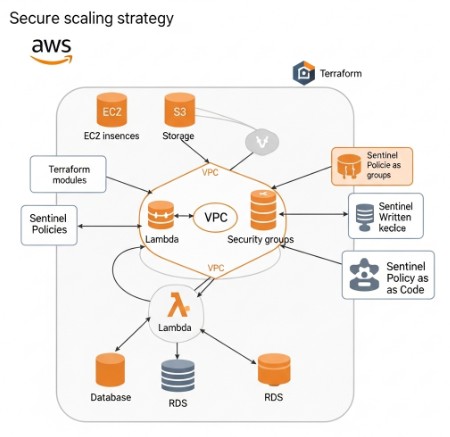
Terraform Your SAP Infrastructure on AWS: A Comprehensive Guide

Deploying and managing SAP landscapes on Amazon Web Services (AWS) can be complex. Traditional methods often involve manual configurations, increasing the risk of errors and slowing down deployment times. Enter Terraform, a powerful Infrastructure as Code (IaC) tool that automates the provisioning, configuration, and management of your infrastructure. This guide will walk you through leveraging Terraform to streamline your SAP infrastructure on AWS, leading to greater efficiency, scalability, and reliability.

Understanding the Benefits of Terraform for SAP on AWS

Utilizing Terraform to manage your SAP infrastructure on AWS offers several significant advantages:

Increased Efficiency and Automation

  • Automate the entire provisioning process, from setting up virtual machines to configuring networks and databases.
  • Reduce manual errors associated with manual configuration.
  • Accelerate deployment times, enabling faster time-to-market for new applications and services.

Improved Consistency and Repeatability

  • Ensure consistent infrastructure deployments across different environments (development, testing, production).
  • Easily replicate your infrastructure in different AWS regions or accounts.
  • Simplify the process of updating and modifying your infrastructure.

Enhanced Scalability and Flexibility

  • Easily scale your SAP infrastructure up or down based on your needs.
  • Adapt to changing business requirements quickly and efficiently.
  • Benefit from the scalability and flexibility of the AWS cloud platform.

Improved Collaboration and Version Control

  • Enable collaboration among team members through version control systems (like Git).
  • Track changes to your infrastructure over time.
  • Maintain a clear audit trail of all infrastructure modifications.

Setting up Your Terraform Environment for SAP on AWS

Before you begin, ensure you have the following prerequisites:

1. AWS Account and Credentials

You’ll need an active AWS account with appropriate permissions to create and manage resources.

2. Terraform Installation

Download and install Terraform from the official HashiCorp website: https://www.terraform.io/downloads.html

3. AWS Provider Configuration

Configure the AWS provider in your Terraform configuration file (typically `main.tf`) using your AWS access key ID and secret access key. Important: Store your credentials securely, ideally using AWS IAM roles or environment variables. Do not hardcode them directly into your configuration files.


terraform {
  required_providers {
    aws = {
      source  = "hashicorp/aws"
      version = "~> 4.0"
    }
  }
}

provider "aws" {
  region = "us-east-1" # Replace with your desired region
}

4. Understanding Terraform Modules for SAP

Leveraging pre-built Terraform modules can significantly simplify the deployment process. Several community-contributed and commercial modules are available for various SAP components. Always carefully review the source and security implications of any module before integrating it into your infrastructure.

Terraform Examples: Deploying SAP Components on AWS

Here are examples demonstrating how to deploy various SAP components using Terraform on AWS. These examples are simplified for clarity; real-world implementations require more detailed configuration.

Example 1: Deploying an EC2 Instance for SAP Application Server


resource "aws_instance" "sap_app_server" {
  ami                    = "ami-0c55b31ad2299a701" # Replace with appropriate AMI
  instance_type          = "t3.medium"
  key_name               = "your_key_pair_name"
  vpc_security_group_ids = [aws_security_group.sap_app_server.id]
  # ... other configurations ...
}

resource "aws_security_group" "sap_app_server" {
  name        = "sap_app_server_sg"
  description = "Security group for SAP application server"

  ingress {
    from_port   = 22
    to_port     = 22
    protocol    = "tcp"
    cidr_blocks = ["0.0.0.0/0"] #Restrict this in production!
  }
  # ... other rules ...
}

Example 2: Creating an Amazon RDS Instance for SAP HANA


resource "aws_db_instance" "sap_hana" {
  allocated_storage    = 200
  engine                = "sap-hana"
  engine_version        = "2.0"
  instance_class        = "db.m5.large"
  db_name               = "saphana"
  username              = "sapuser"
  password              = "strong_password" # Never hardcode passwords in production! Use secrets management
  skip_final_snapshot = true
  # ... other configurations ...
}

Example 3: Deploying a Network Infrastructure with VPC and Subnets


resource "aws_vpc" "main" {
  cidr_block = "10.0.0.0/16"
}

resource "aws_subnet" "public" {
  vpc_id            = aws_vpc.main.id
  cidr_block        = "10.0.1.0/24"
  availability_zone = "us-east-1a"
}
# ... more subnets and network configurations ...

Advanced Scenarios: High Availability and Disaster Recovery

Terraform excels in setting up complex, highly available SAP landscapes. This involves deploying multiple instances across different availability zones, implementing load balancing, and configuring disaster recovery mechanisms. These scenarios often require sophisticated configurations and might utilize external modules or custom scripts to automate more intricate tasks, including SAP specific configuration settings.

Frequently Asked Questions (FAQ)

Q1: What are the best practices for managing Terraform state files for SAP infrastructure?

Use a remote backend like AWS S3 or Terraform Cloud to manage your state files. This ensures that multiple team members can collaborate effectively and prevents data loss. Always encrypt your state files for security.

Q2: How can I handle sensitive information like database passwords within my Terraform code?

Avoid hardcoding sensitive data directly in your Terraform configurations. Utilize AWS Secrets Manager or other secrets management solutions to store and retrieve sensitive information during deployment. Refer to these secrets within your Terraform code using environment variables or dedicated data sources.

Q3: How do I integrate Terraform with existing SAP monitoring tools?

Use Terraform’s output values to integrate with your monitoring tools. For example, Terraform can output the IP addresses and instance IDs of your SAP components, which can then be fed into your monitoring system’s configuration.

Q4: Can I use Terraform to migrate an existing on-premise SAP system to AWS?

While Terraform isn’t directly involved in the data migration process, it can automate the infrastructure provisioning on AWS to receive the migrated data. Tools like AWS Database Migration Service (DMS) are commonly used for the actual data migration, and Terraform can manage the target infrastructure to receive this data efficiently.

Q5: What are some common challenges when using Terraform for SAP on AWS?

Some common challenges include managing complex dependencies between SAP components, handling large-scale deployments, ensuring proper security configurations, and understanding the nuances of SAP-specific parameters and configurations within your Terraform code. Careful planning and testing are crucial to mitigate these challenges.

Conclusion

Terraform significantly simplifies and streamlines the deployment and management of SAP infrastructure on AWS. By automating the provisioning, configuration, and management of your SAP landscape, you can significantly improve efficiency, consistency, and scalability. While there’s a learning curve involved, the long-term benefits of using Terraform for your SAP systems on AWS far outweigh the initial investment. Remember to embrace best practices for state management, security, and error handling to maximize the value of this powerful IaC tool. By following the guidance and examples in this guide, you can confidently begin your journey towards automating and optimizing your SAP infrastructure on AWS using Terraform.Thank you for reading the DevopsRoles page!
Mastering the Terraform Registry: A Tutorial on Building and Sharing Modules

Introduction: Unlock the Power of Reusable Infrastructure with the Terraform Registry

In the dynamic world of infrastructure-as-code (IaC), efficiency and consistency are paramount. Terraform, a widely adopted IaC tool, allows you to define and manage your infrastructure in a declarative manner. However, writing the same infrastructure code repeatedly across projects can be tedious and error-prone. This is where the Terraform Registry shines. It’s a central repository for sharing and reusing pre-built Terraform modules, enabling developers to accelerate their workflows and maintain a consistent infrastructure landscape. This A Terraform Registry tutorial to build and share modules will guide you through the entire process, from creating your first module to publishing it for the community to use.

Understanding Terraform Modules

Before diving into the Registry, it’s crucial to understand Terraform modules. Modules are reusable packages of Terraform configuration. They encapsulate a specific set of resources and allow you to parameterize their behavior, making them adaptable to different environments. Think of them as functions for your infrastructure.

Benefits of Using Terraform Modules

* **Reusability:** Avoid writing repetitive code.
* **Maintainability:** Easier to update and maintain a single module than multiple instances of similar code.
* **Consistency:** Ensure consistency across different environments.
* **Collaboration:** Share modules with your team or the wider community.
* **Abstraction:** Hide implementation details and expose only necessary parameters.

Building Your First Terraform Module

Let’s start by creating a simple module for deploying a virtual machine on AWS. This A Terraform Registry tutorial to build and share modules example will use AWS EC2 instances.

Step 1: Project Structure

Create a directory for your module, for example, `aws-ec2-instance`. Inside this directory, create the following files:

* `main.tf`: This file contains the core Terraform configuration.
* `variables.tf`: This file defines the input variables for your module.
* `outputs.tf`: This file defines the output values that your module will return.

Step 2: `variables.tf`

variable "instance_type" {
  type        = string
  default     = "t2.micro"
  description = "EC2 instance type"
}

variable "ami_id" {
  type        = string
  description = "AMI ID for the instance"
}

variable "key_name" {
  type        = string
  description = "Name of the SSH key pair"
}

Step 3: `main.tf`

resource "aws_instance" "ec2" {
  ami           = var.ami_id
  instance_type = var.instance_type
  key_name      = var.key_name
}

Step 4: `outputs.tf`

output "instance_public_ip" {
  value       = aws_instance.ec2.public_ip
  description = "Public IP address of the EC2 instance"
}

Step 5: Testing Your Module

Before publishing, test your module locally. Create a test directory and use the module within a sample `main.tf` file. Make sure to provide the necessary AWS credentials.

Publishing Your Module to the Terraform Registry

Publishing your module involves creating a repository on a platform supported by the Terraform Registry, such as GitHub.

Step 1: Create a GitHub Repository

Create a new public GitHub repository for your module. This is crucial for the Terraform Registry to access your code.

Step 2: Configure the Registry

You’ll need a Terraform Cloud account (or you can link a GitHub account via Terraform Cloud) to manage and publish your module. Follow the instructions on the official Terraform documentation to connect your provider with your repository.
[Link to Terraform Cloud Documentation](https://www.terraform.io/cloud-docs/cli/workspaces/create)

Step 3: Set up a Provider in your Module

Within your Terraform module repository, you should have a `provider.tf` file. This file defines the provider for your resources. It is not strictly necessary to include a provider in a module (your main `Terraform` file could specify it), but it is common practice.

Step 4: Submit Your Module

Through Terraform Cloud you submit your module for review. You’ll be prompted to provide metadata and other relevant information. Once validated and approved, your module will be available on the Terraform Registry.

Using Published Modules

Once your module is published, others can easily integrate it into their projects. Here’s how to use a module from the Terraform Registry:

module "aws-ec2-instance" {
  source        = "your-github-username/aws-ec2-instance"  # Replace with your GitHub username and repository name
  instance_type = "t2.micro"
  ami_id        = "ami-0c55b31ad2299a701"                   # Replace with a valid AMI ID
  key_name      = "your-key-pair-name"                      # Replace with your key pair name
}

Advanced Module Techniques

Let’s explore some advanced techniques to make your modules more robust and reusable.

Using Conditional Logic

Use `count` or `for_each` to create multiple instances of resources based on variables or conditions.

Creating Nested Modules

Organize complex infrastructure deployments by nesting modules within each other for improved modularity and structure.

Using Data Sources

Integrate data sources within your modules to dynamically fetch values from external services or cloud providers.

Versioning Your Modules

Proper versioning is essential for maintainability and compatibility. Use semantic versioning (semver) to manage releases and updates.

Frequently Asked Questions (FAQ)

**Q: What are the benefits of using the Terraform Registry over storing my modules privately?**

A: The Terraform Registry offers discoverability, allowing others to benefit from your work and potentially collaborate. It also simplifies module updates and management. Private modules work well for internal organization-specific needs.

**Q: How do I update my published module?**

A: Push updates to your source code repository (GitHub). The Terraform Registry will automatically process and release new versions.

**Q: Can I publish private modules?**

A: No, the Terraform Registry is publicly accessible. For private modules, consider using a private git repository and referencing it directly in your Terraform configurations.

**Q: What happens if I delete my module from the registry?**

A: Deleting the module removes it from the Registry, making it inaccessible to others.

**Q: How do I handle dependencies between modules?**

A: Terraform’s module system handles dependencies automatically, enabling effortless integration between various modules.

Conclusion: Elevate Your Infrastructure-as-Code with the Terraform Registry

This A Terraform Registry tutorial to build and share modules demonstrates how to create, publish, and use Terraform modules effectively. By embracing the power of the Terraform Registry, you can significantly improve your workflow, enhance code reusability, and foster collaboration within your team and the wider Terraform community. Remember to follow best practices like proper versioning and thorough testing to maintain high-quality, reliable infrastructure deployments. Using modules effectively and sharing them through the registry is a fundamental step towards achieving efficient and scalable infrastructure management.Thank you for reading the DevopsRoles page!

Build ROSA Clusters with Terraform: A Comprehensive Guide

For DevOps engineers, cloud architects, and anyone managing containerized applications, the ability to automate infrastructure provisioning is paramount. Red Hat OpenShift (ROSA), a leading Kubernetes platform, combined with Terraform, a powerful Infrastructure as Code (IaC) tool, offers a streamlined and repeatable method for building and managing clusters. This guide delves into the process of Build ROSA clusters with Terraform, providing a comprehensive walkthrough for both beginners and experienced users. We’ll explore various use cases, best practices, and troubleshooting techniques to ensure you can effectively leverage this powerful combination.

Understanding the Power of ROSA and Terraform

Red Hat OpenShift (ROSA) provides a robust and secure platform for deploying and managing containerized applications. Its enterprise-grade features, including built-in security, high availability, and robust management tools, make it a preferred choice for mission-critical applications. However, manually setting up and managing ROSA clusters can be time-consuming and error-prone.

Terraform, an open-source IaC tool, allows you to define and manage your infrastructure in a declarative manner. Using code, you describe the desired state of your ROSA cluster, and Terraform ensures it’s provisioned and maintained according to your specifications. This eliminates manual configuration, promotes consistency, and facilitates version control, making it ideal for managing complex infrastructure like ROSA clusters.

Setting up Your Environment for Build ROSA Clusters with Terraform

Prerequisites

  • A cloud provider account: AWS, Azure, or GCP are commonly used. This guide will use AWS as an example.
  • Terraform installed: Download and install Terraform from the official website: https://www.terraform.io/downloads.html
  • AWS credentials configured: Ensure your AWS credentials are configured correctly using AWS CLI or environment variables.
  • ROSA account and credentials: You’ll need a Red Hat account with access to ROSA.
  • A text editor or IDE: To write your Terraform configuration files.

Creating Your Terraform Configuration

The core of building your ROSA cluster with Terraform lies in your configuration files (typically named main.tf). These files define the resources you want to create, including the virtual machines, networks, and the OpenShift cluster itself. A basic structure might look like this (note: this is a simplified example and requires further customization based on your specific needs):


# main.tf
terraform {
  required_providers {
    aws = {
      source  = "hashicorp/aws"
      version = "~> 4.0"
    }
  }
}

provider "aws" {
  region = "us-east-1" # Replace with your desired region
}

resource "aws_instance" "master" {
  # ... (Master node configurations) ...
}

resource "aws_instance" "worker" {
  # ... (Worker node configurations) ...
}

# ... (Further configurations for networking, security groups, etc.) ...

resource "random_id" "cluster_id" {
  byte_length = 8
}

resource "null_resource" "rosa_install" {
  provisioner "local-exec" {
    command = "rosa create cluster ${random_id.cluster_id.hex} --pull-secret-path  --aws-region us-east-1"  #Replace placeholders with appropriate values.
  }
  depends_on = [aws_instance.master, aws_instance.worker]
}

Important Note: Replace placeholders like `` with your actual values. The rosa create cluster command requires specific parameters, including your pull secret (obtained from your Red Hat account). This example uses a `null_resource` and a `local-exec` provisioner for simplicity. For production, consider more robust methods such as using the `rosacli` executable directly within Terraform.

Advanced Scenarios and Customization

Multi-AZ Deployments for High Availability

For enhanced high availability, you can configure your Terraform code to deploy ROSA across multiple Availability Zones (AZs). This ensures redundancy and minimizes downtime in case of AZ failures. This would involve creating multiple instances in different AZs and configuring appropriate networking to enable inter-AZ communication.

Integrating with Other Services

Terraform allows for seamless integration with other AWS services. You can easily provision resources like load balancers, databases (e.g., RDS), and storage (e.g., S3) alongside your ROSA cluster. This provides a comprehensive, automated infrastructure for your applications.

Using Terraform Modules for Reusability

For large-scale deployments or to promote code reusability, you can create Terraform modules. A module encapsulates a set of resources that can be reused across different projects. This improves maintainability and reduces redundancy in your code.

Implementing CI/CD with Terraform

By integrating Terraform with CI/CD pipelines (e.g., Jenkins, GitLab CI, GitHub Actions), you can automate the entire process of creating and managing ROSA clusters. Changes to your Terraform code can automatically trigger the provisioning or updates to your cluster, ensuring that your infrastructure remains consistent with your code.

Real-World Examples and Use Cases

Scenario 1: Deploying a Simple Application

A DevOps team wants to quickly deploy a simple web application on ROSA. Using Terraform, they can automate the creation of the cluster, configure networking, and deploy the application through a pipeline. This eliminates manual steps and ensures consistent deployment across environments.

Scenario 2: Setting Up a Database Cluster

A DBA needs to provision a highly available database cluster to support a mission-critical application deployed on ROSA. Terraform can automate the setup of the database (e.g., using RDS on AWS), configure network access, and integrate it with the ROSA cluster, creating a seamless and manageable infrastructure.

Scenario 3: Building a Machine Learning Platform

An AI/ML engineer needs to create a scalable platform for training and deploying machine learning models. Terraform can provision the necessary compute resources (e.g., high-performance instances), configure networking, and create the ROSA cluster to host the AI/ML applications and services. This allows for efficient resource utilization and scaling.

Frequently Asked Questions (FAQ)

Q1: What are the benefits of using Terraform to build ROSA clusters?

Using Terraform offers several key benefits: Automation (reduced manual effort), Consistency (repeatable deployments), Version Control (track changes and revert if needed), Collaboration (easier teamwork), and Scalability (easily manage large clusters).

Q2: How do I handle secrets and sensitive information in my Terraform code?

Avoid hardcoding secrets directly into your Terraform code. Use secure methods like environment variables, HashiCorp Vault, or AWS Secrets Manager to store and manage sensitive information. Terraform supports these integrations, allowing you to securely access these secrets during the provisioning process.

Q3: What are some common troubleshooting steps when using Terraform with ROSA?

Check your Terraform configuration for syntax errors. Verify your AWS credentials and ROSA credentials. Ensure network connectivity between your resources. Examine the Terraform logs for error messages. Consult the ROSA and Terraform documentation for solutions to specific problems. The `terraform validate` and `terraform plan` commands are crucial for identifying issues before applying changes.

Q4: How can I update an existing ROSA cluster managed by Terraform?

To update an existing cluster, you’ll need to modify your Terraform configuration to reflect the desired changes. Run `terraform plan` to see the planned changes and `terraform apply` to execute them. Terraform will efficiently update only the necessary resources. Be mindful of potential downtime during updates, especially for changes affecting core cluster components.

Q5: What are the security considerations when using Terraform to manage ROSA?

Security is paramount. Use appropriate security groups and IAM roles to restrict access to your resources. Regularly update Terraform and its provider plugins to benefit from the latest security patches. Implement proper access controls and utilize secrets management solutions as described above. Always review the `terraform plan` output before applying any.

Conclusion


Building ROSA (Red Hat OpenShift Service on AWS) clusters with Terraform offers a robust, automated, and repeatable approach to managing cloud-native infrastructure. By leveraging Terraform’s Infrastructure as Code (IaC) capabilities, organizations can streamline the deployment process, enforce consistency across environments, and reduce human error. This method not only accelerates cluster provisioning but also enhances scalability, governance, and operational efficiency — making it an ideal solution for enterprises aiming to integrate OpenShift into their AWS ecosystem in a secure and maintainable way. Thank you for reading the DevopsRoles page!