Category Archives: Docker

Master Docker with DevOpsRoles.com. Discover comprehensive guides and tutorials to efficiently use Docker for containerization and streamline your DevOps processes.

Build lambda with a custom docker image

Introduction

In this tutorial, we will build lambda with a custom docker image.

Prerequisites

Before starting, you should have the following prerequisites configured

  • An AWS account
  • AWS CLI on your computer

Walkthrough

  • Create a Python virtual environment
  • Create a Python app
  • Create a lambda with a custom docker image of ECR
  • Create ECR repositories and push an image
  • Create a lamba from the ECR image
  • Test lambda function on local
  • Test lambda function on AWS

Create a Python virtual environment

Create a Python virtual environment with the name py_virtual_env

python3 -m venv py_virtual_env

Create a Python app

This Python source code will pull a JSON file from https://data.gharchive.org and put it into the S3 bucket.
Then, transform the uploaded file to parquet format.

Download the source code from here and put it into the py_virtual_env folder.

Create a lambda with a custom docker image of ECR

#build docker image
source ./py_virtual_env/bin/activate
cd py_virtual_env
docker build -t test-image .
docker images

Create ECR repositories and push an image

#create an ecr repository
aws ecr create-repository --repository-name lambda-python-lab \
--query 'repository.repositoryUri' --output text

#authen 
aws ecr get-login-password --region ap-northeast-1 | docker login --username AWS --password-stdin xxxxxxxxxxxx.dkr.ecr.ap-northeast-1.amazonaws.com

#tag image
docker tag test-image:latest xxxxxxxxxxxx.dkr.ecr.ap-northeast-1.amazonaws.com/lambda-python-lab:latest
docker images

#push the image to ecr repository
docker push xxxxxxxxxxxx.dkr.ecr.ap-northeast-1.amazonaws.com/lambda-python-lab:latest

#check image
aws ecr list-images --repository-name lambda-python-lab

Create a lamba from the ECR image

Create a lambda function from the ECR image

General configuration

Environment variables

Test lambda function on local

To test the lambda function locally, you can follow

docker run --name test-lambda -v /Users/hieudang/.aws:/root/.aws \
  -e BUCKET_NAME=hieu320231129 \
  -e TARGET_FOLDER=TRANSFORMED \
  -e FILENAME=2022-06-05-0.json.gz \
  -d test-image
docker container list
docker exec -it test-lambda bash
python -c "import S3app;S3app.lambda_ingest(None, None)"

Test lambda function on AWS

Conclusion

These steps provide an example of creating a lambda function and running it on docker, then, we put the docker image in the ECR repository, and create a lambda function from the ECR repository. The specific configuration details may vary depending on your environment and setup. It’s recommended to consult the relevant documentation from AWS for detailed instructions on setting up. I hope will this be helpful. Thank you for reading the DevopsRoles page!

Refer

https://docs.aws.amazon.com/lambda/latest/dg/python-package.html#python-package-create-no-dependencies

App source code: https://github.com/itversity/ghactivity-aws

Dive view the contents of docker images

Introduction

How to view the contents of docker images? “Dive” is a command-line tool for exploring and analyzing Docker images. It allows you to inspect the contents of a Docker image, view its layers, and understand the file structure and sizes within those layers.

This tool can be helpful for optimizing Docker images and gaining insights into their composition. Dive: A Simple App for Viewing the Contents of a Docker Image.

For MacOS, Dive can be installed with either Homebrew and on Windows, Dive can be installed with a downloaded installer file for the OS.

What You’ll Need

  • Dive: You’ll need to install the Dive tool on your system to use it.
  • Docker: Dive works with Docker images, so you should have Docker installed on your system to pull and work with Docker images. For example, install docker on Ubuntu here.

Installing Dive

To install Dive, you can use package managers like Homebrew (on macOS) or download the binary from the Dive GitHub repository.

Using Homebrew (on macOS)

brew install dive

Downloading the binary

You can visit the Dive GitHub repository (dive) and download the binary for your platform from the “Releases” section. You installing Dive on Ubuntu.

$ export DIVE_VERSION=$(curl -sL "https://api.github.com/repos/wagoodman/dive/releases/latest" | grep '"tag_name":' | sed -E 's/.*"v([^"]+)".*/\1/')
$ curl -OL https://github.com/wagoodman/dive/releases/download/v${DIVE_VERSION}/dive_${DIVE_VERSION}_linux_amd64.deb
$ sudo apt install ./dive_${DIVE_VERSION}_linux_amd64.deb

The result as the picture below

Using Dive

Once you have Dive installed, you can use it to view the contents of a Docker image as follows:

  1. Open your terminal or command prompt.
  2. Run the following command, replacing with the name or ID of the Docker image you want to inspect:
  3. Dive will launch a text-based interface that allows you to navigate through the layers of the Docker image. You can explore the file structure, check the sizes of individual layers, and gain insights into the image’s contents.

View the contents of docker images

To examine the latest Alpine Docker image

dive alpine:latest

You can define a different source using the source option

dive IMAGE --source SOURCE

SOURCE is the location of the repository.

The features of Dive

  • Layer Visualization: Dive provides a visual representation of a Docker image’s layers, showing how they are stacked on top of each other.
  • Layer Size Information: Dive displays the size of each individual layer in the Docker image.
  • File and Directory Listing: You can navigate through the contents of each layer and view the files and directories it contains.
  • Image Efficiency Analysis: Dive helps you identify inefficiencies in your Docker images.
  • Image Build Context Analysis: Dive can analyze the build context of a Docker image.
  • Image Diffing: Dive allows you to compare two Docker images and see the differences between them.

Conclusion

Dive is a powerful tool for image analysis and optimization, and it can help you gain insights into what’s inside a Docker image. It’s particularly useful for identifying large files or unnecessary dependencies that can be removed to create smaller and more efficient Docker images.

You can view the contents of docker images using Dive.

Docker data science image

Introduction

How to create A Simple Docker Data Science Image.

  • Docker offers an efficient way to establish a Python data science environment, ensuring a smooth workflow from development to deployment.
  • Begin by creating a Dockerfile that precisely defines the environment’s specifications, dependencies, and configurations, serving as a blueprint for the Docker data science image.
  • Use the Docker command to build the image by incorporating the Dockerfile along with your data science code and necessary requirements.
  • Once the image is constructed, initiate a container to execute your analysis, maintaining environment consistency across various systems.
  • Docker simplifies sharing your work by encapsulating the entire environment, eliminating compatibility issues that can arise from varied setups.
  • For larger-scale collaboration or deployment needs, Docker Hub provides a platform to store and distribute your Docker images.
  • Pushing your image to Docker Hub makes it readily available to colleagues and collaborators, allowing effortless integration into their workflows.
  • This comprehensive process of setting up, building, sharing, and deploying a Python data science environment using Docker significantly enhances reproducibility, collaboration, and the efficiency of deployment.

Why Docker for Data Science?

Here are some reasons why Docker is commonly used in the data science field:

  1. Reproducibility: Docker allows you to package your entire data science environment, including dependencies, libraries, and configurations, into a single container. This ensures that your work can be reproduced exactly as you intended, even across different machines or platforms.
  2. Isolation: Docker containers provide a level of isolation, ensuring that the dependencies and libraries used in one project do not interfere with those used in another. This is especially important in data science, where different projects might require different versions of the same library.
  3. Portability: With Docker, you can package your entire data science stack into a container, making it easy to move your work between different environments, such as from your local machine to a cloud server. This is crucial for collaboration and deployment.
  4. Dependency Management: Managing dependencies in traditional environments can be challenging and error-prone. Docker simplifies this process by allowing you to specify dependencies in a Dockerfile, ensuring consistent and reliable setups.
  5. Version Control: Docker images can be versioned, allowing you to track changes to your environment over time. This can be especially helpful when sharing projects with collaborators or when you need to reproduce an older version of your work.
  6. Collaboration: Docker images can be easily shared with colleagues or the broader community. Instead of providing a list of instructions for setting up an environment, you can share a Docker image that anyone can run without worrying about setup complexities.
  7. Easy Setup: Docker simplifies the process of setting up complex environments. Once the Docker image is created, anyone can run it on their system with minimal effort, eliminating the need to manually install libraries and dependencies.
  8. Security: Docker containers provide a degree of isolation, which can enhance security by preventing unwanted interactions between your data science environment and your host system.
  9. Scalability: Docker containers can be orchestrated and managed using tools like Kubernetes, allowing you to scale your data science applications efficiently, whether you’re dealing with large datasets or resource-intensive computations.
  10. Consistency: Docker helps ensure that the environment you develop in is the same environment you’ll deploy to. This reduces the likelihood of “it works on my machine” issues.

Create A Simple Docker Data Science Image

Step 1: Create a Project Directory

Create a new directory for your Docker project and navigate into it:

mkdir data-science-docker
cd data-science-docker

Step 2: Create a Dockerfile for Docker data science

Create a file named Dockerfile (without any file extensions) in the project directory. This file will contain instructions for building the Docker image. You can use any text editor you prefer.

# Use an official Python runtime as a parent image
FROM python:3.8-slim

# Set the working directory to /app
WORKDIR /app

# Copy the current directory contents into the container at /app
COPY . /app

# Install any needed packages specified in requirements.txt
RUN pip install --no-cache-dir -r requirements.txt

# Make port 8888 available to the world outside this container
EXPOSE 8888

# Define environment variable
ENV NAME DataScienceContainer

# Run jupyter notebook when the container launches
CMD ["jupyter", "notebook", "--ip=0.0.0.0", "--port=8888", "--no-browser", "--allow-root"]

Step 3: Create requirements.txt

Create a file named requirements.txt in the same directory and list the Python libraries you want to install. For this example, we’ll include pandas and numpy:

pandas==1.3.3
numpy==1.21.2

Step 4: Build the Docker Image

Open a terminal and navigate to the project directory (data-science-docker). Run the following command to build the Docker image:

docker build -t data-science-image .

Step 5: Run the Docker Container

After the image is built, you can run a container based on it:

docker run -p 8888:8888 -v $(pwd):/app --name data-science-container data-science-image

Here:

  • -p 8888:8888 maps port 8888 from the container to the host.
  • -v $(pwd):/app mounts the current directory from the host to the /app directory in the container.
  • –name data-science-container assigns a name to the running container.

In your terminal, you’ll see a URL with a token that you can copy and paste into your web browser to access the Jupyter Notebook interface. This will allow you to start working with data science libraries like NumPy and pandas.

Remember, this is a simple example. Depending on your specific requirements, you might need to add more configurations, libraries, or dependencies to your Docker image.

Step 6: Sharing and Deploying the Image

To save an image to a tar archive

docker save -o data-science-container.tar data-science-container

This tarball can then be loaded on any other system with Docker installed via

docker load -i data-science-container.tar

Push to Docker hub to share with others publicly or privately within an organization.

To push the image to Docker Hub:

  1. Create a Docker Hub account if you don’t already have one
  2. Log in to Docker Hub from the command line using docker login
  3. Tag the image with your Docker Hub username: docker tag data-science-container yourusername/data-science-container
  4. Push the image: docker push yourusername/data-science-container
  5. The data-science-container image is now hosted on Docker Hub. Other users can pull the image by running:
docker pull yourusername/data-science-container

Conclusion

The process of creating a simple Docker data science image provides a powerful solution to some of the most pressing challenges in the field. By encapsulating the entire data science environment within a Docker container, practitioners can achieve reproducibility, ensuring that their work remains consistent across different systems and environments. The isolation and dependency management offered by Docker addresses the complexities of library versions, enhancing the stability of projects.

I hope will this your helpful. Thank you for reading the DevopsRoles page!
How to run OpenTelemetry on Docker

Introduction

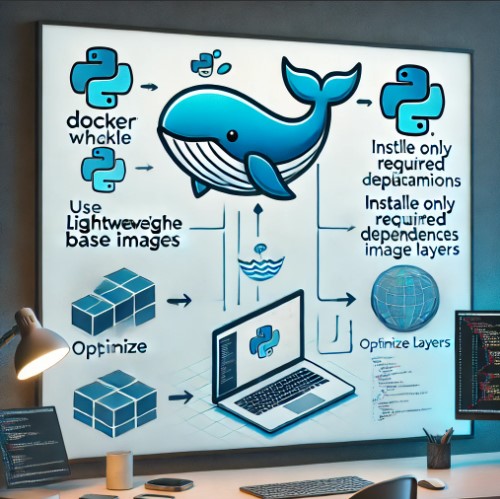
In this tutorial, How to run OpenTelemetry on Docker. Is the project created demo services to help cloud-native community members better understand cloud-native development practices?

What is OpenTelemetry?

  • It is open-source.
  • It provides APIs, libraries, and tools for instrumenting, generating, collecting, and exporting telemetry data.
  • It aims to standardize and simplify the collection of observability data.

To use OpenTelemetry with Docker

You’ll need the following prerequisites:

  • Docker: Ensure that Docker is installed on your machine. Docker allows you to create and manage containers, which provide isolated environments to run your applications. You can download and install Docker from the official Docker website.
  • You can proceed with running OpenTelemetry within a Docker container
  • Docker Compose: Ensure that Docker Compose is installed on your machine
  • 4 GB of RAM

Run OpenTelemetry on Docker

you can follow these steps:

Create a Dockerfile

  • Create a file named Dockerfile (without any file extension) in your project directory.
  • This file will define the Docker image configuration.
  • Open the Dockerfile in a text editor and add the following content:
FROM golang:latest

# Install dependencies
RUN go get go.opentelemetry.io/otel

# Set the working directory
WORKDIR /app

# Copy your application code to the container
COPY . .

# Build the application
RUN go build -o myapp

# Set the entry point
CMD ["./myapp"]

If you are not using Go, modify the Dockerfile according to your programming language and framework.

Build the Docker image

docker build -t myapp .
  • This command builds a Docker image named myapp based on Dockerfile the current directory.
  • The -t flag assigns a tag (name) to the image.

Run the Docker container

Once the image is built, you can run a container based on it using the following command:

docker run myapp

To run OpenTelemetry using Docker Compose

You can refer to the link here. or on Github.

Create a Docker Compose file, For example below:

version: '3'
services:
  myapp:
    build:
      context: .
      dockerfile: Dockerfile
    volumes:
      - ./logs:/app/logs
    ports:
      - 8080:8080
    environment:
      - ENV_VAR=value

Conclusion

you can easily deploy and manage your observability infrastructure. I hope will this your helpful. Thank you for reading the DevopsRoles page!

MariaDB Galera Cluster using Docker

Introduction

MariaDB Galera Cluster is a robust solution that combines the power of MariaDB, an open-source relational database management system, with Galera Cluster, a synchronous multi-master replication plugin.

MariaDB, a popular MySQL fork, offers a feature-enhanced and community-driven alternative to MySQL.

Galera Cluster, on the other hand, is a sophisticated replication technology that operates in a synchronous manner. It allows multiple database nodes to work together as a cluster, ensuring that all nodes have an identical copy of the database.

Use Cases : MariaDB Galera Cluster

E-commerce platforms

Ensuring uninterrupted availability and consistent data across multiple locations.

Financial systems

Maintaining data integrity and eliminating single points of failure.

Mission-critical applications

Providing fault tolerance and high performance for critical business operations.

Key Features and Benefits: MariaDB Galera Cluster

High Availability

With MariaDB Galera Cluster, your database remains highly available even in the event of node failures. If one node becomes unreachable, the cluster automatically promotes another node as the new primary, ensuring continuous operation and minimal downtime.

Data Consistency

Galera Cluster’s synchronous replication ensures that data consistency is maintained across all nodes in real time. Each transaction is applied uniformly to every node, preventing any data discrepancies or conflicts.

Scalability and Load Balancing

By distributing the workload across multiple nodes, MariaDB Galera Cluster allows you to scale your database system horizontally. As your application grows, you can add additional nodes to handle increased traffic, providing enhanced performance and improved response times. Load balancing is inherent to the cluster setup, enabling efficient resource utilization.

Automatic Data Distribution

When you write data to the cluster, it is automatically synchronized across all nodes. This means that read queries can be executed on any node, promoting load balancing and reducing the load on individual nodes.

How to set up a MariaDB Galera Cluster using Docker

you can follow these steps

Install Docker

If you haven’t already, install Docker on your system. Refer to

Create a Docker network

Open a terminal and create a Docker network that will be used by the Galera cluster nodes:

Create Galera Cluster Containers

Create multiple Docker containers, each representing a node in the Galera cluster.

You can use the official MariaDB Galera Cluster Docker image or a custom image. For example, creating three nodes:

# docker run -d --name=node1 --network=galera_network -e MYSQL_ROOT_PASSWORD=my-secret-pw -e GALERA_CLUSTER=galera_cluster -e GALERA_NODE_NAME=node1 -e GALERA_NODE_ADDRESS=node1 mariadb:10.6 --wsrep-new-cluster

# docker run -d --name=node2 --network=galera_network -e MYSQL_ROOT_PASSWORD=my-secret-pw -e GALERA_CLUSTER=galera_cluster -e GALERA_NODE_NAME=node2 -e GALERA_NODE_ADDRESS=node2 mariadb:10.6

# docker run -d --name=node3 --network=galera_network -e MYSQL_ROOT_PASSWORD=my-secret-pw -e GALERA_CLUSTER=galera_cluster -e GALERA_NODE_NAME=node3 -e GALERA_NODE_ADDRESS=node3 mariadb:10.6

In the above commands, adjust the image version, container names, network, and other environment variables according to your requirements.

Verify Cluster Status

Check the cluster status by executing the following command in any of the cluster nodes:

docker exec -it node1 mysql -uroot -pmy-secret-pw -e "SHOW STATUS LIKE 'wsrep_cluster_size'"

This command should display the number of nodes in the cluster

Conclusion

You now have a MariaDB Galera Cluster set up using Docker. You can connect to any of the nodes using the appropriate connection details (e.g., hostname, port, username, password) and start using the cluster.

I hope will this your helpful. Thank you for reading the DevopsRoles page!
Simplify Docker Container Management with lazydocker

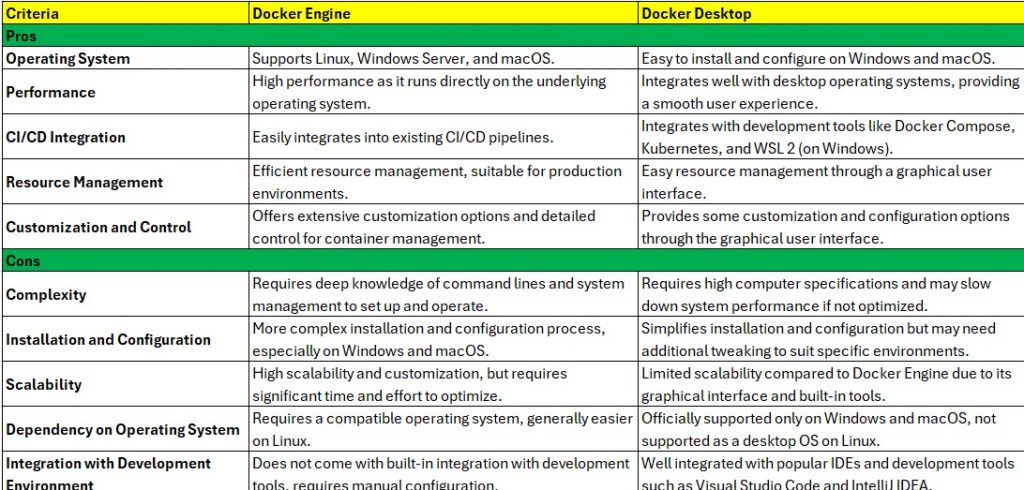
How to Manage Your Docker Containers Easily With lazydocker. It is to ease container management. If you’ve multiple Docker containers spread throughout your filesystem.

What is lazydocker?

  • It is a terminal-based UI tool for managing Docker containers, images, volumes, networks, and more.
  • Highlight its features, such as a user-friendly interface and various functionalities.

To manage your Docker containers easily with lazydocker, you can follow these steps:

Install lazydocker

Prerequisites: Before proceeding, ensure that you have Docker installed on your system. It is a tool designed to work with Docker, so it requires Docker to be installed and running.

Installation on Linux:

  • Open your terminal.
  • Execute the following command to download the binary:
curl https://raw.githubusercontent.com/jesseduffield/lazydocker/master/scripts/install_update_linux.sh | bash

Installation on Windows:

Open PowerShell or a command prompt.
Execute the following command to download the binary:

iwr https://github.com/jesseduffield/lazydocker/releases/latest/download/lazydocker_windows.exe -UseBasicParsing -OutFile $HOME\lazydocker.exe

Add lazy docker to your system’s PATH (optional but recommended):

Linux/macOS: You can add the binary to your PATH by executing the following command:

echo 'export PATH="$PATH:$HOME/.lazydocker"' >> ~/.bashrc
source ~/.bashrc

Windows: Add the directory containing lazydocker.exe to your PATH. You can do this by following these steps:

  • Search for “Environment Variables” in the Start menu and open the “Edit the system environment variables” option.
  • Click the “Environment Variables” button.
  • In the “System Variables” section, select the “Path” variable and click “Edit.”
  • Add the directory path that lazydocker.exe is located to the list of paths. Click “OK” to save the changes.

Verify the installation:

  • Open a new terminal or PowerShell/command prompt window.
  • Execute the command.
lazydocker
If everything was installed correctly, lazydocker should launch and display the terminal-based GUI.

Launch lazy docker

  1. Open your terminal or command prompt. Ensure that Docker is running on your system.
  2. Enter the command lazydocker and press Enter.
  3. The lazy docker application will start, and you’ll see a terminal-based graphical user interface (GUI) on your screen.
  4. If this is your first time running lazydocker, it may take a moment to set up and initialize the application.
  5. Once it is launched, you can start managing your Docker containers, images, volumes, networks, and other Docker-related tasks using the interactive interface.
  6. Use the arrow keys or Vim-like keybindings to navigate through the different sections of the GUI. The available sections typically include Containers, Images, Volumes, Networks, and Logs.
  7. Select the desired section by highlighting it with the arrow keys and pressing Enter. For example, to view and manage your containers, select the “Containers” section.
  8. Within each section, you’ll find relevant information and actions specific to the selected category. Use the arrow keys to scroll through the list of containers, images, volumes, etc.
  9. Use the available keybindings or on-screen prompts to perform actions such as starting, stopping, or removing containers, building images, attaching to a container’s shell, viewing logs, etc.
  10. Customize the interface and settings according to your preferences. You can refer to the documentation for details on how to modify keybindings, themes, and other configuration options.
  11. To exit lazydocker, simply close the terminal window or press Ctrl + C in the terminal.

Explore the interface: Once it launches, you’ll see a terminal-based GUI with different sections and navigation options.

Navigate through containers: Use the arrow keys or Vim-like keybindings to move between different sections. Select the “Containers” section to view your running containers.

View container details: Within the containers section, you’ll see a list of your containers, including their names, statuses, IDs, and ports. Scroll through the list to find the container you want to manage.

Perform container actions: With the container selected, you can perform various actions on it. Use the available keybindings or the on-screen prompts to start, stop, restart, or remove the container. You can also attach it to a container’s shell to interact with it directly.

Manage container logs:

  • Walk readers through the process of managing Docker containers using it.
  • Cover actions like starting, stopping, restarting, removing, and attaching to container shells.
  • Emphasize the ease and convenience of performing these actions within the lazy docker interface.

Explore other sections: lazy docker provides additional sections for managing images, volumes, networks, and Docker Compose services. Use the navigation options to explore these sections and perform corresponding actions.

Customize settings: lazy docker allows you to customize settings such as keybindings, themes, and container display options. Refer to the documentation for instructions on how to modify these settings according to your preferences.

Exit lazydocker: When you’re done managing your Docker containers, you can exit by pressing Ctrl + C in the terminal.

Conclusion:

Recap the benefits of using lazy docker for Docker container management.

Encourage readers to try Lazydocker and provide resources for further information and documentation. I hope will this your helpful. Thank you for reading the DevopsRoles page!

Trends for DevOps engineering

What is DevOps?

DevOps is a software development approach that aims to combine software development (Dev) and IT operations (Ops) to improve the speed, quality, and reliability of software delivery. Trends for DevOps engineering

It is a set of practices that emphasize collaboration, communication, automation, and monitoring throughout the entire software development lifecycle (SDLC).

The main goal of DevOps is to enable organizations to deliver software products more quickly and reliably by reducing the time and effort required to release new software features and updates.

DevOps also helps to minimize the risk of failures and errors in software systems, by ensuring that development, testing, deployment, and maintenance are all aligned and integrated seamlessly.

Some of the key practices and tools used in DevOps engineering

  • continuous integration (CI)
  • continuous delivery (CD)
  • infrastructure as code (IaC)
  • automated testing
  • Monitoring and Logging.
  • Collaboration and Communication: DevOps places a strong emphasis on collaboration and communication between development and operations teams

Here are some of the key trends and developments that are likely to shape the future of DevOps engineering in 2024:

  • Increased adoption of AI/ML and automation
  • Focus on security and compliance
  • Integration with cloud and serverless technologies
  • DevSecOps
  • Shift towards GitOps: GitOps is a new approach to DevOps that involves using Git as the central source of truth for infrastructure and application configuration.

DevOps Tools

Here are some of the most commonly used DevOps tools:

  • Jenkins: Jenkins is a popular open-source automation server that is used for continuous integration and continuous delivery (CI/CD) processes. Jenkins enables teams to automate the building, testing, and deployment of software applications.
  • Git: Git is a widely used distributed version control system that enables teams to manage and track changes to software code. Git makes it easy to collaborate on code changes and to manage different branches of code.
  • Docker: Docker is a containerization platform that enables teams to package applications and their dependencies into containers. Containers are lightweight, portable, and easy to deploy, making them a popular choice for DevOps teams.
  • Kubernetes: Kubernetes is an open-source container orchestration system that is used to manage and scale containerized applications. Kubernetes provides features such as load balancing, auto-scaling, and self-healing, making it easier to manage and deploy containerized applications at scale.
  • Ansible: Ansible is a popular automation tool that is used for configuration management, application deployment, and infrastructure management. Ansible enables teams to automate the deployment and management of infrastructure and applications, making it easier to manage complex systems.
  • Grafana: Grafana is an open-source platform for data visualization and monitoring. Grafana enables teams to visualize and analyze data from various sources, including metrics, logs, and databases, making it easier to identify and diagnose issues in software applications.
  • Prometheus: Prometheus is an open-source monitoring and alerting system that is used to collect and analyze metrics from software applications. Prometheus provides a powerful query language and an intuitive user interface, making it easier to monitor and troubleshoot software applications.

Some trends and tools in DevOps space in the coming years

Cloud-Native Technologies: cloud-based architectures and cloud-native technologies such as Kubernetes, Istio, and Helm are likely to become even more popular for managing containerized applications and microservices.

Machine Learning and AI: As machine learning and AI become more prevalent in software applications, tools that enable DevOps teams to manage and deploy machine learning models will become more important. Some emerging tools in this space include Kubeflow, MLflow, and TensorBoard.

Security and Compliance: With increasing concerns around security and compliance, tools that help DevOps teams manage security and compliance requirements throughout the SDLC will be in high demand. This includes tools for security testing, vulnerability scanning, and compliance auditing.

GitOps: GitOps is an emerging approach to infrastructure management that emphasizes using Git as the single source of truth for all infrastructure changes. GitOps enables teams to manage infrastructure as code, enabling greater automation and collaboration.

Serverless Computing: Serverless computing is an emerging technology that enables teams to deploy and run applications without managing servers or infrastructure. Tools such as AWS Lambda, Azure Functions, and Google Cloud Functions are likely to become more popular as serverless computing continues to gain traction.

Conclusion

To succeed with DevOps engineering, organizations must embrace a variety of practices, including continuous integration, continuous delivery, testing, monitoring, and infrastructure as code. They must also leverage a wide range of DevOps tools and technologies to automate and streamline their software development and delivery processes.

Ultimately, DevOps is not just a set of practices or tools, but a cultural shift towards a more collaborative, iterative, and customer-centric approach to software development. By embracing DevOps and continuously improving their processes and technologies, organizations can stay competitive and deliver value to their customers in an increasingly fast-paced and complex technology landscape. DevopsRoles.com for more information about it.

10 Docker Commands You Need to Know

Introduction

In this tutorial, We will delve into the fundamental Docker commands crucial for anyone working with this widely adopted containerization tool. Docker has become a cornerstone for developers and DevOps engineers, providing a streamlined approach to constructing, transporting, and executing applications within containers.

Its simplicity and efficiency make it an indispensable asset in application deployment and management. Whether you are a novice exploring Docker’s capabilities or a seasoned professional implementing it in production, understanding these essential commands is pivotal.

This article aims to highlight and explain the ten imperative Docker commands that will be integral to your routine tasks.

10 Docker Commands

Docker run

The docker run the command is used to start a new container from an image. It is the most basic and commonly used Docker command. Here’s an example of how to use it:

docker run nginx

This command will download the latest Nginx image from the Docker Hub and start a new container from it. The container will be started in the foreground and you can see the logs as they are generated.

docker ps

The docker ps the command is used to list the running containers on your system. It provides information such as the container ID, image name, and status. Here’s an example of how to use it:

docker ps

This command will display a list of all the running containers on your system. If you want to see all containers (including stopped containers), you can use the -a option:

docker ps -a

This will display a list of all the containers on your system, regardless of their status.

docker stop

The docker stop the command is used to stop a running container. It sends a SIGTERM signal to the container, allowing it to gracefully shut down. Here’s an example of how to use it:

docker stop mycontainer

This command will stop the container with the name mycontainer. If you want to forcefully stop a container, you can use the docker kill command:

docker kill mycontainer

This will send a SIGKILL signal to the container, which will immediately stop it. However, this may cause data loss or other issues if the container is not properly shut down.

docker rm

The docker rm command is used to remove a stopped container.

syntax

docker rm <container>

For example, to remove the container with the ID “xxx123“, you can use the command

docker rm xxx123

docker images

The docker images command is used to list the images available locally. This command will display a list of all the images that are currently available on your system.

docker rmi

The docker rmi the command is used to remove a local image.

syntax

docker rmi <image>

For example, to remove the image with the name “myimage“, you can use the command.

docker rmi myimage

docker logs

The docker logs command is used to show the logs of a running container.

Syntax

docker logs <container>

For example, to show the logs of the container with the ID “xxx123“, you can use the command docker logs xxx123.

docker exec -it

The docker exec command is used to run a command inside a running container.

syntax

docker exec -it <container> <command>

For example, to run a bash shell inside the container with the ID “xxx123“, you can use the command

docker exec -it xxx123 bash

docker build -t

The docker build command is used to build a Docker image from a Dockerfile file.

syntax

docker build -t <image> <path>

For example, to build an image with the name “myimage” From a Dockerfile located in the current directory, you can use the command

docker build -t myimage .

docker-compose up

The docker-compose command is used to start containers defined in a docker-compose file. This command will start all the containers defined in the Compose file.

Conclusion

These are the top Docker commands that you’ll use frequently when working with Docker. Mastering these commands will help you get started with Docker and make it easier to deploy and manage your applications. I hope will this your helpful. Thank you for reading the DevopsRoles page!

Python Docker

Introduction

In this tutorial, How to run Python on Docker. Python is a programming language. Python Docker image is the latest point release. 

The Docker image version was released in March 2022.

Image 3.9 release
Debian 11 3.9.2
Ubuntu 20.04 3.9.5
RHEL 8 3.9.7
RHEL 9 3.9.10
Docker python 3.9.14

You need to install Docker on Ubuntu.

The working directory python docker:

root@devopsroles:~/dockerpython# ls -lF
total 20
-rw-r--r-- 1 root root  111 Nov 20 14:31 app.py
-rw-r--r-- 1 root root  236 Nov 20 15:00 Dockerfile
-rw-r--r-- 1 root root   20 Nov 20 14:27 requirements.txt

How to build a Docker container running a simple Python application.

Setup dockerfile python

Create a folder and create a virtual environment. This isolated the environment for the Python Docker project.

For example

mkdir dockerpython
cd dockerpython
python3 -m venv dockerpython
source dockerpython/bin/activate

Create a new file dockerfile python.

FROM python:3.9-slim-buster
ENV PYTHONUNBUFFERED=1
WORKDIR /app

COPY requirements.txt requirements.txt
RUN pip install -r requirements.txt

COPY . .
EXPOSE 5000

CMD [ "python3", "-m" , "flask", "run", "--host=0.0.0.0", "--port=5000"]

Save and close.

Create the Python App

Create an app.py file. For example as below

from flask import Flask
app = Flask(__name__)

@app.route('/')
def hello_world():
     return 'Hello, Docker!'

Save and close.

Create the requirements.txt file. This contains dependencies for the app to run.

For example, we add the packages for the requirements.txt file.

Flask=2.0.3
pylint

Or method 2: show all packages installed via pip use pip3 freeze and save to the requirements.txt file.

pip3 install Flask
pip3 freeze | grep Flask >> requirements.txt

we will test if the works localhost using the command below

python3 -m flask run --host=0.0.0.0 --port=5000

Open the browser with the URL http://localhost:5000

Docker Build image and container

You build a Docker image from created Dockerfile. Use the command below to build the Docker image

docker build --tag dockerpython .

Tag the image using the syntax

docker tag <imageId> <hostname>/<imagename>:<tag>

For example, Tag the image.

docker tag 8fbb6cdc5e76 huupv/dockerpython:latest

Now, the Run Docker image has the created and tagged with the command line below:

docker run --publish 5000:5000 <imagename>

Use the command below to list containers running.

docker ps

The result below:

You can now test your application using http://localhost:5000 on your browser.

Docker pushed and retrieved from Docker Hub

The container will be pushed and retrieved from the Docker Hub registry. The command simple

docker push <hub-user>/<repo-name>:<tag>.

On the website Docker Hub. Click Create Repository to give the repo a name.

Create 1 repo name and description as below:

Copy the command to your terminal, replacing tagname with version latest.

In your terminal, we run the command docker login to connect the remote repository to the local environment. Add username and password to valid login.

Run the command to push to the repository you created it.

docker push <hub-user>/<repo-name>:tagname

Confirm your image to be pushed to the Docker Hub page

In any terminal, Docker pulls the Docker image from Docker Hub.

root@devopsroles:~# docker pull huupv/dockerpython:latest

For example, use Docker Compose

version: "3.9"  
services:
  web:
    build: .
    ports:
      - "5000:5000"
    volumes:
      - .:/app
      - logvol:/var/log
    links:
      - redis
  
 redis:
     image: redis
 volumes:
   logvol: {}

Conclusion

You know How to run Python on Docker. I hope this will be helpful. Thank you for reading the DevopsRoles page!

Install MariaDB via the Docker container

#Introduction

In this tutorial, How to Install MariaDB via docker. MariaDB is a popular open-source database server.

You need to install Docker on Ubuntu.

Install MariaDB via Docker

Download MariaDB Docker Image.

docker search mariadb
docker pull mariadb

Get a list of installed images on Docker.

docker images

Creating a MariaDB Container

We will create a MariaDB Container such as the flags below:

  • –name my-mariadb: To set the name of the container. If nothing is specified a random if will be automatically generated.
  • –env MYSQL_ROOT_PASSWORD=password_secret: Setting root password to Mariadb.
  • –detach is to run the container in the background.
docker run --detach --name my-mariadb --env MARIADB_USER=example-user --env MARIADB_PASSWORD=example_user_password_secret --env MARIADB_ROOT_PASSWORD=password_secret mariadb:latest

Get the active docker container

docker ps

The container is running, How to access it?

docker exec -it my-mariadb mysql -uexample-user -p

Starting and Stopping MariaDB Container

restart MariaDB container

docker restart my-mariadb

stop MariaDB container

docker stop my-mariadb

start MariaDB container

docker start my-mariadb

In case we want to destroy a container,

docker rm -v my-mariadb

Conclusion

You Install MariaDB via Docker container. I hope this will be helpful. Thank you for reading the DevopsRoles page!