Category Archives: Database Administrator

Become a Database Administrator with DevOpsRoles.com. Access expert guides and tutorials to master database management, optimization, and security for DevOps.

Manage the RDS PostgreSQL instance using the AWS CLI

Introduction

You can use the AWS Console Manager to manage the RDS PostgreSQL instance, alternatively, you can manage the RDS PostgreSQL instance using the AWS CLI in Linux as below.

Guide to creating and managing the RDS PostgreSQL instance using the AWS CLI.

This lab contains the following tasks

Step 1: Install AWS CLI into the Cloud9 instance

Step 2: Create an RDS PostgreSQL Instance using the AWS CLI

Step 3: Configure the RDS PostgreSQL client on the Cloud9 instance

Step 4: Create Read-replica using the AWS CLI

Step 5: Promote Read Replica into a standalone instance using the AWS CLI

Step 6: Scale up the instance using the AWS CLI

Step 7: Migrating to a Multi-AZ DB cluster using the AWS CLI

Step 8: Promote this Multi-AZ read replica cluster to a stand-alone cluster using the AWS CLI

Step 9: Create a read replica from a Multi-AZ read replica cluster using the AWS CLI

Step 10: Check if the instance is Multi-AZ using the AWS CLI

Step 11: Convert the instance to Multi-AZ using the AWS CLI

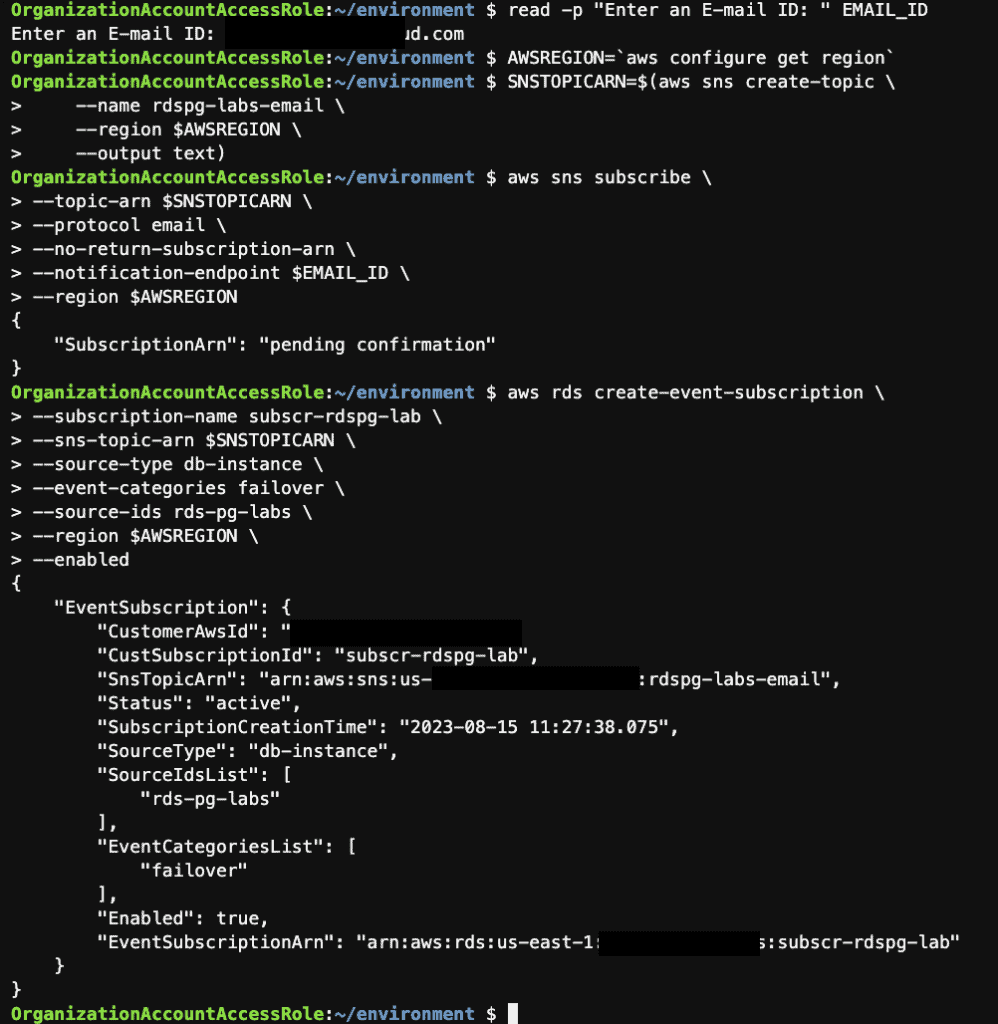
Step 12: Create an SNS Topic and an RDS Event Subscription using the AWS CLI

Step 13: Perform failover of a Multi-AZ RDS instance using the AWS CLI

Step 14: View the instance’s backups using the AWS CLI

Step 15: Take a manual snapshot of the RDS instance using the AWS CLI

Step 16: Restores an instance from the latest manual snapshot using the AWS CLI

Step 17: Point in time restore the RDS instance using the AWS CLI

Step 18: Delete the RDS instances using the AWS CLI

Step 19: Upgrading the engine version of RDS instances using the AWS CLI

Detail Steps

Step 1: Install AWS CLI into the Cloud9 instance

sudo rm -rf /usr/local/aws
sudo rm /usr/bin/aws
curl "https://awscli.amazonaws.com/awscli-exe-linux-x86_64.zip" -o "awscliv2.zip"
unzip awscliv2.zip
sudo ./aws/install
rm awscliv2.zip

Step 2: Create an RDS PostgreSQL Instance cluster using the AWS CLI

read -s -p "Enter a Password: " MASTER_USER_PASSWORD
AWSREGION=`aws configure get region`
DBSUBNETGRP=XXXXXXX
DBSECGRP=XXXXXXX
EMROLEARN=XXXXXXX
RDSKMSKEY=XXXXXXX

aws rds create-db-instance \
	--db-instance-identifier rds-pg-labs \
	--db-name pglab \
	--engine postgres \
	--engine-version 13.8 \
	--master-username masteruser \
	--master-user-password $MASTER_USER_PASSWORD \
	--db-instance-class db.t2.micro \
	--storage-type io1 \
	--iops 1000 \
	--allocated-storage 100 \
	--no-multi-az \
	--db-subnet-group $DBSUBNETGRP \
	--vpc-security-group-ids $DBSECGRP \
	--no-publicly-accessible \
	--enable-iam-database-authentication \
	--backup-retention-period 1 \
	--copy-tags-to-snapshot \
	--auto-minor-version-upgrade \
	--storage-encrypted \
	--kms-key-id $RDSKMSKEY \
	--monitoring-interval 1 \
	--monitoring-role-arn $EMROLEARN \
	--enable-performance-insights \
	--performance-insights-kms-key-id $RDSKMSKEY \
	--performance-insights-retention-period 7 \
	--enable-cloudwatch-logs-exports '["postgresql","upgrade"]' \
	--deletion-protection \
	--region $AWSREGION

Step 3: Configure the RDS PostgreSQL client on the Cloud9 instance

sudo amazon-linux-extras install -y postgresql14
sudo yum install -y postgresql-contrib sysbench jq
AWSREGION=`aws configure get region`
sudo amazon-linux-extras install -y postgresql14
sudo yum install -y postgresql-contrib sysbench jq
AWSREGION=`aws configure get region`
export DBUSER="XXXXXX"
export DBPASS="XXXXXX"

export PGHOST=rds-pg-labs.XXXXXX.us-east-1.rds.amazonaws.com
export PGUSER=$DBUSER
export PGPASSWORD="$DBPASS"
echo "export DBPASS=\"$DBPASS\"" >> /home/ec2-user/.bashrc
echo "export DBUSER=$DBUSER" >> /home/ec2-user/.bashrc
echo "export DBENDP=$DBENDP" >> /home/ec2-user/.bashrc
echo "export AWSREGION=$AWSREGION" >> /home/ec2-user/.bashrc
echo "export PGUSER=$DBUSER" >> /home/ec2-user/.bashrc
echo "export PGPASSWORD=\"$DBPASS\"" >> /home/ec2-user/.bashrc
echo "export PGHOST=$DBENDP" >> /home/ec2-user/.bashrc

Now, Verify DB Instance as bellow
psql pglab

Step 4: Create Read-replica cluster using the AWS CLI

AWSREGION=`aws configure get region`

aws rds create-db-instance-read-replica \
	--db-instance-identifier rds-pg-labs-read \
	--source-db-instance-identifier rds-pg-labs \
	--db-instance-class db.t3.medium \
	--region $AWSREGION

Step 5: Promote Read Replica into a standalone instance cluster using the AWS CLI

AWSREGION=`aws configure get region`
aws rds promote-read-replica \
--db-instance-identifier rds-pg-labs-read \
--backup-retention-period 1 \
--region $AWSREGION

Step 6: Scale up the instance using the AWS CLI

AWSREGION=`aws configure get region`
aws rds modify-db-instance \
	--db-instance-identifier rds-pg-labs \
	--db-instance-class db.t3.large \
	--apply-immediately \
	--region $AWSREGION

Step 7: Migrating to a Multi-AZ DB cluster cluster using the AWS CLI

ARN=`aws rds describe-db-instances --db-instance-identifier rds-pg-labs --query 'DBInstances[].DBInstanceArn' --output text --region $AWSREGION`

aws rds create-db-cluster \
        --db-cluster-identifier rds-pg-labs-cluster \
        --engine postgres \
        --replication-source-identifier $ARN \
        --db-cluster-instance-class db.r5d.large \
        --storage-type io1 --iops 1000 \
        --region $AWSREGION \
        --db-subnet-group-name XXXXXXX
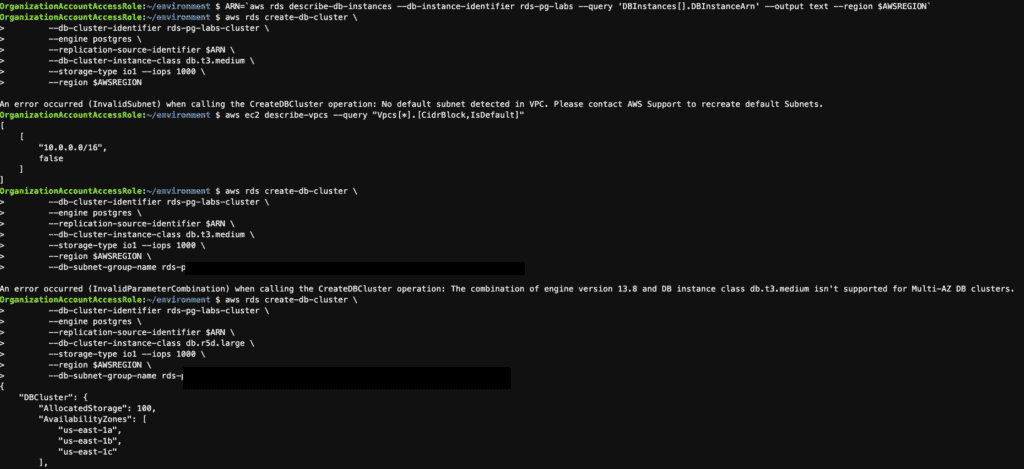
Please note the following message.

An error occurred (InvalidSubnet) when calling the CreateDBCluster operation: No default subnet was detected in VPC. Please contact AWS Support to recreate the default Subnets.

An error occurred (InvalidParameterCombination) when calling the CreateDBCluster operation: The combination of engine version 13.8 and DB instance class db.t3.medium isn’t supported for Multi-AZ DB clusters.

Step 8: Promote this Multi-AZ read replica cluster to a stand-alone cluster using the AWS CLI

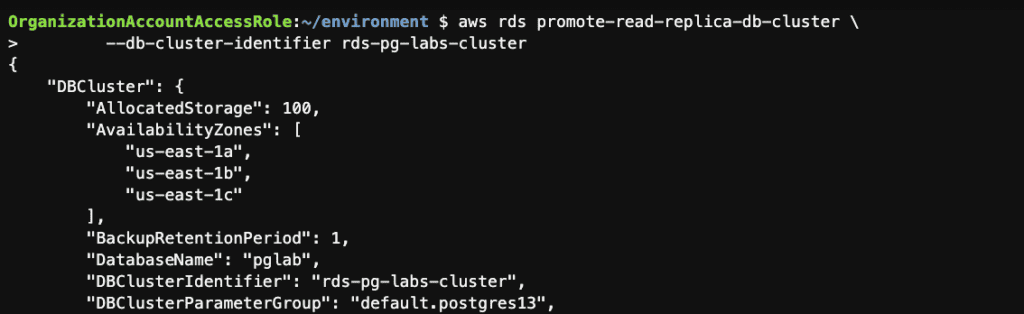
aws rds promote-read-replica-db-cluster \
        --db-cluster-identifier rds-pg-labs-cluster
Step 9: Create a read replica from a Multi-AZ read replica cluster using the AWS CLI

aws rds create-db-instance-read-replica \
   --db-instance-identifier rds-pg-labs-cluster-replica \
   --source-db-cluster-identifier rds-pg-labs-cluster

Note: For RDS for PostgreSQL, the source Multi-AZ DB cluster must be running version 15.2-R2 or higher to create a DB instance read replica. See other Limitations in the Amazon RDS User Guide.

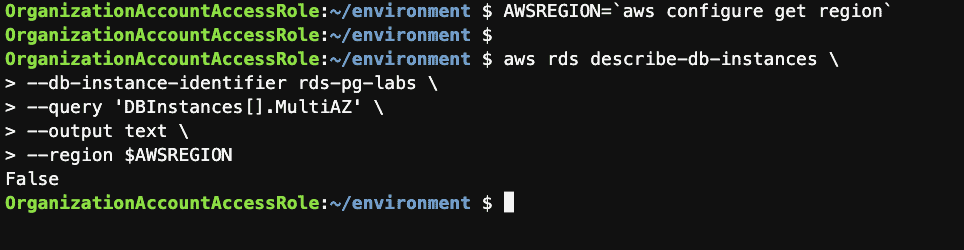
Step 10: Check if the instance is Multi-AZ using the AWS CLI

AWSREGION=`aws configure get region`
aws rds describe-db-instances \
	--db-instance-identifier rds-pg-labs \
	--query 'DBInstances[].MultiAZ' \
	--output text \
	--region $AWSREGION
Step 11: Convert the instance to Multi-AZ using the AWS CLI

aws rds modify-db-instance \
	--db-instance-identifier rds-pg-labs \
	--multi-az \
	--apply-immediately \
	--region $AWSREGION
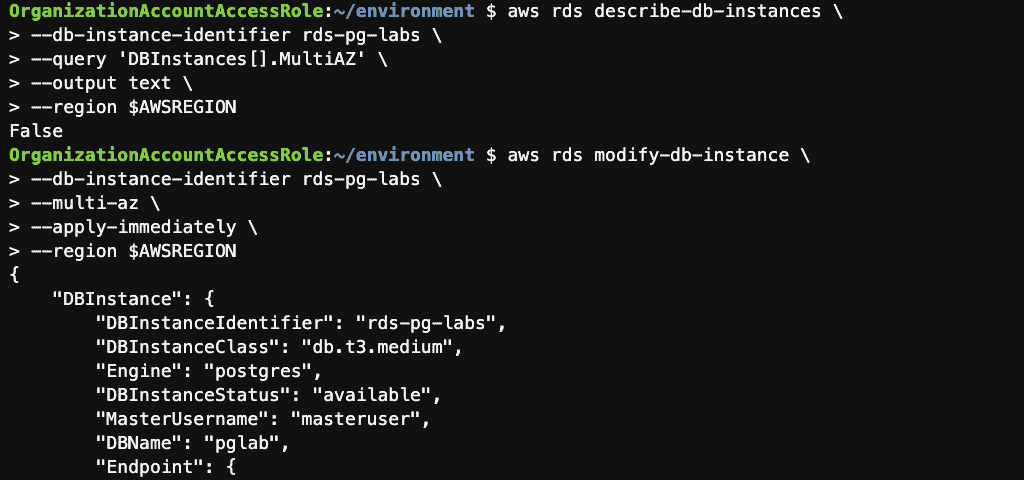
Confirm that your instance is now Multi-AZ


Step 12: Create an SNS Topic and an RDS Event Subscription using the AWS CLI

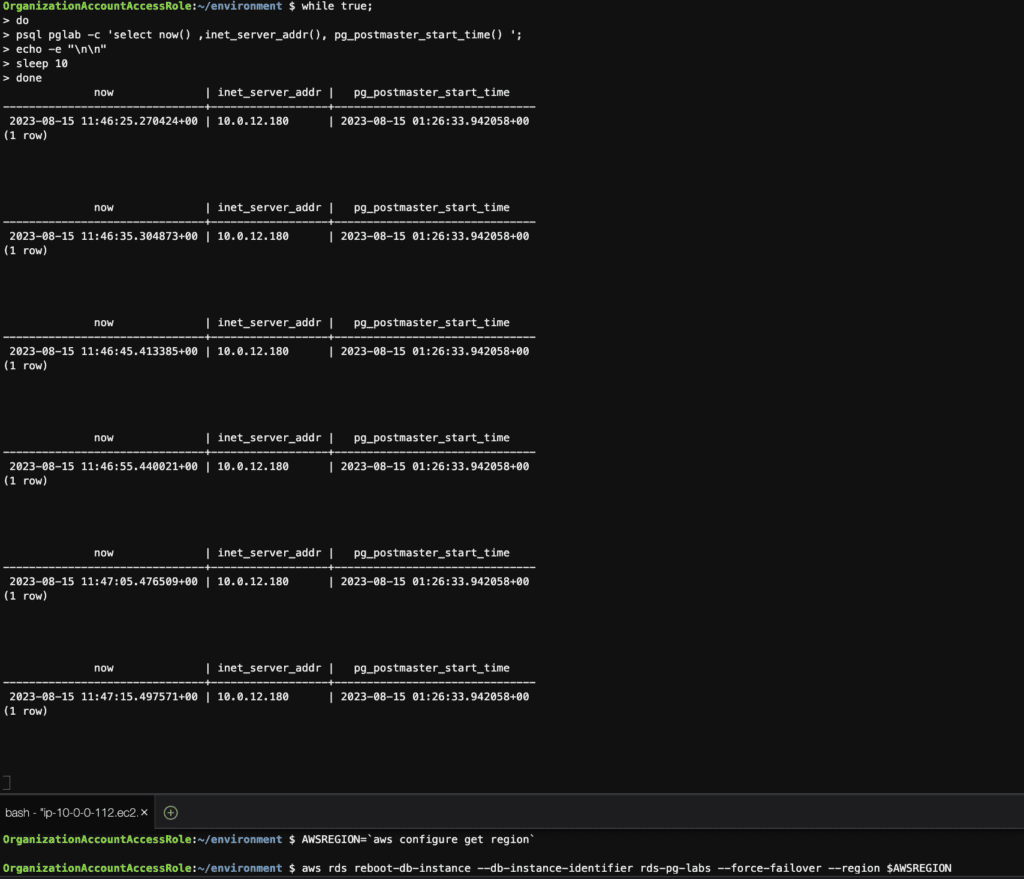
Step 13: Perform failover of a Multi-AZ RDS instance using the AWS CLI

# connection to the database at 10-second intervals
while true;
do
psql pglab -c 'select now() ,inet_server_addr(), pg_postmaster_start_time() '; 
echo -e "\n\n"
sleep 10
done

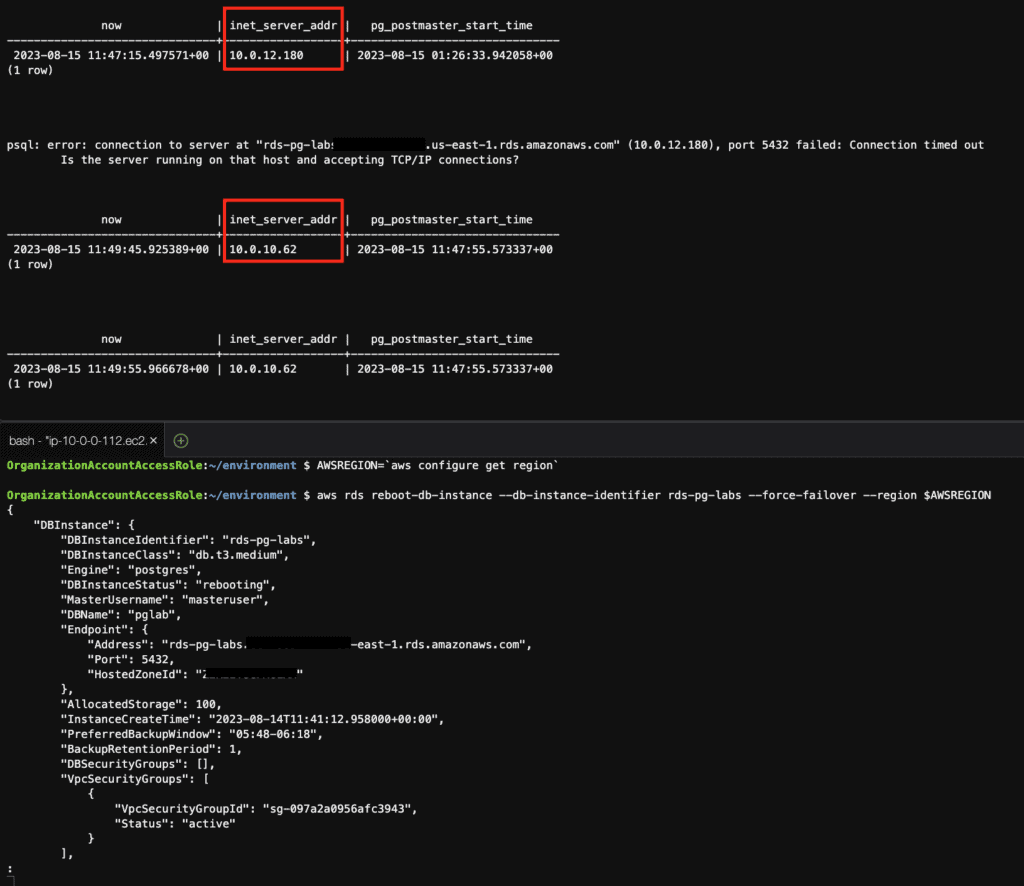
# reboot the instance with failover
AWSREGION=`aws configure get region`
aws rds reboot-db-instance --db-instance-identifier rds-pg-labs --force-failover --region $AWSREGION

Before failover

Failover

Step 14: View the instance’s backups using the AWS CLI

AWSREGION=`aws configure get region`

# List the automated backups for the instance
m

# List the snapshots for the instance
aws rds describe-db-snapshots \
	--db-instance-identifier rds-pg-labs \
	--region $AWSREGION --output table

# Check the Latest Restorable Time (LRT) of the instance
aws rds describe-db-instances \
	--db-instance-identifier rds-pg-labs \
	--query 'DBInstances[].LatestRestorableTime' \
	--region $AWSREGION \
	--output text

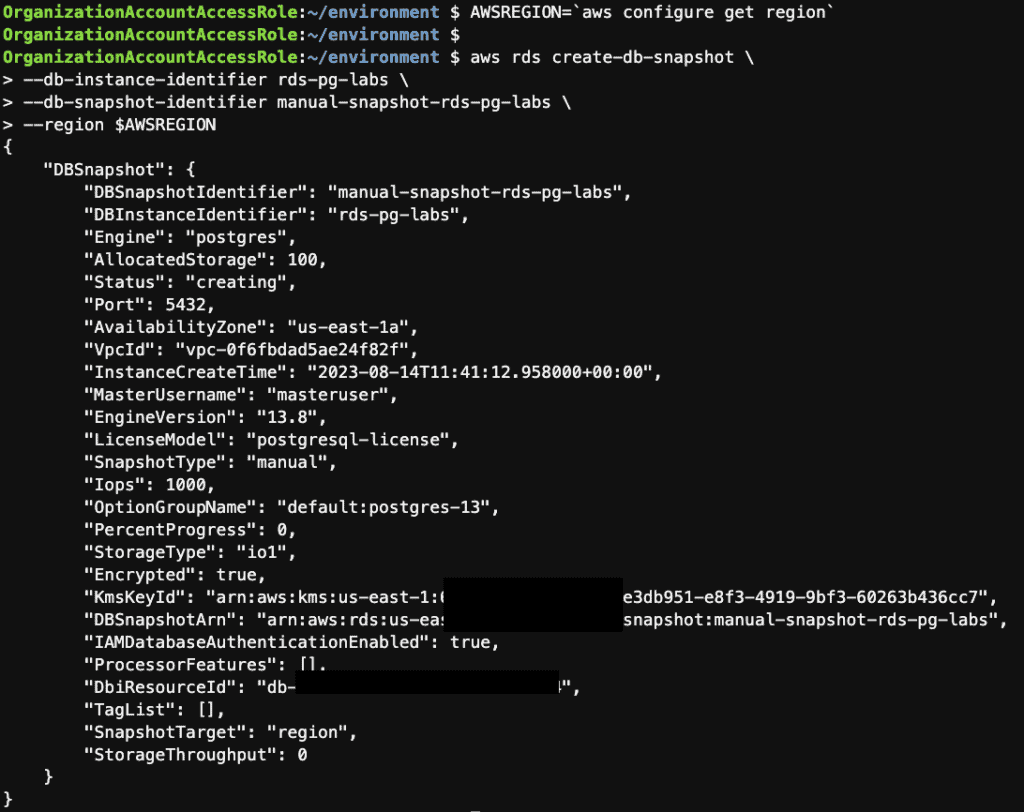
Step 15: Take a manual snapshot of the RDS instance using the AWS CLI

AWSREGION=`aws configure get region`

aws rds create-db-snapshot \
	--db-instance-identifier rds-pg-labs \
	--db-snapshot-identifier manual-snapshot-rds-pg-labs \
	--region $AWSREGION
Step 16: Restores an instance from the latest manual snapshot using the AWS CLI

AWSREGION=`aws configure get region`
# Get the Latest Manual Snapshot ID
LATESTSNAP=`aws rds describe-db-snapshots --db-instance-identifier rds-pg-labs --snapshot-type manual \
    --query 'DBSnapshots | sort_by(@, &SnapshotCreateTime) | [-1].DBSnapshotIdentifier' \
    --output text --region $AWSREGION`

# Restore the Snapshot
aws rds restore-db-instance-from-db-snapshot \
	--db-instance-identifier rds-pg-labs-restore-manual-snapshot \
	--db-snapshot-identifier $LATESTSNAP \
	--db-instance-class db.m6g.large \
	--region $AWSREGION \
    --db-subnet-group-name XXXXXXX
# Monitor the progress and status of the restoration 
aws rds describe-db-instances --db-instance-identifier rds-pg-labs-restore-manual-snapshot \
	--query 'DBInstances[0].[DBInstanceStatus,Endpoint.Address]' \
    --output text --region $AWSREGION
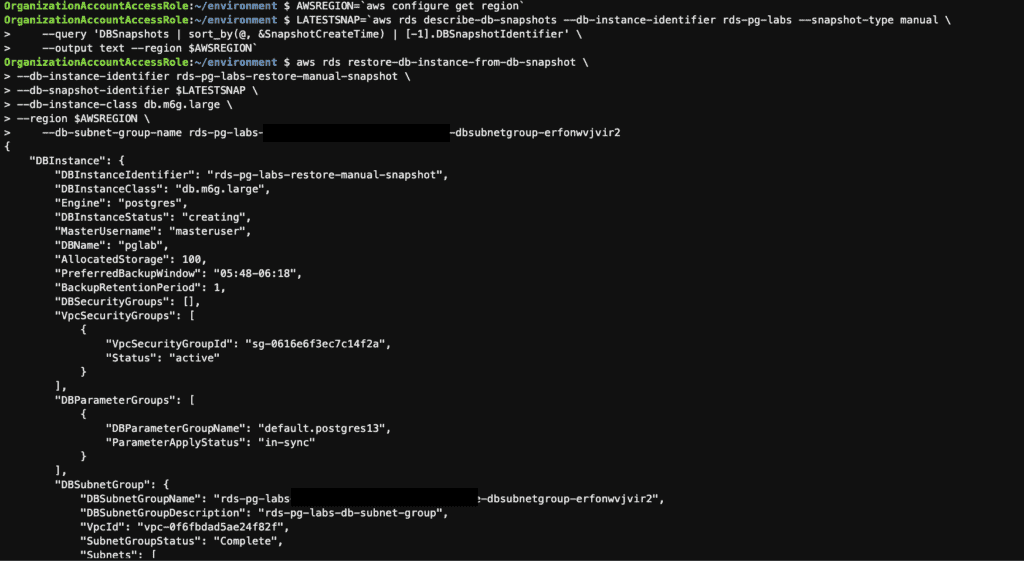
Monitor the progress and status of the restoration


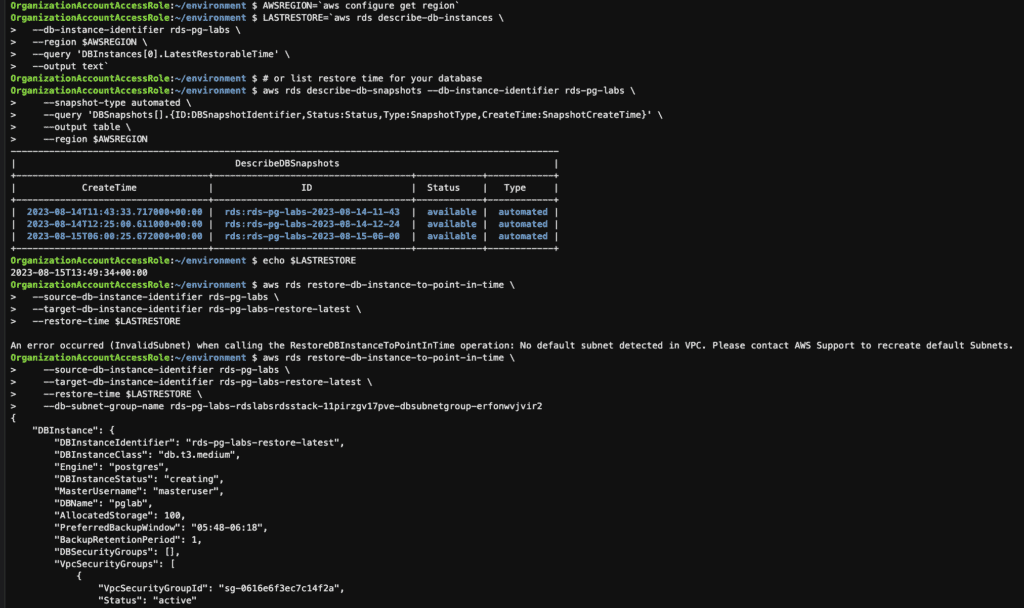
Step 17: Point in time restore the RDS instance using the AWS CLI

AWSREGION=`aws configure get region`
# Lookup the latest restore time for your database
LASTRESTORE=`aws rds describe-db-instances \
  --db-instance-identifier rds-pg-labs \
  --region $AWSREGION \
  --query 'DBInstances[0].LatestRestorableTime' \
  --output text`

# or list restore time for your database
aws rds describe-db-snapshots --db-instance-identifier rds-pg-labs \
    --snapshot-type automated \
    --query 'DBSnapshots[].{ID:DBSnapshotIdentifier,Status:Status,Type:SnapshotType,CreateTime:SnapshotCreateTime}' \
    --output table \
    --region $AWSREGION

# Restore the database to the latest restorable time
aws rds restore-db-instance-to-point-in-time \
    --source-db-instance-identifier rds-pg-labs \
    --target-db-instance-identifier rds-pg-labs-restore-latest \
    --restore-time $LASTRESTORE \
    --db-subnet-group-name XXXXXXX

# Monitor the progress and status of the restoration 
aws rds describe-db-instances --db-instance-identifier rds-pg-labs-restore-latest \
	--query 'DBInstances[0].[DBInstanceStatus,Endpoint.Address]' \
    --output text --region $AWSREGION
Step 18: Delete the RDS instances using the AWS CLI

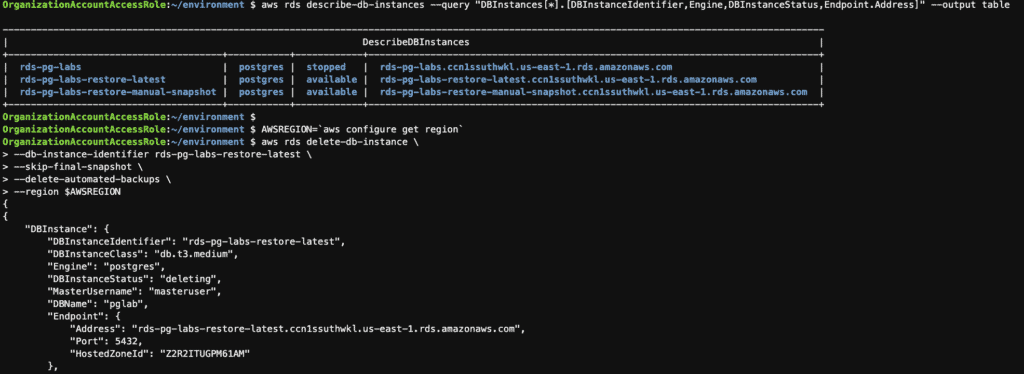
# list RDS instance
aws rds describe-db-instances --query "DBInstances[*].[DBInstanceIdentifier,Engine,DBInstanceStatus,Endpoint.Address]" --output table

AWSREGION=`aws configure get region`
# delete RDS instance
aws rds delete-db-instance \
	--db-instance-identifier rds-pg-labs-restore-latest \
	--skip-final-snapshot \
	--delete-automated-backups \
	--region $AWSREGION
Step 19: Upgrading the engine version of RDS instances using the AWS CLI

AWSREGION=`aws configure get region`
aws rds modify-db-instance --db-instance-identifier rds-pg-labs --engine-version 14.8 --allow-major-version-upgrade --apply-immediately --region $AWSREGION
aws rds describe-db-instances --db-instance-identifier rds-pg-labs --region $AWSREGION --query 'DBInstances[*].EngineVersion'

Conclusion

These steps provide a general AWS CLI of the process of managing RDS instances. The specific configuration details may vary depending on your environment and setup. It’s recommended to consult the relevant documentation from AWS for detailed instructions on setting up.

Manage the RDS PostgreSQL instance using the AWS CLI

I hope will this be helpful. Thank you for reading the DevopsRoles page!

How to change MySQL Data Directory on Ubuntu: A Step-by-Step Guide

Introduction

In this tutorial, How To Move a MySQL Data Directory to a New Location on Ubuntu. I will change MySQL Data Directory on Ubuntu. Managing databases efficiently is crucial for any application, and sometimes this involves changing the data directory for MySQL. Whether you need to move your MySQL data to a different partition for better performance or to manage storage, this task can seem daunting.

This guide will walk you through the process of changing the MySQL data directory on an Ubuntu system, ensuring your database remains secure and operational. Let’s dive in and make this transition smooth and straightforward.

Change MySQL Data Directory on Ubuntu

Identify Current MySQL Data Directory

mysql -u username -p -e “SELECT @@datadir”

For example, the current data directory is ‘/var/lib/mysql

Stop MySQL service

service mysql stop

Backup existing MySQL data directory or copy recursively the contents of ‘/var/lib/mysql’ to ‘/data/mysql-data’

tar -cvf mysql.tar /var/lib/mysql
#or
cp -rap /var/lib/mysql/* /data/mysql-data

Create a new data directory with proper permissions

mkdir -p /data/mysql
chown mysql:mysql /data/mysql

Using the Rsync command Migrate existing data into the new location

nohup rsync -avp /var/lib/mysql/ /data/mysql

Configure the new MySQL Data Directory

Edit the MySQL default configuration file /etc/my.cnf

datadir = /data/mysql

Change the AppArmor data directory in file /etc/apparmor.d/usr.sbin.mysqld

# Replace the lines beginning with /var/lib/mysql into /data/mysql
:%s/\/var\/lib\/mysql/\/data\/mysql/g

Start MySQL service

service mysql start

Verify the location change of the new data directory as the command follows

mysql -u username -p -e “SELECT @@datadir”

Checking issue during MySQL startup check MySQL log file /var/log/mysqld.log for any errors.

Conclusion

You have change MySQL Data Directory on Ubuntu. By following this guide, you have learned how to safely relocate your MySQL data, ensuring your system’s efficiency and reliability. Regular maintenance and updates, along with proper data management, are key to sustaining the performance and security of your MySQL databases. Keep these practices in mind to maintain a robust and scalable database environment. I hope will this your helpful. Thank you for reading the DevopsRoles page!

Mastering mysqldump: Essential Techniques for Backing Up and Restoring MySQL Databases

In this guide, I will show you how to back up and restore MySQL or MariaDB databases using the mysqldump command line from the terminal.

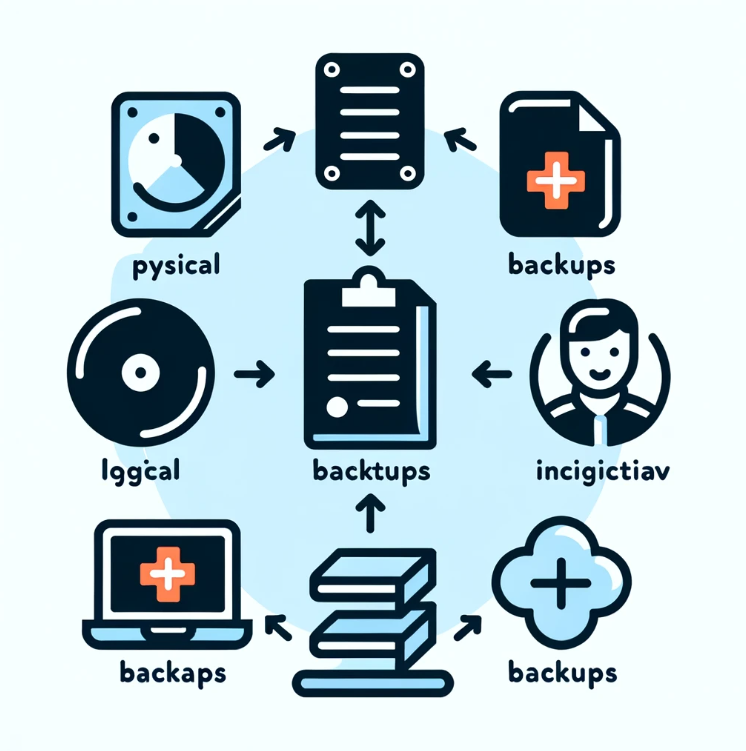
MySQL Backup Strategies

  • Physical Backups: Directly copying the database files. Fast recovery but requires downtime.
  • Logical Backups: Extracting data as SQL statements, allowing for portability but slower to restore.
  • Incremental Backups: Only saving changes since the last backup, reducing time and storage needs.
  • Automation: Using tools like cron for regular and consistent backups without manual intervention.
  • Verification: Regularly checking backups for integrity to ensure they are usable.
  • Recovery Testing: Regularly testing the recovery process to ensure minimal downtime during actual data loss.

Here’s an illustrated image representing MySQL backup strategies.

Backup a Single MySQL Database

To back up a single MySQL database, utilize the command line. Here’s how you can perform the backup using the root user and save it to a specific folder:

mysqldump -u root -p LINUXOPERATINGSYSTEM > /tmp/LINUXOPERATINGSYSTEM-$(date +%Y%m%d).sql

Replace DATABASE_NAME with your actual database name and /path/to/backup/ with the actual path where you want to save the backup.

Restore a Single MySQL Database

To restore a single MySQL database to a new host, follow these steps. Here’s an example:

Example my Database

  • New Database: LINUXOPERATINGSYSTEM
  • File dump: /tmp/LINUXOPERATINGSYSTEM-$(date +%Y%m%d).sql
mysql -u root -p -e "create database LINUXOPERATINGSYSTEM";
mysql -u root -p LINUXOPERATINGSYSTEM < /tmp/LINUXOPERATINGSYSTEM-$(date +%Y%m%d).sql

mysqldump syntax

mysqldump <OPTIONS> > dumpfile.sql

Where OPTIONS include backing up restoring, and dumpfile.sql is the name of the file to store the database backup.

Conclusion

Following these steps, you can effectively back up and restore MySQL databases using the mysqldump command line. This knowledge is crucial for database management and ensuring that your data is securely backed up. Thank you for following this tutorial from DevopsRoles page!

How to Reset MariaDB root password on Centos: A Simple Guide

Introduction

MariaDB is free and Open-source. It is the famous fork of the MySQL database. In this tutorial, How to Reset MariaDB root password. Forgetting the root password of your MariaDB database can be a frustrating experience, especially when you need to make critical updates or changes.

However, resetting the MariaDB root password on CentOS is a manageable task if you follow the right steps. This guide will take you through a straightforward, step-by-step process to reset your MariaDB root password, ensuring you regain access to your database quickly and securely. Let’s get started and resolve this issue efficiently.

Check the version of the MariaDB server.

mysql --version

How to reset MariaDB root password

Step by step to reset your MySQL/MariaDB root password.

Stop MySQL/MairaDB service

For MySQL:

sudo systemctl stop mysql

For MariaDB:

sudo systemctl stop mariadb

Start the database server without loading the grant tables

sudo mysqld_safe --skip-grant-tables &

Log in to the MySQL shell

mysql -u root

Set a new root password

For MySQL 5.7.6 and later or MariaDB 10.1.20 and later

mysql> ALTER USER 'root'@'localhost' IDENTIFIED BY 'MY_NEW_PASSWORD';
mysql> FLUSH PRIVILEGES;

If ALTER USER statement doesn’t work for you, Try the command below

mysql> USE mysql;
mysql> UPDATE user SET password=PASSWORD('MY_NEW_PASSWORD') WHERE User='root' AND Host = 'localhost';
mysql> FLUSH PRIVILEGES;

For MySQL 5.7.5 and earlier or MariaDB 10.1.20 and earlier:

mysql> SET PASSWORD FOR 'root'@'localhost' = PASSWORD('MY_NEW_PASSWORD');
mysql> FLUSH PRIVILEGES;

Stop and Start MySQL/MariaDB

For MySQL:

sudo systemctl stop mysql
sudo systemctl start mysql

For MariaDB:

sudo systemctl stop mariadb
sudo systemctl start mariadb

Verify the password

mysql -u root -p

Conclusion

You have Reset MariaDB root password on Centos. By following the steps outlined in this guide, you should now have successfully reset your password and regained control over your MariaDB database. Remember, maintaining secure and up-to-date records of your credentials is essential to avoid similar issues in the future. If you encounter any problems or need further assistance, don’t hesitate to reach out for support. I hope will this your helpful. Thank you for reading the DevopsRoles page!

Oracle notes for beginners: Your Essential Guide to Getting Started

Introduction

In this tutorial, Oracle notes for beginners. How to query commands useful in Oracle database. Diving into the world of Oracle databases can be both exciting and overwhelming for beginners. With its robust features and capabilities, Oracle is a powerful tool for managing data effectively.

Oracle notes for beginners

Oracle Database commands

Changing passwords in Oracle

ALTER USER user_name IDENTIFIED BY new_password;

Create a table

CREATE TABLE my_table (
    what   VARCHAR2(10),
    who    VARCHAR2(10),
    mark   VARCHAR2(10)
);

Insert values as the same with 3 commands below

INSERT INTO my_table (
    what,
    who,
    mark
) VALUES (
    'Devops',
    'Roles',
    '.com'
);

INSERT INTO my_table VALUES (
    'huu',
    'phan',
    '.com'
);

INSERT INTO my_table ( what ) VALUES ( 'Yeah!' );

Get the list of all tables in Oracle

SELECT
    owner,
    table_name
FROM
    all_tables

Query your permission in Oracle

select * from USER_ROLE_PRIVS where USERNAME= USER;
select * from USER_TAB_PRIVS where Grantee = USER;
select * from USER_SYS_PRIVS where USERNAME = USER;

Oracle check version

SELECT
    *
FROM
    v$version

Find Users logged into Oracle / PLSQL

SELECT
    username,
    program,
    machine,
    status,
    TO_CHAR(
        logon_time,
        'HH:MM:SS'
    )
FROM
    v$session
WHERE
    username = 'huupv' -- Username

The query for active users SQL Executed

SELECT
    a.sid,
    a.serial#,
    b.sql_text
FROM
    v$session a,
    v$sqlarea b
WHERE
        a.sql_address = b.address
    AND
        a.username = 'huupv';

Kill session in Oracle

Step 1: Identify the Session to be killed

SELECT
    s.inst_id,
    s.sid,
    s.serial#,
       --s.sql_id,
    p.spid,
    s.username,
    s.program
FROM
    gv$session s
    JOIN gv$process p ON
        p.addr = s.paddr
    AND
        p.inst_id = s.inst_id
WHERE
    s.type != 'BACKGROUND' and s.username ='huupv';

Note: The SID and SERIAL# values the relevant session.

Step 2: Kill Session

SQL> ALTER SYSTEM DISCONNECT SESSION 'sid,serial#' POST_TRANSACTION; -- The POST_TRANSACTION clause waits for ongoing transactions to complete before disconnecting the session
SQL> ALTER SYSTEM DISCONNECT SESSION 'sid,serial#' IMMEDIATE; -- ALTER SYSTEM DISCONNECT SESSION

Conclusion

Embarking on your journey with Oracle databases doesn’t have to be daunting. By understanding the basics and following the tips provided in this guide, you will gain the confidence and knowledge needed to effectively manage and manipulate data using Oracle.

Remember, practice and continuous learning are key to becoming proficient in any technology. Keep exploring, experimenting, and expanding your skills to unlock the full potential of Oracle in your projects. I will be updated later! Have a nice day! Oracle notes for beginners. Thank you for reading DevOpsRoles.com page

Setting Up Oracle Automatic Startup on Linux: A Comprehensive Guide

Introduction

In this tutorial, How to confirm Oracle automatic startup on Linux. How to make Oracle start automatically in Linux.

Ensuring that your Oracle database starts automatically when your Linux system boots up can save time and reduce manual intervention, enhancing the reliability of your database operations.

This guide will walk you through the process of configuring automatic startup for Oracle on a Linux system. By following these steps, you can ensure that your Oracle database is always ready to handle your data needs, even after a system reboot.

By default, Oracle software installation does not deploy automatic startup and shutdown init scripts on the platform.

How to confirm Oracle automatic startup on Linux.

The dbstart utility reads the oratab file. Confirm it in the example below

[HuuPV@DevopsRoles ~]$ sudo su - oracle
[oracle@DevopsRoles ~]$ cat /etc/oratab

 DEVOPSROLES_SID:/opt/oracle/product/11.2.0/dbhome_1:Y 
 DEVOPSROLES_SID02:/opt/oracle/product/10.2.03/dbhome_2:N

We see there are two instances on this server. Oracle 10.2.03 is marked “N” and will not restart when the Linux OS reboots. Oracle 11.2.0 is marked “Y” and will restart when the Linux OS reboots.

Auto Start Oracle on Linux

1. In the /etc/oratab file with the autostart column to “Y”

[oracle@DevopsRoles ~]$ cat /etc/oratab
DEVOPSROLES_SID:/opt/oracle/product/11.2.0/dbhome_1:Y

2. Create the file named “oracle” in /etc/init.d folder.

[root@DevopsRoles ~]# cd /etc/init.d
[root@DevopsRoles init.d]# vi oracle

#!/bin/sh
ORACLE_HOME=/opt/oracle/product/11.2.0/dbhome_1
ORACLE_OWNER=oracle
case "$1" in
'start') # Start the Oracle databases and listeners
su - $ORACLE_OWNER -c "$ORACLE_HOME/bin/dbstart $ORACLE_HOME"
;;
'stop') # Stop the Oracle databases and listeners
su - $ORACLE_OWNER -c "$ORACLE_HOME/bin/dbshut $ORACLE_HOME"
;;
esac

3. Create a symbolic link

[root@DevopsRoles ~]# ln -s /etc/init.d/oracle /etc/rc0.d/K10oracle
[root@DevopsRoles ~]# ln -s /etc/init.d/oracle /etc/rc3.d/S99oracle

4. Change permissions

[root@DevopsRoles ~]# chmod 750 /etc/init.d/oracle

5. use chkconfig the command to associate the dbora service

[root@DevopsRoles ~]# chkconfig --level 2345 oracle on

Test

restart the Oracle server. Then check the instance status

[oracle@DevopsRoles ~]$ ps -ef | grep smon | grep -v grep

Check the listener status

[oracle@DevopsRoles ~]$ lsnrctl status

Conclusion

Configuring Oracle for automatic startup on Linux significantly improves the efficiency and reliability of your database management. By following the steps outlined in this guide, you have learned how to set up your Oracle database to start automatically with your Linux system, ensuring minimal downtime and maximum productivity. Regular maintenance and monitoring will further ensure the smooth operation of your database. Keep exploring and optimizing your setup to make the most out of your Oracle database. Thank you for reading DevOpsRoles.com page

How to connect to Pluggable Databases in Oracle 19: A Step-by-Step Guide

Introduction

In this tutorial, I used the Default Service for connecting to the PDB. Made in the tnsnames.ora file that defines database addresses that allow us to establish a connection with the database. The status of the PDB needs to be changed from mounted to read-write mode.

The concept Databases in Oracle 19

  • The Container Database (CDB).
  • Pluggable Database (PDB).

Connect to Pluggable Databases in Oracle 19

  • Where cpdb is the global database.
  • pdb1 and pdb2 are the two pluggable databases created.

Made in the tnsnames.ora file as below:

$ sudo su - oracle
$ cat $ORACLE_HOME/network/admin/tnsnames.ora

#The content tnsnames.ora as below:

CPDB01 =
  (DESCRIPTION =
    (ENABLE = BROKEN)
    (ADDRESS_LIST =
      (ADDRESS = (PROTOCOL = TCP)(HOST = 172.16.x.x)(PORT = 1655))
    )
    (CONNECT_DATA =
      (SERVICE_NAME = DEVOPSROLES)
      (SERVER = DEDICATED)
    )
  )

PDB01 =
  (DESCRIPTION =
    (ENABLE = BROKEN)
    (ADDRESS_LIST =
      (ADDRESS = (PROTOCOL = TCP)(HOST = 172.16.x.x)(PORT = 1655))
    )
    (CONNECT_DATA =
      (SERVICE_NAME = PDB01_DEVOPSROLES)
      (SERVER = DEDICATED)
    )
  )

PDB02 =
  (DESCRIPTION =
    (ENABLE = BROKEN)
    (ADDRESS_LIST =
      (ADDRESS = (PROTOCOL = TCP)(HOST = 172.16.x.x)(PORT = 1655))
    )
    (CONNECT_DATA =
      (SERVICE_NAME = PDB02_DEVOPSROLES)
      (SERVER = DEDICATED)
    )
  )

Changing the status of the pluggable database

When the pdbs are created, by default, the open_mode is ‘Mounted’ only. Query status opens mode pdbs as command below:

$ sudo su - oracle
$ export ORACLE_SID=CPDB01
$ sqlplus "/as sysdba"
SQL> select name, open_mode from v$pdbs;

If pdbs open mode is “Mounted” only. You run the command that opens all the pluggable databases in a read-write mode.

SQL> Alter pluggable database all open;

After this connection can be established with the database using sqlplus command as below:

$ sqlplus "sys/oracle@PDB01"

Conclusion

Thought the article, “How to connect to Pluggable Databases in Oracle 19″ as above. Connecting to pluggable databases in Oracle 19c is a fundamental skill for anyone working with Oracle’s advanced database management system. By following the steps outlined in this guide, you can easily manage and connect to your PDBs, taking full advantage of Oracle’s multi-tenant architecture.

This capability not only simplifies database administration but also enhances scalability and resource management. Stay proactive in exploring and mastering Oracle’s features to keep your database environment efficient and cutting-edge. I hope will this your helpful. Thank you for reading the DevopsRoles page!

Install Oracle client 18.3 on centos 7

In this tutorial, How to install Oracle client 18.3 on Centos 7.

Bach server (sqlplus,sqlldr, etc) <–> Oracle server

Your environment

On server

  • OS: Centos 7 (Batch server)
  • Oracle client 18.3

On My PC

  • OS: Windows
  • Putty
  • Xming server

Install Oracle client 18.3 on centos 7

On server

Install the packages

$ sudo yum install zip libaio wget unzip
$ sudo yum install  xorg-x11-server-Xorg xorg-x11-xauth xorg-x11-apps -y

Download Oracle client 18.3 Here

To change to folder Oracle client

$ cd /opt/
$ unzip LINUX.X64_180000_client.zip

Create Account for Oracle

$ sudo groupadd -g 501 oinstall
$ sudo groupadd -g 502 dba
$ sudo useradd -u 501 -g 501 -G 502 -s /bin/bash -d /home/oracle oracle -m

Enable X11Forwarding in sshd_config file. The content as below

X11Forwarding yes
X11DisplayOffset 10
X11UseLocalhost yes

On PC

Install Xming server link download here. After you have to install Xming server then start it.

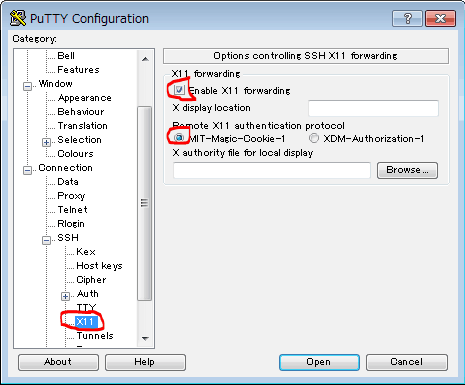
Configure Putty enable X11Forwarding as the picture below

Install Oracle client 18.3

[oracle@batch-server ~]$ cd /opt/client/
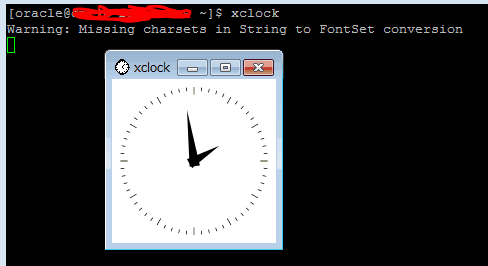
[oracle@batch-server ~]$ xclock

The result as the picture below

Run Oracle client 🙂

[oracle@batch-server ~]$  ./runInstaller

Confirm after install Oracle client 18.3

How to create variable $ORACLE_HOME for oracle user. For example as below

[oracle@batch-server ~]$ cat .bash_profile

 #The content as below
 PATH=$PATH:$HOME/.local/bin:$HOME/bin
 export ORACLE_HOME=/opt/oraInventory/product/18.0.0/client_1
 export PATH=$PATH:$ORACLE_HOME/bin

 [oracle@batch-server ~]$ source .bash_profile

Create new file tnsnames.ora

[oracle@batch-server ~]$ $ORACLE_HOME/network/admin/tnsnames.ora

The following is a reference example.

devopsroles_01 = 
   (DESCRIPTION =
     (ENABLE = BROKEN)
     (LOAD_BALANCE = ON)
     (FAILOVER = ON)
     (ADDRESS_LIST =
       (ADDRESS = (PROTOCOL = TCP)(HOST = 10.0.2.15)(PORT = 1534))
       (ADDRESS = (PROTOCOL = TCP)(HOST = 10.0.2.15)(PORT = 1535))
     )
     (CONNECT_DATA =
       (SERVICE_NAME = DBB_DEVOPSROLES)
       (SERVER = DEDICATED)
     )
   )

Add end line in file sqlnet.ora

[oracle@batch-server ~]$ $ORACLE_HOME/network/admin/sqlnet.ora

The content as below

NAMES.DIRECTORY_PATH= (TNSNAMES, EZCONNECT)
ADR_BASE = /opt/oracle

Connection check from Batch server to Oracle database.

[oracle@batch-server ~]$ sqlplus /nolog
 SQL> conn username/password
 SQL> set head off
 SQL> select * from v$instance ;
 SQL> quit

You have installed Oracle client 18.3 on Centos 7. If during setup error you can Q&A. Thank you for reading!

TKPROF using trace analyzer to trace SQL

Introduction

In this tutorial, we will explore how to use TKPROF with a trace analyzer to trace SQL in an Oracle Database Server. Optimizing SQL performance is crucial for the efficiency and responsiveness of your database applications. One of the powerful tools available for this purpose is TKPROF, a trace file analyzer provided by Oracle.

This guide will introduce you to TKPROF and show you how to use it effectively to trace and analyze SQL performance. By understanding and utilizing TKPROF, you can gain deep insights into your SQL execution, identify performance bottlenecks, and make informed optimizations to enhance your database’s performance.

Syntax of the TKPROF Command

The TKPROF command has several options that allow you to customize its behavior. Here is the syntax:

tkprof tracefile outputfile [explain= ] [table= ]
              [print= ] [insert= ] [sys= ] [sort= ]

Options of TKPROF command

table=schema.tablename: Use 'schema.tablename' with 'explain=' option.
explain=user/password: Connect to ORACLE and issue EXPLAIN PLAN.
print=integer: List only the first 'integer' SQL statements.
aggregate=yes|no: Aggregate multiple trace files.
insert=filename: List SQL statements and data inside INSERT statements.
sys=no: TKPROF does not list SQL statements run as user SYS.
record=filename: Record non-recursive statements found in the trace file.
waits=yes|no: Record summary for any wait events found in the trace file.
sort=option: Set of zero or more of the following sort options:
  prscnt: number of times parse was called
  prscpu: CPU time parsing
  prsela: elapsed time parsing
  prsdsk: number of disk reads during parse
  prsqry: number of buffers for consistent read during parse
  prscu: number of buffers for current read during parse
  prsmis: number of misses in library cache during parse
  execnt: number of times execute was called
  execpu: CPU time spent executing
  exeela: elapsed time executing
  exedsk: number of disk reads during execute
  exeqry: number of buffers for consistent read during execute
  execu: number of buffers for current read during execute
  exerow: number of rows processed during execute
  exemis: number of library cache misses during execute
  fchcnt: number of times fetch was called
  fchcpu: CPU time spent fetching
  fchela: elapsed time fetching
  fchdsk: number of disk reads during fetch
  fchqry: number of buffers for consistent read during fetch
  fchcu: number of buffers for current read during fetch
  fchrow: number of rows fetched
  userid: user ID of the user that parsed the cursor

How to Use Trace Analyzer to Trace SQL

Connect to the Database

[oracle11g@DBdevopsroles ~]$ sqlplus DBUSER/DBUSER@ORACLE_SID
SQL> set termout off
SQL> alter session set timed_statistics = true;
SQL> alter session set sql_trace = true;
SQL> SELECT COUNT(*) from tablename01;
SQL> alter session set sql_trace = false;

Use Trace with TKPROF Command

[oracle11g@DBdevopsroles ~]$ tkprof /app/oracle11g/diag/rdbms/ORACLE_SID/trace/ORACLE_SID_ora_4196.trc ORACLE_SID_ora_4196.txt explain=DBUSER/DBUSER@ORACLE_SID width=200

Confirm Output Destination

SQL> show parameter user_dump_dest

Conclusion

In this tutorial, we covered how to use the TKPROF command with a trace analyzer to trace SQL in an Oracle Database. Using TKPROF to analyze SQL performance is an invaluable skill for any database administrator or developer. By following the steps outlined in this guide, you should now be able to trace and analyze SQL execution efficiently, uncover performance issues, and implement necessary optimizations.

Continuous monitoring and analysis with TKPROF will ensure that your SQL queries run smoothly and efficiently, contributing to the overall health and performance of your database systems. Keep exploring and mastering TKPROF to become proficient in SQL performance tuning. Thank you for reading the DevopsRoles page!

Oracle v$system_parameter: A Guide for Database Administrators

Introduction

Discover how to effectively query the Oracle v$system_parameter. You’ll learn essential SQL commands to access and manage system parameters that control various Oracle database functions.

This guide is ideal for Oracle DBAs who need to monitor or adjust system settings for optimized database performance. Gain insights into best practices for querying and interpreting the values of critical system parameters in Oracle.

  • Oracle v$system_parameter: Displays system-wide parameter settings for the entire database instance.
  • Oracle v$parameter: Shows parameter values specific to the current session, allowing session-specific adjustments.
  • Key Differences:
    • Scope: v$system_parameter is instance-wide, while v$parameter is session-specific.
    • Usage: Understanding the difference helps in effective database management, optimizing both system stability and session flexibility.

What does Oracle “v$system_parameter” mean?

Oracle’s v$system_parameter is a dynamic performance view that provides information about the instance-level parameters of an Oracle database. It allows database administrators to view the current settings of various configuration parameters, which are essential for tuning and maintaining the database.

To check the values of these parameters, you need to log in to the Oracle database as a user with SYSDBA privileges and query the v$system_parameter view.

Step by step: Oracle v$system_parameter

Step 1: Log in and connect to the database as “SYSDBA“.

[huupv@devopsroles ~]$ sudo su - oracle
[oracle@devopsroles ~]$ sqlplus "/as sysdba"

Step 2: Check the value of a specific parameter

SYS@DEVOPSROLES > SELECT name, value FROM V$SYSTEM_PARAMETER where name = 'db_block_size';

The output will look like this:

NAME                 VALUE
-------------------- -----
db_block_size        9100

Step 3: Repeat the above query for other parameters:

To check value “db_cache_size” in Oracle Database.

SYS@DEVOPSROLES > SELECT name, value FROM V$SYSTEM_PARAMETER where name = 'db_cache_size';

To check the value of the java_pool_size parameter:

SYS@DEVOPSROLES > SELECT name, value FROM V$SYSTEM_PARAMETER where name = 'java_pool_size';

To check value “nls_language” in Oracle Database.

SYS@DEVOPSROLES > SELECT name, value FROM V$SYSTEM_PARAMETER where name = 'nls_language';

Check value “processes” in the Oracle Database.

SYS@DEVOPSROLES > SELECT name, value FROM V$SYSTEM_PARAMETER where name = 'processes';

To check the value “shared_pool_size” in Oracle Database.

SYS@DEVOPSROLES > SELECT name, value FROM V$SYSTEM_PARAMETER where name = 'shared_pool_size';

By querying the Oracle v$system_parameter view, you can easily obtain the current settings of various parameters, which is crucial for database administration and tuning.

Conclusion

the article on querying “v$system_parameter” in Oracle, it is essential to understand the power and significance of system parameters in managing and optimizing Oracle database environments.

This guide offers a comprehensive look at how to access and manipulate these settings, providing database administrators with the knowledge needed to ensure efficient database operation.

For further mastery of Oracle system parameters, continue exploring and experimenting with different queries and settings. I hope will this your helpful. Thank you for reading the DevopsRoles page!