

Introduction: If you are managing virtual clusters without a solid disaster recovery plan, you are playing Russian roulette with your infrastructure. Mastering vCluster backup using Velero is no longer optional; it is a critical survival skill.
I have seen seasoned engineers panic when an entire tenant’s environment vanishes due to a single misconfigured YAML file.
Do not be that engineer. Protect your job and your data.

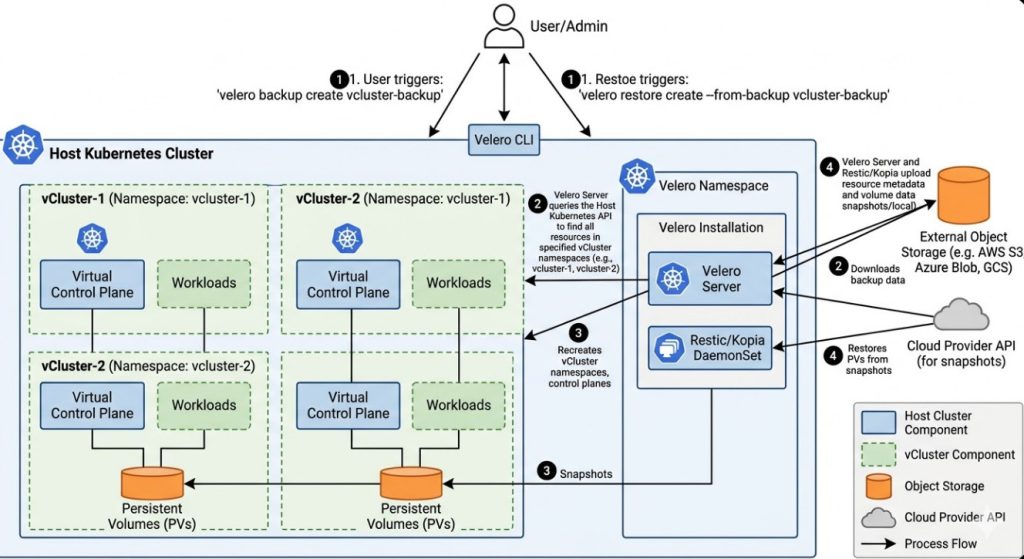
Table of Contents
- 1 The Nightmare of Data Loss Without vCluster backup using Velero
- 2 Why Combine vCluster and Velero?
- 3 Prerequisites for vCluster backup using Velero
- 4 Step 1: Installing the Velero CLI
- 5 Step 2: Configuring Your Storage Provider
- 6 Step 3: Deploying Velero to the Host Cluster
- 7 Step 4: Executing the vCluster backup using Velero
- 8 Handling Persistent Volumes During Backup
- 9 Step 5: The Ultimate Test – Restoring Your vCluster
- 10 Advanced Strategy: Scheduled Backups
- 11 Troubleshooting Common Errors
The Nightmare of Data Loss Without vCluster backup using Velero
Let me tell you a war story from my early days managing multi-tenant Kubernetes environments.
We had just migrated thirty developer teams to vCluster to save on cloud costs.
It was a beautiful architecture. Until a rogue script deleted the underlying host namespace.
Everything was gone. Pods, secrets, persistent volumes—all erased in seconds.
We spent 72 agonizing hours manually reconstructing the environments.
If I had implemented vCluster backup using Velero back then, I would have slept that weekend.
Why Combine vCluster and Velero?
Virtual clusters (vCluster) are incredible for Kubernetes multi-tenancy.
They spin up fast, cost less, and isolate workloads perfectly.
However, treating them like traditional clusters during disaster recovery is a massive mistake.
Traditional tools back up the host cluster, ignoring the virtualized control planes.
This is where vCluster backup using Velero completely changes the game.
Velero allows you to target specific namespaces—where your virtual clusters live—and back up everything, including stateful data.
Prerequisites for vCluster backup using Velero
Before we dive into the commands, you need to get your house in order.
First, you need a running host Kubernetes cluster.
Second, you need access to an object storage bucket, like AWS S3, Google Cloud Storage, or MinIO.
Third, ensure you have the appropriate permissions to install CRDs on the host cluster.
Need to brush up on the basics? Check out this [Internal Link: Kubernetes Disaster Recovery 101].
For official community insights, always refer to the original documentation provided by the developers.
Step 1: Installing the Velero CLI
You cannot execute a vCluster backup using Velero without the command-line interface.
Download the latest release from the official Velero GitHub repository.
Extract the binary and move it to your system path.
# Download and install Velero CLI
wget https://github.com/vmware-tanzu/velero/releases/download/v1.12.0/velero-v1.12.0-linux-amd64.tar.gz
tar -xvf velero-v1.12.0-linux-amd64.tar.gz
sudo mv velero-v1.12.0-linux-amd64/velero /usr/local/bin/
Verify the installation by running a quick version check.
velero version --client-only
Step 2: Configuring Your Storage Provider
Your backups need a safe place to live outside of your cluster.
We will use AWS S3 for this example, as it is the industry standard.
Create an IAM user with programmatic access and an S3 bucket.
Save your credentials in a local file named credentials-velero.
[default]
aws_access_key_id = YOUR_ACCESS_KEY aws_secret_access_key = YOUR_SECRET_KEY
Step 3: Deploying Velero to the Host Cluster
This is the critical phase of vCluster backup using Velero.
You must install Velero on the host cluster, not inside the vCluster.
The host cluster holds the actual physical resources that need protecting.
# Install Velero on the host cluster
velero install \
    --provider aws \
    --plugins velero/velero-plugin-for-aws:v1.7.0 \
    --bucket my-vcluster-backups \
    --backup-location-config region=us-east-1 \
    --snapshot-location-config region=us-east-1 \
    --secret-file ./credentials-velero
Wait for the Velero pod to reach a Running state.
Step 4: Executing the vCluster backup using Velero
Now, let us protect that virtual cluster data.
Assume your vCluster is deployed in a namespace called vcluster-production-01.
We will instruct Velero to back up everything inside this specific namespace.
# Execute the backup
velero backup create vcluster-prod-backup-01 \
    --include-namespaces vcluster-production-01 \
    --wait
The --wait flag ensures the terminal outputs the final status of the backup.
Once completed, you can view the details to confirm success.
velero backup describe vcluster-prod-backup-01


Handling Persistent Volumes During Backup
Stateless apps are easy, but what about databases running inside your vCluster?
A true vCluster backup using Velero strategy must include Persistent Volume Claims (PVCs).
Velero handles this using an integrated tool called Restic (or Kopia in newer versions).
You must explicitly annotate your pods to ensure their volumes are captured.
# Annotate pod for volume backup
kubectl -n vcluster-production-01 annotate pod/my-database-0 \
    backup.velero.io/backup-volumes=data-volume
Without this annotation, your database backup will be completely empty.
Step 5: The Ultimate Test – Restoring Your vCluster
A backup is entirely worthless if you cannot restore it.
To test our vCluster backup using Velero, let us simulate a disaster.
Go ahead and delete the entire vCluster namespace. Yes, really.
kubectl delete namespace vcluster-production-01
Now, let us bring it back from the dead.
# Restore the vCluster
velero restore create --from-backup vcluster-prod-backup-01 --wait
Watch as Velero magically recreates the namespace, the vCluster control plane, and all workloads.
Advanced Strategy: Scheduled Backups
Manual backups are for amateurs.
Professionals automate their vCluster backup using Velero using schedules.
You can use standard Cron syntax to schedule daily or hourly backups.
# Schedule a daily backup at 2 AM
velero schedule create daily-vcluster-backup \
    --schedule="0 2 * * *" \
    --include-namespaces vcluster-production-01 \
    --ttl 168h
The --ttl flag ensures your buckets don’t overflow by automatically deleting backups older than 7 days.
Troubleshooting Common Errors
Sometimes, things go wrong. Do not panic.
If your backup is stuck in InProgress, check the Velero server logs.
Usually, this points to an IAM permission issue with your storage bucket.
kubectl logs deployment/velero -n velero
If your PVCs are not restoring, ensure your storage classes match between the backup and restore clusters.
FAQ Section
- Can I migrate a vCluster to a completely different host cluster?
Yes! This is a massive benefit of vCluster backup using Velero. Just point Velero on the new host cluster to the same S3 bucket and run the restore command.
- Does Velero back up the vCluster’s internal SQLite/etcd database?
Because vCluster stores its state in a StatefulSet on the host cluster, backing up the host namespace captures the underlying storage, effectively backing up the vCluster’s internal database.
- Is Restic required for all storage backends?
No. If your cloud provider supports native CSI snapshots (like AWS EBS or GCP Persistent Disks), Velero can use those directly without needing Restic or Kopia.
- Will this impact the performance of my running applications?
Generally, no. However, if you are using Restic to copy large amounts of data, you might see a temporary spike in network and CPU usage on the host nodes.
Conclusion: Implementing a robust vCluster backup using Velero strategy separates the professionals from the amateurs. Stop hoping your infrastructure stays online and start engineering for the inevitable failure. Back up your namespaces, test your restores frequently, and sleep soundly knowing your multi-tenant environments are bulletproof. Thank you for reading the DevopsRoles page!