
Introduction: Let’s get one thing straight right out of the gate: Terraform Provisioners are a controversial topic in the DevOps world.
I’ve been building infrastructure since the days when we racked our own physical servers.
Back then, automation meant a terrifying, undocumented bash script.
Today, we have elegant, declarative tools like Terraform. But sometimes, declarative isn’t enough.
Sometimes, you just need to SSH into a box, copy a configuration file, and run a command.
That is exactly where HashiCorp’s provisioners come into play, saving your deployment pipeline.
If you’re tired of banging your head against the wall trying to bootstrap an EC2 instance, you are in the right place.
In this guide, we are going deep into a real-world lab environment.
We are going to use the `file` and `remote-exec` provisioners to turn a useless vanilla AMI into a functional web server.
Grab a coffee. Let’s write some code that actually works.

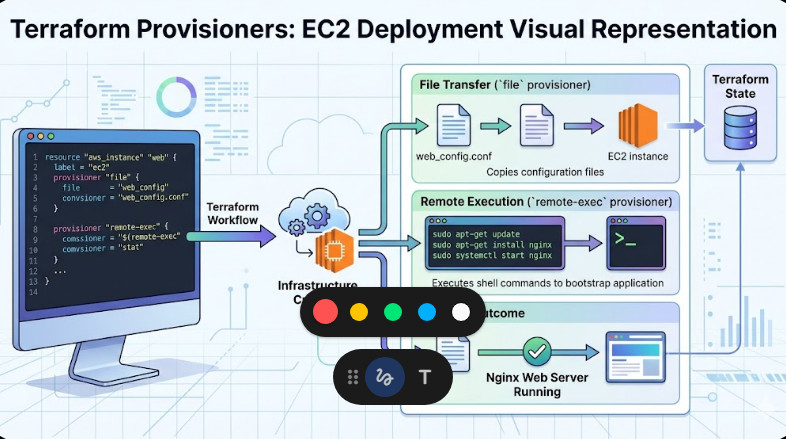
Table of Contents
The Hard Truth About Terraform Provisioners
HashiCorp themselves will tell you that provisioners should be a “last resort.”
Why? Because they break the fundamental rules of declarative infrastructure.
Terraform doesn’t track what a provisioner actually does to a server.
If your `remote-exec` script fails halfway through, Terraform marks the entire resource as “tainted.”
It won’t try to fix the script on the next run; it will just nuke the server and start over.
But let’s be real. In the trenches of enterprise IT, “last resort” scenarios happen before lunch on a Monday.
You will inevitably face legacy software that doesn’t support cloud-init or User Data.
When that happens, understanding how to wrangle Terraform Provisioners is the only thing standing between you and a missed deadline.
The “File” vs. “Remote-Exec” Dynamic Duo
These two provisioners are the bread and butter of quick-and-dirty instance bootstrapping.
The `file` provisioner is your courier. It safely copies files or directories from the machine running Terraform to the newly created resource.
The `remote-exec` provisioner is your remote operator. It invokes scripts directly on the target resource.
Together, they allow you to push a complex setup script, configure the environment, and execute it seamlessly.
I’ve used this exact pattern to deploy everything from custom Nginx proxies to hardened database clusters.
Building Your EC2 Lab for Terraform Provisioners
To really grasp this, we need a hands-on environment.
If you want to follow along with the specific project that inspired this deep dive, you can check out the lab setup and inspiration here.
First, we need to set up our AWS provider and lay down the foundational networking.
Without a proper Security Group allowing SSH (Port 22), your provisioners will simply time out.
I’ve seen junior devs waste hours debugging Terraform when the culprit was a closed AWS firewall.
# Define the AWS Provider
provider "aws" {
  region = "us-east-1"
}

# Create a Security Group for SSH and HTTP
resource "aws_security_group" "web_sg" {
  name        = "terraform-provisioner-sg"
  description = "Allow SSH and HTTP traffic"

  ingress {
    from_port   = 22
    to_port     = 22
    protocol    = "tcp"
    cidr_blocks = ["0.0.0.0/0"] # Warning: Open to the world! Use your IP in production.
  }

  ingress {
    from_port   = 80
    to_port     = 80
    protocol    = "tcp"
    cidr_blocks = ["0.0.0.0/0"]
  }

  egress {
    from_port   = 0
    to_port     = 0
    protocol    = "-1"
    cidr_blocks = ["0.0.0.0/0"]
  }
}
Notice that ingress block? Never, ever use `0.0.0.0/0` for SSH in a production environment.
But for this lab, we need to make sure Terraform can reach the instance without jumping through VPN hoops.
Mastering the Connection Block in Terraform Provisioners
Here is where 90% of deployments fail.
A provisioner cannot execute if it doesn’t know *how* to talk to the server.
You must define a `connection` block inside your resource.
This block tells Terraform what protocol to use (SSH or WinRM), the user, and the private key.
If you mess up the connection block, your terraform apply will hang for 5 minutes before throwing a fatal error.
Let’s automatically generate an SSH key pair using Terraform so we don’t have to manage local files manually.
# Generate a secure private key
resource "tls_private_key" "lab_key" {
  algorithm = "RSA"
  rsa_bits  = 4096
}

# Create an AWS Key Pair using the generated public key
resource "aws_key_pair" "generated_key" {
  key_name   = "terraform-lab-key"
  public_key = tls_private_key.lab_key.public_key_openssh
}

# Save the private key locally so we can SSH manually later
resource "local_file" "private_key_pem" {
  content  = tls_private_key.lab_key.private_key_pem
  filename = "terraform-lab-key.pem"
  file_permission = "0400"
}
This is a veteran trick: keeping everything inside the state file makes the lab reproducible.
No more “it works on my machine” excuses when handing off your codebase.
For more advanced key management strategies, you should always consult the official HashiCorp Connection Documentation.
Executing Terraform Provisioners: EC2, File, and Remote-Exec
Now comes the main event.
We are going to spin up an Ubuntu EC2 instance.
We will use the `file` provisioner to push a custom HTML file.
Then, we will use the `remote-exec` provisioner to install Nginx and move our file into the web root.
Pay close attention to the syntax here. Order matters.
resource "aws_instance" "web_server" {
  ami           = "ami-0c7217cdde317cfec" # Ubuntu 22.04 LTS in us-east-1
  instance_type = "t2.micro"
  key_name      = aws_key_pair.generated_key.key_name
  vpc_security_group_ids = [aws_security_group.web_sg.id]

  # The crucial connection block
  connection {
    type        = "ssh"
    user        = "ubuntu"
    private_key = tls_private_key.lab_key.private_key_pem
    host        = self.public_ip
  }

  # Provisioner 1: File Transfer
  provisioner "file" {
    content     = "<h1>Hello from Terraform Provisioners!</h1>"
    destination = "/tmp/index.html"
  }

  # Provisioner 2: Remote Execution
  provisioner "remote-exec" {
    inline = [
      "sudo apt-get update -y",
      "sudo apt-get install -y nginx",
      "sudo mv /tmp/index.html /var/www/html/index.html",
      "sudo systemctl restart nginx"
    ]
  }

  tags = {
    Name = "Terraform-Provisioner-Lab"
  }
}
Why Did We Transfer to /tmp First?
Did you catch that little detail in the file provisioner?
We didn’t send the file directly to `/var/www/html/`.
Why? Because the SSH user is `ubuntu`, which doesn’t have root permissions by default.
If you try to SCP a file directly into a protected system directory, Terraform will fail with a “permission denied” error.
You must copy files to a temporary directory like `/tmp`.
Then, you use `remote-exec` with `sudo` to move the file to its final destination.
That one tip alone will save you hours of pulling your hair out.
When NOT to Use Terraform Provisioners
I know I’ve been singing their praises for edge cases.
But as a senior engineer, I have to tell you the truth.
If you are using Terraform Provisioners to run massive, 500-line shell scripts, you are doing it wrong.
Terraform is an infrastructure orchestration tool, not a configuration management tool.
If your instances require that much bootstrapping, you should be using a tool built for the job.
I highly recommend exploring Ansible or Packer for heavy lifting.
Alternatively, bake your dependencies directly into a golden AMI.
It will make your Terraform runs faster, more reliable, and less prone to random network timeouts.
Always consider [Internal Link: The Principles of Immutable Infrastructure] before relying heavily on runtime execution.
Handling Tainted Resources
What happens when your `remote-exec` fails on line 3?
The EC2 instance is already created in AWS.
But Terraform marks the resource as tainted in your `terraform.tfstate` file.
This means the next time you run `terraform apply`, Terraform will destroy the instance and recreate it.
It will not attempt to resume the script from where it left off.
You can override this behavior by setting `on_failure = continue` inside the provisioner block.
However, I strongly advise against this.
If a provisioner fails, your instance is in an unknown state.
In the cloud native world, we don’t fix broken pets; we replace them with healthy cattle.
Let Terraform destroy the instance, fix your script, and let the automation run clean.
FAQ Section
- Q: Can I use provisioners to run scripts locally?
A: Yes, you can use the `local-exec` provisioner to run commands on the machine executing the Terraform binary. This is great for triggering local webhooks. - Q: Why does my provisioner time out connecting to SSH?
A: 99% of the time, this is a Security Group issue, a missing public IP, or a mismatched private key in the connection block. - Q: Should I use cloud-init instead?
A: If your target OS supports cloud-init (User Data), it is generally preferred over provisioners because it happens natively during the boot process. - Q: Can I run provisioners when destroying resources?
A: Yes! You can set `when = destroy` to run cleanup scripts, like deregistering a node from a cluster before shutting it down.
Conclusion: Terraform Provisioners are powerful tools that every infrastructure engineer needs in their toolbelt. While they shouldn’t be your first choice for configuration management, knowing how to properly execute `file` and `remote-exec` commands will save your architecture when standard declarative methods fall short. Treat them with respect, keep your scripts idempotent, and never stop automating. Thank you for reading the DevopsRoles page!