Tag Archives: Docker

Understand the Difference Between Docker Engine and Docker Desktop: A Comprehensive Guide

Introduction

Docker has revolutionized the way we build, share, and run applications. However, many users find themselves confused about the difference between Docker Engine and Docker Desktop. This guide aims to demystify these two essential components, explaining their differences, use cases, and how to get the most out of them. Whether you’re a beginner or an experienced developer, this article will provide valuable insights into Docker’s ecosystem.

What is Docker Engine?

Docker Engine is the core software that enables containerization. It is a client-server application that includes three main components:

Docker Daemon (dockerd)

The Docker Daemon is a background service responsible for managing Docker containers on your system. It listens for Docker API requests and manages Docker objects such as images, containers, networks, and volumes.

Docker Client (docker)

The Docker Client is a command-line interface (CLI) that users interact with to communicate with the Docker Daemon. It accepts commands from the user and communicates with the Docker Daemon to execute them.

REST API

The Docker REST API is used by applications to communicate with the Docker Daemon programmatically. This API allows you to integrate Docker functionalities into your software.

What is Docker Desktop?

Docker Desktop is an application that simplifies the use of Docker on macOS and Windows systems. It provides an easy-to-use interface and includes everything you need to build and share containerized applications.

Docker Desktop Components

Docker Desktop includes the Docker Engine, Docker CLI client, Docker Compose, Kubernetes, and other tools necessary for a seamless container development experience.

GUI Integration

Docker Desktop provides a graphical user interface (GUI) that makes it easier for users to manage their Docker environments. The GUI includes dashboards, logs, and other tools to help you monitor and manage your containers.

Docker Desktop for Mac and Windows

Docker Desktop is tailored for macOS and Windows environments, providing native integration with these operating systems. This means that Docker Desktop abstracts away many of the complexities associated with running Docker on non-Linux platforms.

Key Difference Between Docker Engine and Docker Desktop

Platform Compatibility

  • Docker Engine: Primarily designed for Linux systems, though it can run on Windows and macOS through Docker Desktop or virtual machines.
  • Docker Desktop: Specifically designed for Windows and macOS, providing native integration and additional features to support these environments.

User Interface

  • Docker Engine: Managed primarily through the command line, suitable for users comfortable with CLI operations.
  • Docker Desktop: Offers both CLI and GUI options, making it accessible for users who prefer graphical interfaces.

Additional Features

  • Docker Engine: Focuses on core containerization functionalities.
  • Docker Desktop: Includes extra tools like Docker Compose, Kubernetes, and integrated development environments (IDEs) to enhance the development workflow.

Resource Management

  • Docker Engine: Requires manual configuration for resource allocation.
  • Docker Desktop: Automatically manages resource allocation, with options to adjust settings through the GUI.

When to Use Docker Engine?

Server Environments

Docker Engine is ideal for server environments where resources are managed by IT professionals. It provides the flexibility and control needed to run containers at scale.

Advanced Customization

For users who need to customize their Docker setup extensively, Docker Engine offers more granular control over configuration and operation.

When to Use Docker Desktop?

Development and Testing

Docker Desktop is perfect for development and testing on local machines. It simplifies the setup process and provides tools to streamline the development workflow.

Cross-Platform Development

If you’re working in a cross-platform environment, Docker Desktop ensures that your Docker setup behaves consistently across macOS and Windows systems.

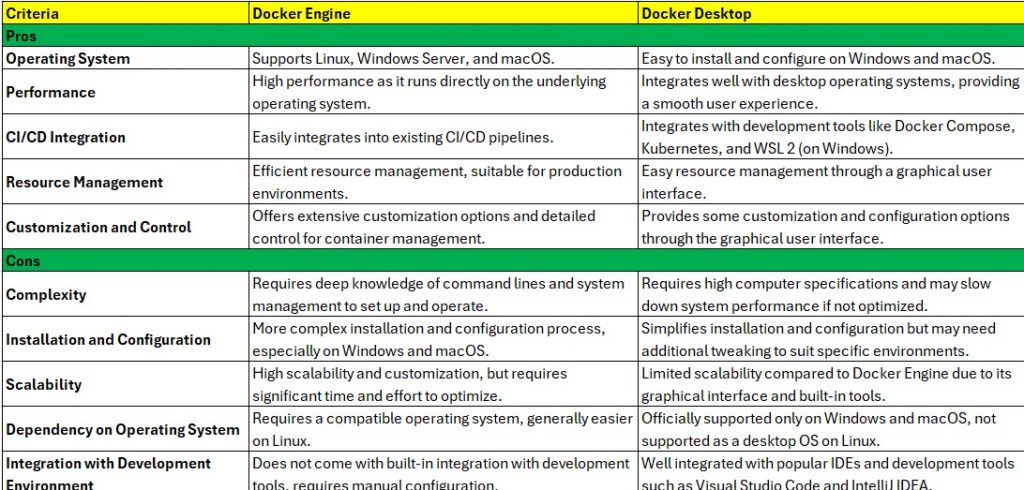
Pros and Cons of Docker Engine and Docker Desktop

FAQs

What is the main purpose of Docker Engine?

The main purpose of Docker Engine is to enable containerization, allowing developers to package applications and their dependencies into containers that can run consistently across different environments.

Can Docker Desktop be used in production environments?

Docker Desktop is primarily designed for development and testing. For production environments, it is recommended to use Docker Engine on a server or cloud platform.

Is Docker Desktop free to use?

Docker Desktop offers a free tier for individual developers and small teams. However, there are paid plans available with additional features and support for larger organizations.

How does Docker Desktop manage resources on macOS and Windows?

Docker Desktop uses a lightweight virtual machine to run the Docker Daemon on macOS and Windows. It automatically manages resource allocation, but users can adjust CPU, memory, and disk settings through the Docker Desktop GUI.

Conclusion

Understanding the difference between Docker Engine and Docker Desktop is crucial for choosing the right tool for your containerization needs. Docker Engine provides the core functionalities required for running containers, making it suitable for server environments and advanced users. On the other hand, Docker Desktop simplifies the development and testing process, offering a user-friendly interface and additional tools for macOS and Windows users. By selecting the appropriate tool, you can optimize your workflow and leverage the full potential of Docker’s powerful ecosystem. Thank you for reading the DevopsRoles page!

Docker Engine Authentication Bypass Vulnerability Exploited: Secure Your Containers Now

Introduction

In recent times, Docker Engine has become a cornerstone for containerization in DevOps and development environments. However, like any powerful tool, it can also be a target for security vulnerabilities. One such critical issue is the Docker Engine authentication bypass vulnerability. This article will explore the details of this vulnerability, how it’s exploited, and what steps you can take to secure your Docker environments. We’ll start with basic concepts and move to more advanced topics, ensuring a comprehensive understanding of the issue.

Understanding Docker Engine Authentication Bypass Vulnerability

What is Docker Engine?

Docker Engine is a containerization platform that enables developers to package applications and their dependencies into containers. This allows for consistent environments across different stages of development and production.

What is an Authentication Bypass?

Authentication bypass is a security flaw that allows attackers to gain unauthorized access to a system without the correct credentials. In the context of Docker, this could mean gaining control over Docker containers and the host system.

How Does the Vulnerability Work?

The Docker Engine authentication bypass vulnerability typically arises due to improper validation of user credentials or session management issues. Attackers exploit these weaknesses to bypass authentication mechanisms and gain access to sensitive areas of the Docker environment.

Basic Examples of Exploitation

Example 1: Default Configuration

One common scenario is exploiting Docker installations with default configurations. Many users deploy Docker with default settings, which might not enforce strict authentication controls.

  1. Deploying Docker with Default Settings:
    • sudo apt-get update
    • sudo apt-get install docker-ce docker-ce-cli containerd.io
  2. Accessing Docker Daemon without Authentication:
    • docker -H tcp://<docker-host>:2375 ps

In this example, if the Docker daemon is exposed on a network without proper authentication, anyone can list the running containers and execute commands.

Example 2: Misconfigured Access Control

Another basic example involves misconfigured access control policies that allow unauthorized users to perform administrative actions.

Configuring Docker with Insecure Access:

{
  "hosts": ["tcp://0.0.0.0:2375"]
}

Exploiting the Misconfiguration:

docker -H tcp://<docker-host>:2375 exec -it <container-id> /bin/bash

Advanced Examples of Exploitation

Example 3: Session Hijacking

Advanced attackers might use session hijacking techniques to exploit authentication bypass vulnerabilities. This involves stealing session tokens and using them to gain access.

  1. Capturing Session Tokens: Attackers use network sniffing tools like Wireshark to capture authentication tokens.
  2. Replaying Captured Tokens:
    • curl -H "Authorization: Bearer <captured-token>" http://<docker-host>:2375/containers/json

Example 4: Exploiting API Vulnerabilities

Docker provides an API for managing containers, which can be exploited if not properly secured.

  1. Discovering API Endpoints:
    • curl http://<docker-host>:2375/v1.24/containers/json
  2. Executing Commands via API:
    • curl -X POST -H "Content-Type: application/json" -d '{"Cmd": ["echo", "Hello World"], "Image": "busybox"}' http://<docker-host>:2375/containers/create

Protecting Your Docker Environment

Implementing Secure Configuration

Enable TLS for Docker Daemon:

{
  "tls": true,
  "tlscert": "/path/to/cert.pem",
  "tlskey": "/path/to/key.pem",
  "hosts": ["tcp://0.0.0.0:2376"]
}

Use Docker Bench for Security: Docker provides a security benchmark tool to check for best practices.

docker run -it --net host --pid host --userns host --cap-add audit_control \
  -e DOCKER_CONTENT_TRUST=$DOCKER_CONTENT_TRUST \
  -v /var/lib:/var/lib \
  -v /var/run/docker.sock:/var/run/docker.sock \
  -v /usr/lib/systemd:/usr/lib/systemd \
  -v /etc:/etc \
  --label docker_bench_security \
  docker/docker-bench-security

Access Control Best Practices

  1. Implement Role-Based Access Control (RBAC): Use Docker’s built-in RBAC to limit access to authorized users only.
    • docker swarm init
    • docker network create --driver overlay my-overlay
  2. Use External Authentication Providers: Integrate Docker with external authentication systems like LDAP or OAuth for better control.

Regular Audits and Monitoring

Enable Docker Logging:

{
  "log-driver": "json-file",
  "log-opts": {
    "max-size": "10m",
    "max-file": "3"
  }
}

Monitor Docker Activity: Use tools like Prometheus and Grafana to monitor Docker metrics and alerts.

Security Updates and Patching

  1. Keep Docker Updated: Regularly update Docker to the latest version to mitigate known vulnerabilities.
    • sudo apt-get update
    • sudo apt-get upgrade docker-ce
  2. Patch Vulnerabilities Promptly: Subscribe to Docker security announcements to stay informed about patches and updates.

Frequently Asked Questions

What is Docker Engine Authentication Bypass Vulnerability?

The Docker Engine authentication bypass vulnerability allows attackers to gain unauthorized access to Docker environments by exploiting weaknesses in the authentication mechanisms.

How Can I Protect My Docker Environment from This Vulnerability?

Implement secure configurations, use TLS, enable RBAC, integrate with external authentication providers, perform regular audits, monitor Docker activity, and keep Docker updated.

Why is Authentication Bypass a Critical Issue for Docker?

Authentication bypass can lead to unauthorized access, allowing attackers to control Docker containers, steal data, and execute malicious code, compromising the security of the entire system.

Conclusion

Docker Engine authentication bypass vulnerability poses a significant threat to containerized environments. By understanding how this vulnerability is exploited and implementing robust security measures, you can protect your Docker environments from unauthorized access and potential attacks. Regular audits, secure configurations, and keeping your Docker installation up-to-date are essential steps in maintaining a secure containerized infrastructure. Thank you for reading the DevopsRoles page!

Stay secure, and keep your Docker environments safe from vulnerabilities.

5 Easy Steps to Securely Connect Tailscale in Docker Containers on Linux – Boost Your Network!

Discover the revolutionary way to enhance your network security by integrating Tailscale in Docker containers on Linux. This comprehensive guide will walk you through the essential steps needed to set up Tailscale, ensuring your containerized applications remain secure and interconnected. Dive into the world of seamless networking today!

Introduction to Tailscale in Docker Containers

In the dynamic world of technology, ensuring robust network security and seamless connectivity has become paramount. Enter Tailscale, a user-friendly, secure network mesh that leverages WireGuard’s noise protocol. When combined with Docker, a leading software containerization platform, Tailscale empowers Linux users to secure and streamline their network connections effortlessly. This guide will unveil how to leverage Tailscale within Docker containers on Linux, paving the way for enhanced security and simplified connectivity.

Preparing Your Linux Environment

Before diving into the world of Docker and Tailscale, it’s essential to prepare your Linux environment. Begin by ensuring your system is up-to-date:

sudo apt-get update && sudo apt-get upgrade

Next, install Docker on your Linux machine if you haven’t already:

sudo apt-get install docker.io

Once Docker is installed, start the Docker service and enable it to launch at boot:

sudo systemctl start docker && sudo systemctl enable docker

Ensure your user is added to the Docker group to avoid using sudo for Docker commands:

sudo usermod -aG docker ${USER}

Log out and back in for this change to take effect, or if you’re in a terminal, type newgrp docker.

Setting Up Tailscale in Docker Containers

Now, let’s set up Tailscale within a Docker container. Create a Dockerfile to build your Tailscale container:

FROM alpine:latest
RUN apk --no-cache add tailscale
COPY entrypoint.sh /entrypoint.sh
RUN chmod +x /entrypoint.sh
ENTRYPOINT ["/entrypoint.sh"]

In your entrypoint.sh, include the Tailscale startup commands:

#!/bin/sh
tailscale up --advertise-routes=10.0.0.0/24 --accept-routes

Build and run your Docker container:

docker build -t tailscale . 
docker run --name=mytailscale --privileged -d tailscale

The --privileged flag is essential for Tailscale to modify the network interfaces within the container.

Verifying Connectivity and Security

After setting up Tailscale in your Docker container, it’s crucial to verify connectivity and ensure your network is secure. Check the Tailscale interface and connectivity:

docker exec mytailscale tailscale status

This command provides details on your Tailscale network, including the connected devices. Test the security and functionality by accessing services across your Tailscale network, ensuring that all traffic is encrypted and routes correctly.

Tips and Best Practices

To maximize the benefits of Tailscale in Docker containers on Linux, consider the following tips and best practices:

  • Regularly update your Tailscale and Docker packages to benefit from the latest features and security improvements.
  • Explore Tailscale’s ACLs (Access Control Lists) to fine-tune which devices and services can communicate across your network.
  • Consider using Docker Compose to manage Tailscale containers alongside your other Dockerized services for ease of use and automation.

I hope will this your helpful. Thank you for reading the DevopsRoles page!

Docker deploy Joomla

Introduction

Docker has become an essential tool in the DevOps world, simplifying the deployment and management of applications. Using Docker to deploy Joomla – one of the most popular Content Management Systems (CMS) – offers significant advantages. In this article, we will guide you through each step to Docker deploy Joomla, helping you leverage the full potential of Docker for your Joomla project.

Requirements

  • Have installed Docker on your system.
  • The host OS is Ubuntu Server.

To deploy Joomla using Docker, you’ll need to follow these steps:

Docker Joomla

Create a new Docker joomla network

docker network create joomla-network

Check Joomla network is created.

Next, pull Joomla and MySQL images as command below:

docker pull mysql:5.7
docker pull joomla

Create the MySQL volume

docker volume create mysql-data

Deploy the database

docker run -d --name joomladb  -v mysql-data:/var/lib/mysql --network joomla-network -e "MYSQL_ROOT_PASSWORD=PWORD_MYSQL" -e MYSQL_USER=joomla -e "MYSQL_PASSWORD=PWORD_MYSQL" -e "MYSQL_DATABASE=joomla" mysql:5.7

Where PWORD_MYSQL is a unique/strong password

How to deploy Joomla

create a volume to hold the Joomla data as command below:

docker volume create joomla-data
docker run -d --name joomla -p 80:80 -v joomla-data:/var/www/html --network joomla-network -e JOOMLA_DB_HOST=joomladb -e JOOMLA_DB_USER=joomla -e JOOMLA_DB_PASSWORD=PWORD_MYSQL joomla

Access the web-based installer

Open the web browser to http://SERVER:PORT, where SERVER is either the IP address or domain of the hosting server, and PORT is the external port.

Follow the Joomla setup wizard to configure your Joomla instance.

Via Youtube

Conclusion

Deploying Joomla with Docker not only simplifies the installation and configuration process but also enhances the management and scalability of your application. With the detailed steps provided in this guide, you can confidently deploy and manage Joomla on the Docker platform. Using Docker saves time and improves the performance and reliability of your system. Start today to experience the benefits Docker brings to your Joomla project. I hope will this your helpful. Thank you for reading the DevopsRoles page!

Deploy a self-hosted Docker registry

Introduction

In this tutorial, How to Deploy a self-hosted Docker registry with self-signed certificates. How to access it from a remote machine.

To deploy a self-hosted Docker registry, you can use the official Docker Registry image.

Here’s a step-by-step Deploy a self-hosted Docker registry guide to help you.

Prepare your directories

I will create them on my user home directory, but you can place them in any directory.

mkdir ~/registry

Create subdirectories in the registry directory.

mkdir ~/registry/{certs,auth}

Go into the certs directory.

cd ~/registry/certs

Create a private key

openssl genrsa 1024 > devopsroles.com.key
chmod 400 devopsroles.com.key

The output terminal is as below:

Create a docker_register.cnf file with the content below:

nano docker_register.cnf

In that file, paste the following contents.

[req]

default_bits  = 2048

distinguished_name = req_distinguished_name

req_extensions = req_ext

x509_extensions = v3_req

prompt = no

[req_distinguished_name]

countryName = XX

stateOrProvinceName = N/A

localityName = N/A

organizationName = Self-signed certificate

commonName = 120.0.0.1: Self-signed certificate

[req_ext]

subjectAltName = @alt_names

[v3_req]

subjectAltName = @alt_names

[alt_names]


IP.1 = 192.168.3.7

Note: Make sure to change IP.1 to match the IP address of your hosting server.

Save and close the file.

Generate the key with:

openssl req -new -x509 -nodes -sha1 -days 365 -key devopsroles.com.key -out devopsroles.com.crt -config docker_register.cnf

Go into auth directory.

cd ../auth

Generate an htpasswd file

docker run --rm --entrypoint htpasswd registry:2.7.0 -Bbn USERNAME PASSWORD > htpasswd

Where USERNAME is a unique username and PASSWORD is a unique/strong password.

The output terminal is the picture below:

Now, Deploy a self-hosted Docker registry

Change back to the base registry directory.

cd ~/registry

Deploy the registry container with the command below:

docker run -d \

--restart=always \

--name registry \

-v `pwd`/auth:/auth \

-v `pwd`/certs:/certs \

-v `pwd`/certs:/certs \

-e REGISTRY_AUTH=htpasswd \

-e REGISTRY_AUTH_HTPASSWD_REALM="Registry Realm" \

-e REGISTRY_AUTH_HTPASSWD_PATH=/auth/htpasswd \

-e REGISTRY_HTTP_ADDR=0.0.0.0:443 \

-e REGISTRY_HTTP_TLS_CERTIFICATE=/certs/devopsroles.com.crt \

-e REGISTRY_HTTP_TLS_KEY=/certs/devopsroles.com.key \

-p 443:443 \

registry:2.7.0

Now, you can access it from the local machine. however, you want to access it from a remote system. we need to add a ca.crt file. you need the copy the contents of the ~/registry/certs/devopsroles.com.crt file.

Login into your second machine

Create folder

sudo mkdir -p /etc/docker/certs.d/SERVER:443

where SERVER is the IP address of the machine hosting the registry.

Create the new file with:

sudo nano /etc/docker/certs.d/SERVER:443/ca.crt

paste the contents from devopsroles.com.crt ( from the hosting server) save and close the file.

How to do login into the new registry

From the second machine.

docker login -u USER -p https://SERVER:443

Where USER is the user you added when you generated the htpasswd file above.

Conclusion

You have successfully deployed a self-hosted Docker registry. You can now use it to store and share your Docker images within your network. I hope will this your helpful. Thank you for reading the DevopsRoles page!

How to install Docker on Ubuntu

Introduction

This tutorial explains how to install Docker on Ubuntu 21.04, highlighting Docker as an efficient open platform for building, testing, and deploying applications. Docker simplifies and accelerates the deployment process, making it less time-consuming to build and test applications. The guide is ideal for anyone looking to streamline their development workflow using Docker on the Ubuntu system.

How to install Docker on Ubuntu

To install Docker on Ubuntu, you can follow these steps:

Prerequisites

  • A system running Ubuntu 21.04
  • A user account with sudo privileges

Step 1: Update your system

Update your existing packages:

sudo apt update

Step 2: Install the curl package

sudo apt install curl -y

Step 3: Download the Latest Docker Version

curl -fsSL https://get.docker.com -o get-docker.sh

Step 4: Install Docker

sh get-docker.sh

Step 5: To make sure that the current user can access the docker daemon

To avoid using sudo for docker activities, add your username to the Docker Group

sudo usermod -aG docker $USER

Step 6: Check Docker Version

To verify the installation, check the Docker version by command below:

docker --version

Uninstall Docker on Ubuntu

Check the package installed docker on Ubuntu.

dpkg -l | grep -i docker

Use the apt remove command to uninstall Docker on Ubuntu.

sudo apt-get purge docker-ce docker-ce-cli docker-ce-rootless-extras docker-scan-plugin
sudo rm -rf /var/lib/docker

Remove Software Dependencies

sudo apt autoremove

Conclusion

How to install Docker on Ubuntu 21.04. After completing these steps, Docker should be successfully installed on your Ubuntu system, and you can start using Docker commands to manage containers and images. I hope will this your helpful. Thank you for reading the DevopsRoles page!

Step-by-Step: Create Docker Image from a Running Container

Introduction

In this tutorial, We will deploy a container Nginx server, modify it, and then create a new image from that running container. Now, let’s go to Create Docker Image from a Running Container.

What does docker mean?

Docker is a set of platform as a service products that use OS-level virtualization to deliver software in packages called containers. Containers are isolated from one another and bundle their own software, libraries, and configuration files Quota from Wikipedia

Install Docker on Ubuntu

If you don’t already have Docker installed, let’s do so. I will install Docker on Ubuntu Server. I use Ubuntu version 21.04 to install Docker.

To install Docker on Your Ubuntu server command below

sudo apt-get install docker.io -y

Add your user to the docker group with the command below

sudo usermod -aG docker $USER

Logging out and logging back in to ensure the changes take effect.

Create Docker Image from a Running Container

Create the New Container

We will create the new container with the command below:

sudo docker create --name nginx-devops -p 80:80 nginx:alpine
  • Create a new container: nginx-devops
  • Internal port ( Guest ): 80
  • External ( host ) port: 80
  • Use image: nginx:alpine

The output terminal is the picture below:

Start the Nginx container with the command below

After creating a new container, you open a Web browser and point it. You see the NGINX welcome page.

Modify the Existing Container

We will create a new index.html page for Nginx.

To do this, create a new page with the command below

vi index.html

In that file, paste the content (you can modify it to say whatever you want):

<html>
    <h2>DevopsRoles.com</h2>
</html>

Save and close the file

We copy index.html to the document root on nginx-devops container with the command below:

sudo docker cp index.html nginx-devops:/usr/share/nginx/html/index.html

you refresh the page in your web browser, you see a new welcome as the picture below:

Create a New Image

How to create a new image that includes the changes. It is very simple.

  1. We will commit the changes with the command below:
sudo docker commit nginx-devops

we will list all current images with the command below

sudo docker images

2. We will tag for docker-base-image

sudo docker tag IMAGE_ID nginx-devops-container

Where IMAGE_ID is the actual ID of your new container.

you’ll see something like this:

sudo docker images

In the output terminal step, 1 and step 2 as in the picture below

You’ve created a new Docker image from a running container.

Let’s stop and remove the original container. we will remove nginx-devops container with the command below

sudo docker ps -a
sudo docker stop ID
sudo docker rm ID

Where ID is the first four digits of the original container.

You could deploy a container from the new image with a command like:

sudo docker create --name nginx-new -p 80:80 nginx-devops-container:latest

The output terminal as the command below

vagrant@devopsroles:~$ sudo docker ps -a
CONTAINER ID   IMAGE          COMMAND                  CREATED          STATUS         PORTS                               NAMES
fe3d2e383b80   nginx:alpine   "/docker-entrypoint.…"   11 minutes ago   Up 8 minutes   0.0.0.0:80->80/tcp, :::80->80/tcp   nginx-devops
vagrant@devopsroles:~$ sudo docker stop fe3d2e383b80
fe3d2e383b80
vagrant@devopsroles:~$ sudo docker rm fe3d2e383b80
fe3d2e383b80
vagrant@devopsroles:~$ sudo docker ps
CONTAINER ID   IMAGE     COMMAND   CREATED   STATUS    PORTS     NAMES
vagrant@devopsroles:~$ sudo docker create --name nginx-new -p 80:80 nginx-devops-container:latest
91175e61375cf86fc935c55081be6f81354923564c9c0c0f4e5055ef0f590600
vagrant@devopsroles:~$ sudo docker ps -a
CONTAINER ID   IMAGE                           COMMAND                  CREATED              STATUS    PORTS     NAMES
91175e61375c   nginx-devops-container:latest   "/docker-entrypoint.…"   About a minute ago   Created             nginx-new
vagrant@devopsroles:~$ sudo docker start 91175e61375c
91175e61375c
vagrant@devopsroles:~$

What is the difference between docker commit and docker build?

docker commit creates an image from a container’s state, while docker build creating an image from a Dockerfile, allowing for a more controlled and reproducible build process.

Refresh your web browser and you should, once again, see the DevopsRoles page, New Stack! Welcome page.

YouTube: Create Docker Image from a Running Container

Conclusion

Create Docker Image from a Running Container is a powerful feature that enables you to capture the exact state of an application at any given moment. By following the steps outlined in this guide, you can easily commit a running container to a new image and use advanced techniques to add tags, commit messages, and author information. Whether you’re looking to back up your application, replicate environments, or share your work with others, this process provides a simple and effective solution. I hope will this your helpful. Thank you for reading the DevopsRoles page!

SonarQube from a Jenkins Pipeline job in Docker

Introduction

In today’s fast-paced DevOps environment, maintaining code quality is paramount. Integrating SonarQube with Jenkins in a Docker environment offers a robust solution for continuous code inspection and improvement.

This guide will walk you through the steps to set up SonarQube from a Jenkins pipeline job in Docker, ensuring your projects adhere to high standards of code quality and security.

Integrating SonarQube from a Jenkins Pipeline job in Docker: A Step-by-Step Guide.

Docker Compose for SonarQube

Create directories to keep SonarQube’s data

# mkdir -p /data/sonarqube/{conf,logs,temp,data,extensions,bundled_plugins,postgresql,postgresql_data}

Create a new user and change those directories owner

# adduser sonarqube
# usermod -aG docker sonarqube
# chown -R sonarqube:sonarqube /data/sonarqube/

Find UID of sonarqube user

# id sonarqube

Create a Docker Compose file using the UID in the user.

version: "3"

networks:
  sonarnet:
    driver: bridge

services:
  sonarqube:
    // use UID here
    user: 1005:1005
    image: sonarqube
    ports:
      - "9000:9000"
    networks:
      - sonarnet
    environment:
      - sonar.jdbc.url=jdbc:postgresql://db:5432/sonar
    volumes:
      - /data/sonarqube/conf:/opt/sonarqube/conf
      - /data/sonarqube/logs:/opt/sonarqube/logs
      - /data/sonarqube/temp:/opt/sonarqube/temp
      - /data/sonarqube/data:/opt/sonarqube/data
      - /data/sonarqube/extensions:/opt/sonarqube/extensions
      - /data/sonarqube/bundled_plugins:/opt/sonarqube/lib/bundled-plugins

  db:
    image: postgres
    networks:
      - sonarnet
    environment:
      - POSTGRES_USER=sonar
      - POSTGRES_PASSWORD=sonar
    volumes:
      - /data/sonarqube/postgresql:/var/lib/postgresql
      - /data/sonarqube/postgresql_data:/var/lib/postgresql/data

Use docker-compose start

# docker-compose -f sonarqube-compose.yml up

Install and configure Nginx

Nginx Install

# yum install nginx

Start Nginx service

# service nginx start

Configure nginx

I have created a “/etc/nginx/conf.d/sonar.devopsroles.com.conf” file, look like as below:

upstream sonar {
    server 127.0.0.1:9000;
}


server {

    listen 80;
    server_name  dev.sonar.devopsroles.com;


    root /var/www/html;
        allow all;
    }

    location / {
        return 301 https://dev.sonar.devopsroles.com;
    }
}

server {

    listen       443 ssl;
    server_name  dev.sonar.devopsroles.com;

    access_log  /var/log/nginx/dev.sonar.devopsroles.com-access.log proxy;
    error_log /var/log/nginx/dev.sonar.devopsroles.com-error.log warn;

    location / {
        proxy_http_version 1.1;
        proxy_request_buffering off;
        proxy_buffering off;

        proxy_redirect          off;
        proxy_set_header        Host            $host;
        proxy_set_header        X-Real-IP       $remote_addr;
        proxy_set_header        X-Forwarded-For $proxy_add_x_forwarded_for;
        proxy_set_header        X-Forwarded-Proto   $scheme;
        proxy_pass http://sonar$request_uri;
    }
}

Check syntax and reload NGINX’s configs

# nginx -t && systemctl start nginx

Jenkins Docker Compose

Here is an example of a Jenkins Docker Compose setup that could be used for integrating SonarQube from a Jenkins pipeline job:

version: '3'

services:
  jenkins:
    image: jenkins/jenkins:lts
    container_name: jenkins
    ports:
      - "8080:8080"
      - "50000:50000"
    volumes:
      - jenkins_home:/var/jenkins_home
    networks:
      - jenkins-sonarqube

  sonarqube:
    image: sonarqube:latest
    container_name: sonarqube
    ports:
      - "9000:9000"
    environment:
      - SONAR_JDBC_URL=jdbc:postgresql://db:5432/sonarqube
      - SONAR_JDBC_USERNAME=sonar
      - SONAR_JDBC_PASSWORD=sonar
    networks:
      - jenkins-sonarqube

  db:
    image: postgres:latest
    container_name: postgres
    environment:
      - POSTGRES_USER=sonar
      - POSTGRES_PASSWORD=sonar
      - POSTGRES_DB=sonarqube
    networks:
      - jenkins-sonarqube

networks:
  jenkins-sonarqube:

volumes:
  jenkins_home:

Explanation:

  • Jenkins Service: Runs Jenkins on the default LTS image. It exposes ports 8080 (Jenkins web UI) and 50000 (Jenkins slave agents).
  • SonarQube Service: Runs SonarQube on the latest image. It connects to a PostgreSQL database for data storage.
  • PostgreSQL Service: Provides the database backend for SonarQube.
  • Networks and Volumes: Shared network (jenkins-sonarqube) and a named volume (jenkins_home) for Jenkins data persistence.

Conclusion

By following this comprehensive guide, you have successfully integrated SonarQube with Jenkins using Docker, enhancing your continuous integration pipeline. This setup not only helps in maintaining code quality but also ensures your development process is more efficient and reliable. Thank you for visiting DevOpsRoles, and we hope this tutorial has been helpful in improving your DevOps practices.

Creating a Dockerfile step by step Instructions

Introduction

Creating efficient and reliable Docker images starts with a well-crafted Dockerfile step by step. In this article, we will provide a step-by-step guide to writing Dockerfiles, covering essential commands, best practices, and tips to optimize your Docker workflow. Whether you are new to Docker or looking to enhance your skills, this comprehensive guide will help you create Dockerfiles that streamline your development and deployment processes. For a detailed walkthrough, visit Dockerfile Step-by-Step.

Docker Image command

  • shows all images: docker images
  • creates an image from Dockerfile: docker build
  • creates an image from a tarball: docker import
  • turns container filesystem into tarball archive stream to STDOUT: docker export
  • loads an image from a tar archive as STDIN, including images and tags (as of 0.7): docker load
  • saves an image to a tar archive stream to STDOUT with all parent layers, tags & versions (as of 0.7): docker save
  • removes an image: docker rmi
  • tags an image to a name (local or registry): docker tag
  • shows the history of the image: docker history
  • creates an image from a container, Pausing it temporarily if it is running: docker commit

Dockerfile step by step

What is Dockerfile?

A Dockerfile is a text document that contains all the commands a user.

FROM, RUN, CMD in Dockerfile

Example Dockerfile for installing the Nginx web server.

FROM centos:7
RUN yum install -y nginx
CMD ["nginx", "-g", "daemon off;"]

Docker shell command line

docker build -t test/nginx:v1 .
docker run -it --rm -p 80:80 test/nginx:v1

Docker build cache

After each build step, Docker takes a snapshot of the resulting image. You can force a rebuild with docker build –no-cache

Docker JSON syntax

Most Dockerfile arguments

Plain string format:

RUN yum install -y nginx

JSON format list:

RUN ["yum", "install", "-y", "nginx"]

COPY, ENV, EXPOSE in Dockerfile

Example Dockerfile

FROM centos:7
RUN yum update -y
RUN yum install -y nginx
# make utf-8 enabled by default
ENV LANG en_US.utf8
COPY index.html /usr/share/nginx/html/index.html
EXPOSE 80 443
CMD ["nginx", "-g", "daemon off;"]

VOLUME in Dockerfile

For example Dockerfile

VOLUME ["/etc/nginx/"]

ENTRYPOINT vs CMD in Dockerfile

#For example
CMD ["nginx", "-g", "daemon off;"]
ENTRYPOINT ["/docker-entrypoint.sh"]

You will use ENTRYPOINT and CMD together

  • ENTRYPOINT will define the base command for our container.
  • CMD will define the default parameter(s) for this command.
  • They both have to use JSON syntax.

More

  • MAINTAINER: Set the Author field of the generated images. Ex: MAINTAINER Huu Phan “huupv@gmail.com”
  • ADD: Copies new files, directories, or remote files to the container. Invalidates caches. Avoid ADD and use COPY instead. Ex: ADD build-nginx /tmp/build-nginx
  • STOPSIGNAL: Sets the system call signal that will be sent to the container to exit. Ex: STOPSIGNAL SIGINT
  • WORKDIR: Sets the working directory. Ex: WORKDIR /etc/nginx
  • USER: Sets the username for following RUN / CMD / ENTRYPOINT commands. Ex: USER nginx
  • LABEL: Apply key/value metadata to your images, containers, or daemons. Ex: LABEL architecture=”amd64″
  • ARG: Defines a build-time variable. Ex: ARG buildno
  • ONBUILD: Adds a trigger instruction when the image is used as the base for another build. Ex: ONBUILD COPY . /app/src

Conclusion

A solid understanding of Dockerfile construction is crucial for leveraging the full potential of Docker in your projects. This step-by-step guide aims to equip you with the knowledge and techniques to create efficient and effective Dockerfiles.

By following these guidelines, you can ensure smoother builds, reduced image sizes, and enhanced performance in your Docker environments. To stay updated with the latest tips and best practices, be sure to visit Dockerfile Step-by-Step. Let this guide be your roadmap to mastering Dockerfile creation.

Docker My Note: A Complete Reference Guide

Introduction

Docker is a popular tool in the DevOps field that simplifies the deployment and management of applications.

In this article, we will explore important notes about Docker, including basic concepts, common commands, and useful tips. Whether you are a beginner or have some experience, these notes will help you optimize your work with Docker. To learn more, visit Docker My Note.

Docker My Note: Your Go-To Guide for DevOps Success

Cannot connect to the Docker daemon. Is the docker daemon running on this host?

Solve the problem: Add this user to the docker group.

Detach and Attach

  • Detach : Ctrl-p + Ctrl-q
  • Attach: docker attach [container]

Why can not detach?

Solve the problem: docker run with “-i”, “-t” options. http://stackoverflow.com/questions/20145717/how-to-detach-from-a-docker-container

Docker runs without -it, but attach, so can not type CTRL-C

Close your terminal! Anything OK.

To safely detach…

Docker runs without “-i”, “-t” options. But you want to detach, if you hit Ctrl-C then the docker process be killed.
To avoid it, attach with

--sig-proxy=false

You want to log in to a container…

docker exec -it [container-name] /bin/bash

start on os-startup

docker command

 --restart=always

docker-compose add restart: always in docker-compose.yaml file

search a docker image in hub.docker.com

docker search nginx

Download a docker image from hub.docker.com

docker image pull <image_name>:<image_version/tag>

List out docker images from your local system

docker image ls

Expose your application to host server

docker run -d -p <host_port>:<container_port> --name <container_Name> <image_name>:<Image_version/tag>

List out running containers

docker ps

List out all docker containers (running, stpooed, terminated, etc…)

docker ps -a

Stop/Start a container

docker stop <container_id>

docker start <container_id>

Remove a container

docker rm <container_id>

Conclusion

Docker has become an indispensable tool in the modern DevOps toolkit. Through this article, we hope you have grasped the basic knowledge and useful commands to effectively apply Docker in your work. If you want to learn more and stay updated with the latest information about Docker, don’t forget to visit Docker My Note. Let Docker help you simplify and optimize your application deployment process.