Tag Archives: Docker

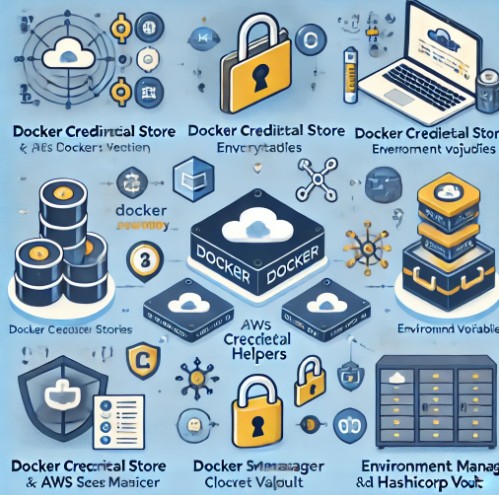
How to Store Your Docker Registry Credentials

Introduction

Docker registries play a crucial role in containerized application development by allowing developers to store and share container images. However, securely managing credentials to authenticate against these registries is essential to avoid unauthorized access and potential security breaches.

In this guide, we will explore different methods for securely storing Docker registry credentials. We will cover built-in authentication mechanisms, best security practices, and advanced configurations for enhanced protection.

Understanding Docker Authentication

Before diving into storing credentials, it’s important to understand how Docker handles authentication.

Docker Login Command

Docker provides the docker login command to authenticate against registries:

docker login myregistry.com -u myusername -p mypassword

However, using plaintext credentials in the terminal can expose sensitive information. Thus, more secure alternatives should be considered.

Docker Config File

Upon successful authentication, Docker stores credentials in a configuration file located at:

  • Linux/macOS:
    • ~/.docker/config.json
  • Windows:
    • %USERPROFILE%\.docker\config.json

Methods for Storing Docker Registry Credentials

1. Using the Docker Credential Store

Docker provides credential store helpers to store credentials securely rather than saving them in plaintext.

Enabling Docker Credential Store

1.Install a credential helper based on your operating system:

Linux/macOS: Install docker-credential-pass or docker-credential-secretservice.

Windows: Use docker-credential-wincred.

2.Configure Docker to use the credential store:

{
  "credsStore": "os-specific-helper"
}

    2. Using Docker Credential Helpers

    Docker credential helpers offer an additional layer of security by encrypting and storing credentials externally.

    Steps to Use a Credential Helper

    Install the appropriate credential helper (e.g., docker-credential-pass).

    Configure Docker to use it by adding:

    {
      "credHelpers": {
        "myregistry.com": "pass"
      }
    }

    Execute docker login to store credentials using the configured helper.

    3. Storing Credentials in Environment Variables

    For temporary authentication without storing credentials on disk, use environment variables:

    export DOCKER_USERNAME=myusername
    export DOCKER_PASSWORD=mypassword

    Then log in using:

    echo $DOCKER_PASSWORD | docker login myregistry.com -u $DOCKER_USERNAME --password-stdin

    Pros: No credentials stored on disk. Cons: Credentials remain in memory and shell history.

    4. Using AWS Secrets Manager or Vault

    For enterprise environments, use secure secret management tools like AWS Secrets Manager or HashiCorp Vault.

    Example: Using AWS Secrets Manager

    1.Store credentials:

    aws secretsmanager create-secret --name dockerRegistryCreds --secret-string '{"username":"myusername", "password":"mypassword"}'

    2.Retrieve credentials dynamically:

    aws secretsmanager get-secret-value --secret-id dockerRegistryCreds --query SecretString --output text | jq -r '.password' | docker login myregistry.com -u myusername --password-stdin

    Example: Securing Docker Registry Credentials in CI/CD

    In a CI/CD pipeline, avoid storing credentials in source code. Instead:

    • Use environment variables in GitHub Actions, GitLab CI/CD, or Jenkins.
    • Fetch credentials dynamically from a secret manager.
    • Use docker login with --password-stdin to prevent exposure in logs.

    FAQs

    1. Where does Docker store registry credentials by default?

    Docker stores credentials in ~/.docker/config.json, unless configured to use a credential helper.

    2. How can I remove stored Docker credentials?

    Use docker logout:

    docker logout myregistry.com

    Or manually edit ~/.docker/config.json.

    3. Are Docker credential helpers more secure than config.json?

    Yes. Credential helpers store credentials encrypted and prevent plaintext storage.

    4. Can I use multiple credential stores for different registries?

    Yes. Use credHelpers in config.json to specify different helpers per registry.

    5. How do I avoid exposing Docker credentials in CI/CD logs?

    Use --password-stdin and environment variables instead of inline passwords.

    External Resources

    Conclusion

    Storing Docker registry credentials securely is critical for protecting sensitive data and maintaining best practices in DevOps workflows. By using Docker’s built-in credential store, environment variables, or external secret management tools, you can enhance security while ensuring seamless authentication in your projects.

    Following the best practices outlined in this guide will help you manage Docker credentials effectively, reduce security risks, and streamline containerized workflows.Thank you for reading the DevopsRoles page!

    Docker Compose Volumes: A Comprehensive Guide

    Introduction

    Docker Compose has revolutionized containerized application management by simplifying multi-container setups. Among its many features, volumes stand out as an essential mechanism for managing persistent data in Docker containers. Whether you are running databases, handling logs, or managing user uploads, Docker Compose volumes ensure data consistency and ease of access across containers. This guide dives deep into using Docker Compose volumes, providing practical examples, best practices, and solutions to common challenges.

    What Are Docker Compose Volumes?

    Docker Compose volumes are storage spaces external to containers, used for persisting data even after containers are stopped or restarted. They enable data sharing between multiple containers and maintain data integrity over the lifecycle of an application. By using volumes, you can:

    • Decouple data storage from application logic.
    • Avoid data loss during container restarts.
    • Share data seamlessly between containers.

    Key Benefits of Docker Compose Volumes

    • Data Persistence: Volumes ensure data remains intact even after container recreation.
    • Performance: Native volume drivers offer superior performance over bind mounts.
    • Flexibility: Support for multiple volume types, including local and remote storage.

    Getting Started with Docker Compose Volumes

    Basic Syntax

    Volumes in Docker Compose are defined under the volumes key in the docker-compose.yml file. Here’s the general syntax:

    version: '3.9'
    services:
      service_name:
        image: image_name
        volumes:
          - volume_name:/path/in/container
    volumes:
      volume_name:
        driver: local

    Example 1: Simple Volume Usage

    Let’s start with a basic example where a volume is used to store database data.

    version: '3.9'
    services:
      database:
        image: mysql:latest
        environment:
          MYSQL_ROOT_PASSWORD: example
        volumes:
          - db_data:/var/lib/mysql
    volumes:
      db_data:
        driver: local

    Explanation:

    • The db_data volume is mounted to /var/lib/mysql in the database container.
    • Data stored in the database persists even after the container stops.

    Example 2: Sharing Data Between Containers

    version: '3.9'
    services:
      app:
        image: my-app:latest
        volumes:
          - shared_data:/app/data
      worker:
        image: my-worker:latest
        volumes:
          - shared_data:/worker/data
    volumes:
      shared_data:
        driver: local

    Explanation:

    • Both app and worker services share the shared_data volume.
    • This setup allows seamless data exchange between the two containers.

    Example 3: Bind Mounts for Local Development

    Bind mounts are ideal for local development, where changes to files need immediate reflection in containers.

    version: '3.9'
    services:
      web:
        image: nginx:latest
        volumes:
          - ./html:/usr/share/nginx/html

    Explanation:

    • The ./html directory on the host is mounted to /usr/share/nginx/html in the container.
    • Any updates to files in ./html are instantly visible in the container.

    Advanced Scenarios with Docker Compose Volumes

    Using Named Volumes with Custom Drivers

    version: '3.9'
    services:
      data_service:
        image: data-image:latest
        volumes:
          - custom_volume:/data
    volumes:
      custom_volume:
        driver: local
        driver_opts:
          type: none
          o: bind
          device: /path/to/custom/dir

    Explanation:

    • The custom_volume is configured with specific driver options to use a custom directory on the host.
    • Offers greater control over volume behavior.

    Managing Volume Lifecycle

    • Create Volumes:
      • docker volume create volume_name
    • List Volumes:
      • docker volume ls
    • Inspect Volumes:
      • docker volume inspect volume_name
    • Remove Volumes:
      • docker volume rm volume_name

    Best Practices for Using Docker Compose Volumes

    • Use Named Volumes for Persistent Data: Provides better management and reusability.
    • Avoid Sensitive Data in Bind Mounts: Secure sensitive information using encrypted volumes or environment variables.
    • Regularly Backup Volume Data: Use tools like tar or specialized backup solutions.

    FAQ: Docker Compose Volumes

    What is the difference between volumes and bind mounts?

    • Volumes: Managed by Docker, offer better performance and security.
    • Bind Mounts: Directly map host directories, suitable for development environments.

    Can I use Docker Compose volumes with cloud storage?

    Yes, volumes can be configured to use cloud storage backends like AWS, Azure, or Google Cloud using plugins.

    How do I clean up unused volumes?

    Use the following command:

    docker volume prune

    Can I change the volume driver after creation?

    No, you must recreate the volume to change its driver.

    External Resources

    Conclusion

    Docker Compose volumes are indispensable for managing persistent data in containerized applications. From simple data storage to complex multi-container setups, volumes provide a robust and flexible solution. By understanding their usage and following best practices, you can enhance your Docker workflows and ensure data reliability across your applications. Start implementing Docker Compose volumes today and unlock the full potential of containerization! Thank you for reading the DevopsRoles page!

    Docker Volumes: A Comprehensive Guide to Managing Persistent Storage

    Introduction

    In the world of containerized applications, managing data is crucial. While containers are ephemeral by design, certain applications require persistent storage to retain data across container restarts. This is where Docker volumes come into play. Docker volumes offer an efficient and scalable way to manage data in Docker containers. In this guide, we’ll explore what Docker volumes are, why they’re important, and how you can use them to optimize your Docker workflows.

    What Are Docker Volumes?

    Docker volumes are a type of storage used to persist data generated by and used by Docker containers. Unlike bind mounts, volumes are fully managed by Docker and are the preferred mechanism for persisting data in Dockerized environments.

    Key Features of Docker Volumes

    • Persistence: Data stored in volumes remains intact even if the container is deleted.
    • Portability: Volumes can be easily shared between containers or moved across environments.
    • Managed by Docker: Docker handles the complexity of volume creation and management, providing a seamless experience.
    • Performance: Optimized for container workloads, volumes often outperform traditional file system mounts.

    Why Use Docker Volumes?

    Volumes provide several advantages, making them a go-to solution for managing persistent data in containers. Here are some key reasons to use Docker volumes:

    1. Data Persistence: Applications like databases need to retain data even after container restarts or failures.
    2. Isolation: Volumes isolate container data from the host file system, reducing the risk of accidental modification.
    3. Ease of Backup: Volumes can be easily backed up or restored, simplifying disaster recovery.
    4. Multi-Container Sharing: Multiple containers can access the same volume, enabling data sharing and collaboration.

    Types of Docker Volumes

    Docker supports several types of volumes:

    1. Anonymous Volumes

    • Created when a container runs without specifying a named volume.
    • Automatically deleted when the container is removed unless explicitly retained.

    2. Named Volumes

    • Explicitly created and managed by users.
    • Provide better control and are recommended for production workloads.

    3. Host Volumes

    • Link a directory on the host machine to a container.
    • Offer flexibility but may compromise portability and security.

    How to Use Docker Volumes

    Let’s dive into practical examples of using Docker volumes to manage persistent storage.

    Creating and Managing Volumes

    1. Create a Volume

    Use the docker volume create command to create a named volume:

    docker volume create my_volume

    2. List Volumes

    View all available volumes with:

    docker volume ls

    3. Inspect a Volume

    Get detailed information about a volume:

    docker volume inspect my_volume

    4. Remove a Volume

    Delete an unused volume:

    docker volume rm my_volume

    Using Volumes in Containers

    1. Mounting a Volume

    Mount a volume when starting a container:

    docker run -d \
      --name my_container \
      -v my_volume:/app/data \
      my_image

    In this example, the volume my_volume is mounted to /app/data inside the container.

    2. Sharing Volumes Between Containers

    Share a volume between multiple containers:

    docker run -d \
      --name container1 \
      -v shared_volume:/data \
      my_image
    
    docker run -d \
      --name container2 \
      -v shared_volume:/data \
      my_image

    Both containers can now access the same data through the shared_volume.

    3. Using Read-Only Volumes

    Mount a volume in read-only mode:

    docker run -d \
      --name my_container \
      -v my_volume:/app/data:ro \
      my_image

    This ensures that the container can only read data from the volume.

    Backing Up and Restoring Volumes

    1. Backup a Volume

    Export a volume to a tar archive:

    docker run --rm \
      -v my_volume:/volume \
      -v $(pwd):/backup \
      alpine tar -czf /backup/volume_backup.tar.gz -C /volume .

    2. Restore a Volume

    Import data from a tar archive:

    docker run --rm \
      -v my_volume:/volume \
      -v $(pwd):/backup \
      alpine tar -xzf /backup/volume_backup.tar.gz -C /volume

    Best Practices for Using Docker Volumes

    1. Use Named Volumes: Named volumes are easier to manage and provide better control.
    2. Monitor Volume Usage: Regularly inspect volumes to identify unused or orphaned volumes.
    3. Implement Backups: Always back up important volumes to prevent data loss.
    4. Use Volume Drivers: Leverage volume drivers for advanced use cases like cloud storage or encryption.

    Frequently Asked Questions

    What is the difference between Docker volumes and bind mounts?

    • Volumes: Managed by Docker, portable, and optimized for container use.
    • Bind Mounts: Directly link host directories to containers, offering flexibility but less security.

    Can volumes be shared between Docker Compose services?

    Yes, volumes can be shared by defining them in the volumes section of a Docker Compose file:

    version: '3.8'
    services:
      app:
        image: my_app_image
        volumes:
          - shared_data:/data
    
    volumes:
      shared_data:

    How do I clean up unused volumes?

    Remove all unused volumes with:

    docker volume prune

    Are Docker volumes secure?

    Docker volumes offer a secure mechanism for managing data, especially when combined with volume drivers that support encryption and access controls.

    External Resources

    Conclusion

    Docker volumes are a powerful tool for managing persistent storage in containerized applications. Whether you’re developing a small project or deploying a large-scale application, understanding and leveraging Docker volumes can significantly enhance your workflows. Start exploring Docker volumes today and take your container management to the next level. Thank you for reading the DevopsRoles page!
    Monitoring DevOps Pipelines with Grafana

    Introduction

    In today’s fast-paced development environments, monitoring DevOps pipelines has become a critical component of maintaining operational efficiency and ensuring the successful deployment of applications. Grafana, a leading open-source analytics and monitoring solution, provides developers and operations teams with powerful tools to visualize and monitor their DevOps workflows. By integrating Grafana with your pipeline, you can track key metrics, identify bottlenecks, and enhance overall performance.

    This guide will take you through the essentials of monitoring DevOps pipelines with Grafana, from setup to advanced use cases, ensuring you maximize its capabilities.

    Why Monitor DevOps Pipelines?

    Benefits of Monitoring

    • Improved Workflow Visibility: Gain real-time insights into every stage of the pipeline.
    • Early Issue Detection: Identify and resolve errors before they escalate.
    • Optimized Resource Usage: Track and manage resources efficiently.
    • Enhanced Team Collaboration: Enable data-driven decision-making across teams.

    Setting Up Grafana for DevOps Pipelines

    Prerequisites

    Before diving into monitoring, ensure the following:

    • A running instance of Grafana.
    • Access to pipeline data sources (e.g., Prometheus, Elasticsearch, or InfluxDB).
    • Administrator privileges for configuration.

    Installation and Configuration

    1. Install Grafana:
    2. Connect Data Sources:
      • Navigate to Configuration > Data Sources in Grafana.
      • Add a new data source and configure it based on your pipeline tool (e.g., Jenkins, GitLab CI/CD).
    3. Create a Dashboard:
      • Go to Create > Dashboard and start adding panels.
      • Select metrics relevant to your pipeline stages, such as build time, deployment frequency, and error rates.

    Key Metrics to Monitor

    Build and Deployment Metrics

    • Build Time: Measure the duration of builds to identify performance issues.
    • Deployment Frequency: Track how often changes are deployed to production.

    Pipeline Health Metrics

    • Error Rate: Monitor the frequency of failed builds or stages.
    • Pipeline Duration: Evaluate the time taken from code commit to deployment.

    Resource Utilization Metrics

    • CPU and Memory Usage: Ensure your CI/CD servers are not overloaded.
    • Disk Usage: Monitor storage used by artifacts and logs.

    Building Dashboards in Grafana

    Step-by-Step Example

    1. Create a New Panel:
      • Click on Add new panel in your dashboard.
      • Choose a data source (e.g., Prometheus).
    2. Select a Query:
      • Example for monitoring build times:
      • sum(rate(jenkins_build_duration_seconds[5m]))
    3. Customize Visualizations:
      • Use line charts for trends or bar graphs for comparisons.
      • Add thresholds to highlight critical values.
    4. Add Alerts:
      • Navigate to the Alert tab in your panel editor.
      • Define conditions such as:
        • Trigger an alert if build time exceeds 10 minutes.
    5. Save and Share:
      • Save your dashboard and share it with your team for collaborative monitoring.

    Advanced Monitoring Use Cases

    Monitoring Across Multiple Pipelines

    • Use tags to filter metrics from different projects.
    • Create a unified dashboard to compare performance across pipelines.

    Correlating Pipeline Metrics with Application Performance

    • Integrate Grafana with APM tools like New Relic or Dynatrace.
    • Correlate deployment events with spikes in application latency.

    Automating Alerts and Notifications

    • Configure alerts to notify your team via Slack or email.
    • Use Grafana’s API to automate incident management workflows.

    Frequently Asked Questions (FAQ)

    1. What are the benefits of using Grafana over other tools?

    Grafana’s flexibility, open-source nature, and extensive plugin ecosystem make it a preferred choice for monitoring diverse systems and pipelines.

    2. Can Grafana integrate with my existing CI/CD tools?

    Yes, Grafana supports integrations with Jenkins, GitLab, CircleCI, and other popular CI/CD platforms through data sources and plugins.

    3. How do I troubleshoot pipeline monitoring issues in Grafana?

    Ensure data sources are correctly configured and accessible. Use the Query Inspector to debug data fetching issues.

    4. Is Grafana free to use?

    Grafana offers both a free open-source version and a paid enterprise edition with additional features.

    External Resources

    Conclusion

    Monitoring DevOps pipelines with Grafana empowers teams to achieve greater efficiency, reliability, and transparency in their workflows. From tracking build times to analyzing resource utilization, Grafana offers unparalleled capabilities for visualizing and optimizing DevOps processes. Start integrating Grafana into your DevOps pipeline today and take the first step toward a more resilient and informed development cycle.Thank you for reading the DevopsRoles page!

    Best Practices for manage docker images

    Introduction

    Docker has revolutionized the way developers build, ship, and run applications by leveraging containerization. At the heart of this system are Docker images, which serve as the blueprints for containers. Manage Docker images effectively is essential to ensure efficient workflows, save storage space, and enhance security. In this article, we explore best practices for managing Docker images, from basic steps to advanced strategies, enabling you to maintain a streamlined and secure container environment.

    Why Proper Management of Docker Images Matters

    Efficient Docker image management is crucial for:

    • Optimized Resource Usage: Minimizing disk space and network bandwidth.
    • Enhanced Security: Reducing vulnerabilities through regular updates.
    • Operational Efficiency: Simplifying CI/CD pipelines and deployment.
    • Cost Savings: Lowering cloud storage and infrastructure costs.

    Best Practices for Manage Docker Images

    1. Use Minimal Base Images

    Why It Matters:

    Base images form the foundation of Docker images. Choosing minimal base images ensures smaller image sizes and reduced attack surfaces.

    Examples:

    • Use alpine instead of larger images like ubuntu:
      • FROM alpine:latest
    • Prefer official and verified images from trusted sources.

    2. Tag Images Properly

    Why It Matters:

    Consistent and meaningful tagging simplifies version management and rollback.

    Best Practices:

    • Use semantic versioning (1.0, 1.0.1) for production images.
    • Include descriptive tags such as stable, beta, or dev.
    • Avoid using the latest tag for critical deployments.

    3. Optimize Image Size

    Why It Matters:

    Smaller images reduce build times and network transfer overheads.

    Techniques:

    Why It Matters:

    Smaller images reduce build times and network transfer overheads.

    Techniques:

    • Multistage Builds: Separate build and runtime dependencies.
    # Stage 1: Build
    FROM golang:1.19 AS builder
    WORKDIR /app
    COPY . .
    RUN go build -o myapp
    
    # Stage 2: Runtime
    FROM alpine:latest
    WORKDIR /app
    COPY --from=builder /app/myapp .
    CMD ["./myapp"]
    • Remove unnecessary files using .dockerignore.

    4. Regularly Update and Remove Unused Images

    Why It Matters:

    Outdated images can harbor vulnerabilities and consume storage.

    Steps:

    • List images:
      • docker images
    • Remove unused images:
      • docker image prune
    • Schedule updates for images:
      • docker pull <image_name>

    5. Implement Security Best Practices

    Why It Matters:

    Secure images reduce risks of exploitation and data breaches.

    Guidelines:

    • Scan images for vulnerabilities using tools like Trivy or Docker Scan:
      • docker scan <image_name>
    • Avoid embedding sensitive information (e.g., API keys) in images.
    • Leverage signed images with Docker Content Trust (DCT).

    6. Automate Image Management in CI/CD Pipelines

    Why It Matters:

    Automation ensures consistent builds and reduces manual intervention.

    Workflow:

    • Use tools like Jenkins, GitHub Actions, or GitLab CI to automate builds.
    • Push images to registries programmatically:
      • docker build -t myapp:1.0 .
      • docker push myregistry/myapp:1.0

    Frequently Asked Questions (FAQs)

    1. What is the best base image to use?

    Minimal base images like alpine or debian-slim are generally recommended for production.

    2. How do I scan Docker images for vulnerabilities?

    Use tools like Docker Scan, Trivy, or Aqua Security to identify and resolve vulnerabilities.

    3. Can I automate the removal of unused images?

    Yes, schedule docker image prune commands in cron jobs or CI/CD pipelines.

    4. What are multistage builds?

    Multistage builds separate build dependencies from runtime, resulting in smaller, optimized images.

    External Links

    Conclusion

    Managing Docker images effectively is a cornerstone of modern containerized workflows. By adhering to best practices such as using minimal base images, optimizing size, ensuring security, and automating processes, you can streamline operations while mitigating risks. Start implementing these strategies today to maintain a robust and efficient container ecosystem. Thank you for reading the DevopsRoles page!

    Docker Optimization: A Comprehensive Guide to Boost Your Container Performance

    Introduction

    Docker has revolutionized the way we develop, deploy, and manage applications by enabling lightweight, portable containers. However, without proper optimization, Docker containers can consume excessive resources, degrade performance, and increase operational costs. In this comprehensive guide, we’ll explore strategies, tips, and practical examples to achieve effective Docker optimization.

    Why Docker Optimization Matters

    Optimizing Docker containers is crucial for:

    • Enhanced Performance: Reduced latency and improved response times.
    • Lower Resource Usage: Efficient utilization of CPU, memory, and storage.
    • Cost Savings: Minimized infrastructure expenses.
    • Scalability: Seamless scaling of applications to meet demand.
    • Stability: Prevention of resource contention and crashes.

    Let’s dive into practical methods to optimize Docker containers.

    Key Strategies for Docker Optimization

    1. Optimize Docker Images

    Docker images are the building blocks of containers. Reducing their size can significantly improve performance.

    Techniques to Optimize Docker Images:

    Use Minimal Base Images: Choose lightweight base images like alpine instead of ubuntu.

    FROM alpine:latest

    Multi-Stage Builds: Separate build and runtime stages to eliminate unnecessary files.

    # Stage 1: Build
    FROM golang:1.18 AS builder
    WORKDIR /app
    COPY . .
    RUN go build -o main .
    
    # Stage 2: Runtime
    FROM alpine:latest
    WORKDIR /app
    COPY --from=builder /app/main .
    CMD ["./main"]

    Clean Up Temporary Files: Remove unused files and dependencies during image creation.

    RUN apt-get update && apt-get install -y curl && rm -rf /var/lib/apt/lists/*

    2. Efficient Container Management

    Managing containers effectively ensures optimal resource allocation.

    Best Practices:

    • Limit Resources: Set resource limits to prevent containers from monopolizing CPU or memory.
      • docker run --memory="512m" --cpus="1.5" my-container
    • Remove Unused Containers: Regularly clean up stopped containers and unused images.
      • docker system prune -a
    • Use Shared Volumes: Avoid duplicating data by leveraging Docker volumes.
      • docker run -v /data:/app/data my-container

    3. Optimize Networking

    Efficient networking ensures faster communication between containers and external services.

    Tips:

    • Use Bridge Networks: For isolated container groups.
    • Enable Host Networking: For containers requiring minimal latency.
      • docker run --network host my-container
    • Reduce DNS Lookups: Cache DNS results within containers to improve resolution times.

    4. Monitor and Analyze Performance

    Monitoring tools help identify bottlenecks and optimize container performance.

    Recommended Tools:

    • Docker Stats: In-built command to monitor resource usage.
      • docker stats
    • cAdvisor: Detailed container metrics visualization.
      • docker run -d --volume=/:/rootfs:ro --volume=/var/run:/var/run:rw --volume=/sys:/sys:ro --volume=/var/lib/docker/:/var/lib/docker:ro --publish=8080:8080 google/cadvisor
    • Prometheus and Grafana: Advanced monitoring and dashboarding solutions.

    5. Automate Optimization

    Automating repetitive tasks improves consistency and reduces manual errors.

    Examples:

    • Use Docker Compose: Automate multi-container deployments.
    version: '3.8'
    services:
      web:
        image: nginx:latest
        ports:
          - "80:80"
      app:
        image: my-app:latest
        depends_on:
          - web
    • CI/CD Integration: Use pipelines to automate image building, testing, and deployment.

    Examples of Docker Optimization in Action

    Example 1: Reducing Image Size

    Before Optimization:

    FROM ubuntu:latest
    RUN apt-get update && apt-get install -y python3
    COPY . /app
    CMD ["python3", "app.py"]

    After Optimization:

    FROM python:3.9-slim
    COPY . /app
    CMD ["python", "app.py"]

    Example 2: Limiting Resources

    Command:

    docker run --memory="256m" --cpus="1" optimized-container

    FAQ: Docker Optimization

    1. What is Docker optimization?

    Docker optimization involves improving container performance, reducing resource usage, and enhancing scalability through best practices and tools.

    2. How can I reduce Docker image size?

    Use minimal base images, multi-stage builds, and clean up unnecessary files during the build process.

    3. What tools are available for monitoring Docker performance?

    Popular tools include Docker Stats, cAdvisor, Prometheus, and Grafana.

    4. Why set resource limits for containers?

    Setting resource limits prevents a single container from overusing resources, ensuring stability for other applications.

    5. Can automation improve Docker optimization?

    Yes, automating tasks like image building, testing, and deployment ensures consistency and saves time.

    External Resources

    Conclusion

    Docker optimization is essential for ensuring efficient, cost-effective, and scalable containerized applications. By applying the strategies outlined in this guide—from optimizing images and managing containers to monitoring performance and automating processes—you can unlock the full potential of Docker in your development and production environments.

    Start optimizing your Docker containers today and experience the difference in performance and efficiency. Thank you for reading the DevopsRoles page!

    Docker Compose Multiple Networks: A Comprehensive Guide

    Introduction

    Docker Compose has revolutionized the way developers manage multi-container applications by simplifying deployment and orchestration. A critical aspect of using Docker Compose is networking. By utilizing multiple networks in your Docker Compose setup, you can improve security, enhance communication between services, and fine-tune resource accessibility. In this guide, we’ll explore how to use Docker Compose multiple networks, complete with practical examples and a detailed FAQ section.

    Understanding Docker Networks

    What Are Docker Networks?

    Docker networks allow containers to communicate with each other and with external systems. Docker offers several types of networks:

    • Bridge Network: The default network type for standalone containers.
    • Host Network: Bypasses Docker’s network stack and uses the host’s network.
    • Overlay Network: Used for multi-host communication in a Docker Swarm cluster.
    • None Network: Containers are isolated from any network.

    In Docker Compose, you can define custom networks, making it easier to manage container communication.

    Why Use Multiple Networks in Docker Compose?

    • Enhanced Security: Isolate services to reduce the attack surface.
    • Improved Scalability: Organize services across multiple networks to optimize performance.
    • Better Management: Separate internal and external services for streamlined maintenance.

    Setting Up Multiple Networks in Docker Compose

    Basic Network Configuration

    Docker Compose allows you to define networks in the docker-compose.yml file. Here’s a basic example:

    docker-compose.yml
    version: '3.8'
    
    services:
      web:
        image: nginx
        networks:
          - frontend
    
      app:
        image: my-app-image
        networks:
          - frontend
          - backend
    
      database:
        image: mysql
        networks:
          - backend
    
    networks:
      frontend:
      backend:

    In this example:

    • The web service connects to the frontend network.
    • The app service connects to both frontend and backend networks.
    • The database service connects to the backend network only.

    Advanced Network Configuration

    For more complex setups, you can customize network settings. Here’s an advanced configuration example:

    version: '3.8'
    
    services:
      web:
        image: nginx
        networks:
          frontend:
            ipv4_address: 192.168.1.10
    
      app:
        image: my-app-image
        networks:
          frontend:
            aliases:
              - my-app.local
          backend:
            ipv4_address: 192.168.2.10
    
    networks:
      frontend:
        driver: bridge
        ipam:
          config:
            - subnet: 192.168.1.0/24
      backend:
        driver: bridge
        ipam:
          config:
            - subnet: 192.168.2.0/24

    In this setup:

    • Custom IP addresses are assigned to services.
    • Aliases are used for easier service discovery.

    Practical Examples

    Example 1: Isolating Frontend and Backend Services

    version: '3.8'
    
    services:
      frontend:
        image: react-app
        networks:
          - frontend
    
      backend:
        image: node-api
        networks:
          - backend
    
    networks:
      frontend:
      backend:

    In this example:

    • The frontend and backend services are isolated on separate networks.
    • They can only communicate through predefined rules.

    Example 2: Using External Networks

    version: '3.8'
    
    services:
      app:
        image: my-app-image
        networks:
          - existing-network
    
    networks:
      existing-network:
        external: true

    This configuration connects the app service to an external Docker network.

    Managing Docker Compose Networks

    Listing Networks

    To list all networks created by Docker Compose:

    docker network ls

    Inspecting a Network

    To get detailed information about a specific network:

    docker network inspect <network_name>

    Removing a Network

    To remove unused networks:

    docker network prune

    Common Issues and Troubleshooting

    1. Network Conflicts

    If you encounter network conflicts, ensure your subnets do not overlap.

    2. Service Communication Issues

    Make sure the services are connected to the correct networks and use service names for communication.

    FAQ Section

    Q1: Can I connect a container to multiple networks?

    Yes, you can connect a container to multiple networks in Docker Compose by listing them under the networks section of the service.

    Q2: How do I create an external network?

    You can create an external network using the docker network create command and then reference it in your docker-compose.yml file.

    Q3: Can I assign static IP addresses to containers?

    Yes, you can assign static IP addresses by configuring the ipam settings in the networks section.

    External Resources

    Conclusion

    Using multiple networks in Docker Compose can significantly enhance your containerized applications’ security, scalability, and maintainability. By following the examples and best practices outlined in this guide, you’ll be well-equipped to handle complex networking configurations in your Docker projects. Thank you for reading the DevopsRoles page!

    Dockerfile Best Practices: A Comprehensive Guide to Efficient Containerization

    Introduction: Understanding Dockerfile Best Practices

    Docker is a powerful tool that has revolutionized the way developers build, ship, and run applications. At the core of Docker’s success is the Dockerfile-a script that contains a series of instructions on how to build a Docker image. Dockerfiles enable developers to automate the process of containerizing applications, ensuring consistency across environments, and reducing the complexities of deployment.

    However, creating efficient and optimized Dockerfiles is crucial to maintain performance, reduce image size, and simplify maintenance. This article explores Dockerfile best practices that will help you write cleaner, more efficient, and production-ready Dockerfiles. Whether you’re a beginner or an experienced developer, following these practices will improve your Docker workflows.

    Dockerfile Best Practices: Key Principles

    1. Start with a Minimal Base Image

    Why It Matters

    Choosing the right base image is one of the most important decisions when writing a Dockerfile. A smaller base image leads to smaller Docker images, which means faster builds, less disk space consumption, and quicker deployments.

    Best Practice

    Start with minimal images like alpine (which is based on Alpine Linux) or debian:slim for lightweight applications. Only add dependencies that are absolutely necessary for your application to run.

    FROM node:16-alpine
    

    By using alpine, you benefit from a small image size (around 5 MB), which speeds up your build time and reduces security risks.

    2. Leverage Multi-Stage Builds

    Why It Matters

    Multi-stage builds help reduce the final image size by allowing you to separate the build and runtime environments. This is particularly useful when your application requires build tools or development dependencies that aren’t necessary for production.

    Best Practice

    Use one stage to build your application and another to create the production-ready image. Here’s an example of a multi-stage Dockerfile for a Node.js application:

    # Build stage
    FROM node:16-alpine AS build
    
    WORKDIR /app
    COPY . .
    RUN npm install
    RUN npm run build
    
    # Production stage
    FROM node:16-alpine
    
    WORKDIR /app
    COPY --from=build /app/build /app
    RUN npm install --only=production
    
    CMD ["npm", "start"]
    

    This approach helps ensure that your final image only contains what’s necessary for running the application, not the build tools.

    3. Minimize the Number of Layers

    Why It Matters

    Each Dockerfile instruction (e.g., RUN, COPY, ADD) creates a new layer in the Docker image. Too many layers can lead to slower builds and larger images. Combining related commands into a single RUN statement can help reduce the number of layers.

    Best Practice

    Use the && operator to chain multiple commands into one RUN statement. For example:

    RUN apt-get update && apt-get install -y \
        curl \
        git \
        vim
    

    This minimizes the number of layers and reduces the overall image size.

    4. Avoid Installing Unnecessary Packages

    Why It Matters

    Every package you install adds to the image size and can potentially introduce security vulnerabilities. It’s essential to keep your images lean by installing only the necessary dependencies.

    Best Practice

    Audit your dependencies and make sure you’re only installing what’s required. For example, when installing build dependencies, do so temporarily in a separate build stage, and remove them in the final stage.

    FROM python:3.9-slim AS build
    WORKDIR /app
    COPY . .
    RUN apt-get update && apt-get install -y build-essential && pip install -r requirements.txt
    
    # Production stage: removing build dependencies
    FROM python:3.9-slim
    COPY --from=build /app /app
    RUN apt-get remove --purge -y build-essential
    

    This practice ensures that you’re not carrying around unnecessary build tools in the final image.

    5. Use .dockerignore Files

    Why It Matters

    A .dockerignore file helps prevent unnecessary files from being added to the Docker image, which can drastically reduce the build time and image size. For example, you might want to exclude .git directories, test files, or documentation.

    Best Practice

    Create a .dockerignore file to specify which files and directories should not be included in the build context. A typical .dockerignore might look like this:

    .git
    node_modules
    *.log
    Dockerfile*
    

    This file ensures that irrelevant files don’t get added to the image, speeding up the build process and improving the image size.

    6. Optimize Caching and Layer Reusability

    Why It Matters

    Docker caches layers during builds, so if a layer hasn’t changed, Docker can reuse it in subsequent builds. This can dramatically speed up the build process. It’s essential to structure your Dockerfile in a way that maximizes the use of cache.

    Best Practice

    Place instructions that are least likely to change at the top of the Dockerfile. For example, dependencies like apt-get install or npm install should appear before copying the source code to make use of caching efficiently.

    # Add dependencies first for caching benefits
    FROM node:16-alpine
    WORKDIR /app
    COPY package.json package-lock.json ./
    RUN npm install
    
    # Then add the rest of the application files
    COPY . .
    

    This ensures that dependencies are installed only if the package.json or package-lock.json changes, not every time you change a single line of code.

    Examples of Dockerfile Best Practices in Action

    Example 1: Optimizing a Python Application

    Here’s an example of an optimized Dockerfile for a Python application using best practices:

    # Build stage
    FROM python:3.9-slim AS build
    WORKDIR /app
    COPY . .
    RUN pip install --upgrade pip && pip install -r requirements.txt
    
    # Final stage
    FROM python:3.9-slim
    WORKDIR /app
    COPY --from=build /app /app
    RUN apt-get update && apt-get install -y --no-install-recommends libpq-dev && rm -rf /var/lib/apt/lists/*
    CMD ["python", "app.py"]
    

    This Dockerfile uses multi-stage builds, minimizes dependencies, and removes unnecessary package files to ensure a clean, efficient production image.

    Example 2: Optimizing a Node.js Application

    # Stage 1: Build
    FROM node:16-alpine AS build
    WORKDIR /app
    COPY package.json package-lock.json ./
    RUN npm install
    
    # Stage 2: Production
    FROM node:16-alpine
    WORKDIR /app
    COPY --from=build /app /app
    COPY . .
    CMD ["npm", "start"]
    

    This example demonstrates a simple two-stage Dockerfile, with only the essential dependencies included in the final image.

    Frequently Asked Questions (FAQ)

    What is the difference between RUN and CMD in a Dockerfile?

    • RUN: Executes commands during the build process and creates a new image layer.
    • CMD: Defines the default command to run when the container starts. If a command is provided at runtime, it overrides CMD.

    Why should I use multi-stage builds?

    Multi-stage builds allow you to separate the build environment from the production environment, reducing the size of the final image by excluding unnecessary build tools and dependencies.

    How can I optimize Docker image size?

    To optimize the image size, start with minimal base images, use multi-stage builds, combine layers where possible, and avoid unnecessary dependencies.

    Conclusion: Key Takeaways

    Writing optimized Dockerfiles is essential for building efficient and maintainable Docker images. By following Dockerfile best practices-such as using minimal base images, leveraging multi-stage builds, minimizing layers, and optimizing caching-you can create fast, secure, and lightweight containers that enhance your development workflow.

    Remember to:

    • Use small, minimal base images like alpine.
    • Leverage multi-stage builds to separate build and production environments.
    • Minimize unnecessary dependencies and layers.
    • Regularly audit your Dockerfiles for improvements.

    By adopting these best practices, you can ensure your Docker containers are efficient, fast to build, and production-ready. Thank you for reading the DevopsRoles page!
    External Resources

    Managing Docker Containers: A Complete Guide for Developers and System Administrators

    Introduction

    In today’s rapidly evolving world of software development and DevOps practices, containerization has become a cornerstone of scalable and efficient application deployment. Docker, one of the leading containerization platforms, offers powerful tools for creating, managing, and running containers. Whether you are a developer seeking to streamline your workflow or a system administrator tasked with managing production environments, understanding how to manage Docker containers is crucial.

    This guide will take you through everything you need to know about managing Docker containers, from basic operations like container creation to advanced tasks such as monitoring and troubleshooting.

    What are Docker Containers?

    Before diving into container management, it’s important to understand what Docker containers are. Docker containers are lightweight, portable, and self-sufficient environments that encapsulate an application and its dependencies, allowing it to run consistently across different computing environments. Containers package everything from libraries to binaries in a single package, ensuring the application behaves the same, regardless of where it’s deployed.

    Basic Docker Commands for Container Management

    Managing Docker containers starts with understanding the essential commands. Docker provides a wide variety of commands that allow users to create, inspect, and manage containers. Here’s a look at the basic commands you need to get started.

    1. docker run

    The docker run command is used to create and start a new container from a specified image. Here’s an example:

    docker run -d --name my-container nginx
    

    This command will run a new container in detached mode (-d) using the nginx image and name it my-container.

    2. docker ps

    The docker ps command shows all the running containers. If you want to see all containers (including those that are stopped), you can add the -a flag:

    docker ps -a
    

    This helps you monitor the status of your containers.

    3. docker stop and docker start

    Stopping and starting containers is essential for managing resources. To stop a container:

    docker stop my-container
    

    To start it again:

    docker start my-container
    

    4. docker rm and docker rmi

    When you’re done with a container or an image, you can remove them using:

    docker rm my-container  # Remove a container
    docker rmi my-image      # Remove an image
    

    Remember that removing a running container requires stopping it first.

    Starting and Stopping Docker Containers

    Managing the lifecycle of Docker containers involves starting, stopping, and restarting containers based on your needs.

    Starting Containers

    To start an existing Docker container, you can use the docker start command, followed by the container name or ID. For example:

    docker start my-container
    

    Stopping Containers

    Stopping a running container is equally simple. The docker stop command allows you to stop a container by its name or ID. For example:

    docker stop my-container
    

    You can also stop multiple containers at once by specifying their names or IDs:

    docker stop container1 container2
    

    Restarting Containers

    To restart a container, use the docker restart command:

    docker restart my-container
    

    This command is useful when you want to apply configuration changes or free up system resources.

    Monitoring and Inspecting Docker Containers

    Docker offers several commands to inspect containers and gather runtime information.

    1. docker stats

    The docker stats command provides real-time statistics about container resource usage, including CPU, memory, and network I/O. Here’s how you use it:

    docker stats
    

    This will display live statistics for all running containers.

    2. docker logs

    To view the logs of a container, you can use the docker logs command. This command retrieves logs from containers, which is vital for debugging and monitoring:

    docker logs my-container
    

    To view logs in real-time, you can use the -f option:

    docker logs -f my-container
    

    3. docker inspect

    For detailed information about a container’s configuration and metadata, use the docker inspect command:

    docker inspect my-container
    

    This will provide a JSON output with detailed information about the container’s environment, volumes, network settings, and more.

    Managing Container Storage and Volumes

    Docker containers are ephemeral, meaning their data is lost when the container is removed. To persist data, Docker provides volumes. Understanding how to manage these volumes is a key aspect of container management.

    Creating and Using Volumes

    To create a volume:

    docker volume create my-volume
    

    You can then mount the volume to a container:

    docker run -d -v my-volume:/data --name my-container nginx
    

    This mounts the my-volume volume to the /data directory inside the container.

    Inspecting Volumes

    To inspect the details of a volume:

    docker volume inspect my-volume
    

    Removing Volumes

    If a volume is no longer needed, you can remove it:

    docker volume rm my-volume
    

    Networking Docker Containers

    Docker containers can communicate with each other via networking, and understanding Docker networking is crucial for managing multi-container applications.

    1. Default Bridge Network

    By default, Docker containers use the bridge network for communication. To run a container on the default network:

    docker run -d --name my-container --network bridge nginx
    

    2. Custom Networks

    You can create custom networks to isolate groups of containers. For example:

    docker network create my-network
    docker run -d --name my-container --network my-network nginx
    

    3. Linking Containers

    While not as common with modern Docker versions, you can link containers to allow them to communicate:

    docker run -d --name container1 --link container2 my-image
    

    Advanced Docker Container Management

    For more advanced Docker management, consider these techniques:

    1. Docker Compose

    Docker Compose is a tool for defining and running multi-container Docker applications. With a simple YAML file, you can define the services, networks, and volumes required for your app. Here’s an example of a docker-compose.yml file:

    version: '3'
    services:
      web:
        image: nginx
        ports:
          - "80:80"
      db:
        image: postgres
        environment:
          POSTGRES_PASSWORD: example
    

    To start the services defined in this file:

    docker-compose up
    

    2. Docker Swarm

    Docker Swarm is a container orchestration tool that allows you to manage multiple Docker nodes and containers across a cluster. To initialize a Docker Swarm:

    docker swarm init
    

    You can then deploy services across your Swarm cluster using docker stack.

    FAQ: Common Docker Container Management Questions

    Q1: How can I force a container to stop if it’s unresponsive?

    Use the docker kill command to stop a container immediately:

    docker kill my-container
    

    This sends a SIGKILL signal to the container, forcing it to stop.

    Q2: Can I back up data in Docker volumes?

    Yes, you can back up a Docker volume by mounting it to another container and using standard backup tools. For example:

    docker run --rm -v my-volume:/data -v /backup:/backup ubuntu tar czf /backup/backup.tar.gz /data
    

    Q3: How do I update a running container?

    To update a container, you typically create a new version of the image and redeploy the container. For example:

    docker build -t my-image:v2 .
    docker stop my-container
    docker rm my-container
    docker run -d --name my-container my-image:v2
    

    Conclusion

    Managing Docker containers effectively is essential for optimizing your workflows and ensuring the smooth operation of your applications. From basic commands like docker run to advanced tools like Docker Compose and Swarm, understanding how to start, monitor, and troubleshoot containers will empower you to build and maintain highly efficient containerized environments.

    By leveraging Docker’s powerful features for container management, you can improve the scalability, portability, and maintainability of your applications, making Docker an indispensable tool in modern DevOps practices. Thank you for reading the DevopsRoles page!

    For further reading, check out the official Docker documentation for more in-depth tutorials and advanced topics.

    Introduction to Continuous Testing in DevOps: Revolutionizing the Software Development Lifecycle

    Introduction

    In today’s fast-paced software development world, Continuous Testing in DevOps has become a critical component of delivering high-quality products at speed. Traditional testing methods, which often occur at the end of the development cycle, are no longer sufficient to meet the demands of modern, agile development teams. As organizations embrace DevOps practices, continuous testing ensures that quality is maintained throughout the entire development process, from planning and coding to deployment and monitoring.

    Continuous testing (CT) in DevOps enables teams to catch defects early, reduce the time spent on debugging, and ultimately speed up the release of software. This article will explore the concept of continuous testing, its role in DevOps, and how organizations can implement it effectively to optimize their software development lifecycle.

    What is Continuous Testing in DevOps?

    Continuous Testing (CT) is an essential practice in the DevOps pipeline that involves testing software continuously throughout the development cycle. It ensures that code is constantly validated, tested, and assessed for defects as it moves from development to production. Unlike traditional testing, which often occurs at the end of the development cycle, continuous testing enables real-time feedback and faster detection of issues, making it integral to the DevOps culture.

    In DevOps, continuous testing aligns with the broader goal of shortening development cycles and improving collaboration between developers, testers, and operations teams. Automated tests are executed in parallel with the development process, allowing teams to validate new features, bug fixes, and other changes almost as soon as they are introduced.

    The Core Principles of Continuous Testing

    Continuous Testing in DevOps operates on the following key principles:

    1. Automation: Automated tests run continuously across different stages of development, ensuring faster and more efficient validation of code.
    2. Continuous Feedback: Developers receive immediate feedback on code changes, enabling them to address issues promptly.
    3. Integration with CI/CD: CT is integrated into the CI/CD (Continuous Integration/Continuous Delivery) pipeline, ensuring that testing is performed as part of the overall development process.
    4. Real-time Monitoring: Continuous monitoring helps teams detect issues early and prevent them from propagating to production environments.
    5. Scalability: As software grows in complexity, continuous testing allows organizations to scale their testing processes effectively.

    Why is Continuous Testing Important for DevOps?

    In DevOps, where speed, efficiency, and collaboration are paramount, continuous testing offers numerous advantages:

    1. Faster Time to Market: Continuous testing enables the rapid identification of bugs or issues, allowing teams to fix them quickly and deploy updates faster. This significantly shortens the time between development and production.
    2. Improved Software Quality: By testing code continuously, developers can identify defects early in the process, reducing the chances of bugs making it to production. This enhances the overall quality of the software.
    3. Enhanced Collaboration: Continuous testing promotes better collaboration between development, testing, and operations teams. Since testing is integrated into the development pipeline, teams are encouraged to work together more effectively.
    4. Reduced Cost of Bug Fixes: Catching bugs early means they are less costly to fix. Defects identified later in the development cycle or after deployment are much more expensive to address.
    5. Better Customer Experience: Faster release cycles and fewer defects lead to more reliable software, which improves the end-user experience and boosts customer satisfaction.

    How Continuous Testing Works in the DevOps Pipeline

    Continuous Testing is closely integrated with the DevOps pipeline, enabling automated tests to run at various stages of the development process. Here’s how continuous testing works within the context of DevOps:

    1. Continuous Integration (CI)

    Continuous integration is the first step in the pipeline. As developers push new code changes to the repository, automated tests are triggered to validate the changes. This ensures that any defects introduced during development are caught early.

    • Unit Tests: Test individual code components to ensure they work as expected.
    • Integration Tests: Ensure that different components of the application function together as intended.

    2. Continuous Testing

    Once code changes pass CI, the continuous testing phase begins. During this phase, tests are executed across multiple environments, including development, staging, and production, to validate functionality, performance, security, and compliance.

    • Functional Tests: Validate the functionality of features and user stories.
    • Performance Tests: Assess the system’s behavior under load or stress conditions.
    • Security Tests: Test for vulnerabilities and compliance with security standards.

    3. Continuous Delivery (CD)

    In the continuous delivery phase, code that passes all tests is automatically pushed to staging or production environments. This ensures that the software is always in a deployable state, and updates can be released without delays.

    • Smoke Tests: Verify that the basic features of the application work as expected after deployment.
    • Regression Tests: Ensure that new changes do not break existing functionality.

    Key Tools for Continuous Testing in DevOps

    To implement continuous testing effectively, DevOps teams rely on various tools to automate and streamline the process. Here are some popular tools commonly used in continuous testing:

    1. Selenium: A powerful tool for automating web application testing. Selenium supports multiple programming languages and browsers, making it a popular choice for functional testing.
    2. JUnit: A widely-used framework for unit testing Java applications. JUnit integrates well with CI/CD tools, making it ideal for continuous testing in DevOps pipelines.
    3. Jenkins: An open-source automation server that helps implement continuous integration and delivery. Jenkins can trigger automated tests as part of the CI/CD process.
    4. TestComplete: A functional test automation platform for web, desktop, and mobile applications. It enables teams to create automated tests that can be integrated with other tools in the DevOps pipeline.
    5. JUnit: A widely-used testing framework for Java applications that integrates with CI/CD tools and supports unit, integration, and regression testing.

    These tools, along with many others, enable teams to continuously test their software across multiple stages of the development process, ensuring that defects are identified and addressed early.

    Examples of Continuous Testing in Action

    1. Basic Scenario: Unit Testing in CI

    A development team is working on a new feature for a web application. As part of their workflow, they use Jenkins to trigger a suite of unit tests every time a new code commit is pushed. These tests run automatically, and if they pass, the code moves to the next phase in the pipeline. If any tests fail, the development team is immediately notified, allowing them to fix the issues before proceeding.

    2. Advanced Scenario: Automated Regression Testing in CD

    A global e-commerce platform is preparing for a major release. They use Selenium for automated regression testing across multiple browsers. Every time new code is deployed to the staging environment, Selenium tests validate that the core functionality, such as product browsing, checkout, and payment processing, still works as expected. These automated tests run in parallel with performance and security tests to ensure the application is production-ready.

    Frequently Asked Questions (FAQ)

    1. What is the difference between continuous testing and traditional testing?

    Traditional testing typically occurs after development is complete, often at the end of the development cycle. Continuous testing, on the other hand, integrates testing into the development process itself, running tests automatically as code is written, merged, and deployed.

    2. What are the main benefits of continuous testing?

    The main benefits of continuous testing include faster release cycles, improved software quality, early detection of bugs, and enhanced collaboration between development, testing, and operations teams.

    3. What tools can be used for continuous testing in DevOps?

    Popular tools for continuous testing in DevOps include Selenium, JUnit, Jenkins, TestComplete, and many more. These tools help automate testing and integrate it with the overall CI/CD pipeline.

    4. How does continuous testing improve the software development lifecycle?

    Continuous testing ensures that code is validated throughout the development cycle, which reduces the risk of defects reaching production. It also speeds up development by providing quick feedback, allowing teams to fix issues earlier in the process.

    Conclusion

    Continuous Testing in DevOps is no longer a luxury—it’s a necessity for modern software development. By integrating automated testing into every phase of the development lifecycle, organizations can ensure that they deliver high-quality software quickly and efficiently. As DevOps continues to evolve, continuous testing will remain a crucial practice for organizations aiming to achieve seamless software delivery, improve collaboration, and stay ahead in today’s competitive market. Thank you for reading the DevopsRoles page!
    For more on Continuous Testing and DevOps, visit these authoritative sources: