Category Archives: Linux

Discover DevOps roles and learn Linux from basics to advanced at DevOpsRoles.com. Detailed guides and in-depth articles to master Linux for DevOps careers.

Mastering the Power of xargs Command for your work

Introduction

xargs Command powerful tool that can revolutionize the way you handle various tasks on your system. Whether it’s processing files, executing commands in parallel, or manipulating data streams, xargs is a versatile Swiss Army knife for any Linux enthusiast.

What does the xargs command in Linux?

xargs is a great command that reads streams of data from standard input, then generates and executes command lines.

In this blog, we will explore the ins and outs of the xargs command, its practical applications, and how it can make your life as a Linux user much easier.

Syntax

xargs [options] [command]

Here are some common options used with the xargs command:

  • -n: Specifies the maximum number of items to be passed as arguments to the command.
  • -I: Allows you to specify a placeholder (usually {}) for the argument, which is replaced by each item from the input.
  • -t: Prints the command being executed before running it.
  • -p: Asks for confirmation before executing each command.
  • -r: Prevents the command from running if there is no input.
  • -a: Specifies the input file from which xargs should read the items instead of STDIN.
  • -P: Sets the maximum number of parallel processes to run at once.

xargs command Tips and Tricks

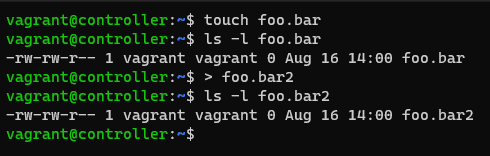
How to create multiple files with xargs command in Linux.

echo devopsrolesfile1 devopsrolesfile2 devopsrolesfile3 | xargs touch

The output terminal is below

xargs command

Creates a file with blanks in its name

echo 'my new file devopsroles' | xargs -d '\n' touch

The output terminal is below

Changes permissions on all PNG files within the /home/vagrant directory

find /home/vagrant -name "*.png" -type f | xargs chmod 640

To view the command that is run by xargs, add the -t option:

echo devopsrolesfile1 devopsrolesfile2 devopsrolesfile3 | xargs -t touch

We use find to locate files that haven’t been updated in more than four weeks and xargs to remove them.

find . -mtime +29 | xargs rm

finding and removing empty files

find . -size 0 | xargs rm
# or
find . -size 0 | xargs -I{} rm -v {}

How to count the characters in each file.

ls -Srp | grep -v '/$' | xargs -I X wc -c X

The output terminal as below

Check the most recent four logins for each currently logged-in user.

who | awk '{print $1}' | xargs -I x last -4 x

The output terminal is below

Conclusion

You have to use xargs command for your work daily. The xargs command is an indispensable tool that empowers Linux users to streamline their tasks and increase productivity.

The xargs command is a versatile tool that can greatly enhance your command-line productivity. Whether you’re processing files, running commands in parallel, or performing batch operations, xargs can simplify and automate many tasks. However, it’s important to use it with care, especially when dealing with commands that modify or delete files.

Its ability to handle large sets of data, parallelize operations, and simplify complex tasks makes it a valuable asset in any Linux user’s toolkit. I hope will this your helpful. Thank you for reading the DevopsRoles page!

How to install Ansible by using Virtualenv

Introduction

In this tutorial, How to install Ansible by using virtualenv. You can test and deploy multiple Ansible versions with virtualenv.

Remember that you’ll need to activate the virtual environment every time you want to use Ansible within it.

Why Use Virtualenv with Ansible?

Using Virtualenv to install Ansible offers several benefits:

  • Isolation: Virtualenv creates an isolated environment for Ansible, preventing conflicts with system-wide Python packages.
  • Version Control: You can easily manage Ansible versions and dependencies for different projects by creating separate Virtualenv environments.
  • Cleaner Development: Virtualenv helps keep your system Python environment clean by separating Ansible and its dependencies.

Now, let’s dive into the installation process.

My lab

  • Host OS: Windows 10
  • Vagrant Box: ubuntu
  • Install Ansible on Ubuntu

Setting up Vagrant on Ubuntu Linux

Vagrant.configure("2") do |config|
config.ssh.insert_key = false
config.vm.provider :virtualbox do |vb|
  vb.memory = 1500
  vb.cpus = 2
end
# Application server 1.
config.vm.define "ubuntu" do |ubuntu|
  ubuntu.vm.hostname = "devopsroles.com"
  ubuntu.vm.box = "bento/ubuntu-21.04"
  ubuntu.vm.network :private_network, ip: "192.168.3.7"
  ubuntu.vm.network :forwarded_port, host: 4566, guest: 4566
  ubuntu.vm.network :forwarded_port, host: 8055, guest: 8080
end
end

Start and log into the Virtual Machine

vagrant up
vagrant ssh

The output terminal is as below

How to Install Ansible by using virtualenv

To install Ansible using a virtual environment (virtualenv), you can follow these steps:

RHEL/CentOS 7

sudo yum install python3-virtualenv

Ubuntu/Debian

sudo apt-get update
sudo apt-get install python3-virtualenv

Set up virtualenv and Install Ansible

You need to create a “virtual environment” to host your local copy of Ansible.

virtualenv ansible2.9

This command creates a directory called ansible2.9 in your current working directory.

You must activate it

source ansible2.9/bin/activate

You should see the prompt change to include the virtualenv name.

(ansible2.9) $

The output terminal is as below

Let’s install Ansible

pip3 install ansible==2.9

The output terminal is as below

Conclusion

Congratulations! You’ve successfully installed Ansible using Virtualenv. This setup allows you to manage Ansible and its dependencies separately, ensuring a clean and controlled environment for your automation tasks. Activate the virtual environment whenever you need to work with Ansible and deactivate it when you’re done to keep your system Python environment tidy. I hope will this your helpful. Thank you for reading the DevopsRoles page!
List Dependencies of a Package in Ubuntu

#Introduction

In this tutorial, How to check the dependencies of the package in Ubuntu.

How to Check Package Dependencies in Ubuntu

The default package manager in Ubuntu and Debian-based distros is APT. There are several ways to get the list of Dependencies of a Package in Ubuntu

APT Package Manager

The basic syntax of the command

sudo apt depends package_name

For example, How to check dependencies for the Nginx package

sudo apt depends nginx

The output terminal is as below

Alternatively, You can use apt-cache command

To list the dependencies of a package in Ubuntu, you can use the apt-cache command. The apt-cache command provides information about packages available in the repositories.

Please note that you may need administrative privileges (e.g., using sudo) to execute apt-cache commands.

Here’s how you can list the dependencies of a package:

sudo apt-cache depends nginx

The output terminal is as below

To get additional information on a specific package

sudo apt show nginx
sudo apt-cache show nginx

Using dpkg

If you have downloaded a DEB package on your system and want to know which dependencies will be installed along with the package

sudo dpkg -I /home/vagrant/package.deb
sudo dpkg --info /home/vagrant/package.deb

List Dependencies with command other

apt-rdepends command
reverse-depends command

Get Dependency for Installation and Removal Package

To check the dependencies required by the Nginx

sudo apt install -s nginx

The output terminal is as below

vagrant@devopsroles:~$ sudo apt install -s nginx
Reading package lists... Done
Building dependency tree... Done
Reading state information... Done
The following additional packages will be installed:
  fontconfig-config fonts-dejavu-core libdeflate0 libfontconfig1 libgd3 libjbig0 libjpeg-turbo8 libjpeg8
  libnginx-mod-http-geoip2 libnginx-mod-http-image-filter libnginx-mod-http-xslt-filter libnginx-mod-mail
  libnginx-mod-stream libnginx-mod-stream-geoip2 libtiff5 libwebp6 libx11-6 libx11-data libxau6 libxcb1 libxdmcp6
  libxpm4 nginx-common nginx-core
Suggested packages:
  libgd-tools fcgiwrap nginx-doc ssl-cert
The following NEW packages will be installed:
  fontconfig-config fonts-dejavu-core libdeflate0 libfontconfig1 libgd3 libjbig0 libjpeg-turbo8 libjpeg8
  libnginx-mod-http-geoip2 libnginx-mod-http-image-filter libnginx-mod-http-xslt-filter libnginx-mod-mail
  libnginx-mod-stream libnginx-mod-stream-geoip2 libtiff5 libwebp6 libx11-6 libx11-data libxau6 libxcb1 libxdmcp6
  libxpm4 nginx nginx-common nginx-core
0 upgraded, 25 newly installed, 0 to remove and 0 not upgraded.
Inst libxau6 (1:1.0.9-1build3 Ubuntu:21.04/hirsute [amd64])
Inst libxdmcp6 (1:1.1.3-0ubuntu3 Ubuntu:21.04/hirsute [amd64])
Inst libxcb1 (1.14-3ubuntu1 Ubuntu:21.04/hirsute [amd64])
Inst libx11-data (2:1.7.0-2ubuntu0.1 Ubuntu:21.04/hirsute-updates, Ubuntu:21.04/hirsute-security [all])
Inst libx11-6 (2:1.7.0-2ubuntu0.1 Ubuntu:21.04/hirsute-updates, Ubuntu:21.04/hirsute-security [amd64])
Inst fonts-dejavu-core (2.37-2build1 Ubuntu:21.04/hirsute [all])
Inst fontconfig-config (2.13.1-4.2ubuntu3 Ubuntu:21.04/hirsute [all])
Inst libdeflate0 (1.7-1ubuntu1 Ubuntu:21.04/hirsute [amd64])
Inst libfontconfig1 (2.13.1-4.2ubuntu3 Ubuntu:21.04/hirsute [amd64])
Inst libjpeg-turbo8 (2.0.6-0ubuntu2 Ubuntu:21.04/hirsute [amd64])
Inst libjpeg8 (8c-2ubuntu8 Ubuntu:21.04/hirsute [amd64])
Inst libjbig0 (2.1-3.1build1 Ubuntu:21.04/hirsute [amd64])
Inst libwebp6 (0.6.1-2ubuntu0.21.04.1 Ubuntu:21.04/hirsute-updates, Ubuntu:21.04/hirsute-security [amd64])
Inst libtiff5 (4.2.0-1build1 Ubuntu:21.04/hirsute [amd64])
Inst libxpm4 (1:3.5.12-1 Ubuntu:21.04/hirsute [amd64])
Inst libgd3 (2.3.0-2 Ubuntu:21.04/hirsute [amd64])
Inst nginx-common (1.18.0-6ubuntu8.2 Ubuntu:21.04/hirsute-updates, Ubuntu:21.04/hirsute-security [all])
Inst libnginx-mod-http-geoip2 (1.18.0-6ubuntu8.2 Ubuntu:21.04/hirsute-updates, Ubuntu:21.04/hirsute-security [amd64])
Inst libnginx-mod-http-image-filter (1.18.0-6ubuntu8.2 Ubuntu:21.04/hirsute-updates, Ubuntu:21.04/hirsute-security [amd64])
Inst libnginx-mod-http-xslt-filter (1.18.0-6ubuntu8.2 Ubuntu:21.04/hirsute-updates, Ubuntu:21.04/hirsute-security [amd64])
Inst libnginx-mod-mail (1.18.0-6ubuntu8.2 Ubuntu:21.04/hirsute-updates, Ubuntu:21.04/hirsute-security [amd64])
Inst libnginx-mod-stream (1.18.0-6ubuntu8.2 Ubuntu:21.04/hirsute-updates, Ubuntu:21.04/hirsute-security [amd64])
Inst libnginx-mod-stream-geoip2 (1.18.0-6ubuntu8.2 Ubuntu:21.04/hirsute-updates, Ubuntu:21.04/hirsute-security [amd64])
Inst nginx-core (1.18.0-6ubuntu8.2 Ubuntu:21.04/hirsute-updates, Ubuntu:21.04/hirsute-security [amd64])
Inst nginx (1.18.0-6ubuntu8.2 Ubuntu:21.04/hirsute-updates, Ubuntu:21.04/hirsute-security [amd64])
Conf libxau6 (1:1.0.9-1build3 Ubuntu:21.04/hirsute [amd64])
Conf libxdmcp6 (1:1.1.3-0ubuntu3 Ubuntu:21.04/hirsute [amd64])
Conf libxcb1 (1.14-3ubuntu1 Ubuntu:21.04/hirsute [amd64])
Conf libx11-data (2:1.7.0-2ubuntu0.1 Ubuntu:21.04/hirsute-updates, Ubuntu:21.04/hirsute-security [all])
Conf libx11-6 (2:1.7.0-2ubuntu0.1 Ubuntu:21.04/hirsute-updates, Ubuntu:21.04/hirsute-security [amd64])
Conf fonts-dejavu-core (2.37-2build1 Ubuntu:21.04/hirsute [all])
Conf fontconfig-config (2.13.1-4.2ubuntu3 Ubuntu:21.04/hirsute [all])
Conf libdeflate0 (1.7-1ubuntu1 Ubuntu:21.04/hirsute [amd64])
Conf libfontconfig1 (2.13.1-4.2ubuntu3 Ubuntu:21.04/hirsute [amd64])
Conf libjpeg-turbo8 (2.0.6-0ubuntu2 Ubuntu:21.04/hirsute [amd64])
Conf libjpeg8 (8c-2ubuntu8 Ubuntu:21.04/hirsute [amd64])
Conf libjbig0 (2.1-3.1build1 Ubuntu:21.04/hirsute [amd64])
Conf libwebp6 (0.6.1-2ubuntu0.21.04.1 Ubuntu:21.04/hirsute-updates, Ubuntu:21.04/hirsute-security [amd64])
Conf libtiff5 (4.2.0-1build1 Ubuntu:21.04/hirsute [amd64])
Conf libxpm4 (1:3.5.12-1 Ubuntu:21.04/hirsute [amd64])
Conf libgd3 (2.3.0-2 Ubuntu:21.04/hirsute [amd64])
Conf nginx-common (1.18.0-6ubuntu8.2 Ubuntu:21.04/hirsute-updates, Ubuntu:21.04/hirsute-security [all])
Conf libnginx-mod-http-geoip2 (1.18.0-6ubuntu8.2 Ubuntu:21.04/hirsute-updates, Ubuntu:21.04/hirsute-security [amd64])
Conf libnginx-mod-http-image-filter (1.18.0-6ubuntu8.2 Ubuntu:21.04/hirsute-updates, Ubuntu:21.04/hirsute-security [amd64])
Conf libnginx-mod-http-xslt-filter (1.18.0-6ubuntu8.2 Ubuntu:21.04/hirsute-updates, Ubuntu:21.04/hirsute-security [amd64])
Conf libnginx-mod-mail (1.18.0-6ubuntu8.2 Ubuntu:21.04/hirsute-updates, Ubuntu:21.04/hirsute-security [amd64])
Conf libnginx-mod-stream (1.18.0-6ubuntu8.2 Ubuntu:21.04/hirsute-updates, Ubuntu:21.04/hirsute-security [amd64])
Conf libnginx-mod-stream-geoip2 (1.18.0-6ubuntu8.2 Ubuntu:21.04/hirsute-updates, Ubuntu:21.04/hirsute-security [amd64])
Conf nginx-core (1.18.0-6ubuntu8.2 Ubuntu:21.04/hirsute-updates, Ubuntu:21.04/hirsute-security [amd64])
Conf nginx (1.18.0-6ubuntu8.2 Ubuntu:21.04/hirsute-updates, Ubuntu:21.04/hirsute-security [amd64])

To check which additional packages will be removed with it.

sudo apt remove -s nginx

The output terminal is as below

Conclusion

You have a List of Dependencies of a Package in Ubuntu. I hope will this your helpful. Thank you for reading the DevopsRoles page!

Run a Local Shell Script on a Remote SSH Server

Introduction

In this tutorial, How to Run a Local Shell Script on a Remote SSH Server. You can pass entire scripts over SSH without having the .sh file on the remote Linux server.

To run a local shell script on a remote SSH server, you can use the ssh command with the following syntax:

ssh user@remote_host 'bash -s' < local_script.sh

Here’s a breakdown of the command:

  • user: Replace this with the username for the remote SSH server.
  • remote_host: Replace this with the IP address or hostname of the remote SSH server.
  • local_script.sh: Replace this with the path to your local shell script that you want to run on the remote server.

Pass The Script Over to Standard Input

ssh user@remotehost 'bash -s' < myscript_onLocal.sh
  • The bash -s command means “execute the following commands in a new bash session.”
  • The -s flag makes it read from the standard input
  • The < myscript_onLocal.sh bit will read a local script file into standard input.

The output terminal is as follows:

[vagrant@localhost ~]$ cat myscript_onLocal.sh
#!/bin/bash
echo "Target server"
cd /home
pwd
w
[vagrant@localhost ~]$
[vagrant@localhost ~]$ ssh vagrant@192.168.3.5 'bash -s' < myscript_onLocal.sh
vagrant@192.168.3.5's password:
Target server
/home
 14:00:46 up 21 min,  1 user,  load average: 0.00, 0.00, 0.00
USER     TTY      FROM             LOGIN@   IDLE   JCPU   PCPU WHAT
vagrant  pts/0    10.0.2.2         13:40   17:54   0.00s  0.00s -bash
[vagrant@localhost ~]$

Running Remote Commands Inside a Script

ssh vagrant@192.168.3.5 'bash -s' <<'ENDSSH'
  # The following commands run on the remote host
  lsb_release -a
  ls -l
  pwd
ENDSSH

The <<‘ENDSSH’ directive makes a “here-document” structure

The output as the picture below

Conclusion

You have to Run a Local Shell Script on a Remote SSH Server. I hope will this your helpful. Thank you for reading the DevopsRoles page!
Linux Commands Cheat Sheet: A Handy Reference Guide

Introduction

Linux commands are powerful tools that allow users to interact with the operating system and perform various tasks efficiently. Whether you’re a beginner or an experienced Linux user, having a cheat sheet of commonly used commands can be invaluable. In this blog post, we’ll provide you with a handy Linux commands cheat sheet to help you navigate through your Linux journey.

System Information

Linux Commands cheat sheet for System Information. You want to query information about your system.

CommandsDescriptionFor example
whoamiOutput the current user using the Linux system[vagrant@localhost ~]$ whoami
vagrant
wwho or which systems are online especially[vagrant@localhost ~]$ w
20:29:06 up 3 min, 1 user, load average: 0.00, 0.00, 0.00
USER TTY FROM LOGIN@ IDLE JCPU PCPU WHAT
vagrant pts/0 10.0.2.2 20:27 2.00s 0.01s 0.00s w
calOutputs the present month’s calendar.[vagrant@localhost ~]$ cal
September 2021
Su Mo Tu We Th Fr Sa
1 2 3 4
5 6 7 8 9 10 11
12 13 14 15 16 17 18
19 20 21 22 23 24 25
26 27 28 29 30
dateDisplaying the current date and time.[vagrant@localhost ~]$ date
Tue Sep 21 20:30:00 +07 2021
last rebootA useful command of how many times your system restarted.[vagrant@localhost ~]$ last reboot
reboot system boot 3.10.0-1127.el7. Tue Sep 21 20:25 – 20:30 (00:04)
reboot system boot 3.10.0-1127.el7. Tue Sep 21 14:42 – 17:26 (02:44)
reboot system boot 3.10.0-1127.el7. Sat Sep 18 20:56 – 22:00 (01:03)
reboot system boot 3.10.0-1127.el7. Sat Sep 18 14:37 – 22:00 (07:22)
wtmp begins Sat Sep 18 14:37:54 2021
hostname -IOutputs the assigned IP address your system is currently[vagrant@localhost ~]$ hostname -I
10.0.2.15 192.168.3.4 172.17.0.1
hostnameOutputs your system’s hostname[vagrant@localhost ~]$ hostname
localhost.localdomain
uptimeOutputs how long your Linux system has been active[vagrant@localhost ~]$ uptime
20:31:27 up 5 min, 1 user, load average: 0.00, 0.00, 0.00
lsb_release -aYou can obtain information specific to your Linux distribution.
This command displays its Distributor ID, Description, Release, and Codename.
vagrant@vagrant:~$ lsb_release -a
No LSB modules are available.
Distributor ID: Ubuntu
Description: Ubuntu 21.04
Release: 21.04
Codename: hirsute
uname -rOutputs the kernel release information[vagrant@localhost ~]$ uname -r
3.10.0-1127.el7.x86_64
uname -aDisplays basic system information like machine name, etc.[vagrant@localhost ~]$ uname -a
Linux localhost.localdomain 3.10.0-1127.el7.x86_64 #1 SMP Tue Mar 31 23:36:51 UTC 2020 x86_64 x86_64 x86_64 GNU/Linux

File Permissions

Linux Commands cheat sheet for File Permissions. File permissions in Linux relate to Read (r), Write (w), and Execute (x) privileges.

Commands Description For example
ls -lOutputs the file type and the file permissions[root@localhost vagrant]# ls -l
total 0
-rw-rw-r–. 1 vagrant vagrant 0 Sep 21 20:34 devopsroles.com
drwxr-xr-x. 2 vagrant vagrant 6 Sep 13 20:12 share
chown user:group file_nameChange The user and group privileges[root@localhost vagrant]# chown huupv:root devopsroles.com
[root@localhost vagrant]# ls -l devopsroles.com
-rw-rw-r–. 1 huupv root 0 Sep 21 20:34 devopsroles.com
chmod 777 file_nameEveryone access the file[root@localhost vagrant]# chmod 777 devopsroles.com
[root@localhost vagrant]# ls -l devopsroles.com
-rwxrwxrwx. 1 huupv root 0 Sep 21 20:34 devopsroles.com
chmod 755 file_nameThe owner of the file: Read, Write, Execute
other users and Group will only have read and executed permissions.
[root@localhost vagrant]# chmod 755 devopsroles.com
[root@localhost vagrant]# ls -l devopsroles.com
-rwxr-xr-x. 1 huupv root 0 Sep 21 20:34 devopsroles.com
chmod 766 file_name The owner of the file: Read, Write, Execute
other users and Group will only have Read and Write permissions.
[root@localhost vagrant]# chmod 766 devopsroles.com
[root@localhost vagrant]# ls -l devopsroles.com
-rwxrw-rw-. 1 huupv root 0 Sep 21 20:34 devopsroles.com
touch -a -tUseful in creating or modifying a file timestamp.
-a = accessed
-m = modified
-t = timestamp – use [[CC]YY]MMDDhhmm[.ss] time format
[root@localhost vagrant]# touch -a -t 201902090123.30 devopsroles.com
[root@localhost vagrant]# stat devopsroles.com
File: ‘devopsroles.com’

Size: 0 Blocks: 0 IO Block: 4096 regular empty file
Device: 801h/2049d Inode: 5323348 Links: 1
Access: (0766/-rwxrw-rw-) Uid: ( 1001/ huupv) Gid: ( 0/ root)
Context: unconfined_u:object_r:user_home_t:s0
Access: 2019-02-09 01:23:30.000000000 +0700
Modify: 2021-09-21 20:34:35.629225064 +0700
Change: 2021-09-21 20:43:41.338885218 +0700
Birth: –
chgrp group_name filenameUseful in changing the group permission of a file.[root@localhost vagrant]# ls -l devopsroles.com
-rwxr-xr-x. 1 huupv root 0 Sep 21 20:34 devopsroles.com
[root@localhost vagrant]# chgrp vagrant devopsroles.com
[root@localhost vagrant]# ls -l devopsroles.com
-rwxr-xr-x. 1 huupv vagrant 0 Sep 21 20:34 devopsroles.com
chmod -c -RAssign a file the read, write, and execute permissions.[root@localhost vagrant]# ls -l devopsroles.com
-rwxr-xr-x. 1 huupv vagrant 0 Sep 21 20:34 devopsroles.com
[root@localhost vagrant]# chmod -c -R 777 devopsroles.com
mode of ‘devopsroles.com’ changed from 0755 (rwxr-xr-x) to 0777 (rwxrwxrwx)
[root@localhost vagrant]# ls -l devopsroles.com
-rwxrwxrwx. 1 huupv vagrant 0 Sep 21 20:34 devopsroles.com

Hardware Information

Here are some commonly used commands to gather hardware information in Linux:

Commands Description For example
cat /proc/cpuinfoOutputs CPU information of your machine.[vagrant@localhost ~]$ cat /proc/cpuinfo
processor : 0
vendor_id : GenuineIntel
cpu family : 6
model : 167
model name : 11th Gen Intel(R) Core(TM) i7-11700 @ 2.50GHz
stepping : 1
cpu MHz : 2496.004
cache size : 16384 KB
……
cat /proc/meminfoOutputs Memory information[vagrant@localhost ~]$ cat /proc/meminfo
MemTotal: 498684 kB
MemFree: 131816 kB
MemAvailable: 343212 kB
Buffers: 2068 kB
Cached: 207228 kB
SwapCached: 0 kB
Active: 107336 kB
…..
free -hOutputs both free and used machine memory info.[vagrant@localhost ~]$ free -h
total used free shared buff/cache available
Mem: 486M 134M 128M 4.5M 223M 334M
Swap: 2.0G 0B 2.0G
lshwOutputs the system’s hardware configuration information.[vagrant@localhost ~]$ sudo lshw -short
H/W path Device Class Description
system VirtualBox
/0 bus VirtualBox
/0/0 memory 128KiB BIOS
/0/1 memory 512MiB System memory
/0/2 processor 11th Gen Intel(R) Core(TM) i7-11700 @ 2.50GHz
/0/100 bridge 440FX – 82441FX PMC [Natoma]
/0/100/1 bridge 82371SB PIIX3 ISA [Natoma/Triton II]
/0/100/1.1 scsi0 storage 82371AB/EB/MB PIIX4 IDE
/0/100/1.1/0.0.0 /dev/sda disk 42GB VBOX HARDDISK
/0/100/1.1/0.0.0/1 volume 39GiB Linux filesystem partition
/0/100/2 display VirtualBox Graphics Adapter
/0/100/3 eth0 network 82540EM Gigabit Ethernet Controller
/0/100/4 generic VirtualBox Guest Service
/0/100/5 multimedia 82801AA AC’97 Audio Controller
/0/100/7 bridge 82371AB/EB/MB PIIX4 ACPI
/0/100/8 eth1 network 82540EM Gigabit Ethernet Controller
/0/3 input PnP device PNP0303
/0/4 input PnP device PNP0f03
/1 docker0 network Ethernet interface
lsblkOutputs the system’s block devices information.[vagrant@localhost ~]$ lsblk
NAME MAJ:MIN RM SIZE RO TYPE MOUNTPOINT
sda 8:0 0 40G 0 disk
└─sda1 8:1 0 40G 0 part /
lspci -tvOutputs the system’s PCI devices.[vagrant@localhost ~]$ lspci -tv
-[0000:00]-+-00.0 Intel Corporation 440FX – 82441FX PMC [Natoma]
+-01.0 Intel Corporation 82371SB PIIX3 ISA [Natoma/Triton II]
+-01.1 Intel Corporation 82371AB/EB/MB PIIX4 IDE
+-02.0 InnoTek Systemberatung GmbH VirtualBox Graphics Adapter
+-03.0 Intel Corporation 82540EM Gigabit Ethernet Controller
+-04.0 InnoTek Systemberatung GmbH VirtualBox Guest Service
+-05.0 Intel Corporation 82801AA AC’97 Audio Controller
+-07.0 Intel Corporation 82371AB/EB/MB PIIX4 ACPI
-08.0 Intel Corporation 82540EM Gigabit Ethernet Controller
lsusb -tvOutputs the system’s USB devices.
dmidecodeOutputs the system’s hardware information on DMI/SMBIOS related to the BIOS.[vagrant@localhost ~]$ sudo dmidecode
dmidecode 3.2
Getting SMBIOS data from sysfs.
SMBIOS 2.5 present.
10 structures occupying 450 bytes.
Table at 0x000E1000.
Handle 0x0000, DMI type 0, 20 bytes
BIOS Information
Vendor: innotek GmbH
Version: VirtualBox
Release Date: 12/01/2006
Address: 0xE0000
…..
dmesgOutputs the kernel ring buffer messages.[vagrant@localhost ~]$ dmesg
[ 0.000000] Initializing cgroup subsys cpuset
[ 0.000000] Initializing cgroup subsys cpu
[ 0.000000] Initializing cgroup subsys cpuacct
[ 0.000000] Linux version 3.10.0-1127.el7.x86_64 (mockbuild@kbuilder.bsys.centos.org) (gcc version 4.8.5 20150623 (Red Hat 4.8.5-39) (GCC) ) #1 SMP Tue Mar 31 23:36:51 UTC 2020
[ 0.000000] Command line: BOOT_IMAGE=/boot/vmlinuz-3.10.0-1127.el7.x86_64 root=UUID=1c419d6c-5064-4a2b-953c-05b2c67edb15 ro no_timer_check console=tty0 console=ttyS0,115200n8 net.ifnames=0 biosdevname=0 elevator=noop crashkernel=auto LANG=en_US.UTF-8
[ 0.000000] e820: BIOS-provided physical RAM map:
[ 0.000000] BIOS-e820: [mem 0x0000000000000000-0x000000000009fbff] usable
[ 0.000000] BIOS-e820: [mem 0x000000000009fc00-0x000000000009ffff] reserved
….
lscpuOutputs information about the CPU and processing units.[vagrant@localhost ~]$ lscpu
Architecture: x86_64
CPU op-mode(s): 32-bit, 64-bit
Byte Order: Little Endian
CPU(s): 1
On-line CPU(s) list: 0
Thread(s) per core: 1
Core(s) per socket: 1
Socket(s): 1
NUMA node(s): 1
Vendor ID: GenuineIntel
CPU family: 6
…..
lsscsiLists out the SCSI/SATA devices like hard drives and optical drives.[vagrant@localhost ~]$ lsscsi
[0:0:0:0] disk ATA VBOX HARDDISK 1.0 /dev/sda

These commands should help you gather hardware information about your Linux system. By utilizing them, you can gain insights into the components and configurations of your machine.

Networking

Here are some commonly used commands to gather networking information in Linux:

Commands Description For example
ping hostname_or_IPUseful in analyzing the responsiveness of a hostname connected to a network.[vagrant@localhost ~]$ ping 192.168.3.4
PING 192.168.3.4 (192.168.3.4) 56(84) bytes of data.
64 bytes from 192.168.3.4: icmp_seq=1 ttl=64 time=0.017 ms
64 bytes from 192.168.3.4: icmp_seq=2 ttl=64 time=0.021 ms
64 bytes from 192.168.3.4: icmp_seq=3 ttl=64 time=0.021 ms
tcpdumpUsed to dump network traffic.[vagrant@localhost ~]$ sudo tcpdump -i eth0
netstat -r -vPrints network routing, information, and connections.[vagrant@localhost ~]$ netstat -r -v
Kernel IP routing table
Destination Gateway Genmask Flags MSS Window irtt Iface
default gateway 0.0.0.0 UG 0 0 0 eth0
10.0.2.0 0.0.0.0 255.255.255.0 U 0 0 0 eth0
172.17.0.0 0.0.0.0 255.255.0.0 U 0 0 0 docker0
192.168.3.0 0.0.0.0 255.255.255.0 U 0 0 0 eth1
ip addr showOutputs network interfaces and their related IP addresses.
ifconfigOutputs configured network interfaces’ IP addresses.
whois domain_nameReveals more information regarding an active domain name on the internet.[vagrant@localhost ~]$ whois devopsroles.com
Domain Name: DEVOPSROLES.COM
Registry Domain ID: 2245154670_DOMAIN_COM-VRSN
……
dig domain_nameReveals DNS information and configuration regarding an active domain name.
dig -x hostIt is applicable when dealing with DNS and will reverse lookup an active domain.[vagrant@localhost ~]$ dig -x huuphan.com
; <<>> DiG 9.11.4-P2-RedHat-9.11.4-26.P2.el7_9.7 <<>> -x huuphan.com
;; global options: +cmd
;; Got answer:
;; ->>HEADER<<- opcode: QUERY, status: NXDOMAIN, id: 43438
;; flags: qr rd ra ad; QUERY: 1, ANSWER: 0, AUTHORITY: 1, ADDITIONAL: 1
;; OPT PSEUDOSECTION:
; EDNS: version: 0, flags:; udp: 512
;; QUESTION SECTION:
;com.huuphan.in-addr.arpa. IN PTR
;; AUTHORITY SECTION:
in-addr.arpa. 3486 IN SOA b.in-addr-servers.arpa. nstld.iana.org. 2021090215 1800 900 604800 3600
;; Query time: 34 msec
;; SERVER: 10.0.2.3#53(10.0.2.3)
;; WHEN: Wed Sep 22 20:23:37 +07 2021
;; MSG SIZE rcvd: 121
dig -x IP_addressIt will reverse lookup an active IP address.[vagrant@localhost ~]$ dig -x 172.67.137.70
; <<>> DiG 9.11.4-P2-RedHat-9.11.4-26.P2.el7_9.7 <<>> -x 172.67.137.70
;; global options: +cmd
;; Got answer:
;; ->>HEADER<<- opcode: QUERY, status: NXDOMAIN, id: 52165
;; flags: qr rd ra; QUERY: 1, ANSWER: 0, AUTHORITY: 1, ADDITIONAL: 1
;; OPT PSEUDOSECTION:
; EDNS: version: 0, flags:; udp: 512
;; QUESTION SECTION:
;70.137.67.172.in-addr.arpa. IN PTR
;; AUTHORITY SECTION:
67.172.in-addr.arpa. 1800 IN SOA cruz.ns.cloudflare.com. dns.cloudflare.com. 2034580120 10000 2400 604800 3600
;; Query time: 41 msec
;; SERVER: 10.0.2.3#53(10.0.2.3)
;; WHEN: Wed Sep 22 20:24:27 +07 2021
;; MSG SIZE rcvd: 117
host domain_nameIt will lookup the IP address of an active domain[vagrant@localhost ~]$ host huuphan.com
huuphan.com has address 104.21.73.16
huuphan.com has address 172.67.137.70
huuphan.com has IPv6 address 2606:4700:3032::6815:4910
huuphan.com has IPv6 address 2606:4700:3031::ac43:8946
huuphan.com mail is handled by 10 aspmx2.googlemail.com.
huuphan.com mail is handled by 1 aspmx.l.google.com.
huuphan.com mail is handled by 5 alt1.aspmx.l.google.com.
huuphan.com mail is handled by 10 aspmx3.googlemail.com.
huuphan.com mail is handled by 5 alt2.aspmx.l.google.com.
wget file_nameUseful in downloading a file from a specified domain namewget https://www.huuphan.com/filename.zip
ifconfig -aOutputs all the network interface details
ifconfig eth0Outputs eth0 configuration and address details.
ethtool eth0Used to manage hardware and network drivers query and control settings[vagrant@localhost ~]$ ethtool eth0
Settings for eth0:
Supported ports: [ TP ]
Supported link modes: 10baseT/Half 10baseT/Full
100baseT/Half 100baseT/Full
1000baseT/Full
Supported pause frame use: No
Supports auto-negotiation: Yes
Supported FEC modes: Not reported
Advertised link modes: 10baseT/Half 10baseT/Full
100baseT/Half 100baseT/Full
1000baseT/Full
Advertised pause frame use: No
Advertised auto-negotiation: Yes
Advertised FEC modes: Not reported
Speed: 1000Mb/s
Duplex: Full
Port: Twisted Pair
PHYAD: 0
Transceiver: internal
Auto-negotiation: on
MDI-X: off (auto)
Cannot get wake-on-lan settings: Operation not permitted
Current message level: 0x00000007 (7)
drv probe link
Link detected: yes

These commands should help you gather networking information in Linux, enabling you to troubleshoot network issues, check connections, and analyze network configurations.

Archives and File Compression

Archiving and file compression are common tasks in Linux that help to organize and reduce the size of files. Here are some commonly used commands for archives and file compression:

Commands Description For example
tar cvf compressed_file_name.tar file_name # creating
tar xvf compressed_file_name.tar file_name # extracting
creating or extracting files with .tar[vagrant@localhost ~]$ tar cvf share.tar share
share/
[vagrant@localhost ~]$ tar xvf share.tar
share/
tar czf compressed_file_name.tar.gzcompresses a tar file into a gzip archive.
tar cjf archive.tar.bz2 foldercompresses a tar file inside a bz2 archive.[vagrant@localhost ~]$ tar cjf archive.tar.bz2 share
[vagrant@localhost ~]$ ll
total 20
-rw-rw-r–. 1 vagrant vagrant 150 Sep 23 07:51 archive.tar.bz2
tar xjf archive.tar.bz2extracts a tar file compressed inside a bz2 archive.
gzip, gunzip, zcat file_namecreating, extracting. or viewing files with .gz extension
uuencode, uudecodecreating or extracting files with .Z extension.
zip, unzip -vcreating or extracting files with .Zip extension.[vagrant@localhost ~]$ zip -r share.zip share
adding: share/ (stored 0%)
adding: share/abc.txt (stored 0%)
[vagrant@localhost ~]$ ls -l share.zip
-rw-rw-r–. 1 vagrant vagrant 316 Sep 23 07:56 share.zip

[vagrant@localhost ~]$ unzip -v share.zip
Archive: share.zip
Length Method Size Cmpr Date Time CRC-32 Name
——– —— ——- —- ———- —– ——– —-
0 Stored 0 0% 09-23-2021 07:50 00000000 share/
0 Stored 0 0% 09-23-2021 07:50 00000000 share/abc.txt
——– ——- — ——-
0 0 0% 2 files
bzip2, bunzip2creating or extracting files with .bz2 extension.
rarcreating or extracting files with .rar extension.

These commands should help you perform file compression, archiving, and extraction tasks in Linux. The specific options may vary depending on the command and the desired operation.

Installing Packages

Installing packages is a fundamental task in Linux for adding new software and libraries to your system. The method of package installation can vary depending on the Linux distribution you are using. Here, I’ll provide an overview of package management tools commonly used in different distributions:

Commands Description For example
yum search keywordSearch a package installation based on specific keywords.[vagrant@localhost ~]$ yum search nginx
Loaded plugins: fastestmirror
Determining fastest mirrors
base: mirror.vietnix.vn
epel: mirror.xeonbd.com
extras: mirror.vietnix.vn
updates: mirror.vietnix.vn
=============== N/S matched: nginx ==========
collectd-nginx.x86_64 : Nginx plugin for collectd
munin-nginx.noarch : NGINX support for Munin resource monitoring
nginx-all-modules.noarch : A meta package that installs all available Nginx modules
nginx-filesystem.noarch : The basic directory layout for the Nginx serve
……
yum install package.rpmThe use of a YUM package manager to install and configure a package.
yum info packageTo find more information about a package before optionally proceeding with its installation.[vagrant@localhost ~]$ yum info nginx
Loaded plugins: fastestmirror
Loading mirror speeds from cached hostfile
base: mirror.vietnix.vn
epel: mirror.xeonbd.com
extras: mirror.vietnix.vn
updates: mirror.vietnix.vn
Available Packages
Name : nginx
Arch : x86_64
Epoch : 1
Version : 1.20.1
Release : 2.el7
Size : 586 k
Repo : epel/x86_64
Summary : A high performance web server and reverse proxy server
URL : https://nginx.org
License : BSD
Description : Nginx is a web server and a reverse proxy server for HTTP, SMTP, POP3 and
: IMAP protocols, with a strong focus on high concurrency, performance and low
: memory usage.
rpm -i package.rpmTo install a downloaded RPM package.
yum remove packageTo uninstall or remove a Yum package from your system.
tar zxvf sourcecode.tar.gz
cd sourcecode
./configure
make
make install
Command sequence to install a package software that comes as a source code.
dnf install package.rpmUsing the DNF package manager to install package software.
apt install packageUsing the APT package manager to install package software.
rpm -e package.rpmUsing the RPM package manager to remove or uninstall an rpm package

Remember to use the sudo command before installation commands to execute them with administrative privileges.

Search Commands

Searching for files, directories, and text within files is a common task in Linux. Here are some commonly used search commands:

Commands Description For example
grep pattern fileTo search the contents of a file with a pattern[vagrant@localhost ~]$ grep devopsroles devopsroles.com
welocome devopsroles.com
grep -r pattern directory_nameRecursively or repeatedly searches within a specified directory for a defined pattern match.
find /path/to/folder -name match-asearch based on a character match. In this case [ match-a ][vagrant@localhost ~]$ find /home/vagrant -name devopsroles.com
/home/vagrant/devopsroles.com
find /path/to/folder -name ‘prefix*’Traces a specified system path for files with a matching prefix.[vagrant@localhost ~]$ find /home/vagrant -name ‘devops*’
/home/vagrant/devopsroles.com

These commands should help you search for files, directories, and text within files on your Linux system. You can customize the search criteria based on your specific requirements.

SSH Logins

SSH (Secure Shell) is a widely used protocol for securely accessing remote systems over a network. Monitoring SSH logins can be important for security and auditing purposes. Here’s how you can view SSH login information:

Commands Description For example
ssh user_name@hostnameConnects you to a remote machine or server
ssh hostConnects you to a specified host through the default port 22.
ssh -p port user_name@hostnameConnects you to a remote machine or server through a specified port.
telnet hostnameUses telnet’s default port 23 to connect you to a target hostname, remote machine, or server.

File Transfers and Management

File transfers and management are common tasks in Linux for organizing, moving, copying, and transferring files between different locations. Here are some commonly used commands for file transfers and management:

Commands Description For example
rm -r -fTo remove or delete active files and directories
du -sGive important information regarding the disk usage (storage space) on your Linux system. [vagrant@localhost ~]$ du -s /home/vagrant
60 /home/vagrant
file -b -iHelps identify the type of file on your system.[vagrant@localhost ~]$ file -b -i .env
text/plain; charset=us-ascii
mv -f -iUsed for moving directories or files to a different system path or location.
grep, egrep, fgrep -i -vUseful in printing lines with a matching pattern.
scp file.txt server:/tmpTo copy files to a remote server.
scp server:/home/vagrant/*.txt /tmpto copy files from a remote server to a directory on a local machine.
scp -r server:/home/vagrant /tmprecursively copy all the files and directories on a remote server’s directory to a target machine directory.
rsync -a /var/www /backups/Synchronizes the content of two directories (/var/www and /backups) on the same machine.
rsync -avz /home/vagrant server:/backups/synchronizes the content of a folder on a local machine with the content of a folder on a remote server.

These commands should help you with basic file transfers, copying, moving, renaming, and deleting files and directories in Linux. Remember to use appropriate options and double-check before performing any destructive operations like removing or overwriting files.

File and Directory Operations

Working with files and directories is a common task in Linux. Here are some commonly used commands for file and directory operations:

Commands Description
lslist the files and directories under and directory path.
pwdprint working directory
mkdir dir_namecreate a directory with the specified name.
rm filenamedelete a file with the specified name.
rm -rf directory_namerecursively and forcefully delete a directory with the specified name.
cp filename1 filename2copy filename1 to filename2
cp -r directory1 directory2recursively copy the content of directory1 to directory2
mv filename1 filename2rename filename1 to filename2
ln -s /path/to/file_name link_nameTo create a symbolic link (link_name) to a specified file name (file_name).
touch filenameto create a new file
more filenameopen and display the contents of a specified file.
cat filenameopen and display the contents of a specified file.
cat filename1 >> filename2appends or adds the content of filename1 at the bottom of filename2.
head filenameOutputs the first ten lines of a specified file name.
tail filenameOutputs the last ten lines of a specified file name.
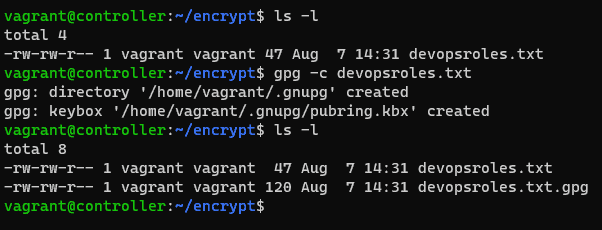
gpg -c filenameto encrypt a specified file.
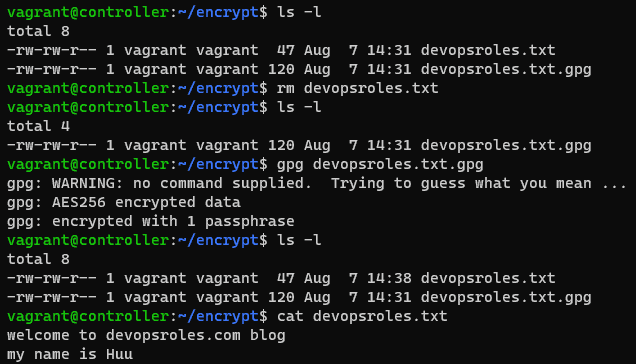
gpg filename.gpgto decrypt a specified file with a .gpg extension.
wc filenameOutputs the number of bytes, lines, and words of a specified file name.
cdTakes you to the Home directory
cd /target/directoryTo change directories to a specific directory name.

These commands should help you perform common file and directory operations in Linux. Be careful when using commands like “rm” or “rmdir” to avoid accidental deletion of important files or directories.

Disk Utilities and Usage

Monitoring disk usage and managing disk-related tasks are essential in Linux to ensure efficient use of storage space. Here are some commonly used disk utilities and commands for disk management and usage:

Commands Description For example
df -hDisplay the amount of free space in the file system[vagrant@localhost ~]$ df -h
Filesystem Size Used Avail Use% Mounted on
devtmpfs 237M 0 237M 0% /dev
tmpfs 244M 0 244M 0% /dev/shm
tmpfs 244M 4.5M 240M 2% /run
tmpfs 244M 0 244M 0% /sys/fs/cgroup
/dev/sda1 40G 4.2G 36G 11% /
tmpfs 49M 0 49M 0% /run/user/1000
df -iWorks with mounted systems to reveal their free inodes.[vagrant@localhost ~]$ df -i
Filesystem Inodes IUsed IFree IUse% Mounted on
devtmpfs 60456 306 60150 1% /dev
tmpfs 62335 1 62334 1% /dev/shm
tmpfs 62335 395 61940 1% /run
tmpfs 62335 16 62319 1% /sys/fs/cgroup
/dev/sda1 20971008 48415 20922593 1% /
tmpfs 62335 1 62334 1% /run/user/1000
fdisk -lprint partition tables of all devices[vagrant@localhost ~]$ sudo fdisk -l
Disk /dev/sda: 42.9 GB, 42949672960 bytes, 83886080 sectors
Units = sectors of 1 * 512 = 512 bytes
Sector size (logical/physical): 512 bytes / 512 bytes
I/O size (minimum/optimal): 512 bytes / 512 bytes
Disk label type: dos
Disk identifier: 0x0009ef1a
Device Boot Start End Blocks Id System
/dev/sda1 * 2048 83886079 41942016 83 Linux
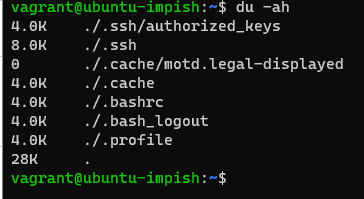
du -ahOutputs files and directories disk usage.[vagrant@localhost ~]$ du -ah
4.0K ./.bash_logout
4.0K ./.bash_profile
4.0K ./.bashrc
4.0K ./.ssh/authorized_keys
4.0K ./.ssh/known_hosts
8.0K ./.ssh
0 ./share
4.0K ./.env
8.0K ./.bash_history
4.0K ./devopsroles.com
4.0K ./myscript_onLocal.sh
12K ./share.tar
4.0K ./archive.tar.bz2
4.0K ./share.zip
4.0K ./linuxopratingsystem.net
4.0K ./.viminfo
68K .
findmntOutputs the target mount point associated with all your file systems.
mount device_path mount_pointto mount a device.
mkfs -t -Vto create a new file system.
resize2fsupdating a file system, especially after lvextend*
fsck -A -N to check and repair a file system.
pvcreate creating a physical volume.
mount -a -tmounting a file system.
lvcreatecreating a logical volume.
unmount -f -vunmounting a mounted file system.

These commands and utilities will help you monitor disk usage, manage partitions, mount file systems, and perform disk-related tasks in Linux. Make sure to use appropriate administrative privileges, such as “sudo,” when required.

Environment Variables

Commands Description For example
envDisplay all exported environment or run a program in a modified environmentvagrant@devopsroles:~$ env
SHELL=/bin/bash
PWD=/home/vagrant
LOGNAME=vagrant
XDG_SESSION_TYPE=tty
MOTD_SHOWN=pam
HOME=/home/vagrant
LANG=en_US.UTF-8
…..
variable_name=variable_valueto assign a variable name with a variable value.vagrant@devopsroles:~$ site=devopsroles.com
vagrant@devopsroles:~$ echo $site
devopsroles.com
echo $Variable_nameOutputs the value of a defined variable on the terminal. vagrant@devopsroles:~$ echo $site
devopsroles.com
export Variable = value To assign an environment variable a new value.vagrant@devopsroles:~$ export site=devopsroles.com
vagrant@devopsroles:~$ env | grep site
site=devopsroles.com
unsetTo remove a variable.vagrant@devopsroles:~$ unset site
vagrant@devopsroles:~$ echo $site

System Processes Management

Commands Description For example
topOutputs all active processes details.
bgrunning process to execute in the background.
fgSends a stopped or halted process to keep executing on the foreground.
ps -efOutputs all active or executing processes on the Linux system.
ps PIDOutputs a running processes’ status in reference to its process ID.
pidoffind the process ID of the running program
kill PIDKills a running process 
nicelets you run a command at a priority lower than the command’s normal priority
renicealters the nice value of one or more running processes
sensorsOutputs the Linux system’s CPU temperature.
ps auxTo monitor processes running on your Linux system
dmesg -kHelps in troubleshooting the health status of your Linux system.
program &Executes a program in the system background.
fg nMoves a running job n to the system’s foreground.

File Editors

Commands Description
vithe editor is a full-screen editor and has two modes of operation
nanothe GNU nano editor.
viewan editor in view or read-only mode.
emacsemacs is a screen editor
sedlaunches stream editor

File Utilities

Commands Description
cut removes or deletes a file’s section.
diff Command to compare files line by line.
head prints the first lines (10 lines by default) of one or more files or piped data to standard output.
joinmerges the lines of two sorted text files based on the presence of a common field.
more, lessto view the contents of a file, a single file page view at a time.
sort to sort a file, arranging the records in a particular order.
splitused to split large files into smaller files.
tr translating or deleting characters.
uniq reports or filters out the repeated lines in a file.
commcompare two sorted files line by line and write to standard output

Performance Monitoring and Statistics

Commands Description
tcpdump -i eth1 ‘port 80’monitoring traffic through Port 80
tcpdump -i eth1An interface eth1-related command for outputting captured packets.
watch df -hA command to output periodic system updates.
lsof -u userOutputs a list of all the files opened by a system user.
iostat 1used to get reports and statistics.
vmstat 1Outputs statistical data related to the system’s virtual memory.
mpstat 1Output processor-related statistics.

Conclusion

Linux commands cheat sheet above. I hope will this your helpful. Thank you for reading the DevopsRoles page!

Record Linux Terminal Commands

Introduction

This tutorial covers how to record Linux terminal commands using the script command.

This command allows you to record and replay all the activity in your terminal.

Using script commands can be especially helpful when you want to create a tutorial for a set of commands.

Record Linux Terminal Commands

The script command can be run without any arguments

script

A new capturing session will start. your terminal session is saved to ./typescipt in your working directory.
When you’re done, press Ctrl+D or type the exit command to drop out of the sub-shell.

The output terminal is as follows

[vagrant@localhost ~]$ script

Script started, file is typescript
[vagrant@localhost ~]$ ls
share  typescript
[vagrant@localhost ~]$ whoami
vagrant
[vagrant@localhost ~]$ exit
exit
Script done, file is typescript
[vagrant@localhost ~]$
[vagrant@localhost ~]$ cat typescript
Script started on Sat 18 Sep 2021 08:59:49 PM +07
[vagrant@localhost ~]$ ls
share  typescript
[vagrant@localhost ~]$ whoami
vagrant
[vagrant@localhost ~]$ exit
exit

Script done on Sat 18 Sep 2021 09:00:09 PM +07
[vagrant@localhost ~]$

You can specify a different file with a script that commands an argument:

script session_`hostname`_`whoami`

The following is the output from the terminal command:

[vagrant@localhost ~]$ script session_`hostname`_`whoami`
Script started, file is session_localhost.localdomain_vagrant
[vagrant@localhost ~]$ cat /etc/redhat-release
CentOS Linux release 7.8.2003 (Core)
[vagrant@localhost ~]$ exit
Script done, file is session_localhost.localdomain_vagrant
[vagrant@localhost ~]$

Appending to an Existing File

Use -a flag to append your commands.

script -a session_`hostname`_`whoami`

Conclusion

You have Record Linux Terminal Commands. I hope will this your helpful. Thank you for reading the DevopsRoles page!
Managing and monitoring swap on Linux

Introduction

This tutorial covers how to manage and monitor swap on Linux, including how to determine the amount of swap space available and how much is currently in use.

Swap space plays an important role in system performance, so it’s crucial to understand how to manage it effectively.

How much swap on Linux do you need?

The recommendation is to swap the space used to double your RAM. If your system has a lot of memory, you may never need to use swap space.

RAM         Swap        Swap (with hibernation)
256MB       256MB       512MB
512MB       512MB       1GB
1GB         1GB         2GB
2GB         1GB         3GB
3GB         2GB         5GB
4GB         2GB         6GB
6GB         2GB         8GB
8GB         3GB         11GB
12GB        3GB         15GB
16GB        4GB         20GB
24GB        5GB         29GB
32GB        6GB         38GB
64GB        8GB         72GB

To determine if your system can hibernate

$ which pm-hibernate

You can test it by running this command:

$ sudo pm-hibernate

View the amount of swap space on Linux

$ swapon --show
$ free -m 
$ sar -S 1 3
$ lsblk

The output terminal is as follows

[vagrant@localhost ~]$ swapon --show
NAME      TYPE SIZE USED PRIO
/swapfile file   2G   9M   -2
[vagrant@localhost ~]$ free -m
              total        used        free      shared  buff/cache   available
Mem:            486         146          93           2         247         325
Swap:          2047           9        2038
[vagrant@localhost ~]$ sar -S 1 3
Linux 3.10.0-1127.el7.x86_64 (localhost.localdomain)    09/13/2021      _x86_64_        (1 CPU)

09:51:08 PM kbswpfree kbswpused  %swpused  kbswpcad   %swpcad
09:51:09 PM   2087884      9264      0.44       416      4.49
09:51:10 PM   2087884      9264      0.44       416      4.49
09:51:11 PM   2087884      9264      0.44       416      4.49
Average:      2087884      9264      0.44       416      4.49
[vagrant@localhost ~]$ lsblk
NAME   MAJ:MIN RM SIZE RO TYPE MOUNTPOINT
sda      8:0    0  40G  0 disk
└─sda1   8:1    0  40G  0 part /
[vagrant@localhost ~]$

Creating a swap file

$ sudo dd if=/dev/zero of=/swapfile bs=1M count=8192
$ sudo chmod 600 /swapfile
$ sudo mkswap /swapfile
$ sudo swapon -a
$ swapon --show

Turn to swap off.

$ sudo swapoff -v /swapfile

# The output terminal
[vagrant@localhost ~]$ sudo swapoff -v /swapfile
swapoff /swapfile
[vagrant@localhost ~]$

Turn to swap on Linux.

$ sudo swapon -v /swapfile
$ swapon --show

Conclusion

You have a Managing and monitoring swap on Linux. I hope will this your helpful. Thank you for reading the DevopsRoles page!

How To Deploy a React Application with Nginx on Ubuntu 21.04

#Introduction

In this tutorial, how to deploy a React Application using our own Ubuntu Server and Nginx. You can quickly deploy react Applications using the default Create React App build tool.

Prerequisites

  • VPS Ubuntu 21.04. I use Linode is Cloud Hosting High-performance SSD Linux servers.
  • Nginx: Lightweight and high-performance Web server or Reverse Proxy
  • On your local machine: you will need a development environment running node.js.
  • A registered domain name. And setup DNS records for your server.
    • An A record with your_domain pointing to your server’s public IP address.
    • An A record with www.your_domain pointing to your server’s public IP address.

Deploy a React Application with Nginx on Ubuntu 21.04

Your local machine

Step 1 — Creating a React Project

npx create-react-app react-deploy
cd react-deploy
npm start

Open a browser and navigate to http://localhost:3000.

Step 2: Build production

npm run build

Your VPS

Step 3: Uploading build files to VPS

Use scp command uploading build files to /var/www/your_domain/html directory on VPS.

 scp -r ./build/* username@server_ip:/var/www/your_domain/html

For example, Nginx configure

I use SSL for the website as below:

root@localhost:~# cat /etc/nginx/conf.d/your_domain.conf
server {
        listen 80;
        #listen [::]:80 ipv6only=on;

        if ($host = www.your_domain) {
        return 301 https://$host$request_uri;
        }

        if ($host = your_domain) {
        return 301 https://$host$request_uri;
        }

        server_name www.your_domain your_domain;
        return 444;
        #return 301 https://$server_name$request_uri;


}


server {
        listen 443 ssl http2 ; # managed by Certbot
        listen [::]:443 ssl http2;
        server_name www.your_domain your_domain;

        root /var/www/your_domain/html;
        index  index.html index.htm;
        access_log off;
        error_log /var/www/your_domain/logs/error.log;

        location / {
        try_files $uri $uri/ /index.html;
        #try_files $uri /index.html;
             #index index.html index.htm;
        }
        location ~ ^/(scripts.*js|styles|images) {
           gzip_static on;
           expires 1y;
           add_header Cache-Control public;
           add_header ETag "";

          break;
        }

        #End Crontab

        gzip on;
        gzip_comp_level    5;
        gzip_min_length    256;
        gzip_proxied       any;
        gzip_vary          on;
        gzip_types
        application/atom+xml
        application/javascript
        application/json
        application/ld+json
        application/manifest+json
        application/rss+xml
        application/vnd.geo+json
        application/vnd.ms-fontobject
        application/x-font-ttf
        application/x-web-app-manifest+json
        application/xhtml+xml
        application/xml
        font/opentype
        image/bmp
        image/svg+xml
        image/x-icon
        text/cache-manifest
        text/css
        text/plain
        text/vcard
        text/vnd.rim.location.xloc
        text/vtt
        text/x-component
        text/x-cross-domain-policy;
        # text/html is always compressed by gzip module
        #add_header Strict-Transport-Security "max-age=31536000; includeSubDomains; preload";

        add_header X-Frame-Options DENY;
        add_header X-Content-Type-Options nosniff;
        add_header X-XSS-Protection "1; mode=block";

        ###
        # Retrict bad bot and bad referer
        ###
        # Block HTTP method not include GET,HEAD,POST
        if ($request_method !~ ^(GET|HEAD|POST)$ ) {
            return 444;
        }

        # Block bad http_referer (link contain bad word)
    if ( $http_referer ~* (adult|babes|click|diamond|forsale|girl|jewelry|love|nudit|organic|poker|porn|poweroversoftware|sex|teen|webcam|zippo|replica|onload\.pw) ) {
            return 444;
         }
    ## Block download agents ##
         if ($http_user_agent ~* (LWP::Simple|BBBike|wget) ) {
            return 444;
         }

    location = /robots.txt  {
                                allow all;
                            }
    location ~ /.well-known {
                allow all;
     }
    location = /favicon.ico { access_log off; log_not_found off; expires 30d; }
    location ~ /\.          { access_log off; log_not_found off; deny all; }
    location ~ ~$           { access_log off; log_not_found off; deny all; }
    location ~ /\.git       { access_log off; log_not_found off; deny all; }
    location = /nginx.conf  { access_log off; log_not_found off; deny all; }
    location ~* /(?:uploads|files)/.*\.php$ { access_log off; log_not_found off; deny all; }
    location ~ /(readme.html|license.txt) { deny all; }
    location ~* \.(ogg|ogv|3gp|gif|jpg|jpeg|png|ico|wmv|avi|asf|asx|mpg|mpeg|mp4|pls|mp3|mid|wav|swf|flv|exe|zip|tar|rar|gz|tgz|bz2|uha|7z|doc|docx|xls|xlsx|pdf|iso|eot|svg|svgz|ttf|woff|otf|rss|atom|ppt|midi|bmp|rtf)$ {
           gzip_static     off;
            #add_header      Cache-Control "public, must-revalidate, proxy-revalidate";
            add_header Cache-Control "public, no-transform";
            access_log      off;
            log_not_found   off;
            expires         max;
            break;
    }
    location ~* \.(js|css|png|jpg|jpeg|gif|ico)$ {
            #add_header      Cache-Control "public, must-revalidate, proxy-revalidate";
            add_header Cache-Control "public, no-transform";
            access_log      off;
            log_not_found   off;
            expires         30d;
            break;
    }
    ssl_dhparam /etc/letsencrypt/dhparams.pem; # managed by Certbot
    ssl_certificate /etc/letsencrypt/live/your_domain/fullchain.pem; # managed by Certbot
    ssl_certificate_key /etc/letsencrypt/live/your_domain/privkey.pem; # managed by Certbot

}

Conclusion

You Deploy a React Application with Nginx on Ubuntu 21.04. I hope will this your helpful. Thank you for reading the DevopsRoles page!

Remove orphaned packages on CentOS

Introduction

Discover how to remove orphaned packages on CentOS Linux in this detailed tutorial. Orphaned packages, which are remnants not needed for package dependencies, can clutter your system.

Learn the step-by-step process to clean up these unnecessary files effectively, enhancing your CentOS system’s performance and reliability. Orphaned packages are all packages that no longer serve the purpose of package dependencies.

List of Orphaned Packages

Use the package-cleanup command below

[root@centos7 ~]# package-cleanup --leaves
Loaded plugins: fastestmirror
cryptsetup-libs-1.7.4-3.el7_4.1.x86_64
libicu-50.2-4.el7_7.x86_64
libicu62-62.2-1.el7.remi.x86_64
libmemcached-1.0.16-5.el7.x86_64
libsysfs-2.1.0-16.el7.x86_64
libtool-ltdl-2.4.2-22.el7_3.x86_64
libunwind-1.2-2.el7.x86_64
libuv-1.40.0-1.el7.x86_64
libwebp-0.3.0-7.el7.x86_64

Remove Orphaned Packages

Now, we remove Orphaned packages using the yum remove command to remove the entire list:

yum remove `package-cleanup --leaves`

The output terminal is as below:

[root@centos7 ~]# yum remove `package-cleanup --leaves`
Loaded plugins: fastestmirror
No Match for argument: Loaded
No Match for argument: plugins:
No Match for argument: fastestmirror
Resolving Dependencies
--> Running transaction check
---> Package cryptsetup-libs.x86_64 0:1.7.4-3.el7_4.1 will be erased
---> Package libicu.x86_64 0:50.2-4.el7_7 will be erased
---> Package libicu62.x86_64 0:62.2-1.el7.remi will be erased
---> Package libmemcached.x86_64 0:1.0.16-5.el7 will be erased
---> Package libsysfs.x86_64 0:2.1.0-16.el7 will be erased
---> Package libtool-ltdl.x86_64 0:2.4.2-22.el7_3 will be erased
---> Package libunwind.x86_64 2:1.2-2.el7 will be erased
---> Package libuv.x86_64 1:1.40.0-1.el7 will be erased
---> Package libwebp.x86_64 0:0.3.0-7.el7 will be erased
--> Finished Dependency Resolution

Dependencies Resolved

==============================================================================================================================================================================================================
 Package                                              Arch                                        Version                                                Repository                                      Size
==============================================================================================================================================================================================================
Removing:
 cryptsetup-libs                                      x86_64                                      1.7.4-3.el7_4.1                                        @updates                                       947 k
 libicu                                               x86_64                                      50.2-4.el7_7                                           @updates                                        24 M
 libicu62                                             x86_64                                      62.2-1.el7.remi                                        installed                                       31 M
 libmemcached                                         x86_64                                      1.0.16-5.el7                                           @base                                          677 k
 libsysfs                                             x86_64                                      2.1.0-16.el7                                           @anaconda                                      146 k
 libtool-ltdl                                         x86_64                                      2.4.2-22.el7_3                                         @base                                           66 k
 libunwind                                            x86_64                                      2:1.2-2.el7                                            @base                                          150 k
 libuv                                                x86_64                                      1:1.40.0-1.el7                                         @epel                                          378 k
 libwebp                                              x86_64                                      0.3.0-7.el7                                            @base                                          371 k

Transaction Summary
==============================================================================================================================================================================================================
Remove  9 Packages

Installed size: 57 M
Is this ok [y/N]: y
Downloading packages:
Running transaction check
Running transaction test
Transaction test succeeded
Running transaction
  Erasing    : libmemcached-1.0.16-5.el7.x86_64                                                                                                                                                           1/9
  Erasing    : 2:libunwind-1.2-2.el7.x86_64                                                                                                                                                               2/9
  Erasing    : 1:libuv-1.40.0-1.el7.x86_64                                                                                                                                                                3/9
  Erasing    : libicu-50.2-4.el7_7.x86_64                                                                                                                                                                 4/9
  Erasing    : libtool-ltdl-2.4.2-22.el7_3.x86_64                                                                                                                                                         5/9
  Erasing    : libicu62-62.2-1.el7.remi.x86_64                                                                                                                                                            6/9
  Erasing    : libsysfs-2.1.0-16.el7.x86_64                                                                                                                                                               7/9
  Erasing    : cryptsetup-libs-1.7.4-3.el7_4.1.x86_64                                                                                                                                                     8/9
  Erasing    : libwebp-0.3.0-7.el7.x86_64                                                                                                                                                                 9/9
  Verifying  : libwebp-0.3.0-7.el7.x86_64                                                                                                                                                                 1/9
  Verifying  : cryptsetup-libs-1.7.4-3.el7_4.1.x86_64                                                                                                                                                     2/9
  Verifying  : libsysfs-2.1.0-16.el7.x86_64                                                                                                                                                               3/9
  Verifying  : libicu62-62.2-1.el7.remi.x86_64                                                                                                                                                            4/9
  Verifying  : libtool-ltdl-2.4.2-22.el7_3.x86_64                                                                                                                                                         5/9
  Verifying  : libicu-50.2-4.el7_7.x86_64                                                                                                                                                                 6/9
  Verifying  : 1:libuv-1.40.0-1.el7.x86_64                                                                                                                                                                7/9
  Verifying  : 2:libunwind-1.2-2.el7.x86_64                                                                                                                                                               8/9
  Verifying  : libmemcached-1.0.16-5.el7.x86_64                                                                                                                                                           9/9

Removed:
  cryptsetup-libs.x86_64 0:1.7.4-3.el7_4.1        libicu.x86_64 0:50.2-4.el7_7        libicu62.x86_64 0:62.2-1.el7.remi        libmemcached.x86_64 0:1.0.16-5.el7        libsysfs.x86_64 0:2.1.0-16.el7
  libtool-ltdl.x86_64 0:2.4.2-22.el7_3            libunwind.x86_64 2:1.2-2.el7        libuv.x86_64 1:1.40.0-1.el7              libwebp.x86_64 0:0.3.0-7.el7

Complete!
[root@centos7 ~]#

Conclusion

Remove orphaned packages from CentOS systems is an essential step in maintaining the efficiency and stability of your server. Orphaned packages are remnants left behind after uninstalling software that no longer serve any functional purpose. By eliminating these unnecessary files, you can optimize system performance and prevent potential conflicts. This guide on DevopsRoles aims to assist you in cleaning up your CentOS installation effectively. We hope you find these instructions beneficial. Thank you for choosing DevopsRoles for your technological needs and for trusting us with your system optimization tasks. Your continued support inspires us to provide helpful and practical content.

How to call git bash command from powershell

Introduction

Combining PowerShell with Git Bash can enhance your productivity by allowing you to use Unix-like commands within a Windows environment. In this guide, we’ll show you how to call Git Bash commands from PowerShell, using an example script. We’ll cover everything from basic setups to advanced configurations. In this tutorial, How to call the git bash command from Powershell. For example, git bash content to split CSV files on windows :

Setting Up Your Environment

Installing Git Bash

First, ensure you have Git Bash installed on your system. Download it from the official Git website and follow the installation instructions.

Adding Git Bash to Your System PATH

To call Git Bash command from PowerShell, add Git Bash to your system PATH:

  1. Open the Start menu, search for “Environment Variables,” and select “Edit the system environment variables.”
  2. Click the “Environment Variables” button.
  3. Under “System variables,” find and select the “Path” variable, then click “Edit.”
  4. Click “New” and add the path to the Git Bash executable, typically C:\Program Files\Git\bin.

Call the git bash command from Powershell

Save the following script as split.sh in your K:/TEST directory:

#!/bin/bash
cd $1
echo split start
date
pwd
split Filetest.CSV Filetest -l 20000000 -d
ls -l
for filename in $1/*; do
    wc -l $filename
done
date
echo split end
exit

This script performs the following tasks:

  1. Changes the directory to the one specified by the first argument.
  2. Prints a start message and the current date.
  3. Displays the current directory.
  4. Splits Filetest.CSV into smaller files with 20,000,000 lines each.
  5. Lists the files in the directory.
  6. Counts the number of lines in each file in the directory.
  7. Prints the current date and an end message.
  8. Exits the script.

PowerShell Script

Create a PowerShell script to call the split.sh script:

$TOOL_PATH = "K:/TEST"
$FOLDER_PATH = "K:/TEST/INPUT"

$COMMAND = "bash.exe " + $TOOL_PATH + "/split.sh " + $FOLDER_PATH
echo $COMMAND
Invoke-Expression $COMMAND

This PowerShell script does the following:

  1. Defines the path to the directory containing the split.sh script.
  2. Defines the path to the directory to be processed by the split.sh script.
  3. Constructs the command to call the split.sh script using bash.exe.
  4. Prints the constructed command.
  5. Executes the constructed command.

Explanation

  1. $TOOL_PATH: This variable holds the path where your split.sh script is located.
  2. $FOLDER_PATH: This variable holds the path to the directory you want to process with the split.sh script.
  3. $COMMAND: This variable constructs the full command string that calls bash.exe with the script path and the folder path as arguments.
  4. echo $COMMAND: This line prints the constructed command for verification.
  5. Invoke-Expression $COMMAND: This line executes the constructed command.

Add C:\Program Files\Git\bin into the PATH environment

OK!

Troubleshooting

Common Issues and Solutions

  • Git Bash not found: Ensure Git Bash is installed and added to your system PATH.
  • Permission denied: Make sure your script has execute permissions (chmod +x split.sh).
  • Command not recognized: Verify the syntax and ensure you’re using the correct paths.
  • Incorrect output or errors: Print debugging information in your scripts to diagnose issues.

FAQs

How do I add Git Bash to my PATH variable?

Add the path to Git Bash (e.g., C:\Program Files\Git\bin) to the system PATH environment variable.

Can I pass multiple arguments from PowerShell to Git Bash?

Yes, you can pass multiple arguments by modifying the command string in the PowerShell script.

How do I capture the output of a Git Bash command in PowerShell?

Use the following approach to capture the output:

$output = bash -c "git status"
Write-Output $output

Can I automate Git Bash scripts with PowerShell?

Yes, you can automate Git Bash scripts by scheduling PowerShell scripts or using task automation features in PowerShell.

Conclusion

By following this guide, you can easily call Git Bash command from PowerShell, enabling you to leverage the strengths of both command-line interfaces. Whether you’re performing basic operations or advanced scripting, integrating Git Bash with PowerShell can significantly enhance your workflow. Thank you for reading the DevopsRoles page!