Table of Contents
Mastering the Diagnosis: 7 Proven Fixes for High CPU Linux Usage
System instability is the silent killer of modern infrastructure. When an application or service suddenly grinds to a halt, the first metric observed is often a runaway CPU utilization graph. For senior DevOps, MLOps, and SecOps engineers, diagnosing the root cause of High CPU Linux usage is not just a troubleshooting task—it is a critical architectural skill.
A spike in CPU usage can stem from a simple infinite loop, a complex I/O bottleneck, or a deep-seated kernel scheduling issue. Treating it merely as a “high load” problem is insufficient. You must understand the underlying resource contention.
This comprehensive guide moves beyond basic top commands. We will dive deep into kernel parameters, container resource management, and advanced profiling techniques necessary to stabilize and optimize mission-critical Linux environments.
Phase 1: Core Concepts and Architectural Deep Dive
Before touching a single command, we must establish a mental model of Linux resource consumption. CPU usage is not a monolithic concept; it is a composite metric derived from how the kernel schedules processes across various states.
Understanding CPU States
When you run top or vmstat, you see percentages like user, system, iowait, and idle. Understanding these states is paramount to diagnosing High CPU Linux issues:
user: Time spent executing user-level code (e.g., application logic). Highusersuggests inefficient application code or a runaway process.system: Time spent executing kernel-level code (e.g., system calls, device drivers). Highsystemoften points to excessive context switching or kernel overhead.iowait: The CPU is idle, waiting for I/O operations (disk reads/writes) to complete. Highiowaitmeans the bottleneck is physical storage, not the CPU itself.idle: The CPU is doing nothing. This is the desired state.
The Role of the Scheduler
The Linux scheduler (historically CFS – Completely Fair Scheduler) is responsible for allocating CPU time slices to competing processes. If the scheduler is overwhelmed, or if processes are constantly fighting for time, it can manifest as high CPU load, even if the processes themselves are efficient.
In modern containerized environments, this complexity is managed by cgroups (control groups). Cgroups allow us to allocate and limit resources (CPU, memory, I/O) to specific groups of processes, preventing a single runaway container from causing a system-wide High CPU Linux failure.
Phase 2: Practical Implementation — Profiling and Diagnosis
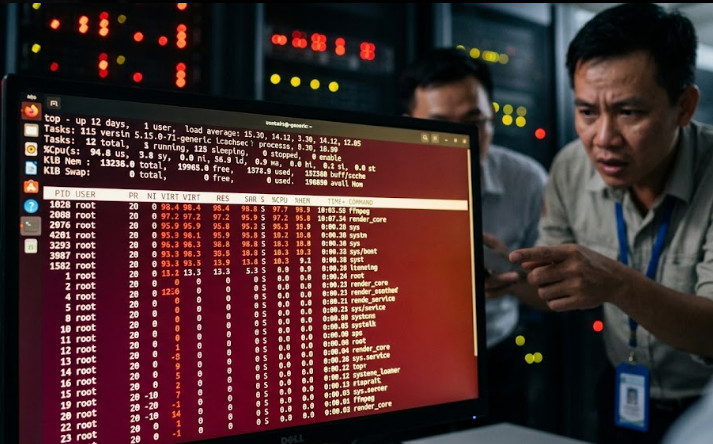
We need systematic, layered tools to pinpoint the culprit. We will move from real-time observation to historical analysis.
1. Real-Time Process Identification (top and htop)
While basic, these remain the first line of defense. Always sort by %CPU to immediately identify the top resource consumers.
# Identify the top 5 processes consuming CPU
top -b -n 1 | head -n 20 | grep -E 'PID|%CPU'
If top shows a single process dominating the CPU, that process is the immediate target for investigation.
2. Deep Dive with pidstat and sar
For senior engineers, relying solely on top is insufficient because it only provides a snapshot. We need historical data and granular metrics.
The pidstat utility (part of the sysstat package) allows us to track resource usage for specific PIDs over time. This is crucial for diagnosing intermittent High CPU Linux spikes.
# Monitor CPU usage for PID 1234 every 2 seconds, 10 times
pidstat -p 1234 2 10
Similarly, sar (System Activity Reporter) provides a comprehensive view of system resource usage over time, including detailed metrics on context switches and system calls.
3. Analyzing Memory Leaks and Overcommit
High CPU can sometimes be a symptom of memory exhaustion, leading to excessive swapping and kernel thrashing.
Use vmstat to monitor memory pressure:
vmstat 2 5
Look closely at the si (swap in) and so (swap out) columns. Consistently non-zero values indicate the system is actively swapping, which dramatically degrades performance and can appear as high CPU load due to kernel overhead.
💡 Pro Tip: When investigating memory, always check the slab cache in vmstat. A rapidly growing, unreleased slab cache might indicate a kernel module or driver leak, which is a far deeper issue than simple application memory usage.
4. Container Resource Validation (cgroups)
If you are in a containerized environment (Kubernetes, Docker), the problem might be resource starvation or misconfiguration.
Use docker stats or kubectl top to verify resource limits. If a pod is hitting its CPU limit, the scheduler will throttle it, which can manifest as erratic performance or perceived High CPU Linux load on the node itself.
# Example: Checking resource usage for a specific pod in Kubernetes
kubectl top pod <pod-name> -n <namespace>
Phase 3: Advanced Best Practices and Remediation
Once the source of the resource drain is identified, the fix requires architectural rigor.
1. Kernel Tuning and Sysctl Parameters
For persistent, predictable performance, tuning kernel parameters via /etc/sysctl.conf is often necessary.
- File Descriptor Limits: If an application opens and closes many files, hitting the file descriptor limit can cause repeated system calls, spiking
systemCPU usage. Increase limits proactively. - Scheduler Parameters: In highly specialized, real-time systems, adjusting the CFS parameters (e.g.,
sched_latency_ns) might be necessary, though this is highly dependent on the workload and should be done with extreme caution.
2. Process Tracing with strace and perf
When the process is identified but the why remains unknown, tracing is required.
strace: Traces system calls and signals. If a process is stuck in a loop making excessiveread()orwrite()calls,stracewill reveal this.perf: This is the gold standard for deep profiling. It samples hardware events (like cache misses, branch mispredictions, and function calls) to pinpoint the exact lines of code causing the overhead.
# Example: Profiling a process for performance bottlenecks
sudo perf record -g -p <PID>
sudo perf report
3. SecOps and Resource Abuse Mitigation
From a SecOps perspective, High CPU Linux usage can be a sign of malicious activity:
- Cryptojacking: Unexpected, sustained 100% CPU usage, often targeting specific mathematical operations.
- DDoS/Scanning: High network I/O combined with CPU spikes due to packet processing.
Always monitor network metrics (nload, iftop) alongside CPU usage. If CPU is high but iowait is low and network traffic is low, the issue is internal application logic.
💡 Pro Tip: When debugging a potential security breach causing high CPU, immediately isolate the suspect container or process using cgroups limits, rather than killing it outright. This allows forensic collection of memory dumps and process states without losing critical evidence.
4. The MLOps Context: Inference Optimization
In Machine Learning Operations, High CPU Linux usage during inference is common. The bottleneck is often not the model itself, but the data pipeline or the serialization/deserialization process.
- Batching: Always process data in optimized batches rather than single records.
- Hardware Acceleration: Ensure the workload is correctly utilizing available accelerators (e.g., CUDA/GPU) and that the CPU is only handling pre/post-processing, not the core tensor math.
For more advanced insights into the roles and responsibilities required for these complex systems, check out our guide on DevOps roles.
Summary Checklist for High CPU Linux
| Metric | Tool | Indication | Action |
| CPU Load | top, pidstat, mpstat | Single process dominating %CPU or high “user” time. | Profile the process using perf or strace to identify hot code paths. |
| I/O Bottleneck | vmstat, iostat | High %iowait (>10%) and high queue lengths. | Optimize database queries, check for disk hardware failure, or upgrade to NVMe. |
| Memory Leak | vmstat, pmap, free | High swap-in/swap-out (si/so), growing RSS without release. | Analyze application heap dumps; check for unclosed file descriptors or global variables. |
| Network Latency | netstat, ss, tcpdump | High RetransSegs or many connections in TIME_WAIT. | Check Nginx keepalive settings or firewall connection tracking limits. |
| Container Limit | kubectl top, docker stats | OOMKills or CPU throttling (Cgroups). | Adjust limits and requests in Kubernetes YAML or optimize vertical scaling. |
Conclusion
Diagnosing High CPU Linux usage requires a methodical, multi-layered approach. By moving beyond simple monitoring tools and adopting deep profiling techniques like perf and understanding kernel scheduling via vmstat, you transition from being a reactive troubleshooter to a proactive system architect.
Remember that the solution is rarely a single patch; it is often a combination of kernel tuning, resource constraint enforcement via cgroups, and code-level optimization.
For a comprehensive review of related system diagnostics, consult this detailed guide on troubleshooting Linux usage. Mastering these techniques ensures your infrastructure remains resilient, scalable, and performant under the most extreme load conditions.