Tag Archives: Jenkins

Fix Jenkins Access Denied Error: A Deep Guide

Introduction

Jenkins, the powerhouse in Continuous Integration (CI) and Continuous Delivery (CD), is an essential tool for developers and DevOps engineers. However, like any complex software, Jenkins can occasionally present frustrating issues such as the “Jenkins Access Denied” error. This error typically arises from permission misconfigurations, security settings, or issues after upgrades. When this error occurs, users, including administrators, may be locked out of Jenkins, potentially disrupting development workflows.

This deep guide provides a comprehensive understanding of the causes behind the “Jenkins Access Denied” error and presents both basic and advanced techniques to fix it. We’ll also explore strategies to prevent this issue from happening again. Whether you’re a beginner or an advanced user, this guide is structured to help you resolve this error effectively.

What is Jenkins Access Denied Error?

The Jenkins Access Denied Error occurs when a user, even an admin, tries to access Jenkins but is blocked due to insufficient permissions. Jenkins uses a system of user roles and privileges to regulate access, and any misconfiguration in these settings may lock users out of the interface.

This error may look like:

Access Denied
You are not authorized to access this page.

Or:

Jenkins Access Denied: User is missing the Administer permission.

Common Causes of Jenkins Access Denied Error

Understanding the causes behind the “Jenkins Access Denied” error is the first step in fixing it.

1. Misconfigured Permissions

Jenkins allows administrators to define permissions using either Matrix-based security or Role-based security. Misconfiguration in these settings can cause users to lose access to the Jenkins interface, specific jobs, or certain functionalities.

2. Incorrect Security Settings

If the Jenkins security settings are not correctly set up, users may face access denial issues. In particular, options like enabling Anonymous access, without proper safeguards, can lead to this issue.

3. Problems with Plugins

Certain plugins, particularly security-related plugins, may conflict with existing Jenkins permissions and cause access issues. Plugins like Role Strategy or Matrix Authorization are often involved.

4. Locked Admin Account Post-Upgrade

Jenkins upgrades sometimes alter or overwrite security configurations, potentially locking out admin accounts or causing mismanagement of user roles.

5. Corrupted Jenkins Configuration Files

Corruption in Jenkins configuration files, such as the config.xml, can result in improper application of user roles and permissions, leading to the access denied error.

Basic Solutions to Fix Jenkins Access Denied Error

Solution 1: Use Safe Mode

Jenkins provides a Safe Mode that disables all plugins, making it easier to troubleshoot issues caused by faulty plugins or misconfigurations.

Step-by-Step Process:

  1. Open Jenkins URL in Safe Mode: http://your-jenkins-url/safeRestart
  2. Restart Jenkins in Safe Mode by clicking the Restart button.
  3. Log in to Jenkins and review user roles and permissions.
  4. If the problem is plugin-related, identify the plugin causing the issue and uninstall or reconfigure it.

Benefits:

  • Easy to implement.
  • Provides a safe environment to fix configuration issues.

Solution 2: Disable Security Settings

If the issue lies in the Jenkins security configuration, you can temporarily disable security settings to regain access.

Step-by-Step Process:

  1. Stop Jenkins service:
    • sudo service jenkins stop
  2. Edit the config.xml file located in the Jenkins home directory (JENKINS_HOME):
    • <useSecurity>false</useSecurity>
  3. Save the file and restart Jenkins:
    • sudo service jenkins start
  4. Log in to Jenkins, navigate to Manage JenkinsConfigure Global Security, and reconfigure the security settings.

Benefits:

  • Quick fix when you need immediate access.
  • Useful for troubleshooting and misconfiguration of security options.

Solution 3: Reset Admin Privileges

In cases where you’ve lost admin privileges, restoring them can help regain full access to Jenkins.

Step-by-Step Process:

  1. Open Jenkins in Safe Mode (as shown in Solution 1).
  2. Go to Manage JenkinsManage Users.
  3. Identify your admin user and ensure that it is assigned the Admin role.
  4. If necessary, create a new admin user and assign full permissions.
  5. Restart Jenkins to apply the new settings.

Advanced Solutions to Fix Jenkins Access Denied Error

Solution 4: Modify Permissions Using the Script Console

If you have access to the Jenkins Script Console, you can modify user roles and permissions directly through Groovy scripts.

Step-by-Step Process:

p-by-Step Process:

Open the Jenkins Script Console:

http://your-jenkins-url/script

Use the following script to grant admin permissions to a specific user:

import jenkins.model.*
import hudson.security.*

def instance = Jenkins.getInstance()
def strategy = new GlobalMatrixAuthorizationStrategy()

strategy.add(Jenkins.ADMINISTER, "your-username")
instance.setAuthorizationStrategy(strategy)
instance.save()

Benefits:

  • Provides a quick way to restore permissions without needing full access to the Jenkins GUI.

Solution 5: Restore from Backup

If other solutions fail, restoring Jenkins from a backup can resolve the issue.

Step-by-Step Process:

  1. Stop Jenkins to prevent further data corruption:
    • sudo service jenkins stop
  2. Replace your JENKINS_HOME directory with the backup.
  3. Restart Jenkins:
    • sudo service jenkins start
  4. Log in to Jenkins and verify that the issue is resolved.

Benefits:

  • Ideal for catastrophic failures caused by configuration corruption.
  • Ensures that you can revert to a stable state.

Solution 6: Access Jenkins via SSH to Fix Permissions

For users comfortable with command-line interfaces, accessing Jenkins via SSH allows direct modification of configuration files and permissions.

Step-by-Step Process:

  1. SSH into the Jenkins server:
    • ssh your-username@your-server-ip
  2. Navigate to the Jenkins home directory:
    • cd /var/lib/jenkins/
  3. Edit the config.xml file and reset user roles or disable security settings.
  4. Restart Jenkins to apply changes.

Preventing Jenkins Access Denied Error in the Future

1. Regular Backups

Regular backups of your Jenkins instance ensure that you can always roll back to a stable state in case of misconfiguration or errors. Use the ThinBackup plugin to automate backup processes.

2. Audit Permissions Periodically

Periodically review the roles and permissions in Jenkins to ensure that all users have the appropriate level of access. This will prevent future lockout issues due to permission mismanagement.

3. Use Jenkins Audit Trail Plugin

The Audit Trail Plugin logs all user actions in Jenkins, allowing administrators to track changes and identify potential security issues or misconfigurations.

FAQs

1. What causes the “Jenkins Access Denied” error?

The error is usually caused by misconfigured permissions, faulty plugins, or corrupted configuration files.

2. Can I fix the Jenkins Access Denied error without SSH access?

Yes, if you have access to the Script Console or Safe Mode, you can fix permissions without SSH.

3. How do I restore Jenkins from a backup?

Simply stop Jenkins, replace the contents of the JENKINS_HOME directory with the backup files, and restart Jenkins.

4. How do I prevent being locked out of Jenkins in the future?

Regularly audit user permissions, enable audit trails, and ensure frequent backups to prevent being locked out.

Conclusion

The “Jenkins Access Denied” error can be a frustrating roadblock, but with the right steps, you can quickly regain access and restore functionality. From using Safe Mode and the Script Console to restoring from backups, this guide provides both basic and advanced solutions to help you navigate this issue effectively.

To prevent future problems, remember to audit user roles regularly, back up your configurations, and monitor changes in the Jenkins security settings. With these preventive measures, you’ll ensure a smooth, secure, and efficient Jenkins experience. Thank you for reading the DevopsRoles page!

How to Fix Jenkins Unable to Locate Tools Error: A Deep Guide

Introduction

Jenkins is one of the most widely used automation servers for continuous integration (CI) and continuous delivery (CD) pipelines. Its flexibility and extensibility make it ideal for developers and DevOps teams. However, Jenkins is not immune to errors, and one common issue that arises is the Jenkins unable to locate tools error.

This error, although seemingly straightforward, can have various underlying causes, ranging from incorrect tool configuration to system environment issues. If you’ve ever run into this error, you know it can completely halt your CI/CD processes. In this deep guide, we will explore the problem in detail, identify the root causes, and provide comprehensive solutions that can help you fix this issue, whether you’re a beginner or an advanced Jenkins user.

Understanding the Jenkins Unable to Locate Tools Error

Before delving into solutions, it’s important to understand what exactly causes the Jenkins unable to locate tools error. The error occurs when Jenkins is unable to find a tool (such as Java, Maven, or Gradle) that it needs to perform a build.

Common Scenario:

When you run a Jenkins job that relies on external tools (like JDK or Maven), Jenkins attempts to locate these tools by checking its global configuration and system environment variables. If Jenkins cannot find the tool, it throws the error, stopping the build.

Typical error message in Jenkins logs:

ERROR: Unable to locate tool "Maven" in the path.
Build failed with exit code 1.

Root Causes of the Jenkins Unable to Locate Tools Error

To resolve this error, you must first identify its root cause. Here are some common culprits:

1. Incorrect Tool Path in Global Configuration

Jenkins allows you to configure tools like Java, Maven, and others through the Global Tool Configuration. If the paths defined here are incorrect, Jenkins will fail to locate the tools.

2. Missing or Incorrect Environment Variables

Environment variables, such as $JAVA_HOME, $MAVEN_HOME, or $GRADLE_HOME, are crucial for Jenkins to locate tools. If these are not properly set up, Jenkins will be unable to locate the necessary tools.

3. Permissions Issues

In some cases, Jenkins may not have the appropriate system permissions to access tool binaries. This is particularly common on systems where Jenkins is running as a service user with restricted privileges.

4. Distributed Build Setup

If you are using a distributed Jenkins setup with multiple nodes (build agents), each node must have access to the required tools. If the tools are missing on any node, the error will occur during job execution.

5. Corrupted Tool Installation

Sometimes, the tools themselves may be corrupt or improperly installed, causing Jenkins to fail to locate them during the build process.

How to Fix Jenkins Unable to Locate Tools Error: Step-by-Step Solutions

Step 1: Verify Jenkins Global Tool Configuration

The first thing you should do is check Jenkins’ global tool configuration. This is where Jenkins stores the paths to important build tools like JDK, Maven, or Gradle.

Steps:

  1. Navigate to Manage Jenkins on the Jenkins dashboard.
  2. Click on Global Tool Configuration.
  3. Under the tool you are using (e.g., JDK, Maven), ensure that the correct installation path is provided.
  4. Click Save after making any changes.

For example, in the Maven configuration, make sure the Maven installation path is accurate and Jenkins can detect it.

Maven Installation Path: /usr/local/maven

Example:

If you’re using a custom JDK version for your project, check that the version is correctly defined:

JDK Installation Path: /usr/lib/jvm/java-11-openjdk-amd64

Step 2: Configure Environment Variables

Jenkins heavily relies on environment variables like $JAVA_HOME, $MAVEN_HOME, and $GRADLE_HOME. If these variables are missing or incorrect, Jenkins will not be able to locate the tools.

Setting Environment Variables for Linux/macOS:

  1. Open a terminal and run:
    • echo $JAVA_HOME echo $MAVEN_HOME
    • Ensure the output reflects the correct paths.
  2. If incorrect, add them to your shell configuration file (e.g., .bashrc, .zshrc):
    • export JAVA_HOME=/usr/lib/jvm/java-11-openjdk-amd64
    • export MAVEN_HOME=/usr/local/maven
  3. Reload your shell:
    • source ~/.bashrc

Setting Environment Variables for Windows:

  1. Open System Properties > Environment Variables.
  2. Under System Variables, click New and add the variable name (JAVA_HOME) and the path to your Java installation.
  3. Repeat this for other tools like Maven and Gradle.

Step 3: Verify Jenkins Job Configuration

Even if your global configuration is correct, individual jobs in Jenkins may have misconfigured paths or selected the wrong tool version. You need to verify each job’s configuration.

Steps:

  1. Go to the job’s Configure page.
  2. Scroll to the Build Environment section.
  3. Ensure that the correct tool (e.g., Java version, Maven version) is selected for the job.

This is especially important if you are using multiple versions of tools (e.g., multiple JDK versions). Make sure the correct version is being used in the specific job.

Step 4: Check System Permissions

Permissions can be another common cause of the error. Jenkins may not have the required permissions to access tool binaries, especially if it runs as a different user (e.g., jenkins).

For Linux:

  1. Check the permissions of the tool directories:
    • ls -l /path/to/tool
  2. If necessary, change the ownership to Jenkins:
    • sudo chown -R jenkins:jenkins /path/to/tool

For Windows:

  1. Go to the tool’s installation directory.
  2. Right-click and open Properties.
  3. Under the Security tab, ensure that the Jenkins user has sufficient permissions to read and execute the tools.

Step 5: Install Tools Automatically with Jenkins

If tools like JDK or Maven are not installed on your system, you can configure Jenkins to download and install them automatically.

Steps:

  1. Go to Manage Jenkins > Global Tool Configuration.
  2. Under each tool (e.g., Maven), select the Install Automatically option.
  3. Jenkins will automatically install the tool when needed.

This can be particularly useful in environments where you don’t have direct control over the tool installation process.

Step 6: Ensure Tools Are in PATH

If the tools are installed but not in the system’s $PATH, Jenkins won’t be able to locate them.

Adding Tools to PATH on Linux/macOS:

  1. Open your .bashrc or .zshrc file:
    • nano ~/.bashrc
  2. Add the tool’s bin directory to your $PATH:
    • export PATH=$PATH:/usr/local/maven/bin
  3. Save and reload your shell:
    • source ~/.bashrc

Adding Tools to PATH on Windows:

  1. Open System Properties > Environment Variables.
  2. Edit the PATH variable and add the tool’s bin directory:bashCopy codeC:\Program Files\Java\jdk-11\bin

Advanced Solutions

If the above basic solutions don’t resolve your issue, here are some advanced steps you can take.

Configuring Jenkins Nodes for Distributed Builds

If you’re using a distributed Jenkins setup (master and slave nodes), ensure that the required tools are installed on each node.

Steps:

  1. Go to Manage Jenkins > Manage Nodes.
  2. Select the node where the error occurs.
  3. Check the Tool Location and Environment Variables on that node.
  4. Make sure the node has access to all necessary tools, and update its configuration if required.

Automating Tool Installation with Scripts

Automating the installation of tools using scripts ensures that you have a consistent setup across all machines.

Example Script for Linux:

#!/bin/bash
sudo apt-get update
sudo apt-get install -y openjdk-11-jdk
sudo apt-get install -y maven

Running this script ensures that the correct versions of JDK and Maven are installed and available for Jenkins.

Using Docker to Manage Tools

A highly effective advanced solution is to use Docker for builds, where all required tools are pre-installed in a Docker image.

Steps:

  1. Install the Docker Pipeline plugin in Jenkins.
  2. Create a Docker image with pre-installed tools, such as Maven and JDK.
  3. Configure your Jenkins job to use this Docker image during builds.

Frequently Asked Questions (FAQ)

Q: How do I check if Jenkins can access the tool installation paths?

A: Use the Global Tool Configuration to verify paths, and check the system’s environment variables to ensure they are correctly set. You can also try executing a shell command within Jenkins to see if the tool path resolves.

Q: Why does Jenkins say it cannot find Maven even though it’s installed?

A: Jenkins may not have the correct $MAVEN_HOME variable set, or the path in the Global Tool Configuration might be incorrect. Double-check the Maven installation paths in Jenkins and the environment variables on your machine.

Q: Can I automate tool installation in Jenkins?

A: Yes, Jenkins has an option to Install Automatically in the Global Tool Configuration, which allows it to download and install tools like JDK, Maven, or Gradle when necessary.

Q: How do I fix this error on Jenkins slave nodes?

A: Ensure each node in your distributed setup has the required tools installed, or configure shared tool installations. Also, make sure each node’s environment variables and permissions are correctly set.

Conclusion

The Jenkins unable to locate tools error can disrupt your CI/CD pipeline, but with the proper troubleshooting techniques, it’s easily fixable. By following the steps outlined in this guide – from configuring environment variables to using Docker – you can ensure that Jenkins runs smoothly, regardless of the complexity of your setup.

Whether you’re managing Jenkins in a local or distributed environment, this comprehensive guide provides the depth and detail you need to resolve the error and maintain uninterrupted builds. Thank you for reading the DevopsRoles page!
Resolve Jenkins Pipeline Syntax Error: The Ultimate Guide

Introduction

In the world of DevOps and Continuous Integration/Continuous Delivery (CI/CD), Jenkins is a leading automation tool. It’s highly versatile, helping teams streamline their build, test, and deployment processes. However, users frequently encounter syntax issues when configuring Jenkins pipelines, which can delay development workflows.

This guide is designed to provide you with a deep understanding of the Jenkins pipeline syntax error, from common causes and troubleshooting steps to advanced techniques and best practices for avoiding errors altogether. By the end of this post, you’ll be able to efficiently resolve pipeline syntax issues and keep your automation pipelines running smoothly.

What is a Jenkins Pipeline Syntax Error?

A Jenkins pipeline syntax error occurs when Jenkins fails to interpret your pipeline script, which is written in Groovy-based Domain Specific Language (DSL). Even a small mistake in syntax can cause your pipeline to fail, stopping the CI/CD process in its tracks.

Why Do Jenkins Pipeline Syntax Errors Occur?

There are several reasons why Jenkins may throw a syntax error:

  • Improper block structure: Jenkins expects blocks like pipeline, stages, and steps to follow a specific hierarchy.
  • Typographical errors: Small typos such as missing braces, commas, or incorrect indentation can trigger syntax issues.
  • Groovy syntax misuse: Since pipelines are written in Groovy, Groovy-specific errors in loops, closures, or method definitions can also result in syntax errors.

Common Jenkins Pipeline Syntax Errors and How to Fix Them

1. Missing or Misplaced Curly Braces

One of the most common causes of pipeline syntax errors is forgetting or misplacing curly braces ({}). Jenkins requires braces to properly define stages and steps.

Example:

pipeline {
    agent any
    stages {
        stage('Test') 
            steps {
                echo 'Running tests'
            }
        }
    }

In this example, the missing opening { after stage('Test') will cause a syntax error.

Solution:

pipeline {
    agent any
    stages {
        stage('Test') {
            steps {
                echo 'Running tests'
            }
        }
    }
}

2. Misuse of Quotes

Another common error is using inconsistent single (') and double (") quotes, which can cause the pipeline to fail.

Example:

pipeline {
    agent any
    stages {
        stage('Build') {
            steps {
                echo "Building project'
            }
        }
    }
}

Here, the mismatch between double and single quotes will result in a syntax error.

Solution:

pipeline {
    agent any
    stages {
        stage('Build') {
            steps {
                echo 'Building project'
            }
        }
    }
}

3. Incorrect Block Nesting

Jenkins has a strict block structure, requiring stages to be inside a stages block and steps inside a steps block. Misplacing or omitting these blocks causes syntax errors.

Example:

pipeline {
    agent any
    stage('Deploy') { 
        echo 'Deploying application'
    }
}

In this example, the stage is not inside the required stages block, causing a syntax error.

Solution:

pipeline {
    agent any
    stages {
        stage('Deploy') {
            steps {
                echo 'Deploying application'
            }
        }
    }
}

4. Unescaped Special Characters

Special characters like $, when not properly escaped or used incorrectly in strings, can cause errors.

Example:

pipeline {
    agent any
    stages {
        stage('Test') {
            steps {
                echo "Testing Jenkins pipeline with $param"
            }
        }
    }
}

Here, the $param needs to be wrapped in ${} to avoid an error.

Solution:

pipeline {
    agent any
    stages {
        stage('Test') {
            steps {
                echo "Testing Jenkins pipeline with ${param}"
            }
        }
    }
}

Advanced Troubleshooting for Jenkins Pipeline Syntax Errors

1. Analyze Jenkins Error Logs

Jenkins provides detailed logs that show exactly where a syntax error occurs. By reviewing the error logs, you can pinpoint the line and issue causing the failure.

How to Access Error Logs:

  1. Run the pipeline and wait for it to fail.
  2. Click on the “Console Output” to view the logs.
  3. The log will display error messages with line numbers, such as:
    • WorkflowScript: 15: Expected a step @ line 15, column 5.

2. Using the Jenkins Pipeline Linter

The Jenkins Pipeline Linter is a powerful tool for catching syntax errors before running the pipeline. You can validate your pipeline script in the linter to ensure it is syntactically correct.

Steps to Use the Linter:

  1. Navigate to your Jenkins dashboard.
  2. Select “Pipeline Syntax.”
  3. Paste your Jenkinsfile script in the linter.
  4. Click “Validate” to check for syntax issues.

3. Debugging Shared Libraries

In large Jenkins environments, shared libraries are often used to store reusable functions across pipelines. However, syntax errors in shared libraries can break the main pipeline. If you’re using shared libraries, make sure they are properly referenced and tested.

Example of Using Shared Libraries:

@Library('my-shared-library') _
pipeline {
    agent any
    stages {
        stage('Test') {
            steps {
                callSharedLibraryFunction()
            }
        }
    }
}

Best Practices to Prevent Jenkins Pipeline Syntax Errors

1. Use the Pipeline Snippet Generator

The Pipeline Snippet Generator allows you to auto-generate correct Groovy syntax for common Jenkins pipeline steps, such as sending notifications, deploying to servers, or running shell commands. This tool minimizes the risk of syntax errors.

2. Write Modular Pipelines

Instead of writing large pipeline scripts, break your Jenkins pipeline into smaller, reusable functions. This makes it easier to test and debug individual components, reducing the risk of syntax errors.

Example:

def buildStage() {
    stage('Build') {
        steps {
            echo 'Building project'
        }
    }
}

pipeline {
    agent any
    stages {
        buildStage()
    }
}

3. Version Control Your Jenkinsfile

Always version control your Jenkinsfile. By tracking changes and testing each update, you can quickly identify which changes introduced syntax errors and revert if needed.

Frequently Asked Questions (FAQs)

1. How do I fix a Jenkins pipeline syntax error?

Check the Jenkins error logs to find the line causing the issue. Common fixes include correcting missing braces, consistent use of quotes, and proper nesting of pipeline blocks.

2. How do I test my Jenkins pipeline before running it?

Use the Jenkins Pipeline Linter to validate your pipeline syntax. This tool allows you to check your code for errors before executing the pipeline.

3. What is the cause of a “WorkflowScript error”?

A “WorkflowScript” error usually occurs when Jenkins encounters a problem parsing your pipeline script. This could be due to incorrect block structures or missing Groovy syntax elements.

4. Can I use shared libraries in my Jenkins pipelines?

Yes, Jenkins supports shared libraries to promote code reuse across multiple pipelines. Ensure shared libraries are properly referenced and tested to avoid pipeline errors.

Conclusion

Encountering a Jenkins pipeline syntax error can be frustrating, but understanding the common causes and employing effective troubleshooting techniques will allow you to resolve these issues swiftly. Whether you’re dealing with missing braces, unescaped characters, or Groovy-related issues, this guide has provided you with the tools and best practices needed to overcome these errors.

By following the strategies outlined above, you’ll be able to create reliable, error-free pipelines that keep your CI/CD processes running smoothly. Don’t forget to use Jenkins‘s built-in tools like the Pipeline Linter and Snippet Generator to minimize errors from the start. Thank you for reading the DevopsRoles page!

Fix Jenkins Plugin Installation Failed Error: A Deep Guide

Introduction

Jenkins is a widely used tool in software development for Continuous Integration (CI) and Continuous Delivery (CD). Plugins are a vital part of Jenkins, enhancing its core functionalities by integrating additional features. However, users often encounter a common issue: the “Jenkins Plugin Installation Failed” error. This error can be caused by various factors such as network issues, incorrect file permissions, or version incompatibilities. In this guide, we will dive deep into the most effective solutions to fix this problem, from beginner to expert-level troubleshooting.

Understanding the Importance of Jenkins Plugins

Jenkins plugins extend Jenkins’ core functionalities. For example, plugins can integrate tools like Git, Docker, or Kubernetes into Jenkins, automating workflows across diverse development environments. A failed plugin installation can cripple your CI/CD pipeline, reducing automation capabilities and delaying development cycles.

Top Reasons for Jenkins Plugin Installation Failures

Before diving into solutions, it’s crucial to understand the most common reasons for plugin installation failures in Jenkins:

1. Network Connectivity Issues

  • Jenkins may fail to download plugins if the server cannot connect to the internet or a plugin repository. This can occur due to firewall restrictions, proxy issues, or DNS misconfigurations.

2. Incompatible Jenkins Version

  • Some plugins require specific versions of Jenkins to work correctly. Installing a plugin on an outdated version can result in failure.

3. Insufficient Disk Space

  • Jenkins requires adequate disk space for downloading, unpacking, and installing plugins. A full disk can prevent the installation from completing.

4. Corrupt Plugin Cache

  • When the plugin cache becomes corrupted, usually due to a failed installation attempt or unexpected shutdown, Jenkins can face difficulties installing new plugins.

5. File Permissions Misconfiguration

  • If Jenkins lacks the necessary file permissions, it won’t be able to write new plugin files, leading to installation failures.

6. Outdated Dependency Plugins

  • Some plugins depend on other plugins to function correctly. If the dependencies are outdated or missing, the plugin installation may fail.

Basic Troubleshooting Methods

Let’s begin with the foundational troubleshooting steps. These solutions are relatively easy to execute but often resolve common issues effectively.

1. Check Network Configuration

A common cause of plugin installation failure is poor network connectivity or misconfigured network settings.

Steps:

  • Verify Internet Connection: Ensure that the Jenkins server has a working internet connection. You can check this by trying to access external websites or repositories from the server.
  • Proxy Configuration: If your Jenkins server is behind a proxy, make sure that the proxy settings are correctly configured. Navigate to Manage Jenkins > Plugin Manager > Advanced and provide the correct proxy information.
  • Test Update Site Access: Try accessing the plugin repository (https://updates.jenkins.io/) directly from the server to check for connectivity issues.

2. Update Jenkins to the Latest Version

Jenkins regularly releases updates that improve compatibility with plugins. An outdated Jenkins installation can often cause plugin failures.

Steps:

  • Check for Updates: Go to Manage Jenkins > Manage Plugins > Updates to check if a newer Jenkins version is available.
  • Apply Updates: If updates are available, apply them and restart Jenkins. This may resolve the issue, as the plugin you’re trying to install may require a newer version of Jenkins.

3. Free Up Disk Space

Lack of disk space can cause Jenkins to fail when installing or updating plugins.

Steps:

  • Check Disk Usage: On a Linux server, use the df -h command to check available disk space. On Windows, check disk space via the system properties.
  • Free Up Space: Delete unnecessary files, old build logs, or unused plugins to free up space.
  • Monitor Disk Space: Ensure you have sufficient disk space to accommodate future installations. Plugins typically require space for download, extraction, and installation.

4. Clear Plugin Cache

Sometimes, a corrupt plugin cache can cause installation failures. Clearing the cache allows Jenkins to download fresh copies of the plugins.

Steps:

  • Stop Jenkins: Before making any changes, stop the Jenkins service.
  • Clear Cache: Navigate to the JENKINS_HOME/plugins directory and remove the .hpi or .jpi file associated with the plugin you’re trying to install.
  • Restart Jenkins: Start Jenkins again and retry the plugin installation.

Advanced Troubleshooting Methods

If the basic solutions don’t resolve the issue, it’s time to move on to more advanced troubleshooting techniques. These methods address deeper configuration issues that may be causing the plugin installation failure.

1. Manually Install Plugins

When automatic installation fails, you can manually install plugins by downloading their respective .hpi or .jpi files from the Jenkins plugin repository.

Steps:

  • Download the Plugin: Visit the official Jenkins plugin site at https://plugins.jenkins.io/ and download the .hpi or .jpi file for the plugin.
  • Upload the Plugin: Go to Manage Jenkins > Manage Plugins > Advanced > Upload Plugin and upload the downloaded file.
  • Restart Jenkins: Once the plugin is uploaded, restart Jenkins to activate it.

2. Check File Permissions

Incorrect file permissions can prevent Jenkins from writing or reading plugin files. Ensure that the Jenkins user has sufficient permissions to modify files within the JENKINS_HOME directory.

Steps:

  • Check Permissions on Linux:
    • sudo chown -R jenkins:jenkins /var/lib/jenkins
    • sudo chmod -R 755 /var/lib/jenkins
  • Check Permissions on Windows: Right-click the Jenkins folder and ensure the Jenkins service user has “Full Control” over the directory.
  • Restart Jenkins: After adjusting the permissions, restart the Jenkins service.

3. Use a Local Plugin Mirror

If the Jenkins server is behind a firewall or has limited internet access, you can configure Jenkins to use a local mirror for downloading plugins.

Steps:

  • Set Up Local Mirror: Download the Jenkins plugins to a local server.
  • Configure Jenkins: Go to Manage Jenkins > Plugin Manager > Advanced and set the Update Site URL to point to your local mirror.
  • Restart Jenkins: After configuring the mirror, restart Jenkins to apply the changes.

4. Inspect Jenkins Logs for Errors

In cases where the above methods don’t solve the issue, reviewing Jenkins logs can provide additional insight into what might be going wrong.

Steps:

  • Locate Logs: Jenkins logs can be found in the JENKINS_HOME/logs directory.
  • Check for Specific Errors: Look for error messages related to plugin installation, network timeouts, or file access issues.
  • Adjust Configuration Based on Logs: Use the log information to make necessary adjustments, such as fixing network issues or adjusting file permissions.

Common Jenkins Plugin Installation Errors and Fixes

1. HTTP 403 Forbidden Error

This error typically occurs when Jenkins is blocked from accessing the update site due to a proxy or firewall configuration.

Fix:

  • Double-check proxy settings and configure Jenkins to use the correct proxy information under Manage Jenkins > Plugin Manager > Advanced.

2. Failed to Load Plugin Descriptor

This happens when the plugin download is incomplete or corrupted.

Fix:

  • Clear the corrupted plugin files from the JENKINS_HOME/plugins directory and reinstall the plugin either manually or automatically.

3. Missing Dependency Plugins

Sometimes, Jenkins will fail to install a plugin if it relies on a dependency that is either missing or outdated.

Fix:

  • Check for any missing or outdated dependency plugins and ensure they are installed or updated before installing the target plugin.

Frequently Asked Questions (FAQs)

1. What is the Jenkins plugin installation failed error?

This error occurs when Jenkins is unable to install or update a plugin. It can be caused by network issues, lack of disk space, or version incompatibilities.

2. Can I install plugins offline in Jenkins?

Yes, you can download the plugin files (.hpi or .jpi) and upload them manually through Jenkins’ Manage Plugins page.

3. How do I clear the Jenkins plugin cache?

Stop Jenkins, navigate to the JENKINS_HOME/plugins directory, and delete the corrupt plugin files. Then restart Jenkins and attempt the installation again.

4. Why do I need to update Jenkins for some plugins?

New plugins often rely on features or bug fixes introduced in the latest versions of Jenkins. Using outdated Jenkins versions can lead to compatibility issues with modern plugins.

5. How can I fix insufficient disk space issues in Jenkins?

Free up disk space by removing old builds, unused plugins, or unnecessary files. You can check disk usage using the df -h command on Linux or via the system properties on Windows.

Conclusion

The Jenkins Plugin Installation Failed error can be a frustrating hurdle in maintaining your CI/CD pipeline, but with the right troubleshooting methods, it can be resolved. Start by checking basic configurations like network settings, Jenkins updates, and disk space. If these don’t resolve the issue, move on to advanced techniques like manual plugin installation, file permission adjustments, or using local mirrors. Consistently updating Jenkins and maintaining your environment will help prevent such issues in the future.

By following this deep guide, you will have a comprehensive approach to resolving plugin installation errors and keeping your Jenkins system running smoothly. Thank you for reading the DevopsRoles page!
How to Fix Jenkins OutOfMemoryError: A Step-by-Step Guide

Introduction

Jenkins is one of the most popular open-source automation servers used for building, testing, and deploying code. However, users frequently encounter the Jenkins OutOfMemoryError when Jenkins exceeds the allocated memory, causing it to crash or slow down. This error can disrupt your continuous integration and continuous delivery (CI/CD) pipeline, making it crucial to find effective solutions.

In this article, we’ll explore the common causes of the Jenkins OutOfMemoryError, from basic memory limitations to more complex memory leaks. We’ll also walk through step-by-step solutions, from simple fixes to advanced configurations, to keep Jenkins running smoothly.

What is Jenkins OutOfMemoryError?

The Jenkins OutOfMemoryError occurs when the Java Virtual Machine (JVM) running Jenkins runs out of allocated memory. This can result in Jenkins becoming unresponsive, crashing, or performing slowly. Typical error messages look like:

java.lang.OutOfMemoryError: Java heap space

This error means Jenkins has consumed all the memory allocated to the JVM, leading to system instability. The primary cause of this error is insufficient memory or inefficient memory usage within the Jenkins environment.

Common Causes of Jenkins OutOfMemoryError

Several factors contribute to Jenkins exhausting its memory. Some of the most common causes include:

  • Insufficient Heap Size: The default JVM heap size may not be sufficient for larger projects or numerous concurrent builds.
  • Memory Leaks in Plugins: Some Jenkins plugins can lead to memory leaks, causing excessive memory usage over time.
  • Inefficient Garbage Collection: The JVM’s garbage collection may not be optimized for Jenkins’ workload, leading to slow memory reclamation.
  • Large Builds or Jobs: Extensive builds or heavy job configurations can push Jenkins to its memory limits.
  • Excessive Retention of Build Data: Retaining too many build artifacts and logs in memory can also lead to memory overload.

By understanding these causes, you can address the root of the issue effectively.

Basic Fixes for Jenkins OutOfMemoryError

1. Restart Jenkins Regularly

A simple yet effective solution is to schedule periodic restarts of Jenkins. This clears the memory and refreshes the system. Although not a permanent fix, regular restarts help prevent memory buildup over time.

How to Schedule a Jenkins Restart:

  • Add a cron job or scheduled task to automatically restart Jenkins during low-usage hours.

2. Increase JVM Heap Size

The easiest way to address the OutOfMemoryError is to increase the JVM heap size. This allocates more memory for Jenkins, which can resolve the issue, particularly for larger setups.

Steps to Increase JVM Heap Size:

  1. Open the Jenkins configuration file (jenkins.xml or jenkins.service on Linux).
  2. Add or modify the JVM memory settings like this:bashCopy code-Xms1024m -Xmx4096m Here, -Xms sets the initial heap size to 1024MB, and -Xmx sets the maximum heap size to 4096MB.
  3. Save the changes and restart Jenkins for the settings to take effect.

Pro Tip: Don’t allocate too much memory, as this could affect other services running on the same machine.

Intermediate Fixes for Jenkins OutOfMemoryError

3. Optimize Jenkins Plugins

Plugins are a significant part of Jenkins, but they can also be responsible for memory leaks. Some poorly managed or outdated plugins can consume excessive memory.

How to Optimize Jenkins Plugins:

  1. Uninstall Unused Plugins: Review and remove plugins that are no longer needed.
  2. Update Plugins: Always keep your plugins updated to their latest versions.
  3. Use Monitoring Plugins: Install the Monitoring Plugin for Jenkins to track memory usage and identify problematic plugins.

4. Tweak Garbage Collection (GC) Settings

Garbage Collection (GC) is responsible for clearing unused objects in memory. However, default GC settings may not be optimal for Jenkins. You can fine-tune GC to improve memory performance.

Steps to Optimize GC Settings:

  1. Edit your Jenkins JVM options and add the following parameters:bashCopy code-XX:+UseG1GC -XX:MaxGCPauseMillis=200 The G1 Garbage Collector is efficient for large Java applications like Jenkins. Adjusting the MaxGCPauseMillis value ensures shorter pauses during GC.
  2. Monitor GC performance using tools like JConsole or VisualVM to make further adjustments if needed.

Advanced fix Jenkins OutOfMemoryError

5. Use Distributed Jenkins Builds

If your Jenkins server is struggling with resource limitations, consider switching to distributed builds. This means splitting the workload between multiple Jenkins nodes (agents), reducing the load on your main Jenkins server.

Steps to Set Up Distributed Builds:

  1. Set Up Jenkins Agents: Install Jenkins agents on separate machines or cloud instances to offload builds from the Jenkins master.
  2. Assign Jobs to Agents: Use node labels to distribute jobs across available agents based on resource requirements.

This method dramatically reduces memory pressure on the Jenkins master and improves overall performance.

6. Monitor and Manage Jenkins Memory Usage

Effective memory monitoring is key to preventing future OutOfMemoryErrors. Tools like New Relic, Prometheus, or Jenkins’ Monitoring Plugin can help track memory usage and alert you when memory thresholds are breached.

Best Practices for Memory Monitoring:

  • Set Alerts: Configure memory usage alerts to notify you when memory consumption crosses a certain limit.
  • Perform Regular Memory Analysis: Analyze heap dumps using tools like Eclipse Memory Analyzer to identify memory leaks and problematic processes.

FAQ – Jenkins OutOfMemoryError

1. How do I check if Jenkins is running out of memory?

You can monitor Jenkins’ memory usage via the Monitoring Plugin or JVM options like jstat. Look for performance degradation, slow builds, or frequent crashes, which are common signs of memory issues.

2. Can upgrading hardware resolve Jenkins OutOfMemoryError?

Upgrading hardware (e.g., adding more RAM) can help, but it’s crucial to also optimize JVM settings, garbage collection, and plugin configurations to prevent OutOfMemoryError.

3. How do I identify memory leaks in Jenkins?

Memory leaks can be detected using heap dumps and analyzing them with tools like VisualVM or Eclipse Memory Analyzer. Additionally, the Monitoring Plugin can help identify which plugins or jobs are consuming excessive memory.

4. What JVM options should I use to prevent Jenkins OutOfMemoryError?

In addition to increasing the JVM heap size, using optimized garbage collection settings like:

-XX:+UseG1GC -XX:MaxGCPauseMillis=200

can help prevent memory issues in Jenkins.

Conclusion

The Jenkins OutOfMemoryError can be frustrating, but it’s preventable with the right strategies. Whether you start with basic memory allocation fixes, optimize plugins, or move towards more advanced solutions like distributed builds, there are plenty of ways to manage Jenkins’ memory usage effectively.

By following this guide, you can ensure that your Jenkins environment is optimized for long-term performance, avoiding unexpected crashes and keeping your CI/CD pipeline running smoothly. Thank you for reading the DevopsRoles page!

Start optimizing your Jenkins memory management today and enjoy uninterrupted build processes!

Resolve Jenkins Connection Refused Error: A Deep Dive into Troubleshooting and Solutions

Introduction

Jenkins is widely recognized as a powerful automation server, especially for continuous integration and delivery (CI/CD) pipelines. However, encountering the Jenkins connection refused error can disrupt your workflow, making it impossible to access Jenkins via its web interface.

In this article, we’ll take you through both basic and advanced troubleshooting methods to help you fix the Jenkins connection refused error and restore functionality to your Jenkins server.

What Does “Jenkins Connection Refused” Mean?

The Jenkins connection refused error indicates that the server cannot establish a connection with Jenkins. This error can be due to a variety of reasons, such as:

  • Jenkins service is not running.
  • Port misconfiguration.
  • Firewall blocking Jenkins.
  • Incorrect IP/hostname settings.
  • SSL/TLS certificate issues.
  • Proxy or VPN interference.

Common Error Message:

ERR_CONNECTION_REFUSED

Let’s begin by addressing the most common causes and step-by-step solutions.

Basic Troubleshooting Steps

1. Check If Jenkins Is Running

The most common reason for the Jenkins connection refused error is that Jenkins is not running. Verify this by checking the status of the Jenkins service.

On Linux:

sudo systemctl status jenkins

If Jenkins is not running, start the service:

sudo systemctl start jenkins

On Windows:

In Task Manager, check under the “Services” tab to confirm that Jenkins is running. If not, start Jenkins with:

net start Jenkins

2. Verify Jenkins Port Configuration

Jenkins typically runs on port 8080. If this port is blocked or in use, Jenkins cannot connect. You can check the port settings in your Jenkins configuration file.

On Linux:

Open the Jenkins configuration file:

sudo nano /etc/default/jenkins

Look for the HTTP_PORT variable:

HTTP_PORT=8080

Ensure the port is not being used by another service:

sudo netstat -tuln | grep 8080

If port 8080 is already in use, change the Jenkins port to an available one.

3. Check Firewall Settings

Firewall restrictions often block Jenkins from accepting connections. Make sure your firewall allows traffic on Jenkins’ port.

On Linux (UFW):

sudo ufw allow 8080/tcp

On Windows Firewall:

  1. Go to Control Panel > Windows Defender Firewall > Advanced Settings.
  2. Add an inbound rule to allow traffic on the Jenkins port.

4. Check IP/Hostname Configuration

Incorrect IP address or hostname configurations can cause the connection refused error. Ensure Jenkins is not bound to a specific IP address unless necessary.

On Linux:

Edit the Jenkins configuration file:

sudo nano /etc/default/jenkins

Check if the server is bound to an IP address:

JENKINS_ARGS="--httpListenAddress=0.0.0.0"

This setting allows Jenkins to accept connections from any IP.

5. Restart Jenkins and Clear Browser Cache

Sometimes, restarting the Jenkins service resolves connection issues. After restarting, clear your browser cache or try accessing Jenkins from an incognito window.

Restart Jenkins:

sudo systemctl restart jenkins

Intermediate Solutions

6. Check Proxy and VPN Settings

Proxies and VPNs can block connections to Jenkins. Temporarily disable your proxy or VPN to see if Jenkins is accessible.

Disable Proxy on Linux:

unset http_proxy
unset https_proxy

Ensure Jenkins isn’t configured to use an incorrect proxy.

7. SSL/TLS Configuration Issues

If you’re using HTTPS to access Jenkins, an expired or improperly configured SSL certificate could cause the connection refused error.

Steps to Verify:

  1. Open the jenkins.xml (Windows) or /etc/default/jenkins (Linux).
  2. Verify the SSL certificate and key paths are correct.
  3. Check that your SSL certificate has not expired.

8. Check SELinux Configuration (Linux Only)

SELinux (Security-Enhanced Linux) can block Jenkins from accepting connections. Temporarily set SELinux to permissive mode to see if it resolves the issue.

Check SELinux Status:

sestatus

If it’s enforcing policies, set it to permissive:

sudo setenforce 0

Advanced Solutions

9. Reinstall Jenkins

If all else fails, reinstalling Jenkins may resolve any underlying issues with its configuration.

On Linux:

sudo apt-get remove --purge jenkins
sudo apt-get install jenkins

On Windows:

Uninstall Jenkins via Control Panel, then reinstall it from Jenkins.io.

10. Increase Jenkins Memory Allocation

Jenkins can refuse connections if the server runs out of memory. You can increase the heap memory allocation to Jenkins to prevent this.

On Linux:

Open the configuration file and modify the JAVA_ARGS to allocate more memory:

JAVA_ARGS="-Xmx2048m"

This command allocates 2GB of memory to Jenkins.

11. Investigate Network-Level Issues

If the error persists, check for network-level issues like DNS misconfigurations or blocked ports by routers or firewalls.

Steps to Diagnose Network Issues:

  1. Use ping to test connectivity to the Jenkins server:
ping <jenkins_server_ip>
  1. Check router settings and DNS configurations.

12. Analyze Jenkins Logs

Jenkins logs can provide crucial information about what is causing the connection refused error.

Logs Location:

  • Linux: /var/log/jenkins/jenkins.log
  • Windows: Jenkins installation directory.

FAQs

What causes Jenkins connection refused error?

The error is often caused by the Jenkins service not running, incorrect port configurations, or firewall restrictions.

How do I change the Jenkins port?

Edit the Jenkins configuration file and change the HTTP_PORT value. Then restart Jenkins.

How can I restart Jenkins?

On Linux, use:

sudo systemctl restart jenkins

On Windows, use the following commands:

net stop Jenkins
net start Jenkins

Conclusion

The Jenkins connection refused error is usually caused by configuration issues, firewall restrictions, or network problems. By following this comprehensive guide, you should be able to resolve the error and get Jenkins running smoothly again. Regularly checking your firewall, IP settings, and SSL certificates will help prevent future occurrences of this issue.

Remember, systematic troubleshooting is key to identifying the root cause and applying the correct solution. Keep your Jenkins environment updated and well-maintained to ensure a reliable CI/CD pipeline. Thank you for reading the DevopsRoles page!
Fix Jenkins Build Stuck in Pending State: A Deep Guide

Introduction

Jenkins is a powerful automation tool used in continuous integration and delivery pipelines (CI/CD). Despite its many advantages, developers often face the frustrating issue of Jenkins builds getting stuck in the pending state. This situation can slow down your software delivery process and waste valuable time.

In this article, we’ll explore the common reasons for Jenkins builds getting stuck in the pending state and provide a step-by-step guide to resolving this issue. Whether you’re a Jenkins novice or a seasoned pro, this comprehensive guide will give you the tools you need to troubleshoot the problem and get your builds running smoothly.

Common Causes of Jenkins Build Stuck in Pending State

Before jumping into solutions, it’s important to understand why Jenkins builds often get stuck in the pending state. Here are the top reasons:

1. Executor Availability

Executors in Jenkins are responsible for running build jobs. If all available executors are busy running other jobs, new jobs will sit in the queue in a pending state.

2. Misconfigured Nodes or Agents

Jenkins distributes builds across nodes (also known as agents). If a node is misconfigured, offline, or lacking the necessary labels, Jenkins might not be able to assign jobs, leaving them in the pending state.

3. Resource Shortages

Limited system resources (CPU, memory, etc.) on the machine hosting Jenkins can cause jobs to remain in the pending state. This often happens when Jenkins shares hardware resources with other demanding applications.

4. Job Throttling

Job throttling limits how many jobs can run concurrently. If you’ve configured limits on how many jobs can run simultaneously, the excess builds will remain pending.

5. Outdated or Conflicting Plugins

Outdated or conflicting Jenkins plugins can cause unexpected behavior, including preventing jobs from running. Regular updates and proper plugin management are crucial for maintaining a healthy Jenkins environment.

Step-by-Step Troubleshooting: How to Resolve Pending Builds

Once you understand the common causes, you can start troubleshooting. Here’s a step-by-step guide to resolving Jenkins builds stuck in the pending state.

1. Check Executor Availability

How to Check:

  1. Go to the Jenkins Dashboard.
  2. Look at the Build Executor Status panel, typically located on the left side.
  3. If all executors are busy, your build will remain in the pending state until one becomes available.

Solution:

To resolve this issue, you can either:

  • Add more executors by going to Manage Jenkins > Configure System and increasing the number of available executors.
  • Terminate inactive jobs to free up executors.

Note: Be cautious when adding too many executors, as this may strain your server’s resources.

2. Verify Node/Agent Configuration

Steps:

  1. Navigate to Manage Jenkins > Manage Nodes and Clouds.
  2. Check if the nodes assigned to the jobs are online and configured correctly.
  3. Ensure the node has the proper labels for job assignment.

Solution:

If the node is offline, investigate the cause by:

  • Restarting the Jenkins agent on the machine where the node runs.
  • Checking network connections and permissions to ensure the node can communicate with the Jenkins server.

3. Check System Resource Usage

A lack of system resources can delay job execution and cause builds to remain in the pending state. This is a common issue when Jenkins shares resources with other applications on the same machine.

How to Check:

  1. Go to Manage Jenkins > System Information.
  2. Review the system’s CPU and memory usage to see if there is resource contention.

Solution:

If the server is overloaded, you can:

  • Allocate more resources to Jenkins by increasing the CPU or memory, especially if running Jenkins on a virtual machine.
  • Move Jenkins to a dedicated server or cloud instance with more computing power.

4. Review Job Throttling Configuration

Job throttling allows you to limit how many concurrent jobs run in Jenkins. Misconfiguring throttling settings can result in jobs being stuck in the pending queue.

How to Review:

  1. Go to Manage Jenkins > Configure System.
  2. If you’re using the Throttle Concurrent Builds plugin, review the settings to ensure that jobs aren’t unnecessarily throttled.

Solution:

  • Adjust the throttling limits to allow more jobs to run simultaneously.
  • Disable job throttling for high-priority jobs that need to execute immediately.

5. Update Jenkins and Plugins

Outdated Jenkins plugins are a common source of build problems, including builds getting stuck in the pending state. Ensuring that both Jenkins and its plugins are up-to-date is essential for smooth operation.

Steps to Update Plugins:

  1. Navigate to Manage Jenkins > Manage Plugins.
  2. Go to the Updates tab to check for outdated plugins.
  3. Install updates for any outdated plugins and restart Jenkins.

Note: Make sure to frequently update your plugins to avoid issues caused by outdated or conflicting versions.

Advanced Solutions for Jenkins Build Pending Issues

If the basic troubleshooting steps didn’t solve the issue, here are some advanced solutions you can try.

1. Use Cloud-based Agents for Dynamic Scaling

If you’re using Jenkins on a cloud platform, dynamically scaling the number of agents can prevent builds from being stuck in the queue.

How to Set Up:

  1. Go to Manage Jenkins > Manage Nodes and Clouds.
  2. Configure a cloud provider (e.g., AWS or Google Cloud).
  3. Set up autoscaling rules to provision more agents when all current agents are occupied.

This solution ensures that Jenkins can handle a large number of builds during peak times by scaling out agents based on demand.

2. Prioritize Jobs with the Priority Sorter Plugin

The Priority Sorter Plugin lets you prioritize high-value jobs, ensuring they execute before lower-priority jobs that may be blocking the queue.

How to Set Priorities:

  1. Install the Priority Sorter Plugin.
  2. Navigate to Manage Jenkins > Configure System.
  3. Assign priority levels to different jobs. High-priority jobs will bypass the queue and execute immediately, while lower-priority jobs wait.

This solution is useful for teams managing a large number of jobs and needing to prioritize critical builds.

3. Analyze Jenkins Logs for More Clues

If you’re still unsure why your builds are stuck, the Jenkins logs might offer more insight.

How to Access Jenkins Logs:

  1. Navigate to Manage Jenkins > System Log.
  2. Review the logs for any error messages or patterns that may explain why builds are pending.

What to Look For:

  • Plugin errors.
  • Node or agent communication issues.
  • System resource errors.

Analyzing the logs may reveal underlying issues that are causing jobs to remain in the pending state.

Frequently Asked Questions (FAQs)

1. Why does my Jenkins build stay in the pending state?

Your build might stay in the pending state because of limited executors, misconfigured nodes, insufficient system resources, or plugin issues.

2. How do I increase the number of executors in Jenkins?

Go to Manage Jenkins > Configure System and adjust the number of executors under # of executors.

3. What can I do if my Jenkins node is offline?

Check the machine running the node and ensure it’s online. You may need to restart the agent or verify that the node has proper network connectivity.

4. How often should I update Jenkins plugins?

It’s recommended to check for plugin updates regularly, especially if you’re encountering build problems. Keep your Jenkins instance and plugins up-to-date to avoid compatibility issues.

5. How do I clear the build queue in Jenkins?

You can manually remove jobs from the build queue by navigating to Manage Jenkins > Manage Build Queue.

Conclusion

Encountering a “Jenkins build stuck in pending state” issue can be frustrating, but with the right approach, it’s fixable. From checking executor availability to updating plugins and adjusting node configurations, there are several methods to ensure your Jenkins builds proceed without issues.

For more advanced setups, consider implementing cloud-based agents for dynamic scaling or using the Priority Sorter Plugin to ensure that critical jobs are executed first. Don’t forget to review the system logs for any errors that may provide additional insights into why your builds are stuck.

By following these steps, you’ll optimize your Jenkins setup and reduce the likelihood of builds getting stuck in the pending queue, ensuring your CI/CD pipelines run smoothly and efficiently. Thank you for reading the DevopsRoles page!

How to Fix Jenkins Service Failed to Start Error: A Comprehensive Guide

Introduction

Jenkins is an integral part of the CI/CD (Continuous Integration and Continuous Delivery) ecosystem. It automates much of the software development process, allowing teams to focus on building great code. However, encountering the Jenkins service failed to start error can halt your entire development pipeline, causing delays and frustration.

In this article, we’ll explore the potential causes of this error and provide solutions ranging from simple fixes to more advanced troubleshooting techniques. Whether you’re a beginner or an experienced user, this guide will help you resolve the error and restore your Jenkins service.

Common Causes of the Jenkins Service Failed to Start Error

Understanding why Jenkins might fail to start can save you hours of trial and error. Here are some common reasons:

  1. Port Conflicts: Jenkins uses port 8080 by default. If another service is occupying this port, Jenkins won’t be able to start.
  2. Resource Limitations: Jenkins is resource-intensive. If your system doesn’t have enough CPU or memory, the service may fail to start.
  3. Java Version Compatibility: Jenkins requires a specific version of Java to function properly. Using an unsupported version can cause the service to crash.
  4. Configuration Errors: A misconfigured Jenkins installation may prevent the service from starting. Issues like incorrect home directory settings or bad port configurations can lead to failure.
  5. Firewall Restrictions: A firewall blocking Jenkins’ communication can result in a failure to start.

Basic Fixes for Jenkins Service Failed to Start Error

1. Restart Jenkins Service

Sometimes, the simplest solution is the most effective. Restarting Jenkins can resolve temporary issues.

How to Restart Jenkins:

Linux (SystemD-based systems):

sudo systemctl restart jenkins

Windows:

  1. Open Services from the Start menu.
  2. Find Jenkins.
  3. Right-click and select Restart.

If restarting doesn’t fix the issue, try stopping and starting the service manually:

sudo systemctl stop jenkins
sudo systemctl start jenkins

2. Check for Port Conflicts

Jenkins typically uses port 8080. To check if this port is already in use:

On Linux:

sudo netstat -tuln | grep 8080

If the port is occupied, you can either stop the conflicting service or change Jenkins’ port by editing the configuration file located at /etc/default/jenkins.

3. Review System Logs

Jenkins logs can provide crucial information about why the service is failing to start. To view the logs:

On Linux:

sudo tail -f /var/log/jenkins/jenkins.log

On Windows:

  1. Open the Event Viewer.
  2. Navigate to Windows LogsApplication and check for Jenkins-related entries.

Intermediate Fixes for Jenkins Service Failed to Start Error

4. Increase System Memory

If Jenkins fails to start due to insufficient system resources, you may need to allocate more memory.

Increasing Memory Allocation:

Edit the Jenkins Java options file at /etc/default/jenkins:

JENKINS_JAVA_OPTIONS="-Xms1024m -Xmx2048m"

This ensures Jenkins has enough memory to function efficiently.

5. Reconfigure Jenkins

Errors in Jenkins’ configuration file can cause it to fail. Ensure key settings such as HTTP_PORT and JENKINS_HOME are correct. Configuration files are typically found at /etc/default/jenkins for Linux or in jenkins.xml for Windows.

6. Resolve Java Version Incompatibility

Jenkins requires a compatible version of Java (typically Java 11 or later). You can check the current version using:

java -version

If your Java version is outdated, update it using:

On Linux:

sudo apt update
sudo apt install openjdk-11-jdk

On Windows:

Download the latest JDK from the Oracle website and follow the installation instructions.

Advanced Fixes for Jenkins Service Failed to Start Error

7. Reinstall Jenkins

If none of the above methods work, your Jenkins installation might be corrupted. Reinstalling Jenkins could resolve the issue.

Reinstalling Jenkins on Linux:

sudo apt-get remove --purge jenkins
sudo apt-get install jenkins

Reinstalling Jenkins on Windows:

  1. Uninstall Jenkins via Programs and Features.
  2. Download and reinstall Jenkins from the official Jenkins website.

8. Adjust Firewall and Security Settings

Firewalls can block Jenkins from accessing necessary ports. Ensure that your firewall allows traffic on the port Jenkins uses (default: 8080).

Allowing Jenkins through Firewall on Linux:

sudo ufw allow 8080

Allowing Jenkins through Windows Firewall:

  1. Open Windows Defender Firewall.
  2. Create a new inbound rule for TCP on port 8080.

9. Rebuild Jenkins from Source

If you believe the Jenkins binaries are corrupted, you can rebuild Jenkins from the source code. This is an advanced technique that should be used as a last resort.

Steps to Rebuild Jenkins:

  1. Clone the Jenkins repository:
git clone https://github.com/jenkinsci/jenkins.git
  1. Build the source using Maven:
cd jenkins
mvn clean install

After the build completes, you can deploy the newly built Jenkins instance.

Frequently Asked Questions (FAQs)

Why does the Jenkins service fail to start?

Common causes include port conflicts, insufficient system resources, Java version compatibility issues, or firewall restrictions.

How can I check if Jenkins is running?

On Linux: Use sudo systemctl status jenkins.
On Windows: Open Services and check the status of the Jenkins service.

How do I change the default port Jenkins uses?

Edit the /etc/default/jenkins file and modify the HTTP_PORT variable to the desired port.

Can a firewall prevent Jenkins from starting?

Yes, firewalls can block Jenkins from accessing necessary ports, preventing the service from starting.

Conclusion

The Jenkins service failed to start error can disrupt your CI/CD pipeline, but with the troubleshooting techniques outlined here, you should be able to resolve it quickly. From basic fixes like restarting the service and checking logs, to more advanced solutions like rebuilding Jenkins from source, this guide covers everything you need to get your Jenkins service back up and running.

By understanding the root causes and following these step-by-step solutions, you’ll ensure smooth operations for your Jenkins environment. For more Jenkins-related help, visit the official Jenkins documentation. Thank you for reading the DevopsRoles page!
SonarQube from a Jenkins Pipeline job in Docker

Introduction

In today’s fast-paced DevOps environment, maintaining code quality is paramount. Integrating SonarQube with Jenkins in a Docker environment offers a robust solution for continuous code inspection and improvement.

This guide will walk you through the steps to set up SonarQube from a Jenkins pipeline job in Docker, ensuring your projects adhere to high standards of code quality and security.

Integrating SonarQube from a Jenkins Pipeline job in Docker: A Step-by-Step Guide.

Docker Compose for SonarQube

Create directories to keep SonarQube’s data

# mkdir -p /data/sonarqube/{conf,logs,temp,data,extensions,bundled_plugins,postgresql,postgresql_data}

Create a new user and change those directories owner

# adduser sonarqube
# usermod -aG docker sonarqube
# chown -R sonarqube:sonarqube /data/sonarqube/

Find UID of sonarqube user

# id sonarqube

Create a Docker Compose file using the UID in the user.

version: "3"

networks:
  sonarnet:
    driver: bridge

services:
  sonarqube:
    // use UID here
    user: 1005:1005
    image: sonarqube
    ports:
      - "9000:9000"
    networks:
      - sonarnet
    environment:
      - sonar.jdbc.url=jdbc:postgresql://db:5432/sonar
    volumes:
      - /data/sonarqube/conf:/opt/sonarqube/conf
      - /data/sonarqube/logs:/opt/sonarqube/logs
      - /data/sonarqube/temp:/opt/sonarqube/temp
      - /data/sonarqube/data:/opt/sonarqube/data
      - /data/sonarqube/extensions:/opt/sonarqube/extensions
      - /data/sonarqube/bundled_plugins:/opt/sonarqube/lib/bundled-plugins

  db:
    image: postgres
    networks:
      - sonarnet
    environment:
      - POSTGRES_USER=sonar
      - POSTGRES_PASSWORD=sonar
    volumes:
      - /data/sonarqube/postgresql:/var/lib/postgresql
      - /data/sonarqube/postgresql_data:/var/lib/postgresql/data

Use docker-compose start

# docker-compose -f sonarqube-compose.yml up

Install and configure Nginx

Nginx Install

# yum install nginx

Start Nginx service

# service nginx start

Configure nginx

I have created a “/etc/nginx/conf.d/sonar.devopsroles.com.conf” file, look like as below:

upstream sonar {
    server 127.0.0.1:9000;
}


server {

    listen 80;
    server_name  dev.sonar.devopsroles.com;


    root /var/www/html;
        allow all;
    }

    location / {
        return 301 https://dev.sonar.devopsroles.com;
    }
}

server {

    listen       443 ssl;
    server_name  dev.sonar.devopsroles.com;

    access_log  /var/log/nginx/dev.sonar.devopsroles.com-access.log proxy;
    error_log /var/log/nginx/dev.sonar.devopsroles.com-error.log warn;

    location / {
        proxy_http_version 1.1;
        proxy_request_buffering off;
        proxy_buffering off;

        proxy_redirect          off;
        proxy_set_header        Host            $host;
        proxy_set_header        X-Real-IP       $remote_addr;
        proxy_set_header        X-Forwarded-For $proxy_add_x_forwarded_for;
        proxy_set_header        X-Forwarded-Proto   $scheme;
        proxy_pass http://sonar$request_uri;
    }
}

Check syntax and reload NGINX’s configs

# nginx -t && systemctl start nginx

Jenkins Docker Compose

Here is an example of a Jenkins Docker Compose setup that could be used for integrating SonarQube from a Jenkins pipeline job:

version: '3'

services:
  jenkins:
    image: jenkins/jenkins:lts
    container_name: jenkins
    ports:
      - "8080:8080"
      - "50000:50000"
    volumes:
      - jenkins_home:/var/jenkins_home
    networks:
      - jenkins-sonarqube

  sonarqube:
    image: sonarqube:latest
    container_name: sonarqube
    ports:
      - "9000:9000"
    environment:
      - SONAR_JDBC_URL=jdbc:postgresql://db:5432/sonarqube
      - SONAR_JDBC_USERNAME=sonar
      - SONAR_JDBC_PASSWORD=sonar
    networks:
      - jenkins-sonarqube

  db:
    image: postgres:latest
    container_name: postgres
    environment:
      - POSTGRES_USER=sonar
      - POSTGRES_PASSWORD=sonar
      - POSTGRES_DB=sonarqube
    networks:
      - jenkins-sonarqube

networks:
  jenkins-sonarqube:

volumes:
  jenkins_home:

Explanation:

  • Jenkins Service: Runs Jenkins on the default LTS image. It exposes ports 8080 (Jenkins web UI) and 50000 (Jenkins slave agents).
  • SonarQube Service: Runs SonarQube on the latest image. It connects to a PostgreSQL database for data storage.
  • PostgreSQL Service: Provides the database backend for SonarQube.
  • Networks and Volumes: Shared network (jenkins-sonarqube) and a named volume (jenkins_home) for Jenkins data persistence.

Conclusion

By following this comprehensive guide, you have successfully integrated SonarQube with Jenkins using Docker, enhancing your continuous integration pipeline. This setup not only helps in maintaining code quality but also ensures your development process is more efficient and reliable. Thank you for visiting DevOpsRoles, and we hope this tutorial has been helpful in improving your DevOps practices.

Jenkins auto build when git commit

Introduction

In this tutorial, How to use Jenkins auto-build when git commit. You use a webhook to capture when a new git commit was made and Jenkins will start to build jobs.

Step-by-Step Guide to Jenkins Auto Build on Commit

Configuration Setup

  • Jenkins Server
  • Install GitHub and Git plugins

For instructions on setting up Jenkins on AWS EC2, please refer to the installation guide.

How to Install the Git and Github plugins.

Under ‘Manage Jenkins’ -> ‘Manage Plugins’, select and install both Github and Git plugins.

Restart to finish the installation.

Configure a Jenkins job to use your repository.

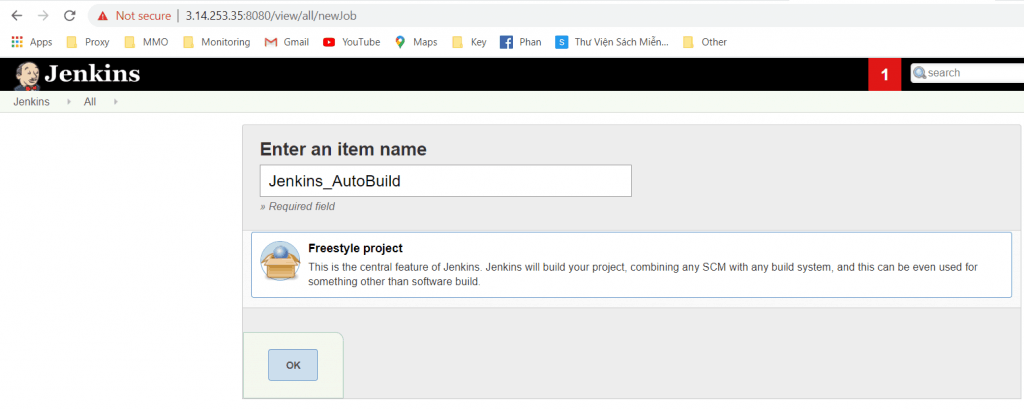
Create a Jenkins job ‘Freestyle project

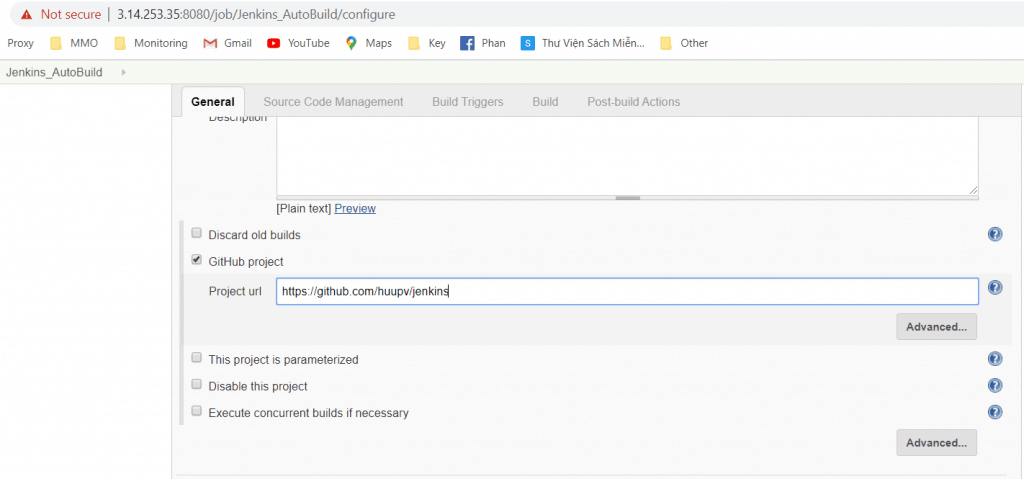
First, You add a repository in the “Github project” text field under the general settings.

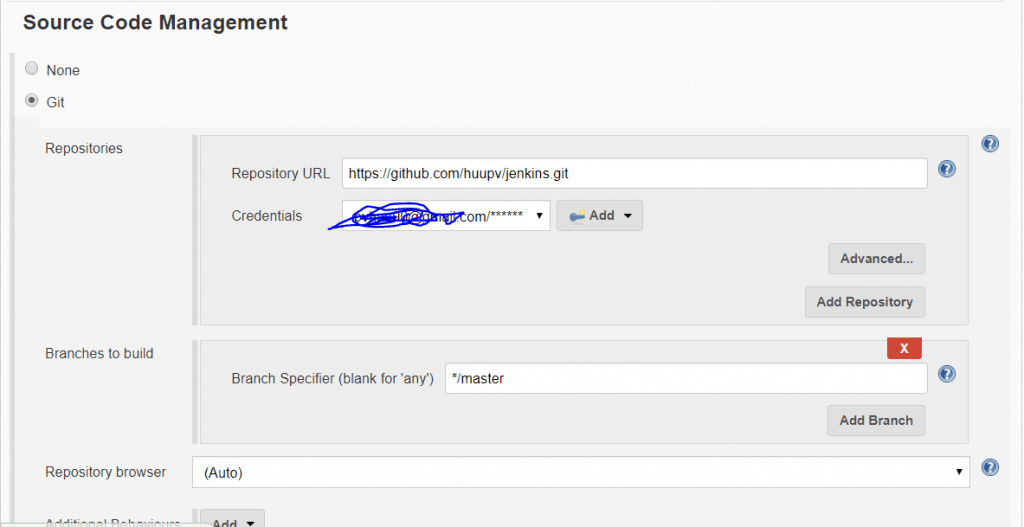
you’ll need to enable Git under ‘Source Code Management

Under ‘Build Triggers‘, tick ‘GitHub hook trigger for GITScm polling‘.

Add the hooks to Github.

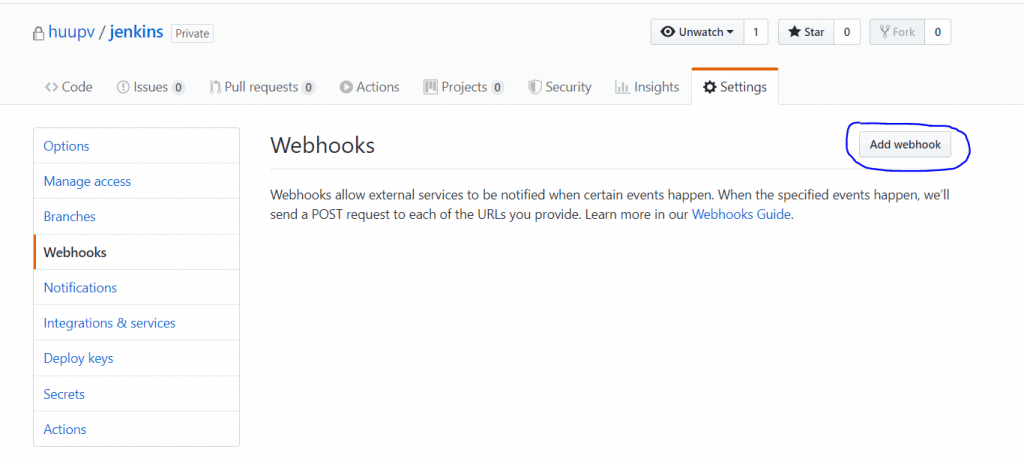
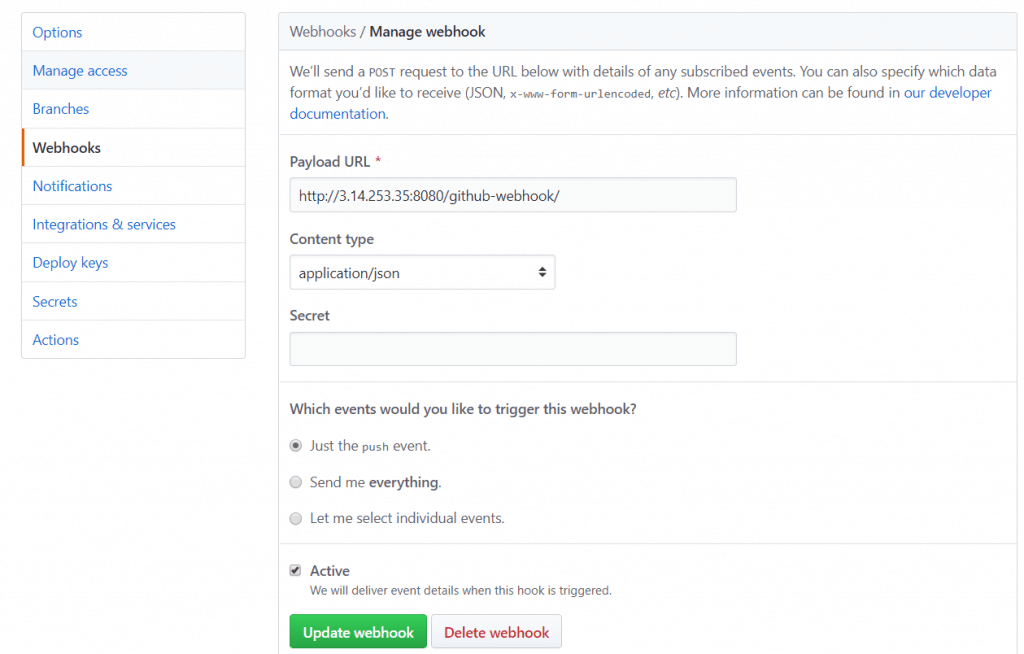
Click “settings” for your repository. For Example, My repository https://github.com/huupv/jenkins/settings/hooks . Click ‘Add webhook‘ as the picture.

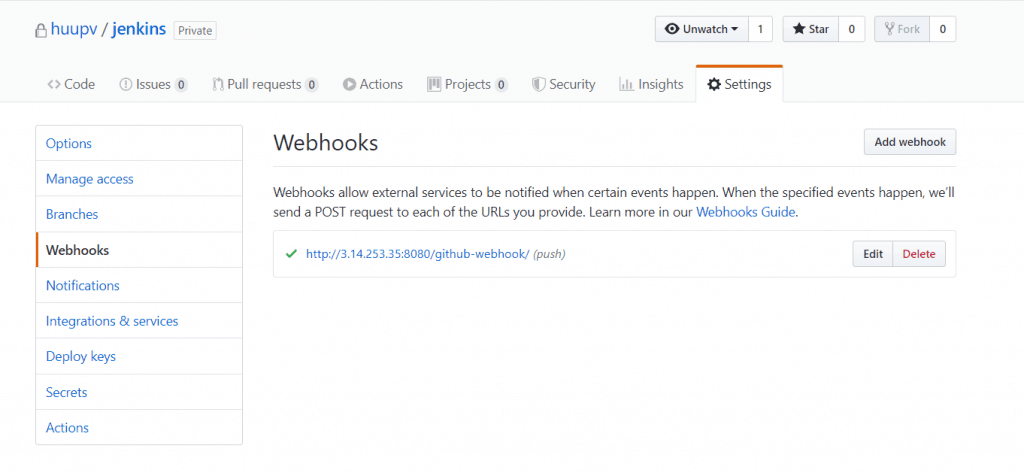
Setting webhooks for Jenkins.

Conclusion

When you commit changes to a repository on GitHub, Jenkins will automatically trigger a build job. Test it out and see how it works! I hope you find this information useful. Thank you for visiting the DevopsRoles website!