Category Archives: Docker

Master Docker with DevOpsRoles.com. Discover comprehensive guides and tutorials to efficiently use Docker for containerization and streamline your DevOps processes.

Mastering 10 Essential Docker Commands for Data Engineering

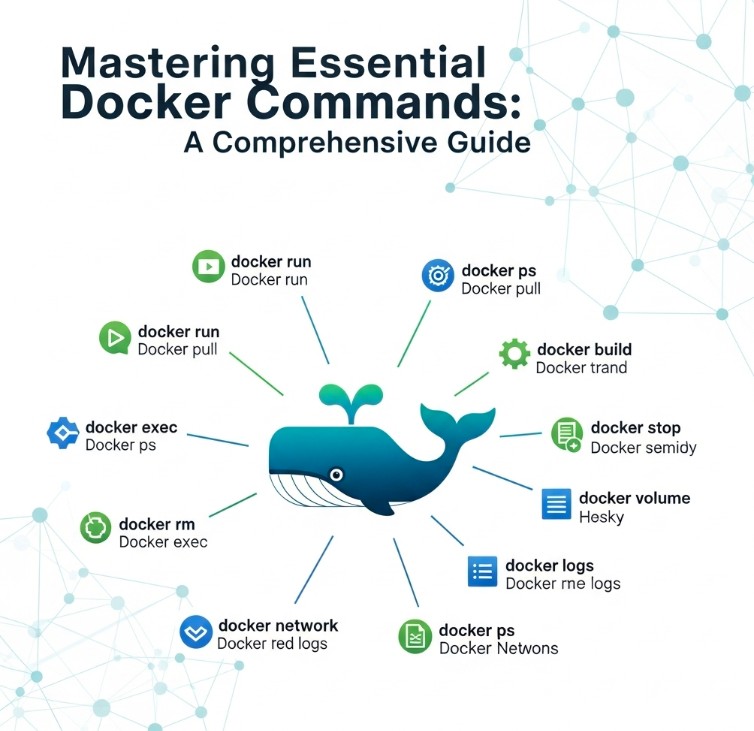
Data engineering, with its complex dependencies and diverse environments, often necessitates robust containerization solutions. Docker, a leading containerization platform, simplifies the deployment and management of data engineering pipelines. This comprehensive guide explores 10 essential Docker Commands Data Engineering professionals need to master for efficient workflow management. We’ll move beyond the basics, delving into practical applications and addressing common challenges faced when using Docker in data engineering projects. Understanding these commands will significantly streamline your development process, improve collaboration, and ensure consistency across different environments.

Understanding Docker Fundamentals for Data Engineering

Before diving into the specific commands, let’s briefly recap essential Docker concepts relevant to data engineering. Docker uses images (read-only templates) and containers (running instances of an image). Data engineering tasks often involve various tools and libraries (Spark, Hadoop, Kafka, etc.), each requiring specific configurations. Docker allows you to package these tools and their dependencies into images, ensuring consistent execution across different machines, regardless of their underlying operating systems. This eliminates the “it works on my machine” problem and fosters reproducible environments for data pipelines.

Key Docker Components in a Data Engineering Context

  • Docker Images: Pre-built packages containing the application, libraries, and dependencies. Think of them as blueprints for your containers.
  • Docker Containers: Running instances of Docker images. These are isolated environments where your data engineering applications execute.
  • Docker Hub: A public registry where you can find and share pre-built Docker images. A crucial resource for accessing ready-made images for common data engineering tools.
  • Docker Compose: A tool for defining and running multi-container applications. Essential for complex data pipelines that involve multiple interacting services.

10 Essential Docker Commands Data Engineering Professionals Should Know

Now, let’s explore 10 essential Docker Commands Data Engineering tasks frequently require. We’ll provide practical examples to illustrate each command’s usage.

1. `docker run`: Creating and Running Containers

This command is fundamental. It creates a new container from an image and runs it.

docker run -it  bash

This command runs a bash shell inside a container created from the specified image. The -it flags allocate a pseudo-TTY and keep stdin open, allowing interactive use.

2. `docker ps`: Listing Running Containers

Useful for checking the status of your running containers.

docker ps

This lists all currently running containers. Adding the -a flag (docker ps -a) shows all containers, including stopped ones.

3. `docker stop`: Stopping Containers

Gracefully stops a running container.

docker stop 

Replace with the container’s ID or name. It’s crucial to stop containers properly to avoid data loss and resource leaks.

4. `docker rm`: Removing Containers

Removes stopped containers.

docker rm 

Remember, you can only remove stopped containers. Use docker stop first if the container is running.

5. `docker images`: Listing Images

Displays the list of images on your system.

docker images

Useful for managing disk space and identifying unused images.

6. `docker rmi`: Removing Images

Removes images from your system.

docker rmi 

Be cautious when removing images, as they can be large and take up considerable disk space. Always confirm before deleting.

7. `docker build`: Building Custom Images

This is where you build your own customized images based on a Dockerfile. This is crucial for creating reproducible environments for your data engineering applications. A Dockerfile specifies the steps needed to build the image.

docker build -t  .

This command builds an image from a Dockerfile located in the current directory. The -t flag tags the image with a specified name.

8. `docker exec`: Executing Commands in Running Containers

Allows running commands within a running container.

docker exec -it  bash

This command opens a bash shell inside a running container. This is extremely useful for troubleshooting or interacting with the running application.

9. `docker commit`: Creating New Images from Container Changes

Saves changes made to a running container as a new image.

docker commit  

Useful for creating customized images based on existing ones after making modifications within the container.

10. Essential Docker Commands Data Engineering: `docker inspect`: Inspecting Container Details

Provides detailed information about a container or image.

docker inspect 

This command is invaluable for debugging and understanding the container’s configuration and status. It reveals crucial information like ports, volumes, and network settings.

Frequently Asked Questions

Q1: What are Docker volumes, and why are they important for data engineering?

Docker volumes provide persistent storage for containers. Data stored in volumes persists even if the container is removed or stopped. This is critical for data engineering because it ensures that your data isn’t lost when containers are restarted or removed. You can use volumes to mount external directories or create named volumes specifically designed for data persistence within your Docker containers.

Q2: How can I manage large datasets with Docker in a data engineering context?

For large datasets, avoid storing data directly *inside* the Docker containers. Instead, leverage Docker volumes to mount external storage (like cloud storage services or network-attached storage) that your containers can access. This allows for efficient management and avoids performance bottlenecks caused by managing large datasets within containers. Consider using tools like NFS or shared cloud storage to effectively manage data access across multiple containers in a data pipeline.

Q3: How do I handle complex data pipelines with multiple containers using Docker?

Docker Compose is your solution for managing complex, multi-container data pipelines. Define your entire pipeline’s architecture in a docker-compose.yml file. This file describes all containers, their dependencies, and networking configurations. You then use a single docker-compose up command to start the entire pipeline, simplifying deployment and management.

Conclusion

Mastering these 10 essential Docker Commands Data Engineering projects depend on provides a significant advantage for data engineers. From building reproducible environments to managing complex pipelines, Docker simplifies the complexities inherent in data engineering. By understanding these commands and their applications, you can streamline your workflow, improve collaboration, and ensure consistent execution across different environments. Remember to leverage Docker volumes for persistent storage and explore Docker Compose for managing sophisticated multi-container applications. This focused understanding of Docker Commands Data Engineering empowers you to build efficient and scalable data pipelines.

For further learning, refer to the official Docker documentation and explore resources like Docker’s website for advanced topics and best practices. Additionally, Kubernetes can be explored for orchestrating Docker containers at scale. Thank you for reading the DevopsRoles page!

Docker Tutorial Examples: A Practical Guide to Containerization

Are you struggling to understand Docker and its practical applications? This comprehensive Docker Tutorial Examples guide will walk you through the basics and advanced concepts of Docker, providing practical examples to solidify your understanding. We’ll cover everything from creating simple containers to managing complex applications, ensuring you gain the skills needed to leverage the power of Docker in your development workflow. Whether you’re a DevOps engineer, developer, or system administrator, this Docker Tutorial Examples guide will equip you with the knowledge to effectively utilize Docker in your projects. This tutorial will help you overcome the common challenges associated with setting up and managing consistent development environments.

Understanding Docker Fundamentals

Before diving into practical Docker Tutorial Examples, let’s establish a foundational understanding of Docker’s core components. Docker uses containers, isolated environments that package an application and its dependencies. This ensures consistent execution regardless of the underlying infrastructure.

Key Docker Components

  • Docker Images: Read-only templates that serve as blueprints for creating containers.
  • Docker Containers: Running instances of Docker images.
  • Docker Hub: A public registry containing a vast library of pre-built Docker images.
  • Dockerfile: A text file containing instructions for building a Docker image.

Docker Tutorial Examples: Your First Container

Let’s create our first Docker container using a pre-built image from Docker Hub. We’ll use the official Nginx web server image. This Docker Tutorial Examples section focuses on the most basic application.

Steps to Run Your First Container

  1. Pull the Nginx image: Open your terminal and run docker pull nginx. This downloads the Nginx image from Docker Hub.
  2. Run the container: Execute docker run -d -p 8080:80 nginx. This creates and starts a container in detached mode (-d), mapping port 8080 on your host machine to port 80 on the container (-p 8080:80).
  3. Access the Nginx server: Open your web browser and navigate to http://localhost:8080. You should see the default Nginx welcome page.
  4. Stop and remove the container: To stop the container, run docker stop (replace with the actual ID). To remove it, use docker rm .

Docker Tutorial Examples: Building a Custom Image

Now, let’s create a more complex example with a Docker Tutorial Examples focusing on building a custom Docker image from a Dockerfile. This will showcase the power of Docker for consistent application deployments.

Creating a Simple Python Web Application

We’ll build a basic Python web application using Flask and package it into a Docker image.

Step 1: Project Structure

Create the following files:

  • app.py (Python Flask application)
  • Dockerfile (Docker image instructions)
  • requirements.txt (Python dependencies)

Step 2: app.py

from flask import Flask
app = Flask(__name__)

@app.route("/")
def hello():
    return "Hello from Docker!"

if __name__ == "__main__":
    app.run(debug=True, host='0.0.0.0', port=5000)

Step 3: requirements.txt

Flask

Step 4: Dockerfile

FROM python:3.9-slim-buster

WORKDIR /app

COPY requirements.txt requirements.txt
RUN pip install --no-cache-dir -r requirements.txt

COPY . .

EXPOSE 5000

CMD ["python", "app.py"]

Step 5: Build and Run

  1. Navigate to the project directory in your terminal.
  2. Build the image: docker build -t my-python-app .
  3. Run the container: docker run -d -p 8000:5000 my-python-app
  4. Access the application: http://localhost:8000

Docker Tutorial Examples: Orchestration with Docker Compose

For more complex applications involving multiple services, Docker Compose simplifies the management of multiple containers. This section will illustrate a practical example using Docker Compose.

Let’s imagine a web application with a database and a web server. We’ll use Docker Compose to manage both.

Docker Compose Configuration (docker-compose.yml)


version: "3.9"
services:
  web:
    image: nginx:latest
    ports:
      - "80:80"
    depends_on:
      - db
  db:
    image: postgres:13
    ports:
      - "5432:5432"
    environment:
      - POSTGRES_USER=myuser
      - POSTGRES_PASSWORD=mypassword
      - POSTGRES_DB=mydb

Running with Docker Compose

  1. Save the above configuration as docker-compose.yml.
  2. Run docker-compose up -d to start the containers in detached mode.
  3. Access the Nginx server at http://localhost.
  4. Stop and remove the containers with docker-compose down.

Docker Tutorial Examples: Docker Volumes

Data persistence is crucial. Docker volumes provide a mechanism to separate data from the container’s lifecycle, allowing data to persist even if the container is removed. This is a very important section in our Docker Tutorial Examples guide.

Creating and Using a Docker Volume

  1. Create a volume: docker volume create my-data-volume
  2. Run a container with the volume: docker run -d -v my-data-volume:/var/www/html nginx
  3. The data in /var/www/html will persist even after the container is removed.

Docker Tutorial Examples: Networking with Docker

Docker’s networking capabilities allow containers to communicate with each other. Let’s explore some key networking aspects in this part of our Docker Tutorial Examples.

Understanding Docker Networks

  • Default Network: Containers on the default network can communicate using their container names.
  • Custom Networks: Create custom networks for more organized communication between containers.

Frequently Asked Questions

What are the benefits of using Docker?

Docker offers several benefits, including improved consistency across development, testing, and production environments, simplified application deployment, resource efficiency through containerization, and enhanced scalability and maintainability.

How does Docker differ from virtual machines?

Docker containers share the host operating system’s kernel, resulting in significantly lower overhead compared to virtual machines which have their own full operating system instances. This makes Docker containers much more lightweight and faster.

Is Docker suitable for all applications?

While Docker is highly versatile, it might not be ideal for all applications. Applications with significant system-level dependencies or those requiring direct access to the underlying hardware might be better suited to virtual machines.

How do I troubleshoot Docker issues?

Docker provides extensive logging capabilities. Checking the logs using commands like docker logs is crucial for debugging. Additionally, Docker’s documentation and community forums are invaluable resources for resolving issues.

What are some best practices for using Docker?

Employing a well-structured Dockerfile, utilizing multi-stage builds to reduce image sizes, implementing robust container networking, and effectively managing data persistence with Docker volumes are key best practices.

Conclusion

This in-depth Docker Tutorial Examples guide has provided a comprehensive overview of Docker, covering fundamental concepts and advanced techniques illustrated with practical examples. From creating simple containers to managing complex applications with Docker Compose, you’ve gained the foundational skills to effectively utilize Docker in your projects. Remember to leverage the wealth of resources available, including official documentation and online communities, to continue learning and mastering Docker. Thank you for reading the DevopsRoles page!
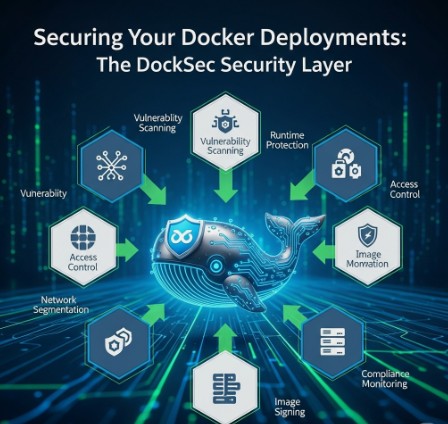
Docker Security 2025: Protecting Containers from Cyberthreats

The containerization revolution, spearheaded by Docker, has transformed software development and deployment. However, this rapid adoption has also introduced new security challenges. As we look towards 2025 and beyond, ensuring robust Docker security is paramount. This article delves into the multifaceted landscape of container security, examining emerging threats and providing practical strategies to safeguard your Dockerized applications. We’ll explore best practices for securing images, networks, and the Docker environment itself, helping you build a resilient and secure container ecosystem.

Understanding the Docker Security Landscape

The inherent benefits of Docker – portability, consistency, and efficient resource utilization – also create potential vulnerabilities if not properly addressed. Attack surfaces exist at various levels, from the base image to the running container and the host system. Threats range from compromised images containing malware to misconfigurations exposing sensitive data. A comprehensive Docker security strategy needs to consider all these facets.

Common Docker Security Vulnerabilities

  • Vulnerable Base Images: Using outdated or insecure base images introduces numerous vulnerabilities.
  • Image Tampering: Malicious actors can compromise images in registries, injecting malware.
  • Network Security Issues: Unsecured networks allow unauthorized access to containers.
  • Misconfigurations: Incorrectly configured Docker settings can create significant security holes.
  • Runtime Attacks: Exploiting vulnerabilities in the container runtime environment itself.

Implementing Robust Docker Security Practices

A multi-layered approach is essential for effective Docker security. This includes securing the image creation process, managing network traffic, and enforcing runtime controls.

Securing Docker Images

  1. Use Minimal Base Images: Start with the smallest, most secure base image possible. Avoid bloated images with unnecessary packages.
  2. Regularly Update Images: Stay up-to-date with security patches and updates for your base images and application dependencies.
  3. Employ Static and Dynamic Analysis: Conduct thorough security scanning of images using tools like Clair, Anchore, and Trivy to identify vulnerabilities before deployment.
  4. Use Multi-Stage Builds: Separate the build process from the runtime environment to reduce the attack surface.
  5. Sign Images: Digitally sign images to verify their authenticity and integrity, preventing tampering.

Securing the Docker Network

  1. Use Docker Networks: Isolate containers using dedicated Docker networks to limit communication between them and the host.
  2. Restrict Network Access: Configure firewalls and network policies to restrict access to only necessary ports and services.
  3. Employ Container Network Interfaces (CNIs): Leverage CNIs like Calico or Weave for enhanced network security features, including segmentation and policy enforcement.
  4. Secure Communication: Use HTTPS and TLS for all communication between containers and external services.

Enhancing Docker Runtime Security

  1. Resource Limits: Set resource limits (CPU, memory) for containers to prevent resource exhaustion attacks (DoS).
  2. User Namespaces: Run containers with non-root users to minimize the impact of potential breaches.
  3. Security Context: Utilize Docker’s security context options to define capabilities and permissions for containers.
  4. Regular Security Audits: Conduct periodic security audits and penetration testing to identify and address vulnerabilities.
  5. Security Monitoring: Implement security monitoring tools to detect suspicious activity within your Docker environment.

Docker Security: Advanced Techniques

Beyond the fundamental practices, advanced techniques further strengthen your Docker security posture.

Secrets Management

Avoid hardcoding sensitive information within Docker images. Use dedicated secrets management tools like HashiCorp Vault or AWS Secrets Manager to store and securely access credentials and other sensitive data.

Kubernetes Integration

For production deployments, integrating Docker with Kubernetes provides powerful security benefits. Kubernetes offers features like network policies, role-based access control (RBAC), and pod security policies for enhanced container security. This is crucial for advanced Docker security within a large-scale system.

Image Immutability

Enforce image immutability to prevent runtime modifications and maintain the integrity of your containers. This principle is central to maintaining a secure Docker security strategy. Once an image is built, it should not be changed.

Runtime Security Scanning

Implement continuous runtime security scanning using tools that monitor containers for malicious behavior and vulnerabilities. Tools like Sysdig and Falco provide real-time monitoring and alerting capabilities.

Frequently Asked Questions

Q1: What are the key differences between Docker security and general container security?

A1: While Docker security is a subset of container security, it focuses specifically on the security aspects of using the Docker platform and its associated tools, images, and processes. General container security encompasses best practices for all container technologies, including other container runtimes like containerd and CRI-O.

Q2: How can I effectively scan for vulnerabilities in my Docker images?

A2: Use static and dynamic analysis tools. Static analysis tools like Trivy and Anchore scan the image’s contents for known vulnerabilities without actually running the image. Dynamic analysis involves running the container in a controlled environment to observe its behavior and detect malicious activity.

Q3: Is it necessary to use rootless containers for production environments?

A3: While not strictly mandatory, running containers with non-root users is a highly recommended security practice to minimize the impact of potential exploits. It significantly reduces the attack surface and limits the privileges a compromised container can access. Consider it a best practice for robust Docker security.

Q4: How can I monitor Docker containers for malicious activity?

A4: Employ runtime security monitoring tools like Sysdig, Falco, or similar solutions. These tools can monitor container processes, network activity, and file system changes for suspicious behavior and alert you to potential threats.

Conclusion

In the evolving landscape of 2025 and beyond, implementing robust Docker security measures is not optional; it’s critical. By combining best practices for image security, network management, runtime controls, and advanced techniques, you can significantly reduce the risk of vulnerabilities and protect your applications. Remember that Docker security is a continuous process, demanding regular updates, security audits, and a proactive approach to threat detection and response. Neglecting this crucial aspect can have severe consequences. Prioritize a comprehensive Docker security strategy today to safeguard your applications tomorrow.

For more information on container security best practices, refer to the following resources: Docker Security Documentation and OWASP Top Ten. Thank you for reading the DevopsRoles page!

Bolstering Your Defenses: Docker’s Hardened Images and Enhanced Docker Container Security

In today’s dynamic landscape of cloud-native applications and microservices, containerization has emerged as a cornerstone technology. Docker, the industry leader in containerization, plays a pivotal role, simplifying application deployment and management. However, with the increasing adoption of Docker comes a growing concern: Docker container security. This article delves into Docker’s innovative solution to this challenge: Hardened Images. We will explore how these images enhance security, provide practical examples, and address frequently asked questions to help you elevate your Docker container security posture.

Understanding the Need for Enhanced Docker Container Security

Containers, while offering numerous advantages, inherit vulnerabilities from their base images. A compromised base image can leave your entire application ecosystem exposed. Traditional security practices often fall short when dealing with the dynamic nature of containers and their ephemeral lifecycles. Vulnerabilities can range from outdated libraries with known exploits to misconfigurations that grant attackers unauthorized access. Neglecting Docker container security can lead to serious consequences, including data breaches, service disruptions, and reputational damage.

Introducing Docker Hardened Images: A Proactive Approach to Security

Docker Hardened Images represent a significant leap forward in Docker container security. These images are built with enhanced security features embedded directly into the base image, providing a more secure foundation for your applications. This proactive approach minimizes the attack surface and reduces the risk of vulnerabilities being introduced during the application development and deployment process.

Key Features of Hardened Images

  • Minimized attack surface: Hardened images often include only essential packages and services, reducing the number of potential vulnerabilities.
  • Security hardening: They incorporate security best practices like AppArmor profiles, SELinux configurations, and secure defaults to restrict access and prevent privilege escalation.
  • Regular security updates: Docker actively maintains and updates these images, ensuring the latest security patches are applied.
  • Enhanced auditing and logging: Features for more detailed auditing and logging capabilities aid in incident response and security monitoring.

Implementing Hardened Images for Enhanced Docker Container Security

Integrating Hardened Images into your workflow is relatively straightforward. The primary method involves specifying the hardened image during container creation. Let’s explore a practical example using a common web server image.

Example: Deploying a Hardened Web Server

Instead of using a standard `nginx` image, you might choose a hardened variant provided by Docker or a trusted third-party provider. The process remains largely the same, only the image name changes.


docker run -d -p 80:80

Note: Replace `` with the actual name of the hardened Nginx image from your chosen registry. Always verify the image’s authenticity and source before deployment.

Beyond Hardened Images: Comprehensive Docker Container Security Strategies

While Hardened Images provide a robust foundation, a comprehensive Docker container security strategy requires a multi-layered approach. This includes:

1. Secure Image Building Practices

  • Use minimal base images.
  • Regularly scan images for vulnerabilities using tools like Clair or Trivy.
  • Employ multi-stage builds to reduce the size and attack surface of your images.
  • Sign your images to verify their authenticity and integrity.

2. Runtime Security

  • Utilize container runtime security tools like Docker Desktop’s built-in security features or dedicated solutions.
  • Implement resource limits and constraints to prevent runaway processes from consuming excessive resources or impacting other containers.
  • Regularly monitor container logs and system events for suspicious activity.

3. Network Security

  • Use Docker networks to isolate containers and control network traffic.
  • Implement network policies to define allowed communication between containers and external networks.
  • Employ firewalls to filter incoming and outgoing network connections.

Docker Container Security: Best Practices and Advanced Techniques

To further strengthen your Docker container security posture, consider these advanced techniques:

1. Implementing Security Scanning at Every Stage

Integrate automated security scanning into your CI/CD pipeline to catch vulnerabilities early. This should include static analysis of code, dynamic analysis of running containers, and regular vulnerability scans of your base images.

2. Leveraging Security Orchestration Platforms

Tools like Kubernetes with integrated security features can automate many security tasks, including network policies, access control, and auditing.

3. Employing Secrets Management

Never hardcode sensitive information like passwords and API keys into your container images. Use secure secrets management solutions to store and manage these credentials.

By adopting a combination of hardened images and these best practices, you can significantly enhance the security of your Docker containers and protect your applications from evolving threats.

Frequently Asked Questions

Q1: Are Hardened Images a complete solution for Docker container security?

No, while Hardened Images significantly reduce the attack surface, they are not a silver bullet. A comprehensive security strategy also involves secure image building practices, runtime security measures, and robust network security configurations.

Q2: How often are Docker Hardened Images updated?

The frequency of updates depends on the specific image and the severity of discovered vulnerabilities. Docker typically releases updates regularly to address known security issues. It’s crucial to monitor for updates and adopt a process for regularly updating your base images.

Q3: Where can I find Docker Hardened Images?

Docker and various third-party providers offer hardened images. Always verify the source and reputation of the provider before using their images in production environments. Check the official Docker Hub and reputable sources for validated images.

Q4: Can I create my own hardened images?

Yes, you can customize your own hardened images by starting from a minimal base image and carefully selecting the packages and configurations needed for your application. However, this requires a deep understanding of security best practices and is more resource-intensive than using pre-built options.

Conclusion

Implementing Docker Hardened Images is a critical step towards strengthening your Docker container security. By leveraging these images in conjunction with a multi-layered security approach that includes secure image building, runtime security, and robust network controls, you can significantly reduce the risk of vulnerabilities and protect your applications. Remember, proactively addressing Docker container security is not just a best practice; it’s a necessity in today’s threat landscape. Stay updated on the latest security advisories and regularly review your security practices to ensure your containers remain secure.

For more in-depth information, refer to the official Docker documentation: https://docs.docker.com/ and explore security best practices from reputable sources like OWASP: https://owasp.org/. Thank you for reading the DevopsRoles page!
Understanding and Combating Docker Zombie Malware

The containerization revolution, spearheaded by Docker, has transformed software development and deployment. However, this technological advancement isn’t without its vulnerabilities. A particularly insidious threat emerging in this landscape is Docker Zombie Malware. This malware leverages the inherent characteristics of Docker containers to persist, spread, and remain undetected, posing a significant risk to system security and stability. This comprehensive guide will delve into the intricacies of Docker Zombie Malware, exploring its mechanisms, detection methods, and mitigation strategies to help you safeguard your containerized environments.

Understanding the Mechanics of Docker Zombie Malware

Docker Zombie Malware, unlike traditional malware, doesn’t necessarily aim for immediate destructive actions. Instead, it focuses on establishing a persistent presence within the Docker ecosystem, often acting as a covert backdoor for future malicious activity. This stealthy approach makes detection challenging.

How Docker Zombies Operate

  • Exploiting Vulnerabilities: Many Docker Zombie Malware infections begin by exploiting vulnerabilities in the Docker daemon, Docker images, or host operating system. This allows the malware to gain initial access and establish itself.
  • Container Injection: Once inside, the malware can inject itself into existing containers or create new, compromised containers. These containers might appear legitimate, masking the malicious activity within.
  • Persistence Mechanisms: The malware uses various techniques to ensure persistence, including modifying Docker configuration files, leveraging cron jobs or systemd services, and embedding itself within Docker image layers.
  • Network Communication: Compromised containers often establish covert communication channels with command-and-control (C&C) servers, enabling the attacker to remotely control the infected system and download further payloads.
  • Data Exfiltration: Docker Zombie Malware can be used to steal sensitive data stored within containers or on the host system. This data might include source code, credentials, and other confidential information.

Types of Docker Zombie Malware

While specific malware strains vary, they share common characteristics. They might:

  • Create hidden containers: Using obfuscation techniques to make their presence hard to detect.
  • Modify existing images: Secretly injecting malicious code into legitimate images.
  • Leverage rootkits: To further hide their activities and evade detection by security tools.

Detecting Docker Zombie Malware: A Multi-Layered Approach

Detecting Docker Zombie Malware requires a proactive and multi-layered approach.

Regular Security Audits

Regularly audit your Docker environment for suspicious activity. This includes:

  • Inspecting running containers and their processes.
  • Analyzing Docker logs for unusual network connections or file modifications.
  • Reviewing Docker image metadata for potential malicious code.

Intrusion Detection Systems (IDS)

Implement an IDS specifically designed for containerized environments. These systems can monitor network traffic and system calls for malicious patterns indicative of Docker Zombie Malware.

Security Information and Event Management (SIEM)

A SIEM system can centralize security logs from various sources, including your Docker environment, enabling easier correlation of events and detection of suspicious activity.

Vulnerability Scanning

Regularly scan your Docker images and host systems for known vulnerabilities. Patching vulnerabilities promptly is crucial in preventing Docker Zombie Malware infections.

Mitigating the Threat of Docker Zombie Malware

A robust security posture is essential to combat Docker Zombie Malware.

Image Security Best Practices

  • Use trusted image registries: Utilize official and reputable sources for Docker images to minimize the risk of compromised images.
  • Regularly update images: Keep your Docker images up-to-date with the latest security patches.
  • Image scanning: Employ automated image scanning tools to detect vulnerabilities and malware before deployment.
  • Minimalist images: Use images with only the necessary components to reduce the attack surface.

Docker Daemon Hardening

Secure your Docker daemon by:

  • Restricting access: Limit access to the Docker daemon to authorized users only.
  • Using non-root users: Avoid running Docker as the root user.
  • Enabling Docker content trust: Utilize Docker Content Trust to verify the integrity of images.
  • Regular updates: Keep the Docker daemon updated with the latest security patches.

Network Security

Implement strong network security measures, including:

  • Firewalls: Use firewalls to control network traffic to and from your Docker containers.
  • Network segmentation: Isolate your Docker containers from other sensitive systems.
  • Intrusion Prevention Systems (IPS): Deploy an IPS to actively block malicious traffic.

Docker Zombie Malware: Advanced Detection Techniques

Beyond basic detection, more advanced techniques are vital for identifying sophisticated Docker Zombie Malware. This requires a deeper understanding of container internals and system behavior.

Behavioral Analysis

Monitor container behavior for anomalies. This includes unexpected network activity, file modifications, or process executions. Machine learning can play a crucial role in identifying subtle deviations from normal behavior.

Memory Forensics

Analyze the memory of compromised containers to identify malicious code or processes that might be hidden in memory. This often requires specialized memory analysis tools.

Static and Dynamic Analysis

Perform static and dynamic analysis of Docker images to identify malicious code embedded within the image layers. Static analysis examines the image’s code without execution, while dynamic analysis monitors its behavior during execution.

Frequently Asked Questions

What are the common symptoms of a Docker Zombie Malware infection?

Common symptoms include unusual network activity from containers, unexpected resource consumption, slow performance, and unexplained changes to Docker configuration files. Also, be wary of any newly created containers you haven’t authorized.

How can I prevent Docker Zombie Malware from infecting my system?

Proactive measures are crucial. This includes using trusted images, regularly updating your Docker daemon and images, implementing strong access controls, and using security tools like IDS and SIEM systems.

What should I do if I suspect a Docker Zombie Malware infection?

Immediately isolate the affected system from your network. Conduct a thorough investigation, analyzing logs and using security tools to identify the malware. Consider engaging a security expert for assistance.

Are there any tools specifically designed for Docker security?

Yes, several tools are available to assist in Docker security, including Clair (for vulnerability scanning), Anchore Engine (for image analysis), and Sysdig (for container monitoring and security).

How often should I scan my Docker images for vulnerabilities?

Regular and frequent scanning is crucial. The frequency depends on how often you update your images and the sensitivity of your applications, but daily or at least weekly scanning is recommended.

Conclusion

Docker Zombie Malware presents a serious threat to the security and stability of containerized environments. By understanding its mechanisms, implementing robust security practices, and utilizing advanced detection techniques, you can significantly mitigate the risks associated with this insidious form of malware. Remember, proactive security is paramount in preventing and responding to Docker Zombie Malware infections. A layered security approach, combining best practices, regular audits, and advanced detection tools, is vital for maintaining a secure Docker environment. Thank you for reading the DevopsRoles page!

Docker Security Best Practices
What are containers?
Global Cybersecurity Market Report

Unlocking Docker Desktop’s Power: A No-Coding Guide

Docker has revolutionized software development and deployment, but its command-line interface can seem intimidating to non-programmers. This comprehensive guide demonstrates how to leverage the power of Docker Desktop no coding, making containerization accessible to everyone, regardless of their programming skills. We’ll explore various techniques to build, run, and manage containers without writing a single line of code, empowering you to streamline your workflows and simplify your applications.

Understanding Docker Desktop Without Coding

The core concept behind Docker Desktop no coding is utilizing pre-built images and user-friendly graphical interfaces. Docker Hub, a vast repository of container images, offers thousands of ready-to-use applications, from databases to web servers, eliminating the need for manual compilation and configuration. Docker Desktop provides a visually intuitive interface for managing these images and containers, simplifying complex tasks with a few clicks.

What is Docker Desktop?

Docker Desktop is a single application for MacOS and Windows machines that packages Docker Engine, Docker Compose, Kubernetes, and Credential Helper to make it easy for developers to build, manage, and share containerized applications. It simplifies the complexities of container management into a user-friendly interface.

Why Use Docker Desktop Without Coding?

  • Simplicity: Avoid complex command-line instructions.
  • Speed: Quickly deploy and manage applications.
  • Consistency: Ensure applications run consistently across different environments.
  • Ease of Collaboration: Share containerized applications easily.

Getting Started with Docker Desktop No Coding

Before embarking on our Docker Desktop no coding journey, ensure Docker Desktop is installed and running on your system. You can download it from the official Docker website: https://www.docker.com/products/docker-desktop/

Pulling and Running Images from Docker Hub

  1. Search for an Image: Open Docker Desktop and navigate to the “Images” tab. Use the search bar to find the image you need (e.g., “nginx,” “redis,” “mysql”).
  2. Pull the Image: Select the image and click “Pull.” This downloads the image to your local machine.
  3. Run the Container: Once downloaded, click on the image and select “Run.” Docker Desktop will create and start a container based on the image. You can configure port mappings and other settings in this step.

Using the Docker Compose GUI (Docker Desktop)

For more complex applications requiring multiple containers, Docker Compose is a powerful tool. While it typically uses YAML files, Docker Desktop’s GUI simplifies the process. Let’s take a look at a hypothetical example. Imagine a simple web application consisting of a web server (Nginx) and a database (MySQL).

Note: The GUI doesn’t completely eliminate all code, but it drastically reduces the complexity.

Managing Containers Through the Docker Desktop GUI

Once containers are running, Docker Desktop provides a convenient interface to monitor their status, manage resources, and stop or remove them when needed. The GUI gives a real-time overview of resource usage and container health.

  • Start/Stop/Restart: Easily control the lifecycle of your containers with intuitive buttons.
  • Resource Monitoring: Monitor CPU, memory, and network usage for each container.
  • Log Inspection: View container logs directly within the Docker Desktop interface for troubleshooting.

Advanced Techniques: Docker Desktop No Coding

While the basic functionalities are extremely user-friendly, Docker Desktop offers advanced features that can be utilized without coding. Let’s explore these options.

Using Pre-built Applications

Numerous providers offer pre-configured Docker images for popular applications such as WordPress, Drupal, and various databases. These typically require minimal configuration, further simplifying deployment.

Leveraging Docker Compose for Multi-Container Applications (GUI Approach)

Docker Compose, even when used through the GUI, significantly streamlines the management of applications composed of multiple containers. This approach reduces manual configuration needed to connect and coordinate the different components. The Docker Desktop GUI helps by managing linking containers and defining volumes.

Frequently Asked Questions

Q1: Can I use Docker Desktop without any command-line knowledge at all?

Yes, Docker Desktop’s GUI allows you to perform many operations without using the command line. You can pull, run, and manage containers using the visual interface alone.

Q2: Are there limitations to using Docker Desktop with no coding?

While Docker Desktop significantly simplifies container management, highly customized configurations might still require some command-line intervention or YAML file editing. However, for many common use cases, the GUI is sufficient.

Q3: Is Docker Desktop suitable for production environments with no coding involved?

For simple applications, Docker Desktop can be used in production. However, for more complex and mission-critical applications, using scripting and automation (which would entail some coding) is recommended for robust orchestration and scalability.

Q4: What if I need to modify a container’s configuration after it’s running?

Docker Desktop offers a certain level of runtime modification through the GUI. However, extensive changes might require restarting the container or applying modifications through the underlying Docker Engine using the command line, albeit indirectly via GUI controlled actions.

Conclusion

This guide has demonstrated that harnessing the power of Docker doesn’t necessitate coding expertise. Docker Desktop no coding offers a powerful, accessible path to containerization. By utilizing pre-built images and the intuitive graphical interface, users can efficiently manage and deploy applications without complex command-line interactions. Remember to explore Docker Hub’s vast repository of ready-to-use images to fully unlock the potential of Docker Desktop no coding and streamline your workflow. Thank you for reading the DevopsRoles page!
Revolutionize Your GenAI Workflow: Mastering the Docker Model Runner

The rise of Generative AI (GenAI) has unleashed a wave of innovation, but deploying and managing these powerful models can be challenging. Juggling dependencies, environments, and versioning often leads to frustrating inconsistencies and delays. This is where a Docker Model Runner GenAI solution shines, offering a streamlined and reproducible way to build and run your GenAI applications locally. This comprehensive guide will walk you through leveraging the power of Docker to create a robust and efficient GenAI development environment, eliminating many of the headaches associated with managing complex AI projects.

Understanding the Power of Docker for GenAI

Before diving into the specifics of a Docker Model Runner GenAI setup, let’s understand why Docker is the ideal solution for managing GenAI applications. GenAI models often rely on specific versions of libraries, frameworks (like TensorFlow or PyTorch), and system dependencies. Maintaining these across different machines or development environments can be a nightmare. Docker solves this by creating isolated containers – self-contained units with everything the application needs, ensuring consistent execution regardless of the underlying system.

Benefits of Using Docker for GenAI Projects:

  • Reproducibility: Ensures consistent results across different environments.
  • Isolation: Prevents conflicts between different projects or dependencies.
  • Portability: Easily share and deploy your applications to various platforms.
  • Version Control: Track changes in your environment alongside your code.
  • Simplified Deployment: Streamlines the process of deploying to cloud platforms like AWS, Google Cloud, or Azure.

Building Your Docker Model Runner GenAI Image

Let’s create a Docker Model Runner GenAI image. This example will use Python and TensorFlow, but the principles can be adapted to other frameworks and languages.

Step 1: Create a Dockerfile

A Dockerfile is a script that instructs Docker on how to build your image. Here’s an example:

FROM python:3.9-slim-buster

WORKDIR /app

COPY requirements.txt .

RUN pip install --no-cache-dir -r requirements.txt

COPY . .

CMD ["python", "your_genai_app.py"]

This Dockerfile starts with a base Python image, sets the working directory, copies the requirements file, installs dependencies, copies the application code, and finally, defines the command to run your GenAI application (your_genai_app.py).

Step 2: Define Your Requirements

Create a requirements.txt file listing all your project’s Python dependencies:


tensorflow==2.11.0
numpy
pandas
# Add other necessary libraries here

Step 3: Build the Docker Image

Use the following command in your terminal to build the image:


docker build -t my-genai-app .

Replace my-genai-app with your desired image name.

Step 4: Run the Docker Container

Once built, run your image using this command:


docker run -it -p 8501:8501 my-genai-app

This command maps port 8501 (example Tensorflow serving port) from the container to your host machine. Adjust the port mapping as needed for your application.

Advanced Docker Model Runner GenAI Techniques

Now let’s explore more advanced techniques to enhance your Docker Model Runner GenAI workflow.

Using Docker Compose for Multi-Container Applications

For more complex GenAI applications involving multiple services (e.g., a separate database or API server), Docker Compose is a powerful tool. It allows you to define and manage multiple containers from a single configuration file (docker-compose.yml).

Optimizing Docker Images for Size and Performance

Larger images lead to slower build times and increased deployment overhead. Consider these optimizations:

  • Use smaller base images.
  • Utilize multi-stage builds to reduce the final image size.
  • Employ caching strategies to speed up the build process.

Integrating with CI/CD Pipelines

Automate your Docker Model Runner GenAI workflow by integrating it with Continuous Integration/Continuous Deployment (CI/CD) pipelines. Tools like Jenkins, GitLab CI, or GitHub Actions can automate building, testing, and deploying your Docker images.

Docker Model Runner GenAI: Best Practices

To fully leverage the potential of a Docker Model Runner GenAI setup, follow these best practices:

  • Use clear and descriptive image names and tags.
  • Maintain a well-structured Dockerfile.
  • Regularly update your base images and dependencies.
  • Implement robust error handling and logging within your applications.
  • Use a version control system (like Git) to manage your Dockerfiles and application code.

Frequently Asked Questions

Q1: Can I use Docker Model Runner GenAI with GPU acceleration?

Yes, you can. When building your Docker image, you’ll need to use a base image with CUDA support. You will also need to ensure your NVIDIA drivers and CUDA toolkit are correctly installed on the host machine.

Q2: How do I debug my GenAI application running inside a Docker container?

You can use tools like docker exec to run commands inside the container or attach a debugger to the running process. Alternatively, consider using remote debugging tools.

Q3: What are the security considerations when using a Docker Model Runner GenAI?

Ensure your base image is secure, update dependencies regularly, avoid exposing unnecessary ports, and use appropriate authentication and authorization mechanisms for your GenAI application.

Q4: Are there any limitations to using a Docker Model Runner GenAI?

While Docker offers significant advantages, very large models may struggle with the resource constraints of a single container. In such cases, consider using more advanced orchestration tools like Kubernetes to manage multiple containers and distribute workloads across a cluster.

Conclusion

Implementing a Docker Model Runner GenAI solution offers a significant boost to your GenAI development workflow. By containerizing your applications, you gain reproducibility, portability, and simplified deployment. By following the best practices and advanced techniques discussed in this guide, you’ll be well-equipped to build and manage robust and efficient GenAI applications locally. Remember to regularly review and update your Docker images to ensure security and optimal performance in your Docker Model Runner GenAI environment.

For more information on Docker, refer to the official Docker documentation: https://docs.docker.com/ and for TensorFlow serving, refer to: https://www.tensorflow.org/tfx/serving. Thank you for reading the DevopsRoles page!

Revolutionizing Container Management: Mastering the Docker MCP Catalog & Toolkit

Are you struggling to manage the complexities of your containerized applications? Finding the right tools and images can be a time-consuming and frustrating process. This comprehensive guide dives deep into the newly launched Docker MCP Catalog Toolkit, a game-changer for streamlining container management. We’ll explore its features, benefits, and how you can leverage it to optimize your workflow and improve efficiency. This guide is designed for DevOps engineers, developers, and anyone working with containerized applications seeking to enhance their productivity with the Docker MCP Catalog Toolkit.

Understanding the Docker MCP Catalog and its Power

The Docker MCP (Managed Container Platform) Catalog is a curated repository of trusted container images and tools specifically designed to simplify the process of building, deploying, and managing containerized applications. Gone are the days of manually searching for compatible images and wrestling with dependencies. The Docker MCP Catalog Toolkit provides a centralized hub, ensuring the images you use are secure, reliable, and optimized for performance.

Key Features of the Docker MCP Catalog

  • Curated Images: Access a wide variety of pre-built, verified images from reputable sources, reducing the risk of vulnerabilities and compatibility issues.
  • Simplified Search and Filtering: Easily find the images you need with powerful search and filtering options, allowing for precise selection based on specific criteria.
  • Version Control and Updates: Manage image versions effectively and receive automatic notifications about updates and security patches, ensuring your deployments remain up-to-date.
  • Integrated Security Scanning: Built-in security scans help identify vulnerabilities before deployment, strengthening the overall security posture of your containerized applications.

Diving into the Docker MCP Catalog Toolkit

The Docker MCP Catalog Toolkit extends the functionality of the Docker MCP Catalog by providing a suite of powerful tools that simplify various aspects of the container lifecycle. This toolkit significantly reduces the manual effort associated with managing containers and allows for greater automation and efficiency.

Utilizing the Toolkit for Optimized Workflow

The Docker MCP Catalog Toolkit streamlines several crucial steps in the container management process. Here are some key advantages:

  • Automated Image Building: Automate the building of custom images from your source code, integrating seamlessly with your CI/CD pipelines.
  • Simplified Deployment: Easily deploy your containerized applications to various environments (on-premise, cloud, hybrid) with streamlined workflows.
  • Centralized Monitoring and Logging: Gain comprehensive insights into the performance and health of your containers through a centralized monitoring and logging system.
  • Enhanced Collaboration: Facilitate collaboration among team members by providing a centralized platform for managing and sharing container images and configurations.

Practical Example: Deploying a Node.js Application

Let’s illustrate a simplified example of deploying a Node.js application using the Docker MCP Catalog Toolkit. Assume we have a Node.js application with a Dockerfile already defined:


FROM node:16
WORKDIR /app
COPY package*.json ./
RUN npm install
COPY . .
CMD [ "npm", "start" ]

Using the Docker MCP Catalog Toolkit, we can automate the image building, tagging, and pushing to a registry, significantly simplifying the deployment process.

Advanced Features and Integrations

The Docker MCP Catalog Toolkit boasts advanced features for sophisticated container orchestration and management. These features cater to large-scale deployments and complex application architectures.

Integration with Kubernetes and Other Orchestration Tools

The Docker MCP Catalog Toolkit seamlessly integrates with popular container orchestration platforms like Kubernetes, simplifying the deployment and management of containerized applications within a Kubernetes cluster. This integration streamlines the process of scaling applications, managing resources, and ensuring high availability.

Automated Rollbacks and Canary Deployments

The toolkit enables sophisticated deployment strategies like automated rollbacks and canary deployments. This allows for controlled releases of new versions of your applications, minimizing the risk of disrupting services and allowing for quick reversals if issues arise.

Customizing the Toolkit for Specific Needs

The flexibility of the Docker MCP Catalog Toolkit allows for customization to meet the unique requirements of your organization. This could include creating custom workflows, integrating with existing monitoring systems, and tailoring the security policies to fit your specific security needs. The power and adaptability of the Docker MCP Catalog Toolkit make it a valuable asset for organizations of all sizes.

Frequently Asked Questions

Q1: Is the Docker MCP Catalog Toolkit free to use?

A1: The pricing model for the Docker MCP Catalog Toolkit may vary depending on the specific features and level of support required. It’s advisable to check the official Docker documentation or contact Docker support for detailed pricing information.

Q2: How secure is the Docker MCP Catalog?

A2: The Docker MCP Catalog prioritizes security. It employs robust security measures, including image scanning for vulnerabilities, access controls, and regular security audits to ensure the integrity and safety of the hosted images. This minimizes the risk of deploying compromised images.

Q3: Can I contribute my own images to the Docker MCP Catalog?

A3: Contribution guidelines may be available depending on Docker’s policies. Check the official Docker documentation for information on contributing your images to the catalog. This usually involves a review process to ensure quality and security standards are met.

Q4: How does the Docker MCP Catalog Toolkit integrate with my existing CI/CD pipeline?

A4: The Docker MCP Catalog Toolkit provides APIs and integrations for seamless integration with various CI/CD tools. This allows you to automate the build, test, and deployment processes as part of your existing workflows, enhancing the automation within your DevOps pipeline.

Conclusion

The Docker MCP Catalog Toolkit represents a significant leap forward in container management, simplifying complex tasks and dramatically improving developer productivity. By providing a centralized, curated repository of trusted container images and a comprehensive suite of tools, Docker empowers developers and DevOps engineers to focus on building and deploying applications rather than wrestling with the intricacies of container management. Mastering the Docker MCP Catalog Toolkit is essential for any organization looking to optimize its containerization strategy and unlock the full potential of its containerized applications. Remember to always stay updated with the latest releases and best practices from the official Docker documentation for optimal utilization of the Docker MCP Catalog Toolkit.

For more information, please refer to the official Docker documentation: https://www.docker.com/ and https://docs.docker.com/ (replace with actual relevant links if available). Thank you for reading the DevopsRoles page!
Azure Container Apps: A Quick Start Guide

Deploying and managing containerized applications can be complex. Juggling infrastructure, scaling, and security often leads to operational overhead. This comprehensive guide will help you quickly get started with Azure Container Apps, a fully managed container orchestration service that simplifies the process, allowing you to focus on building and deploying your applications rather than managing the underlying infrastructure. We’ll walk you through the fundamentals, providing practical examples and best practices to get your Azure Container Apps up and running in no time.

Understanding Azure Container Apps

Azure Container Apps is a serverless container service that allows you to deploy and manage containerized applications without the complexities of managing Kubernetes clusters. It abstracts away the underlying infrastructure, providing a simple, scalable, and secure environment for your applications. This makes it an ideal solution for developers and DevOps teams who want to focus on application development and deployment rather than infrastructure management.

Key Benefits of Azure Container Apps

  • Simplified Deployment: Deploy your containers directly from a container registry like Azure Container Registry (ACR) or Docker Hub with minimal configuration.
  • Serverless Scaling: Automatically scale your applications based on demand, ensuring optimal resource utilization and cost efficiency.
  • Built-in Security: Leverage Azure’s robust security features, including role-based access control (RBAC) and network policies, to protect your applications.
  • Integrated Monitoring and Logging: Monitor the health and performance of your applications using Azure Monitor, gaining valuable insights into their operation.
  • Support for Multiple Programming Languages: Deploy applications built with various languages and frameworks, offering flexibility and choice.

Creating Your First Azure Container App

Let’s dive into creating a simple Azure Container Apps instance. We’ll assume you have an Azure subscription and basic familiarity with container technology.

Prerequisites

  • An active Azure subscription.
  • An Azure Container Registry (ACR) with your container image (or access to a public registry like Docker Hub).
  • The Azure CLI installed and configured.

Step-by-Step Deployment

  1. Create a Container App Environment: This is the hosting environment for your containers. Use the Azure CLI:

    az containerapp env create --name --resource-group --location
  2. Create a Container App: Use the following Azure CLI command, replacing placeholders with your values:

    az containerapp create --resource-group --name --environment --image : --cpu 1 --memory 1G
  3. Monitor Deployment: Use the Azure portal or CLI to monitor the deployment status. Once deployed, you should be able to access your application.

Example: Deploying a Simple Node.js Application

Consider a simple Node.js application with a Dockerfile like this:


FROM node:16
WORKDIR /app
COPY package*.json ./
RUN npm install
COPY . .
EXPOSE 3000
CMD [ "npm", "start" ]

Build this image and push it to your ACR. Then, use the Azure CLI command from the previous section, replacing : with the full path to your image in ACR.

Advanced Azure Container Apps Features

Azure Container Apps offers advanced features to enhance your application’s performance, scalability, and security.

Scaling and Resource Management

You can configure autoscaling rules to automatically adjust the number of instances based on CPU utilization, memory usage, or custom metrics. This ensures optimal resource utilization and cost efficiency.

Ingress and Networking

Azure Container Apps provides built-in ingress capabilities, allowing you to easily expose your applications to the internet using custom domains and HTTPS certificates. You can also configure network policies to control traffic flow between your containers and other Azure resources.

Secrets Management

Securely manage sensitive information like database credentials and API keys using Azure Key Vault integration. This prevents hardcoding secrets into your container images, enhancing application security.

Custom Domains and HTTPS

Easily configure custom domains and enable HTTPS using Azure’s built-in features for enhanced security and brand consistency. This ensures that your application is accessible over secure connections.

Azure Container Apps vs. Other Azure Container Services

Choosing the right container service depends on your specific needs. Here’s a quick comparison:

ServiceBest For
Azure Container Instances (ACI)Short-lived tasks, quick deployments
Azure Kubernetes Service (AKS)Complex, highly scalable applications requiring fine-grained control
Azure Container AppsSimplified deployment and management of containerized applications without Kubernetes expertise

Frequently Asked Questions

Q1: What are the pricing models for Azure Container Apps?

Azure Container Apps uses a pay-as-you-go model, charging based on resource consumption (CPU, memory, and storage) and the number of container instances running. There are no upfront costs or minimum commitments.

Q2: Can I use Azure Container Apps with my existing CI/CD pipeline?

Yes, Azure Container Apps integrates seamlessly with popular CI/CD tools like Azure DevOps, GitHub Actions, and Jenkins. You can automate the build, test, and deployment process of your applications.

Q3: How do I monitor the health and performance of my Azure Container Apps?

Azure Monitor provides comprehensive monitoring and logging capabilities for Azure Container Apps. You can track metrics like CPU utilization, memory usage, request latency, and errors to gain insights into your application’s performance and identify potential issues.

Q4: Does Azure Container Apps support different container registries?

Yes, Azure Container Apps supports various container registries, including Azure Container Registry (ACR), Docker Hub, and other private registries. You have the flexibility to use your preferred registry.

Conclusion

Azure Container Apps provides a compelling solution for developers and DevOps teams seeking a simplified, scalable, and secure way to deploy and manage containerized applications. By abstracting away the complexities of infrastructure management, Azure Container Apps empowers you to focus on building and deploying your applications, resulting in increased efficiency and reduced operational overhead. Start experimenting with Azure Container Apps today and experience the benefits of this powerful and easy-to-use service. Remember to leverage the comprehensive documentation available on the Microsoft Learn website for further assistance and deeper understanding of advanced configurations.

For more advanced topics, refer to the official Azure Container Apps documentation and explore the Cloud Skills Boost platform for additional learning resources. Thank you for reading the DevopsRoles page!

docker brings the cloud to local container development

The chasm between local development environments and cloud infrastructure has long been a source of frustration for developers. Inconsistencies in dependencies, configurations, and runtime environments often lead to deployment headaches and the infamous “works on my machine” syndrome. Docker, a revolutionary containerization platform, dramatically shrinks this gap, effectively bringing the cloud’s consistency and scalability to your local development machine. This allows developers to create, test, and deploy applications with unprecedented ease and reliability. This article delves into how Docker achieves this, transforming the way we build and deploy software.

Understanding Docker and Containerization

What is Docker?

Docker is a platform that uses operating-system-level virtualization to deliver software in packages called containers. These containers bundle the application and all its dependencies—libraries, system tools, runtime—into a single unit. This ensures that the application runs consistently across different environments, regardless of the underlying operating system. This consistency is the key to mirroring cloud environments locally.

Why Containers are Crucial

Containers offer several advantages over traditional virtual machines (VMs):

  • Lightweight: Containers share the host operating system’s kernel, making them significantly lighter and faster than VMs, which require their own full OS.
  • Portability: “Build once, run anywhere” is a core Docker principle. Containers can be easily moved between different environments (development, testing, production, and cloud) without modification.
  • Scalability: Docker containers can be easily scaled up or down based on demand, making them ideal for microservices architectures.
  • Isolation: Each container is isolated from other containers and the host OS, enhancing security and preventing conflicts.

Docker’s Role in Local Development

By running Docker on your local machine, you create a consistent environment that closely mirrors your cloud infrastructure. This eliminates the discrepancies that often arise due to differences in OS versions, libraries, and configurations. You essentially build and test in a production-like environment on your laptop, drastically reducing the chances of surprises during deployment.

Bringing Cloud Environments Locally with Docker

Replicating Cloud Configurations

One of Docker’s strengths lies in its ability to replicate cloud configurations on a local machine. You can define the exact environment (operating system, dependencies, etc.) required by your application in a Dockerfile. This file acts as a blueprint, instructing Docker on how to build the container image. Once the image is built, you can run the container locally, replicating the cloud’s environment perfectly.

Using Docker Compose for Complex Applications

For applications composed of multiple services (e.g., a web server, database, message queue), Docker Compose simplifies the management process. Docker Compose uses a YAML file (docker-compose.yml) to define and run multi-container applications. This is incredibly valuable for mirroring complex cloud deployments locally.

Example: A three-tier application (web server, application server, database) can be defined in docker-compose.yml, specifying the images, ports, and volumes for each service. This allows developers to run the entire application stack locally, replicating the cloud infrastructure’s architecture precisely.

Working with Docker Images and Registries

Docker images are read-only templates used to create containers. Public registries like Docker Hub host a vast repository of pre-built images, allowing you to quickly integrate existing components into your projects. This reduces the need to build every component from scratch and accelerates development. You can also create and push your custom images to private registries for better security and control, mirroring your organization’s cloud infrastructure’s registry approach.

Examples: Docker in Action

Scenario 1: Basic Node.js Application

Let’s imagine a simple Node.js application. Instead of installing Node.js directly on your system, you can create a Dockerfile that specifies the Node.js version and your application’s code. This ensures your application runs consistently, regardless of the host system’s Node.js installation.

Dockerfile:


FROM node:16
WORKDIR /app
COPY package*.json ./
RUN npm install
COPY . .
CMD [ "node", "index.js" ]

Scenario 2: Multi-Container Application with Docker Compose

Consider a more complex scenario: a web application with a separate database. Using Docker Compose, you can define both containers (web server and database) in a single YAML file. This mirrors a microservices architecture often used in cloud deployments.

docker-compose.yml:


version: '3.7'
services:
  web:
    build: ./web
    ports:
      - "3000:3000"
  db:
    image: postgres:13
    ports:
      - "5432:5432"

Scenario 3: Integrating with CI/CD Pipelines

Docker seamlessly integrates with CI/CD pipelines. You can build Docker images as part of your automated build process, and then push these images to a registry (e.g., Docker Hub or a private registry). This ensures that the same consistent images used in development are deployed to your cloud environment. This significantly reduces the risk of deployment issues.

Frequently Asked Questions (FAQ)

Q: Is Docker difficult to learn?

No, Docker has a relatively gentle learning curve, especially for developers familiar with the command line. The Docker documentation is comprehensive and there are many online resources to assist beginners.

Q: How does Docker improve security?

Docker’s container isolation helps improve security by containing processes and their dependencies. This limits the potential impact of vulnerabilities in one container on other containers or the host OS.

Q: Does Docker replace virtual machines?

Docker and VMs serve different purposes. VMs offer complete system virtualization, while Docker provides operating-system-level virtualization. In many cases, they can complement each other. For example, you might run multiple Docker containers on a single VM.

Q: What are some popular Docker alternatives?

While Docker is the dominant containerization platform, other options exist, including containerd, rkt (Rocket), and Podman.

Q: How does Docker help with collaboration?

By providing a consistent development environment, Docker simplifies collaboration. Developers can easily share their Docker images, ensuring everyone is working with the same environment, regardless of their local setups.

Conclusion

Docker has revolutionized software development and deployment by bridging the gap between local development and cloud environments. By enabling developers to run consistent, production-like environments on their local machines, Docker significantly reduces the risk of deployment issues, improves team collaboration, and accelerates the overall software development lifecycle. Mastering Docker is no longer a luxury-it’s a necessity for any serious developer aiming for efficient, scalable, and reliable application development and deployment.

By utilizing Docker’s powerful capabilities, organizations can streamline their workflows, enhance security, and achieve greater agility in their cloud-based applications. From basic single-container applications to complex microservices architectures, Docker proves to be an indispensable tool for modern software development, truly bringing the cloud to your local machine. Thank you for reading the DevopsRoles page!