Category Archives: Docker

Master Docker with DevOpsRoles.com. Discover comprehensive guides and tutorials to efficiently use Docker for containerization and streamline your DevOps processes.

Docker compose WordPress

Introduction

In this tutorial, you’ll learn how to set up WordPress using Docker Compose, which utilizes two separate containers to streamline the process. Docker is crucial for DevOps roles, enabling efficient deployment and management of applications. This guide simplifies the integration of WordPress into your Docker workflow, ensuring a smooth setup.

Docker image

  • WordPress
  • MySQL

You can find the installation guide for Docker Compose provided here

Docker compose WordPress

Docker Compose with WordPress refers to using Docker Compose as a tool to facilitate the setup and management of WordPress in a containerized environment. This approach leverages Docker to simplify the deployment and configuration processes by defining and running multi-container Docker applications. It’s a powerful method for developers looking to streamline their WordPress development and deployment workflows within Docker.

The configuration file and start docker-compose.

version '2'
services: 
 web:
  image: wordpress
  ports:
    - "8888:80"
  environment:
    WORDPRESS_DB_PASSWORD: password_here
    WORDPRESS_DB_HOST: db
 db:
  image: mysql
  environment:
    MYSQL_ROOT_PASSWORD: password_here

Starting docker in the background with the -d option.

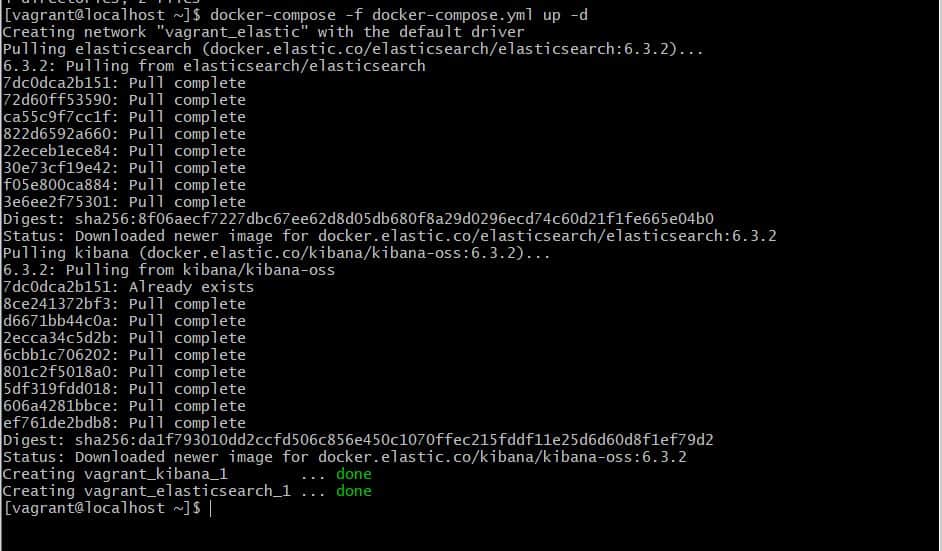
$ docker-compose up -d

After, you can check http://localhost:8888 in the browser.

The end service is down to the command below

$ docker-compose down

Conclusion

I hope this article on using “Docker Compose with WordPress” has been informative and useful for your projects. This setup is designed to streamline your WordPress deployment, making it more efficient within a Dockerized environment. If you have any questions or need further assistance, feel free to reach out or consult additional resources. Thank you for reading, and good luck with your DevOps endeavors!

Docker CLI cheat sheet: Essential Commands for DevOps Success

Introduction

In today’s fast-paced DevOps environment, Docker has become a cornerstone technology, simplifying the process of deploying and managing applications in containerized environments. Whether you’re a beginner or an experienced professional, having a handy reference for Docker CLI commands is essential. This Docker CLI cheat sheet will guide you through the most important commands you need to know, helping you manage containers and images with ease.

Why Docker is Essential for DevOps

Docker has revolutionized the way we deploy applications, offering a consistent environment across various stages of development, testing, and production. It enables teams to package applications with all their dependencies, ensuring they run seamlessly across different computing environments. This capability makes Docker an indispensable tool in DevOps, where speed, consistency, and reliability are key.

Building Docker Images

How to Build an Image from a Dockerfile

One of the first steps in using Docker is building an image from a Dockerfile. This command packages your application and its dependencies into an image that can be run anywhere Docker is installed.

$ docker build -t devopsroles/centos:latest .
  • Explanation: The -t option tags the image with a name (devopsroles/centos) and a version (latest). The . at the end specifies the build context, which is typically the directory containing your Dockerfile.

Common Issues When Building Images

Building Docker images is generally straightforward, but you may encounter issues such as large image sizes or failed builds. To minimize image size, consider using multi-stage builds or Alpine-based images. If a build fails, check your Dockerfile for syntax errors or missing dependencies.

Running Containers

Running a Command in an Image

Running a command in a Docker container is as simple as using the docker run command. This command starts a new container and executes the specified command.

docker run [options] IMAGE
  • Options: Docker provides various options to customize how your container runs. For example, you can use the -d option to run the container in detached mode or the -it options to run it interactively.

Example: Running a Bash Shell in Fedora

$ docker run -it fedora bash
  • Explanation: This command runs a Bash shell in an interactive Fedora container. The -it options allow you to interact with the container in real time.

Managing Docker Containers

Creating and Starting Containers

Creating a Docker container from an image is often the first step in deploying an application. The docker create command allows you to set various options for your container.

docker create [options] IMAGE

Important Options for Container Creation

  • -a, --attach: Attach to stdout/err.
  • -i, --interactive: Attach stdin (interactive mode).
  • -t, --tty: Pseudo-tty (useful for terminal-based applications).
  • --name NAME: Name your container for easier management.
  • -p, --publish 5000:5000: Port mapping from the container to the host.
  • --expose 5432: Expose a specific port to linked containers.
  • -v, --volume $(pwd):/app: Mount a directory from the host to the container.
  • -e, --env NAME=hello: Set environment variables.

Example: Creating and Starting a Container

$ docker create -t -i fedora bash
  • Explanation: This command creates a Fedora container with an interactive Bash shell. The -t and -i options allow for terminal interaction.

Executing Commands in Running Containers

Docker allows you to run commands inside a running container using the docker exec command. This is useful for tasks such as troubleshooting or running administrative tasks.

docker exec [options] CONTAINER COMMAND

Key Options for docker exec

  • -d, --detach: Run the command in the background.
  • -i, --interactive: Keep stdin open even if not attached.
  • -t, --tty: Allocate a pseudo-TTY for interactive use.

Example: SSH into a Docker Container

$ docker exec -it 59e59adcc0b4 /bin/bash
  • Explanation: This command opens an interactive Bash shell in a running container with the ID 59e59adcc0b4.

Starting and Stopping Containers

How to Start a Docker Container

Starting a stopped container is straightforward with the docker start command. This command resumes a container that was previously stopped.

docker start [options] CONTAINER
  • Options: The -a and -i options attach to stdout/err and stdin, respectively, allowing you to interact with the container as it starts.

Stopping a Running Docker Container

To stop a running container, use the docker stop command. This gracefully shuts down the container.

docker stop [options] CONTAINER
  • Tip: If you need to force-stop a container, use docker kill instead of docker stop.

Docker Images Management

Viewing Docker Images

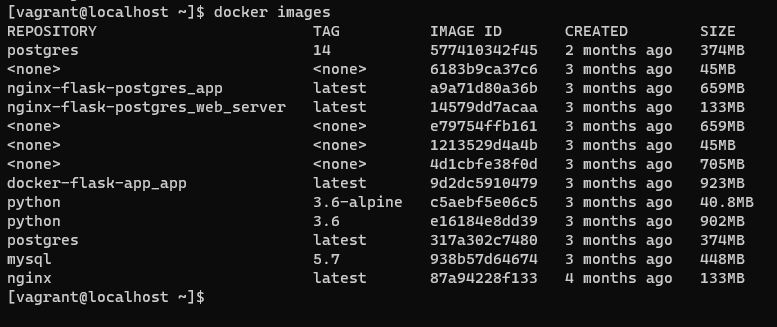
Docker images are the building blocks of containers. You can view the images on your system using the docker images command.

$ docker images
  • Explanation: This command lists all images available locally, showing details such as repository name, tags, and image IDs.

Deleting Docker Images

To free up disk space or remove outdated images, you can delete Docker images using the docker rmi command.

$ docker rmi b750fe78269d
  • Explanation: This command removes the image with the ID b750fe78269d. Be cautious when removing images, as containers depending on them will fail to start.

Advanced Container Management

Using docker ps to Manage Containers

The docker ps the command is your go-to tool for listing running containers. You can view all containers, including stopped ones, by adding the -a option.

$ docker ps
$ docker ps -a
  • Explanation: The first command lists only running containers, while the second lists all containers, regardless of their state.

Killing a Docker Container

Sometimes, a container may become unresponsive and need to be forcefully terminated. The docker kill command sends a SIGKILL signal to the container, immediately stopping it.

$ docker kill $ID
  • Tip: Use the container’s ID or name to target the right one. Be careful with this command, as it does not allow the container to gracefully shut down.

Frequently Asked Questions (FAQs)

What is Docker used for?

Docker is a platform that enables developers to package applications into containers—standardized units of software that include everything the app needs to run. This ensures consistency across different environments, from development to production.

How does Docker differ from a virtual machine (VM)?

Docker containers share the host system’s kernel, making them more lightweight and faster to start than VMs. While VMs include a full OS, containers only include the application and its dependencies.

What are the key benefits of using Docker in DevOps?

Docker offers several benefits, including consistent environments across different stages, rapid deployment, efficient resource utilization, and ease of scaling applications.

Can I run multiple containers on the same host?

Yes, Docker allows you to run multiple containers on the same host. Each container operates in isolation but can communicate with others if needed through networks.

How do I update a running Docker container?

To update a running container, you typically create a new image with the desired changes, stop the old container, and start a new one with the updated image. You can use docker commit to save changes from a running container, but this is generally not recommended for production environments.

Conclusion

Docker CLI is a powerful tool that can significantly simplify the management and deployment of applications in containerized environments. Whether you’re building images, running containers, or managing your Docker infrastructure, this cheat sheet provides the essential commands you need to master Docker. As you continue to work with Docker, you’ll find these commands becoming second nature, enabling you to focus more on developing and deploying great software.

By using this Docker CLI cheat sheet, you’ll be well-equipped to handle various tasks in your DevOps role efficiently. Remember, Docker is continuously evolving, so staying up-to-date with the latest commands and best practices is crucial for maximizing your productivity. Thank you for reading the DevopsRoles page!

Docker error solve problems

In this tutorial, I’m sharing the docker in the builder and running Docker. Solve problem Docker error. Docker skill needed for DevOps.

“Build, Manage and Secure Your Apps Anywhere. Your Way.” Quote from docker!

Docker error

ERROR 1: Unsupported config option in docker-compose.yml

ERROR: The Compose file './docker-compose.yml' is invalid because:
Unsupported config option for networks: 'bridge'
Unsupported config option for DB01: 'networks'
Unsupported config option for WEB01: 'networks'
Unsupported config option for volumes: 'web_mnt_nfs'

Solved Problem: version 2.0 support in file docker-compose.yml

version: '2.0'

ERROR 2: Unable to set mem_limit with docker-compose version 3.x

Solved Problem: version ‘2’ support mem_limit. Docker version “3” support memory limit as below

Version 3:
deploy:
   resources:
     limits:
        memory: 512M

ERROR 3: docker database is uninitialized and password option is not specified

error: database is uninitialized and password option is not specified
db01 | error: database is uninitialized and password option is not specified
db01 | You need to specify one of MYSQL_ROOT_PASSWORD, MYSQL_ALLOW_EMPTY_PASSWORD and MYSQL_RANDOM_ROOT_PASSWORD
db01 | error: database is uninitialized and password option is not specified
db01 | You need to specify one of MYSQL_ROOT_PASSWORD, MYSQL_ALLOW_EMPTY_PASSWORD and MYSQL_RANDOM_ROOT_PASSWORD
db01 | error: database is uninitialized and password option is not specified
db01 | You need to specify one of MYSQL_ROOT_PASSWORD, MYSQL_ALLOW_EMPTY_PASSWORD and MYSQL_RANDOM_ROOT_PASSWORD
db01 | error: database is uninitialized and password option is not specified
db01 | You need to specify one of MYSQL_ROOT_PASSWORD, MYSQL_ALLOW_EMPTY_PASSWORD and MYSQL_RANDOM_ROOT_PASSWORD
db01 | error: database is uninitialized and password option is not specified
db01 | You need to specify one of MYSQL_ROOT_PASSWORD, MYSQL_ALLOW_EMPTY_PASSWORD and MYSQL_RANDOM_ROOT_PASSWORD
db01 | error: database is uninitialized and password option is not specified
db01 | You need to specify one of MYSQL_ROOT_PASSWORD, MYSQL_ALLOW_EMPTY_PASSWORD and MYSQL_RANDOM_ROOT_PASSWORD
db01 | error: database is uninitialized and password option is not specified
db01 | You need to specify one of MYSQL_ROOT_PASSWORD, MYSQL_ALLOW_EMPTY_PASSWORD and MYSQL_RANDOM_ROOT_PASSWORD
db01 | error: database is uninitialized and password option is not specified
db01 | You need to specify one of MYSQL_ROOT_PASSWORD, MYSQL_ALLOW_EMPTY_PASSWORD and MYSQL_RANDOM_ROOT_PASSWORD
db01 | error: database is uninitialized and password option is not specified
db01 | You need to specify one of MYSQL_ROOT_PASSWORD, MYSQL_ALLOW_EMPTY_PASSWORD and MYSQL_RANDOM_ROOT_PASSWORD
db01 | error: database is uninitialized and password option is not specified
db01 | You need to specify one of MYSQL_ROOT_PASSWORD, MYSQL_ALLOW_EMPTY_PASSWORD and MYSQL_RANDOM_ROOT_PASSWORD

Solve the problem: the Set environment for docker MYSQL

   environment:
      MYSQL_ROOT_PASSWORD: 123456789
      #MYSQL_USER=huupv
      #MYSQL_PASSWORD=passforhuupv
      #MYSQL_DATABASE=DevopsRolesDB

Docker errors solve problems. I hope will this your helpful. Thank you for reading the DevopsRoles page!

Docker compose example

Introduction

Docker compose is used to run multiple containers. In this tutorial, Using Docker compose example for NGINX and MYSQL. I used Docker compose version “3”

In today’s digital era, Docker has become an essential tool for developers and DevOps professionals. With its ability to package and deploy applications easily, Docker has revolutionized the way software is managed and deployed. However, as applications grow more complex, managing multiple containers simultaneously can be challenging. This is where Docker Compose shines. This article will guide you through Docker Compose with a practical example, making it easier to manage and coordinate multiple containers within the same application.

“Build, Manage and Secure Your Apps Anywhere. Your Way.” Quote from docker!

Docker compose example

Creating Docker-compose file. All docker compose file is a YAML file. Now, let’s go create the docker-compose.yml file as below

[root@DevopsRoles ~]# mkdir docker-instance
[root@DevopsRoles ~]# cd docker-instance/
[root@DevopsRoles docker-instance]# vim docker-compose.yml

The content docker-compose file as below

version: '3'

services:
 WEB01:
   image: nginx:latest
   container_name: "web01"
   hostname: web01
   ports:
        - "8888:80"
        - "8443:443"
        - "2233:22"
   #deploy:
   # resources:
   # limits:
   # memory: 512M
   #mem_limit: 512m
   volumes:
     - ./data_web01:/mnt_nfs
   networks:
     - bridge
   restart: always

 DB01:
   image: mysql:latest
   container_name: "db01"
   hostname: db01
   ports:
        - "33306:3306"
        - "2234:22"
   command: --default-authentication-plugin=mysql_native_password
   environment:
      MYSQL_ROOT_PASSWORD: 123456789
      #MYSQL_USER=huupv
      #MYSQL_PASSWORD=passforhuupv
      #MYSQL_DATABASE=DevopsRolesDB
   #deploy:
   # resources:
   #    limits:
   #      memory: 512M
   volumes:
      - ./data_db01:/mnt_nfs
   networks:
      - bridge
   restart: always

volumes:
   web_mnt_nfs:
     driver: local
networks:
   bridge:
     driver: bridge
     ipam:
       config:
          - subnet: 192.168.12.0/24

Creating and starting a container

[root@DevopsRoles docker-instance]# docker-compose up -d

The screen output terminal:

Creating network "docker-instance_bridge" with driver "bridge"
Creating db01 ... done
Creating web01 ... done

The result, Docker compose example

Access browser Nginx server

Checking running containers for nginx and mysql

Conclusion

Thought the article, you can use “Docker compose example” as above. Docker Compose is not just a convenient tool but also a key to simplifying and enhancing container management in any software project. Continue reading the article to gain a deeper understanding of how to use this tool in real-world scenarios! I hope will this your helpful. Thank you for reading the DevopsRoles page!

Docker compose command

Docker compose is a tool to define and running multiple container Docker applications. In this tutorial, to learn more about docker compose command. Docker the essential for DevOps Roles.

“Build, Manage and Secure Your Apps Anywhere. Your Way.” Quote from docker!

Docker compose command

Start existing containers

[root@DevopsRoles ~]# docker-compose start

The screen output terminal:

[root@DevopsRoles docker-instance]# docker-compose start
Starting DB01 ... done
Starting WEB01 ... done

Stop existing containers

[root@DevopsRoles ~]# docker-compose stop

The screen output terminal:

[root@DevopsRoles docker-instance]# docker-compose stop
Stopping db01 ... done
Stopping web01 ... done

Pauses running containers

[root@DevopsRoles ~]# docker-compose pause

The screen output terminal:

[root@DevopsRoles docker-instance]# docker-compose pause
Pausing web01 ... done
Pausing db01 ... done

Unpause all processes containers

[root@DevopsRoles ~]# docker-compose unpause

The screen output terminal:

[root@DevopsRoles docker-instance]# docker-compose unpause
Unpausing db01 ... done
Unpausing web01 ... done

List all running containers.

[root@DevopsRoles ~]# docker-compose ps

The screen output terminal:

Creating and starting a container

[root@DevopsRoles ~]# docker-compose up

Stop and remove containers, networks, images, and volumes

[root@DevopsRoles ~]# docker-compose down

The screen output terminal:

[root@DevopsRoles docker-instance]# docker-compose down
Stopping db01 ... done
Stopping web01 ... done
Removing db01 ... done
Removing web01 ... done
Removing network docker-instance_bridge

Conclusion

Thought the article, you can use “Docker compose command as above”. I hope will this your helpful. Thank you for reading the DevopsRoles page!

Docker SSH into Container: A Complete Guide for Beginners and Advanced Users

Introduction

Docker containers have revolutionized the way developers build, ship, and manage applications. However, one common question arises: How do you Docker SSH into Container? While Docker doesn’t support traditional SSH access like physical servers, it provides a powerful alternative with the docker exec command. In this guide, we’ll explore step-by-step instructions on how to “SSH” into Docker containers from basic operations to more advanced use cases.

What is Docker SSH into Container?

Before diving into the practical steps, it’s important to clarify that Docker doesn’t actually use SSH for container access. Instead, Docker uses the docker exec command, which allows you to run commands or get an interactive shell inside running containers. This method is more efficient, secure, and tailored for containers than traditional SSH.

Why You Shouldn’t Use SSH for Docker Containers

  • Containers are lightweight: Adding an SSH server increases container size.
  • Docker has built-in tools: Using docker exec provides direct and simple access to containers without the overhead of SSH configuration.
  • Security: Running an SSH service in every container increases the attack surface. Docker’s approach with docker exec is more secure.

How to SSH into a Docker Container: Basic Method

Let’s start with the basics – getting into the shell of a running Docker container.

Step 1: List Running Containers

To view the currently running containers, you can use the following command:

docker ps

This command will display:

  • CONTAINER ID: Unique ID for each running container
  • IMAGE: The Docker image used to create the container
  • COMMAND: The main process running in the container
  • STATUS: Whether the container is running, paused, or stopped
  • NAMES: Friendly names assigned to containers for easy identification

Step 2: Access the Shell of a Running Container

Once you have the container ID or name, you can use the docker exec command to access the container’s bash shell. For example:

docker exec -it <container_ID_or_name> /bin/bash
  • -i: Keep STDIN open even if not attached.
  • -t: Allocate a pseudo-TTY, allowing you to interact with the container.

If your container uses a different shell, such as sh, replace /bin/bash with the appropriate shell path.

Advanced Docker Exec Usage

Once you’ve mastered the basics, you can use the docker exec command for more advanced tasks. Let’s look at some examples.

Running Commands in a Docker Container

You don’t always need to access a full shell; sometimes you just need to run a single command. You can do this using the docker exec command, followed by the command you want to execute. For example, to check the /etc/hosts file inside a container:

docker exec -it <container_ID_or_name> cat /etc/hosts

Inspect Container Configuration

To view detailed information about a container, such as its environment variables, network settings, and mounted volumes, use:

docker inspect <container_ID_or_name>

This is helpful when you need to troubleshoot or validate container configurations.

How to SSH into Stopped or Exited Containers

You can only run the docker exec command on running containers. If your container has stopped or exited, you need to start it before you can access it. Here’s how:

  1. List all containers (including stopped ones):
docker ps -a
  1. Start a stopped container:
docker start <container_ID_or_name>
  1. SSH into the container using the previously mentioned docker exec command.

Automating Docker SSH Access

For users who frequently need to access containers, creating a function in your .bashrc or .zshrc file can streamline the process:

function docker_ssh() {
    docker exec -it $1 /bin/bash
}

This allows you to use a simpler command like docker_ssh <container_ID_or_name>.

Frequently Asked Questions (FAQs)

1. Can I install SSH in a Docker container?

Yes, you can install SSH in a Docker container, but it’s generally discouraged. Adding SSH increases the container’s size and complexity. Using docker exec is the recommended way to access containers.

2. How do I copy files between my host machine and Docker containers?

You can use the docker cp command to copy files from your host to the container or vice versa. For example:

docker cp <source_path> <container_ID_or_name>:<destination_path>

3. How can I access Docker containers with graphical applications?

Docker containers can run graphical applications using X11 forwarding, but this setup requires additional configuration beyond simple terminal access.

4. What happens if I stop a container after SSHing into it?

If you stop a container while you’re connected using docker exec, your session will end immediately. You must restart the container to regain access.

Advanced Topics: Managing Multiple Containers

In environments with many running containers, it’s essential to efficiently manage them. Here are a few strategies:

Using Docker Compose for Multi-Container Applications

If you are running multiple containers, Docker Compose is a valuable tool. It allows you to define and manage multi-container applications with a simple YAML configuration file. To install and use Docker Compose:

sudo apt-get install docker-compose
docker-compose up

With Docker Compose, you can specify the configuration for all containers in one place, making it easier to scale, start, and stop services together.

Handling Docker Networks

Managing container networks is crucial, especially for multi-container applications. Docker provides default networking, but you can create custom networks for better isolation and performance.

  • List networks: docker network ls
  • Create a new network: docker network create my_network
  • Run a container on a network: docker run --network my_network <image>

Conclusion

Accessing a Docker container’s shell or executing commands inside it is made simple with the docker exec command. This guide covered everything from basic shell access to running advanced commands and managing multiple containers. Docker’s flexibility allows you to streamline container management without the need for traditional SSH. Thank you for reading the DevopsRoles page!

Docker volume command

In this tutorial, How to use Docker volume command to details for Data volumes. There are three main use cases for Docker data volumes:

  • Keep data around when a container is removed
  • To share data between the host filesystem and the Docker container
  • To share data with other Docker containers

Docker volume command

Docker volume create

The syntax docker volume commands as below:

$ docker volume create [--option] NAME_VOLUME

Related docker volume command:

  • docker volume create: Create a volume docker volume inspect: Display detailed information on one or more volumes
  • docker volume ls: List volumes docker volume prune: Remove all unused volumes docker
  • volume rm: Remove one or more volumes

How to create a new volume and configure the container

$ docker volume create DATA
$ docker run -d -v DATA:/world centos ls /world

How to inspect container ID with docker inspect command

$ sudo docker inspect a04ae7b6cc17

For example, the output as below

"Mounts": [
 {
 "Name": "0ed908df33e1790711933ad6b463fd2a88199802c5cf2b1beb5001b81bc27750",
 "Source": "/var/lib/docker/volumes/0ed908df33e1790711933ad6b463fd2a88199802c5cf2b1beb5001b81bc27750/_data",
 "Destination": "/var/www/html",
 "Driver": "local",
 "Mode": "",
 "RW": true,
 "Propagation": ""
 },

To use docker inspect display Source and Destination for container ID

$ sudo docker inspect -f '{{ .Mounts}}' a04ae7b6cc17 | awk '{ print "Source:"$2 "\t " "Destination:"$3}'

The output below:

Source:/var/lib/docker/volumes/0ed908df33e1790711933ad6b463fd2a88199802c5cf2b1beb5001b81bc27750/_data Destination:/var/www/html

How to use docker volume ls to list all volume for container

$ sudo docker volume ls

The output as below

[sudo] password for huupv:
 DRIVER VOLUME NAME
 local 0ed908df33e1790711933ad6b463fd2a88199802c5cf2b1beb5001b81bc27750
 local 1d4c9030aea8554335b281d554a27422773f067f77ead5663e9b52f85d64ff6f
 local 387a0f11796f6d6d254abbbdf523410a42ed004dc5879c59ae45f5c922038441
 local 85621d725c9cee6444ab83162123000dd18bdd9a0a974a3cbe05b60d0175bc33
 local bbaaa1ea0d348d1e66ae6f606396502d895db8f6f2cd6f1cc9ca34605da3cf3c
 local devopsroles
 local e1f8e62ec711164a363bbc9bc53a0868e093dc7e4983fb327fe5f77b4e48d965
 local wordpress_db-data
 local wordpress_nginx-data
 local wordpress_php-data
 local wordpress_wp-data

How to use docker inspect exploit for container ID a04ae7b6cc17

$ sudo docker inspect -f '{{ (index .Mounts 0).Source }}' a04ae7b6cc17

The output Mounts source container ID a04ae7b6cc17

/var/lib/docker/volumes/0ed908df33e1790711933ad6b463fd2a88199802c5cf2b1beb5001b81bc27750/_data

Other dockers inspect command Mounts source container ID a04ae7b6cc17

$ sudo docker inspect --format '{{ range .Mounts }}{{ if eq .Destination "/var/www/html" }}{{ .Source }}{{ end }}{{ end }}' a04ae7b6cc17

How to create a Docker Volume Using a Dockerfile

$ vim Dockerfile

The content as below

# Create a volume
 VOLUME /dockerfilevolume

Next, build an image named dockerfile-volumetest from this Dockerfile with the command:

$ sudo docker build -t dockerfile-volumetest .

Then launch a container named “my-dockerfile-test” from this image with the command:

$ sudo docker run --name my-dockerfile-test -it dockerfile-volumetest /bin/bash

Detach from the container with Ctrl-p + Ctrl-q and return to the host machine’s command prompt.

Sharing Volumes Between Containers

Sharing a Volume on the Host

$ sudo mkdir /webdata
$ sudo docker run -it --name webapp -v /webdata:/var/www/html nginx /bin/bash

Using a Container as a Shared Data Volume

$ sudo docker run -it -v /shared-data --name data-storage centos /bin/bash
$ echo "Hello from the data-storage container." >> /shared-data/data-storage-hello.txt
$ sudo docker run -it --name app --volumes-from data-storage python /bin/bash

Mounting a Volume as Read-Only

$ docker run -v /directory:/path:ro
$ sudo docker volume create --name limited-access
$ sudo docker run -it --name allowed-to-write -v limited-access:/data centos /bin/bash

Conclusion

Thought the article, help you to details for data volume. Docker volume command helps useful to determine for containers. The update about docker volume command later. Thank you for reading the DevopsRoles page!

How to inspect Docker container

Introduction

In this tutorial, I’ll guide you on How to inspect docker container to gain detailed insights into containers. Docker inspect is a powerful tool that provides comprehensive information about various aspects of a container, including its network settings, current status, attached volumes, and more. By exploring these details, you’ll have a deeper understanding of your containers’ configurations and runtime characteristics.

This knowledge proves invaluable for troubleshooting, optimization, and gaining a holistic view of your Dockerized applications. Follow along as I demonstrate the versatility of Docker inspect, enabling you to effectively manage and analyze your containers with precision and ease.

What is docker inspect?

Docker inspect ” is a command in Docker that provides a detailed overview of container information. This powerful tool unveils specifics such as network configurations, status, and attached volumes. By leveraging “docker inspect,” users gain valuable insights into container settings and runtime details, essential for troubleshooting and optimizing Dockerized applications. Mastery of this command empowers efficient container management, allowing users to delve into the intricacies of their Docker environments with precision and ease

What is a Docker container?

  • Portable Packages: Docker containers encapsulate applications along with their dependencies, ensuring a consistent and portable environment.
  • Isolation: Containers operate independently, isolated from the host system and other containers, promoting stability and consistency.
  • Comprehensive Inclusion: Each container includes the necessary components—code, runtime, libraries, and tools—creating a self-contained unit ready to execute.
  • Docker Platform: Docker, a widely used containerization platform, facilitates the seamless packaging and deployment of applications.
  • Cross-Environment Consistency: Developers can build a container once and run it consistently across various environments, from local development setups to large-scale production systems.
  • Resource Efficiency: Containers optimize resource utilization, offering agility, scalability, and quick deployment, making them popular in modern software development and deployment practices.

Inspect Docker container

Utilize the “docker ps” command to showcase a list of containers as follows:

$ sudo docker ps

The displayed results below

CONTAINER ID IMAGE COMMAND CREATED STATUS PORTS NAMES
055772699b49 devopsroles/nginx:v2 "nginx" 4 seconds ago Up 2 seconds 0.0.0.0:8080->80/tcp devopsroles

Provide details for the “devopsroles” container as illustrated below:

$ sudo docker inspect devopsroles

As an illustration, the output for the “devopsroles” container is presented below:

The omit
"NetworkSettings": {
 "Bridge": "",
 "SandboxID": "38a0b8ae70f0853cf36b25add2182132c2b31183c3d969f7c2b927f75080288c",
 "HairpinMode": false,
 "LinkLocalIPv6Address": "",
 "LinkLocalIPv6PrefixLen": 0,
 "Ports": {
 "80/tcp": [
 {
 "HostIp": "0.0.0.0",
 "HostPort": "8080"
 }
 ]

},
 "SandboxKey": "/var/run/docker/netns/38a0b8ae70f0",
 "SecondaryIPAddresses": null,
 "SecondaryIPv6Addresses": null,
 "EndpointID": "c0103fac129e8ff88fcb597b6cfd1836ca7ffb50580cbe60dc6e7b39f2de1e24",
 "Gateway": "172.17.0.1",
 "GlobalIPv6Address": "",
 "GlobalIPv6PrefixLen": 0,
 "IPAddress": "172.17.0.2",
 "IPPrefixLen": 16,
 "IPv6Gateway": "",
 "MacAddress": "02:42:ac:11:00:02",
 "Networks": {
 "bridge": {
 "IPAMConfig": null,
 "Links": null,
 "Aliases": null,
 "NetworkID": "42dd4e0f69e1edff2c81b2f311b2a0ed53478f47fdf5371643df9f1bdb150ba5",
 "EndpointID": "c0103fac129e8ff88fcb597b6cfd1836ca7ffb50580cbe60dc6e7b39f2de1e24",
 "Gateway": "172.17.0.1",
 "IPAddr$ sudo docker inspect devopsrolesess": "172.17.0.2",
 "IPPrefixLen": 16,
 "IPv6Gateway": "",
 "GlobalIPv6Address": "",
 "GlobalIPv6PrefixLen": 0,
 "MacAddress": "02:42:ac:11:00:02"
 }
 }

How to display the IP Address for the “devopsroles” container as below:

$ sudo docker inspect -f '{{ .NetworkSettings.IPAddress }}' devopsroles

Below is the presented output:

172.17.0.2

For example, display IP, Image, Name, Host Config, and status for containers as below:

$ sudo docker inspect -f 'Image:[{{ .Config.Image}}] Name:{{.Name}} HostConfig:{{ .HostConfig.Binds}} Status:{{ .State.Status}} IP_Container:{{ .NetworkSettings.IPAddress }} ' 055772699b49 | cat -n

The output below:

1 Image:[devopsroles/nginx:v2] Name:/devopsroles HostConfig:[/home/huupv/project/nginx/devopsroles:/var/www/html/devopsroles:ro] Status:running IP_Container:172.17.0.2

An alternative approach is as follows:

$ sudo docker inspect -f 'Image:[{{ .Config.Image}}] Name:{{.Name}} HostConfig:{{ .HostConfig.Binds}} Status:{{ .State.Status}} IP_Container:{{ .NetworkSettings.IPAddress }} ' $(sudo docker ps -a -q) | cat -n

How to display all containers, including non-running

$ sudo docker ps -a -q

The output below:

055772699b49

Conclusion

Throughout the article, we guide you on inspecting containers effectively. Learn how to determine crucial container details such as status, volume, and networking. We’ll continually update this post with useful commands for your reference. Thank you for exploring the DevopsRoles page – we appreciate your readership!

Docker nginx static website

Docker Nginx static website. How to use Docker to test a static website. I’m used Dockerfile to build and test as a local web development environment.

To create a directory for our Nginx Dockerfile

$ mkdir nginx
$ cd nginx
$ mkdir devopsroles
$ touch devopsroles/index.html
$ touch Dockerfile

The content our Dockerfile

FROM ubuntu:14.04
MAINTAINER PHAN VAN HUU <pvhuu90@gmail.com>, My blogs:devopsroles.com
RUN apt-get update
RUN apt-get -y -q install nginx
RUN mkdir -p /var/www/html/devopsroles
#ADD devopsroles/index.html /var/www/html/devopsroles/
ADD devopsroles.conf /etc/nginx/conf.d/
ADD nginx.conf /etc/nginx/nginx.conf
EXPOSE 80

The content of our devopsroles.conf file as below

server {
listen 0.0.0.0:80;
server_name _;
root /var/www/html/devopsroles;
index index.html index.htm;
access_log /var/log/nginx/default_access.log;
error_log /var/log/nginx/default_error.log;
}

File configure nginx.conf as below

user www-data;
worker_processes 4;
pid /run/nginx.pid;
daemon off;
events {
}
http {
sendfile on;
tcp_nopush on;
tcp_nodelay on;
keepalive_timeout 65;
types_hash_max_size 2048;
include /etc/nginx/mime.types;
default_type application/octet-stream;
access_log /var/log/nginx/access.log;
error_log /var/log/nginx/error.log;
gzip on;
gzip_disable "msie6";
include /etc/nginx/conf.d/*.conf;
}

To create our index.html file as below:

$ cat devopsroles/index.html

The content as below:

<head>
<title>Test website</title>
</head>
<body>
<h1>Hello! My name HuuPV</h1>
</body>

Building our new Nginx image

$ sudo docker build -t devopsroles/nginx:v2 .
$ sudo docker run -d -p 8080:80 --name devopsroles -v /home/huupv/project/nginx/devopsroles:/var/www/html/devopsroles:ro devopsroles/nginx:v2 nginx

The result, Docker Nginx static website

To use docker images command as below:

$ sudo docker images

The output devopsroles container as below:

[sudo] password for huupv: 
REPOSITORY TAG IMAGE ID CREATED SIZE
devopsroles/nginx v2 8598ffebf6ae 10 minutes ago 305.1 MB

To use docker ps command as below:

$ sudo docker ps

The output below

CONTAINER ID IMAGE COMMAND CREATED STATUS PORTS NAMES
ebab6b61682b devopsroles/nginx:v2 "nginx" 8 minutes ago Up 8 minutes 0.0.0.0:8080->80/tcp devopsroles

To use curl command test docker Nginx static website

$ curl http://localhost:8080

Conclusion

To deploy simple static website use docker. Docker Nginx static website uses Dockerfile to build as the container. Thank you for reading the DevopsRoles page!

Docker build image from Dockerfile

Introduction

Creating our own Docker images starts with a Dockerfile. Using the docker build command, we can easily transform the instructions in the Dockerfile into a new image. Wondering How to Docker build image from Dockerfile? Let’s dive in!

The first images built with Docker

To create a directory and a Dockerfile, the sample as below:

$ mkdir project
$ cd project
$ touch Dockerfile

The example Docker build the image from Dockerfile

$ vim Dockerfile

The content a Dockerfile as below:

 # CentOS 7 Dockerfile
 # Docker build:
 # sudo docker build -t devopsroles/centos:latest .
 # Docker create:
 # sudo docker create -it --name centos -h centos devopsroles/centos
 # Docker start:
 # sudo docker start centos
 # Connect with bash
 # sudo docker exec -it centos bash
 FROM centos:latest
 MAINTAINER PHAN VAN HUU <pvhuu90@gmail.com> My blogs: devopsroles.com
 #Update centos
 RUN yum update -y && yum upgrade -y
 RUN yum -y install git curl net-tools wget vim
 # Install EPEL Repository
 RUN yum install -y epel-release
 # Clean CentOS 7
 RUN yum clean all
 # Set the environment variables
 ENV HOME /root
 # Working directory
 WORKDIR /root
 # Default command
 CMD ["bash"]

Docker build image from Dockerfile

Running the Dockerfile use Docker build commands

$ cd project
$ sudo docker build -t .
$ sudo docker build -t devopsroles/centos:latest .
$ sudo docker create -it --name centos -h centos devopsroles/centos

The result, Docker images devopsroles/centos as below:

$ sudo docker images

The output, docker images as below:

 REPOSITORY TAG IMAGE ID CREATED SIZE
 devopsroles/centos latest c9ef43af9836 2 minutes ago 428.7 MB

The docker start container centos

$ sudo docker start centos
$ sudo docker ps

The output below:

CONTAINER ID IMAGE COMMAND CREATED STATUS PORTS NAMES
 2d1a8e53668f devopsroles/centos "bash" 43 seconds ago Up 4 seconds centos

The connect container bash

$ sudo docker exec -it centos bash

The output below:

[root@centos ~]# ifconfig
 eth0: flags=4163<UP,BROADCAST,RUNNING,MULTICAST> mtu 1500
 inet 172.17.0.2 netmask 255.255.0.0 broadcast 0.0.0.0
 inet6 fe80::42:acff:fe11:2 prefixlen 64 scopeid 0x20<link>
 ether 02:42:ac:11:00:02 txqueuelen 0 (Ethernet)
 RX packets 8 bytes 648 (648.0 B)
 RX errors 0 dropped 0 overruns 0 frame 0
 TX packets 8 bytes 648 (648.0 B)
 TX errors 0 dropped 0 overruns 0 carrier 0 collisions 0

lo: flags=73<UP,LOOPBACK,RUNNING> mtu 65536
 inet 127.0.0.1 netmask 255.0.0.0
 inet6 ::1 prefixlen 128 scopeid 0x10<host>
 loop txqueuelen 1 (Local Loopback)
 RX packets 0 bytes 0 (0.0 B)
 RX errors 0 dropped 0 overruns 0 frame 0
 TX packets 0 bytes 0 (0.0 B)
 TX errors 0 dropped 0 overruns 0 carrier 0 collisions 0

[root@centos ~]# ping 8.8.8.8
 PING 8.8.8.8 (8.8.8.8) 56(84) bytes of data.
 64 bytes from 8.8.8.8: icmp_seq=1 ttl=127 time=68.7 ms
 64 bytes from 8.8.8.8: icmp_seq=2 ttl=127 time=69.1 ms
 ^C
 --- 8.8.8.8 ping statistics ---
 2 packets transmitted, 2 received, 0% packet loss, time 1001ms
 rtt min/avg/max/mdev = 68.720/68.945/69.170/0.225 ms

Or test ping 8.8.8.8 from docker run command as below

$ sudo docker run centos ping 8.8.8.8 -c4

The output below:

 PING 8.8.8.8 (8.8.8.8) 56(84) bytes of data.
 64 bytes from 8.8.8.8: icmp_seq=1 ttl=127 time=40.6 ms
 64 bytes from 8.8.8.8: icmp_seq=2 ttl=127 time=41.7 ms
 64 bytes from 8.8.8.8: icmp_seq=3 ttl=127 time=42.1 ms
 64 bytes from 8.8.8.8: icmp_seq=4 ttl=127 time=40.1 ms

--- 8.8.8.8 ping statistics ---
 4 packets transmitted, 4 received, 0% packet loss, time 3005ms
 rtt min/avg/max/mdev = 40.124/41.184/42.196/0.832 ms

Conclusion

Docker build image from Dockerfile. You can update and edit package from Dockerfile file. For example to install Nginx, PHP, MySQL package in Dockerfile file. Thank you for reading the DevopsRoles page!