
Introduction: If you aren’t running an Auto-Backup Git Repo workflow, you are playing Russian Roulette with your codebase.
I know that sounds dramatic. But trust me, data loss is only a myth until it happens to you.
Most developers think hitting git commit is enough to save their hard work.
It isn’t.
If your laptop dies, gets stolen, or your hard drive corrupts before you manually push to GitHub, those local commits vanish forever.
Today, I’m going to show you exactly how to automate this.
We will build a system that backs up your code the exact millisecond you commit it.

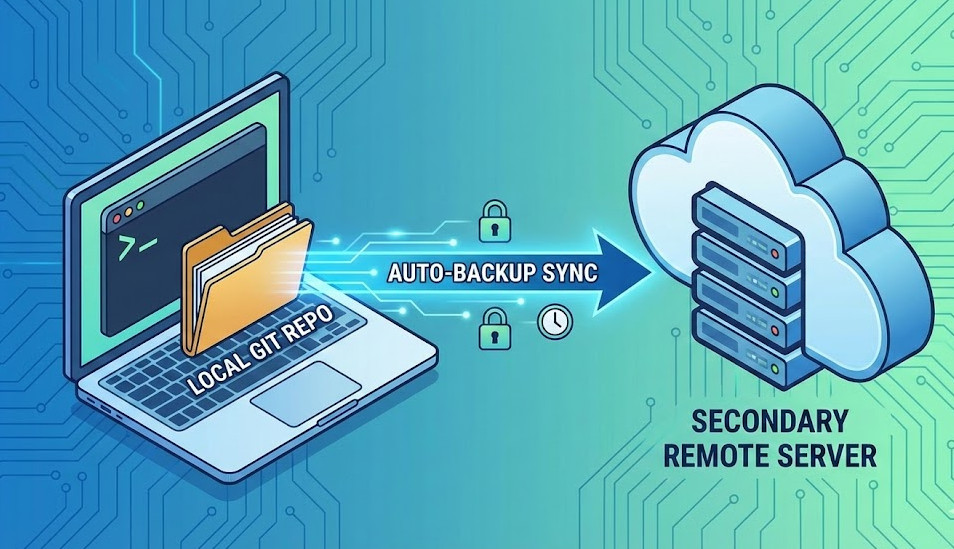
Table of Contents
Why You Absolutely Need an Auto-Backup Git Repo Strategy
Let me tell you a quick war story from my early days as a software engineer.
I spent three weeks grinding on a massive feature for a high-profile client.
I was committing my code locally like a good developer. Hundreds of atomic commits.
But I wasn’t pushing to my remote repository.
Why? Because the branch was “messy” and I wanted to rebase it before sharing.
Then, the unthinkable happened. My SSD completely died.
No warning. No clicking sounds. Just a total hardware failure.
Three weeks of late nights, gone. I had to rewrite the entire module from scratch under massive pressure.
That was the day I swore I would never rely on manual backups again.
I immediately started researching ways to force an Auto-Backup Git Repo sync.
[Internal Link: The Ultimate Guide to Git Branching Strategies]
The Magic of Git Hooks
So, how do we actually achieve this magical automation?
The secret lies in a built-in feature called Git Hooks.
If you’ve never used them, prepare to have your mind blown.
Git hooks are simple scripts that Git executes before or after events such as commit, push, and receive.
For our Auto-Backup Git Repo setup, we care about one specific hook: the post-commit hook.
As the name suggests, this script runs immediately after a commit is successfully created.
You don’t need to install any third-party plugins. It’s built right into your core tools.
You can read the full technical breakdown in the official Git Hooks documentation.
Step-by-Step: Setting Up Your Auto-Backup Git Repo
Ready to bulletproof your codebase? Let’s get our hands dirty.
This tutorial assumes you already have a working local repository.
We are going to configure a script that pushes your code to a secondary remote automatically.
Step 1: Define Your Backup Remote
First, we need a secure place to send the backup.
If your main remote is on GitHub, I recommend using a different provider for the backup.
Why? Because even GitHub goes down sometimes.
Consider setting up a private repo on GitLab, Bitbucket, or even a local NAS.
Open your terminal and add the new remote:
# Add a secondary remote named 'backup'
git remote add backup git@gitlab.com:yourusername/your-backup-repo.git
Verify that the remote was added correctly.
# List all remotes to confirm
git remote -v
You should now see both your origin and your backup remotes listed.
Step 2: Creating the Post-Commit Script
Now comes the fun part: writing the automation.
Navigate to the hidden .git/hooks directory inside your project.
You will see a bunch of sample files ending in .sample.
We are going to create a brand new file called post-commit.
Do not add a file extension. Just exactly post-commit.
Open it in your favorite text editor and paste the following bash script:
#!/bin/bash
# Auto-Backup Git Repo Script

echo "Triggering automatic backup to secondary remote..."

# Get the current branch name
BRANCH=$(git rev-parse --abbrev-ref HEAD)

# Push to the backup remote in the background
git push backup $BRANCH --force --quiet &

echo "Backup process running in background!"
Let’s break down what this script does.
First, it identifies the exact branch you are currently working on.
Then, it pushes that branch to the backup remote.
We use the & symbol at the end of the push command. This is crucial.
It forces the push to run in the background asynchronously.
Without it, your terminal would freeze and wait for the network upload to finish.
This keeps your workflow blazing fast. You won’t even notice it running.
Step 3: Making the Script Executable
This is where 90% of developers get stuck.
You’ve written the script, but Git won’t run it.
By default, newly created files in Unix systems don’t have execute permissions.
You must explicitly tell your operating system that this file is safe to run.
Run this simple command in your terminal:
# Grant execute permissions to the hook
chmod +x .git/hooks/post-commit
Boom. You are done.
Make a test commit and watch the magic happen.
Check your secondary remote, and your code will instantly appear there.
Advanced Tips for Your Auto-Backup Git Repo Workflow
The basic script works perfectly for standard personal projects.
But if you are working in a massive enterprise environment, you might need tweaks.
For an excellent alternative approach, check out this brilliant guide by Izawa: Auto-Backup Your Git Repo on Every Commit.
It provides fantastic insights into handling credentials and different environments.
Handling Network Timeouts
What happens if you commit while on an airplane with no Wi-Fi?
The standard push command will eventually fail and spit out an error.
Since we backgrounded the process with &, it won’t interrupt your work.
However, you might want to suppress error messages entirely.
You can redirect standard error to /dev/null to keep your terminal perfectly clean.
git push backup $BRANCH --force > /dev/null 2>&1 &
Global Git Hooks
Setting this up for one repository is great.
But what if you have 50 different microservices on your machine?
Manually copying the script into 50 different .git/hooks folders is a nightmare.
Thankfully, Git allows you to set a global hooks directory.
This forces every single repository on your computer to use the same scripts.
# Set a global hooks path
git config --global core.hooksPath ~/.githooks
Now, place your post-commit script in ~/.githooks.
Every commit, in every repo, will automatically attempt a backup.
Just ensure every repo actually has a remote named “backup” configured!
FAQ: Auto-Backup Git Repo Secrets
- Does this slow down my committing speed? No. Because we push asynchronously, your local commit finishes instantly.
- What if I push broken code? The backup remote is purely a mirror. It doesn’t trigger production CI/CD pipelines.
- Can I backup to a local hard drive instead? Absolutely. Just set your remote URL to a local file path like
/Volumes/ExternalDrive/backup.git. - Will this override my teammates’ work? Since you are pushing to a dedicated personal backup remote, it only affects your clone.
- Is this safe for sensitive data? Always ensure your backup remote has the exact same strict access controls as your primary remote.

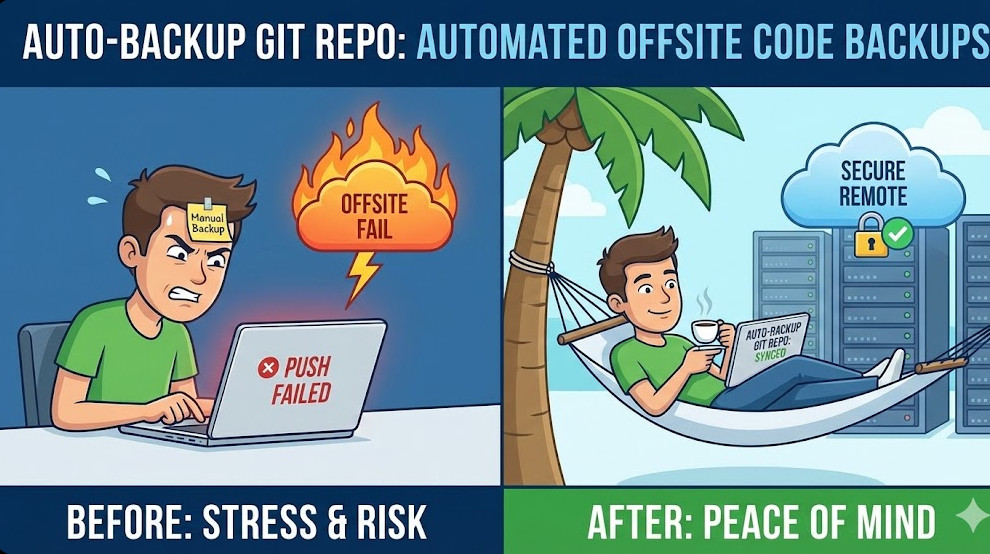
Conclusion: Setting up an Auto-Backup Git Repo system takes exactly five minutes, but it will save you weeks of agony.
We are humans. We forget to type git push. Hardware fails. Laptops die.
By delegating this critical task to a tiny automated script, you remove human error entirely.
You can finally code with absolute peace of mind.
Would you like me to walk you through setting up a script to automatically pull changes from the main branch next? Thank you for reading the DevopsRoles page!