Category Archives: Ansible

Learn Ansible with DevOpsRoles.com. Access detailed guides and tutorials to automate IT tasks and manage configurations efficiently using Ansible for DevOps.

How to Fix SSH Permission Denied (publickey) Error in Ansible: A Deep Guide

Introduction

When working with Ansible, a common and frustrating error is “SSH Error: Permission denied (publickey)”. This problem usually arises when Ansible, which relies on SSH to manage remote servers, fails to authenticate using a public key. SSH is the cornerstone of Ansible’s agentless architecture, and if it cannot establish a connection, your automation tasks will not execute properly.

This in-depth guide will walk you through every possible cause of this error, provide practical fixes ranging from basic to advanced, and cover common SSH configurations that might be the root of the issue. Whether you are new to Ansible or a seasoned user, this guide will help you navigate and resolve SSH permission problems, ensuring uninterrupted connectivity and workflow automation.

What Is the “Permission Denied (publickey)” Error?

In simple terms, the “Permission denied (publickey)” error occurs when the SSH client (in this case, Ansible) fails to authenticate the connection with the remote server using a public key. Ansible uses SSH to communicate with managed nodes, and if the public key authentication is denied, Ansible will be unable to execute its playbooks on the remote servers.

Common Causes of SSH Permission Denied (publickey) in Ansible

Here are the most frequent reasons why you may encounter this error:

  • No SSH key pair exists on the control machine.
  • Incorrect permissions on your private or public SSH key.
  • The public key is not copied to the remote server or it is not located in the correct directory.
  • SSH agent not loaded with the correct key.
  • Misconfiguration of the ansible_user or ansible_ssh_private_key_file in the inventory file.
  • SSH key forwarding issues, particularly when using SSH from a jump host or a bastion.
  • SSH key mismatches between different environments, especially if you’re managing multiple servers.

Let’s explore each of these in detail, along with the solutions to fix them.

Basic Troubleshooting Steps for SSH Permission Denied (publickey)

Before diving into advanced configurations and Ansible-specific fixes, it’s important to start with basic troubleshooting steps. These are often enough to resolve the problem.

1. Verify SSH Key Pair Exists on Control Node

To establish an SSH connection, the control node (your local machine) needs to have an SSH key pair. Run the following command to verify if an SSH key already exists:

ls ~/.ssh/id_rsa

If the file doesn’t exist, create a new key pair:

ssh-keygen -t rsa -b 4096

This command generates a 4096-bit RSA key pair, which is suitable for most modern applications. Make sure not to overwrite an existing key unless necessary.

Why Do You Need an SSH Key Pair?

SSH key pairs are critical for Ansible to securely connect to remote servers without a password prompt. If no key pair exists, Ansible won’t be able to authenticate with remote servers, leading to the “Permission denied (publickey)” error.

2. Ensure Correct Permissions on SSH Keys

SSH will reject your connection if the private key (id_rsa) or public key (id_rsa.pub) files have overly permissive permissions. To fix this, set the appropriate permissions on both files:

chmod 600 ~/.ssh/id_rsa
chmod 644 ~/.ssh/id_rsa.pub

This restricts access to the private key to the current user and allows public reading of the public key.

Why Does SSH Require Strict Permissions?

SSH ensures that your private keys are secured. If the permissions are too permissive, the key may be accessible by other users on the system, which creates a security risk. Thus, SSH enforces strict permission rules to safeguard key usage.

3. Copy Public Key to Remote Server

If the public key is not present on the remote server, you won’t be able to authenticate via SSH. Use the ssh-copy-id command to upload the public key:

ssh-copy-id user@remote_server

This command will append your public key to the remote server’s ~/.ssh/authorized_keys file, which is necessary for key-based authentication.

4. Test the SSH Connection Manually

Before attempting to run your Ansible playbooks, manually verify that you can establish an SSH connection:

ssh user@remote_server

If the connection succeeds, then Ansible should also be able to communicate with the remote host. If not, the issue likely lies within your SSH configuration.

Intermediate Ansible-Specific Solutions

If you’ve completed the basic troubleshooting steps and are still encountering the “Permission denied (publickey)” error, the issue might be specific to your Ansible configuration.

1. Set the Correct SSH User in Ansible Inventory

Ansible’s inventory file defines which hosts to connect to and how to connect to them. If the ansible_user is incorrect or missing, Ansible might try to use the wrong user to connect via SSH.

Here’s an example of a correct inventory entry:

[servers]
server1 ansible_host=192.168.1.10 ansible_user=user

In this example, Ansible will attempt to connect to the server using the user account. Make sure the SSH user is the one authorized to log in via SSH on the remote machine.

Incorrect User? Fixing Ansible User Issues

Often, the SSH user set in the Ansible inventory file doesn’t match the authorized user on the remote server. Ensure that the user specified as ansible_user is the correct one.

2. Specify Private Key Path in Inventory

If Ansible is using the wrong private key for authentication, specify the correct private key in your inventory file:

[servers]
server1 ansible_host=192.168.1.10 ansible_user=user ansible_ssh_private_key_file=~/.ssh/id_rsa

By explicitly telling Ansible which key to use, you can avoid situations where it attempts to use the wrong key.

3. Check SSH Agent and Add Key if Necessary

Ansible relies on the SSH agent to manage private keys. If your key isn’t added to the agent, you can add it with the following commands:

ssh-agent bash
ssh-add ~/.ssh/id_rsa

To verify that the key is loaded, run:

ssh-add -l

This command will list all SSH keys currently managed by the SSH agent. Ensure your key appears in the list.

Why Use SSH Agent?

The SSH agent allows Ansible to manage private keys efficiently without prompting for a password each time it connects to a remote server. If the agent is not loaded, Ansible may fail to connect, resulting in the permission denied error.

Advanced Troubleshooting Techniques

If the error persists after performing basic and intermediate troubleshooting, it’s time to delve into more advanced techniques.

1. Increase SSH Verbosity for Detailed Debugging

To gain more insights into why the SSH connection is failing, increase the verbosity of Ansible’s SSH output by running playbooks with the -vvvv option:

ansible-playbook -i inventory playbook.yml -vvvv

This command enables verbose mode and prints detailed logs that show exactly what’s happening during the SSH authentication process. Look for specific messages related to public key authentication.

2. Check the Remote Server’s authorized_keys File

Sometimes, the public key on the remote server might be corrupted or misconfigured. Check the ~/.ssh/authorized_keys file on the remote server and ensure that:

  • The public key is listed correctly.
  • There are no extra spaces or invalid characters.

3. Use paramiko SSH Backend in Ansible

By default, Ansible uses OpenSSH as the SSH backend. In certain cases, switching to paramiko can help resolve authentication issues. You can configure this in your Ansible playbook or inventory file by adding:

ansible_ssh_common_args: '-o StrictHostKeyChecking=no'

Alternatively, to force paramiko for all connections, modify your ansible.cfg:

[defaults]
transport = paramiko

4. Forward SSH Key (If Using Jump Hosts)

If you are connecting to remote servers via a jump host or bastion, you may need to forward your SSH key to the remote server. Enable SSH key forwarding by adding this to your inventory file:

[servers]
server1 ansible_host=192.168.1.10 ansible_user=user ansible_ssh_extra_args='-o ForwardAgent=yes'

Key forwarding allows the remote server to use your SSH credentials from the jump host, solving authentication problems that arise in such scenarios.

Common SSH Configuration Issues and Fixes

1. Missing SSH Configurations

If you’re managing multiple SSH keys or servers, it’s beneficial to configure ~/.ssh/config. Here’s an example configuration:

Host server1
  HostName 192.168.1.10
  User user
  IdentityFile ~/.ssh/id_rsa

This configuration ensures that the correct user and key are used for specific hosts.

2. Incorrect File Permissions on Remote Server

Check the permissions of the ~/.ssh/authorized_keys file on the remote server:

chmod 600 ~/.ssh/authorized_keys
chown user:user ~/.ssh/authorized_keys

These commands set the correct ownership and permissions for the file, ensuring SSH can authenticate using the stored public key.

FAQs

Why am I still getting “Permission denied (publickey)” even after verifying permissions?

Ensure that your SSH agent is running and that the correct private key is loaded into the agent. Also, double-check the public key is copied correctly to the remote server’s authorized_keys file.

How can I debug SSH key authentication issues?

Use the following command for verbose debugging of SSH connections:

ssh -i ~/.ssh/id_rsa user@remote_server -v

This will provide detailed output about each step in the authentication process.

Can I disable public key authentication and use passwords?

While you can configure password-based authentication in SSH, it’s not recommended for production environments due to security risks. If necessary, you can enable password authentication in the SSH configuration, but this should be a last resort.

Conclusion

The “SSH Error: Permission denied (publickey)” is a common issue in Ansible, but by following this deep guide, you now have a range of solutions at your disposal. Whether the problem lies in SSH key permissions, Ansible inventory configurations, or advanced SSH setups like key forwarding, these strategies will help you resolve the error and ensure smooth automation with Ansible. Thank you for reading the DevopsRoles page!

By mastering these techniques, you can overcome SSH authentication problems and maintain a reliable, scalable infrastructure managed by Ansible.


Resolve MODULE FAILURE Error in Ansible Playbook

Introduction

Ansible is a powerful open-source automation tool designed for IT automation such as configuration management, application deployment, and task automation. Despite its simplicity and flexibility, you might encounter certain errors while running Ansible playbooks. One particularly frustrating error is the MODULE FAILURE error.

In this deep guide, we will cover how to diagnose, debug, and resolve the MODULE FAILURE error in Ansible playbooks. We’ll start with basic steps and dive into advanced techniques to ensure a comprehensive understanding of the troubleshooting process.

By the end of this guide, you will be equipped with the tools and knowledge needed to effectively resolve MODULE FAILURE errors in Ansible playbooks.

What is the MODULE FAILURE Error in Ansible?

The MODULE FAILURE error is triggered when an Ansible module fails to execute properly. Modules in Ansible are responsible for executing specific actions such as copying files, managing services, or interacting with APIs. When these modules fail, the playbook is unable to proceed further, halting the automation process.

This error typically appears in the following format:

fatal: [target-host]: FAILED! => {"changed": false, "msg": "MODULE FAILURE", "module_stderr": "MODULE FAILURE", "module_stdout": ""}

In most cases, Ansible will provide additional details about what went wrong, such as incorrect arguments, missing dependencies, or permission issues. However, diagnosing the exact root cause can sometimes be tricky.

Let’s begin with basic troubleshooting steps to understand what might be going wrong.

Basic Troubleshooting Steps for MODULE FAILURE

1. Analyze the Error Output

Whenever a MODULE FAILURE error occurs, Ansible typically provides an error message with some context. The module_stderr and msg fields in the error output often contain useful information.

fatal: [target-host]: FAILED! => {"changed": false, "msg": "MODULE FAILURE", "module_stderr": "error detail", "module_stdout": ""}
  • msg: This provides a general message about the failure.
  • module_stderr: This might contain more specific details on what went wrong during module execution.

Always start by analyzing the full error message to identify whether it’s a syntax issue, an argument mismatch, or a missing dependency.

2. Ensure Correct Module Usage

Every Ansible module has a set of arguments and options that it expects. Incorrect arguments or missing options can lead to a MODULE FAILURE. Use the ansible-doc command to verify that you’re using the module correctly.

For example, let’s say you are using the user module:

- name: Add a new user
  user:
    name: john
    state: present
    password: secret_password

You can check the correct usage with:

ansible-doc user

This will show you all the available options and expected argument formats for the user module.

3. Test Module Functionality Independently

Sometimes, it helps to test the problematic module outside the playbook. You can run an individual module command using ansible -m <module-name> to verify if the module works independently.

For example, if you suspect that the copy module is failing, run the following command to test it manually:

ansible target-host -m copy -a "src=/local/file.txt dest=/remote/path/file.txt"

This approach can help you isolate whether the issue is with the playbook or the module itself.

4. Review File Permissions and Paths

Incorrect file paths or missing permissions are frequent causes of MODULE FAILURE. Verify that the file paths provided in your playbook are correct, and ensure the user running the playbook has appropriate permissions on both the control machine and the target hosts.

- name: Copy a file to remote server
  copy:
    src: /incorrect/path/file.txt
    dest: /remote/path/file.txt
  become: true  # Ensure privilege escalation if required

Use the stat module to check if the files and directories exist and have the required permissions.

- name: Check if the file exists
  stat:
    path: /remote/path/file.txt
  register: file_check

- debug:
    msg: "File exists: {{ file_check.stat.exists }}"

5. Verify Dependencies on Remote Hosts

Ansible modules sometimes rely on external libraries, binaries, or packages that must be installed on the remote system. If these dependencies are missing, the module will fail.

For example, the yum module requires the yum package manager to be available on the remote host. You can check for dependencies using the command module.

- name: Verify if yum is available
  command: which yum

If the required package or tool is missing, you’ll need to install it as part of the playbook or manually on the remote machine.

- name: Install yum package manager
  yum:
    name: yum
    state: present

6. Check Privileges and Permissions

If your playbook includes tasks that require elevated privileges (e.g., installing software, starting services), you’ll need to ensure that the user running the playbook has appropriate permissions.

Use the become directive to run tasks with elevated privileges:

- name: Install a package
  yum:
    name: httpd
    state: present
  become: true

Ensure that the user executing the playbook has the necessary sudo rights on the remote system.

Advanced Troubleshooting Techniques for MODULE FAILURE

1. Increase Verbosity with -vvv

When basic troubleshooting steps don’t provide enough insight, increasing Ansible’s verbosity level can help. Run your playbook with the -vvv flag to see more detailed logs.

ansible-playbook playbook.yml -vvv

This will provide a more granular output of each step in the playbook execution, giving you detailed information about what’s happening during the MODULE FAILURE.

2. Dry Run with --check

The --check option allows you to perform a dry run of your playbook. Ansible simulates the execution without making any actual changes to the remote system, which can help you catch issues before they result in MODULE FAILURE.

ansible-playbook playbook.yml --check

This is particularly useful for identifying missing paths, wrong arguments, or other pre-execution errors.

3. Debugging with assert

Ansible’s assert module is a useful tool for validating conditions before executing a task. By asserting certain conditions, you can prevent a task from running unless the conditions are met.

- name: Ensure file exists before copying
  assert:
    that:
      - file_exists('/path/to/file.txt')

- name: Copy the file to the remote host
  copy:
    src: /path/to/file.txt
    dest: /remote/path/file.txt
  when: file_exists

In this example, the assert module checks if the file exists before proceeding with the copy task.

4. Debugging with pause and debug

You can pause the playbook execution at certain points using the pause module to manually inspect the remote system. Use this in combination with the debug module to print variables and check intermediate values.

- name: Pause for debugging
  pause:
    prompt: "Inspect the system and press Enter to continue"

- name: Debug variables
  debug:
    var: ansible_facts

This technique allows you to step through the playbook execution and examine the system state before the MODULE FAILURE occurs.

MODULE FAILURE Scenarios and Resolutions

Scenario 1: MODULE FAILURE Due to Missing Python Interpreter

In some environments (such as minimal Docker containers), the Python interpreter may not be installed, which can lead to MODULE FAILURE.

Solution:

You can install Python using the raw module, which doesn’t require a Python interpreter.

- name: Install Python on remote hosts
  raw: sudo apt-get install python3 -y

Once Python is installed, Ansible modules that depend on Python should run without issues.

Scenario 2: MODULE FAILURE in service Module

If the service module fails, it could be due to the service not being available or misconfigured on the target host.

Solution:

You can add pre-checks to verify that the service exists before trying to start or stop it.

- name: Check if the service exists
  command: systemctl status apache2
  register: service_status
  ignore_errors: yes

- name: Restart the service if it exists
  service:
    name: apache2
    state: restarted
  when: service_status.rc == 0

This prevents the service module from running if the service does not exist.

Scenario 3: MODULE FAILURE in the file Module

If the file module fails, it could be due to incorrect file ownership or permissions.

Solution:

Ensure that the necessary permissions and ownership are set correctly before performing any file-related tasks.

- name: Ensure correct ownership of directory
  file:
    path: /var/www/html
    state: directory
    owner: www-data
    group: www-data
    mode: '0755'
  become: true

Frequently Asked Questions (FAQs)

What causes a MODULE FAILURE in Ansible?

A MODULE FAILURE in Ansible can be caused by several factors including incorrect module arguments, missing dependencies on the remote host, incorrect permissions, or syntax errors in the playbook.

How can I debug a MODULE FAILURE error in Ansible?

To debug a MODULE FAILURE error, start by reviewing the error message, increasing verbosity with -vvv, verifying module arguments, checking file paths and permissions, and ensuring all dependencies are installed on the remote host.

How can I prevent MODULE FAILURE errors in Ansible?

You can prevent MODULE FAILURE errors by validating module arguments with ansible-doc, testing tasks with --check, ensuring proper permissions, and using the assert module to verify conditions before executing tasks.

Conclusion

MODULE FAILURE errors in Ansible can be daunting, especially when they interrupt your automation workflows. However, with a methodical approach to troubleshooting—starting with analyzing error messages, verifying module usage, and checking dependencies—you can resolve most issues. Thank you for visiting the DevopsRoles page!

For more complex scenarios, using advanced techniques like increased verbosity, dry runs, and debugging modules will help you diagnose and fix the root cause of the MODULE FAILURE. By following the steps outlined in this guide, you’ll be well-equipped to resolve MODULE FAILURE errors and keep your automation tasks running smoothly.

Ansible practice exercises: Step-by-Step Tutorials and Examples for Automation Mastery

Introduction

Welcome to our comprehensive guide on Ansible practice exercises, where we delve into hands-on examples to master this powerful automation tool. In this tutorial, We will use Ansible practice exercises examples.

An Introduction Ansible

Ansible is a popular open-source automation tool for IT operations and configuration management. One of the key features of Ansible is its ability to execute tasks with elevated privileges, which is often necessary when configuring or managing systems.

Ansible practice: how to create a user and grant them sudo permissions in Ansible.

- name: Create user
  user:
    name: huupv
    state: present

- name: Add user to sudoers
  lineinfile:
    path: /etc/sudoers
    line: "huupv ALL=(ALL) NOPASSWD: ALL"
    state: present

In the first task, the “user” module is used to create a user with the name “huupv”. The “state” directive is set to “present” to ensure that the user is created if it doesn’t already exist.

In the second task, the “lineinfile” module is used to add the user “huupv” to the sudoers file. The “line” directive specifies that “huupv” can run all commands as any user without a password. The “state” directive is set to “present” to ensure that the line is added if it doesn’t already exist in the sudoers file.

Note: It is recommended to use the “visudo” command to edit the sudoers file instead of directly editing the file, as it checks the syntax of the file before saving changes.

You try it ansible!

How to disable SELinux in Ansible.

- name: Disable SELinux
  lineinfile:
    path: /etc/selinux/config
    line: SELINUX=disabled
    state: present

- name: Restart the system to apply the changes
  command: shutdown -r now
  when: "'disabled' in selinux.getenforce()"

In the first task, the “lineinfile” module is used to set the SELinux state to “disabled” in the SELinux configuration file located at “/etc/selinux/config”. The “state” directive is set to “present” to ensure that the line is added if it doesn’t already exist in the configuration file.

In the second task, the “command” module is used to restart the system to apply the changes. The “when” directive is used to only execute the task if the SELinux state is currently set to “disabled”.

Note: Disabling SELinux is not recommended for security reasons. If you need to modify the SELinux policy, it is better to set SELinux to “permissive” mode, which logs SELinux violations but does not enforce them, rather than completely disabling SELinux.

How to allow ports 22, 80, and 443 in the firewall on Ubuntu using Ansible

- name: Allow ports 22, 80, and 443 in firewall
  ufw:
    rule: allow
    port: [22,80,443]

- name: Verify firewall rules
  command: ufw status
  register: firewall_status

- name: Display firewall status
  debug:
    var: firewall_status.stdout_lines
  • In the first task, the “ufw” module is used to allow incoming traffic on ports 22, 80, and 443. The “rule” directive is set to “allow” and the “port” directive is set to a list of ports to allow.
  • In the second task, the “command” module is used to run the “ufw status” command and register the result in the “firewall_status” variable.
  • In the third task, the “debug” module is used to display the firewall status, which is stored in the “firewall_status.stdout_lines” variable.

Note: Make sure the “ufw” firewall is installed and enabled on the target system before running this playbook.

How to change the hostname on Ubuntu, CentOS, RHEL, and Oracle Linux using Ansible.

- name: Change hostname
  become: yes
  become_method: sudo
  lineinfile:
    dest: /etc/hosts
    regexp: '^.*{{ inventory_hostname }}.*$'
    line: '{{ ansible_default_ipv4.address }} {{ new_hostname }} {{ inventory_hostname }}'
    state: present
  replace:
    dest: /etc/hostname
    regexp: '^.*{{ inventory_hostname }}.*$'
    replace: '{{ new_hostname }}'
    state: present

- name: Reload hostname
  shell: |
    hostname {{ new_hostname }}
    echo {{ new_hostname }} > /etc/hostname
    if [[ $(grep -q {{ new_hostname }} /etc/sysconfig/network) -eq 0 ]]; then
      sed -i "s/^HOSTNAME=.*/HOSTNAME={{ new_hostname }}/" /etc/sysconfig/network
    fi
    if [[ $(grep -q {{ new_hostname }} /etc/sysconfig/network-scripts/ifcfg-* 2> /dev/null) -eq 0 ]]; then
      for ifcfg in $(grep -l {{ inventory_hostname }} /etc/sysconfig/network-scripts/ifcfg-*); do
        sed -i "s/^HOSTNAME=.*/HOSTNAME={{ new_hostname }}/" $ifcfg
      done
    fi
  when: "'Ubuntu' in ansible_os_family or 'Debian' in ansible_os_family"

- name: Reload hostname
  shell: |
    hostname {{ new_hostname }}
    echo {{ new_hostname }} > /etc/hostname
    sed -i "s/^HOSTNAME=.*/HOSTNAME={{ new_hostname }}/" /etc/sysconfig/network
  when: "'RedHat' in ansible_os_family or 'CentOS' in ansible_os_family or 'OracleLinux' in ansible_os_family"

- name: Check the hostname
  shell: hostname
  register: hostname_check

- name: Display the hostname
  debug:
    var: hostname_check.stdout
  • In the first task, the “lineinfile” module is used to update the “/etc/hosts” file with the new hostname, which is specified in the “new_hostname” variable. The “state” directive is set to “present” to ensure the line is added to the file if it doesn’t exist. The “replace” module is used to update the “/etc/hostname” file with the new hostname.
  • In the second task, the “shell” module is used to reload the hostname on Ubuntu and Debian systems. The “when” directive is used to only execute this task if the target system is an Ubuntu or Debian system.
  • In the third task, the “shell” module is used to reload the hostname on Red Hat, CentOS, and Oracle Linux systems. The “when” directive is used to only execute this task if the target system is a Red Hat, CentOS, or Oracle Linux system.

To run the Ansible playbook

  • Save the playbook content in a file with a .yml extension, for example, change_hostname.yml
  • Run the command ansible-playbook change_hostname.yml on the terminal.
  • Set the value of the new_hostname variable by passing it as an extra-var argument with the command: ansible-playbook change_hostname.yml --extra-vars "new_hostname=newhostname"
  • Before running the playbook, ensure you have the target server information in your Ansible inventory file and that the necessary SSH connection is set up.
  • If you have set become: yes in the playbook, make sure you have the necessary permissions on the target server to run the playbook with elevated privileges.

5. To list all the packages installed on a target server

- name: List all packages
  hosts: target
  tasks:
    - name: Get list of all packages
      command: "{{ 'dpkg-query -f \'{{.Package}}\\n\' -W' if (ansible_distribution == 'Ubuntu') else 'rpm -qa' }}"
      register: packages

    - name: Display packages
      debug:
        var: packages
  • Where target is the group of hosts defined in the inventory file.

To run this playbook, you can use the following command:

  • Where list_packages.yml is the name of the playbook file.
  • This playbook will use the appropriate command (dpkg-query for Ubuntu, rpm -qa for CentOS, RHEL, and Oracle Linux) to get a list of all the installed packages and display them using the debug module.

Note: The ansible_distribution the variable is used to determine the type of operating system running on the target host, and the appropriate command is executed based on the result.

Conclusion

We hope this guide on Ansible practice exercises has empowered you with the knowledge and skills to optimize your IT operations. By walking through these practical examples, you should now feel more confident in using Ansible Automation exercises complex tasks and improve efficiency across your systems. Continue to explore and experiment with Ansible to unlock its full potential and adapt its capabilities to meet your unique operational needs. Update later! Ansible practice exercises examples. I hope will this your helpful. Thank you for reading the DevopsRoles page!

Using Ansible with Testinfra test infrastructure

Introduction

In this tutorial, How to ansible testinfra test infrastructure. You can write unit tests in Python to test the actual status of your target servers.

Ansible Testinfra is a testing framework that allows you to write tests for your Ansible playbooks and roles. It is built on top of the popular Python testing framework pytest and provides a simple way to test the state of your systems after running Ansible playbooks.

Testinfra is a powerful library for writing tests to verify an infrastructure’s state. It is a Python library and uses the powerful pytest test engine.

Ansible Testinfra test infrastructure

Install Testinfra

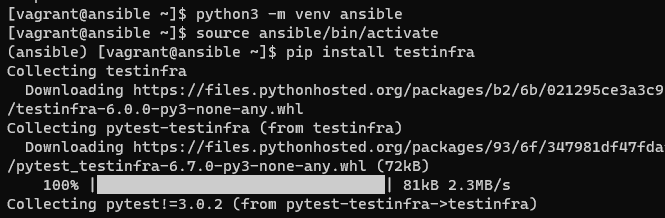
Method 1: Use pip ( Python package manager ) to install Testinfra and a Python virtual environment.

python3 -m venv ansible
source ansible/bin/activate
(ansible) $ pip install testinfra

Method 2: Testinfra is also available in the package repositories of Fedora and CentOS using the EPEL repository. For example, install on CentOS 7 as command below:

$ yum install -y epel-release
$ yum install -y python-testinfra

For example, A simple test script

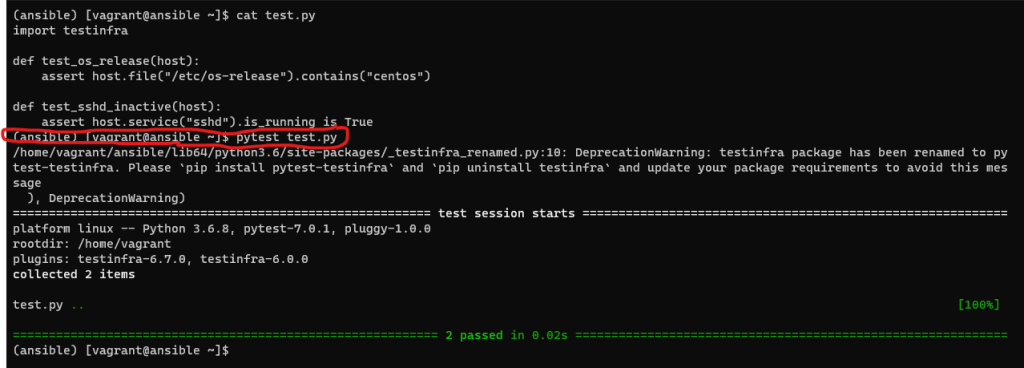
I create test.py with the content below:

import testinfra

def test_os_release(host):
    assert host.file("/etc/os-release").contains("centos")

def test_sshd_active(host):
    assert host.service("sshd").is_running is True

To run these tests on your local machine, execute the following command:

(ansible)$ pytest test.py

Testinfra and Ansible

Use pip to install the Ansible package.

pip install ansible

Here is the resulting output:

(ansible) [vagrant@ansible ~]$ pip install ansible
Collecting ansible
  Downloading ansible-4.10.0.tar.gz (36.8 MB)
     |████████████████████████████████| 36.8 MB 6.9 MB/s
  Preparing metadata (setup.py) ... done
Collecting ansible-core~=2.11.7
  Downloading ansible-core-2.11.11.tar.gz (7.1 MB)
     |████████████████████████████████| 7.1 MB 9.6 MB/s
  Preparing metadata (setup.py) ... done
Collecting jinja2
  Downloading Jinja2-3.0.3-py3-none-any.whl (133 kB)
     |████████████████████████████████| 133 kB 10.4 MB/s
Collecting PyYAML
  Downloading PyYAML-6.0-cp36-cp36m-manylinux_2_5_x86_64.manylinux1_x86_64.manylinux_2_12_x86_64.manylinux2010_x86_64.whl (603 kB)
     |████████████████████████████████| 603 kB 8.7 MB/s
Collecting cryptography
  Downloading cryptography-37.0.2-cp36-abi3-manylinux_2_17_x86_64.manylinux2014_x86_64.whl (4.1 MB)
     |████████████████████████████████| 4.1 MB 11.5 MB/s
Requirement already satisfied: packaging in ./ansible/lib/python3.6/site-packages (from ansible-core~=2.11.7->ansible) (21.3)
Collecting resolvelib<0.6.0,>=0.5.3
  Downloading resolvelib-0.5.4-py2.py3-none-any.whl (12 kB)
Collecting cffi>=1.12
  Downloading cffi-1.15.0-cp36-cp36m-manylinux_2_5_x86_64.manylinux1_x86_64.whl (405 kB)
     |████████████████████████████████| 405 kB 10.7 MB/s
Collecting MarkupSafe>=2.0
  Downloading MarkupSafe-2.0.1-cp36-cp36m-manylinux_2_5_x86_64.manylinux1_x86_64.manylinux_2_12_x86_64.manylinux2010_x86_64.whl (30 kB)
Requirement already satisfied: pyparsing!=3.0.5,>=2.0.2 in ./ansible/lib/python3.6/site-packages (from packaging->ansible-core~=2.11.7->ansible) (3.0.9)
Collecting pycparser
  Downloading pycparser-2.21-py2.py3-none-any.whl (118 kB)
     |████████████████████████████████| 118 kB 12.3 MB/s
Using legacy 'setup.py install' for ansible, since package 'wheel' is not installed.
Using legacy 'setup.py install' for ansible-core, since package 'wheel' is not installed.
Installing collected packages: pycparser, MarkupSafe, cffi, resolvelib, PyYAML, jinja2, cryptography, ansible-core, ansible
    Running setup.py install for ansible-core ... done
    Running setup.py install for ansible ... done
Successfully installed MarkupSafe-2.0.1 PyYAML-6.0 ansible-4.10.0 ansible-core-2.11.11 cffi-1.15.0 cryptography-37.0.2 jinja2-3.0.3 pycparser-2.21 resolvelib-0.5.4
(ansible) [vagrant@ansible ~]$

Testinfra can directly use Ansible’s inventory file and a group of machines defined in the inventory. For example, inventory hosts are the target server Ubuntu.

(ansible) [vagrant@ansible ~]$ cat hosts
[target-server]
UbuntuServer

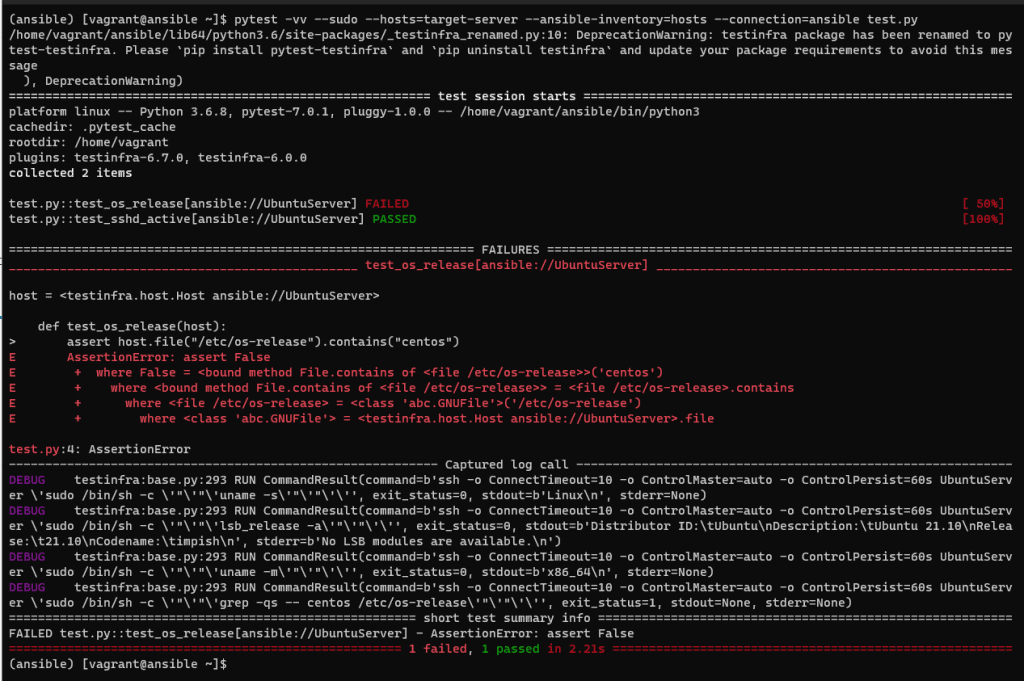
We verify the operating system and ensure that SSH is running on the target server.

To test using Testinfra and Ansible, use the following command:

pytest -vv --sudo --hosts=target-server --ansible-inventory=hosts --connection=ansible test.py

The terminal output is as follows:

Conclusion

You have Ansible Testinfra test infrastructure. Ansible and Testinfra are complementary tools that can be used together in an infrastructure provisioning and testing workflow, but they serve different purposes.

Ansible specializes in automation and configuration management, whereas Testinfra is dedicated to testing the infrastructure. I hope you find this information helpful. Thank you for visiting the DevopsRoles page!

Run Multiple Ansible Versions using Python 3 Virtual Environments

#Introduction

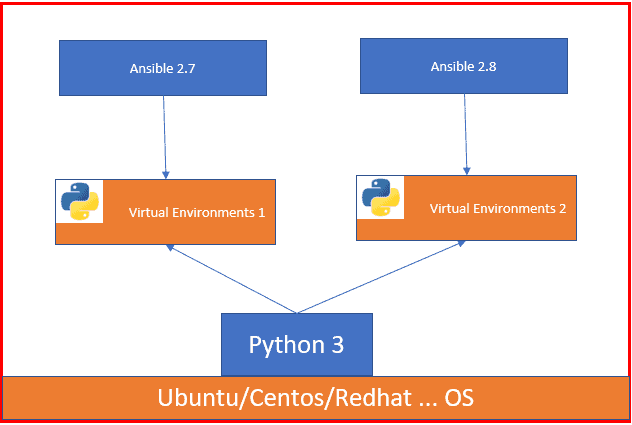
In this tutorial, How to Run Multiple Ansible Versions using Python 3 Virtual Environments. You can install multiple versions for Ansible

The benefits of using a virtual environment run Multiple Ansible Versions

  • Each project its isolated environment and modules
  • The base system is not affected
  • Does not require root access as virtual environments

Install Python 3

CentOS 7

sudo yum -y install epel-release
sudo yum -y install python36 python36-pip

Ubuntu

Check the python version

python3 --version

If python is not installed by default, you can install it

sudo apt install python3.9 python3.9-venv

check the python version.

python3 -V

The output terminal is as below:

vagrant@devopsroles:~$ python3 -V
Python 3.9.5

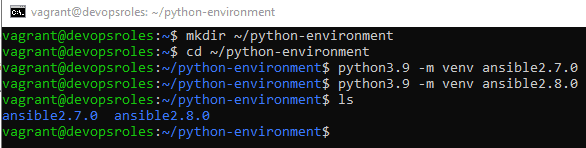
Create Virtual Environments

First, we will need to create a folder that we’ll use to store the virtual environments. You do not create inside your project folder.

mkdir ~/python-environment

For example, I create two environments for different versions of Ansible using venv modules

cd ~/python-environment
python3.9 -m venv ansible2.7.0
python3.9 -m venv ansible2.8.0

The output terminal as below

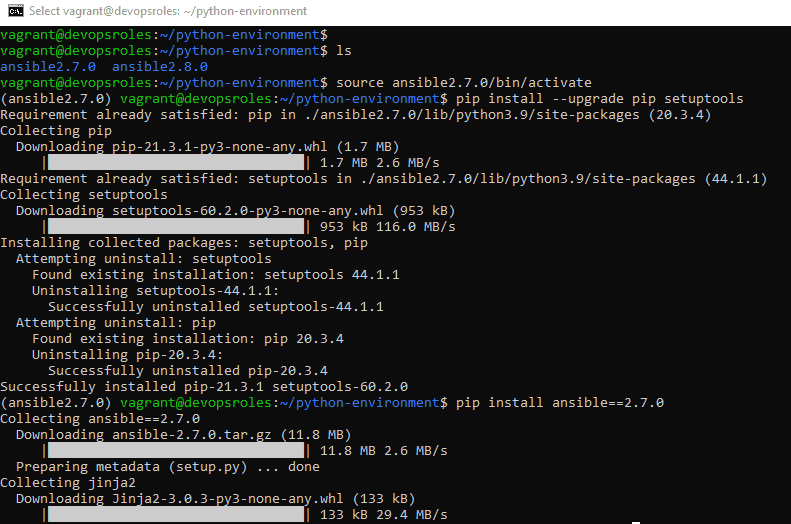
Activate an environment ansible version 2.7.0

source ansible2.7.0/bin/activate

Use pip install ansible 2.7.0

pip install --upgrade pip setuptools
pip install ansible==2.7.0
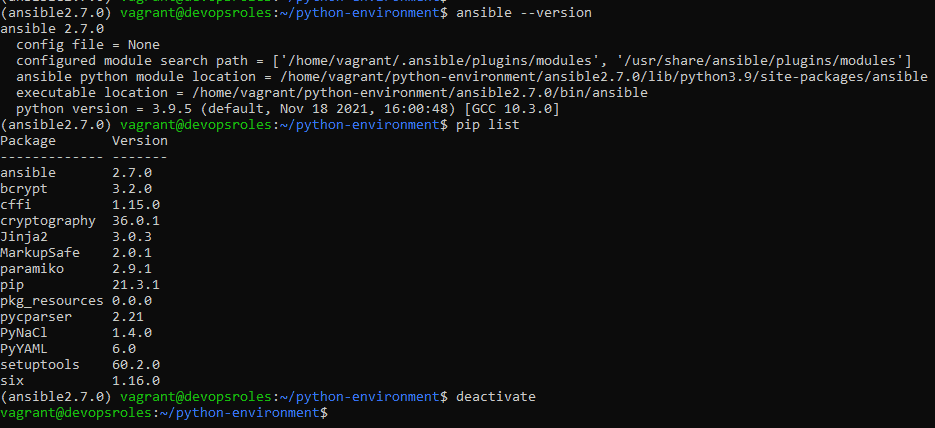
ansible --version

The output terminal as below

List of Python packages that have been installed in this environment

pip list

deactivate the environment

deactivate

The output terminal as below

Set up the second environment for ansible version 2.8.0

cd ~/python-environment
source ansible2.8.0/bin/activate
pip install --upgrade pip setuptools
pip install ansible==2.8.0
ansible --version
pip list
deactivate

You have the environments set up and use pip to install any packages without risk the base system packages.

Conclusion

You have Run Multiple Ansible Versions using Python 3 Virtual Environments. I hope will this your helpful. Thank you for reading the DevopsRoles page!

Ansible roles directory structure explained

Introduction

I will explain the ansible roles directory structure. The confusing using roles are understanding the file hierarch. Ansible provides a feature called Ansible galaxy that helps you play roles.

For example, Ansible roles directory will look like as below:

[vagrant@ansible_controller demo]$ tree nodejs
nodejs
├── defaults
│   └── main.yml
├── files
├── handlers
│   └── main.yml
├── meta
│   └── main.yml
├── README.md
├── tasks
│   └── main.yml
├── templates
├── tests
│   ├── inventory
│   └── test.yml
└── vars
    └── main.yml

8 directories, 8 files

You can be using ansible galaxy it creates a role.

$ sudo ansible-galaxy init <role-name>
# Example init nodejs role
$ sudo ansible-galaxy init nodejs

Explain Ansible directories

  • Tasks: The main list of tasks to be exectued by role. it contains the main.yml file.
  • Files: Contains files that can be deployed by this role
  • Handlers: Contains handlers which may be used by this role or even anywhere outside this role.
  • Defaults: Contains the default variables used by this role.
  • Vars: This directory consists of other variables that used by the roles. These variables can be defined in ansible playbook.
  • Meta: Defines metadata for this role. it contains file role dependencies.

Demo Using Ansible install nodejs

I use ansible-galaxy to download template nodejs role as command below:

[vagrant@ansible_controller demo]$ ansible-galaxy init nodejs

My Ansible structure folder and file as below:

[vagrant@ansible_controller ~]$ tree demo
demo
├── ansible.cfg
├── install-nodejs.yml
├── inventory
│   └── hosts
└── roles
    └── nodejs
        ├── defaults
        │   └── main.yml
        ├── files
        ├── handlers
        │   └── main.yml
        ├── meta
        │   └── main.yml
        ├── README.md
        ├── tasks
        │   └── main.yml
        ├── templates
        └── vars
            └── main.yml

10 directories, 9 files

Write roles/nodejs/tasks/main.yml for nodejs role as below:

---
# Example, tasks file for nodejs
- name: Node.js - Get script
  get_url:
    url: "https://rpm.nodesource.com/setup_10.x"
    dest: "{{ var_node }}/nodejs.sh"

- name: Node.js - Set execution permission to script
  file:
    path: "{{ var_node }}/nodejs.sh"
    mode: "u+x"

- name: Node.js - Execute installation script
  shell: "{{ var_node }}/nodejs.sh"

- name: Node.js - Remove installation script
  file:
    path: "{{ var_node}}/nodejs.sh"
    state: absent

- name: Node.js - Install Node.js
  yum: name={{ item }} state=present update_cache=yes
  with_items:
    - epel-release
    - nodejs

- name: Node.js - Install bower and gulp globally
  npm: name={{ item }} state=present global=yes
  with_items:
    - bower
    - gulp

# check version
- name: "Check if nodejs is installed"
  package_facts:
    manager: "auto"
- name: "nodejs result"
  debug:
     msg: "nodejs found"
  when: "'nodejs' in ansible_facts.packages"
- name: "nodejs result"
  debug:
     msg: "nodejs NOT found"
  when: "'nodejs' not in ansible_facts.packages"

Write your main playbook. Example, install-nodejs.yml file.

---
- hosts: web-server
  become: yes
  vars:
    # variable needed during node installation
    var_node: /tmp
  roles:
       - nodejs

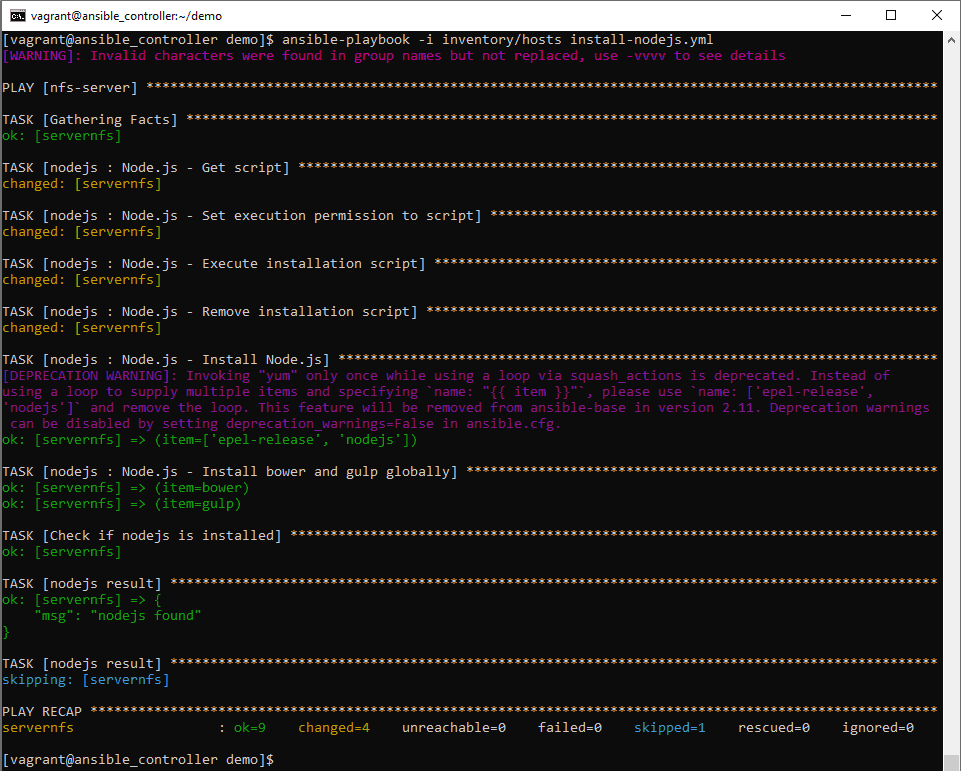
Ansible run command

[vagrant@ansible_controller demo]$ ansible-playbook -i inventory/hosts install-nodejs.yml

The result, install nodejs on the target server as below:

Conclusion

I hope will this your helpful. Thank you for reading the DevopsRoles page!

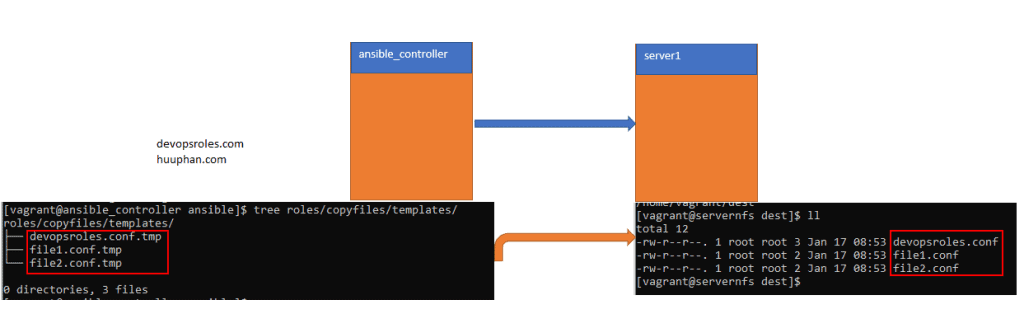
Ansible copy template file to remote server

#Introduction

How to copy the template file to the remote server using Ansible. I use vagrant to create VMs. My example Ansible creates multiple servers here. In Ansible I use with_fileblob:

Ansible file and folder

[vagrant@ansible_controller ansible]$ tree .
.
├── ansible.cfg
├── copy-template.yml
├── hosts
└── roles
    └── copyfiles
        ├── tasks
        │   └── main.yml
        └── templates
            ├── devopsroles.conf.tmp
            ├── file1.conf.tmp
            └── file2.conf.tmp

4 directories, 7 files

Ansible copy template file to remote server script

copy-template.yml file.

---
- hosts: web-server
  become: yes
  roles:
       - copyfiles

Example: roles/copyfiles/tasks/main.yml file

---
- name: "Copy files template to remote server"
  template:
    src: "{{ item }}"
    dest: "/home/vagrant/dest/{{ item | basename | regex_replace('.tmp','') }}"
    owner: "root"
    group: "root"
    mode: 0644
  with_fileglob:
    - templates/*.tmp

Ansible run command 

[vagrant@ansible_controller ansible]$ ansible-playbook -i hosts copy-template.yml

The output terminal on the ansible controller

[vagrant@ansible_controller ansible]$ ansible-playbook -i hosts copy-template.yml
[WARNING]: Invalid characters were found in group names but not replaced, use -vvvv to see details

PLAY [web-server] ***************************************************************************************************

TASK [Gathering Facts] **********************************************************************************************
ok: [server1]

TASK [copyfiles : Copy files template to remote server] *************************************************************
changed: [server1] => (item=/home/vagrant/ansible/roles/copyfiles/templates/devopsroles.conf.tmp)
changed: [server1] => (item=/home/vagrant/ansible/roles/copyfiles/templates/file1.conf.tmp)
changed: [server1] => (item=/home/vagrant/ansible/roles/copyfiles/templates/file2.conf.tmp)

PLAY RECAP **********************************************************************************************************
server1                  : ok=2    changed=1    unreachable=0    failed=0    skipped=0    rescued=0    ignored=0

The result on remote server1.

[vagrant@server1 dest]$ pwd
/home/vagrant/dest
[vagrant@server1 dest]$ ll
total 12
-rw-r--r--. 1 root root 3 Jan 17 08:53 devopsroles.conf
-rw-r--r--. 1 root root 2 Jan 17 08:53 file1.conf
-rw-r--r--. 1 root root 2 Jan 17 08:53 file2.conf

Conclusion

You have to use Ansible copy template file to remote server. I hope will this your helpful. Thank you for reading the DevopsRoles page!

Ansible check package installed in Linux

# Introduction

How to check for a package in the system using Ansible. I use vagrant to create VMs. My example Ansible creates multiple servers here. I will check the Apache package installed in Centos. Now, let’s go Ansible check package installed in Linux.

Ansible check package installed

Ansible file and folder

[vagrant@ansible_controller ~]$ tree .
.
├── ansible
│   ├── ansible.cfg
│   └── hosts
└── check-package.yml

We use the ansible module package_facts

Ansible script

---
- hosts: apache-server
  become: yes
  tasks:
    - name: "Check if APACHE is installed"
      package_facts:
        manager: "auto"
    - name: "Apache result"
      debug:
         msg: "Apache found"
      when: "'httpd' in ansible_facts.packages"
    - name: "Apache result"
      debug:
         msg: "Apache NOT found"
      when: "'httpd' not in ansible_facts.packages"

Ansible run command to check

[vagrant@ansible_controller ~]$ ansible-playbook -i ansible/hosts check-package.yml

The output terminal

[vagrant@ansible_controller ~]$ ansible-playbook -i ansible/hosts check-package.yml
[WARNING]: Invalid characters were found in group names but not replaced, use -vvvv to see details

PLAY [apache-server] ***************************************************************************************************************************************************************************************************************************

TASK [Gathering Facts] **********************************************************************************************************************************************************************************************************************
ok: [server1]

TASK [Check if APACHE is installed] *********************************************************************************************************************************************************************************************************
ok: [server1]

TASK [Apache result] ************************************************************************************************************************************************************************************************************************
ok: [server1] => {
    "msg": "Apache found"
}

TASK [Apache result] ************************************************************************************************************************************************************************************************************************
skipping: [server1]

PLAY RECAP **********************************************************************************************************************************************************************************************************************************
server1                  : ok=3    changed=0    unreachable=0    failed=0    skipped=1    rescued=0    ignored=0

I will remove the apache package on server1 apache.

[vagrant@server1 ~]$ sudo yum remove httpd -y

Ansible runs the command to check again:

[vagrant@ansible_controller ~]$ ansible-playbook -i ansible/hosts check-package.yml

The output terminal

[vagrant@ansible_controller ~]$ ansible-playbook -i ansible/hosts check-package.yml
[WARNING]: Invalid characters were found in group names but not replaced, use -vvvv to see details

PLAY [apache-server] ***************************************************************************************************************************************************************************************************************************

TASK [Gathering Facts] **********************************************************************************************************************************************************************************************************************
ok: [server1]

TASK [Check if APACHE is installed] *********************************************************************************************************************************************************************************************************
ok: [server1]

TASK [Apache result] ************************************************************************************************************************************************************************************************************************
skipping: [server1]

TASK [Apache result] ************************************************************************************************************************************************************************************************************************
ok: [server1] => {
    "msg": "Apache NOT found"
}

PLAY RECAP **********************************************************************************************************************************************************************************************************************************
server1                  : ok=3    changed=0    unreachable=0    failed=0    skipped=1    rescued=0    ignored=0

Conclusion

You have to use the Ansible check package installed in Linux. I hope will this your helpful. Thank you for reading the DevopsRoles page!

Securing Sensitive Data with Ansible vault encrypt decrypt Guide

Introduction

In this tutorial, How to use Ansible vault encrypt decrypt to secure sensitive data. you’ll learn how to use Ansible Vault to secure sensitive data within your configurations, an essential skill for maintaining robust security protocols. Ansible Vault encrypts variables and files to protect sensitive information like passwords and credentials from unauthorized access.

The guide covers the initial setup of Ansible Vault, including detailed steps to encrypt your data effectively. You’ll gain insights into the practical applications of these security measures in real-world scenarios.

Finally, the tutorial provides practical tips for decrypting data when necessary for your deployments. Whether you are new to Ansible or have advanced experience, understanding how to manage Vault’s encryption and decryption processes is crucial for enhancing your operational security.

Ansible vault encrypt decrypt

Encrypted files use Ansible Vault

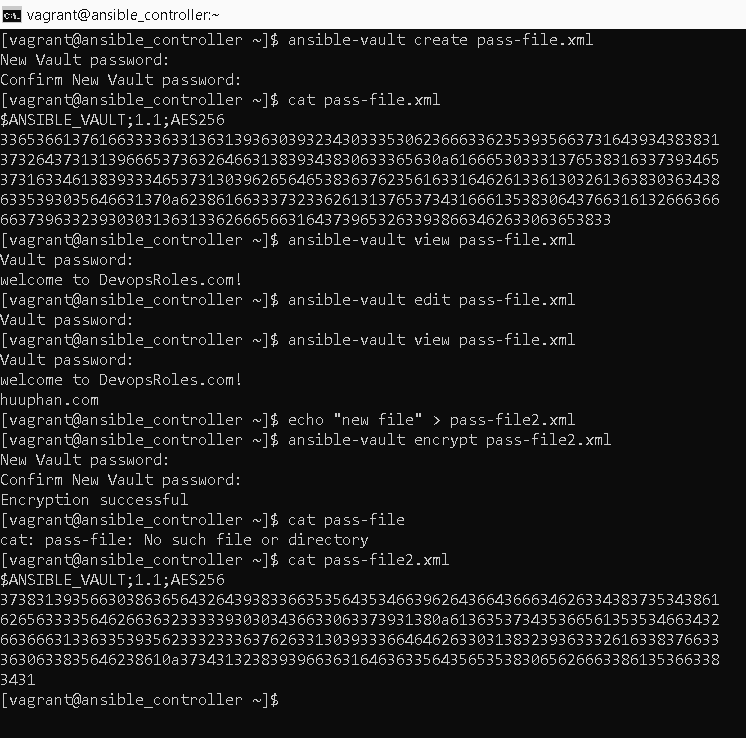
Ansible uses the AES256 algorithm for encrypting sensitivity. We will create an encrypted file using the ansible-vault utility tool as shown.

ansible-vault create pass-file.xml

The content before the Encrypted file is shown.

cat pass-file.xml
welcome to DevopsRoles.com site!

After the Encrypted file as shown.

cat pass-file.xml
$ANSIBLE_VAULT;1.1;AES256
37383139356630386365643264393833663535643534663962643664366634626334383735343861
6265633335646266363233333930303436633063373931380a613635373435366561353534663432
66366631336335393562333233363762633130393336646462633031383239363332616338376633
3630633835646238610a373431323839396636316463633564356535383065626663386135366338
3431

We will view an Encrypted file in Ansible using ansible-vault

ansible-vault view pass-file.xml

Edit an Encrypted file using ansible-vault

ansible-vault edit pass-file.xml

Encrypt an Existing file using the Ansible vault command

ansible-vault encrypt pass-file2.xml

For example the picture below

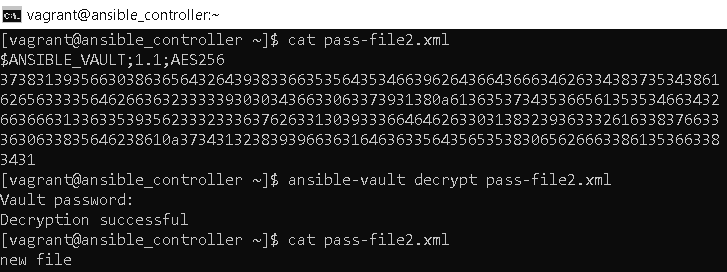
Decrypting files Ansible

Use an ansible vault to decrypt a file or revert to plain text.

ansible-vault decrypt pass-file2.xml

Reset the Ansible vault password

ansible-vault rekey pass-file2.xml

Encrypt a playbook file in Ansible

Example Ansible Setup NFS server here. I will Encrypt file exports.j2 the content as below:

[vagrant@ansible_controller ~]$ cat ./ansible/exports.j2
# /etc/exports: the access control list for filesystems which may be exported
#   to NFS clients.  See exports(5).
/home/vagrant/nfs_test            192.168.1.0/24(rw,sync,no_root_squash,no_subtree_check)

Encryption with vault_pass.txt as below:

[vagrant@ansible_controller ~]$ cat vault_pass.txt
123456789@
[vagrant@ansible_controller ~]$ ansible-vault encrypt ./ansible/exports.j2 --vault-password-file vault_pass.txt
Encryption successful
[vagrant@ansible_controller ~]$ cat ./ansible/exports.j2
$ANSIBLE_VAULT;1.1;AES256
38376166636635393464306333653230663865303966626137346536393231623862333532313061
6334326531333734663936336436323034643261666462640a353833363437633761656136306433
30383331633836346563323962346663373664646538636135663866346435643834613937643664
3763383131363761370a363632613539303239366166613339663133653938646665613530633633
64613233636434323031326137376636613536396330623338326230366664376339653431643831
63386431633837643265343662643338626339656630336666613565303738643038373131383530
61383637666462376663306536333736623339346364653462633730383961353531613830343534
66393339363061643861373162663832333561663763313339626365353139376433303333373133
65373461313531323735623135616535363638353963343563643439363461613236646433313461
39653733633638396663636236346638393036323831386535333933373764616334343431316234
31376537653434653931613931646465393638373039363335616364613638633264356531323332
65336164333334303765393361616233373138663530386466383032333334393465363632303435
64383332313635326661333431613561666431356331363963633137623965323963666338393865
3235393266326566663463363861613166643130313430653736

As a result, run the Ansible playbook as below:

[vagrant@ansible_controller ~]$ ansible-playbook -i ansible/hosts nfs-server.yml --vault-password-file vault_pass.txt
[WARNING]: Invalid characters were found in group names but not replaced, use -vvvv to see details

PLAY [nfs-server] ***************************************************************************************************

TASK [Gathering Facts] **********************************************************************************************
ok: [servernfs]

TASK [install nfs-utils] ********************************************************************************************
ok: [servernfs]

TASK [Create a mountable directory if it does not exist] ************************************************************
ok: [servernfs]

TASK [enable rpcbind nfslock nfs] ***********************************************************************************
ok: [servernfs] => (item=rpcbind)
ok: [servernfs] => (item=nfslock)
ok: [servernfs] => (item=nfs)

TASK [Copy exports file.] *******************************************************************************************
changed: [servernfs]

TASK [NFS system start] *********************************************************************************************
changed: [servernfs]

PLAY RECAP **********************************************************************************************************
servernfs                  : ok=6    changed=2    unreachable=0    failed=0    skipped=0    rescued=0    ignored=0

File /etc/exports on server NFS as below:

[vagrant@servernfs ~]$ cat /etc/exports
# /etc/exports: the access control list for filesystems which may be exported
#   to NFS clients.  See exports(5).
/home/vagrant/nfs_test            192.168.1.0/24(rw,sync,no_root_squash,no_subtree_check)

Conclusion

In conclusion, using Ansible Vault for encryption and decryption is a key skill for safeguarding your sensitive data in DevOps environments. The examples provided in this guide illustrate practical applications of Ansible Vault, enhancing your security practices. We hope you find this information beneficial. Thank you for reading on the DevopsRoles page!

Ansible Setup NFS server and client

#Introduction

In this tutorial, How to set up an NFS server and client using Ansible. I use Vagrant. In my example, Ansible creates multiple servers here. Now, let’s go to the Ansible Setup NFS server and client.

Ansible file and folder

[vagrant@ansible_controller ~]$ tree .
.
├── ansible
│   ├── ansible.cfg
│   ├── exports.j2
│   └── hosts
├── nfs-client.yml
└── nfs-server.yml

1 directory, 5 files

Ansible script

nfs-server.yml file for NFS Server as below

---
- hosts: nfs-server
  become: yes
  tasks:
    - name: install nfs-utils
      yum: name=nfs-utils state=latest

    - name: Create a mountable directory if it does not exist
      file:
        path: /home/vagrant/nfs_test
        state: directory
        owner: vagrant
        group: vagrant
        mode: '0775'
    - name: enable rpcbind nfslock nfs
      service:
        name: "{{ item }}"
        enabled: yes
      with_items:
        - rpcbind
        - nfslock
        - nfs
    - name: Copy exports file.
      template:
        src: ./ansible/exports.j2
        dest: /etc/exports
        owner: root
        group: root
        mode: 0644
    - name: NFS apply change configrue
      shell: systemctl reload nfs;exportfs -a

nfs-client.yml file for nfs clients as below

---
- hosts: nfs-clients
  become: yes
  tasks:
    - name: install nfs-utils
      yum: name=nfs-utils state=latest

    - name: Create a mountable directory if it does not exist
      file:
        path: /mnt/web_storage
        state: directory
        owner: vagrant
        group: vagrant
        mode: '0775'
    - name: Mount volumn
      shell: sudo mount 192.168.3.9:/home/vagrant/nfs_test /mnt/web_storage

exports.j2 file with content as below

# /etc/exports: the access control list for filesystems which may be exported
#   to NFS clients.  See exports(5).
/mnt/nfs_test            *(rw,sync,no_root_squash,no_subtree_check)

My example hosts file as below

[nfs-server]
servernfs

[nfs-clients]
server1

File ansible/ansible.cfg example as below

[defaults]
inventory = ./hosts
forks = 15
log_path=$HOME/ansible/ansible.log
host_key_chcking = False
gathering = smart

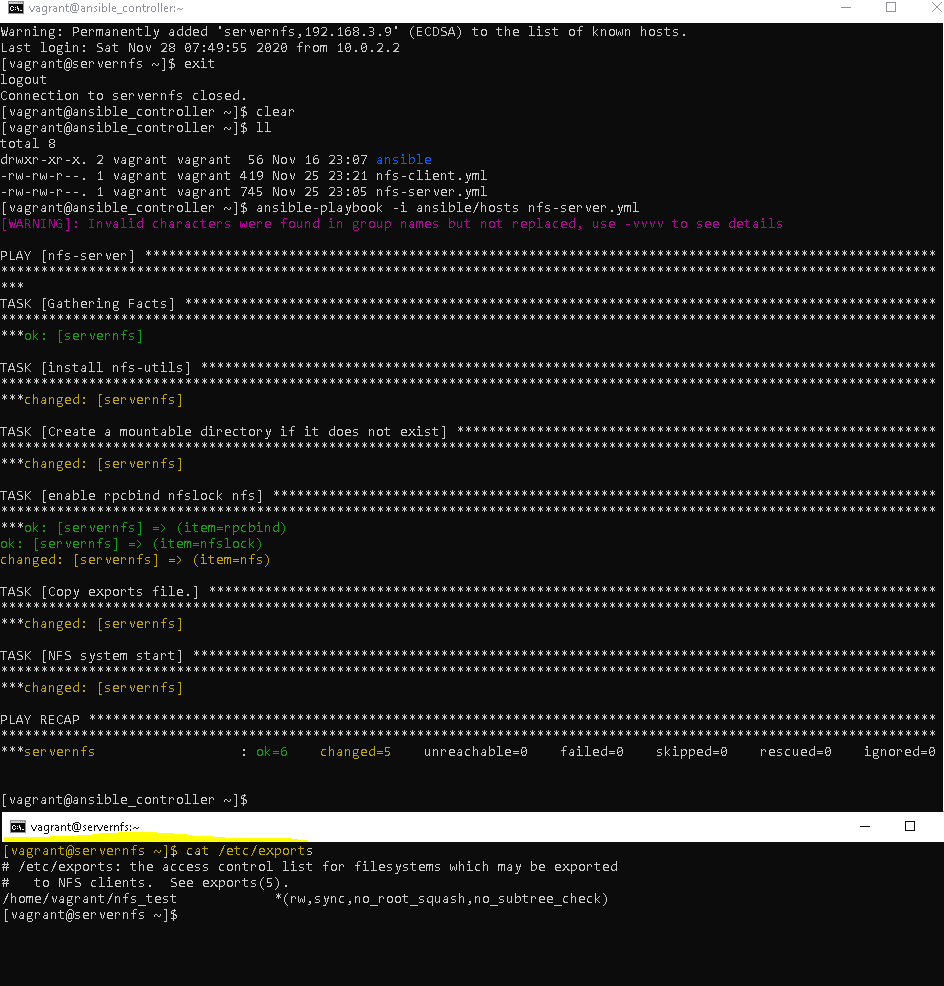
Ansible run command for NFS server

[vagrant@ansible_controller ~]$ ansible-playbook -i ansible/hosts nfs-server.yml

The output terminal as picture below

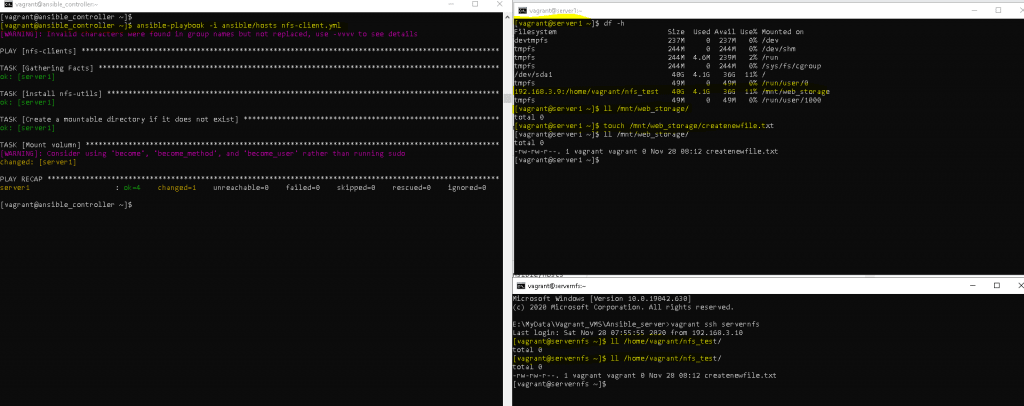
Ansible run command for NFS client

[vagrant@ansible_controller ~]$ ansible-playbook -i ansible/hosts nfs-client.yml

The output terminal as picture below

Conclusion

You have to use ansible setup NFS server and NFS client. I hope will this your helpful. Thank you for reading the DevopsRoles page!