Tag Archives: Linux

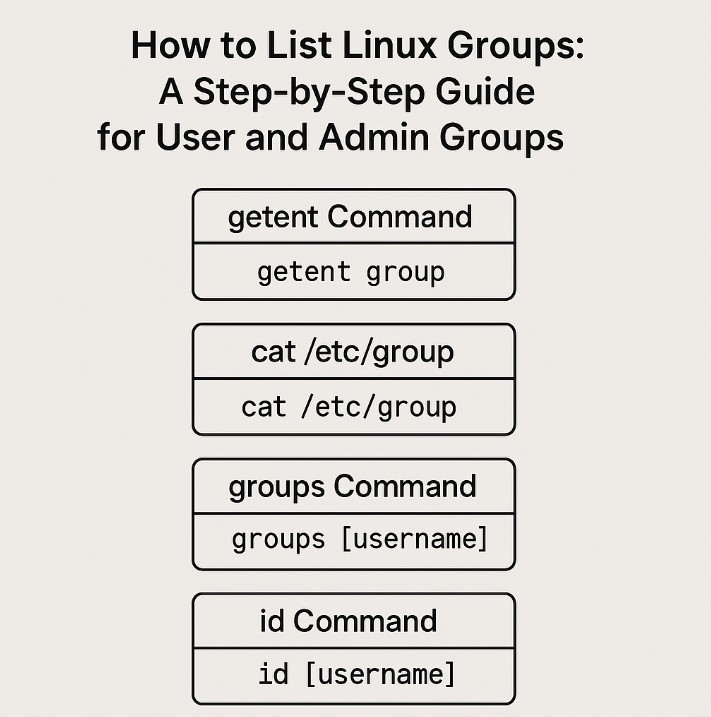
How to List Linux Groups: A Step-by-Step Guide for User and Admin Groups

Introduction: Understanding Linux Groups

In Linux, groups play a fundamental role in managing user permissions, organizing users based on roles or tasks, and securing system resources. Every user on a Linux system is typically associated with at least one group, and understanding how to list and manage these groups is essential for both system administrators and regular users. How to List Linux Groups: A Step-by-Step Guide.

This comprehensive guide will walk you through the different methods available for listing groups in Linux. From basic commands to more advanced techniques, we will explore how you can identify user and admin groups, troubleshoot access issues, and better manage permissions across your Linux environment.

What are Linux Groups?

In Linux, a group is a collection of users that share common access rights and permissions. By associating users with groups, system administrators can assign permissions for files, directories, and resources in a more efficient and secure manner. Every user in Linux is typically assigned to a primary group and can belong to additional supplementary groups.

Types of Groups:

  1. Primary Group: The primary group is the default group a user is associated with, as specified in the /etc/passwd file.
  2. Supplementary Groups: Supplementary groups provide additional access to resources beyond the primary group. These are defined in the /etc/group file.

Managing and listing groups effectively ensures that users can access the correct resources while maintaining system security.

How to List Linux Groups: Basic Commands

In this section, we’ll cover the most basic methods for listing groups on a Linux system. These commands are quick and easy, and they form the foundation of group management.

Using the getent Command

The getent command is a powerful tool that queries system databases, including user and group information. To list all groups, use the following command:

getent group

This command retrieves group information from the system’s database, which can include both local and network-based groups if configured (e.g., LDAP, NIS).

Example Output:

sudo:x:27:user1,user2
docker:x:999:user3,user4
staff:x:50:user5,user6

Viewing Groups with cat /etc/group

Another common method to view groups in Linux is by directly inspecting the /etc/group file. This file contains the details of all the groups in the system, including the group name, group ID (GID), and members.

cat /etc/group

Example Output:

sudo:x:27:user1,user2
docker:x:999:user3,user4
staff:x:50:user5,user6

This file is a simple text file, so you can use standard text processing tools like grep or awk to extract specific information.

Using the groups Command

The groups command shows the groups that the current user or a specified user belongs to. It is particularly useful for quickly verifying group memberships.

groups

To see the groups of a specific user, you can use:

groups username

Example:

groups user1

Example Output:

user1 : user1 sudo docker

This shows the groups that user1 is part of, including their primary and supplementary groups.

Advanced Methods to List Linux Groups

While the methods outlined above are simple, there are more advanced techniques for listing groups in Linux. These methods are helpful for complex systems or when working with large numbers of users.

Using compgen -g

The compgen command is a shell builtin that generates a list of various system elements, including groups. To list all group names, use:

compgen -g

This command outputs only the names of the groups, which can be useful when you need a quick overview without any extra details.

Listing User Groups with id

The id command is a versatile tool that displays the user ID (UID), group ID (GID), and all groups a user is a member of. To see a user’s groups, use:

id username

Example Output:

uid=1001(user1) gid=1001(user1) groups=1001(user1),27(sudo),999(docker)

This provides a detailed breakdown of the user’s primary and supplementary groups.

Search Groups in /etc/group

If you’re looking for a specific group or its members, you can search through the /etc/group file using grep:

grep groupname /etc/group

Example:

grep docker /etc/group

Example Output:

docker:x:999:user3,user4

This method is particularly useful when you want to verify group memberships or check a specific group’s details.

Using getent with Specific Filters

In more complex environments, you might want to filter the results of getent for more specific output. For example, to only list groups associated with a specific GID range, you can combine getent with grep:

getent group | grep -E '^[^:]+:[^:]+:[1-9][0-9]{2,}'

This command will list groups with GID values above 100. You can adjust the regular expression for different ranges as needed.

Listing Groups with Custom Scripts

If you’re managing a large number of users or groups, you may want to automate the process. You can create a custom script to list groups in a specific format or with additional logic.

Here’s an example of a bash script to list all groups and their members:

#!/bin/bash
# List all groups with members
echo "Listing all groups with their members:"
getent group | while IFS=: read groupname password gid members
do
    echo "$groupname (GID: $gid) -> Members: $members"
done

This script will loop through all groups and output their names, GIDs, and members.

Practical Examples

Let’s explore practical use cases for listing groups on a Linux system.

Listing Groups for a Specific User

To list all the groups that a specific user belongs to, use the groups or id command:

groups user1

Alternatively:

id user1

Listing Groups for the Current User

If you want to see the groups of the currently logged-in user, simply run the groups command without any arguments:

groups

You can also use:

id -Gn

This will display a compact list of group names for the current user.

Listing Groups for Multiple Users

To list groups for multiple users, you can combine the id command with a loop. For example:

for user in user1 user2 user3; do id $user; done

This command will display group information for all specified users in one go.

Listing Groups in a Complex Multi-User Environment

In large systems with multiple users, it can be useful to generate a report of all users and their groups. Here’s an example of how to list the groups for all users on the system:

for user in $(cut -f1 -d: /etc/passwd); do echo "$user: $(groups $user)"; done

This will output each user and their associated groups, helping administrators audit and manage group memberships effectively.

Frequently Asked Questions (FAQs)

1. How can I find all groups on a Linux system?

You can list all groups by using the getent group command, which will show all groups, including local and network-based groups.

2. What is the difference between primary and supplementary groups?

  • Primary Group: The default group assigned to a user (defined in /etc/passwd).
  • Supplementary Groups: Additional groups a user belongs to, which grant extra access permissions.

3. How can I find all members of a specific group?

To view the members of a specific group, you can search the /etc/group file using grep:

grep groupname /etc/group

4. Can I list groups for multiple users at once?

Yes, you can list groups for multiple users by using a loop with the id command:

for user in user1 user2 user3; do id $user; done

Conclusion

In this guide, we’ve covered the various methods for listing Linux groups, ranging from basic commands like getent and groups to more advanced techniques using id, compgen, and direct file access. Understanding how to manage groups is a vital skill for Linux administrators and users alike, ensuring efficient permission management and system security.

By mastering these commands, you can easily list user and admin groups, check group memberships, and maintain a well-organized Linux system. For more in-depth information, refer to the Linux Manual Pages, which provide detailed documentation on each command. Thank you for reading the DevopsRoles page!

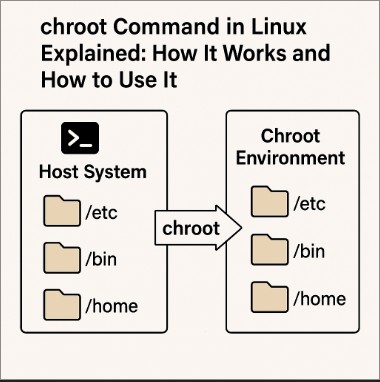
chroot Command in Linux Explained: How It Works and How to Use It

Introduction

The chroot command in Linux is a powerful tool that allows system administrators and users to change the root directory of a running process. By using chroot, you can isolate the execution environment of a program, creating a controlled space where only specific files and directories are accessible. This is particularly useful for system recovery, security testing, and creating isolated environments for specific applications.

In this comprehensive guide, we will explore how the chroot command works, common use cases, examples, and best practices. Whether you’re a Linux beginner or a seasoned sysadmin, understanding the chroot command can greatly improve your ability to manage and secure your Linux systems.

What is the chroot Command?

Definition

The chroot (change root) command changes the root directory for the current running process and its children to a specified directory. Once the root directory is changed, the process and its child processes can only access files within that new root directory, as if it were the actual root filesystem.

This command essentially limits the scope of a process, which can be helpful in a variety of situations, such as:

  • Creating isolated environments: Isolate applications or services to minimize risk.
  • System recovery: Boot into a rescue environment or perform recovery tasks.
  • Security testing: Test applications in a contained environment to prevent potential damage to the main system.

How It Works

When you execute the chroot command, the kernel reconfigures the root directory (denoted as /) for the invoked command and all its child processes. The process can only see and interact with files that are within this new root directory, and any attempts to access files outside of this area will fail, providing a form of sandboxing.

For example, if you use chroot to set the root directory to /mnt/newroot, the process will not be able to access anything outside of /mnt/newroot, including the original system directories like /etc or /home.

How to Use the chroot Command

Basic Syntax

The syntax for the chroot command is straightforward:

chroot <new_root_directory> <command_to_run>
  • <new_root_directory>: The path to the directory you want to use as the new root directory.
  • <command_to_run>: The command or shell you want to run in the new root environment.

Example 1: Basic chroot Usage

To get started, let’s say you want to run a simple shell (/bin/bash) in a chrooted environment located at /mnt/newroot. You would execute the following:

sudo chroot /mnt/newroot /bin/bash

This command changes the root to /mnt/newroot and starts a new shell (/bin/bash) inside the chroot environment. At this point, any commands you run will only have access to files and directories within /mnt/newroot.

Example 2: Running a Program in a Chroot Jail

Suppose you have an application that you want to run in isolation for testing purposes. You can use chroot to execute the program in a contained environment:

sudo chroot /mnt/testenv /usr/bin/myapp

Here, /mnt/testenv is the new root directory, and /usr/bin/myapp is the application you want to execute. The application will be sandboxed within /mnt/testenv and won’t have access to the actual system files outside this directory.

Example 3: Chroot for System Recovery

One of the most common use cases for chroot is when recovering a system after a crash or when needing to repair files on a non-booting system. You can boot from a live CD or USB, mount the system partition, and then use chroot to repair the installation.

Advanced Use of chroot

Setting Up a Chroot Environment from Scratch

You can set up a complete chroot environment from scratch. This is useful for building isolated environments for testing or running custom applications. Here’s how you can create a basic chroot environment:

  1. Create a directory to be used as the new root:
    • sudo mkdir -p /mnt/chroot
  2. Copy necessary files into the new root directory:
sudo cp -r /bin /mnt/chroot
sudo cp -r /lib /mnt/chroot
sudo cp -r /etc /mnt/chroot
sudo cp -r /usr /mnt/chroot

3. Chroot into the environment:

sudo chroot /mnt/chroot

At this point, you’ll be inside the newly created chroot environment with a minimal set of files.

Using chroot with Systemd

In systems that use systemd, you can set up a chroot environment with a systemd service. This allows you to manage services and processes within the chrooted environment. Here’s how you can do this:

Install the necessary systemd components inside the chroot environment:

sudo mount --bind /run /mnt/chroot/run
sudo mount --bind /sys /mnt/chroot/sys
sudo mount --bind /proc /mnt/chroot/proc
sudo mount --bind /dev /mnt/chroot/dev

Enter the chroot and start a systemd service:

sudo chroot /mnt/chroot
systemctl start <service_name>

Security Considerations with chroot

While chroot provides a level of isolation for processes, it is not foolproof. A process inside a chrooted environment can potentially break out of the jail if it has sufficient privileges, such as root access. To mitigate this risk:

  • Minimize Privileges: Run only necessary processes inside the chrooted environment with the least privileges.
  • Use Additional Security Tools: Combine chroot with tools like AppArmor or SELinux to add extra layers of security.

FAQ: Frequently Asked Questions

1. Can chroot be used for creating virtual environments?

Yes, chroot can create virtual environments where applications run in isolation, preventing them from accessing the host system’s files. However, it’s worth noting that chroot is not a full virtual machine or container solution, so it doesn’t provide complete isolation like Docker or VMs.

2. What is the difference between chroot and Docker?

While both chroot and Docker provide isolated environments, Docker is much more comprehensive. Docker containers come with their own filesystem, networking, and process management, whereas chroot only isolates the filesystem and does not manage processes or provide networking isolation. Docker is a more modern and robust solution for containerization.

3. Can chroot be used on all Linux distributions?

Yes, chroot is available on most Linux distributions, but the steps to set it up (such as mounting necessary filesystems) may vary depending on the specific distribution. Be sure to check the documentation for your distribution if you encounter issues.

4. Does chroot require root privileges?

Yes, using chroot typically requires root privileges because it involves changing the root directory, which is a system-level operation. You can use sudo to execute the command with elevated privileges.

5. Is chroot a secure way to sandbox applications?

While chroot provides some isolation, it is not foolproof. For a higher level of security, consider using more advanced tools like containers (Docker) or virtualization technologies (VMs) to sandbox applications.

Conclusion

The chroot command in Linux is a versatile tool that allows users to create isolated environments for processes. From system recovery to testing applications in a secure space, chroot provides an easy-to-use mechanism to manage processes and files in a controlled environment. While it has limitations, especially in terms of security, when used correctly, chroot can be a valuable tool for Linux administrators.

By understanding how chroot works and how to use it effectively, you can better manage your Linux systems and ensure that critical processes and applications run in a secure, isolated environment. Thank you for reading the DevopsRoles page!

For further reading, check out these external links:

How to Installing Metasploit on Ubuntu

Introduction

Metasploit is one of the most widely-used penetration testing frameworks in the cybersecurity world. Whether you’re a seasoned security expert or a beginner, installing Metasploit on Ubuntu provides tools to help identify, exploit, and resolve vulnerabilities. This guide will walk you through the process of installing Metasploit on Ubuntu, enabling you to enhance your system’s security and explore advanced penetration testing techniques. By installing Metasploit on Ubuntu, you gain access to a powerful suite of tools for security assessments.

Why Use Metasploit?

Metasploit offers a wide range of features that make it indispensable:

Installing Metasploit on Ubuntu allows you to leverage its comprehensive capabilities for vulnerability evaluation and security testing, making it an invaluable resource for cybersecurity professionals.

  • Comprehensive Exploitation Tools: Over 1,500 exploits for various platforms.
  • Post-Exploitation Capabilities: Gather information or escalate privileges after initial access.
  • Community Support: Backed by a robust community and frequent updates.
  • Integration with Other Tools: Easily integrates with Nmap, Nessus, and other security tools.

Before you start, make sure you’re prepared for installing Metasploit on Ubuntu. This includes having the necessary OS version, root access, and some command-line experience.

Prerequisites

Before diving into the installation process, ensure you have the following:

The following steps detail how to efficiently install Metasploit on Ubuntu, ensuring a smooth setup process.

To start with installing Metasploit on Ubuntu, you need to ensure your system is fully updated.

  • Ubuntu OS: Version 20.04 or newer is recommended.
  • Root Access: Necessary for installing dependencies and configuring the system.
  • Basic Knowledge: Familiarity with terminal commands and Linux systems.

Step-by-Step Guide to Installing Metasploit on Ubuntu

Next, proceed with installing Metasploit on Ubuntu by ensuring all dependencies are in place.

1. Update the System

Before starting, update your system to ensure all packages are up-to-date:

After installing dependencies, you can continue with the steps for installing Metasploit on Ubuntu.

sudo apt update && sudo apt upgrade -y

2. Install Dependencies

Metasploit requires several dependencies. Install them using:

sudo apt install -y curl gnupg2 postgresql git build-essential zlib1g-dev libreadline-dev libssl-dev libpq5 libpq-dev libpcap-dev

3. Install RVM (Ruby Version Manager)

Metasploit is built using Ruby. RVM helps manage Ruby versions:

sudo apt install -y software-properties-common
sudo apt-add-repository -y ppa:rael-gc/rvm
sudo apt update
sudo apt install -y rvm

Activate RVM:

Remember to clone the Metasploit repository correctly as part of installing Metasploit on Ubuntu.

source /etc/profile.d/rvm.sh

4. Install Ruby

Install the required Ruby version:

rvm install 3.0.0
rvm use 3.0.0 --default

After configuring PostgreSQL, you are almost ready to use Metasploit. Make sure to finalize your setup for installing Metasploit on Ubuntu.

5. Clone the Metasploit Repository

Clone Metasploit from GitHub:

git clone https://github.com/rapid7/metasploit-framework.git
cd metasploit-framework

6. Install Bundler and Gems

Install Bundler to manage Ruby gems:

gem install bundler
bundle install

7. Configure PostgreSQL

Metasploit uses PostgreSQL for database support. Set it up:

sudo systemctl start postgresql
sudo systemctl enable postgresql

Create and configure the Metasploit database:

Once everything is set up, you can launch Metasploit and begin testing with the tools you gained by installing Metasploit on Ubuntu.

sudo -u postgres createuser msf -P
sudo -u postgres createdb -O msf msf_database

The Metasploit console will allow you to explore various features and functionalities after installing Metasploit on Ubuntu.

Update the Metasploit configuration file:

nano config/database.yml

Add the following configuration:

development:
  adapter: postgresql
  database: msf_database
  username: msf
  password: YOUR_PASSWORD
  host: 127.0.0.1
  port: 5432
  pool: 75
  timeout: 5

Save and exit the file.

8. Launch Metasploit

Start Metasploit using:

./msfconsole

You should see the Metasploit console interface. From here, you can begin using its features for penetration testing.

Example Scenarios

Additionally, you can utilize Metasploit for various scenarios after successfully installing Metasploit on Ubuntu.

Basic Exploit

  1. Scan for Vulnerabilities: Use nmap to identify open ports.
nmap -sV -p- TARGET_IP
  1. Search for Exploits: Use Metasploit to find exploits for detected services.
search vsftpd
  1. Run the Exploit:
use exploit/unix/ftp/vsftpd_234_backdoor
set RHOST TARGET_IP
run

Advanced Techniques

  • Automated Exploitation: Use auxiliary modules to streamline processes.
  • Post-Exploitation: Gather credentials, escalate privileges, or maintain access.

Frequently Asked Questions (FAQs)

1. Is Metasploit free?

Yes, Metasploit Framework is open-source and free to use. However, Rapid7 offers a commercial version with additional features.

In conclusion, installing Metasploit on Ubuntu not only enhances your system’s security but also provides you with a robust platform for learning and testing.

2. Can I use Metasploit on Windows?

Yes, but it is more commonly used on Linux systems like Ubuntu for better compatibility and performance.

3. What are common use cases for Metasploit?

Metasploit is used for penetration testing, vulnerability assessment, and exploit development.

4. How do I update Metasploit?

To update, navigate to the Metasploit directory and run:

git pull
bundle install

5. Is it legal to use Metasploit?

Using Metasploit is legal if you have permission to test the systems you are targeting. Unauthorized use is illegal and unethical.

External Resources

Conclusion

Installing Metasploit on Ubuntu is a straightforward process that opens the door to advanced security testing and learning opportunities. By following this guide, you can set up Metasploit efficiently and start exploring its powerful features. Always use this tool responsibly and within the bounds of the law. Thank you for reading the DevopsRoles page!

Linux User Add Group: A Comprehensive Guide

Introduction

In the Linux operating system, managing users and groups efficiently is a cornerstone of system administration. The useradd command is a powerful utility that allows administrators to create new users and assign them to groups. Groups enable better permission management, enhancing security and collaboration among users. In this article, we will explore how to use the Linux User Add Group functionality, ranging from basic implementations to advanced scenarios, with examples and practical tips.

Understanding Linux User and Group Management

What Are Users and Groups in Linux?

  • Users: Individual accounts that represent people or processes interacting with the system.
  • Groups: Collections of users that share common permissions and access rights.

Why Are Groups Important?

  • Simplify permission management for files and directories.
  • Enhance system security by limiting user access.
  • Support collaboration by providing shared resources for group members.

Basic Usage of useradd for Group Management

Syntax of the useradd Command

useradd [options] username

Key options for group management include:

  • -g: Assign a primary group.
  • -G: Assign secondary (supplementary) groups.

Creating a New User with a Group

To create a user and assign them a primary group:

sudo useradd -g groupname username

Example:

sudo useradd -g developers alice

This command creates a user named alice and assigns her to the developers group.

Advanced Scenarios with linux user add group

Adding a User to Multiple Groups

To add a user to multiple groups:

sudo useradd -G group1,group2 username

Example:

sudo useradd -G developers,designers bob

This command adds bob to the developers and designers groups.

Modifying Group Membership for Existing Users

Use the usermod command to change group memberships:

sudo usermod -G group1,group2 username

Example:

sudo usermod -G testers alice

This replaces Alice’s supplementary groups with testers. To append without removing existing groups, use:

sudo usermod -aG groupname username

Practical Examples

Example 1: Creating a User with a Custom Home Directory and Group

sudo useradd -m -d /home/customuser -g admins customuser

This creates a user customuser, assigns them to the admins group, and sets /home/customuser as their home directory.

Example 2: Setting Expiry Dates for User Accounts

sudo useradd -e 2025-12-31 -G developers tester

This creates a tester account that expires on December 31, 2025, and assigns the user to the developers group.

Example 3: Viewing User and Group Information

  • To check a user’s groups:groups username
  • To list all groups:getent group

Common FAQ

How Do I Create a New Group in Linux?

Use the groupadd command:

sudo groupadd groupname

Can I Change a User’s Primary Group?

Yes, use the usermod command:

sudo usermod -g newgroup username

How Can I Delete a User or Group?

  • To delete a user:sudo userdel username
  • To delete a group:sudo groupdel groupname

What Happens if I Remove a User’s Group?

If the group is a primary group, Linux will prompt for reassignment or error out. Ensure no files or processes rely on that group.

External Resources

Conclusion

Mastering the linux user add group functionality is essential for effective user and group management in Linux. By leveraging the useradd command and its related tools, administrators can streamline permission handling, enhance system security, and foster collaboration. Whether you’re a beginner or an experienced sysadmin, understanding these concepts will empower you to manage Linux systems efficiently. Start experimenting with these commands today to boost your Linux skills!Thank you for reading the DevopsRoles page!

Bash Scripting for Log Management

Introduction

Logs are the backbone of system diagnostics, security auditing, and application performance monitoring. Efficient log management is crucial for identifying issues and maintaining optimal system performance. Bash scripting provides a powerful and versatile toolset for automating log management tasks, from parsing logs to archiving and alerting. In this article, we will explore how to use Bash scripting to streamline log management processes effectively.

Why Use Bash Scripting for Log Management?

Bash scripting offers simplicity, flexibility, and robust capabilities to handle various log management tasks. Here are some reasons why it’s an excellent choice:

  • Automation: Automate repetitive tasks like log rotation, compression, and deletion.
  • Efficiency: Process large log files quickly using command-line utilities.
  • Customizability: Tailor scripts to specific log formats and requirements.
  • Integration: Seamlessly integrate with other tools and workflows in Unix/Linux environments.

Key Bash Commands for Log Management

tail

The tail command displays the last few lines of a log file, useful for monitoring real-time updates.

# Monitor a log file in real-time
$ tail -f /var/log/syslog

grep

Search for specific patterns within log files to filter relevant information.

# Find error messages in a log file
$ grep "ERROR" /var/log/syslog

awk

Extract and process structured log data.

# Extract IP addresses from logs
$ awk '{print $1}' /var/log/access.log

sed

Edit log files in-place to modify content programmatically.

# Remove sensitive information from logs
$ sed -i 's/password=.*$/password=****/' /var/log/app.log

find

Locate and manage old log files.

# Delete log files older than 7 days
$ find /var/log -type f -mtime +7 -exec rm {} \;

Bash Scripting for Common Log Management Tasks

Log Rotation

Automating log rotation ensures that logs don’t consume excessive disk space.

#!/bin/bash
# Rotate logs
LOG_DIR="/var/log/myapp"
ARCHIVE_DIR="/var/log/myapp/archive"

mkdir -p "$ARCHIVE_DIR"

for LOG_FILE in $LOG_DIR/*.log; do
    TIMESTAMP=$(date +"%Y%m%d_%H%M%S")
    mv "$LOG_FILE" "$ARCHIVE_DIR/$(basename "$LOG_FILE" .log)_$TIMESTAMP.log"
    gzip "$ARCHIVE_DIR/$(basename "$LOG_FILE" .log)_$TIMESTAMP.log"
    touch "$LOG_FILE"
done

Log Parsing

Parsing logs for specific events or errors can aid troubleshooting.

#!/bin/bash
# Parse logs for errors
LOG_FILE="/var/log/syslog"
ERROR_LOG="/var/log/error_report.log"

grep "ERROR" "$LOG_FILE" > "$ERROR_LOG"
echo "Errors extracted to $ERROR_LOG"

Archiving and Cleanup

Archive old logs and free up disk space by removing stale files.

#!/bin/bash
# Archive and clean up old logs
LOG_DIR="/var/log/myapp"
ARCHIVE_DIR="/var/log/myapp/archive"

mkdir -p "$ARCHIVE_DIR"
find "$LOG_DIR" -type f -mtime +30 -exec gzip {} \; -exec mv {} "$ARCHIVE_DIR" \;

Real-Time Alerts

Send notifications when critical events occur.

#!/bin/bash
# Monitor logs and send alerts
LOG_FILE="/var/log/syslog"
PATTERN="CRITICAL"
ALERT_EMAIL="admin@example.com"

tail -f "$LOG_FILE" | while read LINE; do
    echo "$LINE" | grep -q "$PATTERN"
    if [ $? -eq 0 ]; then
        echo "$LINE" | mail -s "Critical Alert" "$ALERT_EMAIL"
    fi
done

Advanced Scenarios

Centralized Log Management

Combine Bash with tools like rsync to centralize logs from multiple servers.

#!/bin/bash
# Collect logs from remote servers
REMOTE_SERVERS=("server1" "server2")
DEST_DIR="/var/log/central"

mkdir -p "$DEST_DIR"
for SERVER in "${REMOTE_SERVERS[@]}"; do
    rsync -avz "user@$SERVER:/var/log/*" "$DEST_DIR/$SERVER/"
done

Analyzing Logs with Visualization Tools

Export logs to formats compatible with visualization tools like ELK stack.

#!/bin/bash
# Convert logs to JSON format
LOG_FILE="/var/log/access.log"
JSON_FILE="/var/log/access.json"

awk '{print "{\"ip\":\"" $1 "\",\"timestamp\":\"" $4 "\"}"}' "$LOG_FILE" > "$JSON_FILE"

FAQs

What are the benefits of automating log management with Bash?

Automation reduces manual effort, minimizes errors, and ensures timely log processing.

Can Bash handle very large log files?

Yes, but for extremely large files, consider tools like logrotate or distributed solutions.

How do I secure sensitive data in logs?

Use commands like sed to redact sensitive information before storage or sharing.

What tools complement Bash scripting for log management?

Tools like logrotate, ELK stack, and Splunk integrate well with Bash for enhanced capabilities.

External Links

Conclusion

Bash scripting is an indispensable tool for efficient log management. By automating tasks like log rotation, parsing, and alerting, you can save time and ensure your systems run smoothly. Start implementing these techniques today and streamline your log management workflow! Thank you for reading the DevopsRoles page!

How to Install Surfshark on Linux

Introduction

This guide provides a detailed walkthrough on how to install Surfshark on Linux, ensuring a seamless setup for beginners and advanced users alike. In an increasingly connected world, protecting your online privacy has become essential. Virtual Private Networks (VPNs) like Surfshark are indispensable tools for maintaining anonymity, accessing geo-restricted content, and enhancing security. Surfshark, known for its affordability and robust features, is a popular choice for Linux users.

Prerequisites

Before diving into the installation process, ensure you have the following:

  • A Linux-based operating system (Ubuntu, Debian, Fedora, etc.).
  • Administrative (root) privileges on your system.
  • An active Surfshark subscription.
  • Basic knowledge of terminal commands.

Step 1: Update Your System

First, update your system packages to ensure compatibility with Surfshark.

sudo apt update && sudo apt upgrade -y

This command updates the package list and upgrades outdated packages.

Step 2: Download Surfshark VPN

Visit the official Surfshark website to download the Linux installer.

  1. Go to the Surfshark Download Page.
  2. Select the Linux option.
  3. Download the .deb package for Debian-based distributions (e.g., Ubuntu) or .rpm for Red Hat-based distributions (e.g., Fedora).

Alternatively, you can use the terminal:

For Debian-based systems:

wget https://download.surfshark.com/linux/debian/surfshark-release_1.0.0-1_amd64.deb

For Red Hat-based systems:

wget https://download.surfshark.com/linux/fedora/surfshark-release-1.0.0-1.x86_64.rpm

Step 3: Install Surfshark VPN

For Debian-based Systems

Run the following command to install the downloaded package:

sudo dpkg -i surfshark-release_1.0.0-1_amd64.deb
sudo apt update
sudo apt install surfshark

For Red Hat-based Systems

Use the following commands to install Surfshark:

sudo rpm -ivh surfshark-release-1.0.0-1.x86_64.rpm
sudo dnf install surfshark

Step 4: Log in to Surfshark

After installation, log in using your Surfshark credentials.

surfshark-vpn login

Enter your email and password when prompted.

Step 5: Connect to a Server

To connect to the fastest available server, use:

surfshark-vpn connect

To connect to a specific server location:

surfshark-vpn connect --country US

Replace US with the country code of your desired location.

Advanced Configuration

Custom DNS Configuration

Enhance your browsing experience by setting custom DNS:

surfshark-vpn settings --dns 1.1.1.1 8.8.8.8

This command configures Cloudflare (1.1.1.1) and Google (8.8.8.8) DNS servers.

Kill Switch

Enable the kill switch to prevent data leaks if the VPN connection drops:

surfshark-vpn settings --killswitch on

FAQ

1. Can I use Surfshark on all Linux distributions?

Surfshark officially supports Debian and Red Hat-based distributions. However, it can be configured manually on other distributions using OpenVPN or WireGuard.

2. Is Surfshark CLI-only on Linux?

Yes, Surfshark on Linux operates via the command line. However, it’s straightforward and user-friendly for anyone familiar with terminal basics.

3. How can I uninstall Surfshark from Linux?

For Debian-based systems:

sudo apt remove surfshark

For Red Hat-based systems:

sudo dnf remove surfshark

External Resources

Conclusion

Installing Surfshark on Linux is a straightforward process that offers robust online privacy and security. By following this guide, you can protect your data, bypass geo-restrictions, and enjoy unrestricted internet access. Take control of your online experience and explore the web safely with Surfshark VPN on Linux. Thank you for reading the DevopsRoles page!

apt vs dnf vs pacman: A Comprehensive Guide to Linux Package Managers

Introduction

In the world of Linux, package management is an essential task that allows users to install, update, and manage software packages. Each Linux distribution has its own package manager, making it easier to maintain the system. Among the most popular package managers are apt vs dnf vs pacman, used by Debian/Ubuntu, Fedora, and Arch Linux-based distributions, respectively. But what sets these package managers apart? How do they differ in terms of functionality, ease of use, and performance? In this article, we’ll explore the apt vs. dnf vs. pacman debate, looking at each manager’s features, strengths, and weaknesses.

What Are Linux Package Managers?

Before diving into the details of apt, dnf, and pacman, it’s important to understand the role of package managers in Linux. A package manager is a set of software tools that automates the process of installing, upgrading, configuring, and removing software packages on a Linux system. Each package manager works with a specific type of package format and repository system.

  • APT (Advanced Packaging Tool): Used primarily on Debian-based systems, such as Ubuntu and Linux Mint.
  • DNF (Dandified YUM): Used by Fedora, CentOS, and RHEL systems, it’s the successor to the older YUM package manager.
  • Pacman: A lightweight package manager for Arch Linux and other distributions that follow the Arch philosophy.

Now, let’s explore each package manager in greater detail.

apt: The Classic Package Manager for Debian-Based Systems

What is APT?

APT, short for Advanced Packaging Tool, is one of the most widely used package managers, primarily for Debian-based distributions. APT uses .deb packages and is designed to handle package installation, removal, and upgrades with ease.

Key Features of APT

  • Package Management: APT handles both the installation of software and system updates.
  • Dependency Management: APT automatically resolves and installs dependencies when installing new packages.
  • Repositories: APT relies on repositories configured in the /etc/apt/sources.list file, which contains links to software packages.

Common APT Commands

  1. Update Package List
    • sudo apt update
  2. Upgrade Installed Packages
    • sudo apt upgrade
  3. Install a Package
    • sudo apt install [package_name]
  4. Remove a Package
    • sudo apt remove [package_name]
  5. Search for a Package
    • apt search [package_name]

Pros of APT

  • Ease of Use: APT is beginner-friendly and widely known for its simplicity.
  • Wide Adoption: Most popular Linux distributions (such as Ubuntu and Debian) use APT, making it easy to find help and documentation.
  • Reliable: APT is well-established, ensuring stability and security.

Cons of APT

  • Slow Updates: Although generally reliable, APT can be slower compared to newer package managers, particularly in handling large-scale updates.

dnf: The Modern Package Manager for Fedora

What is DNF?

DNF (Dandified YUM) is the default package manager for Fedora, CentOS, and RHEL. It is the successor of the YUM (Yellowdog Updater, Modified) package manager, and its main goal is to improve the performance, scalability, and ease of use of the older system. DNF handles .rpm packages and uses repositories to manage software installation and updates.

Key Features of DNF

  • Performance: DNF is faster and more efficient than its predecessor YUM, especially when dealing with complex dependency resolution.
  • Dependency Resolution: Like APT, DNF automatically resolves dependencies when installing packages.
  • Automatic Rollback: DNF offers an automatic rollback feature that helps in case something goes wrong during the installation or update process.

Common DNF Commands

  1. Update Package List
    • sudo dnf check-update
  2. Upgrade Installed Packages
    • sudo dnf upgrade
  3. Install a Package
    • sudo dnf install [package_name]
  4. Remove a Package
    • sudo dnf remove [package_name]
  5. Search for a Package
    • sudo dnf search [package_name]

Pros of DNF

  • Improved Performance: DNF is faster than YUM and is designed to handle large numbers of packages more efficiently.
  • More Modern: DNF offers a more modern interface and features than APT and YUM.
  • Better Dependency Handling: DNF has better handling of package dependencies and conflicts.

Cons of DNF

  • Not as Widely Used: While DNF is the default in Fedora and RHEL, it is less popular in the Linux ecosystem compared to APT.
  • Can Be Complex for Beginners: Though it has a modern interface, DNF may have a steeper learning curve for new users.

pacman: The Lightweight Package Manager for Arch Linux

What is Pacman?

Pacman is the package manager for Arch Linux, a lightweight and flexible distribution. Unlike APT and DNF, Pacman uses a rolling release model, which means packages are continuously updated rather than distributed in major releases. Pacman works with .pkg.tar.xz packages and is known for being fast and efficient.

Key Features of Pacman

  • Rolling Releases: Pacman allows users to access the latest software versions immediately after they are released.
  • Efficiency: Pacman is highly efficient and offers great performance even on older hardware.
  • Simplicity: It’s lightweight and has fewer dependencies, making it ideal for minimalistic setups.

Common Pacman Commands

  1. Update Package List
    • sudo pacman -Sy
  2. Upgrade Installed Packages
    • sudo pacman -Syu
  3. Install a Package
    • sudo pacman -S [package_name]
  4. Remove a Package
    • sudo pacman -R [package_name]
  5. Search for a Package
    • pacman -Ss [package_name]

Pros of Pacman

  • Speed: Pacman is one of the fastest package managers available.
  • Simplicity: It has a minimalistic approach, which aligns with Arch Linux’s philosophy of simplicity and transparency.
  • Rolling Releases: Arch Linux’s rolling release model ensures you always have the latest software.

Cons of Pacman

  • Not Beginner-Friendly: Pacman is best suited for advanced users due to the minimalistic approach of Arch Linux.
  • Limited Support: Since Arch Linux is not as widely used as Ubuntu or Fedora, there’s a smaller community compared to APT or DNF.

apt vs dnf vs pacman: Key Differences

FeatureAPT (Debian-based)DNF (Fedora-based)Pacman (Arch-based)
Package Format.deb.rpm.pkg.tar.xz
System TypeDebian-based (e.g., Ubuntu)Red Hat-based (e.g., Fedora)Arch-based (e.g., Arch Linux)
SpeedModerateFastVery fast
Package ManagementEasy and stableModern and feature-richSimple and efficient
Dependency HandlingAutomaticAutomaticAutomatic
Target AudienceBeginner to IntermediateIntermediate to AdvancedAdvanced
Rolling ReleaseNoNoYes

FAQs: apt vs dnf vs pacman

Which package manager is the fastest?

Pacman is the fastest of the three package managers, especially when handling smaller, lightweight packages typical of Arch Linux.

Can I use apt on a Fedora system?

No, apt is specifically designed for Debian-based systems. Fedora uses DNF as its default package manager.

Which package manager is best for beginners?

APT is the most beginner-friendly, thanks to its wide usage in popular distributions like Ubuntu and Linux Mint.

What is the best package manager for stability?

APT is the best option for stability due to its long-standing use in Debian-based systems.

Conclusion

The choice between apt, dnf, and pacman largely depends on the Linux distribution you use and your personal preferences. While APT offers ease of use and stability for beginners, DNF provides a modern, efficient experience for Fedora users. Meanwhile, Pacman stands out for Arch Linux enthusiasts, delivering speed and simplicity for advanced users. Understanding the strengths and limitations of each package manager can help you make an informed decision and enhance your Linux experience.

For more information on Linux package management, you can visit the official documentation for APT, DNF, and Pacman. Thank you for reading the DevopsRoles page!

How to Safely Use PPAs Ubuntu to Install Applications

Introduction

Ubuntu is one of the most popular Linux distributions, loved for its user-friendliness and robust support. A key feature that makes Ubuntu unique is its software repository, which contains thousands of applications. However, not every application is available in the official repositories. Personal Package Archives (PPAs) allow Ubuntu users to access and install additional software safely. This guide will provide you with a comprehensive understanding of PPAs Ubuntu, from basic usage to advanced security practices. Whether you’re a beginner or advanced user, this article will guide you through the steps to safely install applications from PPAs.

What Are PPAs?

Personal Package Archives (PPAs) are a feature in Ubuntu that allows developers to create, host, and distribute software packages that aren’t available in the main repository. Hosted on Launchpad, PPAs are convenient and give users the flexibility to install software versions that might not yet be available in the Ubuntu repository.

Benefits of Using PPAs

  • Access to newer versions of software
  • Availability of experimental or niche software
  • Quick updates directly from the software developers

However, because PPAs are maintained by individual developers, users must be cautious and selective about which PPAs they trust.

Why Use PPAs?

While Ubuntu’s official repository is extensive, it may not include the latest versions or specialized tools some users need. PPAs offer a way to:

  • Access Cutting-Edge Software: Quickly try out the latest versions or beta versions.
  • Broaden Application Choices: Find applications that are popular in the Linux community but not in the official repository.
  • Flexible Customization: Tweak software for specific needs or use non-standard software easily.

How to Add a PPA Safely

Adding a PPA in Ubuntu is relatively easy, but there are best practices to ensure your system remains secure. Here’s a step-by-step guide:

Step 1: Research the PPA

Before adding a PPA, research its credibility. Stick to well-known developers, communities, or those recommended by trusted forums or sources. Launchpad provides a platform for trusted PPAs, making it easier to verify authenticity.

Step 2: Add the PPA via Terminal

To add a PPA, open your terminal and use the following syntax:

sudo add-apt-repository ppa:username/ppa-name

For example, if you want to add a PPA for a well-known graphics editor like Inkscape:

sudo add-apt-repository ppa:inkscape.dev/stable

Step 3: Update Your Package List

After adding the PPA, you need to update your package list to recognize the new software source:

sudo apt update

Step 4: Install the Desired Application

Now that the PPA is added and updated, you can install the application:

sudo apt install application-name

This process will ensure that you have the latest version of the application from the PPA.

Basic PPA Usage

Here are some common PPAs and their corresponding applications to help you get started:

  1. LibreOffice: For a newer version of the popular office suite.
    • sudo add-apt-repository ppa:libreoffice/ppa
    • sudo apt update sudo apt install libreoffice
  2. Graphics Drivers: For the latest GPU drivers (e.g., NVIDIA drivers).
    • sudo add-apt-repository ppa:graphics-drivers/ppa
    • sudo apt update sudo apt install nvidia-driver-xxx
  3. VLC Media Player: For those wanting the latest version of VLC.
    • sudo add-apt-repository ppa:videolan/stable-daily
    • sudo apt update sudo apt install vlc

These PPAs are widely used and maintained by reputable sources, making them safe choices for Ubuntu users.

Advanced Security Practices with PPAs

While PPAs offer flexibility, they also present risks if used without caution. Here are advanced practices to enhance PPA security:

Verify PPA Signature

Always verify the GPG signature of the PPA to ensure its authenticity. This can be done with the apt-key list command to see if the key is valid and hasn’t expired.

sudo apt-key list

Review PPA Packages Before Installing

You can check which packages are available in a PPA without installing them using the command:

apt-cache policy package-name

Limit PPA Usage

Only use PPAs when absolutely necessary. PPAs from less popular sources may introduce conflicts or security vulnerabilities.

Set Up AppArmor for Extra Security

AppArmor is a Linux security module that provides mandatory access control. Setting up AppArmor for applications installed via PPA adds another layer of protection.

Use a Virtual Machine for Testing

If you’re unsure about a PPA, test it in a virtual environment before adding it to your main system. VirtualBox or VMware can help you safely assess the PPA’s packages.

Removing Unused PPAs

Over time, you might accumulate PPAs that are no longer needed. Here’s how to clean up your system:

Step 1: List All PPAs

To view all the PPAs currently added, use:

grep ^ /etc/apt/sources.list.d/*

Step 2: Remove a PPA

To remove a PPA, use the --remove option with the add-apt-repository command:

sudo add-apt-repository --remove ppa:username/ppa-name

Step 3: Purge Installed Packages from the PPA

If you want to completely remove packages installed via a specific PPA, use:

sudo ppa-purge ppa:username/ppa-name

This command removes the PPA and any associated packages, helping to maintain a clean and secure system.

FAQ

What is the safest way to find reliable PPAs?

Stick to trusted sources like Launchpad and community-recommended PPAs on forums like Ubuntu Forums, Ask Ubuntu, or Stack Overflow.

Can PPAs break my Ubuntu system?

Yes, if the PPA contains outdated or conflicting packages, it can potentially lead to system issues. Always check compatibility and reliability.

How do I know if a PPA is trusted?

Research the developer’s background, read user reviews, and consider the PPA’s popularity. Well-maintained PPAs usually have good documentation and community support.

What happens if a PPA becomes outdated?

If a PPA becomes outdated, you may receive errors when running apt update. In such cases, it’s best to remove the PPA to prevent issues.

Are PPAs unique to Ubuntu?

Yes, PPAs are primarily designed for Ubuntu-based distributions. However, other Linux distributions may have similar tools, like AUR for Arch Linux.

Conclusion

PPAs offer a fantastic way to expand your software options on Ubuntu, allowing you to access cutting-edge applications and niche tools. By following safe practices-such as researching each PPA, verifying signatures, and removing unused PPAs-you can use these additional repositories without compromising system security. Ubuntu’s PPA system is powerful, and when used responsibly, it can transform your Linux experience.

To learn more about PPAs and explore official guidance, consider visiting Ubuntu’s official documentation on PPAs and Launchpad’s PPA help page.

Using PPAs responsibly is key to maintaining a secure and efficient Ubuntu system. With this guide, you can confidently navigate and manage PPAs, from basic setups to advanced security practices. Thank you for reading the DevopsRoles page!
The Complete Guide to OWASP Top 10: Understanding Web Application Security

Introduction

In today’s digital world, web applications are crucial for businesses and individuals alike. However, with the growth of online platforms, web security has become a major concern. Hackers often exploit vulnerabilities to gain unauthorized access, disrupt services, or steal sensitive information. To tackle this, the Open Web Application Security Project (OWASP) has created a list of the top 10 web application security risks. This list, known as the OWASP Top 10, serves as a global standard for developers and security professionals to identify and mitigate critical vulnerabilities.

In this article, we’ll dive deep into each OWASP Top 10 vulnerability, offering basic to advanced examples, prevention techniques, and best practices. Let’s explore how understanding and addressing these risks can safeguard your web applications.

What is the OWASP Top 10?

The OWASP Top 10 is a periodically updated list of the most critical security risks for web applications. It aims to guide developers and security experts on common vulnerabilities, enabling them to create safer applications. Let’s break down each risk and provide practical insights for mitigating them.

1. Injection

What is Injection?

Injection flaws occur when untrusted data is sent to an interpreter as part of a command or query, allowing attackers to execute unintended commands or access data without authorization. SQL injection is the most common example.

Example of Injection

Consider an SQL query like:


SELECT * FROM users WHERE username = 'admin' AND password = '';

An attacker could manipulate this query by injecting SQL code, bypassing authentication.

Prevention Tips

  1. Use Parameterized Queries: Always sanitize and validate inputs.
  2. Use ORM (Object Relational Mapping): ORM frameworks can mitigate SQL injection by generating safe queries.
  3. Apply Least Privilege Principle: Limit database permissions to reduce potential damage.

For more details on SQL injection, visit the OWASP SQL Injection Guide.

2. Broken Authentication

What is Broken Authentication?

Broken authentication refers to vulnerabilities that allow attackers to bypass authentication mechanisms and impersonate other users.

Example of Broken Authentication

A common example is using weak passwords or not implementing multi-factor authentication (MFA).

Prevention Tips

  1. Use Strong Password Policies: Enforce complex passwords.
  2. Implement Multi-Factor Authentication (MFA): This adds an extra layer of security.
  3. Limit Failed Login Attempts: This deters brute force attacks.

3. Sensitive Data Exposure

What is Sensitive Data Exposure?

Sensitive data exposure happens when applications improperly protect sensitive information, such as credit card numbers or social security numbers.

Example of Sensitive Data Exposure

Storing passwords without encryption is a major vulnerability. If breached, attackers gain easy access to user accounts.

Prevention Tips

  1. Encrypt Sensitive Data: Use strong encryption like AES-256.
  2. Use HTTPS: Encrypts data transmitted over the network.
  3. Minimize Data Storage: Only store necessary information.

For more on HTTPS security, refer to Google’s HTTPS Overview.

4. XML External Entities (XXE)

What is XML External Entities?

XXE vulnerabilities happen when XML processors interpret external entities within XML documents, potentially exposing sensitive data or enabling a denial-of-service attack.

Example of XXE

An XML parser might inadvertently open network connections based on the attacker’s XML payload, potentially leaking data.

Prevention Tips

  1. Disable External Entity Processing: Configure parsers to reject external entities.
  2. Use JSON instead of XML: JSON doesn’t support external entities, reducing the attack surface.
  3. Regularly Update XML Libraries: Vulnerabilities in libraries are often patched.

5. Broken Access Control

What is Broken Access Control?

Broken access control occurs when unauthorized users can access restricted areas or information in an application.

Example of Broken Access Control

An attacker might gain access to admin functions simply by changing URL parameters.

Prevention Tips

  1. Implement Role-Based Access Control (RBAC): Limit access based on user roles.
  2. Verify Access Controls Continuously: Ensure all endpoints and actions require proper authorization.
  3. Use Server-Side Validation: Never rely solely on client-side controls.

For more on access control, see OWASP’s Guide on Access Control.

6. Security Misconfiguration

What is Security Misconfiguration?

Security misconfigurations are weaknesses that arise from poorly defined security settings, such as leaving default passwords or revealing error messages with sensitive information.

Example of Security Misconfiguration

Leaving the default admin password on a CMS can allow attackers easy access to admin panels.

Prevention Tips

  1. Use Automated Security Scans: Regularly scan for misconfigurations.
  2. Disable Unnecessary Features: Minimize application footprint by disabling unnecessary services.
  3. Apply Secure Defaults: Change default passwords and configurations immediately.

7. Cross-Site Scripting (XSS)

What is Cross-Site Scripting?

XSS vulnerabilities occur when attackers inject malicious scripts into trusted websites, often to steal user information.

Example of XSS

An attacker might insert a script in a user comment section, which executes in other users’ browsers, collecting session tokens.

Prevention Tips

  1. Validate and Sanitize Inputs: Block HTML tags and other scripts from user inputs.
  2. Implement Content Security Policy (CSP): Restricts the sources from which resources like scripts can be loaded.
  3. Use Escaping Libraries: Libraries like OWASP Java Encoder or ESAPI help prevent XSS by escaping untrusted data.

8. Insecure Deserialization

What is Insecure Deserialization?

Insecure deserialization happens when untrusted data is used to recreate application objects, allowing attackers to manipulate serialized objects.

Example of Insecure Deserialization

Using serialized user data in cookies can be risky if attackers modify it to change roles or permissions.

Prevention Tips

  1. Avoid Deserializing Untrusted Data: Only deserialize data from known sources.
  2. Use Serialization Safely: Use libraries that validate input.
  3. Implement Integrity Checks: Use digital signatures to verify serialized data authenticity.

9. Using Components with Known Vulnerabilities

What is Using Components with Known Vulnerabilities?

Using outdated libraries or frameworks can introduce known security risks into your application.

Example of Using Vulnerable Components

A common example is using an outdated version of a popular framework with known exploits.

Prevention Tips

  1. Keep Libraries Up-to-Date: Regularly update dependencies to the latest versions.
  2. Automate Dependency Management: Tools like Dependabot and Snyk help track and manage dependencies.
  3. Use Trusted Sources: Download libraries only from reputable sources.

For a list of known vulnerabilities, refer to the NIST Vulnerability Database.

10. Insufficient Logging and Monitoring

What is Insufficient Logging and Monitoring?

When security incidents occur, insufficient logging and monitoring can delay detection and response, increasing the damage.

Example of Insufficient Logging and Monitoring

If an application doesn’t log failed login attempts, a brute-force attack might go unnoticed.

Prevention Tips

  1. Enable Detailed Logging: Log critical events, including failed authentication attempts.
  2. Regularly Review Logs: Implement real-time monitoring and review logs frequently.
  3. Establish Incident Response Protocols: Have a plan in place for responding to suspicious activity.

FAQ

What is OWASP?

OWASP (Open Web Application Security Project) is a global non-profit organization focused on improving software security.

Why is the OWASP Top 10 important?

The OWASP Top 10 highlights the most critical security risks, helping developers and security professionals prioritize their security efforts.

How often is the OWASP Top 10 updated?

The list is updated every few years to reflect the evolving security landscape. The last update was released in 2021.

Where can I learn more about securing web applications?

OWASP provides numerous resources, including OWASP Cheat Sheets and the OWASP Foundation.

Conclusion

Understanding and mitigating the OWASP Top 10 security risks is essential for creating secure web applications. By addressing these common vulnerabilities, you can protect your users and maintain the integrity of your web applications. For additional information and resources, consider exploring the full OWASP Top 10 Project. Remember, web security is an ongoing process-regular updates, audits, and best practices are key to maintaining secure applications. Thank you for reading the DevopsRoles page!

Secure Your Data: How to Encrypt Files on Windows, MacOS, and Linux

Introduction

In an era where data security is more critical than ever, encrypting your sensitive files is one of the most effective ways to safeguard against unauthorized access. Whether you’re storing personal information, business contracts, or other confidential files, knowing how to properly Encrypt Files on Windows, MacOS, and Linux can make all the difference. This guide will walk you through the basic, intermediate, and advanced techniques to encrypt your files on all three operating systems.

What is Encryption?

Encryption is the process of converting plain text into ciphertext using algorithms and a key. The encrypted data becomes unreadable without the proper decryption key, ensuring that only authorized parties can access the original information. Encryption is widely used for securing files, emails, and even entire disks.

Why You Should Encrypt Your Files?

Data breaches and cyber threats are increasingly prevalent, making encryption a vital security measure for anyone handling sensitive information. Whether you’re a casual user wanting to protect personal files or a professional handling sensitive data, encryption ensures that your files are secure even if your device is compromised.

How to Encrypt Files on Windows, MacOS, and Linux

Encrypting Files on Linux

Linux offers a range of tools for encryption, from basic command-line utilities to advanced file system encryption. Let’s dive into the options available:

1. Encrypting Files Using GnuPG (GPG)

GnuPG (GPG) is a free and open-source encryption tool available on most Linux distributions. It is widely used for encrypting files, emails, and creating digital signatures.

Steps to Encrypt a File with GPG:
  1. Open your terminal.
  2. Run the following command to encrypt a file:
    • gpg -c filename
      • -c stands for symmetric encryption, which uses a passphrase to encrypt and decrypt the file.
  3. You will be prompted to enter a passphrase. Choose a strong passphrase that is hard to guess.
  4. The file will be encrypted as filename.gpg.
Steps to Decrypt a GPG File:
gpg filename.gpg
  • After entering the correct passphrase, the original file will be restored.

2. Encrypting Files Using OpenSSL

OpenSSL is another widely used encryption library that can encrypt files using a variety of algorithms.

Steps to Encrypt a File with OpenSSL:
  1. Open your terminal.
  2. Run the following command:
    • openssl enc -aes-256-cbc -salt -in filename -out encryptedfile
      • aes-256-cbc is a secure encryption method. The -salt option ensures that the encrypted file is more secure.
Steps to Decrypt an OpenSSL File:
openssl enc -d -aes-256-cbc -in encryptedfile -out decryptedfile
  • You will need to enter the same passphrase used during encryption.

3. Encrypting Files Using eCryptfs

For more advanced users, eCryptfs is a powerful file system-based encryption tool that is often used for encrypting home directories.

Steps to Encrypt a Directory with eCryptfs:
  1. Open your terminal.
  2. Mount a directory with encryption using the following command:
    • sudo mount -t ecryptfs /path/to/directory /path/to/directory
      • You’ll be prompted to enter a passphrase. From now on, all files placed in the directory will be automatically encrypted.

Encrypting Files on MacOS

MacOS provides built-in encryption options, from full disk encryption to individual file encryption. These tools are user-friendly and integrate well with the MacOS ecosystem.

1. Using FileVault for Full Disk Encryption

FileVault is Apple’s built-in full disk encryption tool. It ensures that all files on your hard drive are encrypted.

Steps to Enable FileVault:
  1. Go to System Preferences > Security & Privacy.
  2. Select the FileVault tab.
  3. Click Turn On FileVault.

Once enabled, FileVault encrypts your entire disk and requires your MacOS password to unlock the drive. It uses the XTS-AES-128 encryption method.

2. Encrypting Files Using Disk Utility

If you don’t want to encrypt the entire disk, you can encrypt individual folders using Disk Utility.

Steps to Encrypt a Folder:
  1. Open Disk Utility.
  2. Go to File > New Image > Image from Folder.
  3. Choose the folder you want to encrypt.
  4. Select 128-bit AES encryption or 256-bit AES encryption, depending on your preference.
  5. Enter a password to encrypt the folder.

The folder will now be saved as an encrypted .dmg file. Double-clicking on the file will prompt for the password to mount it.

3. Using OpenSSL for File Encryption on MacOS

Just like on Linux, MacOS supports OpenSSL, and you can follow the same steps to encrypt files using OpenSSL via the terminal.

Encrypting Files on Windows

Windows users can choose from both built-in and third-party encryption options to protect their files.

1. Using BitLocker for Full Disk Encryption

BitLocker is the built-in encryption tool available on Windows Professional and Enterprise editions. It encrypts your entire drive and protects your data in case your device is lost or stolen.

Steps to Enable BitLocker:
  1. Open the Control Panel and navigate to System and Security.
  2. Click on BitLocker Drive Encryption.
  3. Select the drive you want to encrypt and click Turn on BitLocker.

BitLocker will then encrypt the entire drive using AES-128 or AES-256 encryption. You can choose to use a password or a USB key to unlock the drive.

2. Encrypting Individual Files Using Windows EFS

For users on Windows Professional or Enterprise, Encrypting File System (EFS) provides an easy way to encrypt individual files or folders.

Steps to Encrypt a File Using EFS:
  1. Right-click on the file or folder you wish to encrypt.
  2. Select Properties and then click the Advanced button.
  3. Check the box labeled Encrypt contents to secure data.
  4. Click OK to save the changes.

EFS encryption is tied to your user account, meaning the files are automatically decrypted when you log in. However, other users or unauthorized individuals will not be able to access them.

3. Using VeraCrypt for Advanced Encryption

VeraCrypt is a free, open-source encryption tool that works across multiple platforms, including Windows. It allows you to create encrypted volumes or even encrypt entire drives.

Steps to Encrypt Files Using VeraCrypt:
  1. Download and install VeraCrypt from the official website.
  2. Open VeraCrypt and click Create Volume.
  3. Choose Create an encrypted file container.
  4. Select your encryption options (AES is the most common).
  5. Set a strong password and select the file size for the encrypted volume.
  6. Once the volume is created, mount it to access your encrypted files.

Frequently Asked Questions (FAQs)

1. What’s the Difference Between Full Disk Encryption and File Encryption?

  • Full disk encryption secures all data on your drive, including system files and hidden files, whereas file encryption protects only specific files or folders.

2. Is AES-256 Better Than AES-128?

  • Yes, AES-256 is more secure than AES-128 because of its longer key size. However, AES-128 is faster and still highly secure.

3. Can Encrypted Files Be Hacked?

  • Encrypted files are incredibly hard to hack if the encryption method and password are strong. However, weak passwords or outdated encryption methods can make encrypted files vulnerable.

4. What Should I Do If I Forget My Encryption Password?

  • Unfortunately, if you forget the password or lose the encryption key, recovering encrypted data is almost impossible without a backup of the decryption key or password.

5. Is Encrypting Files on Cloud Storage Secure?

  • Encrypting files before uploading them to cloud storage provides an extra layer of security. Many cloud providers offer encryption, but encrypting files yourself ensures that only you can decrypt the files.

Conclusion

Encrypting files across Linux, MacOS, and Windows is an essential skill for anyone serious about data security. From basic tools like GnuPG and Disk Utility to more advanced options like VeraCrypt, this guide has provided step-by-step instructions for encrypting your files. Whether you’re protecting sensitive business documents or personal information, encryption is a powerful tool to keep your data safe from unauthorized access.

Take the time to encrypt your files today and ensure your sensitive information remains secure. Thank you for reading the DevopsRoles page!