Category Archives: Linux

Discover DevOps roles and learn Linux from basics to advanced at DevOpsRoles.com. Detailed guides and in-depth articles to master Linux for DevOps careers.

How to Install PHP 7.3 on Centos 7

Introduction

In this tutorial, we’ll guide you through the straightforward process of install PHP 7.3 on CentOS 7. By default, CentOS 7 comes with PHP 5.4, but if you require PHP 7.3, it’s easily achievable using RPM packages. The initial step involves installing Remi’s Repository on CentOS. This repository serves as a valuable resource for obtaining the desired PHP version.

Follow the steps diligently to seamlessly upgrade and enhance your CentOS 7 server with PHP 7.3, unlocking improved features and performance. Stay tuned for a hassle-free installation that aligns with your development needs on CentOS 7.

Install PHP 7.3 on Centos 7

[vagrant@DevopsRoles ~]# yum --enablerepo=remi-safe -y install php73 php73-php-pear php73-php-mbstring

Check version PHP

[vagrant@DevopsRoles ~]# php73 -v 
[vagrant@DevopsRoles ~]# which php73
[vagrant@DevopsRoles ~]# ll /bin/php73

Load environment variables with the SCL tool

[vagrant@DevopsRoles ~]# scl enable php73 bash 
[vagrant@DevopsRoles ~]# php -v 

Start and enable php7.3

[vagrant@DevopsRoles ~]# systemctl start php73-php-fpm
[vagrant@DevopsRoles ~]# systemctl enable php73-php-fpm
[vagrant@DevopsRoles ~]# systemctl restart httpd 

create phpinfo to verify php

[vagrant@DevopsRoles ~]# echo '<?php phpinfo(); ?>' > /var/www/html/info.php 
[vagrant@DevopsRoles ~]# curl http://localhost/info.php | grep 'PHP Version' | tail -1 | sed -e 's/<[^>]*>//g' 

Consider this option if you want to utilize PHP 7.3 for both Apache and Nginx.

[vagrant@DevopsRoles ~]# yum --enablerepo=remi-safe -y install php73-php-fpm php73-php

Conclusion

Congratulations, you’ve successfully installed PHP 7.3 on CentOS/RHEL! ? Thank you for being a part of the DevopsRoles page!

Add Repositories on Linux

Introduction

In this tutorial, How to add Repositories on Linux. How to add some useful external repositories for RHEL/Centos or Ubuntu/Debian.

Repositories are essential in Linux systems for accessing and installing software packages. By adding repositories, you gain access to a broader range of applications and updates, ensuring your system stays secure and up-to-date. In this guide, we’ll walk you through the process of adding repositories on Linux, covering various package managers like APT, YUM, and Zypper. Whether you’re a beginner or an advanced user, this tutorial will help you effectively manage repositories and optimize your Linux experience.

The procedure to enable repository as follows

  • Open a shell prompt
  • Install repositories
  • Refresh repository

Add Repositories on Linux

Add Repositories for Centos

1. Install a plugin to add priorities

[vagrant@DevopsRoles ~]# yum -y install yum-plugin-priorities
[vagrant@DevopsRoles ~]# sed -i -e "s/\]$/\]\npriority=1/g" /etc/yum.repos.d/CentOS-Base.repo

2. Add Repositories

EPEL Repository

[vagrant@DevopsRoles ~]# yum -y install epel-release
[vagrant@DevopsRoles ~]# sed -i -e "s/\]$/\]\npriority=5/g" /etc/yum.repos.d/epel.repo

Another add Remi’s RPM Repository

[vagrant@DevopsRoles ~]# yum -y install http://rpms.famillecollet.com/enterprise/remi-release-7.rpm
# set [priority=10]
[vagrant@DevopsRoles ~]# sed -i -e "s/\]$/\]\npriority=10/g" /etc/yum.repos.d/remi-safe.repo

Note: if [enabled=0], To use the repository use command below

[vagrant@DevopsRoles ~]# yum --enablerepo=epel install [Package]

Refresh Repositories

[vagrant@DevopsRoles ~]# yum repolist

Add Repositories for Ubuntu & Debian

Using add-apt-repository command

The syntax

add-apt-repository ppa:<ppa_name>

Example,

[vagrant@DevopsRoles ~]$ sudo add-apt-repository ppa:libreoffice/ppa

Fix add-apt-repository: command not found error

[vagrant@DevopsRoles ~]$ sudo apt-get install software-properties-common
[vagrant@DevopsRoles ~]$ sudo apt-get update

Conclusion

Thought the article, How to Add Repositories on Linux as above. I hope will this your helpful. Thank you for reading the DevopsRoles page!

How to Install and configure ssh server on Centos 7

Introduction

In this tutorial, we will install and configure the SSH server on CentOS 7. SSH, also known as Secure Socket Shell, is a network protocol that allows for secure remote login from one computer to another. It provides system administrators a secure way to access a server remotely.

Prerequisites

Before we start, ensure you have:

  • A CentOS 7 server with a non-root user having sudo privileges.
  • Internet access to download the necessary packages.

Install and configure SSH server on Centos 7

Installing SSH Server

Step 1: Update Your System

First, update your system to ensure all existing packages are up-to-date:

sudo yum update -y

Step 2: Install OpenSSH Server

Install OpenSSH, the most popular SSH server package:

sudo yum install -y openssh openssh-server openssh-clients openssl-libs

Starting and Enabling SSH Service

Once the installation is complete, start the SSH service and enable it to start on boot.

Step 3: Start SSH Service

Start the SSH service using the command:

sudo systemctl start sshd

Step 4: Enable SSH Service

Enable the SSH service to start automatically on system boot:

sudo systemctl enable sshd

Step 5: Check SSH Service Status

Verify the SSH service status with:

sudo systemctl status sshd

Configuring SSH Server

Basic Configuration

The SSH server configuration file is located at /etc/ssh/sshd_config. You can edit this file to customize the SSH server settings.

Step 6: Open SSH Configuration File

Open the SSH configuration file with a text editor:

sudo vi /etc/ssh/sshd_config

Step 7: Disable Root Login

For security reasons, it is recommended to disable root login. Find and change the following line:

PermitRootLogin no

Step 8: Save and Exit

Save the changes and exit the editor. In vi, you can do this by pressing Esc, typing :wq, and hitting Enter.

Step 9: Restart SSH Service

After making the changes, restart the SSH service:

sudo systemctl restart sshd

Step 10: Allow SSH Through the Firewall

If Firewalld is running, allow SSH port 22/tcp:

sudo firewall-cmd --add-service=ssh --permanent
sudo firewall-cmd --reload

Advanced Configuration

For advanced users, additional configuration options can further secure your SSH server.

Step 11: Configure Public Key Authentication

Public key authentication is more secure than password authentication. Ensure the following lines are set in the configuration file:

PubkeyAuthentication yes
AuthorizedKeysFile .ssh/authorized_keys

Step 12: Configure Two-Factor Authentication

Two-factor authentication adds an extra layer of security. You can set it up by installing and configuring google-authenticator.

sudo yum install google-authenticator -y google-authenticator

Follow the prompts to set up two-factor authentication.

Step 13: Restrict SSH Access by IP Address

You can limit SSH access to specific IP addresses by adding the following lines:

AllowUsers yourusername@192.168.1.100
DenyUsers baduser@192.168.1.*

Configuring SSH Client

Step 14: Install SSH Client

To connect to the SSH server, install the SSH client:

sudo yum -y install openssh-clients

Step 15: Connect to SSH Server

Use a common user to connect to the SSH server:

ssh yourusername@your_server_ip

Replace yourusername with your actual username and your_server_ip with the server’s IP address.

Transferring Files Using SSH

Using SCP (Secure Copy)

SCP allows for secure file transfer between the local machine and the remote server.

Step 16: Copy the File to the Remote Server

scp ./localfile.txt yourusername@your_server_ip:/remote/directory/

Step 17: Copy the File from the Remote Server

scp yourusername@your_server_ip:/remote/directory/remotefile.txt ./localdirectory/

Using SFTP (SSH File Transfer Protocol)

SFTP is another method for secure file transfer. It is typically enabled by default.

Step 18: Connect to SFTP

sftp yourusername@your_server_ip

Step 19: Common SFTP Commands

  • Show the current directory on the remote server: pwd
  • Show the current directory on the local server: !pwd
  • List files in the current directory on the remote server: ls -l
  • List files in the current directory on the local server: !ls -l
  • Change the directory on the remote server: cd /remote/directory/
  • Upload a file to the remote server: put localfile.txt remotefile.txt
  • Download a file from the remote server: get remotefile.txt localfile.txt
  • Delete a directory on the remote server: rmdir directoryname
  • Delete a file on the remote server: rm filename
  • Execute commands on the local server: !command
  • Exit SFTP: quit

SSH Key-Pair Authentication

Step 20: Create SSH Key Pair

Generate a new SSH key pair on the client machine:

ssh-keygen -t rsa

Step 21: Move the Public Key to the Authorized Keys

Move the generated public key to the server’s authorized keys file:

mv ~/.ssh/id_rsa.pub ~/.ssh/authorized_keys

Step 22: Secure the .ssh Directory

mkdir ~/.ssh
chmod 700 ~/.ssh

Step 23: Transfer the Secret Key to the Client

Copy the secret key from the server to the client’s SSH directory:

scp yourusername@your_server_ip:/home/yourusername/.ssh/id_rsa ~/.ssh/

Step 24: Connect Using SSH Key

ssh -i ~/.ssh/id_rsa yourusername@your_server_ip

Step 25: Disable Password Authentication

Disable password authentication for enhanced security. Edit the SSH configuration file:

PasswordAuthentication no
ChallengeResponseAuthentication no
UsePAM yes

Restart the SSH service:

sudo systemctl restart sshd

Common Issues and Troubleshooting

Issue 1: Connection Refused

If you encounter a “Connection refused” error, check if the SSH service is running and the firewall settings allow SSH traffic:

sudo systemctl status sshd
sudo firewall-cmd --permanent --add-service=ssh
sudo firewall-cmd --reload

Issue 2: Permission Denied

If you see a “Permission denied” error, ensure your user has the correct permissions and the SSH keys are correctly configured.

Issue 3: SSH Service Not Starting

If the SSH service fails to start, check the configuration file for syntax errors using:

sudo sshd -t

FAQs

Q: How do I restart the SSH service?

A: You can restart the SSH service using:

sudo systemctl restart sshd

Q: How do I check the SSH server version?

A: Check the SSH server version with:

ssh -V

Q: Can I use SSH keys for authentication?

A: Yes, SSH keys provide a secure way of authentication. Follow the steps in the advanced configuration section to set it up.

Conclusion

Setting up and configuring an SSH server on CentOS 7 is a crucial skill for system administrators. This guide covered everything from basic installation to advanced configuration, ensuring your SSH server is secure and efficient. By following these steps, you can enhance your server’s security and manage it remotely with ease. Thank you for reading the DevopsRoles page!

Install Chrony and Configure NTP server

In this tutorial, How to Install Chrony and Configure NTP server in Linux. Chrony is used to sync the system clock from different NTP servers.

Chrony with two programs: chronyc is the command-line interface for chrony and chronyd is the daemon that can be started at boot time.

Install chrony

# yum -y install chrony    # CentOS/RHEL
# apt install chrony       # Debian/Ubuntu
# dnf -y install chrony    # Fedora 22+

Configure chrony

[vagrant@DevopsRoles ~]$ sudo vi /etc/chrony.conf

Example add lines as below

# change servers for synchronization
#server 0.centos.pool.ntp.org iburst
#server 1.centos.pool.ntp.org iburst
#server 2.centos.pool.ntp.org iburst
#server 3.centos.pool.ntp.org iburst
server 0.asia.pool.ntp.org
server 1.asia.pool.ntp.org
server 2.asia.pool.ntp.org
server 3.asia.pool.ntp.org
# Allow NTP client access from local network.
allow 10.0.2.0/24

Start and enable daemon upon boot

[vagrant@DevopsRoles ~]$ sudo systemctl start chronyd 
[vagrant@DevopsRoles ~]$ sudo systemctl enable chronyd

If Firewalld is running, allow port 123/UDP.

[vagrant@DevopsRoles ~]$ sudo firewall-cmd --add-service=ntp --permanent 
[vagrant@DevopsRoles ~]$ sudo firewall-cmd --reload

Check Chrony Synchronization

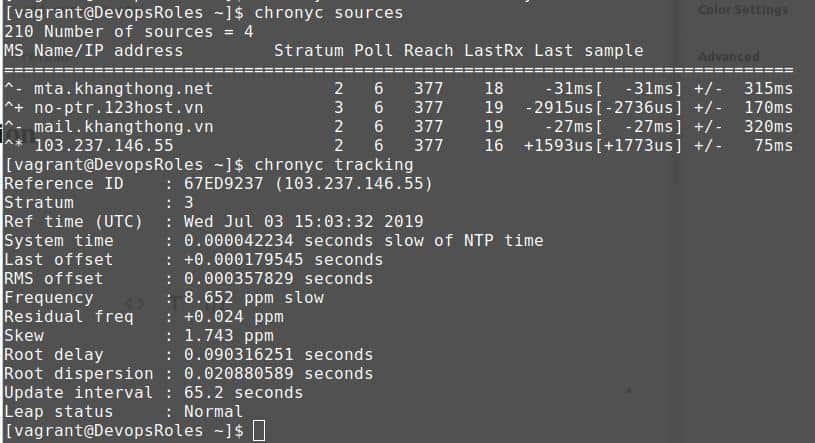
[vagrant@DevopsRoles ~]$ chronyc sources
[vagrant@DevopsRoles ~]$ chronyc tracking

Conclusion

You have installed Chrony and Configured the NTP server. I hope will this your helpful. Thank you for reading the DevopsRoles page!

Step-by-Step: Install and configure ntp centos 7

Introduction

In this tutorial, How to install and configure NTP server in Centos. NTP- is a protocol that runs over port 123 UDP at the Transport Layer and allows computers to synchronize time over networks for an accurate time.

What is NTP?

NTP, or Network Time Protocol, is a networking protocol designed to synchronize the clocks of computers to a reference time source. It is used in various networked environments to ensure that all systems maintain accurate time, which is essential for tasks such as logging, security, and scheduled operations.

Why Use NTP on CentOS 7?

Using NTP on CentOS 7 helps you:

  • Maintain accurate system time across all servers.
  • Ensure the proper functioning of time-dependent applications.
  • Avoid issues caused by time discrepancies.

Prerequisites

Before you begin, make sure you have the following:

  • A CentOS 7 server with root or sudo access.
  • A stable internet connection to access NTP servers.

Install and configure NTP

[vagrant@DevopsRoles ~]$ sudo yum -y install ntp

Configure NTP server

[vagrant@DevopsRoles ~]$ sudo vi /etc/ntp.conf

The content file “ntp.conf” as below

# line 18: add the network range your network
restrict 10.0.2.0 mask 255.255.255.0 nomodify notrap
# change servers for synchronization
server 0.asia.pool.ntp.org
server 1.asia.pool.ntp.org
server 2.asia.pool.ntp.org
server 3.asia.pool.ntp.org

Start and startup ntp

[vagrant@DevopsRoles ~]$ sudo systemctl start ntpd
[vagrant@DevopsRoles ~]$ sudo systemctl enable ntpd

If Firewalld is running, allow NTP service. NTP uses 123/UDP.

[vagrant@DevopsRoles ~]$ sudo firewall-cmd --add-service=ntp --permanent
[vagrant@DevopsRoles ~]$ sudo firewall-cmd --reload

Check it works normally

[vagrant@DevopsRoles ~]$ ntpq -p

Conclusion

Installing and configuring NTP on CentOS 7 is essential for maintaining accurate system time, which is critical for various applications and services. By following this guide, you can ensure that your CentOS 7 server is properly synchronized with reliable time sources. Whether you are managing a single server or a complex network, NTP provides the accuracy and reliability needed for effective time management.

By carefully configuring NTP and addressing any potential issues, you can maintain a robust and accurate time synchronization setup, ensuring smooth and efficient operations across your network. I hope will this your helpful. Thank you for reading the DevopsRoles page!

How to traceroute use mtr command in Linux

Use the MTR command in Linux to view the traceroute report for a remote machine. As a network administrator, you need to learn the usage of mtr command to Diagnosing Network issues.

MTR command is a powerful tool to diagnose and isolate networking errors and provide reports of the network.

Install MTR command in Linux

Ubuntu/Debian

sudo apt update && apt upgrade
sudo apt install mtr-tiny

CentOS/RHEL/Fedora

sudo yum update
sudo yum install mtr

macOS

brew install mtr

The Syntax mtr command

$ mtr [domainName/IP]

Example

[vagrant@DevopsRoles ~]$ mtr devopsroles.com

The output as below

How to view hostnames and numeric IP addresses

[vagrant@DevopsRoles ~]$ mtr -b google.com

The output as picture below

Enable Report Mode

[vagrant@DevopsRoles ~]$ mtr -r -c 10 google.com >mtr-report-google

The output report as below

Conclusion

MTR commands a network diagnostic tool. More information “$ man mtr” command in Linux. Thank you for reading the DevopsRoles page!

How to Install an RPM package into a different directory

Introduction

In this tutorial, How to install an RPM package into a different directory on Centos. Installing RPM packages is a common task for Linux users, especially those working with Red Hat-based distributions like Fedora, CentOS, or RHEL. Sometimes, you may need to install an RPM package into a different directory than the default.

What is an RPM Package?

RPM stands for Red Hat Package Manager. It is a package management system used by Red Hat-based distributions to manage software installation, updates, and removals. RPM packages are precompiled binaries that simplify software distribution and installation.

Why Install RPM Packages into a Different Directory?

There are several reasons why you might want to install an RPM package into a different directory:

  1. Space Constraints: Your default installation directory might be running out of space.
  2. Testing: You may want to test a package in a separate environment before moving it to production.
  3. Custom Configurations: Some applications may require custom directory structures.

For example, Install package bind install into another directory /opt/bind.

Use rpm -qi command to check the package has been installed but not yet

$ sudo rpm -qi [name-package]

Not all RPM packages can be installed into another directory.

For example, the bind RPM package is not relocatable. You install it then the error: package bind is not relocatable

[vagrant@DevopsRoles ~]$ rpm -qpi bind-9.8.2-0.68.rc1.el6_10.1.x86_64.rpm | head -1
Name        : bind                         Relocations: (not relocatable)

Install an RPM package into a different directory.

For example, wkhtmltox RPM package as below

[vagrant@DevopsRoles ~]$ wget https://downloads.wkhtmltopdf.org/0.12/0.12.5/wkhtmltox-0.12.5-1.centos6.x86_64.rpm

[vagrant@DevopsRoles ~]$ rpm -qpi wkhtmltox-0.12.5-1.centos6.x86_64.rpm | head -1
Name        : wkhtmltox                    Relocations: /usr/local

[vagrant@DevopsRoles ~]$ sudo rpm -ivh --prefix=/opt/wkhtmltox wkhtmltox-0.12.5-1.centos6.x86_64.rpm

Check the result installed wkhtmltox on your system.

[vagrant@DevopsRoles ~]$ tree /opt/wkhtmltox
/opt/wkhtmltox
├── bin
│   ├── wkhtmltoimage
│   └── wkhtmltopdf
├── include
│   └── wkhtmltox
│       ├── dllbegin.inc
│       ├── dllend.inc
│       ├── image.h
│       └── pdf.h
├── lib
│   ├── libwkhtmltox.so -> libwkhtmltox.so.0.12.5
│   ├── libwkhtmltox.so.0 -> libwkhtmltox.so.0.12.5
│   ├── libwkhtmltox.so.0.12 -> libwkhtmltox.so.0.12.5
│   └── libwkhtmltox.so.0.12.5
└── share
    └── man
        └── man1
            ├── wkhtmltoimage.1.gz
            └── wkhtmltopdf.1.gz

7 directories, 12 files

FAQs

Can all RPM packages be relocated?

No, not all RPM packages support relocation. You need to check the package metadata using the rpm -qpi command to see if it supports relocation.

What if the RPM package does not support relocation?

If the RPM package does not support relocation, you can use the rpm2cpio and cpio method to manually extract and place the files in your desired directory.

How do I handle dependencies when relocating RPM packages?

Handling dependencies can be tricky when relocating RPM packages. You may need to manually resolve and relocate dependencies as well. Adjusting environment variables and creating symbolic links can help in managing dependencies.

Is it safe to relocate RPM packages?

Relocating RPM packages can be safe if done correctly. However, it can lead to unexpected behavior if not handled properly, especially with packages that have strict directory dependencies.

Can I use package managers like Yum or DNF to relocate packages?

Yum and DNF do not support package relocation directly. You need to use the RPM command with the --relocate option or manually extract the package using rpm2cpio and cpio.

Conclusion

Installing an RPM package into a different directory can be useful for various reasons, including space management, testing, and custom configurations. While not all RPM packages support relocation, the methods outlined in this guide provide a comprehensive approach to handling different scenarios. Whether using the RPM command with relocation options or extracting packages manually with rpm2cpio and cpio, these techniques will help you manage your RPM packages effectively. I hope will this your helpful. Thank you for reading the DevopsRoles page!

OpenSSL generate random password

Introduction

In this tutorial, How to generate a random password using the OpenSSL command in Linux. It generates a number of random bytes, which the output HEX or Base64.

In today’s digital landscape, securing sensitive information is more important than ever. Passwords play a critical role in maintaining data privacy, and generating strong, random passwords is a cornerstone of cybersecurity. OpenSSL, a powerful cryptographic toolkit, offers a reliable way to generate random passwords.

This guide delves into how to use the OpenSSL command line tool to generate secure passwords, along with practical examples and tips to enhance your security strategy.

What Is OpenSSL?

OpenSSL is an open-source implementation of the SSL and TLS protocols. It’s widely used for tasks such as encrypting data, generating certificates, and managing cryptographic keys. One lesser-known but highly valuable feature of OpenSSL is its ability to generate random passwords. By leveraging its robust pseudo-random number generator, OpenSSL creates secure passwords that are nearly impossible to predict.

Why Use OpenSSL to Generate Random Passwords?

  • Enhanced Security: OpenSSL’s random number generation ensures high entropy, reducing the risk of brute-force attacks.
  • Customizability: You can tailor the password length and character set to meet specific security requirements.
  • Convenience: With a single command, you can generate passwords for a variety of applications, from securing databases to encrypting files.
  • Cross-Platform Compatibility: OpenSSL works on Linux, macOS, and Windows, making it a versatile tool.

How to Use OpenSSL to Generate Random Passwords

Generating a Basic Password

The simplest way to generate a random password with OpenSSL is by using the rand command. Here’s an example:

openssl rand -base64 12
  • rand: Invokes the random number generator.
  • -base64: Specifies the encoding format.
  • 12: Defines the number of bytes to generate.

Output Example:

3kHnP1T+/rJcWg==

This command generates a 12-byte random password encoded in Base64. Base64 encoding is ideal for generating passwords because it includes a mix of alphanumeric characters and special symbols.

The Base64 the output is a good password.

The syntax OpenSSL generate random password

# For Base64
openssl rand -base64 NUMBER
# For HEX
openssl rand -hex NUMBER

For example

[vagrant@DevopsRoles ~]$ openssl rand -base64 10
QwPFPP2qZIVasw==
[vagrant@DevopsRoles ~]$ openssl rand -hex 8
6a3853934292970b

Generating Hexadecimal Passwords

For situations where you need passwords in hexadecimal format, use:

openssl rand -hex 16
  • -hex: Specifies the hexadecimal output format.
  • 16: Generates a 16-byte random password.

Output Example:

1f3b8d4e92a7c4d5a6b7c8f9e0d2a1b3

Generating Custom-Length Passwords

If you need a password of a specific length, adjust the byte size accordingly. For instance, to generate a 32-character password:

openssl rand -base64 24

Why 24 bytes? Each Base64-encoded character represents 6 bits, so 24 bytes (192 bits) yield a 32-character string.

Adding Special Characters

To include special characters, pipe the output through tr or a similar tool. Here’s an example:

openssl rand -base64 16 | tr -dc 'A-Za-z0-9!@#$%^&*()'
  • tr -dc: Filters the output to include only the specified characters.

Output Example:

aB2!C3d@E4f^G5

Automating Password Generation with Scripts

For repetitive tasks, automate password generation using shell scripts. Here’s an example:

#!/bin/bash
for i in {1..5}
do
  openssl rand -base64 16
done

This script generates five random passwords in one execution.

Use Cases for OpenSSL Passwords

  • Database Credentials: Secure sensitive databases with strong passwords.
  • Encryption Keys: Generate passwords for encrypting files or storage devices.
  • Web Applications: Strengthen authentication by using unique passwords for user accounts.
  • System Administration: Secure servers and applications with randomly generated credentials.

Frequently Asked Questions

1. Is OpenSSL a reliable tool for generating passwords?

Yes, OpenSSL is widely regarded as a reliable tool for generating secure passwords due to its robust random number generator.

2. Can I control the character set in OpenSSL passwords?

Yes, you can filter the output using tools like tr to include or exclude specific characters.

3. Are Base64-encoded passwords secure?

Base64 passwords are secure but may need additional complexity for applications requiring special characters.

4. What is the difference between -base64 and -hex?

  • -base64 produces a mix of alphanumeric characters and symbols.
  • -hex generates passwords in hexadecimal format.

5. How do I ensure my password is sufficiently random?

Use a higher byte size for increased randomness and avoid reusing passwords.

Additional Resources

Conclusion

Using OpenSSL to generate random passwords is a quick and effective way to bolster your security measures. Whether you need simple Base64-encoded passwords or complex strings with special characters, OpenSSL provides the flexibility to meet your requirements. By mastering these commands and integrating them into your workflow, you can protect sensitive data and ensure a robust security posture. Start experimenting with OpenSSL today and take the first step toward enhanced password security.

Thought the article, How to use “OpenSSL generate random password” as above. I hope will this your helpful. Thank you for reading the DevopsRoles page!
Install KVM and QEMU on Ubuntu

In this tutorial, How to install KVM ( Kernel-based Virtual Machine ) and QEMU on Ubuntu 14.04 LTS server. This requires a CPU on your system to enable Intel VT or AMD-V.

  • KVM is an Open Source.
  • QEMU is a open source machine emulator and virtualizer.

Install KVM and QEMU on Ubuntu.

# apt-get -y install qemu-kvm libvirt-bin virtinst bridge-utils

Enable vhost-net on your system.

# modprobe vhost_net 
# lsmod | grep vhost
# echo vhost_net >> /etc/modules

Configure networking bridge Interface.

For my example as below

# vi /etc/network/interfaces

The content as below

# This file describes the network interfaces available on your system
# and how to activate them. For more information, see interfaces(5).

# The loopback network interface
auto lo
iface lo inet loopback

# The primary network interface
# change like follows
auto eth0
iface eth0 inet manual
#iface eth0 inet static
#address 192.168.3.50
#network 192.168.3.0
#netmask 255.255.255.0
#broadcast 192.168.3.255
#gateway 192.168.3.1
#dns-nameservers 192.168.3.30
# add bridge interface

iface br0 inet static
address 192.168.3.30
network 192.168.3.0
netmask 255.255.255.0
broadcast 192.168.3.255
gateway 192.168.3.1
dns-nameservers 192.168.3.30
bridge_ports eth0
bridge_stp off
auto br0

Conclusion

Through the article, you can use install KVM and QEMU on Ubuntu as above. I hope will this your helpful. Thank you for reading the DevopsRoles page!

Complete guide install elk stack

Introduction

In the world of DevOps, log management and data visualization are crucial tasks. The ELK Stack, consisting of Elasticsearch, Logstash, and Kibana, offers a powerful and comprehensive solution to achieve these tasks efficiently. In this tutorial, I guide install ELK stack on Linux. The ELK Stack is a collection of three open-source Elasticsearch, Kibana, and Logstash. Now, let’s install ELK stack on Linux.

For my example install ELK stack

  • Elasticsearch, Kibana and Logstash -> 192.168.3.4
  • Filebeat -> 192.168.3.5

Requirements to install elk you need JAVA. If you do not yet install java on your system. The guided install Java on server ELK as below

Installing Java

ELK requires the installation of Java 8 and higher.

$ sudo yum install java-1.8.0-openjdk

Set JAVA_HOME for Elasticsearch

# sudo cp /etc/profile /etc/profile_backup
# echo 'export JAVA_HOME=/usr/lib/jvm/jre-1.8.0-openjdk' | sudo tee -a /etc/profile
# source /etc/profile

To check “JAVA_HOME” 

[huupv@localhost ~]$ echo $JAVA_HOME
/usr/lib/jvm/jre-1.8.0-openjdk

Change to your home directory.

# cd $HOME

Open the .bashrc file.

# vi .bashrc

Add the following line to the file

export PATH=$PATH:$JAVA_HOME/bin

Save the file and exit.

Apply the change

# source .bashrc

Install elasticsearch kibana logstash

# yum install elasticsearch kibana logstash

Another Method to install ELK use Docker as the link below

Quick start install Elasticsearch and Kibana with Docker

Elasticsearch Configure

Open the elasticsearch.yml file

$ sudo vim /etc/elasticsearch/elasticsearch.yml

The content as below

network.host: "localhost"
http.port:9200

Kibana Configure

$ sudo vim /etc/kibana/kibana.yml

The content as below

# server.port: 5601
server.port: 17000
server.host: "0.0.0.0"
elasticsearch.hosts: ["http://localhost:9200"]

logstash Configure

Logstash: unrecognized service Centos 6. How to start it. Refer to below

sudo initctl status logstash 
sudo initctl start logstash 

Create a setting file and start Logstash. For My example, create a setting that Logstash collects sshd fail logs from [/var/log/secure]

# vi /etc/logstash/conf.d/sshd.conf

The content as below

input {
  file {
    type => "seucure_log"
    path => "/var/log/secure"
  }
}
filter {
  grok {
    add_tag => [ "sshd_fail" ]
    match => { "message" => "Failed %{WORD:sshd_auth_type} for %{USERNAME:sshd_invalid_user} from %{IP:sshd_client_ip} port %{NUMBER:sshd_port} %{GREEDYDATA:sshd_protocol}" }
  }
}

output {
  elasticsearch {
    index => "sshd_fail-%{+YYYY.MM}"
  }
}

Enable Logstash on Boot and Start Logstash:

chgrp logstash /var/log/secure 
chmod 640 /var/log/secure 
systemctl start logstash 
systemctl enable logstash

A few minutes later, Checked logs collected normally.

# curl localhost:9200/_cat/indices?v

Another server install and configure filebeat

Install Filebeat:

# yum install filebeat

Backup Filebeat configuration:

$ mkdir /home/huupv/backups/filebeat -p
$ mv /etc/filebeat/filebeat.yml /home/huupv/backups/filebeat/filebeat.yml.BAK

Create the Filebeat configuration, and specify the Logstash outputs:

$ cat > /etc/filebeat/filebeat.yml << EOF
filebeat.prospectors:
- input_type: log
  paths:
    - /var/log/secure
  exclude_files: ['\.gz$']

output.logstash:
  hosts: ["192.168.3.4:5400"]
EOF

Testing

Conclusion

Installing and configuring the ELK Stack can significantly enhance your system’s log management and analysis capabilities. With Elasticsearch’s powerful search capabilities, Logstash’s diverse log collection and processing features, and Kibana’s intuitive interface, the entire ELK Stack provides a robust tool for every DevOps professional. We hope that through this article, you have mastered the steps to install the ELK Stack and can effectively apply it to your projects. Don’t hesitate to explore other features of the ELK Stack to further optimize your work. Thank you for reading the DevopsRoles page!