
Introduction: I still remember the absolute dread of onboarding week at my first senior gig. Setting up a functional local dev toolbox used to mean three days of downloading absolute garbage. You would sit there blindly copy-pasting terminal commands from a wildly outdated internal company wiki.
It was painful.
You’d install Homebrew packages, tweak bash profiles, and pray to the tech gods that your Python version didn’t conflict with the system default. We’ve all been there. But what if I told you that you could replace that entire miserable process with just one file?

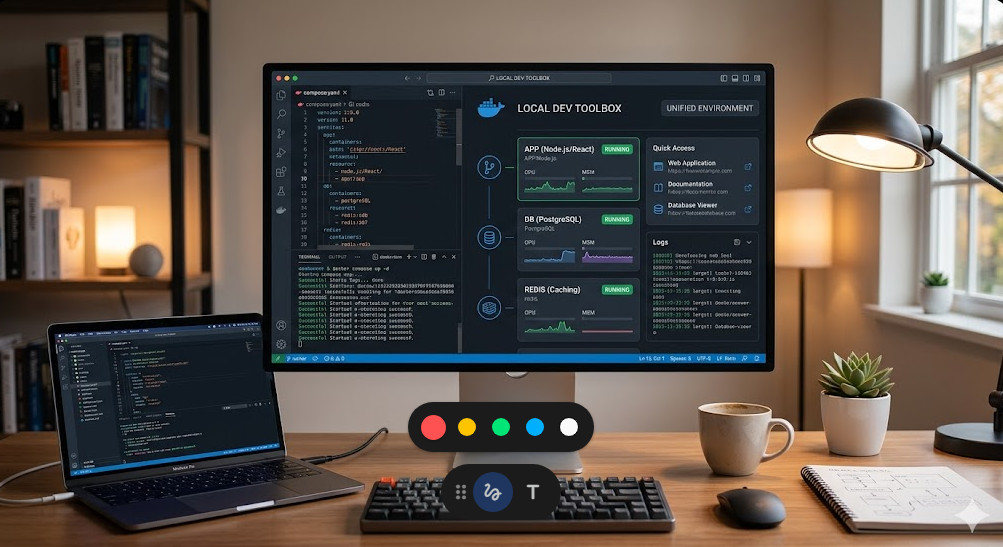
Table of Contents
Why Your Legacy Local Dev Toolbox Is Killing Productivity
It happens every single sprint.
A mid-level developer pushes a new feature. It passes all their local tests. They are feeling great about it. Then, the moment the CI/CD pipeline picks it up, it completely obliterates the staging environment.
Why did it fail?
Because their laptop was running Node 18, but the server was running Node 16. The “Works on My Machine” excuse is a direct symptom of a broken, fragmented environment. If your team does not share a unified setup, you are losing money on debugging.
The Problem with Multi-File Chaos
For years, the industry standard was a massive pile of scripts.
We used Vagrantfiles, sprawling Makefile directories, and tangled bash scripts that no one on the team actually understood. [Internal Link: The Hidden Cost of Technical Debt]
If the guy who wrote the bootstrap script quit, the team was left holding a ticking time bomb.
The Magic of a Single-File Local Dev Toolbox
Simplicity scales. Complexity breaks.
By consolidating your entire stack into a single declarative file—like a customized compose.yaml or a Devcontainer JSON file—you eliminate the guesswork. You tell the machine exactly what you want, and it builds it identically. Every. Single. Time.
If you ruin your environment today? Just delete it.
Run one command, and five minutes later, your local dev toolbox is completely restored to a pristine state.
Core Benefits of the One-File Approach
- Instant Onboarding: New hires run a single command and start coding in 10 minutes.
- Zero Contamination: Your global OS remains entirely untouched by weird project dependencies.
- Absolute Parity: Dev matches staging. Staging matches production.
- Easy Version Control: The file lives in your repo. Infrastructure is treated as code.
Step-by-Step: Building Your Local Dev Toolbox
Let’s stop talking and start building.
For this guide, we are going to use Docker Compose. It is universally understood, battle-tested, and supported natively by almost every modern IDE. You can read more about its specs in the official Docker documentation.
Here is how we structure the ultimate local dev toolbox.
Step 1: The Foundation File
Create a file named compose.yaml in your project root.
This single file will define our database, our caching layer, and our actual application environment. No external scripts required.
version: '3.8'

services:
  app:
    build:
      context: .
      dockerfile: Dockerfile.dev
    volumes:
      - .:/workspace
    ports:
      - "3000:3000"
    environment:
      - NODE_ENV=development
    depends_on:
      - db
      - redis

  db:
    image: postgres:15-alpine
    environment:
      POSTGRES_USER: devuser
      POSTGRES_PASSWORD: devpassword
    ports:
      - "5432:5432"

  redis:
    image: redis:7-alpine
    ports:
      - "6379:6379"
Step 2: Understanding the Magic
Look closely at that file.
We just defined an entire full-stack ecosystem in under 30 lines of text. The volumes directive maps your local hard drive into the container. This means you use your favorite editor locally, but the code executes inside the isolated Linux environment.
It is brilliant.
Advanced Local Dev Toolbox Tricks
Now, let’s look at how the veterans optimize this setup.
A basic file gets you started, but a production-ready local dev toolbox needs to handle real-world complexities. Things like background workers, database migrations, and hot-reloading.
Handling Database Migrations Automatically
Never rely on humans to run migrations.
You can add an init container to your compose file that automatically checks for and applies database schemas before the main application even boots up. This guarantees your database state is always correct.
If you want to see how the pros handle schema versions, check out how the golang-migrate project handles state.
Fixing Permissions Issues
Linux users know this pain all too well.
Docker runs as root by default. When it creates files in your mounted volume, you suddenly can’t edit them on your host machine. The fix is a simple argument in your one-file setup.
  app:
    image: node:18
    user: "${UID}:${GID}" # Forces container to use host user ID
    volumes:
      - .:/workspace
That one line saves hours of frustrating chmod commands.
The Performance Factor
Does a containerized local dev toolbox slow down your machine?
Historically, yes. Docker Desktop on Mac used to be notoriously sluggish, especially with heavy filesystem I/O operations. But things have changed dramatically.
With technologies like VirtioFS now enabled by default, volume mounts are lightning fast.
If you are still experiencing lag, consider switching to OrbStack or Podman. They are lightweight alternatives that drop right into your existing one-file workflow without changing a single line of code.
Scaling to Massive Repositories
What if your monorepo is gigantic?
If you have 50 microservices, booting them all up via one file will melt your laptop. Your fans will sound like a jet engine taking off from your desk.
The solution is profiles.
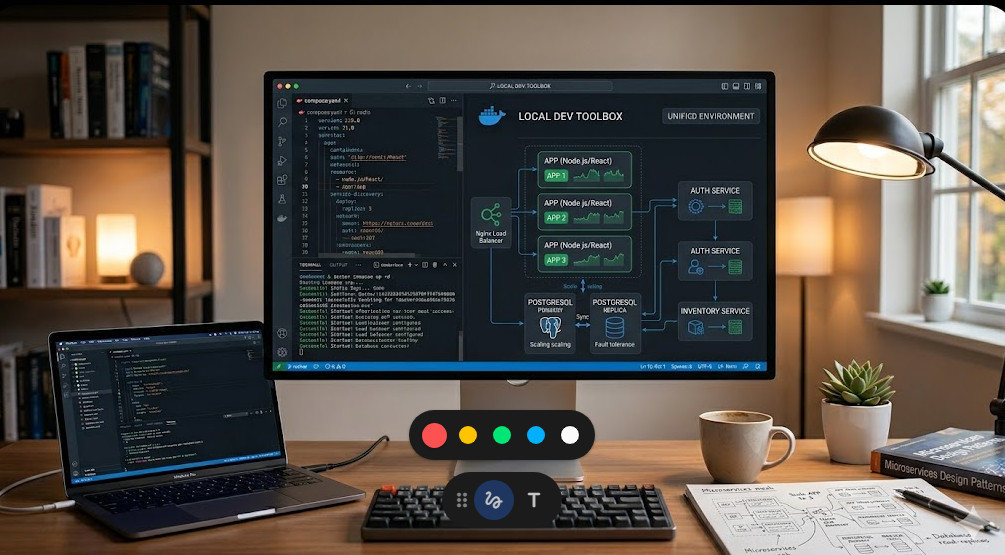
You keep the single local dev toolbox file, but you assign services to specific profiles. A frontend dev only boots the frontend profile. A backend dev boots the core APIs.
  payment_gateway:
    image: my-company/payments
    profiles:
      - backend_core
      - full_stack
Run docker compose --profile backend_core up and you only get what you actually need to do your job.

FAQ Section
- Is this better than just using NPM or Pip locally? Absolutely. Local installations eventually pollute your global environment. A unified local dev toolbox isolates everything safely.
- Do I need to be a DevOps expert to set this up? Not at all. Start with a basic template. You can learn the advanced networking features as your project grows.
- What if I need to test on different OS versions? That is exactly why this is powerful. Just change the base image tag in your file from Alpine to Ubuntu, and you instantly switch environments.
- Can I share this file with my team? Yes! Commit it directly to your Git repository. It becomes the single source of truth for your entire engineering department.
Conclusion: Stop wasting your most valuable asset—your time—on brittle, manual environment configurations. By adopting a single-file local dev toolbox, you protect your sanity, accelerate your team’s onboarding, and ensure that “works on my machine” is a guarantee, not a gamble. Build it once, commit it, and get back to actually writing code. You’ll thank yourself during the next project setup. Thank you for reading the DevopsRoles page!