Category Archives: OpenStack

Master OpenStack with DevOpsRoles.com. Explore in-depth guides and tutorials to efficiently manage and deploy cloud infrastructure using OpenStack for DevOps.

How to create and Run Instances on OpenStack

In this tutorial, How to create and Run Instances on OpenStack. In previous, My post has How to install OpenStack all in one Centos 7.

Create and Run Instances on OpenStack

How to add users in keystone who can use OpenStack System.

# add project
[root@DevopsRoles ~(keystone)]# openstack project create --domain default --description "Huupv Project" huupv 

# add user
[root@DevopsRoles ~(keystone)]# openstack user create --domain default --project huupv --password userpassword devopsroles 

# add role
[root@DevopsRoles ~(keystone)]# openstack role create CloudUser 

# add user to the role
[root@DevopsRoles ~(keystone)]# openstack role add --project huupv --user devopsroles CloudUser

# add flavor
[root@DevopsRoles ~(keystone)]# openstack flavor create --id 0 --vcpus 1 --ram 2048 --disk 10 m1.small 

Create and Start Virtual Machine Instance.

The username or password in the config is above. Also, create and run an Instance.

[cent@DevopsRoles ~]$ vi ~/keystonerc

#The content as below
export OS_PROJECT_DOMAIN_NAME=default
export OS_USER_DOMAIN_NAME=default
export OS_PROJECT_NAME=huupv
export OS_USERNAME=devopsroles
export OS_PASSWORD=userpassword
export OS_AUTH_URL=http://10.0.2.15:5000/v3
export OS_IDENTITY_API_VERSION=3
export OS_IMAGE_API_VERSION=2
export PS1='[\u@\h \W(keystone)]\$ '

[cent@DevopsRoles ~]$ chmod 600 ~/keystonerc 
[cent@DevopsRoles ~]$ source ~/keystonerc 
[cent@DevopsRoles ~(keystone)]$ echo "source ~/keystonerc " >> ~/.bash_profile
# show flavor list
[cent@DevopsRoles ~(keystone)]$ openstack flavor list 

# show image list
[cent@DevopsRoles ~(keystone)]$ openstack image list 


# show network list
[cent@DevopsRoles ~(keystone)]$ openstack network list 

# create a security group for instances
[cent@DevopsRoles ~(keystone)]$ openstack security group create secgroup01 

[cent@DevopsRoles ~(keystone)]$ openstack security group list 

# create a SSH keypair for connecting to instances
[cent@DevopsRoles ~(keystone)]$ ssh-keygen -q -N "" 

# add public-key
[cent@DevopsRoles ~(keystone)]$ openstack keypair create --public-key ~/.ssh/id_rsa.pub mykey 

[cent@DevopsRoles ~(keystone)]$ openstack keypair list 

[cent@DevopsRoles ~(keystone)]$ netID=$(openstack network list | grep sharednet1 | awk '{ print $2 }') 
# create and boot an instance
[cent@DevopsRoles ~(keystone)]$ openstack server create --flavor m1.small --image CentOS7 --security-group secgroup01 --nic net-id=$netID --key-name mykey CentOS_7

# show status ([BUILD] status is shown when building instance)
[cent@DevopsRoles ~(keystone)]$ openstack server list 

# when starting noramlly, the status turns to [ACTIVE]
[cent@DevopsRoles ~(keystone)]$ openstack server list 

You Access the URL via 10.0.2.15:6080. Thank you for reading the DevopsRoles page!

How to configure OpenStack Networking

In this tutorial, How to configure OpenStack Networking. In previous, My post has How to install OpenStack all in one Centos 7.  This example configures the FLAT type of provider networking. First, you have to configure basic settings Openstack Neutron Services refer here.

For example, Configure FLAT type for Node 2 network interfaces

  • eth0: 10.0.2.15
  • eth1: UP with no IP

Configure OpenStack Networking

Configure Neutron services

# add bridge
[root@DevopsRoles ~(keystone)]# ovs-vsctl add-br br-eth1 

# add eth1 to the port of the bridge above
[root@DevopsRoles ~(keystone)]# ovs-vsctl add-port br-eth1 eth1 

[root@DevopsRoles ~(keystone)]# vi /etc/neutron/plugins/ml2/ml2_conf.ini

# The content as below
# line 181: add
[ml2_type_flat]
flat_networks = physnet1

[root@DevopsRoles ~(keystone)]# vi /etc/neutron/plugins/ml2/openvswitch_agent.ini
# The content as below
# line 194: add
[ovs]
bridge_mappings = physnet1:br-eth1

[root@DevopsRoles ~(keystone)]# systemctl restart neutron-openvswitch-agent

Creating a Virtual network.

[root@DevopsRoles ~(keystone)]# projectID=$(openstack project list | grep service | awk '{print $2}')
# create network named [sharednet1]
[root@DevopsRoles ~(keystone)]# openstack network create --project $projectID \
--share --provider-network-type flat --provider-physical-network physnet1 sharednet1 

# create subnet [10.0.2.0/24] in [sharednet1]
[root@DevopsRoles ~(keystone)]# openstack subnet create subnet1 --network sharednet1 \
--project $projectID --subnet-range 10.0.2.0/24 \
--allocation-pool start=10.0.2.200,end=10.0.2.254 \
--gateway 10.0.2.1 --dns-nameserver 10.0.2.10 

# confirm settings
[root@DevopsRoles ~(keystone)]# openstack network list 

[root@DevopsRoles ~(keystone)]# openstack subnet list 

You have configured OpenStack Networking. Thank you for reading the DevopsRoles page!

How to Install and Configure OpenStack Neutron

In this tutorial, How to Install and Configure OpenStack Neutron. This example chooses the ML2 plugin. In previous, My post has How to install OpenStack all in one Centos 7If you have not yet installed OpenStack Neutron then step install as below

Step 1: Create a User and Database for OpenStack Neutron

First, set up a database in MariaDB for Neutron:

[root@DevopsRoles ~]# mysql -u root -p
MariaDB [(none)]> CREATE DATABASE neutron_ml2;
MariaDB [(none)]> GRANT ALL PRIVILEGES ON neutron_ml2.* TO 'neutron'@'localhost' IDENTIFIED BY 'password';
MariaDB [(none)]> GRANT ALL PRIVILEGES ON neutron_ml2.* TO 'neutron'@'%' IDENTIFIED BY 'password';
MariaDB [(none)]> FLUSH PRIVILEGES;
MariaDB [(none)]> EXIT;

Step 2: Add User and Service for Neutron in Keystone

Create a user, assign a role, and configure endpoints for Neutron in Keystone:

# Create the Neutron user
[root@DevopsRoles ~]# openstack user create --domain default --project service --password servicepassword neutron

# Assign the admin role to Neutron
[root@DevopsRoles ~]# openstack role add --project service --user neutron admin

# Register the Neutron service
[root@DevopsRoles ~]# openstack service create --name neutron --description "OpenStack Networking service" network

# Define the Keystone host
[root@DevopsRoles ~]# export controller=10.0.2.15

# Create Neutron endpoints
[root@DevopsRoles ~]# openstack endpoint create --region RegionOne network public http://$controller:9696
[root@DevopsRoles ~]# openstack endpoint create --region RegionOne network internal http://$controller:9696
[root@DevopsRoles ~]# openstack endpoint create --region RegionOne network admin http://$controller:9696

Step 3: Install Neutron Services

Install the necessary Neutron components from the Stein repository:

[root@DevopsRoles ~]# yum --enablerepo=centos-openstack-stein,epel -y install openstack-neutron openstack-neutron-ml2 openstack-neutron-openvswitch

Step 4: Configure Neutron

Edit the Neutron configuration file to set up database and authentication details:

[root@DevopsRoles ~]# mv /etc/neutron/neutron.conf /etc/neutron/neutron.conf_BK
[root@DevopsRoles ~]# vi /etc/neutron/neutron.conf

Add the following:

iniCopy code[DEFAULT]
core_plugin = ml2
service_plugins = router
auth_strategy = keystone
state_path = /var/lib/neutron
dhcp_agent_notification = True
allow_overlapping_ips = True
notify_nova_on_port_status_changes = True
notify_nova_on_port_data_changes = True
transport_url = rabbit://openstack:password@10.0.2.15

[keystone_authtoken]
www_authenticate_uri = http://10.0.2.15:5000
auth_url = http://10.0.2.15:5000
memcached_servers = 10.0.2.15:11211
auth_type = password
project_domain_name = default
user_domain_name = default
project_name = service
username = neutron
password = servicepassword

[database]
connection = mysql+pymysql://neutron:password@10.0.2.15/neutron_ml2

[nova]
auth_url = http://10.0.2.15:5000
auth_type = password
project_domain_name = default
user_domain_name = default
region_name = RegionOne
project_name = service
username = nova
password = servicepassword

[oslo_concurrency]
lock_path = $state_path/tmp

Apply permissions:

[root@DevopsRoles ~]# chmod 640 /etc/neutron/neutron.conf
[root@DevopsRoles ~]# chgrp neutron /etc/neutron/neutron.conf

Step 5: Configure Neutron Agents

Update the following files:

    L3 Agent Configuration:

    [DEFAULT]
    interface_driver = openvswitch
    

    DHCP Agent Configuration:

    [DEFAULT]
    interface_driver = openvswitch
    dhcp_driver = neutron.agent.linux.dhcp.Dnsmasq
    enable_isolated_metadata = true
    

    Metadata Agent Configuration:

    [DEFAULT]
    nova_metadata_host = 10.0.2.15
    metadata_proxy_shared_secret = metadata_secret
    memcache_servers = 10.0.2.15:11211
    

    ML2 Plugin Configuration:

    [ml2]
    type_drivers = flat,vlan,gre,vxlan
    tenant_network_types =
    mechanism_drivers = openvswitch
    extension_drivers = port_security

    Step 6: Configure Open vSwitch

    Start and configure Open vSwitch:

    [root@DevopsRoles ~]# systemctl start openvswitch
    [root@DevopsRoles ~]# systemctl enable openvswitch
    [root@DevopsRoles ~]# ovs-vsctl add-br br-int
    [root@DevopsRoles ~]# ovs-vsctl add-br br-ex
    [root@DevopsRoles ~]# ln -s /etc/neutron/plugins/ml2/ml2_conf.ini /etc/neutron/plugin.ini
    

    Step 7: Populate the Neutron Database

    Run the database migration command:

    [root@DevopsRoles ~]# su -s /bin/bash neutron -c "neutron-db-manage --config-file /etc/neutron/neutron.conf --config-file /etc/neutron/plugin.ini upgrade head"
    

    Step 8: Start Neutron Services

    Start all required Neutron services:

    [root@DevopsRoles ~]# systemctl start neutron-server neutron-dhcp-agent neutron-l3-agent neutron-metadata-agent neutron-openvswitch-agent
    [root@DevopsRoles ~]# systemctl enable neutron-server neutron-dhcp-agent neutron-l3-agent neutron-metadata-agent neutron-openvswitch-agent
    

    Step 9: Verify Installation

    Check the status of the Neutron agents:

    [root@DevopsRoles ~]# openstack network agent list
    

    Conclusion

    You have successfully installed and configured OpenStack Neutron. This setup enables robust networking capabilities, allowing your OpenStack environment to support complex networking scenarios.

    How to Install and Configure OpenStack Nova

    In this tutorial, How to Install and Configure the OpenStack compute ( Nova). In previous, My post has How to install OpenStack all in one Centos 7. If you have not yet installed OpenStack nova then step install as below

    Step-by-Step Installation and Configuration of OpenStack Nova

    Step 1: Create a User and Database for Nova

    Use MariaDB to set up the required databases and users:

    [root@DevopsRoles ~(keystone)]# mysql -u root -p
    

    Run the following commands to create the necessary databases:

    CREATE DATABASE nova;
    GRANT ALL PRIVILEGES ON nova.* TO 'nova'@'localhost' IDENTIFIED BY 'password';
    GRANT ALL PRIVILEGES ON nova.* TO 'nova'@'%' IDENTIFIED BY 'password';
    
    CREATE DATABASE nova_api;
    GRANT ALL PRIVILEGES ON nova_api.* TO 'nova'@'localhost' IDENTIFIED BY 'password';
    GRANT ALL PRIVILEGES ON nova_api.* TO 'nova'@'%' IDENTIFIED BY 'password';
    
    CREATE DATABASE nova_placement;
    GRANT ALL PRIVILEGES ON nova_placement.* TO 'nova'@'localhost' IDENTIFIED BY 'password';
    GRANT ALL PRIVILEGES ON nova_placement.* TO 'nova'@'%' IDENTIFIED BY 'password';
    
    CREATE DATABASE nova_cell0;
    GRANT ALL PRIVILEGES ON nova_cell0.* TO 'nova'@'localhost' IDENTIFIED BY 'password';
    GRANT ALL PRIVILEGES ON nova_cell0.* TO 'nova'@'%' IDENTIFIED BY 'password';
    
    FLUSH PRIVILEGES;
    EXIT;
    

    Step 2: Add Users and Configure Services in Keystone

    1. Add the nova user to the service project:
      • openstack user create --domain default --project service --password servicepassword nova
      • openstack role add --project service --user nova admin
    2. Add the placement user:
      • openstack user create --domain default --project service --password servicepassword placement
      • openstack role add --project service --user placement admin
    3. Create service entries:
      • openstack service create --name nova --description "OpenStack Compute service" compute
      • openstack service create --name placement --description "OpenStack Compute Placement service" placement
    4. Define the Keystone controller address:
      • export controller=10.0.2.15
    5. Add endpoints:
      • openstack endpoint create --region RegionOne compute public http://$controller:8774/v2.1/%\(tenant_id\)s
      • openstack endpoint create --region RegionOne compute internal http://$controller:8774/v2.1/%\(tenant_id\)s
      • openstack endpoint create --region RegionOne compute admin http://$controller:8774/v2.1/%\(tenant_id\)s
      • openstack endpoint create --region RegionOne placement public http://$controller:8778
      • openstack endpoint create --region RegionOne placement internal http://$controller:8778
      • openstack endpoint create --region RegionOne placement admin http://$controller:8778

    Step 3: Install OpenStack Nova

    Install the Nova packages:

    yum --enablerepo=centos-openstack-stein,epel -y install openstack-nova
    

    Step 4: Configure OpenStack Nova

    Edit the Nova configuration file:

    mv /etc/nova/nova.conf /etc/nova/nova.conf.org
    vi /etc/nova/nova.conf
    

    Add the following configuration:

    [DEFAULT]
    my_ip = 10.0.2.15
    state_path = /var/lib/nova
    enabled_apis = osapi_compute,metadata
    log_dir = /var/log/nova
    transport_url = rabbit://openstack:password@10.0.2.15
    
    [api]
    auth_strategy = keystone
    
    [glance]
    api_servers = http://10.0.2.15:9292
    
    [oslo_concurrency]
    lock_path = $state_path/tmp
    
    [api_database]
    connection = mysql+pymysql://nova:password@10.0.2.15/nova_api
    
    [database]
    connection = mysql+pymysql://nova:password@10.0.2.15/nova
    
    [keystone_authtoken]
    www_authenticate_uri = http://10.0.2.15:5000
    auth_url = http://10.0.2.15:5000
    memcached_servers = 10.0.2.15:11211
    auth_type = password
    project_domain_name = default
    user_domain_name = default
    project_name = service
    username = nova
    password = servicepassword
    
    [placement]
    auth_url = http://10.0.2.15:5000
    os_region_name = RegionOne
    auth_type = password
    project_domain_name = default
    user_domain_name = default
    project_name = service
    username = placement
    password = servicepassword
    
    [placement_database]
    connection = mysql+pymysql://nova:password@10.0.2.15/nova_placement
    

    Apply the correct permissions:

    chmod 640 /etc/nova/nova.conf
    chgrp nova /etc/nova/nova.conf
    

    Step 5: Set Up SELinux and Firewall Rules

    Enable SELinux for OpenStack:

    yum --enablerepo=centos-openstack-stein -y install openstack-selinux
    semanage port -a -t http_port_t -p tcp 8778
    

    Update the firewall rules:

    firewall-cmd --add-port={6080/tcp,6081/tcp,6082/tcp,8774/tcp,8775/tcp,8778/tcp} --permanent
    firewall-cmd --reload
    

    Step 6: Initialize the Database

    Synchronize the database:

    su -s /bin/bash nova -c "nova-manage api_db sync"
    su -s /bin/bash nova -c "nova-manage cell_v2 map_cell0"
    su -s /bin/bash nova -c "nova-manage db sync"
    su -s /bin/bash nova -c "nova-manage cell_v2 create_cell --name cell1"
    

    Step 7: Start Nova Services

    Start and enable Nova services:

    systemctl start openstack-nova-api openstack-nova-consoleauth openstack-nova-conductor openstack-nova-scheduler openstack-nova-novncproxy
    systemctl enable openstack-nova-api openstack-nova-consoleauth openstack-nova-conductor openstack-nova-scheduler openstack-nova-novncproxy
    

    Step 8: Install and Configure Nova Compute

    Install Nova Compute:

    yum --enablerepo=centos-openstack-stein,epel -y install openstack-nova-compute
    

    Update the Nova configuration to enable VNC:

    [vnc]
    enabled = True
    server_listen = 0.0.0.0
    server_proxyclient_address = 10.0.2.15
    novncproxy_base_url = http://10.0.2.15:6080/vnc_auto.html
    

    Restart the service:

    systemctl start openstack-nova-compute
    systemctl enable openstack-nova-compute
    

    Final Steps

    Verify the Nova setup:

    openstack compute service list
    

    Congratulations! You have successfully installed and configured OpenStack Nova. Thank you for reading the DevopsRoles page!

    How to Install and Configure OpenStack glance

    In this tutorial, How to Install and Configure OpenStack glance. In previous, My post has How to install OpenStack all in one Centos 7. If you have not yet installed OpenStack Glance then step install as below

    Step by step Install and Configure OpenStack glance

    Create a User and Database on MariaDB for Glance.

    [vagrant@DevopsRoles ~]# mysql -u root -p 
    MariaDB [(none)]> create database glance;
    MariaDB [(none)]> grant all privileges on glance.* to glance@'localhost' identified by 'password'; 
    MariaDB [(none)]> grant all privileges on glance.* to glance@'%' identified by 'password'; 
    MariaDB [(none)]> flush privileges;
    MariaDB [(none)]> exit

    Add users and others for Glance in Keystone.

    # add glance user (set in service project)
    [vagrant@DevopsRoles ~(keystone)]# openstack user create --domain default --project service --password servicepassword glance
    # add glance user in admin role
    [vagrant@DevopsRoles ~(keystone)]# openstack role add --project service --user glance admin
    # add service entry for glance
    [vagrant@DevopsRoles ~(keystone)]# openstack service create --name glance --description "OpenStack Image service" image 
    # define keystone host
    [vagrant@DevopsRoles ~(keystone)]# export controller=10.0.2.15
    # add endpoint for glance (public)
    [vagrant@DevopsRoles ~(keystone)]# openstack endpoint create --region RegionOne image public http://$controller:9292 
    # add endpoint for glance (internal)
    [vagrant@DevopsRoles ~(keystone)]# openstack endpoint create --region RegionOne image internal http://$controller:9292 
    # add endpoint for glance (admin)
    [vagrant@DevopsRoles ~(keystone)]# openstack endpoint create --region RegionOne image admin http://$controller:9292 

    Install Glance.

    # install from Stein, EPEL
    [vagrant@DevopsRoles ~(keystone)]# yum --enablerepo=centos-openstack-stein,epel -y install openstack-glance

    Configure OpenStack Glance.

    [vagrant@DevopsRoles ~(keystone)]# mv /etc/glance/glance-api.conf /etc/glance/glance-api.conf.org 
    [vagrant@DevopsRoles ~(keystone)]# vi /etc/glance/glance-api.conf
    # create new bind host
     [DEFAULT]
    bind_host = 0.0.0.0
    
    [glance_store]
    stores = file,http
    default_store = file
    filesystem_store_datadir = /var/lib/glance/images/
    
    [database]
    # MariaDB connection info for Glance
    connection = mysql+pymysql://glance:password@10.0.2.15/glance
    
    # keystone auth info
    [keystone_authtoken]
    www_authenticate_uri = http://10.0.2.15:5000
    auth_url = http://10.0.2.15:5000
    memcached_servers = 10.0.2.15:11211
    auth_type = password
    project_domain_name = default
    user_domain_name = default
    project_name = service
    username = glance
    password = servicepassword
    
    [paste_deploy]
    flavor = keystone
    
    [vagrant@DevopsRoles ~(keystone)]# chmod 640 /etc/glance/glance-api.conf 
    [vagrant@DevopsRoles ~(keystone)]# chown root:glance /etc/glance/glance-api.conf
    [vagrant@DevopsRoles ~(keystone)]# su -s /bin/bash glance -c "glance-manage db_sync" 
    [vagrant@DevopsRoles ~(keystone)]# systemctl start openstack-glance-api 
    [vagrant@DevopsRoles ~(keystone)]# systemctl enable openstack-glance-api 

    If SELinux is enabled on Centos 7

    
    [vagrant@DevopsRoles ~]# setsebool -P glance_api_can_network on 

    Allow ports for services with Firewalld is running

    [vagrant@DevopsRoles ~(keystone)]# firewall-cmd --add-port=9292/tcp --permanent
    [vagrant@DevopsRoles ~(keystone)]# firewall-cmd --reload 

    OpenStack Add Virtual Machine Image

    For example, I will create and add CentOS 7 Virtual machine image. Your system has to install KVM HyperVisor.

    1. Create CentosOS 7 image on Glance Host

    [vagrant@DevopsRoles ~(keystone)]# mkdir -p /var/kvm/images
    [vagrant@DevopsRoles ~(keystone)]# qemu-img create -f qcow2 /var/kvm/images/centos7.img 15G
    
    # install
    [vagrant@DevopsRoles ~(keystone)]# virt-install \
    --name centos7 \
    --ram 2048 \
    --disk path=/var/kvm/images/centos7.img,format=qcow2 \
    --vcpus 2 \
    --os-type linux \
    --os-variant rhel7 \
    --graphics none \
    --console pty,target_type=serial \
    --location=/home/huupv/iso/CentOS-7-x86_64-Minimal-1810.iso \
    --extra-args 'console=ttyS0,115200n8 serial'

    Note: After Installation, You need to change settings in Virtual machine as follows.

    • Delete the line [HWADDR] and [UUID] in [/etc/sysconfig/network-scripts/ifcfg-eth0]
    • Set [dhcp] for [BOOTPROTO] in [/etc/sysconfig/network-scripts/ifcfg-eth0] file
    • Install [cloud-init] package and enable [cloud-init] service, and also add a user whose name is [centos]

    2. Add the virtual image to Glance.

    [vagrant@DevopsRoles ~(keystone)]# openstack image create "CentOS7" --file /var/kvm/images/centos7.img --disk-format qcow2 --container-format bare --public 
    [vagrant@DevopsRoles ~(keystone)]# openstack image list 

    Another method, You can get an image from the internet.

    [vagrant@DevopsRoles ~(keystone)]# wget http://cloud-images.ubuntu.com/releases/18.04/release/ubuntu-18.04-server-cloudimg-amd64.img -P /var/kvm/images
    [vagrant@DevopsRoles ~(keystone)]# openstack image create "Ubuntu1804" --file /var/kvm/images/ubuntu-18.04-server-cloudimg-amd64.img --disk-format qcow2 --container-format bare --public

    You have to install and configure OpenStack Glance. Thank you for reading the DevopsRoles page!

    How to Install and configure OpenStack Keystone

    In this tutorial, How to Install and configure OpenStack Keystone. In previous, my post has How to install OpenStack all in one Centos 7. If you have not yet installed OpenStack Keystone then step install as below

    Step by step Install and configure OpenStack Keystone

    Create a User and Database on MariaDB for Keystone.

    [vagrant@DevopsRoles ~]# mysql -u root -p 
    MariaDB [(none)]> create database keystone; 
    MariaDB [(none)]> grant all privileges on keystone.* to keystone@'localhost' identified by 'password'; 
    MariaDB [(none)]> grant all privileges on keystone.* to keystone@'%' identified by 'password'; 
    MariaDB [(none)]> flush privileges; 
    MariaDB [(none)]> exit
    

    Install Keystone.

    [vagrant@DevopsRoles ~]# yum --enablerepo=centos-openstack-stein,epel -y install openstack-keystone openstack-utils python-openstackclient httpd mod_wsgi

    Configure Keystone.

    [vagrant@DevopsRoles ~]# vi /etc/keystone/keystone.conf
    
    # line 476: add specify Memcache server
    memcache_servers = 10.0.2.15:11211
    # line 608: add MariaDB connection info
    connection = mysql+pymysql://keystone:password@10.0.2.15/keystone
    [token]
    # line 2531: uncomment
    provider = fernet
    
    [vagrant@DevopsRoles ~]# su -s /bin/bash keystone -c "keystone-manage db_sync"
    
    # initialize keys
    [vagrant@DevopsRoles ~]# keystone-manage fernet_setup --keystone-user keystone --keystone-group keystone 
    [vagrant@DevopsRoles ~]# keystone-manage credential_setup --keystone-user keystone --keystone-group keystone
    
    # define own host (controller host)
    [vagrant@DevopsRoles ~]# export controller=10.0.2.15
    
    # bootstrap keystone (replace any password you like for "adminpassword" section)
    [vagrant@DevopsRoles ~]# keystone-manage bootstrap --bootstrap-password adminpassword \
    --bootstrap-admin-url http://$controller:5000/v3/ \
    --bootstrap-internal-url http://$controller:5000/v3/ \
    --bootstrap-public-url http://$controller:5000/v3/ \
    --bootstrap-region-id RegionOne

    If SELinux is enabled on Centos 7

    [vagrant@DevopsRoles ~]# setsebool -P httpd_use_openstack on 
    [vagrant@DevopsRoles ~]# setsebool -P httpd_can_network_connect on 
    [vagrant@DevopsRoles ~]# setsebool -P httpd_can_network_connect_db on 

    Allow ports for services with Firewalld is running

    [vagrant@DevopsRoles ~]# firewall-cmd --add-port=5000/tcp --permanent
    [vagrant@DevopsRoles ~]# firewall-cmd --reload 

    Keystone enables and starts Apache httpd.

    [vagrant@DevopsRoles ~]# ln -s /usr/share/keystone/wsgi-keystone.conf /etc/httpd/conf.d/ 
    [vagrant@DevopsRoles ~]# systemctl start httpd 
    [vagrant@DevopsRoles ~]# systemctl enable httpd 

    How to Add Projects in OpenStack Keystone

    To create and load an environment file for KeyStone

    [vagrant@DevopsRoles ~]# vi ~/keystonerc

    The content as below

    export OS_PROJECT_DOMAIN_NAME=default
    export OS_USER_DOMAIN_NAME=default
    export OS_PROJECT_NAME=admin
    export OS_USERNAME=admin
    export OS_PASSWORD=adminpassword
    export OS_AUTH_URL=http://10.0.2.15:5000/v3
    export OS_IDENTITY_API_VERSION=3
    export OS_IMAGE_API_VERSION=2
    export PS1='[\u@\h \W(keystone)]\$ '

    To apply the change

    [vagrant@DevopsRoles ~]# chmod 600 ~/keystonerc 
    [vagrant@DevopsRoles ~]# source ~/keystonerc 
    [vagrant@DevopsRoles ~(keystone)]# echo "source ~/keystonerc " >> ~/.bash_profile

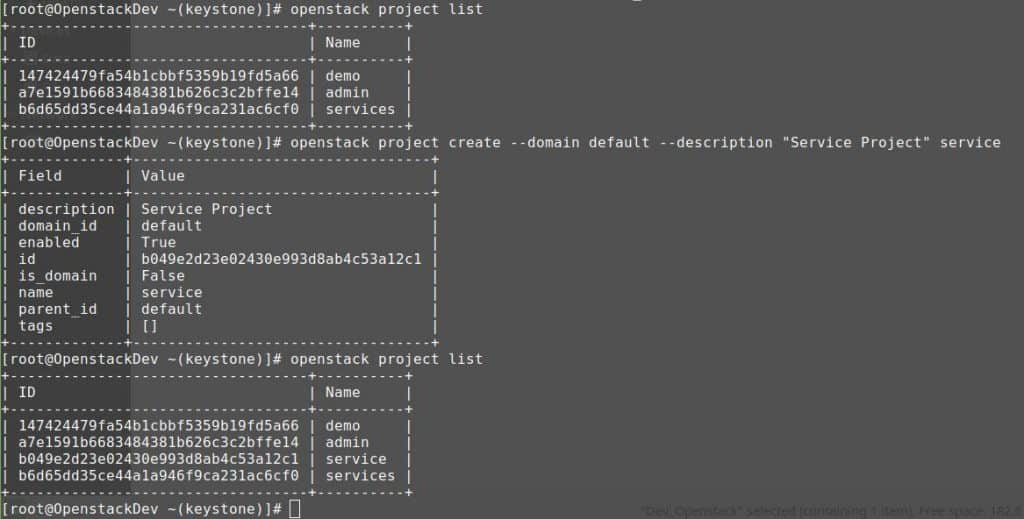
    Create Projects.

    [vagrant@DevopsRoles ~]# openstack project create --domain default --description "Service Project" service 
    #To confirm settings create Projects
    [vagrant@DevopsRoles ~(keystone)]# openstack project list

    You have to Install and configure OpenStack Keystone. Thank you for reading the DevopsRoles page!

    Install OpenStack all in one centos 7

    Introduction

    In this tutorial, How to install OpenStack all in one Centos 7. OpenStack is open-source for setting up Infrastructure as a service. It provides a solution for both the public and private cloud.

    For production a minimal OpenStack setup requires one controller and one compute node. To get started OpenStack is a practice to set up all-in-one deployment.

    To install OpenStack “all-in-one” on CentOS 7, you can follow these steps:

    Install OpenStack All in One Centos 7

    My environment

    • My Laptop use OS Linux Mint
    • Installed Vagrant + VirtualBox

    For example, I create a new Vagrantfile file Vagrant for OpenStack.

    huupv@huupv-VivoBook-S15-X530UA:~/VMs_vagrant/Dev_Openstack$ cat Vagrantfile 
    
    # The content as below
    Vagrant.configure("2") do |config|
    config.ssh.insert_key = false
    config.vm.provider :virtualbox do |vb|
      vb.memory = 4500
      vb.cpus = 2
    end
    # Application server 1.
    config.vm.define "app3" do |app3|
      app3.vm.hostname = "OpenstackDev"
      app3.vm.box = "centos/7"
      # app3.vm.network "private_network", ip: "172.20.19.31"
      app3.vbguest.installer_options = { allow_kernel_upgrade: true }
      app3.vm.network :forwarded_port, guest: 80, host: 8080
      app3.vm.network :forwarded_port, guest: 5000, host: 5000
      app3.vm.network :forwarded_port, guest: 9696, host: 9696
      app3.vm.network :forwarded_port, guest: 8774, host: 8774
      app3.vm.network :forwarded_port, guest: 35357, host: 35357
    end
    end
    

    How to do it set up OpenStack for deployment

    1. Prerequisites

    To recommend/best practice for OpenStack disable Firewalld, NetworkManager, and SELinux.

    Stop and disable NetworkManager

    sudo systemctl stop NetworkManager
    sudo systemctl disable NetworkManager

    Stop and disable firewalld

    sudo systemctl stop firewalld
    sudo systemctl disable firewalld

    Restart network service

    sudo systemctl restart network

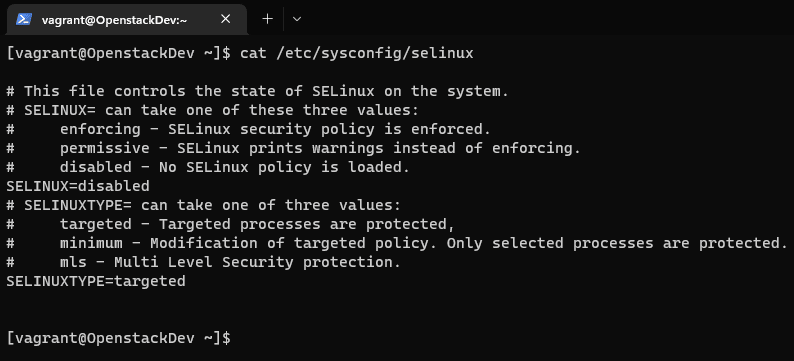
    Disable SELinux

    Can do it permanently in file /etc/selinux/config change SELINUX=enforcing to SELINUX=disabled.

    Update your system.

    sudo yum -y update

    Configure a static IP address and set your hostname in /etc/hosts

    Restart the machine.

    2. Install OpenStack RPM

    On CentOS, the Extras repository provides the RPM that enables the OpenStack repository.

    sudo yum install -y centos-release-openstack-stein

    3. Install Packstack

    sudo yum install -y openstack-packstack

    4. Deploy and run OpenStack using Packstack

    sudo packstack --allinone

    The output is below

    [vagrant@OpenstackDev ~]$ sudo packstack --allinone
    Welcome to the Packstack setup utility
    
    The installation log file is available at: /var/tmp/packstack/20190716-150951-Z_3kTo/openstack-setup.log
    
    Installing:
    Clean Up                                             [ DONE ]
    Discovering ip protocol version                      [ DONE ]
    Setting up ssh keys                                  [ DONE ]
    Preparing servers                                    [ DONE ]
    Pre installing Puppet and discovering hosts' details [ DONE ]
    Preparing pre-install entries                        [ DONE ]
    Setting up CACERT                                    [ DONE ]
    Preparing AMQP entries                               [ DONE ]
    Preparing MariaDB entries                            [ DONE ]
    Fixing Keystone LDAP config parameters to be undef if empty[ DONE ]
    Preparing Keystone entries                           [ DONE ]
    Preparing Glance entries                             [ DONE ]
    Checking if the Cinder server has a cinder-volumes vg[ DONE ]
    Preparing Cinder entries                             [ DONE ]
    Preparing Nova API entries                           [ DONE ]
    Creating ssh keys for Nova migration                 [ DONE ]
    Gathering ssh host keys for Nova migration           [ DONE ]
    Preparing Nova Compute entries                       [ DONE ]
    Preparing Nova Scheduler entries                     [ DONE ]
    Preparing Nova VNC Proxy entries                     [ DONE ]
    Preparing OpenStack Network-related Nova entries     [ DONE ]
    Preparing Nova Common entries                        [ DONE ]
    Preparing Neutron LBaaS Agent entries                [ DONE ]
    Preparing Neutron API entries                        [ DONE ]
    Preparing Neutron L3 entries                         [ DONE ]
    Preparing Neutron L2 Agent entries                   [ DONE ]
    Preparing Neutron DHCP Agent entries                 [ DONE ]
    Preparing Neutron Metering Agent entries             [ DONE ]
    Checking if NetworkManager is enabled and running    [ DONE ]
    Preparing OpenStack Client entries                   [ DONE ]
    Preparing Horizon entries                            [ DONE ]
    Preparing Swift builder entries                      [ DONE ]
    Preparing Swift proxy entries                        [ DONE ]
    Preparing Swift storage entries                      [ DONE ]
    Preparing Gnocchi entries                            [ DONE ]
    Preparing Redis entries                              [ DONE ]
    Preparing Ceilometer entries                         [ DONE ]
    Preparing Aodh entries                               [ DONE ]
    Preparing Puppet manifests                           [ DONE ]
    Copying Puppet modules and manifests                 [ DONE ]
    Applying 10.0.2.15_controller.pp
    10.0.2.15_controller.pp:                             [ DONE ]      
    Applying 10.0.2.15_network.pp
    10.0.2.15_network.pp:                                [ DONE ]   
    Applying 10.0.2.15_compute.pp
    10.0.2.15_compute.pp:                                [ DONE ]   
    Applying Puppet manifests                            [ DONE ]
    Finalizing                                           [ DONE ]
    
     **** Installation completed successfully ******
    
     * A new answerfile was created in: /root/packstack-answers-20190716-150952.txt
     * Time synchronization installation was skipped. Please note that unsynchronized time on server instances might be problem for some OpenStack components.
     * File /root/keystonerc_admin has been created on OpenStack client host 10.0.2.15. To use the command line tools you need to source the file.
     * To access the OpenStack Dashboard browse to http://10.0.2.15/dashboard .
    Please, find your login credentials stored in the keystonerc_admin in your home directory.
     * The installation log file is available at: /var/tmp/packstack/20190716-150951-Z_3kTo/openstack-setup.log
     * The generated manifests are available at: /var/tmp/packstack/20190716-150951-Z_3kTo/manifests
    

    5. Verify

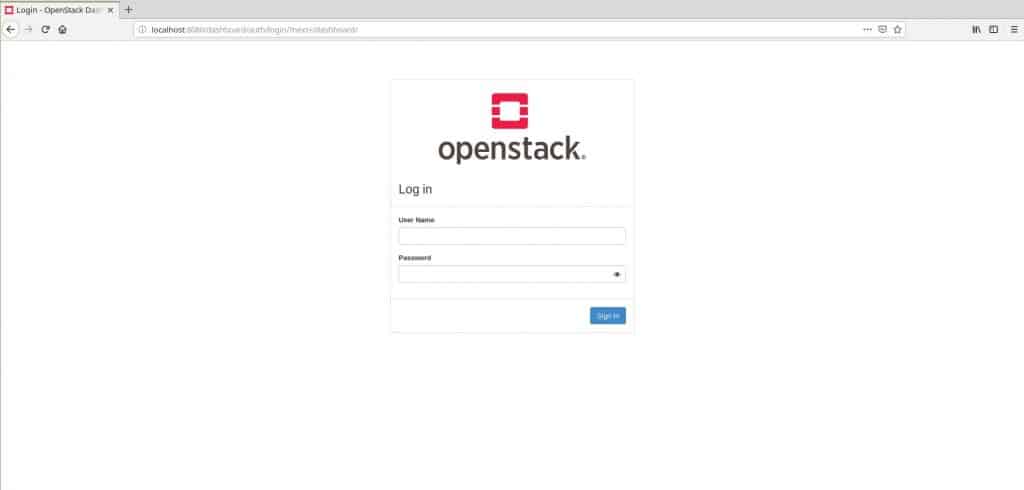
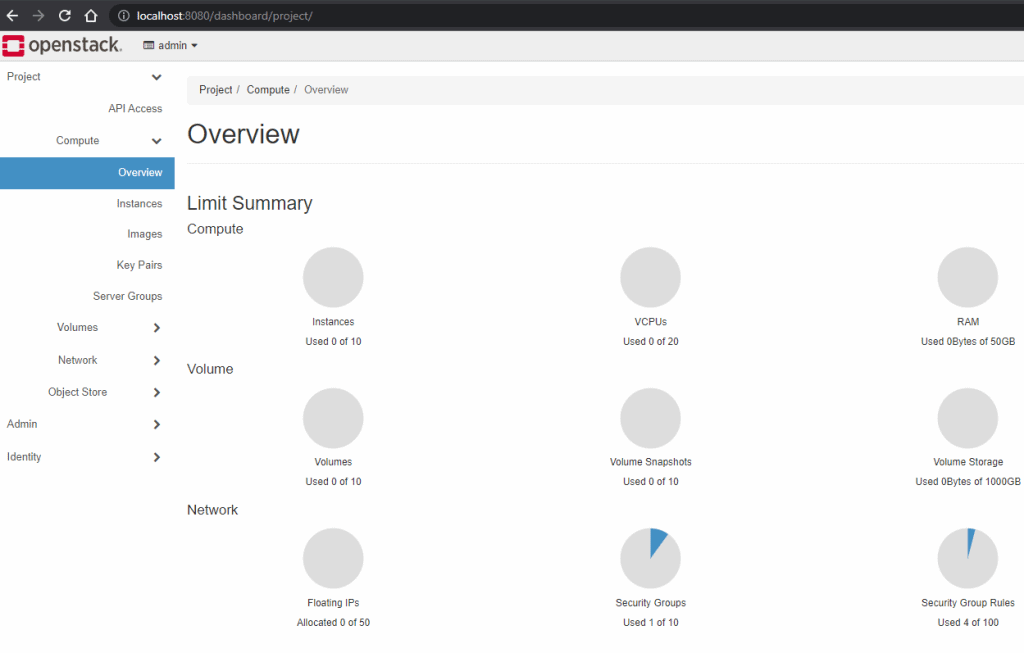
    Logging into the dashboard (called Horizon). Link access http://localhost:8080/dashboard

    Password user admin for OpenStack “A new answerfile file was created in/root/packstack-answers-20190716-150952.txt” during install OpenStack.

    $ sudo cat /root/packstack-answers-20190716-150952.txt | grep ADMIN

    For example, The password for admin as the picture below:

    Conclusion

    This tutorial provides a comprehensive guide on installing OpenStack all-in-one on CentOS 7. It is designed to help users set up their own private cloud infrastructure using OpenStack, offering step-by-step instructions on the deployment process.

    This approach is especially beneficial for those looking to learn about cloud infrastructure or needing a development environment for testing. By following this guide, users can leverage OpenStack’s capabilities to create a versatile and scalable cloud platform using CentOS 7. Thank you for reading the DevopsRoles page!